USER MANUAL ForeVive SB320 Forever
Thank you for purchasing a product by Forever. Before use, please refer to the User's manual, and save it for future reference. Do not disassemble the device on your own – all repairs should be done by a service technician. Use only original parts and accessories provided by the manufacturer. The device should not be exposed directly to water, moisture, sunlight, fire or other heat sources. We hope that the product by Forever fulfills your expectations.
Description
- Touch screen
- Touch button
- Heart rate monitor
- Charging connector
Charging
Place the smartwatch into a special handle in a way to connect the charging connector with the connector on the handle, and then connect USB cable to a power source.
Forever Smart application installation
Find application called "Forever Smart" in Google Play or App Store shop and install it on the phone.
Connect the smartwatch with the phone
- Activate Bluetooth in your phone.
- Activate "Forever Smart" in your phone and fill all personal information in settings.
- Select "Connect smartwatch" in settings.
- Select the model of your smartwatch.
- Click on appropriate photo of the model you want to connect.
Disconnecting the smartwatch from the phone
- Activate "Forever Smart" in your phone.
- Click "Disconnect smartwatch" in settings and confirm.
- To disconnect the smartwatch from iPhone, click Disconnect
smartwatch in settings of "Forever Smart", and then go to "Bluetooth" settings in the phone settings and select "Forget this device"
Operation
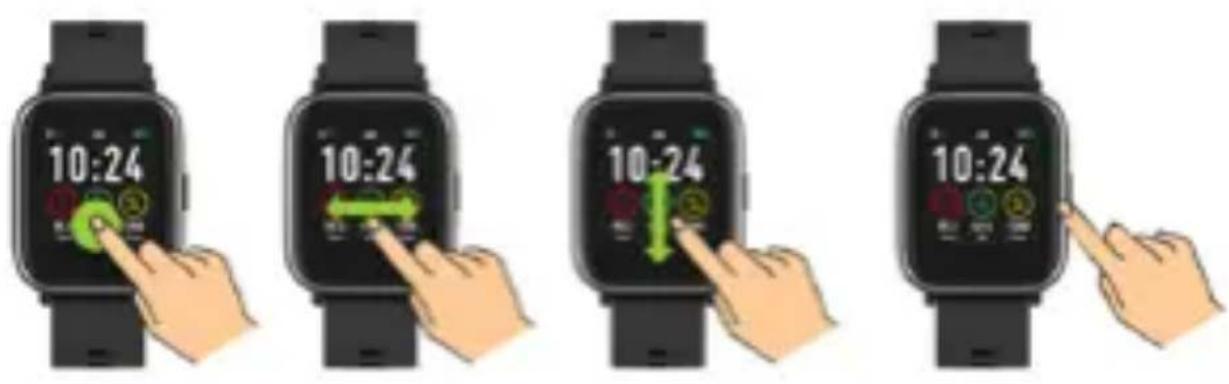
- Move your wrist towards yourself or press the touch button to activate the screen
- Press and hold the main screen, and then move it to the left or right in order to change the main screen.
- Press and hold the touch button to activate the smartwatch.
Operation
Activation: Press and hold the touch button for 3 seconds.
Go to menu: Move up / down or left / right.
Select the function: Move up / down or left / right and click the selected function.
Confirm: Click on the icon of the selected function
Exit: Move from left to right
Return to the main screen: Press the touch button
Check notifications: Move from left to right in the main screen
User interface
flowchart
graph TD
    A["1"] --> B["8-10:25"]
    B --> C["4.5 min"]
    B --> D["120 min"]
    B --> E["200 min"]
    C --> F["80 min"]
    D --> F
    E --> F
    F --> G["12:5"]
    F --> H["10:5"]
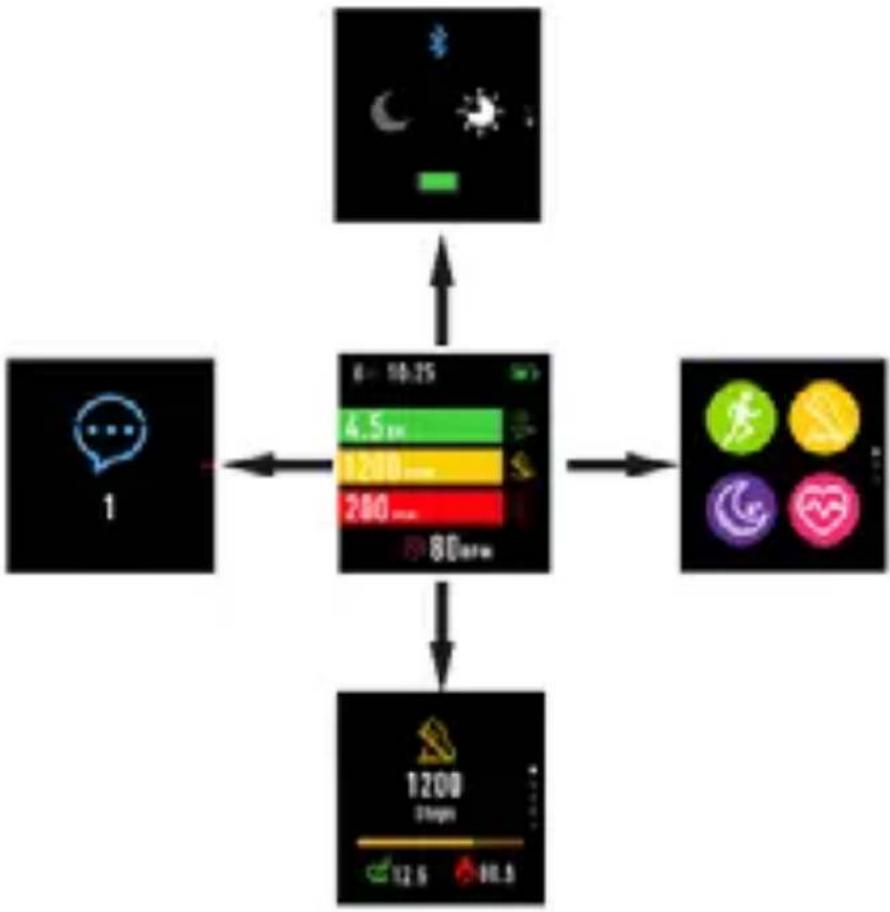
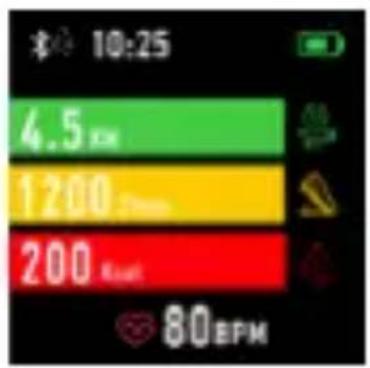
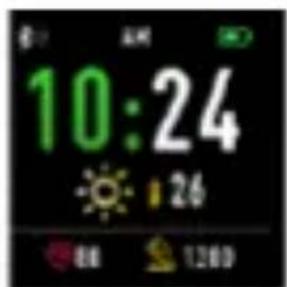
After activation of the smartwatch, the main screen of the device will be visible.
In the main screen:
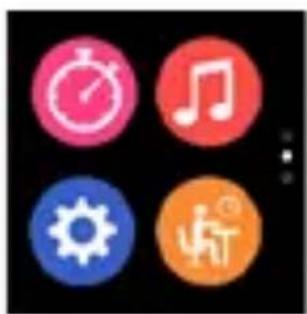
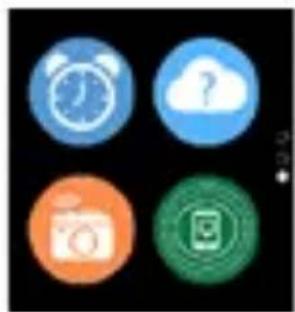
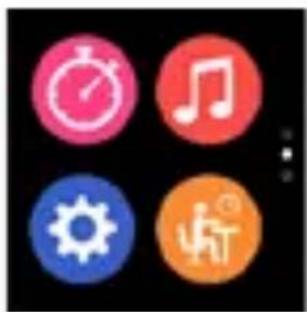
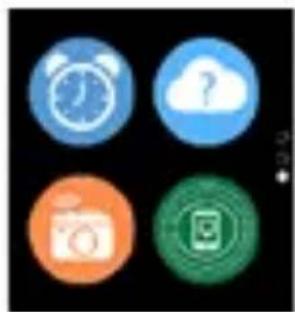
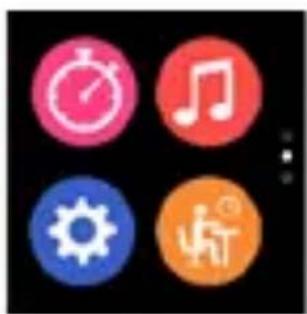
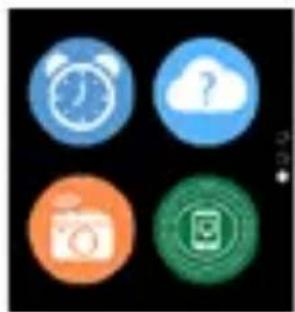
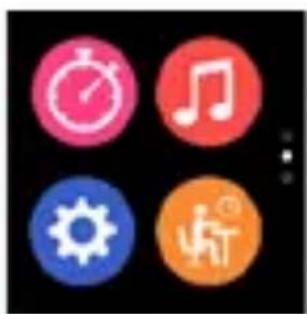
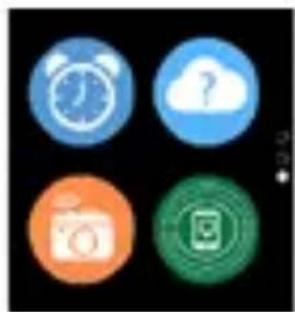
- Go to the main menu
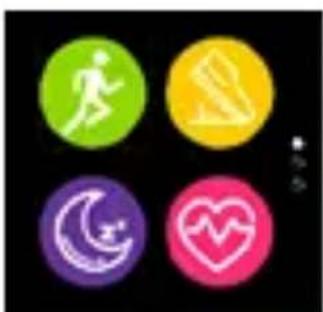
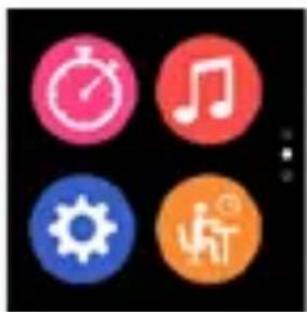
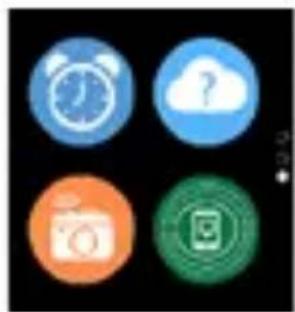
a. Move from right to left in the main screen; you will enter the main menu.
b. Move up or down to move to other pages of the main menu.
c. Click the selected function to open its settings. Move from left to right to return to the last menu.
natural_image
Four colored circular icons with running, walking, moon, and heart symbols on black background (no text or numbers)
natural_image
Four colorful circular icons (clock, musical note, gear, person with motion) on black background, no text or symbols present.
natural_image
Four circular icons on black background: alarm clock, cloud with question mark, camera, and mobile app (no text or symbols)
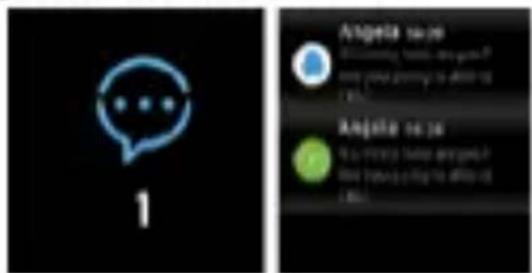
- Go to shortcuts and notifications menu Move from left to right in the main screen
- Move to other shortcuts
Move up and down in the main screen.
Functions
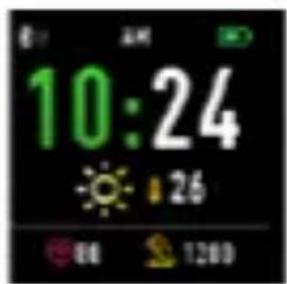
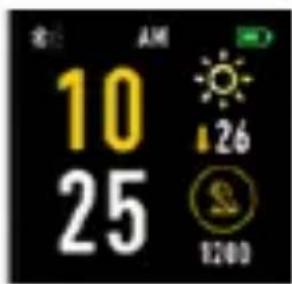
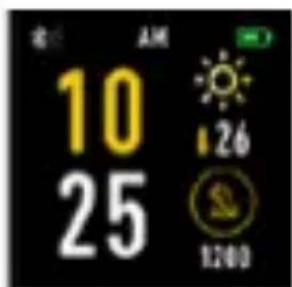
Main screen styles
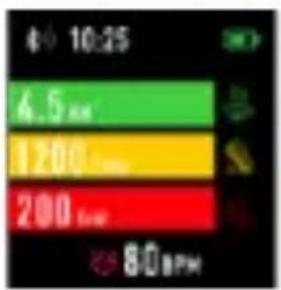
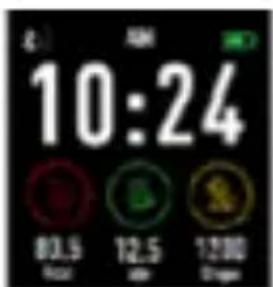
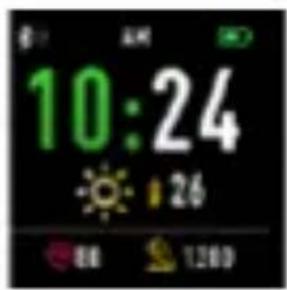
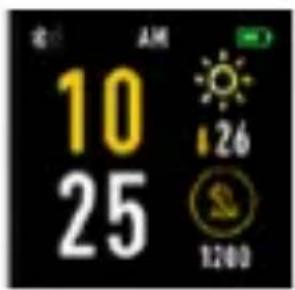
To change the style of the main screen, click and hold the current screen, and then move to left or right to select an appropriate style.
Shortcuts
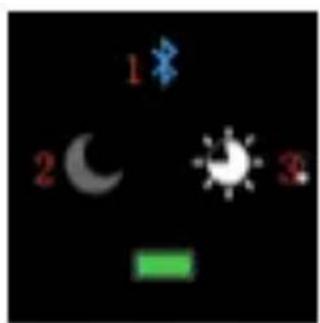
natural_image
Simple weather icons including moon, crescent moon, sun, and green bar on black background (no text or symbols)
1. Bluetooth
Bluetooth is disconnected
Bluetooth is connected
2. Do not disturb mode
Do not disturb mode deactivated
Do not disturb mode activated
3. Bright
Set appropriate screen brightness depending on the lightning in the environment in which the smartwatch is present.
Multisport
natural_image
Yellow circular icon with a human figure inside, set against a black background (no text or symbols)
natural_image
Red circular icon with a white running figure on black background (no text or symbols)
natural_image
Green circular icon with a white silhouette of a person riding a bicycle (no text or symbols)
natural_image
Orange circular icon with a white walking figure silhouette on black background (no text or symbols)
natural_image
Green circular logo with a white stylized human figure in the center, set against a black background (no text or symbols)
Select the sport mode to enter the multisport function. The smartwatch supports five types of sports, such as: walking, jogging, cycling, running on a treadmill and climbing. You can select the sport you want to do in a given moment. The smartwatch will collect data of the selected sport and will record them.

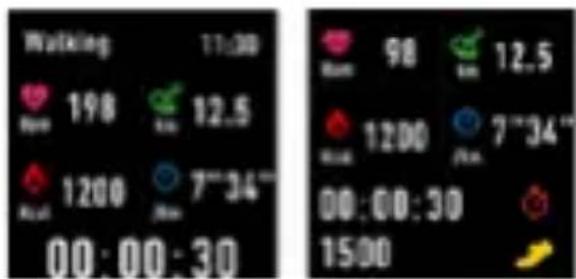
If you want to end the measurement of a given sport, move interface to the right and click the stop icon to stop and save the collected data. The smartwatch will show the recorded data. Connect the smartwatch with Forever Smart application via Bluetooth in order to check and analyze collected in the data in the phone.
NOTE: If the time of a given sport will be shorter than 5 minutes, the data will not be saved.
Heart rate monitor
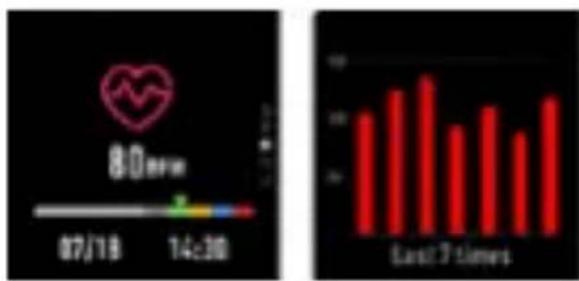
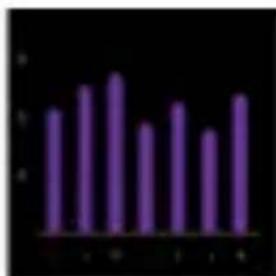
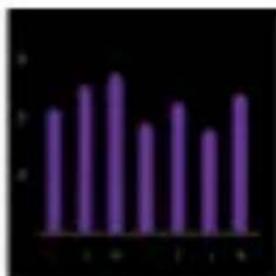
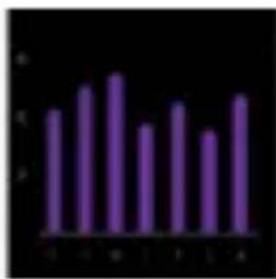
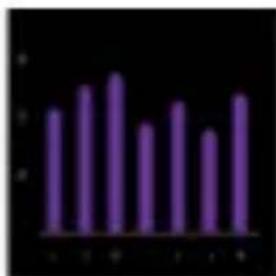
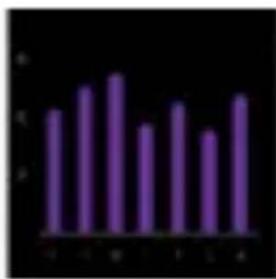
Select the heart rate monitor icon 📋 to carry out heart rate measurement. You can check the last 7 measurements on the chart and compare them. Move the screen to the right to end the heart rate monitor.
Connect the smartwatch with Forever Smart application via Bluetooth in order to check and analyze collected in the data in the phone.
Sleep monitoring
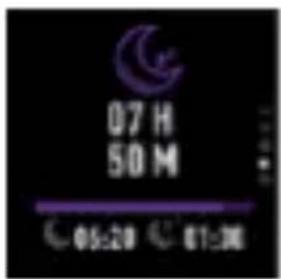
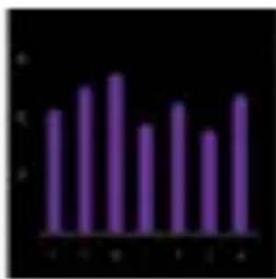
The smartwatch carries out sleep monitoring automatically between 22:00 and 9:00. Select the function on the screen of the smartwatch to view the sleep data from the entire week.
bar
| Category | Value |
|---|---|
| A | 5.0 |
| B | 6.0 |
| C | 7.0 |
| D | 4.0 |
| E | 5.0 |
| F | 4.0 |
After waking up in the morning, the smartwatch will show a report related to sleep by displaying, respectively, the total sleep time, shallow sleep, and deep sleep. Connect the smartwatch with Forever Smart application via Bluetooth in order to check and analyze collected in the data in the phone.
Alarm
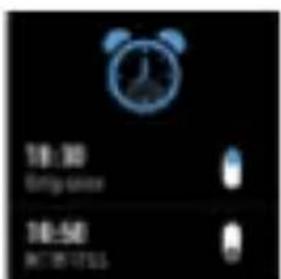

Select the alarm clock icon 📄 to see settings made in "Forever Smart" application. If the alarm clock is activated, the smartwatch will vibrate.
Notifications
natural_image
Blue speech bubble icon with dots inside, labeled '1' below (no text or symbols on the icon itself)
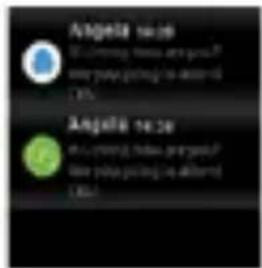
Move from left to right in the main screen to check the notifications regarding phone calls and other SMS messages and notifications from social networks.
Weather
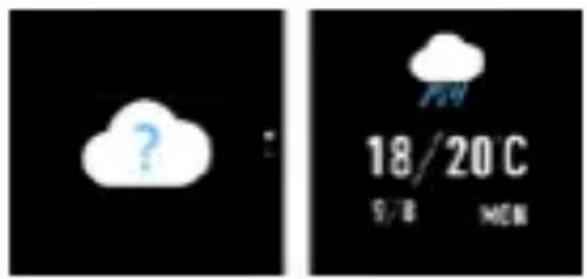
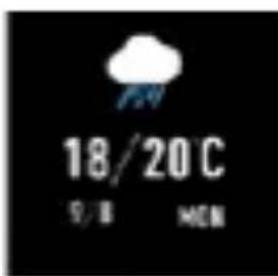
If connection with "Forever Smart" application is established, the smartwatch screen should show the current weather. Manually set the town you are in or use automatic settings.
Camera control
Before using the function 📄 ensure that the camera in the phone is activated. By using this function, you may remotely take a photo using the smartwatch.
Music control
Select 🎧 to go to music control function.
Control the music played in the phone using the function buttons.
Move the screen from left to right to exit the music play function.
natural_image
Three circular icons with play/pause buttons on black background (no text or symbols)
Lack of activity reminder
Select the icon to enter settings of lack of activity reminder. Activat e or deactivate this function. Move from right to left to exit. You may also move to more advanced settings of this function by entering "Forever Smart" settings and set intervals, the start and end time of notifications.
Settings
natural_image
Two colored circular shapes (blue and red) on a black background, no text or symbols present.
Select

to move to the settings screen.
• About the device

natural_image
Blue circular icon with a user silhouette on black background (no text or symbols)
By selecting this icon you may check MAC Bluetooth number of the device, device name and software version.
- Deactivation

natural_image
Red circular icon with a power symbol on black background (no text or numbers)
By selecting this icon, you may deactivate the smartwatch.
Use of application
Tabs:
Today:
- MAIN PANEL – the current number of steps, covered distance, the number of burnt calories – click the selected value to display the chart, go to the selected date.
- WEIGHT – the current weight of the user and target weight indicated by the user – click to display the chart, go to the selected date.
- SLEEP - Sleep monitoring from the last night - click to see details and go to the measurements history.
- HEART RATE MONITOR – The current and the last heart rate measurement, click to see details.
Activity:
- The list of sport activities divided into types. Click the selected activity to see details and analyze the collected data.
Reminder:
- Set the type, day of the week and time of notification you want to receive via the smartwatch. It will vibrate and display the stop watch icon in order to remind about a planned activity.
Settings:
- Call status, time of the last data synchronization, battery level
- My profile - Set the profile photo in the application, enter the name, enter the sex, date of birth, weight and height in order to obtain correct measurements
- Objectives – Settings of target amount of Steps, Distance, Calories, and Sleep. After achieving a given objective, the smartwatch will notify you about this by vibrating and displaying the icon indicating achievement of an objective.
- Notifications – Settings of notifications of the application you want to receive. Select and switch the button to the right to activate a given notification. Move to the left to deactivate them.
- Find the device – find the smartwatch by triggering vibrations by pressing the button (Bluetooth connection is required)
- Take a photo – click to activate the phone camera and control it via the smartwatch by clicking the camera icon.
- Advanced settings:
+ Weather – Select the city from which the data regarding current weather will be collected and transferred to the smartwatch, which will display data after entering the weather screen.
+ Sedentary – Set notification regarding lack of exercise. Select the repetition frequency and the time period in which the reminder will be active
- Drinking water – Set reminder about hydration. Select the frequency and time period in which the reminder will be active
- Do not disturb – complete muting of the smartwatch – set the time period in which the smartwatch will be inactive and no notifications will be received
- Screen activation – turn on to be able to activate the smartwatch screen by wrist movement. The screen will automatically display the time after you move your wrist in order to check the time.
- Google Fit / Apple Health – activate this function to automatically synchronize data collected from Google Fit / Apple Health application
- Themes – select color version of the application
- Connect / Disconnect the device – connect the device with the application or disconnect the current pairing
- Firmware update – the current software version and manual update
- Reset - restore factory settings of the smartwatch
- FAQ – the most frequently asked questions and issues
Cleaning and maintenance of the device
Exposing the metal parts of the device to salt water, chlorine, sweat, as well as skin and body care products may adversely affect the appearance and condition of the watch.
- o prevent negative effects you should clean the device regularly using a soft clean cloth and warm, soapy water, then dry it well afterward.
- Avoid the buildup of grime and other forms of dirt regular on watch case and belt.
• Do not clean your device using strong chemicals or soaps with
fragrances and additives.
• Always use a soft material or cloth to clean the device so as not to scratch the components prone to scratching.
- When the device has contact with water, dry it thoroughly.
• Store the device in dry, airtight containers.
TelForceOne S.A. declares that the product is compatible with requirements and other relevant provisions of the 2014/53/UE directive. You can download the declaration of product on website https://sklep.telforce-one.pl/en-gb/
flowchart
graph TD
    A["Weather icon"] --> B["Central Device"]
    C["Light icon"] --> B
    D["Sun icon"] --> B
    E["Speech bubble"] --> B
    F["Phone icon"] --> B
    G["Social media icon"] --> H["Social interface"]
    I["Fitness card icon"] --> H
    J["Heart icon"] --> H
    K["Smartphone icon"] --> H
    L["Video player icon"] --> H
    M["Video player icon"] --> H
    N["Video player icon"] --> H
    O["Video player icon"] --> H
    P["Video player icon"] --> H
    Q["Video player icon"] --> H
    R["Video player icon"] --> H
    S["Video player icon"] --> H
    T["Video player icon"] --> H
    U["Video player icon"] --> H
    V["Video player icon"] --> H
    W["Video player icon"] --> H
    X["Video player icon"] --> H
    Y["Video player icon"] --> H
    Z["Video player icon"] --> H
natural_image
Four colorful circular icons with running, walking, moon, and heart symbols on black background (no text or numbers)
natural_image
Four colorful circular icons (clock, musical note, gear, person) on black background, no text or symbols present.
natural_image
Four circular icons representing alarm clock, cloud, camera, and mobile app (no text or symbols)
natural_image
Weather icons including moon, sun, and night sky on black background (no text or symbols)
1. Bluetooth
natural_image
Yellow circular icon with a walking figure on black background (no text or symbols)
natural_image
Red circular icon with a white running figure on black background (no text or symbols)
natural_image
Green circular icon with a silhouette of a cyclist on black background (no text or symbols)
natural_image
Orange circular icon with a white human figure silhouette on black background (no text or symbols)
natural_image
Green circular logo with a white silhouette of a running figure on black background (no text or symbols)


bar
| Category | Value |
|---|---|
| 1 | 50 |
| 2 | 60 |
| 3 | 70 |
| 4 | 45 |
| 5 | 55 |
| 6 | 65 |
natural_image
Blue speech bubble icon on black background with the number 1 below (no text or symbols on the speech itself)
natural_image
Three circular icons with play/pause symbols on black background (no text or numbers)
natural_image
Two colored circular shapes (blue and red) on a black background, no text or symbols present.
natural_image
Generic user profile icon with a blue circular background and black background (no text or symbols)
• O urządzeniu
natural_image
Red circular button with power symbol on black background (no text or numbers)
- Wyłączanie
flowchart
graph TD
    A["1"] --> B["80mm Display"]
    C["Weather Icon"] --> B
    D["Social Media Icon"] --> B
    B --> E["Social Media Icon"]
    B --> F["Social Media Icon"]
    B --> G["Social Media Icon"]
    B --> H["Social Media Icon"]
    B --> I["Social Media Icon"]
    B --> J["Social Media Icon"]
    B --> K["Social Media Icon"]
    B --> L["Social Media Icon"]
    B --> M["Social Media Icon"]
    B --> N["Social Media Icon"]
    B --> O["Social Media Icon"]
    B --> P["Social Media Icon"]
    B --> Q["Social Media Icon"]
    B --> R["Social Media Icon"]
    B --> S["Social Media Icon"]
    B --> T["Social Media Icon"]
    B --> U["Social Media Icon"]
    B --> V["Social Media Icon"]
    B --> W["Social Media Icon"]
    B --> X["Social Media Icon"]
    B --> Y["Social Media Icon"]
    B --> Z["Social Media Icon"]
    B --> AA["Social Media Icon"]
    B --> AB["Social Media Icon"]
    B --> AC["Social Media Icon"]
    B --> AD["Social Media Icon"]
    B --> AE["Social Media Icon"]
    B --> AF["Social Media Icon"]
    B --> AG["Social Media Icon"]
    B --> AH["Social Media Icon"]
    B --> AI["Social Media Icon"]
    B --> AJ["Social Media Icon"]
    B --> AK["Social Media Icon"]
    B --> AL["Social Media Icon"]
    B --> AM["Social Media Icon"]
    B --> AN["Social Media Icon"]
    B --> AO["Social Media Icon"]
    B --> AP["Social Media Icon"]
    B --> AQ["Social Media Icon"]
    B --> AR["Social Media Icon"]
    B --> AS["Social Media Icon"]
    B --> AT["Social Media Icon"]
    B --> AU["Social Media Icon"]
    B --> AV["Social Media Icon"]
    B --> AW["Social Media Icon"]
    B --> AX["Social Media Icon"]
    B --> AY["Social Media Icon"]
    B --> AZ["Social Media Icon"]
    B --> BA["Social Media Icon"]
    B --> BB["Social Media Icon"]
    B --> BC["Social Media Icon"]
    B --> BD["Social Media Icon"]
    B --> BE["Social Media Icon"]
    B --> BF["Social Media Icon"]
    B --> BG["Social Media Icon"]
    B --> BH["Social Media Icon"]
    B --> BI["Social Media Icon"]
    B --> BJ["Social Media Icon"]
    B --> BK["Social Media Icon"]
    B --> BL["Social Media Icon"]
    B --> BM["Social Media Icon"]
    B --> BN["Social Media Icon"]
    B --> BO["Social Media Icon"]
    B --> BP["Social Media Icon"]
    B --> BQ["Social Media Icon"]
    B --> BR["Social Media Icon"]
    B --> BS["Social Media Icon"]
    B --> BT["Social Media Icon"]
    B --> BU["Social Media Icon"]
    B --> BV["Social Media Icon"]
    B --> BW["Social Media Icon"]
    B --> BX["Social Media Icon"]
    B --> BY["Social Media Icon"]
    B --> BZ["Social Media Icon"]
natural_image
Four colorful circular icons with running, walking, crescent moon, and heart symbols on black background (no text or numbers)
natural_image
Four colorful circular icons (clock, musical note, gear, music note) on black background, no text or symbols present.
natural_image
Four circular icons representing alarm clock, cloud, camera, and mobile app (no text or symbols)
natural_image
Weather icons including moon, sun, and green bar on black background (no text or symbols)
1. Bluetooth
natural_image
Yellow circular icon with a human silhouette on black background (no text or symbols)
natural_image
Red circular icon with a white running figure on black background (no text or symbols)
natural_image
Green circular icon with a silhouette of a person riding bicycles on a black background (no text or symbols)
natural_image
Orange circular icon with a white human figure silhouette on black background (no text or symbols)
natural_image
Green circular icon with a white running figure silhouette on black background (no text or symbols)

bar
| Category | Value |
|---|---|
| A | 10 |
| B | 15 |
| C | 20 |
| D | 12 |
| E | 18 |
| F | 16 |
natural_image
Simple blue speech bubble icon with three dots inside, labeled '1' below (no text or symbols on the speech itself)
natural_image
Three circular icons with blue play button symbols on black background (no text or numbers)
Lack of activity reminder
natural_image
Two colored circular shapes (blue and red) on a black background, no text or symbols present.
Изберете

natural_image
Generic user profile icon with a blue circular background and black background (no text or symbols)
natural_image
Red circular button with white power symbol on black background (no text or numbers)
natural_image
Four colored circular icons with running, walking, sleep, crescent moon, and heart symbols on black background (no text or numbers)
natural_image
Four colorful circular icons (clock, musical note, gear, music note) on black background, no text or symbols present.
natural_image
Four circular icons on black background: alarm clock, cloud with question mark, camera, and mobile app (no text or symbols)
natural_image
Simple weather icons including moon, crescent moon, sun, and green bar on black background (no text or symbols)
1. Bluetooth
natural_image
Yellow circular icon with a white human figure silhouette on black background (no text or symbols)
natural_image
Red circular icon with a running figure on black background (no text or symbols)
natural_image
Green circular icon with a white silhouette of a person riding a bicycle on black background (no text or symbols)
natural_image
Orange circular icon with a white human figure silhouette on black background (no text or symbols)
natural_image
Green circular icon with a white running figure silhouette on black background (no text or symbols)
natural_image
Blue speech bubble icon on black background with number 1 below (no text or symbols on the icon itself)
natural_image
Simple cloud icon with a question mark inside, set against a black background (no text or symbols)
natural_image
Three circular icons with play and pause symbols on a black background (no text or numbers)
natural_image
Two colored circular shapes (blue and red) on a black background, no text or symbols present.
natural_image
Blue circular icon with a user silhouette on black background (no text or symbols)
natural_image
Red circular button with white power symbol on black background (no text or numbers)
natural_image
Four colorful circular icons with running, walking, crescent moon, and heart symbols on black background (no text or numbers)
natural_image
Four colorful circular icons (clock, musical note, gear, person with hand) on black background, no text or symbols present.
natural_image
Four circular icons representing alarm, cloud, camera, and mobile app (no text or symbols)
natural_image
Weather icons including moon, sun, and green bar on black background (no text or symbols)
1. Bluetooth
natural_image
Yellow circular icon with a walking figure on black background (no text or symbols)
natural_image
Red circular icon with a white running figure on black background (no text or symbols)
natural_image
Green circular icon with a white silhouette of a cyclist on black background (no text or symbols)
natural_image
Orange circular icon with a white human figure silhouette on black background (no text or symbols)
natural_image
Green circular icon with a white running figure silhouette on black background (no text or symbols)
bar
| Category | Value |
|---|---|
| A | 4.5 |
| B | 5.2 |
| C | 5.8 |
| D | 3.9 |
| E | 4.7 |
| F | 3.6 |
| G | 5.1 |
natural_image
Blue speech bubble icon with three dots inside, labeled '1' below (no text or symbols on the icon itself)
natural_image
Three circular icons with play and audio playback buttons on black background (no text or symbols)
Bewegungserinnerung
natural_image
Two colored circular shapes (blue and red) on a black background, no text or symbols present.
natural_image
Blue circular icon with a user silhouette on black background (no text or symbols)
natural_image
Four colorful circular icons with running, walking, crescent moon, and heart symbols on black background (no text or numbers)
natural_image
Four colorful circular icons (clock, musical note, gear, person with motion) on black background, no text or symbols present.
natural_image
Four circular icons on black background: alarm clock, cloud with question mark, camera, and mobile app (no text or symbols)
natural_image
Weather icons including moon, sun, and green bar on black background (no text or symbols)
1. Bluetooth
natural_image
Yellow circular icon with a white human figure inside, set against a black background (no text or symbols)
natural_image
Red circular icon with a white running figure on black background (no text or symbols)
natural_image
Green circular icon with a white silhouette of a person riding a bicycle (no text or symbols)
natural_image
Orange circular icon with a white human figure silhouette on black background (no text or symbols)
natural_image
Green circular icon with a white running figure silhouette on black background (no text or symbols)
bar
| Category | Value |
|---|---|
| 1 | 60 |
| 2 | 75 |
| 3 | 80 |
| 4 | 65 |
| 5 | 70 |
| 6 | 60 |
| 7 | 75 |
| 8 | 80 |
natural_image
Blue speech bubble icon with three dots inside, labeled '1' at bottom (no text or symbols on background)
natural_image
Three circular icons with play/pause symbols on a black background (no text or numbers)
natural_image
Two colored circular shapes (blue and red) on a black background, no text or symbols present.
natural_image
Blue circular icon with a user silhouette inside, set against a black background (no text or symbols)
natural_image
Red circular button with white power symbol on black background (no text or numbers)
natural_image
Four colored circular icons with running, walking, lightning bolt, crescent moon, and heart symbols on black background (no text or numbers)
natural_image
Four colorful circular icons (clock, musical note, gear, person) on black background, no text or symbols present
natural_image
Four circular icons representing different app or settings (clock, cloud, camera, mobile phone) on a black background, no text or symbols present.
natural_image
Blue speech bubble icon with dotted lines on black background, labeled '1' below (no text or symbols within the graphic)
natural_image
Weather icons including moon, sun, and light on black background (no text or symbols)
1. Bluetooth
natural_image
Yellow circular icon with a white human figure in the center, set against a black background (no text or symbols)
natural_image
Red circular icon with a white running figure on black background (no text or symbols)
natural_image
Green circular icon with a white silhouette of a person riding a bicycle (no text or symbols)
natural_image
Orange circular icon with a white walking figure silhouette on black background (no text or symbols)
natural_image
Green circular icon with a white human figure silhouette on black background (no text or symbols)
natural_image
Simple blue speech bubble icon with three dots inside, labeled '1' below (no text or symbols on the icon itself)
natural_image
Three circular icons with play and audio playback buttons on black background (no text or symbols)
natural_image
Two colored circular shapes (blue and red) on a black background, no text or symbols present.
natural_image
Blue circular icon with a user silhouette on black background (no text or symbols)
natural_image
Red circular button with white power symbol on black background (no text or numbers)
natural_image
Four colorful circular icons with running, walking, running suit, crescent moon, and heart symbols on black background (no text or numbers)
natural_image
Four colorful circular icons (clock, musical note, gear, music note) on black background, no text or symbols present.
natural_image
Four circular icons representing different app or service features (clock, cloud, camera, mobile phone) on a black background.
natural_image
Weather icons including moon, sun, and star on black background (no text or symbols)
1. Bluetooth
natural_image
Yellow circular icon with a white human figure silhouette on black background (no text or symbols)
natural_image
Red circular icon with a white running figure on black background (no text or symbols)
natural_image
Green circular icon with a white silhouette of a person riding a bicycle (no text or symbols)
natural_image
Orange circular icon with a white walking figure silhouette on black background (no text or symbols)
natural_image
Green circular icon with a white running figure silhouette on black background (no text or symbols)

natural_image
Blue speech bubble icon with three dots inside, labeled '1' below (no text or symbols on the speech itself)
natural_image
Three circular icons with play and pause symbols on a black background (no text or numbers)
Rappel sédentaire
natural_image
Two colored circular shapes (blue and red) on a black background, no text or symbols present.
natural_image
Blue circular icon with a user profile silhouette on black background (no text or symbols)
natural_image
Red circular button with white power symbol on black background (no text or numbers)
natural_image
Four colored circular icons with running, walking, moon, and heart symbols on black background (no text or numbers)
natural_image
Four colorful circular icons (clock, musical note, gear, person with hand) on black background, no text or symbols present.
natural_image
Four circular icons on black background: alarm clock, cloud with question mark, camera, and mobile app (no text or symbols)
natural_image
Weather icons including moon, sun, and green bar on black background (no text or symbols)
1. Bluetooth
natural_image
Yellow circular icon with a walking figure on black background (no text or symbols)
natural_image
Red circular icon with a white running figure on black background (no text or symbols)
natural_image
Green circular icon with a silhouette of a person riding a bicycle on black background (no text or symbols)
natural_image
Orange circular icon with a stylized human figure silhouette on black background (no text or symbols)
natural_image
Green circular icon with a white running figure silhouette on black background (no text or symbols)
bar
| Category | Value |
|---|---|
| A | 50 |
| B | 60 |
| C | 70 |
| D | 45 |
| E | 55 |
| F | 40 |
natural_image
Blue speech bubble icon with dots inside, labeled '1' below (no text or symbols on the icon itself)
natural_image
Three circular icons with play/pause symbols on a black background (no text or numbers)
natural_image
Two colored circular shapes (blue and red) on a black background, no text or symbols present.
natural_image
Blue circular icon with a user silhouette on black background (no text or symbols)
natural_image
Red circular button with power symbol on black background (no text or numbers)
natural_image
Four colored circular icons with running, walking, sleep, crescent moon, and heart symbols on black background (no text or numbers)
natural_image
Four colorful circular icons (clock, musical note, gear, music note) on black background, no text or symbols present.
natural_image
Four circular icons on black background: alarm clock, cloud with question mark, camera, and mobile app (no text or symbols)
natural_image
Simple weather icons including moon, sun, and light on black background (no text or symbols)
1. Bluetooth
natural_image
Yellow circular icon with a walking figure on black background (no text or symbols)
natural_image
Red circular icon with a white running figure on black background (no text or symbols)
natural_image
Green circular icon with a white silhouette of a person riding a bicycle (no text or symbols)
natural_image
Orange circular icon with a white human figure silhouette on black background (no text or symbols)
natural_image
Green circular logo with a white stylized character inside, set against a black background (no text or symbols)
natural_image
Blue speech bubble icon with dots inside, labeled '1' below (no text or symbols on the icon itself)
natural_image
Simple cloud icon with a question mark inside, set against a black background (no text or symbols)
natural_image
Three circular icons with play and pause symbols on black background (no text or numbers)
natural_image
Two colored circular shapes (blue and red) on a black background, no text or symbols present.
natural_image
Blue circular icon with a user silhouette on black background (no text or symbols)
natural_image
Red circular button with white power symbol on black background (no text or numbers)