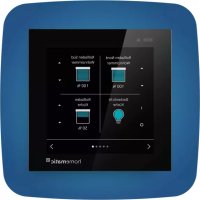
HmIPWWGD - Touchscreen Homematic IP - Free user manual and instructions
Find the device manual for free HmIPWWGD Homematic IP in PDF.


| Product type | Wired wall touchscreen for Homematic IP Smart Home system |
| Model | HmIPWWGD (Wired Glasdisplay) |
| Brand | Homematic IP |
| Dimensions (W × H × D) | 96 × 96 × 40 mm |
| Weight | 131 g |
| Supply voltage | 24 V DC, +/-5 %, SELV |
| Current consumption | 110 mA max. |
| Power consumption standby | 0.6 W |
| Protection type | IP20 |
| Protection class | III |
| Ambient temperature | -5 to +40 °C |
| Installation | In flush-mounted box according to DIN 49073-1, connection to Homematic IP Wired Bus |
| Permitted cable cross-section | Solid 0.12-0.50 mm² |
| Main functions | Touch control of lighting (on/off/dim) and blinds (up/down/position), automatic backlight via proximity sensor |
| Display | Touchscreen with automatic backlight, 3 configurable masks with 1, 2 or 4 sections |
| Interface languages | German, English, French, Spanish, Italian, Dutch |
| Connectivity | Homematic IP Wired Bus (SELV) |
| Registration | Via CCU3 central unit (WebUI) or Homematic IP Cloud via smartphone app |
| Software update | Via SD card inserted into built-in reader |
| Care and cleaning | Clean with a soft, dry, lint-free cloth. Do not use solvents. The device requires no maintenance. |
| Safety | Installation by a qualified electrician; work de-energized; do not open the device; follow local standards; emergency stop possible by reset. |
| Spare parts and reparability | No user-serviceable parts; in case of failure, contact customer service. Mounting plate and screws included. |
| Package contents | Wired glass display, mounting plate, 2 screws 3.2x15 mm, 2 screws 3.2x25 mm, 2 instruction manuals, 1 safety instructions sheet |
| Warranty and conformity | CE marking; use in residential, commercial, and light industrial environments; warranty exclusion in case of non-compliance with instructions. |
Frequently Asked Questions - HmIPWWGD Homematic IP
- 1 long green activation: operation successful.
- 1 long red activation: operation failed, try again.
- Brief orange flash every 10 s: teaching mode active, enter the last 4 digits of the SGTIN.
- 6 long red flashes: device defective, contact dealer.
- Alternating orange/green at power-up: display test, wait for completion.
User questions about HmIPWWGD Homematic IP
0 question about this device. Answer the ones you know or ask your own.
Ask a new question about this device
Download the instructions for your Touchscreen in PDF format for free! Find your manual HmIPWWGD - Homematic IP and take your electronic device back in hand. On this page are published all the documents necessary for the use of your device. HmIPWWGD by Homematic IP.
USER MANUAL HmIPWWGD Homematic IP
text_image
Smart home screen interface displaying four smart home controls with icons and status barLieferumfang
Anzahl Bezeichnung
Printed in Hong Kong
natural_image
3D diagram of a mechanical component with labeled point D, showing a bracket and mounting base (no text or symbols beyond label)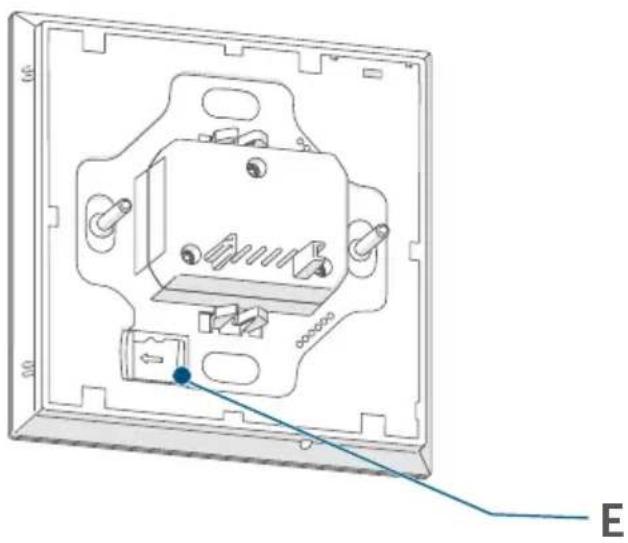
natural_image
Technical line drawing of an electrical socket or switch assembly (no text or symbols)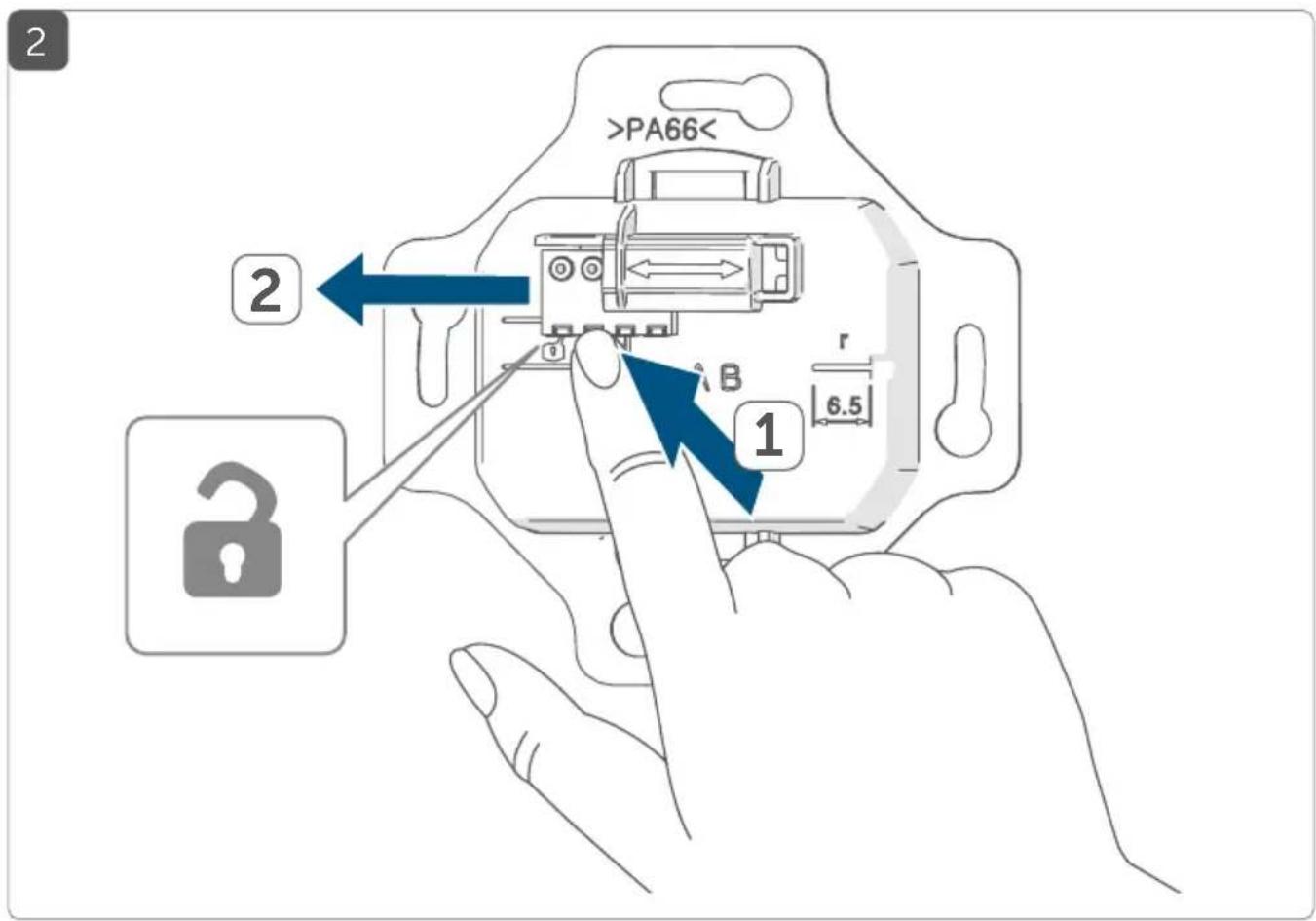
text_image
>PA66< 2 1 6.5 B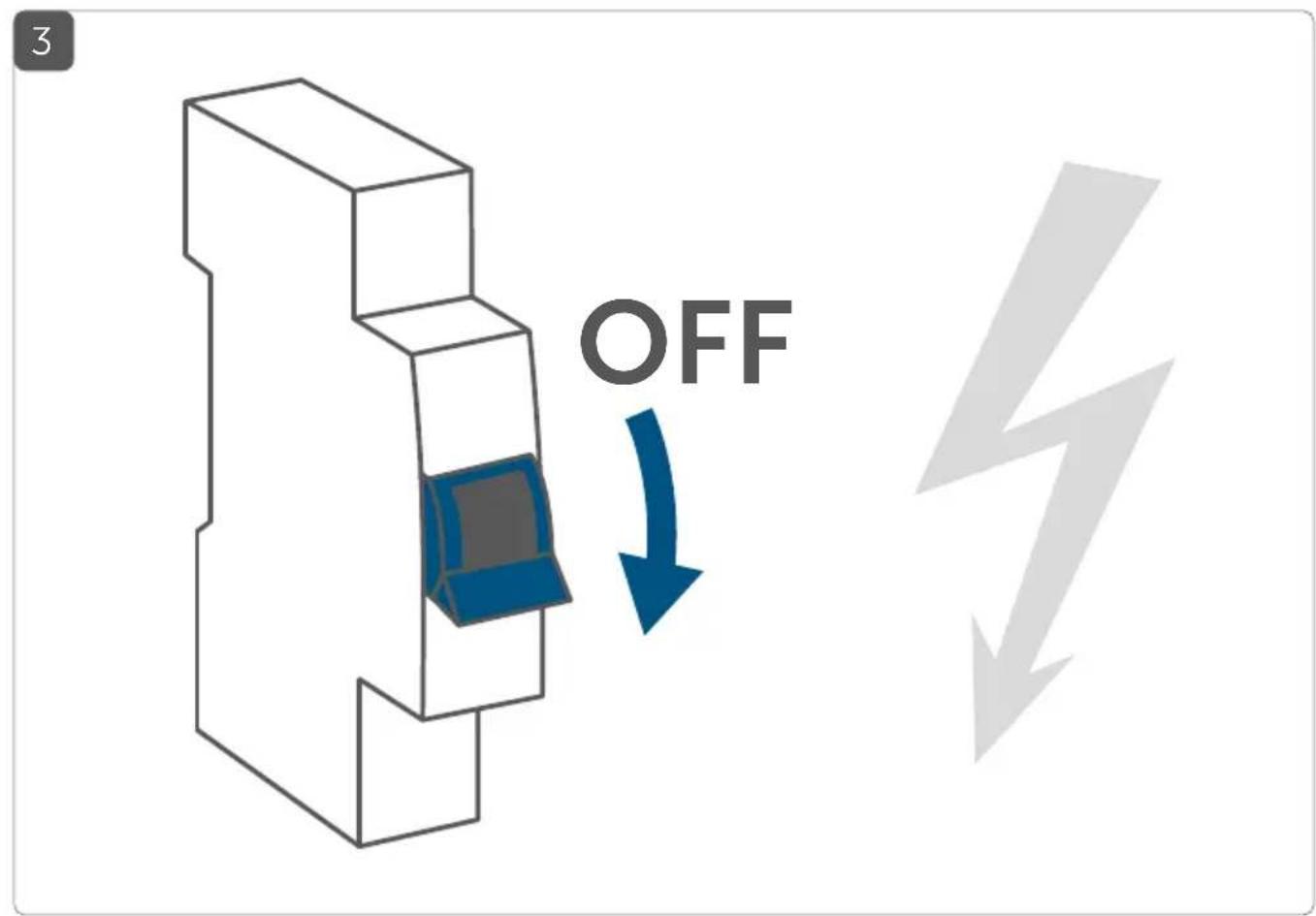
text_image
3 OFF4
text_image
1 + - A B 2 >PA66< 2 - A B r 6.55
text_image
Technical diagram showing mechanical assembly with directional arrows and check/cancel icons, likely illustrating a process or operation.6
text_image
click-7
text_image
ON8
text_image
CCU Homematic40 Homematic40 *9
text_image
Homematic IP HAP Homematic®10
natural_image
Illustration of hands using a tool to adjust or install electronic components, with a blue arrow indicating the process (no text or symbols present)4 s

natural_image
Simple geometric diagram of a clock face with hour and minute hands (no numbers or text)11
natural_image
Illustration of hands using a tool to adjust or install electronic components, with a green circle highlighting a specific part (no text or symbols present)4 s

Inhaltsverzeichnis
1 Homematic IP Wired Glass Display
1 Mounting plate
2 Screws, 3.2 x 15 mm
2 Screws, 3.2 x 25 mm
2 Operating manuals
1 Supplement with safety instructions
ocumentation © 2022 eQ-3 AG, Germany
All rights reserved. Translation from the original version in German. This manual may not be reproduced in any format, either in whole or in part, nor may it be duplicated or edited by electronic, mechanical or chemical means, without the written consent of the publisher.
Typographical and printing errors cannot be excluded. However, the information contained in this manual is reviewed on a regular basis and any necessary corrections will be implemented in the next edition. We accept no liability for technical or typographical errors or the consequences thereof.
All trademarks and industrial property rights are acknowledged.
Printed in Hong Kong
Changes may be made without prior notice as a result of technical advances.
156829 (web)
Version 1.0 (10/2022)
Table of contents
1 Information about this manual 25
2 Hazard information 25
3 Function and device overview 27
4 General system information....27
5 Start-up 28
5.1 Installation instructions 28
5.2 Installation....30
5.3 Pairing 30
5.3.1 Connecting to Homematic IP Central Control Unit CCU3....31
5.3.2 Connecting to the Homematic IP cloud via Wired access point....33
5.4 Import updates via SD card 34
6 Operation 34
7 Error codes and flashing sequences....34
8 Restore factory settings....35
9 Maintenance and cleaning....35
10 Technical specifications 36
1 Information about this manual
Please read this manual carefully before operating your Homematic IP components. Keep the manual so you can refer to it at a later date if you need to. If you hand over the device to other persons for use, please hand over this manual as well.
Symbols used:

Attention!
This indicates a hazard.

Note.
This section contains important additional information.
2 Hazard information

Do not open the device. It does not contain any parts that need to be maintained by the user. If you have any doubts, have the device checked by an expert.

For safety and licensing reasons (CE), unauthorized changes and/or modifications of the device is not permitted.

Do not use the device if there are signs of damage to the housing, control elements or connecting sockets, for example. If you have any doubts, have the device checked by an expert.

The device may only be operated indoors and must be protected from the effects of moisture, vibrations, solar or other methods of heat radiation, cold and mechanical loads.

The device is not a toy: do not allow children to play with it. Do not leave packaging material lying around. Plastic films/bags, pieces of polystyrene, etc. can be dangerous in the hands of a child.

We accept no liability for damage to property or personal injury caused by improper use or the failure to observe the hazard warnings. In such cases, all warranty claims are void. We accept no liability for any consequential damage.

When connecting to the device terminals, observe the cables and cable cross-sections permitted for this purpose.

Disconnect and cover live parts in the vicinity before installing and connecting the device.

The device is part of the building installation. Observe the relevant national standards and directives during planning and set-up. The device is intended for operation within the Homematic IP Wired bus only. The Homematic IP Wired bus is a SELV power circuit. Common cable routing of power supply and the Homematic IP Wired bus in installation or junction boxes is not permitted. The required isolation for power supply of the building installation to the Homematic IP Wired bus must be observed at all times. Non-compliance with the installation instructions can cause fire or introduce other hazards.

The device may only be used for fixed installations. The device must be securely attached within a fixed installation.

Observe the installation instructions for installation in distribution systems (DIN VDE 0100-410).
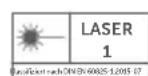
Do not point the laser beam at people. Do not look directly into the beam or its reflection. Manipulating (modifying) the laser device is not permitted. These operating instructions must be kept in a safe place and accompany the laser device if it is given to a third party.

If you use the device/system in a security application, it has to be operated in connection with a UPS (uninterruptible power supply) in order to bridge possible power failure.

Using the device for any purpose other than that described in this operating manual does not fall within the scope of intended use and will invalidate any warranty or liability.

The device may only be operated within a domestic environment, in business and trade areas and in small enterprises.
3 Function and device overview
The Homematic IP Wired Glass Display enables the intuitive operation and overview of versatile functions in the Homematic IP smart home system. For example, lights can be switched on or off, or dimmed and brightened, with a touch. Shutters and blinds can be flexibly raised or lowered, or moved to a specific position.
In addition, the integrated proximity sensor means the display is automatically backlit as soon as a person approaches, making the functions easy to read at all times.
The glass display can be easily mounted on a flush-mounted box using the mounting plate and the mounting material supplied, and connected to the Wired system.
Device overview (see figure 1):
(A) Mounting plate
(B) Touch display
(C) Proximity and brightness sensor
(D) System button (pairing button and LED)
(E) SD card slot
4 General system information
This device is part of the Homematic IP smart home system and works with the Homematic IP protocol. All devices in the Homematic IP system can be configured easily and individually with the CCU3 user interface or flexibly with the smartphone app in connection with the Homematic IP cloud. The
functions provided by the system in combination with other components are described in the Homematic IP Wired User Guide, available for download. All current technical documents and updates are provided at www.homematic-ip.com.
5 Start-up
5.1 Installation instructions

Since the bus is powered by the Homematic IP Wired Access Point (HmIPW-DRAP), you must first set-up a Homematic IP Wired Access Point (HmIPW-DRAP) to enable power supply for the device.

Before installation, please note the device number (SGTIN) labelled on the device as well as the exact application purpose in order to facilitate later allocation. You can also find the device number on the QR code sticker supplied.

Installation may only take place in normal commercial switch boxes (device boxes) in accordance with DIN 49073-1.

Please note the insulation stripping length of the conductor to be connected, indicated on the device.

Please note! Only to be installed by persons with the relevant electro-technical knowledge and experience!*
Incorrect installation can endanger
- your own life,
• and the lives of other users of the electrical system.
Incorrect installation also means that you are running the risk of serious damage to property, e.g. from fire. You risk personal liability for personal injury and property damage.
Consult an electrician!
\*Specialist knowledge required for installation:
The following specialist knowledge is particularly important during installation:
- The "5 safety rules" to be used: disconnect from mains; safeguard from switching on again; check that no voltage is present in system; earth and short circuit; cover or cordon off neighbouring live parts;
- Select suitable tool, measuring equipment and, if necessary, personal safety equipment;
- Evaluation of measuring results;
- Selection of electrical installation material for safeguarding shut-off conditions;
• IP protection types;
• Installation of electrical installation material; - Type of supply network (TN system, IT system, TT system) and the resulting connecting conditions (classical zero balancing, protective earthing, required additional measures etc.).
Permitted cable cross sections for connecting to the device are:
Rigid cable: 0.12-0.50 mm²

For reasons of electrical safety, only the following cables may be used for connecting to the Homematic IP Wired bus:
- Telephone cable J-Y(ST)Y with 2 x 2 x 0.8 (= 0.5 mm ^2 ) or 4 x 2 x 0.8 (= 0.5 mm ^2 ), shielded, TP
- Ethernet installation cable S/FUTP, Type Cat5e or higher with 2 x 2 x AWG22 (= 0.34 mm ^2 ) or 4 x 2 x AWG22 (= 0.34 mm ^2 ), shielded, TP

The shield (continuity wire) must be connected to “−” (=GND) at the bus connection of the Wired access point (HmIPW-DRAP). The shield must not be placed on the glass display.
5.2 Installation

The bus is powered by the Homematic IP Wired Access Point (Hml-PW-DRAP). For further information, please refer to the operating manual of the corresponding Wired Access Points.

To facilitate connection to the terminals, the green push-in terminal can be removed from the device. To do this, release the mounting plate, press the latch on the back next to the lock symbol and slide the clamp out of the mounting plate to the side (see figure 2).
For the installation, please proceed as follows:
- Disconnect the corresponding line of the incoming Homematic IP Wired bus (see figure 3).
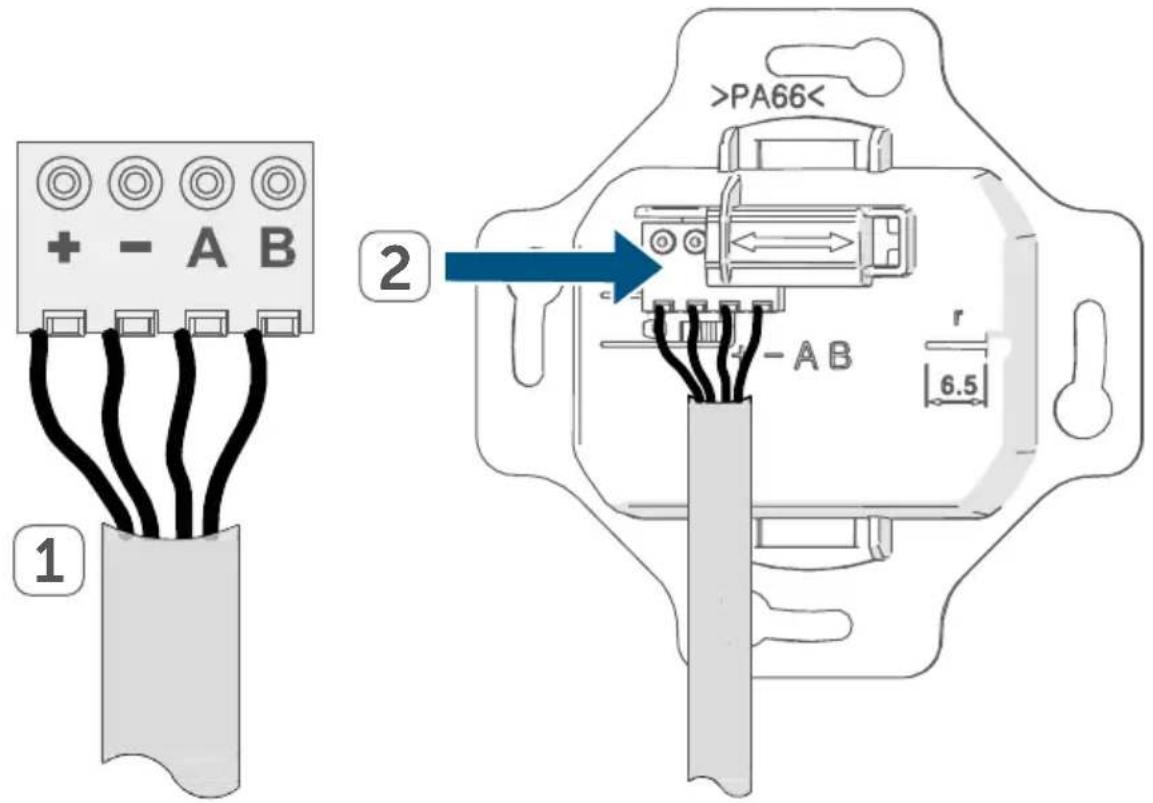
- Connect the Homematic IP Wired bus to the bus connecting terminals (see figure 4). To connect and loosen the individual wires, press the orange clamp using a small screwdriver.
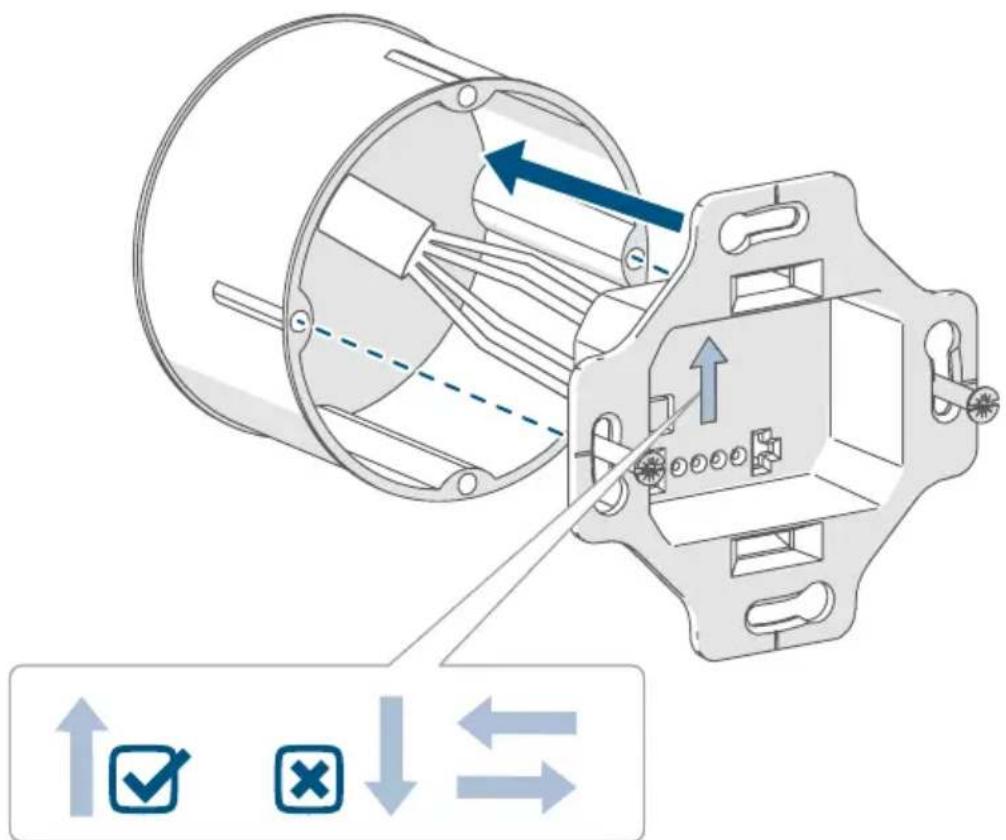
- Place the mounting plate (A) in the flush-mounted box and fasten it to the box using the screws supplied (see figure 5).
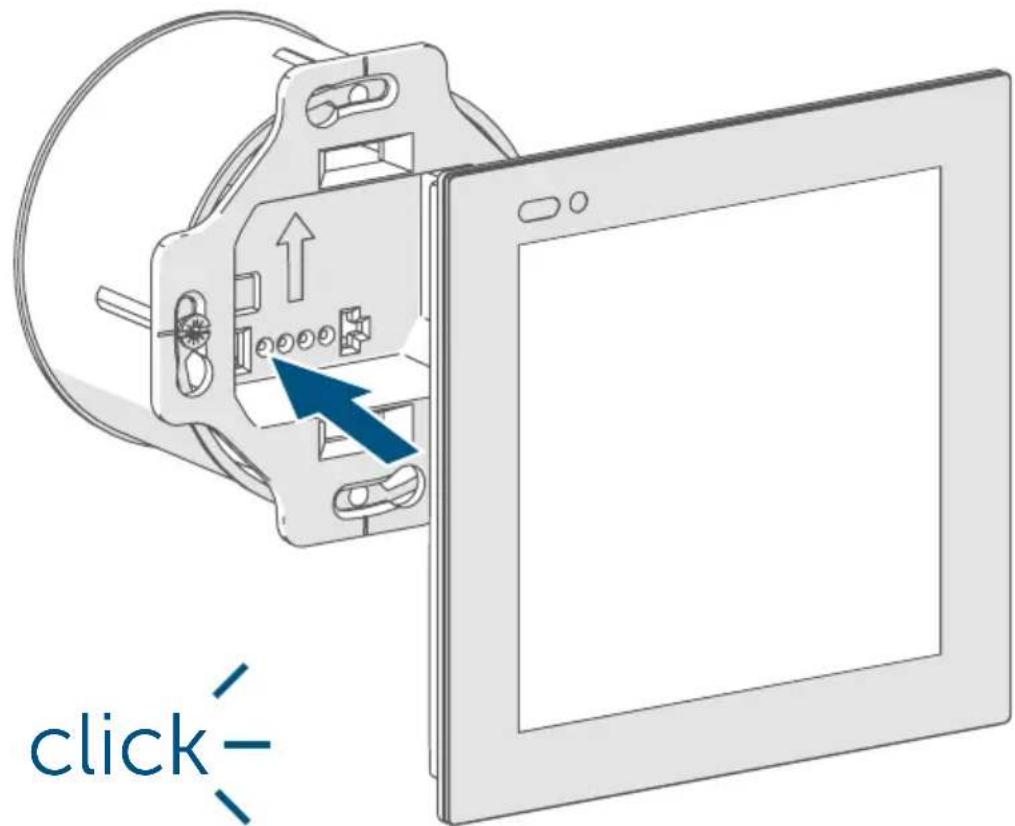
- Place the display (B) in the mounting plate by fully engaging the connecting pins in the mounting plate bracket provided for this purpose (see figure 6).
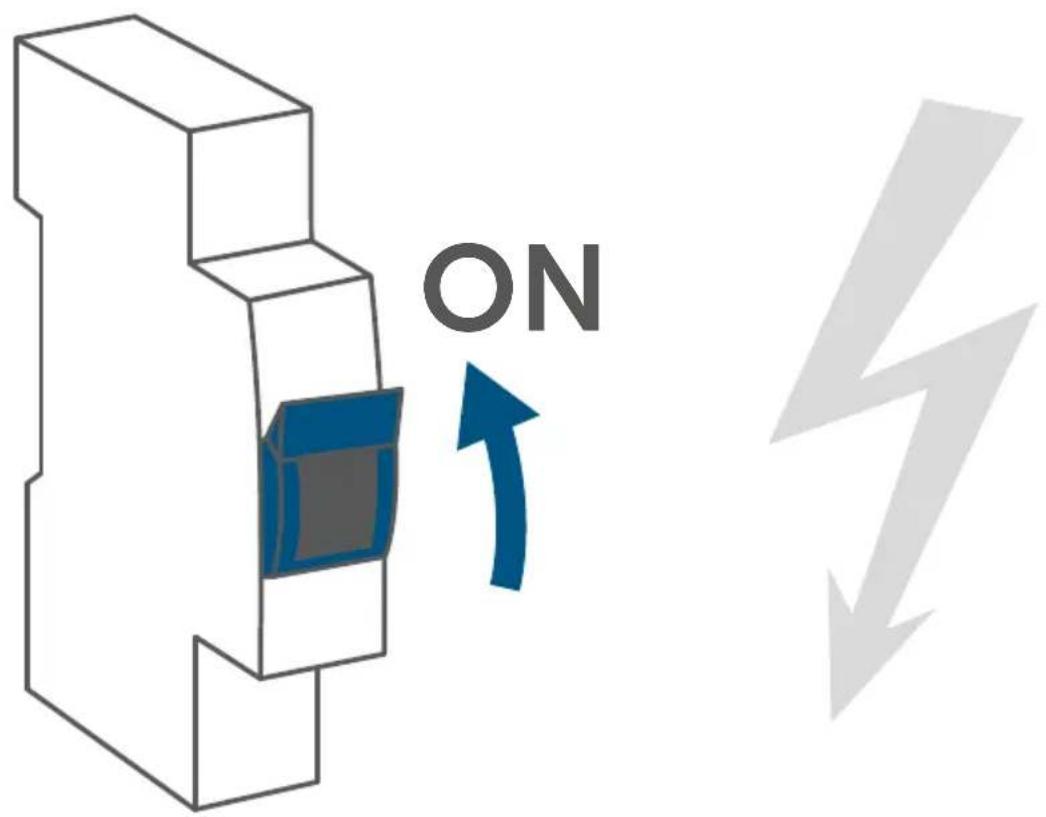
- Switch on the Homematic IP Wired bus again (see figure 7) to activate the device's pairing mode (see „5.3 Anlernen“ auf Seite 30).
5.3 Pairing

Please read this entire section before starting the pairing procedure.

Please refer to the Homematic IP Wired System Manual for detailed information on setup and control options.
To integrate the device into your system and enable it to communicate with other devices, you must first add it. The following set-up and control options are available:
Connecting to the Homematic IP Central Control Unit CCU3
For local, software-based configuration and control via PC, you have the option to connect the device to a Central Control Unit CCU3 and to use it in a wide range of programs (see „5.3.1 Anlernen an die Zentrale CCU3“ auf Seite 31).
Connecting to the Homematic IP cloud
For flexible use via the free smartphone app, you can connect the device to the Homematic IP cloud (see „5.3.2 Anlernen an die Homematic IP Cloud per Wired Access Point“ auf Seite 33). You can
• control the wired system via the smartphone app using the Homematic IP Wired Access Point (HmIPW-DRAP) or
- combine wired devices with wireless Homematic IP devices via the Homematic IP access point (HmIP-HAP).
5.3.1 Connecting to Homematic IP Central Control Unit CCU3
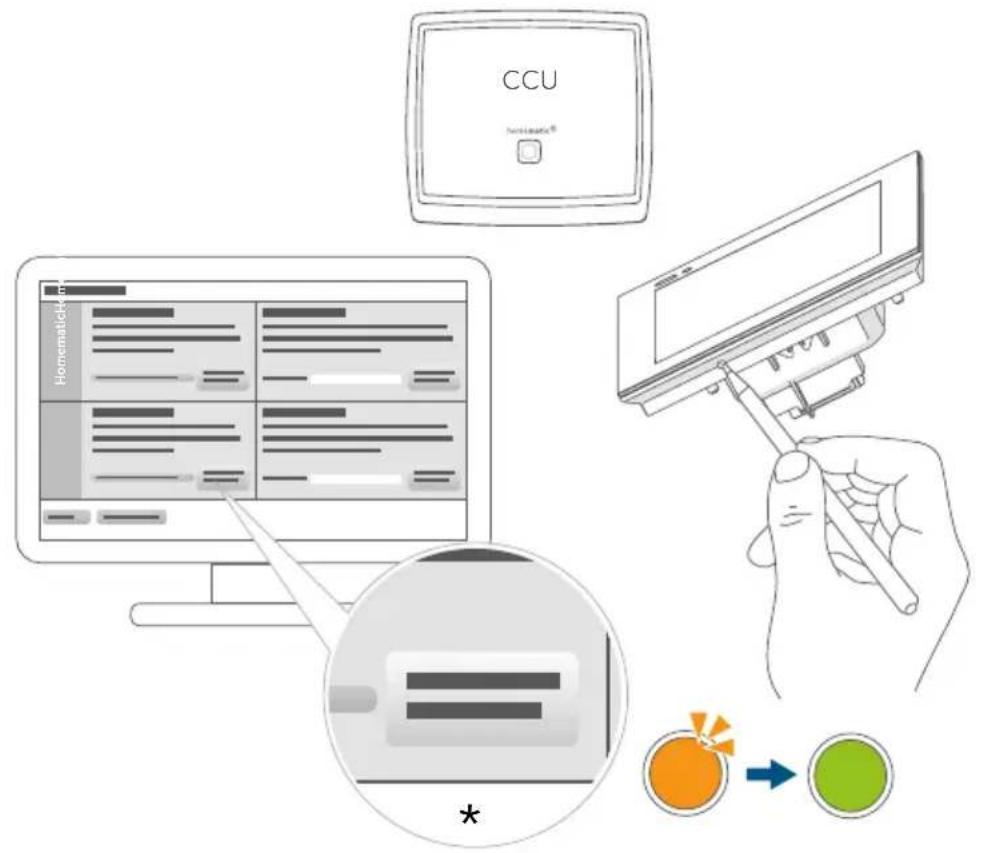
To easily operate and configure Homematic IP Wired devices via software as well as use them in central control unit programs, you have to connect them to the WebUI. To connect the device to the Central Control Unit CCU3, proceed as follows:
- Set up your Central Control Unit CCU3 as described in the operating manual and connect the Homematic IP Wired Access Point.
- Start the user interface "WebUI" on your computer.
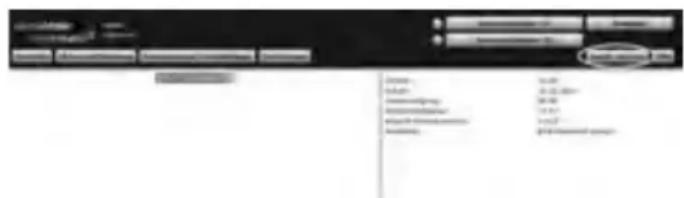
- Click the "Add devices" button on the right-hand side of the screen.
text_image
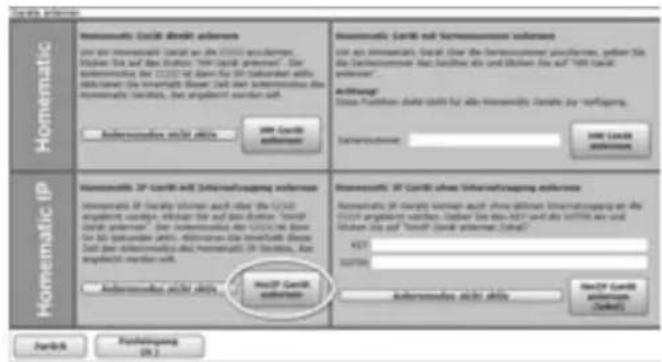
Screenshot of a software interface with menu options and a highlighted 'OK' button, likely for system settings or configuration.- To activate pairing mode, click "Pairing HmlP device" in the next window. The pairing mode of the Central Control Unit will be activated for 60 seconds. An information box shows how much pairing time remains.
text_image
Homematic IP Homomatic IP Control allowers Use the Homematic IP control on the CNTS software. Wishen Data and Data Exchange: 799-CPB software. Our Homematic IP control is done for all software with any other software. The Homematic Web: Web does not transform any other software to help you perform your own functions. Homomatic IP control allowers 200 CPB software Homomatic IP control allowers Homomatic IP control allowers are also other than the CNTS software. With the data from the CNTS software, the Homematic IP control allows that the CNTS software will be used in the CNTS software. Use the Homematic IP control allowers to help you perform your own functions. Homomatic IP control allowers Homomatic IP control allowers are also other than the CNTS software. With the data from the CNTS software, the Homematic IP control allows that the CNTS software will be used in the CNTS software. Homomatic IP control allowers Homomatic IP control allowers are also other than the CNTS software. With the data from the CNTS software, the Homematic IP control allows that the CNTS software will be used in the CNTS software.- After connecting the power supply, the device is active for 3 minutes.

You can manually start the pairing mode for another 3 minutes by pressing the system button (D) briefly using a pointed object (e.g. a pen) (see figure 8).
- Wait until pairing is completed.
- If pairing was successful, the LED (D) lights up green. The device is now ready for use.
• If the LED lights up red, please try again. - After a short time, the newly added device will appear in the in-box of your software interface.
Newly connected devices and the corresponding channels are ready for operation and configuration only after they have been configured in the inbox. You will find further information in the Homematic IP Wired Installation Guide at www.homematic-ip.com.

For operating without an Internet connection, please select the option "Adding Homematic IP device without Internet connection". Enter the SGTIN and key of the device into the corresponding fields. You will find the SGTIN and the key on the supplied sticker. Keep the sticker in a safe place.
5.3.2 Connecting to the Homematic IP cloud via Wired access point
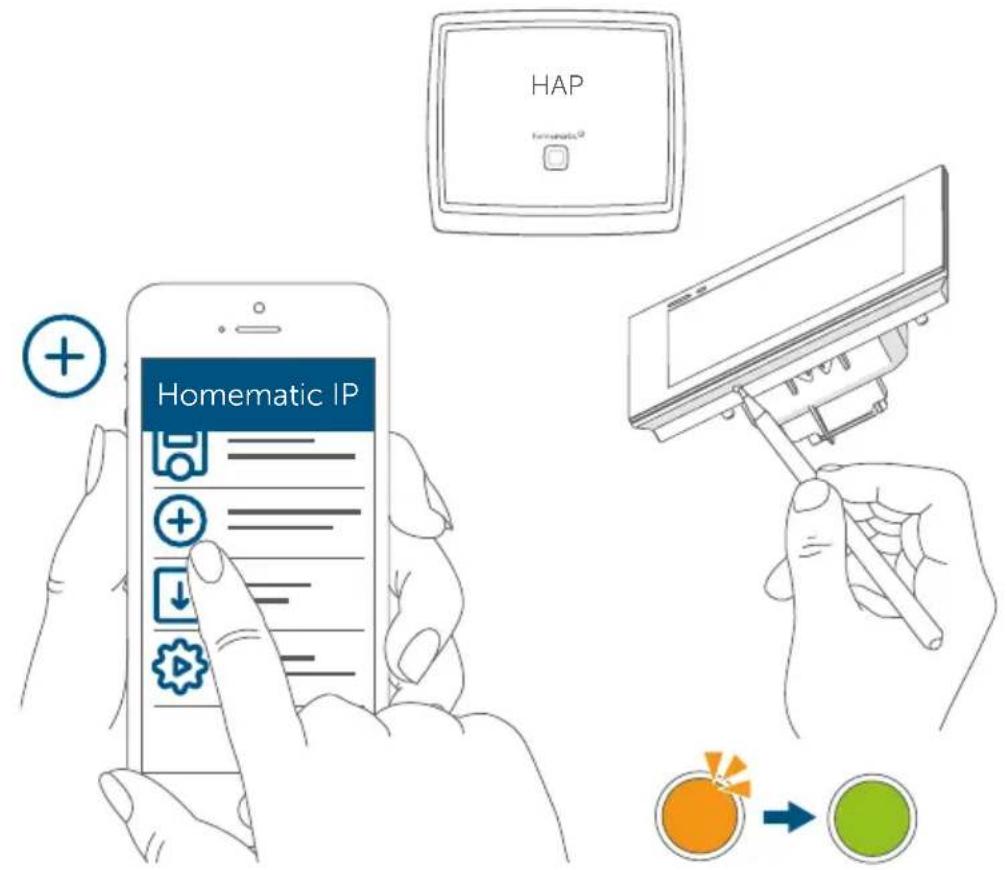
If you want to control your Homematic IP Wired devices flexibly via the smartphone app, they can be connected to the Homematic IP cloud. To do this, proceed as follows:
- Open the Homematic IP app on your smartphone.
- Connect the Homematic IP Wired Access Point via the smartphone app to the Homematic IP cloud, as described in the corresponding manual.
- Select the menu item "Add device".
- After connecting the power supply, the device's pairing mode is active for 3 minutes.

You can manually start the pairing mode for another 3 minutes by pressing the system button (D) briefly using a pointed object (e.g. a pen) (see figure 9).
- Your device will automatically appear in the Homematic IP app.
- To confirm, enter the last four digits of the device number (SG-TIN) in your app or scan the QR code. The device number can be found on the sticker supplied or attached to the device.
- Wait until pairing is completed.
- If pairing was successful, the LED (D) lights up green. The device is now ready for use.
- If the LED lights up red, please try again.
- Select the desired solution for your device.
- In the app, give the device a name and allocate it to a room.

If you are already using Homematic IP devices in your smart home system or if you want to combine your Homematic IP Wired devices with wireless Homematic IP components, you can also connect the Homematic IP Wired devices to an (installed) access point. Therefore, connect the Homematic IP Wired Access Point to the (previously installed) Homematic IP Access Point, as described in the user manual. Then proceed as described above to connect the glass display.
5.4 Import updates via SD card

For detailed information on firmware updates with reference to using the SD card in the SD card slot (E), please refer to the user manual.
6 Operation
Once your glass display has been connected successfully, it can be easily set up via the WebUI user interface or the Homematic IP app.
Thanks to the proximity sensor, the display is automatically illuminated as soon as a person approaches. The display can be operated intuitively by touch. Six languages (German, English, French, Spanish, Italian or Dutch) can be selected for operation.
The glass display has three screen pages that you can switch between using the arrow keys on the right and left sides of the screen.
Each page can be individually divided into one, two or four tiles for operating the desired functions, enabling a wide range of functions from the areas of light and shading to be available.
7 Error codes and flashing sequences
| Flashing code Meaning Solution | ||
| Short orange flashing | Data transfer Wait | until the transmission is completed. |
| 1x long green flash Operation confirmed | You can continue operation. | |
| 1x long red flash Operation failed | Please try again. | |
| Short orange flashing (every 10 seconds) | Pairing mode active | Please enter the last four numbers of the device serial number for confirmation (see „5.3 Anlernen“ auf Seite 30). |
| 6x long red flashes Device defective | Please see your app for error message or contact your retailer. | |
| 1x orange and 1x green lighting (after establishing power supply) | Test display After | the test display has stopped, you can continue. |
8 Restore factory settings

The device's factory settings can be restored. If you do this, you will lose all your settings.
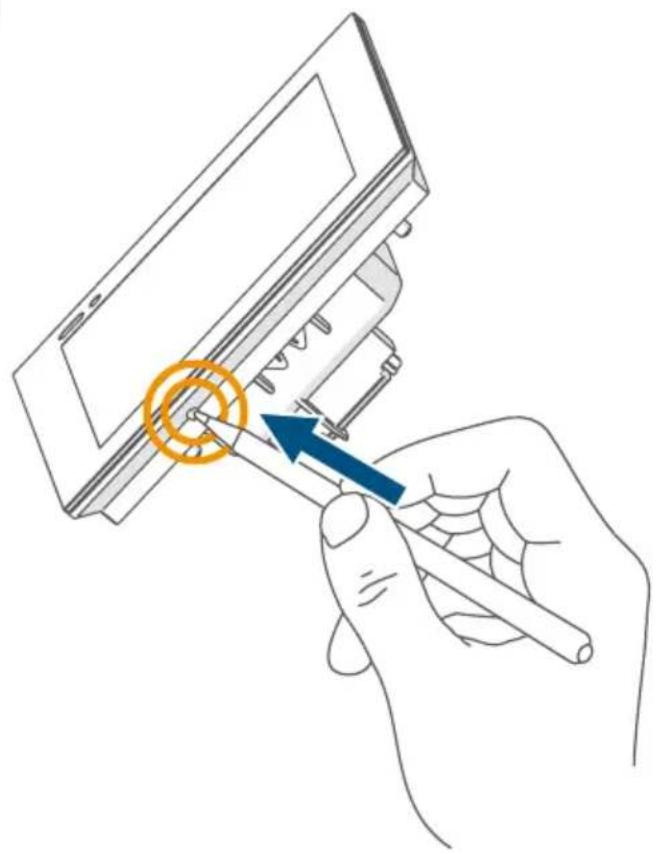
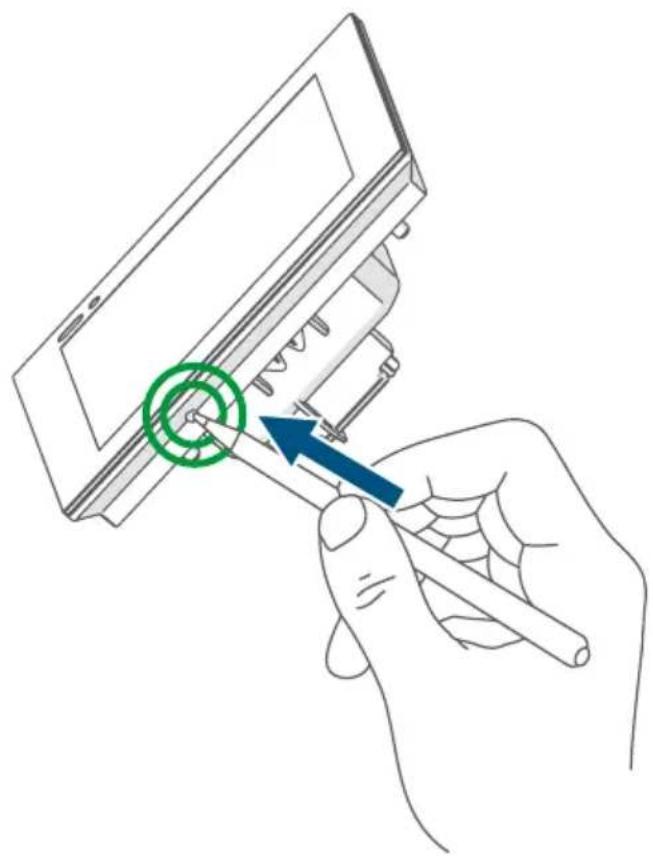
To restore the factory settings of the device, please proceed as follows:
- Press and hold down the system button (D) using a pointed object (e.g. a pen), until the LED (D) starts to quickly flash orange for 4 seconds (see figure 10).
- Release the system button.
- Press and hold down the system button again for 4 seconds, until the LED lights up green (see figure 11).
- Release the system button again to conclude the procedure.
The device will perform a restart. After the restart, you can again integrate your device into your Homematic IP system.
9 Maintenance and cleaning

The product does not require any maintenance. Enlist the help of an expert to carry out any repairs.
Clean the device using a soft, lint-free cloth that is clean and dry. Do not use any detergents containing solvents, as they could corrode the plastic housing and label.
10 Technical specifications
Device short description: HmIPW-WGD
Supply voltage: 24 V _DC , +/-5 %, SELV
Current consumption: 110 mA max.
Power consumption in
Standby: 0.6 W
Cable type and cross section: Rigid cable
0.12-0.50 mm²
Installation: only in normal commercial switch
boxes (device boxes) in accordance
with DIN 49073-1
Protection rating: IP20
Protection class: III
Ambient temperature: -5 to +40 °C
Dimensions (W x H x D): 96 x 96 x 40 mm
Weight: 131 g
Subject to modifications.
Instructions for disposal
Do not dispose of the device with normal domestic waste! Electronic equipment must be disposed of at local collection points for waste electronic equipment in compliance with the Waste Electrical and Electronic Equipment Directive.
Information about conformity
CE The CE mark is a free trademark that is intended exclusively for the authorities and does not imply any assurance of properties.

For technical support, please contact your retailer.
text_image
Screenshot of a software interface with menu options and a highlighted 'Save As' buttonPrinted in Hong Kong
text_image
New product Product: 16.00 Sales: 20.00 Marketing: 30.00 Productivity: 14.51 Productivity: 14.52 Productivity: 14.53text_image
Screenshot of a software interface with menu options and a highlighted button labeled 'Downsample'.text_image
Homematic Homematic IP Homematic IP: IP Cardi incl Inferratungsung anklusive Homematic IP: IP Cardi incl Inferratungsung anklusive Homematic IP: IP Cardi incl Inferratungsung anklusive Homematic IP: IP Cardi incl Inferratungsung anklusive Homematic IP: IP Cardi incl Inferratungsung anklusive Homematic IP: IP Cardi incl Inferratungsung anklusive Homematic IP: IP Cardi incl Inferratungsung Anklusive Homematic IP: IP Cardi incl Inferratungsung Anklusive Homematic IP: IP Cardi incl Inferratungsung Anklusive Homematic IP: IP Cardi incl Inferratungsung Anklusive Homematic IP: IP Cardi incl Inferratungsung Anklusive Homematic IP: IP Cardi incl Inferratungsung Anklusive Homematic IP: IP Cardi incl InferratGesamt Homematic IP: IP Cardi incl InferratGesamt Homematic IP: IP Cardi incl InferratGesamt Homematic IP: IP Cardi incl InferratGesamt Homematic IP: IP Cardi incl InferratGesamt Homematic IP: IP Cardi incl InferratGesamt Homematic IP: IP Cardi incl InferratGesamt Homematic IP: IP Cardi incl Influss Homematic IP: IP Cardi incl Influss Homematic IP: IP Cardi incl Influss Homematic IP: IP Cardi incl Influss Homematic IP: IP Cardi incl Influss Homematic IP: IP Cardi incl Influss Homematic IP: IP Cardi incl Influss Homematic IP: IP Cardi incl Influss Homematic IP: IP Cardi incl Influss HomematicIP : HusIP Cardi HomematicIP : HusIP Cardi HomematicIP : HusIP Cardi HomematicIP : HusIP Cardi HomematicIP : HusIP Cardi HomematicIP : HusIP Cardi HomematicIP : HusIP Cardi HomematicIP : HusIP Cardi HomematicIP : HusIP Cardi HomematicIP : HusIP Cardi HomematicIP : HusIP CardI HomematicIP : HusIP CardI HomematicIP : HusIP CardI HomematicIP : HusIP CardI HomematicIP : HusIP CardI HomematicIP : HusIP CardI HomematicIP : HusIP CardI HomematicIP : HusIP CardI HomematicIP : HusIP CardI HomematicIP : HusIP CardI HomematicIP : HusIP CardII HomematicIP : HusIP CardII HomematicIP : HusIP CardII HomematicIP : HusIP CardII HomematicIP : HusIP CardII HomematicIP : HusIP CardII HomematicIP : HusIP CardII HomematicIP : HusIP CardII HomematicIP : HusIP CardII HomematicIP : HusIP CardII HomematicIP : HusIP CardIII HomematicIP : HusIP CardIII HomematicIP : HusIP CardIII HomematicIP : HusIP CardIII HomematicIP : HusIP CardIII HomematicIP : HusIP CardIII HomematicIP : HusIP CardIII HomematicIP : HusIP CardIII HomematicIP : HusIP CardIII HomematicIP : HusIP CardIII HomematicIP : HusIP CardII HomematicIP : HusIP CardII HomematicIP : HusIP CardII HomematicIP : HusIP CardII HomematicIP : HusIP CardII HomematicIP : HusIP CardII HomematicIP : HusIP CardIIPrinted in Hong Kong
Inleren in de Homematic IP cloud
text_image
Screenshot of a software interface with menu options and a highlighted 'OK' button, likely for a software application or settings panel.Apparaatcode: HmIPW-WGD
Voedingsspanning: 24 VCc, +/-5 %, SELV
Stroomopname: 110 mA max.
Vermogensopname in
stand-by: 0,6 W
Kabeltype en -doorsnede: starre kabel
0,12-0,50 mm²
Free download of the Homematic IP app!

text_image
Blue QR code image, scannable for digital information retrieval
Download on the
App Store

text_image
Blue QR code image containing encoded data, no visible text or symbols beyond the matrix pattern
Bevollmächtigter des Herstellers: Manufacturer's authorised representative:

eQ-3 AG
Maiburger Straße 29
26789 Leer / GERMANY
www.eQ-3.de