Akoya E54009 (MD 20125) - Monitor MEDION - Free user manual and instructions
Find the device manual for free Akoya E54009 (MD 20125) MEDION in PDF.


| Product Type | 21.5" LCD Monitor |
| Brand | MEDION |
| Model | Akoya E54009 (MD 20125) |
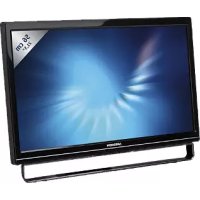
| Screen Size | 21.5 inches (54.6 cm) TFT |
| Maximum Resolution | 1920 x 1080 (Full HD) at 60 Hz |
| Pixel Pitch | 0.248 x 0.248 mm |
| Number of Colors | 16.7 million |
| Tilt | 0° to 20° |
| Active Display Area | 476.64 mm x 268.11 mm |
| Operating Temperature | 5°C to +35°C |
| Storage Temperature | -20°C to +60°C |
| Power Supply | 100-240 V AC, 50/60 Hz |
| Power Consumption (Standby) | Less than 1 W (Energy Star compliant) |
| Built-in Speakers | 2 x 1 W |
| Connectors | VGA (D-Sub 15-pin), audio input, upstream USB (for touch screen) |
| Touch Screen | Yes, infrared technology, multi-touch (Windows 7) |
| OSD Functions | Contrast, brightness, color, volume, display modes (game, video, landscape, text, ECO) |
| Supplied Accessories | Power cable, VGA cable, audio cable, touch pen, user guide, USB cable, warranty card |
| Maintenance and Cleaning | Unplug before cleaning. Use a clean, dry cloth. Apply ammonia-free cleaner to the cloth, never directly to the screen. |
| Safety | Do not open the casing. Do not repair yourself. Risk of electric shock. Have repairs done by a qualified technician. |
| Spare Parts and Repairability | No user-serviceable parts. Repair under limited commercial warranty by an authorized service. |
Frequently Asked Questions - Akoya E54009 (MD 20125) MEDION
User questions about Akoya E54009 (MD 20125) MEDION
0 question about this device. Answer the ones you know or ask your own.
Ask a new question about this device
Download the instructions for your Monitor in PDF format for free! Find your manual Akoya E54009 (MD 20125) - MEDION and take your electronic device back in hand. On this page are published all the documents necessary for the use of your device. Akoya E54009 (MD 20125) by MEDION.
USER MANUAL Akoya E54009 (MD 20125) MEDION
Hardware Installation
Safety Precautions. 1
First Setup 2
Quick Installation 2
Touching Screen Installation 3
Front View of the Product 4
Rear View of the Product 4
Using On Screen Display (OSD) Functions 5
Supporting Timing Modes 8
Technical Information 9
Care and Maintenance. 10
Troubleshooting 10
Restricted Warranty 11
Safety Precautions
This monitor is manufactured and tested on a ground principle that a user's safety comes first. However, improper use or installation may result danger to the monitor as well as to the user. Carefully go over the following WARNINGS before installation and keep this guide handy.
WARNING:
This monitor should be operated only at the correct power sources indicated on the label on the rear end of the monitor. If you're unsure of the power supply in your residence, consult your local dealer or power company.
Do not try to repair the monitor yourself as it contains no user-serviceable parts. The monitor should only be repaired by a qualified technician.
Do not remove the monitor cabinet. There is high-voltage parts inside that may cause electric shock to human bodies, even when the power cord is disconnected.
Stop using the monitor if the cabinet is damaged. Have it checked by a service technician.
Put your monitor only in a clean, dry environment. Unplug the monitor immediately if gets wet and consult your service technician.
Always unplug the monitor before cleaning it. Clean the cabinet with a clean, dry cloth. Apply non-ammonia based cleaner onto the cloth, not directly onto the glass screen.
Keep the monitor away from magnetic objects, motors, TV sets, and transformer.
Do not place heavy objects on the cable or power cord.
For PLUG CABLE EQUIPMENT, the Socket-outlet shall be installed near the equipment and shall be easily accessible.
First Setup
Congratulations for purchasing this monitor of high performance!
This monitor comes with the following accessories :
Power cable
VGA cable (15 pin)
Audio cable
- Touch pen
- User guide
USB cable
Warranty card
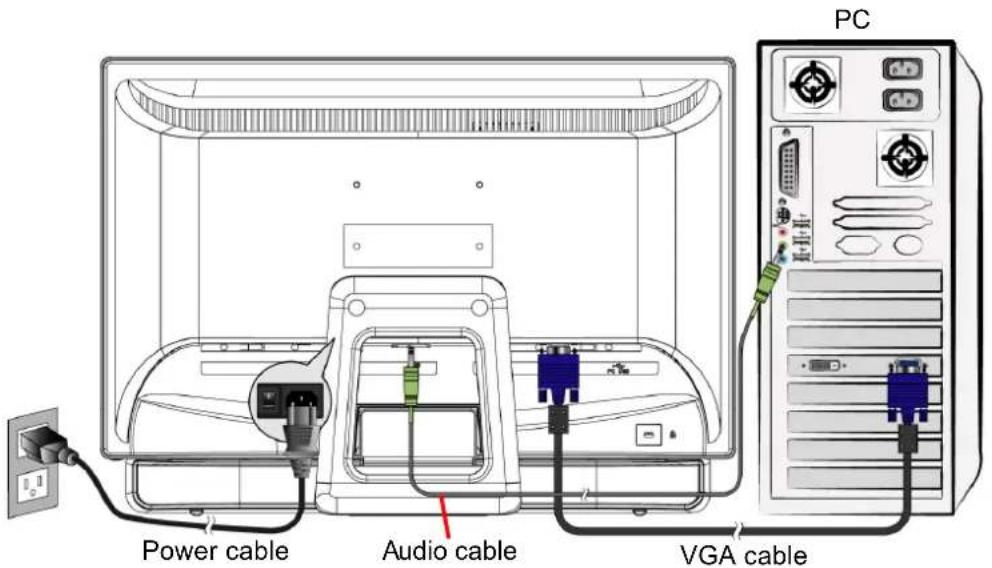
Quick Installation
- Connect video cable (D-Sub cable)
Make sure both monitor and computer are powered OFF. Connect the video cable (D-Sub cable) to the computer, then to the monitor.
- Connect power cord
Connect the power cord to a properly grounded AC outlet, then to the monitor.
- Connect Audio cable
Connect the Audio cable from Audio output of computer to the Audio input of the monitor.
- Power-ON computer and monitor
Power-ON the computer, then Power-ON the monitor.
- Windows users:Setting the Timing Mode (Resolution and Refresh Rate)
Example: 1920 x 1080 @ 60 Hz
Resolution Right-click on the Windows desktop > Properties > Settings > "Desktop Area". Set the resolution.
Refresh Rate (vertical frequency) See your graphic card's user guide for instructions.
Example:
Touching Screen Installation
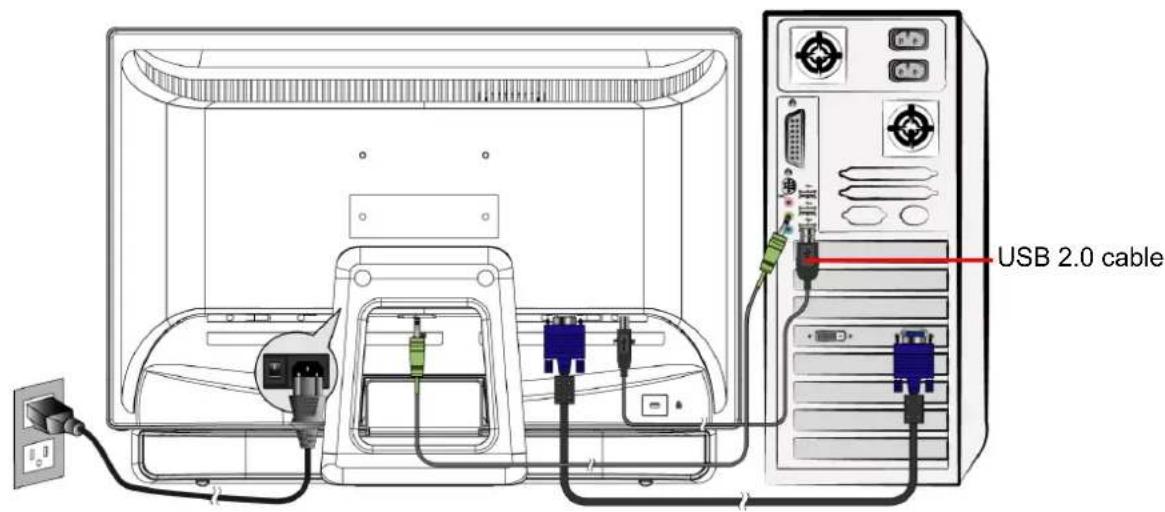
- Use the USB 2.0 cable (included with the monitor) to connect the monitor to one of the USB 2.0 ports of the computer.
- Windows will automatically search for the Touch Module, and proceed with the installation of the driver.
- Multi-touch function only support on Windows 7 operation system, others not support Multi-touch function.
Hardware Installation
Connect your Touch Monitor's USB cable to an available USB 2.0 port on your computer. Windows automatically detects the device.
Front View of the Product
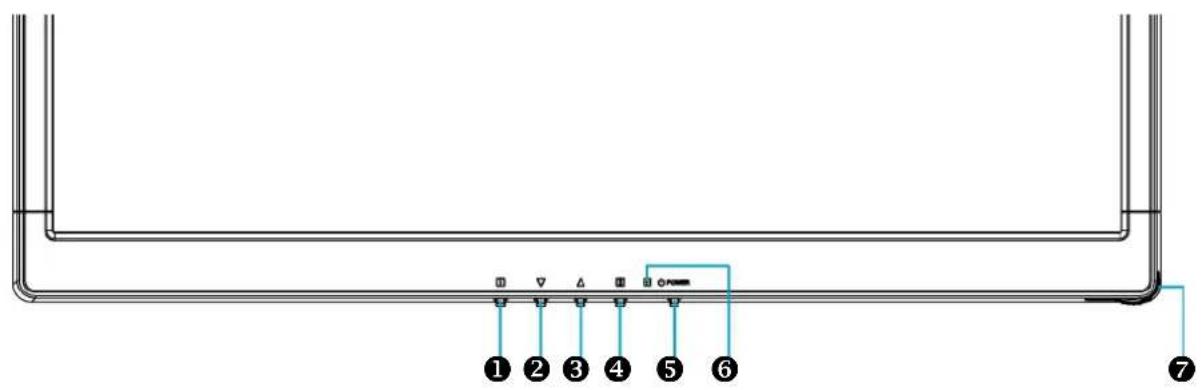
OSD Menu On/Off
2 Scroll Down/Decrease
3 Scroll Up/ Increase
4 Confirm Select
5 Power ON/OFF
Power LED Indicator
Touch Pen Slot
Rear View of the Product
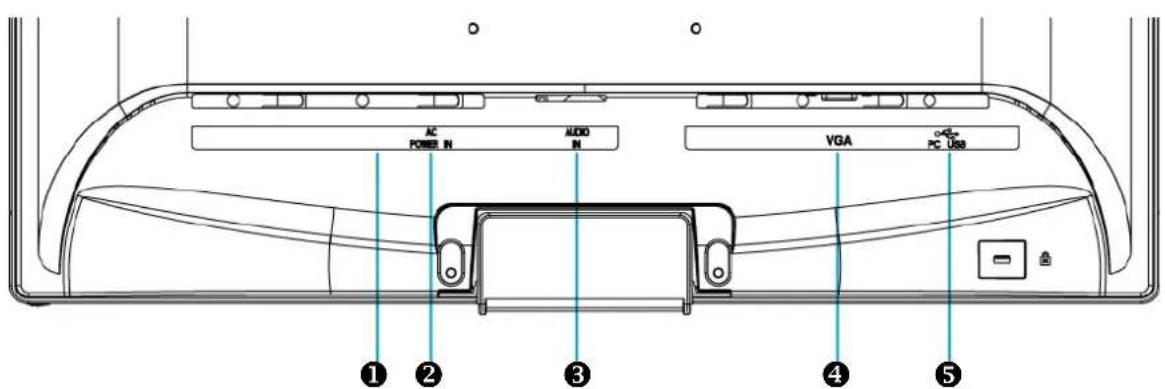
AC Power switch
Power input (AC input)
3 Audio input
VGA input (D-Sub 15 pin)
Up-stream USB port (to PC)
Using On Screen Display (OSD) Functions
| 1 | Display main menu. |
| Exit from OSD menu. | |
| 2 | Auto adjust the image when not in main menu. |
| Confirm the selection. | |
| ▼ | Select the desired item when in OSD menu. |
| When not in OSD menu, directly enters Contrast/ Brightness/DCR/ ECO Mode menu | |
| ▲ | Select the desired item when in OSD menu. |
| When not in OSD menu, directly enters Opticolor Mode. | |
| ▼ + ▲ | Recall both of Contrast and Brightness. |
| 1 + ▼ | Power Lock (when not in OSD menu) |
| 1 + ▲ | OSD Lock (when not in OSD menu) |
Main Menu
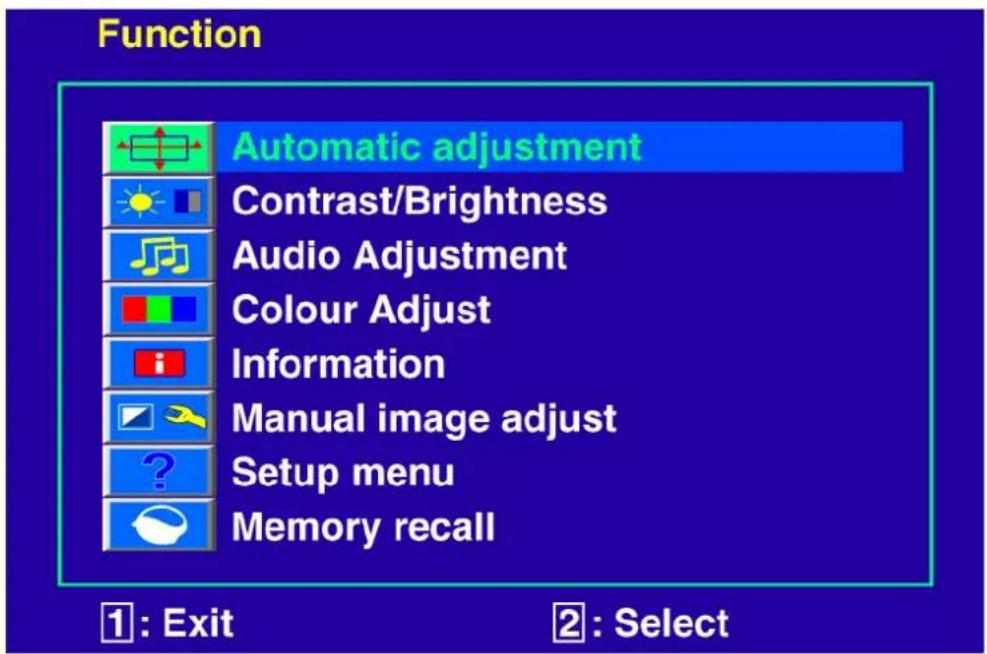
Short Cuts Function from the button(s)

Automatic adjustment: To auto adjust Horizontal Position, Vertical Position, Phase (Fine Tune) and Clock (H. Size) of the screen.

Contrast: To adjust the foreground white level of screen image.
: increase contrast, : decrease contrast.

Brightness: To adjust the luminance of the video.
: increase brightness, : decrease brightness.
DCR On/Off: Contrast ratio will be ≥ 60000:1 , when DCR turn on.

Audio Adjustment: To adjust the audio functions.
Volume: To adjust the volume of speaker output.
Mute switch: To turn the Mute ON/OFF.

Colour Adjust: To select the colour for improving brightness and colour saturation between Cool, Normal, Warm, and User colour.
Cool: Adds blue to screen image for cooler white.
Normal: Adds red to screen image for warmer white and richer red.
Warm: Adds green to screen image for a darker colour.
User colour: Individual adjustments for red (R), green (G), blue (B).
-
Press button 2 to select the desired colour.
-
Press or button to adjust selected colour.

Information: To display the information, regarding the current input signal coming from the graphic card in your computer.
Note: See your graphic card user guide for more information about changing the resolution and refresh rate.

Manual image adjust: To manually adjust the Horizontal size, H. /N. position, Fine tune, Sharpness, Video Mode Adjust and Opticolor Mode.

Horizontal size: To adjust the width of the screen image.
: decrease the width of screen image, : increase the width of screen image.

H./V. Position: To adjust the horizontal and vertical position of the video.
H. Position: : move screen to the right, : move screen to the left.
V. Position: : move screen up, : move screen down.

Fine tune: To adjust the delay time of data and clock.
Press or to adjust to your preference.

Sharpness: To adjust the clarity of a non-Full HD (1920x1080) signal with or button.

Video Mode Adjust: To select the video mode from Full Screen or Over Screen.
Full Screen: To select full-screen size image.
Over Screen: To select over-screen size image.

Opticolor Mode: Provides an optimum display environment depending on the contents displayed. It contains 6 user-selectable presets.
User is for general windows environment and monitor default setting.
Game optimized for PC game environment.
Video optimized for movie and video environment.
Landscape optimized for displaying outdoor scenery images.
Text optimized for text editing and viewing in a word processing environment.
ECO Allows the user to turn the ECO On or Off. Contrast and Brightness adjustment disabled when ECO is active.

Setup menu: To set up Language, OSD position, OSD time out and OSD background.

Language: To allow users to choose from available languages.

OSD position: Press or button to select between horizontal and vertical OSD Position adjustment.
H. Position: To horizontally adjust the OSD position.
move OSD to the right, : move OSD to the left.
V. Position: To vertically adjust the OSD position.
: move OSD up, : move OSD down.

OSD time out: To automatically turn off On Screen Display (OSD) after a preset period of time.

OSD background: Allows the user to turn the OSD background On or Off.

Memory recall: To recall factory settings for Video & Audio controls. Press button 2 to select the Memory Recall menu option.
Supporting Timing Modes
| VGA 720 x 400 @ 70Hz |
| VGA 640 x 480 @ 60Hz |
| MAC 640 x 480 @ 67Hz |
| VESA 640 x 480 @ 72Hz |
| VESA 640 x 480 @ 75Hz |
| VESA 800 x 600 @ 56Hz |
| VESA 800 x 600 @ 60Hz |
| VESA 800 x 600 @ 72Hz |
| VESA 800 x 600 @ 75Hz |
| MAC 832 x 624 @ 75Hz |
| VESA 1024 x 768 @ 60Hz |
| VESA 1024 x 768 @ 70Hz |
| VESA 1024 x 768 @ 75Hz |
| VESA 1280 x 960 @ 60Hz |
| VESA 1152 x 864 @ 75Hz |
| MAC 1152 x 870 @ 75Hz |
| VESA 1280 x 1024 @ 60Hz |
| VESA 1280 x 1024 @ 75Hz |
| VESA 1440 x 900 @ 60Hz |
| VESA 1440 x 900 @ 75Hz |
| CVT 1400 x 1050 @ 60Hz |
| VESA 1600 x 1200 @ 60Hz |
| VESA 1680 x 1050 @ 60Hz |
| VESA 1920 x 1080 @ 60Hz |
Warning: Do not set the graphic card in your computer to exceed these maximum refresh rates. Doing so may result in permanent damage to your monitor.
Technical Information
Technical Specification
| LCD Panel 21.5" TFT | |
| Power Management | Energy Star compliant VESA DPMS compatible < 1 W |
| Displayable Resolution | Full HD 1920 x 1080 max. Vertical Frequency 60Hz max. |
| Pixel Dimension 0.248 x 0.248 mm | |
| LCD Display Colour 16.7M | |
| Tilt 0°~20° | |
| Active Display Area 476.64 mm x 268.11 mm | |
| Temperature Operating: | 5°C ~ +35°C Storage: -20°C ~ + 60°C |
| Compliance CE | |
| Power Input Voltage AC100-240 V | |
| Speaker 1W x 2 | |
| Optical Touch Infrared Optical Structure | |
| Sensor Refresh 120 frames/sec | |
| Sensor Resolution | 32767 x 32767 |
| Accuracy | ≤ ± 2.5mm |
| Glass Coating | Non-coating |
| Stylus Size | Finger, any stylus ≥3.6mm (diameter) |
| OS | Windows 7 |
Care and Maintenance
Care
- Avoid exposing your monitor directly to sunlight or other heat source. Place your monitor away from the sun to reduce glare.
- Put your monitor in a well ventilated area.
- Do not place any heavy things on top of your monitor.
- Make certain your monitor is installed in a clean and moisture-free area.
- Keep your monitor away from magnets, motors, transformers, speakers, and TV sets.
Note
- Move the LCD out of the package and take off the plastic bag and Polystyrene Foam.
- Pull the base from Parallel versus Panel to Vertical.
- Adjust the Panel within 0 degree leaning forward and 20 degree leaning backward. You must bend harder to exceed 20 degree backward but this range is for packing the unit to a small size for storage only.
Safety Tips
- If smoke, abnormal noise or odor came out from your monitor, caution you should remove the power cord immediately and call your service center.
- Never remove the rear cover of your monitor cabinet. The display unit inside contains high-voltage parts and may cause electric shock to human bodies.
- Never try to repair your monitor yourself. Always call your service center or a qualified technician to fix it.
Troubleshooting
No power
- Make sure A/C power cord is securely connected to the power adapter and the power supply is firmly connected to the monitor.
- Plug another electrical device into the power outlet to verify that the outlet is supplying proper voltage.
- Make sure all signal cables are installed.
Power on but no screen image
- Make sure the video cable supplied with the monitor is tightly secured to the video output port on back of the computer. If not, tightly secure it.
- Adjust brightness.
Wrong or abnormal colours
- If any colours (red, green, blue) are missing, check the video cable to make sure it is securely connected. Loose or broken pins in the cable connector could cause an improper connection.
- Connect the monitor to another computer.
Restricted Warranty
I. General Conditions of Warranty
1. General
This warranty covers defects relating to workmanship and manufacture in MEDION products. The period during which this warranty is valid and during which claims against the warranty can be made to MEDION must be in accordance with the following terms in order to be considered eligible:
- Is effective from the date of purchase or receipt of the MEDION product from an authorised seller of MEDION products; and
- expires at the end of the warranty period specified on the warranty card provided with the product.
For the warranty to be valid, you must:
- provide suitable evidence of purchase, a copy of the original purchase receipt from an authorised seller of MEDION products is preferred; or
- register your product within 28 days of purchase either online at www.MEDION.co.uk or by completing and returning the pre-paid registration card included with the product.
Please keep the original purchase receipt and the warranty card in a safe place. MEDION and its authorised sellers reserve the right to refuse a repair under warranty or a warranty confirmation if a proof of purchase [or registration of purchase] cannot be established, or has not been, submitted.
When it is necessary to return your product for repair please ensure that your product is suitably packed for transportation.
Provided that your product is still within warranty (please check the duration of the warranty period as described above) and is eligible for repair or replacement under the terms of the warranty, to return your product, please telephone MEDION on the service hotline number. You will be sent a pre-paid transportation box suitable for returning your product to MEDION. PLEASE MAKE SURE THAT YOU HAVE A BACKUP COPY OF ALL DATA ON THE PRODUCT BEFORE RETURNING THE PRODUCT TO MEDION. MEDION shall bear the costs of postage and packaging for returning the product and the transportation risk. However, if following examination of the defective product in question, MEDION, in its reasonable opinion, considers that the defect has been caused by:
- your operating and/or using the product other than as instructed in the accompanying documentation;
- damage caused in transit as a result of your negligence in packaging of the product; and/or
- otherwise than in accordance with the terms of this warranty;
This warranty shall be void and you may be required by MEDION to reimburse MEDION for the reasonable costs of postage and packaging before MEDION will return the product to you. If so and you would still like MEDION to repair or replace the product, MEDION may do so but you will be charged MEDION's standard rates for repair and replacement for this service.
Before returning the product, please contact MEDION via the service hotline or via the internet (www.MEDION.co.uk). You will receive a reference number (RMA No.) on the warranty card. Please mark the outside of your package to ensure that this reference number is clearly visible. Please submit a letter containing as much detailed information as possible and, a full description of the defect or fault.
This should include:
- a description of the fault;
- when it occurred, how long it has been evident and how frequently it occurs;
- any errors message(s) displayed when using the product;
- a description of the circumstance(s) and conditions in which the fault occurs; and
- whether it is an intermittent or persistent fault;
This will greatly assist MEDION in identifying the defect, when submitted together with the defective product. Unless otherwise instructed by a MEDION representative in all cases, the product must be returned complete with all parts which were included with the original product. Incomplete contents of the returned package may lead to a delay in the repair or replacement. MEDION does not accept any liability for any additionally submitted material(s) which were not supplied with the original MEDION product. This warranty does not affect your statutory rights in any way and is subject to the applicable legal statutes of the country where the product was sold to you by an authorised MEDION seller.
2. Scope
Subject to any exclusions set out within this warranty, where there is a defect in your MEDION product covered by this warranty, MEDION will repair or replace the MEDION product. The decision whether to repair or replace the product will be made solely at the discretion of MEDION. MEDION may, in its own discretion, replace the product returned for repair under warranty with a replacement product that is either identical or, in the event that such product(s) are no longer available, a product of equal or superior specification and quality.
No warranty is given for batteries or rechargeable batteries or for consumable materials subject to wear and tear, i.e. for parts which have to be replaced periodically during the normal use of the product, such as video-projector lamp.
Non critical failures that fall within industry specified tolerances e.g. noise, LCD pixels are not covered by this warranty. Please consult the appropriate section in your user or instruction manual for this product for exact specifications and tolerances.
To the extent which is permitted under law, MEDION will accept no liability for burnt-in images on plasma or LCD products as a result of normal wear and tear during the operation of the product. Please refer to your user or instruction manual for this product for detailed operating instructions for your plasma or LCD product.
The warranty does not cover errors relating to the playback of data media in an incompatible format or created with unsuitable software.
If it is found during repair or assessment that the defect concerned is not covered under warranty, MEDION reserves the right to invoice you for all reasonable costs incurred by MEDION. These costs will be in relation to the return of the product, including reasonable administration costs, plus reasonable costs for materials used and labour provided when repairing or replacing the product. This is subject to MEDION providing you with an estimate for carrying out such work prior to costs being incurred and that you have accepted the estimate.
You are entitled to seek independent advice or consultation relating to your product or any of MEDION's findings. MEDION will not be liable for any costs incurred to you when doing so.
3. Exclusion from warranty
To the extent permitted by law, this warranty shall be void in the event that defects or loss caused by:
a. failure and damage resulting from the operation of the product in an environment other than that recommended in the accompanying user or instruction manual (e.g. in direct sunlight or in a damp room);
b. accidental damage;
c. use other than in accordance with the accompanying user or instruction manual;
d. modifications, conversions, expansions, maintenance and/or repairs made to the MEDION product by unauthorised repairers or use of unauthorised third party parts;
e. negligence;
f. virus attack or software errors; or
improper transportation or packaging during return of the product.
This warranty will also be considered void if labels or serial numbers of the product or of a component of the product are modified or made illegible.
To the extent permitted by law, MEDION shall; only be responsible for losses which are a reasonably foreseeable consequence of the relevant defect in the product; MEDION will not be responsible for any costs incurred in relation to software configuration; economic loss; loss of opportunity; loss of income; or loss of data or software arising out of its repair or replacement of a MEDION product under this warranty.
4. Service Hotline
Before returning the product to MEDION you must contact us using the service hotline or via the internet (www.MEDION.co.uk). You will receive further instructions for making your claim under warranty when you call.
The service hotline is available on 362 days in the year, including Sundays and bank holidays but excluding Christmas day, New Years Day and Easter day. The service hotline is subject to [national rate] telephone call charges. These charges are subject to change. The price of your call will be stated at the beginning of the call.
II. Special warranty conditions for MEDION PC, notebook, pocket PC (PDA) and navigation devices (PNA)
The following terms apply to MEDION PC, notebook, desktop, pocket PC and laptop products and optional items included with such products. If one of these items has a fault, you also have a warranty claim for its repair or replacement, from MEDION. The warranty covers the costs of materials and labour for repairing or replacing the defective MEDION product or the optional item in question.
Hardware connected to your product that was not produced or marketed by MEDION can invalidate the warranty if MEDION can reasonably demonstrate that damage to the MEDION product or of the optional item included with the delivery was caused by such hardware. You are entitled to seek independent advice or consultation relating to your product or any of MEDION's findings. MEDION will not be liable for any costs incurred to you when doing so.
This warranty is restricted in relation to any pre-installed operating system as well as to application programme software that is included with the MEDION product in question. This warranty is restricted as follows:
For pre-installed operating system as well as to application programme software included in the MEDION product, MEDION only guarantees the data media (e.g. the diskettes and CD-ROMs) upon which this software is delivered and warrants that such data media shall be free from material and processing defects for a period of 90 days from the date of purchase of the MEDION product from an authorised seller of MEDION. MEDION will replace defective data media free of charge.
Any claims in respect of defective pre-installed operating system as well as to application programme software are hereby expressly excluded and you should contact the relevant licensor or copyright owner of the defective software in question. MEDION does not guarantee that any software supplied with MEDION products will function without interruption, will be free from errors or that it will fulfil your requirements. MEDION does not guarantee the 100% accuracy of the maps provided with the Navigation device.
It may be necessary to delete all data in the product in order to repair the MEDION product. PLEASE MAKE SURE THAT YOU HAVE A BACKUP COPY OF ALL DATA ON THE PRODUCT BEFORE RETURNING THE PRODUCT TO MEDION. To the extent permitted by law, MEDION excludes all liability for loss of data and MEDION recommends in all cases that you back up all data on your MEDION product before returning the product to MEDION.
III. Special warranty conditions for repair on site or replacement on site
If a claim for repair or replacement on site is included within the terms of the warranty card provided with the product, the special warranty conditions for repair or replacement of your MEDION product on site apply. The following provisions must be made by you for carrying out repairs or replacements on site:
- MEDION or its authorised personnel must have unrestricted, safe and immediate access to the products.
- Telecommunication facilities required by MEDION or its authorised personnel for proper execution of your order, for testing and diagnostic purposes and for remedying faults are provided by you at your own expense.
- You are responsible yourself for restoring the application software after the repair services have been carried out by MEDION or its authorised personnel.
- You must take all other necessary steps to enable MEDION or its authorised personnel to carry out your order properly.
- You are responsible yourself for connecting and configuring any existing external peripheral products after MEDION or its authorised personnel have carried out their repairs.
- The free cancellation period for repairs or replacements on site is 24 hours, thereafter our reasonable costs resulting from late or missing cancellation shall be invoiced at your expense.
Contenu
120 Faraday Park, Faraday Road, Dorcan
Swindon SN3 5JF, Wiltshire
United Kingdom
Hotline (UK & N Ireland) : 0871 37 61 020
'calls are charged at 7 pence per minute
from a standard landline,
calls from mobile could be higher
Hotline (Rep of Ireland): 1800 992508
Fax: 01793 71 57 16
www.medion.co.uk
FR
Medion France
CS 90180
72207 La Flèche Cedex
France
Service Hotline: 0243481568
Service PREMIUM hors guarantee: 08 92 35 05 40
(0.34 EUR/min)
E-Mail: pc-support-fr@medion.com
www.medion.fr
ES
Medion Service Center
Visonic S.A.
c/ Miguel Faraday, 6
Parque Empresarial "La Carpetania", N-IV Km. 13
28906 Getafe, Madrid
Espana
Hotline: 902151448·Fax: 914604772
E-Mail: service-spain@medion.com
www.medion.es
NL
Medion Service Center
Antwoordnummer 4015
5980 ZX Panningen
Nederland
Hotline: 0900-6334660
Fax: 0900-6546540
www.medion.nl
CH
Medion Service
Siloring 9
5606 Dintikon
Schweiz
Hotline: 0848 - 33 33 32
www.medion.ch
BE
Medion Service Center
John F. Kennedylaan 16a
5981 XC Panningen
Nederland
Hotline: 022006198
Fax: 022006199
AT
Medion Service Center