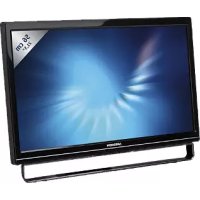
Akoya P53003 (MD 30999) - Monitor MEDION - Free user manual and instructions
Find the device manual for free Akoya P53003 (MD 30999) MEDION in PDF.


| Product Type | 19-inch TFT Color Monitor |
| Model Number | MD 30999 PD |
| Visible Display Size | 19 inches (48.2 cm) diagonal |
| Native Resolution | 1440 x 900 (WSXGA+) |
| Brightness (typical) | 300 cd/m² |
| Contrast Ratio (typical) | 1000:1 |
| Response Time (typical) | 5 ms |
| Viewing Angle (Horizontal/Vertical) | 160° / 160° (typical) |
| Input Voltage | AC 100-240 V ~ 50/60 Hz |
| Power Consumption (Max) | 40 W (ON), <2 W (Standby) |
| Connectors | VGA (15-pin D-Sub), DVI-D, Audio input (3.5mm) |
| Built-in Speakers | Yes, with volume control and mute |
| On-Screen Display (OSD) | Yes: Picture, Advanced, Audio, Options, Utilities, Reset |
| Auto Adjustment | Yes (via AUTO key) |
| Stand | Detachable, included |
| TCO Certification | TCO'03 Displays |
| Safety Standards | FCC Class B, UL 60950, CSA 22.2, EN 60950 |
| Ergonomic Compliance | DIN EN ISO 9241-3, -7, -8 |
| Pixel Defect Policy | ISO 13406-2 Class II |
| Operating Temperature | +5°C to +35°C (41°F to 95°F) |
| Storage Temperature | -20°C to +60°C (-4°F to 140°F) |
| Package Contents | TFT screen, VGA cable, DVI-D cable, audio cable, stand, guarantee card, manual |
Frequently Asked Questions - Akoya P53003 (MD 30999) MEDION
User questions about Akoya P53003 (MD 30999) MEDION
0 question about this device. Answer the ones you know or ask your own.
Ask a new question about this device
Download the instructions for your Monitor in PDF format for free! Find your manual Akoya P53003 (MD 30999) - MEDION and take your electronic device back in hand. On this page are published all the documents necessary for the use of your device. Akoya P53003 (MD 30999) by MEDION.
USER MANUAL Akoya P53003 (MD 30999) MEDION
19 Inch TFT Color Monitor

Operating Instructions
© 2007
All rights reserved.
This manual is protected by Copyright.
The Copyright is owned by Medion®.
Trademarks:
MS-DOS ^® and Windows ^® are registered trademarks of Microsoft ^® .
Pentium ^® is a registered trademark of Intel ^® .
Other trademarks are the property of their respective owners.
Medion® makes no warranty of any kind with regard to this material, including, but not limited to, the implied warranties of merchantability and fitness for a particular purpose.
Medion ^® shall not be liable for errors contained herein or for incidental or consequential damages in connection with the furnishing, performance, or use of this material.
Medion ^® assumes no responsibility for the use or reliability of its software on equipment that is not furnished by Medion ^® .
This document contains proprietary information that is protected by copyright. All rights are reserved. No part of this document may be photocopied, reproduced, or translated to another language without the prior written consent of Medion®.
The information in this document is subject to change without notice.
Contents:
Notes on these instructions ....1
Our Target Group .... 1
Quality....1
Service....1
Purpose of use....1
Included Equipment 1
Safety and Precautions....2
Operating Safety 2
Point of use....2
Repair 2
Intended Environment....3
Power Supply....3
Standards/Electro-Magnetic Compatibility....3
Ergonomics....3
Electrical Safety 4
Important Additional Safety Instructions....4
FCC Compliance Statement....4
Declaration of Conformity 5
Start-Up....6
Mounting the Monitor Stand 6
Preparations on Your Computer....6
Supported Monitor Settings....6
Display Properties....7
Connecting the Monitor....8
① Connecting Signal Cable....8
② Connecting Audio Cable....8
③ Connecting the Power Supply....8
Positioning of the Monitor 9
Your posture 9
Working Ergonomics....10
Controls 11
Setting the TFT Monitor 12
How to operate the OSD menu ....12
Leaving the OSD menu ....12
OSD Menu 12
Picture....13
Advanced....14
Audio....15
Options 15
Utilities 16
Reset 16
Saving Energy 17
Service 18
Troubleshooting....18
Finding the problem....18
Check Connections and Cables 18
Troubleshooting....18
Do you require additional Support? 19
Precautions 20
Recycling 20
Specifications....20
Copying this manual 21
Pixel Defects on TFTs (LCD-Displays)....21
Recycling Information....23
TCO Development....25
Notes on these instructions
Please read through these operating instructions carefully and follow the instructions given. In this way you will guarantee reliable operation and a long life for your TFT monitor. Always keep these instructions handy and close by your TFT monitor. Keep the instructions and the packaging so that if you sell or give away your TFT monitor you can give them to the new owner.
We have arranged these instructions so that you can quickly find the subject related information in the table of contents. The purpose of these instructions is helping you operate your TFT display safely, quickly and easily.
Our Target Group
These instructions are intended for initial users as well as advanced users.
Quality
We focused on great features, ease of use and reliability in manufacturing your TFT monitor. The balanced hardware and software concept offers you an advanced display design which will provide you a great deal of pleasure for your work and entertainment.
Thank you for your confidence in our products. We are pleased to welcome you as a new customer.
Service
Service and support will be available every time you use your new TFT Display. Contact us, we will be glad to help. This manual contains a separate chapter on the subject of service beginning on page 18.
Purpose of use
- This device is only suitable for use in dry, interior rooms.
- This device is only intended for private use. The device is not intended for operation in a heavily industrial company. Use of the device under extreme environmental condition can result in damage to it.
Included Equipment
Please check your new TFT Display for completeness. Notify us within 14 days after purchase if it is not complete. With your TFT monitor you receive:
• 1 - TFT screen
• 1 - Connection cable
• 1 - 15-wired Sub-D cable
- 1 - DVI-D cable
• 1 - Audio cable
- 1 - Stand
• 1 - Guarantee card
• 1 - Operating instructions
Safety and Precautions
Operating Safety
- Do not allow children to play unattended on electrical equipment. Children may not always correctly recognize danger.
- Keep the packing materials, such as foil away from children. The danger of suffocation could arise in the case of misuse.
- Never open the housing of the TFT monitor (electric shock, short-circuit and the danger of fire)!
- Do not insert any objects through the slots and openings into the inside of the TFT (electrical shock, short-circuit and the danger of fire)!
- Slots and openings in the TFT monitor are for ventilation purpose. Do not cover these openings, as otherwise this may lead to overheating (overheating, danger of fire)!
- Never exert pressure on the display. This could break the monitor.
- An injury hazard exists when the display breaks. Wear protective gloves to pack the broken parts and send them into your service center for proper disposal. Then wash your hands with soap, because it is possible for chemicals to escape.
- Do not touch the display with your fingers or with sharp objects to avoid damage.
Please proceed as outlined in the Customer Service section:
- if the power cable overheats or is damaged
- if liquid has gotten into the monitor
- if the TFT monitor is dropped or the housing damaged
Point of use
- In the first hours of operation, new devices may emit a typical, unavoidable but completely harmless smell, which will decline increasingly in the course of time.
We recommend you to ventilate the room regularly, in order to counteract the formation of the smell. During the development of this product, we have made sure that the applicable limits are clearly fallen below. - Keep your TFT monitor and all units connected to it away from moisture and avoid dust, heat and direct sunlight. Failure to observe these instructions can lead to malfunctions or damage to the TFT monitor.
- Do not operate your device in the open air, because external influences, such as rain, snow, etc. could damage the device.
- Do not place any containers filled with liquid (vases or similar containers) on the device. The container could tip over and liquid can impair electrical safety.
- Do not place any open sources of fire (candles or similar objects) on the device.
- Pay attention to sufficiently large clearances in the wall cupboard. Maintain a minimum clearance of 10 cm around the device for sufficient ventilation.
- Place and operate all units on a stable, level and vibration-free surface in order to avoid the TFT monitor from falling.
- Avoid dazzle, reflections, extreme light/dark contrast in order to save your eyes and ensure a pleasant, ergonometric work station.
- Take regulator breaks when working with your TFT monitor in order to avoid tension and fatigue.
Repair
- Leave all repairs of your TFT monitor to authorized and qualified personnel only.
- Should a repair be necessary, please contact one of our authorized service partners only.
Intended Environment
- The TFT monitor can be operated at an ambient temperatures of between +41°F and +95°F (5°C to 35°C) and at a relative humidity of between 20% and 85% (without condensation).
- When switched off, the monitor can be stored at between -4^ and +140^ (-20^ - +60^) , up to the maximum height of 39,000 ft (12,000 m) above sea level at a relative humidity of between 20% and 80% (without condensation).
- After transporting your TFT monitor please wait until it has assumed the ambient temperature before connecting and switching it on. Extremely high variations in the temperature or humidity may result in condensation forming on the inside of the TFT monitor which could cause an electrical short-circuit.
Power Supply
Please pay attention: Pats of the device are still live, even if the mains switch is switched off. Pull the mains plug out of the socket, to interrupt the power supply to your TFT monitor or to release the device from voltage completely.
- Operate your TFT monitor mains (power supply) only on grounded sockets with AC 100-240V\~/ 50-60 Hz. If you are not sure about the power supply at your location, check with your power company.
- For additional safety we recommend use of an excessive voltage protection device to protect your TFT monitor from damage resulting from voltage surges or lightning.
- To interrupt the TFT monitor from mains (power supply) disconnect the plug from the socket.
- To avoid power consumption when the device is switched off either pull out the power plug when the device is not used or connect the device to a master-/slave power bar.
- The power socket must be in the vicinity of your TFT monitor and within reach of the power cables. DO NOT stretch the power cables tightly to reach a power socket.
- If you use an extension cable, ensure that it fulfills the VDE requirements. Please ask your electrician.
- You should lay the TFT Monitor cables in a manner that no one can trip or step on it.
- To avoid damage of cable do not place any objects or furniture on the cable.
- Your device has an On and Off switch. The TFT monitor can be switched on or off by means of it. No electricity is consumed if the switch is at OFF (0). Set the On/Off switch to OFF or use a master/slave power strip to avoid consuming electricity when the equipment has been switched off.
Standards/Electro-Magnetic Compatibility
Your monitor fulfils the requirements for electro-magnetic compatibility and electrical safety specified in the following standards:
EN 55022, EN 55024, EN 60950, EN 61000-3-2, EN 61000-3-3 UL60950 / CAN CSA 22.2 No 60950, FCC
- When connecting ensure that Guidelines for Electro-Magnetic Compatibility (EMC) are observed.
- Provide an interval of at least one meter from high-frequency and magnetic sources of interference (television sets, loudspeakers, mobile telephones, etc.) in order to avoid malfunctions and data loss.
Ergonomics
- This monitor complies with all relevant regulations such as DIN EN ISO 9241-3, DIN EN ISO 9241-7 and DIN EN ISO 9241-8.
- For ergonomic reasons we suggest not to use the base-color blue on dark subfonds. This would cause bad readability and would increase eye strain.
- While working with screens you should take breaks periodically to avoid tension and fatigue.
- In order to save your eyes and to assure a convenient working area you should avoid glare, reflections and strong contrasts on the screen. For more detailed information on workplace ergonomics, see page 10.
Electrical Safety
EN 60950
Safety of information technology equipment.
- The connection of devices is limited to equipment that complies with EN60950 "Safety of information technology equipment" or EN60065 "Audio, video and similar electronic apparatus. Safety requirements"
- For U.S. / Canadian purposes: The PC should only be connected to equipment which complies with UL 60950 / CAN CSA 22.2 No 60950
Important Additional Safety Instructions
When using any electronic equipment, basic safety precautions should always be taken. Following the guidelines below can reduce the risk of fire, electric shock and injury to person:
- Do not use this product near water (e.g., near a bathtub, wash bowl, kitchen sink or laundry tub, in a wet basement or near a swimming pool).
- Avoid using a telephone/modem (other than a cordless type) during an electrical storm. There may be a remote risk of electric shock from lightning.
- Do not use the telephone/modem to report a gas leak in the vicinity of the leak.
- Use only the power cord indicated in this manual. Do not dispose of batteries in a fire. They may explode. Check with local codes for possible special disposal instructions.
- Keep batteries away from children at all times.
FCC Compliance Statement
This equipment has been tested and found to comply with the limits for a Class B digital device, pursuant to Part 15 of FCC Rules. These limits are designed to provide reasonable protection against harmful interference in a residential installation. This equipment generates, uses, and can radiate radio frequency energy and, if not installed and used in accordance with the instructions, may cause harmful interference to radio communications. However, there is no guarantee that interference will not occur in a particular installation. If this equipment does cause harmful interference to radio or television reception, which can be determined by turning the equipment off and on, the user is encouraged to try to correct the interference by one or more of the following measures:
- Reorient or relocate the receiving antenna.
- Increase the separation between the equipment and receiver.
- Connect the equipment into an outlet on a circuit different from that to which the receiver is connected.
- Consult the dealer or an experienced technician for help.
Changes or modifications not expressly approved by the party responsible for compliance could void the user's authority to operate the equipment. Shielded interface cables, if any, must be used in order to comply with the emission limits.
Declaration of Conformity
According to 47CFR, Parts 2 and 15 for Class B Personal Computers:
We: Medion Aktiengesellschaft ____
(Name of the Responsible Party)
Located at: Gänsemarkt 16 – 18
D-45127 Essen
Germany
(Address, City, State, Zip Code)
Fax : 0 201 / 81 081 - 227
(Facsimile
Number
for conformity issues only)
Declare under sole responsibility that the product identified herein, complies with 47CFR Parts 2 and 15 of the FCC rules as a Class B digital device. Each product marketed, is identical to the representative unit tested and found to be compliant with the standards. Records maintained continue to reflect the equipment being produced can be expected to be within the variation accepted, due to quantity production and testing on a statistical basis as required by 47CFR §2.909. Operation is subject to the following two conditions: (1) This device may not cause harmful interference, and (2) This device must accept any interference received, including interference that may cause undesired operation. The above named party is responsible for ensuring that the equipment complies with the standards of 47CFR §§15.101 to 15.109.
Trade Name: Medion
Type or Model Number: MD 30999 PD
Party Responsible: MEDION AG
Executed on (Date), at (Place): 6 ^th of June, 2007, Essen
Note
Before start-up always read the Chapter "Safety and Precautions" on page 1ff.
Mounting the Monitor Stand
Mount the monitor stand as shown in the diagram. Perform this step before connecting the monitor.
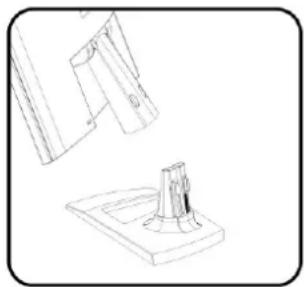
natural_image
Technical line drawing of a mechanical assembly with two views (top and side), no text or symbols present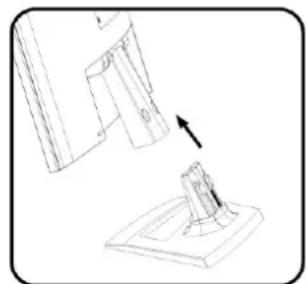
natural_image
Technical line drawing showing a mechanical assembly with an arrow indicating direction (no text or symbols)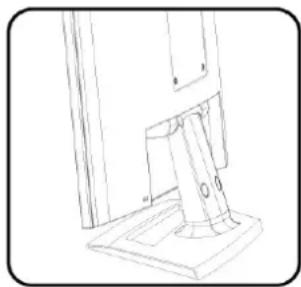
natural_image
Technical line drawing of a mechanical assembly with mounting base (no text or symbols)(III.: Mounting the monitor stand)
Preparations on Your Computer
If you have operated your computer previously with a CRT monitor, it will be necessary for you to make a few preparations. This is required when your previous monitor was operated with settings which are not supported by your new TFT monitor.
Supported Monitor Settings
This TFT monitor supports the following modes:
| Resolution Horizontal Frequency Vertical | Frequency | ||
| 720 x 400 | 31.47 | KHz 70 Hz | |
| 640 x 480 | 31.47 | KHz 60 Hz | |
| 640 x 480 | 37.86 | KHz 72.8 Hz | |
| 640 x 480 | 37.5 | KHz 75 Hz | |
| 800 x 600 | 37.88 | KHz 60.3 Hz | |
| 800 x 600 | 48.08 | KHz 72.2 Hz | |
| 800 x 600 | 46.87 | KHz 75 Hz | |
| 1024 x 768 | 48.36 | KHz 60 Hz | |
| 1024 x 768 | 56.48 | KHz 70.1 Hz | |
| 1024 x 768 | 60.02 | KHz 75 Hz | |
| 1280 x 1024 | 63.98 | KHz 60.02 Hz | |
| 1280 x 1024 | 80.00 | KHz 75 Hz | |
| 1440 x 900* | 55.47 | KHz 59.90 Hz | |
*recommended physical resolution
Display Properties
This Windows program offers you the possibility of adapting the display to your monitor. This includes items such as the background image, the screen saver, the Active Desktop (Web) as well as other settings for your monitor and video card.
The program can be started as follows:
- Right mouse click on Windows desk top and left mouse click on "Properties".
Or
- Start the "Display" program in "System control".
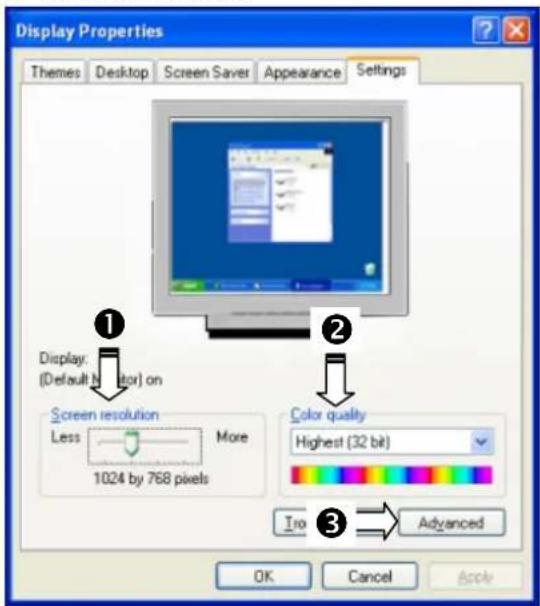
(III.: Display Properties)
The resolution can be set under "Screen resolution" (①). Your monitor can display a maximum of 1440 x 900 image dots.
This resolution corresponds to the physical resolution. TFT monitors achieve complete image quality at the physical resolution.
Then click "Color quality" (②) to set the color depth (number of colors displayed). Your monitor supports a maximum color depth of 16 million colors corresponding to 32 bit or "True Color".
The image repeat frequency can be set under "Advanced" (②). A window with the characteristics of your video card appears depending on the configuration of your computer.
Under "Adapter" you can change the desired value in the selection field "List All Modes...".
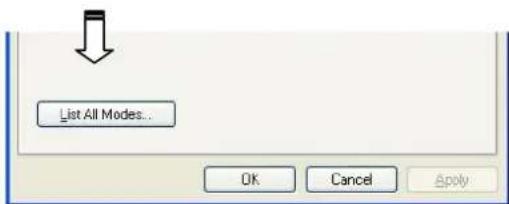
(III.: Details of Display Properties)
Caution!
If your setting does not coincide with the values supported by your display, you may not see any image.
Switch your old device on again and set the applicable values under "Display Properties" in accordance with the aforementioned options in this case.
Connecting the Monitor
To start using the TFT monitor straight away, please read the "Safety and Precautions" section (page 2). We recommend that you also read all the other sections as these contain detailed explanations and tips on how to use your TFT display.
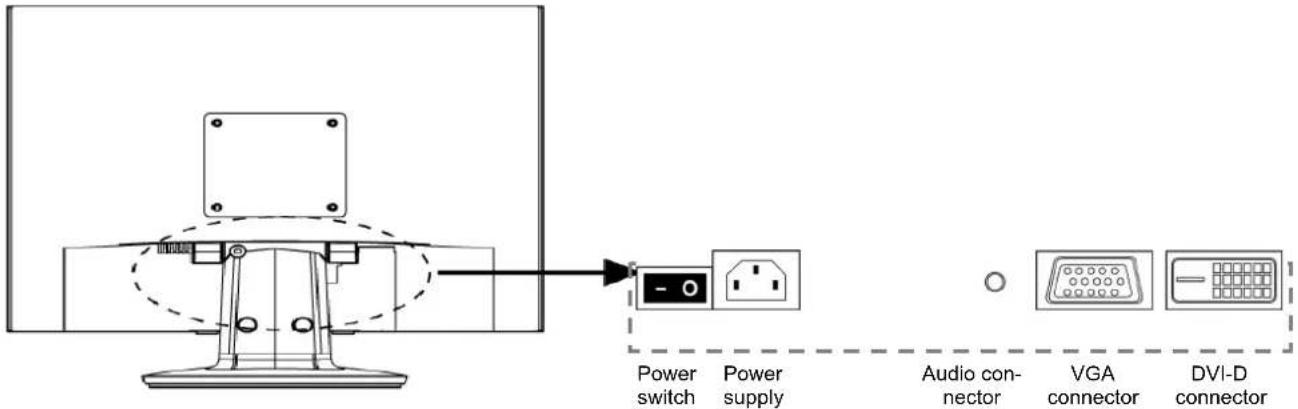
(III.: Rearside connectors)
- Ensure that the TFT monitor is not yet connected to the line power (power cord not yet plugged in) and neither the TFT monitor nor the computer is switched on.
• Prepare your computer for the TFT monitor if necessary with the correct settings for your TFT.
① Connecting Signal Cable
- Plug the data cable into the matching VGA connections on the computer and the monitor. If your PC also has a DVI output, you can connect your monitor by means of the DVI-D connector.
Note
Even if you computer offers multiple connections, connect only one cable to avoid problems with the signal detection.
② Connecting Audio Cable
- Plug the audio cable into the matching sockets on the computer and the TFT monitor.
③ Connecting the Power Supply
- Plug the power supply cable into the power supply socket of the TFT screen and plug the electric plug into a socket close to the TFT screen (same circuit).
- Your TFT monitor has an ON/OFF switch, by means of which you can switch the monitor on or off, on the back. If the switch is set to 0, then no power is consumed. Set the switch to I and next switch your monitor on using the on/off switch. Then switch on your computer.
Positioning of the Monitor
Please ensure that the monitor is set up in such a way that that reflections, glare and light-dark contrast are avoided (as this will make the screen less attractive to look at).
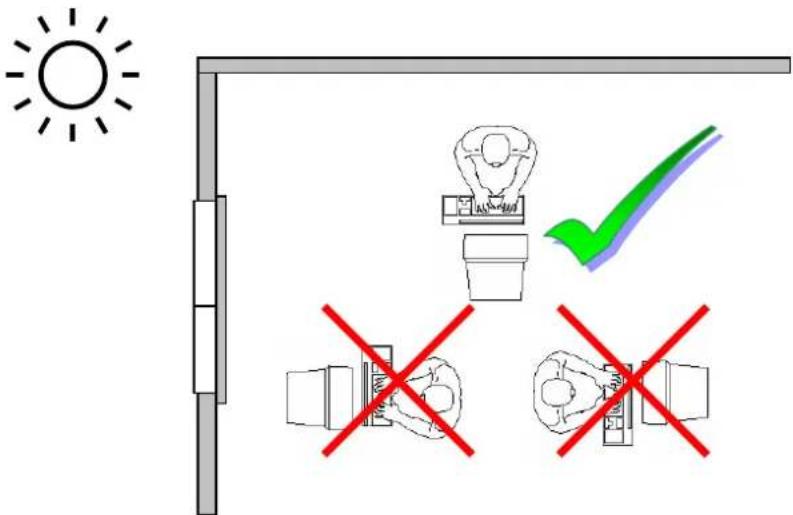
(III.: Monitor positioning)
Your posture
Sitting in one position for long periods can be uncomfortable. To minimize the potential for physical discomfort or injury, it's important that you maintain proper posture.
Back - While sitting at your work surface, make sure your back is supported by the chair's backrest in an erect position or angled slightly backwards.
Arms - Your arms should be relaxed and loose, elbows close to your sides, with forearms and hands approximately parallel to the floor.
Wrists - Your wrists should be as straight as possible while using the keyboard, mouse or trackball. They should not be bent sideways, or more than 10 degrees up or down.
Head - Your head should be upright or tilted slightly forward. Avoid working with your head or trunk twisted.
Legs - Your thighs should be horizontal or angled slightly downward. Your lower legs should be near a right angle to your thighs. Your feet should rest flat on the floor. If necessary, use a footrest, but double check that you have your seat height adjusted correctly before getting a footrest.
Overall - Change your position frequently and take regular breaks to avoid fatigue.
Working Ergonomics
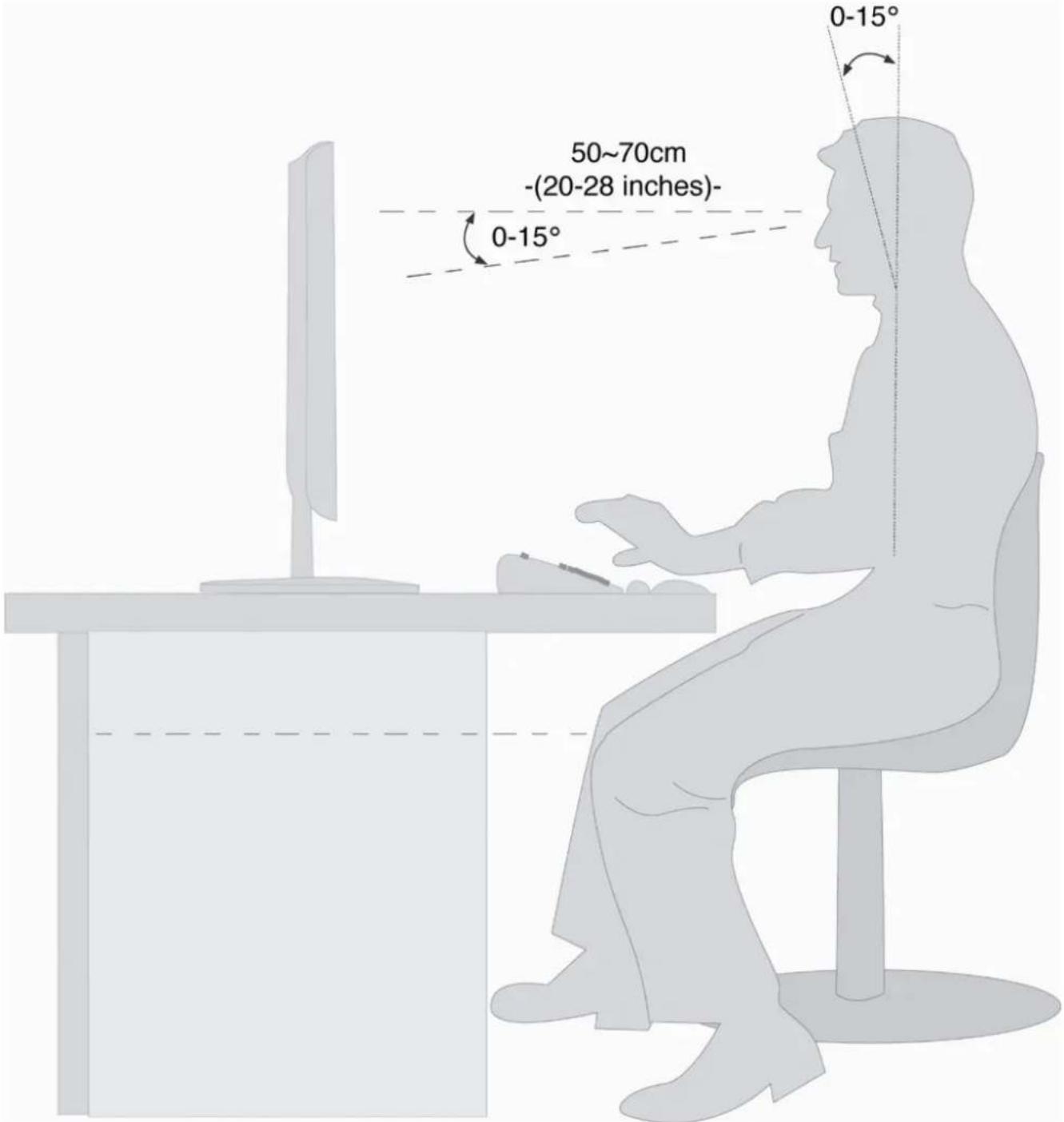
(III.: Workplace)
- Hand's support rest: 2" – 4"
- Top line of screen should keep eye's level or be a little beneath
- Eye's distance to screen: 20" – 28"
- Legroom (vertical): at least 26"
• Legroom (horizontal): at least 24"
The illustration above should give you a guideline for an ergonomic workplace.
Controls
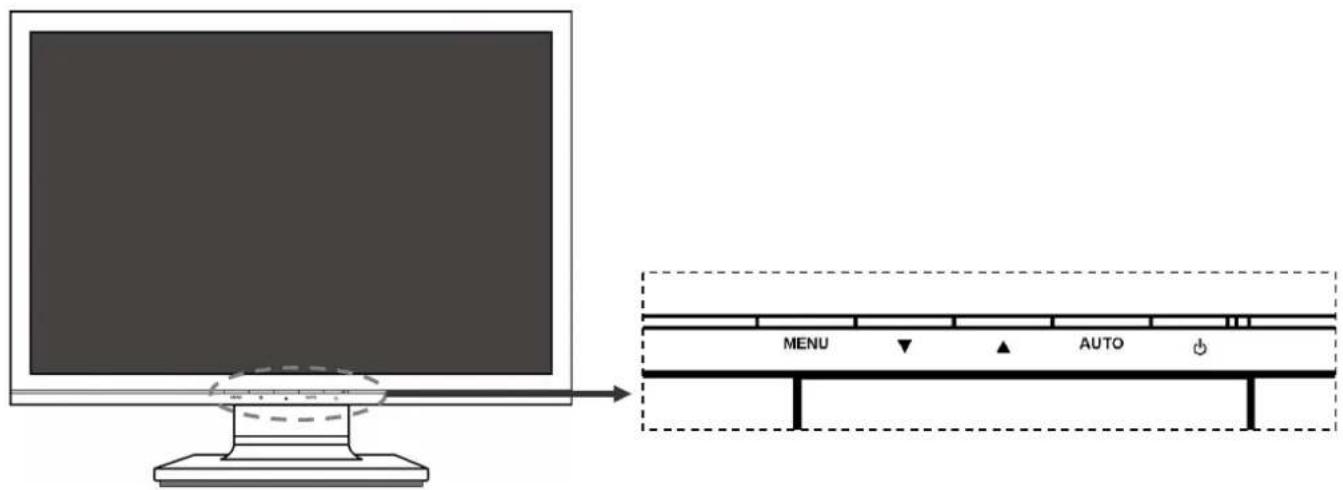
(III.: Front view controls)
| Function | Description |
| Menu/Enter | When this key is pressed the OSD (ON screen display) starts on your TFT monitor Confirm you selection by pressing this key. |
| Decrease volume | When OSD is active this key sets a parameter value and decreases it.Executing it directly lowers the volume. |
| Increase volume | When OSD is active this key sets a parameter value and increases it.Executing it directly raises the volume. |
| Auto | With this key you can automatically adjust the image. |
| PowerOperation indicator | With this switch you can switch the TFT monitor ON and OFF.Indicates the operating state.Blue = Normal mode,Orange = Stand-by mode |
Setting the TFT Monitor
You can set certain parameters for the TFT monitor on the OSD menu (ON screen display).
How to operate the OSD menu
- Press the menu key to activate the OSD.
- Select the options from the main menu with the function selection keys ▼/▲.
- Confirm your choice with the MENU key.
- Select the options from the sub-menu with the function selection keys ▼/▲.
- Confirm your choice with the MENU key.
- Set the desired value with the function selection keys ▼/▲.
Leaving the OSD menu
To exit the OSD menu you have different possibilities:
- Choose Exit.
- The OSD vanishes from the screen automatically, when you do not press any key on the monitor during the preset time interval (factory setting is 10 seconds).
OSD Menu
The main functions and adjustment possibilities using the OSD are explained on the next pages.
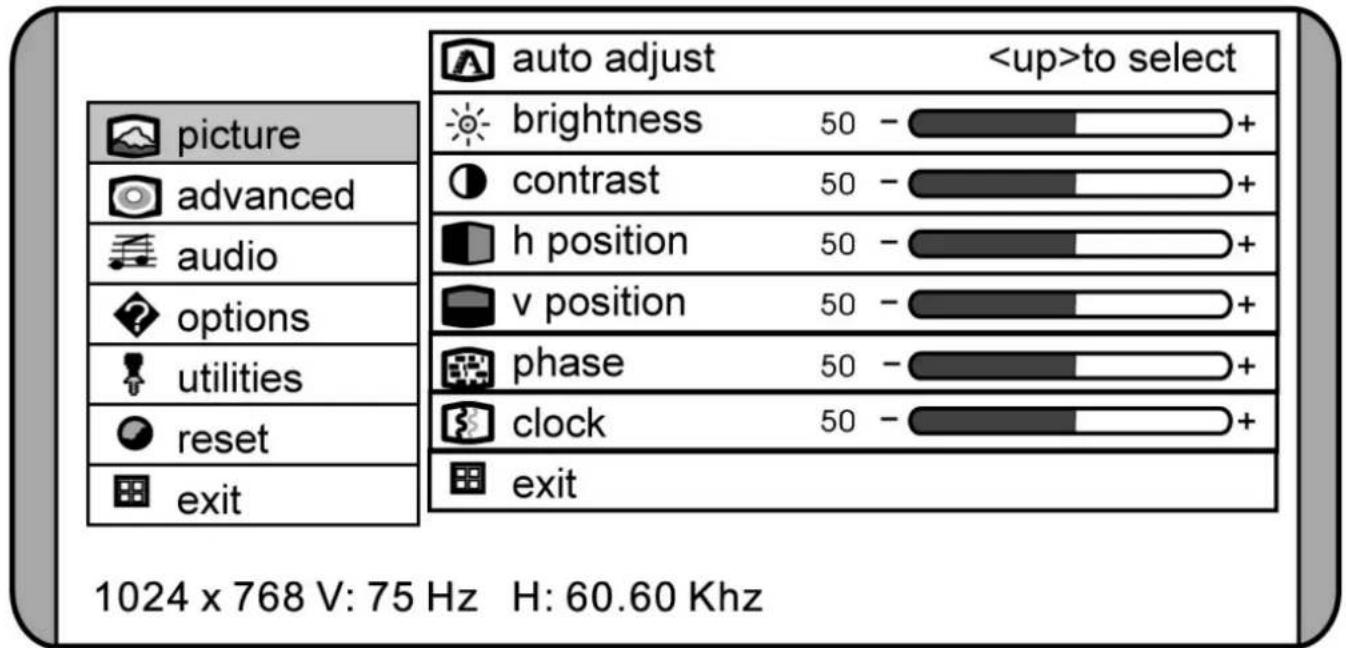
bar
| Category | Value | |---|---| | picture | | | advanced | | | audio | | | options | | | utilities | | | reset | | | exit | | | brightness | 50 - + | | contrast | 50 - + | | h position | 50 - + | | v position | 50 - + | | phase | 50 - + | | clock | 50 - + | 1024 x 768 V: 75 Hz H: 60.60 Khz(III.: OSD menu)
Note The setting possibilities for the TFT monitor lead only to marginal changes due to this technology.
Picture
bar
| Category | Value | |---|---| | picture | | | advanced | | | audio | | | options | | | utilities | | | reset | | | exit | | 1024 x 768 V: 75 Hz H: 60.60 Khz auto adjust(III.: OSD menu - picture)
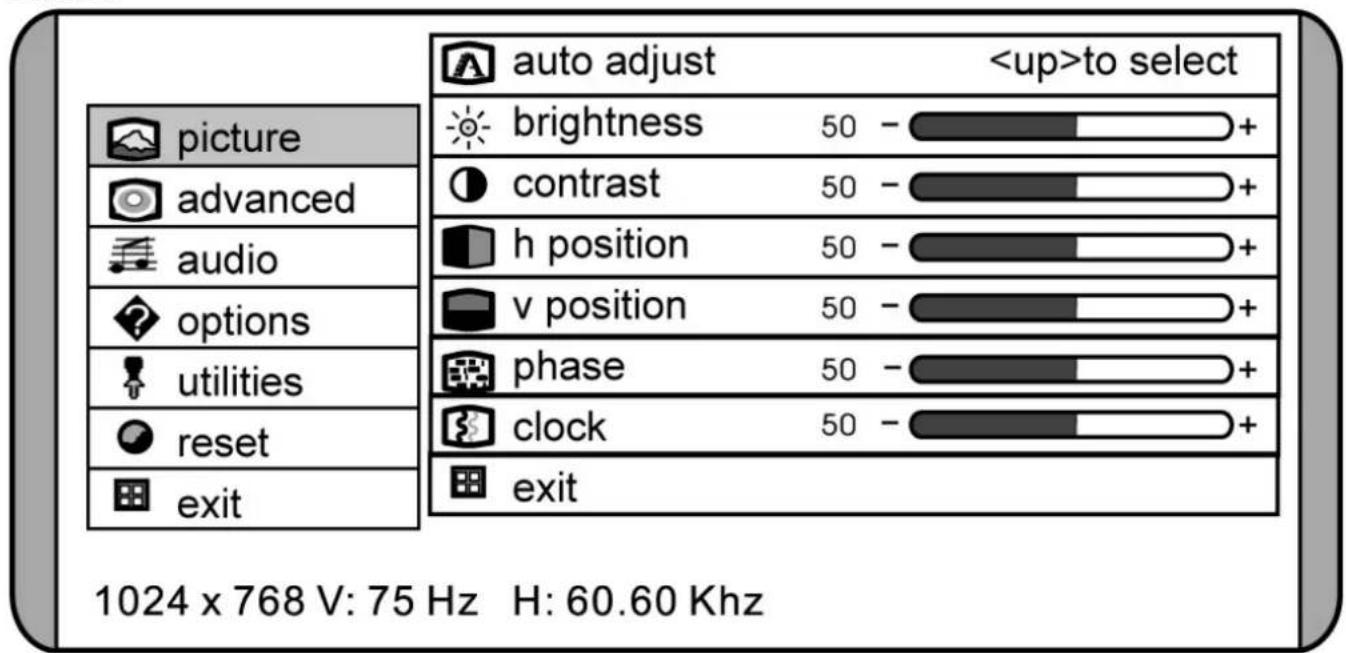
- Auto adjust
Perform an automatic adjustment by means of the MENU key. The optimal values for H. Position, V. Position, Phase and Clock of your TFT screen are set automatically.
- brightness
Adjust the brightness of your TFT monitor with the keys ▲ and ▼.
- contrast
Adjust the contrast of your TFT monitor with the keys ▲ and ▼.
• h. position
Adjust the horizontal picture of the TFT monitor.
• v. position
Adjust the vertical picture of the TFT monitor.
- phase
Adjust the phase to optimize the display of your monitor.
- clock
Ajust the clock of the monitor. The larger the value the wider the display will appear. The lower the value the denser the display will appear.
Advanced
bar
| Feature | Value | | :--- | :--- | | sharpness | 1 2 3 4 5 | | color | cool natural warm user | | red | 50 - + | | green | 50 - + | | blue | 50 - + | | exit | | | picture | | | advanced | | | audio | | | options | | | utilities | | | reset | | | exit | | 1024 x 768 V: 75 Hz H: 60.60 Khz(III.: OSD menu - advanced)
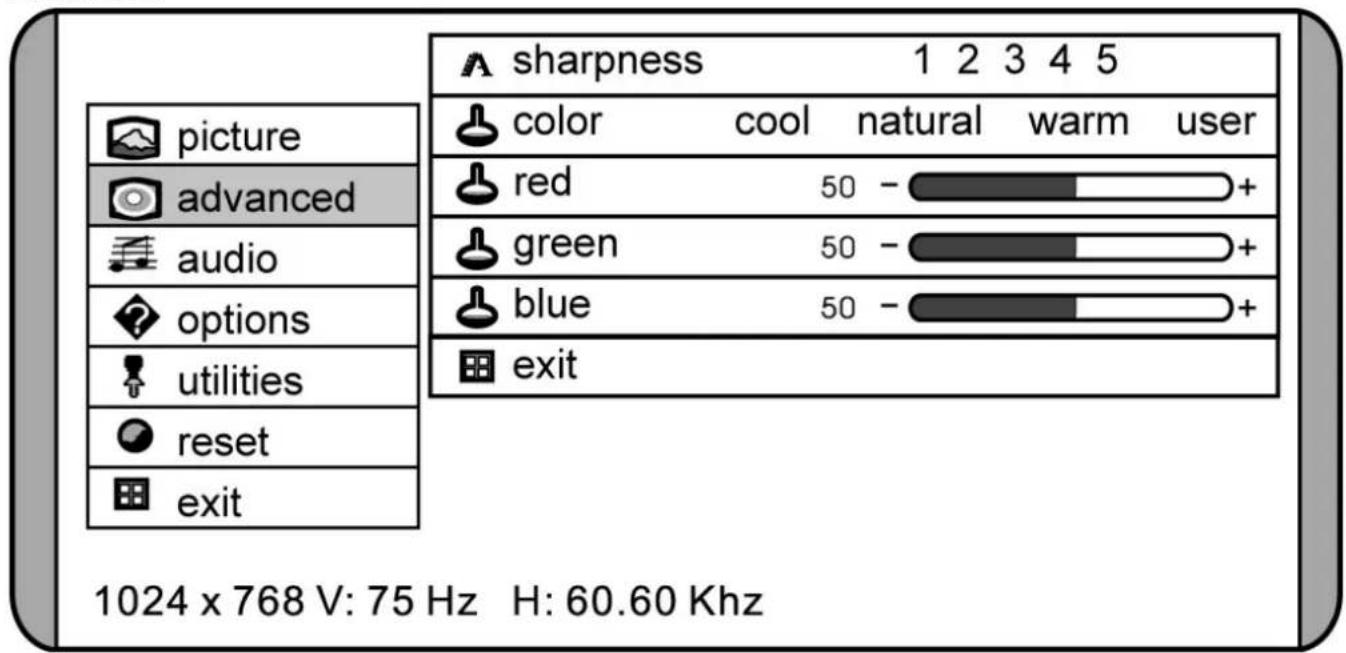
- sharpness
Control the sharpness of the picture (only if the resolution is lower than 1280x1024).
- color
Select a general colour temperature: user, natural, warm or cool.
• cool
Blue colour temperature. Predefined colour settings of the colour components red, green and blue; the colours cannot be adjusted independently of each other.
- natural
Neutral colour temperature. Predefined colour settings of the colour components red, green and blue; the colours cannot be adjusted independently of each other.
- warm
Red colour temperature. Predefined colour settings of the colour components red, green and blue; the colours cannot be adjusted independently of each other.
- user
Allows the independent adjustment of the colour components red, green and blue.
Audio
(III.: OSD menu - audio)
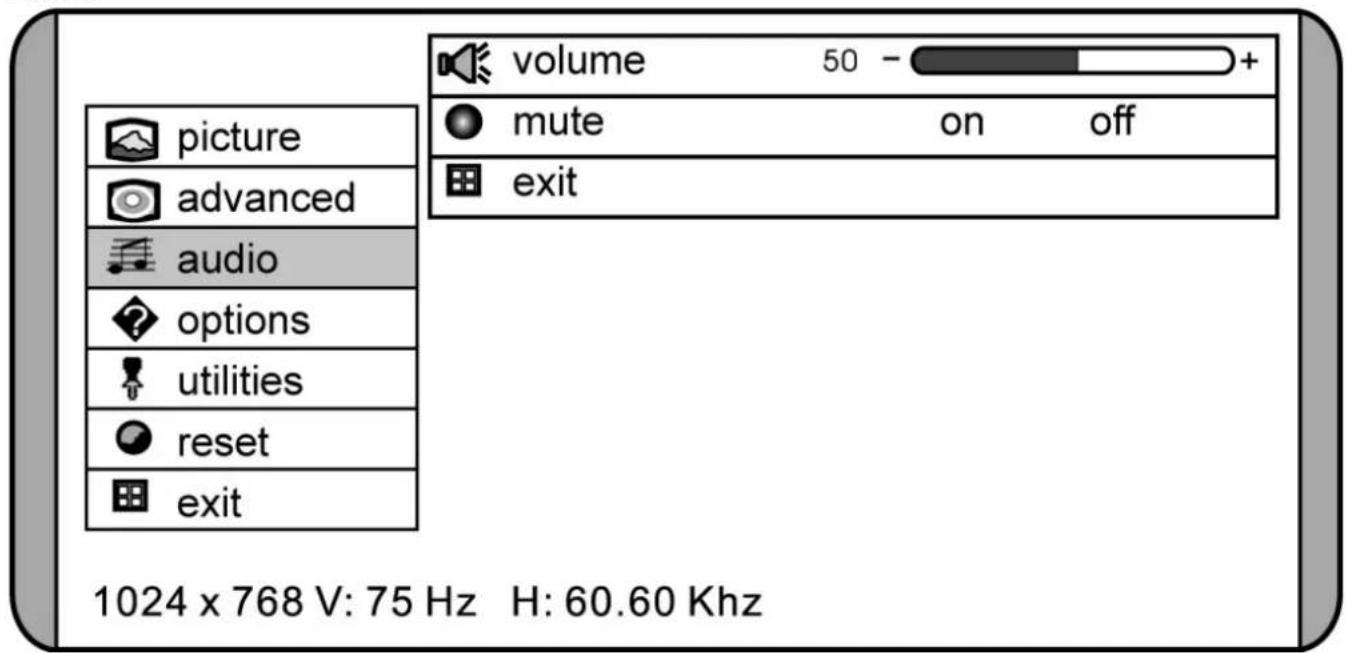
• volume
Set the volume of the speakers.
- mute
Disables the speakers.
Options
(III.: OSD menu - options)
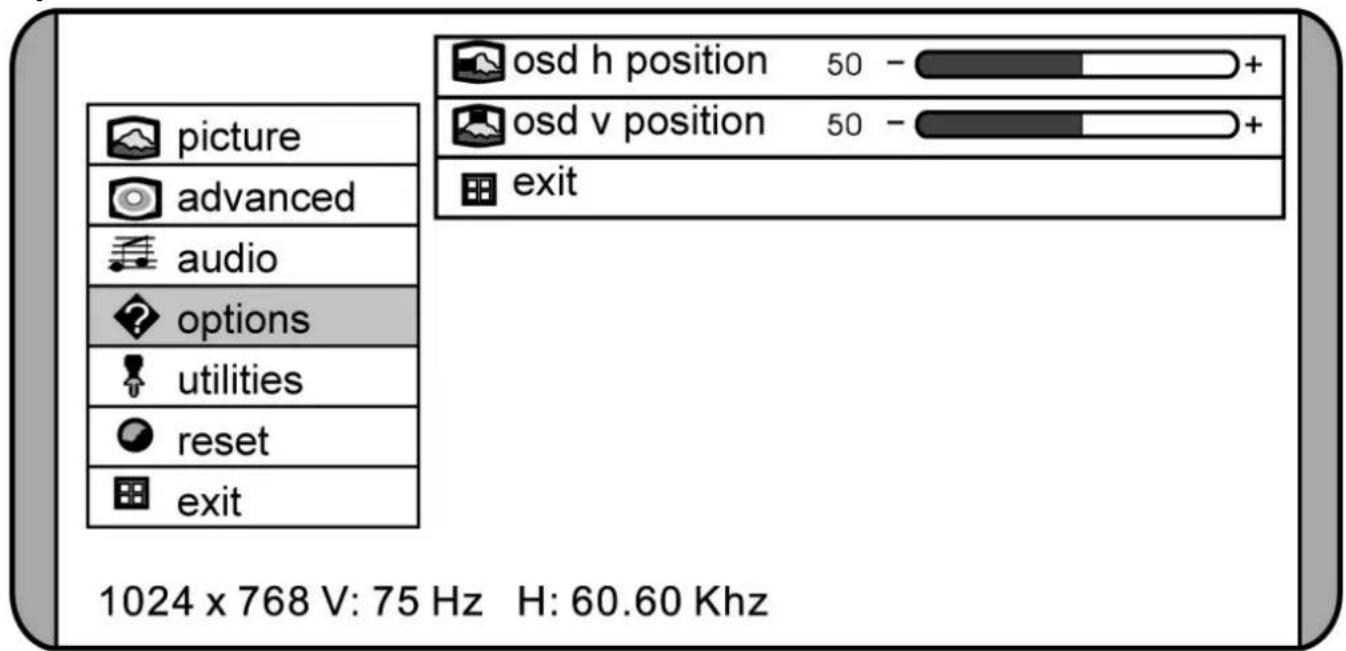
- OSD h position
Adjust the horizontal position of the OSD.
- OSD v position
Adjust the vertical position of the OSD.
Utilities
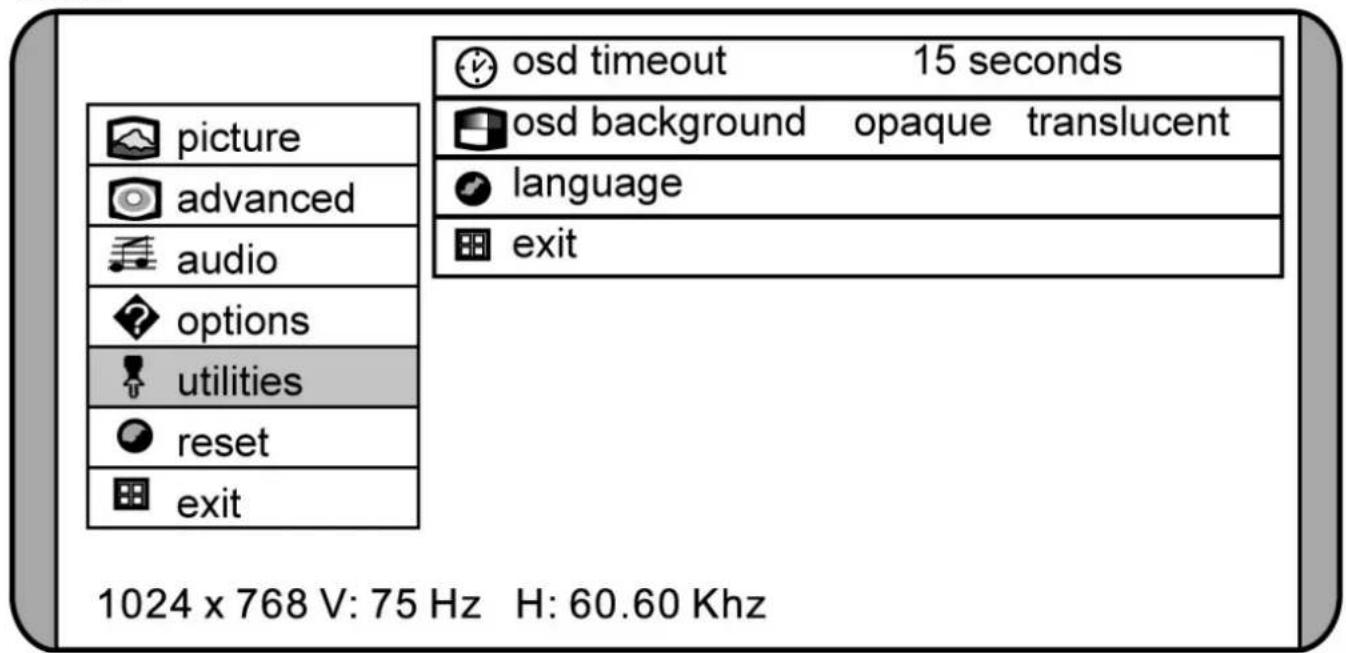
(III.: OSD menu - utilities)
- OSD timeout
You can set the idle time interval, after which the OSD will vanish. - OSD background
Adjust the opacity of the background of the OSD menu. - language
You have several possibilities to choose the language of the OSD.
Reset
With this menu item you can reset to the factory settings. All manual adjustments are erased. All parameters now have the same values as when the unit was shipped.
Saving Energy
This monitor can be switched into various states of energy saving by the respective computer or operating system. This meets the current requirements for reduction of power consumption.
The monitor supports the following states of low energy consumption:
| Status | Power Consumption | Colour of the indicator | Standby mode (approx.) |
| ON | < 40 W | Blue | - |
| OFF | < 2 W | Orange | 6 seconds |
The monitor remains – depending on the operating system – in the state of low power consumption, until you press a button of the keyboard or move the mouse (if available).
It takes approx. 6 seconds for the monitor to switch from standby mode to normal operation.
Service
Troubleshooting
If your TFT monitor should have problems please check if it is properly installed and plugged according to the information given in the "Start-Up" section beginning on page 6. If the problems cannot be solved, read the following chapter for possible solution.
Finding the problem
Many times, problems have simple causes. We would like to give you some tips to solve some common problems. Should these tips not help, please call us!
Check Connections and Cables
Start by carefully checking all cable connections visually. If the indicator lamps do not function, ensure that the TFT monitor and computer are properly connected to the line power.
Troubleshooting
No display on screen:
Check:
- Network supply: The network cable must rest securely in the socket and the network switch must be switched on.
- Signal source: Please check that the source of the signal (computer, or other source) is switched on and that the connecting cables are resting securely in the sockets.
• Image refresh frequency.
The current image refresh frequency must be suitable for the TFT monitor. - Power saving mode. Press any desired key and move the mouse to deactivate the mode.
• Signal cable pins. If pins are bent, please contact your service dealer. - Set the appropriate values for your TFT monitor (see "Preparations on your computer", page 6).
Picture runs or not stable:
Check:
• Signal cable pins. If pins are bent, please contact your service dealer.
- Signal cable pins: The plugs of the signal cable must rest securely in the sockets.
• Video card. Check whether the settings are correct.
- Image refresh frequencies. Select permissible values for your graphic settings.
- Monitor output signal: The monitor output signal of the computers must match the technical data of the monitor.
- Remove any interfering equipment (portable telephones, loudspeakers, etc.) from the vicinity of your TFT monitor.
- Avoid using monitor extension cables.
Colors not displayed cleanly:
- Check the signal cable pins. If pins are bent, please contact your service dealer.
- Readjust the corresponding settings.
- Avoid using monitor extension cables.
Characters displayed dark, picture too small, too large or not centered, etc.:
- Readjust the corresponding settings. (Setting TFT monitor, page 12)
The display is too light or too dark:
- Check that the video output level of the computer matches the technical data of the monitor.
- Select Auto Setup, to optimize the settings for brightness and contrast. The display should show a text page (e.g. Explorer, Word, etc.), to optimize it.
Do you require additional Support?
If the suggestions in the above section have not solved your problem, please contact the hotline. We will try and help you over the telephone. However, before you contact your Service Center, please keep the following information available:
• How is your computer configured?
• What additional peripherals do you use?
• What messages, if any, appear on your screen?
- What software were you using when the error occurred?
• What steps have you already undertaken to solve the problem?
- If you have already been given a customer number, please keep this available.
Precautions
You can increase the service life of your TFT monitor by taking the following precautions:
Caution!
There are no parts which can be serviced or cleaned inside of the monitor housing.
- Before cleaning always disconnect the power line and all connection cables.
- Do not use any solvents, caustic or gaseous cleaning agents.
- Clean the display with a soft, lent-free cloth.
- Ensure that no water droplets remain on the screen. Water can cause permanent discoloration.
- Do not expose the screen to bright sunlight or ultraviolet radiation.
Please keep the packaging material safely and use it exclusively to transport the monitor.
Recycling


Packaging
Your device is packaged to protect it against damage during transportation. The packaging is manufactured from materials that can be sent to a specialist recycling facility and disposed of in an environmentally-friendly way.
Device
At the end of its life, the appliance must not be disposed of in household rubbish. Enquire about the options for environmentally-friendly disposal.
Specifications
• Visible display size 19" (48.2 cm), TFT
- Input voltage AC 100-240 V \~ 50/60 Hz
Power consumption 1.2 A
max. 40 Watt
• Resolution max. 1440 x 900
- Brightness 300 ^2 (typ.) cd/m
- Contrast 1000:1 (typ.)
- Reaction time 5ms (typ.)
• Viewing angle h/v 160^/160^ (typ.)
- RGB input, analog 15-wired SUB-D connector
- RGB input, digital DVI-D
- User control ON/OFF, OSD
- Ambient Temperature Operating +41°F \~ +95°F
+5°C \~ +35°C
Storage -4°F \~ +140°F
-20°C \~ +60°C
• Humidity
Storage < 95%
Operating < 80%
Copying this manual
This document contains legally protected information. All rights reserved. Copying in mechanical, electronic and any other form without the written approval of the manufacturer is prohibited.
Pixel Defects on TFTs (LCD-Displays)
Active matrix TFTs (LCD) with a resolution of 1440 x 900 pixel (WSXGA), which are in turn composed of three sub-pixels each (red, green, blue), contain about 3.9 million addressable transistors. Because of this very high number of transistors and their extremely complex production process occasionally defective or incorrectly addressed pixels or sub-pixels may occur.
There have been several attempts in the past to define the acceptable number of defective pixels. But this can be difficult and varies widely between different manufacturers. 5 Pixel
MEDION, therefore, adheres to the clear and strict requirements of ISO 13406-2, class II, for the warranty handling of all TFT display products. These requirements are summarized below.
Within ISO-standard 13406-2 the general requirements regarding pixel defects are defined. Pixel defects are classified into three failure types and four failure classes. Each individual pixel is made up of three sub-pixels in the primary colors (red, green, blue).
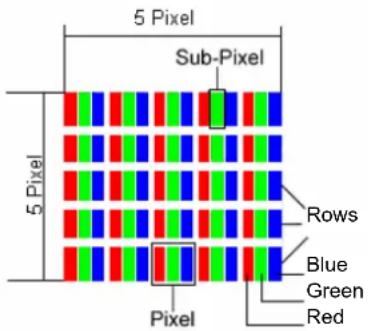
Types of Pixel Failures:
-
Type 1:
A constantly lit pixel (a bright, white spot), even though it is not addressed
A white pixel is caused when all three sub-pixel are lit. -
Type 2:
A pixel that does not light up (dark, black spot), although it is addressed
- Type 3:
Abnormal or defective red, green or blue sub-pixels.
(E.g. constantly lit with half the brightness, one color is not shining, blinking or flickering, but not belonging to Type 1 or 2 Pixel Failures)
In addition: A cluster of type 3 (= 2 or more defective sub-pixels in an array of 5 x 5 pixel). A cluster is an array of 5 x 5 pixel (15 x 5 sub-pixel).
Classes of Pixel Failures:
| Failure class Type 1 Type 2 Type 3 Cluster v. Type 3 | ||||
| I 0 0 0 - 0 | ||||
| II | 2 | 2 | 5 | - |
| III | 5 | 15 | 50 | 5 |
| IV | 50 | 150 | 500 | 50 |
2
The acceptable number of defects of the above mentioned types in each failure class refers to one million pixels and has to be calculated according the physical resolution of the display.
This leads to a maximum allowed number in class II type failure:
| Resolution | Mn Pixel | Sub-Pixel | (Type s. above) |
| 1024 x 768 (15") | 0.786432 | 2.359296 2 2 4 - 2 | |
| 1280 x 1024 (17,18, 19") | 1.310720 | 3.932160 | 3 3 7 - 3 |
| 1600 x 1200 (19") | 1.920000 | 5.760000 4 4 10 - 4 | |
| 1440 x 900 (19" wide) | 1.296000 | 3.888000 3 3 7 - 3 | |
| 1680 x 1050 (20" wide, 22" wide) | 1.764000 | 5.292000 | 4 4 10 - 4 |
Class I type failure only applies to special applications, e.g. medical applications, and results in corresponding price increases. Class II type failure is the established standard for quality conscious manufacturers with high quality displays.
Example 1:
A 15" - XGA-display consists of 1024 horizontal and 768 vertical picture dots (pixel), which amounts to a total of 786,432 pixel. Related to one million pixels this translates into a factor of about 0.8.
Class II type failure consequently allows for two defects each of type 1 and type 2 and 4 defects of type 3 and 2 clusters of type 3.
Example 2:
A 17" - SXGA-display consists of 1280 horizontal and 1024 vertical picture dots (pixel), which amounts to a total of 1,31 million pixels. Based on one million pixels this translates into a factor of about 1.31.
Class II type failure consequently allows for three defects each of type 1 and type 2 and 7 defects of type 3 and 3 cluster of type 3.
These cases are normally not covered by warranty.
If the number of failures exceeds the figures of any category mentioned above then this may be covered by the warranty.
Recycling Information
When customer decides to leave MEDION obsolete products for recycling from Europe, please call to the listed places in Europe.
| Deutschland / GermanyHellmann Process Management GmbH & Co. KGAdolf-Köhne-Str. 1149090 Osnabrück, Germany: +49 (541) 6 05 - 17 43: +49 (541) 6 05 - 45 17 43Email: sandra.herzig@de.hellmann.netWebsite: http://www.hellmann-pm.de | Norwegen /NorwayDanrec A/SBogøvej 105900 Rudkøbing: +45 6257 1118: +45 6257 1171Email: danrec@post8.tele.dkContact person: Mr. Stig Würtz |
| Dänemark / DenmarkDanrec A/SBogøvej 105900 Rudkøbing: +45 6257 1118: +45 6257 1171Email: danrec@post8.tele.dkContact person: Mr. Stig Würtz | Slowakei / Slovak RepublicArcon Slovakia s.r.oSyslia 42821 05 BratislavaSlovak Republic: +421 2 4364 2572: +421 2 4341 5489Email: sales@arcon.skContact person: Stefan Melo |
| Nederlands / NetherlandsSims MirecDillenburgstraat 45605 LS Eindhoven: 0031-40-2508800Email: info@sims-mirec.com | Portugal / PortugalRecycling Equipos S.LPoligono Industrial Malpica, calle E. núms. 54-5550016 Zaragoza: +34 976 573 410: +34 976 572 354Email: recycling@moros.comContact person: Mr. Marcos Clavel |
| Belgique /BelgiumUmicoreA. Greinerstraat 142660 HobokenThierry Van Kerckhoven:0032-3-8217483Email: Thierry.Vankerckhoven@umicore.com | Finnland / FinlandOllila & CO OYMuseokatu 33 B00100 HelsinkiFinland: +358 945 48 151: +358 945 48 153Email: veikko.ollila@saunalahti.fiContact person: Mr. Veikko Ollila |
| Ungarn /HungaryArcon HungarySzent István tér 7. III.em.10H-8000 SzékesfehérvárContact person: Domonkos Balázs: /: +36 22 318 789Email: sales@arcon.huMobile: +36 20 9433 405 | Italia / Italy:ATS Transport S.r.l.Via Fantoli 28 1220138 Milan: +39 02 580061: +39 02 58010934E-Mail: renato.spadaro@atstransport.it |
| España / Spain:Hellmann Worldwide Logistics, S.A.Zona Franca Calle No 5-3a Sub-Zona08040 Barcelona☎: +34 93 2643870☎: +34 93 2643770+34 93 2641455+34 93 2643750+34 93 2633892 | France / France:Heppner OverseasAéroport de Bordeaux-Merignac Aérogare de fret - Cidex B2633700 Merignac Aéroport☎: +33 556 12 42 99☎: +33 556 34 88 92Email: jbbraud@fr.hellmann.net |
| Österreich / Austria:Quehenberger - Hellmann Worldwide Logistics GmbHHandelszentrum 3A-5101 Bergheim Salzburg☎: +43 662 4680 ext.☎: +43 662 4680 1101 | United Kingdom:Hellmann Worldwide Logistics LtdKuhlmann House Lancaster Way Fradley Park LichfieldWS13 8SX Lichfield☎: +44 1543 443300 |
| Türkei /TurkyUygun Konteyner San. Tic. Ltd.Akcesme Mah. 2031 Sok. No: 6Gümüsler-Denizli☎: +90 (0) - 535 653 09 95☎: +90 (0) - 258 371 43 78Mobil: +90 (0) 533 649 45 02Kontakt: Fr. Sidika Arikan | Island / IcelandHRINGTORGÁlhólsvegur 100200 Kópavogur☎: (+354) 511 3880☎: (+354) 511 3881Mobil: (+354) 820 8199E-mail: danielh@strik.isMr. Daniel Helgason |
| SchweizCablofer Bex SARte CantonaleCH-1880 Bex☎: +41 24 463 04 30☎: +41 24 463 04 20Mail: cablofer@cablofer.ch | Asien / Asia:Hellmann Worldwide Logistics Ltd.1 F Blk A. No. 579 Tonic Industrial Center 26 KaiCheung Road Kowloon BayKowloonHongKong☎: +852 2796 7828 |
| Slowenien / SloveniaIntereuropa d.d.Vojkovo Nabrezje 326504 Koper☎: 386 5 6641000☎: 386 5 6641535Contact person : Mr. Gregar Veselko | AustralienSULO MGB AUSTRALIA PTY LTD123 Wisemans Ferry RoadAUS-Somersby NSW 2250☎: +61 (0) 2 - 4348 81 88☎: +61 (0) 2 - 4348 81 23Managing Director: Mr. Hustonm.huston@sulo.com.au |
| Amerika / USA:Hellmann Worldwide Logistics, Inc.574 Airport South Parkway Suite 40030349 Atlanta☎: +770 506 2260 |
"THE DISPLAY UNIT IS AN ELECTRIC DEVICE WHICH MAY CONTAIN HAZARDOUS MATERIALS / COMPONENTS AND THAT IT NEEDS TO BE TAKEN CARE OF AT END OF LIFE ACCORDING TO A PROCEDURE"
TCO Development

Congratulations!
The display you have just purchased carries the TCO'03 Displays label. This means that your display is designed, manufactured and tested according to some of the strictest quality and environmental requirements in the world. This makes for a high performance product, designed with the user in focus that also minimizes the impact on our natural environment.
Some of the features of the TCO'03 Display requirements:
Ergonomics
- Good visual ergonomics and image quality in order to improve the working environment for the user and to reduce sight and strain problems. Important parameters are luminance, contrast, resolution, reflectance, colour rendition and image stability.
Energy
- Energy-saving mode after a certain time – beneficial both for the user and the environment
- Electrical safety
Emissions
- Electromagnetic fields
- Noise emissions
Ecology
- The product must be prepared for recycling and the manufacturer must have a certified environmental management system such as EMAS or ISO 14 000
- Restrictions on
• chlorinated and brominated flame retardants and polymers
- heavy metals such as cadmium, mercury and lead.
The requirements included in this label have been developed by TCO Development in cooperation with scientists, experts, users as well as manufacturers all over the world. Since the end of the 1980s TCO has been involved in influencing the development of IT equipment in a more user-friendly direction. Our labelling system started with displays in 1992 and is now requested by users and IT-manufacturers all over the world.
For more information, please visit www.tcodevelopment.com