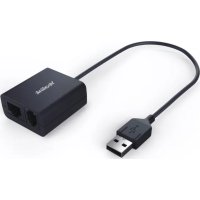
EHS40 - Headphones Yealink - Free user manual and instructions
Find the device manual for free EHS40 Yealink in PDF.


| Product type | Electronic Hook Switch (EHS) adapter for audio headset |
| Brand | Yealink |
| Model | EHS40 |
| Headset compatibility | Yealink WH62/WH63 (firmware ≥ 104.434.0.15) |
| Phone compatibility | Yealink IP phones, Mitel, Unify, Avaya, Poly, GS, Fanvil, Snom, and T3X series IP phones |
| Power supply | 5 V DC via USB port or power adapter |
| Dimensions | Approximately 60 x 50 x 20 mm (estimated) |
| Weight | Approximately 30 g (estimated) |
| Cable length | Approximately 1.5 m (estimated) |
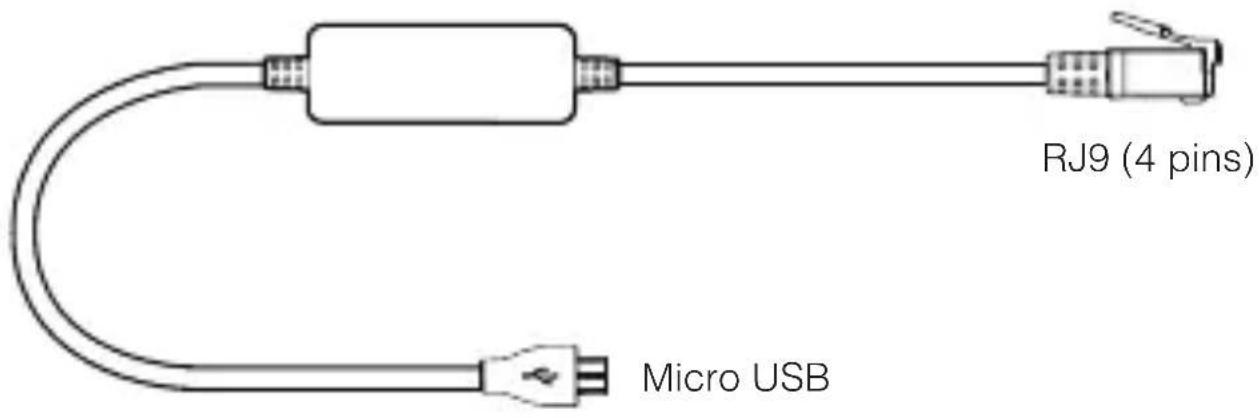
| Connectors | Phone port (RJ9), headset port (RJ9), PC port (USB-A), power port (micro USB) |
| LED indicator | Audio channel button with solid green light (activated) and off (deactivated) |
| Main functions | Activation/deactivation of the audio channel between headset and phone, call control from the IP phone |
| Firmware update | Via Yealink USB Connect (PC) |
| Operating temperature | 0 °C to 40 °C (estimated) |
| Operating humidity | 10% to 90% RH (estimated) |
| Maintenance and cleaning | Clean with a soft, dry cloth. Do not use abrasive products. |
| Safety | Compliant with FCC and IC standards. Do not expose to water or extreme temperatures. |
| Spare parts and repairability | Contact Yealink support for spare parts. Repair must be carried out by a qualified technician. |
| General information | Manufacturer: YEALINK NETWORK TECHNOLOGY CO., LTD. Indoor use only. |
Frequently Asked Questions - EHS40 Yealink
User questions about EHS40 Yealink
0 question about this device. Answer the ones you know or ask your own.
Ask a new question about this device
Download the instructions for your Headphones in PDF format for free! Find your manual EHS40 - Yealink and take your electronic device back in hand. On this page are published all the documents necessary for the use of your device. EHS40 by Yealink.
USER MANUAL EHS40 Yealink
Wireless Headset Adapter EHS35
User Guide
Bedienungsanleitung | Guía del usuario | Guide d'utilisateur
Package Contents
Verpackungsinhalt | Contenido de la caja | Contenu de la boîte

natural_image
Simple line drawing of a closed book or notebook (no text or symbols visible)User Guide
Bedienungsanleitung
Guía del usuario
Guide d'utilisateur
V1.1
Connect the IP Phone and Headset
The WH62/WH63 headset version must be 104.434.0.15 or later. You can check out the headset version via Yealink USB Connect (PC) Download: https://www.yealink.com/product/yuc.

Mitel & Unify Phone
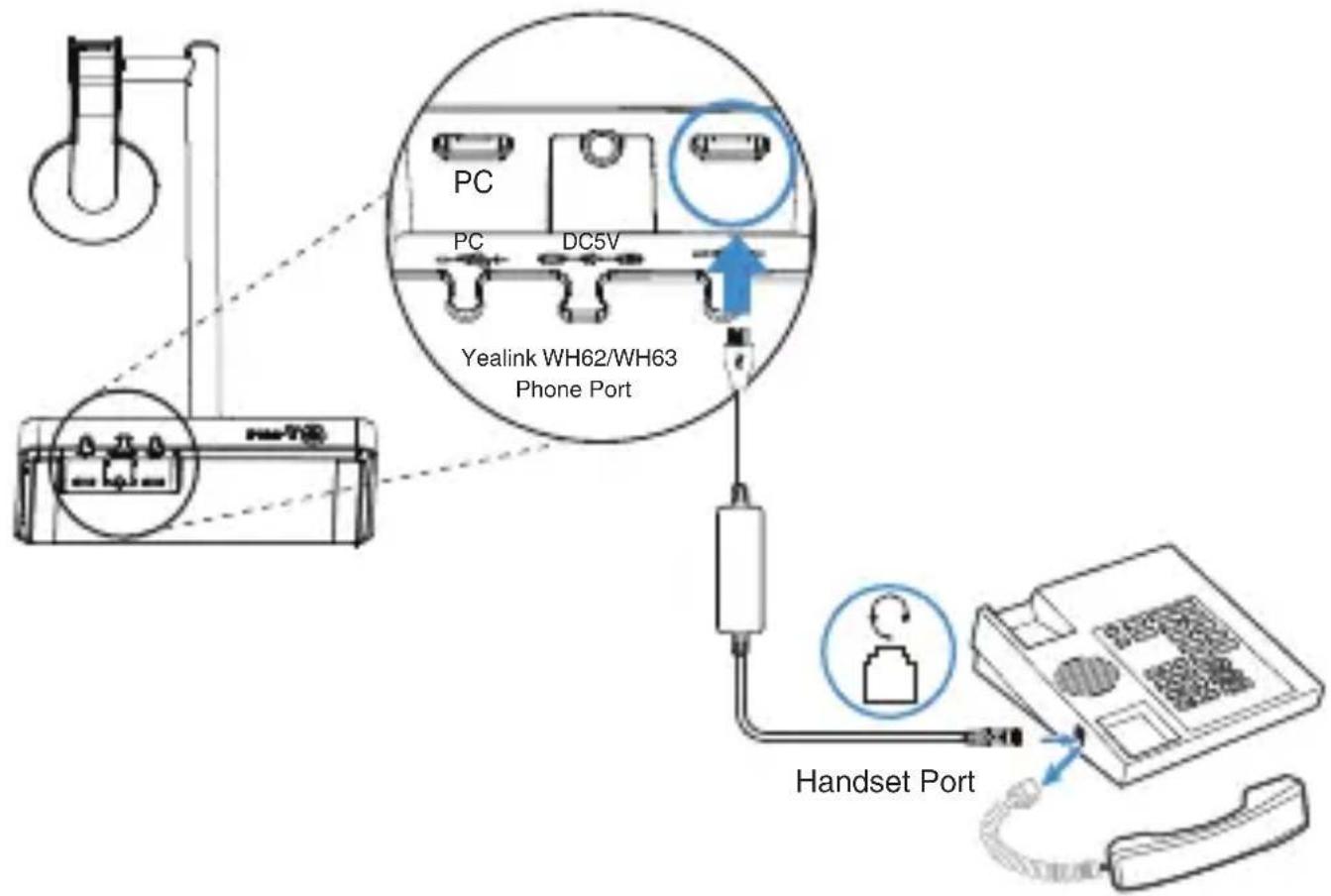
You need to do the following on the WH62/WH63:
- Before a call, press the 🔒 button on the base to enable the audio channel. The LED indicator of the 🔒 button turns solid green.
- After a call, press the 🔒 button on the base again or dock the headset to the base to disable the audio channel. The LED indicator of the 🔒 button turns off.
- The call can only be controlled on the IP phone.

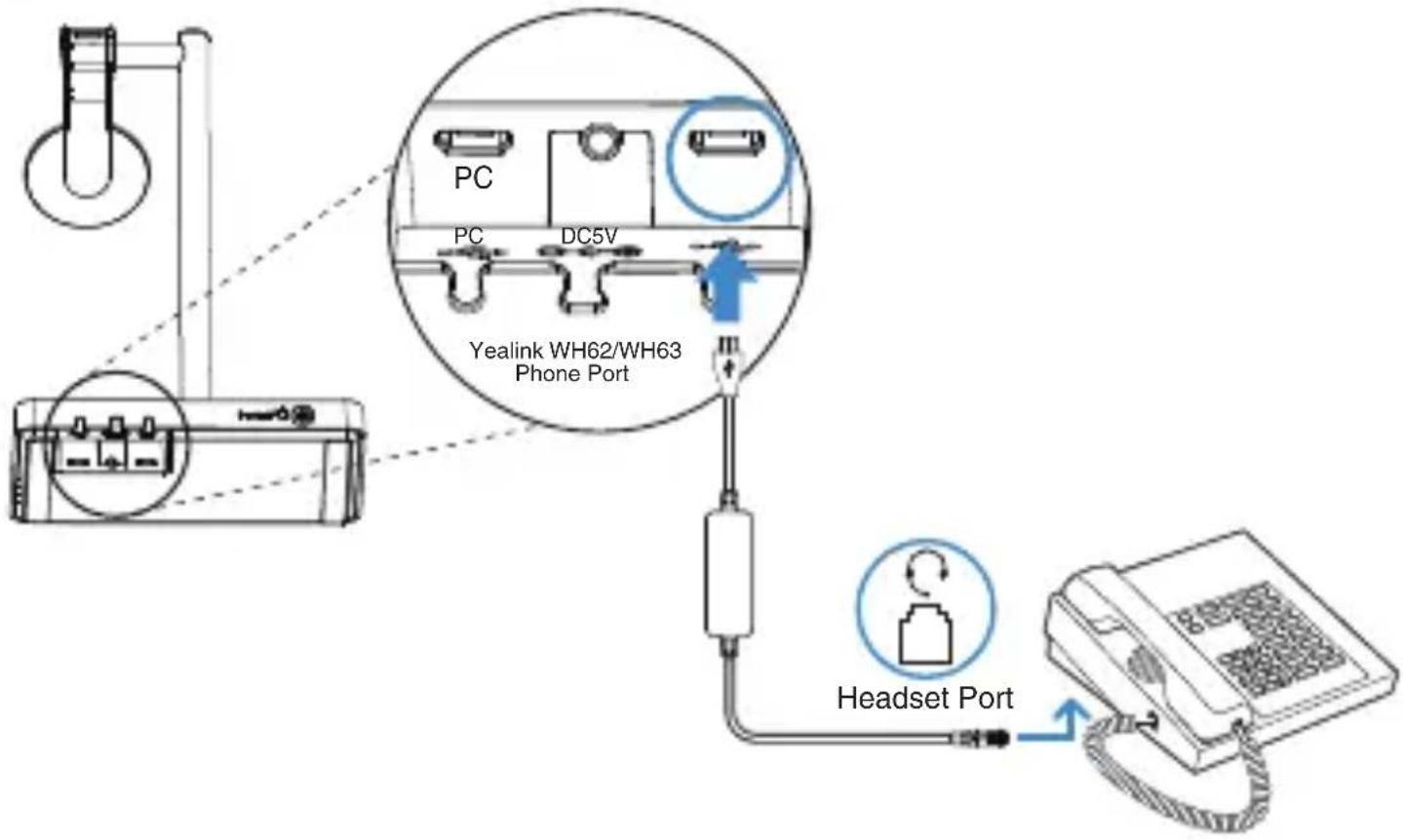
Avaya/Poly/GS/Fanvil/Snom IP Phone
flowchart
graph TD
    A["PC"] --> B["Headset Port"]
    C["PC"] --> D["Yealink WH62/WH63 Phone Port"]
    E["DC5V"] --> D
    D --> F["Headset Port"]
    G["Headset Port"] --> H["Phone"]
You need to do the following:
Step 1: For IP Phones, you need to press the ⓣ button on the phone to set the audio device as a headset. The call can only be controlled on the IP phone.
Step 2 For WH62/WH63:
-Before a call, press the 📞 button on the base to enable the audio channel. The LED indicator of the 🔔 button turns solid green.
- After a call, press the 🔒 button on the base again or dock the headset to the base to disable the audio channel. The LED indicator of the 🔒 button turns off.
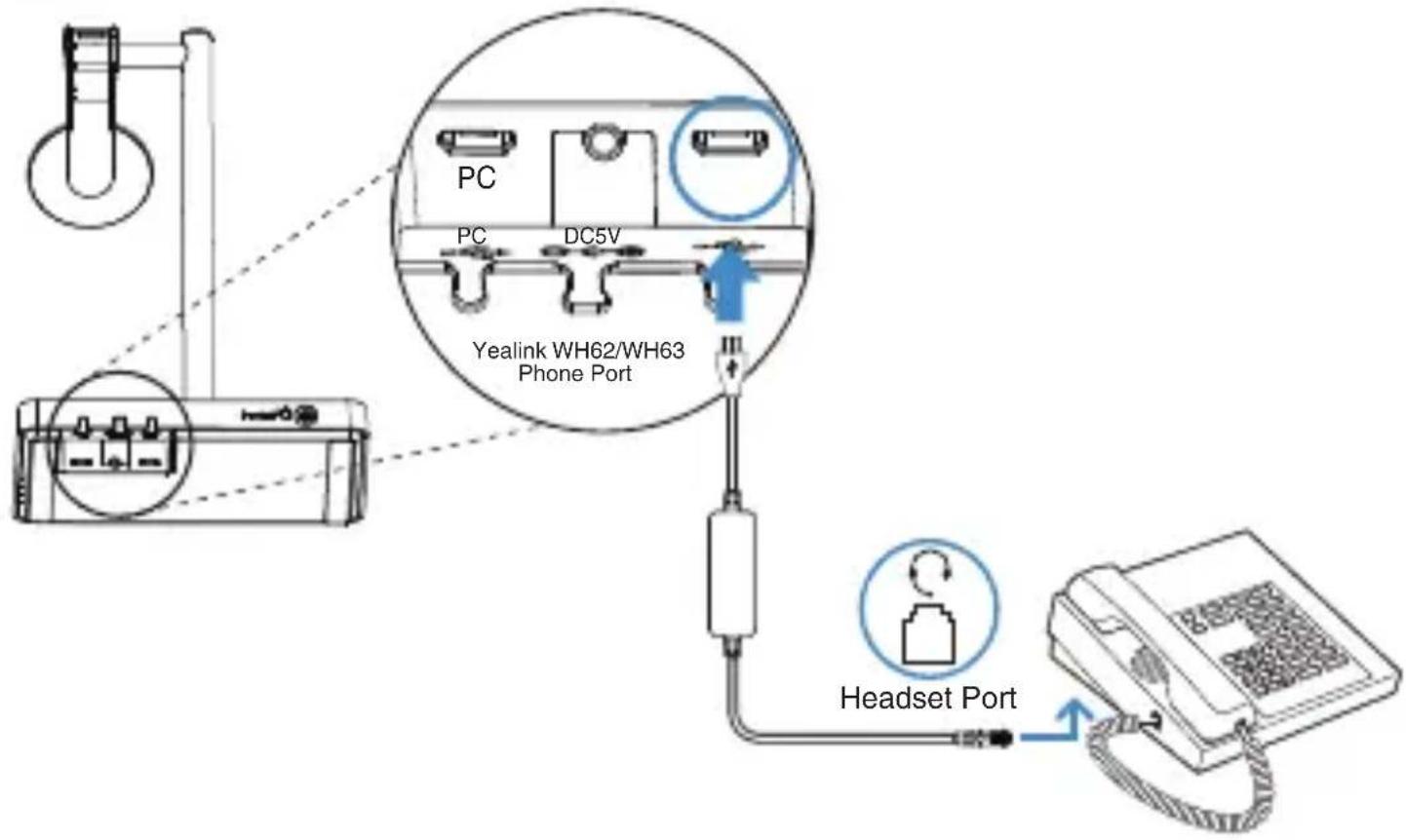
You need to do the following:
Step 1: For IP Phones, you need to press the Ⓞ button on the phone to set the audio device as a headset. The call can only be controlled on the IP phone.
Step 2: For WH62/WH63:
- Before a call, press the 📞 button on the base to enable the audio channel. The LED indicator of the 🔔 button turns solid green.
- After a call, press the 🔒 button on the base again or dock the headset to the base to disable the audio channel. The LED indicator of the 🔒 button turns off.
Note :
- If it is connected to a T3X series IP phone, the WH62/WH63 can directly control the call.
- We recommend updating the T3 series phones to the latest firmware version. For more details, please scan the QR code.
flowchart
graph TD
    A["PC"] --> B["PC"]
    B --> C["DC5V"]
    C --> D["Yealink WH62/WH63 Phone Port"]
    D --> E["Headset Port"]
    E --> F["Phone"]
You need to do the following:
flowchart
graph TD
    A["PC"] --> B["PC"]
    B --> C["DC5V"]
    C --> D["Yealink WH62/WH63 Phone Port"]
    D --> E["Headset Port"]
    E --> F["Telephone Device"]
Paso 2: Para WH62/WH63:
flowchart
graph TD
    A["PC"] --> B["PC"]
    B --> C["DC5V"]
    C --> D["Yealink WH62/WH63 Phone Port"]
    D --> E["Headset Port"]
    E --> F["Device"]
Paso 2: Para WH62/WH63:
Declaration of Conformity
We,
YEALINK(XIAMEN) NETWORK TECHNOLOGY CO.,LTD
Address: 309, 3rd Floor, No.16, Yun Ding North Road, Huli District, Xiamen City, Fujian, P.R.C
Manufacturer: YEALINK(XIAMEN) NETWORK TECHNOLOGY CO.,LTD
Address: 309, 3rd Floor, No.16, Yun Ding North Road, Huli District, Xiamen City, Fujian, P.R.C
DATE: 8th / October /2021
Declare that the product
Type: Wireless Headset Adapter
Model: EHS35
meets the essential requirements and other relevant provisions according to the following EC directive
Directive: 2014/30/EU
Conformity
The product complies with the following standards:
Safety: IEC 62368-1:2014
EMC: EN 55032:2015
EN 55035:2017
Directive 2011/65/EU and (EU)2015/863 of the European Parliament and of the Council of 8 June 2011 and 4 June 2015 on the restriction of the use of certain hazardous substances in electrical and electronic equipment(RoHS 2.0)
Directive 2012/19/EU of the European Parliament and of the Council of 4.July.2012 on Waste electrical and electronic equipment(WEEE)
Regulation (EC) No.1907/2006 of the European Parliament and of the Council of 18.December.2006 on Registration, Evaluation, Authorization, and Restriction of Chemicals (REACH)
NAME: Huahu Wang
DATE: 8 / Oct /2021
TITLE: Vice President
Regulatory Notices
Operating Ambient Temperatures
• Operating temperature: +14 to 113°F (-10 to 45°C)
• Relative humidity: 5% to 90%, noncondensing
• Storage temperature: -22 to +158°F (-30 to +70°C)
Warranty
Our product warranty is limited only to the unit itself, when used normally in accordance with the operating instructions and the system environment. We are not liable for damage or loss resulting from the use of this product, or for any claim from a third party. We are not liable for problems with Yealink device arising from the use of this product; we are not liable for financial damages, lost profits, claims from third parties, etc., arising from the use of this product.
Explanation of the symbols
- DC symbol
is the DC voltage symbol.
• WEEE Warning symbol
To avoid the potential effects on the environment and human health as a result of the presence of hazardous substances in electrical and electronic equipment, end users of electrical and electronic equipment should understand the meaning of the crossed-out wheeled bin symbol. Do not dispose of WEEE as unsorted municipal waste and have to such WEEE separately.
Restriction of Hazardous Substances Directive (RoHS)
This device complies with the requirements of the EU RoHS Directive. Statements of compliance can be obtained by contacting support@yealink.com.
Safety Instructions
Save these instructions. Read these safety instructions before use!

General Requirements
- Before you install and use the device, read the safety instructions carefully and observe the situation during operation.
- During the process of storage, transportation, and operation, please always keep the device dry and clean, avoid collision and crash.
- Please attempt not to dismantle the device by yourself. In case of any discrepancy, please contact the appointed maintenance center for repair.
- Please refer to the relevant laws and statutes while using the device. Legal rights of others should be respected as well.

Environmental Requirements
- Place the device at a well-ventilated place. Do not expose the device under direct sunlight. Keep the device dry and free of dusts.
- Do not place the device on or near any inflammable or fire-vulnerable object, such as rubber-made materials.
- Keep the device away from any heat source or bare fire, such as a candle or an electric heater.

Operating Requirements
- Do not let a child operate the device without guidance.
- Do not let a child play with the device or any accessory in case of accidental swallowing. Please use the accessories provided or authorized by the manufacturer only.
- The power supply of the device shall meet the requirements of the input voltage of the device. Please use the provided surge protection power socket only.
• Before plugging or unplugging any cable, make sure that your hands are completely dry.
- Do not spill liquid of any kind on the product or use the equipment near water, for example, near a bathtub, washbowl, kitchen sink, wet basement or near a swimming pool.
- During a thunderstorm, stop using the device and disconnect it from the power supply. Unplug the power plug and the Asymmetric Digital Subscriber Line (ADSL) twisted pair (the radio frequency cable) to avoid lightning strike.
If the device is left unused for a rather long time, disconnect it from the power supply and unplug the power plug.
- When there is smoke emitted from the device, or some abnormal noise or smell, disconnect the device from the power supply, and unplug the power plug immediately.
- Contact the specified maintenance center for repair.
- Do not insert any object into equipment slots that is not part of the product or auxiliary product.
- Before connecting a cable, connect the grounding cable of the device first. Do not disconnect the grounding cable until you disconnect all other cables.

Cleaning Requirements
Use a piece of soft, dry and anti-static cloth to clean the device.
Troubleshooting
The usage environment is out of operating temperature range.
- Use in the operating temperature range.
The cable between the unit and the Yealink device is connected incorrectly.
- Connect the cable correctly.
Some dust, etc., may be in the port.
- Clean the port.
Contact your dealer or authorized service facility for any further questions.
FCC Statement
This device complies with part 15 of the FCC Rules. Operation is subject to the following two conditions:
(1) this device may not cause harmful interference, and (2) this device must accept any interference received, including interference that may cause undesired operation. Any Changes or modifications not expressly approved by the party responsible for compliance could void the user's authority to operate the equipment.
IC Statement
This device complies with Industry Canada's licence-exempt RSSs. Operation is subject to the following two conditions:
(1) this device may not cause interference; and
(2) this device must accept any interference, including interference that may cause undesired operation of the device. CAN ICES-3(B) Le présent appareil est conforme aux CNR d'Industrie Canada applicables aux appareils radio exempts de licence. L'exploitation est autorisée aux deux conditions suivantes :
No.666 Hu'an Rd, Huli District Xiamen City, Fujian, P.R.C YEALINK (EUROPE) NETWORK TECHNOLOGY B.V.
Sir Winston Churchilln 299 k, 2288DC Rijswijk
YEALINK (USA) NETWORK TECHNOLOGY CO., LTD. 999 Peachtree Street Suite 2300, Fulton, Atlanta, GA, 30309, USA
Made in China
Technical Support
Visit Yealink WIKI (http://support.yealink.com/) for the latest firmware, guides, FAQ, Product documents, and more. For better service, we sincerely recommend you to use Yealink Ticketing system (https://ticket.yealink.com) to submit all your technical issues.

YEALINK(XIAMEN) NETWORK TECHNOLOGY CO.,LTD.
Web: www.yealink.com
Copyright©2023 YEALINK(XIAMEN) NETWORK
TECHNOLOGY CO.,LTD. All rights reserved.
430104002312