
UH36 - Headphones Yealink - Free user manual and instructions
Find the device manual for free UH36 Yealink in PDF.


| Product Type | Wired USB Headset |
| Brand | Yealink |
| Model | UH36 |
| Connectivity | USB Type-A |
| Driver Size | 40 mm |
| Frequency Response (Speaker) | 20 Hz - 20 kHz |
| Impedance | 32 Ω |
| Sensitivity (Speaker) | 100 dB |
| Microphone Type | Noise-canceling, Omni-directional |
| Microphone Frequency Response | 100 Hz - 10 kHz |
| Cable Length | 2.0 m |
| Weight | 185 g |
| Dimensions (W x H x D) | 200 x 170 x 70 mm |
| Color | Black |
| Compatibility | Windows, macOS, Linux, Yealink IP Phones |
| Controls | Volume up/down, Mute, Call answer/end |
| LED Indicators | Mute (red), Call status (blue) |
| Power Source | USB powered (5V DC, 100 mA) |
| Operating Temperature | 5°C to 45°C |
| Storage Temperature | -10°C to 60°C |
| Certifications | CE, FCC, RoHS |
| Package Contents | Headset, USB cable, Quick Start Guide |
| Warranty | 2 years |
| Cleaning | Wipe with soft dry cloth; avoid liquids |
| Spare Parts | Replacement ear cushions available |
Frequently Asked Questions - UH36 Yealink
User questions about UH36 Yealink
0 question about this device. Answer the ones you know or ask your own.
Ask a new question about this device
Download the instructions for your Headphones in PDF format for free! Find your manual UH36 - Yealink and take your electronic device back in hand. On this page are published all the documents necessary for the use of your device. UH36 by Yealink.
USER MANUAL UH36 Yealink
Wired HeadsetWired Headset
UH34 Release Note UH34 Release Note
November 2021, Version 4.410.0.55 November 2021, Version 4.410.0.55
Latest Firmware Versions Latest Firmware Versions
- Firmware Version:
Yealink UH34: 4.410.0.30 upgraded to 4.410.0.55 Download Firmware.
• Applicable Models: UH34
What's New What's New
| No.No. | DescriptionDescription |
| 1 | Speak mode supports 32K sample rate, both the speaker and microphone frequency response are 100Hz-10kHz. |
OptimizationOptimization
| No.No. DescriptionDescription | |
| 1 Compatible with 3CX Softphone. | |
| 2 | Compatible with VMware Horizon environment, supports call control with softphone running in this environment. |
Bug FixesBug Fixes
| No.No. DescriptionDescription | |
| 1 [UH34 Mono] Fixed an issue that there is no sound when playing right channel audio. |
UH36 Release Note UH36 Release Note
November 2021, Version 1.410.0.55 November 2021, Version 1.410.0.55
Latest Firmware Versions Latest Firmware Versions
- Firmware Version:
Yealink UH36: 1.410.0.35 upgraded to 1.410.0.55 Download Firmware.
• Applicable Models: UH36
What's New What's New
| No.No. DescriptionDescription | |
| 1 | Speak mode supports 32K sample rate, both the speaker and microphone frequency response is 100Hz-10kHz. |
OptimizationOptimization
| No.No. DescriptionDescription | |
| 1 Compatible with 3CX Softphone. | |
| 2 | Compatible with VMware Horizon environment, supports call control with softphone running in this environment. |
Bug FixesBug Fixes
| No.No. DescriptionDescription |
| 1 [UH36 Mono] Fixed an issue that there is no sound when playing right channel audio. |
UH38 Release Note UH38 Release Note
July 2022, Version 12.420.0.20 July 2022, Version 12.420.0.20
Latest Firmware Versions Latest Firmware Versions
- Firmware Version:
Yealink UH38: 12.420.0.10 upgraded to 12.420.0.20 Download Firmware.
• Applicable Models: UH38
What's NewWhat's New
None
OptimizationOptimization
| No.No. DescriptionDescription | |
| 1 Optimized the compatibility of the BT51 | |
Bug FixesBug Fixes
None
May 2022, Version 12.420.0.10 May 2022, Version 12.420.0.10
Latest Firmware Versions Latest Firmware Versions
- Firmware Version:
Yealink UH38: 12.410.0.25 upgraded to 12.420.0.10.
• Applicable Models: UH38
What's NewWhat's New
No.No.DescriptionDescription
| 1 | Added the feature that you can use the Yealink USB Connect to modify the UH38 Bluetooth device name, change the UH38 feature configuration, and pair it with BT51 quickly. |
| 2 | Added the feature that you can connect to PC through BT51 dongle, supporting all call control of app software (You need to buy the BT51 dongle separately). |
| 3 Added the hearing protection features. | |
| 4 Added the Local RingTone feature. | |
| 5 Added the Mute Reminder feature. | |
| 6 Added the Equalizer for Calls feature. | |
OptimizationOptimization
| No.No. DescriptionDescription | |
| 1 | Optimize the call control logic when the USB is connected to the PC and multiple software are running at the same time. |
| 2 Optimize the background noise effect of playing. | |
Bug FixesBug Fixes
None
February 2022, Version 12.410.0.25 February 2022, Version 12.410.0.25
Latest Firmware Versions Latest Firmware Versions
- Firmware Version:
Yealink UH38: 12.410.0.20 upgraded to 12.410.0.25 Download Firmware.
• Applicable Models: UH38
What's New What's New
| No.No. | DescriptionDescription |
| 1 | Support exporting UH38 Real-Time Log through the Yealink USB Connect. |
| 2 | Support the volume adjustment of the UH38 can be synchronized with the mobile phone volume when only the mobile phone plays audio. (When the USB cable is connected to the computer and the Bluetooth is connected to the mobile phone.) |
OptimizationOptimization
| No.No. DescriptionDescription | |
| 1 Optimized the noise cancellation effect of calls. | |
| 2 Optimized the trigger conditions of the Smart Mute reminder feature. | |
| 3 Optimized the call and music noise when connecting Surface pro6 laptop via Bluetooth. |
Bug FixesBug Fixes
| No.No. DescriptionDescription | |
| 1 Fixed an issue that the UH38 fails to connect to some Android phones via Bluetooth. | |
| 2 | Fixed an issue that the probabilistic call transmission noise caused by connecting to some SIP phones via Bluetooth. |
Product Introduction Product Introduction
DatasheetDatasheet
UH33 DatasheetUH33 Datasheet
Yealink USB Headset
Yealink UH33 is a professional headset with the over-the-head style that eliminates background noise and helps you get in your concentration zone and focus. Coupled with wideband audio technology and HD voice, the UH33 delivers richer and clearer conversations, as well as reduces listening fatigue. Simple plug-and-play setup permits you to merely use the USB port to the USB-supported Yealink IP phones, plug it into the USB port or 3.5 mm jack to your laptop, or use the 3.5 mm jack straight into your smart device. Get easy access at your fingertips via the intuitive control unit to the frequently-used functions, such as accept incoming calls, adjust volume and mute the microphone. Yealink UH33 stands its unique position in the market with the combination of exceptional comfort, durable life-cycle, premium quality, and brilliant sound.

ScenariosScenarios
Suitable for daily office use and call center.
SpecificationsSpecifications
SpecificationsSpecifications IntroductionIntroduction
| Main Features | Supports SIP T41S/T42S/T46S/T48S/T53/T53W/T54W/T57W/T58A/VP59For T41S/T42S/T46S/T48S: upgrade to the version 82 or higherUSB and 3.5 mm connectivity to laptop and smart deviceSimple call management via control unitIntegrated LED indicator and warning toneActive Protection technology safeguards users from acoustic injuryHD Voice/Wideband speaker performance and noise cancellation330° bendable boom arm for easy adjustment without breaking |
| General | Cord length: HS cable: 1.2 m; Control cable: 0.9 mConnection: 3.5 mm jack, USB 2.0Supported operating systems:Microsoft Windows®, Apple Mac OSColor: Black |
| Microphone | Microphone type: Noise-cancellingFrequency response range: 100-8 kHzMicrophone bandwidth: WidebandMicrophone Sensitivity: -38.0 dB re. 1V/Pa |
| Speaker | Speaker type: 90±15%Frequency response range: 112 Hz-8.5 kHzSpeaker bandwidth: WidebandSpeaker Sensitivity: 96 dB SPL+/-3 dB SPLSpeaker Impedance: 90±15%Speaker input power: normal: 20 mW; Max: 80 mW |
| Control unit | Answer/End a callVolume up/downMicrophone muteRedial last outgoing callReject incoming call |
| Package Features | Package content:UH33Leather ear cushionFoam ear cushionHeadset hangerQty/CTN: 20 PCSN.W/CTN: 2.6 kgG.W/CTN: 3.2 kgGiftbox size: 135 mm x 155 mm x 60 mmCarton Meas: 330 mm x 320 mm x 295 mm |
When you use UH33 in some uncertified communication platforms, as a minimum, it works as audio only.

For more information, please go to the Yealink official website.
UH34 DatasheetUH34 Datasheet
Yealink USB Wired Headset
UH34: Leather ear cushions UH34 Lite: Foamy ear cushions
The Yealink UH34/UH34 Lite, available in monaural (UH34/UH34 Lite Mono) and binaural (UH34/UH34 Lite Dual), is a professional USB wired headset with crystal clear audio. The UH34/UH34 Lite offers a lightweight, comfortable form to wear, even for an entire workday. It’s suitable for workers who spend a lot of time wearing headsets for voice communications. Provided with Yealink USB Connect software and Yealink Device Management Platform/Cloud Service, you can easily check the device information and upgrade the firmware of one or multiple UH34/UH34 Lite headsets.

UH34 Lite Mono UH34 Lite Dual
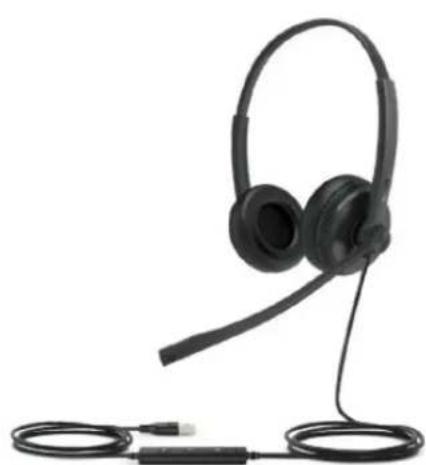
UH34 Mono UH34 Dual
ScenariosScenarios
Suitable for daily office use and call center.
Key FeaturesKey Features
Simple and Flexible ConnectivitySimple and Flexible Connectivity
Runs right out of the box, and a USB plug-and-play setup makes the connectivity to the PC. You can enjoy a reliable call experience with soft clients. Perfect match with Yealink IP phones give you optimized audio quality.
Ultra-lightweight, All Day Wearing Comfort Ultra-lightweight, All Day Wearing Comfort
Built for comfort with soft ear cushions and ultra-lightweight materials, the UH34/UH34 Lite is 10%\~30%* lighter than other conference headsets in the same range. Its ergonomic design makes this headset comfortable for enouall-daylong conference calls and all-day use. (* Test data provided by Yealink Lab)
Unparallel Audio Experience Unparallel Audio Experience
Made for calls and music, UH34/UH34 Lite is kitted out with a high signal-to-noise ratio speaker and independent cavity design.
The passive noise cancellation creates a richer and clearer conversations with reduced background noise.
Intuitive ControllerIntuitive Controller
The hand-held controller with LED indicator provides easier access to key call control capabilities, including answer call, end call, reject a call, and mute/unmute.
SpecificationsSpecifications
| Specifications | Introduction Introduction |
| Main Features | Plug-and-playUSB connectivity to Yealink IP phones, includingT41S/T42S/T46S/T48S/T42U/T43U/T46U/T48U/T53/T53W/T54W/T57W/T58A/VP59 (T41S/T42S/T46S/T48S should be upgraded to version 82 or higher)HD Voice/Wideband speaker performanceNoise-canceling microphone and passive noise cancellationActiveProtection technology safeguards users from acoustic injuryIntegrated LED indicator and warning tone 320° bendable boom arm for easy adjustment without breakingOptional connections for UH34: USB-C, 3.5mm jackCompatible with Linux |
| General | Headset cable length: 1.2 m (from headset to call control unit)USB cable length: 0.9 m (from call control unit to USB plug)Supported operating systems: Microsoft Windows® 8/8.1/10, Apple Mac OSColor: BlackWeight: UH34 Mono: 88 g / UH34 Dual: 118 g /UH34 Lite Mono: 84 g / UH34 Lite Dual: 110 gStorage temperature: -30 °C to +70 °COperating temperature: -10 °C to +50 °C |
| Microphone | Microphone type: Uni-Directional ECMMicrophone frequency response range: 100 Hz-10 kHzMicrophone bandwidth: WidebandMicrophone sensitivity: -44.0 dB re. 1 V/Pa |
| Speaker | Speaker size: 28 mmSpeaker sensitivity: 93 dB SPL @1 kHzSpeaker frequency response range: 20 Hz-20 kHzSpeaker impedance: 32Ω, @1.0 kHzSpeaker input power: 30 mW of potencySpeaker bandwidth: Wideband |
| Audio Performance | Wideband audio: up to 15kHz (stereo) |
| Hearing Protection | Acoustic limitation: 110 dB |
| Easy Call Management | Answer/End/Reject/Hold a callVolume up/downMicrophone muteRedial last outgoing call |
| Package Features | Package contents:- UH34 Mono Headset or UH34 Dual Headset or UH34 Lite Mono Headset or UH34 Lite Dual Headset (UH34 with leather ear cushions/UH34 Lite with foamy ear cushions)- Quick Start GuideQty/CTN: 20 PCSN.W/CTN: UH34 Mono: 2.870 kg / UH34 Dual: 3.486 kg / UH34 Lite Mono: 2.790 kg / UH34 Lite Dual: 3.326 kgG.W/CTN: UH34 Mono: 3.576 kg / UH34 Dual: 4.202 kg / UH34 Lite Mono: 3.496 kg / UH34 Lite Dual: 4.042 kgGiftbox size: 170 mm x 195 mm x 63 mmCarton Meas: 345 mm x 325 mm x 400 mm |
Product TypeProduct Type
| SKU | Model Name |
| 1308065 | UHM341 |
| 1308064 | UHD342 |
| 1300082 | YHC20T USB-C |
| 1300083 | YHC20UC USB-C |
| 1300078 | YHC20T SE |
| 1300079 | YHC20UC SE |
| 1300080 | YHC20T SE USB-C |
| 1300081 | YHC20UC SE USB-C |
| 330100010021 | Foamy Ear Cushion for UH34/YHS34 (1 PCS) |
| 330100010022 | Leather Ear Cushion for UH34/YHS34 (1 PCS) |
| 330100010023 | Foamy Ear Cushion for UH34/YHS34 (12 PCS) |
| 330100010024 | Leather Ear Cushion for UH34/YHS34 (12 PCS) |
ConnectionConnection

For more information, please go to the Yealink official website.
UH34 SE DatasheetUH34 SE Datasheet
Yealink USB Wired Headset
The Yealink UH34 SE, available in monaural (UH34 SE Mono) and binaural (UH34 SE Dual), is a professional USB-wired headset with crystal-clear audio. The UH34 SE offers a lightweight form factor that is comfortable to wear, even for an entire workday. It’s suitable for workers who spend a lot of time wearing headsets for voice communications. Provided with Yealink USB Connect software and Yealink Device Management Platform/Cloud Service, you can easily check the device information and upgrade the firmware of one or multiple UH34 SE headsets.
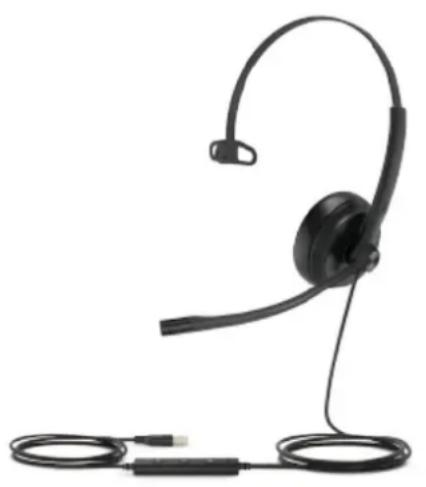
UH34/UH34 Lite Mono Teams UH34/UH34 Lite Mono UC
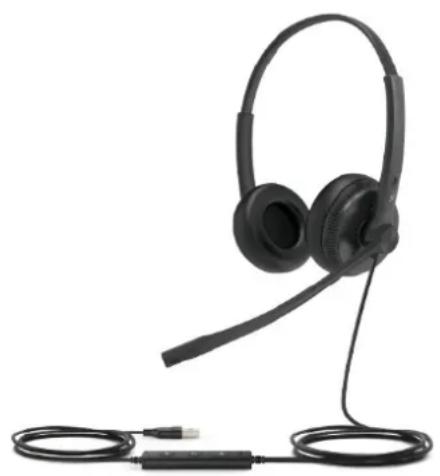
UH34/UH34 Lite Dual Teams UH34/UH34 Lite Dual UC
Key FeaturesKey Features
Simple and Flexible ConnectivitySimple and Flexible Connectivity
Runs right out of the box, and a USB plug-and-play setup makes the connectivity to the PC. You can enjoy a reliable call experience with soft clients. Perfect match with Yealink IP phones give you optimized audio quality.
Ultra-lightweight, All Day Wearing Comfort Ultra-lightweight, All Day Wearing Comfort
Built for comfort with soft ear cushions and ultra-lightweight materials, the UH34/UH34 Lite is 10%\~30%* lighter than other conference headsets in the same range. Its ergonomic design makes this headset comfortable enough for long conference calls and all-day use. (* Test data provided by Yealink Lab)
Unparallel Audio Experience Unparallel Audio Experience
Made for calls and music, UH34/UH34 Lite is kitted out with a high signal-to-noise ratio speaker and independent cavity design. The passive noise cancellation creates a richer and clearer conversations with reduced background noise.
Intuitive ControllerIntuitive Controller
The hand-held controller with LED indicator provides easier access to key call control capabilities, including answer call, end call, reject a call, and mute/unmute.
SpecificationsSpecifications
| SpecificatioSpecification | IntroductionIntroduction |
| Main Features | Plug-and-playUSB connectivity to Yealink IP phones, includingT41S/T42S/T46S/T48S/T42U/T43U/T46U/T48U/T53/T53W/T54W/T57W/T58A/VP59 (T41S/T42S/T46S/T48S should be upgraded to version 82 or higher)HD Voice/Wideband speaker performanceNoise-canceling microphone and passive noise cancellationActiveProtection technology safeguards users from acoustic injuryIntegrated LED indicator and warning tone320° bendable boom arm for easy adjustment without breakingCompatible with Linux |
| General | Headset cable length: 1.2 m (from headset to call control unit)USB cable length: 0.9 m (from call control unit to USB plug)Supported operating systems: Microsoft Windows® 8/8.1/10, Apple Mac OSColor: BlackWeight: UH34 SE Mono: 88 g / UH34 SE Dual: 118 gStorage temperature: -30 °C to +70 °COperating temperature: -10 °C to +50 °C |
| Microphone | Microphone type: Uni-Directional ECMMicrophone frequency response range: 100 Hz - 10 kHzMicrophone bandwidth: WidebandMicrophone sensitivity: -44.0 dB re. 1 V/Pa |
| Speaker | Speaker size: 28 mmSpeaker sensitivity: 93 dB SPL @1 kHzSpeaker frequency response range: 20 Hz-20 kHzSpeaker impedance: 32Ω, @1.0 kHzSpeaker input power: 30 mW of potencySpeaker bandwidth: Wideband |
| Hearing Protection | Acoustic limitation: 110 dB |
| Easy Call Management | Answer/End/Reject/Hold a callVolume up/downMicrophone muteRedial last outgoing call |
| Package Features | Package contents:- UH34 SE Mono Headset or UH34 SE Dual Headset- Quick Start GuideQty/CTN: 20 PCSN.W/CTN: UH34 SE Mono: 2.870 kg / UH34 SE Dual: 3.486 kg / UH34 Lite Dual: 3.326 kgG.W/CTN: UH34 SE Mono: 3.576 kg / UH34 SE Dual: 4.202 kgGiftbox size: 170 mm x 195 mm x 63 mmCarton Meas: 345 mm x 325 mm x 400 mm |
ConnectionConnection
When you use UH34 SE in some uncertified communication platforms, as a minimum, it works as audio only.

UH34 SE USB-C DatasheetUH34 SE USB-C Datasheet
Yealink USB Wired Headset
The Yealink UH34 SE, available in monaural (UH34 SE Mono) and binaural (UH34 SE Dual), is a professional USB wired headset with crystal-clear audio. The UH34 SE offers a lightweight form factor that is comfortable to wear, even for an entire workday. It’s suitable for workers who spend a lot of time wearing headsets for voice communications. Provided with Yealink USB Connect software and Yealink Device Management Platform/Cloud Service, you can easily check the device information and upgrade the firmware of one or multiple UH34 SE headsets.

UH34/UH34 Lite Mono Teams UH34/UH34 Lite Mono UC

UH34/UH34 Lite Dual Teams UH34/UH34 Lite Dual UC
Key FeaturesKey Features
Simple and Flexible ConnectivitySimple and Flexible Connectivity
Runs right out of the box, and a USB plug-and-play setup makes the connectivity to the PC. You can enjoy a reliable call experience with soft clients. Perfect match with Yealink IP phones gives you optimized audio quality.
Ultra-lightweight, All Day Wearing Comfort Ultra-lightweight, All Day Wearing Comfort
Built for comfort with soft ear cushions and ultra-lightweight materials, the UH34/UH34 Lite is 10%\~30%* lighter than other headsets in the same range. Its ergonomic design makes this headset comfortable enough for long conference calls and all-day use. (* Test data provided by Yealink Lab)
Unparallel Audio Experience Unparallel Audio Experience
Made for calls and music, UH34/UH34 Lite is kitted out with a high signal-to-noise ratio speaker and independent cavity design.
The passive noise cancellation creates a richer and clearer conversations with reduced background noise.
Intuitive ControllerIntuitive Controller
The hand-held controller with LED indicator provides easier access to key call control capabilities, including answer call, end call, reject a call, and mute/unmute.
SpecificationsSpecifications
| SpecificationsSpecifications IntroductionIntroduction | |
| Main Features | Plug-and-playHD Voice/Wideband speaker performanceNoise-canceling microphone and passive noise cancellationActiveProtection technology safeguards users from acoustic injuryIntegrated LED indicator and warning tone320° bendable boom arm for easy adjustment without breakingCompatible with Linux |
| General | Headset cable length: 1.2 m (from headset to call control unit)USB cable length: 0.9 m (from call control unit to USB plug)Supported operating systems: Microsoft Windows® 8/8.1/10, Apple Mac OSColor: BlackWeight: UH34 SE Mono USB-C: 88 g / UH34 SE Dual USB-C: 118 gStorage temperature: -30 °C to +70 °COperating temperature: -10 °C to +50 °C |
| Microphone | Microphone type: Uni-Directional ECMMicrophone frequency response range: 100 Hz - 10 kHzMicrophone bandwidth: WidebandMicrophone sensitivity: -44.0 dB re. 1 V/Pa |
| Speaker | Speaker size: 28 mmSpeaker sensitivity: 93 dB SPL @1 kHzSpeaker frequency response range: 20 Hz-20 kHzSpeaker impedance: 32Ω, @1.0 kHzSpeaker input power: 30 mW of potencySpeaker bandwidth: Wideband |
| Hearing Protection · Acoustic limitation: 110 dB | |
| Easy Call Management | Answer/End/Reject/Hold a callVolume up/downMicrophone muteRedial last outgoing call |
| Package Features | Package contents:-- UH34 SE Mono USB-C Headset or UH34 SE Dual USB-C Headset- Quick Start GuideQty/CTN: 20 PCSN.W/CTN: UH34 SE Mono: UH34 SE Mono USB-C: 2.870 kg / UH34 SE Dual USB-C: 3.486 kgG.W/CTN: UH34 SE Mono USB-C: 3.576 kg / UH34 SE Dual USB-C: 4.202 kgGiftbox size: 170 mm x 195 mm x 63 mmCarton Meas: 345 mm x 325 mm x 400 mm |
ConnectionConnection
When you use UH34 SE USB-C in some uncertified communication platforms, as a minimum, it works as audio-only.

UH36 DatasheetUH36 Datasheet
Yealink USB Wired Headset
The Yealink UH36, available in monaural (UH36 Mono) and binaural (UH36 Dual), is a professional USB wired headset to facilitate conversations in ways that your concentration zone and focus are easily got in, and the listening fatigue is reduced as well. Provided with Yealink USB Connect software and Yealink Device Management Platform/Cloud Service, you can easily check the device information and upgrade the firmware of one or multiple UH36 headsets.

Key FeaturesKey Features
Simple and Flexible Connectivity Simple and Flexible Connectivity
Runs right out of the box, a USB (USB-A/USB-C) plug-and-play setup makes the connectivity to Yealink IP phones, PC and tablet in touch, and the connectivity via 3.5 mm jack to PC and smartphone is ready to work likewise.
Noise-Canceling Microphone Noise-Canceling Microphone
The noise-canceling microphone allows for the most reduction of outside noise so that the listeners can focus more on the desired sound at hand. The nearby talkers are protected with most call privacy as well.
Unparalleled Audio Experience Unparalleled Audio Experience
Made for calls and music, this conference headset is kitted out with wideband HD audio technology and passive noise cancellation that ensures a richer and clearer conversations, and eliminates background noises as well.
All-day-ease All-day-ease
The over-the-head style and soft leather ear cushions are easy on your head and ears. Its ergonomic design makes UH36 comfortable enough for long conference calls and all-day use.
Higher Reliability Higher Reliability
Deeply integrated with Yealink IP phones that the advanced features, such as volume synchronization and multiple calls control, are just right at your fingertips.
ConnectionConnection
- Connect to PC/Yealink IP phone (with YHC20)
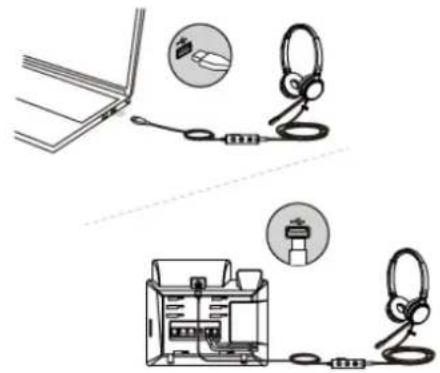
- Connect to the smartphone or tablet (without YHC20)
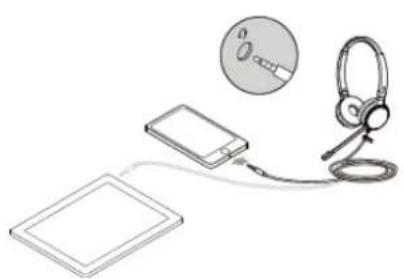
* When you use UH36 in some uncertified communication platforms, as a minimum, it works as audio only.
SpecificationSpecification
| SpecificationsSpecifications | IntroductionIntroduction |
| Main Features | Plug-and-playUSB-A connectivity to Yealink IP Phones, includingT41S/T42S/T46S/T48S/T42U/T43U/T46U/T48U/T53/T53W/T54W/T57W/T58A/VP59 (T41S/T42S/T46S/T48S should be upgraded to version 82 or higher)- USB and 3.5 mm connectivity to PC and smart deviceHD Voice/Wideband speaker performanceNoise-canceling microphone and passive noise cancellationActive Protection technology safeguards users from acoustic injuryIntegrated LED indicator and warning tone330° bendable boom arm for easy adjustment without breaking |
| General | Headset cable length: 1.2 m (from headset to 3.5 mm jack)USB cable length: 0.9 m (from call control unit to USB plug)Supported operating systems:Microsoft Windows®, Apple Mac OSColor: Black and silverWeight: UH36 Mono: 120 g / UH36 Dual: 155 gOperating temperature: -10 °C to +50 °C |
| Microphone | Microphone frequency response range: 100 Hz-10 kHzMicrophone bandwidth: WidebandMicrophone Sensitivity: -44.0 dB re. 1 V/Pa |
| Speaker | • Speaker sensitivity: 93 dB SPL @ 1 kHz, 60 mV• Speaker Frequency response range: 20 Hz-20 kHz• Speaker impedance: 32+/-4.8Ω, @ 1.0 kHz• Speaker input power: normal 5 mW, max 10 mW• Speaker bandwidth: Wideband |
| Easy Call Management | • Answer/End/Reject a call• Volume up/down• Microphone mute• Redial last outgoing call |
| Package Features | • Package content:- UH36 Mono Headset or UH36 Dual Headset- YHC20 Controller- Drawstring Bag- Quick Start Guide• Qty/CTN: 20 PCS• N.W/CTN: UH36 Mono: 4.08 kg / UH36 Dual: 4.84 kg• G.W/CTN: UH36 Mono: 4.86 kg / UH36 Dual: 5.62 kg• Giftbox size: 170 mm x 195 mm x 60 mm• Carton Meas: 345 mm x 310 mm x 400 mm |
Product TypeProduct Type
| SKU | Model Name |
| 1308015 | UH36 Mono UC |
| 1308016 | UH36 Dual UC |
| 1308010 | UH36 Mono Teams |
| 1308011 | UH36 Dual Teams |
| 1308061 | UH36 Mono UC USB-C |
| 1308063 | UH36 Dual UC USB-C |
| 1308060 | UH36 Mono Teams USB-C |
| 1308062 | UH36 Dual Teams USB-C |
| 330200007027 | Drawstring Bag Black for UH36 |
| 1308072 | UHM361 |
| 1308073 | UHD362 |
| 1300073 | UHM361 |
| 1300076 | UHD362 |
| 330100010025 | Foamy Ear Cushion for WH62/WH66/UH36/YHS36 (1 PCS) |
| 330100010014 | Leather Ear Cushion for WH62/WH66/UH36/YHS36 (1 PCS) |
| 330100010026 | Foamy Ear Cushion for WH62/WH66/UH36/YHS36 (12 PCS) |
| 330100010015 | Leather Ear Cushion for WH62/WH66/UH36/YHS36 (12 PCS) |
For more information, please go to the Yealink official website.
UH37 DatasheetUH37 Datasheet

Yealink USB Wired Headset
Yealink UH37 is a professional USB wired headset. With a 35 mm speaker and excellent stereo sound, allowing you to have an extraordinary audio experience for calls and music. The noise reduction technology of the dual microphone allows you to have clearer calls, and the noise-isolating foam oval ear cushions deliver great passive noise cancellation. The headset is ultra-lightweight and extremely comfortable, with a skin-friendly leather headband and ear cushions to wear all-day comfort. Whether you’re working remotely in the office or at home, UH37 lets you focus on your work and improve your productivity. It can work seamlessly with major UC platforms and integrate natively with Yealink IP phones.

Dual Noise-Canceling
Microphones

35 mm speaker

Brilliant audio quality

Lightweight comfort

Busylight
Call and music Mode
Key FeaturesKey Features

UH37 Dual

UH37 Mono
Dual Noise-Canceling Microphones Dual Noise-Canceling Microphones
The dual-microphone Noise Cancellation and Acoustic Shield Technology can intelligently shield the noise and only pick up speaker voice to send. It helps to improve the clarity and quality of the call and bring the ultimate calling experience.
Phenomenal Audio for Call and Music Phenomenal Audio for Call and Music
With a 35 mm large size speaker, UH37 supports dynamic EQ to switch call mode or music mode automatically. You can enjoy clear and natural sound quality in call mode, spacious and detailed sound quality in music mode. The new angled ear cushion design and oval memory foam isolate the ambient noise, bringing excellent passive noise reduction and creating the best listening experience.
Ultra-lightweight & ergonomic design Ultra-lightweight & ergonomic design
UH37 weighs about 15% less than the previous USB headsets generation. UH37 is well-built with a sturdy-feeling design made of high-grade plastic reinforced by a metal frame. The skin-friendly material, soft memory foam, and the ergonomic ear-fitting design, bring you a comfortable all-day experience.
BusylightBusylight
The busylight will automatically glow red when you are on the call or in the meeting to reduce external interference and improve work efficiency. You can also manually turn on the busylight to indicate your working state directly and block outside distractions.
SpecificationSpecification
| Specifications | Specifications IntroductionIntroduction |
| Main Features | Plug-and-play- USB connectivity to Yealink IP phones,includingT41S/T42S/T46S/T48S/T42U/T43U/T46U/T48U/T53/T53W/T54W/T57W/T58A/VP59 (T41S/T42S/T46S/T48S should be upgraded to version 82 or later)HD Voice/Wideband speaker performance35 mm speakerNoise-canceling microphones and passive noise cancellationActiveProtection technology safeguards users from acoustic injuryMusic controlIntegrated LED indicator and warning tone 300° bendable boom arm for easy adjustment without breaking |
| General | Headset cable length: 1.2 mSupported operating systems: Microsoft Windows , Apple Mac OSColor: BlackWeight: UH37 Mono: 96.5 g / UH37 Dual: 139.5 gOperating temperature: -10°C to +50°C |
| Microphone | Microphone quantity: 2Microphone frequency response range: 100 Hz-10 kHzMicrophone type: ECMMicrophone bandwidth: WidebandMicrophone sensitivity: -44.0 dB re. 1 V/Pa |
| Speaker | Speaker size: 35mmSpeaker sensitivity: 109 dB SPL @ 1 kHz, 179 mVSpeaker frequency response range: 20 Hz-20 kHzSpeaker impedance: 32+/-4.8Ω, @ 1.0 kHzSpeaker input power: Normal 10 mW, Max. 30 mWSpeaker bandwidth: Wideband |
| Easy Call Management | Answer/End/Reject/Hold a callVolume up/downMicrophone muteRedial last outgoing call |
| Package Features | Package contents-UH37 Mono Headset / UH37 Dual Headset-Carrying Case-Quick Start GuideQty/CTN: 20 PCSN.W/CTN: UH37 Mono: 9.2kg / UH37 Dual: 10.94 kgG.W/CTN: UH37 Mono: 10.1 kg / UH37 Dual: 11.9 kgGiftbox size:194 mm x 207 mm x 53 mmCarton meas: 550 mm x 202 mm x 220 mm |
ConnectionConnection
Connection Type: USB-A/USB-C
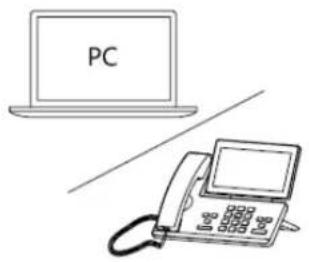
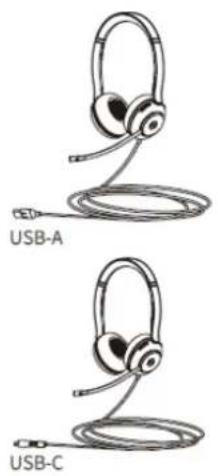
i NOTENOTE
The USB-A and USB-C can be purchased separately on demand.
For more information, please go to the Yealink official website.
UH38 DatasheetUH38 Datasheet

Yealink Premium USB Wired Headset
Yealink UH38 is a premium stereo USB headset featuring phenomenal call and music audio. Dual-microphone noise cancellation and Acoustic Shield Technology provide you with a superior call experience. UH38 supports USB and Bluetooth dual connections, allowing you to manage two call devices simultaneously to improve call processing efficiency. Premium materials and a sturdy metal frame make it textured and durable. Soft and skin-friendly headband& ear cushions make the conference headset all-day comfortable. UH38 is the headset that gives you the best focus and collaboration to improve your productivity to a new level, whether you’re in the office or working remotely at home. It works seamlessly with major UC platforms and integrates natively with Yealink IP phones.

Dual Noise-Canceling
Microphones

Visible Busylight

Dual Devices Connection

Built-in Battery

Built-in Blue-tooth 5.1

Call and Music Mode
Key FeaturesKey Features
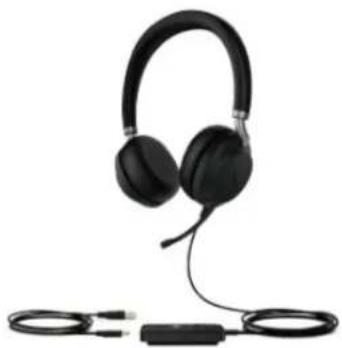
UH38 Dual Teams-BAT UH38 Dual UC-BAT

UH38 Mono Teams-W/O BAT UH38 Mono UC-W/O BAT
Phenomenal Audio for Call and Music Phenomenal Audio for Call and Music
UH38 supports dynamic EQ to switch call mode or music mode automatically. You can enjoy clear and natural sound quality in a call mode, and spacious and detailed sound quality in music mode. The new angled ear cushion design and oval memory foam isolate the ambient noise, bringing excellent passive noise reduction and creating the best listening experience.
Dual Noise-Canceling Microphones Dual Noise-Canceling Microphones
The dual-microphone noise cancellation and Acoustic Shield Technology can effectively resist the noise interference of the surrounding environment, significantly reducing the background noise during the call. It helps improve the clarity and quality of the call and brings the ultimate calling experience.
Dual Connections of USB and Bluetooth Dual Connections of USB and Bluetooth
Supported by USB (USB-A or USB-C) and Bluetooth dual connection mode, the Bluetooth wireless distance can reach 10m (33 feet). Users can connect and manage two kinds of call devices simultaneously, thereby realizing the seamless switching between PC and mobile devices, and improving call processing efficiency.
Call Controller with Build-in BatteryCall Controller with Build-in Battery
UH38 Dual headset can be powered by the built-in rechargeable battery when in Bluetooth mode, which combines the reliability of wired headsets and the flexibility of wireless headsets. (UH38 Mono headset has no built-in battery).
360° Busylight360° Busylight
The 360° busylight will automatically glow red when you are on a call or in a meeting to reduce external interference and improve work efficiency.
Skin-friendly and Soft Headband & Ear CushionsSkin-friendly and Soft Headband & Ear Cushions
UH38 is well-built with a sturdy-feeling design made of high-grade plastic reinforced by a metal frame. The skin-friendly material, soft memory foam, combined with the ergonomic ear-fitting design, brings you a comfortable all-day experience.
ConnectionConnection
- USB Connection

- Bluetooth Connection

SpecificationSpecification
| Specifications | IntroductionIntroduction |
| Main Features | Plug-and-playUSB connectivity to Yealink IP phones, includingT41S/T42S/T46S/T48S/T42U/T43U/T46U/T48U/T53/T53W/T54W/T57W/T58A/VP59 (T41S/T42S/T46S/T48S should be upgraded to version 82 or higher)HD Voice/Wideband speaker performanceNoise-canceling microphone and passive noise cancellationActiveProtection technology safeguards users from acoustic injuryIntegrated LED indicator and warning tone 320° bendable boom ar m for easy adjustment without breakingOptional connections for UH38: USB 2.0, Bluetooth 5.1Bluetooth wireless range: up to 10 m/33 feet |
| General | Headset cable length: 0.8 m (from headset to call control unit)USB cable length: 1.2 m (from call control unit to USB plug)Supported operating systems: Microsoft Windows® 8/8.1/10, Apple Mac OSColor: BlackWeight(headset): UH38 Mono: 110 g / UH38 Dual: 180 gWeight(headset and wire-control): UH38 Mono: 133.5 g / UH38 Dual: 210 gStorage temperature: -5 °C to +70 °COperating temperature: 0 °C to +45 °C |
| Battery | Talk time: up to 7 hours (9 hours with busylight off)Music time: 14 hoursBattery capacity: 200 mAhBluetooth standby time: 168 hoursCharging time: 1 hour |
| Microphone | Microphone type: Uni-Directional ECMMicrophone frequency response range: 100 Hz-14 kHzMicrophone bandwidth: WidebandMicrophone Sensitivity: -44.0 dB re. 1 V/Pa |
| Speaker | Speaker size: 35.0 mmSpeaker sensitivity: 115±3 dB SPL @ 1 kHzSpeaker frequency response range: 20 Hz-20 kHzSpeaker impedance: 32 Ω, @ 1.0 kHzSpeaker input power: max 10 mWSpeaker bandwidth: Wideband |
| Easy Call Management | Answer/End/Reject a callVolume up/downMicrophone muteRedial last outgoing call |
| Package Features | Package content:- UH38 Mono Headset / UH38 Dual Headset- USB 2.0 Cable (USB-A to USB-C/USB-C to USB-C)- Carrying Case- Quick Start GuideQty/CTN: 20 PCSN.W/CTN: UH38 Mono: 9.2kg / UH38 Dual: 10.94 kgG.W/CTN: UH38 Mono: 10.1 kg / UH38 Dual: 11.9 kgGiftbox size: 219 mm x 186.5 mm x 58.5 mmCarton Meas: 3595 mm x 380 mm x 230 mm |
Product TypeProduct Type
| SKU | Model Name |
| 1308045 | UH38 Mono Teams -W/O BAT |
| 1308080 | UH38 Mono UC -W/O BAT |
| 1308081 | UH38 Dual Teams-BAT |
| 1308082 | UH38 Dual UC-BAT |
| 1308083 | UH38 Mono Teams -W/O BAT USB-C |
| 1308084 | UH38 Mono UC -W/O BAT USB-C |
| 1308085 | UH38 Dual Teams -BAT USB-C |
| 1308086 | UH38 Dual UC -BAT USB-C |
For more information, please go to the Yealink official website.
YHS34 DatasheetYHS34 Datasheet
Wideband Headset for Yealink IP Phone
YHS34: Leather ear cushions YHS34 Lite: Foamy ear cushions
Yealink YHS34/YHS34 Lite is the over-the-head style headset which is made for office worker, SOHO, or call center staff. It supports QD (Quick Disconnect) feature and it is compliant with the full range of Yealink enterprise IP phones. The Yealink YHS34/YHS34 Lite, available in monaural (YHS34/YHS34 Lite Mono) and binaural (YHS34/YHS34 Lite Dual), is a professional analog wired headset with crystal clear audio. The YHS34/YHS34 Lite offers a lightweight form factor that is comfortable to wear, even for an entire workday. It’s suitable for workers who spend a lot of time wearing headsets for voice communications.

Key FeaturesKey Features
Perfectly compatible with Yealink PhonesPerfectly compatible with Yealink Phones
Runs right out of box, a QD to RJ9 plug-and-play setup makes the connectivity to Yealink IP phones. The phones can automatically optimize acoustic parameters for your YHS34/YHS34 Lite. Perfect match with Yealink desk phones give you optimized audio quality.
Unparallel Audio Experience Unparallel Audio Experience
Made for calls, YHS34/YHS34 Lite is kitted out with a high signal-to-noise ratio speaker and independent cavity design. The passive noise cancellation creates a richer and clearer conversations with reduced background noise.
Ultra-lightweight, All Day Wearing Comfort Ultra-lightweight, All Day Wearing Comfort
Built for comfort with soft ear cushions and ultra-lightweight materials, the YHS34/ YHS34 Lite is 10%\~30%* lighter than other conference headsets in the same range. Its ergonomic design makes this headset comfortable enough for long conference calls and all day use. (* Test data provided by Yealink Lab)
SpecificationsSpecifications
| SpecificatioSpecification | IntroductionIntroduction |
| Main Features | Plug-and-playRJ9 connectivity to Yealink IP phones, including T19 § E2/T21 §E2/T23P/T23G/T27G/T29G/T30/T30P/T31/T31P/T31G/T33G/T33G/T40P/T40G/T41S/T42S/T46S/T48S/T42U/T43U/T46U/T48U/T53/T53W/T54W/T57W/T58A/VP59/T41S SFB/T42S SFB/T46S SFB/T48S SFB/T55A SFB/T56A SFB/T58ASFB/MP56HD Voice/Wideband speaker performanceNoise-canceling microphone and passive noise cancellationActiveProtection technology safeguards users from acoustic injur y320° bendable boom ar m for easy adjustment without breaking |
| General | Headset cable length: 0.9mQD to RJ9 cab le length: 1.2mColor: BlackStorage temperature: -30 °C to -70 °COperating temperature: -10 °C to -50 °C |
| Microphone | Microphone type: Uni-Directional ECMMicrophone frequency response range: 100 Hz-8 kHzMicrophone bandwidth: WidebandMicrophone Sensitivity: -44.0 dB re . 1 V/Pa |
| Speaker | Speaker size: 28mmSpeaker sensitivity: 93 dB SPL @ 1 kHzSpeaker Frequency response range: 20 Hz-20 kHzSpeaker impedance: 32Ω, @ 1.0 kHzSpeaker input power: max 10 mWSpeaker bandwidth: Wideband |
| Package Features | Package content:- YHS34 Mono Headset or YHS34 Dual Headset or YHS34 Lite Mono Headset or YHS34 Lite Dual Headset (YHS34 with leather ear cushions/YHS34 Lite with foamy ear cushions)- QD to RJ9 cab leQuick Start GuideQty/CTN: 20 PCSN.W/CTN: YHS34 Mono: 3.128 kg / YHS34 Dual: 3.798 kg / YHS34 Lite Mono: 3.048 kg / YHS34 Lite Dual: 3.638 kgG.W/CTN: YHS34 Mono: 3.778 kg / YHS34 Dual: 4.456 kg / YHS34 Lite Mono: 3.698 kg / YHS34 Lite Dual: 4.296 kgGiftbox size: 170 mm x 195 mm x 63 mmCarton Meas: 345 mm x 325 mm x 400 mm |
Product TypeProduct Type
| Product Type | SKU | Model Name |
| Products | 1308022 | YHS34 Mono |
| 1308023 | YHS34 Dual | |
| 1308028 | YHS34 Lite Mono | |
| 1308029 | YHS34 Lite Dual | |
| 1308089 | YHS34 Mono for 3rd Party | |
| 1308090 | YHS34 Dual for 3rd Party | |
| 1308091 | YHS34 Lite Mono for 3rd Party | |
| 1308092 | YHS34 Lite Dual for 3rd Party | |
| Accessories | 330000008028 | QD to RJ9 Cord |
| 330000008063 | QD to RJ9 Cord for 3rd Party | |
| 1308076 | YHM341 | |
| 1308077 | YHD342 | |
| 1308078 | YHM341 Lite | |
| 1308079 | YHD342 Lite | |
| 330100010021 | Foamy Ear Cushion for UH34/YHS34 (1 PCS) | |
| 330100010022 | Leather Ear Cushion for UH34/YHS34 (1 PCS) | |
| 330100010023 | Foamy Ear Cushion for UH34/YHS34 (12 PCS) | |
| 330100010024 | Leather Ear Cushion for UH34/YHS34 (12 PCS) |
ConnectionConnection
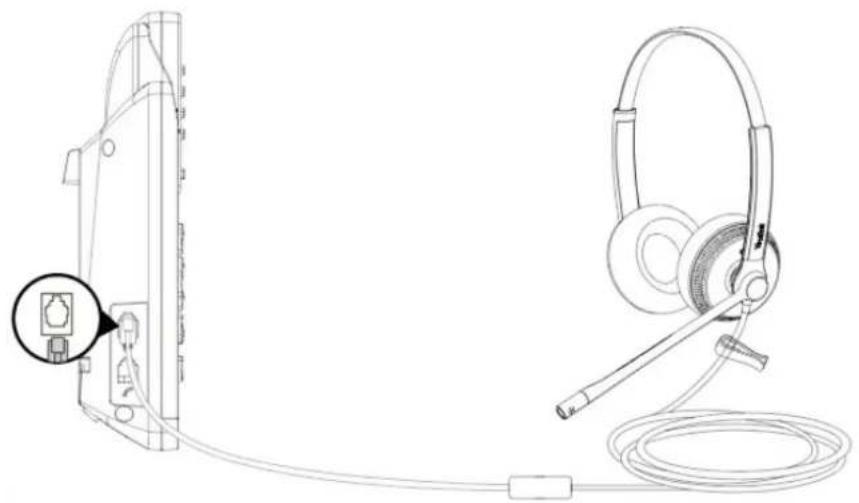
For more information, please go to the Yealink official website.
YHS36 DatasheetYHS36 Datasheet
Wideband Headset for Yealink IP Phone
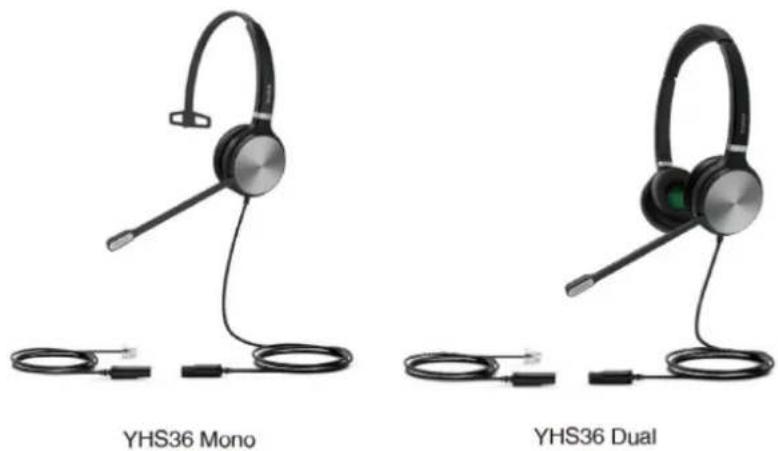
Yealink YHS36 is the over-the-head style conference headset that is made for office workers, SOHO, or call center staff. It supports QD (Quick Disconnect) feature, and it is compliant with the full range of Yealink enterprise IP phones. The Yealink YHS36, available in monaural (YHS36 Mono) and binaural (YHS36 Dual), is a professional analog wired headset to facilitate
conversations in ways that your concentration zone and focus are easily got in and the listening fatigue is reduced as well. Its ergonomic design and soft leather ear cushions make YHS36 comfortable enough for long all-day use.
Key FeaturesKey Features
Perfectly compatible with Yealink PhonesPerfectly compatible with Yealink Phones
Runs right out of the box, a USB (USB-A/USB-C) plug-and-play setup makes the connectivity to Yealink IP phones, PC and tablet in touch, and the connectivity via 3.5 mm jack to PC and smartphone is ready to work likewise.
Noise-Canceling Microphone Noise-Canceling Microphone
The noise-canceling microphone allows for the most reduction of outside noise so that the listeners can focus more on the desired sound at hand. The nearby talkers are protected with most call privacy as well.
Unparallel Audio Experience Unparallel Audio Experience
Made for calls and music, this conference headset is kitted out with wideband HD audio technology and passive noise cancellation that ensures a richer and clearer conversation and eliminates background noises as well.
All-day-ease All-day-ease
The over-the-head style, ultra-lightweight materials, and bio-mimetic protein-based leather ear cushions are easy on your head and ears. Its ergonomic design makes YHS36 comfortable enough for long conference calls and all-day use.
SpecificationSpecification
| Specifications | IntroductionIntroduction |
| Main Features | Plug-and-playRJ9 connectivity to Yealink IP Phones, includingT19 § E2/T21 § E2/T23P/T23G/T27G/T29G/T30/T30P/T31/T31P/T31G/T33P/T33G/T40P/T40G/T41S/T42S/T46S/T48S/T42U/T43U/T46U/T48U/T53/T53W/T54W/T57W/T58A/VP59/T41S SFB/T42S SFB/T46S SFB/T48S SFB/T55A SFB/T56A SFB/T58A/SFB/MP56HD Voice/Wideband speaker performanceNoise-canceling microphone and passive noise cancellationActiveProtection technology safeguards users from acoustic injury 330° bendable boom arm for easy adjustment without breaking |
| General | Headset cable length: 0.9 mQD to RJ9 cable length: 1.2 mColor: Black and silverWeight: YHS36 Mono: 124g/YHS36 Dual: 170gOperating temperature: -10 °C to -50 °C |
| Microphone | Microphone frequency response range: 100 Hz-7 kHzMicrophone bandwidth: WidebandMicrophone Sensitivity: -44.0 dB re. 1 V/Pa |
| Speaker | Speaker sensitivity: 93 dB SPL @ 1 kHz, 60 mVSpeaker Frequency response range: 20 Hz-20 kHzSpeaker impedance: 32+/-4.8Ω, @ 1.0 kHzSpeaker input power: normal 5 mW, max 10 mWSpeaker bandwidth: Wideband |
| Package Features | Package content:- YHS36 Mono Headset or YHS36 Dual Headset-QD to RJ9 cableQuick Start GuideQty/CTN: 20 PCSN.W/CTN: YHS36 Mono: 2.48kg/YHS36 Dual: 3.41kgG.W/CTN: YHS36 Mono: 3.26kg/YHS36 Dual: 4.19kgGiftbox size: 170 mm x 195 mm x 60 mmCarton Meas: 345 mm x 310 mm x 400 mm |
Product TypeProduct Type
| Product Type | SKU | Model Name |
| Products | 1308022 | YHS34 Mono |
| 1308023 | YHS34 Dual | |
| 1308028 | YHS34 Lite Mono | |
| 1308029 | YHS34 Lite Dual | |
| 1308089 | YHS34 Mono for 3rd Party | |
| 1308090 | YHS34 Dual for 3rd Party | |
| 1308091 | YHS34 Lite Mono for 3rd Party | |
| 1308092 | YHS34 Lite Dual for 3rd Party | |
| Accessories | 330000008028 | QD to RJ9 Cord |
| 330000008063 | QD to RJ9 Cord for 3rd Party | |
| 1308076 | YHM341 | |
| 1308077 | YHD342 | |
| 1308078 | YHM341 Lite | |
| 1308079 | YHD342 Lite | |
| 330100010021 | Foamy Ear Cushion for UH34/YHS34 (1 PCS) | |
| 330100010022 | Leather Ear Cushion for UH34/YHS34 (1 PCS) | |
| 330100010023 | Foamy Ear Cushion for UH34/YHS34 (12 PCS) | |
| 330100010024 | Leather Ear Cushion for UH34/YHS34 (12 PCS) |
ConnectionConnection

For more information, please go to the Yealink official website.
Buyer Guide Buyer Guide
Common User's Workspace Common User's Workspace
 |  |  |  |
| Call CenterCall Center Office RoomOffice Room Flexible WorkerFlexible Worker On-the-go WorkerOn-the-go Worker | |||
| · Prefer the traditional type for a stable quality · Workday communicating · All day wearing comfort · Noise canceling · Day shift arrangement | · Prefer the modern type for trying new technology · Fixed desk · Also, spend time working away from the desk | · Home office, shared office spaces, personal desk, etc. · Easier to move their workspace to another place | · Business traveler · Totally fluid · Almost work on their laptop and mobile · Need a seamless transition |
Yealink Acoustic Shield Technology Yealink Acoustic Shield Technology
Recommended Models
UH36 / UH38
Key consideration
• Multiple Microphones Acoustic Shield Technology
• Block the background noise automatically
Recommendation in Workspaces Recommendation in Workspaces
UH38 UH38 Unified CommunicationUnified Communication
Key consideration: Noise-canceling, Call and Music mode, Dual devices connection, Microsoft Teams Certified
• Microphone Boom to Mute
• Dual-Microphone noise cancelling (Yealink Acoustic Shield Technology)
- 360° Busy-light
• Dual Connections of USB and Bluetooth
• 35mm Speaker for Call and Music Mode
• Built-in Bluetooth 5.1
- Call Controller with Build-in rechargeable battery (UH38 dual only)Skin-friendly and Soft Headband & Ear Cushions
UH34/UH36 Unified Communication UH34/UH36 Unified Communication
Key consideration: Noise-canceling, High-quality audio, Flexible connectivity, All day ease, Microsoft Teams Certified
• USB and 3.5mm jack connectivity options to IP phone, PC, and smart device
- With Yealink dynamic EQ and wideband HD audio technology
- Noise-Canceling Microphone
• Integrated LED indicator and warning tone
- With soft ear cushions and ultra-lightweight materials
- Easy Call Management
• Microsoft Teams Certified
Simple and Flexible ConnectivitySimple and Flexible Connectivity


- Designed for Unified Communication, free to plug into various devices: IP Phone, PC, tablet, and smartphone.
- UH34/UH34-Lite/UH36 comes with USB-A/C and 3.5mm jack connectivity, UH38 comes with USB-A/C connectivity.
Excellent Audio Performance Excellent Audio Performance
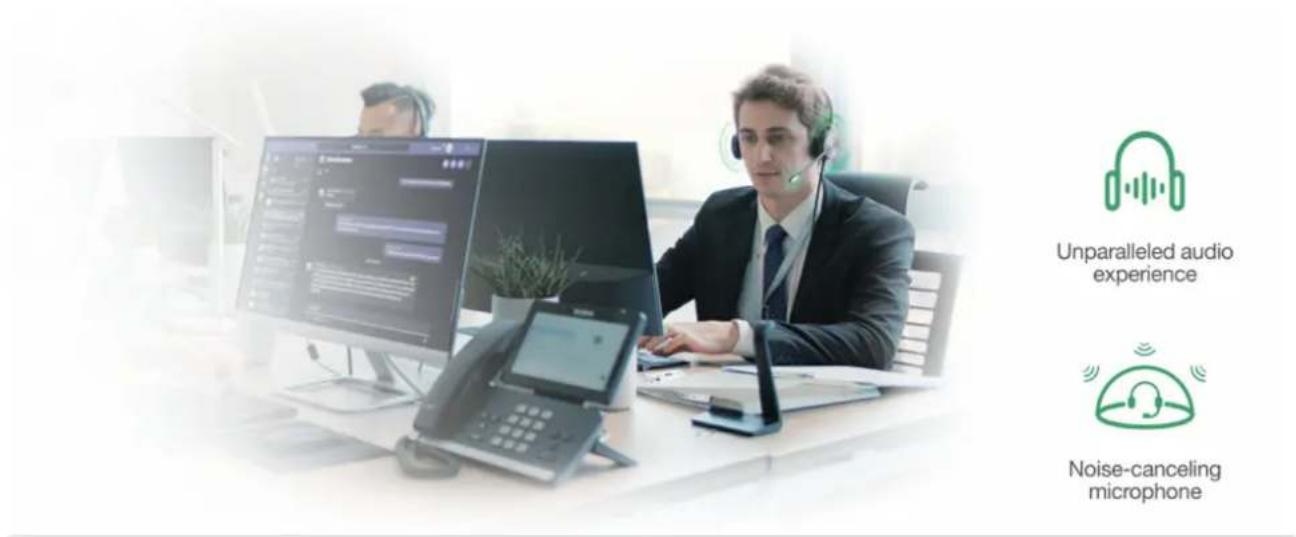
Yealink Dynamic EQ(UH38, UH36, UH34 only) and Wideband HD Audio Technology make every conversation rich and clear. The passive noise cancellation and the noise-canceling microphone eliminate background noise, enhance the audio privacy.
All Day Wearing Comfort All Day Wearing Comfort

The ergonomic and lightweight design makes UH38/UH36/UH34/UH34 Lite/YH34/YH34 Lite comfortable enough for long conference calls and all day use.
Dual Connections USB & Bluetooth Dual Connections USB & Bluetooth
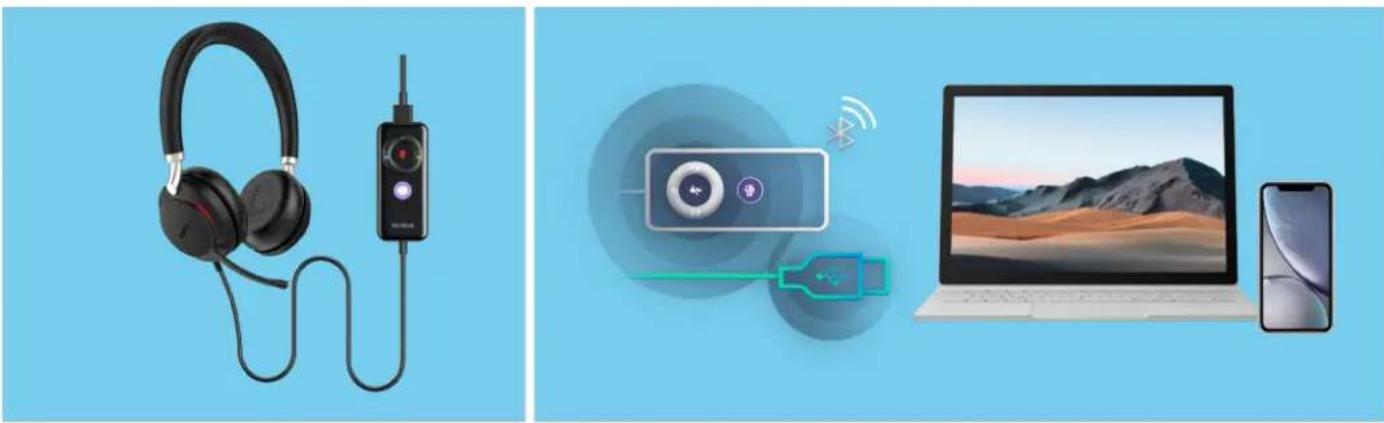
The demand for work with dual devices are more and more.
Add the Bluetooth feature into the USB wired headset.
Get a Bluetooth experience without increasing costs while using USB headsets.
* UH38 only
Lift Microphone Boom to MuteLift Microphone Boom to Mute

+++
FAQFAQ
Does the UH3X series headset have an acoustic high-decibel protection mechanism?
UH3X ComparisonUH3X Comparison
Product OverviewProduct Overview
Yealink USB Wired Headset UH3X is a Unified Communication USB Corded Headset. It is a peripheral, which is mainly used in the office room for calls and music. Advanced model UH36 designed for unified communication, UH36 comes with USB and 3.5mm jack connectivity options, free to plug into various devices: IP phone, PC, tablet, and smartphone, which is a perfect match for Yealink IP Phone and gives you optimized audio quality and more enhanced functions. Proven reliability and integrations for Yealink USB Connect Software, Yealink Device Management Platform/Cloud Service, easy to manage the device.
Product Specification & Comparison Product Specification & Comparison
Download USB Headset Specification
| ItemItem |  |  |  |  |  |  |
| FeaturesFeatures | UH36Mono/Dual | UH34Mono/Dual | UH34 LiteMono/Dual | UH33 UH37 UH38 | ||
| Headset Cable Length | 1.2 m 1.2 m 1.2 m | 1.2 m 1.2 m 0.8 m | ||||
| USB Cable Length | 0.9 m 0.9 m 0.9 m | 0.9 m / 1.2 m | ||||
| Cable Length in Total | 2.1 m 2.1 m 2.1 m | 2.1 m / 2.0 m | ||||
| Connection | 3.5 mm jack, USB 2.0 | USB 2.0 USB 2.0 | 3.5 mm jack, USB 2.0 | USB-A/USB-C | USB-A/USB-C, USB 2.0 | |
| Supported OS | Microsoft Windows® | Microsoft Windows® | Microsoft Windows® | Microsoft Windows® | Microsoft Windows® | Microsoft Windows® |
| Supported OS Apple | Mac OS | Apple Mac OS | Apple Mac OS | Apple Mac OS | Apple Mac OS Apple Mac OS | Mac OS |
| Color black, silver | black black black | black black | ||||
| MicrophoneType | MEMSUni-Directional | Uni-Directional ECM | Uni-Directional ECM | Noise-cancelling | ECM 2 ECM MIC | |
| Microphone Frequency/Range | 100 Hz-7 kHz | 100 Hz-10 kHz | 100 Hz-10 kHz | 100-6.3 kHz 100 Hz-10 kHz | 100 Hz-14 kHz | |
| Microphone Bandwidth | Wideband | Wideband | Wideband | Wideband | Wideband | Wideband |
| Microphone Sensitivity | -44.0dB re.1V/Pa | -44.0dB re.1V/Pa | -44.0dB re.1V/Pa | -38.0 dB re.1V/Pa | -44.0 dB re.1 V/Pa | -44.0 dB re.1 V/Pa |
| Speaker Size | D28x3.9mm | 28mm | 28mm | 28mm | 35mm | 35mm |
| Speaker Sensitivity | 93dB SPL@1kHz, 60mV | 93dB @179mv | 93dB @79mv | 96dB SP+/-3dB SPL | 109 dB SPL @ 1 kHz, 179 mV | 115±3 dB SPL @ 1 kHz |
| Frequency Range | 20Hz-20kHz 20Hz | 20Hz-20kHz 20Hz-20kHz | 112Hz-8.5kHz | 20 Hz-20 kHz | 20Hz~20KHz | |
| Speaker Impedance | 32+/-4.8Ω,@ 1.0kHz | 32Ω 32Ω 90±15%Ω | 32+/-4.8Ω, @ 1.0 kHz | 32 Ω,@ 1.0 kHz | ||
| Speaker Input Power | normal 5mW,max 10mW | 10mW 10mW | normal 20mW,max 80mW | Normal 10 mW, Max. 30 mW | max 10 mW | |
| Speaker Bandwidth | Wideband Wideband | Wideband Wideband | Wideband Wideband | Wideband | ||
YHS3X ComparisonYHS3X Comparison
Product Overview
Yealink YHS3x Headset is the over-the-head style headset that is made for office workers, SOHO, or calls center staff. It supports QD (Quick Disconnect) feature, and it is compliant with the full range of Yealink enterprise IP phones.
The Yealink YHS3x Headset is a professional analog wired headset with crystal clear audio. It offers a lightweight form factor that is comfortable to wear, even for an entire workday. It’s suitable for workers who spend a lot of time wearing headsets for voice communications.
Product Specification & Comparison
Download QD-RJ Headset Specification
| PicturesPictures |  | image.png |  |  |
| FeaturesFeatures YHS36 Mono YHS36 Dual | YHS34 Mono/Lite Mono | YHS34 Lite/Dual | ||
| Connection QD to RJ9 QD to RJ9 | QD to RJ9 | QD to RJ9 | ||
| Headset Cable Length | 0.9m | 0.9m | 0.9m | 0.9m |
| QD to RJ9 Cable Length | 1.2m | 1.2m | 1.2m | 1.2m |
| Microphone Boom Pivoting | 320° | 320° | 320° | 320° |
| Color | Black, Silver | Black, Silver | Black | Black |
| Box Content | YHS36 MonoQD to Rj9 cableQuick Start Guide | YHS36 DualQD to Rj9 cableQuick Start Guide | YHS34 Lite/MonoQD to RJ9 cableQuick Start Guide | YHS34 Lite/DualQD to RJ9 cableQuick Start Guide |
| Weight | YHS36 Mono: 124g | YHS36 Dual: 170g | YHS34 Mono:76gYHS34 Lite Mono:72g | YHS34 Dual:103gYHS34 LiteDual:111g |
| Microphone Type | MEMS Uni-Directional | MEMS Uni-Directional | Uni-Directional ECM Uni-Directional ECM | |
| Microphone Frequency Range | 100Hz-7kHz 100Hz-7kHz 100Hz-8kHz 100Hz-8kHz | |||
| Microphone Bandwidth Wideband Wideband Wideband Wideband | ||||
| Microphone Sensitivity -44.0 dB re. 1V/Pa -44.0 dB re. 1V/Pa -44.0 dB re. 1V/Pa -44.0 dB re. 1V/Pa | ||||
| Speaker Size D28x3.9mm D28x3.9mm 28mm 28mm | ||||
| Speaker Sensitivity | 93dB SPL @1kHz, 60mV | 93dB SPL @1kHz,60mV | 93dB SPL @1kHz, 60mV | 93dB SPL @1kHz, 60mV |
| Frequency Response Range | 20Hz-20kHz 20Hz-20kHz 20Hz-20kHz 20Hz-20kHz | |||
| Speaker Impedance | 32+/-4.8Ω, @1.0kHz | 32+/-4.8Ω, @1.0kHz | 32+/-4.8Ω, @1.0kHz | 32+/-4.8Ω, @1.0kHz |
| Speaker Input Power | Normal 5mWMax 10mW | Normal 5mWMax 10mW | Normal 5mWMax 10mW | Normal 5mWMax 10mW |
| Speaker bandwidth | Wideband Wideband Wideband Wideband Wideband | |||
Compatibility List
Tested Wired Headsets Compatibility List
Tested Yealink Headset- RJ-9 Interface
| Manufacturer | Model | Wired Headset Connection | Compatible Phone | IP Phone Interface Type |
| Yealink | YHS33 | Direct connect (RJ9) | SIP-T58V, SIP-T58ASIP-T56A, VP59SIP-T53,SIP-T53WSIP-T54W, SIP-T57WT54S, T52SSIP-T48S, SIP-T48GSIP-T46S, SIP-T46GSIP-T42S, SIP-T42GSIP-T41S, SIP-T41PSIP-T40P, SIP-T29GSIP-T27G, SIP-T27PSIP-T23G, SIP-T23PSIP-T21P E2, SIP-T19P E2 | RJ-9 |
Tested Poly, Jabra, Sennheiser Headset- RJ-9 Interface Tested Poly, Jabra, Sennheiser Headset- RJ-9 Interface
| Manufacturer | ManufacturerModel | Headset Connection | Compatible Phone | Phone Interface Type |
| Plantronics | SupraPlus (HW251, HW251N, HW261, HW261N) | Plantronics U10P-S Cord | SIP-T48S, SIP-T48GSIP-T46S, SIP-T46GSIP-T42S, SIP-T42GSIP-T41S, SIP-T41PSIP-T40P, SIP-T29GSIP-T27G, SIP-T27PSIP-T23G, SIP-T23PSIP-T21P E2, SIP-T19P E2 | RJ-9 |
| Entera (HW111N, HW121N) | ||||
| Encore (Pro710, Pro720, Pro540) | ||||
| Practica (SP11, SP12) Direct connect (RJ9) | ||||
| Jabra | GN2120 NC-AP | Jabra GN1200 | ||
| GN2000 MONO | ||||
| BIZ 1900 MONO | ||||
| GN2110 ST-AP | ||||
| BIZ 2300 QD | ||||
| BIZ 2400 MONO | ||||
| Sennheiser | SC660 & SC662 | Sennheiser 5362-CSTD 01 Cables | ||
| SC630 & SC632 | ||||
| SC230 & SC232 | ||||
| SC260 & SC262 | ||||
| SC xx2 variants are low impedance |
Tested Yealink Headsets--USB InterfaceTested Yealink Headsets--USB Interface
| ManufacturerManufacturer | ModelModel | Compatible Phone | Compatible Phone IP Phone Interface Type IP Phone Interface Type |
| Yealink | UH33 | SIP-T58V, SIP-T58ASIP-T56A, VP59T54S, T52SSIP-T48S, SIP-T46SSIP-T42S, SIP-T41S——V83——V83SIP-T53,SIP-T53WSIP-T54W,SIP-T57W——V84——V84SIP-T42U,SIP-T43U,SIP-T46U,SIP-T48U,——V85——V85 | USB2.0 |
| UH36 |
Tested Poly, Jabra, Sennheiser Headset- USB InterfaceTested Poly, Jabra, Sennheiser Headset- USB Interface
| ManufacturerManufacturer | ModelModel Compatible PhoneCompatible | Phone IP Phone Interface | Type IP Phone Interface Type |
| Plantronics | Blackwire C310/C315/C320/C325(Not applicable for VP59) | SIP-T58VSIP-T58ASIP-T56AVP59——V83——V83 | USB 2.0 |
| Blackwire C435(Not applicable for VP59) | |||
| Blackwire C510/C520(Not applicable for VP59) | |||
| Blackwire C5210(Only applicable for VP59) | |||
| Blackwire C3210(Only applicable for VP59) | |||
| Blackwire C710/C720/C725 | |||
| Jabra | Evolve 20 | ||
| Evolve 30(Not applicable for VP59) | |||
| Evolve 40 | |||
| Evolve 80 (Not applicable for VP59) | |||
| BIZ 2300 & BIZ 2400 | |||
| BIZ 1500 (Not applicable for VP59) | |||
| Sennheiser | SC 30/60 USB CTRL(Not applicable for VP59) | ||
| SC 40/70 USB CTRL(Not applicable for VP59) | |||
| SC 45/75 USB CTRL | |||
| SC 230/260 USB CTRL II | |||
| SC 232/262(Only applicable for VP59) | |||
| SC 630/660 USB CTRL | |||
| SC 635 (Only applicable for VP59) | |||
| SC 632/662(Only applicable for VP59) | |||
| Plantronics | Blackwire C720 | SIP-T54SSIP-T52SSIP-T48SSIP-T46SSIP-T42SSIP-T41S---Based on V84---Based on V84 | |
| Blackwire C5210 | |||
| Blackwire C310 | |||
| Blackwire C3210 | |||
| Jabra | Evolve 30 | ||
| Evolve 40 | |||
| Jabra EVOLVE LINK | |||
| BIZ 2400 | |||
| Sennheiser | SC 30/60 USB CTRL | ||
| SC 40/70 USB CTRL | |||
| SC 45/75 USB CTRL | |||
| SC 230/260 USB CTRL II | |||
| SC 630/660 USB CTRL | |||
| Plantronics | Blackwire C720 | ||
| Blackwire C5210 | |||
| Blackwire C310 | |||
| Blackwire C3210 | |||
| BT300+Voyager Legend | |||
| BT600+B825(Focus) | |||
| Jabra | Evolve 20 | SIP-T53SIP-T53WSIP-T54WSIP-T57W—Based on V84—Based on V84 | USB 2.0 |
| Evolve 40 | |||
| Link 360+Evolve 65 | |||
| Link 370+Evolve 75 | |||
| BIZ 2400 | |||
| Sennheiser | SC635 | ||
| SC 75 | |||
| SC232 | |||
| SC262 | |||
| SC632 | |||
| SC660 | |||
| BTD800+presence uc | |||
| BTD800+MB pro2 | |||
Wired Headset Compatibility CenterWired Headset Compatibility Co

IntroductionIntroduction
The Yealink USB wired headset is compatible with the following operating system: Windows (Windows 8, Windows 8.1, Windows 10) and macOS (Catalina, Mojave, Big Sur).
This compatibility center contains phones of various brands, and you can enter the center to search for the compatible phone you want.
- Yealink
3CX
• Avaya - Broadsoft
- Cisco
- CounterPath
• Citec - Fanvil
- Grandstream
- Joher
- Microsoft
• NEXI
• Provu - Poly
- ReachUC
- Ringcentral
- Swyx
- Snom
- Starface
- Teamfon
- Telair
- Telenia
- UPC
- Unify
- Virtualpbx
- Yeastar
- Zoiper
- Zoom
- Teamsystem Communication
Click https://support.yealink.com/en/portal/compatible to enter.
UH34 Compatibility List UH34 Compatibility List
For the PC For the PC
OSOS ConnectivityConnectivity SoftphoneSoftphone DescriptionDescription
| Windows 8 or higherMAC 10.14.6 or higher | USB Cable - Skype for Business | Business | - Adjust volume- Incoming call ringtone- Answer/reject/end call- Switch call- Redial a call |
| Windows 8 or higherMAC 10.14.6 or higher | USB Cable - Microsoft Teams | Teams | - Adjust volume- Incoming call ringtone- Answer/reject/end call- Switch call |
For the Desk Phone For the Desk Phone
| Connectivity | Connectivity Brand | Brand FeaturesFeatures | ModelModel |
| USB Cable Yealink | Enhanced function | T4XS/T4XU/T53/T53C/T5XW/T58A/VP59 (V85 or higher) | |
| USB Cable Yealink | Basic function | Teams T55A/MP56/VP59 (V15)SfB T48S/T55A/T56A/MP56 (V9) | |
| USB Cable Poly B | Basic function VVX 501 | ||
| USB Cable SNOM | Basic function D765/D385/D735 | ||
Basic FunctionBasic Function: Answer call / Mute / End call
Enhanced Function: Audio optimization / Redial / Call hold / Volume synchronization / Multiple calls control (Enhanced function is only applicable to the Yealink phones running firmware version 85 or higher).
i NOTE
-3.5mm analog connection compatibility: devices with 3.5mm jack connectors in CTIA audio jack standard, speaker impedance: 32Ω.
-Models in the series support a 3.5mm jack: UH34 SE, and models that do not support a 3.5mm jack: UH34, UH34 Lite.
UH36 Compatibility List
For the PC
| OS | Connectivity | Softphone | Description |
| Windows 8 or higherMAC 10.14.6 or higher | USB Cable - Skype for Business | - Adjust volume- Incoming call ringtone- Answer/reject/end call- Switch call- Redial a call | |
| Windows 8 or higherMAC 10.14.6 or higher | USB Cable - Microsoft Teams | - Adjust volume- Incoming call ringtone- Answer/reject/end call | |
For the Desk Phone For the Desk Phone
| Connectivity | Connectivity Brand | Brand FeaturesFeatures | ModelModel |
| USB Cable Yealink | Enhanced function | T4XS/T4XU/T53/T53C/T5XW/T58A/VP59 (V85 or higher) | |
| USB Cable Yealink | Basic function | Teams T55A/MP56/VP59 (V15)SfB T48S/T55A/T56A/MP56 (V9) | |
| USB Cable Poly B | Basic function VVX 501 | ||
| USB Cable SNOM | Basic function D765/D385/D735 | ||
Basic FunctionBasic Function: Answer call / Mute / End call
Enhanced Function: Audio optimization / Redial / Call hold / Volume synchronization / Multiple calls control (Enhanced function is only applicable to the Yealink phones running firmware version 85 or higher).
NOTE
3.5mm analog connection compatibility: devices with 3.5mm jack connectors in CTIA audio jack standard, speaker impedance: 32Ω.
UH37 Compatibility List
For the PC
| OS | Connectivity | Description |
| Windows 8 or higherMAC 10.14.6 or higher | USB Cable | - Adjust volume- Play music- Answer/end call- Redial call (Not for Microsoft Teams)- Mute call- Dismiss/invoke raise a hand during the meeting (For Microsoft Teams)- Hold call (For Skype for Business) |
For the Desk Phone
| Connectivity | Version | Desk Phone | Description |
| USB Cable V86 | T58V/A/VP59/T58W/T4XS/T4XU/T5XW/T33G | - Adjust volume- Answer/end/reject call- Redial call (Not for Microsoft Teams)- Mute call- Hold call- Multi-calls | |
| USB Cable V85 | T58/VP59/T67LTE/T4XS/T4XU/T5XW/T53C/T33G | - Adjust volume- Answer/end/reject call- Redial call (Not for Microsoft Teams)- Mute call- Hold call- Multi-calls | |
| USB Cable Teams | Phone T58/VP59/MP5X | - Adjust volume- Answer/end/reject call- Redial call (Not for Microsoft Teams)- Mute call | |
| USB Cable SFB | Phone MP5X/T56/T4XS | - Adjust volume- Answer/end/reject call- Redial call (Not for Microsoft Teams)- Mute call | |
UH38 Compatibility List UH38 Compatibility List
For the PC For the PC
| OSOS ConnectivityConnectivity DescriptionDescription | ||
| Windows 8 or higherMAC 10.14.6 or higher | USB Cable/Dongle BT51 | - Adjust volume- Answer/end/reject call- Mute/unmute call- Hold call- Play music |
For the Desk Phone For the Desk Phone
| VersionVersion Desk PhoneDesk Phone | |
| V86 T58/VP59/T41S/T57W | |
| V85 T58/VP59/T67LTE/T41S/T42U | |
| Teams Phone MP58/VP59 | |
| SFB Phone | MP58 |
FAQ
What client soft or IP phone does UH38 support?
YHS34/YHS36 Compatibility List
For compatibility with Yealink desk phones, please refer to the latest datasheet.
YHS34: https://www.yealink.com/product/headset-yhs34
YHS36: https://www.yealink.com/product/headset-yhs36
For compatibility with desk phones of other brands :
Polycom: Polycom VVX201, Polycom VVX600
Grandstream: Grandstream GXP1625, Grandstream GXP2135, Grandstream GRP2613, Grandstream GRP2604P, Grandstream GXV3370
Snom: Snom D385, Snom D735
Getting StartedGetting Started
UH33UH33
UH33UH33
After opening the package, check that all the items on the list are included. If any items are missing, contact your dealer.
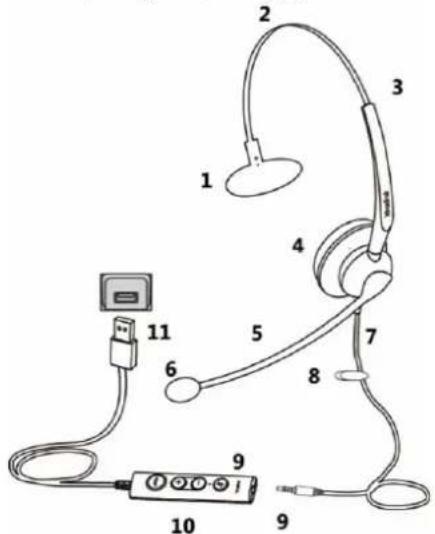
| No.No. NameName | |
| 1 T-Bar | |
| 2 Adjustable Headband | |
| 3 Adjustable Rod | |
| 4 Receiver | |
| 5 Boom | |
| 6 Microphone with sponge cover | |
| 7 Headset Cable | |
| 8 Clothing Clip | |
| 9 3.5 mm Jack | |
| 10 Controller | |
| 11 USB Connector |
FAQFAQ
If you encounter a problem or can not complete an action, use Troubleshooting to identify and resolve the problem.
UH34UH34
Package ContentsPackage Contents
After opening the package, check that all the items on the list are included. If any items are missing, contact your dealer.
UH34 (Lite) Mono & UH34 (Lite) DualUH34 (Lite) Mono & UH34 (Lite) Dual
• UH34 (Lite) MonoUH34 (Lite) Mono

UH34 (Lite) Mono Headset

Quick Start Guide
• UH34 (Lite) DualUH34 (Lite) Dual

UH34 (Lite) Dual Headset
Quick Start Guide
UH34 SE Mono & UH34 SE Dual UH34 SE Mono & UH34 SE Dual
• UH34 SE MonoUH34 SE Mono

UH34 (Lite) Mono Headset

YHC20 SE

Quick Start Guide
• UH34 SE DualUH34 SE Dual
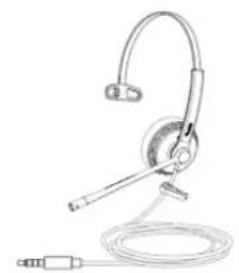
UH34 (Lite) Mono Headset

YHC20 SE
Quick Start Guide

TIPTIP
We recommend that you use the accessories provided or approved by Yealink. The unapproved third-party accessories may result in reduced performance.
OverviewOverview
UH34 (Lite) Mono & UH34 (Lite) DualUH34 (Lite) Mono & UH34 (Lite) Dual

| ItemItem Action & FunctionAction & Function | |
| Answer/End Call Button Press to answer, reject, or end a call. | |
| Mute Button Press to mute or unmute microphone. | |
| (Teams Edition) Teams Button | • Press and hold for 2 seconds to activate Cortana integrated in Teams (this requires Microsoft’s support).• Press to invoke the Teams client. |
| (UC Edition) Voice Assistant Button | Press and hold for 2 seconds to activate the voice assistant. |
| Volume Up Press to turn up volume. | |
| Volume Down Press to turn down volume. | |
UH34 SE Mono & UH34 SE Dual UH34 SE Mono & UH34 SE Dual

| ItemItem Action & FunctionAction & Function | |
| Answer/End Call Button Press to answer, reject, or end a call. | |
| Mute Button Press to mute or unmute microphone. | |
| (Teams Edition) Teams Button | • Press and hold for 2 seconds to activate Cortana integrated in Teams (this requires Microsoft’s support). • Press to invoke the Teams client. |
| (UC Edition) Voice Assistant Button | Press and hold for 2 seconds to activate the voice assistant. |
| Volume Up Press to turn up volume. | |
| Volume Down Press to turn down volume. | |
LED Indicator Status LED Indicator Status
LED Indicator Status LED Indicator Status
The following is the Teams/Voice Assistant Button LED Indicator.
When used with the Teams client, the button LED indicator is as follows. When the voice assistant is activated, the button always glows white.
| LED IndicatorLED Indicator DescriptionDescription | |
| Slow-flashing white When there are missed calls/voice mails/Teams meeting notifications | |
| Solid white Teams connected | |
| Off Teams disconnected | |
FAQFAQ
If you encounter a problem or can not complete an action, use Troubleshooting to identify and resolve the problem.
UH36UH36
Package ContentsPackage Contents
After opening the package, check that all the items on the list are included. If any items are missing, contact your dealer.
• UH36 MonoUH36 Mono

UH36 Mono Headset

YHC20
Quick Start Guide

Drawstring Bag
- UH36 DualUH36 Dual
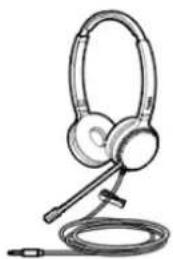
UH36 Dual Headset
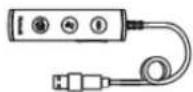
YHC20

Quick Start Guide
Drawstring Bag
TIPTIP
We recommend that you use the included accessories, and other accessories may have compatibility issues that prevent them from working properly.
OverviewOverview

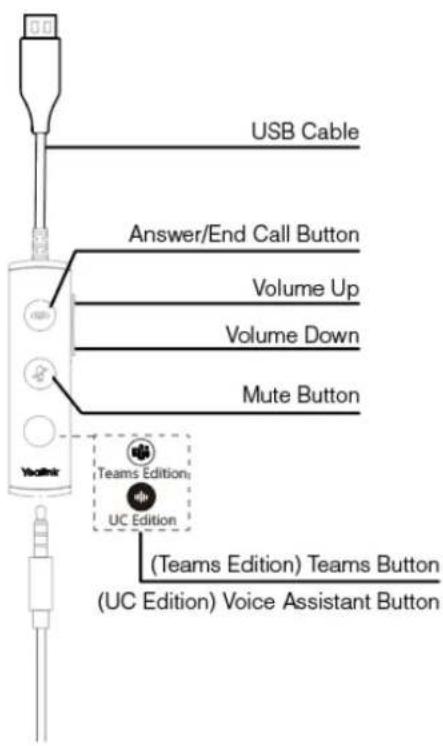
| ItemItem Action & FunctionAction & Function | |
| Answer/End Call Button Press to answer, reject, or end a call. | |
| Mute Button Press to mute or unmute microphone. | |
| (Teams Edition) Teams Button | • Press and hold 2 seconds to activate Cortana integrated in Teams (this requires Microsoft’s support). • Press to invoke the Teams client |
| (UC Edition) Voice Assistant Button | Press and hold for 2 seconds to activate the voice assistant. |
| Volume Up Press to turn up volume. | |
| Volume Down Press to turn down volume. | |
i NOTENOTE
Before using the Teams button functions, you should install the Microsoft Teams client on your PC, smartphone or tablet.
LED Indicator Status LED Indicator Status
LED Indicator Status LED Indicator Status
The following is the Teams/Voice Assistant Button LED Indicator.
When used with the Teams client, the button LED indicator is as follows. When the voice assistant is activated, the button always glows white.
| LED IndicatorLED Indicator DescriptionDescription | |
| Flash green fast Receive a incoming call | |
| Solid green During a call | |
| Flash green slowly Hold call | |
| Slow-flashing white When there are missed calls/voice mails/Teams meeting notifications | |
| Solid white Teams connected | |
| Off Teams disconnected/end call/reject call | |
FAQFAQ
If you encounter a problem or can not complete an action, use Troubleshooting to identify and resolve the problem.
UH37UH37
Package ContentsPackage Contents
- UH37 Mono

UH37 Mono Headset
Quick Start Guide

Drawstring Bag
- UH37 DualUH37 Dual
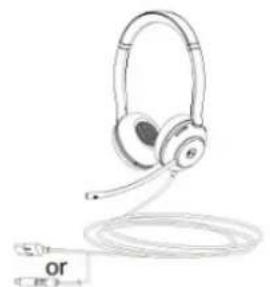
UH37 Dual Headset
Quick Start Guide

Drawstring Bag

TIPTIP
We recommend that you use the included accessories, and other accessories may have compatibility issues that prevent them from working properly.
LED Indicator Status LED Indicator Status
LED Indicator Status LED Indicator Status
| LED IndicatorLED Indicator DescriptionDescription | |
| Flash red Receive an incoming call | |
| Solid red During a call/hold call /redial | |
| Off Teams disconnected | |
FAQFAQ
If you encounter a problem or can not complete an action, use Troubleshooting to identify and resolve the problem.
OverviewOverview

You need to go to the Yealink USB Connect application to enable this feature.
- Click Device settings > Advanced Settings > Platform to select UC.
- Click MFB Button to select HOOK.
UH38UH38
Package ContentsPackage Contents
- UH38 MonoUH38 Mono

UH38 Mono Headset

Quick Start Guide

Carrying Case

USB 2.0 Cable
(USB-A to USB-C/USB-C to USB-C)
- UH38 DualUH38 Dual
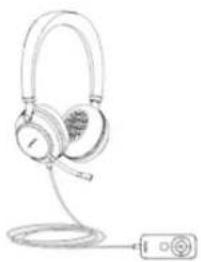
UH38 Dual Headset

Quick Start Guide

Carrying Case

USB 2.0 Cable
(USB-A to USB-C/USB-C to USB-C)

TIPTIP
We recommend that you use the included accessories, and other accessories may have compatibility issues that prevent them from working properly.
OverviewOverview
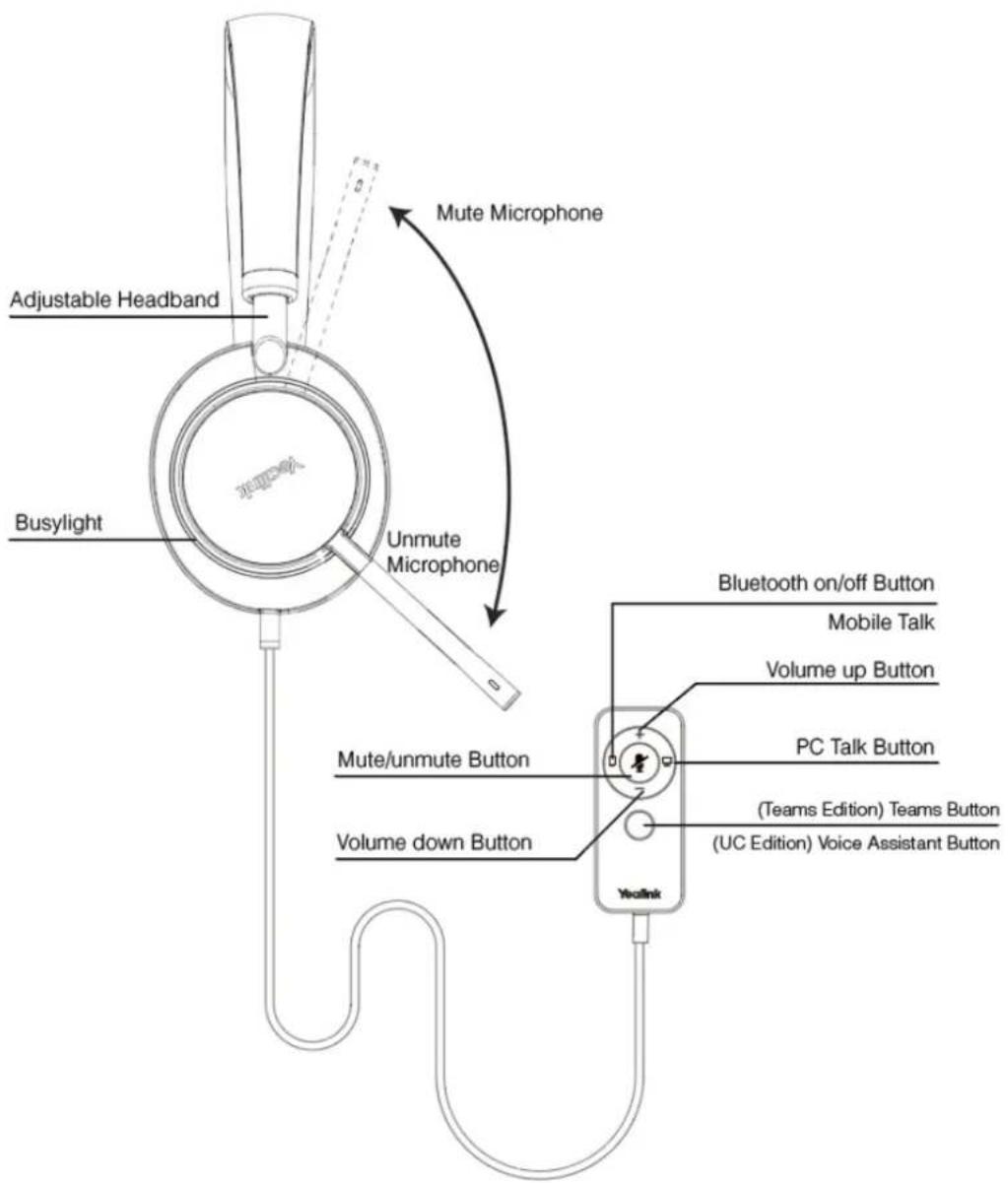
| ItemItem Action & FunctionAction & Function | |
| Bluetooth on/off Button and Mobile Talk | Press and hold for 5 seconds while powered off to enter the Bluetooth pairing mode (the button flashes red and blue). Then, search and connect Yealink UH38 on the mobile phone.Press and hold for 5 seconds to turn off Bluetooth.Bluetooth device call control button: press to answer, reject, or end a mobile call. |
| Mute/unmute Button | Press to mute or unmute microphone. |
| PC Talk Button USB connected device call control button: press to answer, reject, or end a PC/desk phone call. | |
| Volume up Button Volume down Button | Press to turn up/turn down volume. |
| (Teams Edition) Teams Button | Press and hold 2 seconds to activate Cortana integrated in Teams (this requires Microsoft's support).Press to invoke the Teams client. |
| (UC Edition) Voice Assistant Button | Press and hold for 2 seconds to activate the voice assistant. |
NOTE
Before using the Teams feature, you should install the Microsoft Teams client on your PC.
LED Indicator Status LED Indicator Status
Busylight Indicator Busylight Indicator
Introduction of the busylight indicator on both sides of the headset:
| IndicatorIndicator Description | Description |
| Flash red Incoming call rings | |
| Solid red During a call |
Mobile/PC Button IndicatorMobile/PC Button Indicator
- Mobile Button IndicatorMobile Button Indicator
| IndicatorIndicator DescriptionDescription | |
| Solid green for 2 seconds Enable Bluetooth | |
| Flash red and blue alternately for 500 ms/time Bluetooth enters the pairing state | |
| Solid red for 2 seconds Disable Bluetooth | |
| Solid blue for 2 seconds Bluetooth pairing succeeded | |
| Flash green Receive an incoming call | |
| Solid green During a call | |
| Flash green twice | Stay on the line |
| Flash red slowly | Low battery level |
• PC Button Indicator
| IndicatorIndicator | DescriptionDescription |
| Flash green | Receive an incoming call |
| Solid green | During a call |
| Flash green twice | Stay on the line |
| The green light flashes slowly during the upgrade | Headset is being upgraded (when the upgrade is complete, the LED indicator of the mobile button, mute button, and PC button flash simultaneously for 1 second and then turns off) |
Teams/Voice Assistant Indicator
When the headset activates the voice assistant, the button backlight is always on. When the headset works with Teams Client, the button backlight is shown below:
| IndicatorIndicator DescriptionDescription | |
| Flash white slowly Receive a missed call/voice message/meeting notification | |
| White LED indicator flashes slowly and turns into solid white Teams connected successfully | |
| White LED indicator flashes slowly and then turns off Teams is not connected |
FAQFAQ
If you encounter a problem or can not complete an action, use Troubleshooting to identify and resolve the problem.
YHS34YHS34
Package ContentsPackage Contents
After opening the package, check that all the items on the list are included. If any items are missing, contact your dealer.
- YHS34 DualYHS34 Dual
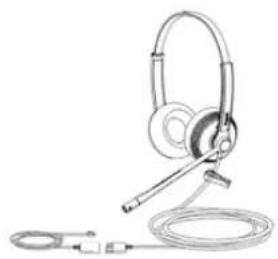
YHS34 Dual Headset
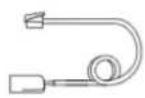
QD to RJ9 Straight Cord
Quick Start Guide
• YHS34 MonoYHS34 Mono

YHS34 Mono Headset

QD to RJ9 Straight Cord

Quick Start Guide

TIPTIP
We recommend that you use the included accessories, and other accessories may have compatibility issues that prevent them from working properly.
OverviewOverview
OverviewOverview

FAQFAQ
If you encounter a problem or can not complete an action, use Troubleshooting to identify and resolve the problem.
YHS36YHS36
Package ContentsPackage Contents
After opening the package, check that all the items on the list are included. If any items are missing, contact your dealer.
• YHS36 DualYHS36 Dual

YHS36 Dual Headset

QD to RJ9 Straight Cord

Quick Start Guide
• YHS36 MonoYHS36 Mono

YHS36 Dual Headset

QD to RJ9 Straight Cord

Quick Start Guide

TIPTIP
We recommend that you use the included accessories, and other accessories may have compatibility issues that prevent them from working properly.
OverviewOverview
OverviewOverview

FAQFAQ
If you encounter a problem or can not complete an action, use Troubleshooting to identify and resolve the problem.
Using TestUsing Test
It is applicable to UH33/UH34/UH36/UH38/YHS34/YHS36.
Are you still struggling with how to set up Teams and Yealink headsets? Are you experiencing problems that you can't control remotely? These tips will take you quickly through various scenarios of the Yealink headsets and Teams.
Necessary Checks Necessary Checks
Enable Enable Teams Only ModeTeams Only Mode
Currently, only Teams Only Mode can support remote call control, so we must enable it first. If you have an IT/Network Team, please check with them. If you are the IT guy, please check this mode on TAC (Teams Admin Center). Here is the TAC Link: https://admin.microsoft.com
Select Corresponding Audio/Video DeviceSelect Corresponding Audio/Video Device
- Go to Settings->DevicesSettings->Devices.

- Choose the headset you are going to use.
Settings

General

Accounts

Privacy

Notifications

Devices

Permissions

Calls

Some Teams Known Problems/Temporary Solutions Some Teams Known Problems/Temporary Solutions
Unable to wake up the Teams client by Pressing the MFB button
Win\mac can't PSTN call outWin\mac can't PSTN call out
Teams + WH66/67 can't pick up the call, it appears as an incoming call on WH66/67 display screen and the call is unable to pick up by pressed the call control buttonpick up by pressed the call control button
Abnormal behavior on Multi-application call scenario Abnormal behavior on Multi-application call scenario
After a Team meeting, when end call from Teams side, headset is stuck in the call interface
Double click MFB button cannot redial Double click MFB button cannot redial
Mute button will end Teams callMute button will end Teams call
Some Useful Debug InfoSome Useful Debug Info
If you report a problem to Yealink support may ask some information: Teams version,
Log from Headset, Log from Teams and some other questions. So how to provide necessary info to Yealink to get quick support and solution?
How to check the Team version How to check the Team version
- Go to About->VersionAbout->Version, and click.

- Then you can see the version below:

How to export Teams app's log? How to export Teams app's log?
- Right Click the Teams icon->Collect support file.

- Press Ctrl + alt + shift + 1 to record the system log from Teams.
The default saving path is This PC->Downloads.
How to export the debug file from Yealink headset? How to export the debug file from Yealink headset?
Just refer to the FAQ to get it.
TIP
Any other questions/problems please contact fae.hs@yealink.com
OthersOthers
Unable to wake up the Teams client by Pressing the MFB button
Please enable Teams app first, then plug the headset.
NOTE
Yealink version xxx.434.0.xx will solve this problem. Please pay attention on https://support.yealink.com/en/portal/home?categoryId=30
Win\mac can't PSTN call outWin\mac can't PSTN call out
Introduced in Microsoft version 1.5, fixed in new version (1.5.00.28567 for WINDOWS, 1.5.00.28358 for MAC)
Teams + WH66/67 can't pick up the call, it appears as an incoming call on WH66/67 display screen and the call is unable to pick up by pressed the call control buttonpick up by pressed the call control button
Teams cache issue, need to check suit 2 scenarios
- Please make sure you are use only Teams client on the PC, And disable YUC and SFB on the PC.
- Please make sure you are using the Teams only account. You could check the Teams only account via this link: https://admin.microsoft.com.
Abnormal behavior on Multi-application call scenario Abnormal behavior on Multi-application call scenario
In the normal official environment, there are several softphones using at the same time.
And there is only one audio channel could take the call, so there is a call priority when there are several calls from different
softphones. For example, Teams,3CX, Bria, Webex, etc.
Here is the normal behavior when there are several calls from different softphones.
- Build up a Teams call first->3CX call incoming->Pick up the call->3CX and Teams will both set to hold status
- Build up a 3CX call first->Teams call incoming->Pick up the call->Teams will take the call, and 3CX will set to hold status.

TIPTIP
The different behavior is caused by the priority of Teams call is higher than 3CX.
After a Team meeting, when end call from Teams side, headset stuck in call interface
Teams' bug, all the manufacturer same behavior, MS will release new version to solve this problem in Q1 2023.
Double click MFB button cannot redial Double click MFB button cannot redial
Teams not support such a feature
Mute button will end Teams callMute button will end Teams call
Teams problem, just upgrade Teams to latest version
FAQFAQ

TIPTIP
If you encounter a problem or can not complete an action, use Troubleshooting to identify and resolve the problem.
FitFit
Fit UH33/UH33 SEFit UH33/UH33 SE
UH33 & UH33 SEUH33 & UH33 SE
- To adjust the headband, lengthen or shorten the adjustment rod until it fits comfortably. Position the headset receiver so that the ear cushion sits comfortably over the center of your ears.

- Position the T-bar above your ear.

- Hold the receiver securely against your ear with one hand. With the other hand, adjust the boom to ensure that the microphone sits about one finger-width from your mouth.

- The clothing clip helps to keep the headset properly positioned and be free from the cord's weight. Attach the clothing clip at a comfortable level to liberate your hand.

FAQFAQ
If you encounter a problem or can not complete an action, use Troubleshooting to identify and resolve the problem.
Fit UH34/UH34 SEFit UH34/UH34 SE
Fit HeadsetFit Headset
i NOTENOTE
It is applicable to UH34 (light)/UH34 SE/YHS34 headset.
Left or Right Wearing Style Left or Right Wearing Style
You can wear the headset on the left or right by flipping the microphone to the other side (320° limit).
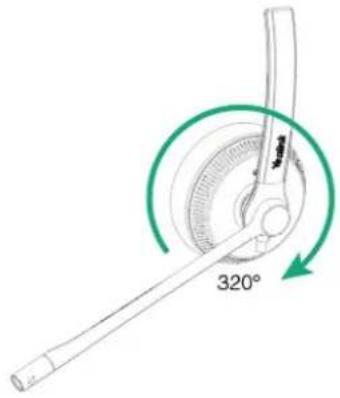
Adjust the Headband Adjust the Headband
Adjust the headband to find the most comfortable fit.

Position the Microphone Position the Microphone
It is recommended to position the microphone close to your mouth (0.5 inches).

The microphone is bendable for personal preference.
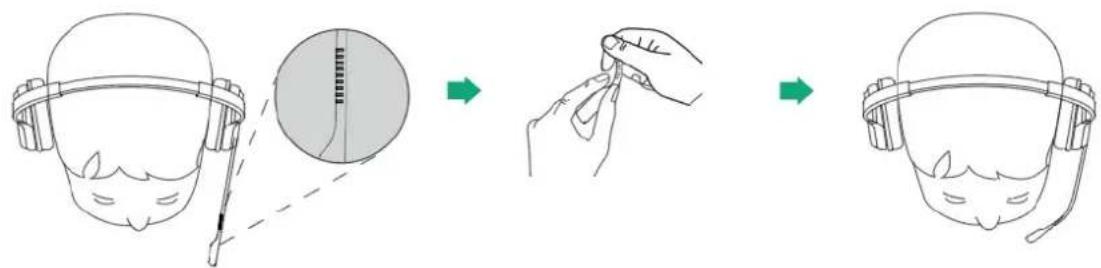
Store the Microphone Store the Microphone
The microphone can be placed upright.

The clothing clip helps to keep the headset properly positioned and free from the cord's weight. Attach the clothing clip at a comfortable level to liberate your hand.

FAQFAQ
If you encounter a problem or can not complete an action, use Troubleshooting to identify and resolve the problem.
Replace Ear CushionsReplace Ear Cushions
Replace Ear CushionsReplace Ear Cushions
i NOTENOTE
It is applicable to UH34 (light)/UH34 SE/YHS34 headsets.
![graph LR A["Front Head"] --> B["Left Head"] B --> C["Right Head"] C --> D["Left Head with Up Arrow"] D --> E["Right Head with Up Arrow"] E --> F["Left Head with Down Arrow"]](/content/2026/05/808460/images/fd8b35474cf4588553292c1e15628a12f78720fe3e92c2f9aec47c4892510059.jpg)
FAQFAQ
If you encounter a problem or can not complete an action, use Troubleshooting to identify and resolve the problem.
Fit UH36/YHS36Fit UH36/YHS36
Fit HeadsetFit Headset
i NOTENOTE
It is applicable to UH36/YHS36 headset.
Left or Right Wearing Style Left or Right Wearing Style
You can wear the headset on the left or right by flipping the microphone to the other side (320° limit).
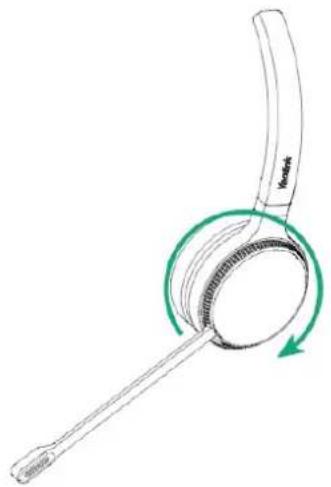
Adjust the Headband Adjust the Headband
Adjust the headband to find the most comfortable fit.

Position the Microphone Position the Microphone
It is recommended to position the microphone close to your mouth (0.5 inches).
The microphone is bendable for personal preference.
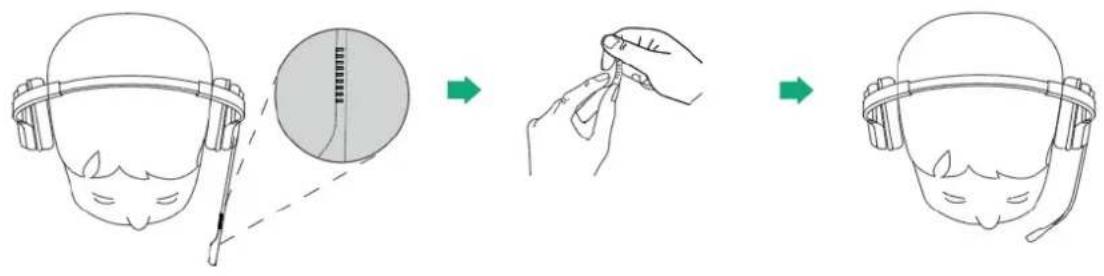
Store the Microphone Store the Microphone
The microphone can be placed upright.

The clothing clip helps to keep the headset properly positioned and free from the cord's weight. Attach the clothing clip at a comfortable level to liberate your hand.

FAQFAQ
If you encounter a problem or can not complete an action, use Troubleshooting to identify and resolve the problem.
Replace Ear CushionsReplace Ear Cushions
i NOTENOTE
It is applicable to UH36/YHS36 headset.
![graph LR A["Left Headband"] --> B["Left Headband"] B --> C["Right Headband"] C --> D["Right Headband"] D --> E["Left Hand"] style A fill:#f9f,stroke:#333 style B fill:#ccf,stroke:#333 style C fill:#cfc,stroke:#333 style D fill:#fcc,stroke:#333 style E fill:#ffc,stroke:#333](/content/2026/05/808460/images/8b8e4b526a1ee03c7de2979771b365e787350f551127efa81ce7ab4287ccc407.jpg)
If your headset needs warranty service, the process is quick and easy. Please go to
https://ticket.yealink.com/page/headset/warranty-service.html and submit RMA Claim to Yealink.
FAQFAQ

TIPTIP
If you encounter a problem or can not complete an action, use Troubleshooting to identify and resolve the problem.
Fit UH37Fit UH37
Wear UH37 HeadsetWear UH37 Headset
• Dual HeadsetDual Headset
You can rotate the microphone is up to 150° .
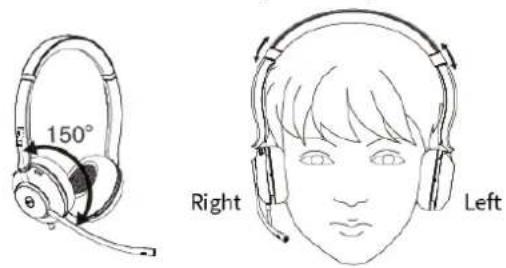
• Mono HeadsetMono Headset
You can wear the headset on the left or right by flipping the microphone to the other side (300° limit).
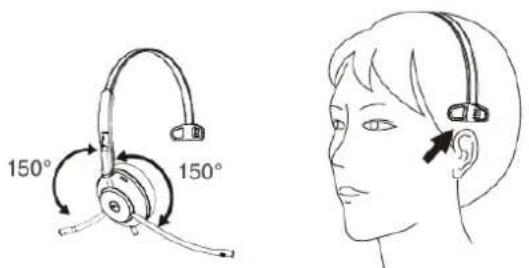
- Bendable boom armBendable boom arm
You can adjust the microphone to find the most comfortable fit. When using the headset, you can bend the microphone boom properly and bring it closer to your mouth for a better sound pickup.

Replace Ear CushionsReplace Ear Cushions
Align the new cushion with the four grooves of the headset base and press firmly together.
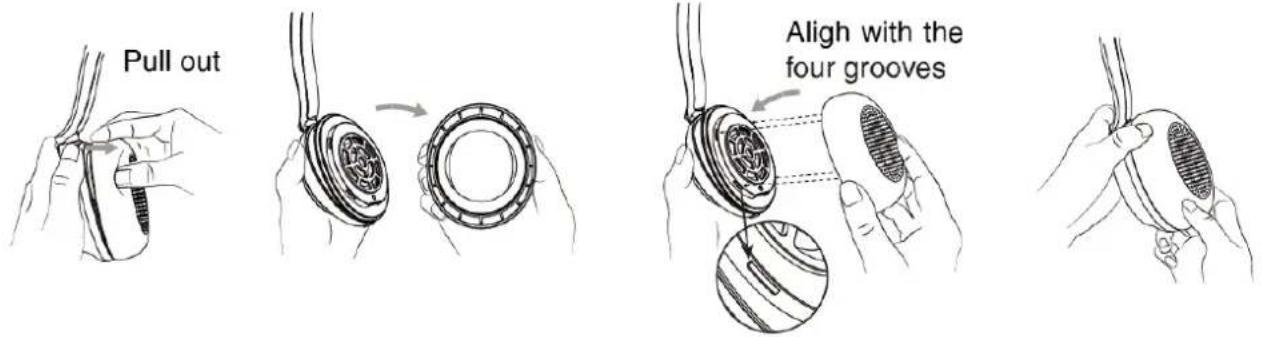
i NOTENOTE
The replaceable ear cushions need to be purchased separately.
FAQFAQ
If you encounter a problem or can not complete an action, use Troubleshooting to identify and resolve the problem.
Fit UH38Fit UH38
Wear HeadsetWear Headset
Left or Right Wearing Style Left or Right Wearing Style
• Dual HeadsetDual Headset
You need to distinguish the left and right of the microphone, and the rotation angle of the microphone is up to 150° .
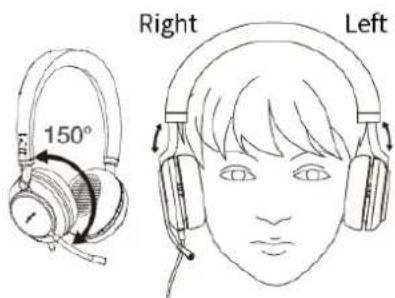
• Mono HeadsetMono Headset
You can wear the headset on the left or right by flipping the microphone to the other side (300° limit).

Adjust Microphone Adjust Microphone
You can adjust the microphone to find the most comfortable fit. When using the headset, you can bend the microphone boom properly and bring it closer to your mouth for better sound pickup.

Clothing clip Clothing clip
You can fix the microphone cable to your clothes with clothespins. The clothespin keeps the microphone cable in a convenient position when using your mobile phone away from your PC.

Replace Ear CushionsReplace Ear Cushions
![graph LR A["Pull out"] --> B["Carriage"] B --> C["Carriage"] C --> D["Carriage"] D --> E["Carriage"] E --> F["Carriage"]](/content/2026/05/808460/images/70c29bee39be6ce58060b6e4a1a1494004cc7876ea7fe66fc505f39b80fd8211.jpg)
When installing a replacement ear cushion:
- Remove the outer layer of the double-sided sticker from the new ear cushion.
- Align the cushion with the headset base and press them firmly together to snap it into place (you can hear a click for all 4 snaps).
- Press around the entire edge of the cushion to make sure that the double-sided tape and the headset base are seamlessly pasted into the entire circle.
FAQFAQ
If you encounter a problem or can not complete an action, use Troubleshooting to identify and resolve the problem.
ChargeCharge
Charge UH38Charge UH38
Charge HeadsetCharge Headset
i NOTENOTE
It is only applicable to the UH38 dual headset.

Status CheckStatus Check
You can manually check the remaining talk time and device connection of the headset.
In the idle state, press and hold the Mobile button for 2 seconds.
- Dual Headset: the voice prompts “XX % battery remains, XXX connected”.
- Mono Headset (without built-in battery): the voice prompts “XXX connected”.
FAQFAQ
If you encounter a problem or can not complete an action, use Troubleshooting to identify and resolve the problem.
How long is the battery life UH38 Dual headset with Bluetooth mode?
How long does the UH38-dual headset enter sleep mode when it is on standby?
How to wake up a sleep mode headset? How to wake up a sleep mode headset?
Why does UH38-dual have a built-in battery, but UH38-mono does not?
How long can the UH38 headset battery last? How long can the UH38 headset battery last?
ConnectConnect
UH33/UH33 SE Connection UH33/UH33 SE Connection
UH33/UH33 SEUH33/UH33 SE
Method 1: Connect UH33 to a phone or PC with controllerMethod 1: Connect UH33 to a phone or PC with controller
- Connect the headset to the 3.5 mm jack of the controller.
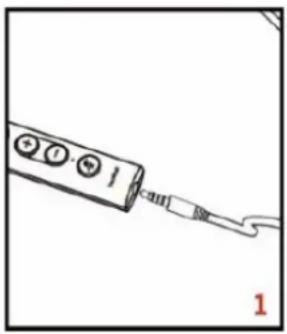
- To use the headset mode, simply insert the USB connector into the USB port of a compatible PC.

Method 2: Connect to a mobile phone or PC without the controller
Connect the headset to the 3.5 mm jack of the mobile phone or PC.

FAQFAQ
If you encounter a problem or can not complete an action, use Troubleshooting to identify and resolve the problem.
UH34/UH34 SE Connection UH34/UH34 SE Connection
UH34 (Lite) Mono/UH34 (Lite) DualUH34 (Lite) Mono/UH34 (Lite) Dual

UH34 SE Mono/UH34 SE Dual UH34 SE Mono/UH34 SE Dual
• With YHC20 SEWith YHC20 SE:
Fully plug the headset into the controller YHC20 SE, and connect the YHC20 SE to a USB port on the PC/Yealink IP phone.
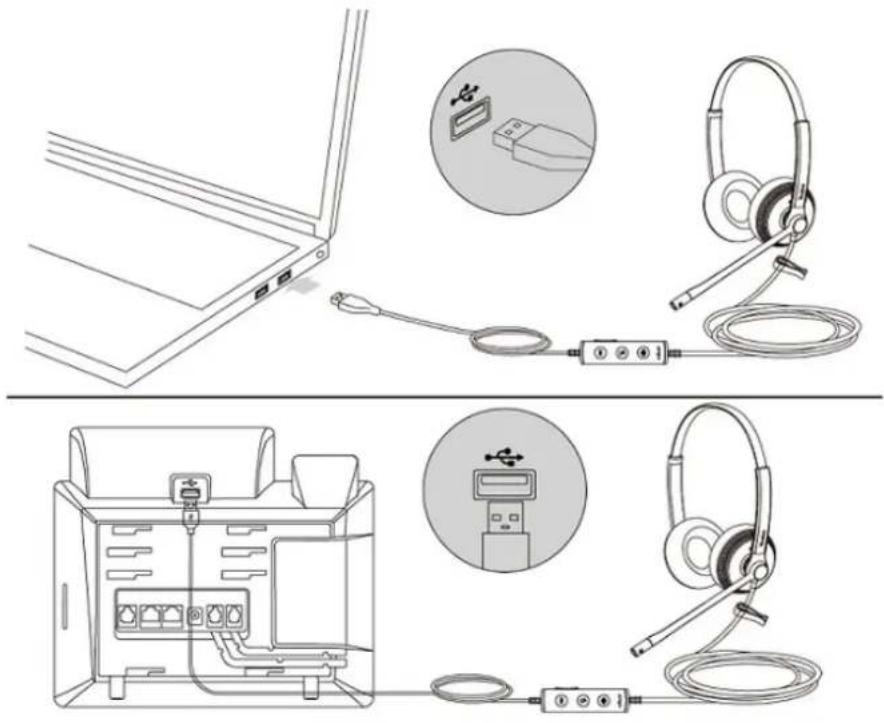
• Without YHC20 SEWithout YHC20 SE:
Plug the headset directly into your mobile device.
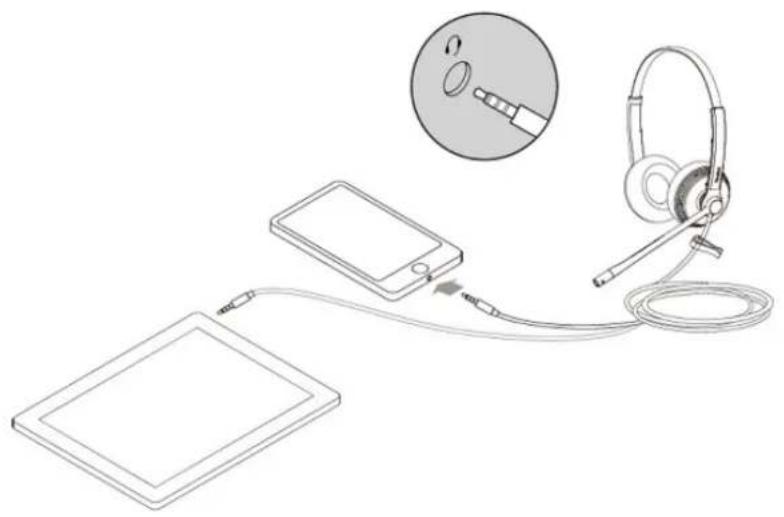
FAQFAQ
If you encounter a problem or can not complete an action, use Troubleshooting to identify and resolve the problem.
UH36 ConnectionUH36 Connection
UH36UH36
- With YHC20With YHC20:
Connect the UH36 headset to the controller YHC20 SE, and connect the YHC20 SE to a USB port on the PC/Yealink IP phone.

• Without YHC20Without YHC20:
Plug the UH36 headset directly into your mobile device.
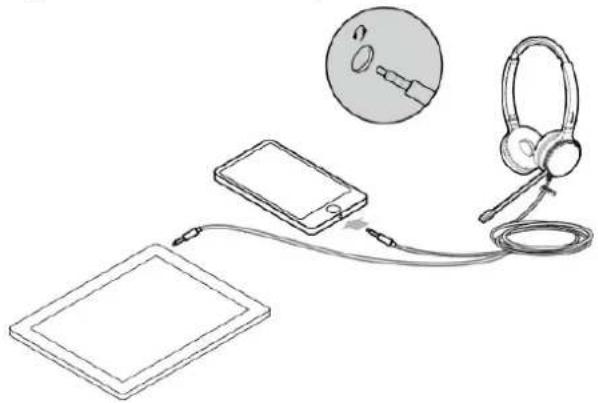
FAQFAQ
If you encounter a problem or can not complete an action, use Troubleshooting to identify and resolve the problem.
UH37 ConnectionUH37 Connection
UH37UH37
Connect the UH37 headset to either a USB-A or USB-C port on your computer, depending on the USB a variant of the headset.

i NOTENOTE
The USB-A and USB-C can be purchased separately on demand.
FAQFAQ
If you encounter a problem or can not complete an action, use Troubleshooting to identify and resolve the problem.
UH38 ConnectionUH38 Connection
Connect UH38 to Devices via USBConnect UH38 to Devices via USB
Connect to Devices via USBConnect to Devices via USB

For the dual headset, you can charge the headset after connecting it to your PC/phone via the USB cable.
FAQFAQ
If you encounter a problem or can not complete an action, use Troubleshooting to identify and resolve the problem.
Why the PC prompts the device is not identified? Why the PC prompts the device is not identified?
Can I connect the headset with both USB-A and USB-C cable? Can I connect the headset with both USB-A and USB-C cable?
How long is the headset cable and USB cable? How long is the headset cable and USB cable?
Connect UH38 to Devices via BluetoothConnect UH38 to Devices via
Pair with Mobile PhonePair with Mobile Phone

You can connect the headset to your mobile phone via the built-in Bluetooth to use as a Bluetooth headset.
- The headset enters Bluetooth pairing mode.
- Unpacking for the first time (Bluetooth has not been paired): Press and hold the Mobile button for 3 seconds to enable the Bluetooth, and the headset enters the Bluetooth pairing automatically.

- Bluetooth has been paired: Press and hold the Mobile button for 5 seconds to enable Bluetooth, and the headset enters the Bluetooth pairing automatically.
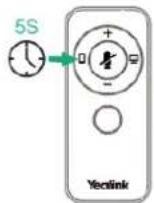
The voice prompts “Bluetooth on, remaining talk time XX hours, pairing mode”, then the headset enters the Bluetooth pairing mode. The red and blue lights of the Mobile button will flash alternately (500ms/time) after 2 seconds of the headset’s green LED indicator.
-
Enable Bluetooth on your mobile phone.
-
You can search and select the Yealink UH38 from the list of Bluetooth devices to pair with UH38.
The voice prompts “Mobile one connected” means that the connection is successful.
i NOTENOTE
- When you want to pair the headset with a new device (Device 2) after the headset has been paired with a Bluetooth device (Device 1), and you need to disable the Bluetooth on Device 1 and can hear the voice prompts “Mobile one disconnected”. Or you need to make sure that Device 1 is not within the range of the headset and then connect to other devices.
- Yealink UH38 is the default device name.
- For Bluetooth compatibility information, please refer to the specific Compatibility Center.
Pair with PC/Desk PhonePair with PC/Desk Phone
![graph LR A["Headphones"] -->|Bluetooth| B["Bluetooth"] B --> C["Laptop PC"] D["Turist"] -->|Bluetooth| B style A fill:#f9f,stroke:#333 style D fill:#ccf,stroke:#333 style B stroke-dasharray: 5 5](/content/2026/05/808460/images/2d98e09fdc528ac453ec1faf27473ed346e66e25c04db58ce03fe3d6d0918a80.jpg)
1. The headset enters Bluetooth pairing mode.
- When unpacking the UH38 headset for the first time (the UH38 has not been paired with Bluetooth): Press and hold the Mobile button for 3 seconds to enable Bluetooth, and the headset enters the Bluetooth pairing automatically.
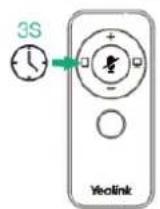
- The UH38 has been paired with Bluetooth: Press and hold the Mobile button for 5 seconds to enable Bluetooth, and the headset enters the Bluetooth pairing automatically.

The voice prompts “Bluetooth on, XX % battery remains, pairing mode” and the headset enters the Bluetooth
pairing mode. The red and blue lights of the Mobile button will flash alternately.
- Connect the BT51 to your PC port.
- Open Yealink USB Connect software and select BT51 device card.
- Click Device settings, you can search and select the Yealink UH38 from the Bluetooth devices list, and click Start pairing. The voice prompts “PC connected” which means the connection is successful.
NOTE
- The BT dongle needs to be purchased separately, please contact your dealer if necessary.
- Yealink UH38 is the default device name.
- The paired headset and BT51 will be automatically connected the next time when you power on the headset. You can also disconnect the headset through the Yealink USB Connect software.
BT51 LED IndicatorBT51 LED Indicator
| IndicatorIndicator DescriptionDescription | |
| Flash blue Bluetooth connecting | |
| Off Bluetooth connection failed | |
Disable BluetoothDisable Bluetooth
When the headset is not on a call, you can press and hold the Mobile button for 5 seconds until the voice prompts “Bluetooth off”. After you disable Bluetooth, you can quickly disconnect the Bluetooth connection of your headset from your Bluetooth device. For the mono headset, you only need to unplug the USB cable and disable the Bluetooth.
FAQFAQ
If you encounter a problem or can not complete an action, use Troubleshooting to identify and resolve the problem.
How many Bluetooth connections can the UH38 headset support? How many Bluetooth connections can the UH38 headset sup
What is the Bluetooth version supported by UH38?
How far is the UH38 Bluetooth connection?
Why can’t I find the UH38 headset in the connected devices after enabling the Bluetooth function?
How to pair with Bluetooth device?
YHS34 Connection
YHS34
Connect the YHS34 headset to an RJ port on the Yealink IP phone.

FAQFAQ
If you encounter a problem or can not complete an action, use Troubleshooting to identify and resolve the problem.
YHS36 ConnectionYHS36 Connection
YHS36YHS36
Connect the YHS36 headset to an RJ port on the Yealink IP phone.

FAQFAQ
If you encounter a problem or can not complete an action, use Troubleshooting to identify and resolve the problem.
Call ControlCall Control
UH33/UH33 SE Call Control UH33/UH33 SE Call Control
UH33 & UH33 SEUH33 & UH33 SE
You can do the following to control UH37 headset calling.

- Answer or ending a callAnswer or ending a call:
- When there is an incoming call, the call status LED indicator flashes green, press to answer the call. The call status LED indicator glows green.
- Press again to end the call. The call status LED indicator turns off.
- Adjust the volumeAdjust the volume:
- Press to increase the listening volume during a call.
- Press to decrease the listening volume during a call.
- Mute or unmute a CallMute or unmute a Call:
- Press during a call. The call status LED indicator glows red.
- Press again to unmute the call. The call status LED indicator turns off.
• Redial a call (for UH33) Redial a call (for UH33):
- Press twice when the phone is idle.
The phone dials out the last dialed number and automatically switches to the headset mode.

- When you receive a call on your PC, you can reject the call in addition to the above operations:
■ Press twice.
When you are in an active call and an incoming call arrives on your PC, do the following:
■ To answer the new call, press and hold for 2 seconds. The current call is placed on hold.
To switch between calls after the call is answered, press and hold for 2 seconds.
■ To reject the new call, press twice.
■ To end the current call and answer the new call, press.
Redial a call (for UH33 SE) Redial a call (for UH33 SE):
- Press twice when the phone is idle.
The phone dials out the last dialed number and automatically switches to the headset mode.
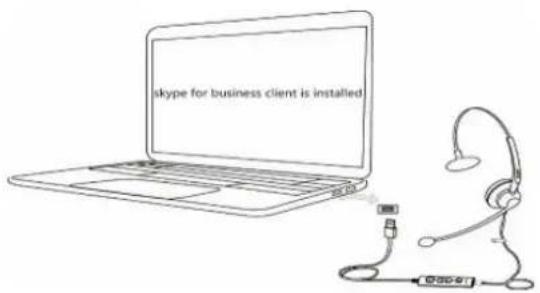
- When you receive a call on your PC, you can reject the call in addition to the above operations:
Press twice.
FAQFAQ
If you encounter a problem or can not complete an action, use Troubleshooting to identify and resolve the problem.olve the problem.blem.
UH34/UH36 Call Control UH34/UH36 Call Control
Call ControlCall Control
You can do the following to control UH34/UH36 headset calling.
UH34/UH36 Basic Call UH34/UH36 Basic Call

| FunctionFunction ActionAction | |
| Answer call | Press the Answer/End CallAnswer/End Call button.1 NOTENOTEWhen receiving an incoming call, the Answer/End button LED flashes green. During the call, the Answer/End button LED glows green. |
| End call Press the Answer/End CallAnswer/End Call button. | |
| Reject call Double-press the Answer/End CallAnswer/End Call button. | |
| Redial call Double-press the Answer/End CallAnswer/End Call button. | |
| Hold/resume call | Press and hold the Answer/End Call button for 2 seconds.1 NOTENOTEWhen a call is placed on hold, the Answer/End button LED flashes green. |
UH34/UH36 Multiple CallsUH34/UH36 Multiple Calls
The headset can accept and handle multiple calls at the same time.
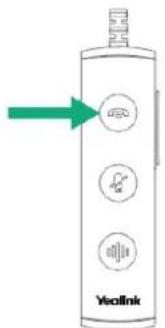
| FunctionFunction ActionAction | |
| End the current call and answer the coming call | Press Call Control button. |
| Reject the incoming call when on a current call | Double-press Call Control button. |
| Hold the current call and answer the coming call | Press and hold the Call Control button for 2 seconds. |
| Switch between held call and active call | Press and hold the Call Control button for 2 seconds. |
FAQFAQ
If you encounter a problem or can not complete an action, use Troubleshooting to identify and resolve the problem.
Why Can’t I Hear the Other Party’s Voice? Why Can’t I Hear the Other Party’s Voice?
Why Can’t the Other Party Hear Me? Why Can’t the Other Party Hear Me?
Why Does the Music Continue When I Answer a Call in the Music?
Why Doesn't the Headset Respond When There Is an Incoming Call from the Desk Phone?
Mute MicrophoneMute Microphone
Mute MicrophoneMute Microphone
You can do the following to mute UH34/UH36 headset.
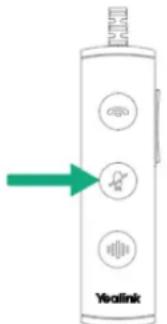
Press the MuteMute button.
i NOTE
When a call is muted, the MuteMute button LED glows red.
FAQFAQ
If you encounter a problem or can not complete an action, use Troubleshooting to identify and resolve the problem.olve the problem.blem.
Adjust VolumeAdjust Volume
Adjust VolumeAdjust Volume
You can do the following to adjust UH34/UH36 headset volume.

Press the Volume Up/Volume DownVolume Up/Volume Down button.
FAQFAQ
If you encounter a problem or can not complete an action, use Troubleshooting to identify and resolve the problem.
Voice AssistantsVoice Assistants

- Activate Cortana integrated in Teams (Teams version): Press and hold the Teams button for 2 seconds. (this requires Microsoft's support).
- Invoke the Teams client (Teams version): Press the Teams button in the idle state.

Activate voice assistant (UC version): Press and hold the Voice Assistant button for 2 seconds.
FAQFAQ

TIPTIP
If you encounter a problem or can not complete an action, use Troubleshooting to identify and resolve the problem. identify and resolve the problem.e problem.
UH37 Call Control UH37 Call Control
UH37UH37
You can do the following to control UH37 headset calling.
• UC EditionUC Edition

UC Edition
| FunctionFunction ActionAction | |
| Press once | Play/pause the musicAnswer/end a callEnd the current call and answer an incoming call |
| Double-press | Reject a call/reject the incoming call when on a callRedial |
| Hold for 1.5 sec | Answer/end the callEnd the current call and answer an incoming callInvoke the Teams client |
Teams EditionTeams Edition

Teams Edition
| FunctionFunction ActionAction | |
| Press once | Play/pause the musicAnswer/end a callEnd the current call and answer an incoming call |
| Double-press | Reject a call/reject the incoming call when on a callRedial |
| Hold for 1.5 sec | Answer/end the callEnd the current call and answer an incoming callInvoke the Teams client |
MuteMute

| FunctionFunction ActionAction | |
| Press the Mute button once · Mute/unmute the microphone |

NOTE
Before using the Teams functions, you should install the Microsoft Teams client on your PC.
FAQFAQ
If you encounter a problem or can not complete an action, use Troubleshooting to identify and resolve the problem.
UH38 Call Control UH38 Call Control
Basic UsageBasic Usage
Basic UsageBasic Usage
You can do the following to control UH37 headset calling.
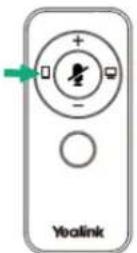
(Control buttons for Bluetooth device)
| FunctionFunction ActionAction | |
| Answer call | Press the MobileMobile button.Note:When receiving an incoming call, the Busylight LED indicator flashes red quickly, and the Mobile button LED indicator flashes green. During the call, the Busylight LED indicator glows red and Mobile button LED glows green. |
| End call Press the MobileMobile button. | |
| Reject call Double-press the MobileMobile button. | |
| Redial call Double-press the MobileMobile button. | |
| Hold/resume call | Press and hold the MobileMobile button for 2 seconds.Note: When a call is placed on hold, the Mobile button LED flashes green. |

(Control buttons for USB device)
| FunctionFunction ActionAction | |
| AnswerPC/IP phone call | Press the PCPC button.Note: When receiving an incoming call, the Busylight LED indicator flashes red quickly, and the PC button LED indicator flashes green. During the call, the Busylight LED indicator glows red and PC button LED glows green. |
| End PC/IP phone call | Press the PCPC button. |
| RejectPC/IP phone call | Double-press the PCPC button. |
| Redial call Double-press the PCPC button. | |
| Hold/resume call | Press and hold the PCPC button for 2 seconds.Note: When a call is placed on hold, the PC button LED flashes green. |
FAQFAQ
If you encounter a problem or can not complete an action, use Troubleshooting to identify and resolve the problem.
Why adjusting the headset volume needs to press 50 times to get to maximum/minimum?
Why will the media and call sound be mixed to play? Why will the media and call sound be mixed to play?
How to turn on the UH38 busylight? How to turn on the UH38 busylight?
How long is the call life of the UH38 headset? How long is the call life of the UH38 headset?
How to restore the UH38 headset to factory settings?
Handle Multiple Calls
Handle Multiple Calls
The UH38 headset can answer and handle multiple incoming calls at the same time.
- The UH38 headset is on a call via a USB cable (the PC button turns solid green and the busylight turns solid red), and you can answer a new call via the USB cable at this time:

(Control buttons for USB device)
| Multiple callsMultiple calls DescriptionDescription | |
| Answer the new call and hang up the current call | Press the PC button. |
| Reject the new call and continue the current call | Double-press the PC button. |
| Answer the new call and hold the current call | Press and hold the PC button for 2 seconds. |
- The UH38 headset is on a call via a USB cable (the PC button turns solid green and the busylight turns solid red), and you can answer a new call via Bluetooth at this time:

(Control buttons for Bluetooth device)
| Multiple callsMultiple calls DescriptionDescription | |
| Reject the new Bluetooth call and continue the current USB cable call | Double-press the Mobile button. |
| Answer the new Bluetooth call and hold the current USB cable call | Press and hold the Mobile button. |
- The UH38 headset is on a call via Bluetooth (the Mobile button turns solid green and the busylight turns solid red), and you can answer a new call via Bluetooth at this time:

(Control buttons for Bluetooth device)
| Multiple callsMultiple calls Description | Description |
| Answer the new call and hang up the current call | Press the Mobile button. |
| Reject the new call and continue the current call | Double-press the Mobile button. |
| Answer the new call and hold the current call | Press and hold the Mobile button for 2 seconds. |
- The UH38 headset is on a call via Bluetooth (the Mobile button turns solid green and the busylight turns solid red), and you can answer a new call via the USB cable at this time:

(Control buttons for USB device)
| Multiple callsMultiple calls DescriptionDescription | |
| Reject the new Bluetooth call and continue the current USB cable call | Double-press the PC button. |
| Answer the new Bluetooth call and hold the current USB cable call | Press and hold the PC button. |
- Multiple calls switching

(Control buttons for USB device)
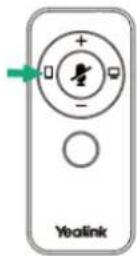
(Control buttons for Bluetooth device)
| Multiple callsMultiple calls DescriptionDescription | |
| Switch calls between USB cable calls and Bluetooth calls (ie, switch device calls) | Press the PCPC or MobileMobile button. |
| Switch USB calls via the USB cable: (ie, multi-call switching in the same device) | Press and hold the PCPC button (or MobileMobile button). |
| Switch from a call on the current Bluetooth device to a call on another Bluetooth device | Press and hold the MobileMobile button for 2 seconds. |
- Conference calls

(Control buttons for USB device)

(Control buttons for Bluetooth device)
| Multiple callsMultiple calls DescriptionDescription | |
| Merge the USB cable call and Bluetooth call into a conference call | Press and hold thePCbutton and theMobilebutton for 2 seconds simultaneously. |
| Split the conference calls | During the conference calls:• Press and hold thePCbutton for 2 seconds to split the conference calls. At this time, thePCcontinues the call, and the mobile phone call stays on the line.• Press and hold theMobilebutton to split the conference calls. At this time, the mobile phone continues the call, and the PC call stays on the line. |
FAQFAQ
If you encounter a problem or can not complete an action, use Troubleshooting to identify and resolve the problem.
Adjust VolumeAdjust Volume
Adjust VolumeAdjust Volume
You can do the following to adjust the UH38 headset volume.

Press and hold the Volume Up/Volume Down button to increase/decrease the volume.
FAQFAQ
If you encounter a problem or can not complete an action, use Troubleshooting to identify and resolve the problem
Enable Busylight Indicator Enable Busylight Indicator
Enable Busylight Indicator
You can do the following to enable the UH38 Busylight indicator.

Press the Volume Up/Volume Down button when not in a call.
FAQFAQ
If you encounter a problem or can not complete an action, use Troubleshooting to identify and resolve the problem.
Voice Assistant Voice Assistant
Voice Assistant Voice Assistant
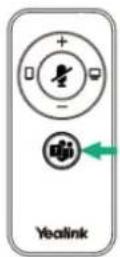
- Invoke the Teams client (Teams version): Press the Teams button.
- Activate Cortana integrated in Teams (Teams version): Press the Teams button for 2 seconds.
i NOTENOTE
It requires Microsoft's support.

Activate voice assistant (UC version): Press and hold the Voice Assistant button for 2 seconds.
FAQFAQ
If you encounter a problem or can not complete an action, use Troubleshooting to identify and resolve the problem.
Mute MicrophoneMute Microphone
Mute MicrophoneMute Microphone
You can mute the UH38 microphone by moving the boom up or unmute it by moving it down.

Start Mute detection feature: it will prompt “Muted” when you are speaking into the muted microphone. Otherwise, it will not prompt.
FAQFAQ
If you encounter a problem or can not complete an action, use Troubleshooting to identify and resolve the problem.
FAQFAQ
How to manage multiple calls of UH3X headset? How to manage multiple calls of UH3X headset?
I can't hear my voice or my voice is too loud when I speak with the Microphone.
What is busylight? What is busylight?
Why Can't I Hear the Other Party's Voice? Why Can't I Hear the Other Party's Voice?
Why Does the Music Continue When I Answer a Call? Why Does the Music Continue When I Answer a Call?
Why Doesn't the Headset Respond When There Is an Incoming Call from the Desk Phone?
Why Can't My Headset Synchronize the Call Status and Incoming Call Status of the Softphone?
How to Set up My Headset to Work with Skype for Business? How to Set up My Headset to Work with Skype for Business?
How to Set up My Headset to Work with Yealink Meeting? How to Set up My Headset to Work with Yealink Meeting?
Why Can't the Other Party Hear Me? Why Can't the Other Party Hear Me?
Media ControlMedia Control
UH37 Media Control UH37 Media Control
UH37UH37
You can do the following to control the UH37 headset's media play.
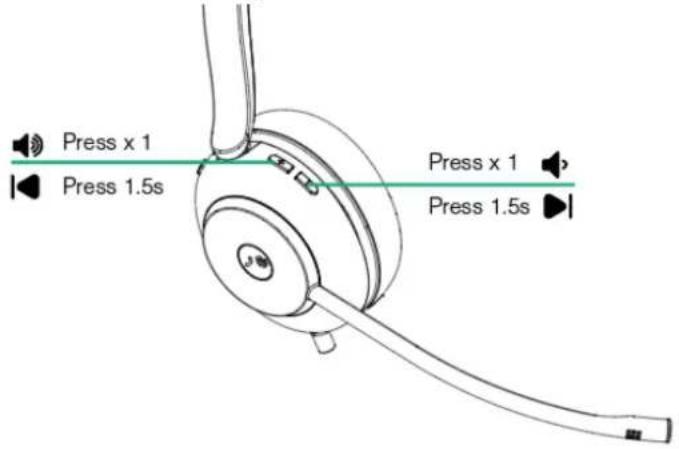
FAQFAQ
How to Use the Headset to Listen to Music on a PC? How to Use the Headset to Listen to Music on a PC?
UH38 Media Control UH38 Media Control
UH38UH38
You can do the following to control the UH38 headset's media play.
- Connect the headset to a Bluetooth device.
- Wear the headset on your head.
Extend the slider to adjust the length of the headband.
Put the headset on your head with the (left) mark on your left ear and the (right) mark on your right ear.

- Operate the Bluetooth device to start playback and adjust the volume to a moderate level.
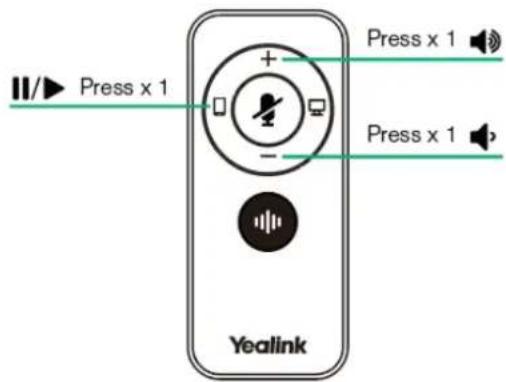
FAQFAQ
How to Use the Headset to Listen to Music on a PC? How to Use the Headset to Listen to Music on a PC?
Does the UH38 support the music mode? Does the UH38 support the music mode?
How to Use the Headset to Listen to Music on a PC? How to Use the Headset to Listen to Music on a PC?
UpdateUpdate
Update FirmwareUpdate Firmware
NOTE
It is applicable to UH33/UH34/UH36/UH37/YHS34/YHS headset.
What Is Firmware What Is Firmware
Firmware is product software that controls how a device operates. To ensure your device performs optimally, we recommend updating the firmware to the latest version. Please go to the product support page to download the available firmware.
Check Firmware Version Check Firmware Version
Before you begin: We recommend you upgrade Yealink USB Connect to the latest version.
Download the Yealink USB Connect.
ProcedureProcedure
- Run Yealink USB ConnectYealink USB Connect.
- Go to Device statusDevice status to check the firmware version.
Vealink USB Connect

← Return
UH38

Device status

Device settings

Update device

Device support
Equipment model
UH38 Add a remark Q
Firmware version
12.420.253.3
Connection method

USB
Serial number (SN)
123456789a

Hardware version
1.0.0.1

Official Website
For more information on Yealink USB Connect, refer to the Yealink USB Device Manager Client User Guide.
Update via YMCS/YDMPUpdate via YMCS/YDMP
ProcedureProcedure
- Enter the web user interface of the Yealink Management Cloud Service (YMCS)/Yealink Device management platform(YDMP).
- Go to Device Management > USB Device to select the corresponding device, and click 📄.

3. Click Update Firmware to select version and execution mode.

4. Click OKOK.
Update via Yealink USB ConnectUpdate via Yealink USB Connect
Before you begin: We recommend you upgrade Yealink USB Connect to the latest version.
Download the Yealink USB Connect.
Download the latest Wired Headset Frmware.
ProcedureProcedure
- Connect the headset to the PC via the USB cable.
- Run Yealink USB Connect.Yealink USB Connect.
-
Go to Update device.Update device.
-
Do one of the following:
-
Click Update Now to update the firmware to the newest version automatically.
- Click Update Manually to update the firmware to the specific version manually.
5. Confirm the action.
You need to download the firmware on the product documentation page first.
The following takes the UH38 headset for example :
Vealink USB Connect

← Return

UH38
Device status
Device settings
Update device
Device support

Current version:12.420.253.3
Your software is up to date
When the device has new firmware available, the device will prompt you to update the firmware
Update now
Update manually
FAQFAQ
If you encounter a problem or can not complete an action, use Troubleshooting to identify and resolve the problem.
When using YUC to upgrade the headset fails, and it shows that the headset is in recovery mode?
Failed to update the device firmware Failed to update the device firmware ..
OTA Update HeadsetOTA Update Headset
What Is OTA What Is OTA
Over-The-Air (OTA) is to upgrade the headset online. You can upgrade the UH38 headset by BT51.
OTA Update HeadsetOTA Update Headset
i NOTENOTE
It is only applicable to UH38 headset.
Before you begin Before you begin
We recommend you upgrade Yealink USB Connect to the latest version.
Download the Yealink USB Connect.
Download the latest Wired Headset Firmware.
ProcedureProcedure
- Connect the BT51 to the PC.
- Go to Yealink USB Connect to pair the headset with the BT51.
- After pairing, go to Update device > Update Now or Update manually to update the BT51.
- After updating the BT51, the headset will automatically update the version that comes with the BT51 when idle.
The updating time for the headset is about 1 hour.
FAQFAQ
If you encounter a problem or can not complete an action, use Troubleshooting to identify and resolve the problem.
Failed to update the device firmwareFailed to update the device firmware..
Update Multiple HeadsetsUpdate Multiple Headsets
Introduction Introduction
You can use the Yealink USB Connect to upgrade the same model of headsets in bulk. Bulk updates require at least two headsets of the same model to be connected, and up to six can be connected.
The following takes UH38 for example.
Bulk Update HeadsetBulk Update Headset
- Connect more than two headsets to the PC.
Download the latest Wired Headset Firmware.

TIP
If the PC does not have enough ports, you can use a USB extender to connect the headset to the PC.
- Open the Yealink USB Connect software and select the desired device CARD.
3. Go to Update device > Update Manually.

4. Click Select allSelect all to update all devices.

FAQFAQ
TIPTIP
If you encounter a problem or can not complete an action, use Troubleshooting to identify and resolve the problem.
Failed to update the device firmware Failed to update the device firmware ..
SettingsSettings
Yealink USB Connect for Wired HeadsetYealink USB Connect for Wir
Related VideoRelated Video: How to use Yealink USB Connect
IntroductionIntroduction
Yealink USB Connect is a computer software designed to manage Yealink USB devices.
With Yealink USB Connect, you can:
• Get an overview of connected Yealink USB devices
- Manage your Yealink USB devices
- Update your Yealink USB device to enhance its performance and features
• Give feedback on your Yealink USB device
Yealink USB Connect

Download via support.yealink.com
Download and Install Download and Install
Before you begin Before you begin: Connect the base to your PC.
- If it is the first time to connect the base to your PC, the PC prompts you as shown below:

- Click the prompt box and run the program.
CD Drive (E:) USB Connect
Choose what to do with this disc.
install or run program from your media
Other choices

Open folder to view files File Explorer

Take no action
- Download the Yealink USB Connect on the web page.
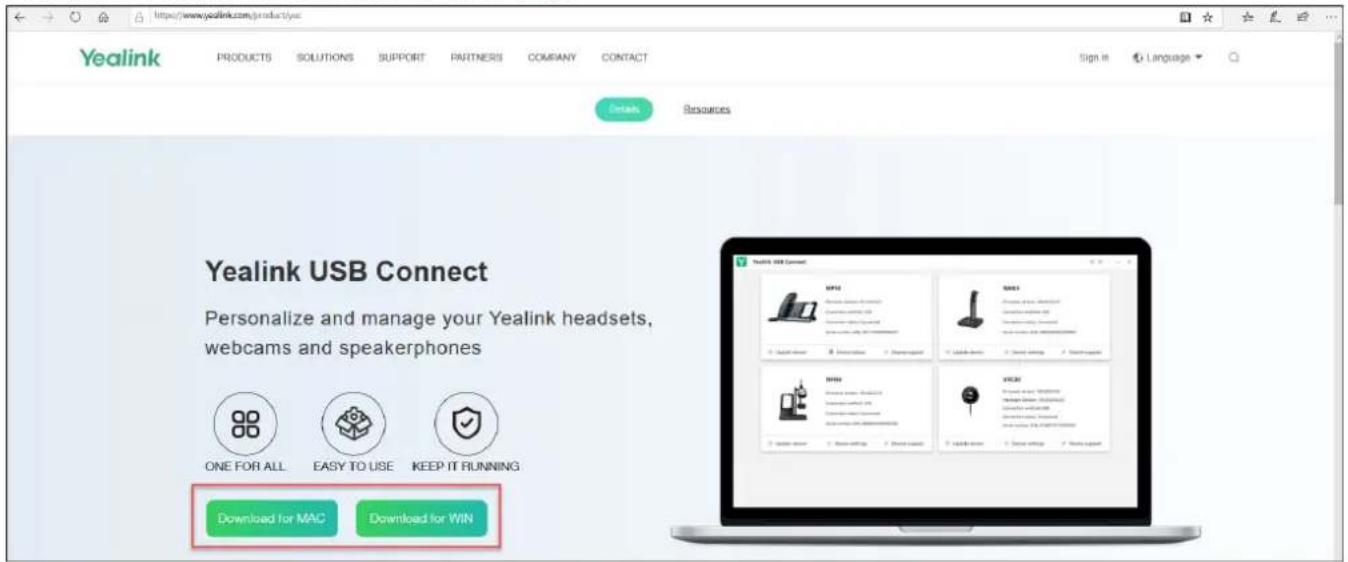
If the prompt box disappears, you can double-click the CD drive: USB Connect in the devices and drives list.

i NOTENOTE
If it detects that Yealink USB Connect has been installed after connecting, Yealink USB Connect will automatically run.
FAQFAQ
How to Update the Firmware? How to Update the Firmware?
How to Set up My How to Set up My Headset to Work with Microsoft Teams?Headset to Work with Microsoft Teams?
How to Set up My Headset to Work with Skype for Business? How to Set up My Headset to Work with Skype for Business?
How to Set up My Headset to Work with Yealink Meeting? How to Set up My Headset to Work with Yealink Meeting?
How to Get Correct Log on UH3X devices.
Yealink USB Connect can't recognize deviceYealink USB Connect can't recognize device ..
Device Recovery/ResetDevice Recovery/Reset
The following takes UH38 for an example.
ProcedureProcedure
- Open the Yealink USB Connect software and select the desired device CARD.
- Go to Device settings > Device support.
- Select Restore Factory SettingsRestore Factory Settings.
Yealink USB Connect

← Return

UH38
Device status
Device settings
Update device
Device support
Log file collection
Real-Time Log
Logging level ②
Log file collection
Upload log file
Feedback
Device feedback
Maintenance application
More support
Device recovery
© Reboot device
Basic SettingsBasic Settings
Basic SettingsBasic Settings
You can change the basic settings of the headset via the Yealink USB Connect.
Go to Device settings > Basic Settings.
| Function | Description |
| Bluetooth | Enable or disable Bluetooth. i NOTENOTE It is only applicable to UH38. |
| Local RingTone | Set whether to play local bulit-in ringtones. DefaultDefault: Enable. |
| Speaker Volume Set the local default volume. | |
FAQFAQ

TIP
If you encounter a problem or can not complete an action, use Troubleshooting to identify and resolve the problem.
Advanced Settings Advanced Settings
Advanced Settings Advanced Settings
You can change the basic settings of the headset via the Yealink USB Connect.
Go to Device settings > Advanced Settings.
| FunctionFunction DescriptionDescription | |
| MuteReminder | Set whether the paired headset plays a periodic audio reminder when the microphone is muted.DefaultDefault: Enabled. |
| MuteReminderInterval | Set the interval time plays a periodic audio reminder when the microphone is muted. ⓘ NOTENOTEIt appears only if Mute Reminder is enabled. Only when you speak continuously will the headset play the audio reminder according to this configured period. |
| Anti-StartleProtection | Set which hearing protection technology to be used.- Peak Block Protection- Australian G616 Protection |
| Daily NoiseExposure | Select the decibel level on which the headset protects against sound spikes.- No Limiting- 80dBA- 85dBA |
| MFB Button Set the multi-functional button to Play/Pause or Hook. | |
| Equalizer for Calls | Select an audio preference to use for all calls.- NormalNormal: The bass and treble balance.- BassBass: The bass is enhanced.- TrebleTreble: The treble enhanced.DeafultDeafult: Normal. |
| Platform Change the platform between UC and Teams versions. | |
| Second Device Audio | Hear the audio (tone & music) from the other connected device while streaming audio. ⓘ NOTEIt is only applicable to UH38. |
FAQFAQ

TIP
If you encounter a problem or can not complete an action, use Troubleshooting to identify and resolve the problem.
Bind Devices to YMCS PlatformBind Devices to YMCS Platform
Bind Devices to YMCS PlatformBind Devices to YMCS Platform
Introduction Introduction
Yealink Management Cloud Service (YMCS) is based on cloud architecture and has various management functions. The management platform allows enterprise administrators to deploy and configure Yealink devices used in an enterprise. Enter the address of YMCS (https://ymcs.yealink.com) in the browser. For more information, please refer to Yealink Management Cloud Service or contact Yealink technical support.
Browser RequirementsBrowser Requirements
YMCS supports the following browsers:
| BrowserBrowser VersionVersion | |
| Firebox 55 or later | |
| Chrome 55 or later | |
| Internet Explorer | 11 or later |
| Safari | 10 or later |
How to Bind How to Bind
You can refer to the video to bind your devices.

The video could not be loaded
Service & RepairService & Repair
How to Wired Headset Issues to YealinkHow to Wired Headset Issue
IntroductionIntroduction
How to Report the Issue to Yealink? How to Report the Issue to Yealink?
For headset issues, click the link below and fill out the form. Next, you can open up the Yealink USB connect to get your firmware version. Then type a description of your problem and submit it. It will then ask for your contact information, including your email address. Yealink will typically respond within 24 hours.
https://ticket.yealink.com/page/create-ask.html
How to Collect Diagnostic Files? How to Collect Diagnostic Files?
Yealink Bluetooth headsets support analyzing the headset problem. You can export these files simultaneously via Yealink USB Connect Tool and troubleshoot if necessary. The diagnostic file format is **.zip.
Steps:Steps:
- Go to Device support > Log file collection > Collect file collection on the Yealink USB Connect.
2. Click Collect the operating system logs > Export.

Here is the FAQ for more details.
https://support.yealink.com/en/portal/knowledge/show?id=0be9481fbb00a3c9a4d210a9
Related TopicRelated Topic
• Reproduce Issues
• New Feature Request
Reproduce Issues Reproduce Issues
Detailed Issue Description Detailed Issue Description
* [Headset type and version] + [connected device info, how to connect the device to Base, and how many?]
* Steps to reproduce the issue.
* Probability of this issue? Inevitable or accidental?
* Is there any other information you want to share? Any troubleshooting you have done?
Reproduce the Issue Reproduce the Issue
- Make an audio call, go to Device support > Log file collection to select Collect operating system logs on the Yealink USB Connect.
i NOTENOTE
- Before using, please connect the base and headset to the PC via a USB cable first.
- Before exporting the log file, please select log level 6 or 7 first.
Yealink USB Connect
← Return

UH38
Device status
Device settings
Update device
Device support
Log file collection
Real-Time Log
Logging level ⑦
Log file collection
Upload log file
Feedback
Device feedback
Maintenance application
More support
Device recovery
© Reboot device
3. Click ExportExport.
Yealink USB Connect
← Return

UH38
Device status
Device settings
Update device
Device support
Log file collection
Real-Time Log
Export log file
Collect the operating system logs
Save the file to the following path by default

Change dire...
Trouble descriptions (optional)
Trouble descriptions (optional)
Trouble descriptions (optional)
Trouble descriptions (optional)
Trouble descriptions (optional)
Please tell us the time of the p
Please tell us the time of the p
Please tell us the time of the p
Please tell us the time of the p
Please tell us the time of the p
Trouble descriptions (optional)
Please tell us the time of the p
Trouble descriptions (optional)
Please tell us the time of the p
Trouble descriptions (optional)
Please tell us the time of the p
Trouble descriptions (optional)
Please tell us the time of the p
- Then go to the path to get the diagnostic file (with a **.zip format).
Get Troubleshooting Files Get Troubleshooting Files
Create a ticket to Yealink with: Issue description, and diagnostic files (with a **.zip format).
New Feature Request New Feature Request
Create a Ticket to Yealink with for New Feature Request:
Please describe the detailed description of this new feature for us below:
*Application scenario
* How does this function work? Why does the customer need it?
* Do any other brand headsets support this feature?
*Any business/project information?
Wired Headset TroubleshootingWired Headset Troubleshooting
What can I do to solve a problem What can I do to solve a problem
If the headset does not function as expected, try the following steps to resolve the issue.
• Find the symptoms of the issue in this Worklink, and try any corrective actions listed.
- Restart the device that is being connected to the headset.
You may resolve some issues by restarting the connected device such as your PC or mobile device (UH38).
- Reset the headset.
- Initialize the headset.
This operation resets volume settings, etc., to the factory settings.
- Look up information on the issue on the Yealink Ticket or Yealink Support website.
If the operations above do not work, consult your nearest dealer or go to Yealink Ticket or Yealink Support for feedback your issue.
HeadsetHeadset
- Why Can't I Hear the Other Party's Voice? 1. Why Can't I Hear the Other Party's Voice?
The playback volume is too low. Press the Volume Up button on the headset.

The USB headset is not set as the default audio device for a PC. Instead, use the audio settings in the sound control panel/preferences to select the headset as the default audio device.
For WIN 8/ WIN 8.1/ WIN 10 OS: For WIN 8/ WIN 8.1/ WIN 10 OS:
1.) Go to Control Panel->Hardware and Sound->Sound.
2.) In the Playback tab, highlight the desired headset and select Set Default.

3.) Confirm the action.
For MAC OS: For MAC OS:
1.) Go to your System Preferences -> Sound.
2.) In the Output tab, select the headset as your Playback Device.
The headset is not set as the audio device for the softphone client.
- Why Can't the Other Party Hear Me? 2. Why Can't the Other Party Hear Me?
The microphone is muted. Press the Mute button on the headset to unmute.

Position the microphone close to your mouth.

The headset is not set as the default audio device. Instead, use the audio settings in the sound control panel/ preferences to select the headset as the default audio device.
For WIN 8/ WIN 8.1/ WIN 10 OS: For WIN 8/ WIN 8.1/ WIN 10 OS:
1.) Go to Control Panel->Hardware and Sound->Sound.
2.) In the Recording tab, highlight the desired headset and select Set Default.

3.) Confirm the action.
For MAC OS: For MAC OS:
1.) Go to your System Preferences -> Sound.
2.) In the Input tab, select the corresponding headset as your Playback Device.
- Why Does the Music Continue When I Answer a Call in the Music?
Answering a call in music will not pause the music. Instead, you need to pause it manually.
- Why Doesn't the Headset Respond When There Is an Incoming Call from the Desk Phone?
Do the following:
1.) Access the web user interface of the desk phone.
2.) Go to Features->Audio.
3.) Select Use Headset or Use Headset & Speaker from the Ringer Device for Headset drop-down menu.


NoteNote: For some phones, you also have to press the HEADSET key first.
- How to Use the Headset to Listen to Music on a PC?5. How to Use the Headset to Listen to Music on a PC?
If you need to use the headset to listen to music on the PC, you can set the headset as the default audio device on the PC.
1.) Go to Control Panel->Hardware and Sound->Sound.
2.) In the Playback tab, highlight the desired headset and select Set Default.

3.) Confirm the action.
- How to Replace Ear Cushions?
For UH36UH36:
![graph LR A["ear with antenna"] --> B["head with ear"] B --> C["head with microphone"] C --> D["head with antenna"]](/content/2026/05/808460/images/68412e15837afa5e68f8b17acbaa14509f7d17e59ceae1de2e14d74f21c64f64.jpg)
For UH34/UH34 Lite UH34/UH34 Lite:
![graph LR A["Initial State with Head"] --> B["State Change"] B --> C["State Change"] C --> D["Final State with Head"]](/content/2026/05/808460/images/7b57a9d87e39e0cc54134d1f92e2d8a42cf0a65d7b80cebc05d04472e2b3d12b.jpg)
NoteNote: During the firmware update, all LEDs on the headset go out.
Yealink USB ConnectYealink USB Connect
- What Is Yealink USB Connect1. What Is Yealink USB Connect? ?
Yealink USB Connect is computer software designed to manage Yealink USB devices. With Yealink USB Connect, you can:
• Get an overview of connected Yealink USB devices.
- Update your Yealink USB device to enhance its performance and features.
• Reboot your Yealink USB device.
- Give feedback on your Yealink USB device.
image--009.png
Download via support.yealink.com
- How to Find the Firmware Version of My Headset Using Yealink USB Connect?
ProcedureProcedure
1.) Run Yealink USB ConnectYealink USB Connect.
2.) Go to Device statusDevice status to check the firmware version.
image--010.png
- How to Update the Firmware for My Headset Using Yealink USB Connect?
ProcedureProcedure
1.) Run Yealink USB ConnectYealink USB Connect..
2.) Go to Update deviceUpdate device.
3.) Do one of the following:
- Click Check for updates to automatically update the firmware to the newest version.
- Click Update manually to update the firmware to the specific version manually.
image--011.png
NoteNote: During the firmware update, all LEDs on the headset go out.
- Why Can't My Headset Synchronize the Call Status and Incoming Call Status of the Softphone?
The call status synchronization requires the support of the softphone. We are working on compatibility with more softphones.
Compatible ListCompatible List
Check Compatibility List for more details.
Is My PC Compatible? Is My PC Compatible?
The Yealink USB wired headset is compatible with the following operating system: Windows (Windows 8, Windows 8.1, Windows 10) and macOS (Catalina, Mojave, Big Sur).
Note: You may not use the headset's call control function as some softphones have limited support for UH34 on PCs with Apple M1 chips.
Is My Desk Phone Compatible? Is My Desk Phone Compatible?
UH34 is compatible with Yealink T4XS, T4XU, T5XW, T58, VP59 phones running firmware version V85 or higher.
If you are using another desk phone or are running an earlier firmware version, UH34 can only support basic functions for the desk phones listed in the table below (Answer call / Mute / End call).
You may encounter problems listed in the table:
image.png
image.png
image.png
image.png
Microsoft Teams Microsoft Teams
How to Set up My Headset to Work with Microsoft Teams? How to Set up My Headset to Work with Microsoft Teams?
ProcedureProcedure
-
Click on your profile picture at the top of the Teams window.
-
Click Settings->DevicesSettings->Devices.
-
Select your headset (for example, Yealink UH34) under the Audio devices field).
NoteNote: Make sure you're running Teams in Teams Only mode.
Skype for BusinessSkype for Business
How to Set up My Headset to Work with Skype for Business? How to Set up My Headset to Work with Skype for Business?
ProcedureProcedure
- Click the Settings icon in the top-right corner of the Skype for Business window.
- In the left side options, click Audio DeviceAudio Device.
- In Audio Device, select your headset (for example, Yealink UH34) under the Speaker and Microphone options).
Yealink UMEYealink UME
- How to set up my headset to work with Yealink UME?1. How to set up my headset to work with Yealink UME?
ProcedureProcedure
- Run UMEUME.
- Click on your profile picture at the top of the UME window
- Select Settings, and then select Device.
- For each of the Speaker and Microphone setting, select your headset (for example: Yealink UH34).
Yealink MeetingYealink Meeting
How to Set up My Headset to Work with Yealink Meeting? How to Set up My Headset to Work with Yealink Meeting?
-
Run Yealink MeetingYealink Meeting.
-
Go to More->Settings.
image--016.png
- Select Audio.
- For each Speaker and Microphone setting, select your headset (for example, Yealink UH34).
image--017.png
Power & ChargePower & Charge
i NOTENOTE
This chapter is only applicable to the UH38 headset.
Unable to power on the phone Unable to power on the phone
• Make sure the battery is fully charged.
- Reset the phone.
- Initialize the phone, and pair the phone and the device again (UH38).
The phone is powered off automatically The phone is powered off automatically
Make sure the battery is fully charged.
Charging cannot be done Charging cannot be done
CommonCommon
- Try charging with the supplied USB cable.
- We recommend you charge in a place with an ambient temperature between 32 °C and 104 °C. Efficient charging may not be possible beyond this range.
- Reset the phone.
- Initialize the phone, and pair the phone and the device again.
When charging with a USB AC adapterWhen charging with a USB AC adapter
- Ensure the USB AC adapter is firmly connected to the AC outlet.
- When using a commercially available USB AC adapter, use one capable of supplying an output current of 1.5 A or more.
When charging with a PCWhen charging with a PC
- Check the supplied USB Type-C cable is properly connected to the PC's USB port.
- Check the PC is turned on.
- There may be a problem with the USB port of the connected PC. Try connecting to another USB port on the PC if one is available.
- Restart the PC and try the USB connection procedure again in cases other than those stated above.
Charging time is too long Charging time is too long
- When charging with a PC, check that the phone and the PC are directly connected, and not via a USB hub.
- Check that you are using a commercially available USB AC adapter capable of supplying an output current of 1.5 A or more.
- Check that you are using the supplied USB Type-C cable.
- We recommend you charge in a place with an ambient temperature between 32 °C and 104 °C. Efficient charging may not be possible beyond this range.
- Restart the PC and try the USB connection procedure again in cases other than those stated above.
SoundSound
No sound No sound
- Check that both the headset and the connected device are turned on.
- When playing music, check that the headset and the transmitting device are connected.
- When using a video calling application on a PC, check that the headset and the PC are connected. Depending on the video calling application you are using, microphone settings may not be available.
- When you connect with 2 devices simultaneously with a multipoint connection, depending on the connected device, the device may keep sending the silent signal even if the playback of the music or video is stopped. In this case, the headset remains connected to the device, and the connection may not be changed to another device. If the sound from the second device cannot be heard after the playback is stopped on the first device, operate in the following order and check whether the situation has improved.
- Stop the playback of the application on the first device.
- Shut down the application on the first device.
• Turn up the volume if it is too low.
- Check that the connected device is playing back.
- If you are connecting a PC to the headset, make sure the audio output setting of the PC is set for a Bluetooth device.
• Pair the headset and the Bluetooth device again.
- Restart the smartphone or the PC you use.
- Reset the headset.
- Initialize the headset, and pair the headset and the device again.
Low sound level Low sound level
- Turn up the volume of the headset and the connected device.
- Connect the Bluetooth device to the headset once again.
- Reset the headset.
- Initialize the headset, and pair the headset and the device again.
i NOTENOTE
Depending on the connected device, the volume of the device and the headset may or may not be synced. If the volume on a device is not synced to the volume on the headset, it will not be possible to use the device to turn up the volume on the headset once the volume is turned down on the headset. In that case, turn up the volume of both the headset and the connected device.
Low sound quality, or noise sound can be heard Low sound quality, or noise sound can be heard
- Turn down the volume of the connected device if it is too loud.
- Some devices that emit ultrasonic sound waves designed to repel rodents may occasionally be installed at the entrances of commercial facilities or subway stations. Near such devices, the ultrasonic sound waves may cause noise or unusual sounds to be heard from the headset. Leave the place where the noise or unusual sound is heard. Or turn off the noise canceling mode from the Yealink USB Connect software.
- If the headset connects to the previously connected Bluetooth device, the headset may only establish the HFP/HSP Bluetooth connection when it is turned on. Use the connected device to connect via an A2DP Bluetooth connection.
- When listening to music from a PC on the headset, the sound quality may be poor (e.g., difficult to hear the callee voice, etc.) for the first few seconds after a connection is established. This is due to the PC specifications (priority on stable connection at the start of transmission and then switches to priority on sound quality several seconds later) and is not a headset malfunction.
Sound skips frequentlySound skips frequently
Communications may be disabled, or noise or audio dropout may occur under the following conditions.
- When there is an obstacle, such as metal or a wall, between the headset and the Bluetooth device
- In places with wireless LAN, where a microwave oven is used, electromagnetic waves are generated, etc.
- If you are enjoying music with your smartphone, the situation may be improved by closing unnecessary apps or restarting your smartphone. If you are enjoying music with your computer, close unnecessary applications or windows and restart the computer.
- Connect the headset and the Bluetooth device once again.
- Reset the headset.
- Initialize the headset, and pair the headset and the device again.
Noise canceling effect is not sufficient Noise canceling effect is not sufficient
- Make sure the noise canceling function is turned on.
- Adjust the headset to a comfortable position.
- The noise canceling function is effective in low-frequency ranges such as airplanes, trains, offices, near air-conditioning, and is not as effective for higher frequencies, such as human voices.
- With the Yealink USB Connect, check the setting of Smart Noise Block. If you enable Smart Noise Block, the effect of noise canceling is reduced. You should enable Noise Suppression.
ConnectConnect
i NOTENOTE
It is only applicable to UH38.
Pairing cannot be done Pairing cannot be done
- Bring the headset and the Bluetooth device within 1 m (3 feet) from each other.
- When pairing a device for the first time after purchase or after initializing or repairing the headset, turn on the headset and put the headset enter pairing mode. To pair a second or subsequent device, press and hold Call Control button on the headset for about 5 seconds to enter pairing mode.
- When pairing a device once again after initializing or repairing the headset, you may be unable to pair it if it retains pairing information for the headset (smartphone or other devices). In this case, delete the pairing information for the headset from the device and pair them again.
- Restart the connected device such as a smartphone or a PC you use, and pair the headset and the device again.
- Reset the headset.
- Initialize the headset, and pair the headset and the device again.
Unable to make a Bluetooth connection Unable to make a Bluetooth connection
- Check that the headset is turned on.
- Check that the Bluetooth device is turned on and the Bluetooth function is on.
- If the headset automatically connects to the last connected Bluetooth device, you may fail to connect the headset to other devices via Bluetooth connection. If this is the case, operate the last connected Bluetooth device and disconnect the Bluetooth connection.
- Check if the Bluetooth device is in sleep mode. If the device is in sleep mode, cancel the sleep mode.
- Check if the Bluetooth connection has been terminated. If terminated, make the Bluetooth connection again.
- If the pairing information for the headset has been deleted on the Bluetooth device, pair the headset with the device again.
- Reset the headset.
- Initialize the headset, and pair the headset and the device again.
UpdateUpdate
If any of these messages appear during the software update, follow the instructions provided to continue with the update.
Possible Causes Possible Causes
If any of the issues above occur, the following conditions might cause the update to stop before it completes.
- The headset and mobile device have an unstable connection.
- The headset or mobile device has a low battery.
- There is signal interference, such as from a wireless LAN or other wireless devices (Only UH38).
Troubleshoot Issue Troubleshoot Issue
- Turn off power to all devices connected to the mobile device being used for the update.
• Turn off the mobile device. Then turn it back on. -
Close the Yealink USB Connect.
-
Open the Yealink USB Connect again.
• Fully charge your headset and mobile device. - Initialize the headset, and pair the headset and the device again (Only UH38).
- Unplug and plug the headset via a USB cable.
Perform Update AgainPerform Update Again
Check the following conditions first and then perform the update again using the or Yealink USB Connect.
- Turn off or close all other apps running on the mobile device/PC.
- Keep the headset as close to the mobile device as possible (Only UH38).
- Keep other devices that transmit radio waves, including Bluetooth and Wi-Fi ® devices, away from the headset and the mobile device (Only UH38).
- When using an iOS device (iPhone, iPad, etc.), turn off the Google Assistant settings (Only UH38).
CleanClean
Please follow these hygiene practices and keep your products clean.
- Rub the cloth with a bit of regular soap and water, and dry the excess liquid to prevent the fabric from dripping. Use only soap and water - do not use a strong cleaner.
- Gently wipe the headset to ensure no foam on the surface.
- Leave the headset for at least one minute.
- Wipe the surface with a slightly damp cloth (water only).
- Dry in the air.
- If you do not use the headset, avoid contact with dirty surfaces to keep it clean. If the headset comes with a charging cradle, you can insert it into the cradle or place it in a protective case/bag.
WhitepaperWhitepaper
Wired Headset Security WhitepaperWired Headset Security Whitepa
*Coming soon.
Video CenterVideo Center
Coming Soon.
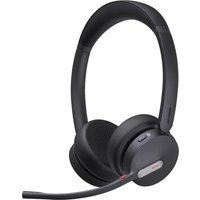
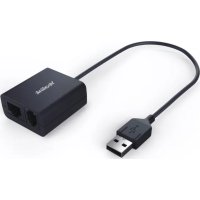
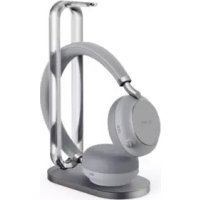
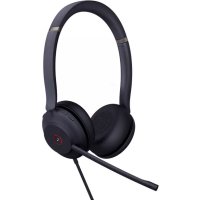
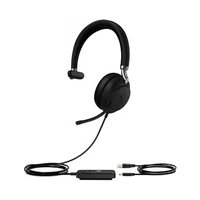
- WIRED HEADSETWIRED HEADSET
- UH34 RELEASE NOTE UH34 RELEASE NOTE
- UH36 RELEASE NOTE UH36 RELEASE NOTE
- UH38 RELEASE NOTE UH38 RELEASE NOTE
- PRODUCT INTRODUCTION PRODUCT INTRODUCTION
- DATASHEETDATASHEET
- UH33 DATASHEETUH33 DATASHEET
- YEALINK USB HEADSET
- SPECIFICATIONSSPECIFICATIONS
- UH34 DATASHEETUH34 DATASHEET
- YEALINK USB WIRED HEADSET
- SCENARIOSSCENARIOS
- KEY FEATURESKEY FEATURES
- SIMPLE AND FLEXIBLE CONNECTIVITYSIMPLE AND FLEXIBLE CONNECTIVITY
- ULTRA-LIGHTWEIGHT, ALL DAY WEARING COMFORT ULTRA-LIGHTWEIGHT, ALL DAY WEARING COMFORT
- UNPARALLEL AUDIO EXPERIENCE UNPARALLEL AUDIO EXPERIENCE
- INTUITIVE CONTROLLERINTUITIVE CONTROLLER
- UH34 SE DATASHEETUH34 SE DATASHEET
- CONNECTIONCONNECTION
- UH34 SE USB-C DATASHEETUH34 SE USB-C DATASHEET
- UH36 DATASHEETUH36 DATASHEET
- SIMPLE AND FLEXIBLE CONNECTIVITY SIMPLE AND FLEXIBLE CONNECTIVITY
- NOISE-CANCELING MICROPHONE NOISE-CANCELING MICROPHONE
- UNPARALLELED AUDIO EXPERIENCE UNPARALLELED AUDIO EXPERIENCE
- ALL-DAY-EASE ALL-DAY-EASE
- HIGHER RELIABILITY HIGHER RELIABILITY
- UH37 DATASHEETUH37 DATASHEET
- DUAL NOISE-CANCELING MICROPHONES DUAL NOISE-CANCELING MICROPHONES
- PHENOMENAL AUDIO FOR CALL AND MUSIC PHENOMENAL AUDIO FOR CALL AND MUSIC
- ULTRA-LIGHTWEIGHT & ERGONOMIC DESIGN ULTRA-LIGHTWEIGHT & ERGONOMIC DESIGN
- BUSYLIGHTBUSYLIGHT
- I NOTENOTE
- UH38 DATASHEETUH38 DATASHEET
- YEALINK PREMIUM USB WIRED HEADSET
- DUAL CONNECTIONS OF USB AND BLUETOOTH DUAL CONNECTIONS OF USB AND BLUETOOTH
- CALL CONTROLLER WITH BUILD-IN BATTERYCALL CONTROLLER WITH BUILD-IN BATTERY
- 360° BUSYLIGHT360° BUSYLIGHT
- SKIN-FRIENDLY AND SOFT HEADBAND & EAR CUSHIONSSKIN-FRIENDLY AND SOFT HEADBAND & EAR CUSHIONS
- YHS34 DATASHEETYHS34 DATASHEET
- WIDEBAND HEADSET FOR YEALINK IP PHONE
- YHS36 DATASHEETYHS36 DATASHEET
- PERFECTLY COMPATIBLE WITH YEALINK PHONESPERFECTLY COMPATIBLE WITH YEALINK PHONES
- BUYER GUIDE BUYER GUIDE
- RECOMMENDED MODELS
- UH38 UH38 UNIFIED COMMUNICATIONUNIFIED COMMUNICATION
- KEY CONSIDERATION: NOISE-CANCELING, CALL AND MUSIC MODE, DUAL DEVICES CONNECTION, MICROSOFT TEAMS CERTIFIED
- UH34/UH36 UNIFIED COMMUNICATION UH34/UH36 UNIFIED COMMUNICATION
- KEY CONSIDERATION: NOISE-CANCELING, HIGH-QUALITY AUDIO, FLEXIBLE CONNECTIVITY, ALL DAY EASE, MICROSOFT TEAMS CERTIFIED
- EXCELLENT AUDIO PERFORMANCE EXCELLENT AUDIO PERFORMANCE
- ALL DAY WEARING COMFORT ALL DAY WEARING COMFORT
- UH3X COMPARISONUH3X COMPARISON
- PRODUCT SPECIFICATION & COMPARISON PRODUCT SPECIFICATION & COMPARISON
- YHS3X COMPARISONYHS3X COMPARISON
- PRODUCT OVERVIEW
- PRODUCT SPECIFICATION & COMPARISON
- COMPATIBILITY LIST
- TESTED WIRED HEADSETS COMPATIBILITY LIST
- WIRED HEADSET COMPATIBILITY CENTERWIRED HEADSET COMPATIBILITY CO
- UH34 COMPATIBILITY LIST UH34 COMPATIBILITY LIST
- I NOTE
- UH36 COMPATIBILITY LIST
- NOTE
- UH37 COMPATIBILITY LIST
- UH38 COMPATIBILITY LIST UH38 COMPATIBILITY LIST
- FAQ
- YHS34/YHS36 COMPATIBILITY LIST
- GETTING STARTEDGETTING STARTED
- UH33UH33
- FAQFAQ
- UH34UH34
- PACKAGE CONTENTSPACKAGE CONTENTS
- TIPTIP
- OVERVIEWOVERVIEW
- LED INDICATOR STATUS LED INDICATOR STATUS
- UH36UH36
- UH37UH37
- UH38UH38
- BUSYLIGHT INDICATOR BUSYLIGHT INDICATOR
- MOBILE/PC BUTTON INDICATORMOBILE/PC BUTTON INDICATOR
- TEAMS/VOICE ASSISTANT INDICATOR
- YHS34YHS34
- YHS36YHS36
- USING TESTUSING TEST
- NECESSARY CHECKS NECESSARY CHECKS
- SETTINGS
- SOME USEFUL DEBUG INFOSOME USEFUL DEBUG INFO
- OTHERSOTHERS
- AFTER A TEAM MEETING, WHEN END CALL FROM TEAMS SIDE, HEADSET STUCK IN CALL INTERFACE
- FITFIT
- FIT UH33/UH33 SEFIT UH33/UH33 SE
- UH33 & UH33 SEUH33 & UH33 SE
- FIT UH34/UH34 SEFIT UH34/UH34 SE
- FIT HEADSETFIT HEADSET
- LEFT OR RIGHT WEARING STYLE LEFT OR RIGHT WEARING STYLE
- ADJUST THE HEADBAND ADJUST THE HEADBAND
- POSITION THE MICROPHONE POSITION THE MICROPHONE
- STORE THE MICROPHONE STORE THE MICROPHONE
- REPLACE EAR CUSHIONSREPLACE EAR CUSHIONS
- FIT UH36/YHS36FIT UH36/YHS36
- FIT UH37FIT UH37
- WEAR UH37 HEADSETWEAR UH37 HEADSET
- BENDABLE BOOM ARMBENDABLE BOOM ARM
- FIT UH38FIT UH38
- WEAR HEADSETWEAR HEADSET
- ADJUST MICROPHONE ADJUST MICROPHONE
- CLOTHING CLIP CLOTHING CLIP
- CHARGECHARGE
- CHARGE UH38CHARGE UH38
- STATUS CHECKSTATUS CHECK
- CONNECTCONNECT
- UH33/UH33 SE CONNECTION UH33/UH33 SE CONNECTION
- UH34/UH34 SE CONNECTION UH34/UH34 SE CONNECTION
- UH36 CONNECTIONUH36 CONNECTION
- UH37 CONNECTIONUH37 CONNECTION
- UH38 CONNECTIONUH38 CONNECTION
- CONNECT UH38 TO DEVICES VIA USBCONNECT UH38 TO DEVICES VIA USB
- CONNECT UH38 TO DEVICES VIA BLUETOOTHCONNECT UH38 TO DEVICES VIA
- PAIR WITH PC/DESK PHONEPAIR WITH PC/DESK PHONE
- THE HEADSET ENTERS BLUETOOTH PAIRING MODE
- DISABLE BLUETOOTHDISABLE BLUETOOTH
- YHS34 CONNECTION
- YHS36 CONNECTIONYHS36 CONNECTION
- CALL CONTROLCALL CONTROL
- UH33/UH33 SE CALL CONTROL UH33/UH33 SE CALL CONTROL
- UH34/UH36 CALL CONTROL UH34/UH36 CALL CONTROL
- UH34/UH36 MULTIPLE CALLSUH34/UH36 MULTIPLE CALLS
- MUTE MICROPHONEMUTE MICROPHONE
- ADJUST VOLUMEADJUST VOLUME
- VOICE ASSISTANTSVOICE ASSISTANTS
- UH37 CALL CONTROL UH37 CALL CONTROL
- TEAMS EDITIONTEAMS EDITION
- UH38 CALL CONTROL UH38 CALL CONTROL
- BASIC USAGEBASIC USAGE
- HANDLE MULTIPLE CALLS
- ENABLE BUSYLIGHT INDICATOR ENABLE BUSYLIGHT INDICATOR
- ENABLE BUSYLIGHT INDICATOR
- VOICE ASSISTANT VOICE ASSISTANT
- MEDIA CONTROLMEDIA CONTROL
- UH37 MEDIA CONTROL UH37 MEDIA CONTROL
- UH38 MEDIA CONTROL UH38 MEDIA CONTROL
- UPDATEUPDATE
- UPDATE FIRMWAREUPDATE FIRMWARE
- WHAT IS FIRMWARE WHAT IS FIRMWARE
- CHECK FIRMWARE VERSION CHECK FIRMWARE VERSION
- VEALINK USB CONNECT
- UPDATE VIA YMCS/YDMPUPDATE VIA YMCS/YDMP
- PROCEDUREPROCEDURE
- CLICK UPDATE FIRMWARE TO SELECT VERSION AND EXECUTION MODE
- CLICK OKOK
- UPDATE VIA YEALINK USB CONNECTUPDATE VIA YEALINK USB CONNECT
- CONFIRM THE ACTION
- OTA UPDATE HEADSETOTA UPDATE HEADSET
- UPDATE MULTIPLE HEADSETSUPDATE MULTIPLE HEADSETS
- INTRODUCTION INTRODUCTION
- BULK UPDATE HEADSETBULK UPDATE HEADSET
- TIP
- GO TO UPDATE DEVICE > UPDATE MANUALLY
- CLICK SELECT ALLSELECT ALL TO UPDATE ALL DEVICES
- SETTINGSSETTINGS
- YEALINK USB CONNECT FOR WIRED HEADSETYEALINK USB CONNECT FOR WIR
- INTRODUCTIONINTRODUCTION
- DEVICE RECOVERY/RESETDEVICE RECOVERY/RESET
- YEALINK USB CONNECT
- ← RETURN
- LOG FILE COLLECTION
- FEEDBACK
- DEVICE RECOVERY
- BASIC SETTINGSBASIC SETTINGS
- ADVANCED SETTINGS ADVANCED SETTINGS
- BIND DEVICES TO YMCS PLATFORMBIND DEVICES TO YMCS PLATFORM
- BROWSER REQUIREMENTSBROWSER REQUIREMENTS
- SERVICE & REPAIRSERVICE & REPAIR
- HOW TO WIRED HEADSET ISSUES TO YEALINKHOW TO WIRED HEADSET ISSUE
- CLICK COLLECT THE OPERATING SYSTEM LOGS > EXPORT
- RELATED TOPICRELATED TOPIC
- REPRODUCE ISSUES REPRODUCE ISSUES
- DETAILED ISSUE DESCRIPTION DETAILED ISSUE DESCRIPTION
- REPRODUCE THE ISSUE REPRODUCE THE ISSUE
- CLICK EXPORTEXPORT
- EXPORT LOG FILE
- GET TROUBLESHOOTING FILES GET TROUBLESHOOTING FILES
- NEW FEATURE REQUEST NEW FEATURE REQUEST
- WIRED HEADSET TROUBLESHOOTINGWIRED HEADSET TROUBLESHOOTING
- WHAT CAN I DO TO SOLVE A PROBLEM WHAT CAN I DO TO SOLVE A PROBLEM
- HEADSETHEADSET
- YEALINK USB CONNECTYEALINK USB CONNECT
- COMPATIBLE LISTCOMPATIBLE LIST
- MICROSOFT TEAMS MICROSOFT TEAMS
- SKYPE FOR BUSINESSSKYPE FOR BUSINESS
- YEALINK UMEYEALINK UME
- YEALINK MEETINGYEALINK MEETING
- POWER & CHARGEPOWER & CHARGE
- UNABLE TO POWER ON THE PHONE UNABLE TO POWER ON THE PHONE
- THE PHONE IS POWERED OFF AUTOMATICALLY THE PHONE IS POWERED OFF AUTOMATICALLY
- CHARGING CANNOT BE DONE CHARGING CANNOT BE DONE
- COMMONCOMMON
- CHARGING TIME IS TOO LONG CHARGING TIME IS TOO LONG
- SOUNDSOUND
- NO SOUND NO SOUND
- LOW SOUND LEVEL LOW SOUND LEVEL
- LOW SOUND QUALITY, OR NOISE SOUND CAN BE HEARD LOW SOUND QUALITY, OR NOISE SOUND CAN BE HEARD
- SOUND SKIPS FREQUENTLYSOUND SKIPS FREQUENTLY
- NOISE CANCELING EFFECT IS NOT SUFFICIENT NOISE CANCELING EFFECT IS NOT SUFFICIENT
- PAIRING CANNOT BE DONE PAIRING CANNOT BE DONE
- UNABLE TO MAKE A BLUETOOTH CONNECTION UNABLE TO MAKE A BLUETOOTH CONNECTION
- POSSIBLE CAUSES POSSIBLE CAUSES
- TROUBLESHOOT ISSUE TROUBLESHOOT ISSUE
- PERFORM UPDATE AGAINPERFORM UPDATE AGAIN
- CLEANCLEAN
- WHITEPAPERWHITEPAPER
- WIRED HEADSET SECURITY WHITEPAPERWIRED HEADSET SECURITY WHITEPA
- VIDEO CENTERVIDEO CENTER
Brand : Yealink
Model : UH36
Category : Headphones