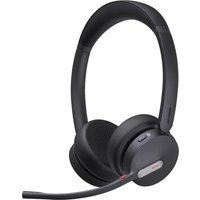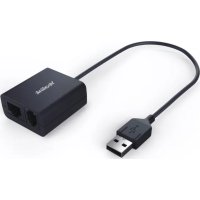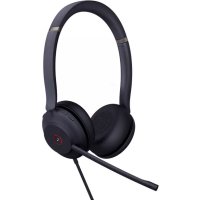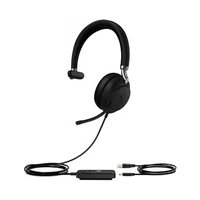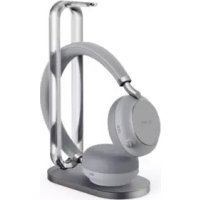
BH76 - Headphones Yealink - Free user manual and instructions
Find the device manual for free BH76 Yealink in PDF.


| Product Type | Wireless Bluetooth Headset |
| Brand | Yealink |
| Model | BH76 |
| Connectivity | Bluetooth 5.0 (USB-A or USB-C dongle included) |
| Battery Life | Up to 24 hours of talk time |
| USB Charging Time | 2 hours |
| Qi Wireless Charging Time | 3 hours |
| Charging Type | USB-C, Qi wireless |
| Active Noise Cancellation (ANC) | Yes, with adjustable levels via software |
| Ambient Sound Mode | Yes |
| Call Control | Multifunction button (answer, end, reject, mute) |
| Music Control | Play/pause, next/previous track, volume |
| Voice Assistant | Siri, Google Assistant (hold for 2s) |
| Busylight | Yes |
| Microsoft Teams Compatibility | Dedicated Teams edition with Teams button |
| Management Software | Yealink USB Connect (PC), Yealink Connect (mobile) |
| Included Accessories | BT51-A or BT51-C dongle, carrying case, USB-C cable, optional power adapter |
| Estimated Weight | Approximately 200 g |
| Estimated Dimensions | Approximately 18 x 16 x 8 cm (folded) |
| Operating Temperature | -10 °C to 50 °C |
| Care Instructions | Lightly dampened antistatic cloth |
| Warranty | Limited to the device itself under normal use |
Frequently Asked Questions - BH76 Yealink
User questions about BH76 Yealink
0 question about this device. Answer the ones you know or ask your own.
Ask a new question about this device
Download the instructions for your Headphones in PDF format for free! Find your manual BH76 - Yealink and take your electronic device back in hand. On this page are published all the documents necessary for the use of your device. BH76 by Yealink.
USER MANUAL BH76 Yealink
natural_image
Line drawing of a Veolink headphones with earbuds and microphone (no text or symbols on the devices themselves)English | Deutsch | Español | Français
Quick Start Guide
V1.2
Table of Contents
English ....1
Deutsch 12
Español 23
Français ....34
1 Package List
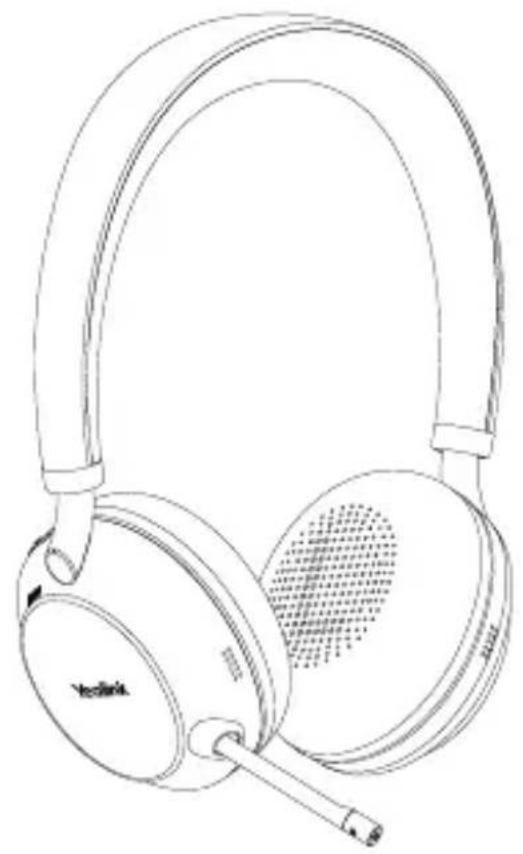
natural_image
Line drawing of a pair of NDA headphones with earbuds and microphone (no text or symbols)BH76
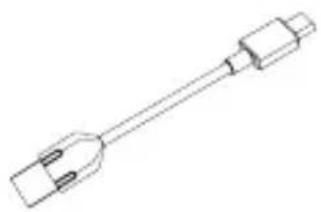
natural_image
Pure technical line drawing of a mechanical component without any text or symbolsUSB 2.0 Cable (USB-A to USB-C)
or
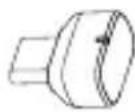
BT51-A Dongle or BT51-C Dongle
natural_image
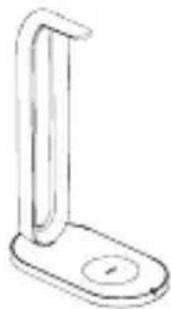
Simple line drawing of a stand with a curved handle and base (no text or symbols)BHC76 Wireless Charging Stand

Power Adapter
Optional
Carrying Case
Quick Start Guide
Note: We recommend that you use the included accessories, and other accessories may have compatibility issues that prevent them from working properly.
2 Charging
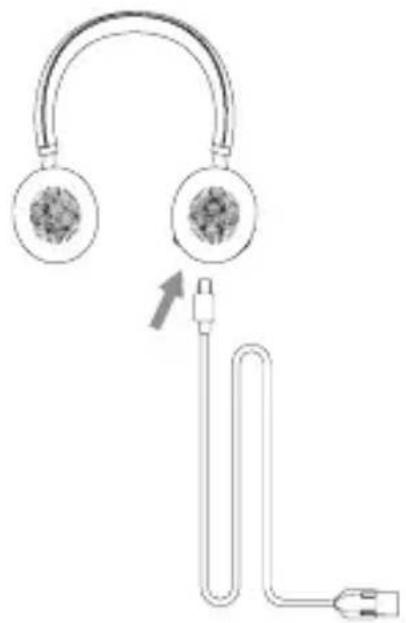
natural_image
Diagram of a U-shaped connector with two earphones and a plug, showing connection to a terminal (no text or symbols)USB Charging
L
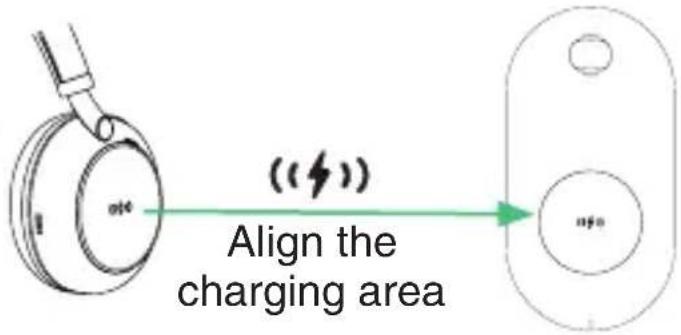
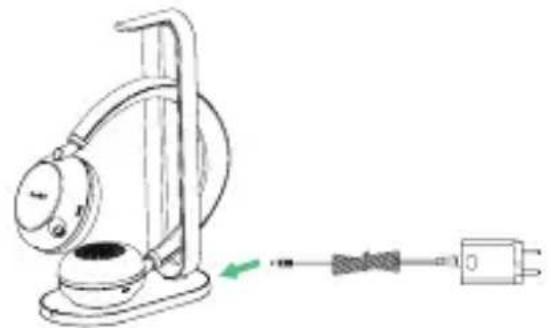
natural_image
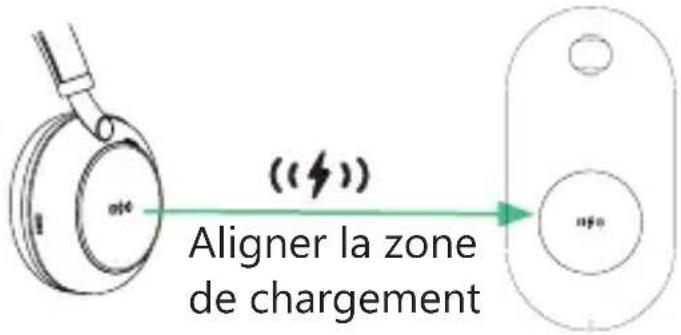
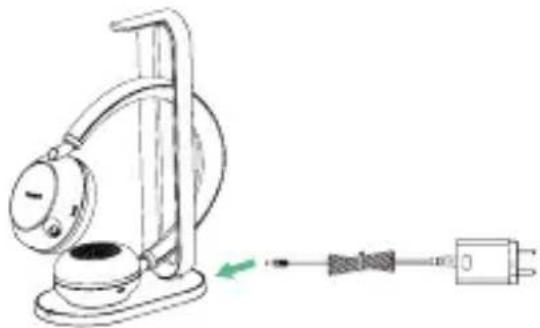
Line drawing of a mechanical device with a cable and power outlet, no text or symbols presentWireless Charging (optional)
Note:
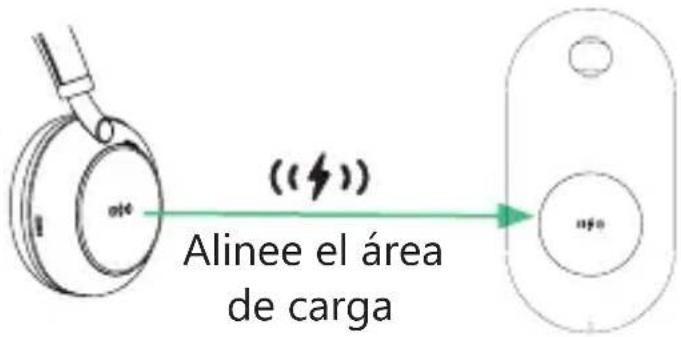
We recommend to fully charge the headset when using it for the first time. The BHC76 is compatible with devices that support QI wireless charging, such as wireless charging mobile phones and headsets.
LED Indicator Status
Charging
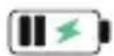
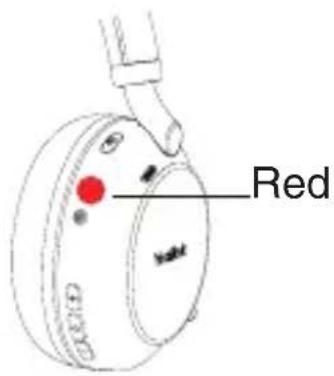
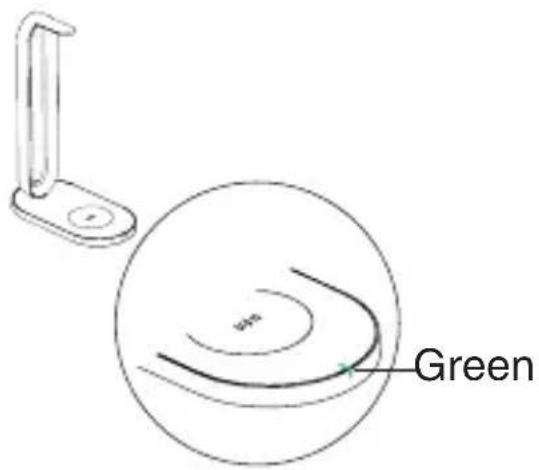
Fully Charged
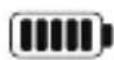
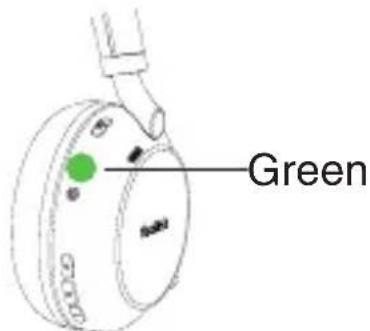
Note: It takes two hours for USB charging and three hours for wireless charging to be fully charged.
3 Power on/off
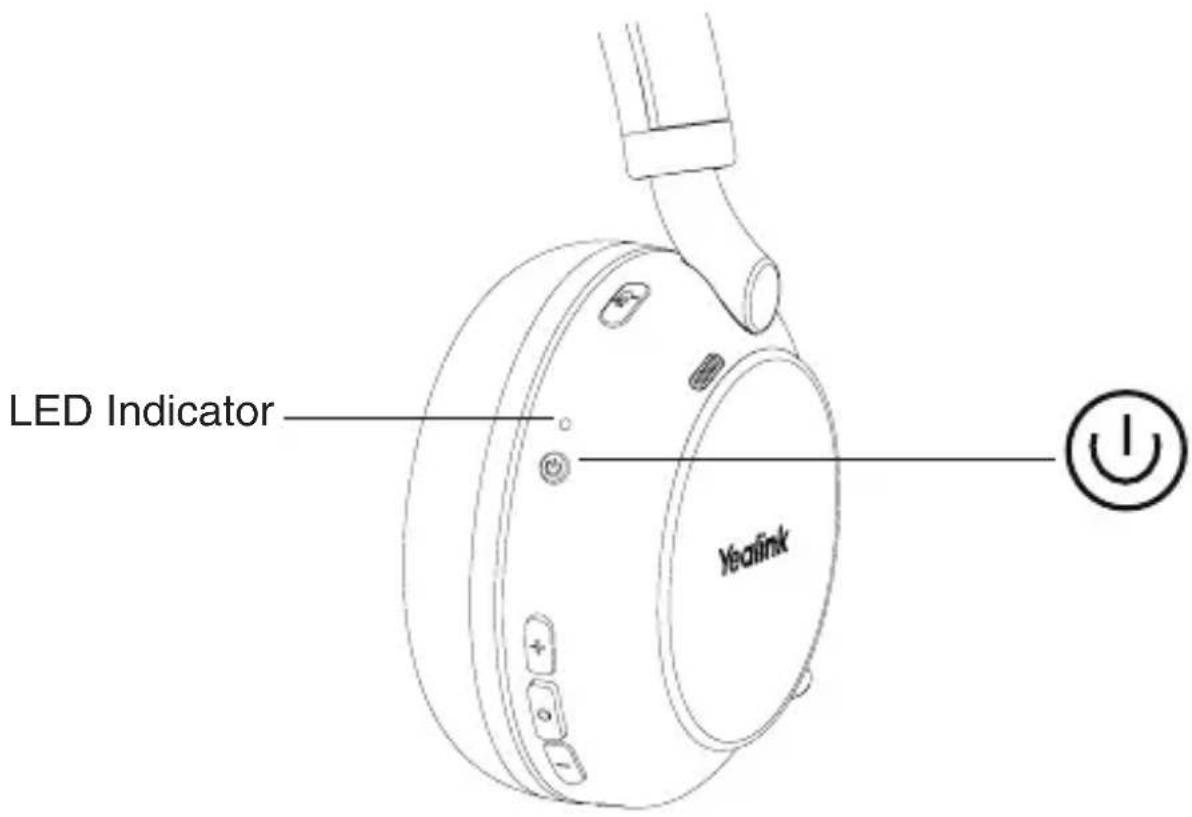
Power on
Power off
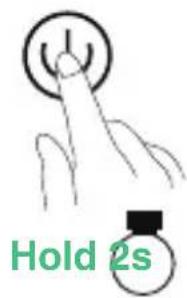

Green

"power on, XX % battery remains"

Red

"power off"
4 Pairing and Connecting Device
No Built-in Bluetooth Device
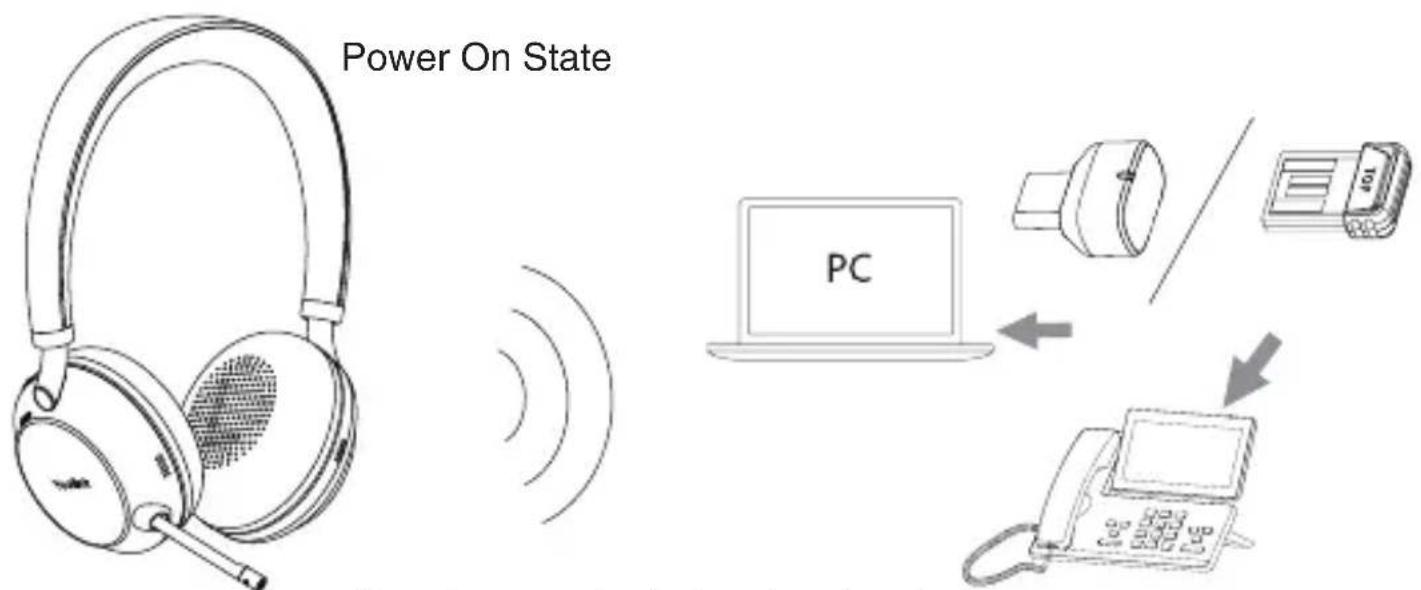
Already pre-paired when leaving the factory, automatically connected
Built-in Bluetooth Device
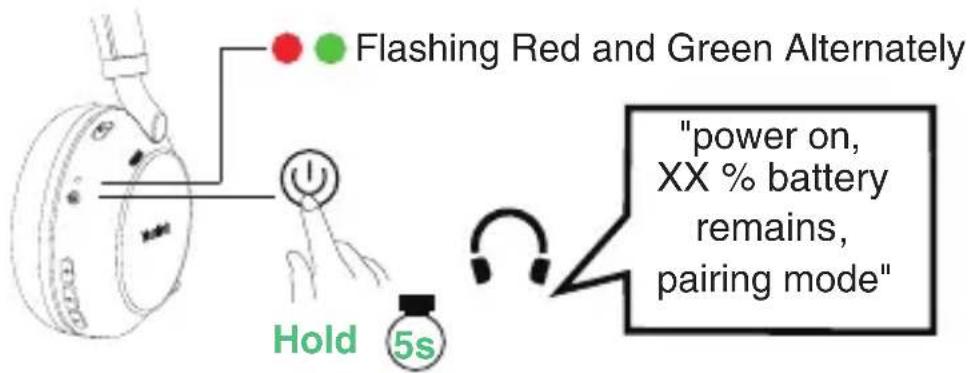
Step1: Enter Pairing Mode
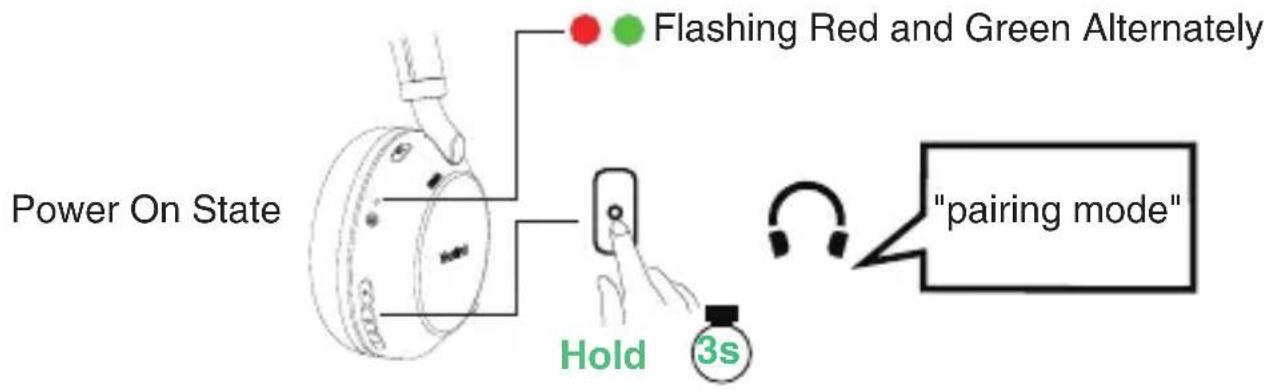
Power Off State
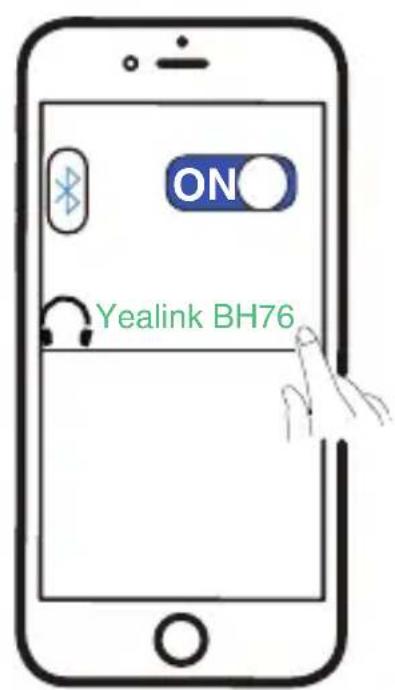
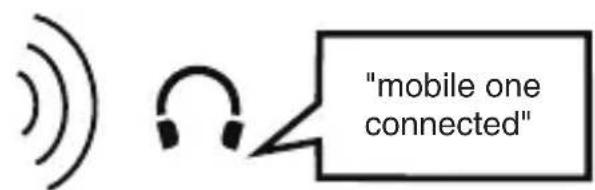
Step2: Select the Headset from Your Bluetooth Device
5 Call Controls and Busylight
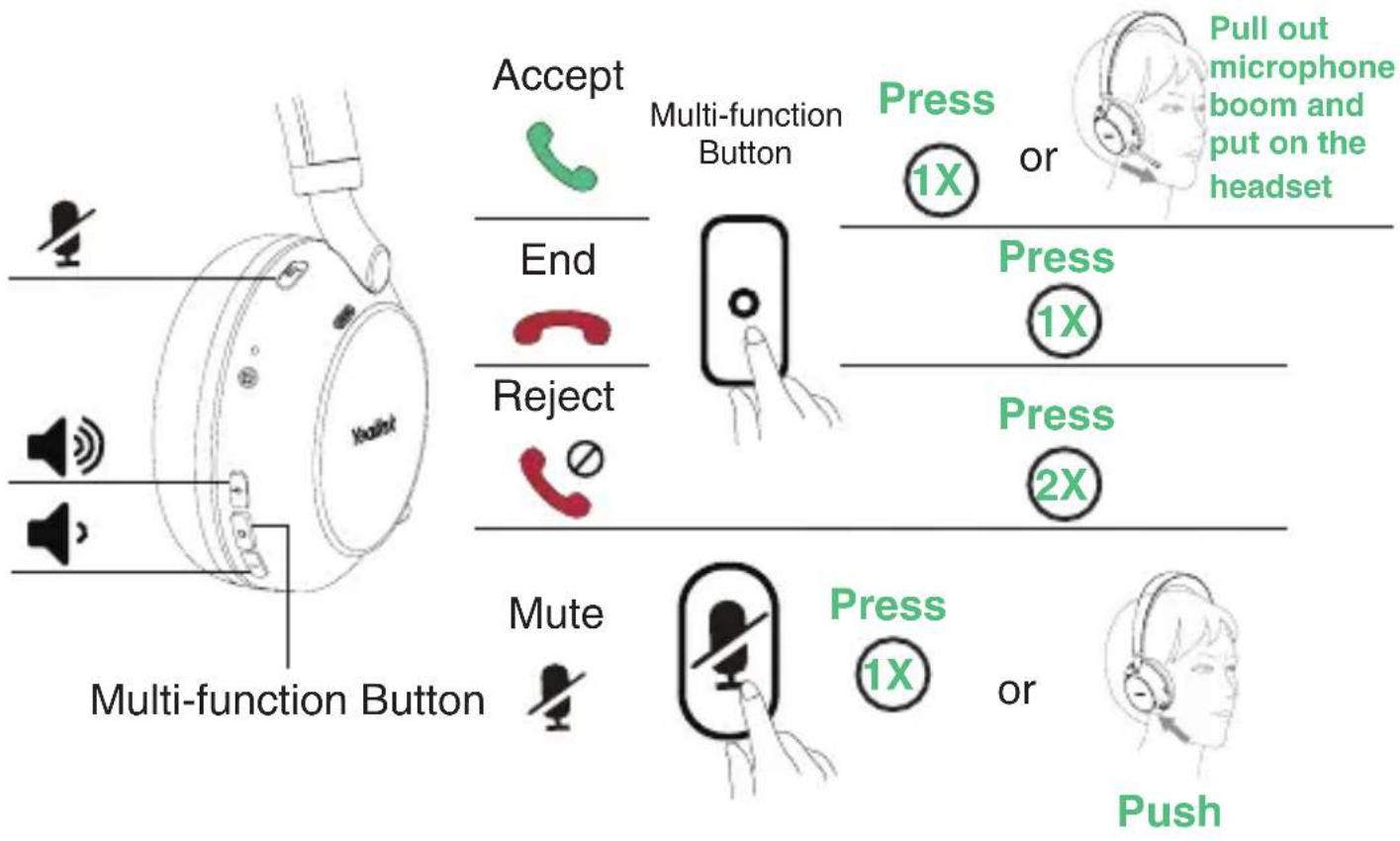
flowchart
graph TD
    A["KuaNet"] --> B["Accept"]
    B --> C["Multi-function Button"]
    C --> D["Press 1X or Pull out microphone boom and put on the headset"]
    C --> E["End"]
    C --> F["Reject"]
    F --> G["Press 1X"]
    F --> H["Press 2X"]
    A --> I["Mute"]
    I --> J["Press 1X or Push"]
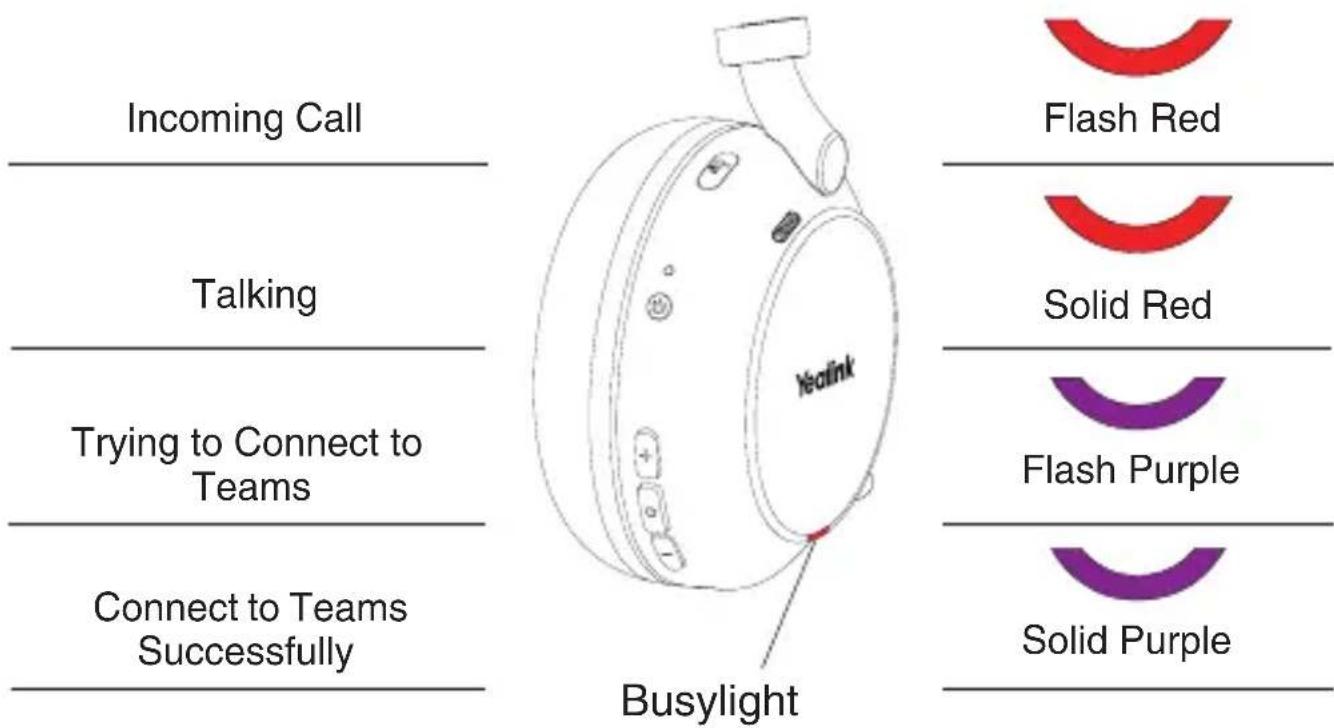
Note: Only the Teams edition can connect to Teams.
6 Music Controls
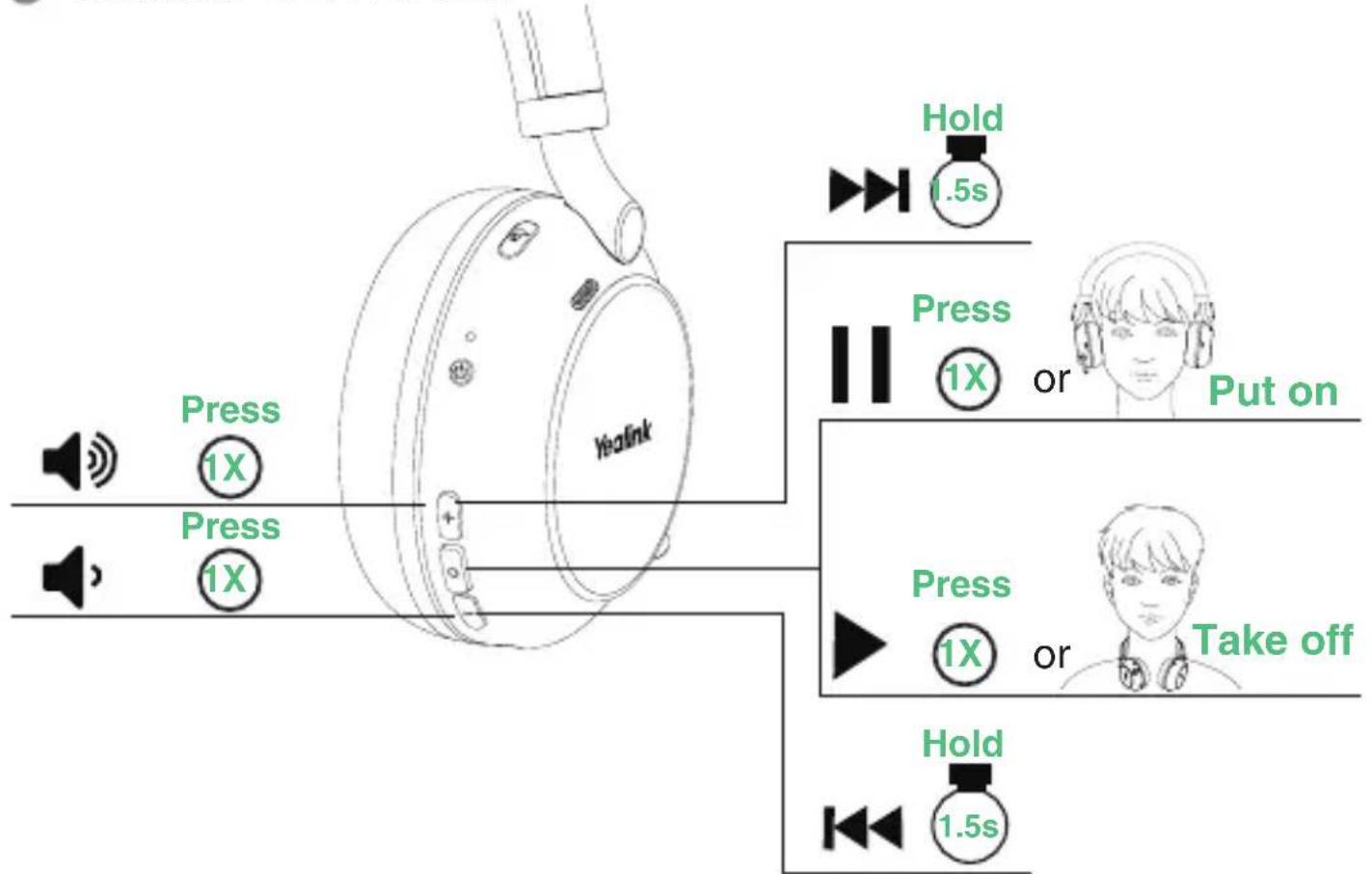
flowchart
graph TD
    A["Yealink"] --> B["Press 1X"]
    A --> C["Press 1X"]
    D["Hold 1.5s"] --> E["Press 1X or Put on"]
    F["Press 1X or Take off"] --> G["Hold 1.5s"]
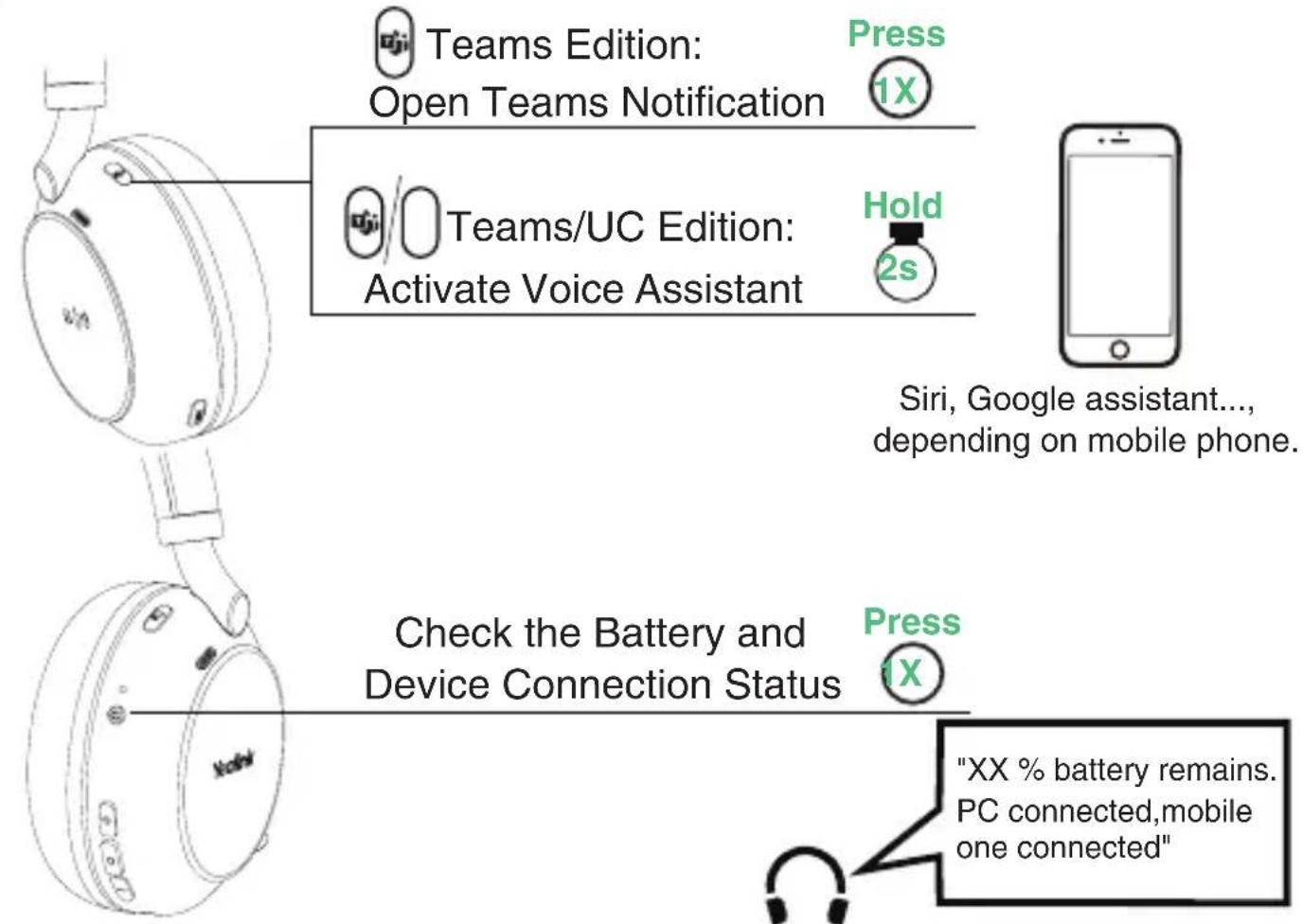
7 Customers Button
8 Sound Control
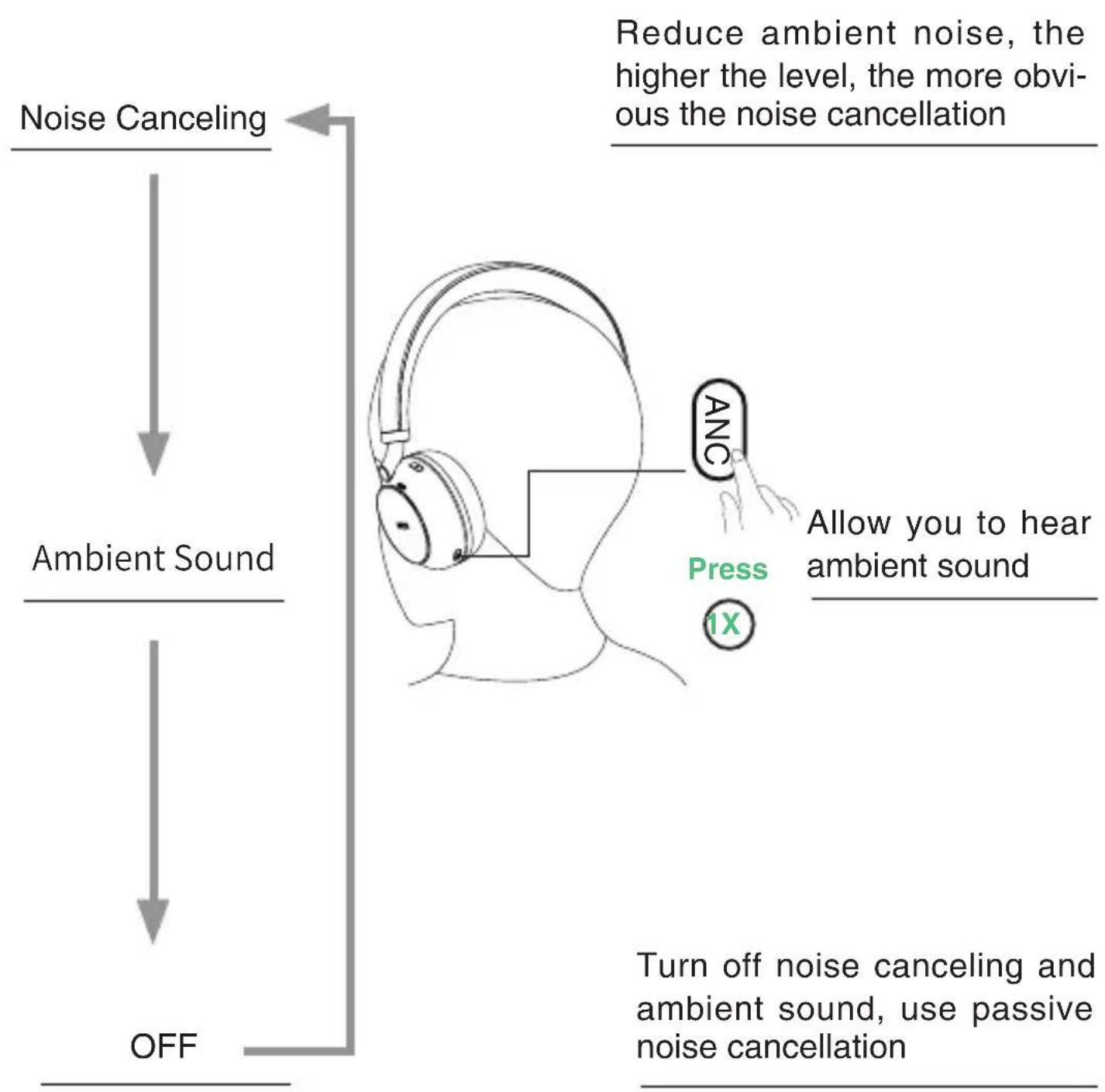
flowchart
graph TD
    A["Noise Canceling"] --> B["Ambient Sound"]
    B --> C["OFF"]
    D["Reduce ambient noise, higher the level, more obvious the noise cancellation"] --> A
    E["Allow you to hear ambient sound"] --> F["Turn off noise canceling and ambient sound, use passive noise cancellation"]
    G["Press 1X"] --> H["AnC"]
Note:
- You can set the level of noise cancellation on Yealink USB Connect (desktop client) or Yealink Connect (mobile app).
- If you are in Noise Canceling mode, you might not hear the ambient sound. It depends on ambient conditions and the type or volume of audio playback Do not use the headset in places where the inability to hear ambient sounds would be dangerous.
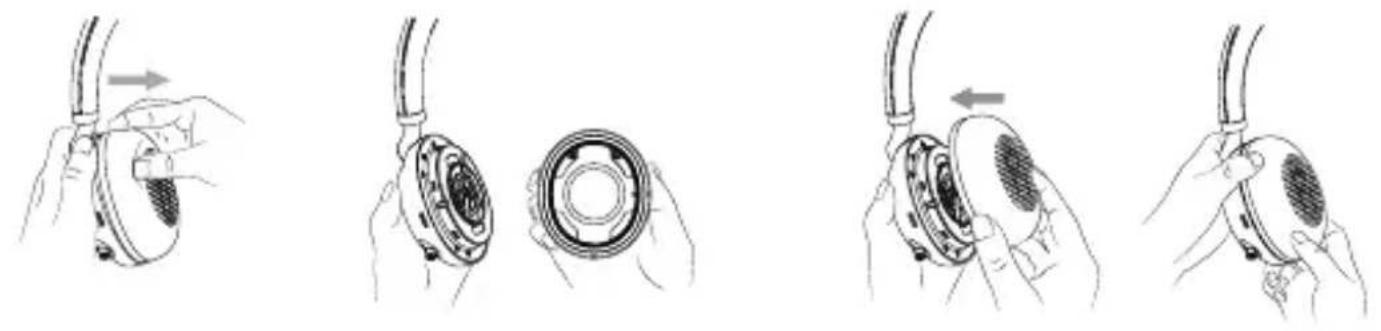
9 Replace Ear Cushions
10 Software Management
Yealink USB Connect(PC)
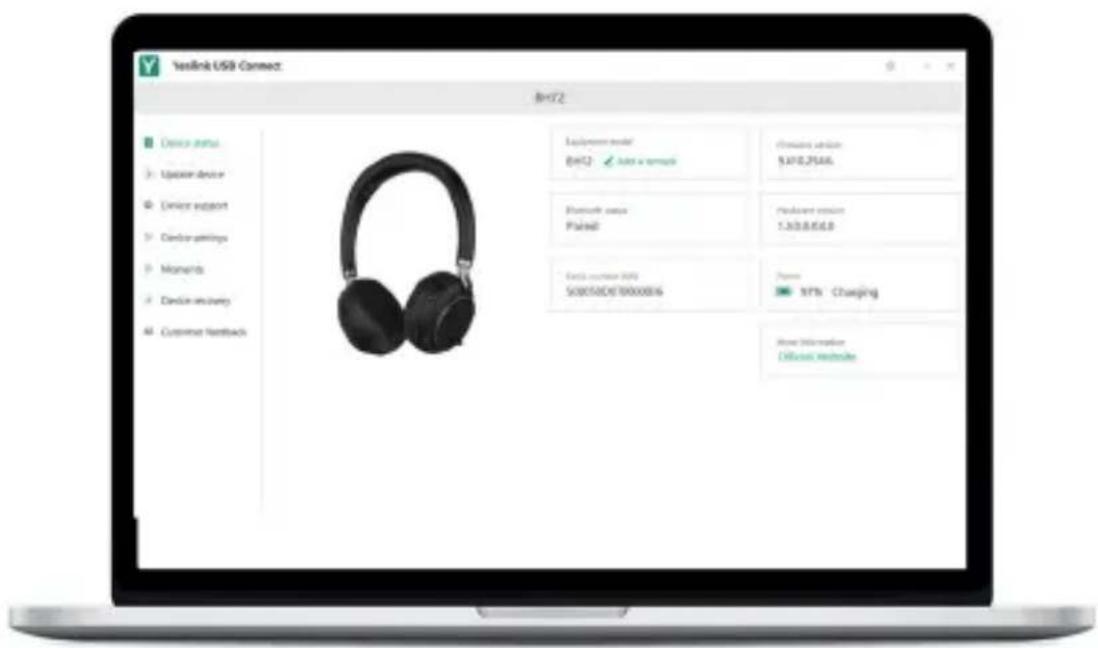
Download it from the Yealink website https://www.yealink.com/product/yuc.
Note: It needs to be used with Yealink USB Connect of version 0.34.x.x or higher.
Yealink Connect App (Mobile)

Apple and the Apple logo are trademarks of Apple Inc.
Download the Yealink Connect App from IOS App Store or Android App Store.
Notes for BHC76 (optional)
- Please use the power adapter provided by Yealink to get a more efficient charging experience.
- Please do not place any metal and magnetic cards on the charging board to avoid abnormalities and damage to the charger.
- Please do not charge too far away from the charging sign to get a more efficient charging experience.
- During use, if you find the charging board or the charged device is overheated and the charging stops (the indicator light keeps flashing), you need to remove the charged device until it cools down, and then try charging again.
-
The indicator light of the charging stand keeps flashing, and it may be the following three situations:
-
The location of the charged device is not placed correctly. You need to replace the it. After calibrating the charging position, you can charge the device normally until the indicator light is always on.
- The charging stand has an overheating alarm. After the mobile phone or the charging stand cools down, it will stop flashing automatically and enter the normal charging state.
- Metal or magnetic cards may be placed on the charging board, and please remove them.
Safety Guide for BHC76 (optional)
- Do not disassemble the product by yourself or bring it near fire and water to avoid short circuit leakage or damage to the product.
- Do not use the product in high temperature, humidity, and corrosive environment to avoid damaging the circuit and causing failure to charge or other failures.
- Do not expose the product to corrosive liquids. Otherwise, it will cause severe damage.
- Do not disassemble or re-equip the product for any reason to avoid secondary failure and burnout.
- Do not place the product below -10^ or above 60^ .
- Do not knock, throw or shake the product because rough methods will damage the internal circuit board structure.
If you need to know the product warranty information, please visit https://ams.yealink.com.
Regulatory Notices
Operating Ambient Temperatures
- Operating temperature: +14 to 122^ (-10 to 50^ )
• Relative humidity: 5% to 90%, noncondensing
• Storage temperature: -22 to +160°F (-30 to +70°C)
Warranty
Our product warranty is limited only to the unit itself, when used normally in accordance with the operating instructions and the system environment. We are not liable for damage or loss resulting from the use of this product, or for any claim from a third party. We are not liable for problems with Yealink device arising from the use of this product; we are not liable for financial damages, lost profits, claims from third parties, etc., arising from the use of this product.
DC symbol
is the DC voltage symbol.
Restriction of Hazardous Substances Directive (RoHS)
This device complies with the requirements of the EU RoHS Directive. Statements of compliance can be obtained by contacting support@yealink.com.
Safety Instructions
Save these instructions. Read these safety instructions before use!
The following basic safety precautions should always be followed to reduce risk of fire, electrical shock, and other personal injury.

Environmental Requirements
- Place the product on a stable, level and non-slip surface.
- Do not place the product close to heat sources, in direct sunlight or next to any house hold appliance with strong magnetic field or electromagnetic field, such as a microwave oven or a refrigerator.
- Do not allow the product to come into contact with water, dust and chemicals.
- Protect the product from aggressive liquids and vapors.
- Do not place the product on or near any inflammable or fire-vulnerable object, such as rubber-made materials.
- Do not install the product in rooms with high humidity, for example, in bathrooms, laundry rooms and wet basements.

Safety Notes During Operation
- Use only spare parts and accessories supplied or authorized by Yealink. The operation of non-authorized parts cannot be guaranteed.
- Do not place heavy objects on top of the handset or the base station in case of damage and deformation caused by the heavy load.
- Do not open the handset or the base station by yourself for repair purpose, which could expose you to high votages. Have all repairs carried out by authorized service personnel.
- Do not let a child operate the product without guidance.
- Keep the small accessories contained in your product out of reach of small children in case of accidental swallowing.
- Before plugging or unplugging any cable, make sure that your hands are completely dry.
- Do not hold the handset up to your ear when speakphone is on or when the ringer is ringing as the volumn can be very loud, which may be harmful to your hearing.
- During a thunderstorm, stop using the product and disconnect it from the power supply to avoid lightning strike.
- If the product is left unused for a rather long time, disconnect the base station from the power supply and unplug the power adapter.
- When there is smoke emitted from the product, or some abnormal noise or smell, disconnect the product from the power supply, and unplug the power adapter immediately.
- Remove the electrical cord from an outlet by pulling gently on the power adapter, not by pulling the cord.

Battery Precautions
- Do not immerse the battery into water, which could short-circuit and damage the battery.
-
Do not expose the battery to an open flame or leave the battery where it could be subjected to extremely high temperatures, which could cause the battery to explode.
-
Do power the handset off before removing the battery.
- Do not try to use the battery for the power supply of any device other than this handset.
- Do not open or mutilate the battery, released electrolyte is corrosive and may cause damage to your eyes or skin.
- Use only the rechargeable battery pack delivered with the handset or those rechargeable battery packs expressly recommended by Yealink.
- Defective or exhausted battery should never be disposed of as municipal waste. Return old battery to the battery supplier, a licensed battery dealer or a designated collection facility.

Notices of Cleaning
- Before cleaning the base station, stop using it and disconnect it from the power supply.
- Remove the battery before cleaning the handset to reduce risk of electric shock.
- Only clean your product with a piece of slightly moist and anti-static cloth.
- Keep the power plug clean and dry. Using a dirty or wet power plug may lead to electric shock or other perils.

ENVIRONMENTAL RECYCLING
natural_image
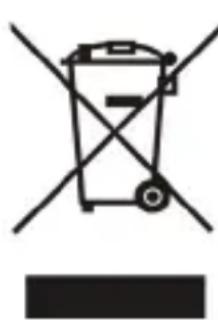
Symbol of a trash bin with crossed lines indicating no waste or discharge (no text or labels)Never dispose of the device with domestic waste
Ask your Town Council about how to dispose of it in an environmentally friendly way. The cardboard box, plastic packaging and player components may be recycled in accordance with prevailing recycling regulations in your country.
Always adhere to prevailing regulations
Those who fail to do so may be fined or prosecuted in accordance with the law. The crossed out garbage can that appears on the device means that when it has reached the end of its useful life, it should be taken to a special waste disposal center and treated separately to general urban
Batteries: Be sure that the batteries have been placed in the right position. This phone use rechargeable batteries only.
Compulsory information according to regulations for battery-operated devices. Caution: Risk of explosion if battery is replaced with a battery of a wrong kind. Dispose of batteries in accordance with the instructions.
Troubleshooting
The unit cannot supply power to Yealink device. There is a bad connection with the plug.
- Clean the plug with a dry cloth.
-
Connect it to another wall outlet.
The usage environment is out of operating temperature range. -
Use in the operating temperature range.
The cable between the unit and the Yealink device is connected incorrectly.
- Connect the cable correctly.
You cannot connect the cable properly.
-
You may have connected a wrong Yealink device.
-
Use the correct power supply.
Some dust, etc., may be in the port.
- Clean the port.
Contact your dealer or authorized service facility for any further questions.
Contact Information
YEALINK NETWORK TECHNOLOGY CO.,LTD.
309, 3rd Floor, No.16, Yun Ding North Road, Huli District, Xiamen City, Fujian, P.R.C
YEALINK (EUROPE) NETWORK TECHNOLOGY B.V.
Strawinskylaan 3127, Atrium Building, 8th floor, 1077ZX Amsterdam, The Netherlands
YEALINK (USA) NETWORK TECHNOLOGY CO., LTD.
999 Peachtree Street Suite 2300, Fulton, Atlanta, GA, 30309, USA Made in China
1 Verpackungsinhalt
natural_image
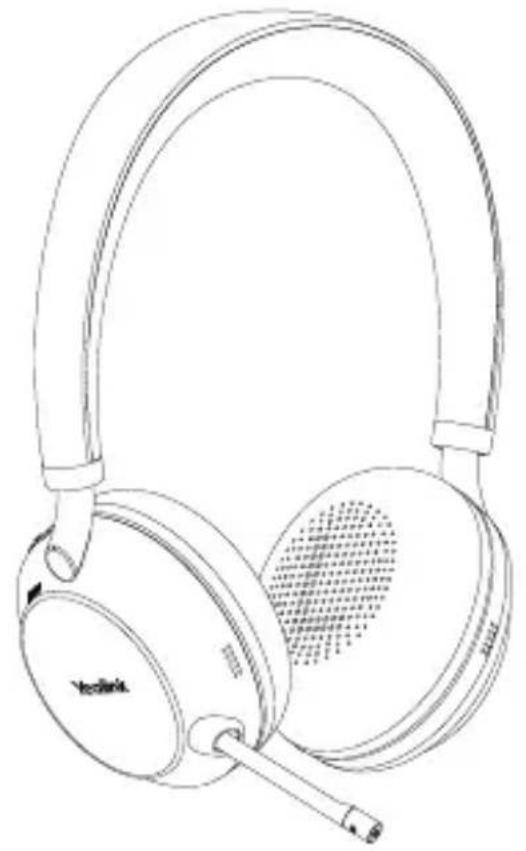
Line drawing of a pair of Gaia headphones with earbuds and microphone (no text or symbols)BH76
natural_image
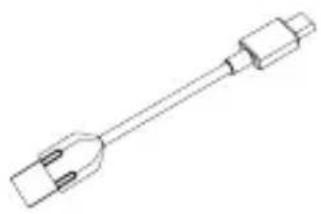
Line drawing of a mechanical tool or connector with no text or symbolsUSB-2.0-Kabel
natural_image
Simple line drawing of a stand with a curved handle and base (no text or symbols)Kabellose
natural_image
Diagram of a hairless earphone connected to a plug, showing ear and cable connections (no text or symbols)Laden per USB
L
natural_image
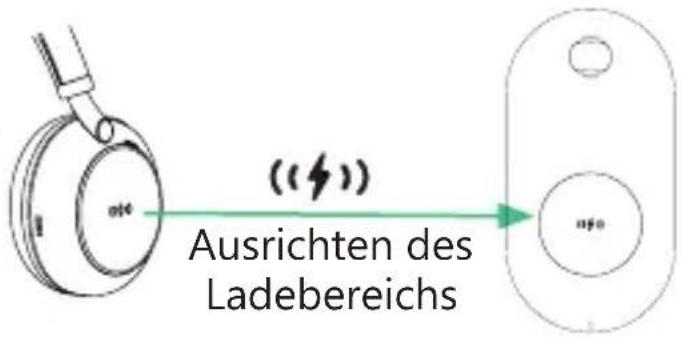
Line drawing of a mechanical device with a cable and power outlet, no text or symbols presentKabelloses Laden (optional)
Hinweis:
natural_image
Technical line drawing of a circular mechanical component with labeled ports and a red pin (no readable text or symbols beyond branding)Busylight

Blinkt rot

Dauerhaft rot

Blinkt violett

Dauerhaft violett
Yealink Connect App (Mobile)

309, 3rd Floor, No. 16, Yun Ding North Road, Huli District, Xiamen City, Fujian, VR China
YEALINK (EUROPE) NETWORK TECHNOLOGY B.V.
Strawinskylaan 3127, Atrium Building, 8th floor, 1077ZX Amsterdam, Niederlande
YEALINK (USA) NETWORK TECHNOLOGY CO., LTD.
999 Peachtree Street Suite 2300, Fulton, Atlanta, GA, 30309, USA
natural_image
Line drawing of a pair of Gaia headphones with earbuds and microphone (no text or symbols)BH76
natural_image
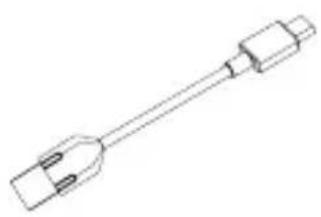
Line drawing of a mechanical tool or connector with no visible text or symbolsCable USB 2.0 (USB-A a USB-C)
0
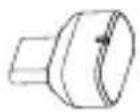
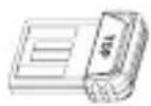
Dongle BT51-A o Dongle BT51-C
natural_image
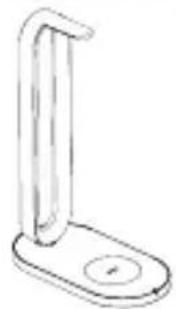
Simple line drawing of a vertical support bracket with a circular base (no text or symbols)Soporte de carga inalámbrico BHC76
natural_image
Diagram of a U-shaped earphone connected to a plug, showing ear and socket components (no text or labels)Cargando USB
L
natural_image
Line drawing of a portable washing machine with a cable and power outlet, no text or symbols presentEncendido
Apagado
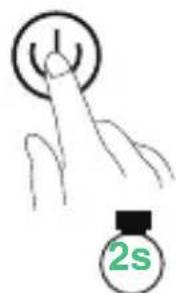
Retener

Verde

Rojo

natural_image
Simple line drawing of a trash bin with two crossed lines indicating no waste or restriction (no text or symbols)309, 3rd Floor, No.16, Yun Ding North Road, Huli District, Xiamen City, Fujian, P.R.C
YEALINK (EUROPE) NETWORK TECHNOLOGY B.V.
Strawinskylaan 3127, Atrium Building, 8th floor, 1077ZX Amsterdam, The Netherlands
YEALINK (USA) NETWORK TECHNOLOGY CO., LTD.
999 Peachtree Street Suite 2300, Fulton, Atlanta, GA, 30309, USA Made in China
natural_image
Line drawing of a pair of Gaia headphones with earbuds and microphone (no text or symbols)BH76
natural_image
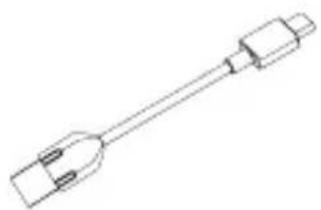
Line drawing of a mechanical tool or connector with no visible text or symbolsCâble USB 2.0
natural_image
Simple line drawing of a vertical support with a circular button at the base (no text or symbols)Socle de recharge sans fil BHC76
natural_image
Diagram of a earphone connected to a plug, showing ear and socket components (no text or labels)Charge USB
L
natural_image
Line drawing of a portable washing machine with a cable and power outlet, no text or symbols presentnatural_image
Line drawing of a Yealink branded device with circular body and handle (no text or symbols on the device itself)Busylight

Rouge clignotant

Rouge fixe

Violet clignotant

Violet fixe
Yealink Connect App (Mobile)

natural_image
Symbol of a trash bin with crossed lines indicating no waste or discharge (no text or labels)309, 3rd Floor, No.16, Yun Ding North Road, Huli District, Xiamen City, Fujian, Chine
YEALINK (EUROPE) NETWORK TECHNOLOGY B.V.
Strawinskylaan 3127, Atrium Building, 8th floor, 1077ZX Amsterdam, Pays-Bas
YEALINK (USA) NETWORK TECHNOLOGY CO., LTD.
Declaration of Conformity
We,
YEALINK(XIAMEN) NETWORK TECHNOLOGY CO.,LTD
Address: 309, 3rd Floor, No.16, Yun Ding North Road, Huli District, Xiamen City, Fujian, P.R. China
Manufacturer: YEALINK(XIAMEN) NETWORK TECHNOLOGY CO.,LTD
Address: 309, 3rd Floor, No.16, Yun Ding North Road, Huil District, Xiamen City, Fujian, P.R. China
DATE: 15th/December/2021
declare that the product
Type: Bluetooth Headset
Model:BH76
meets the essential requirements and other relevant provisions according to the following EC directive
Directive: 2014/30/EU, 2014/35/EU, RED 2014/53/EU
Conformity
The product complies with the following standards:
Safety: EN IEC 62368-1:2020+A11:2020
EMC: EN 55032:2015/A11:2020, EN 55035:2017/A11:2020, EN 301 489-1 V2.2.3, EN 301 489-17 V2.2.4
EN IEC 61000-3-2:2019/A1:2021, EN 61000-3-3:2013/A1:2019
Radio:ETSI EN 300 328 V2.2.2:
Health:EN 50663:2017,EN 62479:2010
Directive 2011/65/EU and (EU)2015/863 of the European Parliament and of the Council of 8 June 2011 and 4 June 2015 on the restriction of the use of certain hazardous substances in electrical and electronic equipment(RoHS 2.0)
Directive 2012/19/EU of the European Parliament and of the Council of 4 July 2012 on Waste electrical and electronic equipment (WEEE)
Regulation (EC) No.1987/2006 of the European Parliament and of the Council of 18.December 2006 on Registration, Evaluation, Authorization, and Restriction of Chemicals (REACH)
NAME: Huahu Wang
DATE:
TITLE: Manager
Huo hui Wang
21-Jan-2022
About Yealink
Yealink (Stock Code: 300628) is a global brand that specializes in video conferencing, voice communications and collaboration solutions with best-in-class quality, innovative technology and user-friendly experience. As one of the best providers in more than 140 countries and regions, Yealink ranks No.1 in the global market share of SIP phone shipments (Global IP Desktop Phone Growth Excellence Leadership Award Report, Frost & Sullivan, 2019).
Copyright
Copyright © 2022 YEALINK(XIAMEN) NETWORK TECHNOLOGY CO., LTD.
All rights reserved. No parts of this publication may be reproduced or transmitted in any form or by any means, electronic or mechanical, photocopying, recording, or otherwise, for any purpose, without the express written permission of Yealink(Xiamen) Network Technology CO., LTD.
Technical Support
Visit Yealink WIKI (http://support.yealink.com/) for firmware downloads, product documents, FAQ, and more. For better service, we sincerely recommend you to use Yealink Ticketing system (https://ticket.yealink.com) to submit all your technical issues.
430104002183

YEALINK(XIAMEN) NETWORK TECHNOLOGY CO.,LTD.
Web: www.yealink.com
Addr: No.1 Ling-Xia North Road, High Tech Park, Huli District, Xiamen, Fujian, P.R.C
Copyright©2022 Yealink Inc. All rights reserved.