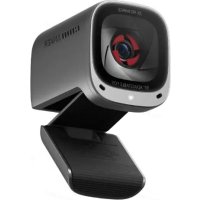
PowerConf C200 - Webcam Anker - Free user manual and instructions
Find the device manual for free PowerConf C200 Anker in PDF.


| Product Type | Webcam |
| Brand | Anker |
| Model | PowerConf C200 |
| Resolution | 2K @ 30 fps; 1080p @ 30 fps; 720p @ 30 fps; 320x240 @ 30 fps |
| Field of View (FOV) | 65°, 78°, 95° (adjustable) |
| Focus Type | Autofocus |
| Sensor | CMOS 5 MP (1/2.7 inch) |
| Focus Distance | 15 cm to 3 m |
| Microphones | Two stereo microphones with active noise reduction (ANR) and automatic gain control (AGC) |
| Voice Capture Range | Up to 3 m |
| Power Supply | 5 V ⎓ 1 A (via USB-C) |
| Connectivity | USB-C to USB-A (cable included) |
| Supported Operating Systems | Windows 7 or later, macOS 10.11 or later |
| Compatible Video Conferencing Software | Zoom, Microsoft Teams, Google Meet, Skype for Business, Cisco Webex, BlueJeans, FaceTime, etc. |
| Key Features | Sliding privacy cover, autofocus, adjustable field of view, adjustable clip/mount, tripod thread, LED indicator |
| Care and Cleaning | Wipe with a soft, dry cloth. Do not use liquid or abrasive cleaners. |
| Safety | Use only on stable surfaces. Do not expose to moisture or extreme temperatures. |
| Dimensions (approx.) | Approximately 10 x 5 x 5 cm (clip included) |
| Weight (approx.) | Approximately 150 g |
Frequently Asked Questions - PowerConf C200 Anker
User questions about PowerConf C200 Anker
0 question about this device. Answer the ones you know or ask your own.
Ask a new question about this device
Download the instructions for your Webcam in PDF format for free! Find your manual PowerConf C200 - Anker and take your electronic device back in hand. On this page are published all the documents necessary for the use of your device. PowerConf C200 by Anker.
USER MANUAL PowerConf C200 Anker
natural_image
Line drawing of a device with concentric circular patterns and a '1:111 ANKER' logo on the body (no other text or symbols)Anker PowerConf C200
USER MANUAL
| English 01 | |
| Čeština | 05 |
| Dansk | 09 |
| Deutsch | 13 |
| Español | 17 |
| Suomi | 21 |
| Français | 25 |
| Italiano | 29 |
| Nederlands | 33 |
| Norsk | 37 |
| Język polski | 41 |
| Portugues do Brasil | 45 |
| Русский | 49 |
| Svenska | 53 |
| Türkçe | 57 |
| 61 | |
| 65 | |
| 69 | |
| 73 | |
| لعربيya | 77 |
| الله | 81 |
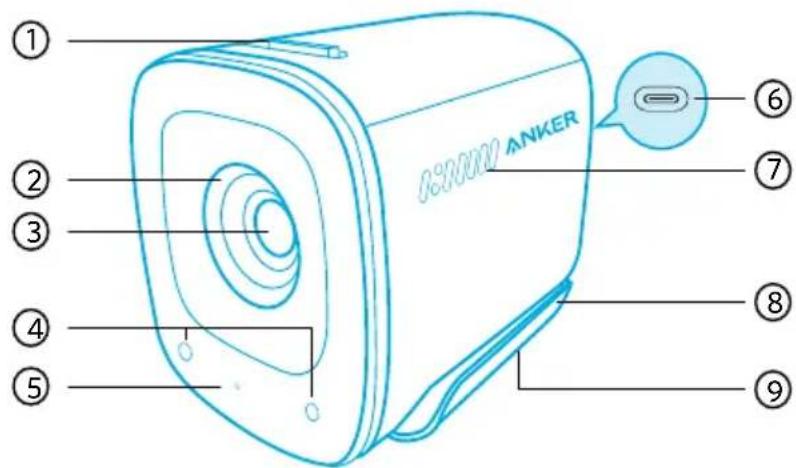
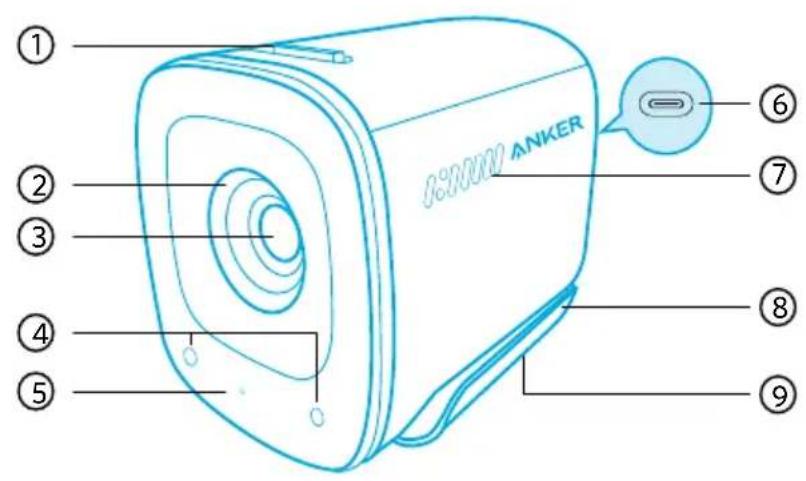
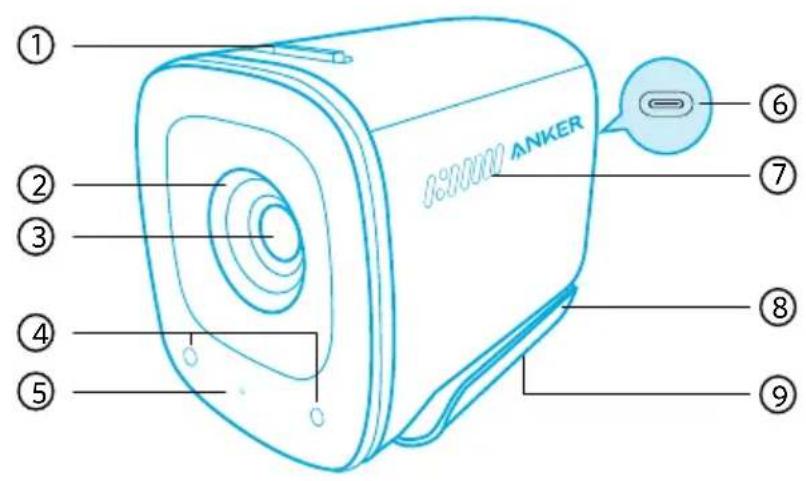
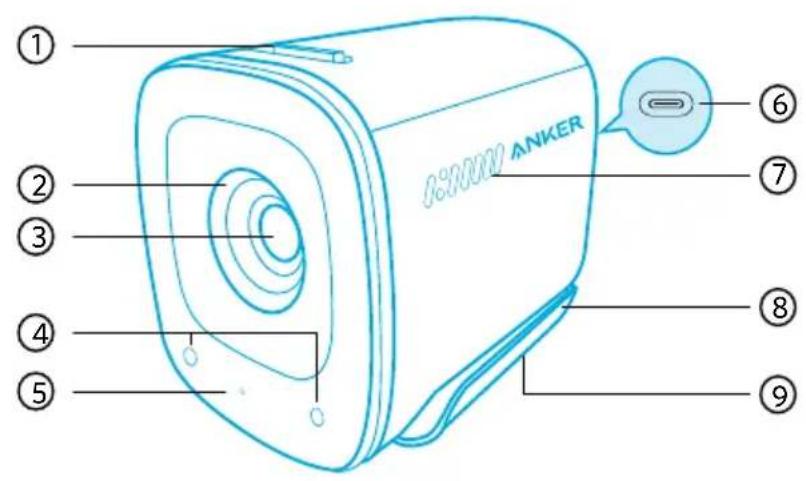
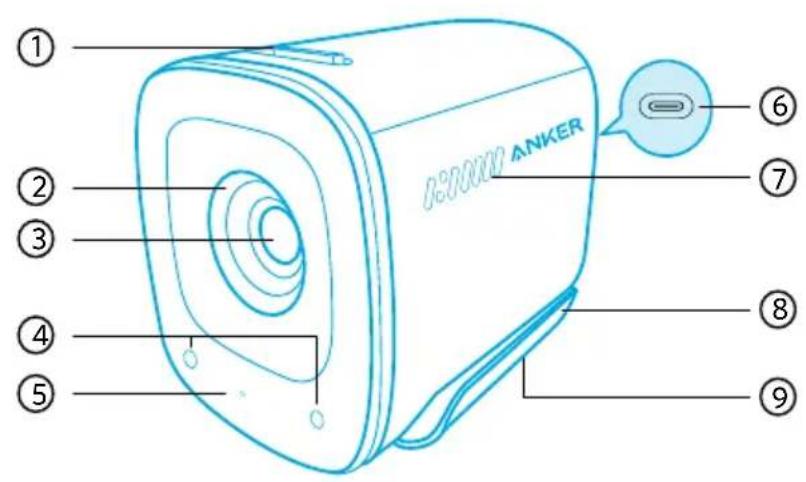
At a Glance
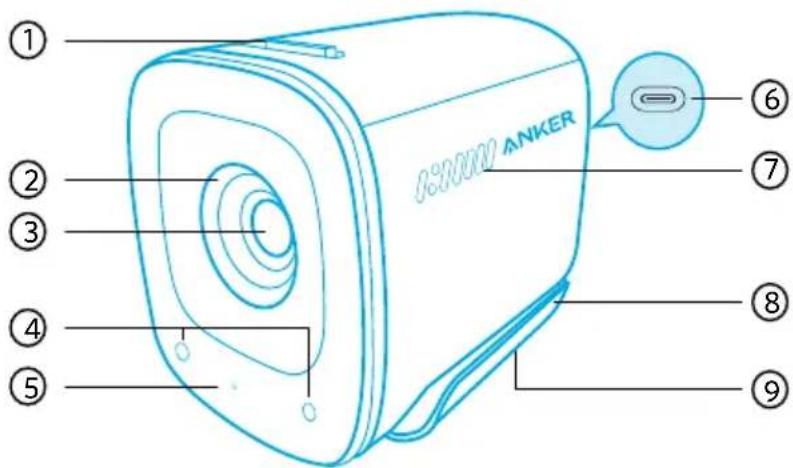
- Privacy cover switch
- Privacy cover
- Autofocus 2K HD lens
- Microphones
- LED light
- USB-C port
- Air vents
- Adjustable clip/stand
- Tripod thread
Mounting
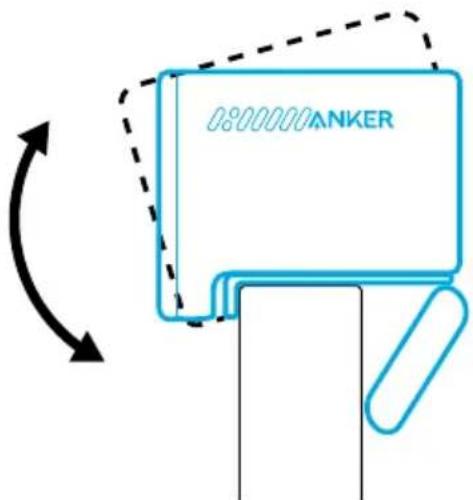
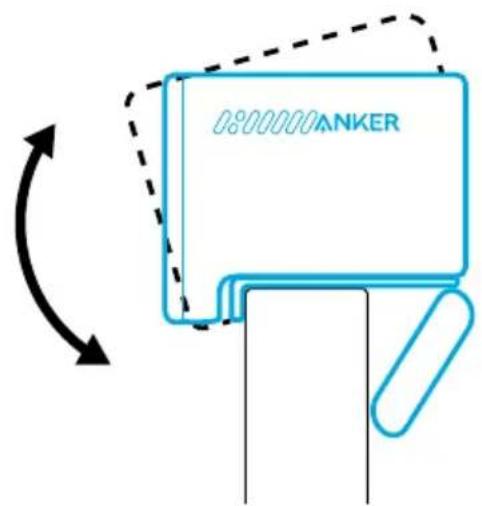
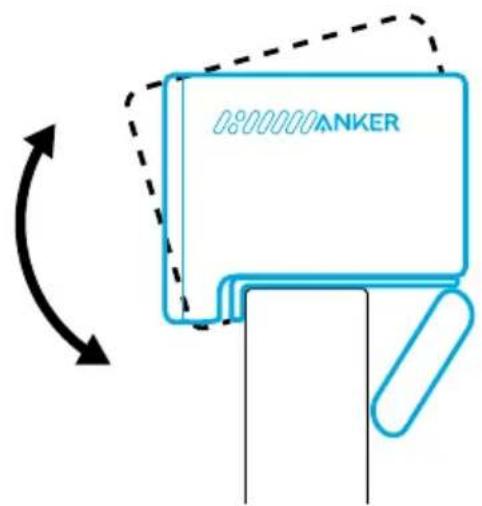
Option A: On Top of Your Monitor
- Unfold the clip so it fits over the top of your monitor or laptop screen. For a secure fit, adjust the clip by pressing it against the back of your device.
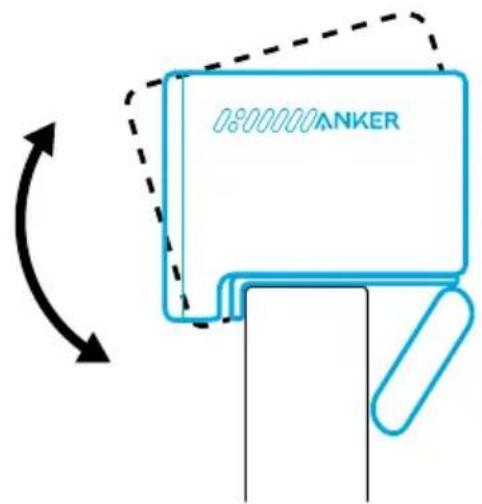
- Adjust the webcam up and down for the optimal position to frame.
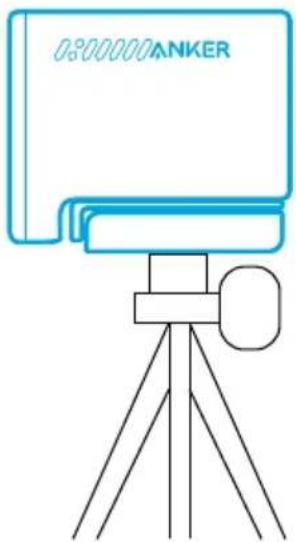
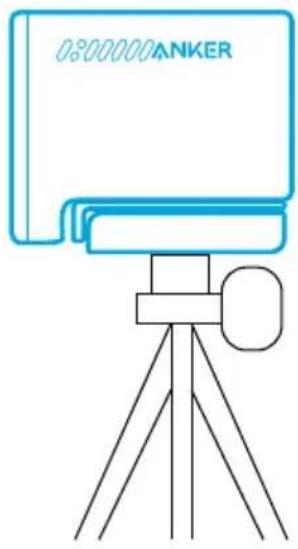
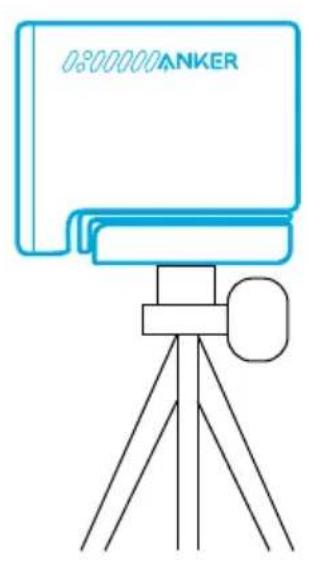
Option B: On a Tripod on Your Desk
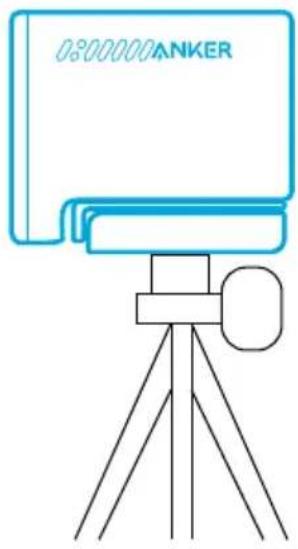
With the clip folded in, mount the webcam onto a tripod (not provided) with the 14 inch thread.
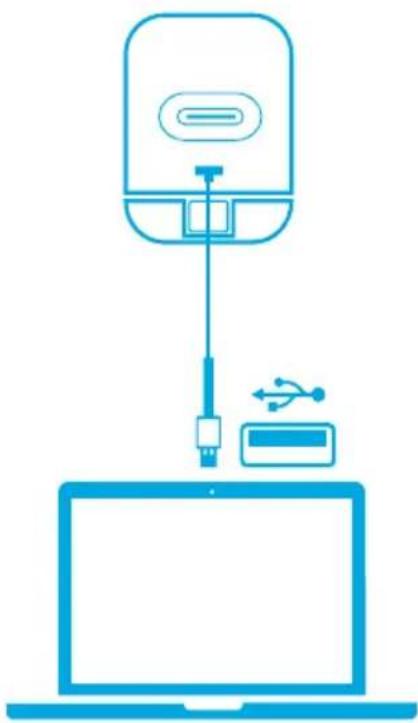
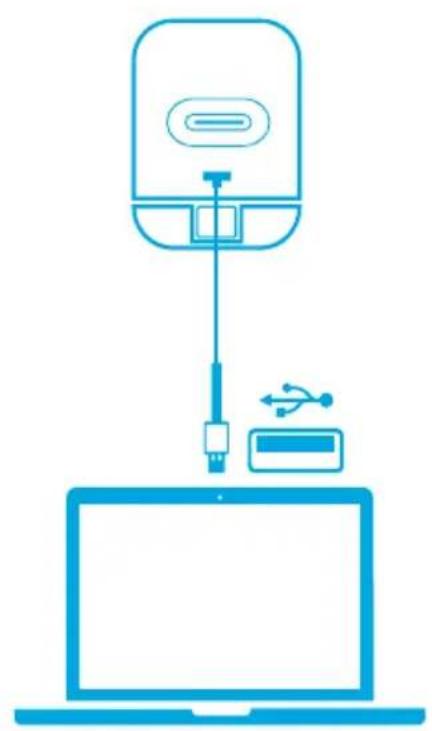
Connecting
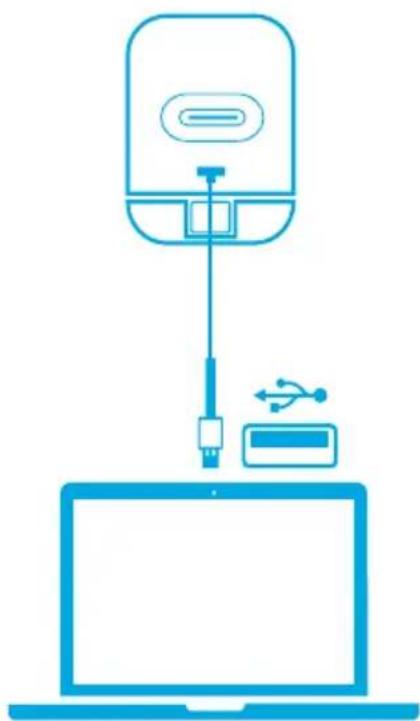
- Plug the USB-C connector on the provided cable into the USB-C port on the webcam.
-
Plug the USB-A connector into an available port on your computer.
-
Plug-and-play support will let your computer instantly recognize the webcam.
-
If your computer does not instantly recognize the webcam, try plugging into a different USB port or restart the computer.
-
Open the app you want to use with the webcam.
- The LED light will light up white when the webcam is in use by an app.
natural_image
Line drawing of a laptop connected to a device via cable, showing no text or symbols
You may need to manually select this webcam and its built-in microphones for your PC system or software.
A) Windows
- Go to Settings > Privacy > Camera and turn on "Allow apps to access your camera".
- Turn on each of the listed apps where you want to use the camera. After you open the Camera app, you may need to switch to the Full HD Camera.
B) macOS
- Go to the Apple menu > System Preferences > Security & Privacy, then choose Camera from the list on the left side.
- Locate the app(s) you want to enable camera access for and check the box alongside that app name to enable camera access for that application.
C) Software (Zoom or more)
Go to Settings > Video > Camera and choose this webcam.
Controls
Slide to cover the camera lens for privacy. The camera will turn off automatically when blocked by the privacy cover.

Using AnkerWork Software
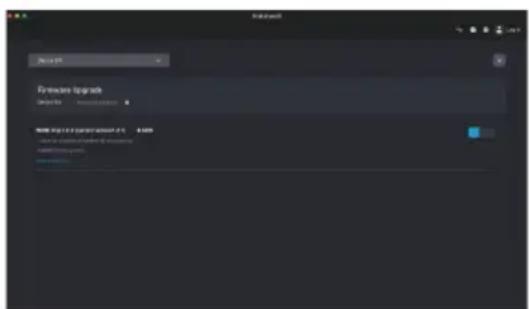
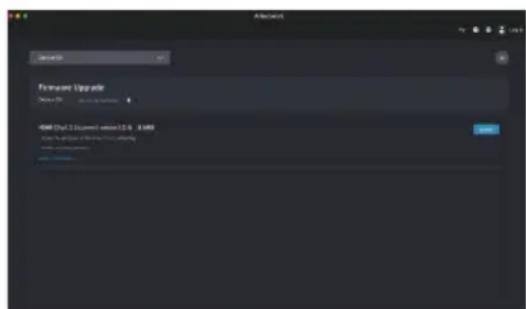
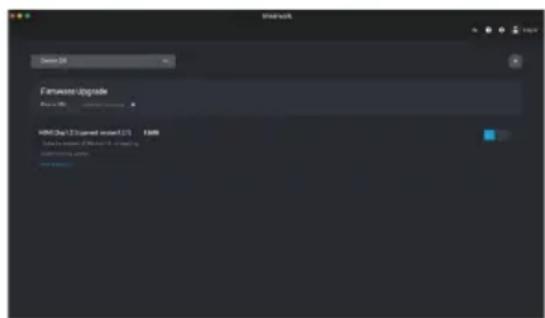
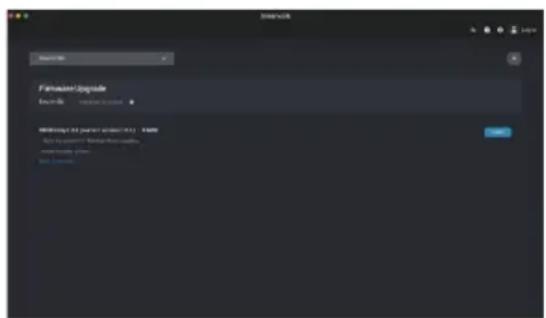
Download the AnkerWork Software from
software.ankerwork.com
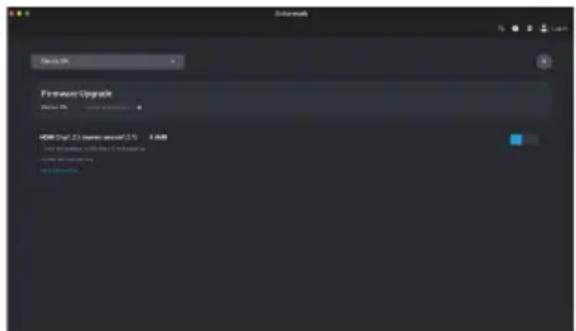
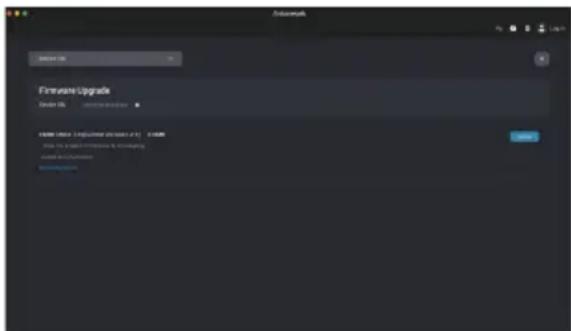
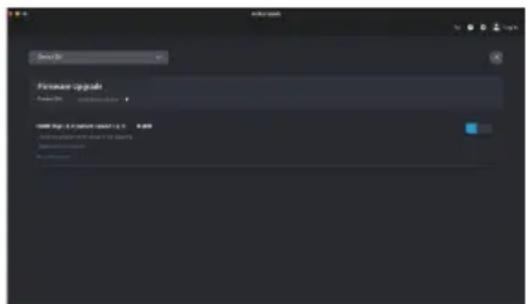
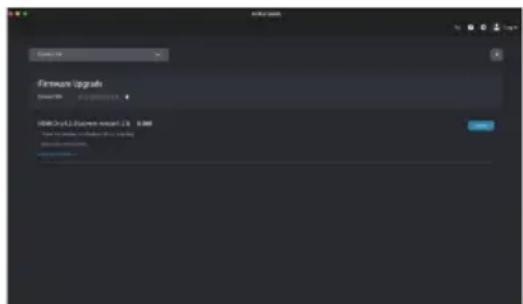
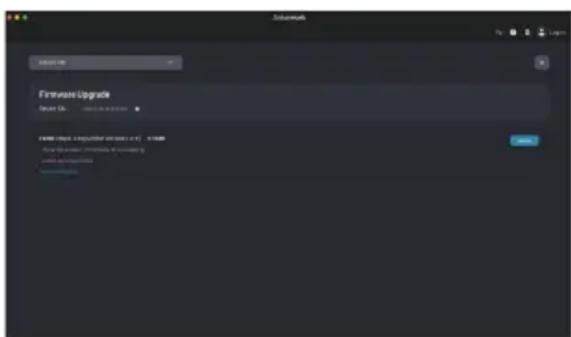
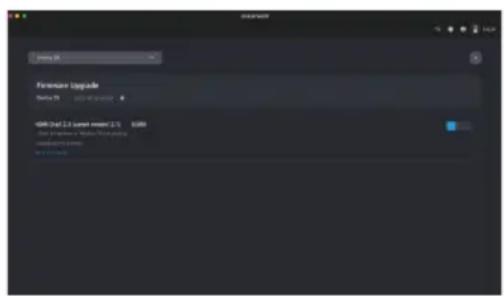
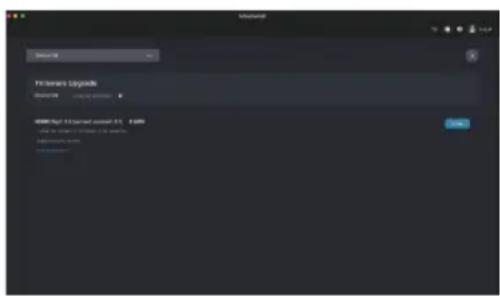
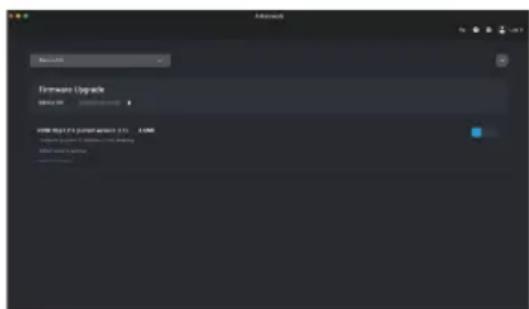
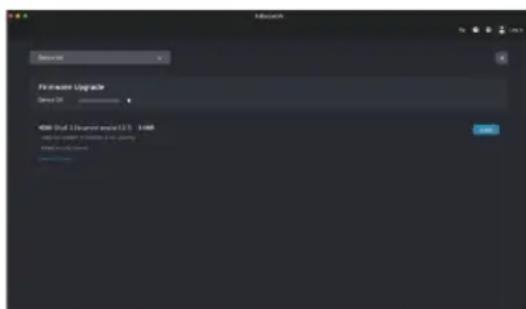
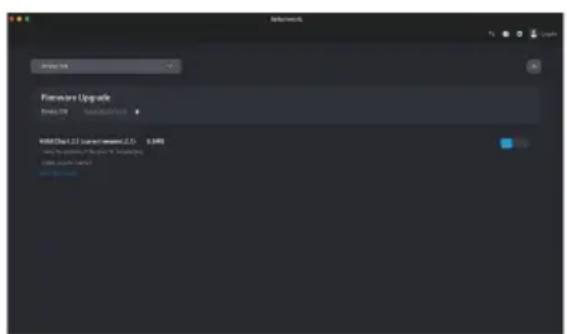
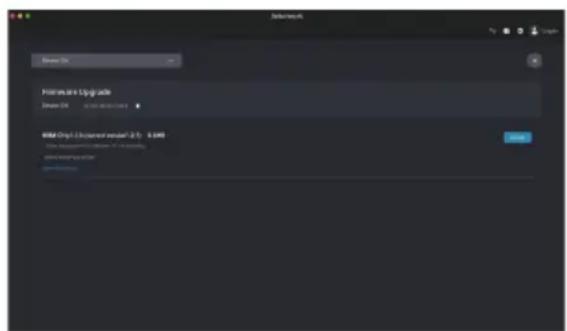
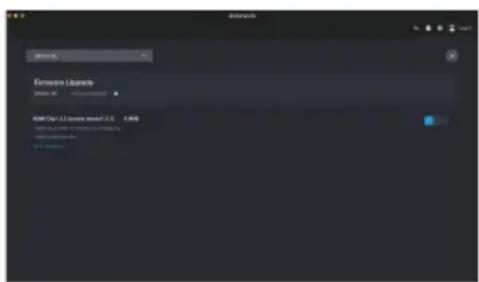
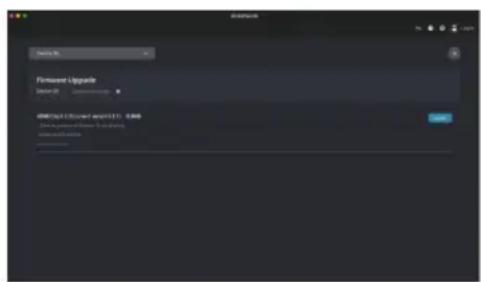
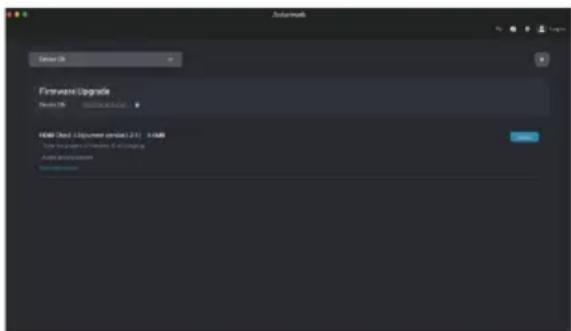
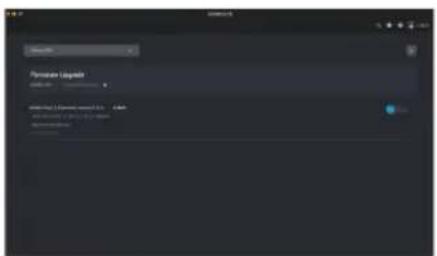
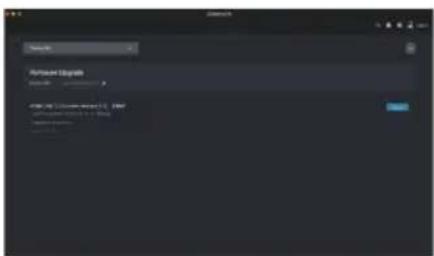
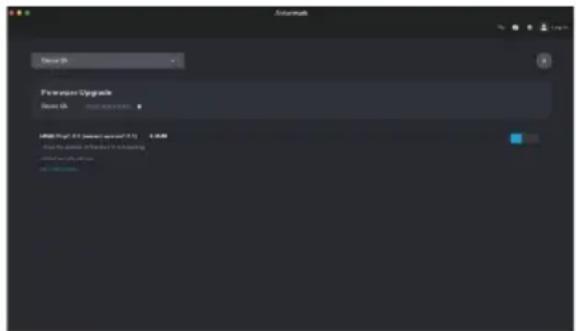
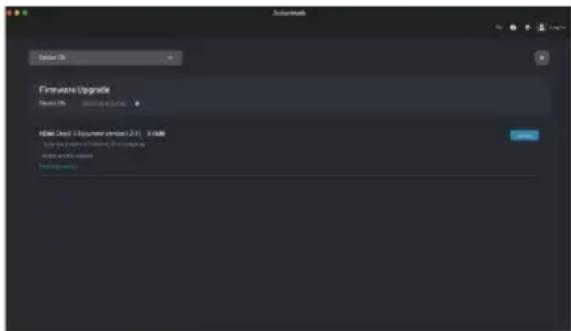
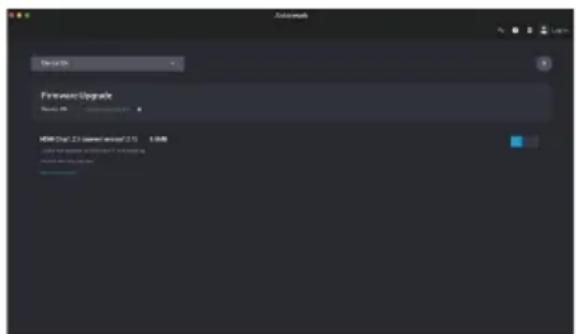
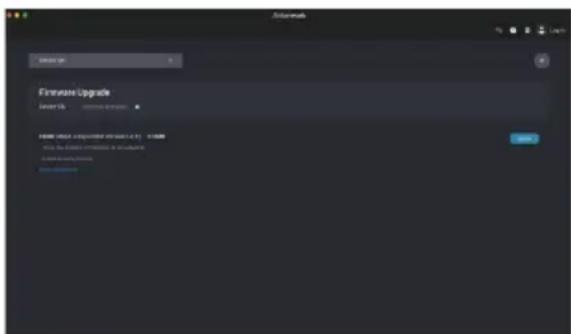
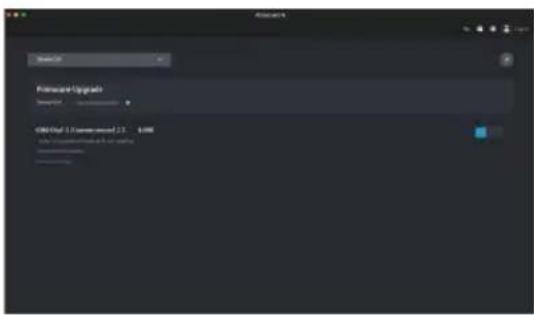
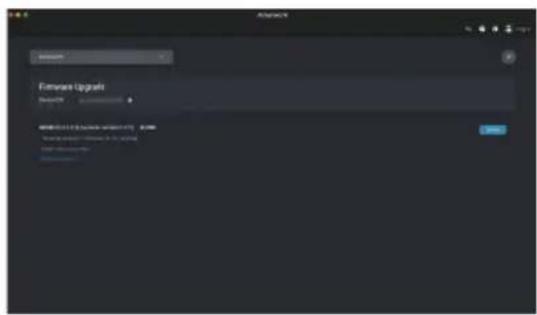
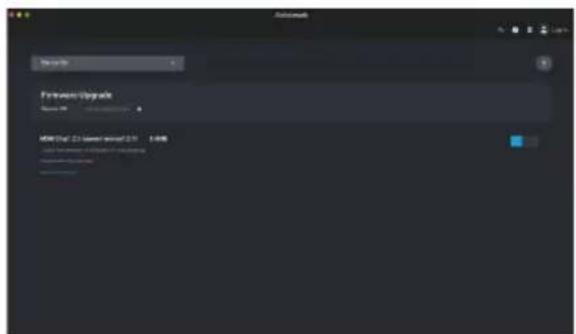
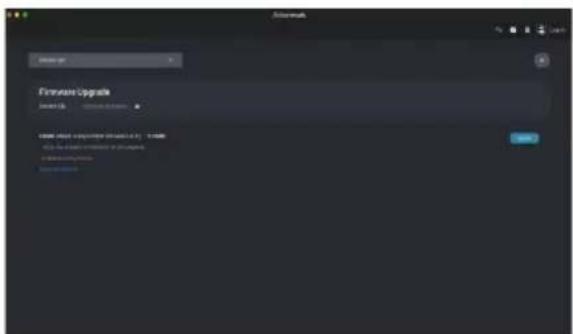
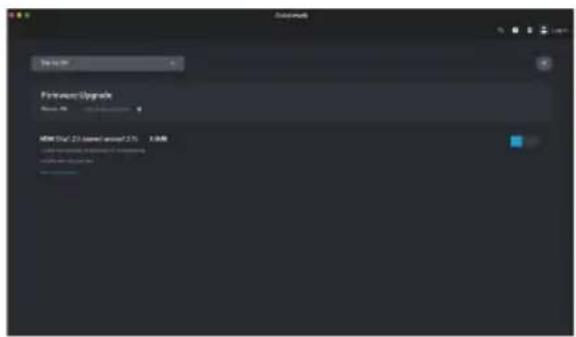
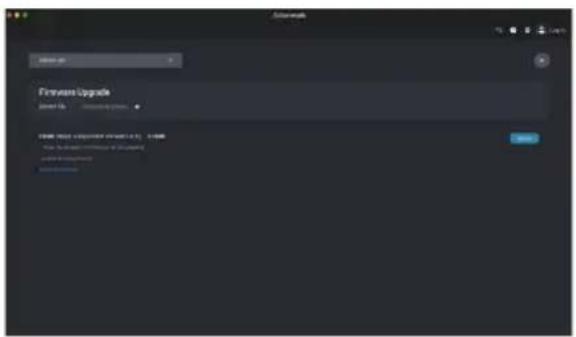
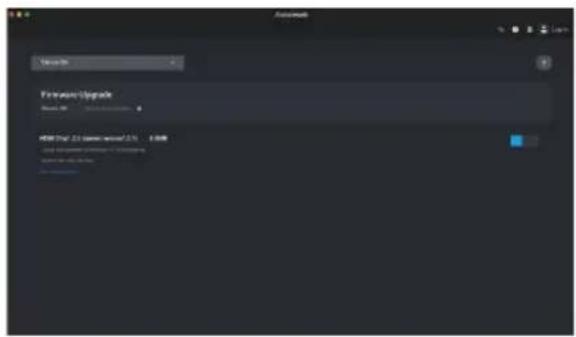
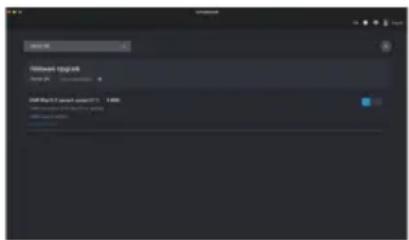
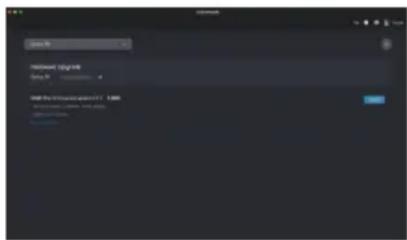
Download and install the AnkerWork software on your PC to update firmware and adjust settings.
Specifications
Specifications are subject to change without notice.
| Input 5V 1 A | --- |
| Resolution 2K@30fps; 1080P@30fps; 720P@30fps; 320x240@30fps | |
| Field of View (FOV) 65°, 78°, 95° | |
| Focus Type Automatic focus | |
| Sensor 5 MP CMOS (1 / 2.7 in.) | |
| Focus Distance 15 cm to 3 m | |
| Maximum Video Frame Rate 2K video capture @ 30fps | |
| Video Codec MJPEG, YUV | |
| Supported Operating Systems or Software | Windows® 7 or later; macOS® 10.11 or later; Skype for Business; Zoom; Google Meet; BlueJeans; Cisco Webex; WeChat; Microsoft Teams; FaceTime; YouTube; XSplit; OBS; Twitch; Facebook Messenger; Twitter; Mixer |
| Microphone Dual stereo microphones | |
| Voice Algorithm AGC (Auto Gain Control), ANC (Auto Noise Cancellation) | |
| Voice Pickup Distance 3 m | |
Přehled
natural_image
Blue line drawing of a laptop connected to a device via a cable, with no text or symbols present.
Download the AnkerWork Software from
software.ankerwork.com

natural_image
Illustration of a laptop connected to a device via a cable, showing no text or symbols.
Download the AnkerWork Software from
software.ankerwork.com

![Paramount Upgrade File Path: 2.3 (system version 2.1) 0.0000 [ ] [ ] [ ] [ ] [ ] [ ] [ ] [ ] [ ] [ ] [ ] [ ] [ ] [ ] [ ] [ ] [ ] [ ] [ ] [ ] [ ] [ ] [ ] [ ] [ ] [ ] [ ] [ ] [ ] [ ] [ ] [ ] [ ] [ ] [ ] [ ] [ ] [ ] [ ] [ ] [ ] [ ] [ ] [ ] [ ] [ ] [ ] [ ] [ ] [ ] [ ]](/content/2026/04/624019/images/da186a3717b41b08c7da5f2404fc3c67c232752e356a4d1bb1d194f672c16e81.jpg)
natural_image
Illustration of a laptop connected to a device via a cable, showing no text or symbols.
Download the AnkerWork Software from
software.ankerwork.com

natural_image
Illustration of a laptop connected to a device via a cable, with no visible text or symbols.
Download the AnkerWork Software from
software.ankerwork.com
natural_image
Illustration of a laptop connected to a device via cable, showing internal components (no text or symbols)
Download the AnkerWork Software from
software.ankerwork.com
natural_image
Illustration of a laptop connected to a device via a cable, showing internal components (no text or symbols)
Download the AnkerWork Software from
software.ankerwork.com


natural_image
Illustration of a laptop connected to a device via a cable, showing no text or symbols.
Download the AnkerWork Software from
software.ankerwork.com

natural_image
Illustration of a laptop connected to a device via a cable, showing no text or symbols.
C) Software (Zoom of andere)
Download the AnkerWork Software from
software.ankerwork.com
natural_image
Line drawing of a laptop connected to a device via cable, showing no text or symbols
Du må kanskje velge dette webkameraet og dets innebygde mikrofoner manuelt for PC-systemet eller programvaren.
A) Windows
Download the AnkerWork Software from
software.ankerwork.com

![Device 01 File Environment Upgrade Device 01 LIME Path: 0.1 (current access) (A) 6.0000 This file contains an additional link to the following: [ ] [ ] [ ] [ ] [ ] [ ] [ ] [ ] [ ] [ ] [ ] [ ] [ ] [ ] [ ] [ ] [ ] [ ] [ ] [ ] [ ] [ ] [ ] [ ] [ ] [ ] [ ] [ ] [ ] [ ] [ ] [ ] [ ] [ ] [ ] [ ] [ ] [ ] [ ] [ ] [ ] [ ] [ ] [ ] [ ] [ ] [ ] [ ] [ ] [ ] [ ]](/content/2026/04/624019/images/443772c633bd75773b7c66f5ca2b633fb1fe1a3114acad88337ba400da7fd5c1.jpg)
natural_image
Illustration of a laptop connected to a device via a cable, showing no text or symbols.
Download the AnkerWork Software from
software.ankerwork.com
natural_image
Illustration of a surveying instrument mounted on a tripod, no text or symbols presentConectando
natural_image
Illustration of a laptop connected to a device via cable, showing internal components (no text or symbols)
Usando o software AnkerWork
Download the AnkerWork Software from
software.ankerwork.com

natural_image
Line drawing of a laptop connected to a device via a cable, with no text or symbols present.
Download the AnkerWork Software from
software.ankerwork.com

natural_image
Illustration of a laptop connected to a device via cable, showing internal components (no text or symbols)
Download the AnkerWork Software from
software.ankerwork.com
natural_image
Illustration of a laptop connected to a device via cable, showing internal components (no text or symbols)
Download the AnkerWork Software from
software.ankerwork.com
natural_image
Simple line drawing of a laptop connected to a device via cable, with no text or symbols present.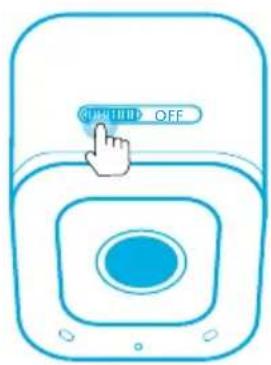
Download the AnkerWork Software from
software.ankerwork.com
| == | |
natural_image
Simple line drawing of a laptop connected to a device via a cable, with no text or symbols present.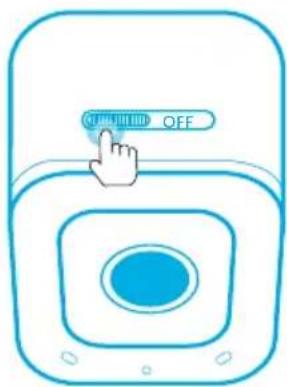
Download the AnkerWork Software from
software.ankerwork.com
| — | |
natural_image
Simple line drawing of a laptop connected to a device via cable, with no text or symbols present.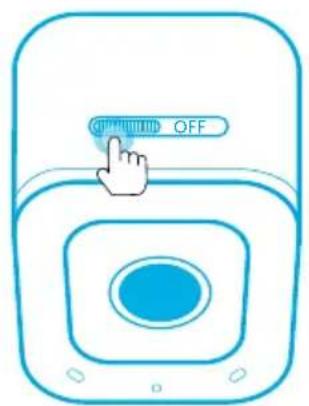
Download the AnkerWork Software from
software.ankerwork.com

| — | |

natural_image
Simple line drawing of a laptop connected to a device via a cable, no text or symbols present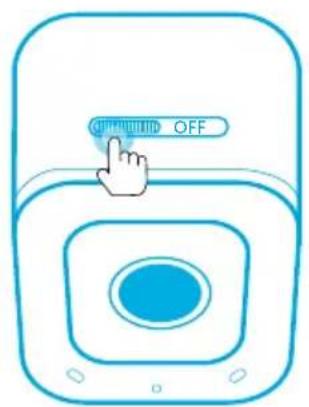
Download the AnkerWork Software from
software.ankerwork.com

| — | |
10.
التركيب
natural_image
Line drawing of a surveying instrument mounted on a tripod, no text or symbols presentالاتصال
natural_image
Simple line drawing of a laptop connected to a device via cable, no text or symbols presentDownload the AnkerWork Software from
software.ankerwork.com

natural_image
Line drawing of a surveying instrument mounted on a tripod, no text or symbols presentתְבָרִי
natural_image
Illustration of a laptop connected to a device via a cable, with no visible text or symbols.Download the AnkerWork Software from
software.ankerwork.com

הכלה Among Industry AnkerWork, וְרָׁהַעֹן, וְרָׁהַעֹן, וְרָׁהַעֹן, וְרָׁהַעֹן, וְרָׁהַעֹן, וְרָׁהַעֹן, וְרָׁהַעֹן, וִ�ּוּוּוּוּוּוּוּוּוּוּוּוּוּוּוּוּוּוּוּוּוּוּוּוּוּוּוּוּוּוּוּוּוּו'
.בַרְשָׁה