
Betsie & Dirk MR2600ZW - Lawn mower Zoef Robot - Free user manual and instructions
Find the device manual for free Betsie & Dirk MR2600ZW Zoef Robot in PDF.


User questions about Betsie & Dirk MR2600ZW Zoef Robot
0 question about this device. Answer the ones you know or ask your own.
Ask a new question about this device
Download the instructions for your Lawn mower in PDF format for free! Find your manual Betsie & Dirk MR2600ZW - Zoef Robot and take your electronic device back in hand. On this page are published all the documents necessary for the use of your device. Betsie & Dirk MR2600ZW by Zoef Robot.
USER MANUAL Betsie & Dirk MR2600ZW Zoef Robot
text_image
ZOEF ROBOTROBOT LAWNMOWER
Handleiding Gebrauchsanweisung User Manual Manuel de l'Utilisateur
natural_image
Line drawing of a robotic vacuum cleaner (no text or symbols)Dirk & Betsie
MR2600ZW & MR21500ZW
BELANGRIJKE WAARBORGEN:

BELANGRIJK
: LEES ALLE INSTRUCTIES VOOR GEBRUIK. BEWAAR INSTRUCTIES VOOR TOEKOMSTIG GEBRUIK.

WAARSCHUWING:
natural_image
Simple green line diagram with circular endpoints and a checkmark (no text or symbols)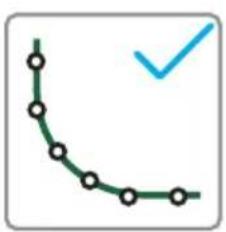
natural_image
Simple curved line with circular markers and a blue checkmark (no text or symbols)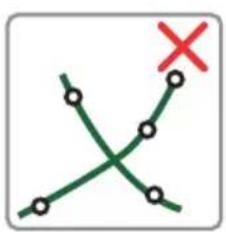
text_image
Diagram showing two intersecting green lines with circular nodes and a red 'X' mark, likely indicating a decision or comparison point.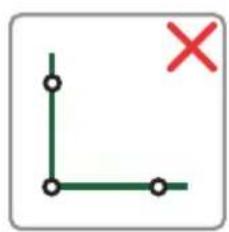
natural_image
Simple geometric diagram with green lines and marked points, no text or symbols present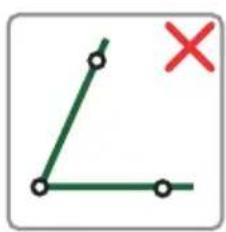
natural_image
Simple geometric diagram showing a green line with two endpoints and a red 'X' mark (no text or symbols)natural_image
Simple line drawing of a flower with a red X mark and a horizontal line below (no text or symbols)natural_image
Simple line drawing of a sun with rays and a checkmark, above a curved line (no text or symbols)natural_image
Simple line drawing of a flower with a checkmark and horizontal line, no text or symbols presentnatural_image
Diagram showing a wavy line with a red 'X' marker above it, no text or symbols presentnatural_image
Simple diagram showing a wavy line above a shaded bottom layer with two vertical spring-like symbols on the top (no text or labels)natural_image
Diagram showing a spring-loaded structure with a checkmark above it, no text or symbols presentnatural_image
Silhouette of a car on a brown surface with a spring-like border (no text or symbols)text_image
Technical diagram of a mechanical component with labeled parts 1 and 2natural_image
Technical line drawing of a mechanical component with an arrow indicating direction and number 2 (no text or symbols)natural_image
Diagram showing two cylindrical objects with a vertical stack of wires and an upward arrow symbol (no text or labels)natural_image
3D diagram of a mechanical component with a highlighted section and arrow indicator (no text or symbols)natural_image
Diagram of a hand pressing a component with an arrow indicating rotation (no text or symbols present)natural_image
Illustration of hands using a tool to adjust or install a mechanical component (no text or symbols visible)natural_image
Technical line drawing of a mechanical assembly with wires and components (no text or symbols)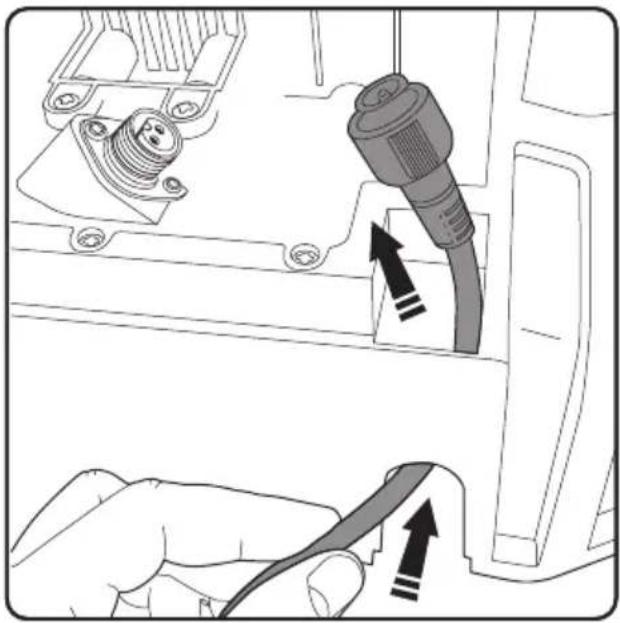
natural_image
Diagram showing a hand holding a cable with an attached electrical plug, no text or symbols presentnatural_image
Line drawing of a mechanical component with two connectors and mounting holes (no text or symbols)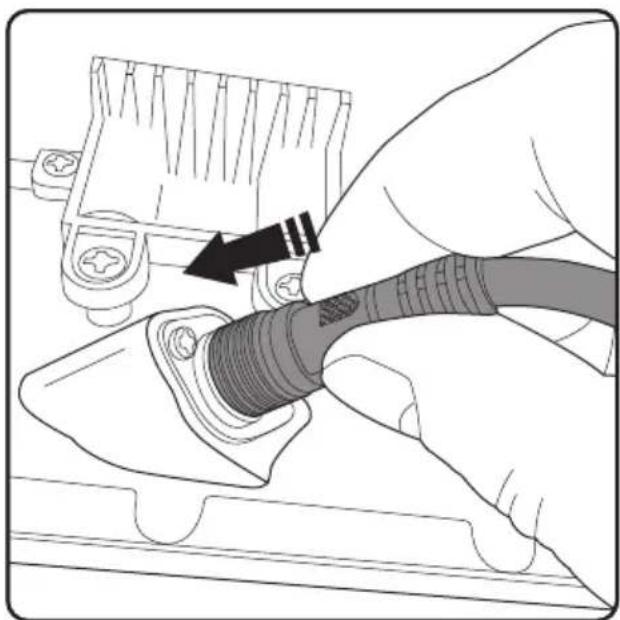
natural_image
Illustration of a hand connecting a cable to a plug socket (no text or symbols visible)natural_image
Hand inserting a USB into a component, showing the cable being inserted (no text or symbols visible)natural_image
Line drawing of a hand using a screwdriver to press or install a piece of wood (no text or symbols present)natural_image
Diagram of a hand pressing a component with an arrow indicating rotation (no text or symbols present)text_image
LED status indicatornatural_image
Diagram showing a tool inserted into a wire with a downward arrow indicating force or direction (no text or symbols)text_image
Diagram showing two methods of securing a barbed wire, with checkmark and cross symbols indicating failure or rejection.text_image
Diagram showing two scenarios of a spring-loaded structure with a red 'X' mark and a blue checkmark indicating a specific point.natural_image
Top-down line drawing of a car interior showing seat, dashboard, and steering wheel (no text or symbols)text_image
20:13 Oct. 19 98% Mowingtext_image
Mowing time OK 008 hour [s]text_image
Continue working?text_image
20:20 Oct. 19 98% . Returningtext_image
20:13 Oct. 19 98% Spot mowing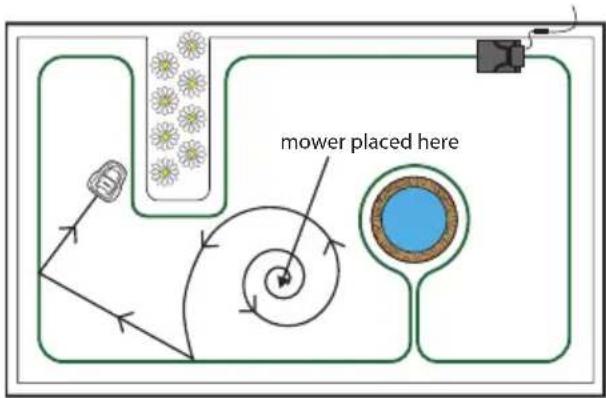
flowchart
graph TD
    A["Plants"] --> B["Car"]
    B --> C["Central Circle"]
    C --> D["Mower placed here"]
    style A fill:#f9f,stroke:#333
    style D fill:#bbf,stroke:#333
text_image
1 / 1p English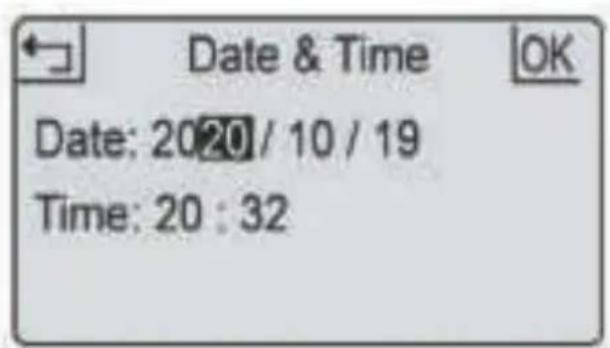
text_image
Date & Time OK Date: 2020/10/19 Time: 20:32text_image
Reset to Factory mode?natural_image
Diagram showing two cylindrical objects with directional arrows indicating movement or force (no text or symbols)natural_image
Mechanical assembly diagram showing a component with arrows indicating motion direction (no text or symbols)natural_image
Illustration of a hand holding a cable with arrows indicating cable movement (no text or symbols)natural_image
Illustration of hands holding a small electronic component with a curved arrow indicating rotation (no text or symbols)natural_image
Illustration of a hand using a tool to adjust or install a circular component, with no visible text or symbols.natural_image
Line drawing of hands using a tool to adjust or install a mechanical component (no text or symbols visible)natural_image
Line drawing of a person standing with a device, no text or symbols presentnatural_image
Simple green line diagram with a checkmark (no text or symbols)Stumpfe Winkel
natural_image
Simple curved line with circular markers and a blue checkmark (no text or symbols)Kurven
text_image
Diagram showing two intersecting green lines with marked points and a red 'X' symbol, likely indicating a decision or comparison point.natural_image
Simple geometric diagram with green lines and marked points, no text or symbols presentnatural_image
Simple geometric diagram showing a green line with two endpoints and a red 'X' mark (no text or symbols)natural_image
Simple line drawing of a flower with a red X mark and a horizontal line below (no text or symbols)natural_image
Simple line drawing of a sun with rays and a curved path below, no text or symbols presentnatural_image
Simple line drawing of a flower with a checkmark and horizontal line, no text or symbols presentnatural_image
Diagram showing a wavy line with a red 'X' marker above it, no text or symbols presentnatural_image
Cross-sectional diagram of a geological or sedimentary layer with two spring-like formations above (no text or labels)natural_image
Diagram showing a spring-loaded structure with a checkmark above it, no text or symbols presentnatural_image
Silhouette of a car on a brown ground with spring-like waves in the background (no text or symbols)text_image
Technical diagram of a mechanical component with labeled parts 1, 2, and directional indicatorsnatural_image
Technical line drawing of a mechanical component with an arrow indicating direction and a numbered label (2) at the end (no text or symbols on the diagram itself)natural_image
Diagram showing two cylindrical objects with a vertical stack of wires and an upward arrow symbol (no text or labels)natural_image
3D diagram of a mechanical component with a highlighted section and arrow indicator (no text or symbols)natural_image
Diagram of a hand pressing a component with an arrow indicating rotation (no text or symbols present)natural_image
Illustration of hands using a tool to adjust or install a mechanical component (no text or symbols visible)natural_image
Technical line drawing of a mechanical assembly with wires and components (no text or symbols)natural_image
Diagram showing a hand holding a cable with an attached electrical plug, no text or symbols presentnatural_image
Line drawing of a hand holding two connected electrical connectors (no text or symbols)natural_image
Illustration of a hand connecting a cable to a plug socket (no text or symbols visible)natural_image
Hand inserting a USB into a component, showing the cable being inserted (no text or symbols visible)natural_image
Line drawing of a hand using a screwdriver to press or install a piece of wood (no text or symbols present)natural_image
Diagram of a hand pressing a component with an arrow indicating rotation (no text or symbols present)natural_image
Diagram showing a tool inserted into a wire with a downward arrow indicating force or direction (no text or symbols)text_image
Diagram showing two methods of securing a barbed wire, with checkmark and cross symbols indicating failure or rejection.text_image
Diagram showing two scenarios of a spring-loaded structure with a red 'X' mark and a blue checkmark indicating a specific point.natural_image
Top-down line drawing of a car interior with a stop button labeled 'STOP' (no other text or symbols)text_image
Time, date, battery Power button: Power on/off. START button: Start mowing. HOME button: Back to station. Status RETURN button OK/MENU button UP, DOWN, LEFT, RIGHT buttons. A, B, C, D for PIN code. STOP button: Emergency stop and open the control panel hatchtext_image
20:13 Oct. 19 98% Mowingtext_image
Mowing time OK 008 hour (s)Stop Back to station
text_image
Continue working?text_image
20:20 Oct. 19 98%, Returningtext_image
20:13 Oct. 19 98% Spot mowingtext_image
1 / 1p Englishtext_image
Reset to Factory mode?natural_image
Diagram showing two pipes with directional arrows indicating movement or force (no text or symbols)natural_image
Mechanical assembly diagram showing a component with arrows indicating motion or force direction (no text or symbols)natural_image
Illustration of a hand holding a connector with arrows indicating cable or wire movement (no text or symbols)natural_image
Illustration of hands holding a small electronic component with a curved arrow indicating rotation (no text or symbols)natural_image
Illustration of a hand using a tool to adjust or install a circular component, with no visible text or symbols.natural_image
Line drawing of hands operating a mechanical tool on a circular component (no text or symbols)natural_image
Line drawing of a person standing with a device, no text or symbols presentAvertissement/prudence.
- carrying out any maintenance
natural_image
Simple geometric line diagram with green nodes and a blue checkmark (no text or symbols)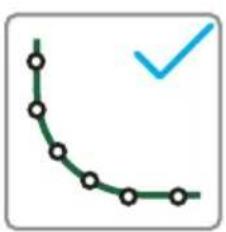
natural_image
Simple curved line with circular markers and a blue checkmark (no text or symbols)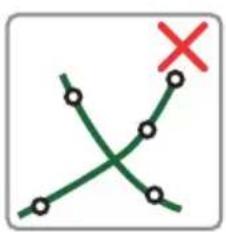
text_image
Diagram showing two intersecting green lines with circular nodes and a red 'X' mark, likely indicating a decision or comparison point.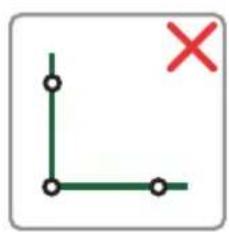
natural_image
Simple geometric diagram with green lines and marked points, no text or symbols present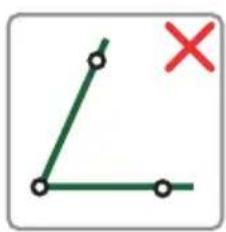
natural_image
Simple geometric diagram showing a green line with two endpoints and a red 'X' mark (no text or symbols)natural_image
Simple line drawing of a neuron with a red 'X' marking and a horizontal line below (no text or symbols)natural_image
Simple line drawing of a sun with rays and a curved line below, no text or symbols presentnatural_image
Simple line drawing of a flower with a checkmark and horizontal line, no text or symbols presentnatural_image
Diagram showing a cross symbol above a wavy line with a red X marker, no text or labels presentnatural_image
Cross-sectional diagram of a geological or sedimentary layer with two spring-like formations above (no text or symbols)natural_image
Diagram showing a spring-loaded structure with a checkmark above it, no text or symbols presentnatural_image
Silhouette of a car on a brown ground with spring-like waves in the background (no text or symbols)text_image
Technical diagram of a mechanical component with labeled parts 1 and 2natural_image
Technical line drawing of a mechanical component with an arrow indicating direction and number 2 (no text or symbols)natural_image
Diagram showing two cylindrical objects with a vertical stack of wires and an upward arrow symbol (no text or labels)natural_image
3D diagram of a mechanical component with a highlighted section and an arrow pointing to it (no text or symbols present)natural_image
Diagram of a hand pressing a component with an arrow indicating rotation (no text or symbols present)natural_image
Illustration of hands using a tool to adjust or install a mechanical component (no text or symbols visible)natural_image
Technical line drawing of a mechanical assembly with wires and components (no text or symbols)natural_image
Diagram showing a hand inserting a cable into a device component with an attached plug (no text or symbols present)natural_image
Line drawing of a hand holding two connected electrical connectors (no text or symbols)natural_image
Illustration of a hand connecting a cable to an electrical connector (no text or symbols visible)natural_image
Hand inserting a USB into a component, showing the cable being inserted (no text or symbols visible)natural_image
Line drawing of a hand using a screwdriver to press or install a piece of wood (no text or symbols)natural_image
Diagram of a hand pressing a component with an arrow indicating rotation (no text or symbols present)natural_image
Diagram showing a tool inserted into a wire with a downward arrow indicating force or direction (no text or symbols)text_image
Diagram showing two scenarios of a barbed wire wound with a checkmark and cross mark, indicating surface condition or repair.text_image
Diagram showing two scenarios of a spring-loaded structure with a red 'X' mark and a blue checkmark indicating a specific point.natural_image
Top-down line drawing of a car interior with a stop button labeled 'STOP' (no other text or symbols)text_image
Time, date, battery Power button: Power on/off. START button: Start mowing. HOME button: Back to station. Status RETURN button OK/MENU button UP, DOWN, LEFT, RIGHT buttons. A, B, C, D for PIN code. STOP button: Emergency stop and open the control panel hatchtext_image
20:13 Oct.19 98% Mowingtext_image
Mowing time OK 008 hour (s)text_image
Continue working?text_image
20:20 Oct. 19 98% Returningtext_image
20:13 Oct. 19 98% Spot mowingtext_image
1 / 1p Englishtext_image
Reset to Factory mode?LED on charge station
Lumière rouge fixe
natural_image
Diagram showing two pipes with directional arrows indicating movement or force (no text or symbols)natural_image
Mechanical assembly diagram showing a component with arrows indicating motion or force direction (no text or symbols)natural_image
Illustration of a hand holding a cable with arrows indicating cable movement (no text or symbols)natural_image
Illustration of hands holding a small electronic component with a curved arrow indicating rotation (no text or symbols)natural_image
Illustration of a hand using a tool to adjust or install a circular component, with no visible text or symbols.natural_image
Line drawing of hands using a tool to adjust or install a mechanical component (no text or symbols visible)natural_image
Line drawing of a person standing with a device, no text or symbols presentBasic safety precautions should always be observed when using an electrical appliance to reduce the risk of fire, electrical shock or serious injury.
Warning Label Descriptions

Warning/Caution.
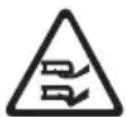
Beware of severing toes or hands. Do not put hands or feet near a rotating blade.
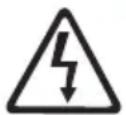
Dangerous voltage.
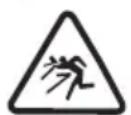
Always keep the lawnmower on the ground when mowing. Tilting or lifting the lawnmower may cause stones to be thrown out.
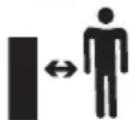
Keep bystanders at a safe distance (at least 5m).

Read the instruction manual.
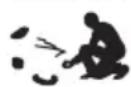
Pick up sticks, stones and foreign objects before using.
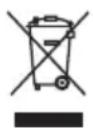
Do not dispose electrical products with general household waste. Please check with your local authorities for recycling advice.
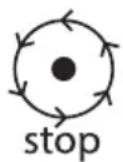
Caution: Wait until blades stop rotating when switched off.

Do not ride on the mower or allow children or pets to do so.
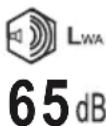
Guaranteed Sound Power
Level
- Please read this manual carefully. Familiarise yourself thoroughly with the controls and proper use of this machine. You should know how the machine works and how to immediately switch it off.
- Never let children use this mower. Never let adults work with this mower if not properly trained.
- Do not let any persons, especially small children, or pets near you while the mower is in operation.
Personal Safety:
- Only use the mower on grass and lawns, as described in this manual.
- Keep out of reach of children and animals at all times.
- Do not use while there are other people, especially children, nearby.
- Stay alert, watch what you are doing and use common sense when operating the mower.
- Do not use the mower while you are tired or under the influence of drugs, alcohol or medication. This may result in serious personal injury.
- Use protective personal equipment such as safety glasses, non-skid safety shoes, sturdy gloves to reduce the risk of personal injury.
- Do not operate when barefoot or wearing open toed shoes.
- Dress appropriately. Do not wear loose clothing or jewellery and keep hair, clothing and gloves away from moving parts.
- Do not use on excessively steep slopes.
- Never touch the rotating blade.
- Never operate the mower over gravel, as this risks flicking stones.
- Check the area where the mower is to be used and remove any objects that could jam or be thrown by the mower, such as stones and sticks.
- Avoid operating the mower on wet grass.
- Remove dog exrements/waste before mowing.
- Visually check the cutting tools and their fasteners for any damage before each use.
• To prevent imbalance, any damaged or worn-out parts should be replaced. - Do not operate the mower if it is incomplete or has unauthorised modifications.
- Keep all body parts, especially hands and feet, away from the blade attalhes.
- Warning, the blade will continue to move after the motor is switched off.
- Ensure that the blade has fully stopped before:
-clearing a blockage
- adjusting the cutting height
- lifting or carrying the mower
- tilting the mower to move
- checking or cleaning the mower
- carrying out any maintenance
- If the mower vibrates intensively, stop the motor fully and identify the cause.
- The operator is responsible for accidents or hazards occurring to other people at their property.
- This appliance is not intended for use by persons (including children) with reduced physical, sensory or mental capabilities or lack of experience or knowledge.
- Never modify the mower in any way.
- It is recommended to program the product for use during hours when the area is free from activity, e.g. at night. But consider that certain animals, e.g. hedgehogs and moles are active at night. They can potentially be harmed by the product.
- The product must never be allowed to collide with persons or other living creatures. If a person or other living creature comes in the way of the product, it shall be stopped immediately.
- Do not put anything on top of the product or its charging station.
- Do not allow the product to be used with a defective guard, blade disc or body. Neither should it be used with defective blades, screws, nuts or cables. Never connect a damaged cable, or touch a damaged cable before it is disconnected from the supply.
- Do not use the product if the STOP button does not work.
- Always switch off the product when it is not in use. The product can only start when the correct PIN code has been entered.
- The product must never be used at the same time as a sprinkler. Use the Schedule function so the product and sprinkler never run simultaneously.
- Metal objects in the ground (for example buried electrical cables) can result in a stoppage. The metal objects can cause interference with the loop signal which then can lead to a stoppage.
- Be aware that pets may dig or disrupt the perimeter wire, so check regularly.
- AYI does not guarantee full compatibility between the product and other types of wireless systems such as remote controls, radio transmitters, hearing loops, underground electric animal fencing or similar.
Electrical safety:
- Do not operate the mower in explosive atmospheres, such as in the presence of flammable liquids, gases or dust. Mowers can sometimes create sparks, which may ignite the dust and fumes.
- Avoid body contact with earthed or grounded surfaces, such as pipes. There is an increased risk of electric shock if your body is earthed or grounded.
- In the event of a thunderstorm: To reduce the risk of damage to electrical components in the product and the charging station, we recommend that all connections to the charging station are disconnected (power supply, boundary wire and guide wire) if there is a risk of a thunderstorm.
- Do not handle the charge station or the mower with wet hands.
- Regularly check the power supply and charge station cables for signs of damage or ageing.
- Do not expose the mower to temperatures exceeding 80°C, for example leaving the mower in direct sunlight or in the hot boot of a car for prolonged periods.
Battery safety:
- This product contains Li-Ion batteries. Do not incinerate batteries or expose to high temperatures, as they may explode.
• After heavy use or in high temperatures the battery may become warm. Allow the product to cool for 30 minutes before charging. - Operation and storage temperature is 0-50 °C / 32-122 °F. Temperature range for charging is 0-45 °C / 32-113 °F. Too high temperatures might cause damage to the product.
Service:
- Check all visible fixing screws and nuts, especially on the cutter disc, to ensure they are tightened properly.
- The mower and its charge station should be periodically checked and cleaned and kept free of debris and obstructions. Note that some garden creatures such as spiders, insects, snails and slugs can nest or hibernate within crevices of the mower. These can attract small creatures / rodents that can damage the mower if not deterred.
- Before using the mower and after any impact, check for signs of wear and damage and repair or replace as necessary.
- Use only genuine replacement parts. This will ensure that the safety of the mower is maintained.
- Do not attempt to repair any damaged parts on the mower unless you are qualified to do so.
Thank you for choosing
"Welcome to the family. We started to create sensible, easy to use products that do a great job, and hope you get many years of trouble-free performance from your new product."
Robot mowers work by making regular small cuts of the grass to maintain a set height. To do this they must be able to mow the grass multiple times per day every day. This will keep the grass level constantly in check. As it is cutting small amounts regularly the clipping will fall to the ground and are not collected.
Over time these small clippings will compost and add nitrogen to the lawn. Eventually this will leave the lawn looking more green and lush and enhance the general health of the lawn.
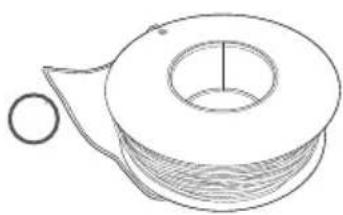
What's in the box
natural_image
Line drawing of a spool with a handle and spool of thread (no text or symbols)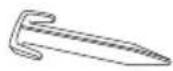
O
O
42 31

5
6
text_image
wire x100m/150m ⑦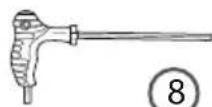
8

9
① Boundary wire x100m/150m
② Boundary wire pegs x120/180
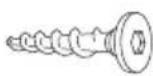
③ Charge station groundscrew x4
④ Blades x9
⑤ Blade screws x10
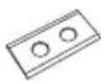
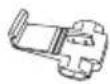
⑥ Wire splicer x4
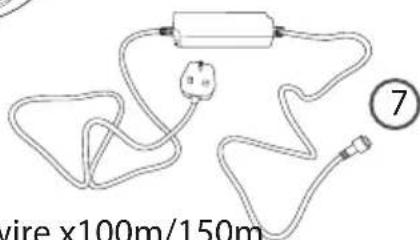
⑦ Power supply
⑧ Allen tool
⑨ Charging rods x2
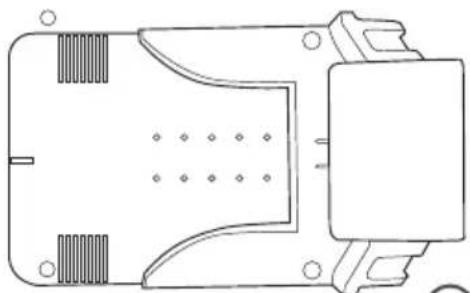
10 Charging station
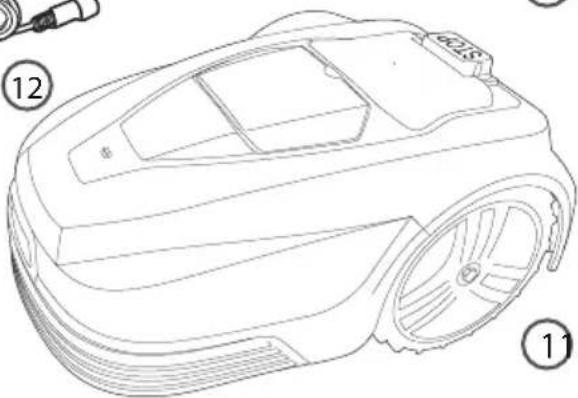
⑪ Robot Mower
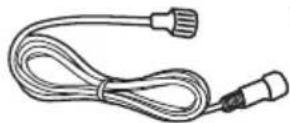
12 5m extension cord
natural_image
Technical line drawing of a mechanical component with no visible text or symbols10
natural_image
Line drawing of a robotic car with labeled parts (1, 12), no text or symbols presentPreparing your lawn for the Robot Mower
Min 35cm Charge Station
flowchart
graph TD
    A["The mower needs a full and complete perimeter loop in order to operate. The loop carries a weak electrical signal that the mower uses to know where it is in the garden."] --> B["Boundary wire"]
    B --> C["Anti-clockwise"]
    C --> D["Anti-clockwise"]
    D --> E["Min 1.2m"]
    E --> F["Min 2m"]
    F --> G["Min 30cm"]
    G --> H["Max 1.5cm"]
    H --> I["Anti-clockwise"]
    style A fill:#f9f,stroke:#333
    style B fill:#ccf,stroke:#333
    style C fill:#cfc,stroke:#333
    style D fill:#fcc,stroke:#333
    style E fill:#ffc,stroke:#333
    style F fill:#cff,stroke:#333
    style G fill:#ffc,stroke:#333
    style H fill:#cfc,stroke:#333
    style I fill:#fcc,stroke:#333

natural_image
Simple green line diagram with circular nodes and a checkmark (no text or symbols)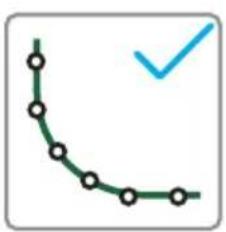
natural_image
Simple curved line with circular markers and a blue checkmark (no text or symbols)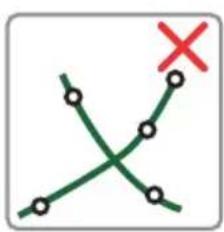
text_image
Diagram showing two intersecting green lines with marked points and a red 'X' symbol, likely indicating a decision or comparison point.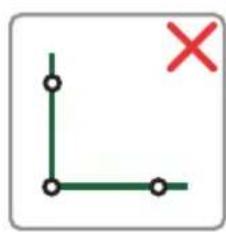
natural_image
Simple geometric diagram with green lines and marked points, no text or symbols present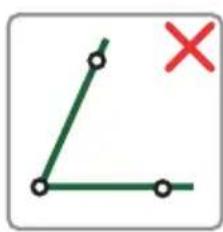
natural_image
Simple geometric diagram showing two green lines with a red 'X' mark, no text or symbols presentDon't cross wires No right angles No acute anglesObtuse
text_image
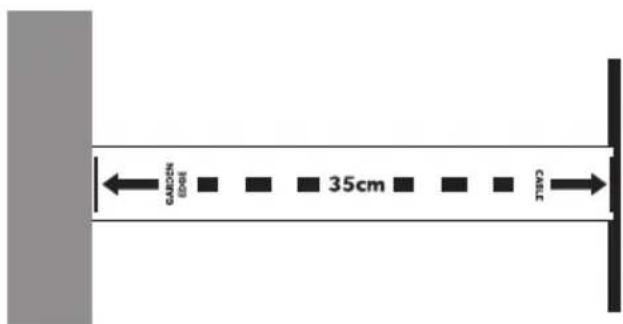
GARDEN (60m) 35cm GARDENThere is a handy ruler you can press out of the carton that will help you measure 35cm all around your garden.
There may be parts of your garden which will be challenging or even impossible for your Robot Mower. Your Robot Mower will not stray beyond the boundary wire you must lay around your garden.
It will change direction on making contact with things like:
- Posts and poles (e.g. washing lines)
- Fences and walls around trees
But it will need to be kept away from:
- Dug borders
- Trees with exposed roots
- Flower beds
- Ponds and water features
• Excessively uneven terrain.
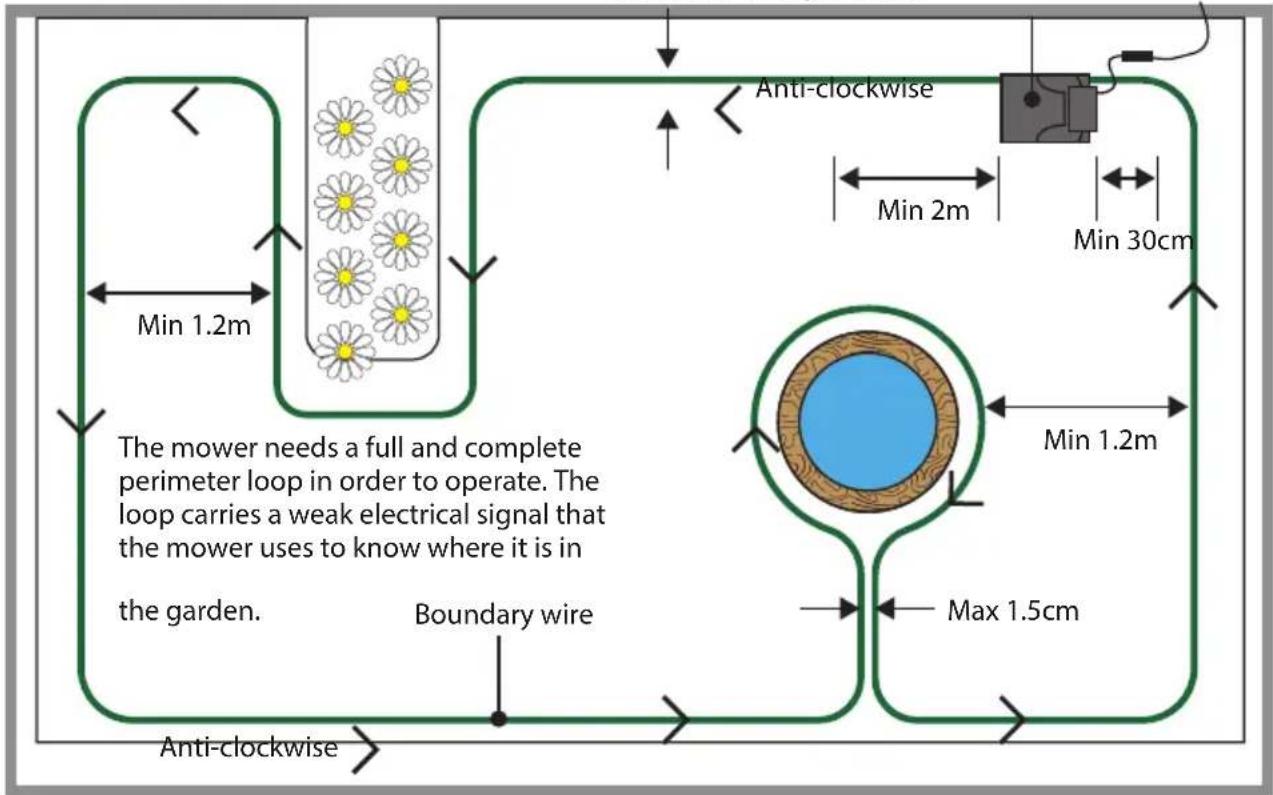
The wire must be kept taut and never be allowed to loop or cross over itself. Ideally if ground is particularly uneven the wire can be buried upon deep and pegged down to secure. This can be achieved easily with a manual edging tool. If this is not desired or possible then the wire should be firmly pegged around the garden with pegs at a minimum of 1m intervals, keeping the cable taut to avoid it being cut by the mower, more so at corners and over uneven terrain. The cable should be positioned a minimum of 35cm from the edge of the garden, as the mower will overlap the wire, although it will not stray past it.
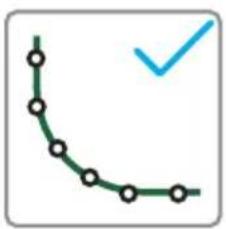
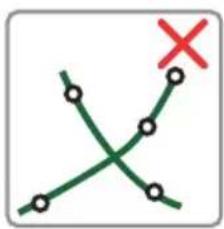
On corners the wire should not be laid at a sharp angle or right angle, but curved or a series of obtuse angles. The mower can detect a signal from the wire from as much as 18m away. It should be noted that due to this set up some areas of the lawn will not get mowed such as outside the perimeter edges. These can be maintained using a suitable grass trimmer. If the ground where the wires are to be laid is particularly dry and the soil hard from lack of rain, it will help to thoroughly water the garden before attempting to lay your perimeter wire.
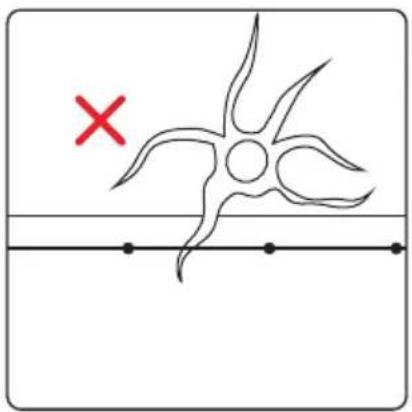
Rectifying or avoiding problem areas Obstacles such as tree roots on lawn
natural_image
Simple line drawing of a flower with a red X mark and a horizontal line below (no text or symbols)If a tree root is protruding into the perimeter of your cutting area it would present a problem for the mower.
natural_image
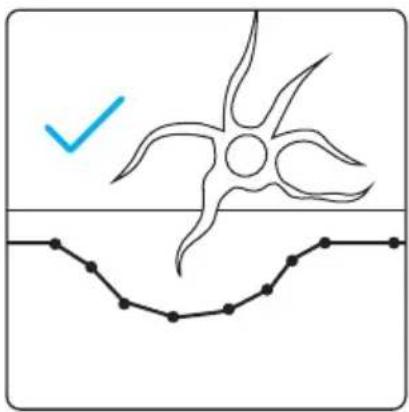
Simple line drawing of a sun with rays and a checkmark, above a curved line (no text or symbols)One solution is to take the perimeter around the tree root, leaving this area unmowed.
natural_image
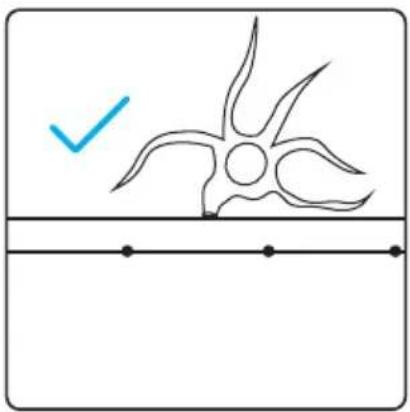
Simple line drawing of a flower with a checkmark and horizontal line, no text or symbols presentAlternatively, cut the tree root back with a saw and fill any resulting uneven surface, then set the perimeter over it.
Excessively uneven areas of lawn
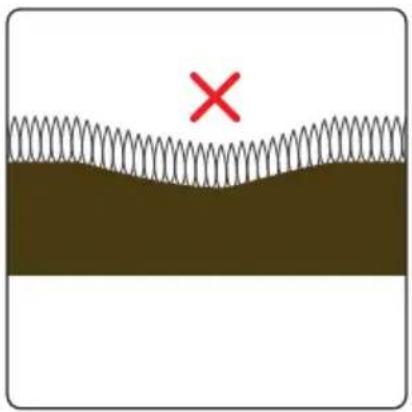
natural_image
Diagram showing a wavy line with a red 'X' marker above it, no text or symbols presentA deep enough dip in the surface of your lawn will also present problems, possibly causing the mower's wheels to lose their grip and skid.
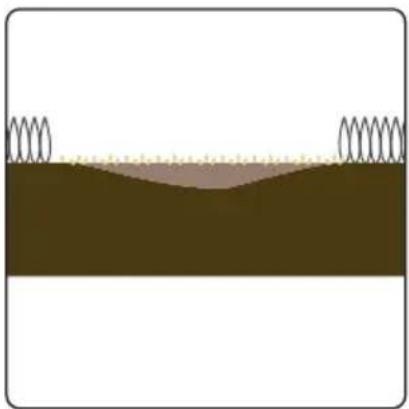
natural_image
Cross-sectional diagram of a geological or sedimentary layer with two spring-like formations above and below the water surface (no text or symbols)If you don't want to avoid mowing this area, it's best to fill it with soil, compact it down and re-seed it with grass.
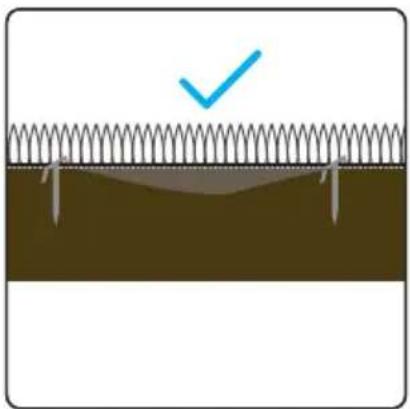
natural_image
Diagram showing a spring-loaded structure with a checkmark above it, no text or symbols presentIf the area is on the perimeter line this can be pegged out as normal. If it is within the mowing area it should no longer be a problem.
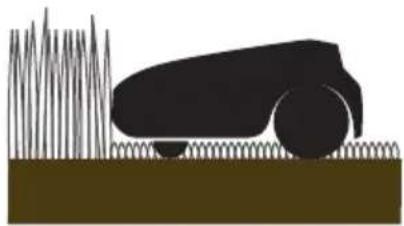
natural_image
Silhouette of a car on a brown ground with spring-like waves in the background (no text or symbols)If your mower encounters particularly long grass it may treat it as an obstacle as it could bump the mower's obstacle sensor. The grass needs to be at a reasonable level before the Robot Mower can function correctly.
Installing the charging station
text_image
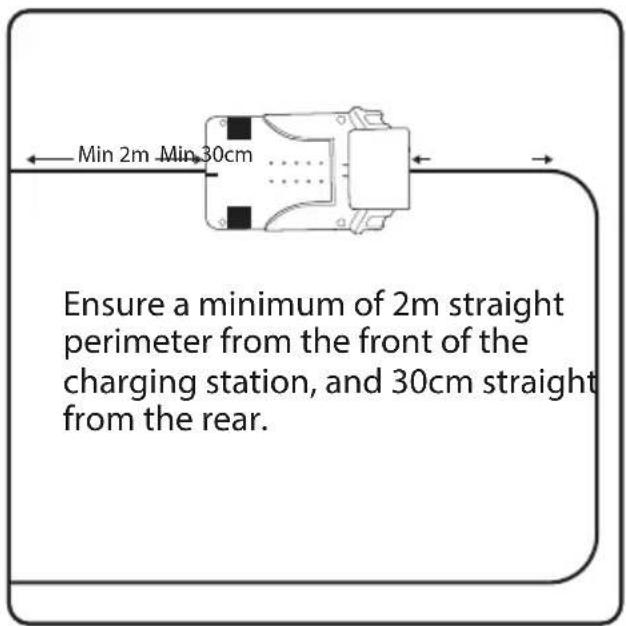
Min 2m Min 30cm Ensure a minimum of 2m straight perimeter from the front of the charging station, and 30cm straight from the rear.Find a location with access to power, ensuring the mower can leave the charging station in an anti-clockwise direction. Don't peg the plate down yet.
text_image
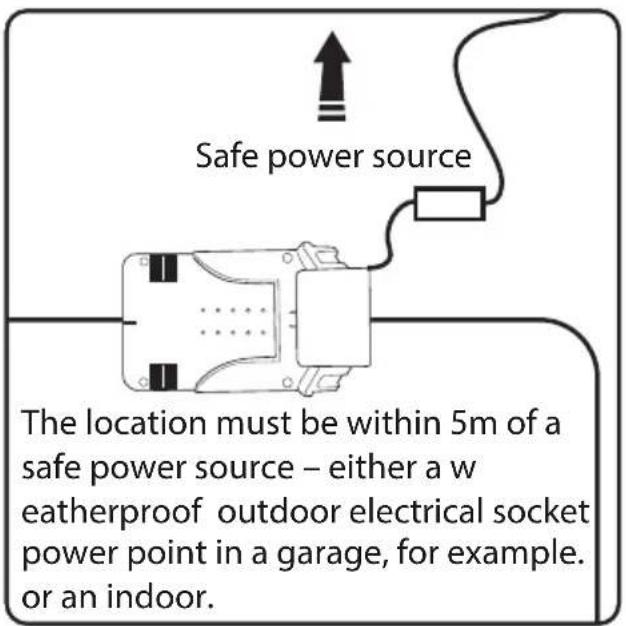
Safe power source The location must be within 5m of a safe power source – either a w weatherproof outdoor electrical socket power point in a garage, for example. or an indoor.The location of the charging station should be flat and secure, without risk of movement, if placed next to a border edge that is unstable it can slump and cause the station to be uneven, this will cause problems for the mower when returning to charge.

WARNING: Trailing wires are a trip hazard. Take care when choosing your location.
text_image
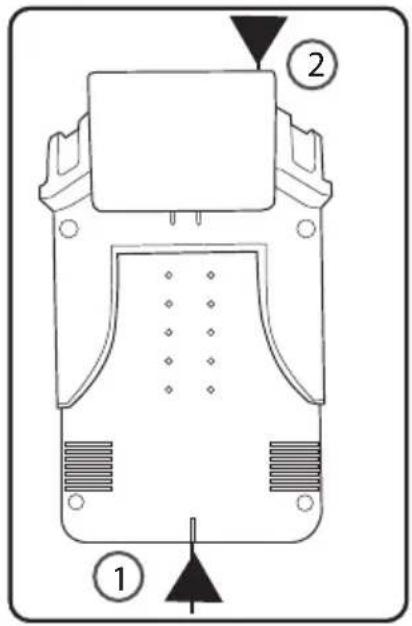
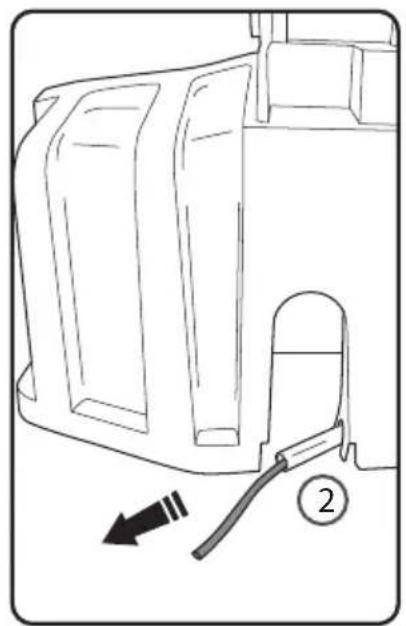
Technical diagram of a mechanical component with labeled parts 1, 2, and directional indicatorsThe boundary wire goes into the front (1) of the charging station and comes out at the back (2).
text_image
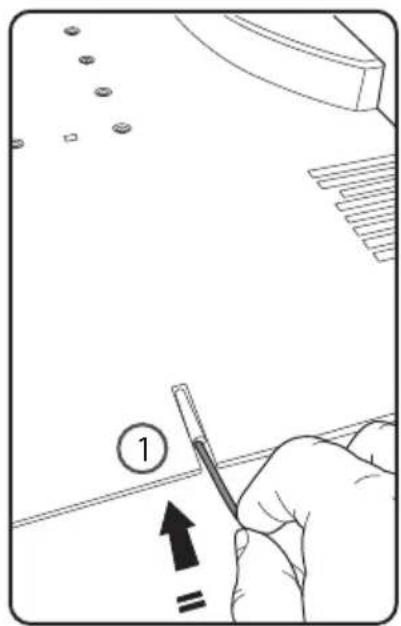
1 =Push the boundary wire into the tube at the front (1) of the charging station.
natural_image
Technical line drawing of a mechanical component with an arrow indicating direction and a numbered label (2) at the end (no text or symbols on the diagram itself)It will emerge at the rear of the unit (2).
natural_image
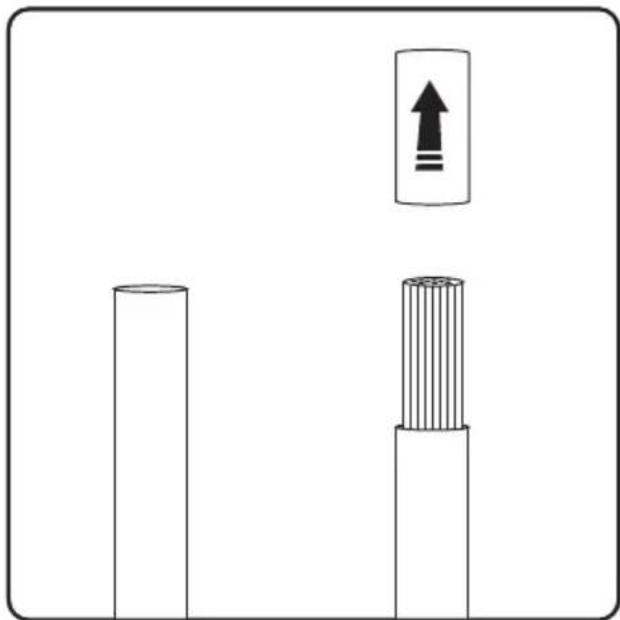
Diagram showing two cylindrical objects with a vertical stack of wires and an upward arrow symbol (no text or labels)You will need to strip the plastic sheath from the end of the wire before ing. connect
Twisting the exposed wires after exposing helps ensure a good connection.
natural_image
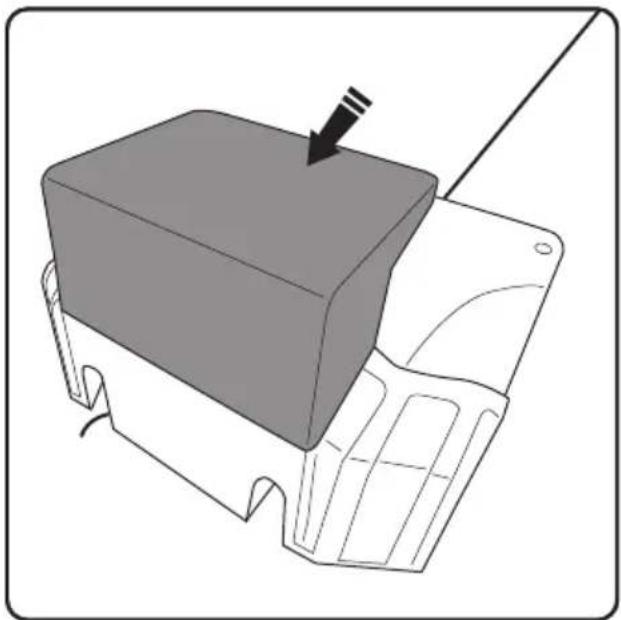
3D diagram of a mechanical component with a highlighted section and arrow, no text or symbols presentThe charging stand has a hood at the back (shown in grey) that hinges forwards.
natural_image
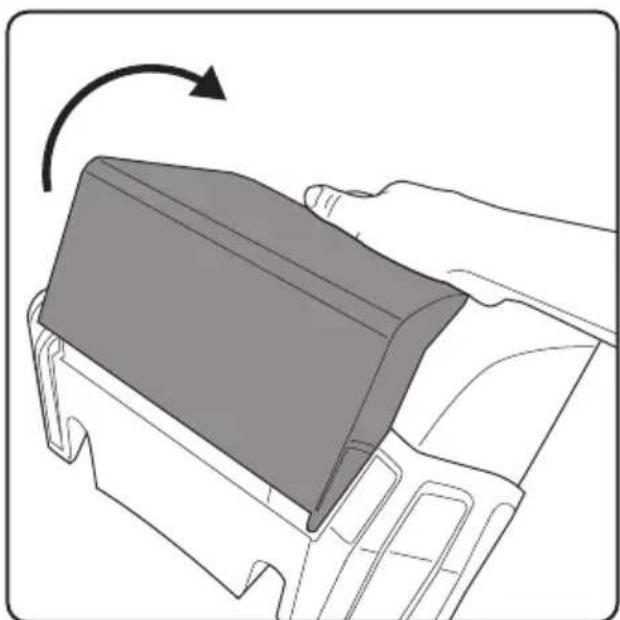
Diagram of a hand pressing a component with an arrow indicating rotation (no text or symbols present)Push the charging station hood forward to uncover the wiring terminals.
natural_image
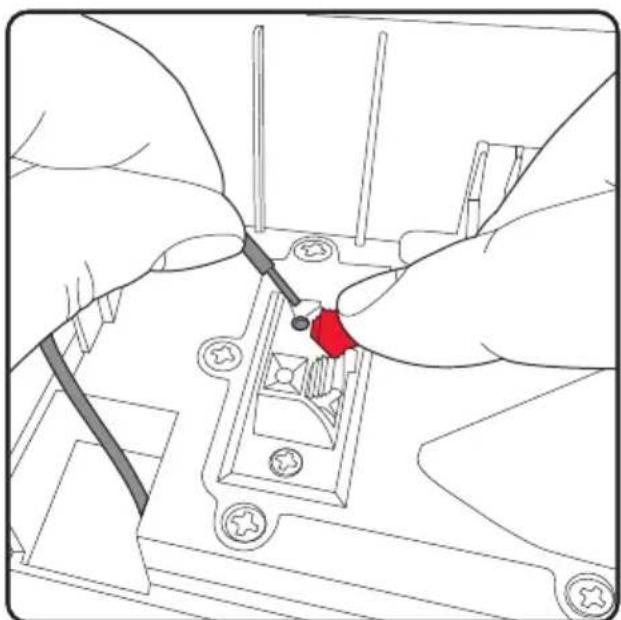
Illustration of hands using a tool to adjust or install a mechanical component (no text or symbols visible)The sprung terminal will need lifting to expose the hole, ensure the wire is full inserted before releasing the red terminal clip.
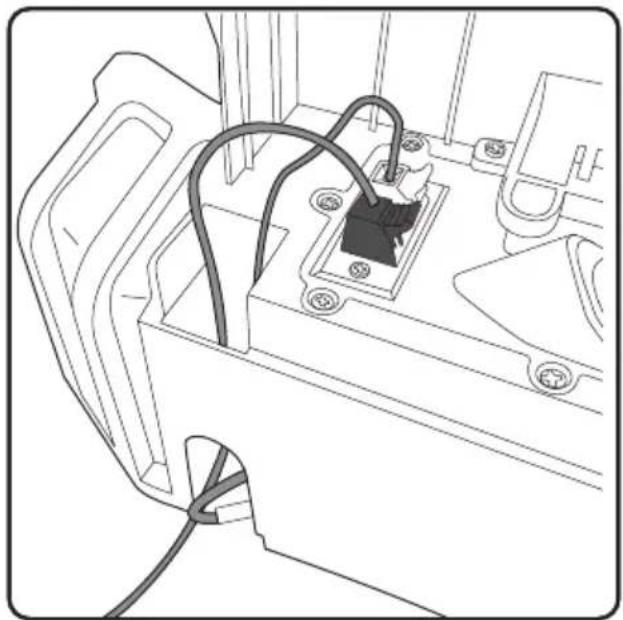
natural_image
Technical line drawing of a mechanical assembly with wires and components (no text or symbols)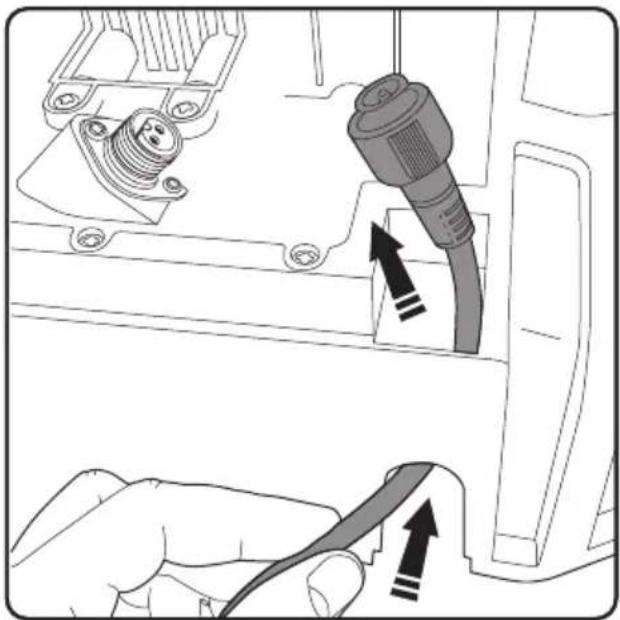
natural_image
Diagram showing a hand holding a cable with an attached plug, next to a mechanical component (no text or symbols visible)When you have completed your boundary wire the power lead up through the other wire it must return to the charging station side of the base station and be fed up through the unit and plugs in at the black terminal.

natural_image
Line drawing of a mechanical component with two connectors and mounting holes (no text or symbols)Pay attention to the cable fittings as there is a keyway orientation detail to ensure correct connection.
natural_image
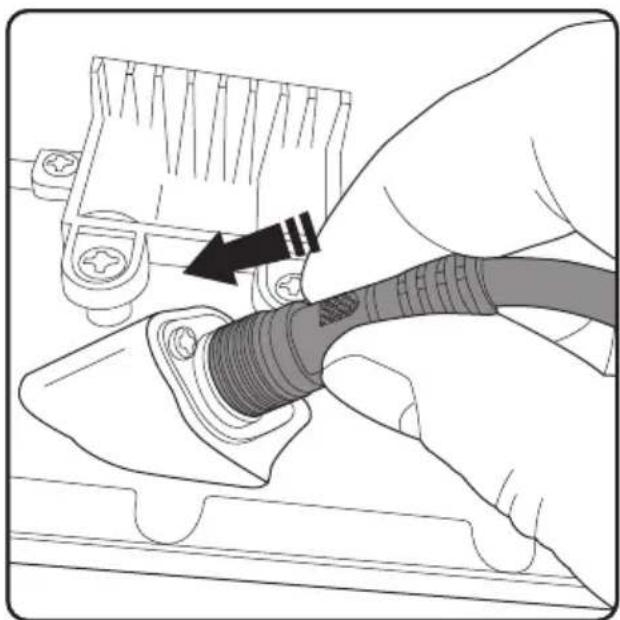
Illustration of a hand connecting a cable to a plug socket (no text or symbols visible)Push the power cable into place

natural_image
Illustration of a hand using a tool to adjust or install a component, showing a curved arrow indicating rotation (no text or symbols present)Then screw on the outer ring to secure the cable in place and prevent water ingress.
natural_image
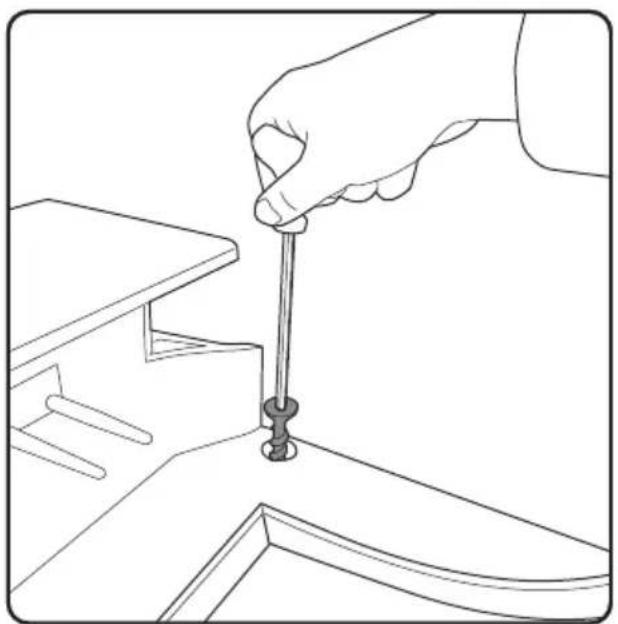
Line drawing of a hand using a screwdriver to lift a small object on a wooden table (no text or symbols)Once the base station has been fully wired, it can be secured in place with the four screws provided. Use the allen key provided to screw them in securely ensuring they are fully inserted and flush with the station base. Protruding screws can hinder the mower from locating correctly.
natural_image
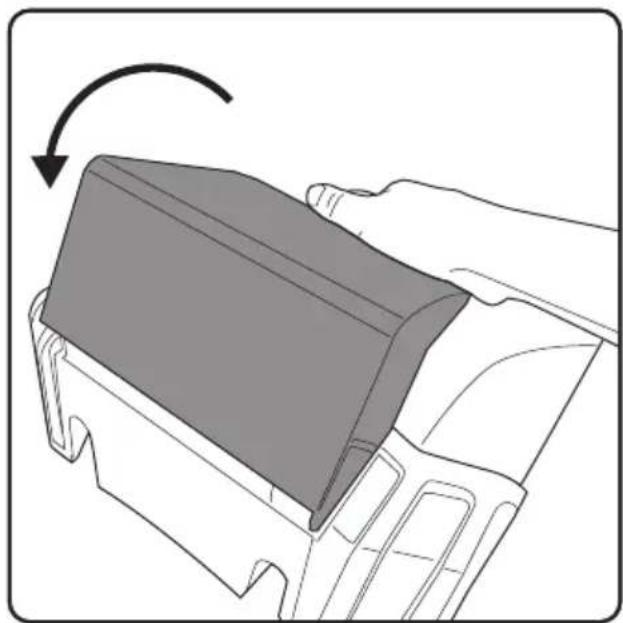
Diagram of a hand pressing a component with an arrow indicating rotation (no text or symbols present)Push the cover back to its original position to cover the wires and connections from water ingress.
text_image
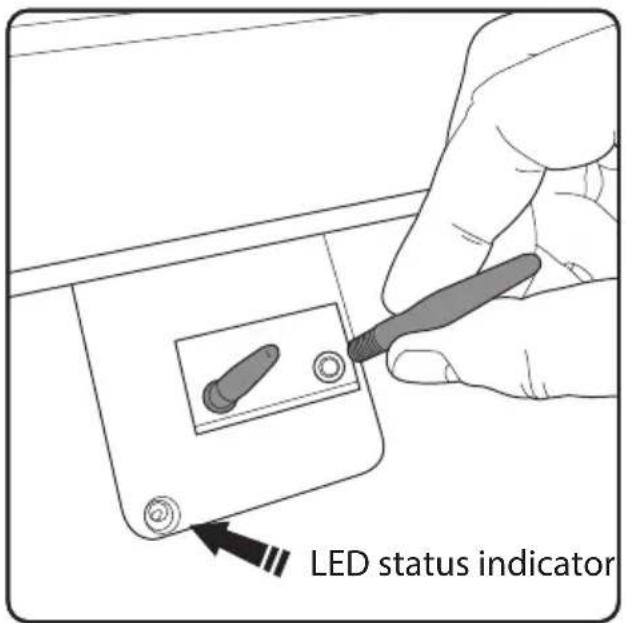
LED status indicatorMaking sure the power is switched off at the socket, screw the two charging rods base station. Note: This is where the LED status indicator is situated. See page 22.
Laying the boundary wire
text_image
Min 2m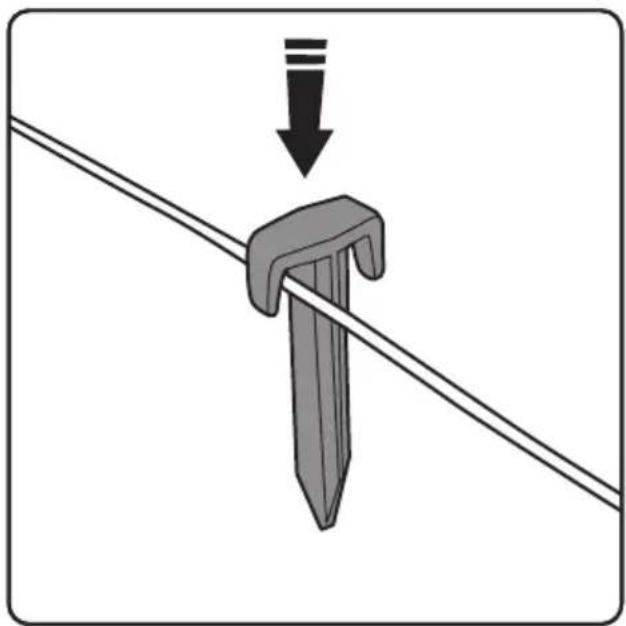
natural_image
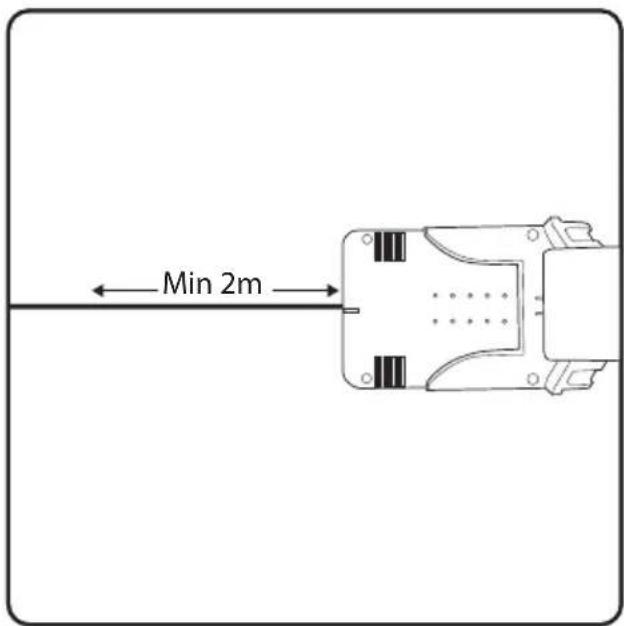
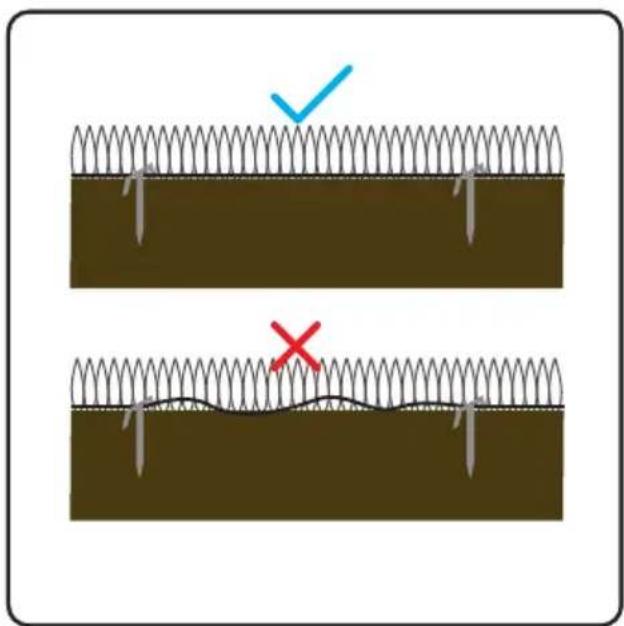
Diagram showing a tool inserted into a wire with a downward arrow indicating force or direction (no text or symbols)Keep the wire straight for at least the first Place the pegs at intervals of about 1m on 2m. This is to allow the mower to return to straight and even ground, 30cm to 50cm on the charging stand with ease. bends and corners. Uneven ground and obstacles will require more pegs.
text_image
Diagram showing two methods of securing a barbed wire, with checkmark and cross symbols indicating failure or rejection.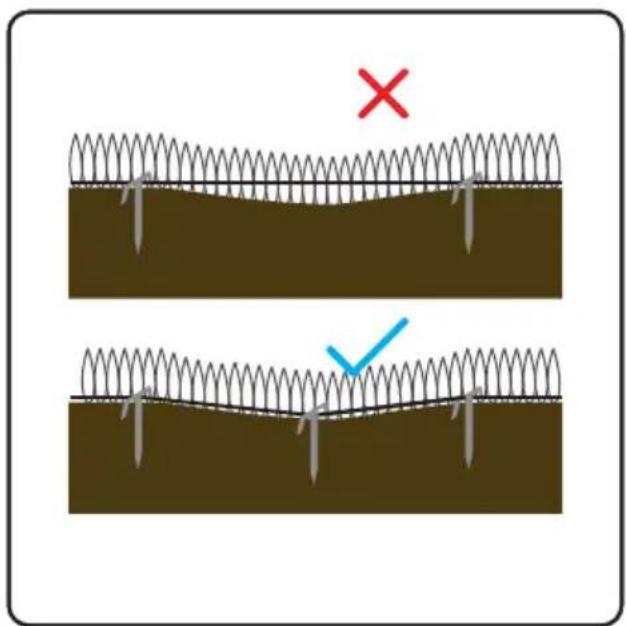
text_image
Diagram showing two scenarios of a spring-loaded structure with a red 'X' mark and a blue checkmark indicating a specific point.The perimeter wire must be kept tight. If it is the wire passes over a moderate dip in the loose it may well end up being cut by the lawn, more pegs will be required to keep the mower as it passes over it. wire firmly pegged at ground level, or it risks being cut.
Operating the mower
natural_image
Top-down line drawing of a car interior with a stop button labeled 'STOP' (no other text or symbols)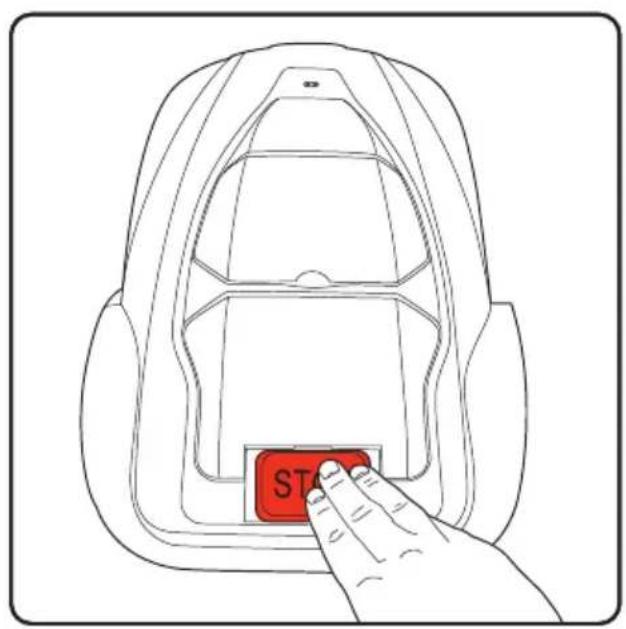
text_image
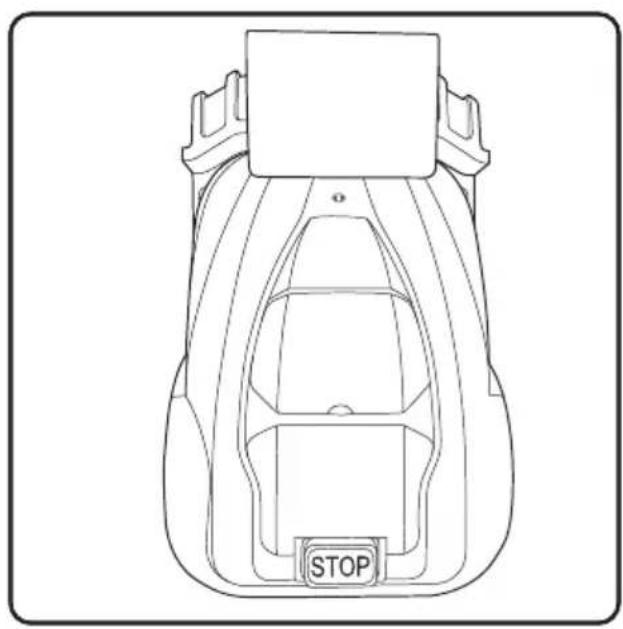
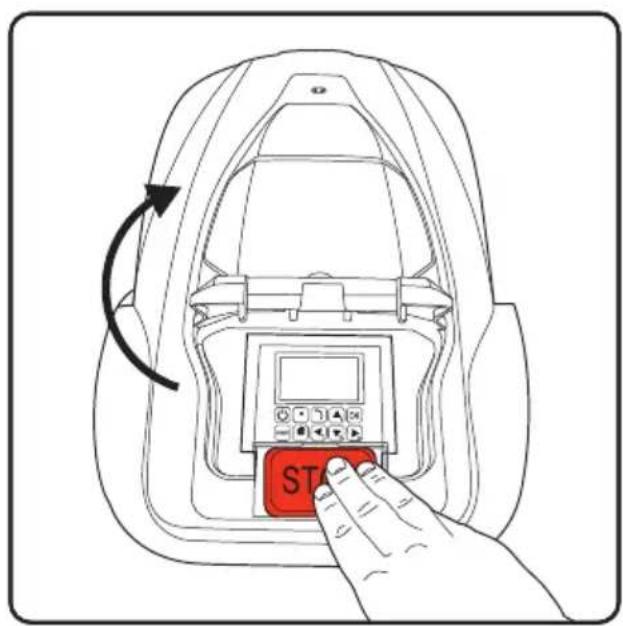
STPlace the mower on the base station with Press the STOP button the wheels on the grips and the two pins engaged into the front of the mower. Note: the mower will require to be charged to at least 70% capacity before it will leave its station.
text_image
ST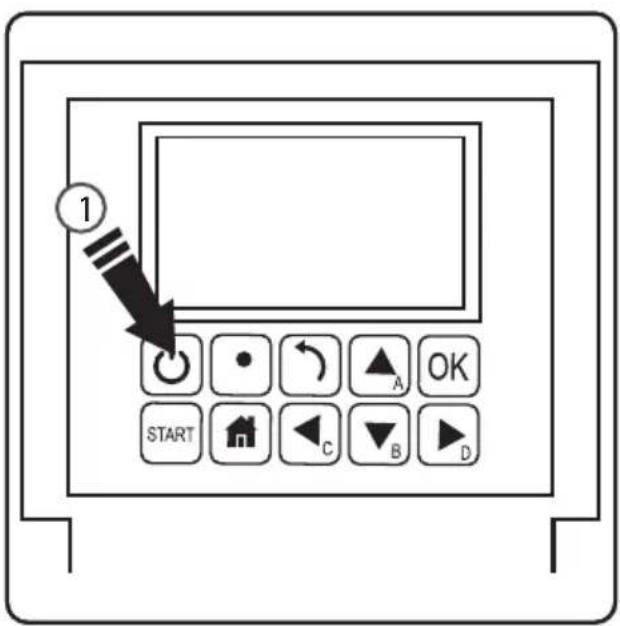
text_image
1 START C B OK AThis will flip open the control panel and LCD display cover.
Hold the power button (1) down for three seconds to activate the LCD display.
Control panel
text_image
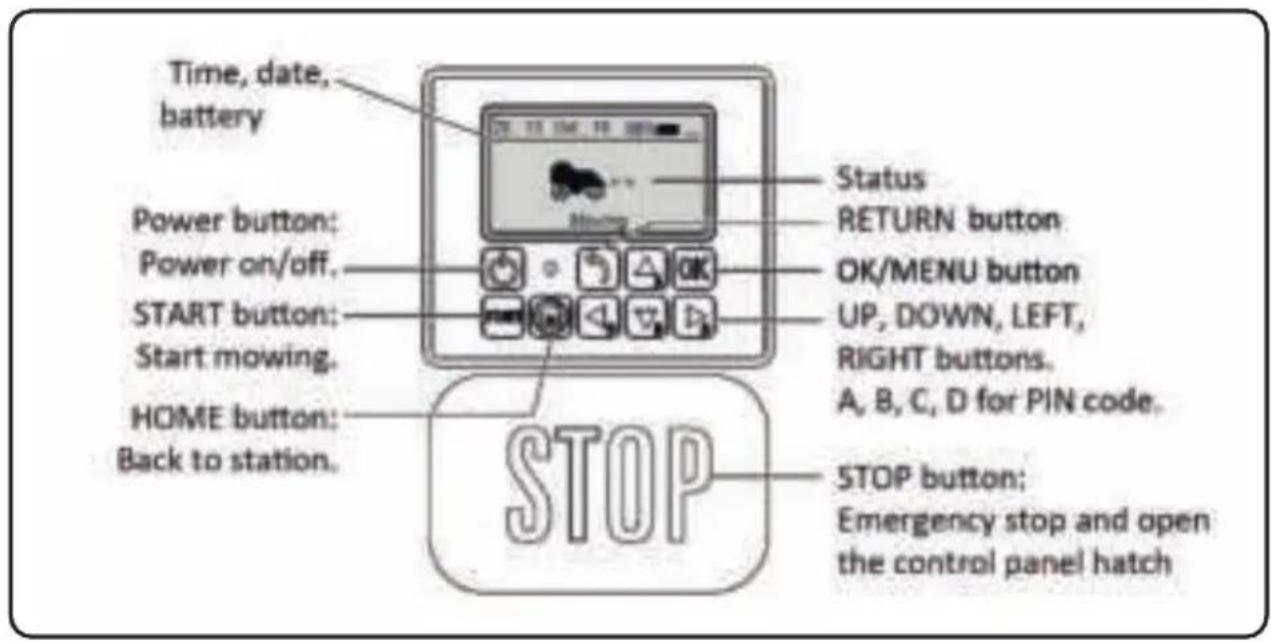
Time, date, battery Power button: Power on/off. START button: Start mowing. HOME button: Back to station. Status RETURN button OK/MENU button UP, DOWN, LEFT, RIGHT buttons. A, B, C, D for PIN code. STOP button: Emergency stop and open the control panel hatchCutting height adjustment
text_image
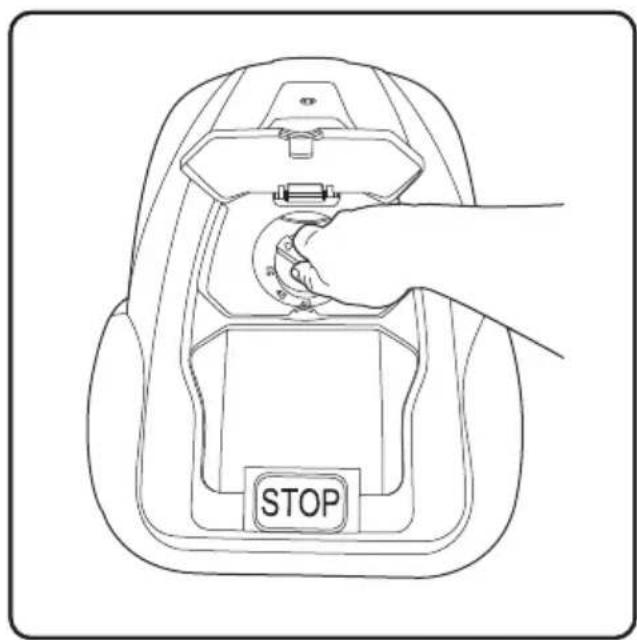
STOP- Open the knob lid.
- Cutting height can be adjusted from 2.5cm to
5.5cm by rotating the adjustment knob.
Getting started:
Set the cutting height
The first cut of the season or long thick wet grass will need the highest setting (5.5cm). Gradually reduce to desired height once all ground has been covered. This may take a few days or a few weeks. If the perimeter wire is pegged to the surface of the garden rather than buried, it is a good idea to let the wire "bed in" to the surface of the lawn, during which time it is advisable to keep the mower on an elevated blade setting. NOTE during first few days of mowing the grass may look stripy or patchy where the mower has covered /not covered. This is normal and will become even after several days once the full lawn area has been mowed.
First use
The control panel will ask for a pass code. The default PIN is: AAAA
Pressing the start button and closing the flap will cause the mower to start a perimeter circuit after which it will begin randomly mowing the lawn.
First use
The first few mows will appear random and unfinished, this is normal. With the multiple passes the mower makes over time, this will even out, and by using zoning and spiral spot mowing a desirable effect can be achieved in less time. These methods are explained on page 19.
New season mowing
Between mowing seasons when the mower is not operating (during winter months) the grass can become unkempt and thickets emerge. On new season setup review mowing pass and address any problem areas.
| Status | Meaning |
| Standby | Mower is ready to work |
| Mowing | Mower is mowing automatically |
| Spot Mow | Mower is mowing spirally |
| Returning | Mower is going back to station |
| Charging | Mower is charging |
| Charge to work | Mower is charging and will continue program when charged |
| Emergency stop | Mower is stopped manually |
| Error | Mower cannot work |
| Firmware update | Firmware is updating |
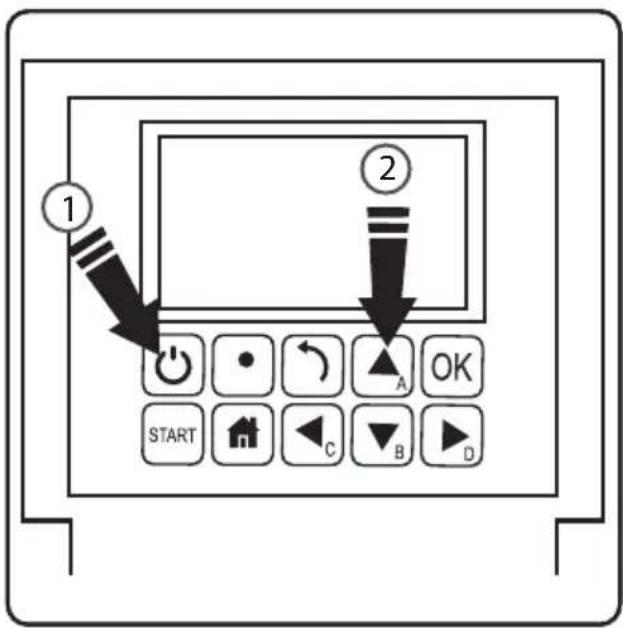
Power on
text_image
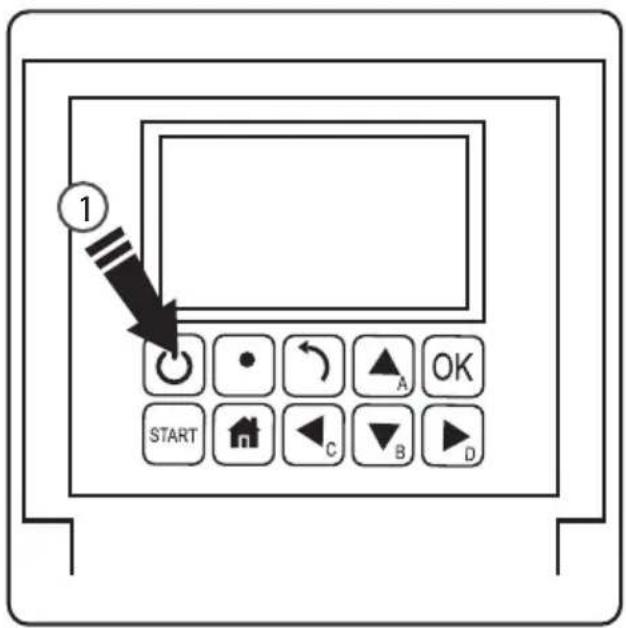
① ② START C B DPower off
text_image
1 START C B OK A- Press the power button for 3 seconds.
- Enter the 4-letter PIN code. The default PIN code is "AAAA".
-
The mower will now await further instruction in standby mode.
-
Press the power button for 3 seconds.
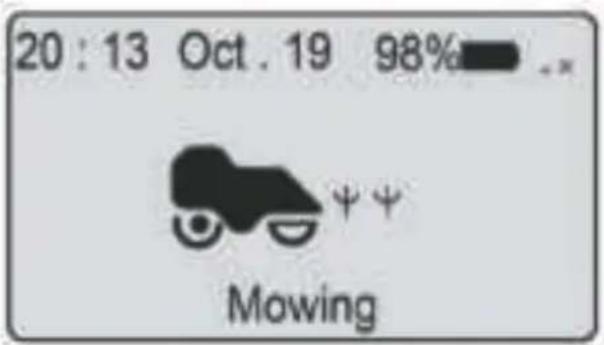
Start mowing
text_image
20:13 Oct.19 98% Mowing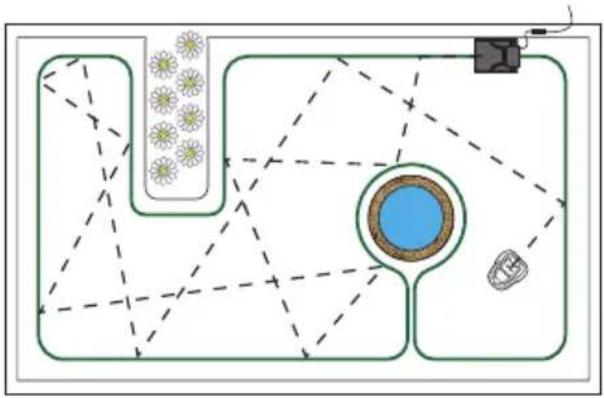
flowchart
graph TD
    A["Flower"] --> B["Central Circle"]
    B --> C["Top Right"]
    B --> D["Bottom Left"]
    B --> E["Bottom Right"]
    B --> F["Bottom Left"]
    B --> G["Top Left"]
    style A fill:#f9f,stroke:#333
    style B fill:#ccf,stroke:#333
    style C fill:#cfc,stroke:#333
    style D fill:#fcc,stroke:#333
    style E fill:#cff,stroke:#333
    style F fill:#ffc,stroke:#333
    style G fill:#cfc,stroke:#333
- Press START button
- Close the cover to start
- Note: If the battery is below 70% charge, the mowerenters 'charge to work' mode until itreaches 90% charge. If lower than 30% themower returns to base station to charge.
In standard mowing mode the mower will proceed in a random fashion around your garden, changing direction each time it reaches the boundary wire.
Work time setting
text_image
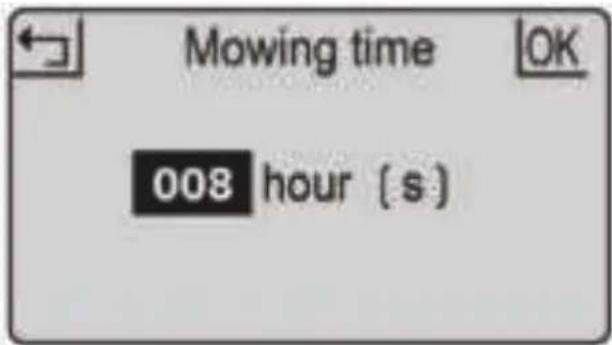
Mowing time OK 008 hour (s)This is the amount of time the mower will be active. This includes charging time. For example: if set to 8 hours and the mower is set to operate from 8:00pm it will operate until 4:00am. In this time it may mow for 1 hour charge for 2 hours mow again for 1 hour; charge for 2 hours, mow for one hour and return to charge ready for the next cycle.
- Press OK button to enter sub-menu 1.
- Select 'setting' to enter sub-menu 2.
- Select 'work time'.
- Set work time by UP and DOWN buttons. (default is 8hrs)
- Press OK button to confirm setting.
You may want to stop the mower during its cutting cycle. To do this:
Stop Back to station
text_image
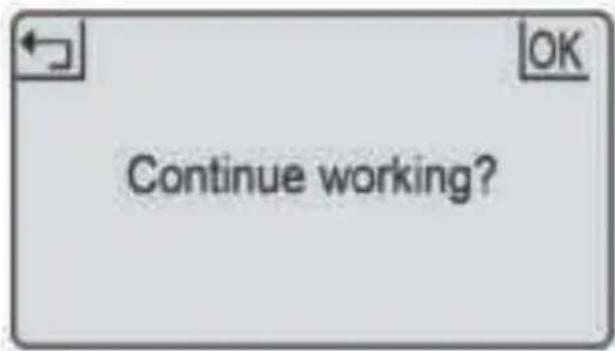
Continue working?- Press the STOP button.
- The mower stops immediately and the control panel hatch opens.
- The screen shows 'emergency stop'
- Press OK or RETURN button.
- Enter the PIN code
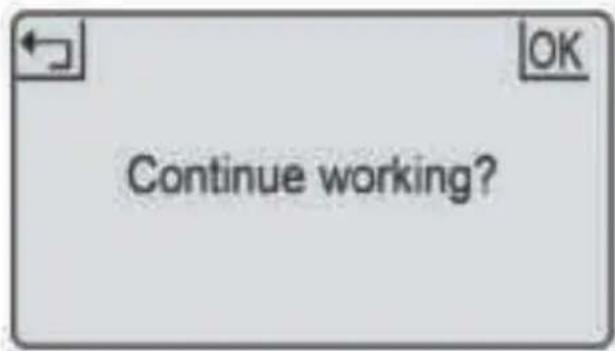
- If the mower was running when the STOP button was pressed, the screen will show 'continue to work?'. You can then either press OK to continue the task, or press RETURN to cancel it.
text_image
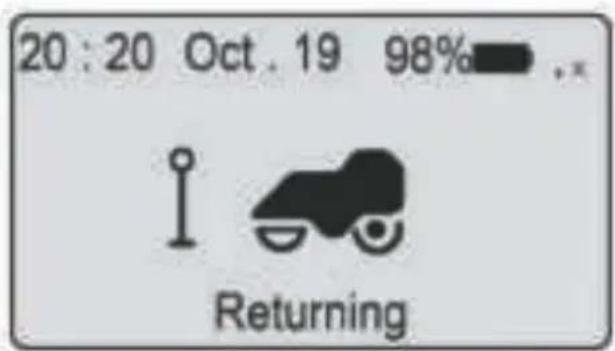
20:20 Oct. 19 98% Returning- Press HOME button for 3 seconds.
- Close the cover and mower will return to station for charging.
Charging
- Place the mower in the station (or press HOME button for 3 seconds)
- Mower will charge up to 100% and then go into standby.
- Mower will get charged again if battery is lower than 75%.
The mower charges on its station through the two charging rods.
These insert into the front of the mower. Ensure the holes are free of debris or obstructions and that the mower aligns when approaching the charge station.
Uneven ground on approach can cause the mower to not make a positive connection first time. If this happens consider levelling the ground or moving the station to a more suitable area.
Schedule
- Press OK button to enter sub-menu 1.
- Select 'schedule'.
- Press OK button to select the desired day.
- PressUP, DOWN, LEFT and RIGHT buttons to set the start and end time.
- Press OK button to confirm the daily setting.
- Repeat step 3 to 5 to complete the weekly plan.
- PressOK button to confirm the weekly setting.
This allows you to change mowing schedules for different days of the week, for example if you want to prevent mowing to occur on any given day or if other scheduled activity in the garden would prevent effective mowing during normal daily schedule.
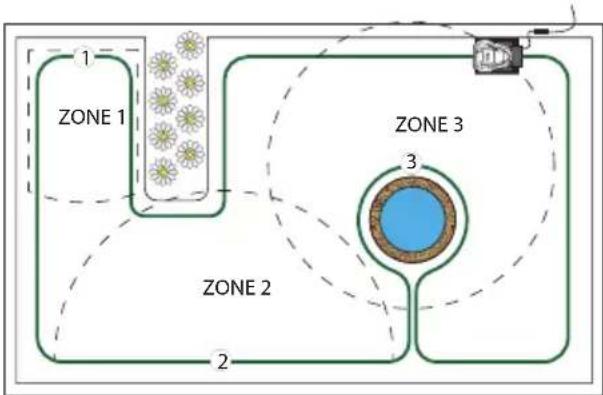
Zone
| zone | dst(m) | pct(%) |
| z_1 | 8 | 100 |
| z_2 | - | - |
| z_3 | - | - |
| z_4 | - | - |
| z_5 | - | - |
- Press OK button to enter sub-menu 1.
- Select zone
- Press OK button to select the desired zone.
- Press UP, DOWN, LEFT and RIGHT buttons to select the distance and percentage.
- Press OK button to confirm each zone.
- Repeat step 3 to 5.
- Press OK button to confirm the setting of all the zones.
flowchart
graph TD
    A["Zone 1"] --> B["Central Circle"]
    C["Zone 2"] --> B
    D["Zone 3"] --> B
    B --> E["Output"]
    style B fill:#90EE90,stroke:#333,stroke-width:2px
You can set up to 5 zones in your garden. This enables you to decide which areas need more or less attention. A zone is defined by determining the boundary wire distance from the charging station. The distance should be 0 to 500m and the percentages should add up to 100% or the setting cannot be completed
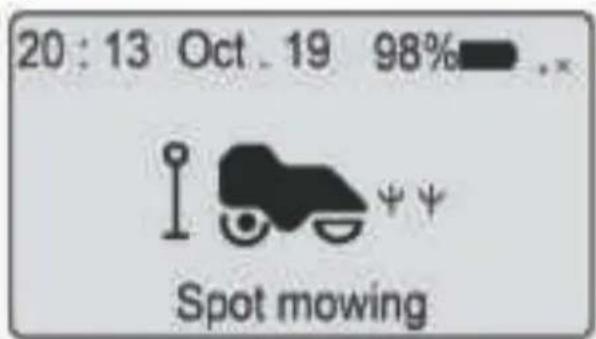
Spot mow
text_image
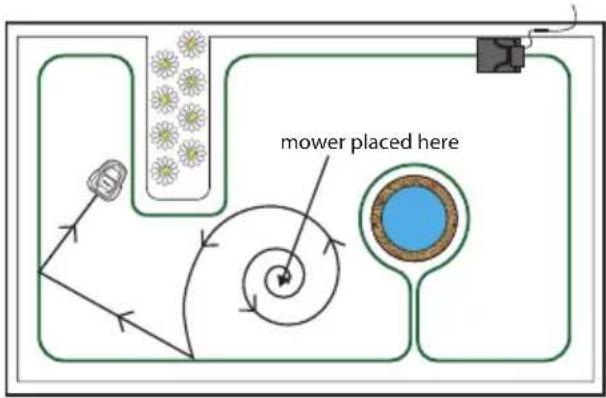
20:13 Oct. 19 98% Spot mowing- Place the mower in the garden.
- Press OK button to enter sub-menu 1.
- Select 'spot mode'.
- Close the cover to start.
flowchart
graph TD
    A["Flowers"] --> B["Central Bowl"]
    B --> C["Mower placed here"]
    C --> D["Flow Arrow to Center"]
    D --> E["Arrow to Left"]
    E --> F["Arrow to Right"]
    F --> G["Arrow to Bottom"]
    G --> H["Arrow to Left"]
    H --> I["Arrow to Right"]
    I --> J["Arrow to Bottom"]
The mower can be placed within the perimeter boundary and that the spot mow function will mow in relatively uniform spiral pattern for 5 minutes. This is useful when you want to cover a specific area or clear grass on the first mow more quickly.
Rain mode
text_image
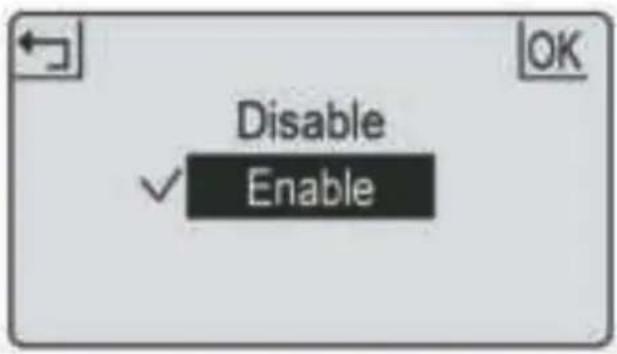
Disable EnableRain mode sets if the mower will go out in rain or not.
Disabling this will allow the mower to continue to work in the rain.
WARNING avoid activation during heavy rain and storms. Wet grass will cause additional load for the mower and mowing time may be reduced.
In some cases the mower may not return to the charge base in rain.
- Press OK button to enter sub-menu 1.
- Select 'setting' to enter sub-menu 2.
- Select 'rain mode
- Press UP and DOWN buttons to enable the rain mode.
- Press OK button to confirm setting.
Language Date and time
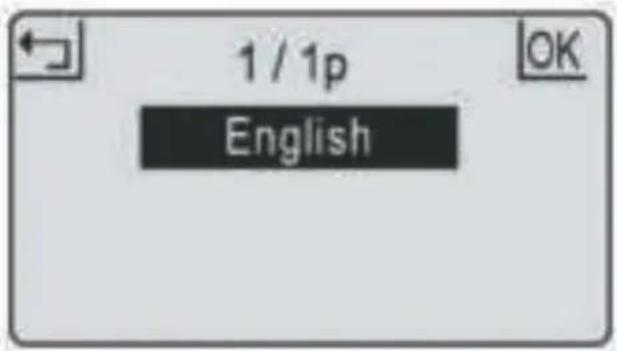
text_image
1 / 1p English- Press OK button to enter sub-menu 1.
- Select 'setting' to enter sub-menu 2.
- Select 'Language
- Press UP and DOWN buttons to select the desired language.
- Press OK button to confirm setting.
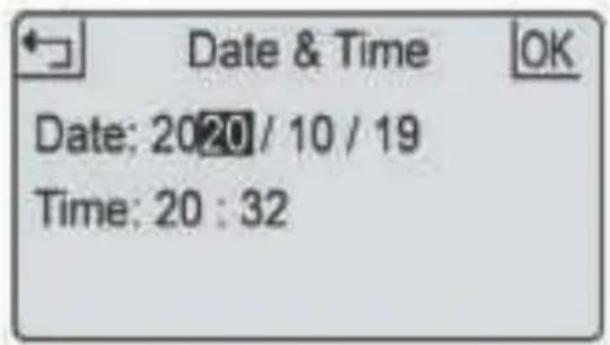
text_image
Date & Time OK Date: 2020/10/19 Time: 20:32- Press OK button to enter sub-menu 1.
- Select 'setting' to enter sub-menu 2.
- Select 'date & time
- Press UP, DOWN, LEFT and RIGHT buttons to set the date and time.
- Press OK button to confirm setting.
Setting date and time accurately ensures scheduling is accurate.
PIN code Change PIN code
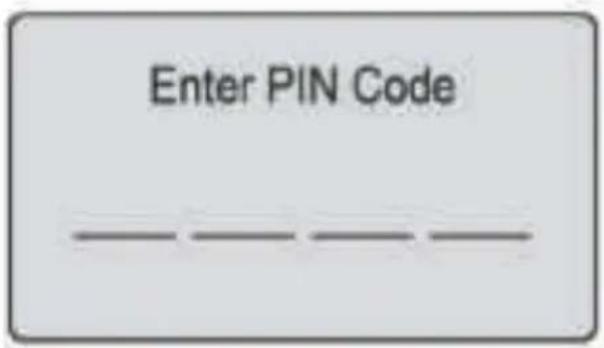
text_image
Enter PIN Code — — — —- PIN code should be entered after powering on, pressing STOP button, and before clearing error status and changing PIN code.
- If the PIN code is incorrect, the screen will show "PIN wrong, please retry
- If the PIN code is entered incorrectly 3 times, the screen will be locked for 15 seconds. The lock time will double for further incorrect entries.
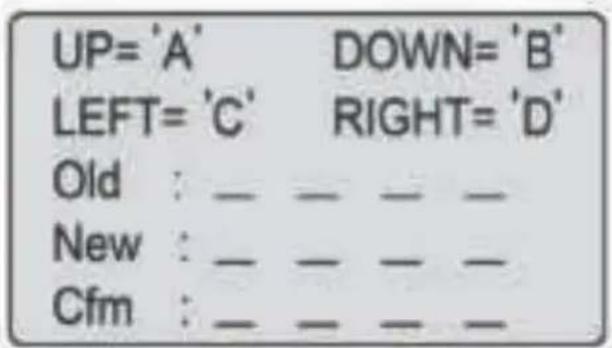
text_image
UP='A' DOWN='B' LEFT='C' RIGHT='D' Old : _ _ _ _ New : _ _ _ _ Cfm : _ _ _ _- Press OK button to enter sub-menu 1.
- Select 'setting' to enter sub-menu 2.
- Select 'change PIN
- Enter the original PIN code.
- Enter new PIN code.
- Enter the new PIN code again. ('New passwords do not match' will be shown for inconsistent passwords.)
- Press OK button to confirm.
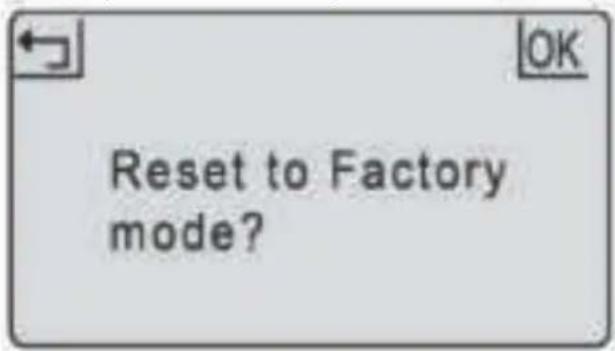
Factory reset Error log
text_image
Reset to Factory mode?- Press OK button to enter sub-menu 1.
- Select 'setting' to enter sub-menu 2.
- Select 'factory reset'.
- The screen shows Reset to factory mode?
- Press OK button to confirm.
text_image
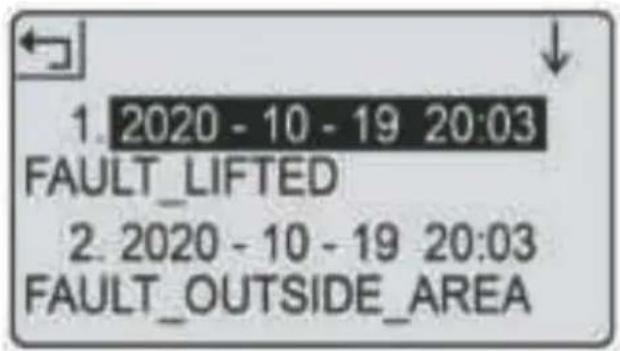
1. 2020 - 10 - 19 20:03 FAULT_LIFTED 2. 2020 - 10 - 19 20:03 FAULT_OUTSIDE_AREA- Press OK button to enter sub-menu 1.
- Select 'setting' to enter sub-menu 2.
- Select information to enter sub-menu 3.
- Select 'error log
- The past 10 records (including date, time and error message) will be shown.
In the event of malfunction the error log will record all actions and can be used for service maintenance and fault finding.
Work log Save power
text_image
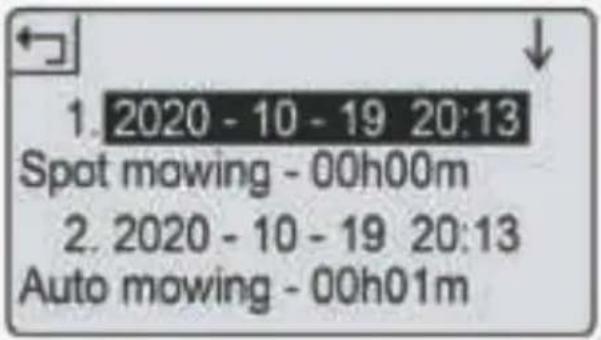
1. 2020 - 10 - 19 20:13 Spot mowing - 00h00m 2. 2020 - 10 - 19 20:13 Auto mowing - 00h01m- Press OK button to enter sub-menu 1.
- Select 'setting' to enter sub-menu 2.
- Select Information to enter sub-menu 3.
- Select 'work log
- The past 10 records (including date, time and work mode and work time) will be shown.
| LED on charge station |
| Solid red light |
| Flashing blue light |
| Solid blue light |
The backlight will switch off after 2 minutes in the mower will power off after 8 minutes, respectively, without user interference.
LED indicator
The backlight will switch off after 2 minutes and the mower will power off after 8 minutes, respectively, without user interference.
| Status |
| Broken boundary wire |
| Mower charging |
| Loop signal normal or fully charged |
| Sub-menu 1 Sub-menu 2 Sub-menu 3 | ||
| Spot mode | ||
| Setting | Language | English |
| German | ||
| French | ||
| Date & Time | ||
| Rain mode | ||
| Work time | ||
| Change PIN | ||
| Factory reset | ||
| Information | About | |
| Error log | ||
| Work log | ||
| Schedule | ||
| Zone | ||
Repairing the boundary wire
natural_image
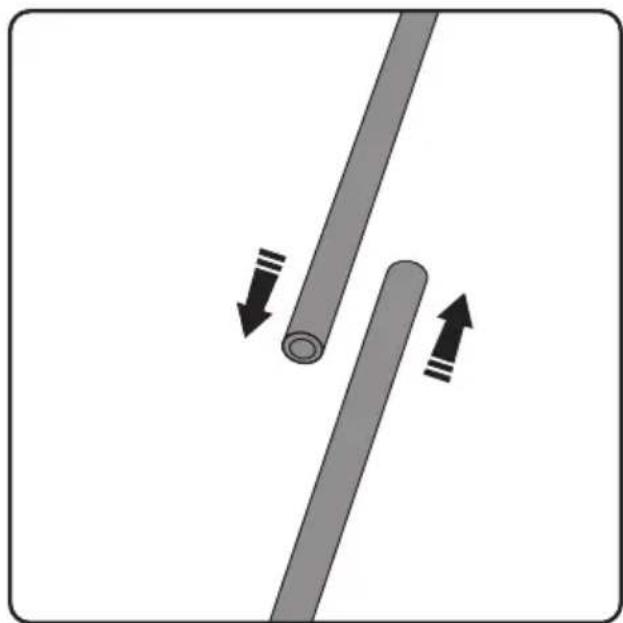
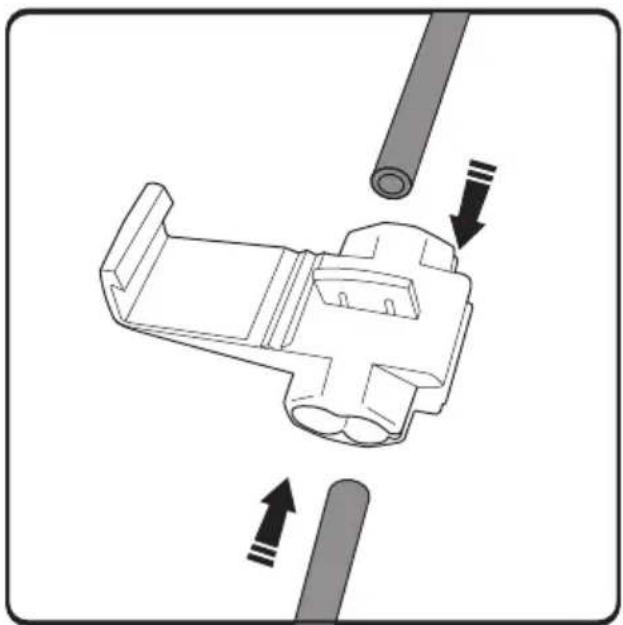
Diagram showing two parallel pipes with directional arrows indicating movement or force (no text or symbols)If the boundary wire gets cut or breaks for any reason (indicated by solid red light on charging station), you need to locate and repair it. You will need to use one of the splicing clips provided. First take up the slack in the wire so there is some overlap.
natural_image
Mechanical assembly diagram showing a component with arrows indicating motion direction (no text or symbols)The clip has two channels in it. Push one end into one channel and the other end into the other. The wire needs to go right in, and can even protrude from the other end.
natural_image
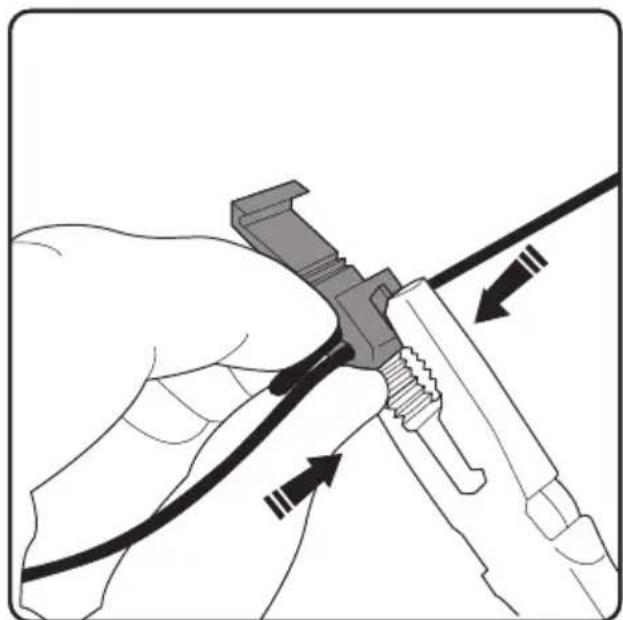
Illustration of a hand holding a cable with arrows indicating cable movement (no text or symbols)Taking a pair of pliers, crimp the metal tab onto the inserted wires. This will form a connection between the wires.
natural_image
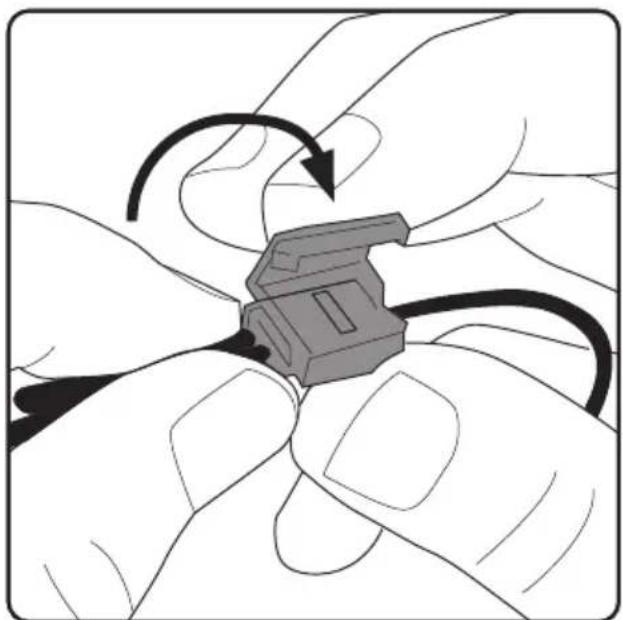
Illustration of hands holding a small electronic component with a curved arrow indicating rotation (no text or symbols)Close the cover of the clip until it clicks securely in place. You will then need to ensure the clip does not protrude on your lawn and risk being cut by the mower, by embedding it in the soil.
When the boundary wire is repaired the charging station will display a solid blue light. If the light is still red there are more breaks in the loop, which will need locating and repairing.
Replacing the blades
natural_image
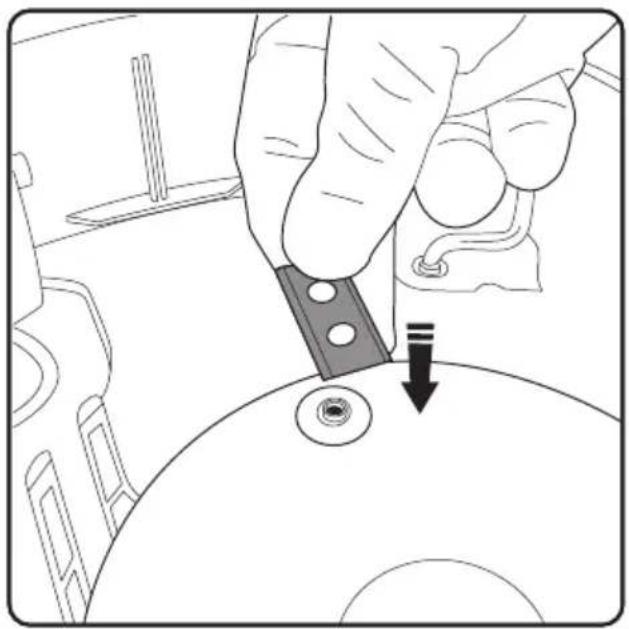
Hand holding a tool interacting with a circular component, showing a downward arrow indicating a process or operation (no text or symbols present)- Switch the mower off
- Wear protective gloves
- Turn the mower upside-down
- Place blade over raised screw-hole.
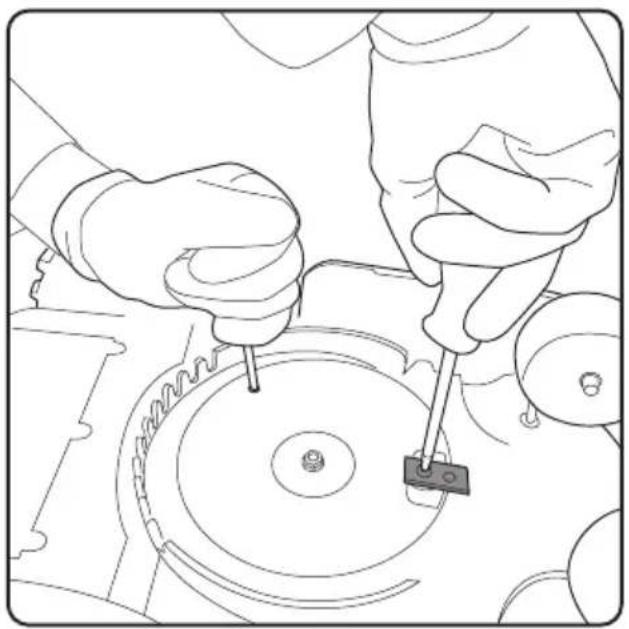
natural_image
Line drawing of hands using a tool to adjust or install a mechanical component (no text or symbols visible)- Use a second screwdriver to anchor the blade plate while you attach the blade.
- Using a cross head screwdriver, secure the blade on the blade plate. The blade should be able to rotate freely once fitted.
- Repeat for other blades
text_image
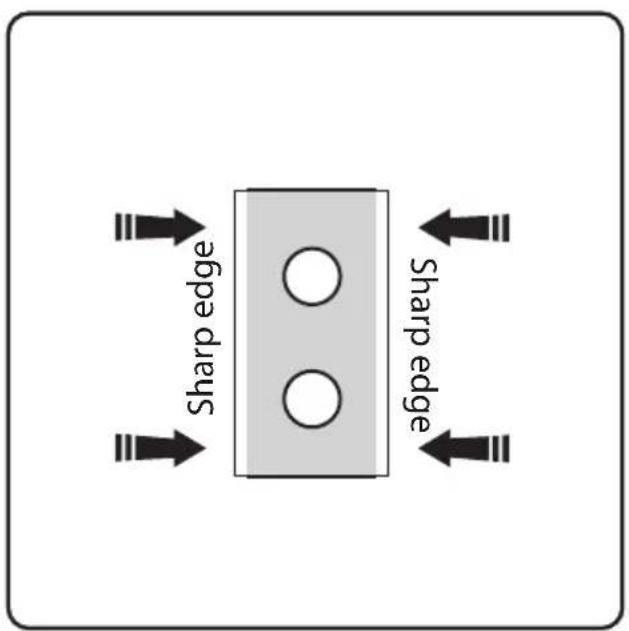
Sharp edge Sharp edgeRe-orientate the blade (turn it around or turn it upside down) as each corner wears out until all four quarters of the blade have been used. If all four quarters have been used, then replace blade.
natural_image
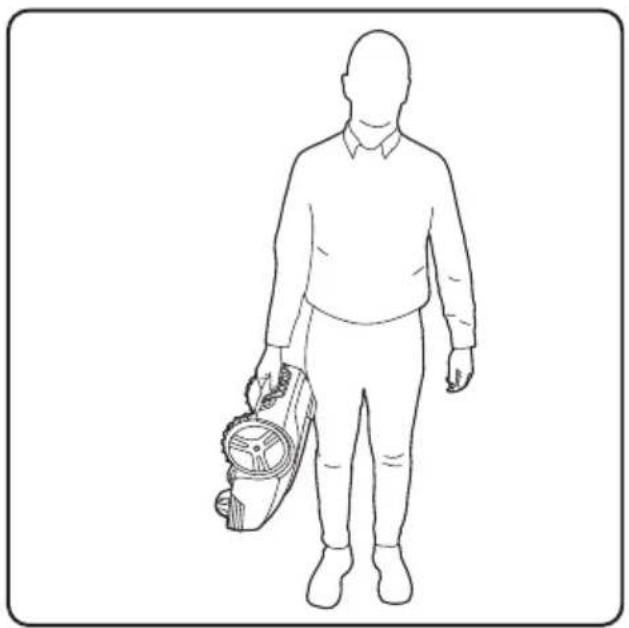
Line drawing of a person holding a device (no text or symbols)Carry the mower by the handle between the two rear wheels with the blades pointing outwards.
Troubleshooting
| Error message Cause Solution | ||
| Mower outside Mower is outside the perimeter | Place the mower inside the perimeter. | |
| Mower lifted | Mower is lifted away from the ground. | Move the mower to a flat part of the lawn. |
| Mower tilted | Mower is tilted too much | Move the mower to a flat part of the lawn. |
| Mower overturned Mower is upside down | Return the mower to its normal position. | |
| Mower trapped Mower is trapped by obstacles. | Remove the obstacles. | |
| Loop signal lost Power supply or the wire is not connected to the station, wire splicer. | Check the connection of the power supply, chargingstation and boundary wire. are okay. If not repair with this. | |
| Motor fault Blade motor or drive motor is stuck. The motor current too high. | Clear the grass or soil in cutting means and driving wheels. Cut the high and thick grass with a conventional lawn mower. | |
| High temp The battery temperature is too high. | Wait until the temperature decreases. | |
| Battery abnormal The battery is damaged. | Contact service@zoefrobot.nl |
Wheel spinning faults where the mower will stop in a single spot and wheel(s) spin is a combination of uneven and/or wet ground. The solution is to add soil to level the ground. Ensure good drainage of the lawn before mowing, and not to mow during heavy rain and water logging.
If the boundary wires are in the wrong connectors (so the signal is clockwise not counter-clockwise) then the mower will attempt to be outside the perimeter. If the mower leaves the area constantly then change the wires around at the charging station (moving the wire in red connector to black and vice versa).
Maintenance
- Check and clean mower regularly once a week.
- When you first start using the mower, the blade plate, protections plate and blades should be checked once a month.
- It is important that the blades and blade plate rotate easily.
- Blade edges should not be damaged. Blade life depends on the type of grass, soil, lawn etc.
- Working with dull blades gives a poor mowing result, which needs more power to mow, meaning the mower covers a smaller area at a time.
- Charge the battery fully at the end of the season before winter storage. If storage time is longer than one year you will need to recharge the mower before use.
Winter storage
- Mower must be carefully cleaned before winter storage. Charge the battery fully before storage
.2. Store the mower in the station and place in a dry area to protect from frost, preferably stored in the original packaging. - Boundary wire can be left in your lawn. As the charging station is removed you should protect boundary wire end from moisture with electrical tape.
After winter storage
- Check whether the mower, boundary wire and charging rods need to be cleaned before use. If the charging strips appear to be rusty, clean them by using an emery cloth or suitable abrasive cloth. Check whether the mower time and date are setting correctly.
- Check whether the blades need to be changed.
- Check whether the blades and blade plate turn easily.
Product Care

Wear protective gloves when handling, cleaning or replacing the blade.
To reduce the risk of injury ensure that safety key is removed when the mower is not in use, being transported, handled or stored.
Product support
For more information, please visit our support area where you can find troubleshooting help including online manuals, FAQs and How-to videos, as well as genuine spares and replacement parts compatible with your product.
www.zoefrobot.nl

www.ZoefRobot.nl

WhatsAPP +31 (0) 6 30407787

When the product has reached the end of its life, it and the Li-Ion battery it contains should not be disposed of with general household waste. The battery should be removed from the product and both should be disposed of properly at a recognised recycling facility.

Li-lon