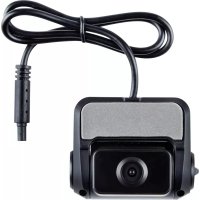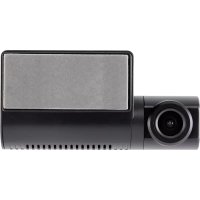
ROADsight 50 - Dashcam Osram - Free user manual and instructions
Find the device manual for free ROADsight 50 Osram in PDF.



User questions about ROADsight 50 Osram
0 question about this device. Answer the ones you know or ask your own.
Ask a new question about this device
Download the instructions for your Dashcam in PDF format for free! Find your manual ROADsight 50 - Osram and take your electronic device back in hand. On this page are published all the documents necessary for the use of your device. ROADsight 50 by Osram.
USER MANUAL ROADsight 50 Osram
Mobile connected Dashcam HD 1440p
English

Deutsch

Français

Espanol

Italiano

Dutch

Polski
WARNING
1 Individual special requirements and legislation of the countries must be observed, especially concerning the duration of the records/use and the transfer of data. Please make yourself familiar with the data protection laws of your country and ensure that you comply with them. Please also familiarize yourself and comply with the relevant laws and regulations regarding the use and ownership of dash cameras in your country.
DE/AT: Permanent and occasion-free recordings are not permitted, i.e. no recording of the entire route, license plates or strangers (so-called loop function). When recording an event, e.g. an accident, all parties involved must be informed about the recording and about its transfer to the police. No posting of recordings in public media (Internet, social media) without the consent of all persons concerned or only after disguising the persons and license plates. It must be impossible to draw conclusions about persons, e.g. through pictures of the surroundings.
2 The dashcam must not be fitted in a position which obscures the driver's view of the road ahead.
3 Only use the supplied power adapter, otherwise damage may occur to the dashcam. Take care when cleaning the dashcam lens and only use a suitable lens cleaner and a soft cloth. Do NOT expose this product to rain, moisture or water under any circumstances; doing so may result in the risk of electric shock or fire. Do NOT perform servicing other than that contained in the instruction manual, unless you are qualified to do so. When installing in a vehicle, always place the device securely against the windscreen and where possible conceal the power cable under the vehicles interior trim. Make sure that the power cable doesn't interfere with the driver's controls such as the steering wheel, pedals or gear lever. Do NOT mount the dashcam in front of an airbag deployment area or in a position to obscure any interior mirrors. Do NOT operate while driving and only adjust settings or review recordings while not driving.
BEFORE YOU BEGIN
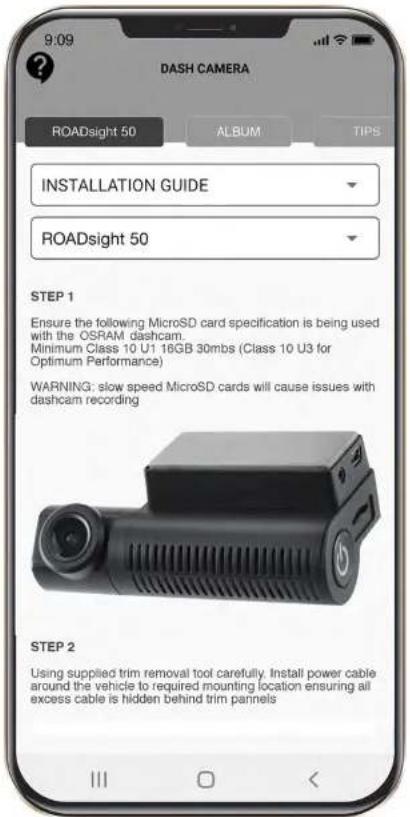
If you haven't already downloaded the app, do so now to get the most from your dashcamera.
1 Download the app by searching for OSRAMconnect in the App Store (iPhone) or Google Play (Android).
2 Open the app, follow the setup process shown and enable all necessary settings when prompted.


OSRAM
PACKAGE CONTENTS
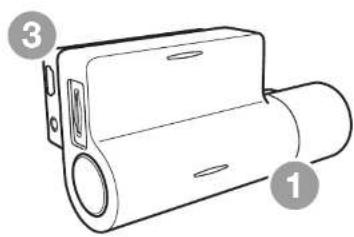
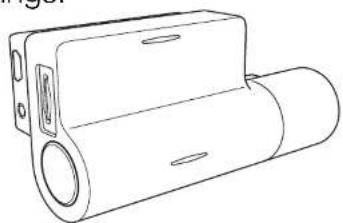
1 Dashcam
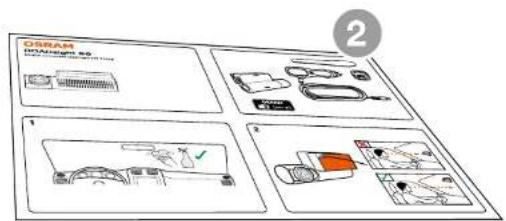
2 Quick Start Guide
3 Magnetic Mount
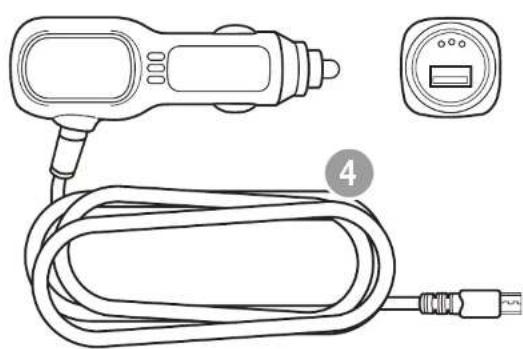
4 USB Charging Cable
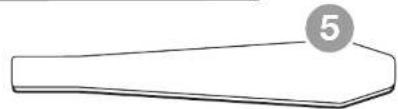
5 Trim Removal Tool
6 Window Sticker
OSRAM

[REC]


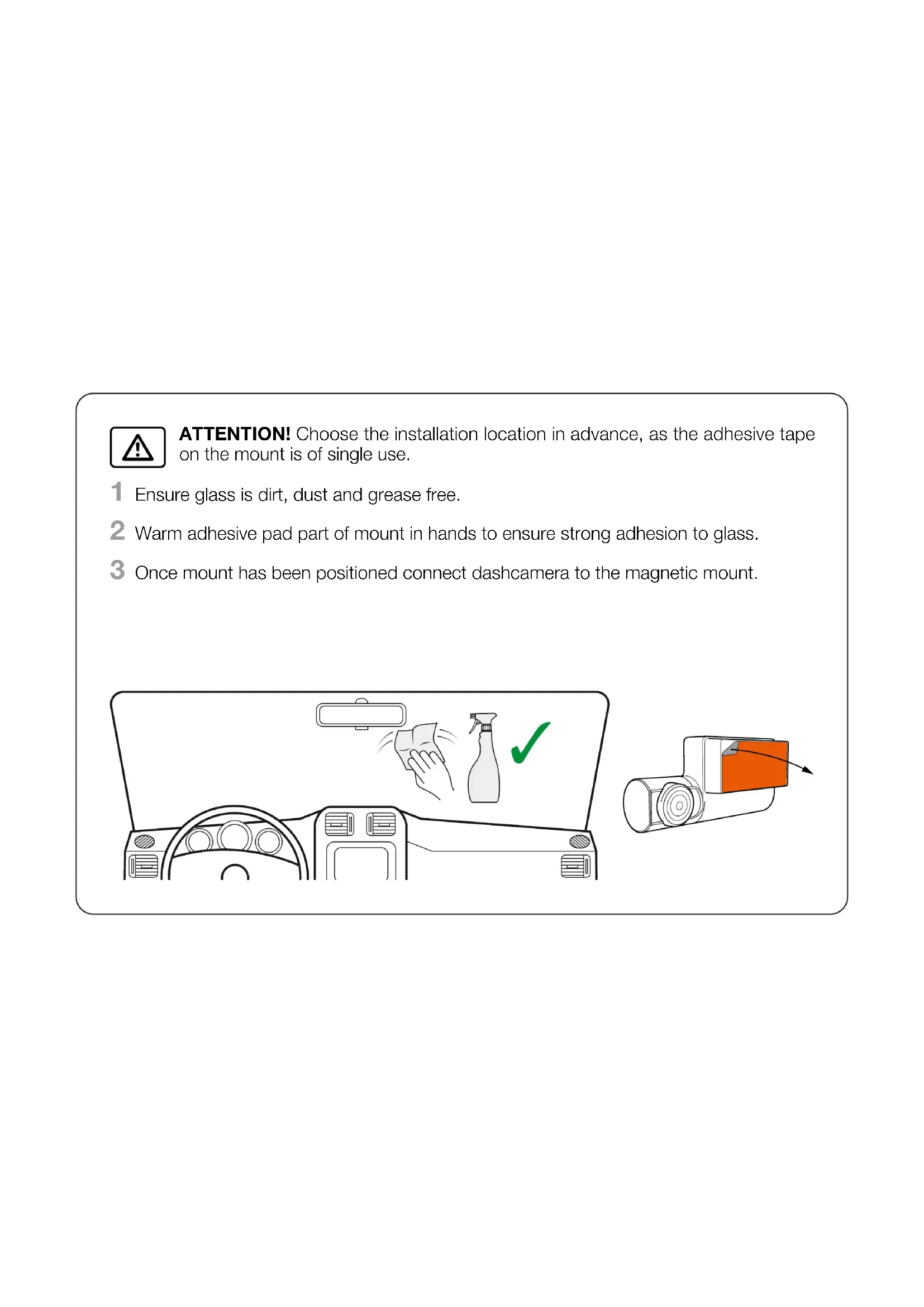
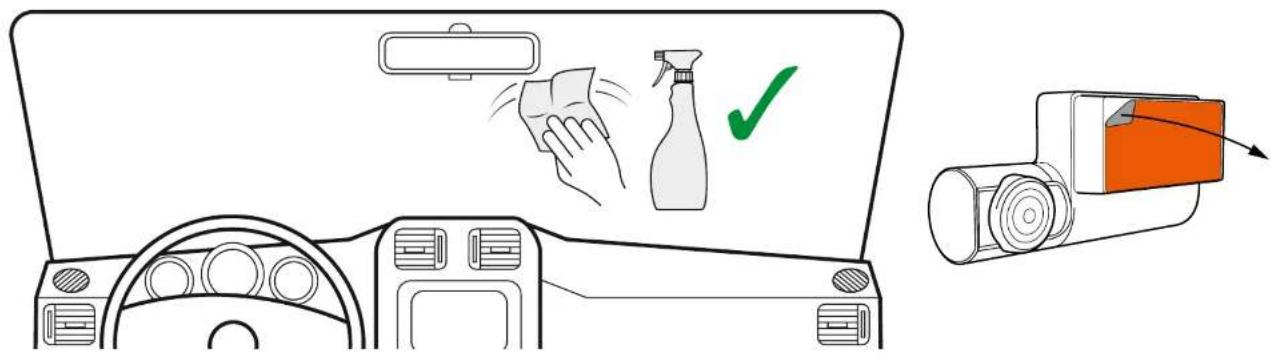
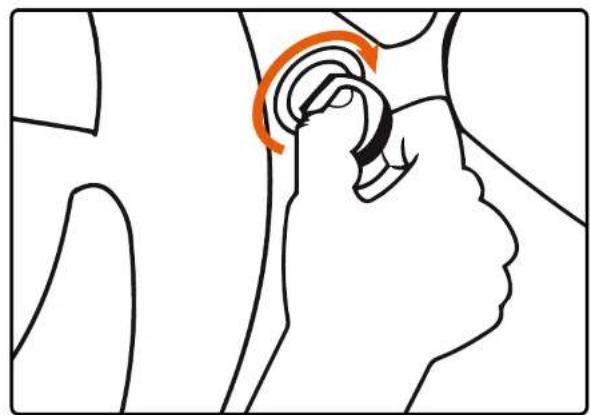
ATTENTION! Choose the installation location in advance, as the adhesive tape on the mount is of single use.
1 Ensure glass is dirt, dust and grease free.
2 Warm adhesive pad part of mount in hands to ensure strong adhesion to glass.
3 Once mount has been positioned connect dashcamera to the magnetic mount.
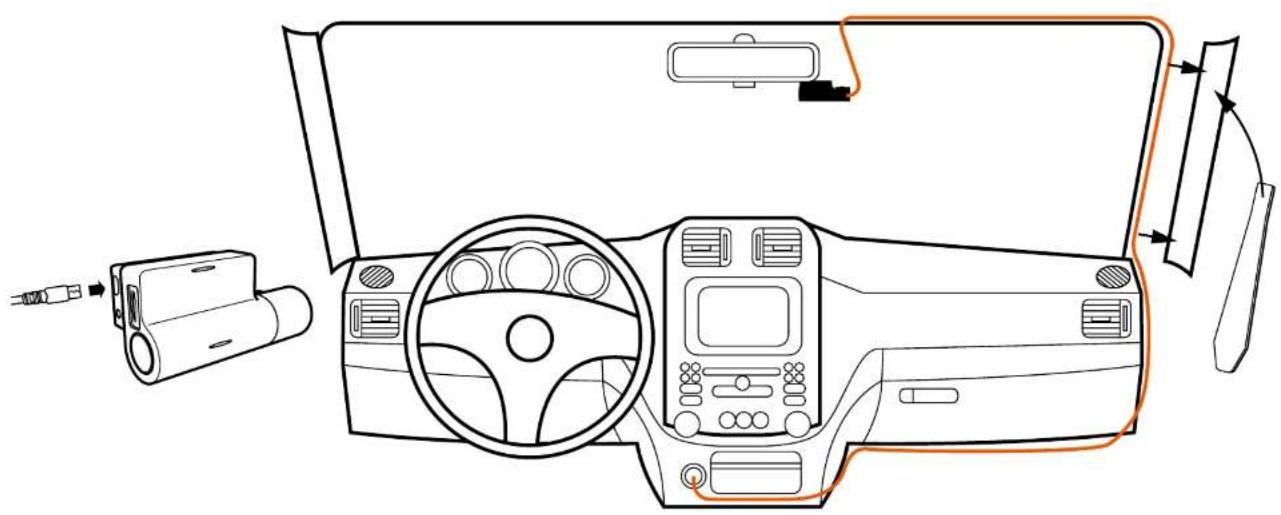
To power the device and charge the battery, use only the power adapter included. Connect the power cable to the mount, and then plug the USB charger into the vehicles 12V power socket.
When the vehicle's engine starts, the device turns on automatically.
INSTALLING microSD CARD
Before installing a memory card, make sure the device is turned off.
2 Insert the memory card until it clicks into place.
3 Removing a card: press the card slightly and then remove it from the slot.
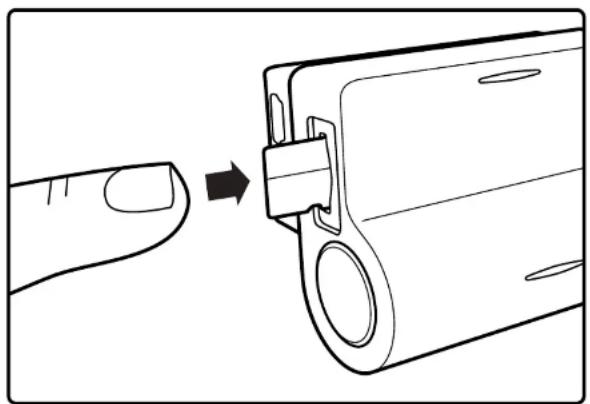

WARNING! Do not apply excessive force when inserting a memory card to avoid damage to the device. If necessary, use a thin pointed device to push the card further. To remove the memory card, push the card until it clicks and remove the card from the slot.
TURNING ON/OFF
- When the vehicle ignition is turned ON the dashcam turns on automatically.
To turn the device on manually, press the power button.
To turn the device off press and hold the power button for approx. 3 seconds.

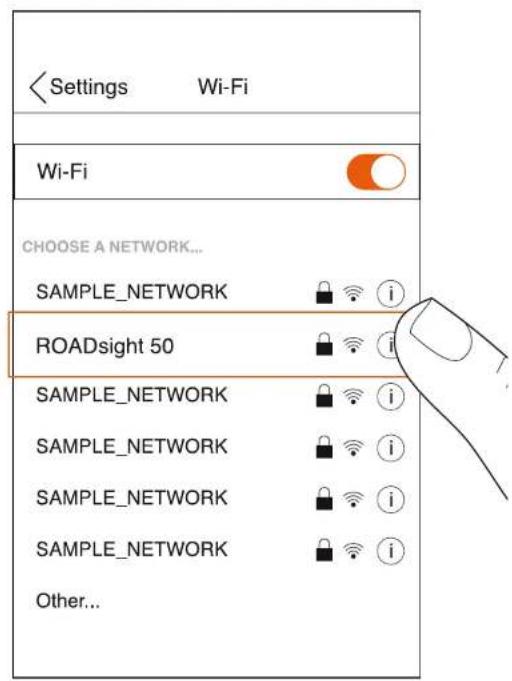
CONNECTING TO MOBILE
1 Switch on dashcam.
2 Your camera automatically broadcasts a Wi-Fi network.
3 Open your phone's Settings.
4 Tap on Wi-Fi or Connections.
5 Select the dashcam hotspot and enter the password "12345678".
6 You are now connected to your device.
ADJUSTING VIEWING ANGLE

ATTENTION! Adjusting the viewing angle can only be done along the vertical axis, so be sure to position the device correctly on the windshield along the horizontal axis as close as possible to the windshield's center.
While pulling or pushing the device in the holder, ensure that the camera captures the image in proportions of 30% sky / 70% road.
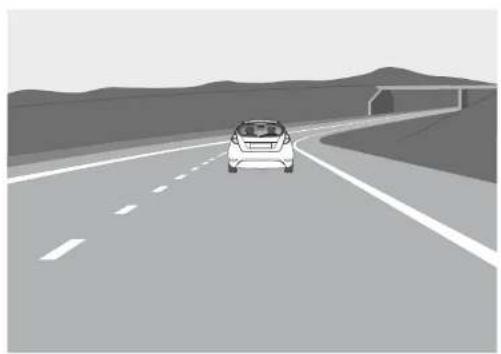
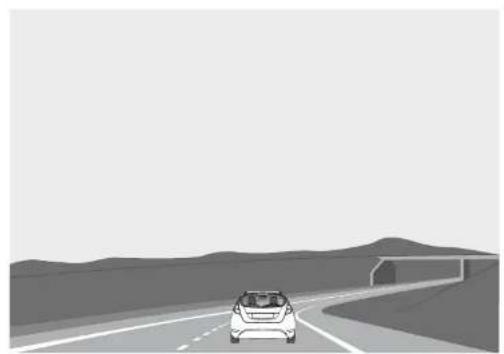
Good Bad
RECORDING MODES
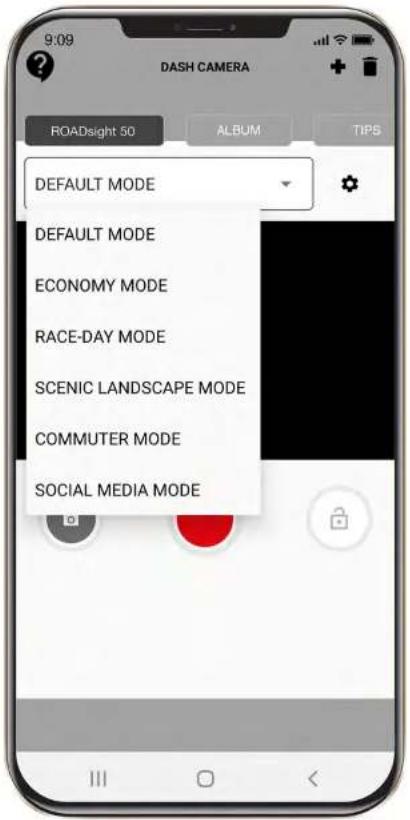
Select different recording modes from the dropdown menus.
| DEFAULT ECONOMY | RACE-DAY | SCENIC LANDSCAPE | COMMITER | SOCIAL MEDIA | |
| RESOLUTION | HIGH MID HIGH HIGH HIGH | ||||
| SNAPSHOT | SH MID LOW HIGH HIGH | ||||
| LOOP RECORDING | 3 MIN 3 MIN 5 MIN 5 MIN 3 MIN | ||||
| G-SENSOR SENSITIVITY | MID LOW HIGH LOW HIGH LOW | ||||
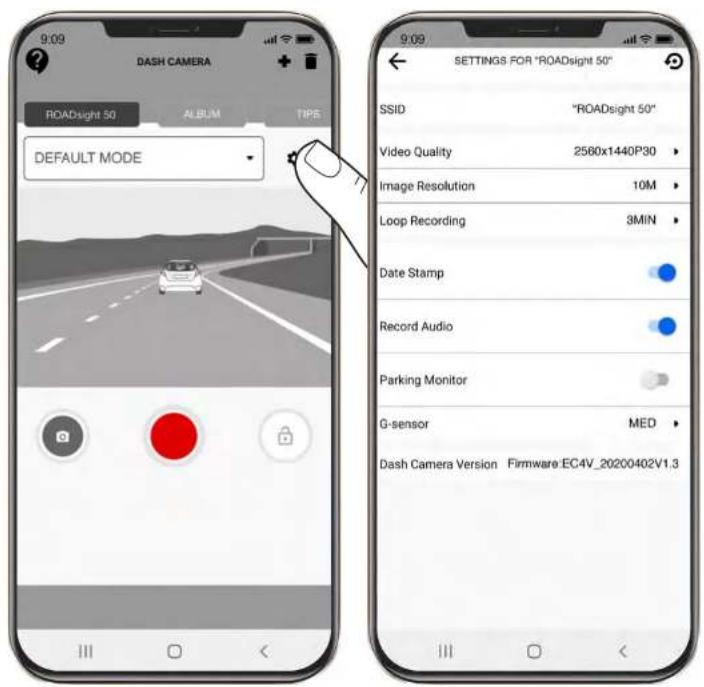
MENUSETTINGS
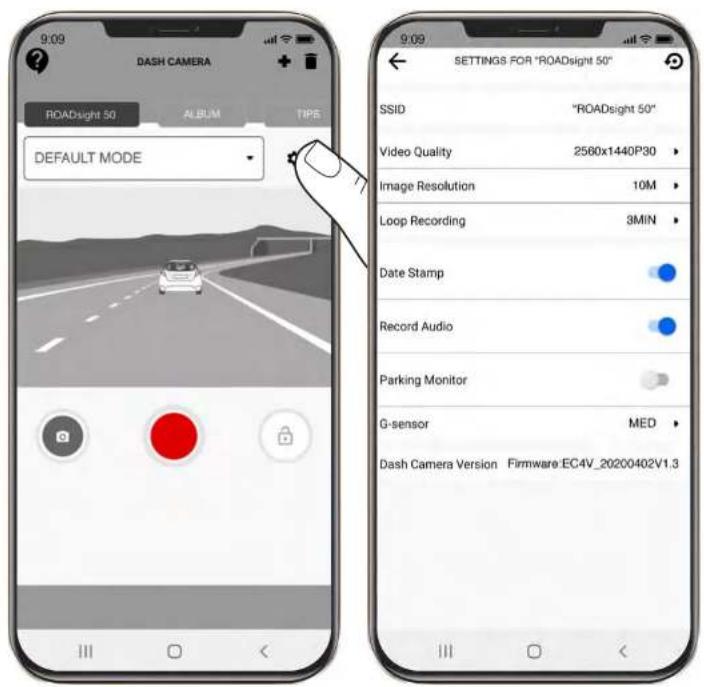
To access the Menu settings, press the "Settings" button on the main menu.
Video Quality: Select required option (the highest option provides the optimum viewing performance).
Image Resolution: 1-12 Megapixels
Loop Recording: 1, 3, or 5 minutes
Date Stamp: OFF/ON
Record Audio: OFF / ON
Parking Monitor: OFF / ON
G-sensor: OFF/LOW/MEDIUM/HIGH
EMERGENCY RECORDING
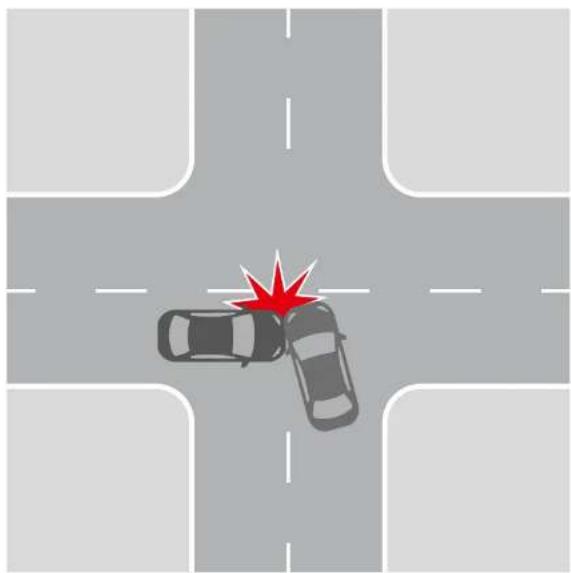
Emergency recording is to protect the current video file from being overwritten and deleted.
2 Emergency recording is activated automatically when the G-sensor triggers (sudden acceleration /deceleration), or at point of collision. Emergency recording is locked automatically to avoid erasing during loop recording.
RECORDING PLAYBACK
1 To access the playback menu, press the album button on the main screen.
2 Video & Image Menu.
- Select either Videos or Images tiles to view.
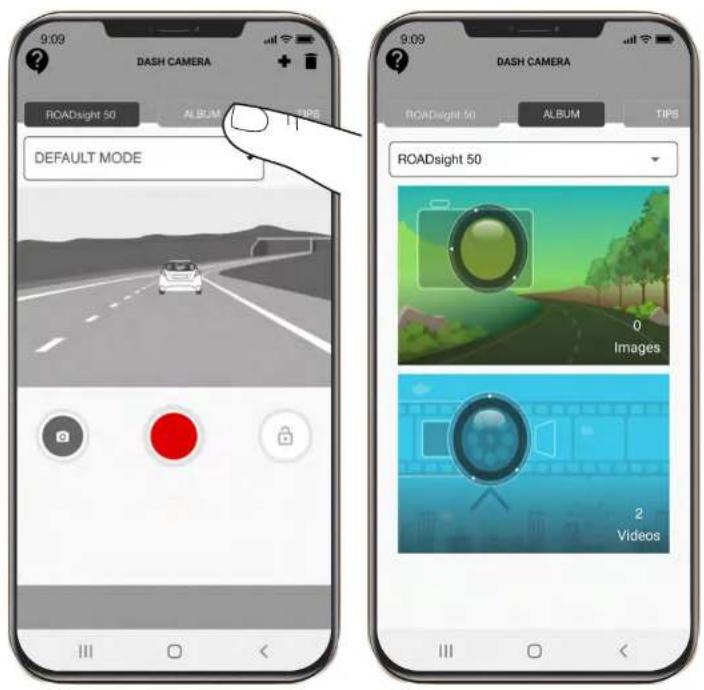
VIDEO MENU
1 Short-press each video file once to get into the playback menu.
2 Press and hold each video file for 3 seconds to access the video's sub-menu. From there, lock, download, share, or delete the selected video.
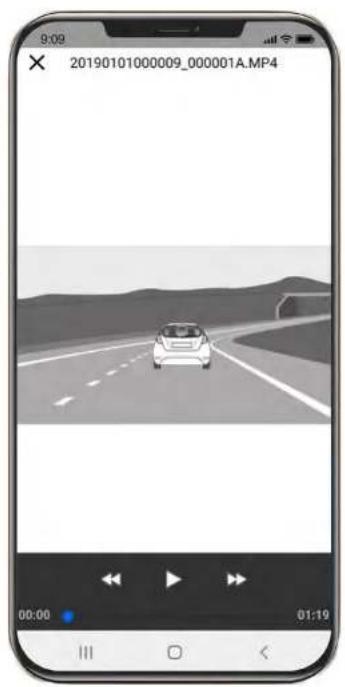
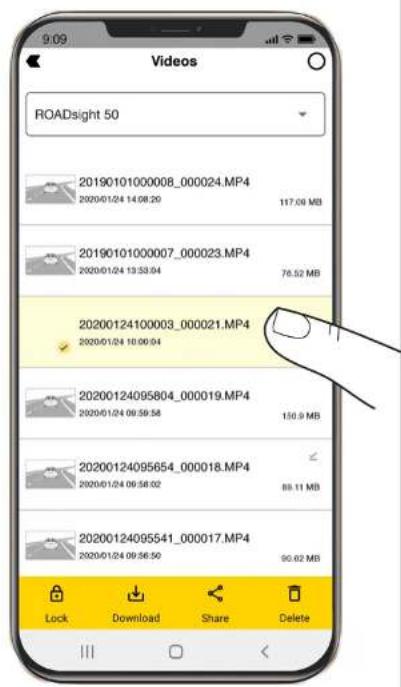
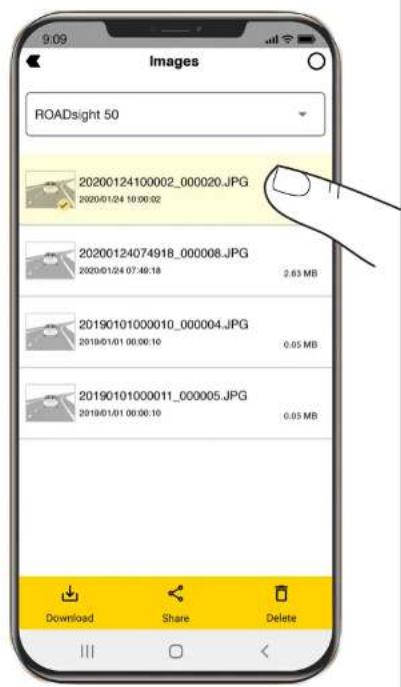
IMAGE MENU
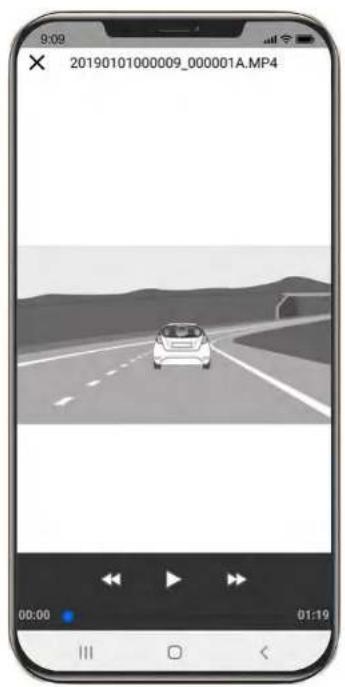
1 Short-press each image file once to get into the playback menu.
2 Press and hold each image file for 3 seconds to access the video's sub-menu. From there, lock, download, share, or delete the selected image.
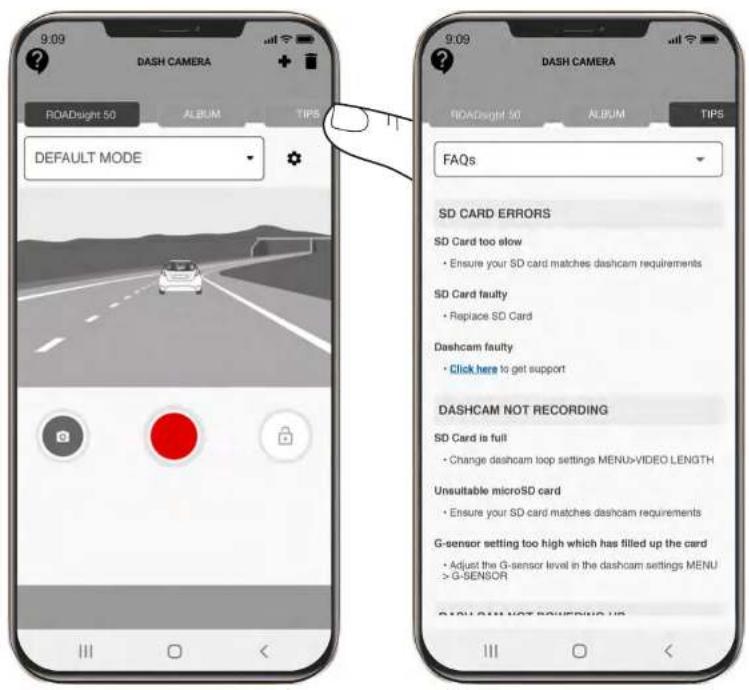
TIPS MENU
To access the Tips Menu, press the "Tips" button on the main menu.
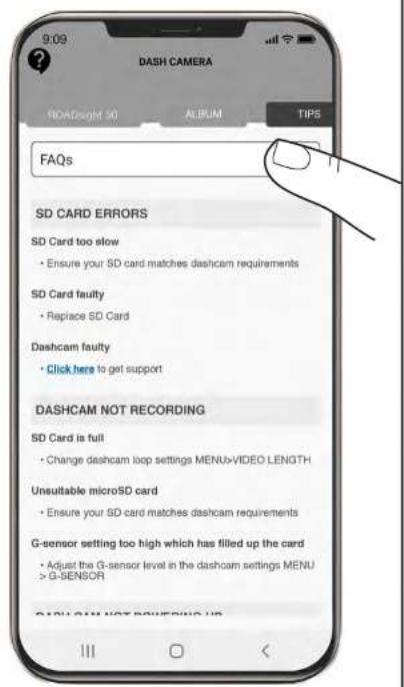
FAQs MENU
To access the FAQs Menu, press the dropdown menu and select FAQs.
Swipe up or down to view all common frequently asked questions.
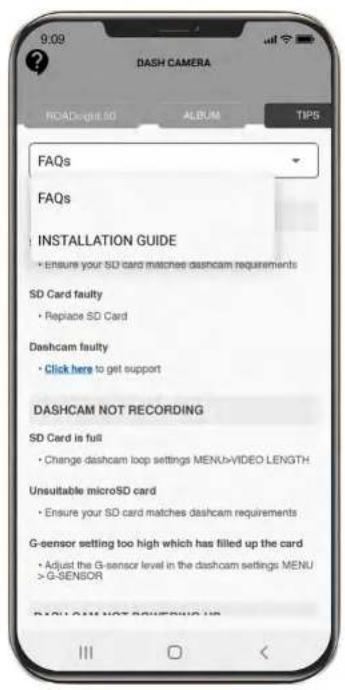
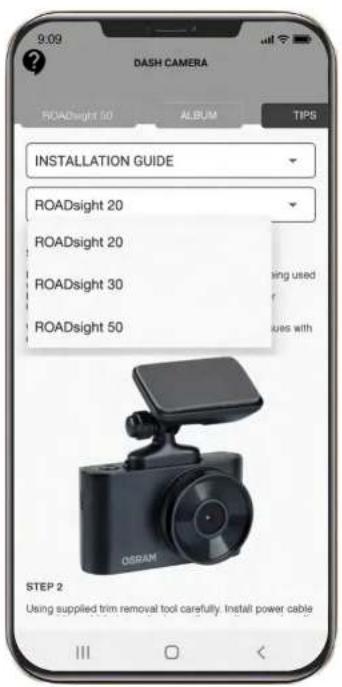
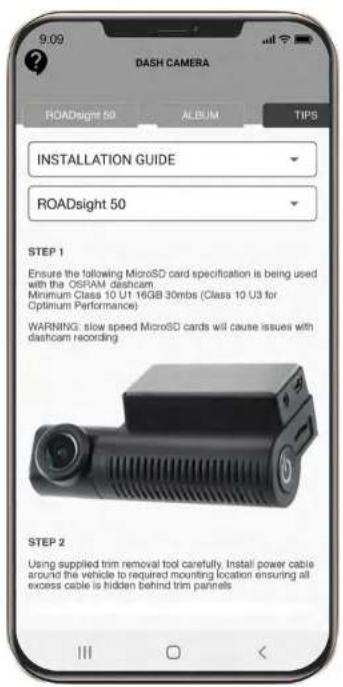
INSTALLATION GUIDE MENU
1 To access the Installation Guide Menu, press the dropdown menu and select Installation Guide.
2 Another dropdown menu will appear. Select the dashcam being used from the dropdown menu.
CUSTOMER SERVICE HELP
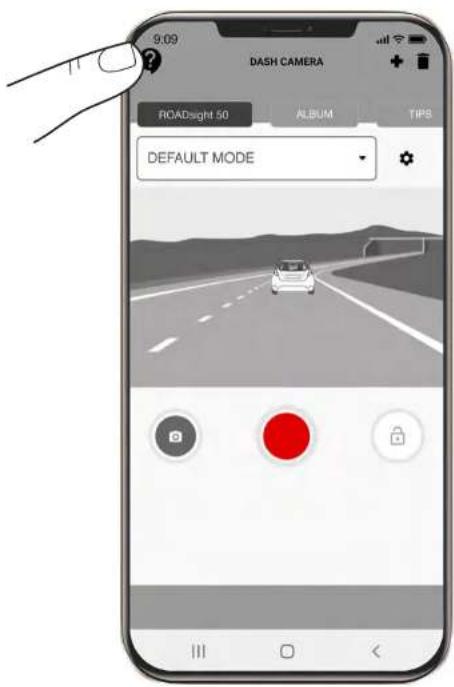
Have an issue? Click the question mark in the top left corner of the main menu.
Check if there is enough free space on the micro SD card.
RECORDING HAS STOPPED
Too many video files stored. Only use at least class 10 U1 high-speed micro SD cards by proven manufacturers.
When you try to view a photo/play a video file, the "wrong file" message appears.
File writing failure due to micro SD card file system error. Format the micro SD card.
BLURED IMAGE
Ensure removal of lens sticker. Check for dirt on the lens. If there is any, wipe the lens with a soft cloth before use (it is recommended to use special care products for the optics in order not to damage the surface of the lens).
HANG UP (NO IMAGE, NO BUTTON RESPONSE)
Press the RESET button in the App to reboot the device.
MicroSD Card not recognized when used in dash cam ROADsight 50 **
Please format card *
1 Ensure MicroSD cards is inserted correctly into dashcam
2 Connect dash cam to OSRAMconnect APP
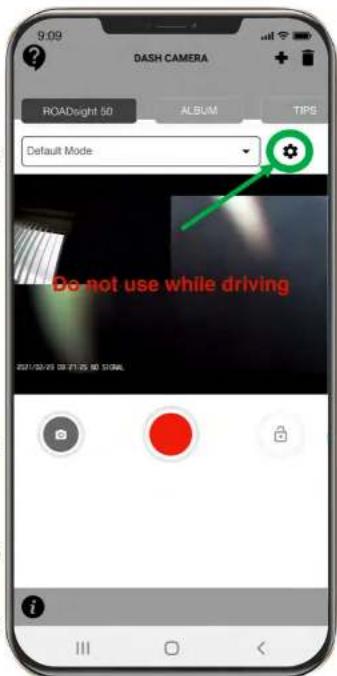
3 Once dashcam connected to APP select settings 'COG ICON'
4 Select FORMAT option
5 Select YES to FORMAT MicroSD card
- Format MicroSD card will delete all information and recordings from the MicroSD card
** Dashcam will have a constant beep noise if card is not recognized and needs to be formatted. Please note: If a micro SD card larger than 32GB is used, the latest firmware update is required.
UPDATING FIRMWARE
1 Download the firmware file at Dashcam Support | OSRAM Automotive and extract the file from the archive onto computer and Unzip.
2 Ensure your MicroSD card has been formatted.
3 Copy Firmware file (.bin) onto your MicroSD card.
4 Insert the MicroSD card with the downloaded file into the dashcam memory card slot.
5 Connect dashcam to a power source and turn it on.
6 The indicator lights will flash while the firmware is being downloaded to the dashcam.
Upon completion of the process, the dashcam will automatically restart.
8 Using Osram Connect APP select the FORMAT option within the SETTINGS.
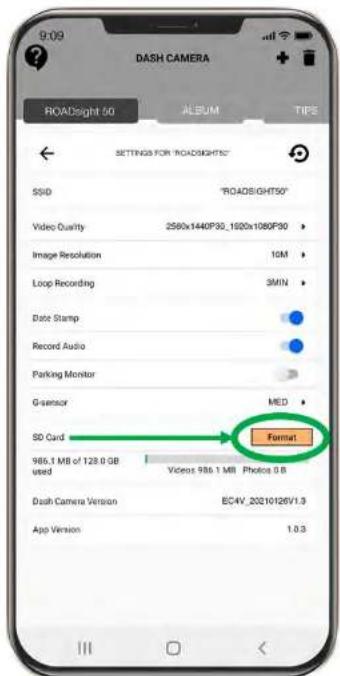

ATTENTION! If the memory card is not formatted after the update, the update process will be started again the next time it is turned on.
ATTENTION! Do not turn off the dashcam power during the firmware update.
FEATURES
| ROADsight 50 | 1440p | ≤128GB* | ≤20HRS** | Wi-Fi | GPS | |
| ROADsight 30 | 1080p | ≤32GB* | ≤6HRS** | Wi-Fi | ||
| ROADsight 20 | 1080p | ≤32GB* | ≤3HRS** |
- Full HD at 30 FPS.
** Max record time dependent on screen resolution, memory card size, and rear camera attachment.
POWER REQUIREMENTS

ATTENTION! Once there is no external power input, the battery cannot support recording for a long time, please make sure power supply is connected when recording.
Input voltage: 5V DC, 1.5A
Charging input voltage: 12-24V DC
Mini USB Connection for Power
OPERATING TEMPERATURES (all models)
Storage temperature: -20^ to 70^
Operating temperature: -10^ to 60^
PLEASE RECYCLE YOUR SPENT BATTERIES
Batteries should not be disposed of in unsorted municipal waste, but separately collected to facilitate the correct treatment and recycling of the substances they contain. The recycling of batteries ensures the recovery of these valuable materials and prevents any potentially harmful effects upon both the environment and human health.
OSRAM
ROADsight 50
Mobil verbundene Dashcam HD 1440p
Deutsch
WARNING
Parkmonitor: AUS / EIN
G-Sensor:
AUS/NIEDRIG/MITTEL/HOCH