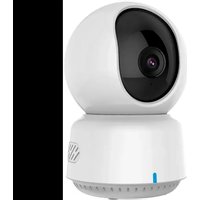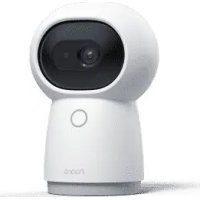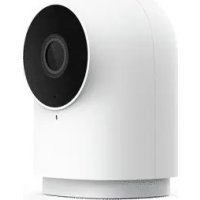
Camera Hub G2H - Surveillance Camera Aqara - Free user manual and instructions
Find the device manual for free Camera Hub G2H Aqara in PDF.



| Product Type | Surveillance Camera / Zigbee Hub |
| Power Supply | 5V DC, 1A (Micro USB) |
| Video Resolution | 1080p (H.264) |
| Viewing Angle | 140° (wide angle) |
| Connectivity | Wi-Fi 2.4 GHz IEEE 802.11 b/g/n, Zigbee |
| Zigbee Hub | Built-in for Aqara sub-devices |
| Local Storage | Micro SD card up to 32 GB (Class 4+) |
| Compatibility | Apple HomeKit, Aqara Home App (Android 4.0+ / iOS 13.0+) |
| Smart Features | Motion detection, sound detection, video intercom, iCloud recording (HomeKit Secure Video) |
| Status Indicator | Solid blue (connected), flashing blue (network), solid red (startup), flashing red (standby) |
| Operating Temperature | -10°C to +40°C (14°F to 104°F) |
| Installation | On flat surface, wall (magnetic mount with iron plate and 3M adhesive), max height 2 m |
| Maintenance and Cleaning | Clean with a soft dry cloth, do not use liquids |
| Safety | Indoor use only, do not use as a safety device, keep out of reach of children |
| Box Contents | G2H Hub Camera, USB cable, power adapter, iron plate, 3M adhesives, quick start guide |
| Model | CH-H01 |
Frequently Asked Questions - Camera Hub G2H Aqara
User questions about Camera Hub G2H Aqara
0 question about this device. Answer the ones you know or ask your own.
Ask a new question about this device
Download the instructions for your Surveillance Camera in PDF format for free! Find your manual Camera Hub G2H - Aqara and take your electronic device back in hand. On this page are published all the documents necessary for the use of your device. Camera Hub G2H by Aqara.
USER MANUAL Camera Hub G2H Aqara
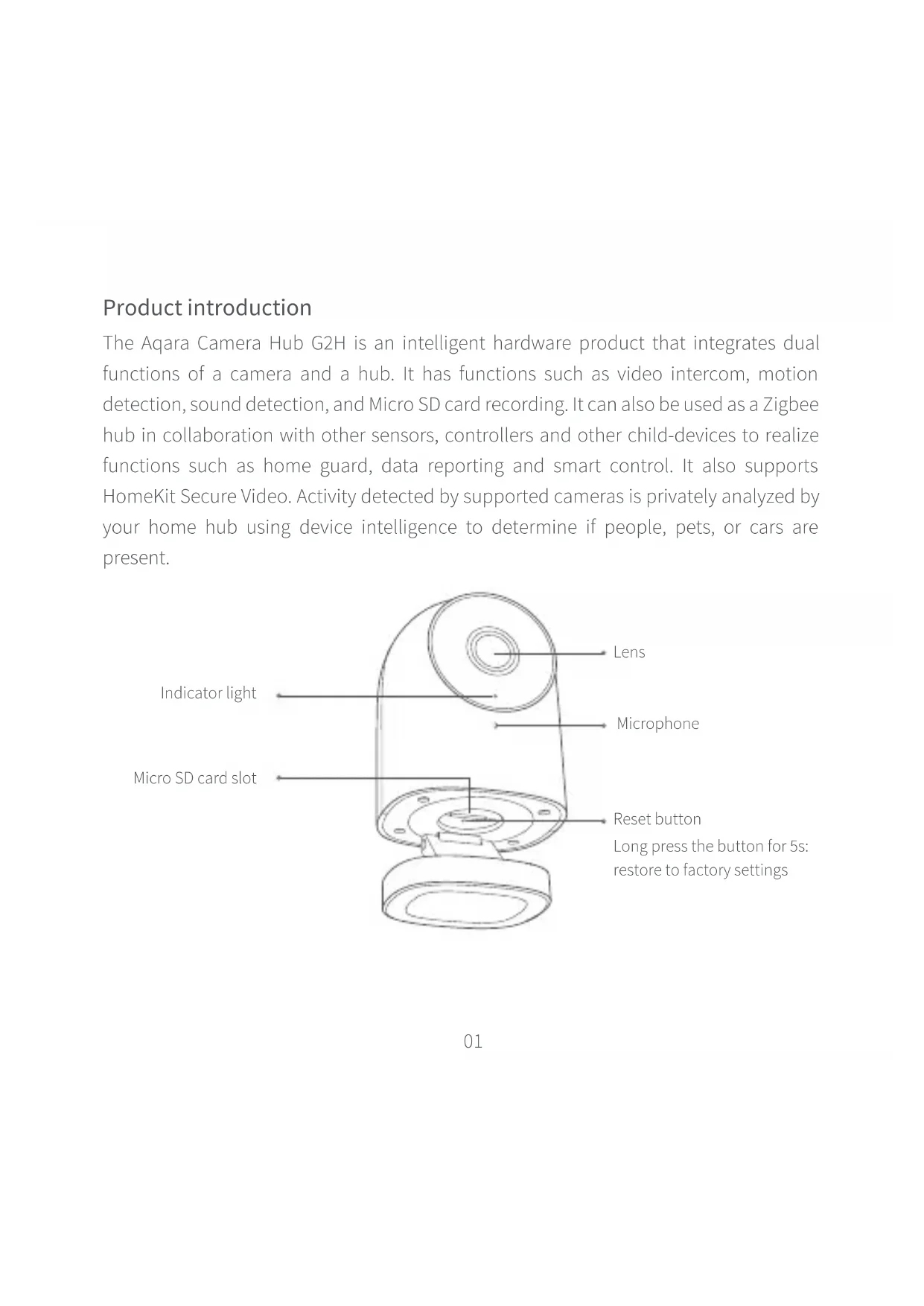
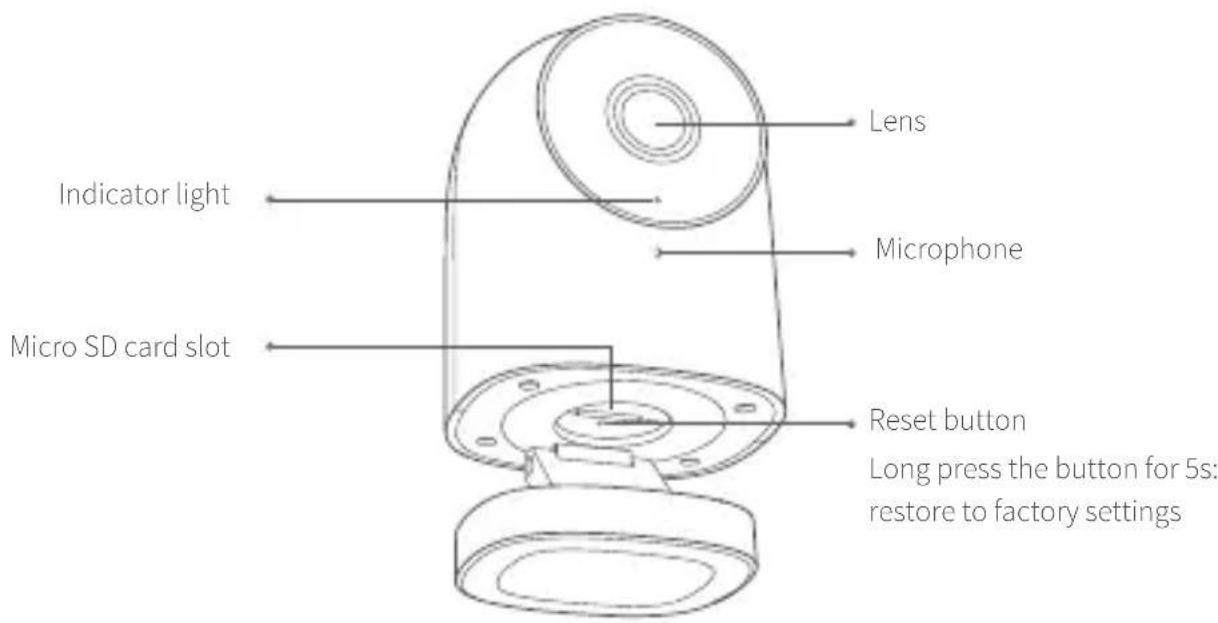
The Aqara Camera Hub G2H is an intelligent hardware product that integrates dual functions of a camera and a hub. It has functions such as video intercom, motion detection, sound detection, and Micro SD card recording. It can also be used as a Zigbee hub in collaboration with other sensors, controllers and other child-devices to realize functions such as home guard, data reporting and smart control. It also supports HomeKit Secure Video. Activity detected by supported cameras is privately analyzed by your home hub using device intelligence to determine if people, pets, or cars are present.
text_image
Lens Indicator light Micro phone Micro SD card slot Reset button Long press the button for 5s: restore to factory settings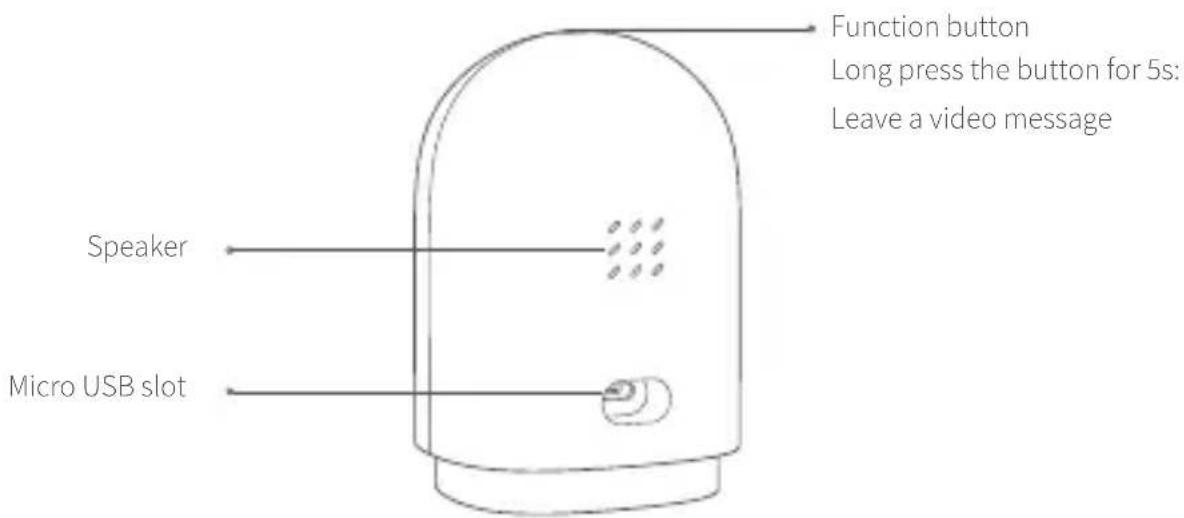
text_image
Function button Long press the button for 5s: Leave a video message Speaker Micro USB slotWarnings
* This product is NOT a toy. Please keep children away from this product.
* This product is designed for indoor use only. Do NOT use in humid environments or outdoors.
* Beware of moisture, do NOT spill water or other liquids onto the product.
* Do NOT place this product near a heat source. Do NOT place it in an enclosure unless there is normal ventilation.
* Do NOT attempt to repair this product by yourself. All repairs should be performed by an authorized professional.
* This product is only suitable for improving the convenience of your home life and reminding you about the status of your devices. It should NOT be used as security equipment for home, building, warehouse or any other places. If a user violates the product use instructions, the manufacturer will NOT be liable for any risks and property losses.
* The base of this product has been designed with strong magnetic properties, which
can ensure that the product will not fall off when it is installed on the wall. In order to prevent the product falling off and possibly causing personal injury, we recommend that the installation height of the device should be less than 2 meters.
Quick Setup
1. Download the App
Scan the QR code, or search for "Aqara Home" on the App Store, or on Google Play. Download and install the Aqara Home app.
2. Power on and start up
text_image
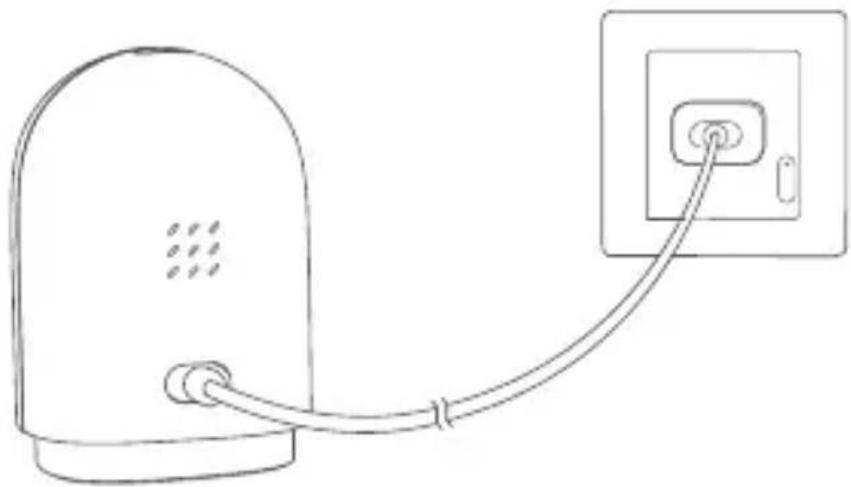
QR code image containing encoded data, no visible human-readable textFind the power jack on the back of the product and connect the USB power cable. Then power on the power adapter. After the camera starts up successfully, the red indicator light of the camera will flash.
natural_image
Line drawing of a device connected to an electrical outlet (no text or symbols)* If the red indicator light does not flash, please long press the reset button and try again.
3. Add camera
Connect to Aqara Home
Open the Aqara Home app, and click “+” on the upper right corner of the homepage.
Select “Camera Hub G2H”, and operate it as the app prompts. After the device is connected successfully, the blue indicator light will be steady on.
If the device failed to be added, please check the following steps:
* Please make sure the camera is connected with the 2.4GHz Wi-Fi network.
* Wi-Fi name or password may not contain special characters or spaces. Please replace them with ordinary characters and try again.
* Please make sure the phone is not less than 4 inches away. The camera can't scan the QR code under back-lighting.
* Please check whether the router turns on the Wi-Fi connection watcher function, which causes the network connection failures.
* Please check whether the router turns on the AP isolation function, which causes the phone cannot search the camera within LAN.
* It is recommended not to connect it to a bridge network.
Connect to Apple HomeKit
Open Apple Home app, click “+” on the upper right corner, and then enter the “Add Accessory” page. Scan or manually enter the HomeKit Setup Code at the bottom of the camera to bind the camera to HomeKit.
Failed to add to HomeKit guide:
* "Failed to add accessory". Due to multiple adding failures, the error information of iOS cache cannot be removed. Please restart the iOS device and reset the camera.
* "Accessory already added". After restarting the iOS device and reset the camera, you can manually enter the HomeKit setup code and add it again.
* "Accessory not found". Please wait for 3 minutes after resetting the camera. You can manually enter the HomeKit setup code and add it again.
* Use of the Works with Apple badge means that an accessory has been designed to work specifically with the technology identified in the badge and has been certified by the developer to meet Apple performance standards. Apple is not responsible for the operation of this device or its compliance with safety and regulatory standards.
* A 10-day recording history from your Camera Hub G2H is securely stored in iCloud and available to view in the Apple Home app on your iPhone, iPad, or Mac. You can add one camera to your 200GB plan or up to five cameras to your 2TB plan at no additional cost. Camera recordings don’t count against your iCloud storage limit.
* Communication between iPhone, iPad, Apple Watch, HomePod, or Mac and the HomeKit-enabled Camera Hub G2H is secured by HomeKit technology.
4. Add child-device
After the camera is added successfully, please open the Aqara Home app and add the child-devices as the user manual shows.
5. Product installation
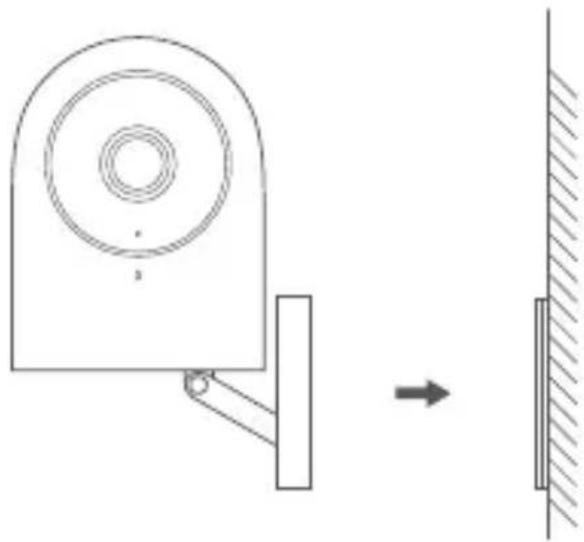
1 Please make sure the camera is added successfully, and then install it onto the wall.
② You can place the camera on the horizontal surface, such as desk, table, bookcase, etc.
3 The base of the camera contains a magnet, which can be attached to a metal surface, such as a refrigerator, iron door etc. Do not place it near the main unit of the computer or hard disc.
4 You can use the 3M double-sided tape to attach the metal plate to a smooth, non-metal surface, such as glass, tile, latex wall, etc. and then attach the magnetic camera base to the metal plate.
natural_image
Technical diagram showing a mechanical component with a circular top and a vertical support, next to a wall-mounted block with an arrow indicating motion (no text or symbols)* Please make sure the installation position is within the coverage range of the Wi-Fi.
* Do not place it near strong electromagnetic interference sources.
* The product is only meant to be used indoors. Please do not use it in humid environment or outdoors.
* Please make sure there is no obstacle around the device.
Indicator Light Status
| Indicator Light Status | Status Description |
| Blue light is steady on | Connected successfully / works normally |
| Blue light flashes | Connecting to network / network is abnormal |
| Red light is steady on | Starting up / Live streaming / recording |
| Red light flashes | Waiting for connection |
| Off | Sleep mode / the indicator light is off |
Basic Parameters
Model: CH-H01
Resolution: 1080p
Lens: 140^ wide angle
Video Code: H.264
Input Power: 5V==1A
Power Consumption: 5W(MAX)
Wireless Protocol: Wi-Fi IEEE 802.11 b/g/n 2.4 GHz, Zigbee
Local Storage: Micro SD card (CLASS 4 or above is supported, up to 32GB storage)
Supported device: Android 4.0 or iOS13.2 and above
Operating Temperature: -10°C \~ 40°C
Hereby, [Lumi United Technology Co., Ltd] declares that the radio equipment type [Camera Hub G2H, CH-H01] is in compliance with Directive 2014/53/EU.
The full text of the EU declaration of conformity is available at the following internet address: https://www.aqara.com/DoC
Under normal use of condition, this equipment should be kept a separation distance of at least 20cm between the antenna and the body of the user.
| Wi-Fi Operation Frequency 2412-2472 MHz | |
| Wi-Fi Maximum Output Power | ≤20 dBm |
| Zigbee Operation Frequency | 2405-2480 MHz |
| Zigbee Maximum Output Power | ≤13 dBm |
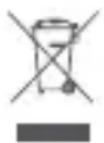
All products bearing this symbol are waste electrical and electronic equipment (WEEE as in directive 2012/19/EU) which should not be mixed with unsorted household waste. Instead, you should protect human health and the environment by handing over your waste equipment to a designated collection point for the recycling of waste electrical and electronic equipment, Appointed by the government or local authorities. Correct disposal and recycling will help prevent potential negative consequences to the environment and human health. Please contact the installer or local authorities for more information about the location as well as terms and conditions of such collection points.
FCC ID: 2AKIT-G2H
Federal Communications Commission (FCC) compliance statement:
- This device complies with part 15 of the FCC Rules. Operation is subject to the following two conditions: (1) This device may not cause harmful interference, and (2) this device must accept any interference received, including interference that may cause undesired operation.
- Changes or modifications not expressly approved by the party responsible for compliance could void the user's authority to operate the equipment.
Note: This equipment has been tested and found to comply with the limits for a Class B digital device, pursuant to part 15 of the FCC Rules. These limits are designed to provide reasonable protection against harmful interference in a residential installation. This equipment generates, uses and can radiate radio frequency energy and, if not installed and used in accordance with the instructions, may cause harmful interference to radio communications. However, there is no guarantee that interference will not occur in a particular installation. If this equipment does cause harmful interference to radio or television reception, which can be determined by turning the equipment off and on, the user is encouraged to try to correct the interference by one or more of the following measures: -Reorient or relocate the receiving antenna. -Increase the separation between the equipment and receiver. -Connect the equipment into an outlet on a circuit different from that to which the
receiver is connected. -Consult the dealer or an experienced radio/TV technician for help.
RF Exposure statement:
This equipment complies with FCC radiation exposure limits set forth for an uncontrolled environment. This equipment should be installed and operated with minimum distance of 20 cm between the radiator and your body. This transmitter must not be co-located or operating in conjunction with any other antenna or transmitter.
IC: 22635-G2H
IC NOTICE TO CANADIAN USERS
This device contains license-exempt transmitter(s)/receiver(s) that comply with Innovation, Science and Economic Development Canada’s license-exempt RSS(s). Operation is subject to the following two conditions:
(1) This device may not cause interference.
(2) This device must accept any interference, including interference that may cause undesired operation of the device.
This Class B digital apparatus complies with Canadian ICES - 003.
This device complies with RSS - 247 of Industry Canada. Operation is subject to the condition that this device does not cause harmful interference.
This equipment complies with IC radiation exposure limits set forth for an uncontrolled environment. This equipment should be installed and operated with minimum distance of 20 cm between the radiator and your body. This transmitter must not be co-located or operating in conjunction with any other antenna or transmitter.
Online Customer Service: www.aqara.com/support
Manufacturer: Lumi United Technology Co., Ltd.
Address: 8th Floor, JinQi Wisdom Valley, No.1 Tangling Road, Liuxian Ave, Taoyuan Residential District, Nanshan District, Shenzhen, China.
產品簡介
text_image
QR code image containing encoded data, no visible human-readable text2、攝像機通電開機
natural_image
Line drawing of a device with a cable and a separate electrical outlet (no text or symbols)natural_image
Technical diagram showing a mechanical component with a circular top and a vertical support, connected to a wall-mounted bracket (no text or symbols present)text_image
QR code image containing encoded data, no visible human-readable textnatural_image
Line drawing of a device connected to an electrical outlet (no text or symbols)natural_image
Technical diagram showing a mechanical component with a circular top and a vertical support, connected to a wall-mounted block (no text or symbols present)Service-URL: www.aqara.com/support
Hersteller: Lumi United Technology co., LTD.
Anschrift: 8/F, Jinqi Wisdom Valley Building, No.1 Tangling Road, Liuxian Avenue, Taoyuan Street, Nanshan District, Shenzhen
text_image
QR code image containing encoded data, no visible human-readable textnatural_image
Line drawing of a device connected to an electrical outlet (no text or symbols)natural_image
Technical diagram showing a mechanical component with an arrow indicating direction, next to a vertical wall (no text or symbols)text_image
QR code image containing encoded data, no visible human-readable textnatural_image
Line drawing of a device connected to an electrical outlet (no text or symbols)natural_image
Diagram showing a mechanical device with a circular component and a vertical support, connected to a wall-mounted block (no text or symbols present)text_image
QR code image containing encoded data, no visible human-readable text2. Accendere la camera
natural_image
Line drawing of a device connected to an electrical outlet (no text or symbols)natural_image
Technical diagram showing a mechanical component with an arrow indicating direction, next to a vertical wall (no text or symbols)text_image
QR code image containing encoded data, no visible human-readable text2. Включите камеру
natural_image
Line drawing of a device connected to an electrical outlet (no text or symbols)natural_image
Technical diagram showing a mechanical component with a circular top and a vertical support, connected to a wall-mounted block (no text or symbols present)Адрес: 8th Floor, JinQi Wisdom Valley, No.1 Tangling Road, Liuxian Ave, Taoyuan Residential District, Nanshan District, Shenzhen, China.
Сделано в Китае