M5003 - Computer Mouse Cherry - Free user manual and instructions
Find the device manual for free M5003 Cherry in PDF.



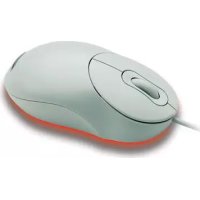
| Product type | Wired optical computer mouse |
| Brand | Cherry |
| Model | M5003 |
| Dimensions (approx.) | 120 x 70 x 40 mm |
| Weight (approx.) | 100 g |
| Cable length | 1.8 m |
| Interface | USB |
| Number of buttons | 5 (left click, right click, scroll wheel, side button, wheel button) |
| Optical resolution | 800 / 1600 DPI (default) |
| Programmable functions | Yes, via Cherry PowerWheel Mouse software |
| HyperGrid function | Yes, quick access to 9 Windows functions |
| Scrolling | By lines or by page, reversible direction |
| Pointer functions | Revolution, hiding, sonar, slow motion, selection |
| OS compatibility | Windows 95/98/ME/2000/XP |
| Power supply | USB (5 V, 100 mA max) |
| Maintenance and cleaning | Clean with a soft, dry cloth; do not use abrasive products |
| Safety | No special instructions; avoid shocks and humidity |
| Spare parts and repairability | Not user-repairable; contact Cherry or an authorized service center |
| General information | Compliant with international standards; manufacturer: Cherry GmbH |
Frequently Asked Questions - M5003 Cherry
User questions about M5003 Cherry
0 question about this device. Answer the ones you know or ask your own.
Ask a new question about this device
Download the instructions for your Computer Mouse in PDF format for free! Find your manual M5003 - Cherry and take your electronic device back in hand. On this page are published all the documents necessary for the use of your device. M5003 by Cherry.
USER MANUAL M5003 Cherry
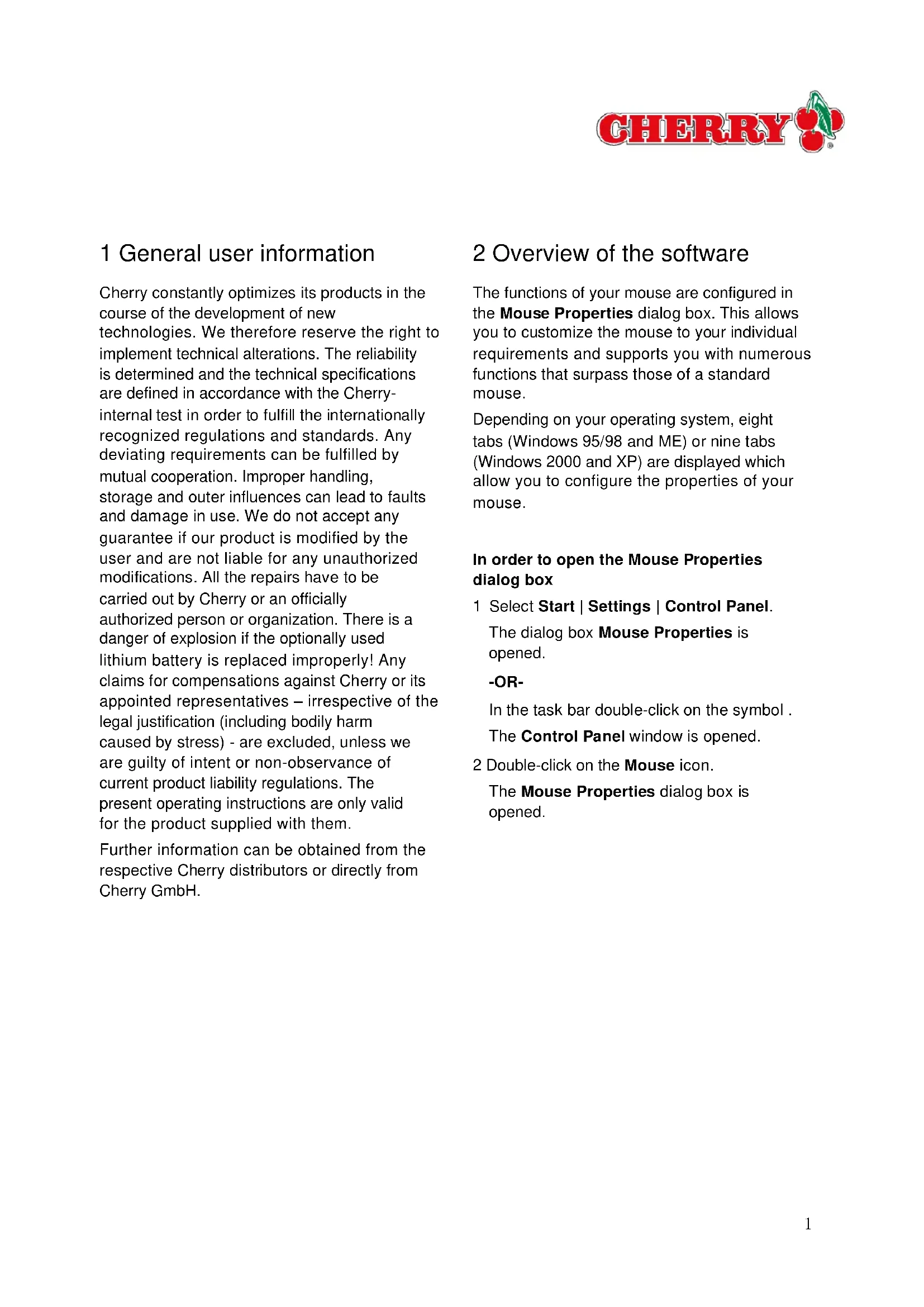
Cherry PowerWheel Mouse optical
Cherry PowerWheel Mouse wireless optical
Bedienungsanleitung
1 General user information
Cherry constantly optimizes its products in the course of the development of new technologies. We therefore reserve the right to implement technical alterations. The reliability is determined and the technical specifications are defined in accordance with the Cherry-internal test in order to fulfill the internationally recognized regulations and standards. Any deviating requirements can be fulfilled by mutual cooperation. Improper handling, storage and outer influences can lead to faults and damage in use. We do not accept any guarantee if our product is modified by the user and are not liable for any unauthorized modifications. All the repairs have to be carried out by Cherry or an officially authorized person or organization. There is a danger of explosion if the optionally used lithium battery is replaced improperly! Any claims for compensations against Cherry or its appointed representatives – irrespective of the legal justification (including bodily harm caused by stress) - are excluded, unless we are guilty of intent or non-observance of current product liability regulations. The present operating instructions are only valid for the product supplied with them.
Further information can be obtained from the respective Cherry distributors or directly from Cherry GmbH.
2 Overview of the software
The functions of your mouse are configured in the Mouse Properties dialog box. This allows you to customize the mouse to your individual requirements and supports you with numerous functions that surpass those of a standard mouse.
Depending on your operating system, eight tabs (Windows 95/98 and ME) or nine tabs (Windows 2000 and XP) are displayed which allow you to configure the properties of your mouse.
In order to open the Mouse Properties dialog box
1 Select Start | Settings | Control Panel.
The dialog box Mouse Properties is opened.
-OR-
In the task bar double-click on the symbol.
The Control Panel window is opened.
2 Double-click on the Mouse icon.
The Mouse Properties dialog box is opened.
3 Tabs
3.1 Buttons
In the Buttons tab you can assign specific functions to the mouse buttons and the wheel button.
The buttons are configured by default for right-handed persons with the following functions:
- Left button = Primary mouse button
- Right button = Context menu
- Wheel button = Auto / Quick scroll
- Button on the left = Start button (applies only for the wireless mouse)

Default button functions
When you assign an individual function to a button, you override the standard function of this button. If you wish to re-implement the standard function of this button, you can restore it by clicking on the Reset default button.

Primary mouse button function
The function Primary mouse button (clicking and selecting) must be assigned to at least one button. Before you can change the configuration of this button, you must assign the function to another button.
A number of functions can be assigned to a mouse button:
- You can assign and activate automatic scrolling to a button.
- The HyperGrid function allows you to use nine common Windows functions.
An overview of the meaning of the individual functions is given in the following list:
Functions that you can assign to the buttons:
| Function Meaning | |
| None Has no function | |
| Primary mouse button | Has the function of a primary button (click and select) |
| Backspace key | The mouse pointer switches one level higher in the directory structure. |
| Close window | Closes the window which is currently open. |
| Maximize window | Enlarges the current window to full size. |
| Minimize window | Minimizes the window which is currently open. |
| Control Panel | Opens the Control Panel window. |
| Copy (Ctrl + C) | Copies previously marked objects into the Clipboard |
| Context menu | Opens the context menu of the object located under the mouse pointer. |
| Cut (Ctrl + X) | Deletes previously marked objects and copies them into the Clipboard. |
| Double-click | Performs a double-click if you press the button once. |
| Drag locking | Deactivates the drag & drop function. |
| Enter Performs the function of the Enter key. | |
| Escape | Performs the function of the ESC key. |
| Function | Meaning |
| Middle mouse button | Has all the standard functions of a middle button. |
| HyperGrid When a button assigned with this function is clicked, a context menu comprising nine common Windows functions is opened. | |
| Next window Positions the mouse pointer in the next opened window. | |
| Page down Performs the function of the Page down key. | |
| Page up Performs the function of the Page up key. | |
| Paste (Ctrl + V) Inserts objects from the Clipboard. | |
| Printer Opens the Printer window. | |
| Quick / Auto scroll Allows you to scroll quickly and automatically through documents. | |
| Recycle bin Moves previously marked objects into the Recycle bin. | |
| Ctrl + A Select all. | |
| Restore window Restores a minimized window to the screen | |
| Start button Opens the Start menu. | |
| The Internet Opens the Internet Explorer. | |
| Undo (Ctrl + Z) Undoes the last action performed. | |
| My Computer Opens the directory My Computer in the Explorer. | |
| Windows Explorer Opens the Windows Explorer. | |
| Function | Meaning |
| F1 to F12 | Adopts the standard function of the corresponding function key. E.g. the function F1 opens the standard Windows Help when you click on any part of the screen in the Windows Explorer. |
| Shift | Performs the function of the SHIFT key. |
| Alt | Performs the function of the ALT key. |
| Ctrl | Performs the function of the CTRL key |
To assign a function to a button
At least one button must function as the primary mouse button at all times.
1 Select the ScrollMouse entry from the Mouse list
2 Click on the ▼ symbol next to the Button list.
The list is opened.
3 Select the button to which you wish to assign a function.
-OR-
In the mouse diagram displayed, mark the button to which you wish to assign a function.
The selected button appears in the input field of the Button list.
4 Click on the ▼ symbol next to the Function list.
The list is opened.
5 Click on the function that you wish to click on the symbol next to the Function to the button. list.
The selected function appears in the input field of the Function list.
6 Click on the Adopt button if you wish to perform additional settings in the dialog window Mouse Properties.
-OR-
Click on the OK button when you have completed your settings in the Mouse Properties dialog box.
The new configuration of the button(s) is saved.
To assign the Quick / Auto Scroll function to a button
- At least one button must function as the primary mouse button at all times.
- In order to page rapidly through a document hold the mouse button pressed to which you have assigned the Quick Scroll function and move the mouse in the desired direction.
• Auto Scroll continues to page automatically in the document without your having to press the mouse repeatedly.
1 Select the ScrollMouse entry from the Mouse list
2 Click on the symbol next to the Button list.
The list is opened.
3 Select the button to which you wish to assign a function.
The selected button appears in the input field of the Button list.
-OR-
In the mouse diagram displayed, mark the button to which you wish to assign a function.
Click on the ▼ symbol next to the Function list.
The list is opened.
5 Click on the function Quick / Auto Scroll, which you wish to assign to the button.
Quick / Scroll is displayed in the input field of the Function list.
6 Click on the Adopt button if you wish to carry out additional settings in the Mouse Properties dialog box.
-OR-
Click on the OK button when you have completed your settings in the Mouse Properties dialog box.
The Quick / Auto Scroll function is now assigned to the button.
To activate the Quick / Auto Scroll function
You can scroll automatically within your document in all directions by means of the Auto Scroll function. When you activate this function, the document is scrolled without your having to operate the mouse further.
You have already assigned the Quick / Auto Scroll function to a button.
1 Using the button to which you have assigned the function Auto Scroll, click on a position in the document.
A register mark is displayed at the corresponding location.
2 Move the mouse pointer away from the register mark, in the direction opposite to which you wish to scroll.
The document is scrolled in the desired direction. The farther the mouse pointer is placed from the register mark, the faster the automatic scrolling.
3 When you wish to end the action, press any mouse button.
To activate the HyperGrid
This function combines nine common Windows functions so that you don't have to move between different areas of the screen.
You have already assigned the HyperGrid function to a button.
1 Hold down the button to which you have assigned the HyperGrid function. A context menu with nine different symbols appears.
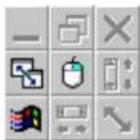
2 Keeping the mouse button pressed, move the mouse pointer over a symbol and release the button over the desired function. The desired function is carried out.
3.2 Pointers
In the tab Pointers, you can change the appearance of the mouse pointer. This enables you to assign an individual display form to the different functions of the mouse pointer.

Default setting for the pointer appearance
If you have customized the pointer appearance, the default setting is no longer in effect. You can reactivate the default setting by clicking on the Use default button.
To change the pointer appearance

Creating own schemes
The button Save as opens the Save Scheme dialog box. Here, you can create a scheme composed of individual symbols.
1 Select the desired entry from the Scheme list. Each scheme contains a list of different symbols for the individual functions (e.g. the hourglass for the Busy function.
2 Mark the function of the mouse pointer that you wish to change in the list.
3 Click on the button Search.
The Search dialog box is opened.
4 Choose the pointer symbol (file types *.ani and *.cur) that you wish to use for the selected function.
5 Click on the Open button in the Search dialog box.
The Search dialog box is closed and the selected mouse pointer appears in the list under the chosen function.
6 Click on the Adopt button if you wish to carry out additional settings in the dialog window Mouse Properties.
-OR-
Click on the OK button when you have completed your settings in the Mouse Properties dialog box.
The mouse pointer is displayed with the new symbol for the selected function.
3.3 Motion
In the Motion tabyoucanmakethefollowing settings:
- You can set the speed at which the pointer travels across the screen.
- You can show the pointer trail on the screen and set its length (not under Windows 2000).
- You can also change the pointer acceleration under Windows 2000.
To set the pointer speed
1 Position the mouse pointer on the slider in the group Pointer speed.
2 Press the primary mouse button and pull the slider to the desired position (Slow or Fast).
3 Click on the Adopt button if you wish to carry out additional settings in the dialog window Mouse Properties.
-OR-
Click on the OK button when you have completed your settings in the Mouse Properties dialog box.
The new pointer speed is saved.
To activate mouse pointer trails

Only in Windows 9x and NT
The Pointer trail function is only available in Windows 9x and NT.
1 In the group Pointer trails, activate the Show mouse trails check box.
The slider to set the length of the mouse trail is activated.
2 Press the primary mouse button and drag the slider to the desired position (Short or Long).
3 Click on the Adopt button if you wish to carry out additional settings in the Mouse Properties dialog box.
-OR-
Click on the OK button when you have completed your settings in the Mouse Properties dialog box.
The pointer trails is displayed with the desired length.
3.4 Double-click
Clicking on the Double-click tab allows you to set the time interval between the two clicks of a double-click. The faster the double-click speed, the faster you have to double-click to carry out the desired function.
Inexperienced users should work with a slower speed at first.

Default value for double-click speed
If you have changed the double-click speed, the default value is no longer ineffect. You can reactivate the default value by clicking on the Use default button.
To set the double-click speed
1 Position the mouse pointer on the slider in the group Double-click speed.
2 Press the primary mouse button and pull the slider to the desired position.
3 Click on the Adopt button if you wish to carry out additional settings in the Mouse Properties dialog box.
-OR-
Click on the OK button when you have completed your settings in the Mouse Properties dialog box.
The new double-click speed is saved.
3.5 Orientation
In the tab Orientation, you can set the horizontal movement of the mouse.
To change the horizontal orientation

Basic functions of a special button
When you assign an individual function to a button, you override the basic function of this button. If you wish to implement the function of this button, you can reactivate it by clicking on the Use default button.
1 Click on the button Set orientation.
2 Follow the on-screen instructions and move the mouse pointer to the right side of the picture.
3 Click on the Adopt button if you wish to perform additional settings in the dialog window Mouse Properties.
-OR-
Click on the OK button when you have completed your settings in the Mouse Properties dialog box.
The new horizontal movement of the mouse is now saved.
3.6 Pointer functions
In the tab Pointer Functions you can make the following settings:
- With the Mouse Pointer Circulation
function, the pointer is automatically displayed on the opposite edge of the screen when moved outside the screen area. -
With the Hide Mouse Pointer function, the pointer is automatically masked when typing with the keyboard.
-
With the Sonar function, the position of the pointer is shown more clearly on the screen. Press the CTRL key and release it. The pointer position is shown with a blinking circle.
- The Slow Motion function activates a slow-motion function. The movement of the pointer is slowed down, thus allowing more precise control of the pointer (when holding down the Shift key).
- With the X Focus function, a window can be activated simply by moving the mouse pointer over its title bar. This allows you to switch between different windows without having to click.
To assign the pointer function
1 Activate the control boxes of the group(s) which you would like to assign as pointer function(s).
2 Click on the Adopt button if you wish to carry out additional settings in the Mouse Properties dialog box.
-OR-
Click on the OK button when you have completed your settings in the Mouse Properties dialog box.
The new pointer function(s) is/are saved.
3.7 Info
The tab Info shows the program version and copyright information of your software.
You can also perform the following settings:
• Display the mouse symbol in the task bar
- Un install the Cherry "Power Pad software.
To display the mouse symbol in the task bar
1 Activate the control box Display the mouse symbol in the task bar.
2 Click on the Adopt button if you wish to carry out additional settings in the Mouse Properties dialog box.
-OR-
Click on the OK button when you have completed your settings in the Mouse Properties dialog box.
The mouse symbol is displayed in the task bar. You can now double-click the symbol to open the dialog window Mouse Properties.
To uninstall the program
1 Click on the button Uninstall.
2 Confirm the confirmation prompt by clicking Yes.
The mouse software is removed.
3.8 Wheel
The scroll function of the wheel and the function of the wheel button are specified in the wheel tab.
In the Wheel group carry out the following settings which allow you to set the sensitivity of the control button:
- Universal Scrolling is suitable for all applications with scrolling bars, including those that are not compatible with the Office 97 standard (e.g. WordPerfect 7.0, Netscape Navigator 3.0, Microsoft Office 95 etc.)
- In stead of the universal scrolling function, you can select Microsoft Office 97 scrolling mode only. The scroll functions (vertical only) are then available in Office 97 compatible programs only (e.g. Internet Explorer 3.0/4.0).
You assign individual functions to the wheel button in the Wheel button group.
You specify how many lines a scroll unit should scroll, or specify that each scroll unit should jump over an entire page in the Scroll speed group.
You can change the scrolling direction by activating the Reverse scrolling direction check box.
To assign a function to a button
At least one button must function as the primary mouse button at all times.
1 Activate the Button function button.
2 Click on the symbol next to the Button Function list.
The list is opened.
3 Clickonthefunctionthatyouwishtoass to the wheel button.
The selected function is displayed in the input field of the list.
4 Click on the Adopt button if you wish to carry out additional settings in the Mouse Properties dialog box.
-OR-
Click on the OK button when you have completed your settings in the Mouse Properties dialog box.
The new configuration of the button(s) is saved.
To set that each wheel turn scrolls n lines
1 In the group Wheel, activate the control box Scrolling.
2 In the spin box Lines at a time, enter the number of lines that are to be scrolled when the mouse wheel is turned once.
3 Click on the button Adopt.
-OR-
Click on the button OK.
The list is saved.
To set that one page is scrolled per wheel turn
1 In the group Wheel, activate the control box Scroll one page per scroll unit.
2 Click on the button Adopt.
-OR-
Click on the button OK.
The list is saved.
To change the roll direction of the wheel
1 In the group Wheel, activate the control box Reverse roll direction.
2 Click on the button Adopt.
-OR-
Click on the OK button.
The new configuration is saved.
3.9 Hardware
The tab Hardware is only displayed in Windows 2000.
Clicking on the Hardware tab gives you access to information about the mouse with regard to device status and drivers. If problems arise concerning the current hardware configuration, launch the Windows 2000 help. The integrated Mouse Advisor can help you solve your problem.
To start the Mouse Advisor in Windows 2000 help
1 From the group Devices, select the mouse for which you would like to see additional
device properties.
2 Click on the Troubleshooting button if you wish to call up Windows 2000 help without seeing additional hardware configuration information.
The Mouse Advisor in Windows 2000 help is displayed.
-OR-
Click on the button Properties.
The Keyboard Properties dialog box is opened. The tabs General and Drivers display device status and driver information.
3 Click on the Troubleshooting button if an error code is shown in the Device status field.
The Mouse Advisor in Windows 2000 help is displayed.
4 Battery status of the mouse (applies only for the wireless variant)
Symbols in the status line provide information on the charge status of the batteries. The symbol means that the batteries are full. The symbol means that the batteries are discharged.