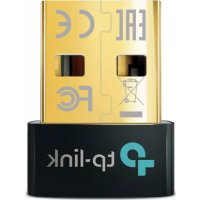
UB5A - Network card / adapter TP-LINK - Free user manual and instructions
Find the device manual for free UB5A TP-LINK in PDF.

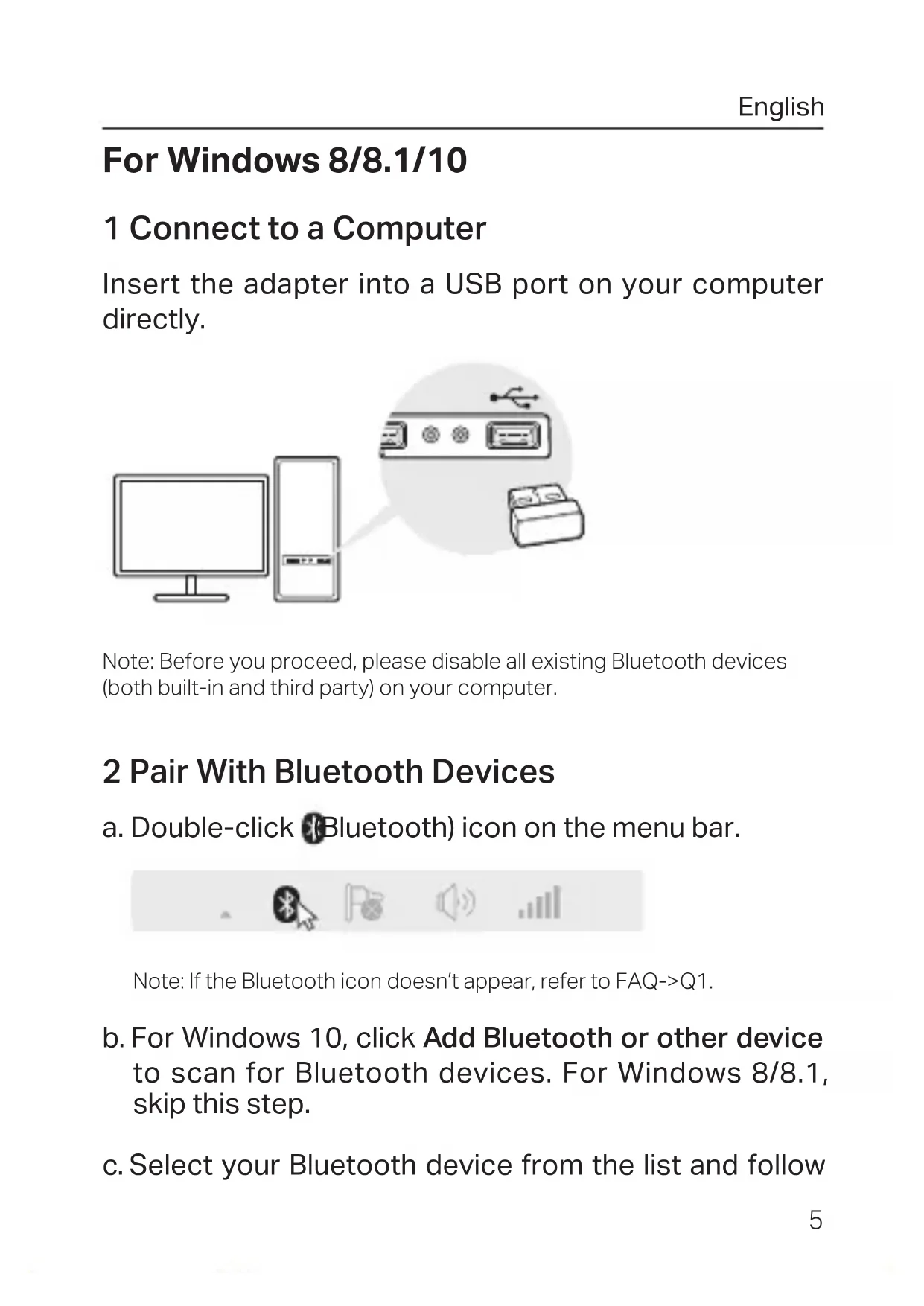


| Product Type | Bluetooth USB Adapter |
| Brand | TP-Link |
| Model | UB5A |
| Interface | USB 2.0 Type-A |
| Bluetooth Standard | Bluetooth 5.0 |
| Supported Operating Systems | Windows 11, 10, 8.1, 8, 7, XP |
| Range | 10 meters (open space) |
| Dimensions | 15 x 10 x 5 mm |
| Weight | 2 g |
| Power Supply | USB port (5 V, 500 mA) |
| Operating Temperature | 0 °C to 40 °C |
| Operating Humidity | 10% to 90% RH (non-condensing) |
| Color | Black |
| Main Functions | Bluetooth connectivity for peripherals (mouse, keyboard, headphones), compatible with A2DP, HID, SPP, GATT |
| Care and Cleaning | Wipe with a dry, soft cloth. Do not use chemicals. |
| Safety | Keep away from water, fire, and moisture. Do not disassemble. |
| Package Contents | USB adapter, quick installation guide |
| Warranty | 3 years |
| Certifications | CE, RoHS |
Frequently Asked Questions - UB5A TP-LINK
User questions about UB5A TP-LINK
0 question about this device. Answer the ones you know or ask your own.
Ask a new question about this device
Download the instructions for your Network card / adapter in PDF format for free! Find your manual UB5A - TP-LINK and take your electronic device back in hand. On this page are published all the documents necessary for the use of your device. UB5A by TP-LINK.
USER MANUAL UB5A TP-LINK
Quick Installation Guide
Bluetooth 4.0 Nano USB Adapter
For technical support, the user guide and other information, please visit https://www.tp-link.com/support/.
© 2022 TP-Link 7106509572 REV1.2.0
Images may differ from actual products.
CONTENTS
1 / Deutsch
5 / English
9 / Espanol
13 / Eλληνικά
17 / Français
21 / Italiano
25 / Portugues
29 / Suomi
33 / Nederlands
37 / Svenska
41 / Norsk
45 / Dansk
https://www.tp-link.com/download-centerherunter.
1 Connect to a Computer
Insert the adapter into a USB port on your computer directly.
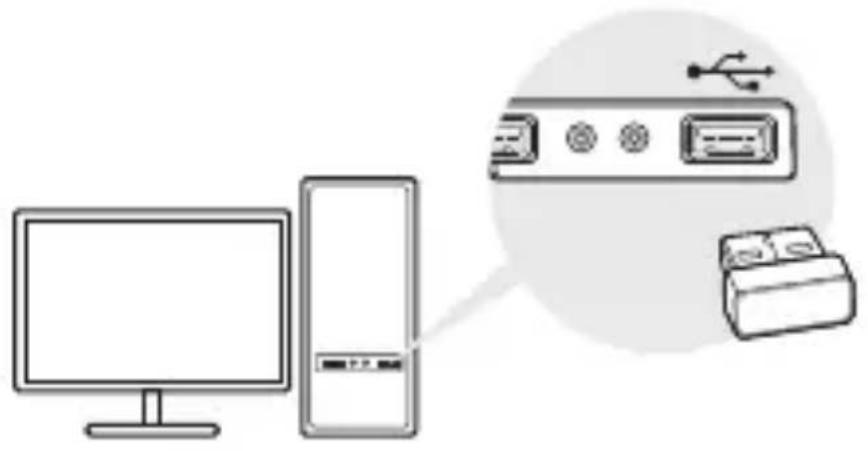
Note: Before you proceed, please disable all existing Bluetooth devices (both built-in and third party) on your computer.
2 Pair With Bluetooth Devices
a. Double-click (Bluetooth) icon on the menu bar.

Note: If the Bluetooth icon doesn't appear, refer to FAQ->Q1.
b. For Windows 10, click Add Bluetooth or other device to scan for Bluetooth devices. For Windows 8/8.1, skip this step.
c. Select your Bluetooth device from the list and follow
the onscreen instructions to complete pairing.
Note: Make sure your Bluetooth device is set to be discoverable.
For Windows XP/7
1 Connect to a Computer
Insert the adapter into a USB port on your computer directly.
Note: Before you proceed, please disable all existing Bluetooth devices (both built-in and third party) on your computer.
2 Install Bluetooth Driver
a. Download the driver at
https://www.tp-link.com/download-center
b. Unzip the downloaded folder and run Setup.exe.
c. Follow the onscreen instructions to install the driver. During the installation, change Discovery Mode to Discovery ON.
d. Once the process is finished, restart your computer to complete installation.
Note: If you can't install the driver successfully, disable the antivirus software and firewall, then try again.
3 Pair With Bluetooth Devices
a. Right-click Bluetooth) icon on the menu bar and select Add Bluetooth Device.

b. Select your Bluetooth device from the list and click Next. Follow the onscreen instructions to complete pairing.
Notes:
- Make sure your Bluetooth device is set to be discoverable.
- If the Bluetooth icon doesn't appear, refer to FAQ->Q1.
Frequently Asked Questions
Q1. What should I do if the Bluetooth icon doesn't appear?
A1. Make sure you have installed the Bluetooth driver if using Windows XP or Windows 7 system. And restart the computer after installing the driver.
A2. Make sure there are no other Bluetooth devices on the computer. If there are, disable all existing Bluetooth
devices in Device Manager, then insert the adapter and try again.
Q2. Why the adapter is not working with my Bluetooth device?
A1. Make sure your device has BLUETOOTH function.
A2. For devices with non-standard Bluetooth protocols, such as Logitech Mouse and Airpods, there may be some compatibility problems.
If you still have questions and need further help, refer to https://www.tp-link.com/faq-2316.html
Para Windows 8/8.1/10
1 Conectar a un ordinador
https://www.tp-link.com/download-center
https://www.tp-link.com/download-center
https://www.tp-link.com/faq-2316.html
Windows 8/8.1/10
1 Concessione al Computer
a. Scaricate il driver da https://www.tp-link.com/download-center
a. Procedao downloaddo driver em https://www.tp-link.com/download-center
https://www.tp-link.com/pt/faq-2316.html
Windows 8/8.1/10
https://www.tp-link.com/download-center
https://www.tp-link.com/download-center
https://www.tp-link.com/faq-2316.html
EU declaration of conformity
English
TP-Link hereby declares that the device is in compliance with the essential requirements and other relevant provisions of directives 2014/53/EU, 2011/65/EU and (EU)2015/863.
The original EU declaration of conformity may be found at https:// www.tp-link.com/en/ce.
Deutsch
https://www.tp-link.com/en/ce.
Safety Information English
- Keep the device away from water, fire, humidity or hot environments.
- Do not attempt to disassemble, repair, or modify the device.
- Do not use the device where wireless devices are not allowed.
- This USB Adapter can be powered only by computers that comply with Limited Power Source(LPS).
Please read and follow the above safety information when operating the device. We cannot guarantee that no accidents or damage will occur due to improper use of the device. Please use
this product with care and operate at your own risk.
Deutsch
TP-Link Three Years Limited Product Warranty
English
For TP-Link Branded Products Only.
THIS WARRANTY GIVES YOU SPECIFIC LEGAL RIGHTS, AND YOU MAY HAVE OTHER RIGHTS THAT VARY FROM STATE TO STATE (OR BY COUNTRY OR PROVINCE).
TO THE EXTENT ALLOWED BY LOCAL LAW, THIS WARRANTY AND THE REMEDIES SET FORTH ARE EXCLUSIVE AND IN LIEU OF ALL OTHER WARRANTYES, REMEDIES AND CONDITIONS.
TP-Link warrants the TP-Link branded hardware product contained in the original packaging against defects in materials and workmanship when used normally in according with TP-Link's guidelines for a period of THREE YEARS form the date of original retail purchase by the end-user purchaser.