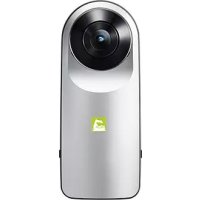
Pocket Photo PD251W - Printer LG - Free user manual and instructions
Find the device manual for free Pocket Photo PD251W LG in PDF.

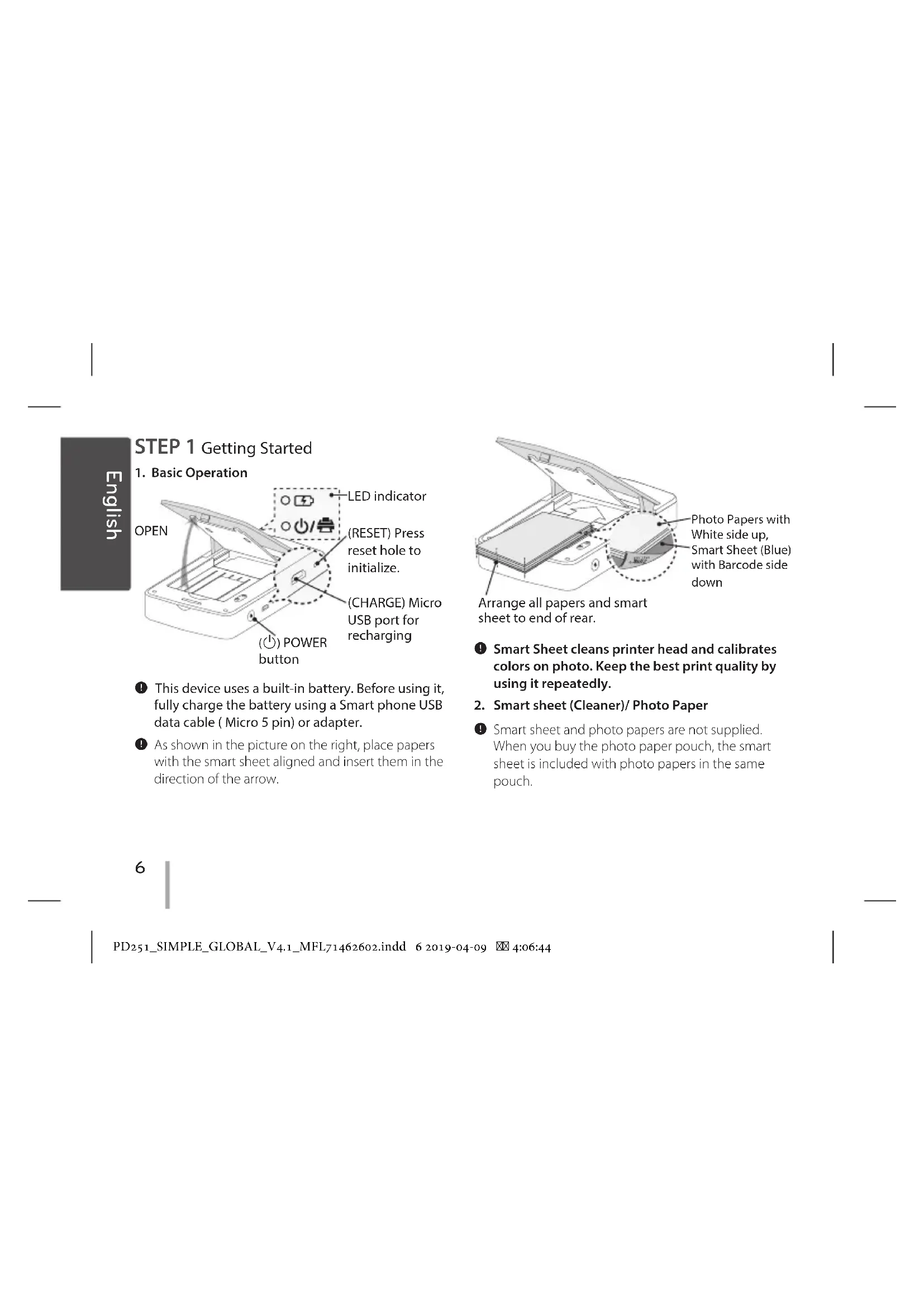


| Brand | LG |
| Model | Pocket Photo PD251W |
| Product Type | Portable photo printer |
| Dimensions | Approx. 131 x 80 x 20 mm |
| Weight | Approx. 205 g |
| Power Supply | Built-in rechargeable battery via micro-USB, DC 5 V adapter compliant with LPS |
| Main Functions | Thermal transfer photo printing, Bluetooth connectivity, LG Pocket Photo app, Smart sheet for calibration and cleaning |
| Maintenance and Cleaning | Use the Smart sheet regularly to clean the print head; use exclusively LG Pocket photo paper; do not fold or damage the paper |
| Safety | Keep a minimum distance of 20 cm from the body; do not modify the device; use only a certified adapter |
| Spare Parts and Repairability | LG Pocket photo paper (Smart sheet included); reset via Reset hole; no user-serviceable parts |
| General Information | Print resolution: 1280 x 2448 pixels; compatible with Android, iOS, Windows Phone; Industry Canada (IC) certification |
| Connectivity | Bluetooth (compatible with smartphones and tablets) |
| Paper Type | LG Pocket photo paper (specific format, non-standard) |
| Tray Capacity | Not specified (generally 1 sheet at a time) |
Frequently Asked Questions - Pocket Photo PD251W LG
User questions about Pocket Photo PD251W LG
0 question about this device. Answer the ones you know or ask your own.
Ask a new question about this device
Download the instructions for your Printer in PDF format for free! Find your manual Pocket Photo PD251W - LG and take your electronic device back in hand. On this page are published all the documents necessary for the use of your device. Pocket Photo PD251W by LG.
USER MANUAL Pocket Photo PD251W LG
For more details, please refer to the Owner's Manual at LG Pocket Photo App or http://popoguide.lge.com.
MODEL: PD251W/ PD251P/ PD251Y


Windows Phone Store
Android*


Fun Application
■ Financial Partners
theorem

text_image
Barcode image containing machine-readable data with vertical lines and dotsMFL71462602
www.lg.com
Copyright © 2015-2019 LG Electronics Inc.
All Rights Reserved.
USA
WARNING: This product contains chemicals known to the State of California to cause cancer and birth defects or other reproductive harm. Wash hands after handling.
- For more details, please refer to the Owner's Manual at LG Pocket Photo App or http://popoguide.lge.com.
- 关于更多详细信息,请参见 LG Pocket Photo 应用程序的用户手册或登陆 http://popoguide.lge.com。
- 若要瞭解更多詳細資訊,請參見 LG Pocket Photo 應用程式的相關使用手冊或登入 http://popoguide.lge.com。
- 本製品に関する詳細な情報は、LG Pocket Photoアプリまたはウェブ取扱説明書(http://popoguide.lge.com)からもご覧いただけます。
- Para más detalles, consulte el Manual del Propietario en LG Pocket Photo App o http://popoguide.lge.com.
- Weitere Informationen finden Sie im Bedienerhandbuch der LG Pocket Photo App oder unter http://popoguide.lge.com.
- Pour plus de détails, reportez-vous au Manuel d'utilisateur disponible sur l'App Pocket Photo de LG ou téléchargeable sur le site http://popoguide.lge.com.
-
Для подробной информации, пожалуйста, обратитесь к руководству по использованию на LG Pocket Photo App или http://popoguide.lge.com.
-
További részletekért, kérjük tanulmányozza az LG Pocket Photo App felhasználói kézikönyvét vagy a http://popoguide.lge.com honlapot.
- Толык акпарат алу ўшін, әтінеміз, LG Pocket Photo App колдану жәніндегі нұсқаулығына немесе http://popoguide.lge.com жүгініңіз.
- За повеće детали, погледнете го прирачникот за употреба на апликацијата LG Pocket Photo или на http://popoguide.lge.com.
- Se Brukermanualen på LG Pocket Photo App for flere detaljer, eller http://popoguide.lge.com.
- By uzyskać więcej informacji proszę zapoznać się z Instrukcją Właściciela w Aplikacji LG Pocket Photo lub na http://popoguide.lge.com.
- Para obter mais informações consulte o Manual do Proprietário através da Aplicação LG Pocket Photo ou em http://popoguide.lge.com.
- Para maiores detalhes, consulte o Manual do Proprietário no LG Pocket Photo App ou http://popoguide.lge.com.
- Para maiores detalhes, consulte o Manual do Proprietário no LG Pocket Photo App ou http://popoguide.lge.com.
- Pentru mai multe detalii, vă rugăm să consultați manualul utilizatorului furnizat cu LG Pocket Photo App sau să acessați http://popoguide.lge.com.
-
За више информација, молимо Вас погледајте корисничко упутство у LG Pocket Photo апликацији или на http://popoguide.lge.com.
-
Viac informácií nájdete v návode na obsluhu aplikácie LG Pocket Photo alebo na stránke http://popoguide.lge.com.
- Za več podrobnosti glejte uporabniški priročnik aplikacije LG Pocket Photo ali obiščite spletno stran http://popoguide.lqe.com.
- Para más detalles, consulte el Manual del propietario en la aplicación LG Pocket Photo o visite http://popoguide.lge.com.
- För mer detaljer, se bruksanvisningen i appen LG Pocket Photo eller gå till http://popoguide.lge.com.
- ลําหากต้องการทราบรายละเอียดเพิ่มเติม กรุณาอ่านคู่มือผู้ใช้ของ Pocket Photo App หรือ http://popoguide.lge.com.
- Daha fazla bilgi için, lütfen LG Pocket Photo Uygulaması veya http://popoguide.lge.com sitesinde bulunan Kullanım Kilavuzu'na bakınız.
- Більш детальну інформацію можна знайти у посібнику користувача на LG Pocket Photo App або на сайті http://popoguide.lge.com.
- Để biết thêm chỉ tiết, hãy tham khảo Hướng dẫn người sử dụng trên ứng dụng LG Pocket Photo hoặc trên http://popoguide.lge.com.
- За повече информация, моля, вижте Ръководството за употреба на LG Pocket Photo App или http://popoguide.lge.com.
- 欲瞭解更多詳細資訊,請參見 LG Pocket Photo 應用程式的使用說明書或登入 http://popoguide.lge.com。
-
Za više informacija molimo pogledajte korisnički priručnik na LG Pocket Photo aplikaciji ili na http://popoguide.lge.com.
-
Více informací naleznete v návodu k obsluze pro aplikaci Pocket LG Photo nebo na stránkách http://popoguide.lge.com.
- Find flere oplysninger i brugervejledningen i LG Pocket Photo App eller på http://popoguide.lge.com.
- Voor meer informatie verwijzen wij u naar de handleiding van de LG Pocket Photo App of http://popoguide.lge.com.
- Lisätietojen osalta, ks. Käyttöohjekirjaa LG Pocket Photo -sovellukselle tai sivustolla http://popoguide.lge.com.
- Pour de plus amples renseignements, veuillez consulter le manuel de l'utilisateur sur l'application LG Pocket Photo ou http://popoguide.lge.com.
• Για περισσότερες πληροφορίες, ανατρέξτε στο Εγχειρίδιο Χρήσης της εφαρμογής LG Pocket Photo ή επισκεφθείτε τον ιστότοπο http://popoguide.lge.com.
STEP 1 Getting Started
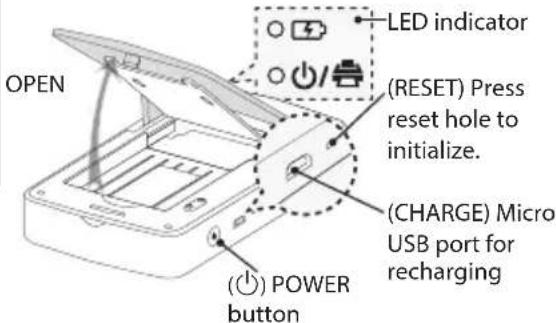
1. Basic Operation
text_image
OPEN LED indicator (RESET) Press reset hole to initialize. (CHARGE) Micro USB port for recharging (POWER buttonThis device uses a built-in battery. Before using it, fully charge the battery using a Smart phone USB data cable (Micro 5 pin) or adapter.
As shown in the picture on the right, place papers with the smart sheet aligned and insert them in the direction of the arrow.

text_image
Photo Papers with White side up, Smart Sheet (Blue) with Barcode side down Arrange all papers and smart sheet to end of rear.Smart Sheet cleans printer head and calibrates colors on photo. Keep the best print quality by using it repeatedly.
2. Smart sheet (Cleaner)/ Photo Paper
Smart sheet and photo papers are not supplied. When you buy the photo paper pouch, the smart sheet is included with photo papers in the same pouch.
Note on Smart sheet
When using Smart Sheet, it should be used with photo papers in the same pouch.
- Using smart sheet from other pouch may result in low quality.
- If print quality is abnormal or low, print out the smart sheet 3-5 times repeatedly.
- Reuse the smart sheet until use up the photo papers from same pouch.
Use exclusive photo paper for LG Pocket Photo. Otherwise, the print quality cannot be guaranteed, and it may cause damage of Pocket Photo.
Note on Photo paper
-
Do not damage or bend the papers.
• Using soiled paper may result in malfunction. -
Ensure to use the papers within its valid date.
- Once unpacked, the papers may begin to curl up or change the color after a period of time. It is recommended to use them as soon as possible.
STEP 2 Installing App
Search for "LG Pocket Photo" from Play Store (Android market) / App Store (iPhone)/ Windows Phone Store.
STEP 3 Pairing Bluetooth
- Turn on the Pocket Photo device.
- Search for the device to pair through Bluetooth. ex) LG PD251 (XX : XX)
- When you find the device, touch the model name of Pocket Photo on the screen.
In case of iPhone/iPad, the last paired iPhone/iPad is paired to Pocket Photo automatically when you turn on Pocket Photo if the Bluetooth on your iPhone/iPad is on.
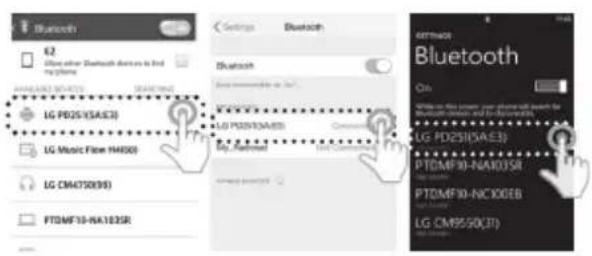
text_image
Bluetooth 62 Follow other Bluetooth devices to find phone LG PD25(SAE3) LG Music Flow HA900 LG CM4750(9) FTDMF10-NA102SR Settings Bluetooth LG PD25(SAE3) LG Music Flow HA900 LG CM4750(9) FTDMF10-NA102SR GETTMOS Bluetooth On: LG PD25(SAE3) PTDMF10-NA102SR PTDMF10-NC100EB LG CM9550(37)STEP 4 Printing Photo
- After pairing, run LG Pocket Photo App on smart phone.
- Select a photo to print, and touch [ ]
If the smart sheet is in the device, the selected image will be printed after optimizing the image's quality.
The printed image may differ from the original image due to the printing method (thermal transfer printing).
Note on the print
- Use the latest App of LG Pocket Photo (when printing a photo, it optimizes the image.)
- Check the quality of original image. (The printed images may differ from the original image.)
- Do not pull the paper out by force during printing.
- Do not open the upper cover during printing. The product may be damaged.
- If the device is vibrated or given shock, the quality of the printed photo may be reduced.
- The higher resolution of the image, the printed picture has the higher quality. (The proper resolution is more than 1280 x 2448 pixel.)
- The printing quality may differ depending on the original image (When too dark or dim). Print the image after correcting it using Pocket photo App.
- Printing for Passport / VISA image may be unsuitable as the case may be. Printing the image taken in studio is recommended.
STEP 5 See "User manual" for details
-
Run LG Pocket Photo App on the smartphone.
-
Touch the setting menu [...] → [] to see user manual for details.
※ This product must always be operated DC 5 V. Certified/Listed Adaptor which comply with LPS.
| Symptom Cause / Solution | |
| The paper jammed before printing. | Turn the device off and on again then paper is ejected automatically. |
| The printed photo has lines. | Open the Upper cover, arrange the papers and insert them with Smart Sheet locating at the bottom.Then try printing again. |
| When using Smart Sheet, it should be used with photo papers in the same pouch. | |
| Quality of printed photo is too low. | In case you magnify an image using [+] menu in the App, the quality of the printed photo may be reduced. |
| Turn off the device and insert Smart Sheet locating at the bottom of the papers. Then try printing again. | |
| Be sure the photo size is bigger than the proper resolution.(1280 x 2448 pixels) | |
| Above solutions do not work. | Press Reset hole with a pointed thing like mechanical pencil to initialize. |
※ All other product and brand names are trademarks or registered trademarks of their respective owners.
中
步骤 1 开始
1. 基本操作

text_image
Bluetooth 62 For you, you can use your network to access the network. You can use the network to access the network. You can use the network to access the network. LG POD25(5AE3) LED/THYSLY-VSPRPTA PTDMF10-NA103SR EXB-LABTOP Bluetooth Live on the website: www.eleb.com/ LANTRONY Bluetooth Windows IP address: www.wk.net LG POD25(5AE3) LG CMB450(75) PTDMF10-NC100EB PTDMF10-NA103SRFCC Compliance Statement
This equipment has been tested and found to comply with the limits for a Class B digital device, pursuant to Part 15 of the FCC Rules. These limits are designed to provide reasonable protection against harmful interference in a residential installation. This equipment generates, uses, and can radiate radio frequency energy and, if not installed and used in accordance with the instructions, may cause harmful interference to radio communications. However, there is no guarantee that interference will not occur in a particular installation. If this equipment does cause harmful interference to radio or television reception, which can be determined by turning the equipment off and on, the user is encouraged to try to correct the interference by one or more of the following measures:
• Reorient or relocate the receiving antenna.
- Increase the separation between the equipment and the receiver.
- Connect the equipment to an outlet on a circuit different from that to which the receiver is connected.
- Consult the dealer or an experienced radio/TV technician for help.
This device complies with part 15 of the FCC Rules. Operation is subject to the following two conditions:
(1) this device may not cause harmful interference and (2) this device must accept any interference received, including interference that may cause undesired operation of the device. Any changes or modifications in construction of this device which are not expressly approved by the party responsible for compliance could void the user's authority to operate the equipment.
FCC RF Radiation Exposure Statement: This equipment complies with FCC radiation exposure limits set forth for an uncontrolled environment. This transmitter must not be co-located or operating in conjunction with any other antenna or transmitter.
This equipment should be installed and operated with minimum distance 20 cm (7.8 inches) between the antenna and your body. Users must follow the specific operating instructions for satisfying RF exposure compliance.
Responsible Party :
Englewood Cliffs, NJ 07632
Tel: 1-800-243-0000
LG Customer Information Center
Register your product Online!
www.lg.com
Canada
Industry Canada Statement
This device complies with Industry Canada's licence-exempt RSSs. Operation is subject to the following two conditions:
(1) This device may not cause interference; and
(2) This device must accept any interference, including interference that may cause undesired operation of the device.
CAN ICES-3 (B)/NMB-3 (B)
IC Radiation Exposure Statement
This equipment complies with IC radiation exposure limits set forth for an uncontrolled environment.
This equipment should be installed and operated with minimum distance 20 cm (7.8 inches) between the antenna & your body.
NOTE: THE MANUFACTURER IS NOT RESPONSIBLE FOR ANY RADIO OR TV INTERFERENCE CAUSED BY UNAUTHORIZED MODIFICATIONS TO THIS EQUIPMENT. SUCH MODIFICATIONS COULD VOID THE USER'S AUTHORITY TO OPERATE THE EQUIPMENT.
WARNING
[For product having the wireless function using 5 GHz frequency bands]
(i) the device for operation in the band 5150–5250 MHz is only for indoor use to reduce the potential for harmful interference to co-channel mobile satellite systems;
(ii) for devices with detachable antenna(s), the maximum antenna gain permitted for devices in the bands 5250-5350 MHz and 5470-5725 MHz shall be such that the equipment still complies with the e.i.r.p. limit;
(iii) for devices with detachable antenna(s), the maximum antenna gain permitted for devices in the band 5725-5850 MHz shall be such that the equipment still complies with the e.i.r.p. limits specified for point-to-point and non-point-to-point operation as appropriate; and
(iv) the worst-case tilt angle(s) necessary to remain compliant with the e.i.r.p. elevation mask requirement set forth in Section 6.2.2(3) shall be clearly indicated.(devices operating in the band 5250-5350 MHz with a maximum e.i.r.p. greater than 200 mW)
(v) High-power radars are allocated as primary users (i.e. priority users) of the bands 5250–5350 MHz and 5650–5850 MHz and that these radars could cause interference and/or damage to LE-LAN devices.
LG Customer Information Center
1-888-542-2623
CANADA
Register your product Online!
www.lg.com
Declaration of Conformity

Hereby, LG Electronics declares that the radio equipment type POCKET PHOTO is in compliance with Directive 2014/53/EU. The full text of the EU declaration of conformity is available at the following internet address:
http://www.lg.com/global/support/cedoc/cedoc#
IMPORTANT SAFETY NOTICE
The cord grip for the plug fitted to this product is built into the existing power cord as supplied. If, for any reason you need to shorten the cord.
DO NOT RE-USE THE PLUG.
A new plug must be used to ensure your continued safety by securing the plug to the power cord in accordance with Plug & Socket Regulations 1994.