USER MANUAL ROC 36 THOMSON
This Universal Remote Control is compatible with most models of infrared-controlled TV sets, video recorders, DVD players, satellite and cable TV receivers.
This remote control has already been programmed so that you can use it to control most of the audio/video products made by the THOMSON group. Before attempting to programme the remote control, install 2 batteries (AAA, not supplied) and try it out by using one of the methods described in this user manual.
Please keep this guide along with the code list (provided separately), so that you can programme your remote control for use with other products.
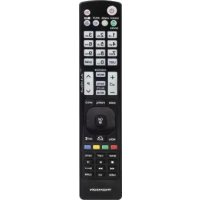
1 - Description of the key functions
1 Indicator lamp: the red indicator lamp lights up when any key is pressed.
2 Product keys (TV, VCR or SAT): Used to programme and control different products (TV, satellite receiver, video recorder, DVD player and so on).
3 ◀◀ (REW): Goes backward or advances forward (VCRs and DVDs); press with red key for fast text function in TV mode.
4 RECORD: To record, press the RECORD key twice.
5 STOP: Stops VCR tape advance; in DVD mode, stops disc play; press with green key for fast text function in TV mode.
6 /MENU: Teletext On/Off in TV mode; turns on the menu of the selected products (SHIFT + MENU).
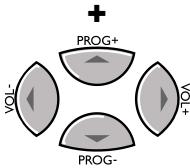
7 VOL -, VOL +: Increases (+) or decreases (-) the volume of the TV set; use to scroll horizontally in any menu (SHIFT + VOL+/-).
8 /OK: Switches the TV sound off or confirms a selection (SHIFT + ).
9 Number keys 0 to 9: these keys have the same functions as those of your original remote and are also used to enter the codes for different products.
10 AV: For selecting an external source (SCART).
11 ⏻: On/Standby.
12 ▶▶ (FF) : fast forward for VCRs and DVDs; press with blue key for fast text function in TV mode.
13 ▶ (PLAY): plays a VCR tape or DVD disk; press with yellow key for fast text function in TV mode.
14 II (PAUSE): Suspends play and stops on an image; press with magenta key for fast text function in TV mode.
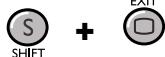
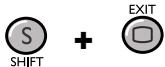
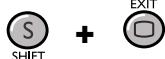
15 ☐/EXIT: Teletext Off in TV mode; turns off the menu of the selected product (SHIFT + EXIT).
16 PROG+/-: Programmes zapping button (rapid select); use to scroll vertically through menus (SHIFT + PROG+/-).
17 S/SHIFT: Programmes the remote control (S) or activates the secondary key features (SHIFT).
18 -/-: Press this key first before you type in the 2-digit channel number (except for Thomson group products).
2 - Testing the remote control before you programme it
- Turn on the product you want to control.
- Press the product key (2) that corresponds to the type of product you want to control:
TV: television set SAT: satellite receiver
VCR: video recorder
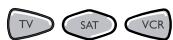
- Point the remote control towards the product and try to turn it off by pressing the ⏻ key. If the product doesn't turn off, you'll need to programme the remote control by one of the methods described in chapter 3.

3 - Programming the remote control
Method A - Fast programming with 1-digit subcode
Before you start programming, you must find the subcode of the product to be controlled (Television, VCR, satellite receiver or DVD player).
Refer to the list provided with these instructions, page 1 of the codes.
- Turn on the product you want to control.
- Hold down the S key (17) until the red indicator lamp (1) remains lit (the indicator light remains on for a few seconds to give you the time to proceed with the following steps. The indicator lamp flashes when this time is almost up, and then goes off).
- Press the product key (2) that corresponds to the type of product you want to control: TV: television set, VCR: video recorder, SAT: satellite receiver.
- While the indicator is lit, type in the subcode (example: 1 for THOMSON).
- Point the remote towards the product and try to turn it off by pressing the key Ⓧ (11).
- If the product you want to control turns off, press OK (8) to save the subcode.
- If the product doesn't turn off, press the ⏻ key (11) repeatedly until the set switches off. Wait approximately one second between key presses to give the red indicator lamp (1) enough time to go off and light up again. This will allow you to see whether the product responds or not.
- Immediately after the product to be controlled turns off, press OK (8) to save the subcode.
Note:
If you want to assign another type of product than those mentioned on the remote control, begin by entering the code that corresponds to the product you want to programme (a 3-digit code that you will find in the code booklet – see method B).
Example: if you want to control a satellite receiver with the VCR key, begin by entering a satellite code (any satellite, for example: 603 for a Thomson satellite receiver) then begin the procedure.
Checking the programming:
Your product should be ready to receive remote control commands. Check to see that your remote functions correctly by performing the test described on page 4.

SHIFT


Method B - 3-digit codes programming
Before you start programming, you must find the code for the product to be controlled (Television, VCR, satellite receiver, cable receiver or DVD player).
Refer to the list provided with these instructions, on page II of the codes.
- Turn on the product you want to control.
- Hold down the S key (17) until the red indicator lamp (1) remains lit (the indicator light remains on for a few seconds to give you the time to proceed with the following steps. The indicator lamp flashes when this time is almost up, and then goes off).
- Press the product key (2) that corresponds to the type of product you want to control: TV: television set, VCR: video recorder, SAT: satellite receiver.
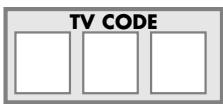
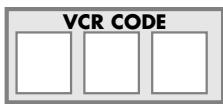
- While the indicator is lit, enter the 3-digit code proposed for the product to be controlled (example: 036 for THOMSON). The red indicator then goes off if the code is correct or flashes, if the code is not on the list.
- Point the remote control towards the product and try to turn it off by pressing the ⏻ key (11).
- If the product doesn't turn off, repeat step 2, using the next 3-digit code in the list. Try to turn off the product by pressing Ⓧ key (11) once. Repeat this procedure until one of the 3-digit codes works.
Checking the programming:
Your product should be ready to receive remote control commands. Check to see that your remote functions correctly by performing the test described on page 4.

SHIFT


Method C - Programming by means of code retrieval
If none of the codes work, you may still be able to retrieve the appropriate code.
- Turn on the product you want to control.
- Hold down the S key (17) until the red indicator lamp (1) remains lit (the indicator light remains on for a few seconds to give you the time to proceed with the following steps. The indicator lamp flashes when this time is almost up, and then goes off).
- Press the product key (2) that corresponds to the type of product you want to control: TV: television set, VCR: video recorder, SAT: satellite receiver.
- Point the remote control towards the product and try to turn it off by pressing the ⏻ key (11).
- If the product you want to control turns off, press OK (8) to save the subcode.
- If the product does not turn off, press the ⏻ key (11) until the product switches off (up to 200 times). Wait approximately one second between key presses to give the red indicator lamp (1) enough time to go off and light up again. This will allow you to see whether the product responds or not.
- Immediately upon turning off the product to be controlled, press OK (8) to save the code.
Note:
If you want to assign another type of product than those mentioned on the remote control, begin by entering a code that corresponds to the product you want to programme (a 3-digit code that you will find in the code booklet – see method B).
Example: if you want to control a satellite receiver with the VCR key, begin by entering a satellite code (any satellite, for example: 603 for a Thomson satellite receiver) then begin the procedure.
Checking the programming:
Your product should be ready to receive remote control commands.
Check to see that your remote functions correctly by performing the test described on page 4.


Method D - Automatic code search
With this method, the remote scrolls through the full code list by sending an IR signal to the product to be controlled remotely.
- Check that your product is on. If not, turn it on manually.
- Hold down the S key (17) until the red indicator lamp (1) remains lit (the indicator light remains on for a few seconds to give you the time to proceed with the following steps. The indicator lamp flashes when this time is almost up, and then goes off).
- Release the S key.
- Press the product key (2) corresponding to the type of product you want to control: (for example TV).
- Press PROG+ (16) or standby ⬤ (11) or PLAY (▶-VCR/DVD only). After a few seconds, the remote begins to scroll through the code list at approximately 1 code per second. Press PROG+ (16) once again to slow down the test speed (1 code every 3 seconds). As soon as the product changes channels, press OK (8) to save the code and stop the remote from scrolling through the list. If you have gone past the code, you can go back to the previous code by pressing PROG- (16) or REW (◀◀) (3) as many times as necessary (you can go forward by pressing ⬤ (11), PROG+ (16) or PLAY (▶) (13)). As soon as the product responds again, press OK (8) to save the code.
Note:
If you want to assign another type of product than those mentioned on the remote control, begin by entering a code that corresponds to the product you want to programme (a 3-digit code that you will find in the code booklet – see method B).
Example: if you want to control a satellite receiver with the VCR key, begin by entering a satellite code (any satellite, for example: 603 for a Thomson satellite receiver) then begin the procedure.
Checking the programming:
Your product should be ready to receive remote control commands.
Check to see that your remote functions correctly by performing the test described on page 4.


or


Method E - Programming for control of a COMBO (TV-VCR)
To set up the remote control to control a COMBO you first programme the television and then the video recorder subset.
Before you start programming, you must find the subcode or code of the combo to be controlled (television or video recorder).
Refer to the list supplied with this user manual (see page subcodes or codes).
- Turn on the COMBO you want to control.
- Hold down the S key (17) until the red indicator lamp (1) remains lit (the indicator light remains on for a few seconds to give you the time to proceed with the following steps. The indicator lamp flashes when this time is almost up, and then goes off).
- Press the TV key (2), then follow one of the programming methods (A, B, C or D) described earlier.
- Hold down the S key (17) until the red indicator lamp (1) remains lit (the indicator light remains on for a few seconds to give you the time to proceed with the following steps. The indicator lamp flashes when this time is almost up, and then goes off).
- Press the VCR key (2), then follow one of the programming methods (A, B, C or D) described earlier.


4 - How to retrieve a programmed code
You may want to retrieve the code programmed in the remote control.
- Hold down the S key (17) until the red indicator lamp (1) remains lit (the indicator light remains on for a few seconds to give you the time to proceed with the following steps. The indicator lamp flashes when this time is almost up, and then goes off).
- Press the product key (2) that corresponds to the type of product you want to control:
TV: television set, VCR: video recorder, SAT: satellite receiver.
- Press S (17) again briefly. The red indicator lamp flashes once.
- Press the number keys (0 to 9) in ascending order until the red indicator lamp (1) flashes once.
- The digit which made the red indicator lamp (1) flash, is the first number of the 3-digit code. Please make note of it.
- Repeat step 4 to find out the two other numbers of the code.
- When the third number is found, the red indicator lamp (1) goes off.


5 - Check the programming
- For a television or a satellite receiver: turn on and off, then try to change channels using PROG+/1 (16) or a digit key (9).
- Video recorder: load a tape and then press PLAY (▶) (13).
- DVD player: load a DVD and then press PLAY (▶) (13).
Try other remote control keys to find out which functions you can control. If you think that not all of the keys are active, try the programming Method B or C.
When you have retrieved the code of your product, make note of it; after battery replacement, you may have to programme the remote control again.
6 - Controlling volume in satellite and cable mode
Since some satellites and cable receivers have no volume control, the ROC 36 remote control allows you to control the television's volume in satellite or cable mode. For satellite systems with a volume control, you can choose the product that the ⬆ (8) and VOL (7) keys will control: the television volume or the volume of the satellite or cable receiver.
To choose, proceed as follows:
- Press the TV key (2) (the remote control must be in TV mode for this procedure).
- Hold down the S key (17) until the red indicator lamp (1) remains lit (the indicator light remains on for a few seconds to give you the time to proceed with the following steps. The indicator lamp flashes when this time is almost up, and then goes off).
- Release the S key (17).
- Press the ⚡ key (8) for around 8 seconds. The indicator light will blink and then go off for about 8 seconds before blinking once more and then staying off.
- If the remote previously controlled the television volume in SAT mode, it will now control the volume of the satellite receiver; if it previously controlled the volume of the satellite receiver, it will now control the television volume.


7 - The NAVILIGHT system
The THOMSON NAVILIGHT system allows you easy access to the settings of your television (TV) or video recorder (VCR).
- Switch on the product you want to control.
- Select the type of product concerned. In the VCR position, make sure that the AV mode is activated for the TV set (the SCART socket must be selected).
- Press the S/SHIFT key (17) once and then press ☐/MENU (6).
- To travel through the setting menus, press the S/SHIFT key (17) and then use the up, down, left, right (7 and 16). You must press the S (17) key and arrow key at the same time.
You must press the S (17) key for every arrow key press and release.
- Validate with S/SHIFT (17) + 📄 /OK (8).
- To exit the menu, press the S/SHIFT key (17) once and then press □/EXIT (15).





THOMSON HELPLINE
You can contact THOMSON by dialling: 0871 712 1312 (For Great-Britain, all calls will be charged 0,10£ / mn)
For Switzerland: 0 900 905 980 (0,18CHF / mn)
www.thomson-europe.com
6: Marcha/Paro teletexto.