R1 MK4 - Radio Ruark Audio - Free user manual and instructions
Find the device manual for free R1 MK4 Ruark Audio in PDF.



| Product Type | DAB+/FM Radio with Bluetooth |
| Brand | Ruark Audio |
| Model | R1 MK4 |
| Dimensions (W x H x D) | 180 x 150 x 130 mm |
| Weight | 1.3 kg |
| Power Supply | Mains adapter 14 V / 1.5 A (supplied) |
| Power Consumption | 15 W (max) |
| Display | High-resolution OLED |
| Speaker | NS+ 75 mm |
| Radio Tuner | DAB+ and FM RDS |
| Wireless Connectivity | Bluetooth 5.0 (A2DP, AVRCP) |
| Ports | 3.5 mm line input, 3.5 mm headphone output, USB-C (5 V / 1 A) for charging |
| Remote Control | Infrared included |
| Additional Features | Dual alarm, sleep timer, auto dim display, ambient light sensor |
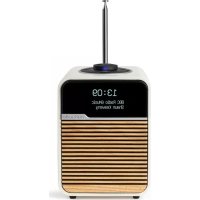
| Materials | Real wood (walnut or cherry) and fabric grille |
| Antenna | Built-in DAB/FM telescopic antenna |
| Care and Cleaning | Wipe with a soft, dry cloth. Do not use solvents or abrasive cleaners. |
| Safety | Use only the supplied adapter. Do not expose to moisture or heat sources. |
| Spare Parts | Remote control, mains adapter available from the manufacturer |
| Repairability | Repairability index not communicated |
| Warranty | 2 years |
| Country of Origin | China |
Frequently Asked Questions - R1 MK4 Ruark Audio
User questions about R1 MK4 Ruark Audio
0 question about this device. Answer the ones you know or ask your own.
Ask a new question about this device
Download the instructions for your Radio in PDF format for free! Find your manual R1 MK4 - Ruark Audio and take your electronic device back in hand. On this page are published all the documents necessary for the use of your device. R1 MK4 by Ruark Audio.
USER MANUAL R1 MK4 Ruark Audio
Important information about the AC power adapter
Model DYS824-140150W-K
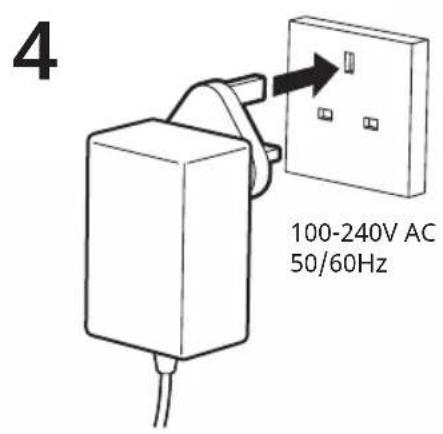
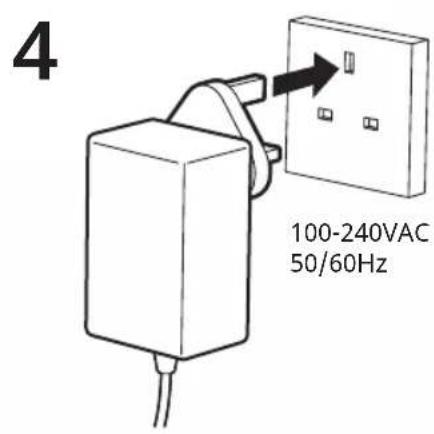
Input 100-240V\~50/60Hz, 0.7A MAX
Output 14.0VDC 1.5A
Class II, Efficiency Level VI
- This AC adapter is for audio & video equipment use only and complies with IEC 62368 safety standard.
- The supplied 3-pin plug adapter complies with BS 1363-1 and the supplied 2-pin plug adapter complies with EN 50075.
- Before using the AC adapter, ensure the mains voltage is within the rated supply voltage range.
- The output power taken from this AC adapter must not exceed its rated output power.
- DO NOT disassemble or modify the AC adapter.
- DO NOT drop or throw the AC adapter.
-
The external flexible cable cannot be replaced and if the cord is damaged, the AC adapter must be replaced.
-
DO NOT expose the AC adapter to dripping or splashing water, and do not place objects filled with liquids, such as vases, on or near the device.
- DO NOT leave the AC adapter in a hot location, such as near fire or under strong sunlight.
- Unplug the AC adapter during lightning storms or when unused for long periods of time to prevent damage.
- Ensure that the AC adapter is readily accessible when plugged into the mains. If an abnormal condition occurs while using it, immediately turn off the connected device and disconnect the mains adapter from the mains.
- DO NOT dispose this AC adapter as general household waste or unsorted municipal waste. Dispose of it according to local regulations.
EN
-
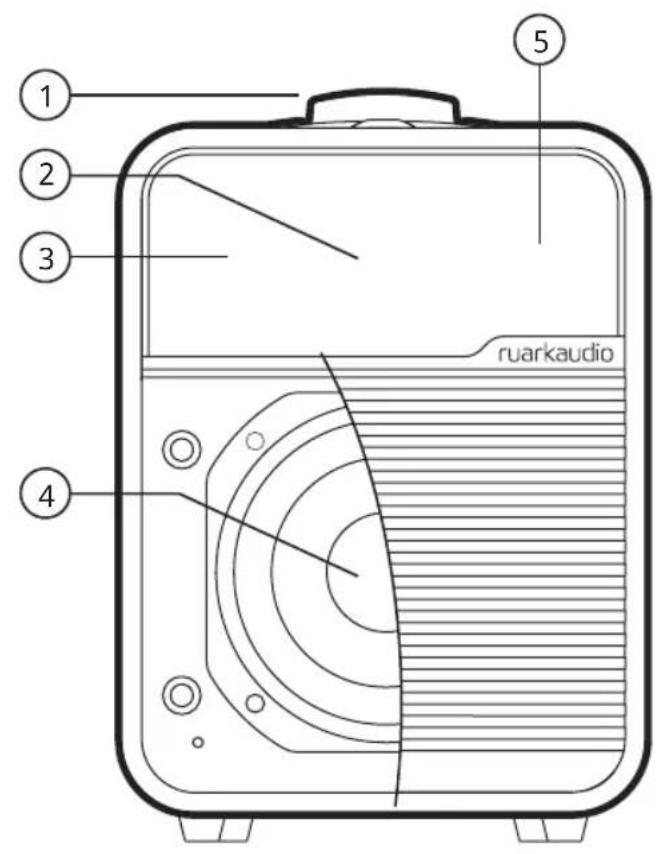
Controls
-
OLED display
-
Remote receiver
-
75mm NS+ driver
-
Ambient light sensor
-
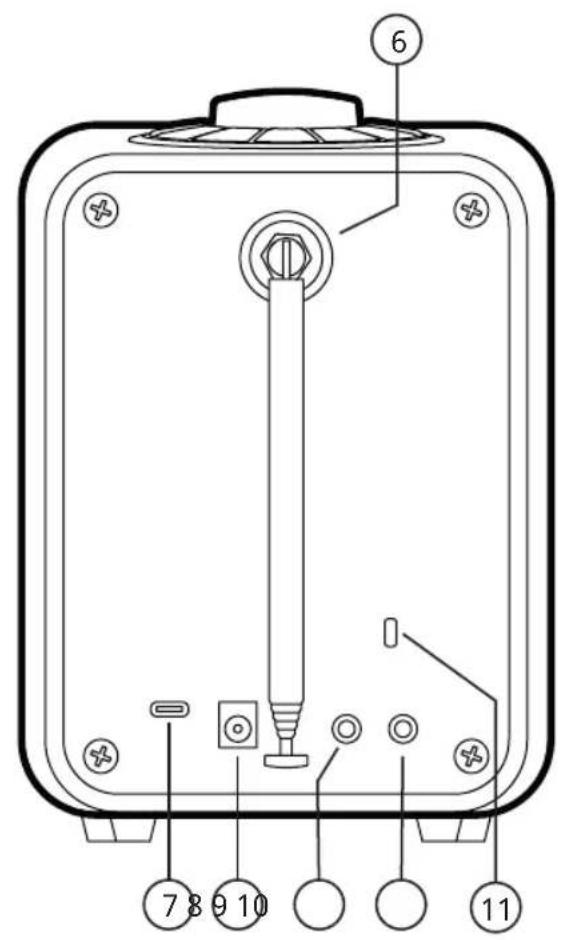
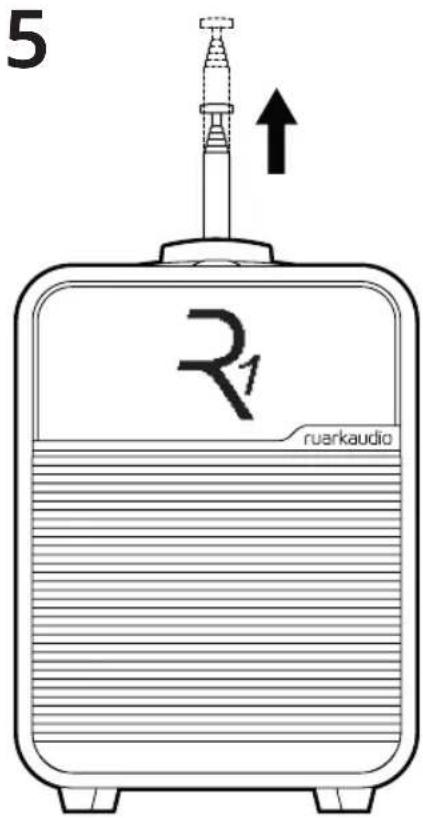
DAB-FM antenna
-
USB C 5V 1A
-
DC input 14V 1.5A
-
Line input
-
Headphone output
-
Security slot
DA
natural_image
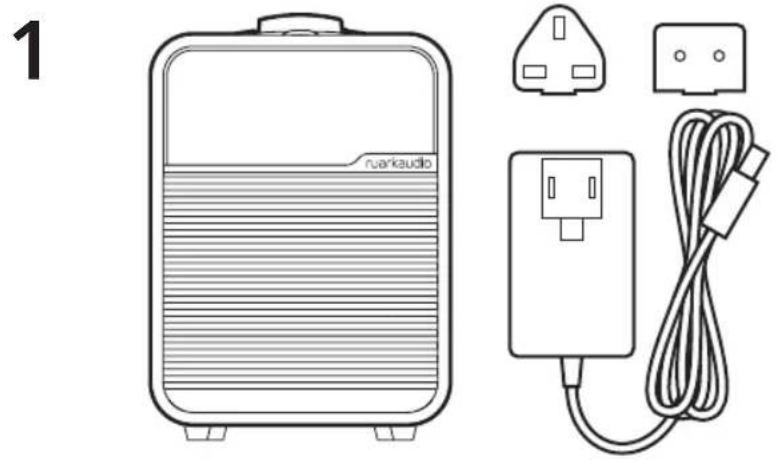
Line drawing of a portable audio heater with a separate plug and cord, labeled '1' (no text or symbols on the device itself)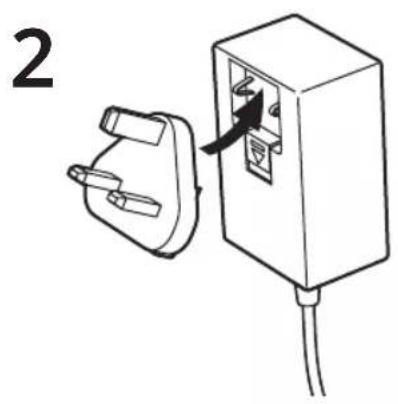
natural_image
Simple line drawing of an electrical outlet plug with a cable, no text or symbols present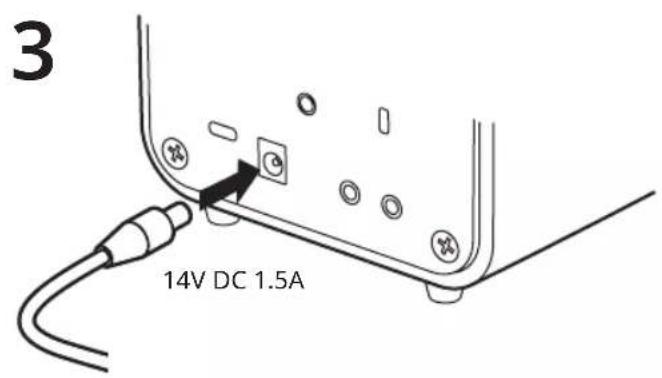
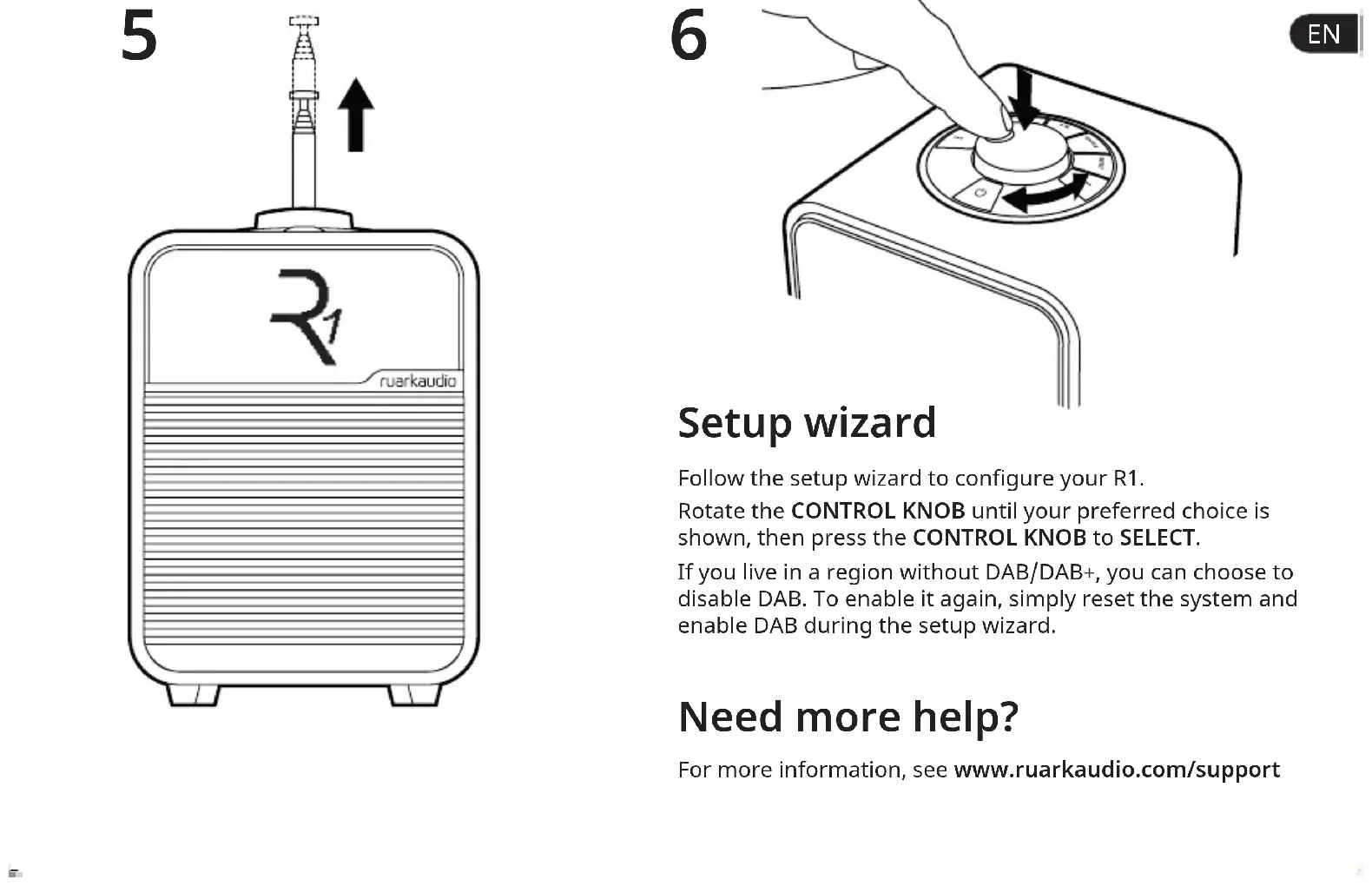
Setup wizard
Follow the setup wizard to configure your R1.
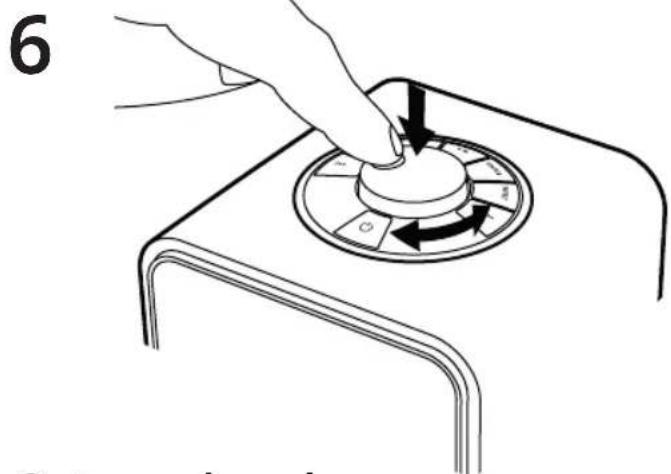
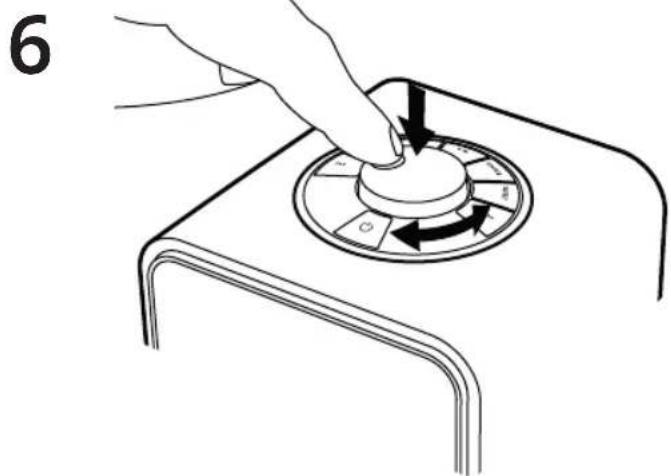
Rotate the CONTROL KNOB until your preferred choice is shown, then press the CONTROL KNOB to SELECT.
If you live in a region without DAB/DAB+, you can choose to disable DAB. To enable it again, simply reset the system and enable DAB during the setup wizard.
Need more help?
For more information, see www.ruarkaudio.com/support
Controls
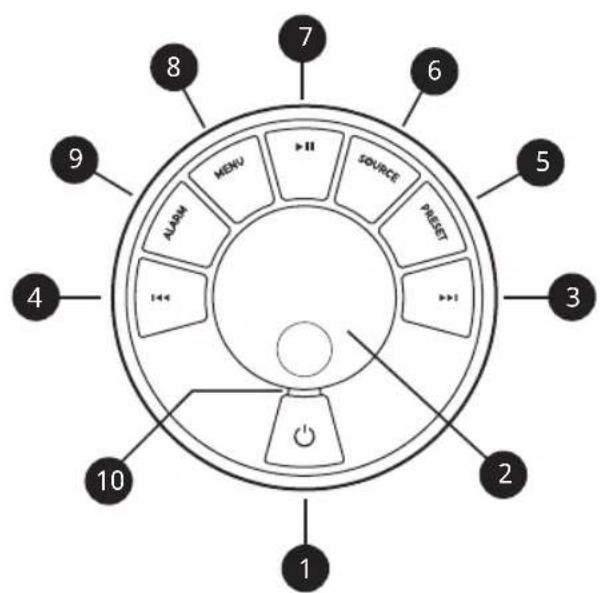
- ⏻STANDBY
- CONTROL KNOB / SELECT
Rotate to adjust volume from a Now Playing screen.
Rotate to browse menus or station lists.
Press to SELECT.
Press to SNOOZE a sounding alarm. Press it again to increase the snooze time or press and hold to cancel.
- ▶▶▶ - press to skip to next station or track, press and hold to fast forward a track or seek next FM station. In standby, press to increase display brightness.
-
- press to skip to previous station or track, press and hold to rewind a track or seek the previous FM station. In standby, press to decrease display brightness.
- PRESET - press to recall a saved DAB/FM station or press and hold for two seconds to save a radio station.
- SOURCE – press to change audio source.
- ▶II - press to play/pause a track or mute audio.
- MENU – press to view the options menu, press to go back to previous screen when already in a menu.
- ALARM / SLEEP – press to set an alarm or timer, press and hold to set sleep timer.
- LED - indicates radio is on and flashes when Bluetooth is ready to connect or pair.
Tips
You can also press▶▶▶ or ◀◀▶ browse menus, sources or station lists.
Currently saved settings are highlighted with solid angle brackets, eg ◀ Radio text ▶.
Press = tap or press and immediately release.
Press and hold = press and release after two seconds.
Specifications
Amplifier and driver
75mm Ruark NS+ driver
9W Class AB amplifier
Connectivity
DAB, DAB+
Multiregional FM Tuner with RDS
Bluetooth V4.2 SBC, AAC, BLE, A2DP
Line input 3.5mm jack (1.4Vrms max)
Headphone 3.5mm output jack (6Ω)
USB C 2.0, (5V 1A) MP3, AAC up to 48kHz 320kbps,
FLAC up to 24-bit 96kHz, WAV up to 24-bit 96kHz, WMA
up to 44.1kHz 320kbps
Features
High-contrast OLED with auto dimming
Real time clock with internal battery backup
Kensington compatible security slot
Power adapter
100-240V AC, 50-60Hz input, 14V DC 1.5A output
Dimensions
H175 x W130 x D135mm (6.9 × 5.1 × 5.3in)
1.4kg (3.1lbs)
Specification and design subject to change.
Troubleshooting
EN
For help with your product, please refer to the FAQ (Frequently Asked Questions) page in the support area of our website www.ruarkaudio.com/support.
If you accidentally select the incorrect language you can factory reset your radio by pressing and holding the standby key for 10s with your radio in standby. (Quick reset not available on all models.)
Regulatory information

This device is labelled in accordance with European Directive 2012/19/EU concerning waste electrical and electronic equipment. This symbol indicates that the product or associated batteries should not be disposed of
as general household waste. As with any electrical equipment, please dispose of it according to local regulations.

CE COMPLIANCE INFORMATION
This product conforms to all EU Directive requirements as applicable by law. Hereby, Ruark Audio, declares that this device complies with the essential requirements and other relevant provisions of the European Radio Equipment Directive 2014/53/EU. You can download the full CE Declaration of Conformity at www.ruarkaudio.com/doc/R1mk4doc.pdf

UK CONFORMITY ASSESSMENT INFORMATION
This product conforms to all UK Conformity Assessment regulations as applicable by law. You can download the full UKCA Declaration of Conformity at www.ruarkaudio.com/doc/R1mk4UKCA.pdf
©
Adjust volume
Rotate the CONTROL KNOB from any Now Playing screen.
Speaker volume and headphone volume are adjusted separately, so when headphones are plugged in, the volume is shown as "Volume 🔊".
Please note that rotating the CONTROL KNOB when a menu or station list is displayed will scroll through the options or stations and not change the volume.
Change audio source
Press SOURCE to view the current source, rotate the CONTROL KNOB to scroll through the list of sources, then press the CONTROL KNOB to select one. (You can also press SOURCE repeatedly to cycle through the list of sources instead of rotating the knob.)
Change DAB or FM radio station
Press ▶ to scroll through the stations in the station list, then press the CONTROL KNOB to tune to the selected station.
In FM, you can also press and hold ▶▶ or ▶◀ to seek the next or previous station.
Save DAB or FM preset
Press and hold PRESET for two seconds, rotate the CONTROL KNOB to choose a preset number, then press the CONTROL KNOB to save the current station. Presets are either marked with the station name, frequency or as "[Not set]".
If you save a station over an existing preset, the new station will replace it.
Recall DAB or FM preset
Press PRESET, rotate the CONTROL KNOB to scroll through the preset station list, then press the CONTROL KNOB to select one.
Connect a Bluetooth device
Your R1 will attempt to automatically connect to the last connected device. If you have not yet paired your device or the previous device is not available, your R1 will enter into pairing mode. See Bluetooth section for more details.
Station or track information
MENU > Info
Select the type of station / track information shown.
Bass and treble
MENU > System > Audio > Bass or Treble
Adjust the bass and treble levels to best suit your room and personal taste.
Loudness
MENU > System > Audio > Loudness
Loudness automatically boosts the treble and bass frequencies at lower volumes.
Display brightness
MENU > System > Display
Adjust the display brightness when the radio is on (on) and in standby (stby).
In standby, press ◀◀◀ to decrease display brightness, or ▶▶d increase it.
Please note that the brightness also automatically adjusts according to ambient light conditions.
Date and time
MENU > System > Clock
Select the time and date formats and whether the clock is updated automatically from DAB/FM or set manually. You can also set the rule for summer time (daylight savings or DST) when clock is set manually.
Please note that FM time and date synchronisation may not be available on some stations in your region.
Language
MENU > System > Language
Change the user interface language.
If you accidentally select the incorrect language you can factory reset your radio by pressing and holding the standby key for 10s with your radio in standby.*
Auto standby
MENU > System > Auto standby
Change how long before your R1 automatically goes into standby if there is no audio.
Factory reset
MENU > System > Reset system
Resets all settings and clears presets.
*Quick reset not available on all models
Please note that MENU > System > Audio > Bass means press MENU, select System, select Audio and finally select Bass
Alarms, snooze and sleep
Press ALARM and follow the on-screen instructions to set an alarm or timer. Rotate the CONTROL KNOB to scroll through options, press it to select that option.
Setting an alarm
ALARM > Alarm 1 or Alarm 2.
Follow the on-screen instructions to set the source (DAB, FM, USB or buzzer), duration and volume as well as when the alarm repeats (once, Mon-Sun, Mon-Fri, Sat-Sun, custom). Custom allows you to choose which days of the week you want the alarm to sound.
An active alarm is indicated by the alarm icon which then flashes when the alarm sounds.
Please note that it is not possible to use Bluetooth as a source for the alarm.
Snooze
Press the CONTROL KNOB to temporarily silence a sounding alarm, press it again to increase the snooze period (5, 10, 15 or 30 minutes).
To cancel a sounding or snoozed alarm, press and hold the CONTROL KNOB for two seconds, or press ALARM or STANDBY.
Sleep timer
ALARM > Sleep timer or press and hold ALARM
Set the time after which your R1 will automatically switch to standby.
Choose the delay in minutes (Off, 15, 30, 45, 60, 90) and press the CONTROL KNOB to confirm your selection. The display then returns to the Now-playing screen and displays the sleep icon.
Wake-up timer
ALARM > Wake timer
Set an alarm to sound after 15, 30, 45, 60 or 90 minutes. Choose the time and press the CONTROL KNOB to confirm your selection. The display then returns to the Now-playing screen and displays the alarm icon.
Alarms can also be set with your radio in standby
Bluetooth
Your R1 radio is Bluetooth enabled and can receive music streamed from a Bluetooth smartphone, tablet or laptop.
Connect your Bluetooth device
As soon as you change source to Bluetooth, your R1 will show "Waiting for connection...", the indicator light on the dial will flash and your R1 will attempt to connect to the last connected device.
Ensure the Bluetooth function on your device is on, and select "Ruark R1" from the list of available devices.
It may take a few seconds for your R1 to appear in the list on your device, and in some cases you may need to input "0000" as the pairing password.
If you do not connect within a few minutes, your R1 will stop attempting to connect and show "No connection".
Play audio
Once connected, audio from your Bluetooth device will play through your R1. For more information on playing audio from your Bluetooth device, refer to your device's documentation.
Please note that you may need to select Ruark R1 or Bluetooth as the audio output on your device.
Pause track
Press ▶ and then press again to play.
Skip track
Press ▶ to ship to the next or previous track.
Now Playing information
MENU > Info
Artist, album and track name will show if your Bluetooth device and app support Bluetooth metadata. You can also show the name of the connected device.
Operating range
This is typically up to 10 metres (30 feet) from your R1, although obstructions such as walls may reduce this.
Adjust volume
We recommend that you set the volume on your Bluetooth device to maximum or so that the playback volume is about the same as other sources. We then recommend you use the volume control on your R1 to adjust overall playback volume.
Connect a different device
MENU > Connect device
Select New or rotate the CONTROL KNOB to select one of the existing devices in the pairing list.
Pairing additional devices
You can pair up to 8 devices, although you will only be able to play audio from one device at a time.
Clearing the paired devices list
MENU > Forget devices
If you are having trouble connecting your Bluetooth device, we recommend you clear all pairing information.
You will also need to delete "Ruark R1" from the paired devices list on your Bluetooth device before pairing it to your R1 again. For more information, refer to your Bluetooth device's documentation.
For help with using Bluetooth, please visit www.ruarkaudio.com/support
You cannot use the Bluetooth function on your R1 to connect to Bluetooth headphones
DAB radio
The first time you use DAB on your R1, or if the DAB station list is empty, it will automatically perform a station scan to create a list of available stations.
Change station
Press ▶▶▶ to show the station list. Pressing it again shows the next or previous station, to tune to a station, select it by pressing the CONTROL KNOB, or wait a few seconds for it to automatically select.
Once the station list is displayed, you can also scroll through the list by rotating the CONTROL KNOB and selecting a station by pressing the knob.
You can also show the station list by selecting MENU > Station list.
DAB radio text (DLS)
MENU > Info
Select what programme information is shown.
Save preset
You can store 8 DAB stations in your preset list. See 'Common functions' section.
Recall preset
See 'Common functions' section.
Station scan
MENU > Station scan
We recommend you periodically update the station list with a station scan. If the station list is empty the radio will automatically perform a station scan as soon as you switch to DAB.
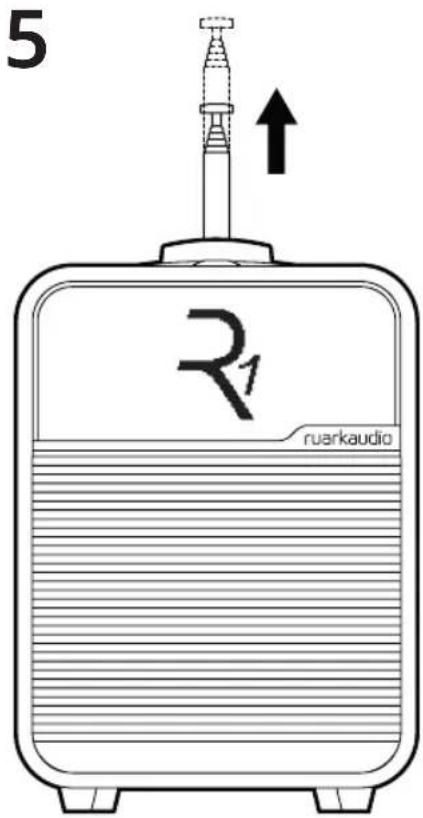
For optimal reception, fully extend the aerial and adjust its position.
FM radio
The first time you use FM on your R1, or if the FM station list is empty, it will automatically perform a station scan to create a list of available stations.
Change station
Press ▶▶▶ to show the station list. Pressing it again shows the next or previous station, to tune to a station, select it by pressing the CONTROL KNOB, or wait a few seconds for it to automatically select.
Once the station list is displayed, you can also scroll through the list by rotating the CONTROL KNOB and selecting a station by pressing the knob.
You can also show the station list by selecting MENU > Station list.
To seek the next or previous station, press and hold ▶▶▶ or ▶◀◀
The station frequency is normally replaced by the station name a few seconds after tuning into an FM station.
FM radio text (RDS/RBDS)
MENU > Info
Select what programme information is shown.
Manual tune
MENU > Manual tune
Select manual tune, rotate the CONTROL KNOB to change the frequency and then press it to select that station.
Save preset
You can store 8 FM stations in your preset list. If RDS data is not available, your R1 will store the frequency instead of the station name in the preset list.
Recall preset
See 'Common functions' section.
Station scan
MENU > Station scan
We recommend you periodically update the station list with a station scan. If the station list is empty the radio will automatically perform a station scan as soon as you switch to FM.
Sensitivity
MENU > Sensitivity > Strong stations or All stations
Change the FM sensitivity to either tune into all stations or only strong stations with good reception.
Line in
Listen to an external audio device using a 3.5mm stereo jack cable connected to the Line in socket on the back of your R1.
Input level
MENU > Input level
Adjust the input level and choose the highest level that does not distort - if it distorts, turn down the input level.
1 - Devices with high output level, eg CD some players
2 - Most devices
3 - Devices with low output, eg some smartphones
If your external audio source has a volume control you may need to adjust it for best performance. If it's too high the sound may distort; if it's too low the playback volume may be too low and lack bass.
USB
Your R1 plays MP3/AAC/FLAC/WAV/WMA audio tracks stored on a USB C flash drive. Simply plug it into the USB socket on the back and change the source to USB.
Playback is automatically shuffled.
Press ◄◀ or ▶to skip to the previous or next track and press ▶to pause playback or restart a track. If a USB flash drive is not detected, it will show "No device".
Your R1 has a 5W, 1.0A USB power output and will charge most devices but it may not charge devices that require more than 5W.
Headphones
Connect your headphones to the 3.5mm stereo jack socket on the back of your R1.
Headphone volume is adjusted independently from the speaker volume, so when headphones are plugged in the volume is shown as "Volume ☐".
Optional accessories
Contact your local Ruark dealer or see www.ruarkaudio.com for more details.
BackPack battery
Your R1 is fully compatible with the Ruark BackPack battery.
To save power when operating on battery power alone, the display on your R1 automatically turns off when in standby.
Alarms work as normal when your radio is powered by battery alone, but to ensure reliable operation, we do not recommend you use them when the battery is in a low state of charge.
Please note that charging a USB device when your R1 is powered by a BackPack will significantly reduce the run time of your R1.
Remote control
Compact remote control that also gives you 4 direct select preset station keys.
Safety information
- Read this user guide and follow all instructions, it will help you set up and operate your product properly.
- Heed all warnings and keep this user guide for future reference.
- Do not attempt to use a damaged device as this could result in a dangerous electric shock.
- Do not open the unit or remove any panels to expose the electronics. No user serviceable parts inside.
- Refer all servicing to qualified service personnel. Servicing is required when the device has been damaged in any way, such as when any power cord, or power plug is damaged, liquid has been spilled or objects have fallen into the device, the device has been exposed to rain or moisture, does not operate normally, or has been dropped.
- This device is intended to be operated ONLY from the AC voltages listed on the back panel or included AC mains adapter. Operation from voltages other than those indicated may cause irreversible damage to the device and void the product warranty.
- Ensure that the mains plug or mains connector into the unit is readily accessible in case disconnection from the mains is required.
- The AC mains adapter, mains plug, or mains connector must be removed from the socket to completely disconnect the system from AC mains power.
-
Do not place any naked flame sources, such as lighted candles, on or near the device. Do not install near any heat sources such as radiators, stoves, or other devices that produce heat.
-
Avoid exposure to extreme heat or cold.
- Only use attachments/accessories specified for this device. Make no modifications to the system or accessories. Unauthorised alterations may compromise safety, regulatory compliance, and system performance.
- Only use the supplied aerial or an approved replacement.
•To reduce the risk of fire or electrical shock, do not expose the device to rain or moisture. Do not expose this device to dripping or splashing, and do not place objects filled with liquids, such as vases, on or near the device. As with any electronic products, use care not to spill liquids into any part of the system. Liquids can cause a failure and/or a fire hazard. - Disconnect this device from AC mains power during lightning storms or when unused for long periods of time to prevent damage to this device.
- To prevent risk of fire or electric shock, avoid overloading AC mains power outlets or extension cords.
- Long-term exposure to loud music may cause hearing damage. It is best to avoid extreme volume when using headphones, especially for extended periods.
- Do not install this device in a confined space. Always leave a space of at least 10cm around the device for ventilation and ensure that curtains or other objects never cover ventilation openings on the device.
Guarantee
Register your product to get an extended three-year guarantee.
As standard, this product is guaranteed to be free from defects for a period of two years from date of purchase, but this is extended to three years if you register your product at www.ruarkaudio.com.
This guarantee remains valid providing this product has been treated with due care and attention. Product failure through accidental damage, excessive wear and tear, negligence or unauthorised modification will void this guarantee.
If this product was purchased in the UK and it develops a fault, please contact the retailer from which it was purchased, or contact us directly via our website www.ruarkaudio.com/support.
For products purchased outside the UK the distributor in the country of purchase guarantees the product. For details, please contact the local Ruark distributor or outlet.
If returning this product, please ensure it is packed in its original packaging and a proof of purchase is included.
This guarantee in no way varies or removes the purchaser's statutory rights.
Errors and omissions excepted.
General care
- Clean with a soft, lint-free duster or slightly dampened cloth. Do not use wax sprays or other substances as these may damage the surface finish or impair performance.
- Do not expose your unit to direct sunlight, high humidity, dust, excessive vibration or extreme temperatures, all of which can affect the finish, performance and reliability of the unit.
- Recommended operating temp. range is 5^ to 40^ .
- Natural wood finishes will vary and lighten or darken with age, particularly when exposed to sunlight.
Copyright and trademarks
© Ruark Audio. All rights reserved. Ruark Audio, the Ruark Audio logo, and other Ruark Audio marks are owned by Ruark Audio and may be registered. Ruark Audio assumes no responsibility for any errors that may appear in this manual and the information contained in it may change without notice.
Bluetooth® and associated logos are registered trademarks owned by Bluetooth SIG, Inc.
All other trademarks are the property of their respective owners.
natural_image
Line drawing of a portable audio heater with a separate plug and cord, labeled '1' (no text or symbols on the device itself)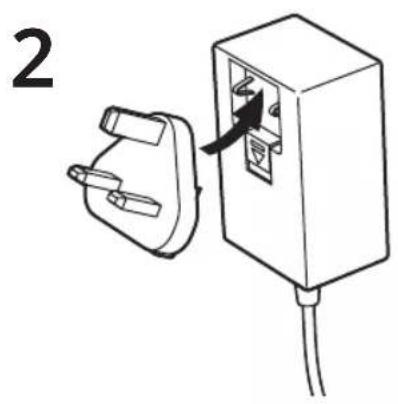
natural_image
Simple line drawing of an electrical outlet with a plug and cable, no text or symbols present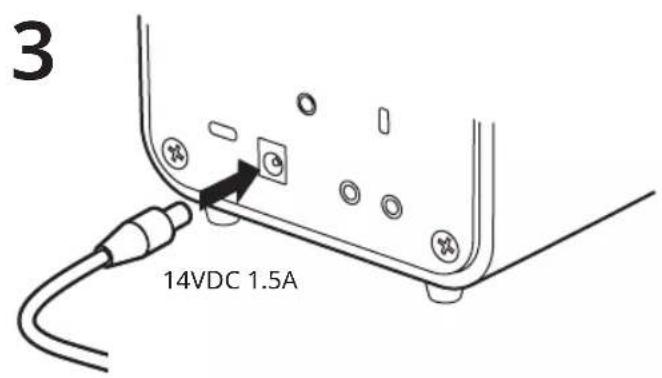
DA
Opsætningsguide
Følg installationsguiden for at konfigurere din R1.
75mm Ruark NS+ driver