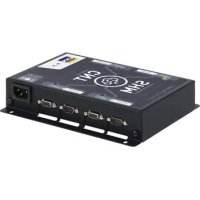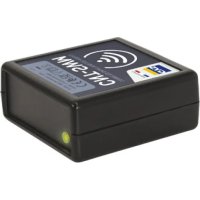
Smart Wireless Module - Electronic module GYS - Free user manual and instructions
Find the device manual for free Smart Wireless Module GYS in PDF.



| Product type | Wireless communication module |
| Brand | GYS |
| Model | Smart Wireless Module (SWM) |
| Category | Electronic module |
| Power supply | 24 V and 5 V via DB9 cable connected to a compatible GYS charger |
| Connectivity | Bluetooth Low Energy (BLE) 4.0+ |
| Connector | SMC (cable included) |
| Indicator light | LED: steady green (ready), flashing green (waiting), flashing orange (initialization), steady orange (error), off (no power) |
| Pairing button | Yes, to connect to a new device |
| Main functions | Allows controlling a GYS device equipped with an SMC port via Bluetooth; command exchange (Getter/Setter) in ASCII |
| Compatible software | CNT Datalog (Windows); BLE API for Android, iOS, Linux, Windows; TCP gateway executable |
| Maintenance and cleaning | Clean with a dry cloth; do not use solvents or harsh chemicals |
| Operating conditions | Indoor use; do not expose to rain; temperature below 50 °C |
| Safety | Do not connect to a power source other than a GYS charger; maintenance by qualified personnel only |
| Compliance | CE, EAC, UKCA, CMIM (Morocco) |
| Warranty | 2 years (parts and labor) |
| Box contents | SWM module, SMC cable, DB9 cable |
Frequently Asked Questions - Smart Wireless Module GYS
Process_state=run to start charging. The SWM responds with Process_state=OK or KO.User questions about Smart Wireless Module GYS
0 question about this device. Answer the ones you know or ask your own.
Ask a new question about this device
Download the instructions for your Electronic module in PDF format for free! Find your manual Smart Wireless Module - GYS and take your electronic device back in hand. On this page are published all the documents necessary for the use of your device. Smart Wireless Module by GYS.
USER MANUAL Smart Wireless Module GYS
This user manual includes information on how to operate this equipment as well as the safety precautions to be followed. Please read it carefully before first use and keep it safe for future reference. These instructions must be read and understood before using the device. Do not undertake any modifications or maintenance work that is not explicitly mentioned in the manual. The manufacturer shall not be liable for any damage to persons or property resulting from use that is not in accordance with the instructions in this user manual. If you have any problems or queries, please consult a qualified technician to ensure that the equipment is being operated correctly. This device may only be used for transmitting data within the limits indicated on the device and in the manual. The safety instructions must be observed. The manufacturer cannot be held responsible for improper or dangerous use.

This device is designed for indoor use. It should not be exposed to rain.
Do not place the device near a fire or subject it to heat or to longterm temperatures exceeding 50^
Maintenance
- Maintenance should only be carried out by a qualified technician
- The device does not require any special maintenance
- Do not use solvents or other aggressive cleaning products under any circumstances
- Clean the appliance's surfaces with a dry cloth
C E
Regulations:
- This device complies with European directives
- The declaration of conformity is available on our website
- EAC conformity mark EAC (Eurasian Economic Community)
- This equipment meets British standards • The UK declaration of conformity is available on our website (see the cover page)
- This device complies with Moroccan standards
- The C_ (CMIM) declaration of conformity is available on our website
EAC
UK CA

Disposing of This Equipment:
- This equipment is subject to specialised waste-collection requirements Do not dispose of this product in your domestic, household waste.
EQUIPMENT DESCRIPTION (FIG 1)
The Smart Wireless Module (SWM) is an accessory that allows the user to operate a GYS device fitted with an SMC port via a wireless Bluetooth communication.
| 1 SMC connector |
| 2 SMC cable |
| 3 Indicator light |
| 4 Pairing button |
This equipment is delivered with a DB9 cable to connect it to a Gys battery charger, delivering a 24V and another 5V voltage. The equipment must not be connected to any other voltage source, otherwise there is a risk of malfunction, damage to the equipment and risk to the user.
SETTING UP THE EQUIPMENT
- Connect the SWM to the GYS device being operated (e.g. Gysflash CNT) using the SMC cable.
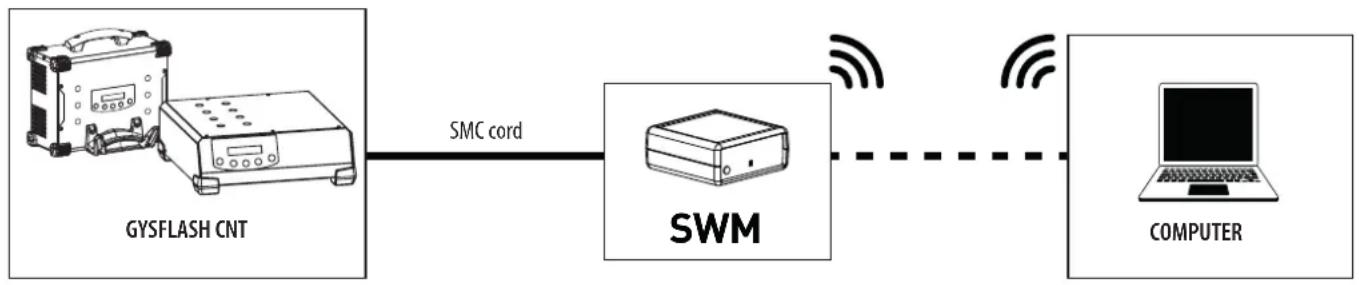
- Switch on both the controlled device and the computer.
- Turn on the computer's bluetooth feature.
- Open the dedicated SWM software (GYS' CNT Datalog or custom software).
- Then, use the indicator light to check the machine's status:
| Indicator light status Meaning | |
| Green (fixed) Ready for communication | CNT charger connected and Bluetooth pairing OK). |
| Green (flashing) CNT charger connected but no connected Bluetooth device. | |
| Orange (flashing) Initialising or updating phase. Usually stops after five seconds. | |
| Orange (fixed) Internal error. Disconnect and reconnect the SWM. | |
| Switched off No power supply. Check that the SMC cable is connected correctly and that the CNT charger is switched on. |
- The SwM will automatically connect to the last device to which it was connected. Press the push button (4) to connect it to a new device. This will make the SwM return to pairing standby and it can be connected to a new device.
GENERAL OPERATION
The SWM enables the user to exchange data with a GYS product using a Bluetooth connection.
The SWM is accepted as a Low Energy Bluetooth device.
A compatible Low Energy Bluetooth device (LEB), or one with a suitable dongle, is required to operate the SWM. The user can also develop their own application using the LEB device's API (application programming interface) provided for the user's particular operating system (Android, IOS, Linux or Windows).
Using this API, the user is able to scan nearby LED devices, connect to the SWM and transmit information to their specific software.
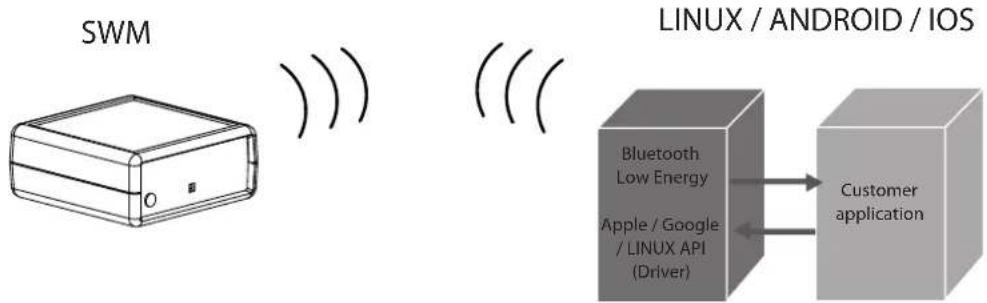
Figure 1: schematic communication diagram between the LED device's driver (API) and the related software
In order to make basic use of the SWM with a charger, we provide a Windows-based software application; this is the CNT Datalog and it is available on your client-access intranet in the 'Tools' section.
During the LED device's scan, the SWM's name will be formatted in the following way:
SWM-00.00.000000.00 (SWM - Serial Number)
Once the connection is established and the services are available, it will be possible to communicate with the SWM through its respective service and features.
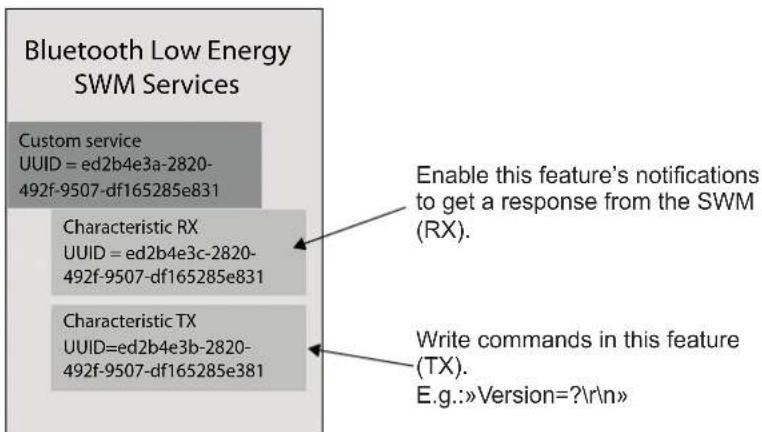
Figure 2: The SWM unit and its two reading/writing features
For easy implementation, we provide an application that creates a gateway between the LEB device driver and a Microsoft Window's TCP server. In this instance, there is no need to use the LEB device's APIs. The user only has to run the software provided by GYS and set up a TCP client in their dedicated software in order to communicate with the SWM.
The TCP communication format is the same as described in the rest of this manual with additional commands provided with this program (LEB device scan, etc).
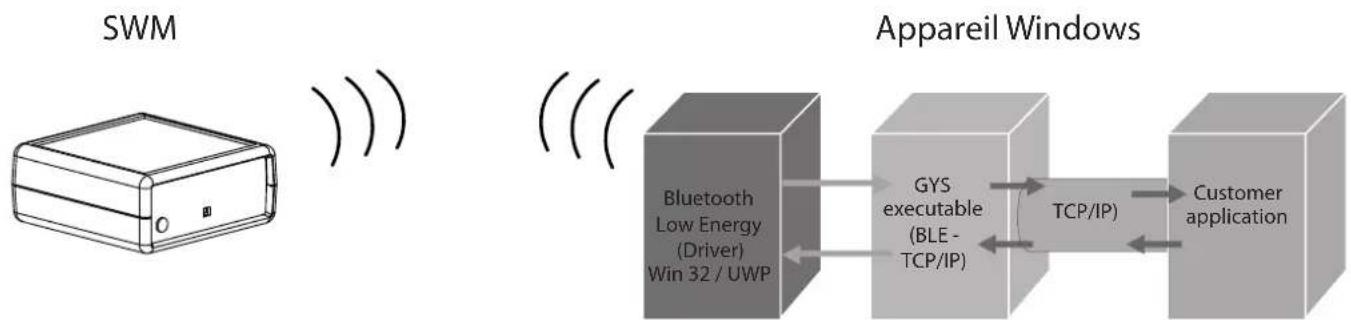
Figure 3: schematic diagram using GYS' software
PROTOCOL
The computer always initiates commands with a request, the SWM always responds. If the SWM does not respond within 500 ms, it is no longer functioning.
The SWM supports two types of request-response: 'setter' and 'getter'. The first option, setter, applies a value to the product. The second option,getter, is used to read a value from the product.
Every command has at least one associated data item (variable). For the setter request response, the data are sent with the command in the request. For the getters, the data are received in the response with the associated command. The SWM returns a status update in its response to indicate that the order has been acknowledged. The setter response always contains the command and status update. For the getters, the response contains the command and the data, provided everything works well. Otherwise, the response will contain the order and status update.
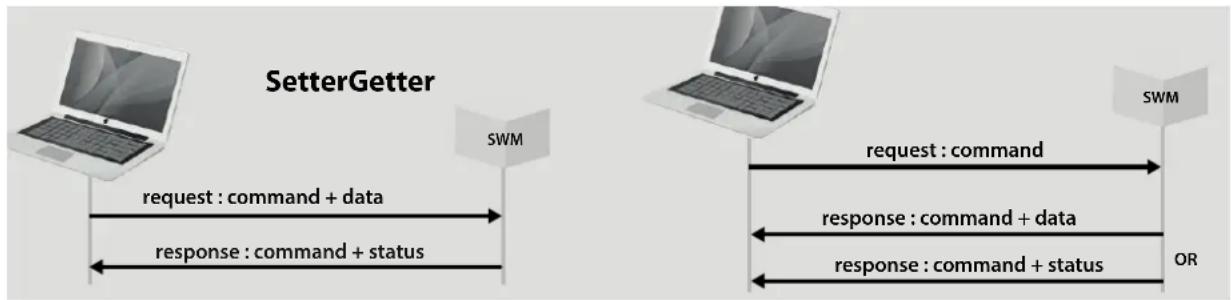
SYNTAX
The exchanges between the computer and the SWM are done using ASCII characters.
Each request and response ends with <CR><LF> (or 0x0D0A or «\r\n»).
The command name does not contain spaces.
The command name will be followed by an equals sign (=) .
In both a setter request and a getters response, the data will follow the equals sign (=) . They will be separated by a semicolon (·) . For decimal data, the decimal separator is the full stop (.) . The data are represented without units.
For agetter request, a question mark (?) will follow the equals sign (=) .
The status update has two values: «OK» or «KO».
Example of exchanges between the computer and the SwM:
«Process_state=run
«Process_state=OK
«Process_state=?
«Process_state=idle
«Process_sta=?
《Process_sta=KO
«Date=2020;13,31,08;53;10
Date = KB < CR > < LF returns an error status.
GYSFLASH CNT GETTER LIST
| Setter Request Type | SWM response | Variables | ||
| Names Possible Values Description | ||||
| Version=? Version= | Product1;HW_version1;SW_version1; Product2; HW_version2; SW_version2 etc. | Product1 Product2 | e.g.: GYSFLASH 121.12 CNT Smart USB Module | Name(s) of the product(s) pre- sent on the SMC network |
| HW_version1 HW_version2 | e.g.: HW 1-2 HW E0046IND1-0 | Associated hardware version | ||
| SW_version1 SW_version2 | e.g.: SW V06.01 Associated s | software version | ||
| Serial=? Serial= | Product1;SN1;Product2;S- N2etc. | Product1 Product2 | e.g.: GYSFLASH 121.12 CNT Smart USB Module | Name(s) of the product(s) pre- sent on the SMC network |
| SN1 SN2 | e.g.: 20.02.026971.000001 | Associated serial number | ||
| Product_info=? Product_info= U;I | U | 0 - 48 →Volts | Charger voltage | |
| I | 0 - 120 →Amps | Charger current | ||
| Product_name=? Product_name= product_name | product_name | e.g.: GYSFLAHS 121.12 CNT | Charger name | |
| MMI_state=? MMI_state=MMI_state MMI_state=MMI_state MMI_state=MMI_state MMI_state=MMI_state MMI_state=MMI_state MMI_state=MMI_state MMI_state=MMI_state MMI_state=MMI_state MMI_state=MMI_state MMI_state=MMI_state MMI_state=MMI_state MMI_state=MMI_state MMI_state=MMI_state MMI_state=MMI_state MMI_state=MMI_state MMI_state MMI_state=MMI_state MMI_state=MMI_state MMI_state=MMI_state MMI_state=MMI_state MMI_state=MMI_state MMI_state=MMI_state MMI_state=MMI_state MMI_state=MMI_state MMI_state=MMI_state MMI_state=MMI_state MMI_state=MMI_state MMI_state=MMI_state MMI_state=MMI_state MMI_state=MMI-state MMI-state=MMI-state MMI-state=MMI-state MMI-state=MMI-state MMI-state=MMI-state MMI-state=MMI-state MMI-state=MMI-state MMI-state=MMI-state MMI-state=MMI-state MMI-state=MMI-state MMI-state=MMI-state MMI-state=MMI-state MMI-state=MMI-state MMI-state=MMI-state MMI-state=MMI-state MMI-state=MMC state=MMC stateMMC state=MMC stateMMC state=MMC stateMMC state=MMC stateMMC state=MMC stateMMC state=MMC stateMMC state=MMC stateMMC state=MMC stateMMC state=MMC stateMMC state=MMC stateMMC state=MMC stateMMC state=MMC stateMMC state=MMC stateMMC state=MMC stateMMC state=MMC stateMMC state=MMC stateMMC state=MMC stateMMC state=MMC stateMMC state=MMC stateMMC state=MMC stateMMC state=MMC statesMMC statesMMC statesMMC statesMMC statesMMC statesMMC statesMMC statesMMC statesMMC statesMMC statesMMC statesMMC statesMMC statesMMC statesMMC statesMMC statesMMC statesMMC statesMMC statesMMC statesMMC statesMMC statesMMC statesMMC statesMMC statesMMC statesMMC statesMMC statesMMC statesMMC statesMMC statesMMC statesMMC statesMMC statesMMC statesMMC statesMMC statesMMC statesMMC statesMMC statesMMC statesMMC statesMMC statesMMC statesMMC statesMMC statesMMC statesMMC statesMMC statesMMCstatesMMC statesMMC statesMMC statesMMC statesMMC statesMMC statesMMC statesMMC statesMMC statesMMC statesMMC statesMMC statesMMC statesMMC statesMMC statesMMC statesMMC statesMMC statesMMC statesMMC statesMMC statesMMC statesMMC statesMMC statesMMC statesMMC statesMMC statesMMC statesMMC statesMMC statesMMC statesMMC statesMMC statesMMC statesMMC statesMMC statesMMC statesMMC statesMMC statesMMC statesMMC statesMMC statesMMC statesMMC statesMMC statesMMC statesMMC statesMMC statesMMC statesMMC statusMMC statusMMC statusMMC statusMMC statusMMC statusMMC statusMMC statusMMC statusMMC statusMMC statusMMC statusMMC statusMMC statusMMC statusMMC statusMMC statusMMC statusMMC statusMMC statusMMC statusMMC statusMMC statusMMC statusMMC statusMMC statusMMC statusMMC statusMMC statusMMC statusMMC statusMMC statusMMC statusMMC statusMMC statusMMC statusMMC statusMMC statusMMC statusMMC statusMMC statusMMC statusMMC statusMMC statusMMC statusMMC statusMMC statusMMC statusMMC statusMMC statusMMC stateMMC stateMMC stateMMC stateMMC stateMMC stateMMC stateMMC stateMMC stateMMC stateMMC stateMMC stateMMC stateMMC stateMMC stateMMC stateMMC stateMMC stateMMC stateMMC stateMMC stateMMC stateMMC stateMMC stateMMC stateMMC stateMMC stateMMC stateMMC stateMMC stateMMC stateMMC stateMMC stateMMC stateMMC stateMMC stateMMC stateMMC stateMMC stateMMC stateMMC stateMMC stateMMC stateMMC stateMMC stateMMC stateMMC stateMMC stateMMC stateMMC stateMMC statusMMC statusMMC statusMMC statusMMC statusMMC statusMMC statusMMC statusMMC statusMMC statusMMC statusMMC statusMMC statusMMC statusMMC statusMMC statusMMC statusMMC statusMMC statusMMC statusMMC statusMMC statusMMC statusMMC statusMMC statusMMC statusMMC statusMMC statusMMC statusMMC statusMMC statusMMC statusMMC statusMMC statusMMC statusMMC statusMMC statusMMC statusMMC statusMMC statusMMC statusMMC statusMMC statusMMC statusMMC statusMMC statusMMC statusMMC statusMMC statusMMCstatusMMC statusMMC statusMMC statusMMC statusMMC statusMMC statusMMC statusMMC statusMMC statusMMC statusMMC statusMMC statusMMC statusMMC statusMMC statusMMC statusMMC statusMMC statusMMC statusMMC statusMMC statusMMC statusMMC statusMMC statusMMC statusMMC statusMMC statusMMC statusMMC statusMMC statusMMC statusMMC statusMMC statusMMC statusMMC statusMMC statusMMC statusMMC statusMMC statusMMC statusMMC statusMMC statusMMC statusMMC statusMMC statusMMC statusMMC statusMMC statusMMC statusMMC StatusMMC statusMMC statusMMC statusMMC statusMMC statusMMC statusMMC statusMMC statusMMC statusMMC statusMMC statusMMC statusMMC statusMMC statusMMC statusMMC statusMMC statusMMC statusMMC statusMMC statusMMC statusMMC statusMMC statusMMC statusMMC statusMMC statusMMC statusMMC statusMMC statusMMC statusMMC statusMMC statusMMC statusMMC statusMMC statusMMC statusMMC statusMMC statusMMC statusMMC statusMMC statusMMC statusMMC statusMMC statusMMC statusMMC statusMMC statusMMC statusMMC statusMMC STATUSMMC statusMMC statusMMC statusMMC statusMMC statusMMC statusMMC statusMMC statusMMC statusMMC statusMMC statusMMC statusMMC statusMMC statusMMC statusMMC statusMMC statusMMC statusMMC statusMMC statusMMC statusMMC statusMMC statusMMC statusMMC statusMMC statusMMC statusMMC statusMMC statusMMC statusMMC statusMMC statusMMC statusMMC statusMMC statusMMC statusMMC statusMMC statusMMC statusMMC statusMMC statusMMC statusMMC statusMMC statusMMC statusMMC statusMMC statusMMC statusMMC statusMMC状态MMC状态MMC状态MMC状态MMC状态MMC状态MMC状态MMC状态MMC状态MMC状态MMC状态MMC状态MMC状态MMC状态MMC状态MMC状态MMC状态MMC状态MMC状态MMC状态MMC状态MMC状态MMC状态MMC状态MMC状态MMC状态MMC状态MMC状态MMC状态MMC状态MMC状态MMC状态MMC状态MMC状态MMC状态MMC状态MMC状态MMC状态MMC状态MMC状态MMC状态MMC状态MMC状态MMC状态MMC状态MMC状态MMC状态MMC状态MMC状态MMC状态MMC-10000000000000000000000000000000000000000000000000000000000000000000000000000000000000000000000000000 | ||||
| Mode=? Mode=mode mode init | ||||
| Process_state=? Process state=process_state process. state | ||||
| Error=? Error=error_code error_data error_code error_data error_data error_data error_data error_data error_data error_data error_data error_data error_data error_data error_data error_data error_data error_data error_data error_data error_data error_data error_data error_data error_data error_data error_data error_data error_data error_data error_data error_data error_data error_data error_data error_data error_data error_data error_data error_data error_data error_data error_data error_data error data error data error data error data error data error data error data error data error data error data error data error data error data error data error data error data error data error data error data error data error data error data error data error data error data error data error data error data error data error data error data error data error data error data error data error data error data error data error data error data error data error data error data error data error data error data error data error data error data error data error date error date error date error date error date error date error date error date error date error date error date error date error date error date error date error date error date error date error date error date error date error date error date error date error date error date error date error date error date error date error date error date error date error date error date error date error date error date error date error date error date error date error date error date error date error date error date error date error date error date errordate error date error date error date error date error date error date error date error date error date error date error date error date error date error date error date error date error date error date error date error date error date error date error date error date error date error date error date error date error date error date error date error date error date error date error date error date error date error date error date error date error date error date error date error date error date error date error date error date error date error datesMMI state MMI state MMI state MMI state MMI state MMI state MMI state MMI state MMI state MMI state MMI state MMI state MMI state MMI state MMI state MMI state MMI state MMI state MMI state MMI state MMI state MMI state MMI state MMI state MMI state MMI state MMI state MMI state MMI state MMI state MMI state MMI state MMI state MMI state MMi state MMi state MMi state MMi state MMi state MMi state MMi state MMi state MMi state MMi state MMi state MMi state MMi state MMi state MMi state MMi state MMi state MMi state MMi state MMi state MMi state MMi state MMi state MMi state MMi state MMi state MMi state MMi state MMi state MMi state MMi state MMi state MMi state MMiState MMi state MMi state MMi state MMi state MMi state MMi state MMi state MMi state MMi state MMi state MMi state MMi state MMi state MMi state MMi state MMi state MMi state MMi state MMi state MMi state MMi state MMi state MMi state MMi state MMi state MMi state MMi state MMi state MMi state MMi state MMi state MMi state MMi stateMMi state MMi state MMi state MMi state MMi state MMi state MMi state MMi state MMi state MMi state MMi state MMi state MMi state MMi state MMi state MMi state MMi state MMi state MMi state MMi state MMi state MMi state MMi state MMi state MMi state MMi state MMi state MMi state MMi state MMi state MMi state MMi state MMi state MMj state MMj state MMj state MMj state MMj state MMj state MMj state MMj state MMj state MMj state MMj state MMj state MMj state MMj state MMj state MMj state MMj state MMj state MMj state MMj state MMj state MMj state MMj state MMj state MMj state MMj state MMj state MMj state MMj state MMj state MMj state MMj state MMj state MMj stage MMj stage MMj stage MMj stage MMj stage MMj stage MMj stage MMj stage MMj stage MMj stage MMj stage MMj stage MMj stage MMj stage MMj stage MMj stage MMj stage MMj stage MMj stage MMj stage MMj stage MMj stage MMj stage MMj stage MMj stage MMj stage MMj stage MMj stage MMj stage MMj stage MMj stage MMj stage MMj stage MMj stageMMj stage MMj stage MMj stage MMj stage MMj stage MMj stage MMj stage MMj stage MMj stage MMj stage MMj stage MMj stage MMj stage MMj stage MMj stage MMj stage MMj stage MMj stage MMj stage MMj stage MMj stage MMj stage MMj stage MMj stage MMj stage MMj stage MMj stage MMj stage MMj stage MMj stage MMj stage MMj stage MMj stage MMi state MMi state MMi state MMi state MMi state MMi state MMi state MMi state MMi state MMi state MMi state MMi state MMi state MMi state MMi state MMi state MMi state MMi state MMi state MMi state MMi state MMi state MMi state MMi state MMi state MMi state MMi state MMi state MMi state MMi state MMi state MMi state MMi state-MMi state MMi state MMi state MMi state MMi state MMi state MMi state MMi state MMi state MMi state MMi state MMi state MMi state MMi state MMi state MMi state MMi state MMi state MMi state MMi state MMi state MMi state MMi state MMi state MMi state MMi state MMi state MMi state MMi state MMi state MMi state MMi state MMi state MMa state MMa state MMa state MMa state MMa state MMa state MMa state MMa state MMa state MMa state MMa state MMa state MMa state MMa state MMa state MMa state MMa state MMa state MMa state MMa state MMa state MMa state MMa state MMa state MMa state MMa state MMa state MMa state MMa state MMa state MMa state MMa state MMa state MMa stage MMa stage MMa stage MMa stage MMa stage MMa stage MMa stage MMa stage MMa stage MMa stage MMa stage MMa stage MMa stage MMa stage MMa stage MMa stage MMa stage MMa stage MMa stage MMa stage MMa stage MMa stage MMa stage MMa stage MMa stage MMa stage MMa stage MMa stage MMa stage MMa stage MMa stage MMa stage MMa stage MMa stageMMa stageMMa stageMMa stageMMa stageMMa stageMMa stageMMa stageMMa stageMMa stageMMa stageMMa stageMMa stageMMa stageMMa stageMMa stageMMa stageMMa stageMMa stageMMa stageMMa stageMMa stageMMa stageMMa stageMMa stageMMa stageMMa stageMMa stageMMa stageMMa stageMMa stageMMa stageMMa stageMMa stageMMA stageMMa stageMMa stageMMa stageMMa stageMMa stageMMa stageMMa stageMMa stageMMa stageMMa stageMMa stageMMa stageMMa stageMMa stageMMa stageMMa stageMMa stageMMa stageMMa stageMMa stageMMa stageMMa stageMMa stageMMa stageMMa stageMMa stageMMa stageMMa stageMMa stageMMa stageMMa stageMMa stageMMa stagesMMa stagesMMa stagesMMa stagesMMa stagesMMa stagesMMa stagesMMa stagesMMa stagesMMa stagesMMa stagesMMa stagesMMa stagesMMa stagesMMa stagesMMa stagesMMa stagesMMa stagesMMa stagesMMa stagesMMa stagesMMa stagesMMa stagesMMa stagesMMa stagesMMa stagesMMa stagesMMa stagesMMa stagesMMa stagesMMa stagesMMa stagesMMa stagesMMa stages MMa stagesMMa stagesMMa stagesMMa stagesMMa stagesMMa stagesMMa stagesMMa stagesMMa stagesMMa stagesMMa stagesMMa stagesMMa stagesMMa stagesMMa stagesMMa stagesMMa stagesMMa stagesMMa stagesMMa stagesMMa stagesMMa stagesMMa stagesMMa stagesMMa stagesMMa stagesMMa stagesMMa stagesMMa stagesMMa stagesMMa stagesMMa stagesMMa stagesMMm stageMMm stageMMm stageMMm stageMMm stageMMm stageMMm stageMMm stageMMm stageMMm stageMMm stageMMm stageMMm stageMMm stageMMm stageMMm stageMMm stageMMm stageMMm stageMMm stageMMm stageMMm stageMMm stageMMm stageMMm stageMMm stageMMm stageMMm stageMMm stageMMm stageMMm stageMMm stageMMm stageMMm stagemm stageMMm stageMMm stageMMm stageMMm stageMMm stageMMm stageMMm stageMMm stageMMm stageMMm stageMMm stageMMm stageMMm stageMMm stageMMm stageMMm stageMMm stageMMm stageMMm stageMMm stageMMm stageMMm stageMMm stageMMm stageMMm stageMMm stageMMm stageMMm stageMMm stageMMm stageMMm stageMMm stageMMm stagesMMm stagesMMm stagesMMm stagesMMm stagesMMm stagesMMm stagesMMm stagesMMm stagesMMm stagesMMm stagesMMm stagesMMm stagesMMm stagesMMm stagesMMm stagesMMm stagesMMm stagesMMm stagesMMm stagesMMm stagesMMm stagesMMm stagesMMm stagesMMm stagesMMm stagesMMm stagesMMm stagesMMm stagesMMm stagesMMm stagesMMm stagesMMm stagesMMm stagesmm stagesMMm stagesMMm stagesMMm stagesMMm stagesMMm stagesMMm stagesMMm stagesMMm stagesMMm stagesMMm stagesMMm stagesMMm stagesMMm stagesMMm stagesMMm stagesMMm stagesMMm stagesMMm stagesMMm stagesMMm stagesMMm stagesMMm stagesMMm stagesMMm stagesMMm stagesMMm stagesMMm stagesMMm stagesMMm stagesMMm stagesMMm stagesMMm stagesMMm stageMMm stagesMMm stagesMMm stagesMMm stagesMMm stagesMMm stagesMMm stagesMMm stagesMMm stagesMMm stagesMMm stagesMMm stagesMMm stagesMMm stagesMMm stagesMMm stagesMMm stagesMMm stagesMMm stagesMMm stagesMMm stagesMMm stagesMMm stagesMMm stagesMMm stagesMMm stagesMMm stagesMMm stagesMMm stagesMMm stagesMMm stagesMMm stagesmm stagesMMn stagesMMn stagesMMn stagesMMn stagesMMn stagesMMn stagesMMn stagesMMn stagesMMn stagesMMn stagesMMn stagesMMn stagesMMn stagesMMn stagesMMn stagesMMn stagesMMn stagesMMn stagesMMn stagesMMn stagesMMn stagesMMn stagesMMn stagesMMn stagesMMn stagesMMn stagesMMn stagesMMn stagesMMn stagesMMn stagesMMn stagesMMn stagesMMn stagesMMnStageMMnStageMMnStageMMnStageMMnStageMMnStageMMnStageMMnStageMMnStageMMnStageMMnStageMMnStageMMnStageMMnStageMMnStageMMnStageMMnStageMMnStageMMnStageMMnStageMMnStageMMnStageMMnStageMMnStageMMnStageMMnStageMMnStageMMnStageMMnStageMMnStageMMnStageMMnStageMMnStageMMnStage/MMnStage/MMnStage/MMnStage/MMnStage/MMnStage/MMnStage/MMnStage/MMnStage/MMnStage/MMnStage/MMnStage/MMnStage/MMnStage/MMnStage/MMnStage/MMnStage/MMnStage/MMnStage/MMnStage/MMnStage/MMnStage/MMnStage/MMnStage/MMnStage/MMnStage/MMnStage/MMnStage/MMnStage/MMnStage/MMnStage/MMnStage/MMnStage/MMnStage/MMmStage/MMmStage/MMmStage/MMmStage/MMmStage/MMmStage/MMmStage/MMmStage/MMmStage/MMmStage/MMmStage/MMmStage/MMmStage/MMmStage/MMmStage/MMmStage/MMmStage/MMmStage/MMmStage/MMmStage/MMmStage/MMmStage/MMmStage/MMmStage/MMmStage/MMmStage/MMmStage/MMmStage/MMmStage/MMmStage/MMmStage/MMmStage/MMmStage/MMm Stage/MMmStage/MMmStage/MMmStage/MMmStage/MMmStage/MMmStage/MMmStage/MMmStage/MMmStage/MMmStage/MMmStage/MMmStage/MMmStage/MMmStage/MMmStage/MMmStage/MMmStage/MMmStage/MMmStage/MMmStage/MMmStage/MMmStage/MMmStage/MMmStage/MMmStage/MMmStage/MMmStage/MMmStage/MMmStage/MMmStage/MMmStage/MMmStage/MMmStage/ | ||||
| Undervoltage=? | Undervoltage=undervoltage undervoltage | on / off Voltage | flag lower than Ubsu | |
| Date=? Date= | YYYY,MM,DD,hh,mm,ss YYYY 19 | 98 - 2999 Year | ||
| MM 1 - 12 Month | ||||
| DD 1 - 31 Day | ||||
| hh 0 - 23 Hour | ||||
| mm 0 - 59 Minute | ||||
| ss 0 - 59 Second | ||||
| Sound=? Sound= | sound | sound | on / off | Selected sound option |
| Autodetect=? | Autodetect=autodetect | autodetect | on / off | Current auto-detect option |
| Autorestart=? | Autostart=auto_restart | autorestart | on / off | Current auto_restart option |
GYSFLASH CNT SETTER LIST
| Setter Request Type | Variables | SWM response | ||
| Names | Possible Values | Description | ||
| Restart=restart | restart | all → All, including SUM link → SUM only app → All except SUM | Restarting devices connec-ted to the SMC network | Restart=OK (ou KO) |
| MMI_state=MMI_state | MMI_state | lock → Locked unlock → Unlocked reboot → Reboot | lock: Locking the buttons on the charger's user inter-face. In this configuration, only the SWM can control the charger.reboot: Resetting the char-ger interface | MMI_state=OK (or KO) |
| Process_state=process_state | process_state | idle → Stop run → Boot | Starting or stopping the charging process | Process_state=OK (or KO) |
| Mode=mode | mode | charge BSU | Selecting the mode type | Mode=OK (or KO) |
| Charge=group curve;Unom;Qbat | group | e.g.: Pb-CHARGE | Selecting the group | Charge=OK (or KO) |
| curve | e.g.: normal | Selecting the curve | ||
| Unom | 0.0 - 100.0 → Volts | Selecting the rated voltage | ||
| Qbat | 0.0 - 10000.0 → Ampere hours | Selecting the capacity | ||
| BSU=bsu_name;Unom;Ubsu;lbsu | bsu_name | e.g.: DIAG+ | Selecting the BSU mode | BSU=OK (or KO) |
| Unom | 0 - 100 → in Volts (or in S) CONFIRM | Selecting the nominal vol-tage in Volts (or number of cells in S depending on the selected BSU mode) CONFIRM | ||
| Ubsu | 0.000 - 100.000 → in Volts | Selecting the BSU Voltage | ||
| Ibsu | 0.000 - 999.999 → in Amps | Selecting the BSU Current | ||
| Date=YYYY;MM;DD;hh;mm;ss | YYYY | 1998 - 2999 | Year | DATE=OK (or KO) |
| MM | 1 - 12 | Month | ||
| DD | 1 - 31 | Day | ||
| hh | 0 - 23 | Hour | ||
| mm | 0 - 59 | Minute | ||
| ss | 0 - 59 | Second | ||
| Sound=sound | sound | on / off | Selected sound option | Sound=OK (or KO) |
| Autodetect=autodetect | autodetect | on / off | Current auto-detect option | Autodetect=OK (or KO) |
| Autostart=auto_restart | autorestart | on / off | Current auto_restart option | Autostart=OK (or KO) |
| Reset_error=OK | Used to exit the error state | Reset_error=OK (or KO) | ||
WARRANTY
The warranty covers all defects or manufacturing faults for two years from the purchase date (parts and labour).
The warranty does not cover:
Any other damage caused by transport
- The normal wear and tear of parts (e.g. cables and clamps, etc.).
- Misuse incidents (power supply errors, being dropped or disassembled)
- Environment-related failures (pollution, rust and dust, etc.)
In the event of a fault, please return the appliance to your distributor enclosing:
- a dated proof of purchase (receipt or invoice, etc.)
- a note explaining the fault
SICHERHEITSHINWEISE

6ecnpoBOndHyO CB3b Bluetooth.
Ha3BaHHe KOMaHDbI He coOpEpkT npo6eJIOB.
Iocne mehn komahdbi CTaBtCra 3HaK paBeHCTBa =
B 3anpoce Setter n OTbete Getter daHHbIe cneDyHOT 3a 3HaKOM paBeHCTBa «=». OHn pa3dJIHOTcT OTuKo C 3aIaToI «;
IaAeTnHbIX daHHbIX deCtNHybIM pa3dJeNTeJem ABJraTeTcR ToKa «.». DaHHbIe noka3aHbI 6e3 eDHNu N3MepeHn.
ДяЗanpoca Getter BonpoceTeNbHbI 3nak «?» cJeDyET 3a 3HaKOM paBeHCTBa «=».
CTaTyc nMeet 23haueHnra: «OK» nn «KO».
Ppimep o6meHa daHHbIMu MeKdy KOMnbTepeom i SWM:
«Process_state (\equiv) run (< CR > < LF > \gg K o m n b o t e p n p o c u n t h a u a t b 3 a r p y 3 k y.
«Process_state=OK
«Process_state=?
«Process_state = idle
《Process_sta=?
«Process_sta = KO
«Date=2020;13,31,08;53;10
«Date = KO
CnncokMEToIOBGETTERIgGYSFLASHCNT
Filiale / Subsidiary
Unit 3
Great Central Way
CV21 3XH - Rugby - Warwickshire
United Kingdom
www.gys-welding.com +44 1926 338 609 uk@gys.fr