UM51 200 - Thermometer VOLTCRAFT - Free user manual and instructions
Find the device manual for free UM51 200 VOLTCRAFT in PDF.
Download the instructions for your Thermometer in PDF format for free! Find your manual UM51 200 - VOLTCRAFT and take your electronic device back in hand. On this page are published all the documents necessary for the use of your device. UM51 200 by VOLTCRAFT.
USER MANUAL UM51 200 VOLTCRAFT
- Introduction 27
- Explanation of symbols 27
- Intended use 28
- Package contents 29
- Features and functions 29
- Safety information 30
a) General information 30
b) Connected devices 30
c) Persons and product 30
d) Batteries 31
- Operating elements 32
a) Meter 32
b) Indicators on LCD display. 33
8.Before first use. 34
a) Inserting the battery before first use 34
b) Checking the battery status and replacing the battery 34
c) Connecting the sensors 34
d) Setting up the meter/mounting to a tripod 35
(e) Switching on and off 35
- Setting variable 35
a) Available settings in the overview. 35
b) Changing the unit settings 35
- Measuring the sound level 38
- Measuring the light intensity 39
- Measuring the wind speed and air flow rate 40
- Measuring the temperature and humidity 41
- Taking type K temperature measurements 41
- Additional functions 42
a) HOLD function 42
b) Displaying the maximum, minimum and average readings 42
c) Display backlight 43
- Software 43
- Troubleshooting 44
- Care and cleaning. 45
- Disposal 45
a) Product 45
b) Batteries 45
- Technical data. 46
a) Unit 46
b)Sound level measurements 46
c) Light intensity measurements. 46
d) Temperature measurements (type K sensor) 46
e) Air temperature measurements 47
f) Humidity measurements. 47
g) Wind speed measurements (anemometer) 47
h) Air flow rate measurements (CFM/CMM) 47
1. Introduction
Dear customer,
Thank you for purchasing this product.
This product complies with statutory, national and European regulations.
To ensure that the product remains in this state and to guarantee safe operation, always follow the instructions in this manual.

These operating instructions are part of this product. They contain important information on setting up and using the product. Do not give this product to a third party without the operating instructions. Keep these operating instructions in a safe place for future reference.
If there are any technical questions, please contact:
International: www.conrad.com/contact
United Kingdom: www.conrad-electronic.co.uk/contact
2. Explanation of symbols

The symbol with the lightning in a triangle indicates that there is a risk to your health, e.g. due to an electric shock.

The symbol with an exclamation mark in a triangle is used to highlight important information in these operating instructions. Always read this information carefully.

The arrow symbol indicates special information and tips on how to use the product.

This product has been CE tested and therefore complies with the necessary national and European regulations.
3. Intended use
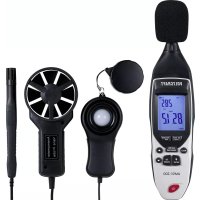
This product is designed to measure the wind speed (with the air flow rate) and the temperature of the ambient air and components in degrees Celsius (^) or Fahrenheit (^) (type K temperature sensor). The wind speed is displayed in five different units. Average, minimum and maximum values can be shown on the display. The meter has an automatic power-off function, which can be disabled if desired. Measurement values can be frozen for extended viewing using the data hold function. The meter is powered by a 9 V block battery. The product is designed to take several different measurements. The environmental meter combines 5 measuring devices in one unit: Anemometer · Luxmeter · Sound level meter · Thermometer · Hygrometer. It is designed to take reference measurements.
The sensors for light intensity, temperature, humidity and wind speed are equipped with a connection cable and can be used away from the meter. This enables you to easily take measurements on objects which are difficult to access. The meter features a built-in microphone for measuring the sound level. The light sensor is fully cosine-corrected for sideways light incidence. Temperature and humidity measurements can be taken at the same time as sound level, wind speed and light intensity measurements.
The units for temperature, wind speed and light intensity measurements can be changed. The meter can take the following measurements:
- Sound level 30 - 130 dB A
- Light intensity 0 - 20000 Lux / 0 - 20000 Fc
- Wind speed 0.4 - 30.0 m/s
- Air Temperature -30 °C to +60 °C/-22 to 140 °F
- Temperature -200 to 1372^ / - 328 to 2502^ (meter) (0 to 250^ for temperature sensor)
- Relative humidity: 0% to 100%
The meter is suitable for a wide range of scenarios in factories, schools, offices and homes. The product is not intended for medical or commercial use.
This product is intended for indoor use only. Do not use it outdoors. Contact with moisture (e.g. in a bathroom) must be avoided under all circumstances. Measurements must not be taken outdoors in wet or rainy conditions.
For safety and approval purposes, do not rebuild and/or modify this product. Using the product for purposes other than those described above may damage the product. In addition, improper use can cause hazards such as a short circuit, fire or electric shock. Read the operating instructions carefully and store them in a safe place. Only make this product available to third parties together with its operating instructions.
All company and product names are trademarks of their respective owners. All rights reserved.
4. Package contents
Environmental meter
- Humidity and temperature probe
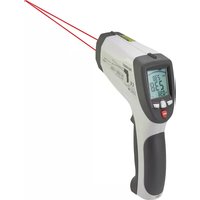
- Type-K temperature probe
Anemo probe
Light detector probe
- Wind cover
- Software CD
- USB cable
Tripod
- 9 V battery
- Carrying bag
- Operating instructions
Up-to-date operating instructions
Download the latest operating instructions at www.conrad.com/downloads or scan the QR code shown. Follow the instructions on the website.

5. Features and functions
Large LCD display with display backlight
- Time reference clock (relative) for measurements
- Simultaneous display of sound level, light intensity, temperature and humidity
- USB interface, USB to UART bridge controller
- Battery level indicator and automatic power-off function after prolonged inactivity
6. Safety information


Read the operating instructions and safety information carefully. If you do not follow the safety information and information on proper handling in these operating instructions, we will assume no liability for any resulting personal injury or damage to property. Such cases will invalidate the warranty/guarantee.
a) General information
- The device is not a toy. Keep it out of the reach of children and pets.
- Do not leave packaging material lying around carelessly. It may become a dangerous plaything for children.
- Protect the product from extreme temperatures, direct sunlight, strong jolts, high humidity, moisture, flammable gases, vapours and solvents.
- Do not place the product under any mechanical stress.
-
If it is no longer possible to operate the product safely, stop using it and prevent unauthorised use. Safe operation can no longer be guaranteed if the product:
-
is visibly damaged,
- is no longer working properly,
- has been stored for extended periods in poor ambient conditions or
-
has been subjected to any serious transport-related stress.
-
Handle the product carefully. Jolts, impacts or a fall even from a low height may damage the product.
- Consult a technician if you are not sure how to use or connect the product, or if you have concerns about safety.
- Maintenance, modifications and repairs must be carried out by a technician or a specialist repair centre.
- If you have questions which remain unanswered by these operating instructions, contact our technical support service or other technical personnel.
b) Connected devices
- Always observe the safety instructions and operating instructions of any other devices which are connected to the product.
c) Persons and product
- Do not cover the air inlet or insert objects when the rotor is turning.
- Trained personnel must supervise the use of electrical appliances in schools, training facilities and DIY workshops.
-
For installations in industrial facilities, follow the accident prevention regulations for electrical systems and equipment issued by the national safety organization or the corresponding national authority.
-
Do not place the product directly next to devices with strong electrical or magnetic fields (e.g. transformers, motors, cordless telephones, wireless devices and radios), as these can prevent the product from working properly.
- Do not use the temperature sensor (type K) to measure the temperature of live conductors or liquids carrying a live voltage.
- Never use the product immediately after it has been brought from a cold room into a warm one. This may cause condensation to form, which can destroy the product. Allow the product to reach room temperature before connecting it and putting it into use. This may take several hours.
- The meter must not be used in areas at risk of explosion (Ex).
- Observe the safety information in each section.
d) Batteries
- Always check that the battery is inserted in the correct polarity.
- To prevent battery leakage, the battery should be removed if you do not plan to use the product for an extended period. Leaking or damaged batteries may cause acid burns if they come into contact with your skin. Always use suitable protective gloves when handling damaged batteries.
- Batteries must be kept out of the reach of children. Do not leave batteries lying around, as there is a risk that children or pets may swallow them.
- Batteries must not be dismantled, short-circuited or thrown into flames. Never charge conventional, non-rechargeable batteries. This may cause an explosion!
7. Operating elements

a) Meter
b) Indicators on LCD display

TEMP (A) Indicates that the meter is in temperature mode
VEL (A) Indicates that the meter is in wind speed mode
TYPE KJ (A) Temperature measurement with type K temperature sensor
A Display A OFFSET Sets the temperature offset.
Area Symbol AREA (surface area)
LIGHT (B) Indicates that the meter is in light intensity mode
SOUND (B) Indicates that the meter is in sound level mode
FLOW (B) Indicates that the meter is in air flow mode
B Display B in
FAST Measure with a time weighting of 0.125 seconds (steeper measuring curve)
SLOW Measure with a time weighting of 1 second (flatter measuring curve)
DBA dBC Volume units
LUX/FC Light intensity units (lux, foot-candle)
SETUP Indicates that the meter is in settings mode
HOLD Data memory symbol
REC Indicates that the measured values will be recorded (MIN/MAX/AVG)
MIN MAX AVG The display shows a maximum, minimum and average value
X10 X100 Multipliers for air flow rate measurements
CMM CFM (ft3/min; m3/min): Units for air flow measurements
%RH Humidity unit
PC The device is communicating with a computer (USB port)
2 cm² ft² Area units
m/s, ft/min, km/h, m/s, ft/min, km/h, mph, knots: Wind mph, knots speed units
°C°F Temperature units (°Celsius, °Fahrenheit)
Battery status symbol (battery level indicator)
Automatic power-off symbol (enabled)
8. Before first use
a) Inserting the battery before first use
The meter comes with a block battery that must be inserted before first use. To insert the battery, proceed as follows:
- Loosen the battery compartment screw on the back with a suitable screwdriver and remove the battery compartment cover from the battery compartment (16).
- Connect the battery to the battery connector in the correct polarity and insert the battery into the compartment without trapping the connection cables.
- Carefully replace the battery compartment cover in the reverse order and screw it in place.
b) Checking the battery status and replacing the battery
The battery status is shown on the LCD display (7). The battery status symbol is displayed when the battery capacity is too low to continue operating the meter. To avoid incorrect measurements, the battery must be replaced immediately.
-
Ensure that the meter is switched off before replacing the battery.
-
Replace the used battery with a new one of the correct type. To replace the battery, follow the steps above.
- Remove the used battery from the battery compartment before inserting a new battery.
c) Connecting the sensors
The wind speed, light intensity, temperature and humidity sensors should be connected to the connection socket panel on the left-hand side of the housing.
To do this, open the cover to expose the connection socket panel (11). Carefully pry it with a finger nail at the bottom end.
- After completing your measurements, close the cover to protect the sockets against contamination.

- Connect the humidity and temperature sensor (8) to the RH% TEMP socket.
- Connect the anemometer probe (17) to the WIND socket.
- Connect a computer (PC) to the USB port.
- Connect the light measuring probe (6) to the LIGHT socket.
- The type-K temperature sensor should be connected to the TYPE K + and - sockets.
d) Setting up the meter/mounting to a tripod
The meter can be secured to a tripod (included with the product) via the tripod socket (10) on the rear of the device. This enables sound level measurements to be taken without being influenced by noise from the user.
e) Switching on and off
- Briefly press the on/off button (1) to switch on the meter. All display elements will appear. After a short initialisation phase (display and system test), the measuring device will be ready to use.
- Press the on/off button to turn the meter off. The display will turn off and the meter will switch off.
- The meter will save the last setting and display it when the meter restarts.
9. Setting variable
a) Available settings in the overview
Change and save the setting options for the respective measurement to the memory.
| Setting Menu icon Setting variable | ||
| Temperature unit TEMP ℃ or ℉ | ||
| Light intensity unit LIGHT LUX or FC | ||
| Sound level unit SOUND dBA or dBC | ||
| Offset Type KJ Temperature offset | ||
| Wind speed unit VEL | Knots m/s Mph, ft/min | km/h |
| Unit of the air flow rate | FLOW | ft3/min, m3/min |
| Unit of area | AREA | in2c, cm2, ft2 |
| Size of the area | AREA | The cross-section used as the measuring surface |
| Automatic power-off | SLP | On or off |
b) Changing the unit settings
- Press and hold the button (2) for approximately 2 seconds to access settings mode. "SETUP" will appear on the LCD display (7) to indicate that settings mode is enabled. The "Unit" symbol will appear on the LCD display.
- Press the (13) or (14) button to select the measurement mode for the unit that you want to change.
- Press the button (15) to confirm your selection. The current unit will be displayed.
- Press the (13) or (14) button to change the unit to one of the available options.
- Press the button (15) to confirm and save the new setting.
- When you have finished changing the settings, press and hold the button (2) for approximately 2 seconds to exit settings mode.

Settings mode is disabled and cannot be used when MIN/MAX/AVG mode is enabled.
Setting the temperature unit

- Select the temperature measurement option in SETUP mode. The "TEMP" symbol will appear.
- Press the button (15) to display the current temperature unit.
- Press the 3) or (14) button to toggle the temperature unit between ^ C and ^ F . The current unit is indicated on the LCD display (7).
- Press the button (15) to confirm and save the setting.
Setting the light intensity unit

- Select the light intensity measurement option in SETUP mode. The "LIGHT" symbol will appear.
- Press the button (15) to display the current measurement unit.
- Press the (13) or (14) button to toggle the light intensity unit between LUX and FC. The current unit is indicated on the LCD display (7).
- Press the button (15) to confirm and save the setting.
Setting the sound level unit

- Select the sound level measurement option in SETUP mode. The "SOUND" symbol will appear.
- Press the button (15) to display the current measurement unit.
- Press the (3) or (14) button to toggle the sound level unit between dBA and dBC. The current unit is indicated on the LCD display (7).
- Press the button (15) to confirm and save the setting.
Setting the temperature offset
You can individually adjust the offset temperature for type K temperature measurements (also according to the temperature sensor).

- Select the option for type K temperature measurements in SETUP mode. The "OFFSET" symbol will appear.
- Press the (3) or (14) button to set/change the offset value.
- The current offset value is shown in display A on the LCD display (7). The measured temperature with the added offset value is shown in display B on the LCD display.
- Press the button (15) to confirm and save the setting.
Setting the wind speed unit
You can choose from five different wind speed units.

- Select the wind speed measurement option in SETUP mode. The "VEL" symbol will appear.
- Press the button (15) to display the current measurement unit.
- Press the 3) or (14) button to set the wind speed unit. The current unit is indicated on the LCD display (7). Press repeatedly to switch between m/s, ft/min, knots, km/h and mph.
- Press the button (15) to confirm and save the setting.
Setting the unit for the air flow rate
Select the unit for the air flow rate (cubic meters per minute or cubic feet per minute).

- Select the air flow rate measurement option in SETUP mode. The "FLOW" symbol will appear.
- Press the button (15) to display the current measurement unit.
- Press the (13) or (14) button to set the unit for the air flow rate. The current unit is indicated on the LCD display (7).
- Press the button (15) to confirm and save the setting.

The units have the following meanings:
"CFM" (cubic feet per minute) Wind speed (ft/min) x Area (ft2)
"CMM" (cubic metres per minute) Wind speed (m / s) x Area (m 2) x 60
Setting the area unit

- Select the area measurement option in SETUP mode. The "AREA" symbol will appear.
- Press the button (15) to display the current measurement unit.
- Press the (13) or (14) button to set the area unit. The current unit is indicated on the LCD display (7). Choose between cm², in² and ft².
- Press the button (15) to confirm and save the setting.
Setting the size of the measured area (pre-selection)

- In SETUP mode, select the option for presetting the measurement area. The "AREA" symbol will be displayed.
- Press the (15) button to display the area and area unit in display B. Display A shows the preset area for the current memory slot.
- Press the (13) or (14) button to select a memory slot for the area. You can configure 6 memory slots for different areas: S-1 S-2 S-3 S-4 S-5 and S-6.
- Press the 3) or (14) button to set the sizes of the measured areas in a loop of S-1 to S-6.
- Press the button (15) to select a digit from the current area setting. The selected digit will flash.
- Press the (3) or (14) button to set the digits from 0-9.
- Press the HOLD button (4) to go to the next digit (up to four places from right to left). Press the 13) or (7) button to set the next digit.
- Press the button (15) to confirm and save the settings. The current setting is indicated on the LCD display (7).
10. Measuring the sound level

Exercise caution in loud environments. You may suffer hearing damage. Always use hearing protection in loud environments! Ensure that there are no objects or people between the measurement microphone (9) and the sound source.

Sound sources must always be measured directly. Point the sound level meter and microphone directly at the sound source.
To avoid influencing the sound waves, keep the meter as far away from your body as possible using an outstretched arm, or attach it to the enclosed tripod. If possible, move away from the measuring point. There is a tripod socket (10) on the back of the meter.
Avoid vibrating or moving the meter.
When taking measurements in windy environments (>10m / s) , use the enclosed wind deflector to prevent wind noises from resulting in incorrect measurements. The wind deflector does not distort the measurement results.
Follow the steps below to measure the sound level:
- If necessary, place the wind deflector on the microphone.
- Press the on/off button (P) to switch on the meter.
-
Press the button (3) to select sound level mode. When you reach sound level mode, the "SOUND" symbol will appear on the LCD screen (7) near the display (B).
-
For instructions on how to change the unit, see section "b) Changing the unit settings / Setting the sound level unit" in chapter 9 ("Setting variable").
- Press the button (15) to select FAST or SLOW mode.. The "FAST" or "SLOW" symbol will appear on the LCD display (7) to indicate the selected measurement mode.
- Point the microphone (9) directly at the sound source that you want to measure. The sound source should be approximately 1 m from the microphone (9).
- The measured sound level will appear on the LCD display in "dBA" (A-weighted decibels). If you have selected dBC as the unit, the sound level will be displayed in "dBC" (C-weighted decibels).
- After you have finished taking measurements, press the on/off button (1) to switch off the meter.
11. Measuring the light intensity

Ensure that you maintain a safe distance when measuring hot sources of light (e.g. halogen lights). The heat emitted from these lights may result in inaccurate measurements.
The light measurement probe contains a filter which only lets through light that is visible to the human eye. This ensures that the measured values are not distorted.
An opaque protective cap is attached to the light measurement probe. This serves to protect the sensor and control the zero point.
Follow the steps below to take a measurement:
- Place the protective cap on the light measurement probe (6).
- Open the side cover and connect the plug on the light measurement probe to the round LIGHTsocket (see section c) "Connecting the sensors" in chapter 8 ("Before first use").
- Press the on/off button to switch on the meter.
- Press the button (3) to select the light intensity measurement mode. The "LIGHT" symbol will appear on the LCD screen (7) near the display (B).
- Check the reading on the display when the protective cap is in place. It must show 0.000 Lux. If this is not the case, check that the protective cap is properly in place. If the issue persists, set the display to ZERO.
- Press and hold the button (15) for more than 2 seconds. The meter will be reset to "0000" (display from right to left).
If 0.000 Lux is not displayed, the sensor may be faulty and must be replaced.
- Remove the protective cover and point the sensor (white hemisphere) directly at the light source that you want to measure. The LCD display (7) will indicate the light intensity in "Lux" or "kLux".
- For instructions on how to change the unit, see section "b) Changing the unit settings / Setting the light intensity unit" in chapter 9 ("Setting variable").
- Press the button (14) to change the units. Each press switches the unit from "Lux" to "Fc" ("Foot Candle") and vice versa.
- After you have finished taking measurements, press the on/off button (1) to switch off the meter. Remove the light measurement probe and close the side cover of the sockets.
12. Measuring the wind speed and air flow rate

Watch out for loose or flying parts in strong winds. These could cause an injury.
Note the wind direction indicator in the anemometer probe!
The wind direction is indicated by an arrow in the anemometer housing. The wind direction must be observed in order to avoid incorrect measurements.

Make sure that the impeller in the sensor can move freely.
Follow the steps below to take a measurement:
- Open the side cover and connect the plug on the anemometer probe (17) to the "WIND" socket (see section c) "Connecting the sensors" in chapter 8).
- Press the on/off button to switch on the meter.
- To switch to wind speed measurement mode ("VEL"), press the button (5) until the "VEL" symbol appears in display A on the LCD screen (7)
- Point the anemometer probe into the wind, ensuring that it does not tilt to one side. The arrow marking in the impeller casing must be pointing in the direction of the wind. The measured wind speed will be shown in the selected unit (e.g. "m/s") on display A on the LCD screen (7).
- Press the button (13) to change the display unit. Each press changes the unit. You can choose from knots, mph, ft/min, m/s and km/h.
- For instructions on how to change the unit, see section "b) Changing the unit settings / Setting the wind speed unit" in chapter 9 ("Setting variable").
- Display B will show either the measured area (indicated by the "AREA" symbol on the LCD display), or the "FLOW" symbol will be displayed together with the measured air flow rate.
- Press the button (3) to switch between the area and air flow rate measurements. Each press switches between the two measured values on display B. The "AREA" and "FLOW" symbols will appear alternately.
- To select another area from the predefined area sizes, press the button (2) to access SETUP mode.
- Press the 13) or (4) button to select the size of the measured area from memory slots S-1 to S-6.
- Confirm your selection with the button (15). For instructions on how to set the predefined area sizes, see section "b) Changing the unit settings / Setting the size of the measured area (pre-selection)" in chapter 9 ("Setting variable").
- After you have finished taking measurements, press the on/off button (1) to switch off the meter. Remove the anemometer probe and close the side cover.
13. Measuring the temperature and humidity

The measured temperatures and humidities must only come into contact with the sensor. To prevent incorrect measurements, always ensure that the meter is used within the specified operation conditions.
The temperature and humidity probes are built into a sensor. The temperature and relative humidity can be measured in parallel when using the other measurement functions. The temperature is shown on display A. The humidity is shown on display B.
Follow the steps below to measure the temperature:
- Open the side cover and connect the plug on the temperature and humidity probe (8) to the RH% TEMP measurement socket (see section c) "Connecting the sensors" in chapter 8 ("Before first use").
- Press the on/off button to switch on the meter.
- Place the humidity and temperature sensor in the area that you want to measure. Make sure that you do not exceed the meter's specified operating conditions.
- Press the button (5) to show the temperature on display A. The measured temperature will be shown in ^ C or ^ F .
- Press the button (3) to show the humidity on display B. The measured humidity will be shown in %.
- To change the display/measurement unit, press the button 13) to switch between ^ C / ^ F . Each press changes the unit.
- After you have finished taking measurements, press the on/off button (1) to switch off the meter. Remove the temperature and humidity probe and close the side cover.
14. Taking type K temperature measurements

Do not take measurements on moving/rotating parts. Do not place the measurement sensor directly on the moving part.
You can measure temperatures using a type K temperature sensor (with thermo element).
Follow the steps below to measure the temperature:
- Open the side cover and connect the type K temperature sensor to the TYPE K + and - sockets. (see section c) "Connecting the sensors" in chapter 8 ("Before first use"). If no temperature sensor is connected, "- - - " will appear on the display.
- Press the on/off button to switch on the meter.
- Hold the type K temperature sensor on the object that you want to measure.
- Press the button (5) to show the temperature measured by the type K temperature sensor on display A.
- To change the display/measurement unit, press the button (13) to switch between ^ C and ^ F . Each press changes the unit.

If the measured value is outside of the measurement range, OL or -OL will appear on the LCD display (7).
15. Additional functions
The following additional functions can be enabled/disabled at any time during a measurement.
a) HOLD function
To briefly freeze the reading on the display, press the HOLD button (4). "HOLD" will appear on the LCD display to indicate that the Hold function is enabled. Pressing the button again switches this function off.
b) Displaying the maximum, minimum and average readings
When the MAX/MIN/AVG function is enabled, the meter saves and displays the highest ("MAX"), lowest ("MIN") and average ("AVG") readings from the current series of measurements. The recording function must be enabled in order to record measurements. If "REC" is displayed, the relevant measurements will be saved to the memory.
- Press and hold the button MAX/MIN/AVG button (12) until the "REC" symbol flashes on the LCD display (7).
- Press the button (15) to enable or disable the recording function. The REC symbol will stop flashing or disappear from the LCD display.
- Saved MAX/MIN/AVG values are deleted from the internal memory when the REC symbol disappears, or when new readings are saved to the memory (if the REC symbol is shown on the LCD display).
To enable/disable the MAX/MIN/AVG display function, press the MAX/MIN/AVG button (12) until the desired symbol (MAX/MIN/AVG) is displayed. The "MAX", "MIN" or "AVG" symbols will appear on the LCD display to indicate that the corresponding function is enabled. - Press the VEL TEMP button (5) to loop through the maximum, minimum and average values of wind speed, temperature and type K temperature.
- Press the button (3) to loop through the maximum, minimum and average values of light intensity, sound level, air flow rate and relative humidity.
- To disable the display function, press and hold the MAX/MIN/AVG button (12) for approx. 2 seconds. The "MAX/MIN/AVG" symbols will disappear from the LCD display. All saved values will be erased.
The Data Hold and MIN/MAX/AVG functions can be used when taking measurements.
Automatic power-off
The meter features an automatic power-off function to prolong the lifespan of the battery. This function can be switched on and off as desired. The automatic power-off function ensures that the meter is automatically switched off after 20 minutes when not in use in order to save battery power. You can switch the meter back on using the on/off button (1). The automatic power-off function is enabled by default. You can disable this function if desired. To do so, proceed as follows:

- To disable the automatic power-off function, go to SETUP mode. To access SETUP mode, press and hold the button (3) for approx. 2 seconds.
- Scroll/move the active cursor by pressing the (13) or (14) buttons until you reach "SLP".
- Press the button (15). "ON" or "OFF" will appear on the display to indicate the status of the automatic power-off function. If the status is "OFF", the meter will stay switched on, even after 20 minutes of inactivity. The meter must then be switched off manually.
- If the status is "ON", the meter will switch off after 20 minutes of inactivity. The measuring device must then be switched on manually.
- Select "ON" = automatic power-off is enabled, or "OFF" = automatic power-off is disabled.
- Press the button (15) to confirm the selected setting.
- Press and hold the button (3) for approx. 2 seconds to exit SETUP mode.

The automatic power-off function is automatically enabled when the meter is switched on and can be disabled as described above.
c) Display backlight
The meter features a built-in display backlight that can be used to illuminate the display in low-light conditions.
- Press the button (3) to switch on the display backlight.
- Press again to switch the backlight off.
16. Software
You can use the software on the supplied CD to read and plot graphs of the measurements from the meter.
- Install the software on the CD on your computer.
- Insert the CD into a CD drive and start the installation process.
- Follow the installation instructions and complete the installation.
- In order to do so, you will need to connect a suitable USB cable (included with the product) to the USB port on the meter and your computer (see section 8, section C ("Connecting the sensors").
- The meter will switch on when the USB connection has been established.
- Start the program to download data from the meter.

17. Troubleshooting
The meter was designed using the latest technology to ensure reliable function. However, problems and malfunctions may still occur. This section tells you how to troubleshoot common issues:

Always observe the safety information in these instructions.
| Error Possible cause Solution | ||
| The meter cannot be switched on. Is the battery empty? Check the battery status. | ||
| Remove the battery and insert again (perform a reset). | ||
| The correct measurement is not displayed. | Incorrect measurement? The connector on the sensor is not inserted correctly. | Check the connector on the sensor |
| The meter cannot be operated. The | Hold function is enabled ("HOLD" appears on the display) | Disable the hold function via the "HOLD" button. |
- Repairs other than those described above should be performed only by an authorised specialist.
- If you have questions about the meter, please contact our technical support team.
18. Care and cleaning

Never use aggressive detergents, rubbing alcohol or other chemical solutions, as these may damage the housing or stop the product from functioning properly.
- Before cleaning, remove the battery to disconnect the product from the power supply.
- Use a dry, lint-free cloth to clean the product.
19. Disposal
a) Product

Electronic devices are recyclable waste and must not be placed in household waste. At the end of its service life, dispose of the product in accordance with the applicable regulatory guidelines. If a battery is inserted, remove it and dispose of it separately from the product.
b) Batteries

You are required by law to return all used batteries (Battery Directive). They must not be placed in household waste.
Batteries containing hazardous substances are labelled with this symbol to indicate that disposal in household waste is forbidden. The abbreviations for heavy metals in batteries are: Cd = Cadmium, Hg = Mercury, Pb = Lead (indicated on the battery, e.g. below the waste bin icon on the left).
Used batteries can be returned to local collection points, our stores or battery retailers.
You thus fulfil your statutory obligations and contribute to environmental protection.
20. Technical data
a) Unit
Power supply. 1x9V block battery
Current consumption.. Approx. 19 mA
Standby power consumption. 40 A (when switched off)
Low battery level indicator. From 6.9 V
Operating conditions. 0 to +50^, < 80% relative humidity (non-condensing)
Storage conditions. -10 to +60^, < 80% relative humidity (non-condensing)
Dimensions (W× H× D) 62x259x50mm
Weight 282 g (meter without accessories)
Supported operating systems.......Windows 2000, XP Home, Pro, SP1, SP2, SP3 (32-bit), VistaTM (32/64-bit), 7 (32/64-bit), 8 (32/64-bit), 8,1 (32/64-bit), 10 (32/64-bit)
b) Sound level measurements
Measurement range 30 - 130 dBA
Resolution. 0.1 dB
Accuracy. ±3.5 dB
Frequency range 31.5 Hz - 8 kHz
Standard EN 61672 Class 2
c) Light intensity measurements
Measurement range 20, 200, 2000, 20000 Lux
Resolution. 0.01, 0.1, 1, 10 Lux
Accuracy. ±5% ±10 d
d) Temperature measurements (type K sensor)
Measurement range -200 to +1372^
-328 to +2502°F
Resolution. 0.1 °C or °F
Accuracy. -99.9 to 99.9^ (-148 to 212^) ± [1.5% rgd + 1^(1.8^)]
-200 to -100 °C (-328 to -148 °F): ±[1.5 % rgd + 2 °C (3.6 °F)]
100 to 1372^ (212 to 2502 F): ± [1.5% rgd + 2^(3.6^)]
Units. ^ C / ^ F
Measurement range . 0 - 250^ (supplied temperature sensor)
e) Air temperature measurements
Measurement range -30 to +60^
-22 to +140 °F
Resolution. 0.1 °C or °F
Accuracy. 10 to +30^ (50 to +86^ ): ± 1^ ( ± 1.8^ )
-30 to +9.99 °C (-22 to +50 °F): ±2 °C (±3.6 °F)
31 to +60^ (88 to +140^ ): ± 2^ ( ± 3.6^ )
Units. ^ C / ^
f) Humidity measurements
Measurement range . 0% to 100% (relative humidity)
Resolution. 0.1% (relative humidity)
Accuracy. ±3.5% (relative humidity)
g) Wind speed measurements (anemometer)
Measurement range .0.40 - 30.00 m/s || 80-5900 ft/min || 1.4 - 108.0 km/h || 0.9 - 67.0 mph
0.8-58.0 knots
Resolution. 0.01 m/s | 1 ft/min | 0.1 km/h | 0.1 Mph | 0.1 knots
Accuracy. ± 3% ± 0.20m / s ± 3% ± 40ft / min ± 3% ± 0.8km / h
± 3% ± 0.4mph ± 3% ± 0.4 knots
h) Air flow rate measurements (CFM/CMM)
Measurement range . 0 - 999.900 CFM | | 0 - 999.900 CMM
Resolution. 0.001 - 100 CFM | 0.001 - 100 CMM
Accuracy. As a function of speed and surface area
Table des matieres
Page
France (email): technique@conrad-france.fr
Suisse: www.conrad.ch www.biz-conrad.ch
2. Explication des symboles

b) Files/Accumulates

Dimensions (I x h x P). 62 x 259 x 50 mm
Afmetingen (b× h× d) 62x259x50mm
ManualGo.com