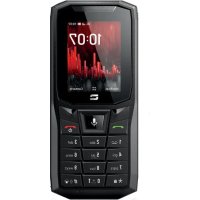
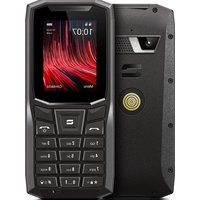
USER MANUAL CoreS4 CROSSCALL
Protection auditive 34-35
E
Ergonomie
ACTIVATING YOUR CORE-S4
Installing the nano SIM/micro SD card 47
Switching the phone on and off 48
Attaching the leash 48
Creating/Connecting your KaiOS account 49
Connecting your Google account 49
Importing your contacts 50
From a Google account 50
From a memory card/Gmail/Outlook 50
Using your CORE-S4 underwater 51
Tips and precautions for charging your battery 51-52
THE CORE-S4 KEYPAD AND SHORTCUTS
Navigation keypad 53
Selection keys 54
Central key 55
Call keys 56
Numeric keypad 57-59
Speed dial 57
Messaging 58
Connection sharing 58
Torch 58
Adjusting the phone volume in certain apps 59
Screenshots 59
The * and # keys 59-60
Locking your phone 59
Vibrate/ring mode 60
Writing text 60
USING THE PHONE
Phone calls 61-62
Dialling a number 61
From the call log 61
From the contacts list 61
Making calls VoLTE / VoWIFI 61-62
Receiving calls.... 62

Contacts 62
Manually creating a contact 62
Adding a contact from a received call 62
Messages 63
Sending a message 63
Displaying messages 63
Camera 63
Gallery 63-64
Viewing images/videos 63-64
Deleting images/videos 64
Sharing images/videos 64
Transferring files to a PC 64-65
Browser 65
Connectivity 65
Cleaning up your memory 65-66
Resetting your phone 66
System updates 66
CUSTOMISING YOUR PHONE
Sound 66
Display 66-67
Notifications 67
Date and Time 67
Languages 67
SAFETY MEASURES
General security information 67-69
Information on water resistance 69-70
Medical devices 70
Road safety 71
Power supply and charge 71-72
Hearing protection 72
Environmental protection....73
Cleaning and maintenance.... 73
Emergency calls 74
Recommendations to reduce the user's exposure to radiation 74
Compliance 74-75
Frequency bands and power 75
Accessory and software information 76
Specific absorption rate (SAR) 76
Copyright 77
APPENDIX
Important information 77
Warranty 77-78
Thank you for choosing Crosscall and for purchasing this phone.
The user guide will help you get to know your new device.
THE BEST BITS OF THE CORE-S4
Connectivity
The CORE-S4 features dedicated frequency bands for 4G connection. These bands cover most European operators and all French operators. Whether at home or in the office, your CORE-S4 connects to your WiFi network (802.11 b/g/n 2.4Ghz), saving you from using your data plan. And because of its KaiOS operating system, many of the most popular apps are installed by default on your CORE-S4. This means you can access Facebook and WhatsApp as soon as you start your phone...

Durability
Designed with CROSSCALL's values firmly in mind, the CORE-S4 embodies the brand's commitment to durability, and to building a mobile phone you can rely on over time, without limiting its usability. It has a long battery life, thanks to its 2300 mAh battery, it can withstand impacts and drops, and is resistant to fresh water, salt water, chlorinated water, dust and other microparticles. Durability, reliability and repairability are its key qualities.
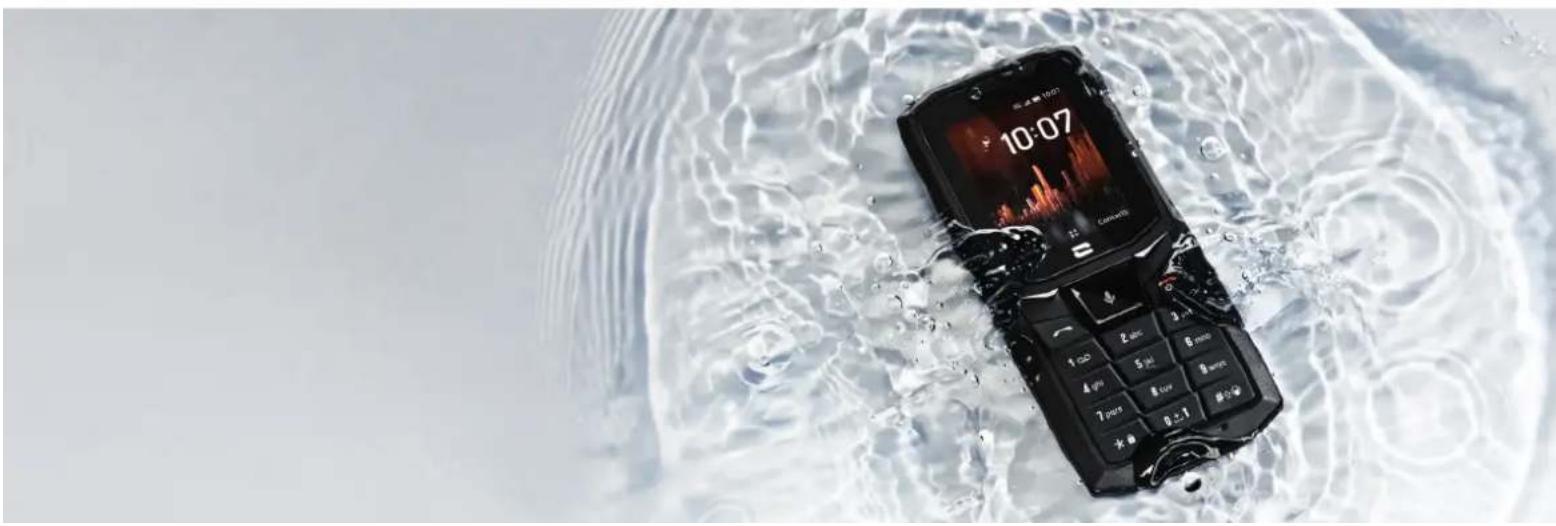
Ergonomic design
With its compact (140x62x14.4mm) and lightweight (153g) design, the CORE-S4 slips perfectly into any pocket. Its bright screen and one-piece backlit keypad make it easy to use, even when wearing gloves. The 100 dB speaker means you can make clear and audible calls in noisy places, even when hands-free, and the powerful torch will help you find your way in low-light areas.
Its compatibility with X-LINK™* technology puts the CORE-S4 at the heart of an accessory ecosystem designed to simplify your everyday life. The CORE-S4 simply ticks all the boxes for an ergonomic phone that perfectly adapts to any situation.
*Magconn Technology/** Except X-MEMORY
ABOUT YOUR PHONE
Device overview
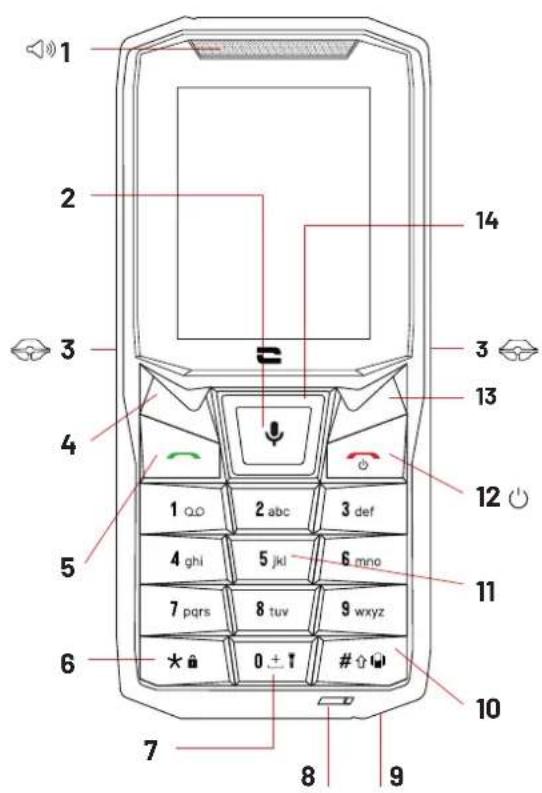
- Loud speaker
- Menu / OK / Unlock / Voice assistant (long press)
- X-BLOCKER slots
- Select Left / Notifications
- Answer / Call log
- Lock keypad (long press) / Special characters
- Torch (long press)
- Microphone
- Hole for leash (not supplied)
- Vibrate (long press) / Lower case - Upper case
- Keypad / Speed dial (long press)
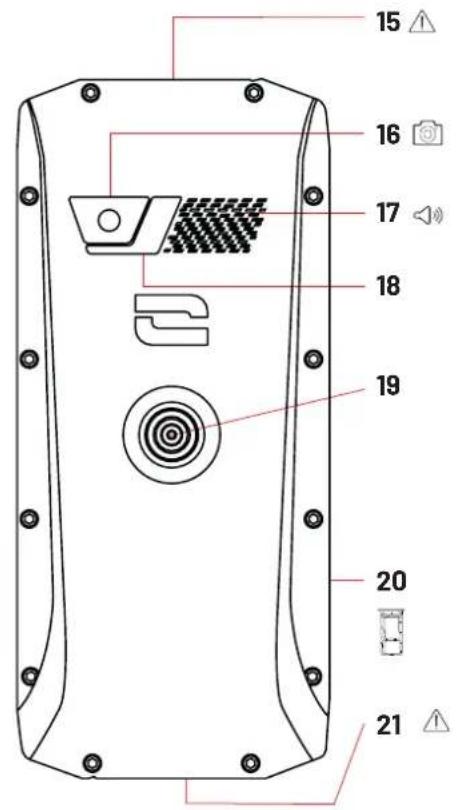
- Hang up / On - Off / Back
- Select Right / Contacts
- Shortcut settings / Directional pad for navigation
- Earphone jack (dust cap - always close tightly!)
- 2MP rear-facing camera
17.100db speaker
- Flash
- X-LINK™* (mount/charge/data transfer)
- Nano SIM or micro SD card tray
- Micro USB port (dust cap - always close tightly!)


X-LINK™*
THE SMART MAGNETIC ATTACHMENT SYSTEM
This magnetic connector located on the back of your phone can be used to attach and connect it with ease to exclusive X-LINK™* accessories.
Depending on the accessories used, the X-LINK™* system also lets you charge your phone and/or transfer data.
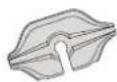
X-BLOCKER
THE REINFORCED MECHANICAL MOUNTING SYSTEM
In situations that require maximum hold, this exclusive accessory supplied with your mobile guarantees the secure attachment of your phone to compatible accessories (20kg pull force). It is easily attached to the slots on the side
of your mobile. The silicone coating reduces vibrations caused by knocks.
Before starting an activity, check that your X-BLOCKER is properly inserted into the two slots on the phone.
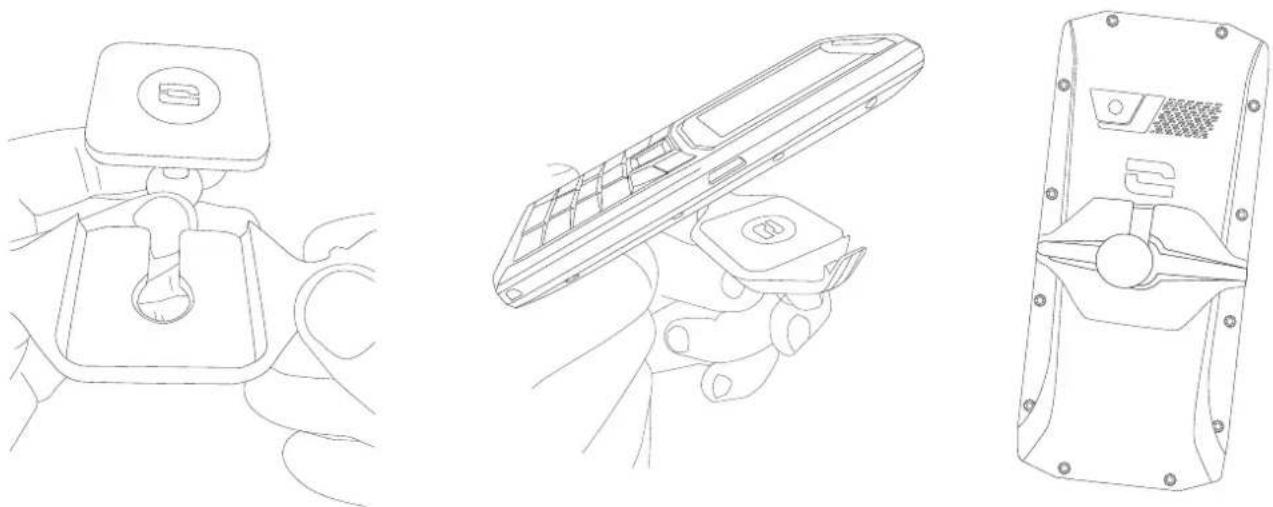
See the full range of accessories compatible with the X-LINK™* and X-BLOCKER at www.crosscall.com
ACTIVATING YOUR CORE-S4
Installing the nano SIM/micro SD card
-
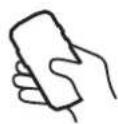
Check that your device is turned off. If not, switch it off by pressing the On/Off button.
-
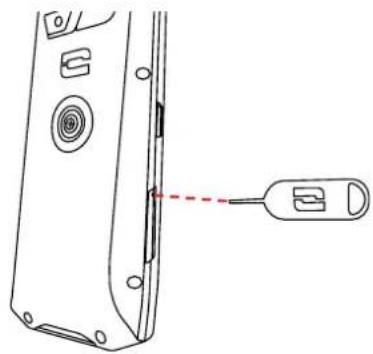
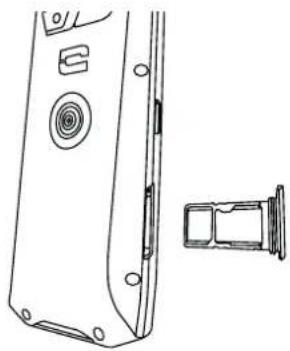
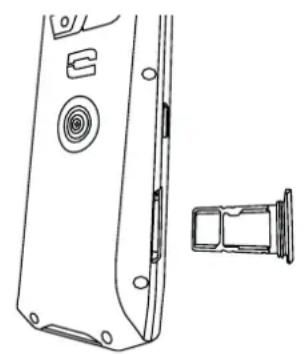
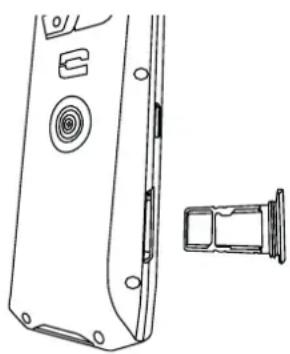
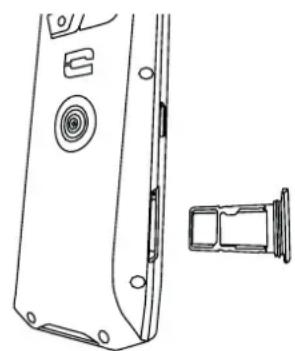
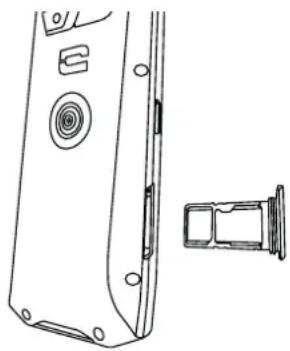
Eject the nano SIM/micro SD card tray using the tool provided, inserting it into the hole designed for this purpose, as shown below.
-
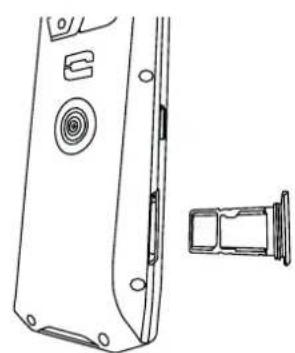
Remove the tray completely.
-
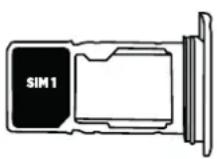
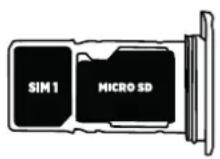
You have the option of setting up two nano SIM cards (or a nano SIM card and a micro SD card) in your phone.
a. To ensure optimal compatibility with operator services, insert your nano SIM card, metal side down, in the smallest compartment (SIM 1).
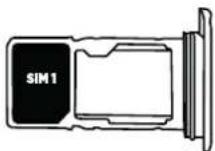
b. If you wish to install another SIM, insert a second nano SIM card (or a micro SD card of up to 64 GB), metal side down, in the largest compartment (SIM 2).
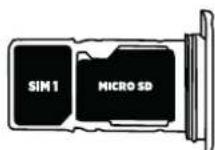
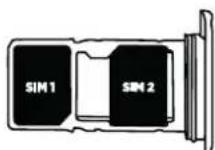
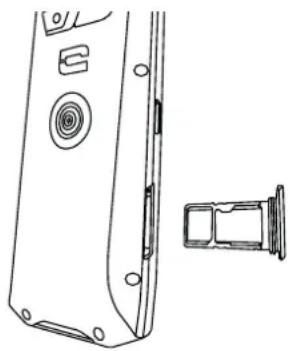
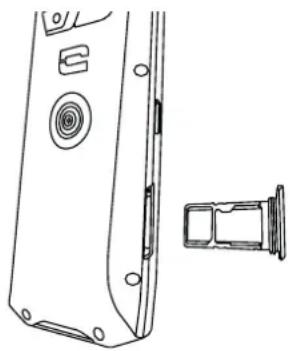
- Slide the tray back into the phone:
a. Make sure the cards are properly aligned.
b. Check that the tray is properly aligned with the slot in the phone when you slide it back in.
c. Insert the tray and push it in, as shown above.
Important: To guarantee that your smartphone is dust and waterproof, make sure that the tray is fully inserted and locked.
Switching the phone on and off

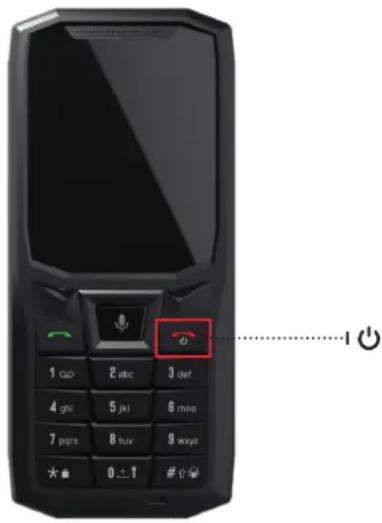
Press and hold the phone's On/Off button and wait a few seconds until the display turns on.
When you switch on your phone for the first time or after performing a data reset, follow the on-screen instructions to set up your device.
Once the phone is on, this button can also be used to:
- Decline a call/Hang up
- Switch off, restart or lock your phone with a long press
- Clean your device's memory with a long press
- Go "back" with a short press
- Delete text with a short or long press
- Activate your phone's screen when it is on standby.
Attaching the leash*
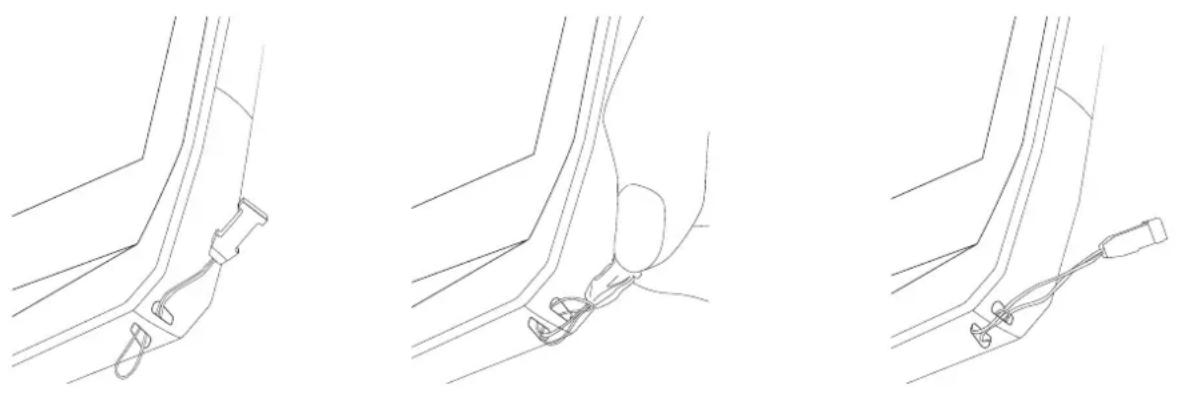
* Leash not included
Creating/Connecting your account KaiOS
![graph LR A["10:38<br>Friday OCT"] --> B["SELECT Options"] B --> C[" KaiOS accounts<br>Use your phone number E... More >"] C --> D["Select with Phone Name: 'Create Account'"]](/content/2026/04/593712/images/7080cb2cdc0678809a9c1a55067b16ecc8ba482e662e557b23f9e90104879a2c.jpg)
Z
Now that your CORE-S4 is activated, you can create or connect your KaiOS account to access, among other things, the KaiOS Store where you can download apps to your phone. To do this:
- From the Home screen, click the central key on your phone's keypad to access the Menu
- Go to "Settings"
- In the sub-menu "Account", click on "KaiOS Account".
- Click on "Create account" if you do not yet have an account, or "Sign in with phone" or "Sign in with email" if you already have an account.
- Follow the on-screen instructions, filling in the requested information.
Connecting your Google account
![graph LR A["10:38 on screen"] --> B["Settings"] B --> C["Add Account"] C --> D["Add Account"]](/content/2026/04/593712/images/091b8bc9f3db45d98f52498574cd3372f95fa902649561e23467b088e05f0568.jpg)
You also have the option of adding your Google account to your CORE-S4. To do this:
- From the Home screen, click the central key on your phone's keypad to access the Menu
- Go to "Settings"
- In the sub-menu "Account", click on "Add Account".
- Select"Google".
- Enter your details to login.
From a Google account

![graph LR A["15:43 AMI"] --> B["Paramètres"] B --> C["Add Account"] C --> D["Email"]](/content/2026/04/593712/images/0f80565413b389a8ad6b5a901336786b28d27c50042800db7f80141049c9fae2.jpg)
Once your Google account has been added to your phone, you can import your contacts saved to that account. To do this:
- From the Home screen, click the central key on your phone's keypad to access the Menu
- Go to "Settings"
- In the sub-menu "Account", click on your Google account.
- Select «Contacts». You can also choose to import your calendar and emails.
From a memory card/Gmail/Outlook
![graph LR A["10:38<br>Friday Oct 3"] --> B["Search contacts"] B --> C["User 1"] B --> D["User 2"] B --> E["User 3"] C --> F["Select"] D --> F E --> F F --> G["Set ICE Contacts"] G --> H["Create Group"] H --> I["Block Contacts"] I --> J["Import Contacts"] J --> K["SELECT"] K --> L["Import Contacts"]](/content/2026/04/593712/images/fdeb0bd32709fb828a5e81c2a3d4cf2deba1d5d9220b01fbfeed4a5a4fe75954.jpg)
- From the Home screen, click the right-hand selection key on your phone to access the "Contacts" interface.
- Click the right-hand selection key again to select "Options", then choose "Settings"
- Scroll down through the various options and select "Import Contacts".
- Choose your desired option, either "Memory card", "Gmail", or "Outlook".
Advice for using your CORE-S4 under water
After immersion in sea water, you should rinse your mobile in fresh water. Thoroughly dry the caps and connectors.
The speaker and microphone slots may be blocked with water.
Wait a few minutes before making a call to get back to optimal functionality.
Tips and precautions for charging your battery
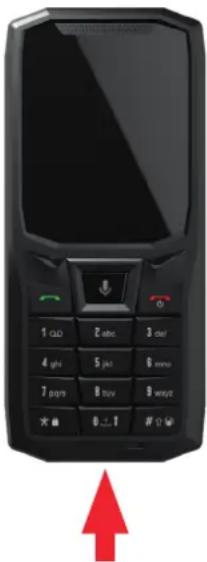
- Open the dust cap and connect the cable and AC adapter supplied in your pack using the USB-A port. Then plug the other end of the cable into the micro USB port on your phone.
- Plug the AC adapter into an electrical outlet.
- When the battery is fully charged, unplug the phone from the charger. First unplug the charger from the device, then unplug it from the electrical outlet.

Never charge your phone using the X-LINK™* magnetic connection and the USB connection together, as this could shorten the lifespan of your phone's equipment.

The battery is built into the phone and is not removable. Do not remove the battery yourself.
- To avoid prematurely draining the device's battery, we recommend that you follow the battery charging instructions for each charging cycle. To do this, it is better to top up the battery when it reaches 20% and avoid charging it beyond 80%, rather than topping it all the way up to 100% from zero.
- Only use approved chargers and cables that are compatible with your phone. Using unapproved chargers or cables may cause the battery to explode or damage the phone.
- Avoid using your phone while it is charging. Do not cover your phone or the power adapter.

- Connecting the charger incorrectly could seriously damage your phone. Any damage caused by misuse is not covered by the warranty.
- Remove the charger from the electrical outlet when the phone is not charging.
- The phone may not switch on straight away if you are charging a drained battery. Once the phone has been charging for a while, the phone will start normally.
- If the AC power is lower, your phone may take longer to charge.
- If you use unconventional chargers such as computers, the charging time may be longer.
- The charging time may vary depending on the ambient temperature and the remaining battery level.
- The phone can be safely charged at a temperature between 0° C and 40° C. Charging at temperatures below 0° C or above 40° C may compromise battery performance and shorten battery life. Prolonged charging at extreme temperatures will damage the battery.
- While charging, the phone and charger may become hot, this is quite normal and should not affect the performance or lifespan of your phone. If the battery seems hotter than usual, stop charging it. Put your phone in a cool place and leave it to cool. Avoid prolonged contact with the surface of your phone when it is hot.
THE CORE-S4 KEYPAD AND SHORTCUTS
From the Home screen, you can quickly access a large number of features using the navigation pad keys and the physical keys.
Navigation pad
From the Home screen, click the top navigation key to access the Settings shortcut.
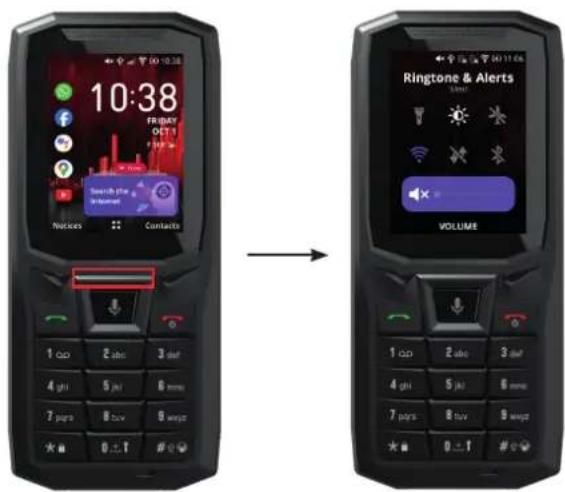
On this screen, you will be able to control:
- Torch
- Screen brightness
- Flight mode
• WiFi
- Mobile data
- Bluetooth
- Ringtone and notification volume/Vibrate and silent mode
From the Home screen, click the left-hand navigation key to quickly access a selection of apps (non-configurable list of apps).
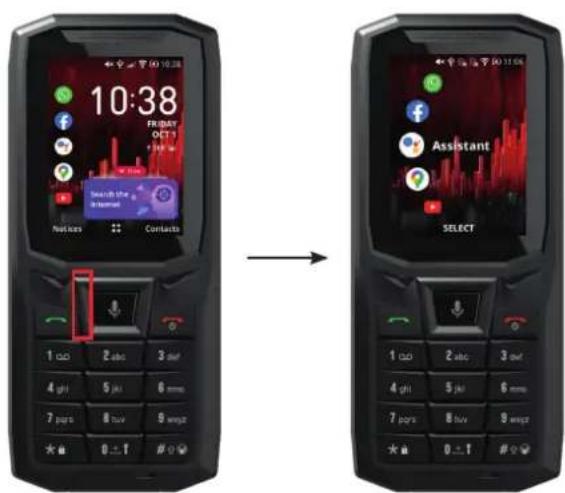
This screen gives you quick access to:
- WhatsApp
- Facebook
- Assistant
- Maps
- YouTube
Generally speaking, whatever the page on your screen, the four keys on the navigation pad let you move from bottom to top and from left to right.
Selection keys
From the Home screen, click the left-hand selection key to access your notifications.

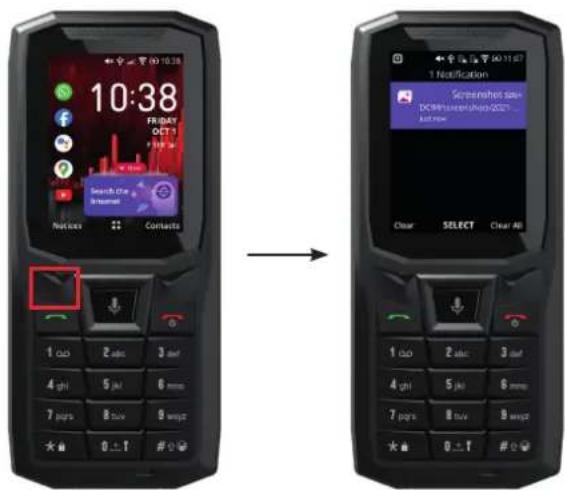
On this screen you can:
- Check your notifications
- Delete certain notifications
- Delete all your notifications
More generally, this key lets you select the function shown at the bottom left of your screen.
From the Home screen, click the right-hand selection key to access your contacts.
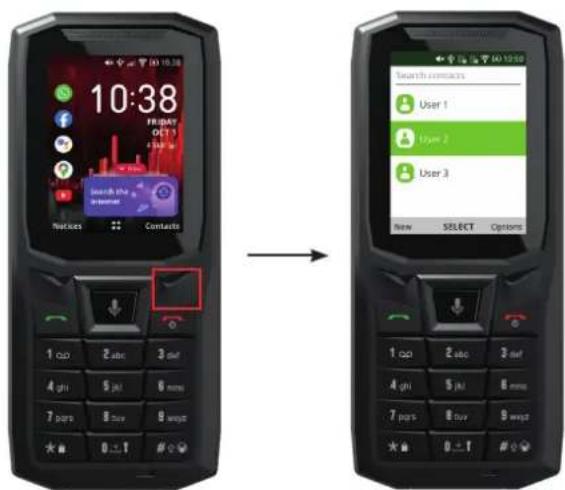
On this screen you can:
• See your contacts
- Import contacts
- Add contacts
More generally, this key lets you select the function shown at the bottom right of your screen.
Central key
From the Home screen, click the central key on your phone's keypad to access the Menu.
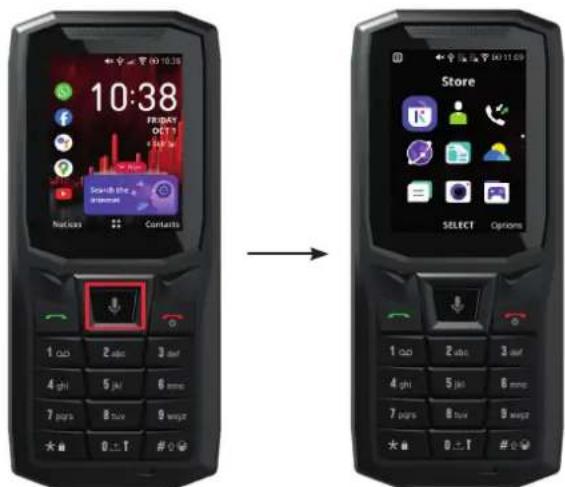
From the Home screen, press and hold the central key to activate the voice assistant and ask the phone to perform an action.
When you need to enter text, pressing and holding this key also lets you dictate to the phone what you want to write.
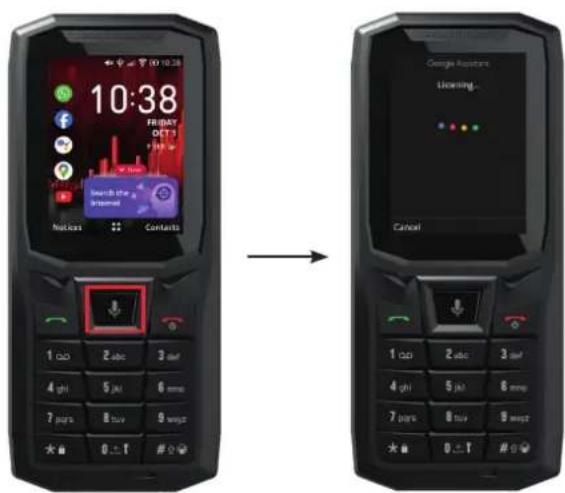
More generally, this key allows you to select the function/app that you are pointing to on the screen.
When your phone is in standby, this key allows you to unlock it with one click.
Call keys
From the home screen, click the green telephone button on your phone to access your phone's Call log. This lets you view your recent calls made or received, as well as missed calls.
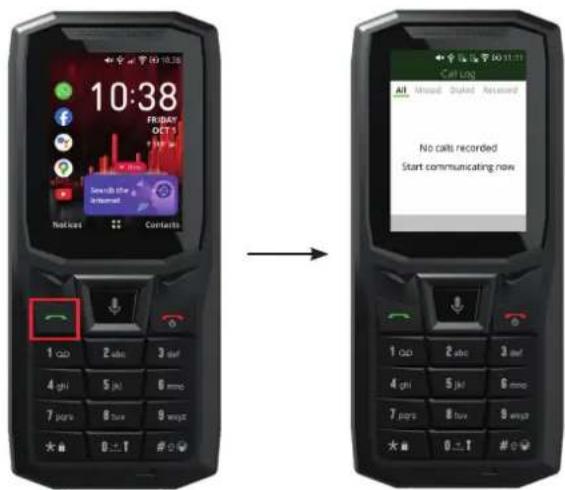
More generally, this key allows you to answer your phone during an incoming call.
The red telephone key on your phone lets you perform various actions. By pressing and holding this key, you can:
- Switch on, switch off, restart or lock your phone
- Clean up your device memory
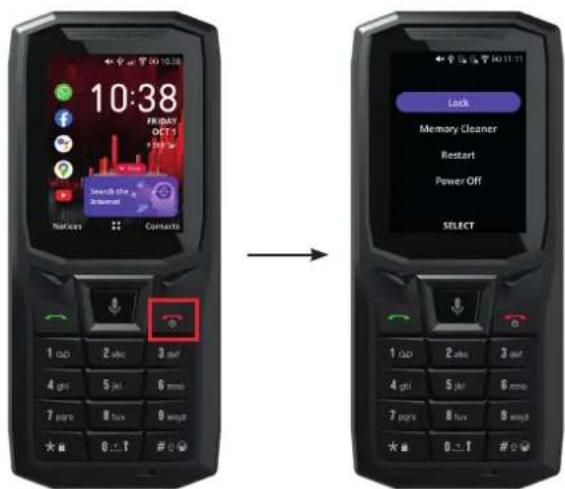
More generally, this key lets you:
- Decline a call/Hang up
- Go "back" with a short press
- Activate your phone's screen when it is on standby.
Numeric keypad
Speed dial
You have the option of using speed dial. The purpose is to link a number on your keyboard with one of your favourite contacts, so that you can call them quickly. To do this:
• From the Home screen, click and hold one of the keys to access speed dial.
- Click on "Assign" if you wish to link one of your contacts with this speed dial key.
- Choose the desired contact and click on "Select".
![graph LR A["10:38"] --> B["11:15"] B --> C["User Interface"]](/content/2026/04/593712/images/fce54b0cbbc358ede8e1366fa4918015b749f0c9a406c3aae2d3e5e65a4f1fc5.jpg)
You can also assign a speed dial contact directly from your contact menu. To do this:
- Click on "Contacts" on your home screen
- Select the contact concerned then click on "Options"
- Select "Settings", then choose "Set Speed Dial Contacts"
![graph LR A["10:38 Display"] --> B["Search contacts"] B --> C["User 1"] B --> D["User 2"] B --> E["User 3"] C --> F["Options"] D --> G["Share"] D --> H["Delete contacts"] E --> I["Search"] I --> J["Settings"] J --> K["SELECT"] K --> L["Set Speed Dial Contacts"] L --> M["Set ICE Contacts"]](/content/2026/04/593712/images/07c73203ee29fdc3385eb698d97f7fb65e2f6692d8d66827631d9ebd2251f362.jpg)
More generally, these keys are used for writing when you are in a text app or dialling a phone number.
Messaging

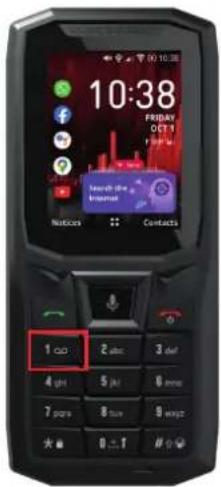
From the Home screen, press and hold the 1 key to call your voicemail.
Connection sharing
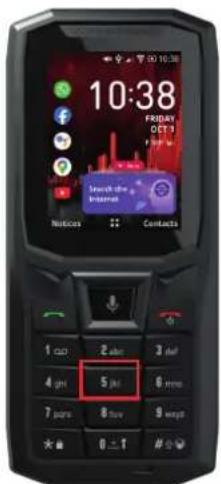
From the Home screen, press and hold the 5 key to enable/disable connection sharing (tethering).
Torch
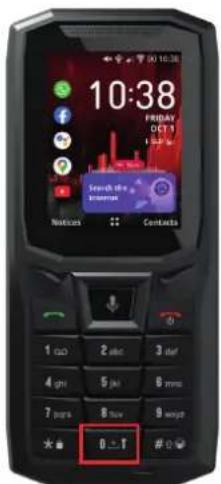
From the Home screen, press and hold the 0 key to enable/disable the torch.
More generally, this key is used as the space bar when writing text or to enter a 0 when dialling a number.
Adjusting the phone volume in certain apps
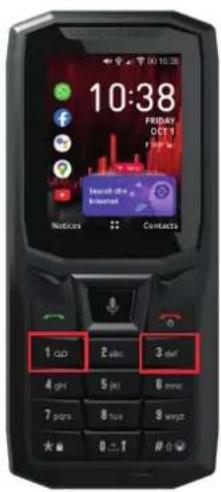
To easily and quickly adjust the volume of your phone, for example when watching a video on YouTube:
- Click on the 1 key to lower the volume
- Click on the 3 key to increase the volume
Screenshot
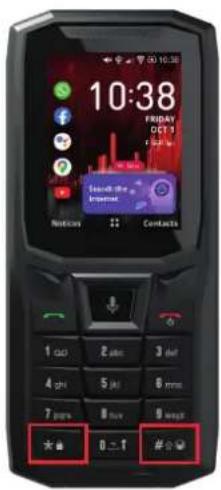
You can take a screenshot by simultaneously pressing on the * and # keys on your phone.
The * and # keys Locking your phone
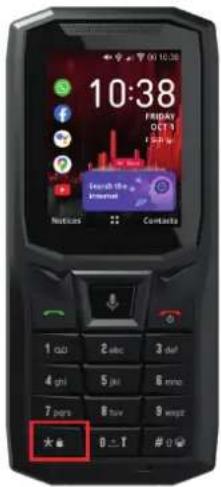
Press and hold the * key to lock your phone.
Vibrate/ring mode

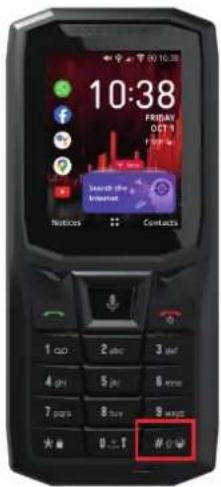
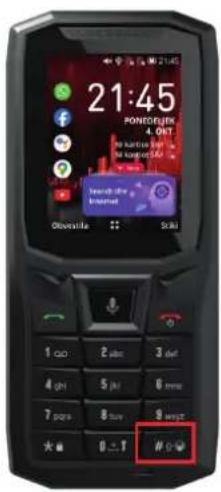
Press and hold the # key to switch from vibrate to ring mode, and vice versa.
More generally, this key is used to change the keypad from Lower case -> Upper case -> Numeric when you write text.
Writing text
In an app that requires you to write text:
• The keys on the numeric keypad allow you to enter letters
• The # key lets you change keyboard:
- Lower case
- Upper case
- Numeric
-
Predictive text (equivalent to T9, smart writing)
-
The * key lets you access punctuation and emojis
• The central key acts as the return key
USING THE PHONE
Phone calls
Dialling a number
- From the Home screen, enter the phone number you want to call using the keys on the numeric keypad.
- Press on 📞 or 🏠 or make the call.
From the call log
- From the Home screen, press 📞 to open your call log.
- Select the number/contact you want to call by scrolling through the list using the navigation keys.
- Click on or make your call.
- From the Home screen, click the right-hand selection key to open your Contacts.
- Select the contact you want to call by scrolling through the list using the navigation keys.
- Click on "Select > Call" by pressing the central key twice or directly clicking the green call key.
VoLTE / VoWIFI
![graph LR A["10:38 Friday Oct 1"] --> B["Settings"] B --> C["Select Options"] C --> D["VoLTE / VoWiFi"] D --> E["Select"]](/content/2026/04/593712/images/0788712eb044cf191eee1225552c6ab412e0e11765d034f643510e48e16a5173.jpg)

Your CORE-S4 allows you to make VoLTE* and VoWIFI* calls. To do this:
- Click the central key on your phone's keypad to access the Menu
- Go to "Settings"
- In the sub-menu "Network & Connectivity", click on "VoLTE / VoWIFI".
- Check that each option is enabled.
* Depending on your operator
Receiving calls
When a call comes in, press 📞 to take the call.
When a call comes in, press 📞 to reject the call.
- From the Home screen, click the right-hand selection key to open your Contacts.
- Press the left-hand selection key to select "New".
- Choose the location where you want to store your contact:
- Either in your phone's internal memory
- Or directly on your SIM card
- Enter the requested information and click the central key to "Save".
- From the Home screen, press 📋 to open your call log.
- Select the number you want to save as a contact by scrolling through the list using the navigation keys.
-
Click the right-hand selection key to choose "Options".
-
Select "Create new contact" and choose the location where you want to store your contact:
- Either in your phone's internal memory
- Or directly on your SIM card
- Enter the additional information requested and click the central key to "Save".
Messages
Sending a message
- Click the central key to access the phone's Main Menu.
- Click on the Message
- Click the left-hand selection key to select "New".
- Type the name of the contact to whom you want to send a message, or click the right-hand selection key "Add" to browse your contact list.
- Use the navigation keys to move around the text box to write your message
- Send the message by clicking the left-hand selection key "Send".
Displaying messages
- Click the central key to access the phone's Main Menu.
- Click on the Message
- Scroll through the messages received using the navigation keys.
Camera
The camera on your CORE-S4 lets you take photos and record videos:
- Click the central key to access the phone's Main Menu.
- Click on the Camera
- Click on the left-hand navigation key to switch to video mode. Click on the right-hand navigation key to switch to photo mode.
- Frame your subject on the screen and press the central key to take the photo or start the video.
- Your photo or video will be automatically saved in your Gallery 📁.
Gallery
Viewing images/videos
- Click the central key to access the phone's Main Menu.
- Click on the Gallery

- Select an image or a video.
Deleting images or videos
- From Gallery, select an image or video and click the right-hand selection key Options.
- Click on "Delete" and confirm the deletion by clicking on the right-hand selection key "Delete".
Sharing images or videos
-
From Gallery, select an image or video and click the right-hand selection key Options.
-
Click on "Share" and select the sharing option you want.
Transferring files to a PC
![graph LR A["10:38"] --> B["Settings"] B --> C["USB Storage Status"] C --> D["USB Storage Enabled"]](/content/2026/04/593712/images/cc6f87ff1b92dc04993a5349a7ecf781a05e1ec8a29b277a88392bbd1a93a252.jpg)
Before you plug in your phone for the first time to transfer files to your computer, you need to enable "USB storage" in the settings.
To do this:
- Click the central key on your phone's keypad to access the Menu
- Go to "Settings"
- In the sub-menu "Storage", click on "USB storage"
- Click on "Enabled" to activate this function.
Once the function is enabled, all you have to do is connect your CORE-S4 to your computer using your micro-USB or X-LINK™* cable, to be able to access the files contained in your phone.

Do not disconnect the micro-USB cable from the device when transferring data. This could result in loss of data and/or damage to the device.
Browser
Connect to the internet to search for information.
-
Click the central key to access the phone's Main Menu.
-
Click on the Google
Connectivity
In "Settings > Network and connectivity" you will find everything related to the connectivity of your phone:
- Enable/Disable flight mode
- Enable/Disable your mobile data (to avoid using up your data allowance, for example).
- Enable/Disable WiFi
- Enable/Disable Bluetooth
- Enable/Disable GPS location
- Manage your phone's SIMs
- Manage VoLTE/VoWIFI functions
- Enable/Disable connection sharing.
Remember that some settings for connectivity functions are available as a shortcut from your home screen by clicking on the top navigation key.
This lets you quickly and easily manage:
- Flight mode
- WiFi
- Mobile data
- Bluetooth
Cleaning up your memory
You can clean your device's memory quickly and easily.
To do this, go to "Settings > Storage" and click on Clean up Storage. Choose the app you want to clean and click on "Clean > Delete".
Important: this action will erase all data from your phone's internal memory.


Before cleaning any of your apps, make sure you have backed up all important data stored on the device as it will be permanently deleted.
Resetting your phone
To reset your device to factory settings, go to "Settings > Device > Device information" and click on "Reset phone > Reset".
Important: this action will erase all data from your phone's internal memory.

Before performing a reset, make sure you have backed up all important data stored on the device. The device will restart automatically.
System updates
Updates are changes made to the software version originally installed on your phone to fix potential bugs.
CUSTOMISING YOUR PHONE
Sound
In "Settings > Personalization > Sound", you can:
- Adjust the various sound volumes of your device for multimedia, ringtones and notifications, and your alarm.
- Choose the ringtone and sound of your phone's notification alerts or enable/disable vibrate mode.
- Manage other phone sounds: the sound of the keypad and camera.
Remember that some settings are available as a shortcut from your home screen by clicking on the top navigation key. You can then quickly and easily manage the volume of your ringtone and notifications and switch from ring mode to vibrate or silent mode (or vice versa).
Display
In "Settings > Personalization > Display", you can:
- Customise your wallpaper by choosing the image of your choice
-
Adjust the brightness of your screen
-
Customise the screen timeout. The phone automatically locks and switches to standby mode after a certain period of inactivity, to reduce energy consumption and prevent unintentional actions.
- Enable/Disable the automatic keypad lock.
Remember that some settings are available as a shortcut from your home screen by clicking on the top navigation key.
So you can quickly and easily manage the brightness of your screen.
Notifications
In "Settings > Personalization > Notices", you can:
- Choose the display settings for your notifications.
- Enable/Disable notifications from the various apps installed on your phone.
Date and time
In "Settings > Personalization > Date and Time", you can:
- Enable/Disable the automatic synchronisation of your phone, which automatically sets the time and date according to the time zone of your network.
- Set the time and date manually if automatic synchronisation is disabled
- Choose your time zone
- Choose the time format (24 hours/12 hours)
- Enable/Disable the clock on your home screen.
Languages
In "Settings > Personalization > Language", you can choose your phone language.
SAFETY MEASURES
Failure to adhere to the following safety instructions could result in fire, electric shock, injury, or damage to your phone or other property. Please read all the safety instructions below before using your phone.
• Always switch off your phone whenever it is forbidden to use it, or when it may cause interference or danger.
- Avoid exposure to magnetic fields.
- Please switch off your phone in aeroplanes and airports when prompted.
- Switch off your phone when you are in the vicinity of high-precision electronic equipment. The phone could affect the performance of this type of device.
- Do not put your phone or accessories in containers that produce a strong magnetic field.
- Do not leave magnetic data storage devices near your phone. The radiation emitted by the phone could erase the information stored on it.
- Keep the phone away from direct sunlight. Do not expose your phone to high temperatures, and do not use it in the presence of flammable gases (e.g. at a petrol station).
- Keep your phone at least 15mm away from your body when you make calls.
- Small parts may cause choking.
- Your phone can emit a loud sound.
- Avoid knocking or damaging your phone.
- Some parts of your phone are made of glass. The glass is likely to break if your phone falls on a hard surface or suffers an impact. If the glass breaks, do not touch the glass parts of the phone and do not attempt to remove the broken glass from the phone. Do not use your phone until the glass has been replaced by an authorised operator.
- Do not attempt to take apart your phone or its accessories. Phones should only be serviced or repaired by qualified personnel.
- The power outlet should be located near the phone and must be easy to access.
- Comply with all laws and regulations relating to the use of the phone. Respect the privacy and rights of others when using your phone.
- Follow the instructions in this manual for using the USB cable. Otherwise, your phone or PC may become damaged.
- Clean your phone with a soft, dry cloth. Unless you meet the conditions mentioned below in "Information on water resistance", do not use water, alcohol, soap, or chemicals.
- Be sure to back up your important data. A repair or other factors may lead to data loss.
- Do not disconnect the phone when transferring files or formatting the memory. This could cause program failure or file damage.
- Keep the phone and charger out of the reach of children. Do not let children use the phone or charger unattended.
- This device is not intended to be used by people (including children) with reduced
physical, sensory or mental capacities, or whose lack of experience or knowledge prevents them from safely using the device, if they are not supervised or have not been given instructions beforehand by the person responsible for their safety.
- Keep small phone accessories out of reach of children in order to avoid choking.
- Do not let your children or pets chew or lick the device.
- Do not modify or recondition your phone.
- Do not expose your phone to flames, explosions, or other sources of danger.
- Switch off your phone when in the vicinity of explosive materials or liquids.
- The phone must only be connected to a USB 2.0 interface.
- The ideal operating temperature is between 0°C and 40°C . The ideal storage temperature is between 20°C and 50°C .
- Stop using your device if it overheats or if any of its parts are cracked or broken.
- Do not press your device against your eyes, ears or any other part of your body, and do not put it in your mouth.
- Do not use the flash near the eyes of people or animals.
- Only use the original accessories for this phone and do not install its battery in another phone.
- You have just purchased an IP68 compliant mobile phone. To guarantee optimal use and water resistance, please ensure that all caps and guards covering slots or openings, and the case are correctly sealed.
- Do not open the caps or SIM card drawer if the device is in water or in a very humid environment.
- Make sure the caps are not damaged when you open or close them. Make sure that the seal is free from any debris, such as sand or dust, to avoid damaging the device.
- The caps covering the openings may come loose in the event of a fall or knock.
-
Make sure that all the covers are properly aligned and completely closed.
-
If the device has been submerged in water or the microphone or loud speaker is wet, the sound may not be clear during a call. It is recommended to wait a few minutes after immersing your device for it to return to its original audio quality. Make sure that the microphone or loud speaker is clean and dry by wiping it with a dry cloth.
- If the device gets wet with salt or chlorinated water, rinse it with tap water, then dry with a soft, clean cloth. Carefully wipe the caps and connectors.
- The device's water resistance of the device may cause slight vibrations in certain conditions. These vibrations, for example when the volume is turned up high, are entirely normal and do not affect the performance of the device.
- Do not remove the waterproof membrane covering the microphone or speakers, and do not use any tool that could damage this (sharp, spiky, etc.).
- Do not expose the device to metal particles: these could build up on your phone's loud speaker due to the magnet embedded in its component. Metal particles can be cleaned with a soft cloth. Alternatively, you can place the device in a transparent plastic bag.
- Changes in temperature can increase or decrease pressure on the device, which can affect the quality of the sound. If necessary, open the caps to evacuate the air.
Medical devices
- Please switch off your phone in hospitals and other medical facilities as required.
- Your phone has radio antennae that emit electromagnetic fields. These electromagnetic fields can interfere with pacemakers and other medical devices.
- If you wear a pacemaker, a minimum distance of at least 20 cm should be maintained between your pacemaker and your phone.
- Hold the device on the side opposite the implant.
- If you think your phone is interfering with your pacemaker or other medical device, stop using it and consult your doctor for specific information about your medical device.
- When performing repetitive activities, such as text messaging or games on your phone, you may experience occasional discomfort in your hands, arms, wrists, shoulders, neck, or other parts of your body. If you experience any discomfort, stop using your phone and consult your doctor.
Road safety
- Comply with all safety standards and measures relating to the use of your device when driving.
- Obey all local laws. Always keep your hands free to operate the vehicle while driving. When driving, road safety should be your primary concern.
- Pull over and park before you make or receive a call, if traffic conditions require it.
- Radio frequency signals can interfere with certain electronic systems in your vehicle, such as the car radio or safety equipment.
- If your vehicle is equipped with an airbag, please do not obstruct its access by placing portable or fixed wireless equipment in front of it. Otherwise, you risk preventing the airbag from opening and could cause serious bodily injury. Hand-held mobile phone use while driving is prohibited.
- When listening to music, be sure to keep the volume at a reasonable level so that you can hear what is going on around you. This point is especially important when you are near a road.
- Using your phone in certain circumstances may distract you and cause danger. Adhere to any rules that prohibit or restrict the use of a phone or earphones (for example, not sending text messages while driving or using earphones while cycling).
- Hand-held mobile phone use while driving is prohibited.
Power and charging
- Do not throw your phone into fire
- Do not short-circuit
- Do not expose it to temperatures above 60°C / 140°F
- Recycle the battery according to standards in force.
- Charge your phone using the USB cable and power adapter supplied. Using an incompatible adapter or cable could permanently damage your phone.
- The adapter should be plugged in near the phone and must be easily accessible.
- Using damaged cables or chargers, or charging in the presence of moisture, may cause an electric shock.

- The power adapter is intended for indoor use only.
- The electrical power must be easy to access. The plug must not be blocked during use.
- To completely disconnect the phone from AC power, unplug your charger from the wall outlet.
- Power adapters can become hot during normal use, and prolonged contact may cause injury.
• Always ensure adequate ventilation around the power adapters when in use.
- Ventilation should not be obstructed by covering air vents with objects (newspapers, tablecloths, curtains, etc.) to prevent overheating and malfunction. Leave at least 10cm of space free around the phone.
- The phone should be used in areas with a temperate climate.
- Do not insert or remove a USB port with wet hands as this could lead to a risk of electric shock.
- Because the phone is equipped with an internal rechargeable battery, do not expose the product to excessive heat (sun, fire, etc.).
- Avoid using the connector to perform several actions at once, and make sure that the battery terminals are noting touch any conductive elements, such as metal or liquid.
Protecting your hearing

s phone adheres to the regulations in force in terms of limiting the maximum output volume. Listening with earphones at high volume for extended periods can cause hearing loss!
- Stop using the product or lower the volume if you feel that your ears are ringing.
- Do not listen on full volume; medical professionals advise against exposure to high noise levels for an extended period of time.
- Use earphones wisely, as excessive sound pressure coming from earbuds or an audio headset can cause hearing loss.
- To prevent damage to your hearing, avoid listening at high volumes for long periods of time.
- Only use the earphones supplied with your phone.

Environmental protection
- Please respect local regulations in terms of waste elimination when you are getting rid of packaging, the battery or the used phone. Take them to a collection point so they can be properly recycled. Do not dispose of telephones or used batteries in ordinary rubbish bins.
- Please dispose of used lithium batteries that you do not want to keep in a designated place for this purpose. Do not dispose of them in rubbish bins.
Do not dispose of phones or used batteries in ordinary rubbish bins.

There is a risk that the battery will explode if you replace it with an unsuitable model. Dispose of used batteries according to the instructions.
Cleaning and maintenance
- Switch off your phone before any cleaning or maintenance. The charger must be unplugged from the outlet. The phone and charger must be disconnected to avoid electric shock or short circuit of the battery or charger. Close the caps.
- Do not clean the phone or charger with chemicals (alcohol, benzene), chemical agents or abrasive cleaners so as not to damage the parts or cause a malfunction. The device can be cleaned with a soft, anti-static, slightly damp cloth, or with tap water following the instructions in the INFORMATION ON WATER RESISTANCE on page 69-70.
- Do not scratch or tamper with the phone, as the substances in the paint may cause an allergic reaction. If such a reaction occurs, stop using the phone immediately and consult a doctor.
- Remove dust from the power socket and keep it dry to prevent the risk of fire.
- If the phone or any of its accessories do not work properly, contact your local service provider.
- Do not disassemble the phone or its accessories yourself.

Emergency calls
In the event of an emergency, if the phone is switched on and you are in the network coverage area, it can be used to make an emergency call. However, emergency numbers may not be accessible on all networks. You should never rely on your phone to make emergency calls.
Recommendations to reduce the user's exposure to radiation
- Use your mobile phone in areas covered by your network to reduce the amount of radiation received (especially in underground car parks or when travelling by train and by car).
- Use your phone when there is good reception (i.e. maximum number of bars for the network).
- Use a hands-free kit.
- During calls, keep the phone away from the tummy of pregnant women and the lower abdomen of teenagers.
- Children and teenagers should make reasonable use of mobile phones by avoiding, for example, night-time calls and limiting the frequency and duration of calls.
Compliance
CE
- CROSSCALL confirms that this device complies with the basic recommendations and other relevant measures set out in Directive 2014/53/EU. The latest applicable version of the Certificate of Conformity can be found on the website: https://docs.crosscall.com/public/CERTIFICAT/CORE-S4_CERTIFICATE-OF-CONFORMITY_INTERNATIONAL.pdf.
- Restrictions relating to the 2.4GHz band: Norway: this sub-paragraph does not apply to the geographical area located within a 20 km radius from the centre of Ny-Ålesund. Restrictions relating to the 5 GHz band: According to Article 10, paragraph 10 of Directive 2014/53/EU, the packaging indicates that this radio equipment is subject to certain restrictions when placed on the market in Belgium (BE), Bulgaria (BG), Czech Republic (CZ), Denmark (DK), Germany (DE), Estonia (EE), Ireland (IE), Greece (EL), Spain, (ES), France (FR), Croatia (HR), Italy (IT), Cyprus (CY), Latvia (LV), Lithuania (LT), Luxembourg (LU), Hungary (HU), Malta (MT), the Netherlands (NL), Austria (AT), Poland (PL), Portugal (PT), Romania (RO), Slovenia (SL), Slovakia (SK), Finland (FI), Sweden (SE), the United Kingdom (UK), Turkey (TR), Norway (NO), Switzerland (CH), Iceland (IS) and Liechtenstein (LI).
Frequency bands and power
- Frequency band used by radio equipment: certain bands may not be available in all countries or all regions. Please contact the local operator to get more detailed information.
- Maximum radio signal frequency emitted in the frequency band where the radio equipment operates: the maximum power for all the bands is less than the highest specified limit value under the associated harmonised standard. The nominal frequency band and power transmission limits (radiated and/or by conduction) applicable to this radio equipment are the following:
Bands Frequency maximum power
We recommend that you use the following accessories:
| ACCESSORY MODEL TECHNICAL DATA | |
 | Trademark:CrosscallModel:1901060199022 | Model Name: CH-51EInput voltage: 100-240V~AC input frequency: 50/60HzOutput voltage: 5.0V ---Output current: 1.0AOutput power: 5.0WAverage efficiency in active mode: 75.10%Efficiency at low charge (10%): 71.01%Power consumption without charge: 0.037W |
 | Ref. Crosscall:1907080199206 | IPX4 |
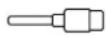 | Ref. Crosscall:1908140199596 | USB-A / micro USB1m |
The product software version is L1840.X.XX.XX.XXXX(where x=0 to 9, AtoZ, representing updates to the user experience, security patches, etc.). Software updates are published by the manufacturer to correct bugs or improve certain features after the product's launch. All the software versions published by the manufacturer have been verified and always comply with the applicable regulations.
Not all the radio frequency settings (for example, the frequency band and output power) are accessible by the user or can be modified by him/her. The latest information relating to accessories and software is available in the Certificate of Conformity, which can be viewed on the website:
https://docs.crosscall.com/public/CERTIFICAT/CORE-S4_CERTIFICATE-OF-CONFORMITY_INTERNATIONAL.pdf.
Specific absorption rate (SAR)
- This device complies with the directives relating to radio frequency exposure, when it is used near the head or at a minimum distance of 5mm from the body. According to ICNIRP (International Commission on Non-Ionising Radiation Protection) guidelines, the SAR limit is 2W/kg on average for the head and trunk, and 4W/kg for the limbs for 10g of cell tissue absorbing the majority of frequencies.
Maximum values for this model:
- Head SAR: 1.311 (W/kg) ==> authorised limit value: 2 (W/kg)
- Body SAR: 1.077 (W/kg) ==> authorised limit value: 2 (W/kg)
- Limb SAR: 2.712 (W/kg) ==> authorised limit value: 4 (W/kg)

Copyright
This equipment is reserved for private use. Copying CDs or downloading music, videos or photos for resale or for any other commercial purpose may constitute a violation of copyright law. Permission may be required to copy or save all or part of a document, book and/or presentation subject to copyright law. Please make sure you are familiar with all applicable laws regarding the saving and use of such content in your country and jurisdiction.
APPENDIX
To provide you with an optimal experience, the phone connects regularly to internet and messaging servers. This automatically and inevitably generates data exchanges that may be billed in addition to your existing subscription, or deducted from your prepaid plan.
In order to avoid any billing problems related to services that use the internet, we strongly advise you to opt for a suitable package that includes unlimited internet and messaging access. Also, please avoid changing the pre-configured default settings. If you wish, you can connect to a WiFi network to improve speed and efficiency. We particularly recommend using a WiFi network when streaming or downloading games, videos or movies.
Warranty conditions
Your phone, along with the battery and accessories in the box, are guaranteed against any defect or malfunction which may arise as a result of their design or manufacture, or from an equipment failure, under normal conditions of use, for the duration of the warranty period of thirty-six (36) months from the date of purchase of your phone, as shown on your original invoice. The warranty automatically expires at the end of these thirty-six (36) months. The period of availability of spare parts essential for the use of new products is ten (10) years from the final date of the product's commercial life.
This warranty does not cover:
- Any defects or failures declared after the period of validity of this warranty;
- Damage due to an accident, bad weather, lightning, fire, chemicals, power surge, improper use or poor maintenance of the device or accessory (screen breakage, dirt, damage to the internal components of the device caused by abnormal or prolonged exposure to a liquid element), or any failure to comply with the instructions contained in the user guide;
- Normal wear and tear of any kind arising after the sale (such as scratches, scrapes, scuffs, and generally any damage caused to the external parts of the device that do not affect its operation);
-
The mobile phone of a customer or third party who have modified the software originally provided by the manufacturer;
-
Any modification or repair carried out by persons unauthorised by CROSSCALL or its subsidiaries, or your retailer;
- Oxidation caused by the customer incorrectly inserting the USB or audio port caps, which are essential for guaranteeing the product's water resistance;
Before contacting our After-Sales Service, we advise you to follow the following instructions:
• Fully charge the battery;
- Upgrade the software or restore factory settings to format the phone (to restore default settings: in your phone's Menu, click Settings > Device > Device information > Reset phone)
CAUTION: ALL the phone's user data (contacts, photos, messages, files and downloaded applications) will be permanently lost. You are strongly advised to perform a full backup of your phone data before formatting your phone.
In the event that your phone has a defect that prevents normal use, you will need to take your device to our After-Sales Service. Your phone will not be repaired or replaced if the trademarks or serial numbers (IMEI) have been removed or changed, or if your purchase receipt is missing or illegible.
If the lack of conformity or defect is confirmed, all or part of your phone will be replaced or repaired. This warranty covers the cost of parts as well as labour.
Before sending your phone to our After-Sales Service, we recommend:
- writing down and keep your IMEI somewhere safe (*);
- removing the SD card and the SIM card;
- saving all your personal data. Our repair centre might need to format your phone.
(*) Your IMEI code is the serial number used to identify your device and monitor after-sales service. There are several ways to find your IMEI code:
- Tap *#06# on your mobile phone keypad;
- Check the packaging of your phone;
- On the back of your phone and depending on the model, the IMEI may be given on a label or engraved on your phone's SIM tray.
Documents and information to enclose when sending your phone to our After-Sales Service:
- A copy of the invoice or receipt, showing the date of purchase, the type of product, and the name of the distributor;
• The IMEI number of the phone;
• A description of the fault with the phone.
We recommend reading the terms and conditions of service available on the Crosscall website at the following address: www.crosscall.com
The CORE-S4, designed in France and assembled in China
Created and imported by:
CROSSCALL - 245 RUE PAUL LANGEVIN 13290 AIX-EN-PROVENCE - France.
ÍNDICE
LAS VENTAJAS DE CORE-S4
Conectividad 81
Durabilidad 81
Ergonomía....82
Ergonomía
Ergonomie

T
Ergonomia


Ergonomia
No ecrã pode:
- Consultar os seus contactos
- Importar contactos
- Adicionar contactos
Visualizar as mensagens


Ergonomie
Tipki * in # 287-288
Zaklepanje telefona 287
Način vibriranja / zvonjenje 288
Pisanje besedila 288
UPORABA TELEFONA
Telefonski klici....289-290

Ergonomija
Celoten izbor dodatne opreme, združljive z X-LINK™ in X-BLOCKER, najdete na www.crosscall.com
VKLOP DELOVANJA TELEFONA CORE-S4
-
Popolnoma odstranite predal.
-
V telefon lahko namestite dve kartici nano SIM (ali eno kartico nano SIM in eno kartico mikro SD).
* Varnostna vrvica ni priložena
- WhatsApp
- Facebook
- Assistant
- Maps
- YouTube
Dolgo pritisnite tipko *, da zaklenete telefon.

Način vibriranja / zvonjenja
Dolgo pritisnite tipko # za preklop iz načina vibriranja v način zvonjenja in obratno.
[Unreadable]
Ergonomija
Otkrijte cijeli asortiman kompatibilnog pribora X-LINK™ i X-BLOCKER na www.crosscall.com
POČETAK KORIŠĆENJA VAŠEG CORE-S4
- Potpuno izvicite ladicu.
- Imate mogućnost ugradnje 2 nano SIM kartice (ili nano SIM kartice i mikro SD kartice) u telefon.
a. Kako bismo osigurali optimalnu kompatibilnost s uslugama operatera, umetnite svoju nano SIM karticu, metalnom stranom prema dolje, u najmanji pretinac (SIM 1).
b. Ako želite, umetnite drugu nano SIM karticu (ili mikro SD karticu do 64 GB), metalnom stranom prema dolje, u najveći pretinac (SIM 2).
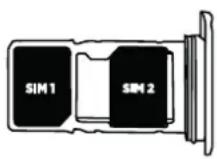
- Vratite ladicu u telefon:
*Sigurnosna uzica nije uključena
Kreiranje/Povezivanje svog računa KaiOS
![graph LR A["22:35 timer"] --> B["Settings"] B --> C["Postavke"] C --> D["ODABERITE"] D --> E["Final ODABERITE phone with text input and UI control"]](/content/2026/04/593712/images/44929fb52b9eb5fde4258788f091d7801ea45197cd3bec92230afe7e51be6bb7.jpg)
- Na početnom zaslonu, kliknite desnu tipku za odabir na telefonu za pristup sučelju «Kontakti».
- Ponovno kliknite desnu tipku za odabir da biste odabrali «Opcije», potom odaberite «Postavke»
- Pomičite se na dolje kroz različite opcije i odaberite«Uvezi kontakte».
- Odaberite željenu opciju među «Memorijska kartica», «Gmail», i «Outlook».
Savjeti za uporabu vašeg CORE-X4 pod vodom
Nakon potapanja u morsku vodu, telefon biste trebali isprati
slatkom vodom. Temeljito osušite poklopce i priključke.
Utori zvučnika i mikrofona mogu biti blokirani vodom.
Snimku zaslona možete izvršiti istovremenim pritiskom tipki * i # na telefonu.
[Unreadable]
Tipke * i #
Zaključavanje telefona
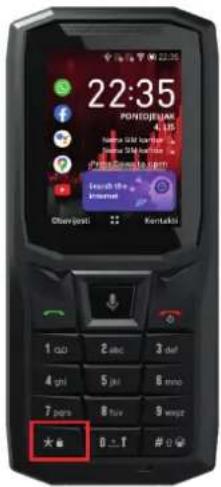
Dugo pritisnite tipku * za zaključavanje telefona.
Način vibracije / zvona
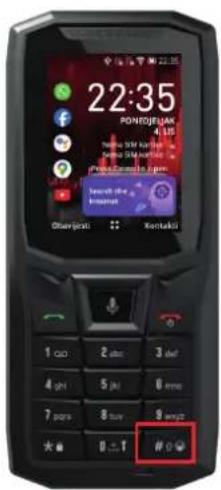
Dugo pritisnite tipku # za prijelaz iz načina vibracije u način zvonjenja i obrnuto.