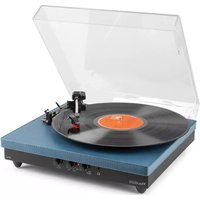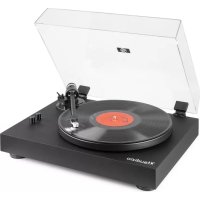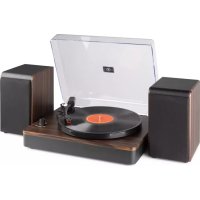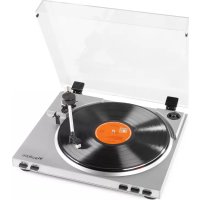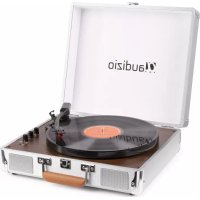
RP320 - Turntable Audizio - Free user manual and instructions
Find the device manual for free RP320 Audizio in PDF.



| Product type | Vinyl turntable with Bluetooth receiver |
| Brand | Audizio |
| Model | RP320 |
| Speeds | 33 1/3 and 45 RPM (selectable) |
| Pitch control | Gradual control |
| Auto-stop | Yes, switchable ON/OFF |
| Bluetooth connectivity | Reception only (no transmission) |
| Auxiliary input | 3.5 mm jack (cable not included) |
| Line output | RCA (cable not included) |
| Headphone output | 3.5 mm jack |
| USB port | For connection to a computer (cable included) |
| Cartridge | Included with removable protective cover |
| Power supply | 220-240 V~, 50 Hz via power adapter |
| Included software | Audacity (on CD) |
| Included accessories | Power adapter, USB cable, software CD |
| Maintenance | Clean with a dry cloth; do not use chemical products |
| Safety | Do not open the housing; avoid humidity and heat sources; use indoors |
| Warranty | Warranty void if opened or if instructions are not followed |
| Repairability | Repairs only by an approved technician; use original parts |
| Notes | Do not use continuously; unplug during storms or prolonged non-use |
Frequently Asked Questions - RP320 Audizio
User questions about RP320 Audizio
0 question about this device. Answer the ones you know or ask your own.
Ask a new question about this device
Download the instructions for your Turntable in PDF format for free! Find your manual RP320 - Audizio and take your electronic device back in hand. On this page are published all the documents necessary for the use of your device. RP320 by Audizio.
USER MANUAL RP320 Audizio
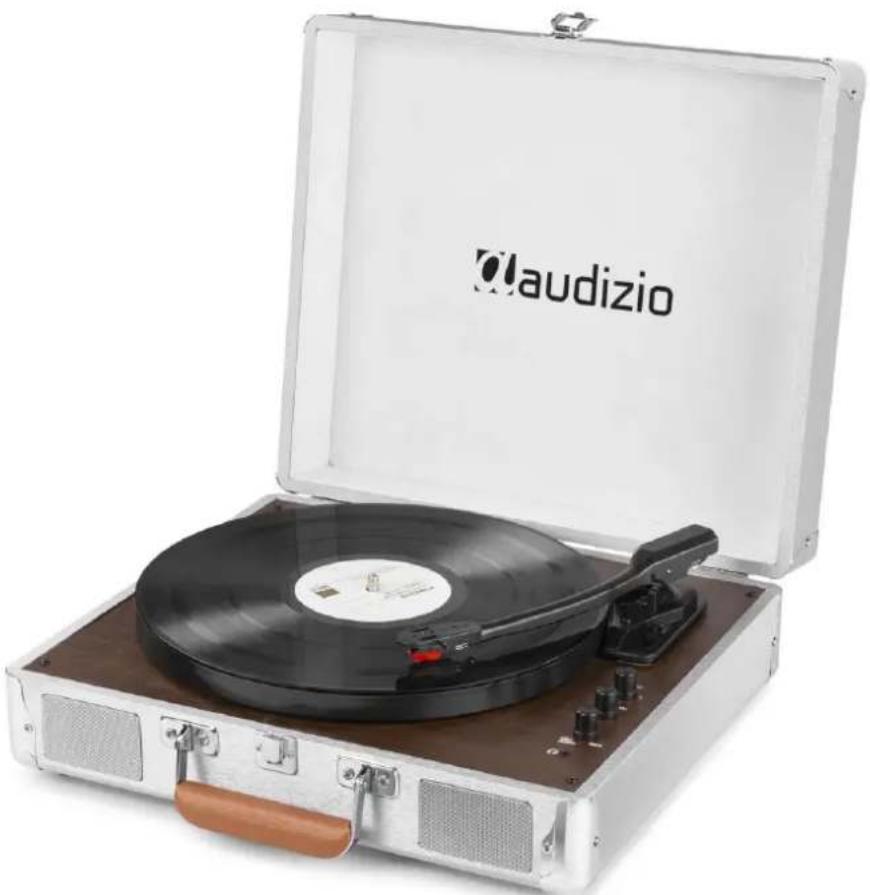
RP320 Record Player HQ Aluminium
Ref. nr.: 102.176
natural_image
Vintage typewriter with a black CD and wooden handle open, labeled 'Claudizio' (no additional text or symbols visible)INSTRUCTION MANUAL
GEBRUIKSAANWIJZING
BEDIENUNGSANLEITUNG
MANUEL D'INSTRUCTIONS
ENGLISH 4
UNPACKING INSTRUCTION ....4
PRODUCT OVERVIEW....5
PHONO OPERATION....5
BT CONNECTION 6
AUX IN MODE 6
RCA OUTPUT MODE....6
CONNECTING TO A COMPUTER....6
SOFTWARE CONFIGURATION 7
NEDERLANDS....8
UITPAKKEN....9
OVERZICHT....9
PHONO....9
BT VERBINDING 10
AUX IN MODUS....10
RCA UITGANG 10
AANSLUITEN OP EEN COMPUTER....10
SOFTWARECONFIGURATIE 11
DEUTSCH 12
AUSPACKEN 12
BEDIENELEMENTEN 13
PHONO....13
BT ANSCHLUSS....14
AUX IN MODUS....14
RCA AUSGANG....14
VERBINDEN MIT COMPUTER 14
SOFTWAREKONFIGURATION ....15
ESPAÑOL 16
INSTRUCCIONES DE DESEMBALAJE....16
Congratulations to the purchase of this Audizio product. Please read this manual thoroughly prior to using the unit in order to benefit fully from all features.
Read the manual prior to using the unit. Follow the instructions in order not to invalidate the warranty. Take all precautions to avoid fire and/or electrical shock. Repairs must only be carried out by a qualified technician in order to avoid electrical shock. Keep the manual for future reference.
- Prior to using the unit, please ask advice from a specialist. When the unit is switched on for the first time, some smell may occur. This is normal and will disappear after a while.
- The unit contains voltage carrying parts. Therefore do NOT open the housing.
- Do not place metal objects or pour liquids into the unit This may cause electrical shock and malfunction.
- Do not place the unit near heat sources such as radiators, etc. Do not place the unit on a vibrating surface. Do not cover the ventilation holes.
- The unit is not suitable for continuous use.
- Be careful with the mains lead and do not damage it. A faulty or damaged mains lead can cause electrical shock and malfunction.
- When unplugging the unit from a mains outlet, always pull the plug, never the lead.
- Do not plug or unplug the unit with wet hands.
- If the plug and/or the mains lead are damaged, they need to be replaced by a qualified technician.
- If the unit is damaged to such an extent that internal parts are visible, do NOT plug the unit into a mains outlet and DO NOT switch the unit on. Contact your dealer. Do NOT connect the unit to a rheostat or dimmer.
- To avoid fire and shock hazard, do not expose the unit to rain and moisture.
- All repairs should be carried out by a qualified technician only.
- Connect the unit to an earthed mains outlet (220-240Vac/50Hz) protected by a 10-16A fuse.
- During a thunderstorm or if the unit will not be used for a longer period of time, unplug it from the mains. The rule is: Unplug it from the mains when not in use.
- If the unit has not been used for a longer period of time, condensation may occur. Let the unit reach room temperature before you switch it on. Never use the unit in humid rooms or outdoors.
-
To prevent accidents in companies, you must follow the applicable guide lines and follow the instructions.
-
Do not repeatedly switch the fixture on and off. This shortens the life time.
- Keep the unit out of the reach of children. Do not leave the unit unattended.
- Do not use cleaning sprays to clean switches. The residues of these sprays cause deposits of dust and grease. In case of malfunction, always seek advice from a specialist.
- Do not force the controls.
- This unit is with speaker inside which can cause magnetic field. Keep this unit at least 60cm away from computer or TV.
- If this product have a built-in lead-acid rechargeable battery. Please recharge the battery every 3 months if you are not going to use the product for a long period of time. Otherwise the battery may be permanently damaged.
- If the battery is damaged please replace with same specifications battery. And dispose the damaged battery environment friendly.
- If the unit has fallen, always have it checked by a qualified technician before you switch the unit on again.
- Do not use chemicals to clean the unit. They damage the varnish. Only clean the unit with a dry cloth.
- Keep away from electronic equipment that may cause interference.
- Only use original spares for repairs, otherwise serious damage and/or dangerous radiation may occur.
- Switch the unit off prior to unplugging it from the mains and/or other equipment. Unplug all leads and cables prior to moving the unit.
- Make sure that the mains lead cannot be damaged when people walk on it. Check the mains lead before every use for damages and faults!
- The mains voltage is 220-240Vac/50Hz. Check if power outlet match. If you travel, make sure that the mains voltage of the country is suitable for this unit.
- Keep the original packing material so that you can transport the unit in safe conditions.

This mark attracts the attention of the user to high voltages that are present inside the housing and that are of sufficient magnitude to cause a shock hazard.

This mark attracts the attention of the user to important instructions that are contained in the manual and that he should read and adhere to.
The unit has been certified CE. It is prohibited to make any changes to the unit. They would invalidate the CE certificate and their guarantee!
NOTE: To make sure that the unit will function normally, it must be used in rooms with a temperature between 5^ C/ 41^ F and 35^ C/ 95^ F.

Electric products must not be put into household waste. Please bring them to a recycling centre. Ask your local authorities or your dealer about the way to proceed. The specifications are typical. The actual values can slightly change from one unit to the other. Specifications can be changed without prior notice.
Do not attempt to make any repairs yourself. This would invalid your warranty. Do not make any changes to the unit. This would also invalid your warranty. The warranty is not applicable in case of accidents or damages caused by inappropriate use or disrespect of the warnings contained in this manual. Audizio cannot be held responsible for personal injuries caused by a disrespect of the safety recommendations and warnings. This is also applicable to all damages in whatever form.
UNPACKING INSTRUCTION
CAUTION! Immediately upon receiving the product, carefully unpack the carton, check the contents to ensure that all parts are present, and have been received in good condition. Notify the shipper immediately and retain packing material for inspection if any parts appear damage from shipping or the package itself shows signs of mishandling. Save the package and all packing materials. In the event that the
product must be returned to the factory, it is important that the product be returned in the original factory box and packing. If the device has been exposed to drastic temperature fluctuation (e.g. after transportation), do not switch it on immediately. The arising condensation water might damage your device. Leave the device switched off until it has reached room temperature.
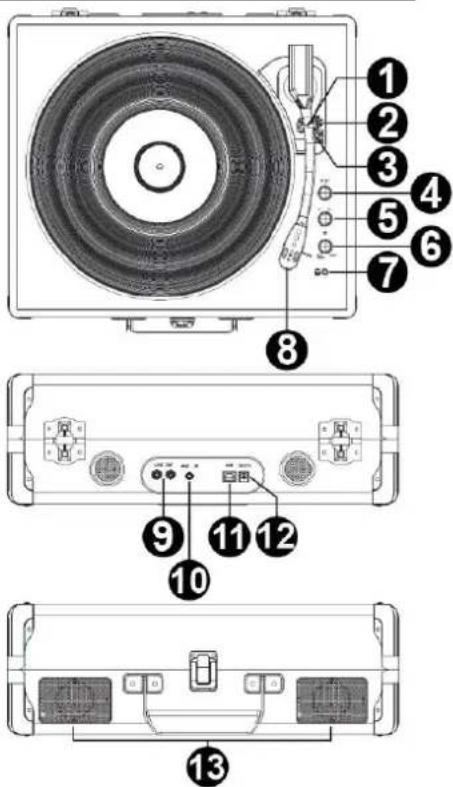
PRODUCT OVERVIEW
1. Tone-arm clip
This specially designed arm clip secures the tone-arm while at rest or when not in use. The arm clip has been designed to remain in the up position while unlocked.
2. Autostop Switch ON/OFF
This switch turns auto stop on or off. When the automatic stop is enabled, the platform will start rotating as soon as the tone arm is placed over the record and will stop rotating when it has reached the end of the record. Some vinyl records stop before the end or do not stop when the end is reached. In this case set Auto-stop function to OFF.
3. Speed button
This switch controls the RPM (33/45/78rpm) of the record player platter.
4. Pitch control
Turn to adjust the speed of the platter little by little.
5. Function knob
Knob to select phono- or BT-mode.
6. Power/volume knob
Turn the knob to turn on/off- and set the volume of the turntable.
7. Headphone jack
3.5mm jack for connecting headphones.
8. Cartridge with needle
When the turntable is not in use, it is recommendable to place the removable protection cover over the stylus.
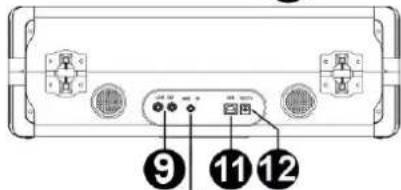
9. RCA line output
The sound signal from long-playing record is sent to this line output. Connect this signal to the line input of an such as an amplifier or a line input of a CD/DVD player.
10. AUX input
Connector for auxiliary input.
11. USB port
Use a USB cable to connect your turntable to your computer. The USB connection will send audio from the turntable to your computer.
12. DC input
Connect the power adapter.
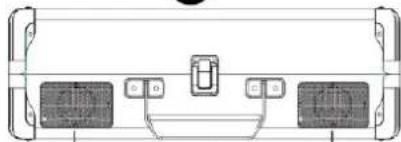
13. Speakers
text_image
Technical diagram of a CD or DVD drive with numbered parts for identification and assembly reference.PHONO OPERATION
- Connect the record player with the power adapter and plug the other end into a wall power outlet.
- Gently remove the protective needle cover.
- Turn the power & volume control knob clockwise to turn on the record player.
- Select phono mode by turning the function knob to PH.
- Place a vinyl record on the turntable platter and select the desired speed (33/45/78RPM) according to the record.
- Open the tone arm clip to release the tone arm. Push the lift lever backwards to raise the tone arm and gently move the tone arm to the desired position over the record. The turntable will begin to spin when the tonearm is moved towards the record (when the AUTO STOP switch is ON). Push the lift lever forwards to lower the tone arm slowly onto the desired position on the record to start playback.
- Turn the volume control knob to adjust the volume.
- Adjust the pitch control knob to adjust the speed gradually.
BT CONNECTION
Turn the function knob to BT mode. The LED indicator will flash in blue color.
Turn on the BT-function on your mobile phone or tablet PC on and search for the record player (Audizio recordplayer). After pairing, the LED will light up continuously in blue color and you can play your music from your mobile phone or tablet PC on this record player. Turn the volume control to adjust the volume. (The volume control of the mobile phone, tablet or PC can also affect the total volume).
Noted: This device does not have a BT transmitter, this means that it is not possible to send sound via BT to, for example, a BT speaker
when the unit is used as a bt speaker, all other playback functions cannot be used at the same time.
AUX IN MODE
In BT or PH modes, connect your mobile music device to the AUX input jack by 3.5mm-3.5mm audio cable (not included).
Turn the volume control to adjust the volume. (The volume control of the mobile phone, tablet or PC can also affect the total volume).
RCA OUTPUT MODE
Connect your own speaker system to the RCA port of the record player with an RCA-3.5mm audio cable (not included).
NOTE: the RCA cables are color coded. The red plug cable must be plugged into the red connector on both the record player and external amplifier or speaker system. The white plug cable must be plugged into the white connector on both the record player and external amplifier or speaker system.
CONNECTING TO A COMPUTER
Before you connect the turntable to a computer, unplug it from your mixer or Hi-Fi system.
The included software is a third party application and therefore Audizio does not handle any questions or problems regarding the software.
- Turn the computer on
- If the computer is booted, connect the turntable. The computer will now install the drivers.
- After the drivers are installed, you must now install the Audacity software.
Windows users: insert the CD or download the newest software via http://audacity.sourceforge.net
MAC users: download the newest software via http://audacity.sourceforge.net
To Install Software (PC)
- Plug in your turntable to an power supply and connect the USB port on the Turntable to the USB port of your computer.
- Turn on the power switch to your turntable.
- The Windows system will detect a new device and indicate that it is available to use.
- Insert the CD that came with your USB turntable.
- Run the file to install the Audacity software. Once installed, run the Audacity program.
To Install Software (MAC)
1) Insert the included CD.
2) Open the CD icon on the desktop.
3) Drag the installation folder for audacity to your hard drive. We recommend that moving the folder to your "Applications" folder.
4) A window will come up which shows the files copying.
5) EJECT the CD.
6) Open "Audacity" from where you moved it to on your hard drive.
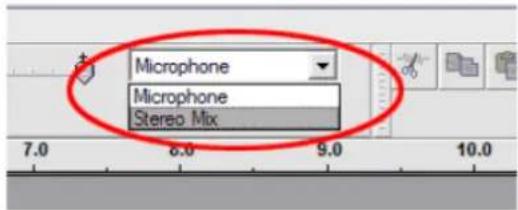
- Click on Microphone in the drop down menu and select "Stereo Mix".
text_image
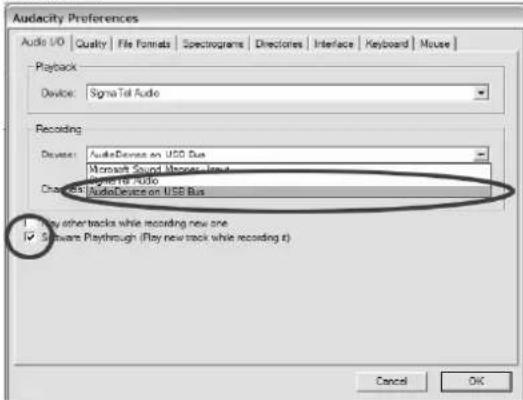
Microphone Microphone Stereo Mix- Select the "Edit" menu and then "Preferences"
Select the USB audio device under the "Recording" selection as shown. Select "Software Playthrough" to hear the audio while recording.
text_image
Audacity Preferences Audio I/O Quality File Formats Spectrograms Directories Interface Keyboard Mouse Playback Device: Sigma Tail Audio Recording Device: Audio Devices on USB Bus Microsoft Sound Manager Group Chassis Audio Audio Device on USB Bus Play other tracks while recording new one Software Playthrough (Play new track while recording it) Cancel OK- After the above settings are completed, you are ready for recording. If you are still having difficulties in finding the USB Turntable, try to check your system settings or control panel to adjust the audio input settings from the sound control panel.
Note: The attached Audacity software is for reference only. For more information and latest software version, please check the website: http://www.audacity.com
NEDERLANDS
text_image
Diagram of a CD or DVD drive with numbered parts for identification and assembly reference.BT VERBINDING
text_image
Microphone Microphone Stereo Mixtext_image
Audio Frequency Preferences Audio I/O Quality File Formats Spectrograms Discolors Interface Keyboard Mouse Playback Device: Signal Tel Audio Recording Device: Audio Device on USB Bus Microsoft Sound Memory, Inc. Original Audio Device on USB Bus Play other tracks while recording new one Software Playthrough (Play now track while recording it) Cancel OKtext_image
Diagram of a CD or DVD player with numbered parts for identification and assembly reference.BT ANSCHLUSS
text_image
Microphone Microphone Stereo Mixtext_image
Audacity Preferences Audio I/O | Quality | File Formats | Spectrograms | Directories | Interface | Keyboard | Mouse | Playback Device: SigmaTel Audio Recording Device: AudioDevice on USB Bus Microsoft Sound Music Track About 10000 AudioDevice on USB Bus Play other tracks while recording new one Software Playthrough (Playnew track while recording it) Cancel OKtext_image
Diagram of a CD or radio receiver with numbered parts for identification and assembly reference.text_image
Microphone Microphone Stereo Mixtext_image
Audacity Preferences Audio I/O | Quality | File Format | Spectrogram | Directorate | Interface | Keyboard | Mouse | Playback Device: SigmaTel Audio Recording Device: AudioDevice on USB Bus Microsoft Sound Manager, Inc.4 SignalTel Audio Channel: AudioDevice on USB Bus Play other tracks while recording new one Software Playthrough (Play new track while recording it) Cancel OKtext_image
Diagram of a radio receiver with numbered parts labeled 1 through 78
text_image
Diagram of a device rear panel with labeled ports and numbered indicators10
natural_image
Pure technical diagram of a mechanical component with no text, numbers, or symbols13
text_image
Microphone Microphone Stereo Mixtext_image
Audacity Preferences Audio I/O Quality File Formats Spectrograms Directories Interface Keyboard Mouse Playback Device: SigmaTal Audio Recording Device: Audio Device on USB Bus Microsoft Sound Music board Sigma TAL Audio AudioDevice on USB Bus Play other tracks while recording new one Software Playthrough (Play new track while recording it) Cancel OKOutput Connections : 3,5mm jack, RCA
Speed Settings (RPM) : 33, 45, 78
Power Supply : 100-240VAC 50/60Hz (12V Adapter)
Dimensions (L x W x H) : 365 x 395 x 140mm
Weight (per unit) : 3,80 kg
The specifications are typical. The actual values can slightly change from one unit to the other. Specifications can be changed without prior notice.
The products referred to in this manual conform to the European Community Directives to which they are subject:
European Union
Tronios B.V.,
7602KR Almelo, The Netherlands
2014/35/EU
2014/30/EU
2011/65/EC

United Kingdom
Tronios Ltd.,
130 Harley Street,
London W1G 7JU, United Kingdom
S.I. 2016:1101
S.I. 2016:1091
S.I. 2012:3032

Specifications and design are subject to change without prior notice.
www.tronios.com
Copyright © 2022 by Tronios The Netherlands