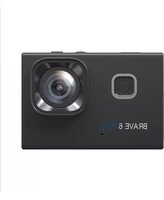
Brave 6 - Action camera Akaso - Free user manual and instructions
Find the device manual for free Brave 6 Akaso in PDF.



| Product Type | Sport Camera |
| Brand | Akaso |
| Model | Brave 6 |
| Maximum Video Resolution | 4K at 24 frames per second |
| Maximum Photo Resolution | 20 megapixels |
| Image Stabilization | Yes, activatable |
| Loop Recording | Yes (3/5/10 minutes) |
| Video Time-lapse | Yes (100 ms to 5 seconds) |
| Motion Detection | Yes |
| WDR (Wide Dynamic Range) | Yes |
| Audio Recording | Yes, can be disabled |
| Timestamp | Yes (date and time) |
| Voice Control | Yes (specific commands) |
| Built-in Wi-Fi | Yes |
| Mobile App | AKASO DV (iOS/Android) |
| Remote Control | Yes (with CR2032 battery) |
| Screen | Built-in LCD |
| Storage | microSD card up to 64 GB (FAT32) |
| Connectivity | Micro USB, Micro HDMI |
| Power | Built-in rechargeable battery, charges via USB |
| Waterproof | With waterproof case (splash resistant without case) |
| Maintenance | Clean the lens with a soft cloth, blow out the microphone |
| Included Accessories | Mounts, USB cable, remote control, waterproof case (to be confirmed) |
Frequently Asked Questions - Brave 6 Akaso
User questions about Brave 6 Akaso
0 question about this device. Answer the ones you know or ask your own.
Ask a new question about this device
Download the instructions for your Action camera in PDF format for free! Find your manual Brave 6 - Akaso and take your electronic device back in hand. On this page are published all the documents necessary for the use of your device. Brave 6 by Akaso.
USER MANUAL Brave 6 Akaso
AKASO Brave 6 Action Camera
01-2122-43
English
Deutsch
44-65
66 - 87
Espanol
Français
87 - 109
Italiano
English
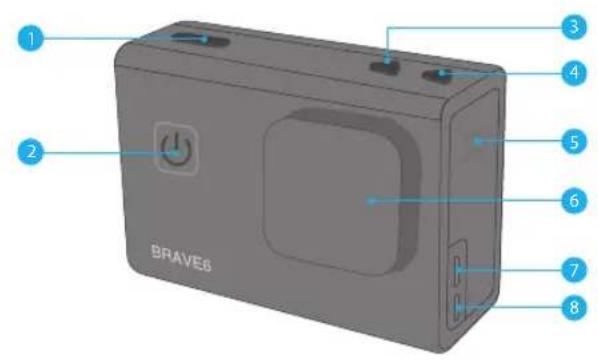
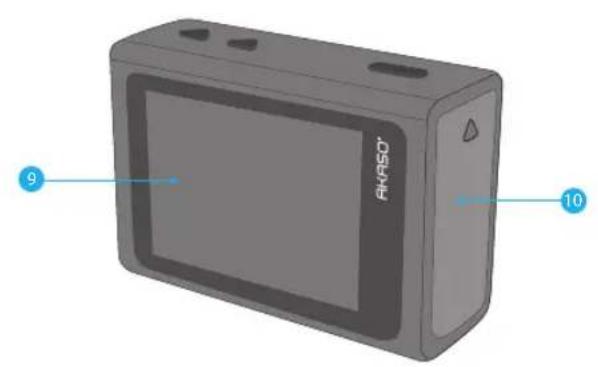
YOUR BRAVE 6
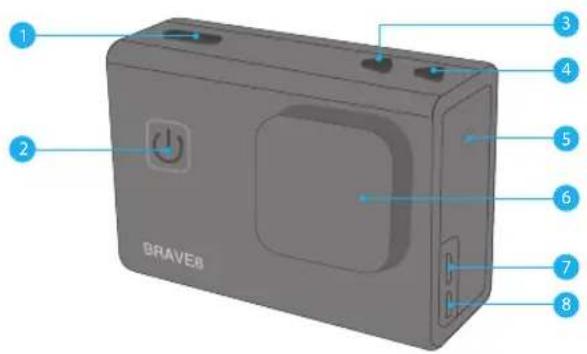
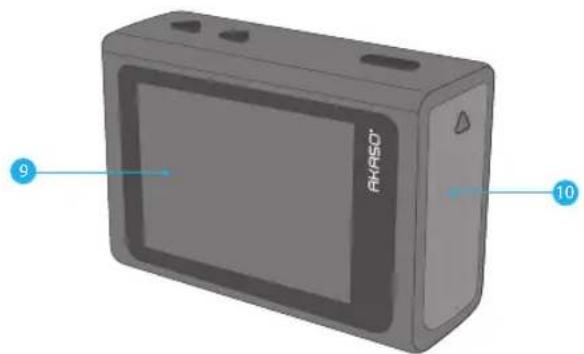
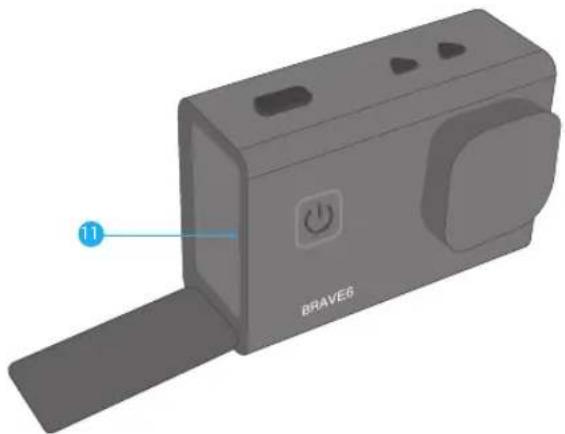
1.Shutter/SelectButton
7. Micro USB Port
2. Power / Mode / Exit Button
8. Micro HDMI Port
3.Up/Wi-FiButton
9. Screen
4. Down Button
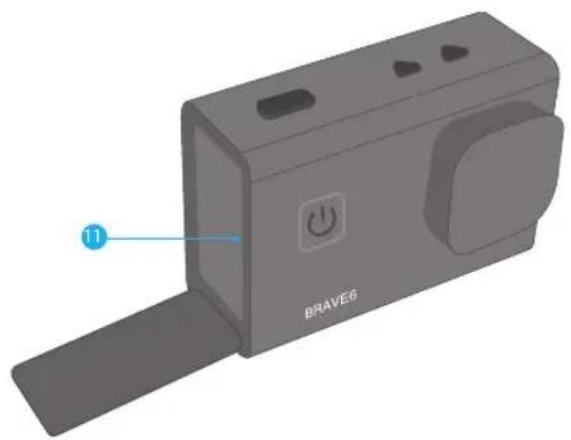
10. Battery Door
5. Speaker
11. MicroSD Slot
6. Lens
Note: Camera does not record sound when it is in the waterproof case.
GETTING STARTED
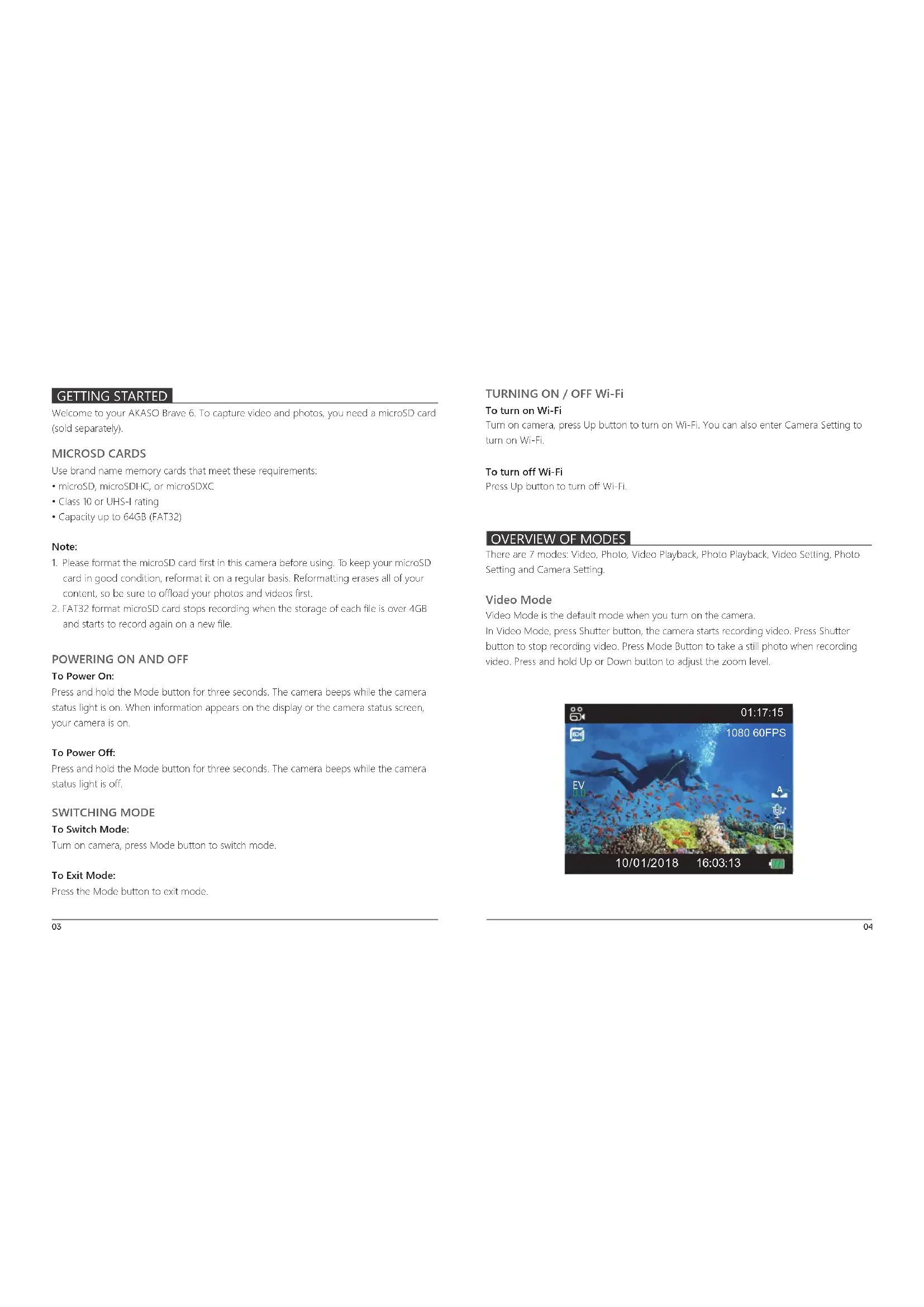
Welcome to your AKASO Brave 6. To capture video and photos, you need a microSD card (sold separately).
MICROSD CARDS
Use brand name memory cards that meet these requirements:
- microSD, microSDHC, or microSDXC
Class 10 or UHS-I rating
Capacity up to 64GB (FAT32)
Note:
- Please format the microSD card first in this camera before using. To keep your microSD card in good condition, reformat it on a regular basis. Reformatting erases all of your content, so be sure to offload your photos and videos first.
- FAT32 format microSD card stops recording when the storage of each file is over 4GB and starts to record again on a new file.
POWERING ON AND OFF
To Power On:
Press and hold the Mode button for three seconds. The camera beeps while the camera status light is on. When information appears on the display or the camera status screen, your camera is on.
To Power Off:
Press and hold the Mode button for three seconds. The camera beeps while the camera status light is off.
SWITCHING MODE
To Switch Mode:
Turn on camera, press Mode button to switch mode.
To Exit Mode:
Press the Mode button to exit mode.
TURNING ON / OFF Wi-Fi
To turn on Wi-Fi
Turn on camera, press Up button to turn on Wi-Fi. You can also enter Camera Setting to turn on Wi-Fi.
To turn off Wi-Fi
Press Up button to turn off Wi-Fi.
OVERVIEW OF MODES
There are 7 modes: Video, Photo, Video Playback, Photo Playback, Video Setting, Photo Setting and Camera Setting.
Video Mode
Video Mode is the default mode when you turn on the camera.
In Video Mode, press Shutter button, the camera starts recording video. Press Shutter button to stop recording video. Press Mode Button to take a still photo when recording video. Press and hold Up or Down button to adjust the zoom level.
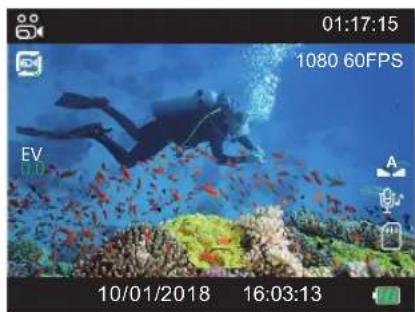
Photo Mode
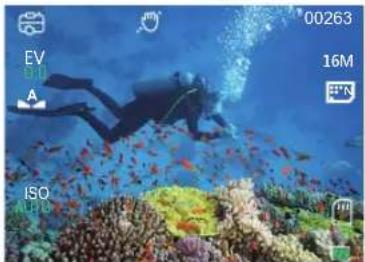
Press Mode button once to switch to Photo Mode after you turn on camera. In Photo Mode, press Shutter button, the camera takes a photo. Press and hold Up or Down button to adjust the zoom level.
VideoPlaybackMode
Press Mode button several times to switch to Video Playback Mode.
In Video Playback Mode, press the Up/ Down button to scroll through the video files. Press Shutter button to playback video.
Photo Playback Mode
Press Mode button several times to switch to Photo Playback Mode. In Photo Playback Mode, press the Up/ Down button to playback Photo files.
Video Setting Mode
Press Mode button several times to switch to Video Setting Mode.
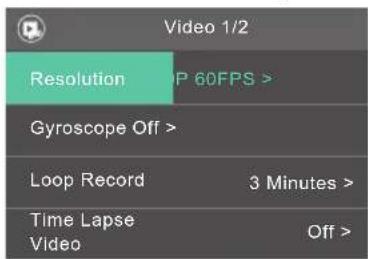
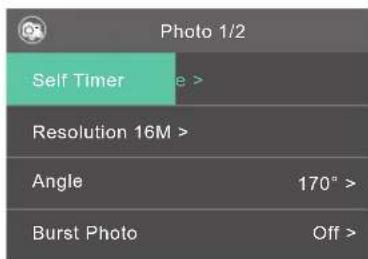
Photo Setting Mode
Press Mode button several times to switch to Photo Setting Mode.
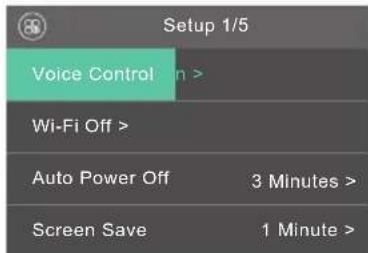
Camera Setting Mode
Press Mode button several times to switch to Camera Setting Mode.
Note: Camera does not record sound when it is in the waterproof case.
CUSTOMIZING YOUR BRAVE 6
There are 7 modes: Video, Photo, Video Playback, Photo Playback, Video Setting, Photo Setting and Camera Setting.
Video Setting
- Resolution: 4K 24FPS, 2K 30FPS, 1080P 60FPS, 1080P 30FPS, 720P 120FPS, 720P 60FPS, 720P 30FPS
Default setting is 1080P 60FPS.
Note: When capturing video at high resolutions or high frame rates in warm ambient temperatures, the camera may become warm and use more power.
2. Gyroscope: Off / On
Default setting is off.
This setting adjusts the footage to offset for motion during capture. The result is smoother footage, especially in activities with relatively small but fast motion including cycling, motorcycles, and handheld uses.
3. Loop Recording: Off / 3 Minutes / 5 Minutes / 10 Minutes
Default setting is off.
Loop recording allows your camera to overwrite old files with new files. Once the memory card becomes full, the camera will delete the first video file to make room for the latest file. For example, if the setting for loop recording is "1 Minute", then the camera will create video clips of 1 minute in length, and a 1-minute clip will be deleted when the camera needs more memory.
4. Time Lapse Video: Off / 100 ms / 200 ms / 1 Second / 3 Seconds / 5 Seconds
Default setting is off.
Time Lapse Video creates video from frames captured at specific intervals. This option lets you capture a time lapse event and immediately view or share it as a video. Time Lapse Video is captured without audio.
5. Motion Detection: Off / On
Default setting is off.
Motion detection is the process of detecting a change in the position of an object relative to its surroundings or a change in the surroundings relative to an object.
Turn on Motion Detection and camera, the camera records video automatically when it detects a change in the position of an object relative to its surroundings.
6.WDR:Off/On
Default setting is off.
Wide Dynamic Range (WDR) retains a greater level of detail in the dark and bright areas of an image. The result is a photo that is properly exposed for both of these extremes. This setting is especially useful for scenes that are backlist or that have large bright regions and a dark foreground. WDR is available in Video mode only.
7. Audio Record: Off / On
Default setting is on.
Turn off Audio Record, the camera does not record audio when you record video.
8. Date Stamp: Off / On
Default setting is on
Turn on Date Stamp, this camera adds date stamp to the videos you take.
Photo Setting
- Self Timer: Off/2s Timer/5s Timer/10s Timer
Default setting is Off.
A Self Timer gives a delay between pressing the shutter release and the shutter's firing. It is most commonly used to let photographers to take a photo of themselves (often with family).
- Resolution: 20M/16M/12M/10M/8M/5M/3M
Default setting is 16M.
3.Burst Photo:Off,3 shots/1s,5 shots/1s,10 shots/1s
Default setting is off.
Burst captures up to 10 photos in 1 second, so it is perfect for capturing fast-moving activities.
- Quality: Fine, Normal, Economy
Default setting is Normal.
- Sharpness: High, Normal, Medium
Default setting is Normal.
Sharpness controls the quality of details captured in your video footage or photos. When you change this setting, the touch display immediately shows you the effect on your image.
- Anti-Shaking: Off/On
Default setting is on.
This setting adjusts the footage to offset for motion during capture. The result is smoother footage, especially in activities with relatively small but fast motion including cycling, motorcycling, and handheld uses.
- Date Stamp: Off / On
Default setting is on.
If you turn on Date Stamp, this camera adds date stamp to the photos you take.
Camera Setting
- Voice Control: Off / On
Default setting is Off.
This option can let you control your Brave 6 with your voice using a set of specific commands.
2.Wi-Fi:Off/On
Default setting is off.
- Auto Power Off: Off / 1 Minute/ 3 Minutes/ 5 Minutes/ 10 Minutes
Default setting is 3 minutes.
Powers off your Brave 6 after a period of inactivity to save battery life.
Note: Voice Control is not available when the camera is off. When using Voice Control, consider selecting a higher time period (or Never) for Auto Power Off.
- Screen Save: Off / 30 Seconds / 1 Minute / 3 Minutes
Default setting is 1 minute.
Turns off the display after a period of inactivity to save battery life. To turn on the display
again, press any button on the camera.
- Special Effects: Natural, Black & White, Sepia
Default setting is natural.
- Diving Mode: Off / On
Default setting is off.
Turn on Diving Mode, it can compensate for the lack of red light in underwater scenes.
Diving Mode is designed to be used in tropical and blue water, optimized for use between 10 and 80 feet.
- Angle: 170^ / 140^ / 110^ / 70^
Default setting is 170^
The angle refers to how much of the scene (measured in degrees) can be captured through the camera lens. 170^ angle captures the largest amount of the scene, while 70^ angle captures the least.
- Language: English / Français / Deutsch / Espanol / Italiano / Portugues / Psckn/
Default setting is English.
- Beep: Off / On
Default setting is on.
Sets the volume of your Brave 6's alerts.
- Voice Prompt: Off/On
Default setting is on.
Turn on Voice Prompt, the camera will say 'Video Start' when you start recording video.
The camera will say 'Video Stop' when you stop recording video. The camera will say
'Photograph' when you take photo.
- OSD: Off / On
Default setting is on.
OSD (On Screen Display) is a feature of action cameras that displays video or photo
resolution, date, time and setting data on the camera screen.
12. Driving Mode: Off/On
Default setting is off.
If you turn on Driving Mode and connect camera with car cigarette lighter, the camera will turn on automatically if you start your car and will turn off if you stop your car.
13. White Balance: Auto / Daylight / Cloudy / Tungsten / Fluorescent
Default setting is auto.
White Balance lets you adjust the color temperature of videos and photos to optimize for cool or warm lighting conditions. When you change this setting, the display immediately shows you the effect on your image.
14.ISO:Auto,100,200,400
Default setting is auto.
ISO determines the camera's sensitivity to light, and creates a trade-off between brightness and resulting image noise. Image noise refers to the degree of graininess in the image. In low light, higher ISO values result in brighter images, but with greater image noise. Lower values result in lower image noise, but darker images. When you change this setting, the display immediately shows you the effect on your image.
15. Exposure Value: +2.0, +1.7, +1.3, +0.7, +0.3, 0, -0.3, -0.7, -1.0, -1.3, -1.7, -2.0
Default setting is 0.
By default, your camera uses the entire image to determine the appropriate exposure level. However, Exposure lets you select an area that you want the camera to prioritize when determining exposure. This setting is particularly useful in shots where an important region might otherwise be over- or underexposed.
When you change this setting, the display immediately shows you the effect on your image. If you change modes, the camera returns to using the entire scene to determine the correct level of exposure.
16. Scene: Off, Night Scene, Portrait, Light Painting
Default setting is off.
17. Frequency: 50 Hz, 60 Hz
Default setting is 50Hz
18. Date & Time: MM/DD/YY, HH/MM/SS
The date and time are automatically updated when you connect your camera to the AKASO DV app. However, you can manually change these settings, if needed.
Note: If the battery is removed from the camera for an extended period of time, the date and time will be reset automatically.
19. Format: All date will be deleted Cancel/OK
To keep your microSD card in good condition, reformat it on a regular basis. Reformatting erases all of your content, so be sure to offload your photos and videos first. To reformat your card, press the mode button to enter camera setting, then press down button several times to enter Format > SD Card > All data will be deleted > Cancel / OK.
20. Default Setting: Return menu setting to defaults Cancel / OK
This option resets all settings to their default values.
21. Version: Model / Version / Date
You can check the model, version and updated time of your Brave 6.
CONTROLLING YOUR BRAVE 6 WITH YOUR VOICE
You can control your Brave 6 with your voice using a set of specific commands (see list below). Please go to Camera Setting to turn on Voice Control if you want to use voice control function.
Note: Voice Control performance may be impacted by distance, wind, and noisy conditions. Keep the product clean and clear of debris.
USING VOICE CONTROL
Voice Control works best when you and your Brave 6 are in close proximity.
- Go to Camera Setting to turn on Voice Control.
- Say a command from list below.
- Voice Control also turns off when your camera powers off.
| Action Command | Description |
| AKASO Video Start | Starts capturing video |
| AKASO Stop Video | Stops capturing video |
| AKASO Wi-Fi On | Turn on Wi-Fi |
| AKASO Wi-Fi Off | Turn off Wi-Fi |
| AKASO Take Photo | Captures a single photo |
| AKASO Turn Off | Powers off the camera |
AKASO [a:kəsə]
PRO TIP: If you are recording video, you must stop recording before issuing a new command.
If you say 'AKASO take photo' when you are recording video, the camera takes a still photo.
CONNECTING TO THE AKASO DV APP
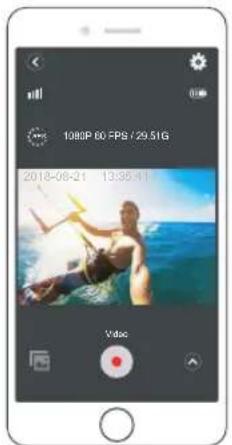
The AKASO DV app lets you control your camera remotely using a smartphone or tablet. Features include full camera control, live preview, playback, download, sharing of content and setting camera.
- Download AKASO DV app to your mobile device from the Apple App Store or Google Play.
- Turn on the camera, then enter Camera Setting to turn on Wi-Fi. You can also press Up button to turn on Wi-Fi when the camera is in Video Mode.
- Turn on Wi-Fi of your mobile device, connect to the Wi-Fi SSID 'AKASO'.
- Enter the password: 1234567890.
- Open the AKASO DV App.
You can play back your content on the camera's display, your computer, TV, or smartphone / tablet.
You can also play back content by inserting the microSD card directly into a device, such as a computer or compatible TV. With this method, playback resolution depends on the resolution of the device and its ability to play back that resolution.
VIEWING VIDEOS AND PHOTOS ON YOUR BRAVE 6
- Enter Video or Photo playback mode. If your micro SD card contains a lot of content, it might take a minute for it to load.
- Press the Up / Down button to scroll through the video or photo files.
DELETING VIDEOS AND PHOTOS ON YOUR BRAVE 6
- Enter Video or Photo playback mode, if your microSD card contains a lot of content, it might take a minute for it to load.
- Press the Up / Down button to scroll through the video or photo files.
- Press Mode button then OK Button. The screen shows "Delete Current/Delete All".
- Press OK button, The screen shows 'Erase This? Cancel / OK'.
- Press Down button then OK button. The selected file will be deleted.
- To exit the Video or Photo Playback mode, press Mode button.
OFFLOADING YOUR CONTENT
OFFLOADING YOUR CONTENT TO A COMPUTER
To play back your video and photos on a computer, you must first transfer these files to a computer. Transferring also frees up space on your microSD card for new content.
To offload files to a computer using a card reader (sold separately) and your computer's file explorer, connect the card reader to
the computer, then insert the microSD card. You can then transfer files to your computer or delete selected files on your card. Note that you must use a card reader to offload photos or audio files.
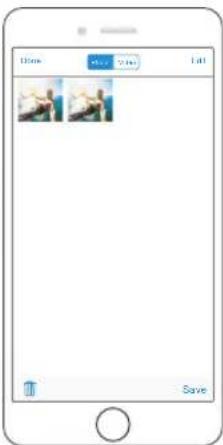
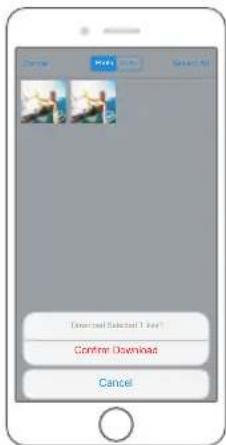
OFFLOADING YOUR CONTENT TO SMARTPHONE OR TABLET
1 Open the 'AKASO DV' app
2. Tap 'Folders' at the left corner of the bottom screen.
3. Tap Edit at the right corner of the top screen.
4. Tap the files you want to save.
5. Tap Save at the right corner of the bottom screen. The screen shows Confirm Download
6. Tap 'Confirm Download'.
Note:
- If you cannot offload videos or photos to iPhone or iPad, please enter Setting -> Privacy Photos, find 'AKASO DV' and select 'Read and Write'.
- You cannot download 4K or 2.7K video to iPhone and iPad via Wi-Fi app. Please offload 4K or 2.7K videos via card reader.
The Zoom function lets you adjust how close or far away the subject appears in your photo. The default is no zoom. Zoom function is available in Video and Photo Mode.
- Turn on Brave 6
- Enter Video or Photo Mode
- Press and hold Up or Down button to adjust the zoom level.
REFORMATING YOUR MICROSD CARD
To keep your microSD card in good condition, reformat it on a regular basis. Reformating erases all of your content, so be sure to offload your photos and videos first.
- Press and hold Mode button for 3 seconds to turn on Brave 6.
- Press Mode button twice then UP / Down button to enter Camera Setting.
- Press UP / Down button to find the 'Format' option.
- Press Shutter button, the screen shows 'SD Card'
- Press Shutter button, the screen shows All data will be deleted Cancel / OK
- Press Down button then Shutter button. The screen shows 'Please wait'. Then you format your micro SD card successfully.
Follow these guidelines to get the best performance from your camera.
- For best audio performance, shake the camera or blow on the mic to remove debris from the microphone holes.
- To clean the lens, wipe it with a soft, lint-free cloth. Do not insert foreign objects around the lens.
- Don't touch the lens with fingers.
- Keep the camera away from drops and bumps, which may cause damage to the parts inside.
- Keep the camera away from high temperature and strong sunshine to avoid being damaged.
MAXIMIZING BATTERY LIFE
If the battery reaches 0% while recording, the camera saves the file and powers off. To maximize battery life, follow these guidelines when possible:
- Turn off Wireless Connections.
- Capture video at lower frame rates and resolutions.
- Use Screen Saver setting
BATTERY STORAGE AND HANDLING
The camera contains sensitive components, including the battery. Avoid exposing your camera to very cold or very hot temperatures. Low or high temperature conditions may temporarily shorten the battery life or cause the camera to temporarily stop working properly. Avoid dramatic changes in temperature or humidity when using the camera, as condensation may form on or within the camera.
Do not dry the camera or battery with an external heat source such as a microwave oven or hair dryer. Damage to the camera or battery caused by contact with liquid inside the camera is not covered under the warranty.
Do not store your battery with metal objects, such as coins, keys or necklaces. If the battery terminal's come in contact with metal objects, this may cause a fire.
Do not make any unauthorized alterations to the camera. Doing so may compromise safety, regulatory compliance, performance, and may void the warranty.
WARNING: Do not drop, disassemble, open, crush, bend, deform, puncture, shred, microwave, incinerate or paint the camera or battery. Do not insert foreign objects into the battery opening on the camera. Do not use the camera or the battery if it has been damaged - for example, if cracked, punctured or harmed by water. Disassembling or puncturing the battery can cause an explosion or fire.
REMOTE
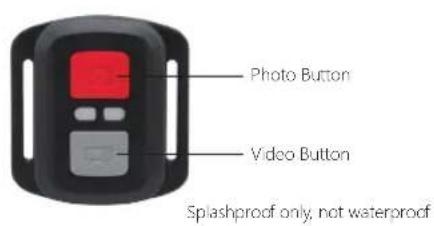
VIDEO
To record Video, verify the camera in Video mode.
To start recording:
Press the Grey Video Button. The camera will emit one beep and the camera light will flash while recording.
To stop recording:
Press the Grey Video Button again. The camera will emit one beep and the camera light will stop flashing while recording.
PHOTO
To capture a photo, verify the camera in Photo mode.
To take a photo:
Press the Red Photo Button. The camera will emit a camera shutter sound.
CR2032 BATTERY REPLACEMENT FOR BRAVE 6 REMOTE
- Use a 1.8mm Philips tip screwdriver to remove the 4 screws on the back cover of the remote, allowing you to open it.
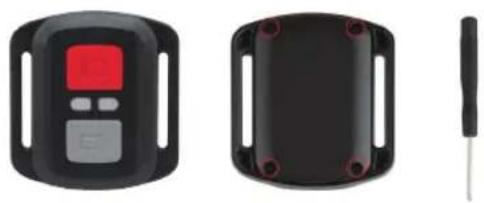
- Remove another 4 screws on PCB board.
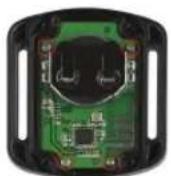
- Lift the PCB board and slide out the battery, as shown in the picture.
Note: Do NOT rotate the PCB board to avoid reversing the camera and video button functions.
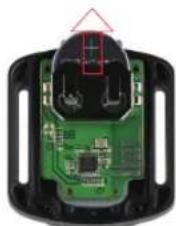
-
Install the new battery, keeping the "+" pole facing up.
-
Install all 4 screws back onto the PCB board.
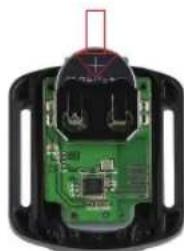
- Install all 4 screws back into the cover
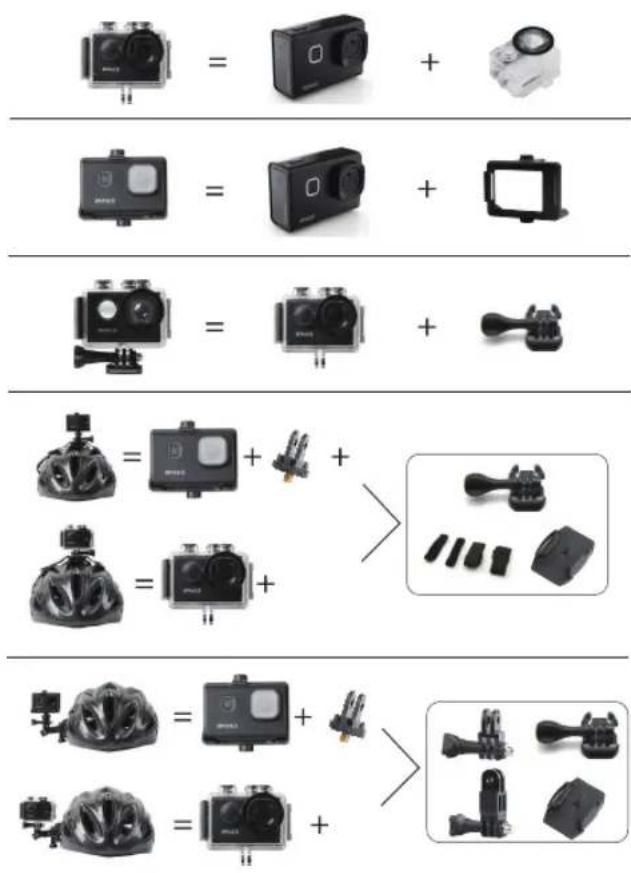
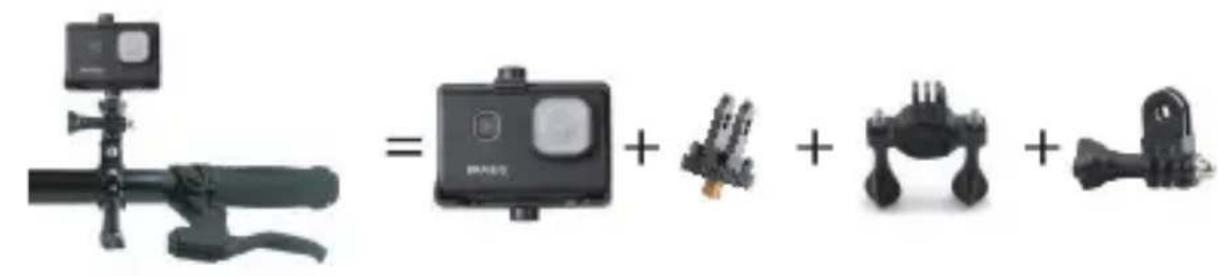
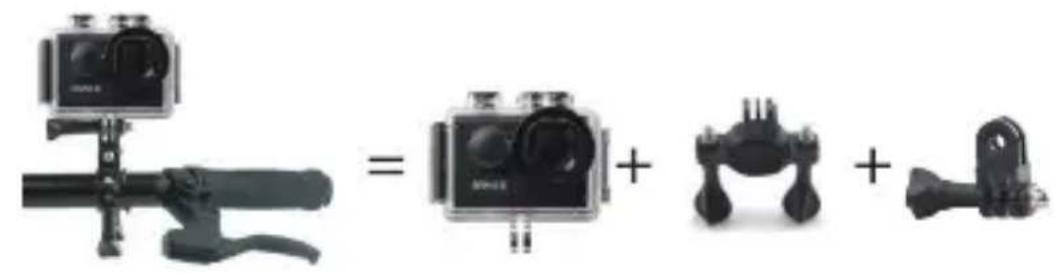
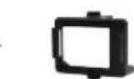
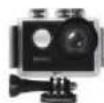
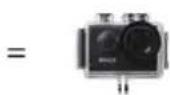
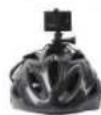
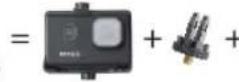
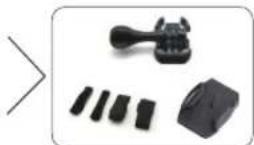
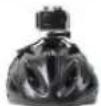
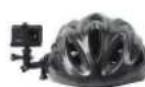
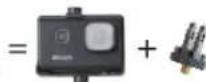
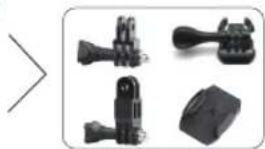
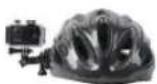
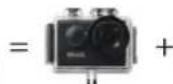
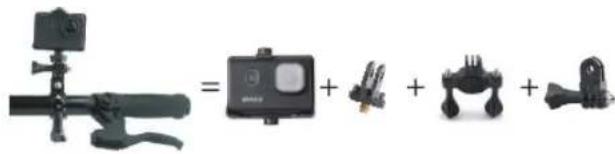
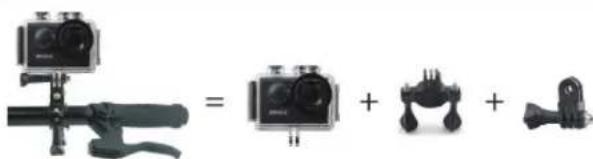
MOUNTING YOUR CAMERA
Attach your camera to helmets, gear and equipment.
CONTACT US
For any inquires with AKASO products, please feel free to contact us, we will respond within 24 hours.
E-mail: cs@akasotech.com
Tel: (888) 466-9222 (US) Mon-Fri (except holiday) 9am-5pm (EST)
Official website: www.akasotech.com
Deutsch
DIE BRAVE 6
- Sprache: English / French / Germany / Spanish / Italian / 日本語 / 简体中文
MOUNTING YOUR CAMERA
Attach your camera to helmets, gear and equipment.







Deutsch
KONTAKTIEREN UNS
- Horodatage:Desactive/Active
3.Mode Rafale:Desactive,3 coups/1s,5 coups/1s,10 coups/1s
6.Mode Plongee:Desactive/Active
- Lingua: English / French / Germany / Spanish / Italian / 日本語 / 简体中文