Smart Printer Module - Printer GYS - Free user manual and instructions
Find the device manual for free Smart Printer Module GYS in PDF.



| Product type | Printing accessory for GYS Connected products |
| Usage | Ticket printing and data transmission |
| Brand | GYS |
| Model | Smart Printer Module |
| Power supply | 100-240 V~, 50-60 Hz single-phase |
| Alternative power supply | Via host product (SMC cable) or mains (IEC C13 cable) |
| Print type | Thermal on ticket |
| Paper roll (ref.) | 056237 |
| USB ports | 2 USB ports for keyboard (ref. 027725/027770) and barcode reader (ref. 027718) |
| Connectivity | SMC link cable with host product |
| Indicators | Power LED (green) and warning LED (red) |
| Operating temperature | Up to 50 °C max |
| Maintenance | Clean with a dry cloth, do not use solvents |
| Safety | Unplug before maintenance; do not use if power cord damaged |
| Spare parts | Paper roll (056237), barcode reader (027718), keyboards (027725/027770) |
| Warranty (France) | 2 years (parts and labor) |
| Standards | Compliant with CE, UKCA, CMIM |
| Included accessories | SMC link cable, IEC C13 power cord, locking screws |
| Barcode reader configuration | Default mode USB, baud-rate 9600; configurable in AZERTY/QWERTY/QWERTZ |
Frequently Asked Questions - Smart Printer Module GYS
User questions about Smart Printer Module GYS
0 question about this device. Answer the ones you know or ask your own.
Ask a new question about this device
Download the instructions for your Printer in PDF format for free! Find your manual Smart Printer Module - GYS and take your electronic device back in hand. On this page are published all the documents necessary for the use of your device. Smart Printer Module by GYS.
USER MANUAL Smart Printer Module GYS
FR 2/3-6/31-36
EN 2/7-10/31-36
DE 2/11-14/31-36
ES 2/15-18/31-36
RU 2/19-22/31-36
NL 2/23-26/31-36
IT 2/27-30/31-36
SMART PRINTER MODULE
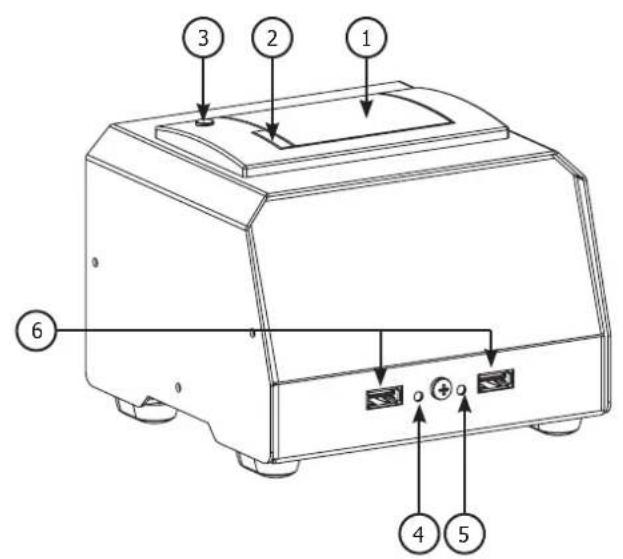
FIG-1
50cm250cm
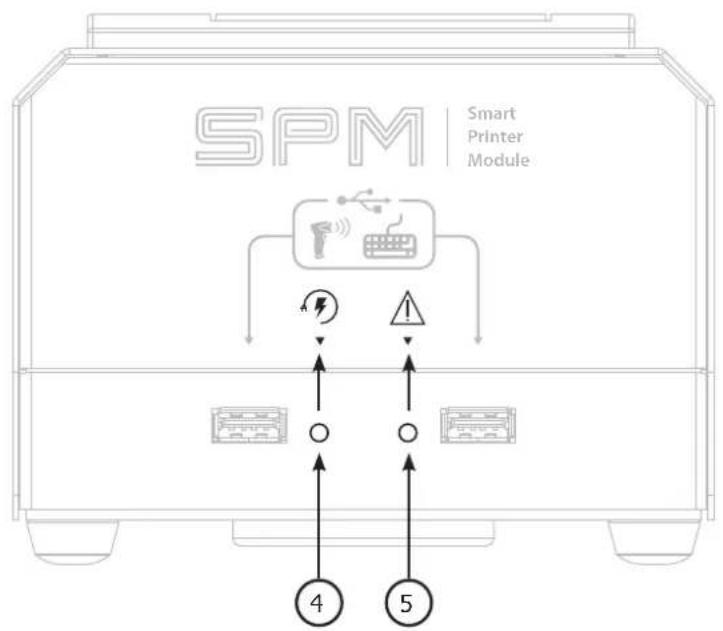
FIG-2
INSTRUCTIONS DE SECURITE

CONSOMMABLE ET OPTIONS
INSTALLATION ET CONNEXION AU PRODUIT HÔTE
INTERFACE HOMME-MACHINE (IHM) (FIG-2)
This manual contains safety and operating instructions, to be followed for your safety. Please read it carefully before using the device for the first time and keep it for future reference. Read and understand the following safety instructions before use. Any modification or update that is not specified in the instructions manual should not be undertaken. The manufacturer is not liable for any injury or damage due to non-compliance with the instructions featured in this manual. If there is any issue or uncertainty, please consult a qualified individual to operate the equipment correctly. This device may only be used for ticket printing and/or data transmission within the limits indicated on the device and manual. The operator must follow the safety instructions. In case of improper or unsafe use, the manufacturer cannot be held liable.
Do not use the charger if the mains cable or plug is damaged.
Do not place the unit near a heat source/direct sunlight and durably high temperatures (above 50^ C)
This machine must be connected to an earthed socket.


Maintenance :
- Maintenance should only be carried out by a qualified person.
- Warning! Always disconnect from the mains before performing maintenance on the device.
- Do not use solvents or other aggressive cleaning products under any circumstances
- Clean the surfaces of the unit with a dry cloth.
Regulations :
- The Machine is compliant with European directives.
- The declaration of conformity is available on our website.
- Equipment in compliance with British requirements. The British Declaration of Conformity is available on our website (see home page).
- Equipment in conformity with Moroccan standards.
- The declaration C_ (CMIM) of conformity is available on our website (see cover page).
Waste management:
- This product should be disposed of at an appropriate recycling facility. Do not throw away in a household bin..
It is recommended to use the cables supplied with the unit in order to obtain the optimal product settings.
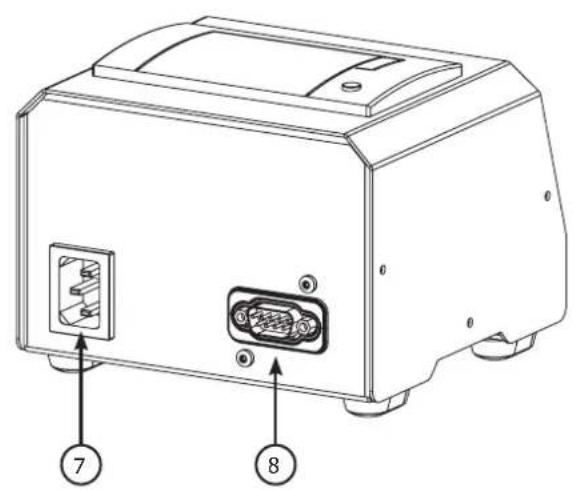
EQUIPMENT DESCRIPTION (FIG-1)
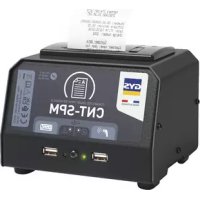
The Smart Printer Module (SPM) is an accessory that allows GYS «Connected» products (chargers, welding stations, etc.) to print reports on tickets. It also has 2 USB ports for a barcode reader (ref. 027718) and a keyboard (ref. 027725 / ref. 027770).
1- Printer roll cover 6- USB ports
2-Paper compartment opening lever 7-Mains input
3-Paper feed button 8-SMC connector
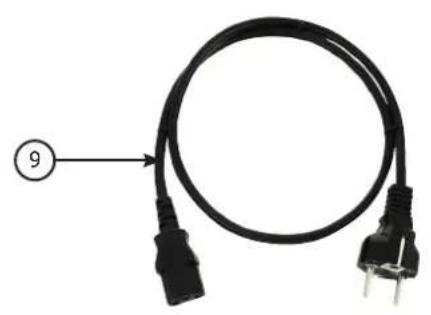
4- Power LEDs 9- IEC C13 mains power cord
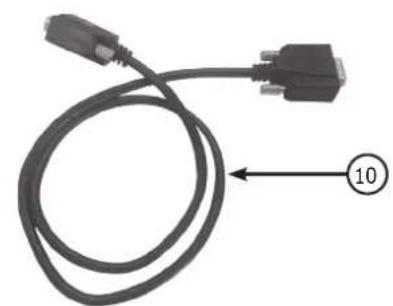
5- Warning LED 10-SMC connection cable
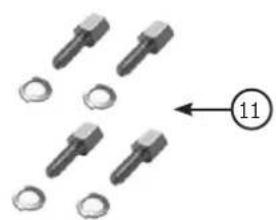
11-4 locking screws for SMC connector
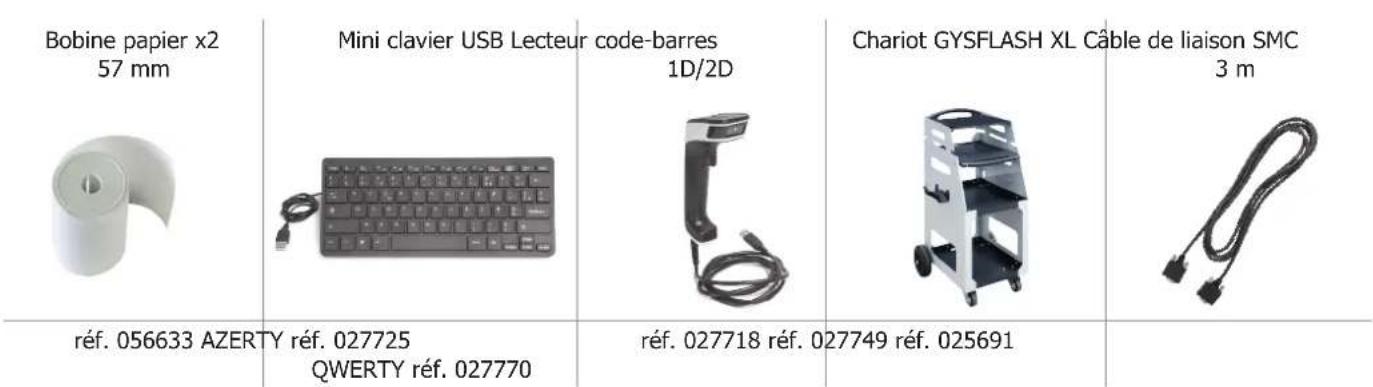
CONSUMABLE AND OPTIONS
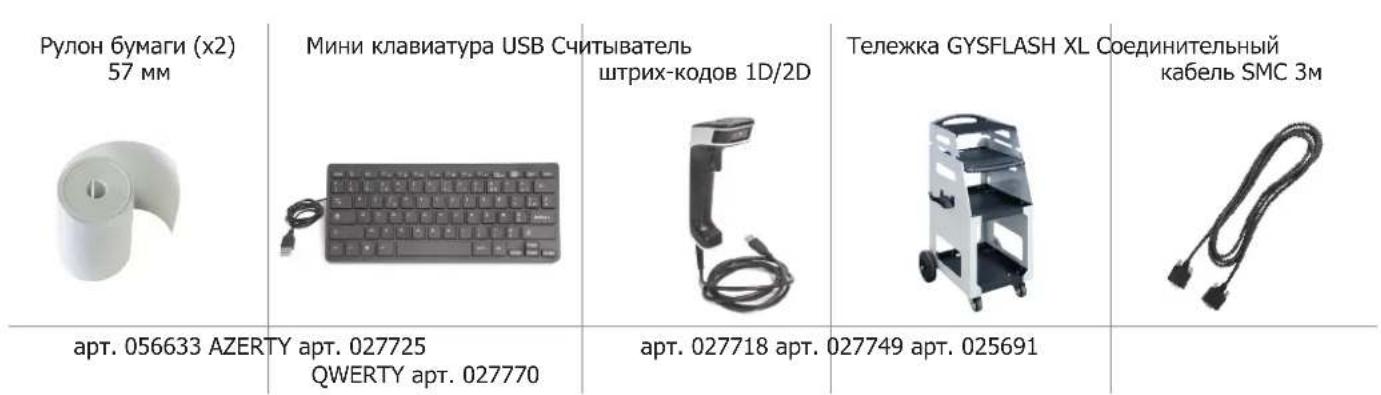
Paper roll x2 57 mm

ref. 056633 AZERTY ref. 027725 QWERTY ref. 027770
Mini USB keyboard 1D/2D barcode reader Trolley GYSFLASH XL SMC connection cable
ref. 027718 ref. 027749 ref. 025691
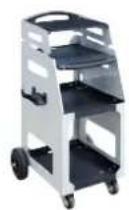
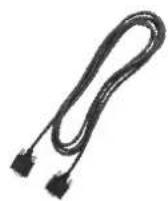
3m
INSTALLATION AND CONNECTION TO THE HOST PRODUCT
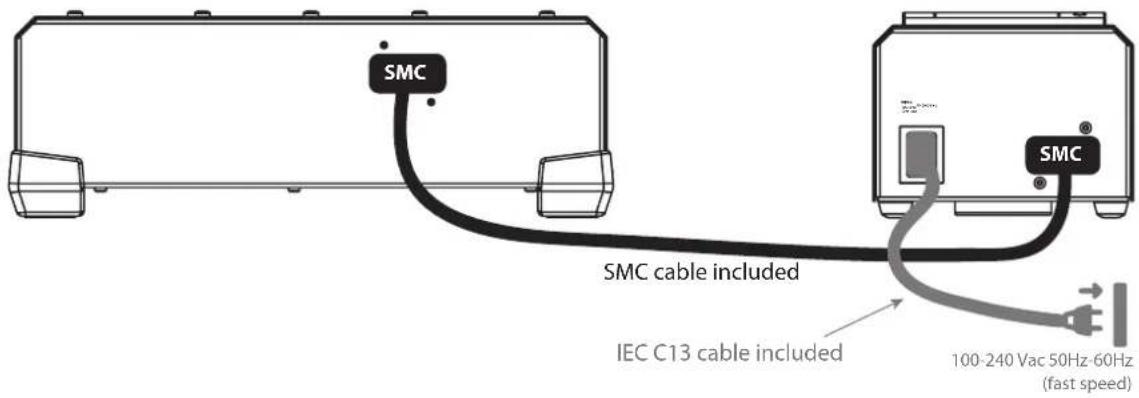
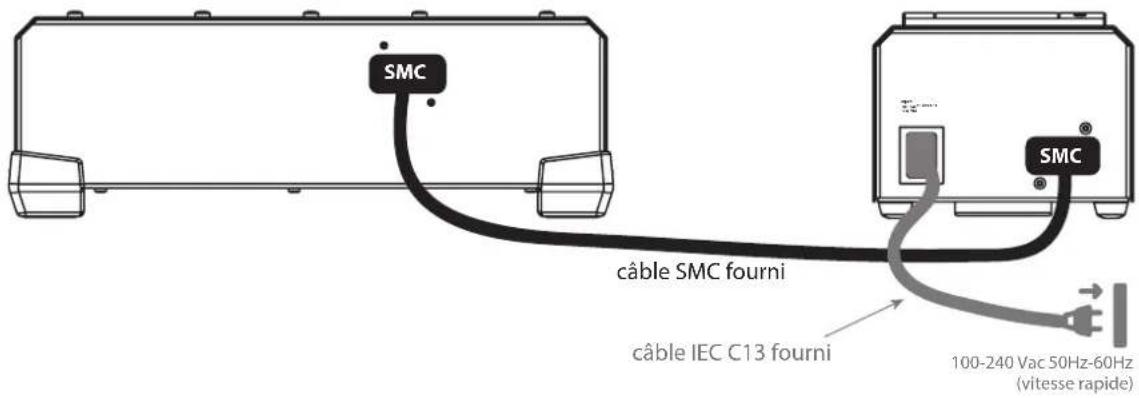
- Connect the SPM to the host product using the SMC connection cable.
To benefit from increased performance (high print speed and available power on high USB ports), connect the SPM to the
electrical installation using the IEC C13 cable provided.
If necessary, connect the keyboard and barcode reader to the USB port. Attention, the use of accessories other than those offered by GYS is not covered by the warranty. The simultaneous use of two barcode readers is also not covered by the warranty. - Configure the language of the barcode reader (see below) as well as the keyboard type on the host product (Azerty, Qwerty, Qwertz, etc.).
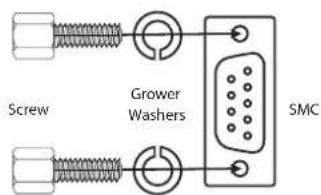
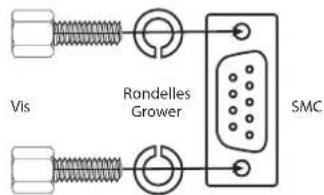
To ensure that the SMC connection cable is connected to the SPM and host product, it is recommended to mount the supplied screws and Grower washers on the SMC connectors according to the assembly:
POWER SWITCH
- This equipment can function with or without being connected to the mains. However, it must be connected to the host product using the SMC connector. Printing performance is improved when the product is powered by the mains.
- This product can be connected to a single-phase 3pin power supply 100V - 240V (50-60Hz) with earth connection.
- When the SPM is turned on by the host product, the indicator light flashes quickly for a few moments (initialisation phase).
CONNECTION TO A GENERATOR
The machine can work with generators as long as the auxiliary power matches these requirements :
- The voltage must be AC, always set as specified, and the peak voltage below 400V,
- The frequency must be between 50 and 60Hz
It is imperative to check these values as many generators generate voltage spikes that can damage the machine.
INSTALLATION OF PAPER ROLL (CONSUMABLE REF. 056237)
To change the paper roll, open the printer cover with the lever (FIG 1 - 2). Position a new roll by pulling the 10mm paper out of the cover.
INTERFACE (MMI) (FIG-2)
| 4 | Indicator off | Product turned off |
| 4 | Indicator light flashing | Power supply provided by the host product only |
| 4 | Indicator fixed | Power supply provided by the mains (high printing speed and high current) |
| 5 | Indicator flashes quickly (for 5 sec. maximum) | Product initialisation phase |
ANOMALIES, CAUSES AND REMEDIES
| SYMPTOMS CAUSES SOLUTIONS | ||
| Indicator off (host product running) | SMC connection cable not properly connected or damaged | Check the connection and status of the SMC connection cable |
| Electronic problem on the card Contact the reseller | ||
| Indicator light flashing slowly | Insufficient level or no paper Load a new roll of paper | |
| Indicator fixed | Thermal fault, the room temperature is too high | Ventilate the room and allow the product to cool down |
| Incompatible USB device (mouse, USB key, etc.) | Disconnect the device | |
| Excess power consumption on the USB port Disconnect devices | ||
| Electronic problem in the printer | Restart the host product | |
| Contact the reseller | ||
| Indicator flashes quickly without interruption (for over 5 sec.) | SPM not recognised by the host product | Verify that the SPM is an accessory supported by the host product |
| Update the software of the host product | ||
| SMC connection cable not properly connected or damaged | Check the connection and status of the SMC connection cable | |
| Electronic problem on the card Contact the reseller | ||
| The characters read by the barcode reader do not match the content of the barcode | Incorrectly configured barcode reader | Configure the barcode reader (see section below) |
| Configure the host product | ||
CONFIGURATION OF THE BARCODE READER (ACCESSORY REF. 027718)
To work properly with the SPM, the barcode reader must be set to the default mode (USB, 9600b/s baud rate). If in doubt, flash this barcode to reset it.
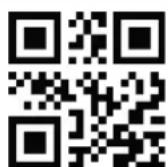
For a customised configuration of the barcode reader (alarm, volume, lowercase and uppercase characters, uppercase, etc.), refer to the online barcode reader manual on the GYS website (ref. 027718).
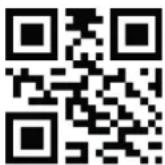
Flasher this barcode to configure the AZERTY barcode reader.
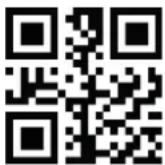
Flasher this barcode to configure the QWERTY barcode reader.
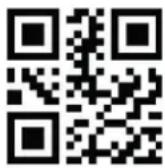
Flasher this barcode to configure the QWERTZ barcode reader.
WARRANTY
The warranty covers faulty workmanship for 2 years from the date of purchase (parts and labour).
The warranty does not cover:
- Transit damage.
- Normal wear of parts (eg.: cables, clamps, etc.).
- Damages due to misuse (power supply error, dropping of equipment, disassembling).
- Environment related failures (pollution, rust, dust).
In case of failure, return the unit to your distributor together with:
- The proof of purchase (receipt etc ...)
- A description of the fault reported
SICHERHEITSHINWEISE

He yctaHaBnBaTb annapaT prdom C nCTOChNKOM TeIpa N He IoDbepraTb BbICOKM Tempepatypam (Bblwe 50^ ) B TeueHn DInTeIbHOro nepnoDa.
3a3eMJIeHnEM.
06cIyXnBaHne:
- TexHnueckoe 06cIyXnBaHne IOLJxHO BbIIOJIHrTbCra TOLbKO KBaIINΦnIupoBaHHbIM CpeIuaJIvCTOM.
BHHMaHHe! OTKJIIOUHTe aannapat OT po3eTKn Do hauana peMOHTbIX pa60T.
HnB Koem clyuae He nCNoIb3OBA Tb paCTBOpHTeIN nn Ipyrne Koppo3nHbIe MOIOUne CpeDCTBa.
OuHCTIe nOBepxHOCTb annapaTa c NOMOUIc cyXoTpAIKn.


C
UK CA

Hopmbi npabila:
- UcTpoIcTBo COOTBeTCTByeT dIneKtNbAm Ebpocoi03a.
-Декларачnia O COOTBETCTBnE cTb B HaJIuHn HaHaWe m caITe.
MaTePnA1 COOTBeTCTByeT Tpe6oBaHnAm BeiNKo6pTuHn. 3aBHeHne O COOTBeTCTBnI DnA BeiNKo6pTuHn DoCTyInHO Ha NaWeM Be6-caYTe (cM. rIaBHyIO CTpaHnCu). - COOTBETCTBYIOT MapOKKaHCKM HOpMaM. ДeКларачи C(CMIM)O COOTBETCTBnДОCTУПна ДЯ прсмOTра на Нашем саITE (Ссылka Ha OБLOжke).
YTNIN3aun:
- 3To obopydobAHne noJleKNT nepepa6oTke. He BbI6paCbBaIte erO B DOMaUSHn MycOpONpOBoD.
IynoyuHnOnTmAbhix Hactpoek yctpoiCTBa peKOMeHdyetc HcNoIb30BaTb Ka6en, BXoJnne B KOMnJIeKT NOCTABKN.
ONHANHEOBOPUOBAHNA(PNC-1)
ModyIb INTeJIeKTyAIBHOrO PnHTepa Smart Printer Module (SPM) - 3TO akCECCyAp, KOtOpBIO N03BOJRAETNODKIIHcHbIM' npOdyKTAM GYS (3apRdHbIM YCTPOIcTBaM, CBAPoHbIM aannapaTAM n T.D.) neaTaTb OTYeTb. OH IMeet 2 USB-pa3bema dIra NOkKnUohEnia cKaHepa UTrpHX-KoDa (apT. 027718) n KlaBnaTypb (apT. 027725 / apT. 027770).
1-KpbiIka npHTepa 6-Pa3beM USB
2-PbIar OTKpbTnO TcKa dIg 6ymarn7-CeTeBOB BXoD
3-KhONka BbIXoJa 6yMaIg 8-CoeINHITeB SMC
4-LED nHTaHne 9- LHyp nHTaHnIEC C13
5-CBeTOBOe npdeynpeKdEHe 10-SMC coeHNHTbHbI Ka6eb
11-4 cTOnOpHbIX Wypyna nIpa3beMa SMC
PACXODHNKNI OIICN
YCTAHOBKA IN NOKJIIOUeHNE K YIPIPABJIAHOUcEMY UCTPOICTBY
- PódklouhTe SPM K Béduyeme-NpOdykTy Upe3 Ka6eBb Cb8aSMC.
IIOBbIeHIN npO3BOIDTeJIbHOCTN (BbICOKa CKOpocTb NeaTH, HAnpJxHeHne, DOCTyINHO Ha pa3beMax USB) NOkIIOHTe SPM C NOMOsbIO Ka6eIA IEC C13, BXo4Jzero B KOMnJIeKT.
Pn Heo6xOaMIOCTn NpokHouHte KnaBnAtpyu cKaHep K pa3bemy USB. BnMaHne, He peKomeHdyETcN CNoJb3OBaTb akceccyapbl OTnUHhEe OT npednoXeHHbIX GYS He peKomeHdyETc OndHOBpeMeHHoe NCNoJb3OBaHne 2x CHTbBaTeJe. - HactpoTe Ra3bIK cKaHepa UTPnx-KoIOB (CM. HIXe) n TnI KnaBnATypbHa ynpabJIouIeM yCTpoiCTBe (Azerty, Qwerty, Qwertz, nT.D)
Дя obecneueHn coeHHeHn Ka6e n SMC c SPM n C Beyu m annapaTOM peKoMeHyetcN cNoIb3OBA Tb npIinaeMbte WpynbI dI MOHTaKa:
ПИТAHNE -ВКЛЮЧЕНЕ
- DaaHoe o6bOpDobAHne pa6oTaET kAc C noKIOUeHEm K 3JeKTPocetn, TaK n 6e3 HrO. OHaKO OH DOJKeH 6bTb NOKIOH e
rnaBHOmy yCTpoiCTBy uepe3 pa3bem SMC. NeaTb yIyuaeTc, ecn yCTpoiCTBO nokKIOueHo K 3neKTPuieckoCetN.
-Даньштплч�сгКODHФa3HOTpexnpoBODHONJIeKtpueckcNcIteMe100B-240B(50-60r)C3a3eMneHHOHeHTpaJIbIO. - Korga SPM BkIIOyaeTcra ynpablaIOzMM yCTpoiCTBOM, IamnoUka 6bICTPO Miraet B TeueHne HeckolbKx CekyHd (pa3aHHnuaJIu3aUN)
IIOKJIIOUeyHNE K 3JEKTPOREHEPATOPY
Danhoe obopydobAHne moKet 3KcnpaTnpoBaTbC r CJIeKtporehepaTopamn npu ycIOBn, TTO BCNOmOraTeIbHna 3Heprn OTBueaET cJeDyUOIM Tpe6OBaHNM:
-
HanpjaKeHne doJxHo 6bITnepMeHHbIM, yCTaHOBJIeHHbIM B COOTBeTCTBm C 3aJaHHbIMn npaMeTpamn, a NIKOBoe HapjKeHne He doJxHo npeBbIaTb 400 B,
-
Yactota doJnxHa 6bItb MeKdy 50 n 60 T.
OueHb BaxHo Co6IouaTb 3Tu YcNoBn, T.K MHOrne 3JIeKtporeHepaTopb I bIdaOT NIKN HAnpJxKeHn, KOtOpbIE MoYr T NobpeDHTb o6OpydoBaHne.
3APY3KA BymaH (KOMNJIeKTIouIne APT. 056237)
YTo6bI 3aMeHnTb pyNoh 6yMaHn, OTKpoIe KpbIuKy npInTepa c nOmoUbHO pbIuHa (pnc 1-2). YCTaHOBtE HObI pyNoH, BbITaUNB 10-MnnmMetpoByu 6yMaHy n3 KpbIuKn.
HHTEPΦEIC YEJIOBEK-MAUINHA (IHM) (PNC-2)
(4)
JaMnoUka He roput.
AnnapaT BbIKIOueH
4
JaMnOuKa Muraet
HENCIPABHOCTN, INX PNUHbI N UCTPAHEHNE
UCIOBNA TAPAHNTN BOΦPAHCUIN
TapaHTn paCnpocTppaHReTc H a IIO6o3aBODCKO DEeK T nIb 6paK B TeueHne 2 let c DaTb NOKyKn n3dEInna (3anuactn npapooa cnla).
IapaHTnHe paCnpocTpaHReTcHa:
- JIO6bIe NOBpeKdEHHI npI TpaHcnpTIpOBKe.
- HopMaIbHbI n3Hoc DeTaNen (HanpIMep::ka6eenn, 3axmbln T.d.).
Cnyan HenpaBnHoro nOJb3oBaHHa (ouN6ka nTahnna, naeHne, pa360pKa).
Cnyuany BbIXoJa n3 cTpoa n3-3a OkpykaIoUe cpebl (3arpr3HeHne Bo3dyxa, Kopp03n, nbIb).
B CNYaE NOLOMKn, BepHInTe yCTpoNCTBO CBOeMy DnCTpn6bToPopy, npedocTaNvB: - DOKa3aTeJIbCTBO NOKyIKN C yKa3aHHo DaToI (KBHTAHnI, cHT-ΦaKTypa...)
-ONINCAHNE NOJOMKN.