USER MANUAL Revolution X Pro Controller Nacon
natural_image
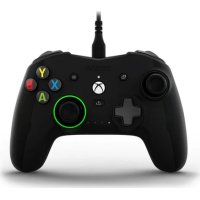
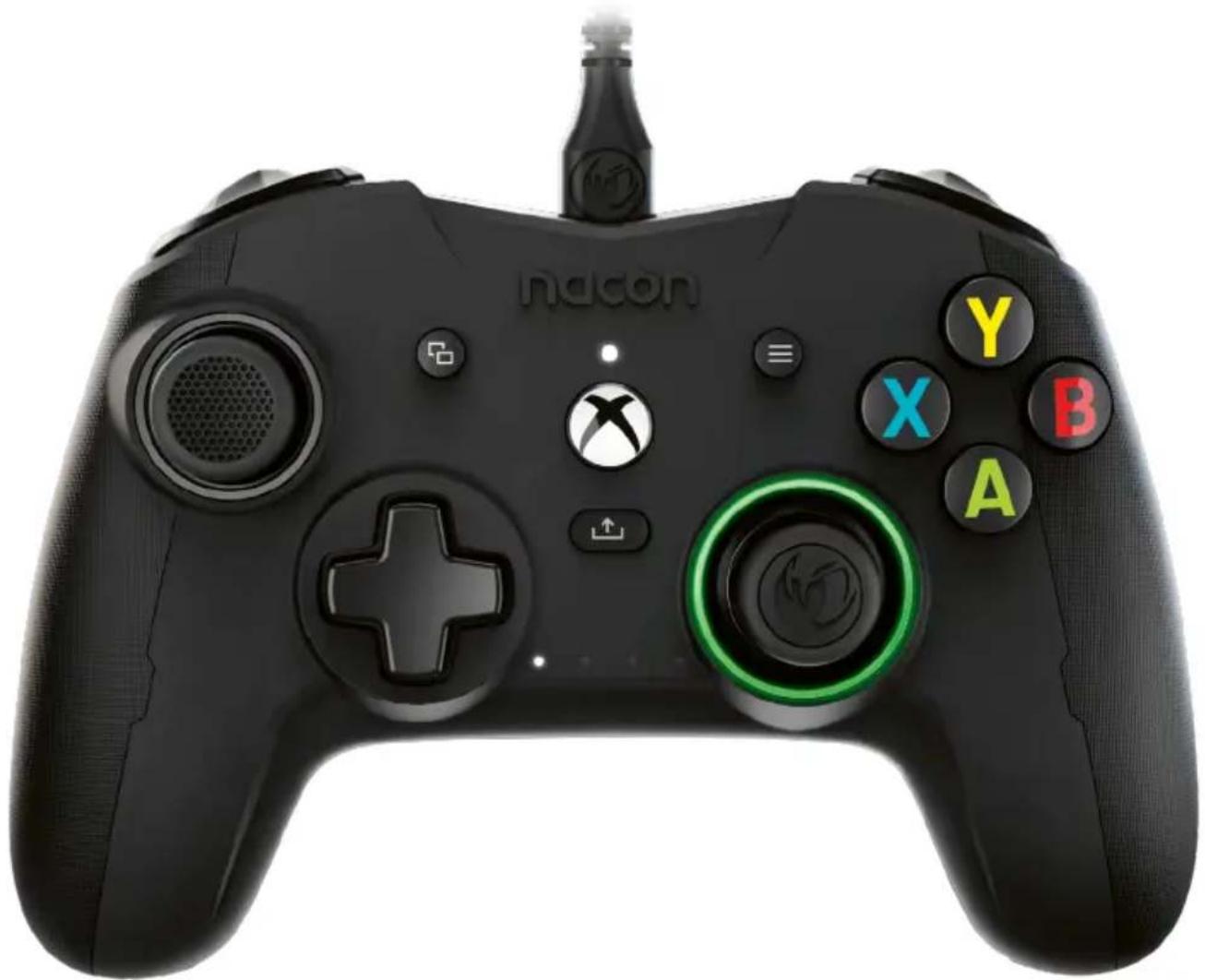
Black Nacon game controller with X, Y, and A buttons, no visible text or symbols on the device itself.
REVOLUTION X
PRO CONTROLLER
DESIGNED FOR COMPETITION
PROGRAMMABLE · 3D SOUND
1 Dolby
Email : support.be@nacongaming.com
Site Internet : www.nacongaming.com
Adresse : Bigben Interactive Belgium s.a./n.v. Waterloo Office Park / Bâtiment H Drève Richelle 161 bte 15, 1410 Waterloo, Belgium
Mentions légales
natural_image
Abstract black and white circular logo with stylized bird or flame design (no text or symbols)
nacon
WWW.NACONGAMING.COM

@NaconFR

lacongamingFr

onFR

nacon
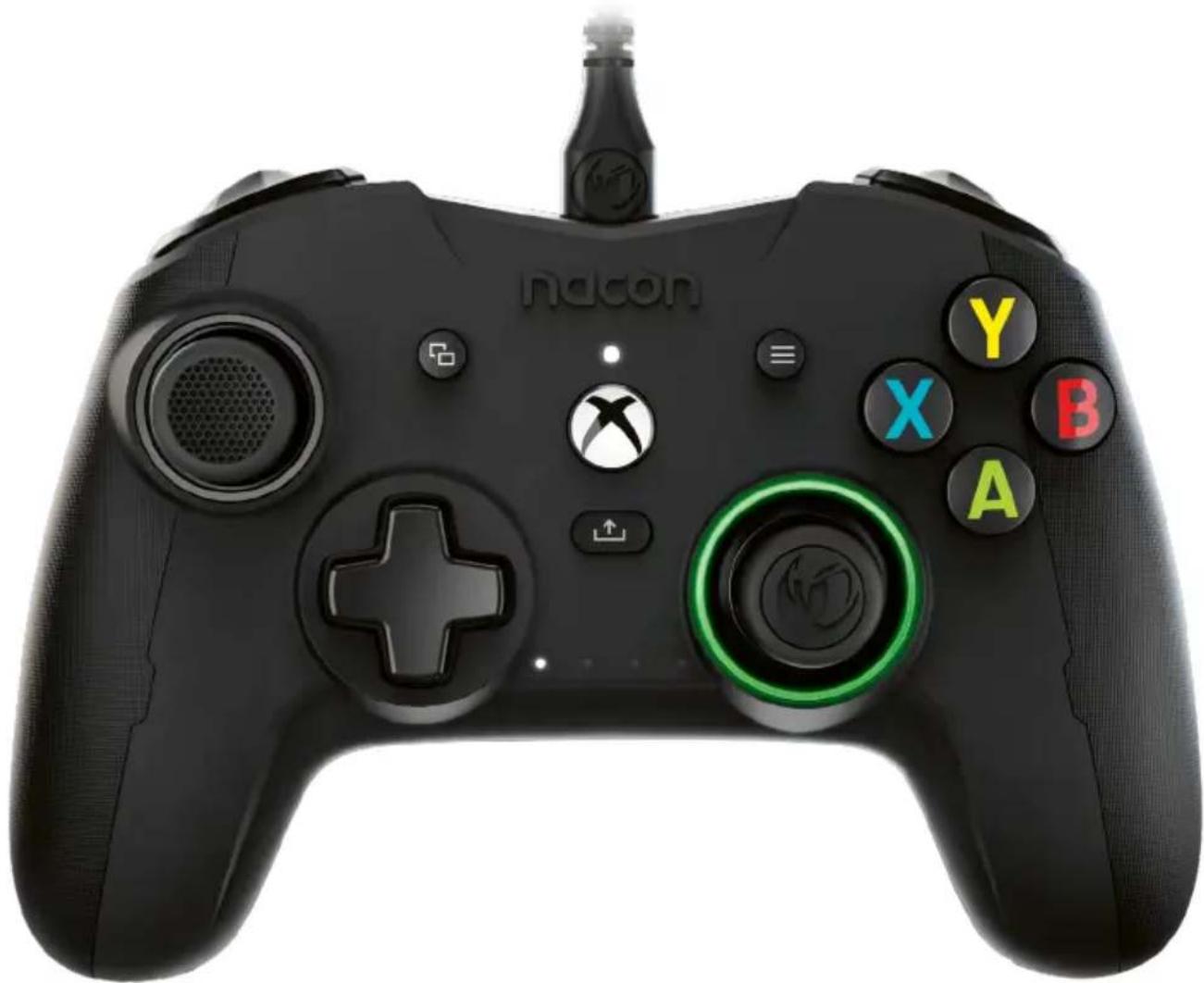
natural_image
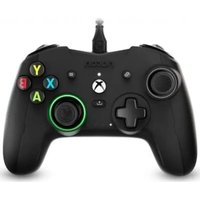
Black Nintendo 3.0 game controller with X/Y control buttons and a green circular key (no readable text or symbols beyond branding)
REVOLUTION X
PRO CONTROLLER
DESIGNED FOR COMPETITION
PROGRAMMABLE · 3D SOUND
Thank you for purchasing this NACON® product.
This product has been designed to enhance your gaming experience. Please keep this user manual for future reference.
Warranty
This product, bearing the NACON trademark, is guaranteed by the manufacturer for a period of 2 years from the date of purchase, and will, during this period be replaced with the same or a similar model, at our option, free of charge, if there is a defect due to faulty material, or workmanship. For any warranty request or claim, please keep your proof of purchase for the duration of the warranty. Without this document, we will not be able to process your request. The original packaging must be kept for all distance purchases (mail order & Internet). This guarantee does not cover defects arising from accidental damage, misuse or wear and tear. This does not affect your statutory rights. To access the declaration of conformity, please visit: https://my.nacongaming.com/en-GB/support
Product specifications
Wired controller for the Xbox Series XIS, Xbox One and PC
Asymmetric joysticks with 44^ to 30^ amplitude
3.5mm audio jack socket for headset
Controller can be configured using the Interface provided
Switch between 4 x personalised profiles
Detachable 3m USB cable
Weight: 260g without cable or additional weight
Height x width x depth: 154 x 97 x 58 mm
Input/Output 5V DC = 500mA
---: DC power supply
Package contents
Controller
Quick IB
Warranty details
Compliance information
Dolby activation information
Storage case
3m braided USB cable
Storage box containing 2 additional
joystick heads, 3 pairs of weights and 2
additional joystick shafts
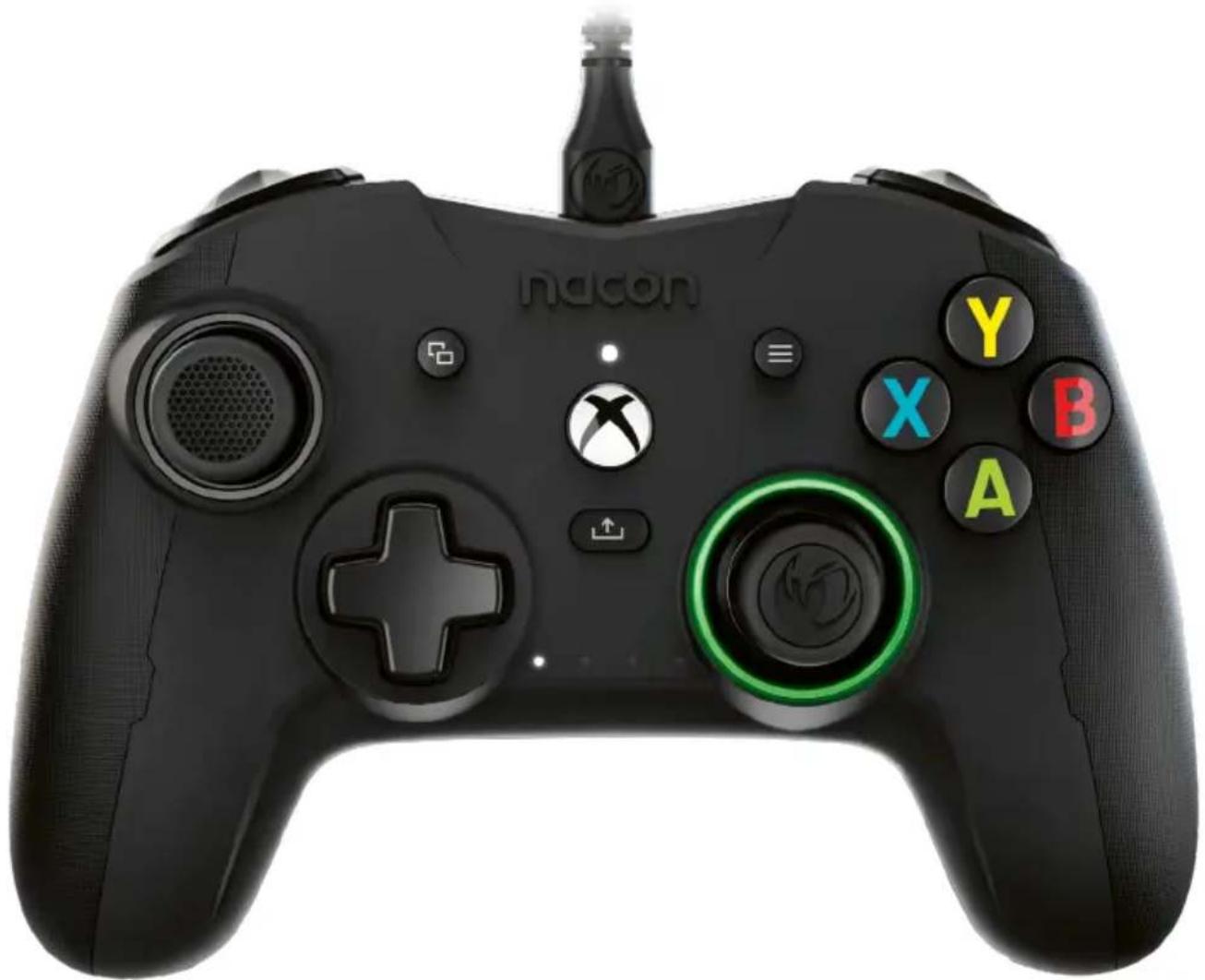
I Control elements
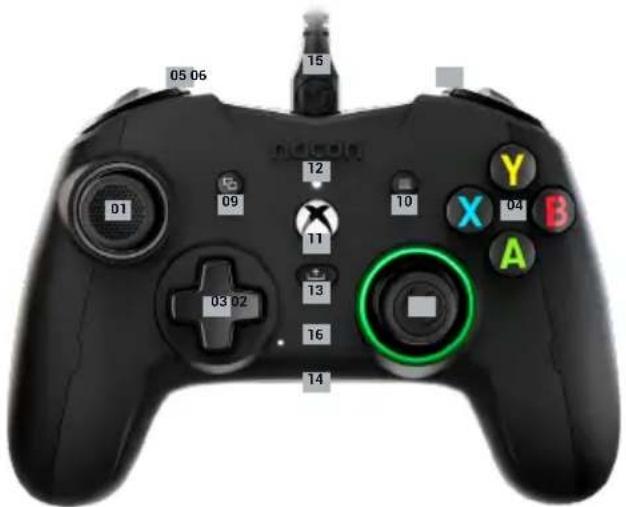
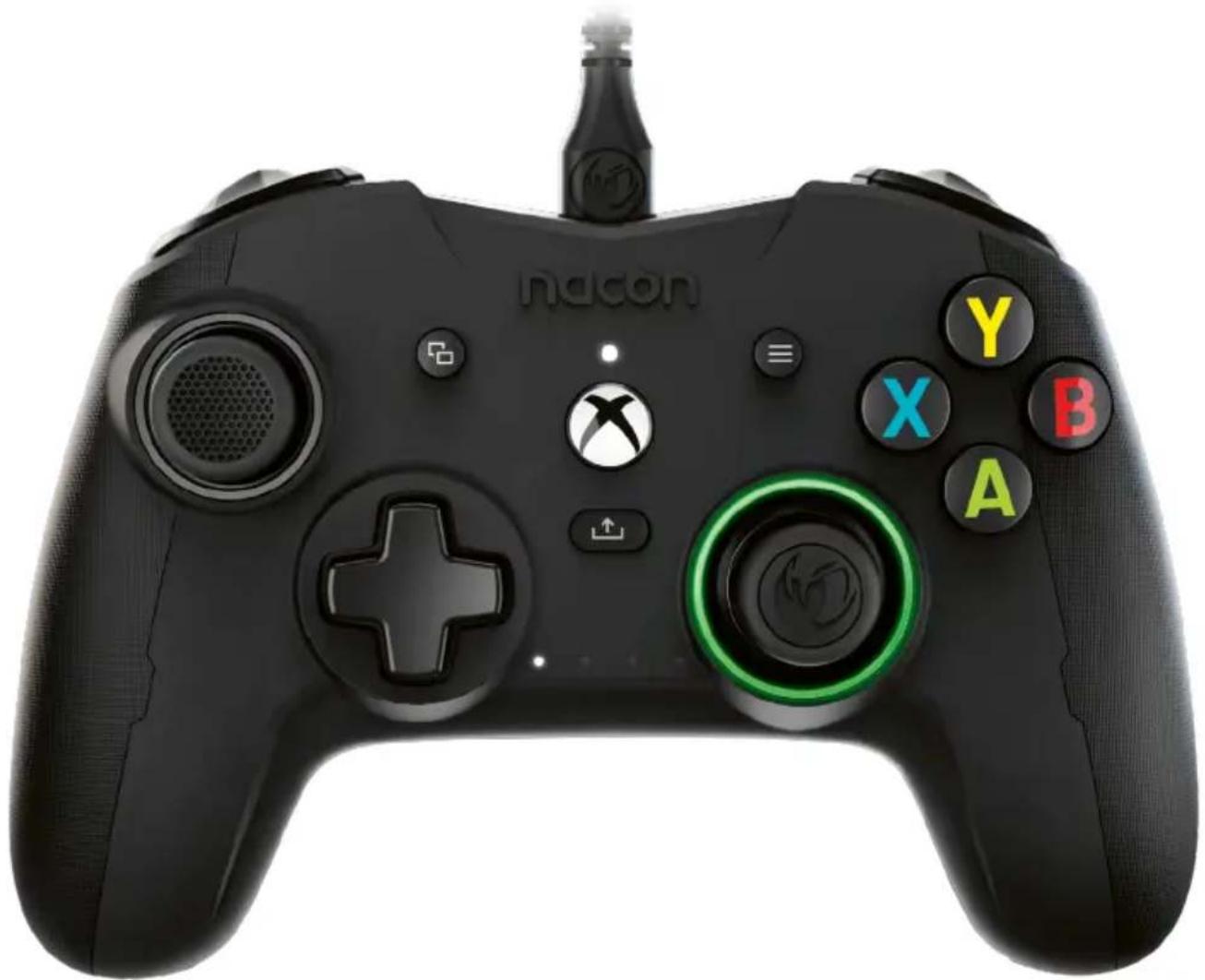
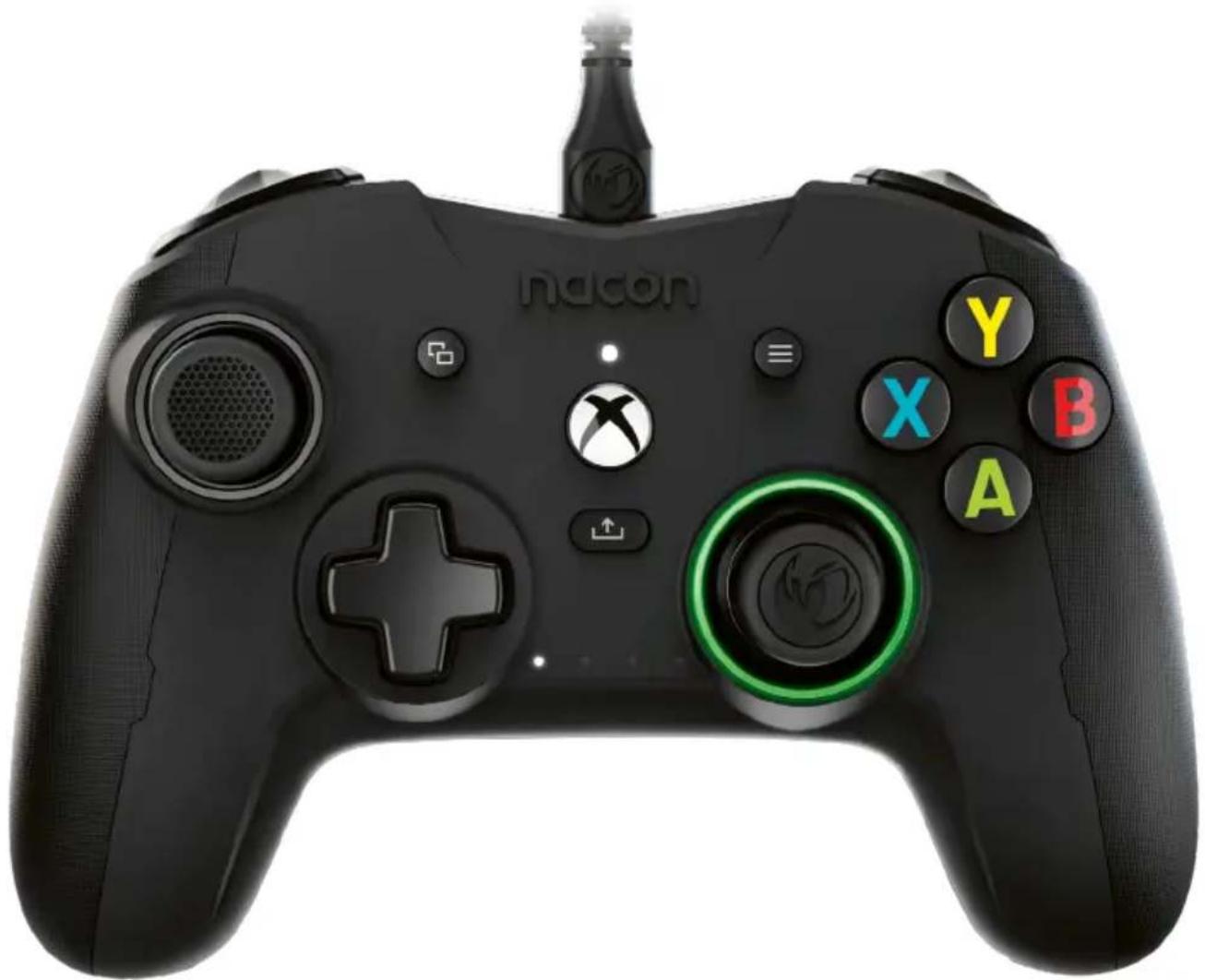
01 38° Left analogue stick with digital button
02 38° Right analogue stick with digital button
03 D-pad
04 A/B/X/Y action buttons
05 Left bumper LB
06 Right bumper RB
07 Rear Left trigger LT
08 Rear Right trigger RT
09 VIEW button
10 MENU button
11 XBOX button
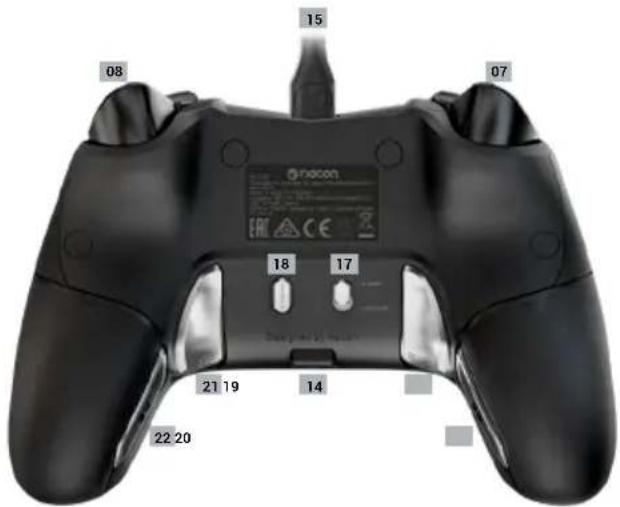
12 Status LED
13 SHARE button
14 3.5mm audio jack port
15 Detachable 3m USB cable
16 Profile LED indicators the current profile
17 Standard profile/custom profile switch
18 Profile selection button
19 S1 programmable shortcut key
20 S2 programmable shortcut key
21 S3 programmable shortcut key
22 S4 programmable shortcut key
How to use this controller on Xbox Series XIS and Xbox One
Connect the USB cable to an unused port on your Xbox console. Take care not to touch the sticks or triggers when switching on the controller.
Once the White LED is fixed, your controller is ready to use.
If your console is off, press the Xbox button on your controller to turn on the console or press the X button on your Xbox.
You're ready to play!
The controller will switch off as soon as the USB cable is unplugged or your console is witched off.
I How to use this controller on PC
The Revolution X controller is also a Plug-n-Play device. In other words, the necessary driver software will be automatically installed when the controller is first connected to your computer. Here is what to do:
Turn on your computer, wait for it to start, and go to your Windows desktop.
Find an unused USB port on your PC and plug the USB cable of your Revolution X controller into it.
Windows will detect the new device and, after a few seconds, start installing the appropriate drivers. The process will be indicated by a small icon in the task bar.
The installation takes more or less time depending on the speed of your system. At the end of the process, the following message will appear: «You can now use your Revolution X. »
I Shortcut key configuration
The 4 shortcut keys can be configured in two different ways:
Either using the «Revolution X» Interface with personalisation in advanced mode.
Or
On the controller itself when in 'Standard' mode.
Please note that the procedure below is only valid in standard mode. In Advanced mode, you will have to configure the shortcut keys using the Revolution X app.
1 Make sure that the Standard profile/custom profile switch (No. 17) is in the 'Standard' position
2 Press and hold the profile button for 3 seconds
The Profile LED indicators are OFF and the ring, around the Right stick, will flash.
3 Press the shortcut button (S1, S2, S3 or S4) that you want to «program» and the LED corresponding to the button lights up.
4 Tap the button you want to associate with the shortcuts
5 The LED associated with the shortcut flashes 3 times, to confirm the link.
6 If you program the wrong key, simply repeat step 4 and create a link with the button you want.
7 To link another shortcut to another button, repeat operations 3 to 5
8 To delete a link, once the shortcut has been selected (steps 3), press the same shortcut again, and the LED corresponding to this shortcut will flash 3 times.
9 Once you have finished your settings, press the profile button for 3 seconds to exit this mode.
The profile LEDs will go out and the ring, around the Right stick, will be constant.
Customisable profile
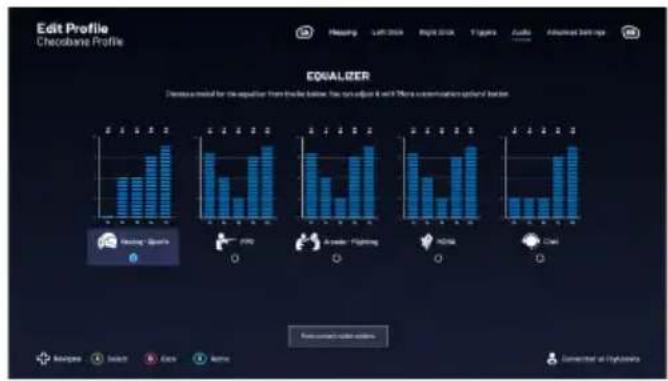
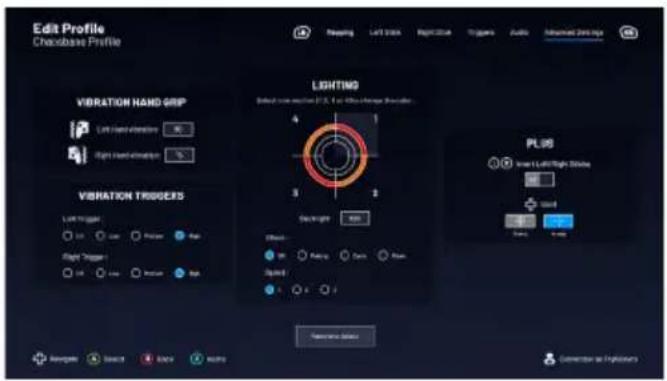
The Revolution X controller can store up to 4 personalised profiles. You will need the 'Revolution X' APP, (found on the Microsoft store), to customise your controller.
The APP is compatible with Xbox Series XIS, Xbox One and Windows 10'.
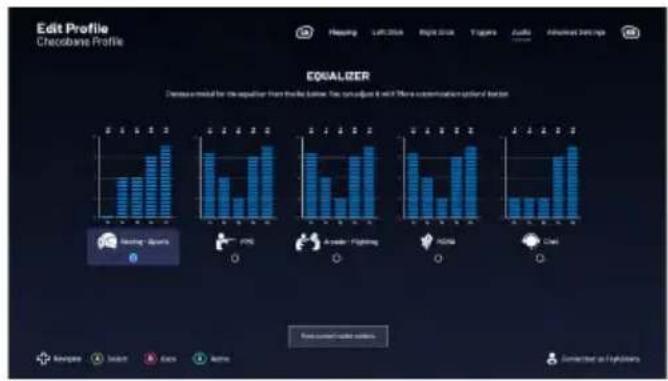
You can use the interface to:
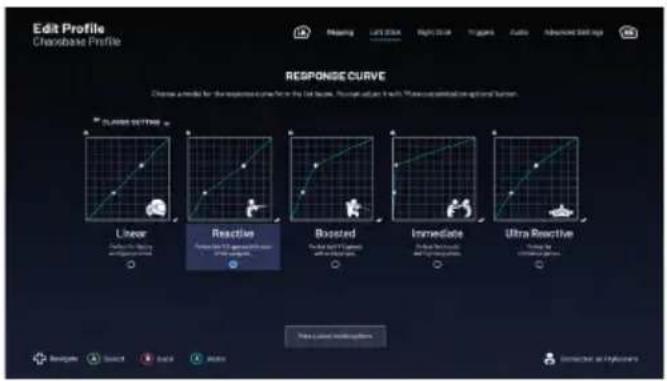
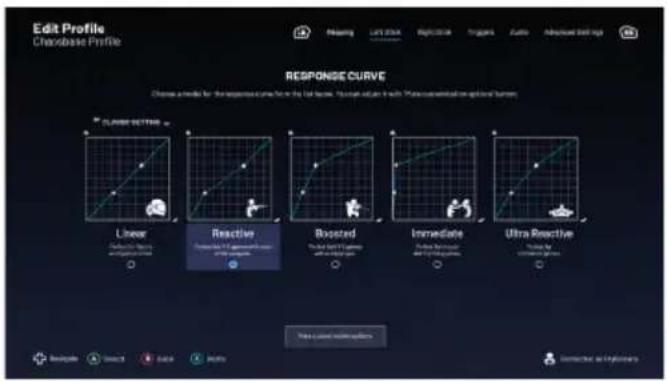
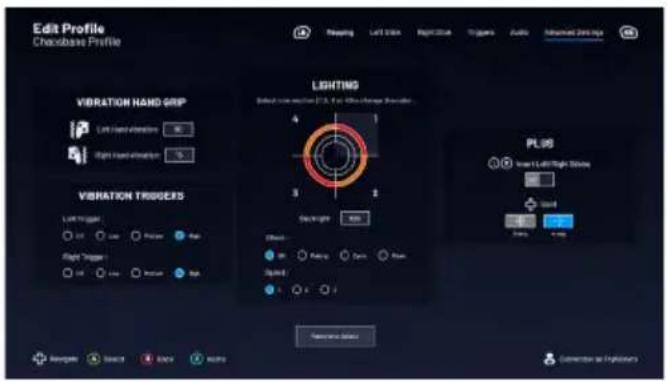
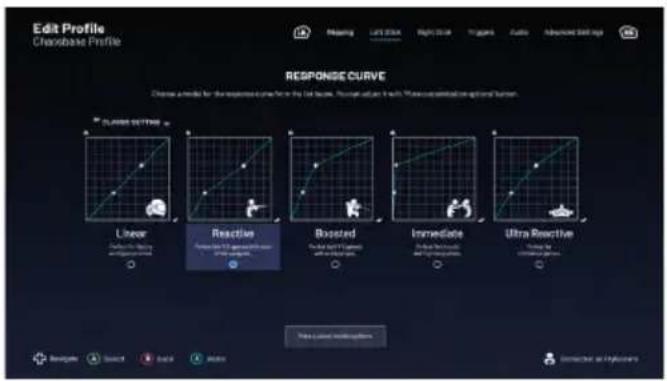
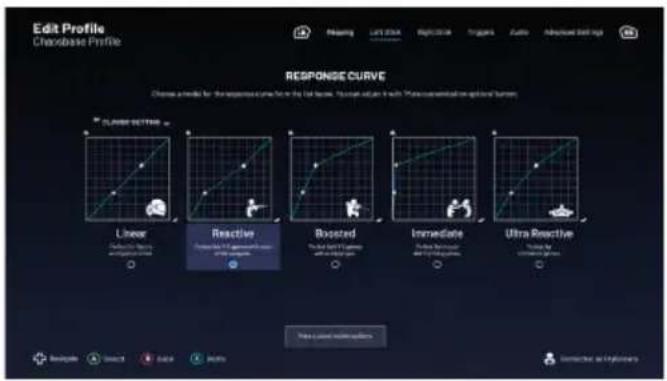
-Personalise the response curve of the Right and Left sticks as well as their dead zones.
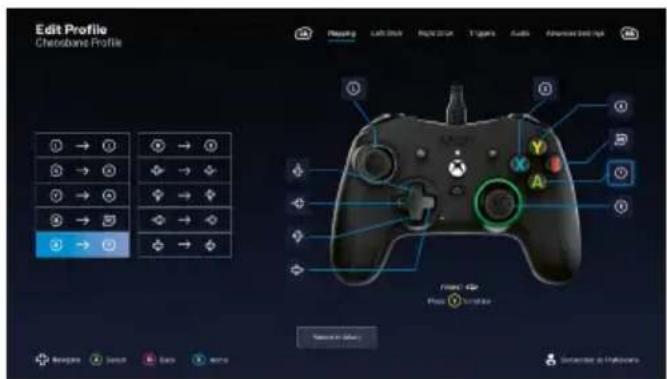
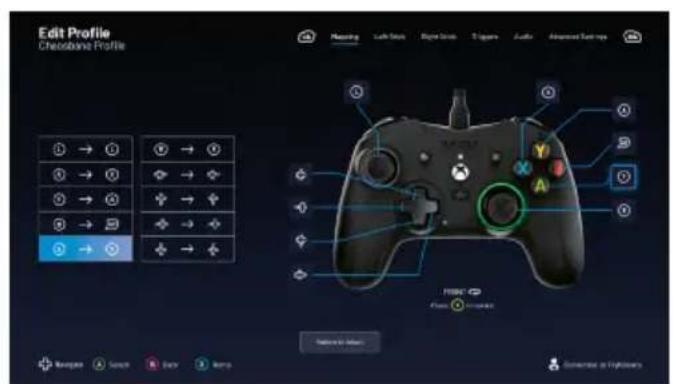
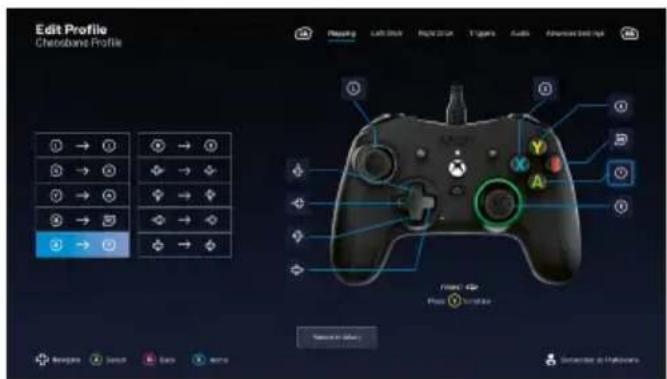
-Reassign the buttons on the controller (except for View, Menu, Xbox and Share).
-Modify the dead zones of the rear, right and left triggers.
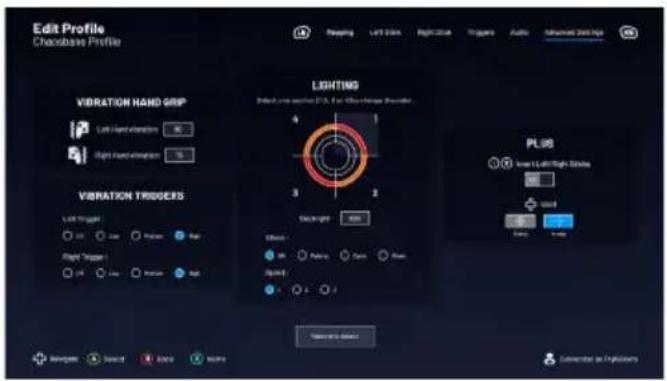
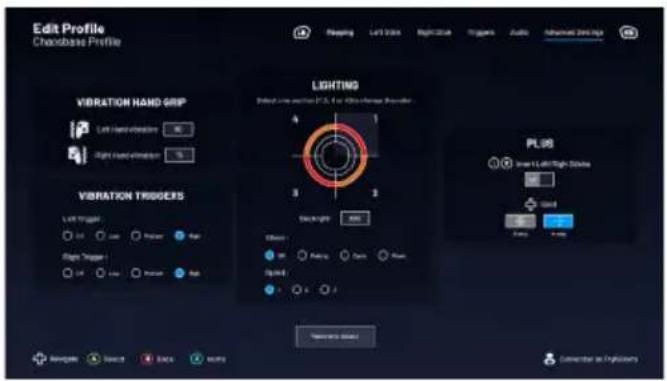
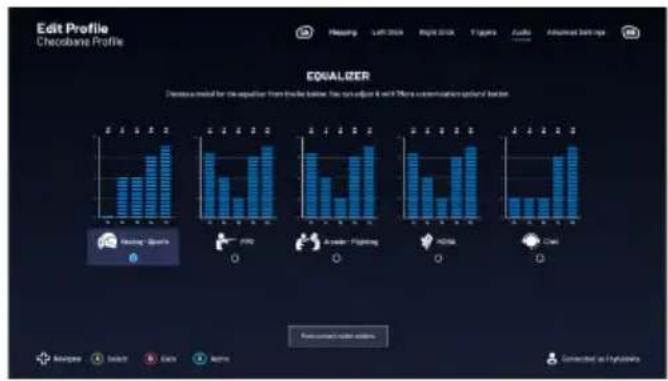
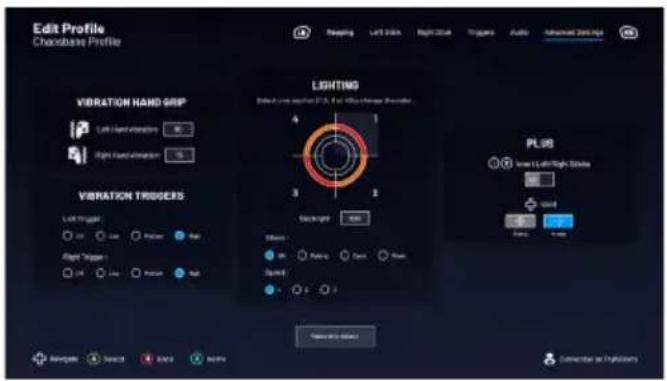
-Personalisation of the vibration levels of the controller and triggers
-Switch between an 8-way or 4-way D-pad.
-Personalise the shortcuts
-Update the Revolution X controller
How to switch from classic mode to advanced mode?
Once the Interface has been downloaded before launching it, make sure the controller is plugged into your console or personal computer.
Make sure the standard/advanced mode switch is in the Standard position
You are now ready to launch the application. Follow the on-screen instructions to customise your profile.
Once you have personalised your profile and closed the app, you can switch from one mode to the other by pushing the switch (no. 16) to the top for Xbox mode or to the bottom for Advanced mode. You can switch from one profile to another by pressing the profile button (No. 18)
Description of the application
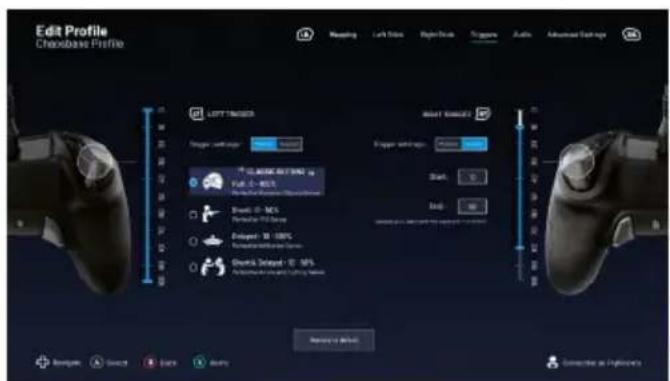
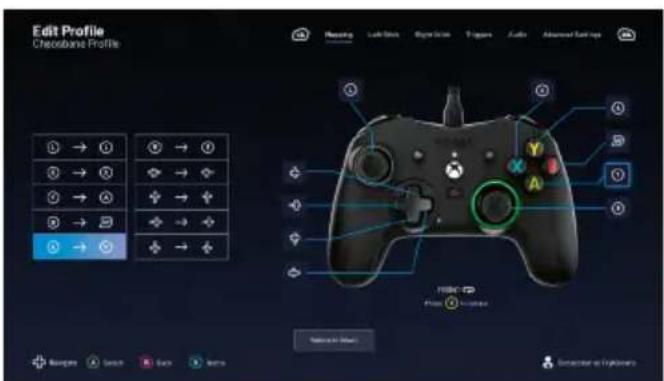
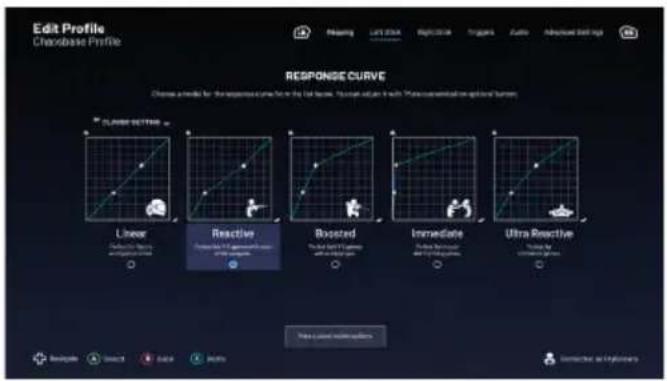
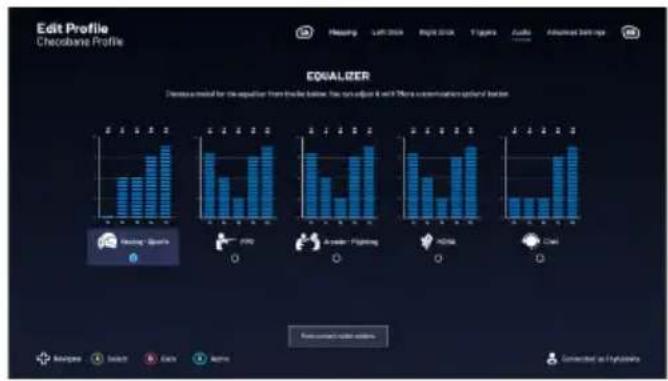
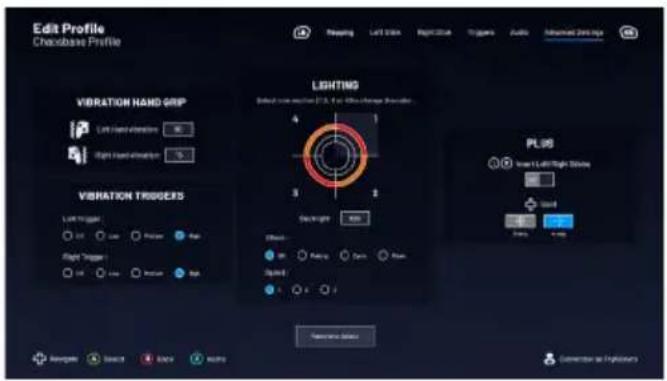
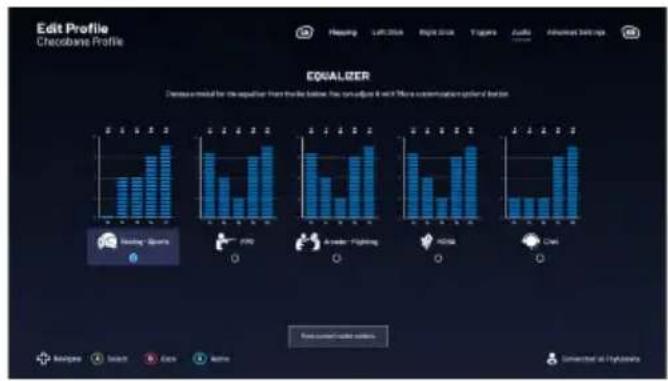
Dolby
Follow these steps to activate Dolby:
1 - Go to the Microsoft store
2 - Download the free Dolby Access application
3 - Connect your controller
The application will automatically recognise your controller and activate the Dolby feature for your headset
Recycling
When this crossed-out wheeled bin symbol is attached to a product it means that the product is covered by the European Directive 2002/96/EC. Please inform yourself about the local separate collection system for electrical and electronic products. Please act according to your local rules and do not dispose of your old products with your normal household waste. Correct disposal of your old product helps to prevent potential negative consequences for the environment and human health.

Your product is designed and manufactured with high quality materials and components, which can be recycled and reused.
I Important precautions
1/ This product is designed for indoor use only. Do not expose it to direct sunlight or bad weather.
2/ Do not expose the product to splashes, rain, drips or moisture. Do not immerse it in a liquid.
3/ Do not expose to dust, high levels of humidity, extreme temperatures or mechanical shocks.
4/ Do not use and do not open if the equipment is damaged. Do not attempt to repair it.
5/ When cleaning the outside, only use a soft, clean and damp cloth. Detergents can damage the finish and get inside the product.
6/ Do not carry the product while holding it by the cable.
7/ This product is not designed for people (including children) suffering from a physical, sensory or mental disability, or for users without the necessary and relevant experience or knowledge (unless they have been given advice and instructions on how to use the device from a person responsible for the user).
Do not leave the product unattended, do not leave this product within the reach of children. Not suitable for children under 7 (the cable can get wrapped around the neck).
8/ The maximum operating temperature must not exceed 35^ C
I Ergonomics
Keeping your hand in the same position for a prolonged period of time can result in pain. If this happens repeatedly, please consult your doctor.
As a precaution, take a 15-minute break every hour.
Technical support
UK
Email: support@nacongaming.com
Tel.: (+44)08081010970
Australia
Email: support.us@nacongaming.com
Email: support@nacongaming.com

natural_image
Abstract black and white circular logo with stylized bird or wing-like design (no text or symbols)
nacon
WWW.NACONGAMING.COM

@NaconGaming

acongaming

lon International

nacon
natural_image
Black Nacon game controller with X, Y, and A buttons, no visible text or symbols on the device itself.
REVOLUTION X
PRO CONTROLLER
DESIGNED FOR COMPETITION
PROGRAMMABLE · 3D SOUND
bar
Edit Profile
Cheobana Profile
CHANGE
Left-Box
Right-Box
Traps
Audio
Advanced 50%age
EQUALIZER
Decrease mixed for the equation from the bottom line. Has an adjust it with 2 More communication optional factor
Recurrent order options
Access
Smart
QQ
Apps
Connected as Highlighters
Dolby
natural_image
Abstract black and white circular logo with stylized bird or flame design (no text or symbols)
nacon
WWW.NACONGAMING.COM
@ nacongamingde @NaconGER NacongamingDE Nacon Deutschland

nacon
natural_image
Black Nacon game controller with X, Y, and A buttons, no visible text or symbols on the device itself.
REVOLUTION X
PRO CONTROLLER
DESIGNED FOR COMPETITION
PROGRAMMABLE · 3D SOUND
https://my.nacongaming.com/nl-NL/support
I Productspecificaties
bar
Edit Profile
Cheobana Profile
Exchange:
Search
Click
Action
Connected as FlkHzers
Dolby Atmos
1410 Waterloo, Belgium
www.nacongaming.com

natural_image
Abstract black and white circular logo with stylized bird or flame design (no text or symbols)
nacon
WWW.NACONGAMING.COM

@NaconGaming

acongaming

lon International

nacon
natural_image
Black Nacon game controller with X, Y, and A buttons, no visible text or symbols on the device itself.
REVOLUTION X
PRO CONTROLLER
DESIGNED FOR COMPETITION
PROGRAMMABLE · 3D SOUND
Dolby
natural_image
Abstract black and white circular logo with stylized bird or wing-like design (no text or symbols)
nacon
WWW.NACONGAMING.COM

@NacongamingES
NacongamingES
■acon España

nacon
natural_image
Black Nacon game controller with X, Y, and A buttons, no visible text or symbols on the device itself.
REVOLUTION X
PRO CONTROLLER
DESIGNED FOR COMPETITION
PROGRAMMABLE · 3D SOUND
1 Dolby
natural_image
Abstract black and white circular logo with stylized bird or wing-like design (no text or symbols)
nacon
WWW.NACONGAMING.COM
nacongamingit
NacongamingIt
■acon Italia