HmIPWKP - Keyboard Homematic IP - Free user manual and instructions
Find the device manual for free HmIPWKP Homematic IP in PDF.
User questions about HmIPWKP Homematic IP
0 question about this device. Answer the ones you know or ask your own.
Ask a new question about this device
Download the instructions for your Keyboard in PDF format for free! Find your manual HmIPWKP - Homematic IP and take your electronic device back in hand. On this page are published all the documents necessary for the use of your device. HmIPWKP by Homematic IP.
USER MANUAL HmIPWKP Homematic IP
- 8 Restoring factory settings p. 35
- 9 Maintenance and cleaning p. 35
- 10 General information about radio operation p. 36
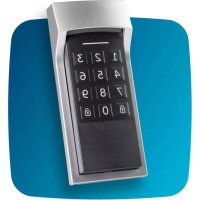
- 11 Technical specifications Information about this manual 1 Information about this manual Please read this manual carefully before beginning operation with your Homematic IP device. Keep the manual so you can refer to it at a later date if you need to. If you hand over the device to other persons for use, please hand over this manual as well. Symbols used: Attention! This indicates a hazard. Note. This section contains important additional information. 2 Hazard information Do not open the device. It does not contain any parts that can be maintained by the user. If you have any doubts, have the device checked by an expert. For safety and licensing reasons (CE), unauthorized changes and/or modifications of the device is not permitted. Do not use the device if there are signs of damage to the housing, control elements or connecting sockets, for example. If you have any doubts, have the device checked by an expert. The device is not a toy: do not allow children to play with it. Do not leave packaging material lying around. Plastic films/bags, pieces of polystyrene, etc. can be dangerous in the hands of a child. We accept no liability for damage to property or personal injury caused by improper use or the failure to observe the hazard warn- ings. In such cases, all warranty claims are void. We accept no liabil- ity for any consequential damage.26 Function and device overview The device must only be operated in locations where it is protected from the eects of weather. The device must be protected from the eects of vibrations, solar or other methods of heat radiation, and mechanical loads. The device may only be operated within residential buildings. Using the device for any purpose other than that described in this operating manual does not fall within the scope of intended use and will invalidate any warranty or liability. 3 Function and device overview With the Homematic IP Keypad, combined with your Homematic IP door lock actuator, you can give up to eight family members, friends, etc. ac- cess to your smart home. The door can be opened, locked or unlocked by entering a PIN. In addition, other Homematic IP components can be used to create versatile coming/leaving home scenarios (e.g. switching on the hallway lighting). You can configure the door and display its current status via the free Homematic IP app. Wireless communication and battery operation mean the keypad can be installed anywhere. A mains connection near the door is not necessary. You can use the enclosed screws and wall plugs for installation at your chosen location. The integrated proximity sensor gives you additional convenience. Thanks to the integrated illumination, you can always make out the keys on your keypad even in dim outdoor lighting. Device overview (see figures 1 and 2): (A) Wall bracket (B) Keypad27 General system information (C) Keypad panel with keys 0-9 (D) “Lock” button (E) “Unlock” button (F) Proximity sensor (G) Device LED (H) System button (pairing button) (I) Tamper contact (J) Battery compartment (and cover) (K) Drainage hole (L) Screw holes (M) Latch 4 General system information This device is part of the Homematic IP smart home system and works with the Homematic IP protocol. All devices of the system can be con- figured comfortably and individually with the user interface of the Central Control Unit CCU3 or flexibly via the Homematic IP smartphone app in connection with the Homematic IP cloud. All available functions provided by the system in combination with other components are described in the Homematic IP Wired Installation Guide. All current technical documents and updates are provided at www.homematic-ip.com. 5 Operation p. 3625
Please read this entire section before starting the pairing proce- dure. You can connect the device either to the Access Point or to the Homematic Central Control Unit CCU3. For detailed information about pairing or configuration via a control unit, please refer to the Homematic IP User Guide, available for download in the download area of www.homematic-ip.com.28 Operation First set up your Homematic IP Access Point via the Homematic IP app to enable operation of other Homematic IP devices within your system. For further information, please refer to the operating manu- al of the Access Point. To integrate the Homematic IP Keypad into your system and enable it to communicate with other Homematic IP devices, you must first add the device to your Homematic IP Access Point. To add the Keypad, please proceed as follows:
- Open the Homematic IP app on your smartphone.
- Select the menu item “Add device”.
- Remove the Keypad (B) from the wall bracket (A), by inserting a thin object into the hole on the bottom of the wall bracket (A) and releasing the latch (M) (see figure 3).
- Open the Keypad’s rear battery compartment (J) by loosening the screw on the battery compartment cover (see figure 4).
- Pull the insulating strip out of the battery compartment of the Keypad (first start-up). As soon as the insulating strip has been pulled out, the device sends a tamper message, and the device LED (G) flashes red six times (see „7.5 Error codes and flashing sequences“ on page 33).
- The pairing mode is active for 3 minutes. You can start the pairing mode manually for another 3 minutes by briefly pressing the system button (H).
- Close the battery compartment (J) and tighten the screw on the battery compartment cover again.
- The device automatically appears in the Homematic IP app (see figure 6).
- To confirm, enter the last four digits of the device number (SG-29 Operation TIN) in the app or scan the QR code. The device number can be found on the sticker supplied or attached to the device.
- Please wait until pairing is completed.
- If pairing was successful, the device LED (G) lights up green. The device is now ready for use (see figure 6). If the device LED lights up red, please try again.
- In the app, give the device a name and allocate it to a room.
- Set up access using the free Homematic IP app.
- Only insert the Keypad into the wall bracket after installation.
The Keypad housing has a drainage hole (K). Open it with a sharp tool if necessary. Please read this entire section before starting the installation.
5.3 Installing the wall bracket
When selecting a mounting location and drilling in the vicinity of switches or socket outlets, check for electrical wires and power supply cables. The mounting location should be protected from the weather and not exposed to direct sunlight or other sources of heat radiation. To install the wall bracket (A), proceed as follows:
- Choose a suitable site for installation.
- Remove the keypad (B) from the wall bracket (A), by inserting a thin object into the hole on the bottom of the wall bracket and releasing the latch (M) (see figure 3).30 Operation If you have already paired the unit, you will receive a tamper mes- sage within the app. You can only acknowledge this after the instal- lation has been completed and the Keypad has been reinserted.
- Position the wall bracket (A) with the bevelled surface facing up- wards at a suitable place on the wall and mark the drill holes (see figure 7).
- Drill the pre-marked holes with a diameter of 5 mm and a depth of 35 mm. If you are working with a stone wall, use a 5 mm drill bit for the wall plugs supplied. If you are working with wooden walls, you can use a
1.5 mm drill bit to make it easier to screw in the screws.
When selecting a mounting location and drilling in the vicinity of switches or socket outlets, check for electrical wires and power supply cables.
- Mount the wall bracket using the wall plugs and screws provided (see figure 8).
- Insert the Keypad (B) back in the wall bracket (A). A latching sound indicates whether the keypad has been inserted correctly (see figure 8). If you have already paired the device, you can now acknowledge the tamper message in your app.
After you have paired the Homematic IP Keypad to the Access Point and set it up via the app (see „5.1 Pairing“ on page 27), you can conveniently control the access function in combination with the Homematic IP door lock drive. To do this, enter your PIN on the Keypad (C) and select the desired action by pressing the “Lock” (D) or “Unlock” (E). Depending on the selected function, the Homematic IP Door lock drive reacts and locks or unlocks the front door.31 Changing the batteries
5.5 Keypad illumination
Directly above the Keypad panel (C) is the slightly bevelled surface of the proximity sensor (F). When your hand approaches the Keypad, the inte- grated proximity sensor reacts, and the Keypad illumination is switched on. This means you can always make out the keypad panel of your Key- pad even in dim outdoor lighting. 6 Changing the batteries If the battery symbol is displayed via the app or an empty battery is in- dicated on the device (see „7.5 Error codes and flashing sequences“ on page 33), replace the two used batteries with two new LR03/Micro/ AAA batteries. Take care to observe the correct battery polarity. To replace the Keypad batteries, please proceed as follows:
- Remove the Keypad (B) from the wall bracket (A), by inserting a thin object into the hole on the bottom of the wall bracket and releasing the latch (M) (see figure 3). You will now receive a tamper message in your app. This can only be acknowledged when the Keypad has been reinserted in the wall bracket after replacing the batteries.
- Open the rear battery compartment (J) of the Keypad (B) , by loos- ening the screw of the battery compartment cover (see figure 4).
- Remove the used batteries.
- Insert two new 1.5 V LR03/micro/batteries into the battery com
partment, making sure that you do so with the correct polarity (see figure 5).
- Close the battery compartment and tighten the screw on the bat
tery compartment cover again.
- Insert the Keypad back in the wall bracket (A). You can now acknowledge the tamper message in your app.32 Troubleshooting Used batteries should not be disposed of with regular domestic waste! Instead, take them to your local battery disposal point. Caution! There is a risk of explosion if the batteries are not replaced correctly. Replace only with the same or equivalent type. Never re- charge non-rechargeable batteries. Do not throw the batteries into a fire. Do not expose batteries to excessive heat. Do not short-cir- cuit batteries. Doing so will present a risk of explosion. 7 Troubleshooting
Provided that the voltage value permits it, the Keyp ad will remain ready for operation even if the battery voltage is low. Depending on the load, it may be possible to transmit several times again once the batteries have been allowed a brief recovery period. If the battery voltage is too low, this will be displayed in the Homematic IP app and directly on the device via the LED (G) . In this case, replace the used batteries with new ones (see „6 Changing the batteries“ on page 31).
pin entry You define in the Homematic IP app how often a PIN code can be entered incorrectly before the Keypad is locked. Once the Keypad is locked, you can only reactivate it via the app. There is also a factory-set o time for re-entering the PIN code. After the second incorrect entry, this o time is automatically increased by 15 (30, 60, 120) seconds.
7.3 Command not confirmed
If at least one receiver does not confirm a command, the device LED (G) lights up red at the end of the failed transmission process (depending on the cause, the LED may light up with a delay of up to 10 sec) . The failed transmission may be caused by radio interference (see „10 General infor
mation about radio operation“ on page 36). This may be caused by the following:33 Troubleshooting
- Receiver cannot be reached.
- Receiver is unable to execute the command (load failure, me- chanical blockade, etc.).
The duty cycle is a legally regulated limit of the transmission time of de- vices in the 868 MHz range. The aim of this regulation is to safeguard the operation of all devices working in the 868 MHz range. In the 868 MHz frequency range we use, the maximum transmission time of any device is 1% of an hour (i.e. 36 seconds in an hour). Devices must cease transmission when they reach the 1% limit until this time restriction comes to an end. Homematic IP devices are designed and produced with 100% conformity to this regulation. During normal operation, the duty cycle is not usually reached. How- ever, repeated and radio-intensive pairing processes mean that it may be reached in isolated instances during start-up or initial installation of a system. If the duty cycle limit is exceeded, this is indicated by the LED (G) emitting a long red flash, and the device may temporarily not function. The device will start working correctly again after a short period (max. 1 hour).
7.5 Error codes and flashing sequences
Flashing code Meaning Solution Rapid orange flashing Radio transmission/ configuration data is transmitted Wait until the transmission is completed. 1x long green flash Transmission con- firmed You can continue opera- tion. Slow orange flash- ing followed by long red flash Transmission failed Try again (see „7.3 Com- mand not confirmed“ on page 32).34 Troubleshooting 1x long red flash PIN incorrect or not authorised at the cur- rent time
Entry temporarily or permanently locked
Duty cycle Re-enter the PIN to check its correctness or whether you are authorised at the current time
Temporary or permanent lock after incorrect entry; reset the permanent lock in the app
Pairing mode active Enter the last four numbers of the device serial number to confirm (see „5.1 Pairing“ on page 27). Short orange light- ing (after green or red confirmation) Battery empty Replace the batteries (see „6 Changing the batteries“ on page 31) 1x orange and 1x green flash (after inserting batteries) Test display You can continue once the test display has stopped. Long and short orange flashing (alternating) Software update (OTAU) Wait until the update is completed. 6x short red flash- ing of the device LED (G) Tamper message Insert the Keypad (B) into the mounting plate (A) and acknowledge the tamper message in your app.35 Restoring factory settings 8 Restoring factory settings The device’s factory settings can be restored. If you do this, you will lose all your settings. To restore the Keypad’s factory settings, proceed as follows:
- Remove the Keypad (B) from the wall bracket (A), by inserting a thin object into the hole on the bottom of the wall bracket and releasing the latch (M) (see figure 3).
- Open the Keypad’s rear battery compartment (J) by loosening the screw on the battery compartment cover (see figure 4).
- Insert the battery with the correct polarity and press and simulta- neously hold down the system button (H) for 4 seconds, until the LED (G) starts rapidly flashing orange (see figure 9).
- Release the system button.
- Press and hold down the system button again for 4 seconds, until the LED lights up green (see figure 10).
EasyManual