
DigiFrame 7 Motion - Digital photo frame BRAUN - Free user manual and instructions
Find the device manual for free DigiFrame 7 Motion BRAUN in PDF.
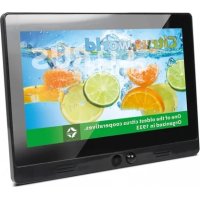



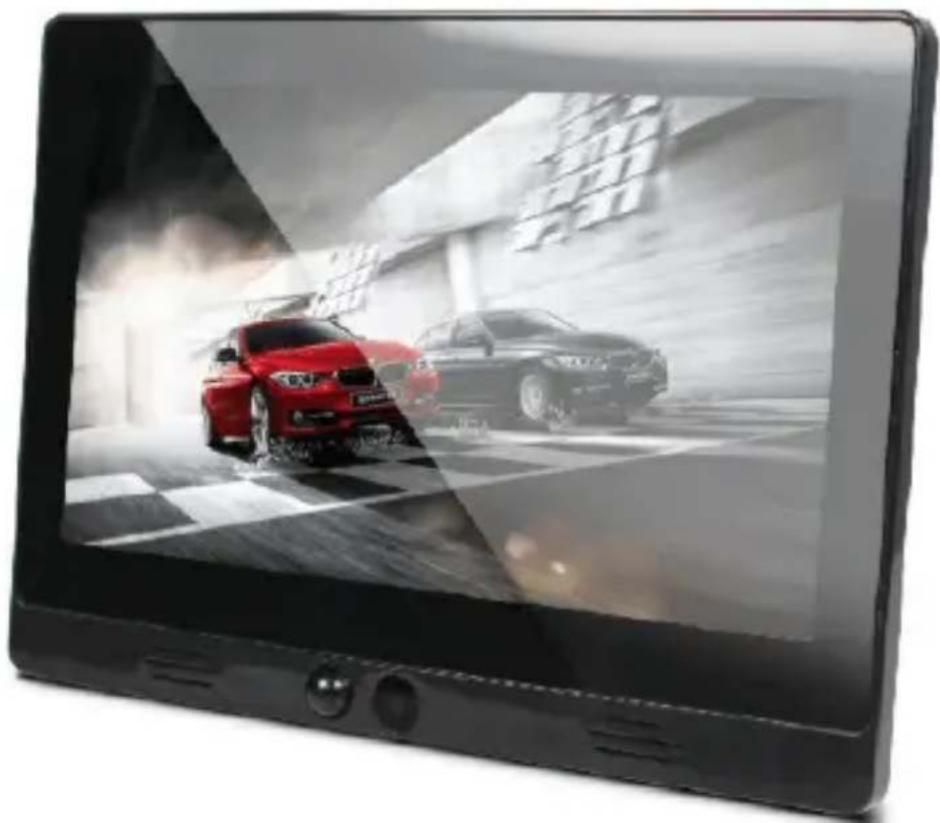
| Product type | Digital photo frame |
| Brand | BRAUN |
| Model | DigiFrame 7 Motion |
| Screen size | 7 inches (17.8 cm diagonal) |
| Supported image formats | JPEG, BMP, PNG |
| Supported audio formats | MP3, AAC |
| Supported video formats | MPEG1, MPEG2, MPEG4, H.264, Motion-JPEG, RM, RMVB, MOV, DivX |
| Storage media | SD/SDHC/MMC card, USB flash drive (USB 2.0) |
| HDMI input | Yes |
| Built-in speakers | 2 x 1 W (stereo) |
| Headphone jack | Yes |
| Remote control | Yes (CR2025 battery included) |
| Power supply | AC adapter (included) |
| Main functions | Automatic slideshow, clock, calendar, brightness/contrast/saturation adjustments, adjustable slideshow speed, USB to SD card copy, on/off timer |
| OSD languages | English, German and others |
| Display mode | Fitted, panorama, automatic |
| Safety | Indoor use only; do not expose to moisture; do not block ventilation slots |
| Care and cleaning | Soft cloth (lens type) with screen cleaner; do not apply liquid directly |
| Package contents | Photo frame, power adapter, remote control, stand, user manual |
Frequently Asked Questions - DigiFrame 7 Motion BRAUN
User questions about DigiFrame 7 Motion BRAUN
0 question about this device. Answer the ones you know or ask your own.
Ask a new question about this device
Download the instructions for your Digital photo frame in PDF format for free! Find your manual DigiFrame 7 Motion - BRAUN and take your electronic device back in hand. On this page are published all the documents necessary for the use of your device. DigiFrame 7 Motion by BRAUN.
USER MANUAL DigiFrame 7 Motion BRAUN
DigiFrame 7 Motion & DigiFrame 10.1 Motion
DEENESFRITPLRO


Safety instructions
Precautions and maintenance
- For indoor use only.
- Do not expose the unit to moisture or condensation to avoid the risk of fire or electric shock.
- Do not block the ventilation holes on the rear of the digital photo frame to avoid overheating.
- Keep the digital photo frame out of direct sunlight.
- Do not disassemble the digital photo frame. Disassembling the digital photo frame will void your warranty.
Cleaning the LCD screen
- Treat the screen carefully. The screen of the digital photo frame is made of glass and it can easily break or be scratched.
- If fingerprints or dust accumulate on the LCD screen, we recommend using a soft cloth, such as used for camera lenses, to clean the screen.
- Moisten the cleaning cloth with the cleaning solution; do not apply cleaning agent directly on the screen.
Warning
Switch the unit off before inserting or removing a memory card or USB device. Failure to do so may cause damage to the memory card, USB device and the unit.
To reduce the risk of fire or electric shock, do not expose this appliance to rain or moisture.
Note: This device is for private use only and not designed for commercial use.
Introduction
Thank you for purchasing this digital photo frame. It is designed to allow quick and easy viewing of photos taken from your digital camera, mobile phone, or from a memory storage card. Please read this user manual carefully to learn the correct way to use this digital photo frame.
Features
- Supports picture formats: JPEG / BMP / PNG
- Supports audio formats: MP3, AAC
- Supports video formats: MPEG1, MPEG2, MPEG4, H.264, Motion-JPEG, RM, RMVB, MOV, DivX
- Supports memory cards: SD/SDHC/MMC
- USB connection: USB 2.0
- Supports HDMI In
- Auto slide-show when inserting memory card or USB drive
- Picture & music: slide-show pictures with background music
- Picture display mode: slide-show, preview, zoom, rotate
- Adjustable slide-show speed
- Built-in clock and calendar with slide-show window, scheduled auto on/off
- Adjustable brightness, contrast, saturation
- Built-in stereo speakers (2 x 1W) and earphone jack
- OSD language: English, German and others
Packaging Check List:
- 7" / 10.1" digital photo frame 1 piece
- user manual 1 piece
- AC adapter 1 piece
- remote control 1 piece
- stand 1 piece
CONTENTS
- Product Overview.... 14
- Remote Control 15 2.1 Installing and replacing the battery.... 16
- Getting started.... 16
- Operating Instructions.... 16
- Photo mode.... 17
- Music mode.... 17
- Video mode.... 18
- Clock.... 18
- Calendar.... 19
- Setting.... 19
1. Product overview
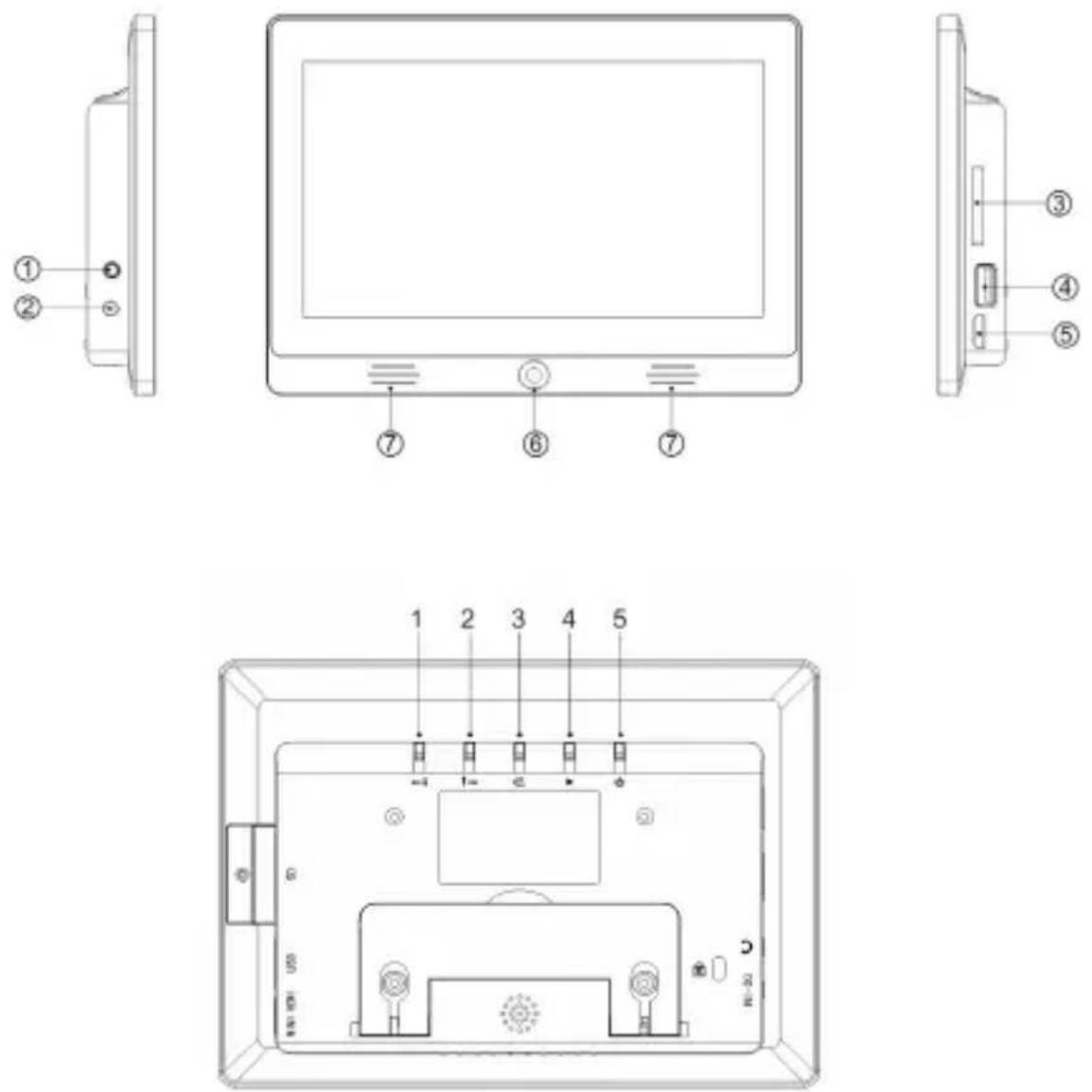
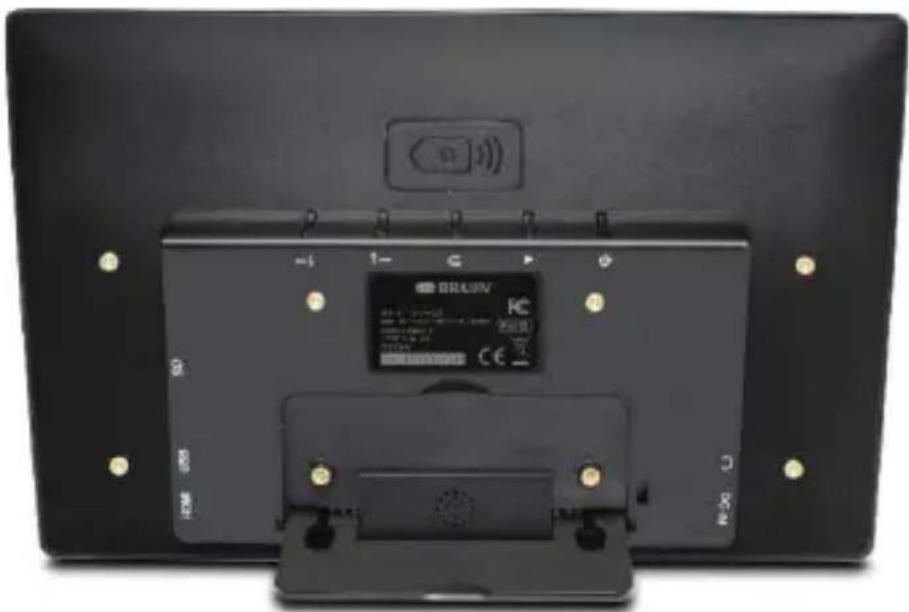
1 EARPHONE JACK 1 RIGHT / DOWN 2 DC IN POWER 2 LEFT / UP 3 SD/MMC CARD SLOT 3 RETURN 4 USB PORT 4 PLAY 5 HDMI 5 POWER 6 RECEIVING WINDOW OF REMOTE CONTROL 7 SPEAKER
2. Remote Control

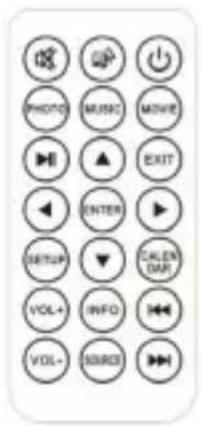
: Power unit on/off.

Play photo slideshow with background music.

Mute sound temporarily.

Play photo slideshow.

Play music.

Play video.

Pause or continue playing media.

Return to the previous menu.
▼▲◀▶: Move cursor up/down/left/right.

Confirm selection or toggle pause/play function in playback mode.

Enter setup menu.

Display date and time.
: Turn volume up/down.

Information display.

Choose input source (HDMI or Digital Photo Frame).

: Move back to previous file in playback mode/Move forward to next file in playback mode.
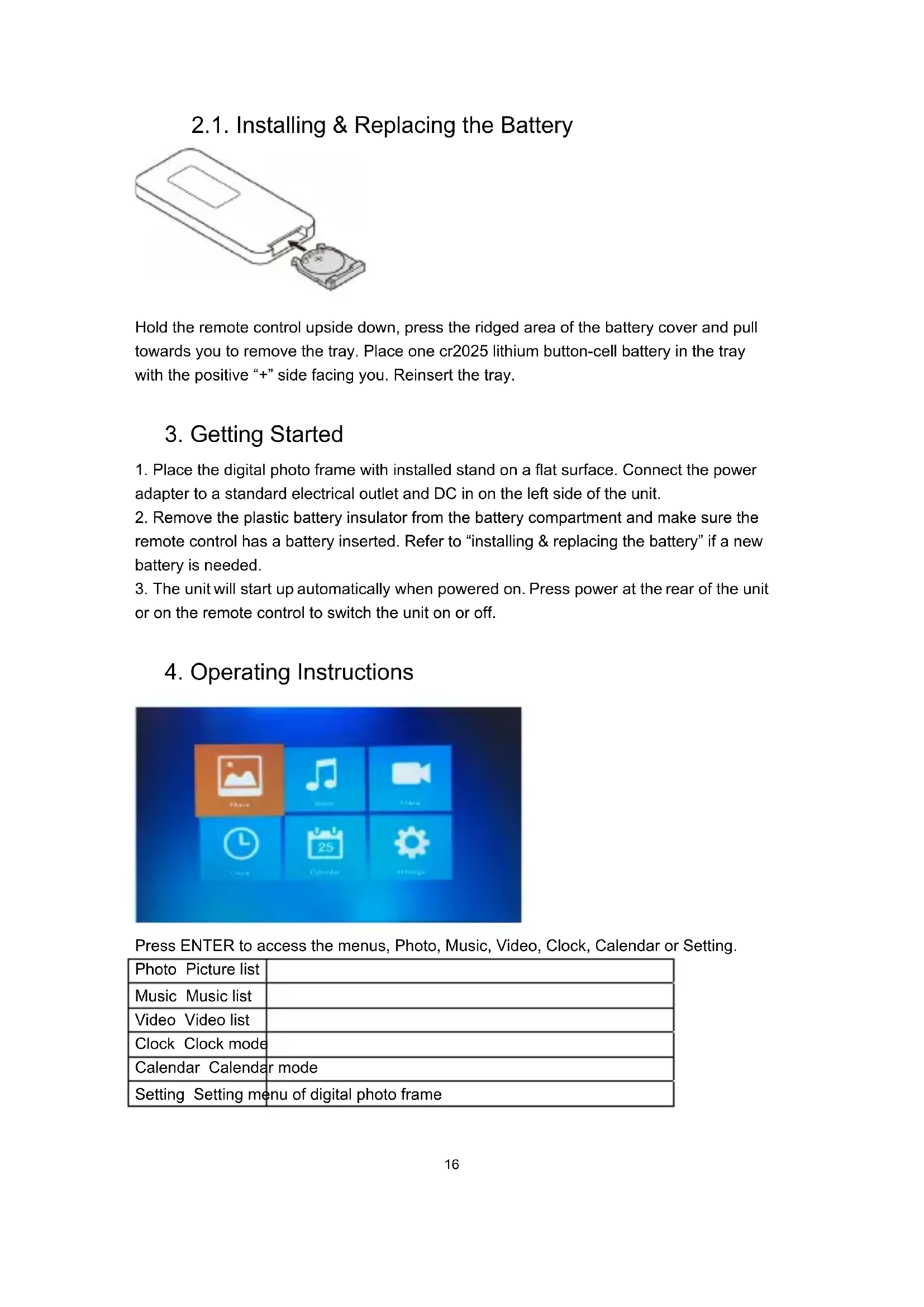
2.1. Installing & Replacing the Battery
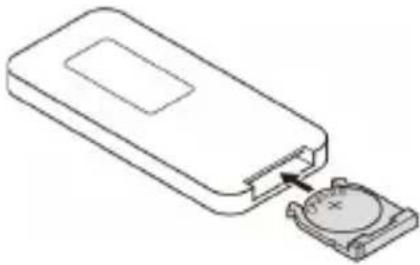
Hold the remote control upside down, press the ridged area of the battery cover and pull towards you to remove the tray. Place one CR2025 lithium button-cell battery in the tray with the positive "+" side facing you. Reinsert the tray.
3. Getting Started
- Place the digital photo frame with installed stand on a flat surface. Connect the power adapter to a standard electrical outlet and DC in on the left side of the unit.
- Remove the plastic battery insulator from the battery compartment and make sure the remote control has a battery inserted. Refer to "Installing & Replacing the Battery" if a new battery is needed.
- The unit will start up automatically when powered on. Press power at the rear of the unit or on the remote control to switch the unit on or off.
4. Operating Instructions
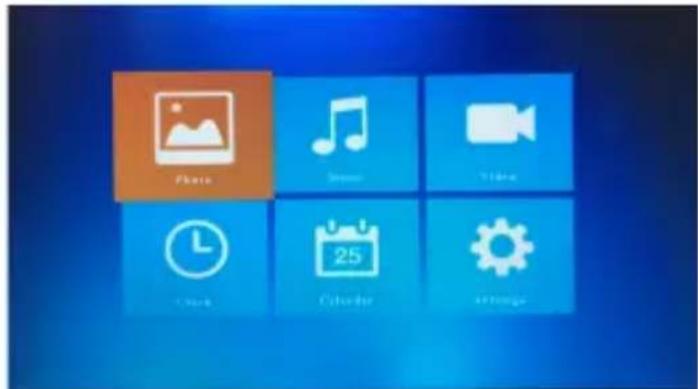
Press ENTER to access the menus: Photo, Music, Video, Clock, Calendar, or Setting.
| Photo Picture list | |
| Music Music list | |
| Video Video list | |
| Clock Clock mode | |
| Calendar Calendar mode | |
| Setting Setting menu of digital photo frame | |
5. Photo Mode
- Select PHOTO and press ENTER to start picture list or press PHOTO on remote control to start slideshow directly.
- Select memory device from USB or SD Card.
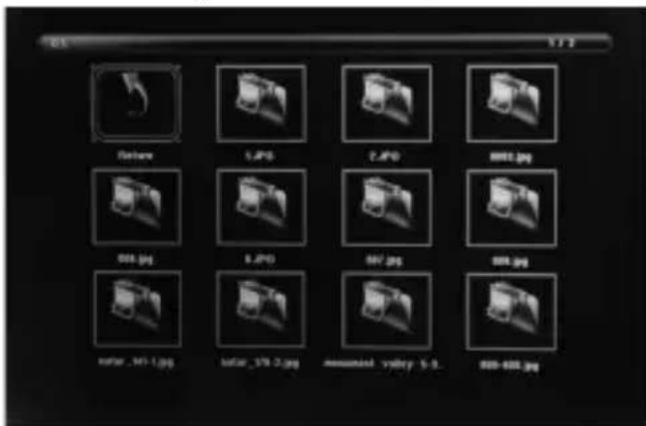
- Select the photo for full screen display with ▼▲◀▶.
- To play a photo slideshow with background music, press the button on the remote control. The photos will then be displayed in sequence.
6. Music Mode
- Select MUSIC and press ENTER to start the music list, or press MUSIC on the remote control to start the slideshow directly.
- Select the memory device from USB or SD Card.
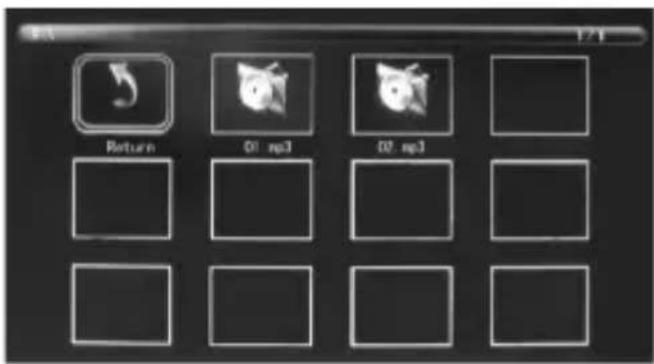
- Select the music in the playlist and press ENTER to start or pause playback. Adjust the
volume by pressing the volume buttons. Press the previous/next buttons to play the previous or next music.
7. Video Mode
- Select VIDEO and press ENTER to start the video list, or press MOVIE on the remote control to start video playback directly.
- Select the memory device from USB or SD Card.
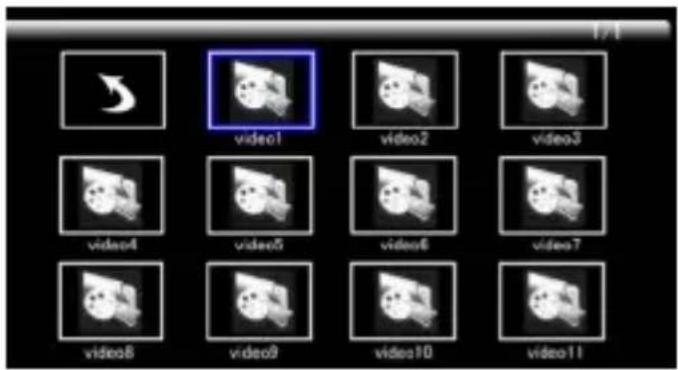
- Select the video in the playlist, then press ENTER to start playback in full screen.
- In video playback mode, press the pause button to pause, and press the play button again to continue
playing. Press the previous/next buttons to play the previous or next video. Adjust the volume by pressing VOL+ or VOL-.
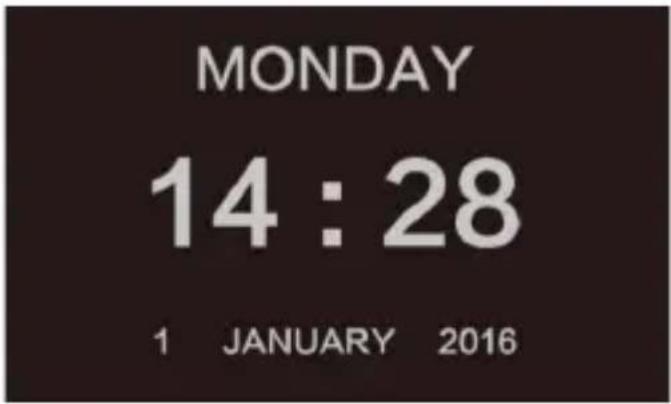
8. Clock
Select CLOCK and press ENTER to enter.
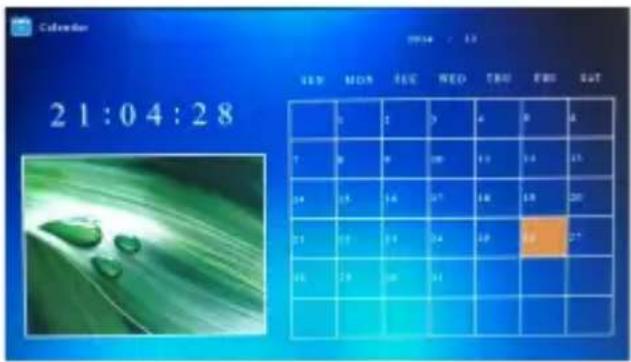
9. Calendar
Select CALENDAR and press ENTER or press CALENDAR on remote control to enter.
10. Setting
Select SETTINGS and press ENTER to enter.
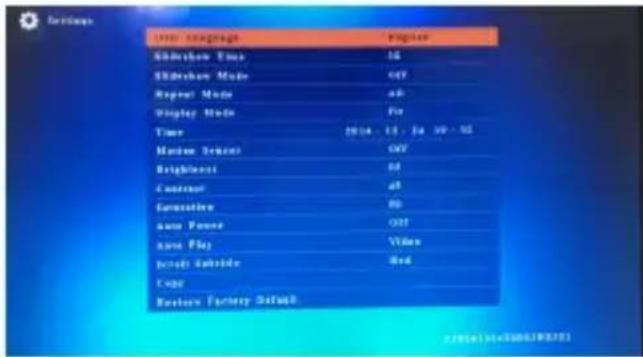
- Press ▲▼ to highlight the menu item.
- Press ◀▶ to change the value and press ▲▼ to confirm.
Note: after setting a menu item and accessing the next item, the set value will automatically be saved.
| OSD Language Setup of OSD Language | |
| Slideshow Time | Select slideshow time from 3 seconds/5 seconds/10 seconds/30 seconds/60 seconds |
| Slideshow Mode Select from slideshow On/Off | |
| Repeat Mode Select from Off/All/One | |
| Display Mode Select from Fit/Panorama/Auto | |
| Time Set up Date/Month/Year/Hour/Minute/Sec | |
| Brightness Set up brightness from 0 to 100 | |
| Contrast Set up contrast from 0 to 100 | |
| Saturation Set up saturation from 0 to 100 | |
| Auto Power Set up | power on and power off time |
| Auto Play Select from Photo/Music/Video/Photo+Music/Off | |
| Scroll Subtitle Set up color of subtitle. | |
| Copy Auto Copy from USB to SD card | |
| Restore Factory Default | Reset to default factory settings |
Press ENTER to access the Photo, Music, Video, Clock, Calendar or Setting menus.


- DIGIFRAME 7 MOTION & DIGIFRAME 10.1 MOTION
- SAFETY INSTRUCTIONS
- PRECAUTIONS AND MAINTENANCE
- CLEANING THE LCD SCREEN
- WARNING
- INTRODUCTION
- FEATURES
- PACKAGING CHECK LIST
- CONTENTS
- PRODUCT OVERVIEW
- REMOTE CONTROL
- INSTALLING & REPLACING THE BATTERY
- GETTING STARTED
- OPERATING INSTRUCTIONS
- PHOTO MODE
- MUSIC MODE
- VIDEO MODE
- CLOCK
- CALENDAR
- SETTING
Brand : BRAUN
Model : DigiFrame 7 Motion
Category : Digital photo frame