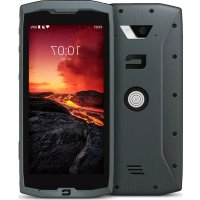
CoreM4 Go - Smartphone CROSSCALL - Free user manual and instructions
Find the device manual for free CoreM4 Go CROSSCALL in PDF.


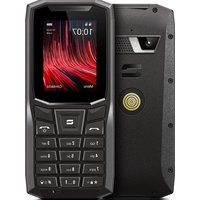
| Product type | Smartphone |
| Brand | CROSSCALL |
| Model | Core-M4 Go |
| Protection rating | IP68 (immersion up to 2 meters, 30 minutes) |
| Drop resistance | Up to 2 meters on 6 sides |
| Military standard | MIL-STD-810G (13 tests) |
| Screen | Wet Touch technology, Gorilla Glass 3 |
| Rear camera | 12 MP |
| Front camera | 2 MP |
| Battery | 3000 mAh, standby time 426 h, talk time 36 h, GPS 6 h 30 |
| Charging | USB-C, magnetic X-LINK (1A) |
| Connectivity | 4G, Bluetooth 4.2, Wi-Fi a/b/g/n/ac, GPS |
| Sensors | Magnetometer, accelerometer, proximity, light |
| Programmable keys | 2 customizable keys (default: photo and X-SAFE) |
| Expandable storage | MicroSD up to 256 GB |
| Dual SIM | Yes (nano-SIM) |
| Head SAR | 0.72 W/kg |
| Body SAR | 1.32 W/kg |
| Limb SAR | 2.55 W/kg |
| Warranty | 36 months |
| Spare parts availability | 3 years after purchase |
| Cleaning | Soft cloth, rinse with fresh water after saltwater immersion |
| Operating temperature | -25 °C to 51 °C |
Frequently Asked Questions - CoreM4 Go CROSSCALL
User questions about CoreM4 Go CROSSCALL
0 question about this device. Answer the ones you know or ask your own.
Ask a new question about this device
Download the instructions for your Smartphone in PDF format for free! Find your manual CoreM4 Go - CROSSCALL and take your electronic device back in hand. On this page are published all the documents necessary for the use of your device. CoreM4 Go by CROSSCALL.
USER MANUAL CoreM4 Go CROSSCALL
CORE-M4 GO
TABLE DES MATIÈRES
LES AVANTAGES DU CORE-M4 GO
Protection auditive.... 30
ACCESSOIRES
* Technologie Magconn
** Lanière non incluse

*Technologie Magconn
L'APPLICATION X-SENSORS
ÉTAPE 1: PARAMÈTRES X-SAFE
- Ouvrez l'application X-SAFE
ICÔNES D'APPLICATIONS
CONDITIONS DE GARANTIE
Long-lasting battery.... 39
Accessories 40
MIL-STD-810G certified 40
ABOUT YOUR PHONE
Device overview 41
GETTING STARTED
Installing the SIM card.... 42
Switching the phone on and off 42-43
THE STRENGTHS OF THE CORE-M4 GO
X-LINKTM* 43
The X-BLOCKER attachment system 43
X-SENSORS application 44
Programmable keys 44
X-SAFE 44-48
Advice for using your CORE-M4 GO under water.... 48
Touch-lock function 48
Advice: after immersion 48
Tips for getting the most out of your CORE-M4 GO 48
Removing open apps in one click 48
Configuring multiple languages.... 48
Battery 48-50
Charging the battery 49
Power saving mode.... 49
Battery saver mode.... 50
Tips and precautions for charging your battery 50
GETTING TO GRIPS WITH YOUR PHONE
How to use the touch screen 52
Notification panel 53-54
Locking and unlocking the screen 54
Customising the home screen 54
Changing the date and time 55
Device and data management 55
USING YOUR PHONE
Home screen....55
Status bar....55
Widgets 56
Application icons 56
Phone 56
Contacts 56-57
Messages.... 57-58
*Magconn Technology
Camera....58
Gallery 58-59
Calculator 59
Audio 59
Browser 59
E-mail 60
System updates 60
SAFETY MEASURES
General safety information 60-62
Information on water resistance.... 62
Medical devices 62-63
Road safety 63
Power and charging.... 63-64
Protecting your hearing.... 64-65
Environmental protection 65
Cleaning and maintenance 65
Emergency calls 65-66
Recommendations to reduce the user's exposure to radiation.... 66
FURTHER INFORMATION
Compliance 66
Frequency bands and power 67
Accessories and software information.... 68
Specific absorption rate (SAR) 68
Copyright 69
APPENDIX
Important information....69
Warranty 69-70
The user guide is here to help you get to grips with your new device.
THE BEST BITS OF THE CORE-M4 GO

WATERPROOF
Rated IP68, the CORE-M4 GO accompanies you during all your activities, whether at sea (it can withstand immersion over 30 minutes at a depth of 2 meters), or in the mountains in heavy rain (it always stays fully functional thanks to its screen equipped with Wet Touch technology).

TOUGH
The CORE-M4 GO has TPU (Thermoplastic polyurethane) protection around its casing, giving it enhanced shock absorption. Polycarbonate edging on the sides of the screen and the camera provide optimal protection, and its Gorilla® Glass 3 screen means the screen on the CORE-M4 GO can withstand being dropped (Drop Test 2 meters on 6 sides) and is scratch-resistant (Scratch Test in extreme conditions of use).
LONG-LASTING BATTERY
Its 3000 mAh battery means the phone has a battery life of several days, so you can always rely on your mobile. Even during intensive use (GPS, photos, etc.), you can enjoy your outdoor activities for longer without worrying about the battery running out. Thanks to its X-LINK™* magnetic connector, it can be charged wirelessly, without the need for any cables.
*Magconn Technology


ACCESSORIES
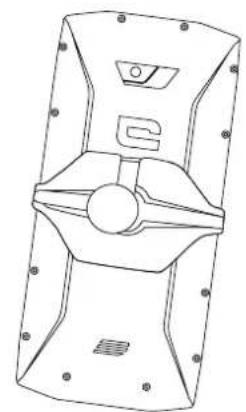
The X-BLOCKER slots are directly integrated into the phone's design so it can connect with the X-LINK™* accessory ecosystem (a magnetic connector used to attach the CORE-M4 GO to various accessories, some of which even provide charging or data transfer). The X-BLOCKER is a unique feature that ensures your smartphone is securely attached, to prevent it dropping or falling during use, even on the most rugged terrain (quad bike, crosscycle, skiing, etc.). All these accessories open the way to a raft of new options!
THE CORE-M4 GO IS MIL-STD-810G CERTIFIED
The MIL-STD-810G military standard was created by the US army to reproduce the conditions of electronic devices used in the field under extreme conditions. The CORE-M4 GO has been laboratory tested to withstand hostile and demanding outdoor environments. It underwent the following 13 tests: Rapid Decompression from 12 192m altitude to 2 438m in less than 15 sec, extreme high and low temperatures operational (from -25°C/-13°F up to 51°C/124°F), temperature shock, icing and freezing rain, humidity, solar radiation (UV), rain, salt fog, fluid contamination, vibration, shock and high acceleration. The CORE-M4 GO is suitable for all the most demanding situations: parachute jumps, paragliding, aviation, extreme kayaking, cycling, quad biking, motorbike riding, 4x4, and jet skiing, as well as high temperatures, extreme cold and heavy rain. It is also suitable for use in labs, as well as in the building trade.
ABOUT YOUR PHONE
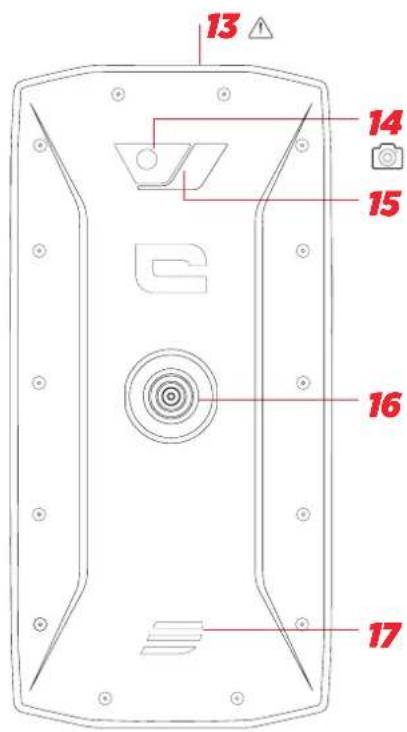
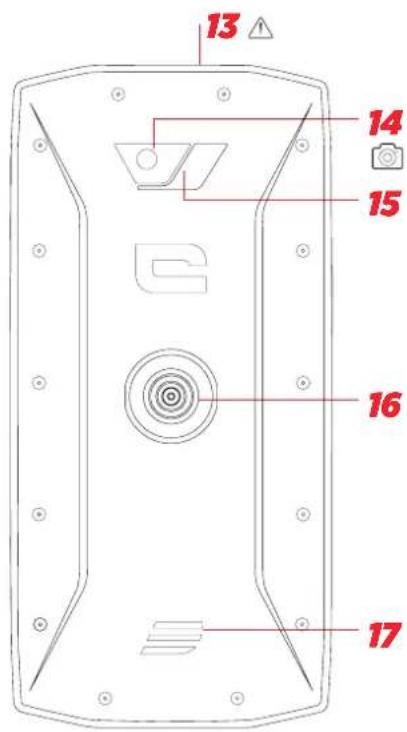
Device overview
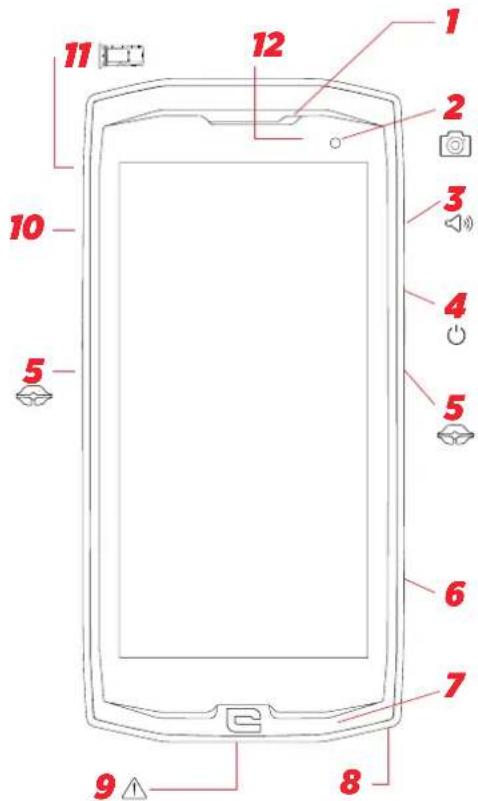
- Loud speaker
- 2MP front-facing camera
- Volume button +/-
- On/Off button
- X-BLOCKER notches
- Programmable key no. 1
- Microphone
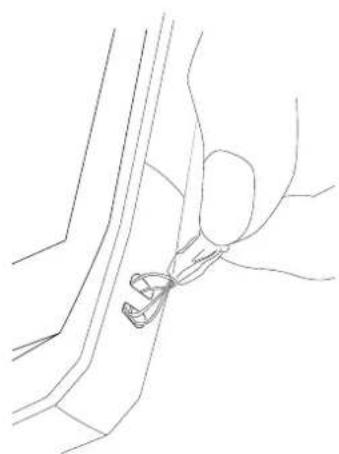
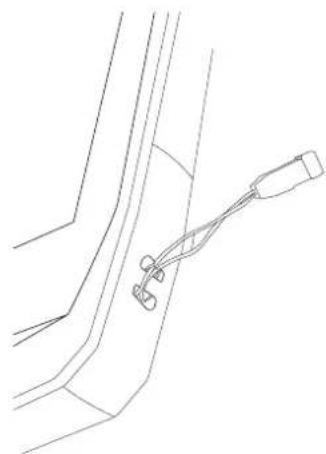
- Space for the strap
- USB type-C port (waterproof cap – always keep it properly closed!)
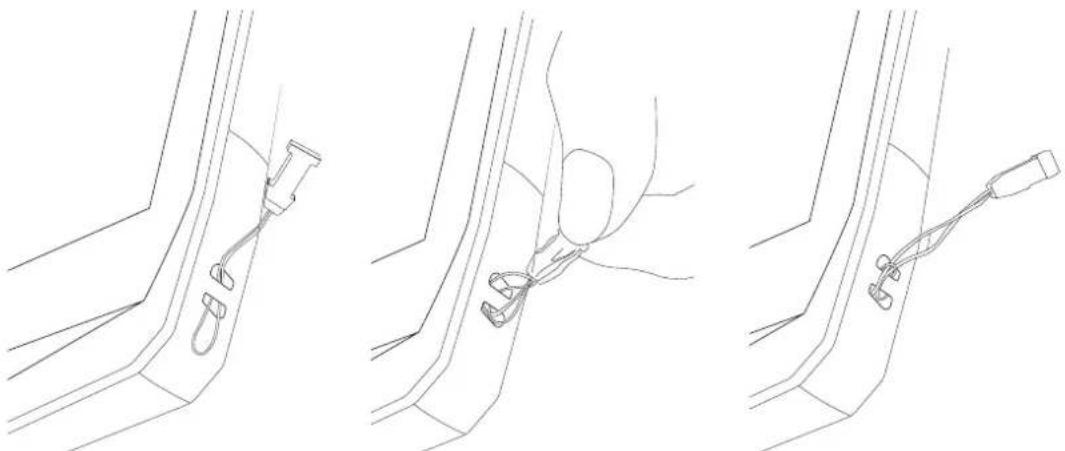
How to install a leash**
* Magconn Technology
**Leash not included
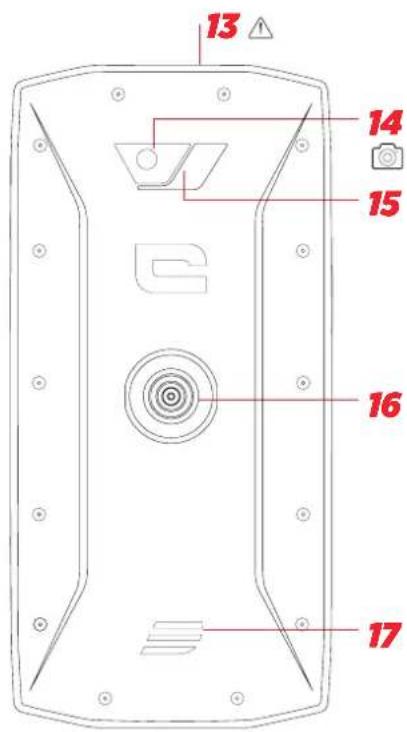
- Programmable key no. 2
- SIM card or micro-SD card insertion tray
- Light sensor
- Earphone jack (waterproof cap - always keep it properly closed!)
- 12 MP camera
- Flash
- X-LINK™* (mount / charge / data transfer)
- Loud speaker

GETTING STARTED
INSTALLING THE SIM CARD
- Check that your device is turned off If not, turn the power off by pressing the On/Off button
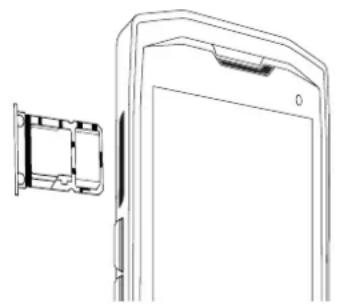
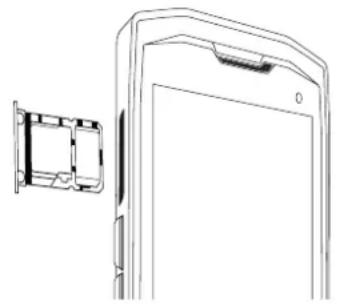
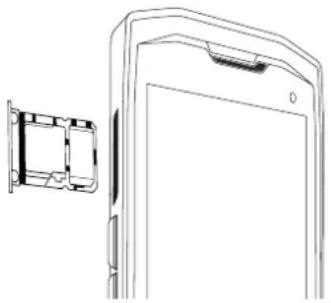
- Open the SIM tray using the SIM eject tool provided
a. Take the tool provided
b. Insert it into the hole, as shown below, to eject the SIM tray from its housing.
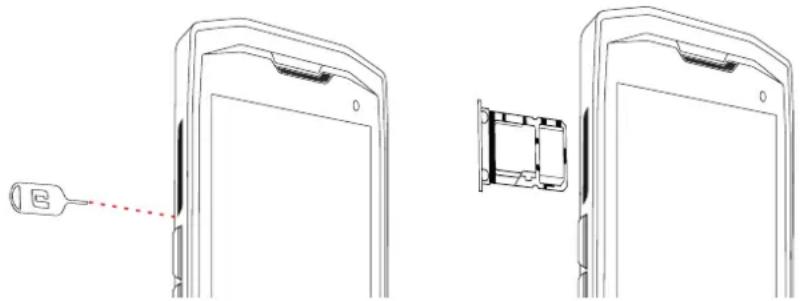
- Pull out the tray completely with the metal side facing upwards
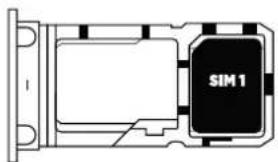
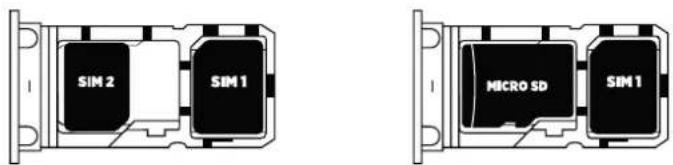
- Insert the SIM cards / micro SD
a. Insert the SIM card, face down, in the smallest compartment
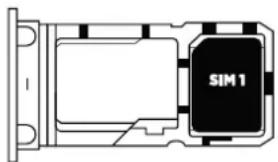
b. If you wish, insert a second SIM card (or an micro SD card up to 256GB), face down, in the biggest compartment.
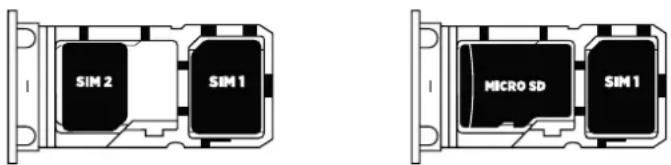
- Insert the tray back in the phone
a. Check that the cards are properly aligned.
b. Check that the tray is properly aligned with the slot in the phone when you insert it.
c. Insert the tray and push it in, as indicated above.
Please note: To ensure that your smartphone is watertight, make sure that the tray is completely inserted and locked.
SWITCHING THE PHONE ON AND OFF
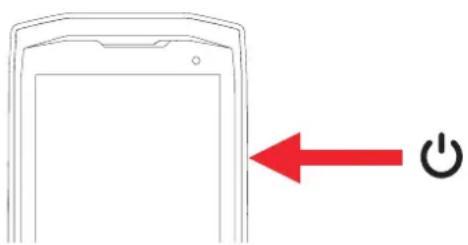
- Press this button to turn on or lock the screen.
- Press and hold this button to turn the device on and off.
- Simultaneously press this button and the Volume «-» button to take a screenshot.
Switching on the phone
Press and hold the on/off button and wait a few seconds until the display turns on. When you switch on your phone for the first time or after performing a data reset, follow the on-screen instructions to set up your device.
Switching off the phone
Hold down the on/off button until the pop-up menu appears, then select ⏻ to turn it off.
THE STRENGTHS OF THE CORE-M4 GO

X-LINKTM*
THE SMART MAGNETIC ATTACHMENT SYSTEM
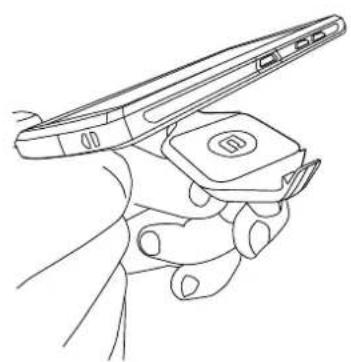
This magnetic connector on the back of your smartphone can be used to attach and connect your smartphone to exclusive X-LINK™ accessories.
This connector can be used for charging (1A) and/or data transfer using the OTG (On The Go) feature (once attached to the compatible accessories)
X-BLOCKER
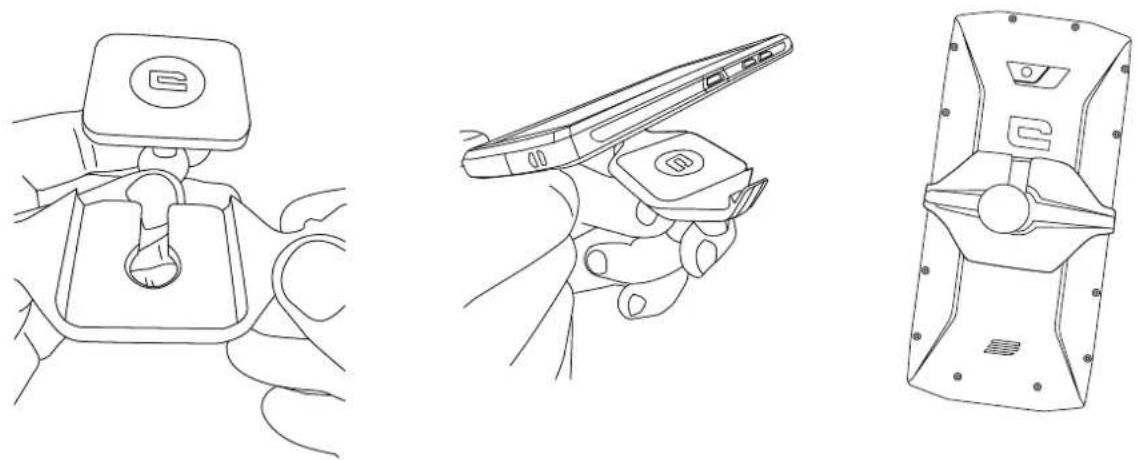
In situations that require maximum hold, this exclusive accessory supplied with your CORE-M4 GO guarantees that your smartphone will be securely attached to compatible accessories. It is easily attached to the slots on the side of your mobile. The siliconised coating reduces vibrations caused by shocks.
Before starting any activity, check that the X-BLOCKER is perfectly engaged in both slots of the phone
Discover the full range of accessories compatible with the X-LINK™ and X-BLOCKER on www.crosscall.com
*Magconn Technology
THE X-SENSORS APPLICATION
When opening the application (app) for the first time, please read the terms and conditions of use and click on “Accept” to accept them before using the app.
This app gives you information about the sensors embedded in your mobile.
The magnetometer: This is the compass feature. It measures the phone's orientation relative to magnetic north. Calibrate your compass by following the instructions on the screen.
The accelerometer: lets you measure and see the phone's acceleration based on 3 axes. Using mathematical integration, it measures the speed at which the device is moving as well as tracking its position.
GPS: position of the device and accuracy of the GPS signal. You can find out the number of satellites in range as well as your exact position.
Proximity sensor: turns off the screen during phone calls when the phone is placed near the ear.
Light sensor: measures the light reaching the phone screen.
Bluetooth (4.2) and networks (2G, 3G, and 4G): show the presence and strength of communication networks.
Battery status: provides an instant, visual indication of the battery's rate of charge/discharge.
PROGRAMMABLE KEYS
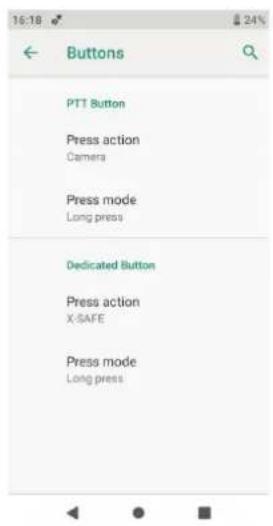
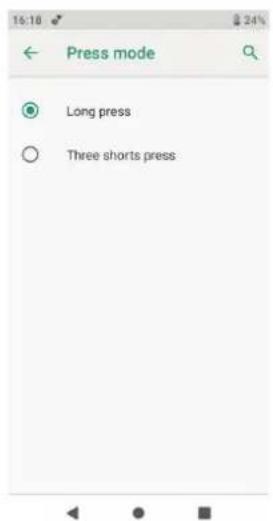
In Settings > Buttons > choose the function you want to give those keys. For each button, choose the « Press action » and « Press mode ».
By default, the grey key is programmed to launch photo app and the red key is programmed to launch X-SAFE app.
X-SAFE

X-SAFE is an application embedded in the CROSSCALL 's smartphone allowing to alert someone in case of emergency.
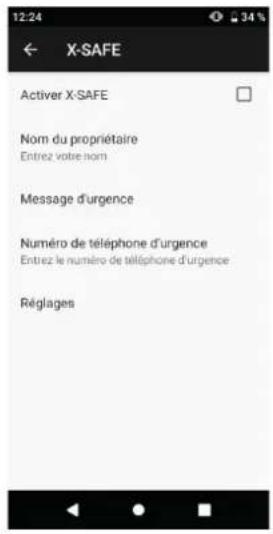
STEP 1: X-SAFE SETTINGS
- Open X-SAFE application
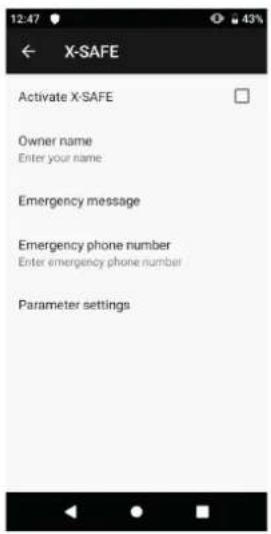
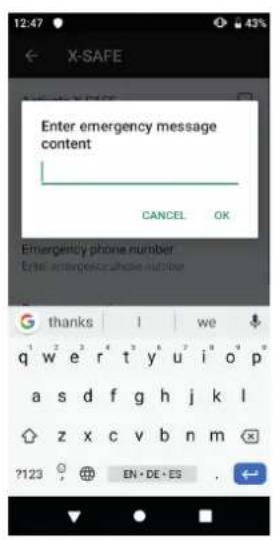
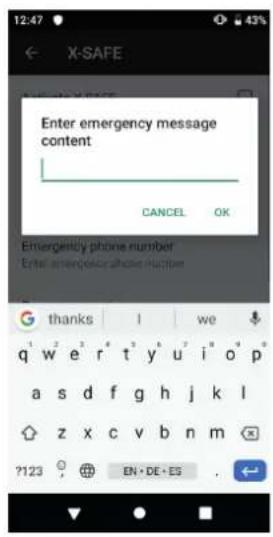
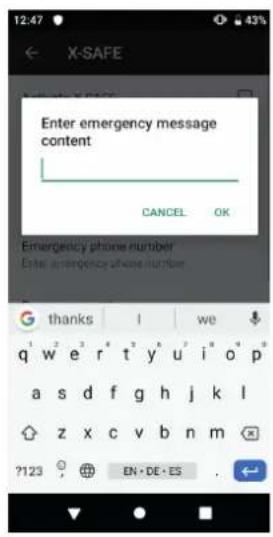
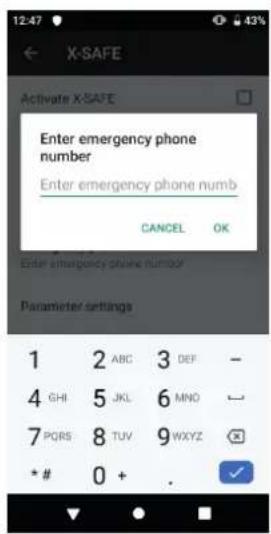
- Configure emergency information: phone number and message.
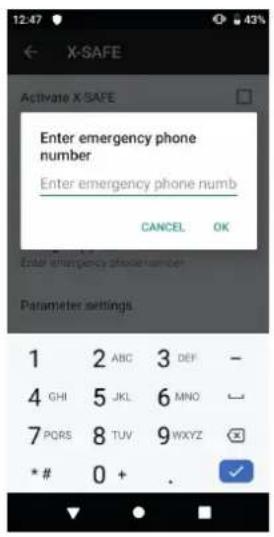
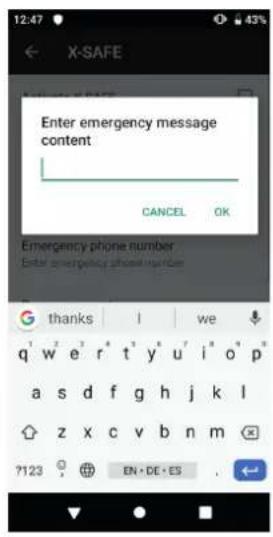
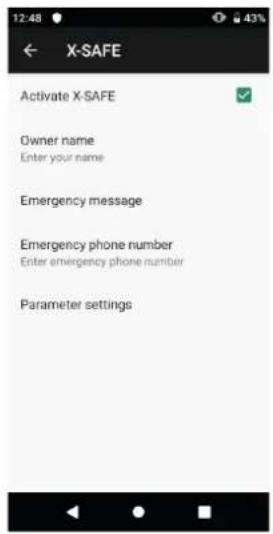
- Make sure the checkbox «Activate X-SAFE» is activated.
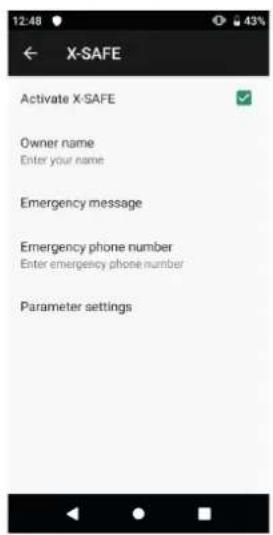

STEP 2: ASSOCIATION BETWEEN X-SAFE AND DEDICATED BUTTON
- Go to Settings > Buttons and choose the «Dedicated Button»

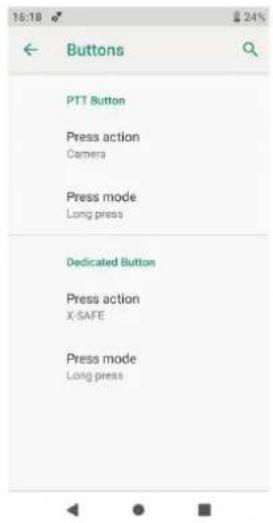
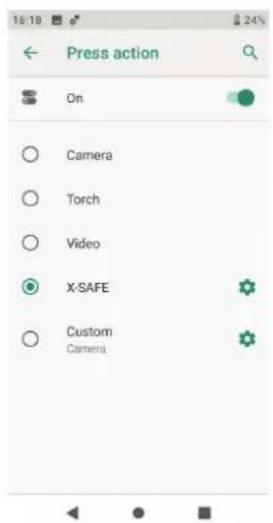
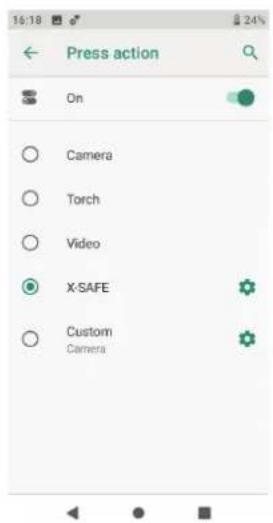
- Click on Press action and make sure X-SAFE is selected.
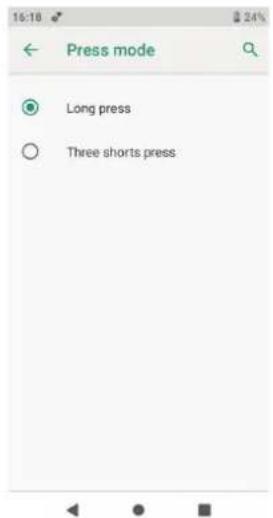
- Go back to the buttons menu and click on Press mode and choose your preferred mode.
STEP 3: INITIATE AN ALERT
![graph LR A["Mobile Phone"] -->|3x or long press| B["Emergency Call 0601020304"] B -->|1 sec. Cancel| C["Mobile Phone with Call F Calling... Fred Mobile 06 01 02 03 04"]](/content/2026/03/571123/images/0051ee7c27aee841352190ba027984bf250264bf057e4682b476eeaa9a7d663c.jpg)

We strongly recommend to initiate an alert to check that your X-SAFE configuration is operational. A countdown is triggered. The user can interrupt the alert by pressing. At the end of the countdown a call is automatically triggered to the person previously chosen.
WARNINGS
Any activity is a potentially dangerous activity and can sometimes result in injury or death. The User of the Applications is entirely responsible for his activity and must know how to anticipate potential dangers. He must also know how to evaluate his physical capacity to practice an activity. In particular, using the image of sports practices that may be extreme in the means of communication and promotion of the device allows to testify to the resistant and performing nature of your device, but is in NO way an incentive for the User to engage in these or similar activities.
DISCLAIMERS
Access and use of the Applications is at the User's own risk. Consequently, CROSSCALL shall not be held liable for any damage resulting from access and/or use of the Application and the information it contains. The User is moreover informed that CROSSCALL may have to temporarily interrupt access to the Application for technical reasons, in particular for maintenance reasons. The User accepts these interruptions and waives any claim in this respect.
The Application and the Services are provided «as is» and «as available» without any guarantee whatsoever. CROSSCALL makes its best efforts to ensure that the Application and its contents are reliable. If, however, the User notices any errors or omissions, CROSSCALL shall be grateful if the User informs CROSSCALL at the following address: sav@crosscall.com.
The User declares that he/she is aware of and accepts the characteristics and limitations of the mobile network and the Internet network and, in particular, the functional characteristics and technical performance of the networks; problems related to connection and/or access
to the networks and/or websites; problems related to the availability and congestion of the networks; problems related to the failure or saturation of the networks; problems related to transit time, access to online information, response times for displaying, consulting, querying or otherwise transferring data; risks of interruption; lack of protection of certain data against possible misappropriation or hacking; risks of contamination by possible viruses circulating on said networks, etc. for which CROSSCALL shall not be held liable. The User acknowledges being informed of the present provisions and releases CROSSCALL from any liability in the event of death, accidents, illnesses and/or any type of incident generated in particular following an unsuitable practice.
ADVICE FOR USING YOUR CORE-M4 GO UNDER WATER
Touch-lock feature
To take photos under water, you should activate the touch-lock feature which locks your touch screen (in photo mode, icon at the top of your screen). You can then press a volume button to take photos (or use the programmables buttons).
Advice: after immersion
After immersion in seawater; you should rinse your mobile in freshwater. Dry carrefully caps and connectors.
It may be that the slits of the speaker and microphone are blocked with water. Wait a few minutes before making a call to get back to optimal functionality.
TIPS FOR GETTING THE MOST OUT OF YOUR CORE-M4 GO
NEW: Removing open apps in one click
Click on the square navigation icon at the bottom right of your screen to view open apps. To close these apps, click on the cross at the top right of the window of the app you want to close or click «Clear All» to close all open apps at once.
Configuring multiple languages
For chatting and messaging in more than one language, you can configure several languages so that your keypad adapts and corrects the language you are currently using.
Settings > System > Languages and Input > Languages > + Add Language
When writing a message, simply press the space bar and select your language preference.
BATTERY
Talk time: 36h
Standby time: 426h
GPS time*: 6h30
*GPS + DATA + GOOGLE maps enabled + 100% Screen brightness
N.B. Battery consumption can be influenced by the quality of the network, the brightness of the screen, the connections enabled (WiFi, Bluetooth, NFC), location services, etc.
Charging the battery
Be sure to fully charge your device before first use using the AC charger supplied.

Never charge your phone using the X-LINK™ magnetic connection and the USB connection at the same time, or it may shorten the life of your phone's devices.
- Open the dust plug and connect the USB cable to the USB power adapter, then plug the end of the USB cable into the USB port.
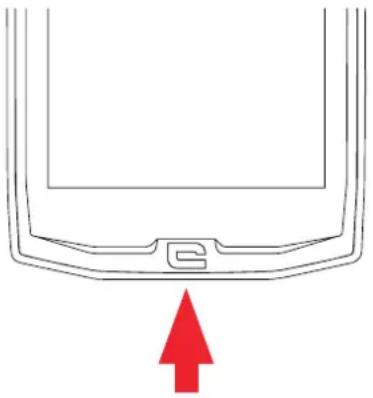
- Plug the USB power adapter into an electrical outlet.
- When the battery is fully charged, unplug the phone from the charger. First unplug the charger from the device, then unplug it from the electrical outlet.
Battery Saver Mode
It dims the screen of your phone and limits CPU performance to conserve battery power. Accessible via the notification bar (by swiping from the top to the bottom of the screen), icon + battery saver.
To disable this mode, press the same icon again. If you hold down this icon for a few seconds, you will see information about your battery status.
Tips and precautions for charging your battery

The battery is built into the phone and is not removable. Do not remove the battery yourself.
- Use only approved chargers, batteries and cables. Using unapproved chargers or cables may cause the battery to explode or damage the phone.
- Avoid using your phone while charging. Do not cover your phone or the power adapter.
- Incorrect charger connection could seriously damage your phone. Any damage caused by misuse is not covered by the warranty.
- If the AC power is lower, your phone may take longer to charge.
- If you use unconventional chargers such as computers, the charging time may be longer.
- Please charge the battery before using the phone for the first time and unplug the charger immediately after the first charge is complete.
- Remove the charger from the electrical outlet when the phone is not charging.
- The phone may not switch on straight away if you are charging a drained battery. Once the phone has been charging for a while, the phone will start normally.
- The charging time may vary depending on the ambient temperature and the remaining battery level.
- The phone can be safely charged at a temperature between 0°C and 40°C. Charging at temperatures below 0°C or above 40°C may adversely affect battery performance and reduce battery life. Long-term charging at extreme temperatures will damage the battery.
- During charging, the phone and charger may become hot.
This is completely normal and should not affect the life or performance of the phone. If the battery seems hotter than usual, stop charging it. Put your phone in a cool place and leave it to cool. Avoid prolonged contact with the surface of your phone when it is hot.

The device's features may vary depending on your location, language, operator and model. This device is OTG compatible. Please use a standard OTG cable.
GETTING TO GRIPS WITH YOUR PHONE
Home
Press this key to display the home screen.
Recent
Tap this button to display open apps.
Back
Press to return to the previous screen.

All it takes is a few simple movements to master your phone and its apps.
Tap
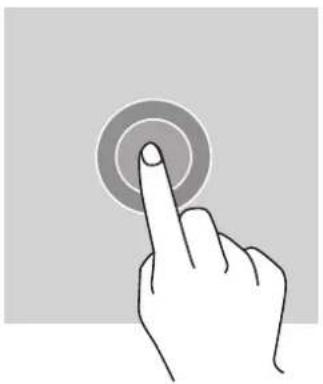
To open an app, choose a menu item, press a key on the touch screen, or to enter a character using the keypad on the screen, tap the item with your finger.
Long press
Place your finger on an item or on the screen and hold it for 2 seconds to access the available options.
Swipe
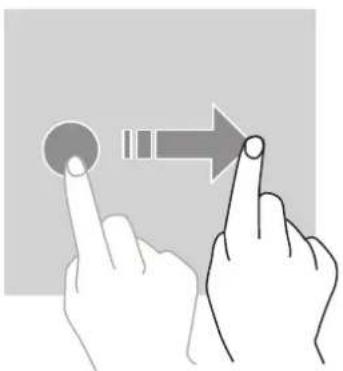
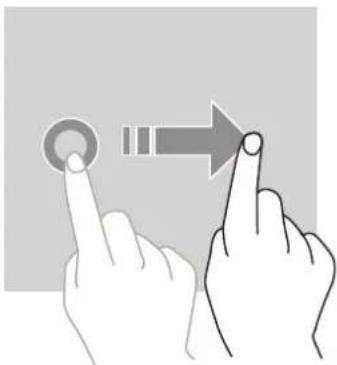
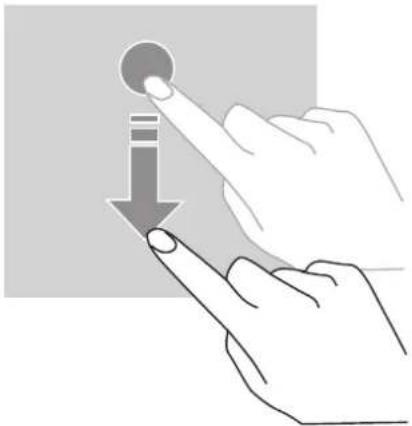
Swipe left or right on the home screen or apps screen to view other pages.
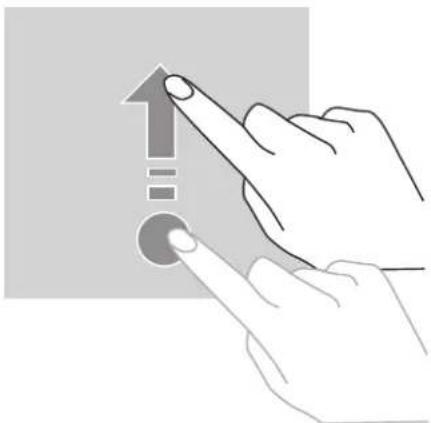
Swipe up from the bottom edge of the screen to display the apps available on your phone.
Swipe up and down to scroll through a web page or list of items.
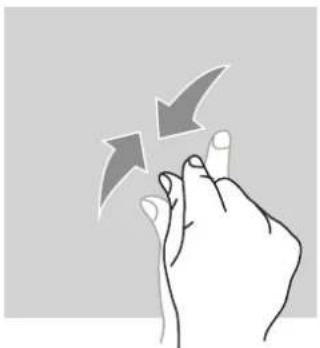
Two-finger actions
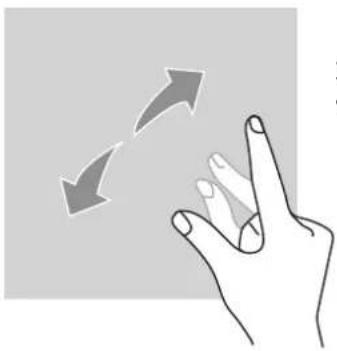
Start with two fingers close together then spread them apart on a web page, a map or an image, to zoom in on a part of it.
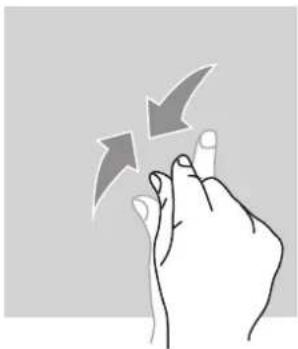
Bring them together to zoom out.
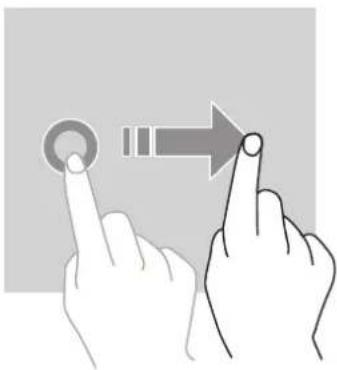
Drag
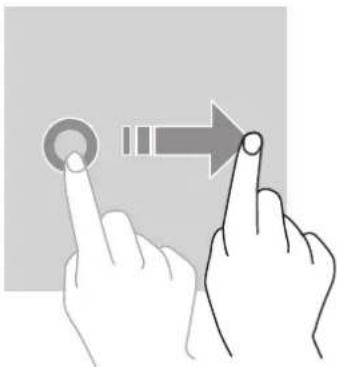
To move an item, place your finger on it, hold, and drag the item to the desired location.
NOTIFICATION PANEL
Opening the notification panel
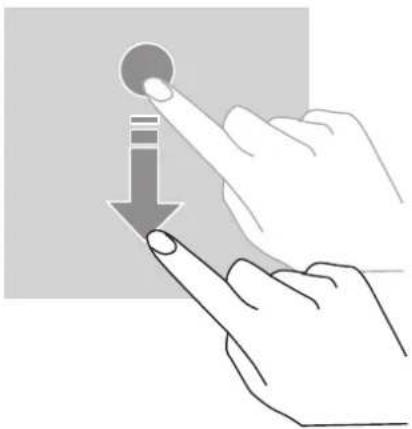
- Swipe down from the top edge of the screen to open the notification panel.
- Slide your finger down again from the top edge of the screen to go to the shortcuts tab.
Configuring notification options
- Go to Settings > Apps & notifications.
- Enable or disable notifications as desired.
Closing the notification panel
Swipe up or press the home button to close the notification panel.
LOCKING AND UNLOCKING THE SCREEN
Locking the screen
- Press the on/off button to manually lock the screen.
- The screen automatically locks and goes into sleep mode after being idle for a period of time, to reduce power consumption and prevent unintended actions. To change the screen timeout, go to Settings > Display > Advanced > Sleep, and select a duration.
Unlocking the screen
Press the on/off button to turn the screen back on and swipe in any direction.
CUSTOMISING THE HOME SCREEN
Wallpapers
- Touch and hold an empty area of the screen to access the home screen editor.
- Select WALLPAPERS to customise your screen.
Widgets
Some apps on your phone offer shortcuts specifically designed for your home screen
- Touch and hold an empty area of the screen to access the home screen editor.
- Select SHORTCUTS to choose the widgets you want to add to your home screen.
- To remove a widget from your home screen, touch and hold the widget you want to remove and drag it to "Remove" which will appear at the top of the screen.
Apps shortcuts
You can add shortcuts to your favourite apps directly on the home page(s) of your phone.
- Open the apps screen (slide from bottom to top)
- Touch and hold the icon of the app for which you want to create a shortcut. Keep holding, and drag the icon out of the menu to get to the home screen.
- Place your app shortcut in the desired position. Create a new home page if needed by going to the left of the screen.
CHANGING THE DATE AND TIME
Go to Settings > System > Date and time.
- EnableAutomatic time zone to allow the network time zone.
- SelectUse 24-hour format to use the 24-hour clock.
DEVICE AND DATA MANAGEMENT
Data transfer

Do not disconnect the USB cable from the device when transferring data. This could result in loss of data and/or damage to the device.
- Using a USB cable, connect your device to a computer.
- Open the notification panel, then tap Charging this device via USB > Files transfer. Tap Transfer photos PTP if your computer does not support the Media Transfer Protocol (MTP) format.
- Transfer the files between your device and your computer. A message will appear on your computer screen. Follow the instructions on screen to transfer your photos/videos, etc.
Mobile Data
On the home menu, scroll down the notification bar and click on the Mobile Data icon to disable them, or :
Settings Menu > Network and Internet > Mobile Network and disable Mobile Data.
Factory reset
Restore factory : Settings > System > Advanced > Reset options and press > Erase all data (factory reset), then press RESET PHONE.

This will erase all data from your phone's internal storage. Before performing a factory reset, be sure to back up any important data stored on the device. The device will restart automatically.
USING YOUR PHONE
HOME SCREEN
The home screen is the starting point for accessing all the phone's features. It displays widgets, shortcuts to apps, and much more.

The home screen may display differently depending on the region or operator.
STATUS BAR
This displays status icons and notifications.
WIDGETS
Widgets are self-contained applications that launch specific app functions to provide easy access and information on your home screen.
APPLICATION ICONS
Tap on an icon, such as an app or a folder, to open and use it.
PHONE
Making phone calls
- Press 📞 on the home screen or apps screen.
- Press 📄 to open the keypad and enter a phone number.
- Press 📞 to make a call.
Making calls from call logs or a contact list
Press 📊 or 📋, and on a contact or a phone number to make a call.
Making an international call
- Press 🎨 to open the keypad.
- Press 0 and hold your finger until the + sign appears.
- Enter the country code, area code and phone number.
Then, press

Receiving calls
Answering a call
When a call comes in, press 📋 and swipe up to answer the call.
Rejecting a call
When a call comes in, press 📞 to reject the call.
CONTACTS
Adding contacts
Manually creating a contact
- Tap the contact icon on the home screen or apps screen.
- Press + to enter contact information.
- Press «Save».
Adding a contact using the keypad
- Press

to open

- Enter the number and tap «Create contact».
Adding a contact from a call received
- Press

- Press

to view your received calls.
- Click on the number to add, then on «Create contact».
Importing contacts
You can import contacts from storage services to your device.
- Tap the contact icon on the home screen or apps screen.
- Press IMPORT.
- Select an import option.
Searching your contacts
Tap the contact icon on the home screen or apps screen.
Use one of the following search methods:
- Scroll up or down the contact list.
- Swipe along the index to the right of the contact list to scroll quickly.
- Press Q at the top of the screen to search for a contact.
MESSAGES
Sending messages
- Tap the message icon on the home screen or apps screen.
-
Click on «Start chat»
-
Add recipients and enter a message.
- Send the message.
Displaying messages
- Tap the message icon on the home screen or apps screen.
- Select a contact in the message list.
- View your conversation.
Searching messages
- Tap the message icon on the home screen or apps screen.
- Press to enter keywords to search for messages.
CAMERA
You can take photos or record videos.
Taking pictures
- Press 📄 the home screen or apps screen.
- Frame your subject on the screen.
- Take a picture. Your photo will be automatically saved in the Gallery.
Launching the camera from the locked screen
To take photos quickly, you can open the camera from the locked screen.
Swipe the 📄 icon outside of the big circle on the locked screen.
GALLERY
Viewing images and videos
- Touch the gallery icon on the apps screen.
- Select an image or a video.
Deleting images and videos
- To delete an image or video, select an image or video and press to delete it.
- To delete multiple images and videos, tape and click on "Select item". Then, select the images or videos you want to delete and press 📂 to delete them.
Sharing images and videos
Select an image or video and press at the bottom of the screen. Select a method for sharing.
CALCULATOR
You can perform simple or complex calculations using the Calculator application.
-
Press on the apps screen.
-
Change the screen orientation to switch from the standard calculator to the scientific calculator.
AUDIO
Adding songs to your phone
- Copy songs from your computer using the USB cable.
- Download songs from the internet.
• Copy songs via Bluetooth.
Listening to music
- Tap the music icon.
- Select a song to play.
- When playing a song, press the home button to exit the music player screen without stopping the song. To return to the music player screen, open the notification panel and tap the song title.
BROWSER
Connect to the internet to search for information and add web pages to your favourites for quick access.
-
Press
-
Enter the address in the search bar and press ⬤ . Not only can you access web pages; favourites, switching between multiple windows, and other features are also supported.
Configuring email accounts
Set up an email account when opening the email feature for the first time.
- Press

on the apps screen.
- Click on GOT IT, then click on Add an email adress. Choose your mail provider.
- Follow the on-screen instructions to complete the configuration.
SYSTEM UPDATES
Updates are changes to the software version initially installed in your phone.
The purpose of these updates is to provide fixes for potential bugs.
SAFETY MEASURES
GENERAL SAFETY INFORMATION
Failure to adhere to the following safety instructions could result in fire, electric shock, injury, or damage to your phone or other property. Please read all the safety instructions below before using your phone.
- Always switch off your phone whenever it is forbidden to use it, or when it may cause interference or danger.
- Avoid exposure to magnetic fields.
- Please switch off your telephone on aeroplanes and in airports when you are asked to.
- Switch off your phone when you are in the vicinity of high-precision electronic equipment. The phone may affect the performance of this type of equipment.
- Do not put your phone or accessories in containers with a strong magnetic field.
- Do not leave magnetic data storage devices near your phone. The radiation emitted by the phone may erase the information stored there.
- Keep the phone away from direct sunlight. Do not expose your phone to high temperatures, and do not use it in the presence of flammable gases (e.g. petrol station).
- Hold your phone at least 15mm from your body when you make calls.
- Small parts may cause choking.
- Your phone can emit a loud sound.
-
Avoid impacts or damage to your phone.
-
Some parts of your phone are made of glass. The glass is likely to break if your phone falls on a hard surface or suffers an impact. If the glass breaks, do not touch the glass parts of the phone and do not attempt to remove the broken glass from the phone. Do not use your phone until the glass has been replaced by an authorised operator.
- Do not attempt to take apart your phone or its accessories. Phones should only be serviced or repaired by qualified personnel.
- The power outlet should be located near the phone and must be easy to access.
- Comply with all laws and regulations relating to the use of the telephone. Respect the privacy and rights of others when using your phone.
- Follow the instructions in this manual for using the USB cable. Otherwise, your phone or PC may become damaged.
- Clean your phone with a soft, dry cloth. Please do not use water, unless respecting the conditions mentioned below «Information on water resistance», alcohol, soap or chemicals.
- Be sure to back up your important data. A repair or other factors may lead to data loss.
- Do not disconnect the phone when transferring files or formatting the memory. This could cause program failure or file damage.
- Keep the phone and charger out of the reach of children. Do not let children use the phone or charger unattended.
- This device is not intended for use by people (including children) with reduced physical, sensory or mental capacities, or whose lack of experience or knowledge prevents them from safely using the device, if they are not supervised or have not been given instructions beforehand by the person responsible for their safety.
- Keep small phone accessories out of reach of children in order to avoid choking.
- Do not let your children or pets chew or lick the device.
- Do not modify or recondition your phone.
- Do not expose your phone to flames, explosions, or other sources of danger.
- Please switch off your phone when you are near explosive materials or liquids.
- The phone must only be connected to a USB 2.0 interface.
- The ideal operating temperature is between 0°C and 40°C. The ideal temperature for storage is between 20°C and 50°C.
- Stop using your device if any of its parts are cracked, broken, or if it overheats.
-
Do not press your device against your eyes, ears or any other part of your body, and do not put it in your mouth.
-
Do not use the flash near the eyes of people or animals.
- Only use the original accessories for this phone and do not install its battery in another phone.
INFORMATION ON WATER RESISTANCE
- You have just bought an IP68 compliant mobile phone. In order to guarantee optimal use and water resistance, ensure that all the flaps and plugs on the openings and the cover are correctly sealed.
- Do not open the caps and SIM drawer of the device if it is in the water or in a very humid environment.
- Make sure that the caps are not damaged when you open or close them. Make sure that the seal is free from any debris, such as sand or dust, to avoid damaging the device.
- The flaps covering the openings may come loose in the event of a fall or impact.
• Make sure that all the covers are properly aligned and completely closed. - If the device has been submerged in water or the microphone or loud speaker is wet, the sound may not be clear during a call. It is recommended to wait a few minutes after the immersion of your device to recover its initial audio quality. Make sure that the microphone or loud speaker is clean and dry by wiping it with a dry cloth.
- If the device gets wet with salted or chlorine water, rince it with tape water, and then dry it thoroughly with a soft, clean cloth. Dry carefully caps and connectors.
- The device's water resistance may cause slight vibrations in certain conditions. These vibrations, for example when the volume is turned up high, are entirely normal and do not affect the performance of the device.
- Do not disassemble the waterproof membrane over the microphone or the speakers and do not use a device that can damage it (sharp, cutting, etc.).
- Do not expose the product to metal particles: they may accumulate on the speaker of your product because of the magnet use inside of the speaker component. The metal particles can be cleaned with a soft cloth. You could instead put it un a transparent plastic bag.
- Temperature fluctuation can lead to an increase or decrease in pressure, which may affect the sound quality. If required, open the flaps to release the air
MEDICAL DEVICES
- Please switch off your phone in hospitals and other medical facilities as required.
-
Your phone contains radio antennae that emit electromagnetic fields. These electromagnetic fields can interfere with pacemakers and other medical devices.
-
If you wear a pacemaker, a minimum separation of at least 20 cm should be maintained between your pacemaker and your phone.
- Hold the device on the side opposite the implant.
- If you think your phone is interfering with your pacemaker or other medical device, stop using it and consult your doctor for specific information about your medical device.
- When performing repetitive activities, such as text messaging or games on your phone, you may experience occasional discomfort in your hands, arms, wrists, shoulders, neck, or other parts of your body. If you feel uncomfortable, stop using your phone and consult your doctor.
ROAD SAFETY
- Comply with all the safety measures and standards relating to the use of your device when driving.
- Obey all local laws. Always keep your hands free to operate the vehicle while driving. Behind the wheel, your first concern must be road safety.
• Pull over and park before you make or receive a call, if traffic conditions require it. - Radio frequency signals can disrupt certain electronic systems in your vehicle, such as the car radio and safety equipment.
- If your vehicle is equipped with an airbag, please do not obstruct its access by placing portable or fixed wireless equipment in front of it. Otherwise, you risk preventing the airbag from working and could cause serious bodily injury. It is forbidden to use the mobile phone in hand while driving.
- When listening to music, be sure to keep the volume at a reasonable level so that you are aware of what is going on around you. This point is especially important when you are near a road.
- Using your phone in certain circumstances may distract you and cause danger. Stick to any rules that forbid or restrict the use of a phone or earphones (for example, not sending text messages while driving, or using headphones while cycling).
- It is forbidden to use the mobile phone in hand while driving.
POWER AND CHARGING
- Do not throw into fire
- Do not short-circuit
-
Do not expose it to temperatures above 60°C / 140°F
• Recycle the battery according to standards in force. -
Charge your phone using the USB cable and power adapter supplied. Using an incompatible adapter or cable may cause permanent damage to your phone.
- The power adapter must be plugged in near the phone and must be easily accessible.
- Using damaged cables or chargers, or charging in the presence of moisture, may cause an electric shock.
- The power adapter is intended for indoor use only.
- The power outlet must be easy to access. The plug must not be blocked during use.
- To completely disconnect the phone from AC power, unplug the AC/DC cable from the wall outlet.
- Power adapters can become hot during normal use, and prolonged contact may cause injury.
• Always ensure adequate ventilation around the power adapters during use. - Ventilation should not be obstructed by covering air vents with objects (e.g. newspapers, tablecloths, curtains, etc.) to prevent overheating and malfunction. Leave at least 10cm of space free around the phone.
- The phone should be used in areas with a temperate climate.
- Do not insert or remove a USB port with wet hands as this could lead to a risk of electric shock.
- Because the phone is equipped with an internal rechargeable battery, do not expose the product to excessive heat (sun, fire, etc.).
- Avoid using the connector to perform several actions at once and make sure that the battery terminals are not touching any conductive elements, such as metal or liquid.
PROTECTING YOUR HEARING

s telephone adheres to current regulations in terms of limiting the maximum output volume. Listening with earphones at high volume for prolonged periods can cause hearing loss!
- Stop using the product or lower the volume if you feel that your ears are ringing.
- Do not have the volume on a high setting, medical professionals do not recommend being exposed to high noise levels for a prolonged period of time.
-
Use the earphones wisely, as excessive sound pressure coming from earbuds or an audio headset can cause hearing loss.
-
To prevent damage to your hearing, avoid listening at high volumes for long periods of time.
- Please use only the headphones supplied with your phone.
ENVIRONMENTAL PROTECTION
- Please respect local regulations in terms of waste elimination when you are getting rid of the packaging, the battery or the used phone. Take them to a collection point so they can be properly recycled. Do not dispose of telephones or used batteries in ordinary rubbish bins.
- Please dispose of used lithium batteries that you do not want to keep in a designated place for this purpose. Do not dispose of them in rubbish bins.

Do not dispose of phones or used batteries in ordinary rubbish bins.
There is a risk that the battery will explode if you replace it with an unsuitable model. Dispose of used batteries according to the instructions.
CLEANING AND MAINTENANCE
- Switch off the phone before any cleaning or maintenance. The charger must be unplugged from the outlet. The phone and charger must be disconnected to prevent electric shock or short circuit of the battery or charger. Close the caps.
- Do not clean the phone or charger with chemical substances (alcohol, benzene), chemical agents or abrasive cleaners so as not to damage to parts or cause a malfunction. The device can be cleaned with a soft, slightly damp antistatic cloth. Or with tape water following the instructions on INFORMATION ON WATER RESISTANCE page 61-62.
- Do not scratch or tamper with the phone case, as the substances in the paint may cause an allergic reaction. If such a reaction occurs, stop using the phone immediately and consult a doctor.
- Remove dust from the power socket and keep it dry to prevent the risk of fire.
- If the phone or any of its accessories do not work properly, contact your local service provider.
- Do not disassemble the phone or its accessories yourself.
EMERGENCY CALLS
In the event of an emergency, if the phone is switched on and you are in the network coverage area, it can be used to make an emergency call. However, emergency numbers
may not be accessible on all networks. You should never rely on your phone to make emergency calls.

RECOMMENDATIONS TO REDUCE THE USER'S EXPOSURE TO RADIATION
- Use your mobile phone in areas covered by your network to reduce the amount of radiation received (in particular in underground car parks or during train and car journeys).
- Use your phone when there is good reception (i.e.: maximum number of bars for the network).
- Use a hands-free kit.
- During calls, keep the phone away from the tummy of pregnant women and the lower abdomen of teenagers.
- Children and adolescents should use mobile phones reasonably by avoiding night-time communication and limiting the frequency and duration of calls.
FURTHER INFORMATION
COMPLIANCE
CE
- CROSSCALL confirms that this device complies with the basic recommendations and other relevant measures in the 2014/53/EU directive. The latest applicable version of the Declaration of Conformity can be viewed on the website https://Crosscall.com/docs/legal/ce-international_declaration_of_conformity-CORE-M4_GO.pdf. Children and adolescents should use mobile phones reasonably by avoiding night-time communication and limiting the frequency and duration of calls.
- Restrictions relating to the 2.4GHz band: Norway: this sub-paragraph is not applicable to the geographical area located within a 20km radius from the centre of Ny-Ålesund. Restrictions relating to the 5GHz band: according to Article 10, paragraph 10 of Directive 2014/53/EU, the packaging indicates that this radio equipment is subject to certain restrictions when placed on the market in Belgium (BE), Bulgaria (BG), Czech Republic (CZ), Denmark (DK), Germany (DE), Estonia (EE), Ireland (IE), Greece (EL), Spain, (ES), France (FR), Croatia (HR), Italy (IT), Cyprus (CY), Latvia (LV), Lithuania (LT), Luxembourg (LU), Hungary (HU), Malta (MT), the Netherlands (NL), Austria (AT), Poland (PL), Portugal (PT), Romania (RO), Slovenia (SL), Slo vakia (SK), Finland (FI), Sweden (SE), the United Kingdom (UK), Turkey (TR), Norway (NO), Switzerland (CH), Iceland (IS) and Liechtenstein (LI).
- Frequency band used by radio equipment: certain bands may not be available in all countries or all regions. Please contact the local operator to get more detailed information.
- Maximum radio signal frequency emitted in the frequency band where the radio equipment operates: The maximum power for all the bands is less than the highest specified limit value under the associated harmonised standard. The nominal frequency band and power transmission limits (radiated and/or by conduction) applicable to this radio equipment are the following:
Bands Frequency Maximum power
| GSM900 880MHz-915MHz 32.02 dBm | ||
| DCS1800 1710MHz-1785MHz 29.85 dBm | ||
| WCDMA B1 1920MHz-1980MHz 23.71 dBm | ||
| WCDMA B5 824MHz-849MHz 24.26 dBm | ||
| WCDMA B8 880MHz-915MHz | 23.97 dBm | |
| LTE B1 | 1920MHz-1980MHz 24.12 dBm | |
| LTE B3 | 1710MHz-785MHz 24.35 dBm | |
| LTE B5 | 824MHz-849MHz | 24.12 dBm |
| LTE B7 | 2500MHz-2570MHz | 24.14 dBm |
| LTE B8 | 880MHz-915MHz 23.86 dBm | |
| LTE B20 | 2010MHz-2050MHz | 24.39 dBm |
| LTE B28 | 2570MHz-2620MHz | 24.66 dBm |
| LTE B38 | 2300MHz-2400MHz | 23.87 dBm |
| Bluetooth | 2402MHZ-2480MHz | 9.72 dBm |
| Bluetooth LE | 2402MHZ-2480MHz | 5.51 dBm |
| 802.11 a/b/g/n/ac (HT 20/40/80) | 2412MHZ-2472MHz | 17.81 dBm |
| 5150MHZ-5250MHz | 11.38 dBm | |
| 5250MHZ-5350MHz | 11.21 dBm | |
| 5470MHZ-5725MHz | 11.66 dBm | |
| 5725MHZ-5850MHz | 13.16 dBm | |
ACCESSORIES AND SOFTWARE INFORMATION
We recommend that you use the following accessories:
| ACCESSORY MODEL TECHNICAL DATA | ||
 | Trademark : CROSSCALL Model:CSCM4CM4GO.BK.EU | Input voltage : 100-240V~Input AC frequency : 50/60HzOutput voltage : 5.0V ---Output current : 1.0AOutput power : 5.0WAverage active efficiency : 73.82%Efficiency at low load (10%) : --No-load power consumption : 0.084W |
 | CROSSCALL ref:EP.CORE.BK.2019 | IPX4 |
 | CROSSCALL ref:CABL.COM4.GO.BU | USB / USB-C |
The product software version is L1551.X.XX.XX.XXXX (where X=0 to 9, A to Z, representing updates to the user experience, security patches, etc.). Software updates are published by the manufacturer to correct bugs or improve features after the product launch. All the software versions published by the manufacturer have been verified and always comply with the applicable regulations.
Not all the radio frequency settings (for example the frequency band and output power) are accessible by the user or can be modified by him/her. The latest information relating to accessories and software is available in the Declaration of Conformity, which can be viewed on the website:
SPECIFIC ABSORPTION RATE (SAR)
- This device complies with the directives relating to radio frequency exposure, when it is used near the head or at a minimum distance of 5mm from the body. According to ICNIRP guidelines, the SAR limit is 2.0 watts/kg for head and body, and 4.0 watts/kg for limb on average for 10g of cellular tissue absorbing the majority of frequencies.
Maximum values for this model:
- SAR Head: 0.72 (W/kg) ==> authorised limit value: 2 (W/kg)
- SAR Body: 1.32 (W/kg) ==> authorised limit value: 2 (W/kg)
- SAR Limb: 2.55(W/kg) ==> authorised limit value: 4 (W/kg)
CORE-M4 GO, designed in France and assembled in China
Created and imported by: CROSSCALL - 245 RUE PAUL LANGEVIN 13290 AIX EN Pce - France
Please visit the www.crosscall.com website to get the complete version of the user guide.
COPYRIGHT
This equipment is reserved for private use. Copying CDs or downloading music, videos or photos for resale or for any other commercial purpose may constitute a violation of copyright law. Permission may be required to copy or save all or part of a document, book and/or presentation governed by copyright law. Please make sure you are familiar with all applicable laws regarding the saving and use of such content in your country and jurisdiction.
APPENDIX
IMPORTANT INFORMATION
To provide you with an optimal experience, the phone connects regularly to internet and email servers. This automatically and inevitably generates data exchanges that may be billed in addition to your existing plan, or deducted from your prepaid plan.
In order to avoid any billing problems related to services that use the internet, we strongly advise you to opt for a suitable package that includes unlimited internet and email access. Also, please avoid changing the pre-configured default settings. If you wish, you can connect to a WiFi network to improve speed and efficiency. We particularly recommend using a WiFi network when streaming or downloading games, videos or movies.
TERMS AND CONDITIONS OF WARRANTY
Your phone, along with the battery and accessories in the box, are guaranteed against any defect or malfunction which might arise as a result of their design or their manufacture, or an equipment failure, in normal conditions of use, for the term of the warranty period of thirty six (36) months from the date of purchase of your phone, as featured on your original invoice. The warranty automatically ends at the end of thirty six(36) months. The spare parts necessary for the use of the CORE-M4 GO are available for a period of 3 years from the date of your purchase.
This warranty does not cover:
- Any faults or failures declared after the validity period of this warranty,
- Damage due to an accident, bad weather, lightning, fire, chemicals, power surge, improper use or improper maintenance of the device or accessory (screen breakage, dirt, alteration of the internal components of the device caused by abnormal or prolonged exposure to a liquid element), or any failure to comply with the instructions contained in the user guide,
- Normal wear and tear of any kind arising after the sale (including scratches, scrapes, scuffs and generally any damage to the external parts of the device that do not affect its functioning);
- The mobile of a Customer or third party who has modified the software originally supplied by the manufacturer,
- Any modification or repair by persons unauthorised by CROSSCALL or its subsidiaries, or your retailer,
- Oxidation caused by the customer incorrectly inserting the USB or audio port caps, which are essential for ensuring the product's water resistance.
Before contacting our After-Sales Service, we advise you to follow the instructions below:
• Fully charge the battery,
- Upgrade the software or Restore factory settings to format the phone (to restore the default setting, press and hold the On/Off key and Volume up key).
WARNING: ALL the phone's user data (contacts, photos, messages, files and downloaded applications) will be permanently lost. You are strongly advised to perform a full backup of your phone data before formatting your phone.
In the event that your phone is found to have a defect that prevents normal use, you will need to entrust your device to our After-Sales Service. Your phone will not be repaired or replaced if the trademarks or serial numbers (IMEI) have been removed or changed, or if your purchase receipt is missing or illegible.
If the lack of conformity or defect is confirmed, all or part of your phone will be replaced or repaired. This warranty covers parts as well as labour costs.
Before sending your phone to our After-Sales Service, we recommend:
- Writing down and putting your IMEI somewhere safe (*),
- Removing the SD card and the SIM card,
- Saving all your personal data. Our repair centre may well need to format your phone.
(*) Your IMEI code is the serial number used to identify your device and monitor the after-sales service. There are several ways to find your IMEI code: - Tap *#06# on your mobile phone keypad,
- Check the packaging for your phone,
- On the back of your phone and depending on the model, the IMEI may be given on a label or inside the phone, under the battery (if removable).
- Scan the QR Code located under the cap of the jack connector.
Documents and information that will need to be enclosed when sending your telephone to our After-Sales Service:
- A copy of the invoice or receipt, indicating the date of purchase, the type of Product, and the name of the Distributor,
• The IMEI number of the phone,
• Description of the fault with the phone.
We invite you to read the general terms and conditions of service available on the website of CROSSCALL at the following address: www.crosscall.com
ÍNDICE
ACCESORIOS
* Magconn Technology
** Correa no incluida
PRIMEROS PASOS
ZUBEHÖR

DIE X-SENSORS APPLIKATION
Certificato MIL-STD-810G 145

ACCESSORI
* Magconn Technology
** Laccio non incluso

* Magconn Technology


ACESSÓRIOS


Uni-los para diminuir o zoom.
Arrastar
Specific absorption rate (SAR) 243
Copyright 244
BIJLAGE

ACCESSOIRES
* Magconn Technology

DE X-SENSOR APPLICATIE

STAP 2: KOPPELEN VAN X-SAFE EN DEDICATED BUTTON
STAP 3: EEN ALARMSIGNAAL AFGEVEN
![graph LR A["Mobile Phone"] -->|3x of lang indrukken| B["Emergency Call 0601020304"] B -->|1 sec. Cancel| C["Mobile Phone"]](/content/2026/03/571123/images/190b09e1a9994f2f5c1335e45710c2a990537eb2af93c373e0a1db2b0b2db1ab.jpg)
NAJBOLJŠE, KAR NUDI CORE-M4 GO
Vodotesen 248
Odporen 248
Dolgotrajna baterija 248
Dodatki 249
Certifikat MIL-STD-810G 249
O VAŠEM TELEFONU
Pregled naprave 250
ZAČETEK UPORABE
Vstavljanje kartice SIM 251
Vklop in izklop telefona 251-252
PREDNOSTI TELEFONA CORE-M4 GO
X-LINK™ TM* 252
Povezovalni sistem X-BLOCKER 252
Aplikacija X-SENSORS 253
Programljive tipke 253
X-SAFE 253-257
Nasveti za uporabo CORE-M4 GO pod vodo 257
NAJBOLJŠE, KAR NUDI CORE-M4 GO

VODOTESEN
DODATKI
* Magconn Technology
** Trak ni priložen
- Popolnoma izvlecite predal, kovinska stran mora biti obrnjena navzgor
- Vstavljanje kartic SIM / kartico micro SD
- Pritisnite na gumb za vklop ali zaklepanje zaslona.
- Pritisnite in držite ta gumb za vklop in izklop naprave.
- Hkrati pritisnite ta gumb in gumb «-» glasnost za posnetek zaslona.
Vklop telefona
* Magconn Technology

APLIKACIJA X-SENSORS
2. KORAK: POVEZAVA MED X-SAFE IN DODELJENO TIPKO
Potegnite prste skupaj, da pomanjšate.
Povlecite
Če želite premakniti predmet, postavite nanj prst in podržite, nato pa povlecite na želeno mesto.
POLJE Z OBVESTILI
Odpiranje polja z obvestili
PRIBOR
* Magconn Technology
** Traka nije uključena
PRVI KORACI
UMETANJE SIM KARTICE
-
U potpunosti izvucite ladicu tako da metalna strana bude okrenuta prema gore.
-
Umetnite SIM kartice / micro SD karticu.
a. Umetnite SIM karticu, okrenutu prema dolje, u najmanji odjeljak.
b. Ako želite, umetnite drugu SIM karticu (ili micro SD karticu do 256GB), okrenutu prema dolje, u najveći odjeljak.
- Umetnite ladicu natrag u telefon.

- Konfigurirajte informacije u slučaju nužde: telefonski broj i poruku.

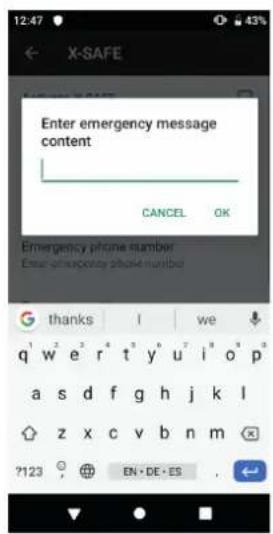
- Pobrinite se da je potvrdni okvir „Activate X-SAFE” aktiviran.
2. KORAK: VEZA IZMEĐU APLIKACIJE X-SAFE I NAMJENSKOG GUMBA
- Idite na Postavke > Buttons i odaberite „Dedicated Button”.
- Kliknite na Press action i provjerite da je odabran X-SAFE.
- Vratite se na izbornik gumba i kliknite na Press mode te odaberite željeni način.

3. KORAK: POKRENITE UPOZORENJE
![graph LR A["Mobile Phone"] -->|3x ili long press| B["Emergency Call 0601020304"] B -->|1 sec. Cancel| C["Phone Card: F Calling... Fred Mobile 06-01 02 03 04"]](/content/2026/03/571123/images/c8e53f5d75ce58750a448330b68818bd002329f07dd7208fb3b3e5f83ac614e6.jpg)
Preporučujemo pokretanje upozorenja kako biste provjerili je li konfiguracija X-SAFE funkcionalna. Aktivira se odbrojavanje. Korisnik može prekinuti upozorenje pritiskom. Na kraju odbrojavanja automatski se aktivira poziv prethodno odabranoj osobi.
UPOZORENJA
Punjenje baterije
Pobrinite se da u potpunosti napunite uređaj prije prve upotrebe s pomoću isporučenog AC punjača.

Nikada nemojte puniti telefon istodobno upotrebljavajući magnetsku veze X-LINK TM* i USB vezu jer bi to moglo dovesti do skraćivanja životnog vijeka uređaja telefona.
- Otvorite zaštiti čep i povežite kabel USB s USB prilagodnikom za napajanje, zatim priključite kraj kabela USB u USB priključak.
- Priključite USB prilagodnik za napajanje u električnu utičnicu.
- Kad je baterija u potpunosti napunjena, odspojite telefon iz punjača. Najprije odspojite punjač s uređaja, zatim ga odspojite iz električne utičnice.
Način rada štednja baterije
Pritisnite ovu tipku za prikaz početnog zaslona
Nedavno
Pritisnite ovu tipku za prikaz otvorenih aplikacija.

Natrag
Pritisnite za povratak na prethodni zaslon
KAKO SE KORISTITI DODIRNIM ZASLONOM
Da biste otvorili aplikaciju, odaberite stavku izbornika, pritisnite tipku na dodirnom zaslonu ili za unos znaka s pomoću tipkovnice na zaslonu, dodirnite stavku prstima.
Dugi pritisak
Započnite s dva prsta koji su blizu jedan drugome, a zatim ih raširite na web-stranici, karti ili slici kako biste uvećali dio.
Kako biste pomaknuli stavku, postavite prst na nju, držite i povucite stavku na željeni položaj.
PLOČA S OBAVIJESTIMA
CROSSCALL™
OUTDOOR MOBILE TECHNOLOGY



- TABLE DES MATIÈRES
- LES AVANTAGES DU CORE-M4 GO
- ACCESSOIRES
- L'APPLICATION X-SENSORS
- ÉTAPE 1: PARAMÈTRES X-SAFE
- ICÔNES D'APPLICATIONS
- CONDITIONS DE GARANTIE
- ABOUT YOUR PHONE
- GETTING STARTED
- THE STRENGTHS OF THE CORE-M4 GO
- GETTING TO GRIPS WITH YOUR PHONE
- USING YOUR PHONE
- SAFETY MEASURES
- FURTHER INFORMATION
- APPENDIX
- THE BEST BITS OF THE CORE-M4 GO
- WATERPROOF
- TOUGH
- LONG-LASTING BATTERY
- ACCESSORIES
- THE CORE-M4 GO IS MIL-STD-810G CERTIFIED
- DEVICE OVERVIEW
- HOW TO INSTALL A LEASH
- INSTALLING THE SIM CARD
- SWITCHING THE PHONE ON AND OFF
- SWITCHING ON THE PHONE
- SWITCHING OFF THE PHONE
- X-LINKTM
- X-BLOCKER
- THE X-SENSORS APPLICATION
- PROGRAMMABLE KEYS
- X-SAFE
- STEP 1: X-SAFE SETTINGS
- STEP 2: ASSOCIATION BETWEEN X-SAFE AND DEDICATED BUTTON
- WARNINGS
- DISCLAIMERS
- ADVICE FOR USING YOUR CORE-M4 GO UNDER WATER
- TOUCH-LOCK FEATURE
- ADVICE: AFTER IMMERSION
- TIPS FOR GETTING THE MOST OUT OF YOUR CORE-M4 GO
- NEW: REMOVING OPEN APPS IN ONE CLICK
- CONFIGURING MULTIPLE LANGUAGES
- SETTINGS > SYSTEM > LANGUAGES AND INPUT > LANGUAGES > + ADD LANGUAGE
- BATTERY
- CHARGING THE BATTERY
- BATTERY SAVER MODE
- TIPS AND PRECAUTIONS FOR CHARGING YOUR BATTERY
- TAP
- LONG PRESS
- SWIPE
- TWO-FINGER ACTIONS
- DRAG
- NOTIFICATION PANEL
- CONFIGURING NOTIFICATION OPTIONS
- CLOSING THE NOTIFICATION PANEL
- LOCKING AND UNLOCKING THE SCREEN
- LOCKING THE SCREEN
- UNLOCKING THE SCREEN
- CUSTOMISING THE HOME SCREEN
- WALLPAPERS
- WIDGETS
- APPS SHORTCUTS
- CHANGING THE DATE AND TIME
- DEVICE AND DATA MANAGEMENT
- DATA TRANSFER
- MOBILE DATA
- FACTORY RESET
- HOME SCREEN
- STATUS BAR
- APPLICATION ICONS
- PHONE
- MAKING PHONE CALLS
- MAKING CALLS FROM CALL LOGS OR A CONTACT LIST
- MAKING AN INTERNATIONAL CALL
- RECEIVING CALLS
- ANSWERING A CALL
- REJECTING A CALL
- CONTACTS
- ADDING CONTACTS
- MANUALLY CREATING A CONTACT
- ADDING A CONTACT USING THE KEYPAD
- ADDING A CONTACT FROM A CALL RECEIVED
- IMPORTING CONTACTS
- SEARCHING YOUR CONTACTS
- MESSAGES
- SENDING MESSAGES
- DISPLAYING MESSAGES
- SEARCHING MESSAGES
- CAMERA
- TAKING PICTURES
- LAUNCHING THE CAMERA FROM THE LOCKED SCREEN
- GALLERY
- VIEWING IMAGES AND VIDEOS
- DELETING IMAGES AND VIDEOS
- SHARING IMAGES AND VIDEOS
- CALCULATOR
- AUDIO
- ADDING SONGS TO YOUR PHONE
- LISTENING TO MUSIC
- BROWSER
- CONFIGURING EMAIL ACCOUNTS
- SYSTEM UPDATES
- GENERAL SAFETY INFORMATION
- INFORMATION ON WATER RESISTANCE
- MEDICAL DEVICES
- ROAD SAFETY
- POWER AND CHARGING
- PROTECTING YOUR HEARING
- ENVIRONMENTAL PROTECTION
- CLEANING AND MAINTENANCE
- EMERGENCY CALLS
- RECOMMENDATIONS TO REDUCE THE USER'S EXPOSURE TO RADIATION
- COMPLIANCE
- CE
- ACCESSORIES AND SOFTWARE INFORMATION
- SPECIFIC ABSORPTION RATE (SAR)
- COPYRIGHT
- IMPORTANT INFORMATION
- TERMS AND CONDITIONS OF WARRANTY
- THIS WARRANTY DOES NOT COVER
- ÍNDICE
- ACCESORIOS
- PRIMEROS PASOS
- ZUBEHÖR
- DIE X-SENSORS APPLIKATION
- ACCESSORI
- ACESSÓRIOS
- ARRASTAR
- BIJLAGE
- DE X-SENSOR APPLICATIE
- STAP 2: KOPPELEN VAN X-SAFE EN DEDICATED BUTTON
- NAJBOLJŠE, KAR NUDI CORE-M4 GO
- O VAŠEM TELEFONU
- ZAČETEK UPORABE
- PREDNOSTI TELEFONA CORE-M4 GO
- DODATKI
- VKLOP TELEFONA
- APLIKACIJA X-SENSORS
- KORAK: POVEZAVA MED X-SAFE IN DODELJENO TIPKO
- POVLECITE
- POLJE Z OBVESTILI
- ODPIRANJE POLJA Z OBVESTILI
- PRIBOR
- PRVI KORACI
- UMETANJE SIM KARTICE
- KORAK: VEZA IZMEĐU APLIKACIJE X-SAFE I NAMJENSKOG GUMBA
- KORAK: POKRENITE UPOZORENJE
- UPOZORENJA
- PUNJENJE BATERIJE
- NAČIN RADA ŠTEDNJA BATERIJE
- NEDAVNO
- KAKO SE KORISTITI DODIRNIM ZASLONOM
- DUGI PRITISAK
- PLOČA S OBAVIJESTIMA
- CROSSCALL™
Brand : CROSSCALL
Model : CoreM4 Go
Category : Smartphone