EasyManual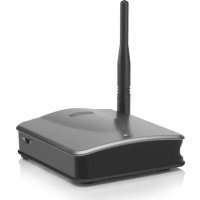
GigaView 545 - Audio/video extension MARMITEK - Free user manual and instructions
Find the device manual for free GigaView 545 MARMITEK in PDF.



User questions about GigaView 545 MARMITEK
0 question about this device. Answer the ones you know or ask your own.
Ask a new question about this device
Download the instructions for your Audio/video extension in PDF format for free! Find your manual GigaView 545 - MARMITEK and take your electronic device back in hand. On this page are published all the documents necessary for the use of your device. GigaView 545 by MARMITEK.
USER MANUAL GigaView 545 MARMITEK
ALL RIGHTS RESERVED MARMITEK ©
- ENGLISH SAFETY WARNINGS x To prevent short circuits, this product should only be used inside and only in dry spaces. Do not expose the components to rain or moisture. Do not use the product close to a bath, swimming pool etc. x Do not expose the components of your system to extremely high temperatures or bright light sources. x Do not open the product: the device contains live parts. The product should only be repaired or serviced by a qualified repairman. x In case of improper use or if you have opened, altered and repaired the product yourself, all guarantees expire. Marmitek rejects responsibility in the case of improper use of the product or when the product is used for purposes other than specified. Marmitek does not accept liability for additional damages other than covered by the legal product liability. x Only connect the adapter to the mains after checking whether the mains voltage is the same as the values on the identification tags. Never connect an adapter or power cord when it is damaged. In that case, contact your supplier. x This product is not a toy. Keep out of reach of children. CONTENTS SAFETY WARNINGS p. 3
- CONTENTS p. 3
WIRELESS SOUND AND VISION! x Wireless transmission of pictures and stereo sound through walls and ceilings. x Can be used with any make of DVD player, satellite receiver, decoder, etc. x Watch all your digital TV channels on a second TV. x No distortion from devices such as microwave ovens, wireless (WiFi) networks, Bluetooth, etc. by using the 5.8 GHz frequency band. x Mount the receiver (out of sight) behind your TV or on the ceiling next to your projector.
HOW DOES THE GIGAVIEW 545™
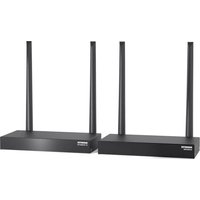
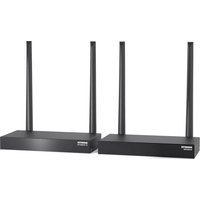
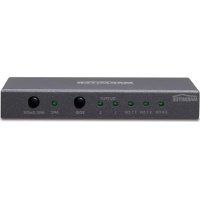
WORK? It's really simple! The set consists of a transmitter and a receiver. Connect the transmitter to your A/V equipment (e.g. Satellite or DVD). Then connect the receiver to your second TV. Via the infrared extender, you can also continue to operate A/V equipment that is set up in a different room (or in a closed cupboard) with your own remote control. SET CONTENTS 1 A/V Transmitter 1 A/V Receiver 2 Power adapters 1 IR Sensor Extender cable 1 IR Extender cable with 3 LEDs. 2 RCA cables (white / red / yellow) 1 SCART adapter (labelled Transmitter). 1 SCART adapter (labelled Receiver) 1 User manualGIGAVIEW 545
4. A/V jack Receiver
7. ID code switch, the A/V transmitter and A/V receiver have to be on
8. LED indicator: POWER© MARMITEK
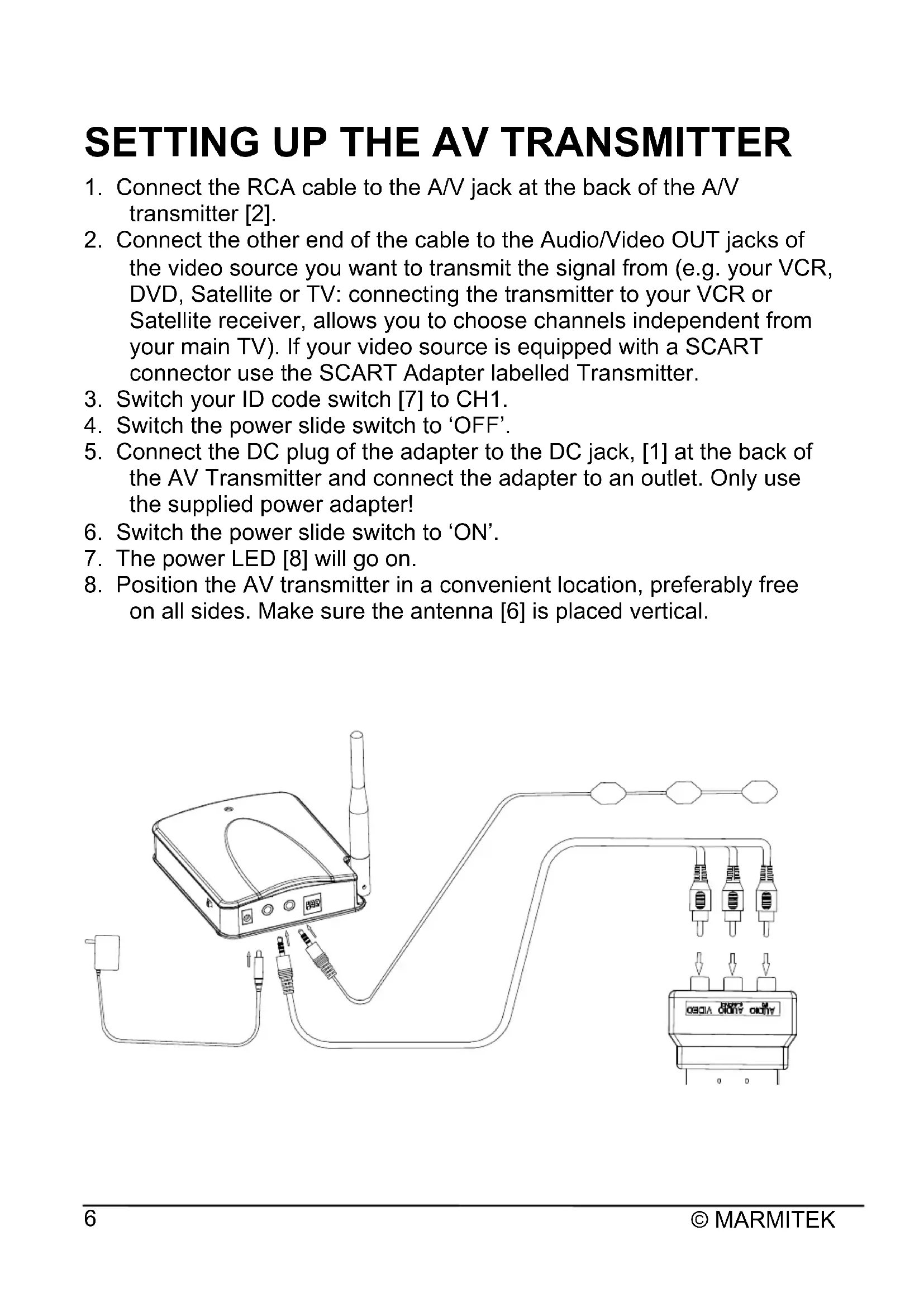
1. Connect the RCA cable to the A/V jack at the back of the A/V
2. Connect the other end of the cable to the Audio/Video OUT jacks of
the video source you want to transmit the signal from (e.g. your VCR, DVD, Satellite or TV: connecting the transmitter to your VCR or Satellite receiver, allows you to choose channels independent from your main TV). If your video source is equipped with a SCART connector use the SCART Adapter labelled Transmitter.
3. Switch your ID code switch [7] to CH1.
4. Switch the power slide switch to ‘OFF’.
5. Connect the DC plug of the adapter to the DC jack, [1] at the back of
the AV Transmitter and connect the adapter to an outlet. Only use the supplied power adapter!
6. Switch the power slide switch to ‘ON’.
7. The power LED [8] will go on.
8. Position the AV transmitter in a convenient location, preferably free
on all sides. Make sure the antenna [6] is placed vertical.GIGAVIEW 545
1. Connect the RCA cable to the A/V jack at the back of the A/V
2. Connect the other end of the A/V cables to your TV. If your TV has a
SCART connector, you may use the SCART adapter provided, labelled “Receiver”.
3. Switch your ID code switch [7] to CH1.
4. Switch the power slide switch to ‘OFF’.
5. Connect the DC plug of the adapter to the DC jack, [1] at the back of
the A/V Receiver and connect the adapter to an outlet. Only use the supplied power adapter!
6. Switch the power slide switch to ‘ON’.
7. The power LED [8] will go on.
8. Position the A/V Receiver in a convenient location, preferably free on
all sides. Make sure the antenna [6] is placed vertical.© MARMITEK
the IR IN connector [5] on the GigaView 545 Receiver and place this in sight of the Remote Control.
2. Plug the IR LED Extender cable into the IR OUT connector [3] on the
GigaView 545 Transmitter. Attach the IR LEDs to the front of your A/V (audio/video) devices. This will now send all received infrared commands via the IR Sensor Extender cable.
Place the LEDs from the IR extender cable precisely on the IR window (infrared sensor) on the A/V equipment that you wish to operate. x Ensure that the IR extender cable’s LEDs are stuck precisely on the A/V device’s infrared sensor (this can be extremely accurate on some devices). The exact position can easily be located by shining a torch on the front panel and looking for the IR sensor window. x All IR LEDs include self-adhesive film with which they are attached to your A/V equipment. x Test the position and the performance of the IR LEDs before you secure them to the IR window on your A/V equipment. x If you use just one or two of the three LEDs, you can leave the other IR LEDs unused. Never remove them from the extender cable!
Environmental Information for Customers in the European Union European Directive 2002/96/EC requires that the equipment bearing this symbol on the product and/or its packaging must not be disposed of with unsorted municipal waste. The symbol indicates that this product should be disposed of separately from regular household waste streams. It is your responsibility to dispose of this and other electric and electronic equipment via designated collection facilities appointed by the government or local authorities. Correct disposal and recycling will help prevent potential negative consequences to the environment and human health. For more detailed information about the disposal of your old equipment, please contact your local authorities, waste disposal service, or the shop where you purchased the product.GIGAVIEW 545
I do not get any signal. x Check if the units are connected to the mains and if the channel setting [2] is the same on both units. x Check if both units are in the ‘ON’ position [7]. x Check if the receiving TV is on the correct A/V channel. The signal received is poor. x Try another channel (the channel settings must be the same on both units). x Move transmitter and/or receiver from the immediate vicinity of the connected A/V devices. These may affect the range. x You are (almost) out of range. x Changing the position of the transmitter and / or receiver a few centimetres may rectify the problem. x Try again with shorter distances. The images and sound are perfect, but the infrared return signal does not work. Check the following: x Depending on the local situation the A/V signal can reach further than the signal of the IR receiver. Try again with shorter distances. x Has the IR emitter been properly connected to the AV transmitter? x Has the IR emitter been properly placed near the IR window of your A/V device? I do get images but no sound. x The GigaView 545 can send analogue stereo signals, such as Dolby Surround. Digital systems such as Dolby 5.1 or Dolby Digital cannot be transmitted. Does the GigaView 545
cause a conflict with my wireless network (WLAN) ? x No, WiFi uses the 2.4Ghz frequency band. The GigaView 545 uses the 5.8GHz frequency band. In cases where a 2.4GHz video transmitter experiences interference from for instance a WiFi network, the GigaView 545 can be the right solution. Can I combine multiple receivers? x Yes. However, the signal will be the same on all receivers. Do you still have questions? Check out www.marmitek.com for more information.© MARMITEK
DECLARATION OF CONFORMITY
Copyrights Marmitek is a trademark of Pattitude B.V. GigaView 545 is a trademark of Marmitek B.V. Copyright and all other proprietary rights in the content (including but not limited to model numbers, software, audio, video, text and photographs) rests with Marmitek B.V. Any use of the Content, but without limitation, distribution, reproduction, modification, display or transmission without the prior written consent of Marmitek is strictly prohibited. All copyright and other proprietary notices shall be retained on all reproductions. MARMITEK www.marmitek.comGIGAVIEW 545 55back.pdf 17-1-2011 16:52:49