EasyManual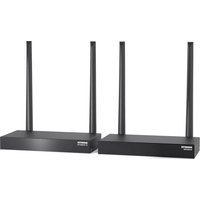
TV Anywhere Wireless 4K Pro - Audio/video extension MARMITEK - Free user manual and instructions
Find the device manual for free TV Anywhere Wireless 4K Pro MARMITEK in PDF.


User questions about TV Anywhere Wireless 4K Pro MARMITEK
0 question about this device. Answer the ones you know or ask your own.
Ask a new question about this device
Download the instructions for your Audio/video extension in PDF format for free! Find your manual TV Anywhere Wireless 4K Pro - MARMITEK and take your electronic device back in hand. On this page are published all the documents necessary for the use of your device. TV Anywhere Wireless 4K Pro by MARMITEK.
USER MANUAL TV Anywhere Wireless 4K Pro MARMITEK
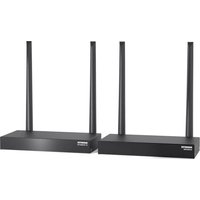
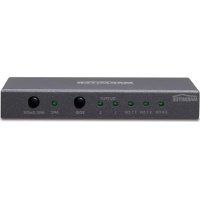
TV Anywhere Wireless 4K Pro Package content 1x 4K transmitter 1x 4K receiver 1x IR emitter 1x micro-USB cable 2x 4K HDMI cable 2x power adapter 2x power USB cable 1x user guide Extend your 4K HDMI signal wirelessly up to 50 metres - HDMI extender - wireless - 4K60 Ultra HD - full house coverage - loopthrough Multi language user guide TVAW4K RX Seperately available
- TVAW4K RX 25008440
Link up to 4 wireless HDMI receivers for distribution to multiple screens simultaneously. ai166755189720_1_VZ_25020766_20221104_UG_124x176mm_80g_TV_Anywhere_Wireless_4K_Pro.pdf 1 4-11-2022 09:51:38© MARMITEK
Safety instructions Please read these instructions thoroughly before you use the device and keep them for future reference.
- Only for indoor use.
- Do not use the product in a damp environment or near water.
- Do not expose the product to extremely high or low temperatures, strong light sources or direct sunlight.
- This product is not a toy. Keep out of reach of children.
- Connect the adapter to the mains only after you have verified that the line voltage corresponds to the value specified on the type plates.
- Never connect a power adapter if it's damaged. In such cases, please contact your supplier.
- Disconnect the AC/DC power adapter from the mains when this device is not in use for prolonged time.
- Never open the product: the device may contain parts with deadly voltage.
- Repairs or service should only be performed by qualified personnel.
- Improper use, self-installed modifications or repairs will void any and all warranties.
- Marmitek does not accept any product responsibility for incorrect use of the product or use other than for which the product is intended. Marmitek does not accept liability for any consequential damage other than the legal product responsibilityTV Anywhere Wireless 4K™
- First, turn off all devices (TV and HDMI sources) before connecting them to the TV Anywhere Wireless 4K™. If a device cannot be turned off, please remove its plug from the wall socket.
- For the best picture and sound quality, only use Premium High Speed HDMI® certified cables.
1.2 Connecting the 4K transmitter
The transmitter sends the video signal wirelessly to the receiver in another room. Therefore, place the transmitter near your HDMI source device (TV decoder, Blu-ray player, Desktop PC, etc)
“HDMI IN”(1) on the 4K transmitter.
2. Optional: To continue watching TV in this room as well, use an HDMI cable (not
supplied) to connect a TV to the HDMI port marked "HDMI OUT"(2).
3. Connect the power adapter to the connector marked "POWER"(5) and insert the
plug into the wall socket.TV Anywhere Wireless 4K™
1.3 Connecting the 4K receiver
Place the receiver in the room where you want to connect the second TV or projector.
1. Use the HDMI cable to connect your TV or projector to the HDMI port marked
“HDMI OUT”(2) on the 4K receiver.
2. Connect the power adapter to the connector marked "POWER"(5) and insert the
plug into the wall socket.
1.4 Connecting infrared return
The TV Anywhere Wireless 4K™ has a built-in “infrared return feature" that enables continued operation of the connected HDMI source from another room. For example, operate your HDMI source downstairs from your bedroom (location of second TV).
1.4.1 Placement of IR receiver
The IR receiver receives the commands sent by your (infrared) remote control and sends these to the IR emitter, enabling you to operate your connected HDMI source.
- The IR receiver located behind the front panel of the 4K receiver. Make sure to place the 4K receiver in line of sight with the remote control (max. 10 meters) for proper reception.
- Please experiment with correct placement before final placement of the 4K receiver.© MARMITEK
The IR emitter receives the commands sent by the IR receiver and forwards them to your connected HDMI source.
- Connect the IR emitter cable to the 4K transmitter's connector marked “IR”(4).
- Make sure that the led of the IR emitter cable is attached exactly over the HDMI source's infrared sensor (with some equipment, this needs to be done very precisely). The exact position can be found more easily by shining a torch on the front panel, searching for the IR sensor window.
- Please experiment with correct placement before final attachment of the IR led. Please note! The adhesive strip may cause discolouration on certain surfaces, or leave adhesive residues after removal.
1.4.3 Testing the IR return function
Once you have connected the IR emitter cable according to the above description, it is recommended to test the function first.
- Aim your remote control towards the IR receiver on the 4K receiver and send a command.
- The IR Receiver will now send this command to the 4K transmitter .
- The HDMI source should now execute the function associated with the command sent by your remote control.TV Anywhere Wireless 4K™
1.5 Connecting the USB extension
In addition to the infrared return feature, the TV Anywhere Wireless 4K™ also features a built-in USB extension function. This helps you to continue to operate connected HDMI sources, such as a Media Center PC or laptop, from another room, using a mouse and/or keyboard.
Using the included Micro USB cable, connect your PC or laptop to the Micro USB socket marked “PC”(3) on the 4K transmitter.
1.5.2 To the 4K receiver
Connect your mouse and/or keyboard to the connectors marked with the keyboard and mouse symbol(7) on the 4K receiver. You can also use a wireless Bluetooth
mouse and keyboard, in that case insert the Bluetooth
receiver in one of the USB ports of the 4K receiver.
1.5.3 Testing the USB extension function
Once you have connected the Micro USB cable and your mouse/keyboard according to the above description, it is recommended to test the feature first.
- Take your mouse/keyboard and use one of the functions.
- The 4K receiver will now send this function to the 4K transmitter.
- The Media Center PC or laptop should now execute the function of your mouse/keyboard.© MARMITEK
2.1 4K transmitter and receiver
1. Turn ON the second TV or projector and select the correct HDMI input to which
the 4K receiver is connected.
2. Turn ON the HDMI source.
3. Use the switch at the back to turn ON the 4K transmitter and receiver.
4. During system startup (30 sec.) a startup screen will appear on the 4K receiver
and the status LED on both the 4K transmitter and 4K receiver will flash until the signal connection between the two has been established.
5. When the connection is established and the HDMI source is properly
connected, a video signal will appear on the (second) TV.
6. With proper operation, the LED on the top of the 4K transmitter and receiver will
7. If no video signal appears, check the lights according to the overview in section
Please note: To be able to watch TV locally (via the HDMI output of the transmitter), the 4K transmitter should always be switched on.
2.2 4K transmitter only
When you do not want to watch video on the second TV or projector, you can turn off the 4K receiver and keep watching video over your transmitter. While watching video over your 4K transmitter only, you can also view your 4K video in HDR.
2.3 Status of the lights
The LED in the top-plate will indicate the status of the 4K transmitter and receiver: 4K transmitter Red (blinking) Starting up Blue (blinking) Waiting for connection Blue Connected Purple No supported video signalTV Anywhere Wireless 4K™
ENGLISH 4K Receiver Red (blinking) Starting up Blue (blinking) Waiting for connection Blue Connected
3 Frequently asked questions (FAQs) Tip: Testing over a long distance is difficult. First, place the 4K transmitter and receiver in the same room (minimum 2 metres apart) to test if everything works and only then place the 4K receiver in another room. No (or poor) image and sound on TV or projector
- Ensure that the ON/OFF switches at the back of the transmitter and receiver are in the ''ON'' position.
- Ensure that all HDMI cables are connected properly or replace them.
- Ensure that the HDMI source is turned ON and the correct HDMI input is selected on the TV.
- Ensure that the HDMI source is set to a correct video resolution. If necessary, consult the user manual of your HDMI source.
- Disconnect the power adapters from the wall socket and reconnect them to reboot the TV Anywhere Wireless 4K. No or bad connection between the 4K transmitter and 4K receiver
- Move the 4K transmitter and/or the 4K receiver from the immediate vicinity of the connected HDMI sources and Wi-Fi equipment. These may affect the range.
- Slightly adjusting the position of the 4K transmitter and/or 4K receiver may already help out.
- Too much distance between 4K transmitter and 4K receiver. Try using shorter distances. I do have picture, but no (or bad) sound The TV Anywhere Wireless 4K supports up to 2CH PCM stereo.
- Check the audio setting in the settings menu of the connected HDMI source and manually set it to 2CH PCM stereo when the automatic setting does not work.© MARMITEK
The IR return function is not working
- Ensure that the IR LED is properly plugged in.
- Experiment with the location of the IR receiver and IR led cable.
- The IR receiver has a reception sensitivity of max. 10 metres.
- The range is also dependent on the remote control used. Do you have any questions that are not answered here? Then please visit www.marmitek.com
Connections transmitter Input 1x HDMI (female) Output 1x HDMI (female) 1x IR 3,5mm Jack( female) 1x micro-USB(female) Connections receiver Input 2x USB-A (female) Output 1x HDMI (female) Video Supported resolutions Max. 4K60 (3840 x 2160@60 Hz) HDMI standards HDMI 2.0, HDR (TX only), EDID and HDCP 2.2 Audio Supported audio 2CH PCM audio, 16bits – 44.1KHz Technology Operational frequency 5 GHz Range Up to 150 meters clear field and up to 50 meters through floors and walls Latency (lag) <100ms Infrared return function Frequency range 30 ~ 60kHzTV Anywhere Wireless 4K™
ENGLISH Housing and environment Dimensions 155 x 77 x 22 mm Weight 320 g Ambient temperature 0 ~ 40° C Humidity 10% ~ 80% Power supply External power adapter 100-240VAC @50-60Hz, 5VDC @ 2A Power consumption(max) 7W Specifications may change without prior notice.
4.2 Declaration of Conformity
Hereby, Marmitek BV, declares that this TV Anywhere Wireless 4K™ is in compliance with the essential requirements and other relevant provisions of the following Directives: Directive 2014/53/EU of the European Parliament and of the Council of 16 April 2014 on the harmonisation of the laws of the Member States relating to the making available on the market of radio equipment and repealing Directive 1999/5/EC. Directive 2011/65/EU of the European Parliament and of the Council of 15 November 2017 amending Directive 2011/65/EU on the restriction of the use of certain hazardous substances in electrical and electronic equipment. Commission Regulation (EU) 2019/1782 of 1 October 2019 laying down eco-design requirements for external power supplies pursuant to Directive 2009/125/EC of the European Parliament and of the Council and repealing Commission Regulation (EC) No 278/2009. You can read the full Declaration of Conformity at http://www.marmitek.com© MARMITEK