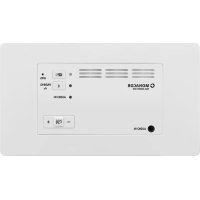
IWA50WIFIWS - Hi-fi system Monacor - Free user manual and instructions
Find the device manual for free IWA50WIFIWS Monacor in PDF.


| Product type | WLAN in-wall amplifier (hi-fi system) |
| Dimensions (W × H × D) | 175 mm × 100 mm × 37 mm (with cover) / 125 mm × 75 mm × 35 mm (mounting) |
| Weight | 176 g |
| Power supply | DC 12-24 V on screw terminals |
| Maximum consumption | 60 VA (2.5 A) at 24 V / 45 VA (3 A) at 15 V / 30 VA (2.5 A) at 12 V |
| Amplifier class | Class D |
| RMS output power | Up to 2 × 25 W at 8 Ω (24 V) |
| Frequency response | 45 - 20,000 Hz |
| Signal-to-noise ratio | ≥ 84 dB |
| Distortion factor | ≤ 0.1% |
| Channel separation | ≥ 58 dB |
| Audio input | 3.5 mm stereo jack (line level) |
| Wireless connectivity | WLAN 2.4 / 5 GHz, Bluetooth 4.0 (A2DP, AVRCP) |
| Wired connectivity | Ethernet RJ45 |
| Playback functions | Network (DLNA), Bluetooth, analog input, multiroom, Spotify |
| Operating temperature | 0 °C to 40 °C |
| Mounting | In-wall (cut-out 125 × 75 × 35 mm) |
| Optional accessory | Installation box IWA-50U/W |
| Reset | Restart (buttons -, + and ); factory reset (WIFI button 8 s) |
| Maintenance | Soft dry cloth, no chemicals or water |
| Safety | Indoor use, avoid humidity and splashes, do not obstruct vents |
| Spare parts / repairability | Integrated mounting frame; repairs by qualified personnel |
| General information | Brand: Monacor, Model: IWA50WIFIWS |
Frequently Asked Questions - IWA50WIFIWS Monacor
User questions about IWA50WIFIWS Monacor
0 question about this device. Answer the ones you know or ask your own.
Ask a new question about this device
Download the instructions for your Hi-fi system in PDF format for free! Find your manual IWA50WIFIWS - Monacor and take your electronic device back in hand. On this page are published all the documents necessary for the use of your device. IWA50WIFIWS by Monacor.
USER MANUAL IWA50WIFIWS Monacor
These instructions are intended for skilled personnel with knowledge of audio technology and network technology (for installation) and for any user (operation). Please read the instructions carefully prior to installation and keep them for later reference.
Contents
1 Overview 14
2 Applications 15
2.1 Conformity and approval. 16
2.2 Amplifier power 16
3 Important Notes. 16
4 Installation. 17
4.1 Speaker connection 17
4.2 Ethernet connection 17
4.3 Power supply. 17
4.4 Selecting the operating mode 17
4.5 Selecting the gain 17
4.6 Installation. 17
4.7 Network connection 18
4.7.1 Mobile application (app). 18
4.7.2 Integration into a wireless LAN 18
4.7.3 Network connection via Ethernet 19
5 Operation 20
5.1 Replay via the network. 20
5.1.1 Replay options. 20
5.2 Replay via Bluetooth 21
5.2.1 Forwarding audio signals to the network 21
5.3 Reproduction via AUDIO IN. 22
5.3.1 Forwarding audio signals to the network 22
6 Reset 22
6.1 Restart. 22
6.2 Reset to factory settings 22
7 Specifications 23
All operating elements and connections described can be found on page 2.
1 Overview
1 Input jack AUDIO IN, 3.5 mm jack for connection of a stereo audio source (line level)
2 Button switch to the network mode; to reset the settings and to re-establish a network connection, keep the button pressed for 8 seconds
3 Wi-Fi LED status indicator
Flashing
slow, white: restart (40 sec.), network being searched
fast, white: wireless LAN connection being established
Illuminated
white: wireless LAN connection without audio transmission or LAN connection
blue: wireless LAN connection with audio connection
green: "Spotify" service being used
4 Bluetooth LED status indicator
Flashing
slow, blue: restart (40 sec.)
fast, blue: Bluetooth pairing/con- nection being established
Illuminated
blue: Bluetooth connection established
5 LED status indicator AUDIO IN
Flashing
slow, red: restart (40 sec.)
fast, red: muted
Illuminated:
red: analog input AUDIO IN activated
6 Recessed button WPS for fast establishment of a wireless LAN connection, e. g. to a router supporting the WPS function (Wi-Fi Protected Setup)
7 Button for pairing with a Bluetooth signal source (keep the button pressed for 4 sec.)
8 Buttons - / + to adjust the volume; the corresponding LED indicator will flicker while the volume is being adjusted
9 Button to mute and unmute the sound; the corresponding LED indicator will flash slowly while the amplifier is muted
10 DIP switches to select the mode (mono/ stereo) and to adjust the gain
11 Screw terminals VDC/GND to connect the power supply (= 12 - 24V)
12 Screw terminals R+/R- to connect the right speaker
13 Screw terminals L + / L - to connect the left speaker
14 RJ45 jack for Ethernet connection to a network
2 Applications
This amplifier is designed for wall installation and is mainly to be used for music reproduction via a local wireless network (wireless LAN). It can be integrated into an existing network. As an alternative, Ethernet connection via a cable is supported. As a player, a smartphone, tablet computer or PC with a DLNA-compatible software (DLNA audio player) installed is required.
Some DLNA audio players such as the software which is described in chapter 4.7.1 and free of charge provide a multi-room option: an amplifier IWA-50WIFI/WS each is installed in different rooms; using a DLNA player, different pieces of music can be transmitted to the individual amplifiers or the amplifiers can be grouped and operated together.
An additional Bluetooth receiver allows audio replay from a Bluetooth audio source (e.g. from a smartphone or tablet computer). In addition, an audio source with line output level (e.g. CD player) can be connected via an analog stereo input. The signal provided via Bluetooth or via the input jack can be passed on to other units in the same network.
The amplifier can be operated in monophonic or stereophonic mode. The gain and thus the maximum volume possible can be defined.
DLNA: The Digital Living Network Alliance is an international organisation of computer, mobile phone and consumer product manufacturers that have agreed on a common standard for digital data transmission and that work constantly on further development of this standard.
2.1 Conformity and approval
Herewith, MONACOR INTERNATIONAL declare that the amplifier IWA-50WIFI/WS complies with the directive 2014 / 53 / EU. The EU declaration of conformity is available on the Internet:
www.monacor.com
The unit operates in the 2.4 GHz and 5 GHz ranges and is generally approved for operation in EU and EFTA countries. It is licence-free and requires no registration.
2.2 Amplifier power
The maximum amplifier power depends on the supply voltage used and the impedance of the speakers connected.
| \(V_{DC}\) | Load impedance | Output power | Power consumption |
| 24V | 4 Ω— — | ||
| 8 Ω 2 × | 25 W 60W (2.5A) | ||
| 16 Ω 2 × | 15 W 44W (1.8A) | ||
| 15V | 4 Ω 2 × | 16 W 45W (3A) | |
| 8 Ω 2 × | 10 W 27W (1.8A) | ||
| 16 Ω 2 × | 5.5 W 18W (1.2A) | ||
| 12V | 4 Ω 2 × | 10 W 30W (2.5A) | |
| 8 Ω 2 × | 6 W 18W (1.5A) | ||
| 16 Ω 2 × | 3.5 W 14W (1.2A) |
3 Important Notes
The unit corresponds to all relevant directives of the EU and is therefore marked with c.e
- The unit is suitable for indoor use only. Protect it against dripping water, splash water and high air humidity. The admissible ambient temperature range is 0 - 40^ .
- The heat generated inside the unit must be dissipated by air circulation; never cover the air vents.
- For cleaning, only use a dry, soft cloth; never use water or chemicals.
- No guarantee claims for the units and no liability for any resulting personal damage or material damage will be accepted if the unit is used for other purposes than originally intended, if it is not correctly connected or operated, if it is overloaded or if it is not repaired in an expert way.
If the unit is to be put out of operation definitively, take it to a local recycling plant for a disposal which is not harmful to the environment.
4 Installation
4.1 Speaker connection
Connect the right speaker to the terminal pair R + / R - (12) and the left speaker to the terminal pair L + / L - (13). When a supply voltage of 24V is used, the impedance of a speaker or the total impedance of a group of speakers must not fall below 8 at any terminal pair. For a supply voltage of up to 15V , the minimum impedance of the speakers is 4 at each terminal pair. The required power rating of the speakers depends on the impedance of the speakers and the supply voltage used. The required power rating can be found in the table in chapter 2.2.
4.2 Ethernet connection
If it is not possible to establish a wireless connection to a wireless LAN router at the place of installation, an Ethernet cable can be alternatively used to connect the amplifier IWA-50WIFI/WS to an existing network: Connect the RJ45 jack (14) to a LAN component (e.g. router, switch, computer).
4.3 Power supply
Connect a regulated power supply unit (= 12 - 24V) to the power supply input (11) of the amplifier:
terminal VDC
terminal GND
When selecting the power supply unit, make sure that its output voltage and power match the desired output power of the amplifier. The values can be found in the table in chapter 2.2. The following power supply units are suitable, for example:
24V/60W:PSIP-60/24
12 V/20 W: PSLF-20/12
4.4 Selecting the operating mode
Use the DIP switch no. 3 (10) to select the operating mode:
| ON 1 2 3 | mono | ON 1 2 3 | stereo |
4.5 Selecting the gain
If desired, use the DIP switches no. 1 and no. 2 (10) to change the gain and thus the maximum volume possible:
| ON 1 2 3 | maximum gain |
| ON 1 2 3 | medium gain |
| ON 1 2 3 | minimum gain |
4.6 Installation
The mounting frame of the amplifier can directly be attached via its holes to a drywall panel, for example: A wall cutout of 125mm × 75mm with an installation depth of 35mm is required. For flush-mount installation, the installation box IWA-50U/SW (outside dimensions: 155mm× 80mm ; installation depth: 41mm ) is separately available.
Important: When attaching the cover to the amplifier, make sure that the air vents are on the lower side of the cover.
4.7 Network connection
Via its wireless LAN functionality, the amplifier IWA-50WIFI/WS can be integrated as a client into an existing wireless LAN network. Cable connection via Ethernet to an existing network is also supported.
4.7.1 Mobile application (app)
For operation of the amplifier via wireless LAN, install the app "AllPlay Jukebox" from Qualcomm on a mobile device with the operating system Android (version 4.1 or higher) or the app "Home Studio" from D-Home Smaart on a mobile device with the operating system iOS (version 8.0 or higher). The app is available free of charge on the Internet from the "Google Play Store" or the "Apple App Store".
4.7.2 Integration into a wireless LAN
A router with the wireless LAN standard IEEE 802.11n and with WPA2-PSK encryption (AES) is required as a minimum. For multi-room applications, a 5 GHz multimedia router with a data rate of >600Mbit/s is recommended. To ensure the best connection possible to all wireless LAN components, install the router at a central location.
4.7.2.1 Using the WPS function
Connection to the existing wireless LAN can be most conveniently established provided that the wireless access point of this network (e.g. wireless LAN router) supports the WPS standard (Wi-Fi Protected Setup):
1) Keep the recessed WPS button (6) at the amplifier IWA-50WIFI/ WS pressed for 8 seconds, using a thin, non-conductive object. The Wi-Fi LED indicator (3) will flash rapidly.
2) Activate WPS at the wireless access point (router).
3) The amplifier IWA-50WIFI / WS will be connected automatically to the wireless LAN. The LED indicator will light in white once the connection has been established.
The name used in the network is preset to "SOUNDAROUND CONTROLLER"; it can be changed in the menu "Settings" of the app, e. g. to indicate the place of installation.
4.7.2.2 Establishing a connection via a web browser
To establish a wireless LAN connection via a web browser:
1) Keep the button pressed for 8 seconds until the LED indicators (3 - 5) start flashing slowly. Any connection established before will be reset.
2) When, after approx. 40 seconds, only the upper LED indicator (3) flashes in white, select "S-AROUND IWW..." on the mobile device from the list of available wireless LAN networks and establish a connection. The unit may take up to 1 minute to appear in the list. The LED indicator (3) will flash rapidly while the connection is being established.
3) Enter the address 172.19.42.1 in the web browser.
4) A configuration page will appear; assign a unique name (e.g. place of installation) to the amplifier. This name will also be used for pairing in the Bluetooth mode.
Note: The name can later be changed via the menu "Settings" of the app.
5) Another configuration page will appear; select the wireless LAN network to which the amplifier is to be connected and (if required) enter the password for network access.
Note: If the wireless LAN router does not provide a DHCP server for automatic address assignment: Switch off the option DHCP, manually define an IP address and then make the network settings required.
6) The LED indicator (3) will permanently light in white once a connection has been established. The direct connection to the mobile device will be terminated automatically.
7) Connect the mobile device for audio replay to the wireless LAN network to which the amplifier is connected.
The amplifier will save the connection data and will then establish the connection automatically.
4.7.3 Network connection via Ethernet
When the RJ45 jack (14) is connected to a network, the wireless LAN functionality of the amplifier IWA-50WIFI / WS will not be available. If a wireless LAN router is integrated in the network, the router can be used for communication between mobile devices and the amplifier.
1) Keep the button pressed for 8 seconds until the LED indicators (3 - 5) start flashing slowly. Any connection established before will be reset.
2) When, after approx. 40 seconds, only the upper LED indicator (3) flashes in white, use the web browser to call up the IP address assigned to the amplifier in this network.
3) A configuration page will appear; assign a unique name (e.g. place of installation) to the amplifier. This name will also be used for pairing in the Bluetooth mode.
Note: The name can later be changed via the menu "Settings" of the app.
4) Another configuration page will appear; confirm the connection. The LED indicator (3) will permanently light in white once a connection has been established.
Note: If the network does not provide a DHCP server for automatic address assignment: Switch off the option DHCP, manually define an IP address and then make the network settings required.
5 Operation
The amplifier IWA-50WIFI/WS will be switched on as soon as it is connected to the power supply: After the startup process in which all three LED indicators (3 - 5) flash slowly for approx. 40 seconds, the amplifier will automatically connect to the network to which it was connected most recently. Once the connection has been established, the LED indicator (3) will light in white.
If there is no activity, the amplifier will automatically go to the standby mode after 2 minutes and the LED indicators will go out.
5.1 Replay via the network
1) Make sure that all units involved are connected to the same network.
2) In the network mode, the Wi-Fi LED indicator (3) will first light in white. If the amplifier is not in the network mode, press the button WIF
3) Start the app on the mobile device. After a few seconds, a list of all available "Player" output units (i.e. IWA-50WIFI / WS in this case) will appear. Names (e.g. to indicate the place of installation) have been assigned to the outputs units during setup.
4) Select an output unit.
5) Select the signal source / audio file:
"Music On This Device": audio files that are saved on the mobile device
"Music On The Network": audio files that are saved on the DLNA servers of the same network (e.g. NAS file server or computer with DLNA server function)
"Music Services": Internet radio or other streaming services, e. g. Spotify
Note: These services require an Internet connection and the installation of additional application software on the mobile device. Depending on
the provider of the service, usage of the application software may be subject to registration and charges.
6) Start the replay. The Wi-Fi LED indicator (3) will light in blue when audio transmission is active.
7) Use the buttons - / + (8) or the app to adjust the volume of the replay. The LED indicator will flicker while the volume is being adjusted.
8) Use the button (9) to mute and unmute the sound. The LED indicator will flash slowly while the sound is muted.
5.1.1 Replay options
The app provides the following replay options:
"Party Mode": Multiple mobile devices can access a common play list for replay of music pieces on a common output unit or a common group of output units.
"Multiuser - Multizone Mode": A single mobile device can replay different music pieces on different output units at the same time. Multiple mobile devices can replay different music pieces on different output units.
"Multiroom Mode": Multiple output units (i.e. multiple PA zones) can be combined to a group and provided with the same music at the same time.
Notes:
- All output units must be connected to the same network.
- The "Multiroom Mode" requires a fast network for smooth operation. For groups with more than 2 output units, a 5 GHz multimedia router is recommended.
5.1.1.1 Creating a group
1) In the app, call up the view "Select a Player".
2) Tap "Group" for one of the desired group members.
3) From the list, select the output units you want to include in the group.
4) Tap "done" to confirm your selection.
Music will be replayed via all output units included in the group.
5.2 Replay via Bluetooth
The amplifier IWA-50WIFI/WS is able to receive audio signals via Bluetooth (e.g. from a smartphone or tablet PC) if these devices support the Bluetooth profiles A2DP/AVRCP. The reception range is 10m .
1) Activate the Bluetooth function at the Bluetooth audio source (manual of the Bluetooth audio source).
2) Keep the button 串 ( 7 ) pressed for 4 seconds: The LED indicator (4) starts flashing rapidly in blue.
3) As long as the LED indicator keeps flashing, select the amplifier from the list of available Bluetooth devices at the Bluetooth audio source and pair* the amplifier. The amplifier will be listed with the name it has been assigned for network operation. When the devices have been paired, they will be connected automatically. When the connection has been established, the LED indicator will light in blue permanently.
If the Bluetooth connection has not been established after 1 minute, the amplifier will go back to the network mode.
*Note: If this is not the first time that the two devices are connected (and the name of the amplifier has not been changed in the meantime), pairing will be omitted and the connection will be established immediately.
4) Start the audio replay at the Bluetooth audio source.
5) The replay volume depends on the setting at the Bluetooth audio source and on the setting made by means of the buttons - / + (8).
6) Use the button (9) to mute and unmute the sound. The LED indicator will flash slowly while the amplifier is muted.
7) When the Bluetooth connection is disconnected on the part of the Bluetooth audio source, the LED indicator starts flashing and the amplifier is ready to be connected once again. If the connection has not been re-established after 1 minute, the amplifier will go back to the network mode.
5.2.1 Forwarding audio signals to the network
The audio signal of a Bluetooth audio source cannot only be reproduced at the amplifier to which the source is connected, it can also be forwarded to other amplifiers IWA-50WIFI/WS in the same network.
Notes:
- A 5 GHz multimedia router is recommend for this function.
- High data traffic in the network (e.g. due to video streaming, file download) can impair transmission quality.
- When a group of output units has been created in the app, the signals will be automatically forwarded to the entire group. To forward signals to a different group of output units, create a new group (multiroom mode) before going to the Bluetooth mode.
- When you press the button (9) at the amplifier connected via Bluetooth, the entire group will be muted.
5.3 Reproduction via AUDIO IN
1) Use a cable with a 3.5mm plug to connect an analog audio source (e.g. line level output or headphone output of a mobile audio device, computer or mixer) to the jack AUDIO IN (1). As soon as the plug is connected to the jack, the amplifier will switch to this jack and the LED indicator (5) will light in red. Any existing Bluetooth connection will be interrupted.
It is also possible to use the menu item "Input Mode" of the app to select the input AUDIO IN as a signal source.
2) Use the buttons - / + (8) or the app to adjust the volume. The LED indicator will flicker while the volume is being adjusted.
3) Use the button (9) to mute and unmute the sound. The LED indicator will flash slowly while the sound is muted.
4) When you disconnect the 3.5mm plug, the amplifier will automatically go to the network mode. The red LED indicator will go out and the Wi-Fi LED indicator (3) will light instead. The amplifier will also go to the network mode when the replay of an audio file is started by means of the app, for example.
Note: When an audio source is not used any more, disconnect it from the jack AUDIO IN; otherwise, annoying noise may occur.
5.3.1 Forwarding audio signals to the network
The audio signal of an audio source cannot only be reproduced at the amplifier to which the source is connected via the jack AUDIO IN, it can also be forwarded to other amplifiers IWA-50WIFI / WS in the same network.
Notes:
- A 5 GHz multimedia router is recommend for this function.
-
High data traffic in the network (e.g. due to video streaming, file download) can impair transmission quality.
-
When a group of output units has been created in the app, the signals will be automatically forwarded to the entire group. To forward the signals to a different group of output units, create a new group (multiroom mode) before you select the input AUDIO IN as the source.
-
When you press the button at the amplifier to which the audio source is connected, the entire group will be muted.
6 Reset
The amplifier IWA-50WIFI / WS provides the following reset options.
6.1 Restart
The amplifier name and the network settings will be retained. To restart the amplifier, press the buttons -, + (8) and × 0 at the same time.
All three LED indicators (3 - 5) will flash slowly until the amplifier is connected to the network. The LED indicator (3) will light in white once the connection has been established.
6.2 Reset to factory settings
When the amplifier is reset to its factory settings, the network connection must be re-established. For a reset, keep the button WiFi (2) pressed for 8 seconds.
After 40 seconds, only the LED indicator (3) will light in white; the amplifier is ready for re-connection to the network (13 ch ater 4.7).
7 Specifications
| Amplifier class D | |
| RMS output power for supply UDC = 24 V at 8 Ω | 2 × 25 W |
| at 16 Ω | 2 × 15 W |
| for supply UDC = 15 V at 4 Ω | 2 × 16 W |
| at 8 Ω | 2 × 10 W |
| at 16 Ω | 2 × 5.5 W |
| for supply UDC = 12 V at 4 Ω | 2 × 10 W |
| at 8 Ω | 2 × 6 W |
| at 16 Ω | 2 × 3.5 W |
| Frequency range 45–20000 Hz | |
| Channel separation ≥ 58 dB | |
| THD ≤ 0.1 % | |
| S/N ratio≥ 84 dB | |
| Power supply connection | =12-24V screw terminals |
| Power consumption for supply UDC = 24 V | 60 VA (2.5 A) max. |
| for supply UDC = 15 V | 45 VA (3 A) max. |
| for supply UDC = 12 V | 30 VA (2.5 A) max. |
| Bluetooth specifications profiles range | BT4.0 A2DP 1.3, AVRCP 1.5 10 m |
| Wireless LAN frequency bands 2.4 GHz / 5 GHz | |
| Max. number of amplifiers in the same wireless LAN (via router with 1200 Mbit/s in the 5 GHz band) | 5-10 |
| Analog input rated level connection | 100 mV stereo jack, 3.5 mm |
| Dimensions (W × H × D) amplifier with cover mounting dimensions of the amplifier | 175 mm × 100 mm × 37 mm 125 mm × 75 mm × 35 mm |
| Weight 176 g | |
| Ambient temperature | 0-40°C |
Subject to technical modification.
All rights reserved by MONACOR® INTERNATIONAL GmbH & Co. KG. No part of this instruction manual may be reproduced in any form or by any means for any commercial use.