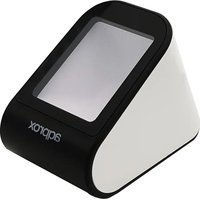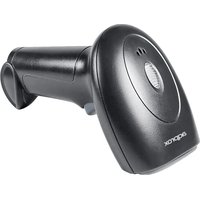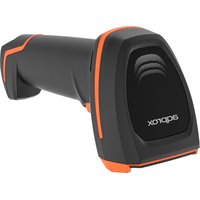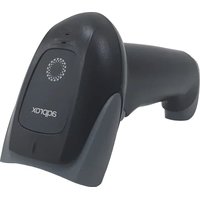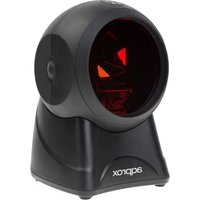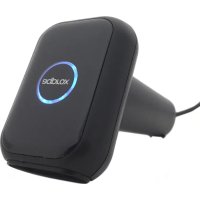
appLS16HD2D - Barcode scanners Aqprox - Free user manual and instructions
Find the device manual for free appLS16HD2D Aqprox in PDF.




| Brand | Aqprox |
| Model | appLS16HD2D |
| Product type | Barcode scanner |
| Sensor | CMOS 640 x 480 |
| Light source | White LED |
| Focus | Red LED |
| 1D Symbologies | EAN-8, EAN-13, UPC-A, Code 39, Code 128, Codabar, GS1-128, etc. |
| 2D Symbologies | QR Code, Data Matrix, PDF417, Aztec |
| Precision | 4 mils |
| Depth of field | 40-350 mm (UPC 13 mils), 70-500 mm (Code39 20 mils) |
| Print contrast | 25% |
| Scan angle | Rotation ±360°, tilt ±60°, skew ±70° |
| Interface | USB |
| Dimensions | 168 x 85 x 62 mm |
| Power supply | DC 5V (via USB) |
| Operating consumption | 190-300 mA |
| Standby consumption | 68-113 mA |
| Operating temperature | -20°C to +50°C |
| Storage temperature | -20°C to +60°C |
| Operating humidity | 5% to 95% (non-condensing) |
| Ambient light | 0 to 70,000 lux |
| Cleaning | Soft dry cloth |
| Safety | Do not open, avoid liquids |
| Recycling | Compliant with WEEE (Directive 2002/96/EC) |
Frequently Asked Questions - appLS16HD2D Aqprox
User questions about appLS16HD2D Aqprox
0 question about this device. Answer the ones you know or ask your own.
Ask a new question about this device
Download the instructions for your Barcode scanners in PDF format for free! Find your manual appLS16HD2D - Aqprox and take your electronic device back in hand. On this page are published all the documents necessary for the use of your device. appLS16HD2D by Aqprox.
USER MANUAL appLS16HD2D Aqprox
QR Code 20mm-300mm (20mil)
Our series scanner is developed to meet the increasing needs of 2D barcode identification. It does not only accurately and quickly read both 1D and 2D barcodes, but also seamlessly captures barcodes on electronic screens (such as mobile phone) and provides an effective data acquisition tool for e-coupons and e-tickets. It's suitable for a wide variety of applications. It is definitely a cost effective and high performance product for you!
Performance index
Scan performance
- Sensor: 640x480 CMOS
- Light Source: White Light LED
- Focus: Red light LED
- Supported Symbologies: 2D: QR Code, MicroQR, Data Matrix, PDF417, Micro PDF417, Aztec / 1D: EAN-8, EAN-13, EAN-13 2 add-on, EAN-13 5 add-on, ISSN, ISBN, UPC-A, UPC-E, Code 11, Code 32, Code 39, Code 39FULLASCII, Code 93, Code 128, Codabar, Industrial 2 of 5, Interleaved 2 of 5, Matrix 2 of 5, ISBT-128, GS1-128, GS1 DataBar (RSS14), GS1 DataBar Limited, GS1 DataBar Expanded
- Barcode Accuracy: 4mil
- Depth of Field:
UPC 40mm-350mm (13mil)
Code39 70mm-500mm (20mil)
QR Code 20mm-300mm (20mil)
- Print Contrast: 25%
- Scan Angle: corner 360^ , pitch angle ± 60^ , skew tolerance ± 60^
Machinery /Electrical parameter
- Communication interface: USB
- Appearance size: 168 (W)× 85 (D)× 62 (H)mm
- Working Voltage: DC 5 V
- Working currents: 190-300mA
- Standby currents: 68-113mA
Environment parameter
- Working Temperature: -20^ +55^
- Storage Temperature: -20°C ~ +60°C
- Working Humidity: 5% 95% (no condensation)
- Ambient light: 0~70000LUX
Outlook
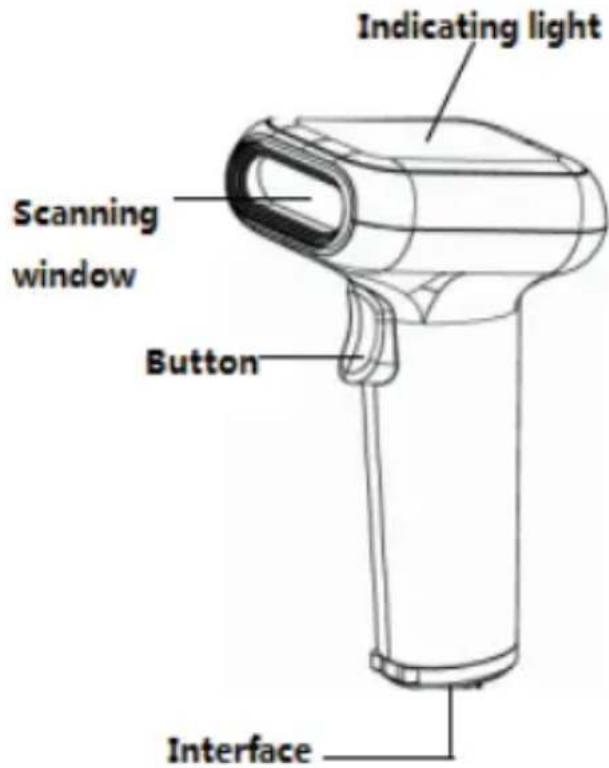
External view
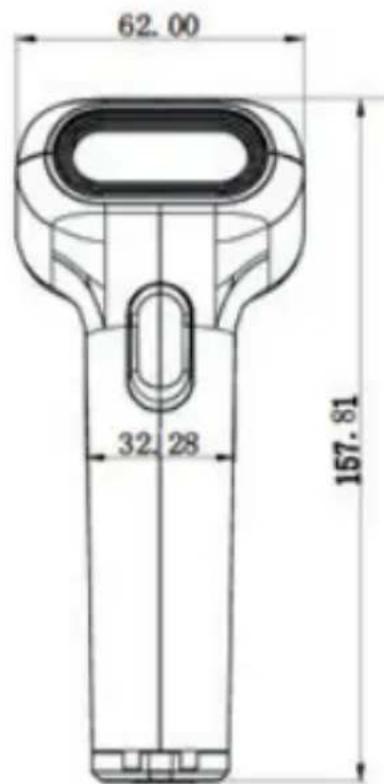
Dimention (mm)
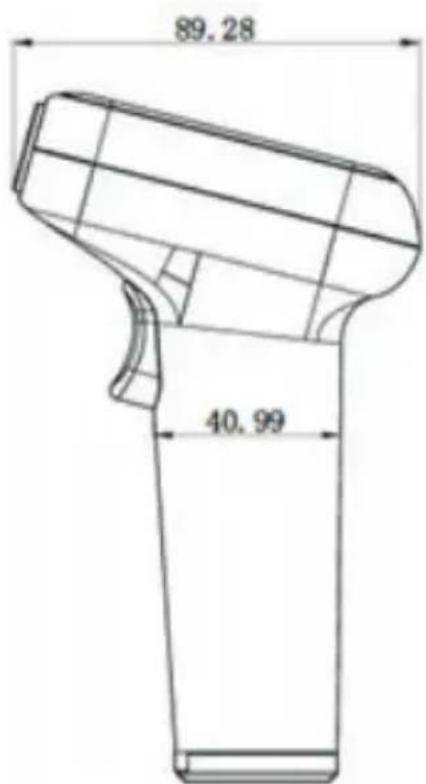
English
Installation of cable
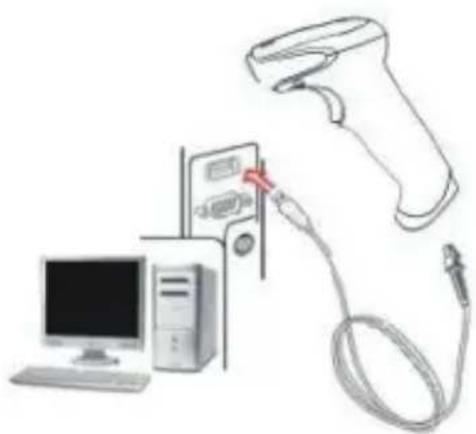
- Refer to the picture, connect the host with the scanner.
- Switch on the host. If the installation is successful, the beeper and LED will work.
- Scanner can work without external power supply.
- Host will automatically detect the scanner.
Demoliton of the wire
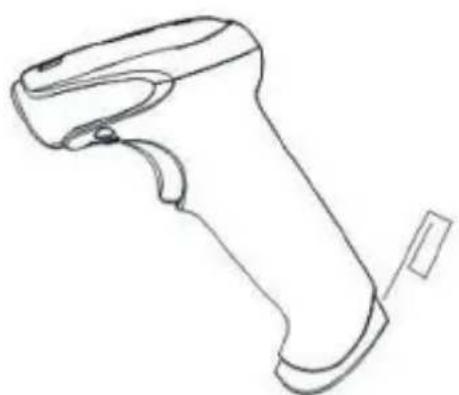
The demolition method is as follows:
- Find the hole close to the end of the scanner.
- Put a thin needle into the hole, softly drag the wire out.
Barcode menu
This model of laser desktop barcode scanner is designed to change settings by reading some special barcode, which we will give you a detailed introduction and show you all the barcodes for the corresponding setting in this section.
The greatest advantage of this setting method is direct, intelligible and user friendly.
Setting barcodes
Enable/Disable parameter bar code scanning
When the configuration code is turn on, All configuration codes available;
When the configuration code is turn off, you need setting it.
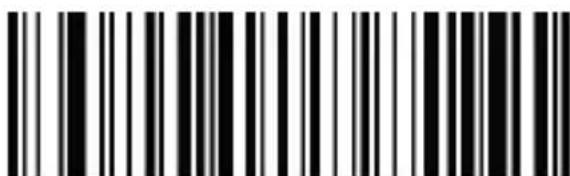
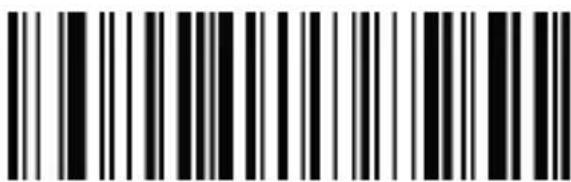
Enable Parameter
Disable Parameter
Bar Code Scanning (Default)
Bar Code Scanning
Restore factory defaults
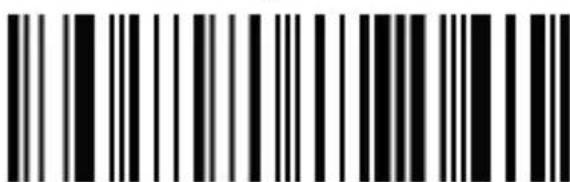
Scanner firmware version
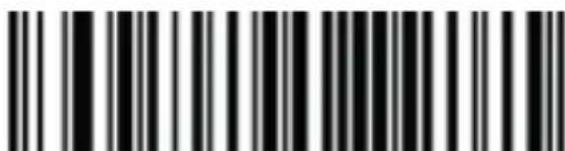
Firmware Version
Interface
This desktop scanner support USBKB, USB to serial port, serial port interface. You can set USB PC KB or USB MAC KB interface by scanning below barcode.
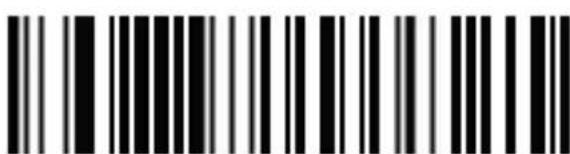

USB KB (Default)
USB MAC KB
You can set serial port interface by scanning below barcode.
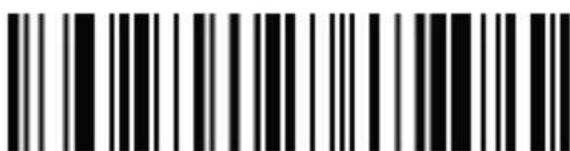
Serial port
English
You can set USB to serial port interface by scanning below barcode. (Need driver, please contact us)
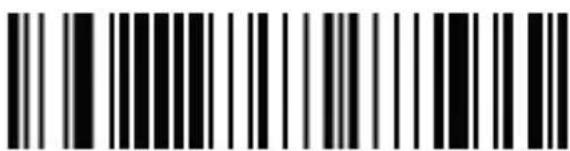
USB to serial port

Baud rate setting
Baud Rate 4800
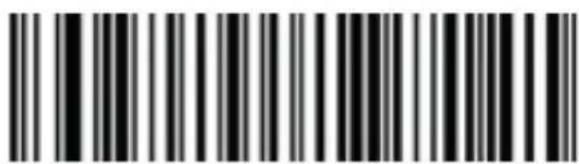
Baud Rate 9600 (Default)

Baud Rate 38400
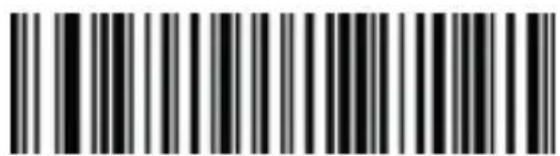
Baud Rate 19200
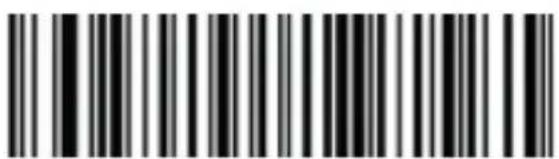
Baud Rate 57600
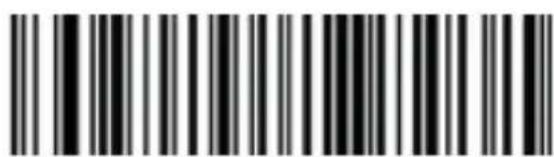
Baud Rate 115200
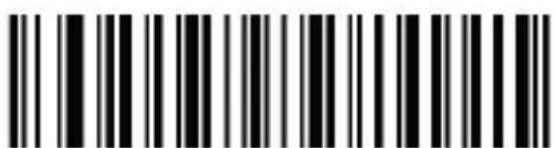
Scanning mode
Manual Scanning Mode (Default)
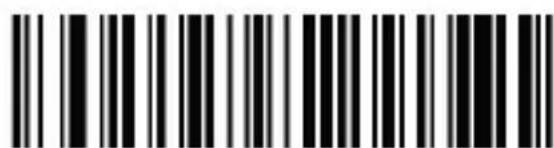
Enable Automatic Recognition Mode
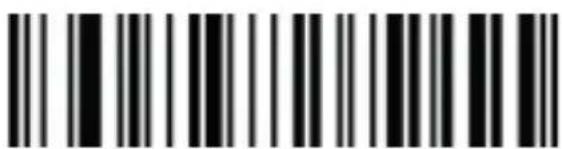
GS Control character substitution (Enable character escape first)
Not replaced
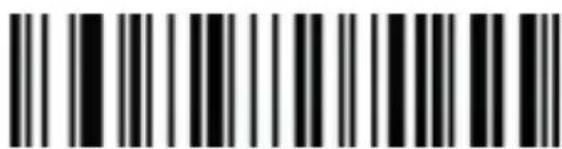
*The output character "C" must enable virtual keyboard first
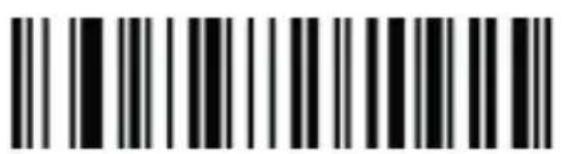
Replace with |
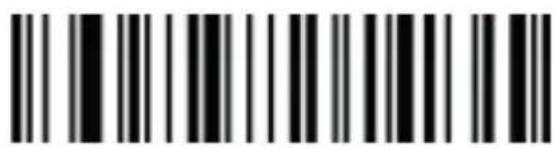
Replace with
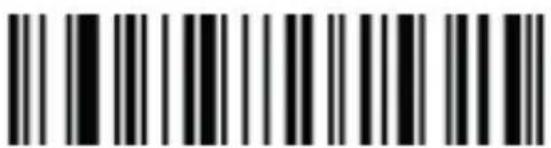
Replace with]
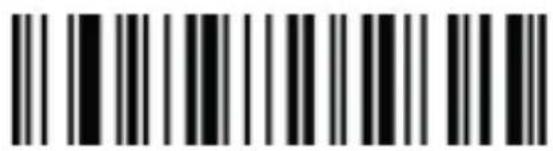
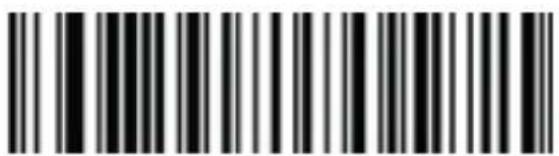
Prefix
No Prefix
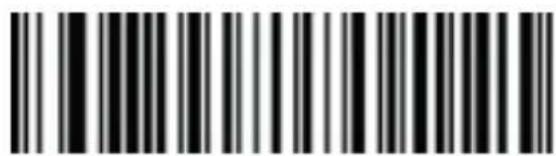
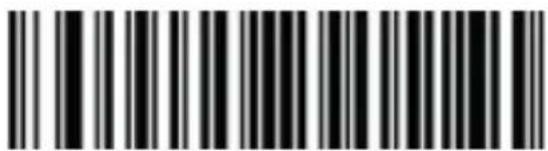
Suffix
No
Suffix
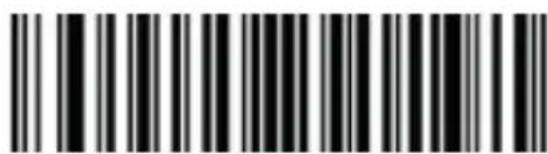
Add
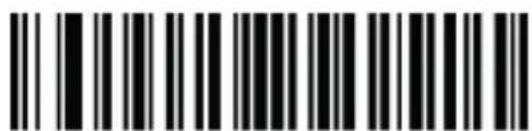
Add Tab
Add Enter+Tab
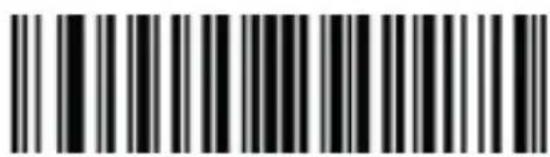
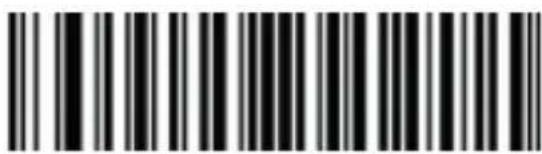
Add ETX
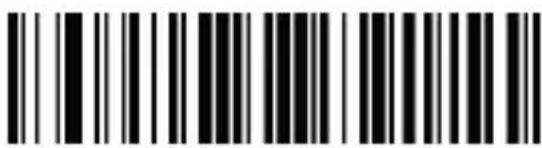
Beeper volume
Volume low
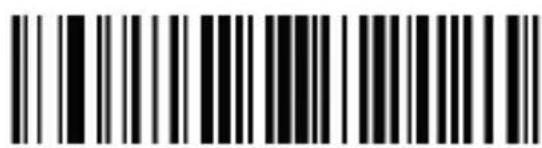
Volume high (Default)
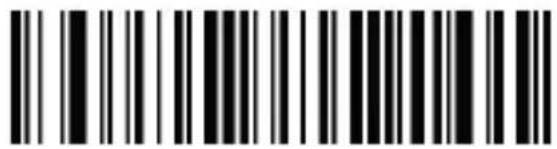
Beeper-good read
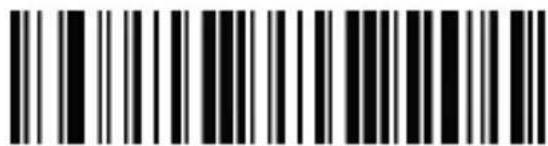
Disable Beep After Good Read (Default)
Enable Beep After Good Read
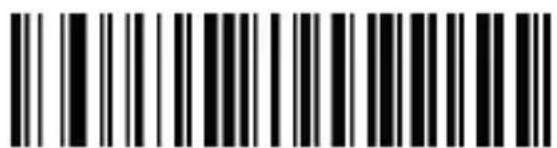
Beeper tone-good read
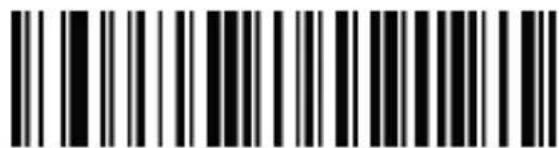
Medium Tone (Default)
Low Tone
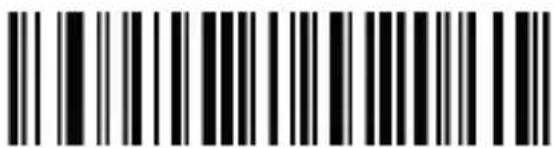
High Tone
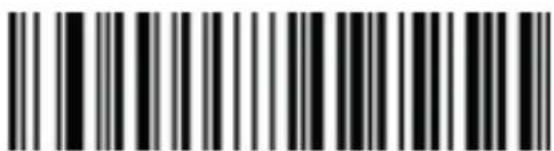
USB keyboard text-transform
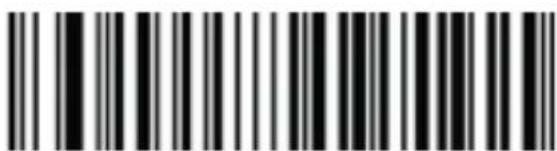
Normal output (Default) Case reversal
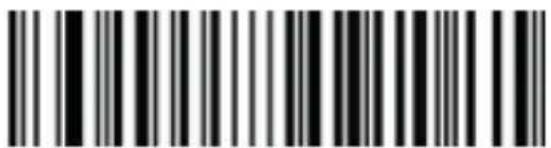
All
Caps

Lower

Keyboard layout setting

English (United States) French (France)

Italian (Italy)
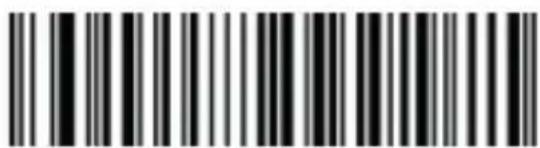
German (Germany)
Spanish (Spain)
Spanish (Latin America)
Greek (MS)
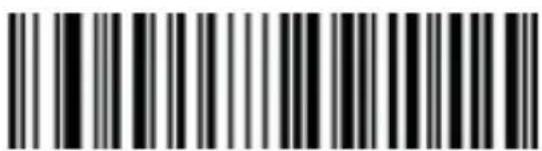
Finnish
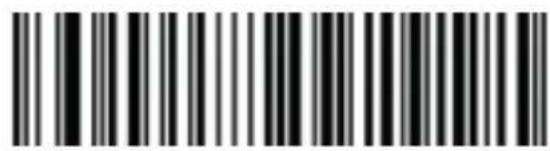
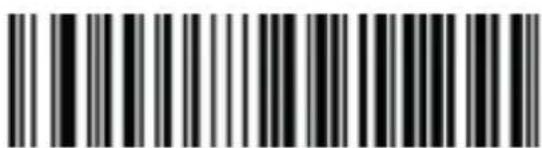
Japanese
Russian (MS)
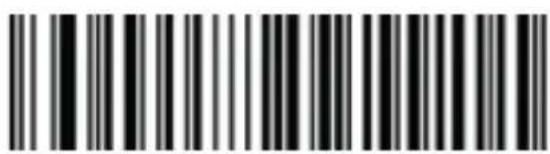

Russian (typewriter)
Arabic

Irish
(101)
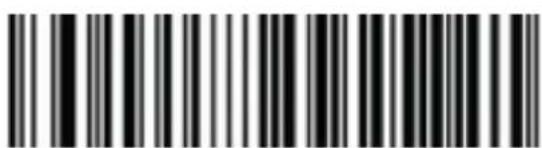
Polish (214)
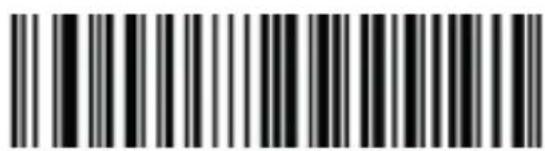

Polish (Programmers)
Dutch (Netherlands)

Czech (QWERTZ)
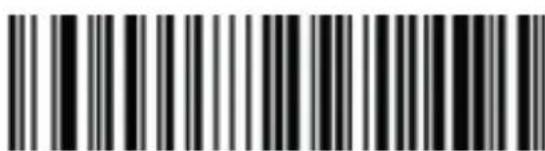
Portuguese (Portugal)

Portuguese (Brazil)
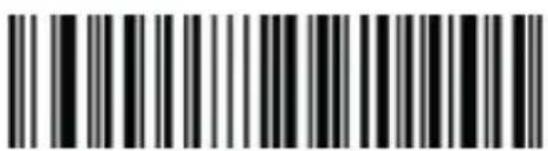
Swedish (Sweden) Turkish Q
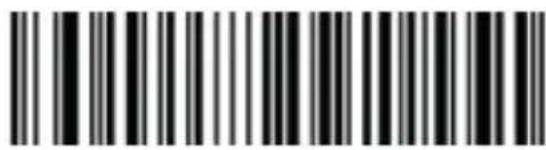
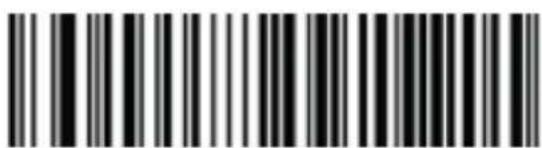
Turkish
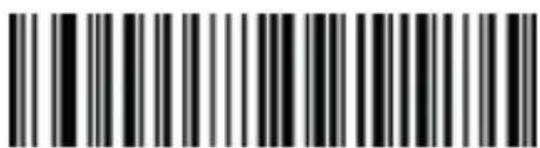
Greek
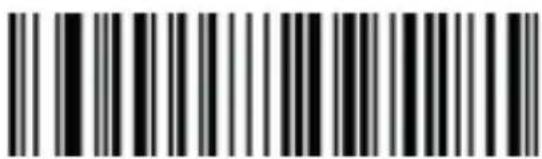
French (Belgium)
Enable/disabling all symbologies
Enable all barcode might slow down scanner decode speed. We suggest enable the barcode you need based on your scene. Enable all barcode is default.
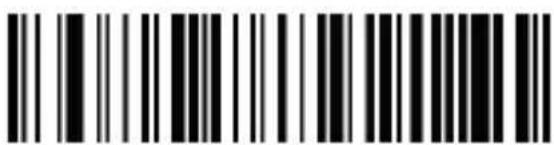
Enable all symbologies
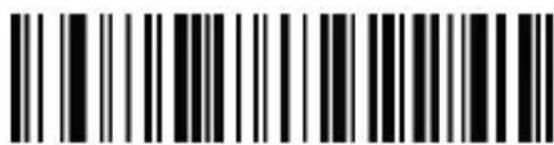
Disable all symbologies
*Check our website www.approxpv.es for more setting barcodes.
Safety, maintenance and recycling instructions
- Caution: Never open the device, the internal parts are danger, electrical shock.
- Do not install this unit near water, for example, in a wet basement, in an unprotected outdoor installation or in any area classified as a wet.
- Do not insert objects of any kind into this unit through openings as they may touch voltage points and short out parts that could result in fire or electric shock.
- Do not spill any liquid on the unit. Danger of explosion!
- Do not crush power cables, danger of short circuit!
- Always connect to the manufacturer's recommended tension.
- Clean the product with a soft and dry cloth.
- Follow local regulations for disposing of the product.
Recycled
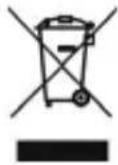
AEE REI-RAEE 5548 In this manual, the container (bin) symbol indicates that the product is subject to the European directive 2002/96 / EC, electrical and electronic products, batteries, and batteries and other accessories must necessarily be subject to a selective collection.
At the end of the life of the device, make use of the recycling bins. This gesture will help reduce the health risks and preserve the environment.
Municipalities and distributors, Will provide essential details on recycling your old device. If this device carries an internal battery, it must be removed and deposited separately for proper management.
Introdução
QR Code 20mm-300mm (20mil)
QR Code 20mm-300mm (20mil)