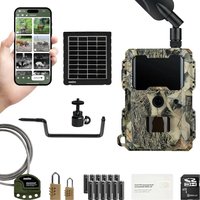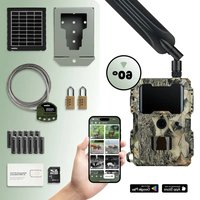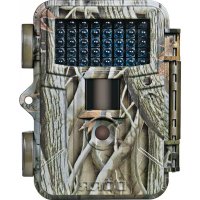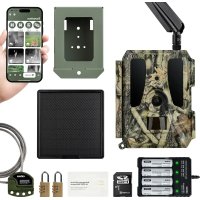
SnapShot Cloud 4G Pro RC 60° - Surveillance Camera Dörr - Free user manual and instructions
Find the device manual for free SnapShot Cloud 4G Pro RC 60° Dörr in PDF.



| Product Type | Surveillance Camera |
| Brand | Dörr |
| Model | SnapShot Cloud 4G Pro RC 60° |
| Dimensions | 11.5 x 14.5 x 8.2 cm (height with antenna 37 cm) |
| Weight (without batteries) | 475 g |
| Power Supply | 12 AA 1.5 V batteries or 4 18650 Li-ion batteries (not included); optional 12 V/2 A AC adapter |
| Standby Time | Up to 8 months (AA batteries) or 10 months (18650 batteries) |
| Connectivity | 4G/3G/2G, GPS, Wi-Fi (for setup) |
| Motion Sensor | PIR, range up to 20 m, angle 60°, adjustable in 9 levels |
| Night Vision | 60 940 nm infrared LEDs, range 20 m |
| Photo Resolution | Up to 24 MP (interpolated), formats 24/16/12/8/5 MP |
| Video Resolution | Full HD 1080p, HD 720p, WVGA |
| Storage | SD/SDHC/SDXC card 8 to 128 GB (not included) |
| Protection Rating | IP66 (dust and water jet proof) |
| Operating Temperature | -20 °C to +55 °C |
| Main Functions | PIR detection, 4G transmission, GPS, burst, time lapse, DORR Cloud app, web interface |
| Maintenance | Clean with a slightly damp microfiber cloth; store in a dry and cool place |
| Security | Lock anti-theft (optional), optional metal housing, encryption in security mode |
| Replaceable Parts | Batteries, battery packs, SD card, SIM card, antenna |
| Repairability | Do not open the housing; contact DORR for repair |
| Certification | CE, RoHS |
Frequently Asked Questions - SnapShot Cloud 4G Pro RC 60° Dörr
User questions about SnapShot Cloud 4G Pro RC 60° Dörr
0 question about this device. Answer the ones you know or ask your own.
Ask a new question about this device
Download the instructions for your Surveillance Camera in PDF format for free! Find your manual SnapShot Cloud 4G Pro RC 60° - Dörr and take your electronic device back in hand. On this page are published all the documents necessary for the use of your device. SnapShot Cloud 4G Pro RC 60° by Dörr.
USER MANUAL SnapShot Cloud 4G Pro RC 60° Dörr
ANY SIM CARD POSSIBLE
DE ABBILDUNG DER TEILE
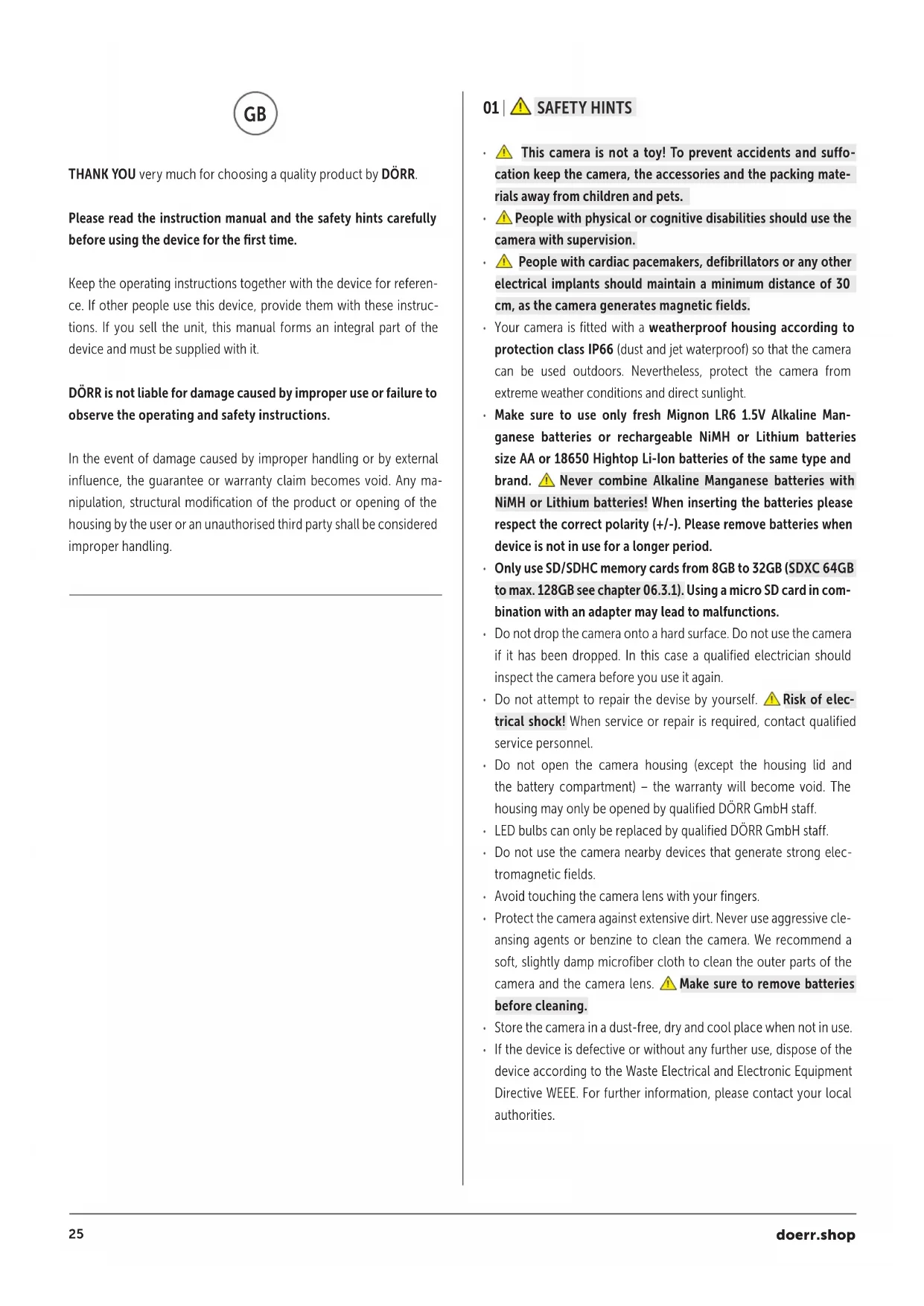
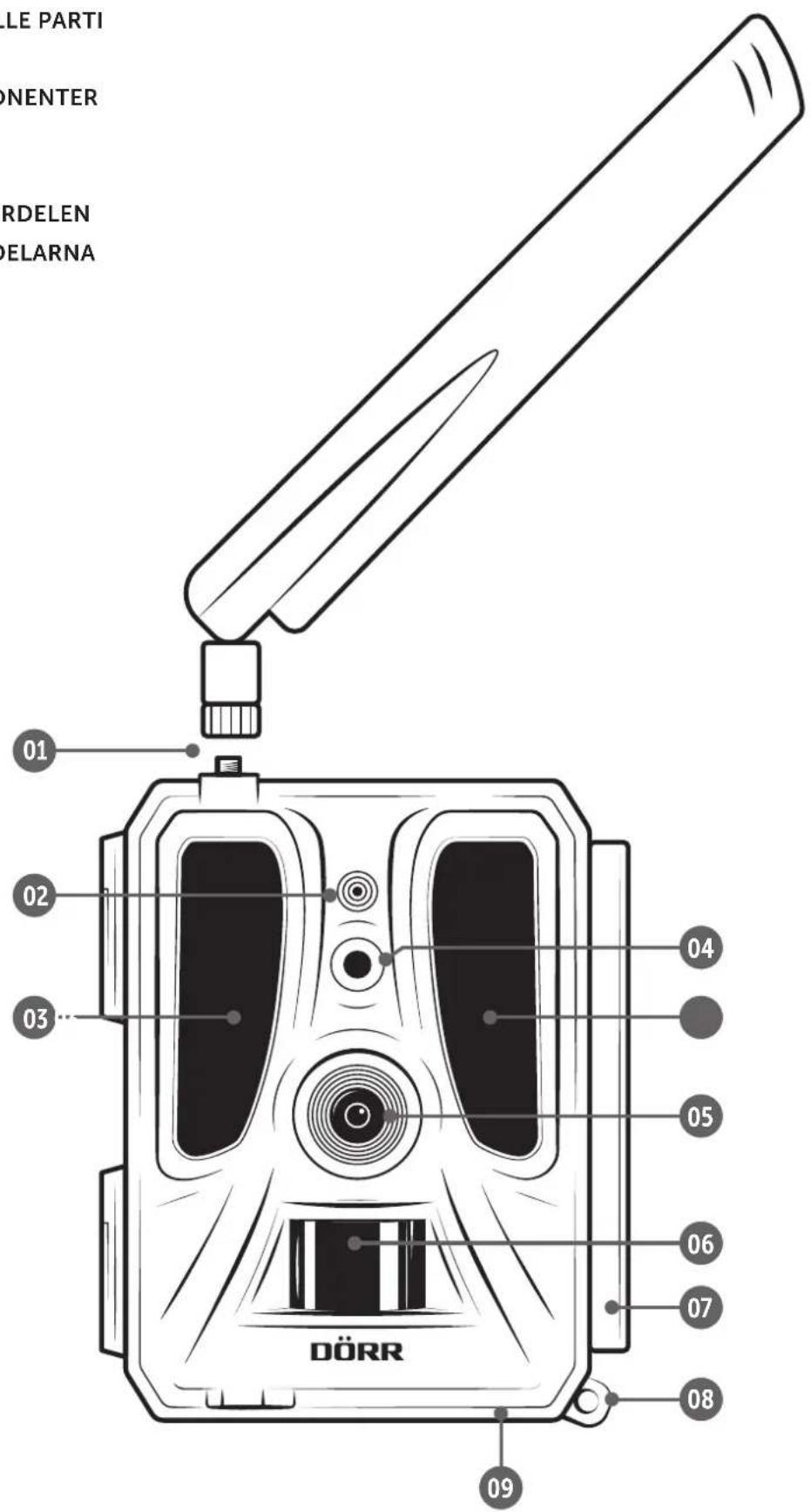
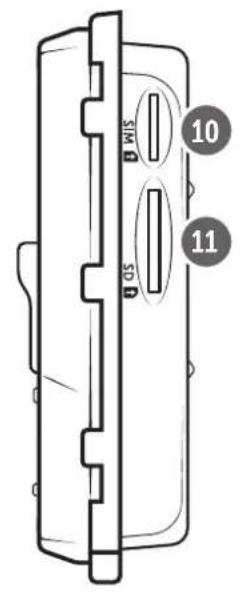
GB ILLUSTRATION OF PARTS
FR ILLUSTRATION DES PIECES
ES ILLUSTRACION DE LAS PARTES
IT ILLUSTRAZIONE DELLE PARTI
CZ CÁSTI OBRÁZKU
DK BILLEDE AF KOMPONENTER
FI OSIEN KUVAT
HU RÉSZEK ÁBRÁI
NL AFBEELDING ONDERDELEN
SE ILLUSTRATION AV DELARNA
Inhalt Site
ABBILDUNG TEILE 2-3
06.5 DORR APP downloads
06.7 DORR SnapShot Cloud 4G/4G Pro Websites
14.4 ROHS KONFORMITAT
https://www.doerr.shop/204448-RC
Content Page
ILLUSTRATION OF PARTS 2-3 01 SAFETY HINTS 25
02 SAFETY HINTS FOR BATTERIES/ACCUMULATORS 26
03 | PRIVACY POLICY 26
04 | MOBILE NETWORK COSTS 26
05|NOMENCLATURE27
06 | COMMISSIONING 27
06.1 Mounting the antenna 27
06.2 Inserting the batteries 27
06.3 Inserting a SD/SDHC/SDXC memory card 28
06.3.1 28 SDXC Memory Cards 64 GB & 128 GB
06.3.2 Format SD/SDHC/SDXC card with the camera 28
06.4 Inserting a SIM card 28
06.5 Download the DORR APP 28
06.6 Register and scan the QR code 29
06.7 DORR Snapshot Cloud 4G/4G Pro website 30
06.8 Switch on / Camera status check 30
06.8.1 LED status indicators 31-32
07|CAMERA SETTINGS IN THE APP/ WEB INTERFACE 33
Camera Settings 33
Camera Mode 33
Sending Mode 33
Security Mode 33
Battery Type 33
Remote Control 33
GPS 33
SD card overwrite 33
Camera Name 33
Time Zone 33
Photo Settings 34
Image Size 34
Multishot 34
Multishot Interval 34
Time Lapse 34
Delay 34
Limit the number of images per day 34
Content Page
Video Settings 34
Video Size 34
Video Length 34
Flash Settings 35
PIR Motion Detector 35
Sensitivity 35
Timer 35
07.1 During initial setup of the camera 35
07.2 Standby Mode 35
Media 36
Favorites 36
Cameras 37
My Account 38
08 | FURTHER FUNCTIONS 39
08.1 Test Recordings 39
08.2 Deleting/Re-registering a camera 39
08.3 In the event of theft 39
09 | MOUNTING / DIRECTING 39
09.1 Mounting and directing the camera 39
09.2 Notes for mounting the camera 39
09.2.1 PIR Sensor 39-40
09.2.2 Light conditions 40
09.2.3 Weather protection 40
10 | OPTIONAL ACCESSORIES 40
10.1 Optional mounting accessories 40
10.2 Optional anti-theft devices 40
10.3 Alternative power supplies 40
10.4 FREEWAY multi-network prepaid SIM card 41
11 CLEANING AND STORAGE 41
12 SCOPE OF DELIVERY 41
13 TECHNICAL SPECIFICATIONS 42
14 DISPOSAL, CE MARKING 43
14.1 Disposal of battery/accumulator 43
14.2 WEEE Information 43
14.3 Disposal of the packaging 43
14.4 Conformity with RoHS 43
14.5 CE Mark 43
15 | SIMPLIFIED EU DECLARATION OF CONFORMITY 43
GB
THANK YOU very much for choosing a quality product by DORR.
Please read the instruction manual and the safety hints carefully before using the device for the first time.
Keep the operating instructions together with the device for reference. If other people use this device, provide them with these instructions. If you sell the unit, this manual forms an integral part of the device and must be supplied with it.
DORR is not liable for damage caused by improper use or failure to observe the operating and safety instructions.
In the event of damage caused by improper handling or by external influence, the guarantee or warranty claim becomes void. Any manipulation, structural modification of the product or opening of the housing by the user or an unauthorised third party shall be considered improper handling.

SAFETY HINTS
This camera is not a toy! To prevent accidents and suffocation keep the camera, the accessories and the packing materials away from children and pets.
People with physical or cognitive disabilities should use the camera with supervision.
People with cardiac pacemakers, defibrillators or any other electrical implants should maintain a minimum distance of 30 cm, as the camera generates magnetic fields.
- Your camera is fitted with a weatherproof housing according to protection class IP66 (dust and jet waterproof) so that the camera can be used outdoors. Nevertheless, protect the camera from extreme weather conditions and direct sunlight.
Make sure to use only fresh Mignon LR6 1.5V Alkaline Manganese batteries or rechargeable NiMH or Lithium batteries size AA or 18650 Hightop Li-lon batteries of the same type and brand. Never combine Alkaline Manganese batteries with NiMH or Lithium batteries! When inserting the batteries please respect the correct polarity (+/-) . Please remove batteries when device is not in use for a longer period.
- Only use SD/SDHC memory cards from 8GB to 32GB (SDXC 64GB to max. 128GB see chapter 06.3.1). Using a micro SD card in combination with an adapter may lead to malfunctions.
- Do not drop the camera onto a hard surface. Do not use the camera if it has been dropped. In this case a qualified electrician should inspect the camera before you use it again.
- Do not attempt to repair the devise by yourself. Risk of electrical shock! When service or repair is required, contact qualified service personnel.
- Do not open the camera housing (except the housing lid and the battery compartment) – the warranty will become void. The housing may only be opened by qualified DORR GmbH staff.
LED bulbs can only be replaced by qualified DORR GmbH staff.
- Do not use the camera nearby devices that generate strong electromagnetic fields.
- Avoid touching the camera lens with your fingers.
- Protect the camera against extensive dirt. Never use aggressive cleansing agents or benzine to clean the camera. We recommend a soft, slightly damp microfiber cloth to clean the outer parts of the camera and the camera lens. Make sure to remove batteries before cleaning.
- Store the camera in a dust-free, dry and cool place when not in use.
- If the device is defective or without any further use, dispose of the device according to the Waste Electrical and Electronic Equipment Directive WEEE. For further information, please contact your local authorities.
02 SAFETY HINTS FOR BATTERIES/ACCUMULATORS
Only use high-quality batteries or accumulators of popular brands. When inserting the batteries or accumulators, please respect the correct polarity (+/-) . Do not insert batteries of different types and always replace all batteries at the same time. Never combine Alkaline Manganese batteries with NiMH or Lithium batteries! Do not combine used batteries with fresh batteries. Please remove batteries/accumulators when device is not in use for a long period of time. Do not throw the batteries/accumulators into fire, do not short-circuit and do not disassemble them! Never charge non-rechargeable batteries - risk of explosion! Remove empty batteries immediately from the device to avoid the leaking of battery acid. Remove leaking batteries from the device immediately. Clean the contacts before inserting fresh batteries. Risk of battery acid burn! In case of contact with battery acid, rinse the affected area immediately with water and contact a doctor. Batteries can be dangerous to life if swallowed. Keep batteries/accumulators away from small children and pets. Do not dispose of batteries in household waste (see also chapter Disposal of Batteries/Accumulators").
03 | PRIVACY POLICY
In every country, legal data protection rules apply. As these rules may vary per country, please contact the appropriate authorities to learn about the latest privacy policy in your country. In any case kindly note:
- Do not observe public areas such as sidewalks, roads, parking lots etc.
- Never observe your staff.
- Respect the general right of privacy.
- Do not publish pictures showing individuals without having their permission. Do not publish pictures showing identifiable automobile license plates.
- Make aware of the observed areas with a sign and inform your neighbours and visitors if necessary.
04 MOBILE NETWORK COSTS FOR PICTURE/VIDEO TRANSMISSION
Data exchange via mobile transmission always cause extra costs. These costs may vary depending on your provider and selected tariff and are not covered by the purchase of this camera. Please contact your mobile phone provider for tariff and costs.
05 | NOMENCLATURE
01 Antenna/antenna connection
02 PIR LED indicator
03 each 30 infrared LEDs
04 Light sensor
05 Camera lens
06 Motion detector (PIR sensor)
07 Tension lock
08 Eyelet for U-lock (lock optional)
09 Microphone
10 SIM card slot
11 SD card slot
12 QR Code (serial number)
13 TEST button
14 Button SD Format
15 Reset button
16 Slide control (ON/OFF)
17 LED status indicators
17a) Operating status
17b) Signal strength
17c) Battery status
17d) SD card status
17e) Network status
17f-g) DORR Cloud error indicators
18 Battery compartment
18a) 12 battery slots type AA
18b) 4 battery slots type 18650
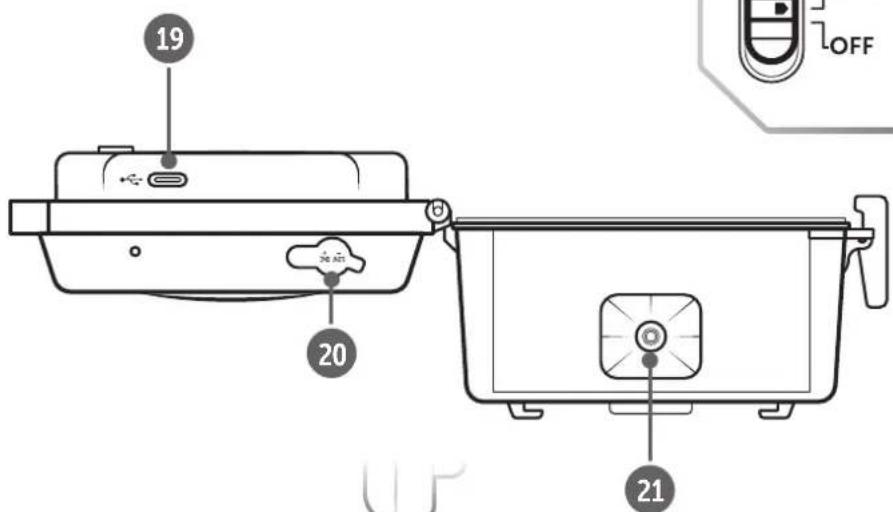
19 USB-C port
20 Connection external battery DC 12V
21 ¼" thread mount
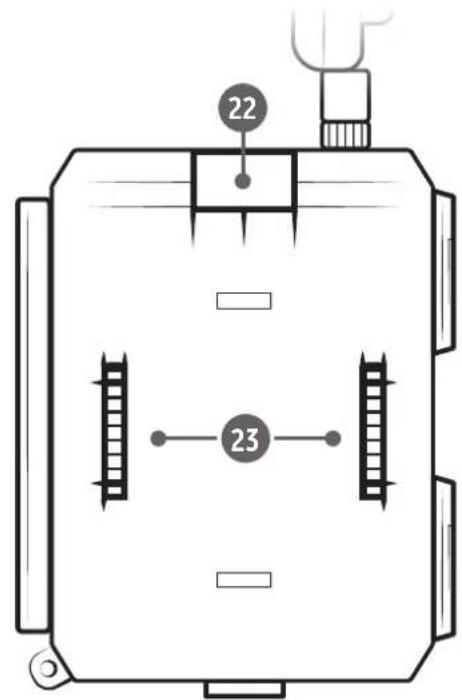
22 Eyelet for cable lock (lock optional)
23 Eyelets for mounting strap
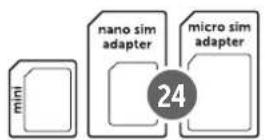
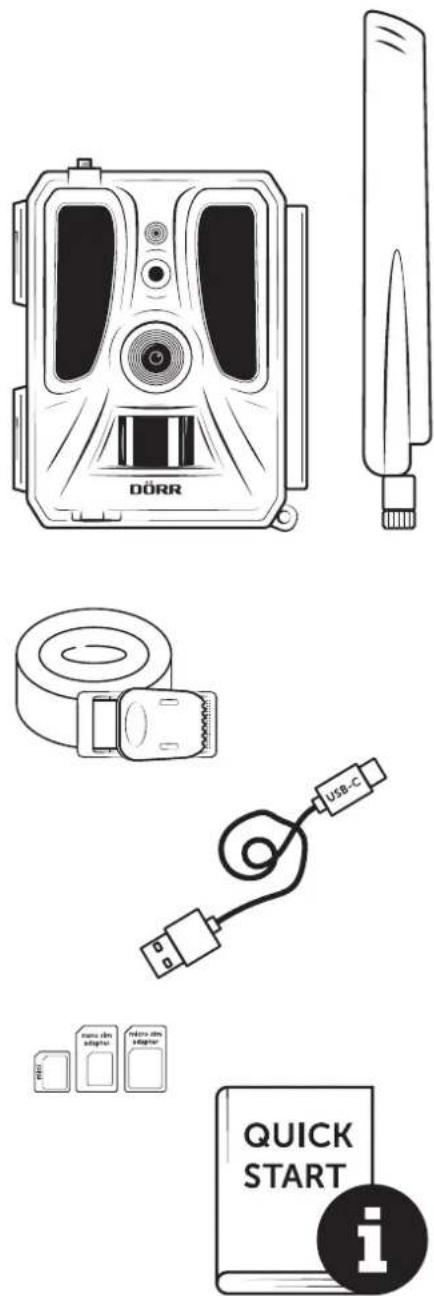
24 Nano-SIM + Micro-SIM + Mini-SIM Adapter
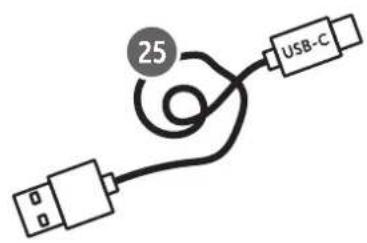
25 USB-C data cable
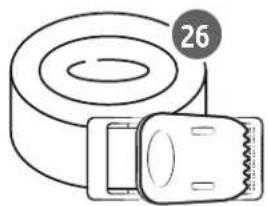
26 Mounting strap
06 COMMISSIONING
Remove the protective foil from the PIR sensor (06).
IMPORTANT
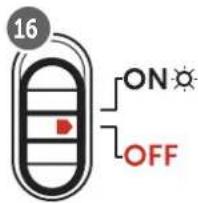
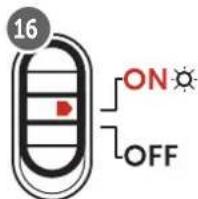
To avoid camera damages, make sure that camera is switched off (slide control 16 = OFF ) for the following steps!
06.1 Mounting the antenna
Remove the yellow protective cap from the antenna connection (01) and screw on the supplied antenna.
06.2 Inserting the batteries/rechargeable batteries
CAUTION
Make sure to use only fresh Mignon LR6 1.5V Alkaline Manganese batteries or rechargeable NiMH or Lithium batteries size AA or 18650 Hightop Li-Ion batteries of the same type and brand.
Never combine Alkaline Manganese batteries with NiMH or Lithium batteries! When inserting the batteries please respect the correct polarity (+/-) .
Open the camera releasing the lateral tension lock (07). Make sure that the slide control (16) is on position OFF.
Insert AA batteries / rechargeable AA batteries:
Insert 12x 1.5V batteries or suitable NiMH or lithium rechargeable batteries of size AA (all not included) into the 12 vertical battery slots type AA (18a). Ensure correct polarity (+/-).
Insert 18650 Li-Ion batteries:
Please fully charge rechargeable batteries before use. Insert 4x Li-ion batteries type 18650 with hightop (not included) into the 4 horizontal battery slots (18b). Ensure correct polarity (+/-) .
NOTICE
If using NiMH or lithium AA batteries, please select "Battery Type" as NiMH or Lithium in the APP/Web menu later to ensure an accurate battery status display. Alkaline-manganese AA batteries and 18650 batteries are automatically detected by the camera - no input is required.
For alternative power supplies, please read chapter 10.3.
06.3 Inserting a SD/SDHC/SDXC memory card
NOTICE
Only use SD/SDHC/SDXC memory cards from 8GB to max. 128GB. Using a micro SD card in combination with an adapter may lead to malfunctions. Make sure that the SD card is formatted and unlocked. To format the SDcard with the camera, please read chapter 06.3.2.
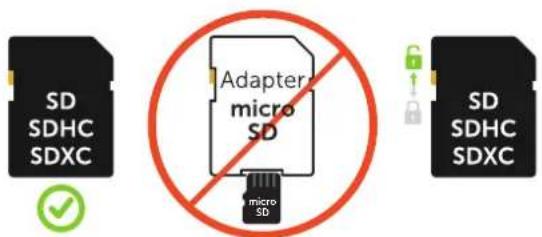
Insert the SD/SDHC/SDXC memory card (not included) with the label facing upwards into the SD card slot (11) until it snaps into place.
06.3.1 0MPORTANT SDXC Memory Cards 64 GB & 128 GB
Due to their standard formatting, SDXC memory cards with 64 GB and 128 GB must be formatted with the camera before use. How to format the SDXC card with the camera, please read following chapter 06.3.2.
06.3.2 Format SD/SDHC/SDXC card with the camera
- Insert the SD/SDHC/SDXC memory card (not included) with the label facing upwards into the SD card slot (11) until it snaps into place.
- Set the slide control (16) to the ON position. For example, use a pen to press the SD Format button (14) and hold it down for approx. 10 seconds until the LED 17d) starts flashing yellow:
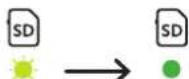
- After 10 flashes and successful formatting, the LED 17d) lights up constantly green. When setting up for the first time, please switch the camera off again (slide control (16) to the OFF position).
06.4 Inserting a SIM card
In order to use the mobile transmission function, make sure to insert a SIM card (not included) into the SIM card slot (10). Please mind the symbol above the SIM card slot which shows how to insert the card correctly.
Nano-SIM, Micro-SIM cards and Mini-SIM cards can only be used with the adapters supplied (24).
IMPORTANT
- The PIN request has to be deactivated, you can do this directly in the shop where you bought the SIM card, or with help of a mobile phone.
- Make sure the SIM card is activated for the mobile data transmission and if necessary has sufficient credit.
- For the mobile data transmission, the camera needs the parameter data of the respective provider. For all supported SIM card providers, please refer to:
https://doerr.media/manuals/simCard_Provider.pdf
SIM card providers that are not on the list currently cannot be used.
NOTICE
The camera has no SIM lock and can be used with any SIM card - use our FREEWAY multi-network card (see chapter 10.4) with exclusive premium tariffs for DORR Cloud customers or data cards from your existing mobile phone contracts.
06.5 Download the DORR APP
To install the DORR APP, scan the corresponding QR code for Android or iOS inside the gift box with your smartphone or download the APP directly in the Play Store for Android or in the APP store for iOS.
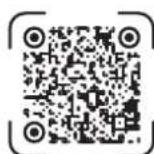
iOS APP
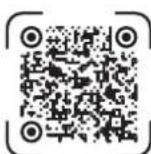
Android APP
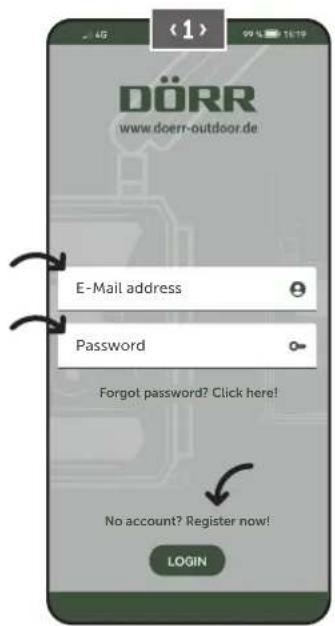
06.6 Register and scan the QR code
Picture1 Register with your email address and a password
and tap to:
No account? Register now!
You will receive a confirmation email from DORR to the registered email address. Follow the link in this email for successful registration. Log in with the data used for registration.
Picture 2 Press the camera icon
Picture 3 Press at Add camera

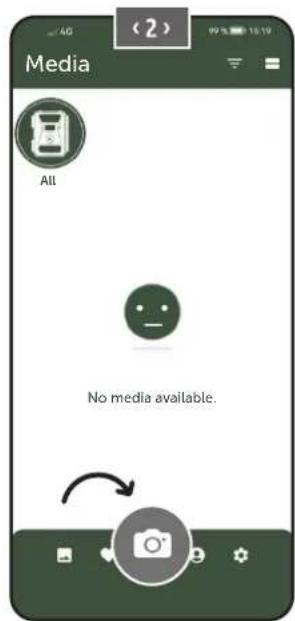
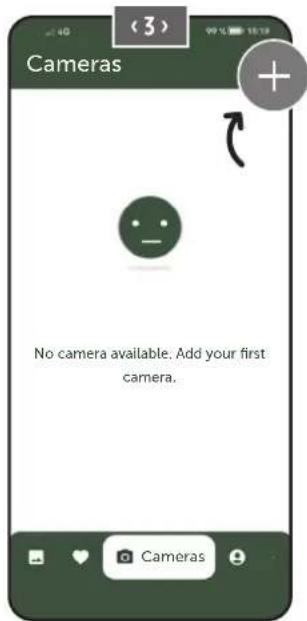
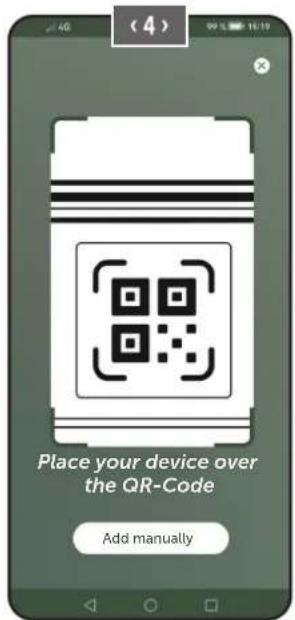
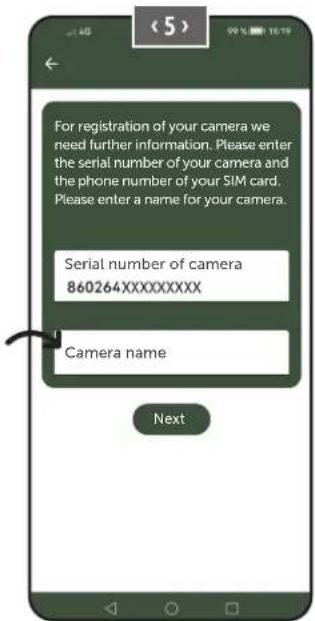
Picture 4 The QR code scanner function will start. Use your Smartphone to scan the QR code (12) in the camera
housing. Alternatively, you can enter the serial number manually. You will find the serial number inside of camera housing or on the gift box.
Switch the slide control (16) to position ON.
Picture 5 Please enter a name for the camera.
06.7 DORR SnapShot Cloud 4G/4G Pro website
You may also register and log in via our website with your PC/laptop:
https://www.doerr.cloud/
We recommend using Google Chrome Browser

NOTICE
The appearance/symbols in the app and on the website may vary. However, the settings and functions are identical and as described in the following chapters.
06.7 Switch on / Camera status check
After you have switched on the camera, the camera will now check all relevant functions. During this process, the operating status LED (17a) and all other LEDs flash green. As soon as the operating status LED (17a) lights up green continuously, the check is complete and your camera is ready for registration/use.
Unregistered camera:
Camera remains in registration mode for 5 minutes. After this, the camera switches to standby mode (see chapter 07.2) and the LEDs and PIR LED indicator (02) go out.
Already registered camera:
After approx. 1 minute, the camera switches to the defined working mode (LEDs and PIR LED indicator (02) go out).
You can return to the status view (LEDs light up) at any time by pressing the TEST button (13).
NOTICE
When setting up your camera for the first time, the LED status indicators (17f) and (17g) flash green until the camera has been successfully registered. Registration is complete as soon as you have clicked on Save settings in the app/web interface (see page 35).
Should a critical error occur during the check, the operating status LED (17a) will light up red constantly. For troubleshooting, as well as for information on the other LED status indicators (17b - 17e), please read the table below (chapter 06.7.1).
IMPORTANT
If the LED status indicators (17f) and/or (17g) light up or flash red, please contact our service department at +49 731 970 37 69 or by email at hello@doerr.gmbh.
| LED | LED status | Meaning | Troubleshooting |
| (02)Camerafront | flashes red | Camera is in setup mode.PIR sensor is not active. | Wait until the camera automatically switches to working mode. Alternatively, press and hold the TEST button (13) for 5 seconds. If the ca-mera is in working mode, the LED goes out. |
| ON(17a) | flashes slowly green Camera status is being checked. | ✓ | |
| lights constantly green Camera is ready for use. | ✓ | ||
| lights constantly red | Camera is not ready for use. | Check which other LED is red or flashing. | |
| flashes slowly yellow | Debug mode active. | Please contact DORR Service. | |
| (17b) | flashes slowly green | Connection establishment to the mobile network. | ✓ |
| lights constantly green | Connection to the mobile network established. | ✓ | |
| lights constantly yellow The signal strength is mediocre. | ✓ | ||
| flashes slowly yellow The signal strength is weak. | ✓ | ||
| lights constantly red Connection to the mobile network failed. | Make sure that:·the SIM card has credit.·the SIM card is inserted correctly.·the camera supports the network provider used (see chapter 6.4). | ||
| flashes slowly yellow No SIM card inserted. | Insert a SIM card. | ||
| flashes red and green alternately | Critical error! | Please contact DORR Service. | |
| (17c)withAAbatteries | flashes slowly green | Camera connected to power supply. | ✓ |
| lights constantly green Battery capacity more than 60%. | ✓ | ||
| lights constantly yellow Battery capacity between 30-60%. | ✓ | ||
| lights constantly red | Battery capacity below 30%. | Insert fresh batteries as soon as possible. | |
| flashes quickly red | Battery capacity insufficient for operation. | Insert fresh batteries. | |
| (17c)with18650rechar-geablebatteries | flashes slowly green | Camera connected to power supply/solar panel. Inserted 18650 batteries will be charged. | ✓ |
| lights constantly green | Inserted 18650 batteries are fully charged. | ✓ | |
| lights constantly yellow Battery capacity between 30-60%. | ✓ | ||
| lights constantly red Battery capacity below 30%. | Charge the 18650 Li-ion batteries in a timely manner. | ||
| flashes quickly red | Battery capacity insufficient for operation. | Charge the 18650 Li-ion batteries immediately. | |
| SD(17d) | lights constantly green | SD card inserted and ready for operation. | ✓ |
| lights constantly yellow | SD card inserted - card is full! | Delete files from the memory card and refor-mat the card (see chapter 6.3.2) | |
| lights constantly red | No SD card inserted or SD card locked or formatted incorrectly. | Please refer to chapter 6.3. | |
| flashes quickly green Data is being written to SD card. | ✓ | ||
| flashes quickly red for 5 sec., then returns to original status | Data cannot be written to SD card. | Please check the other SD card status. | |
| flashes slowly yellow Memory card is being formatted. | ✓ | ||
→
| LED | LED status | Meaning | Troubleshooting |
| (17e) | flashes slowly green Network service is being initialized. | ✓ | |
| lights constantly green Network quality is at least 4G. | ✓ | ||
| lights constantly yellow Network quality is 2G to 3G. | ✓ | ||
| lights constantly red No network service. | Make sure that: • the SIM card has credit. • the camera supports the network provider used (see chapter 6.4). | ||
| (17f) | lights constantly green Camera connected to DÖRR Cloud. | ✓ | |
| lights constantly red DÖRR Cloud service not available. Please contact DÖRR Service. | |||
| flashes slowly green Ready for registration process. | ✓ | ||
| flashes slowly red DÖRR Cloud service not available. Please contact DÖRR Service. | |||
| flashes quickly green Communication with DÖRR Cloud. | ✓ | ||
| flashes red quickly for 5 sec., then returns to original status | Media upload failed. Please contact DÖRR Service. | ||
| (17g) | flashes slowly green Ready for registration process. | ✓ | |
| lights constantly green Camera connected to DÖRR Cloud. | ✓ | ||
| lights constantly red DÖRR Cloud service not available. Please contact DÖRR Service. | |||
| (All) | All LEDs flash green 2x and then go out Camera reset is being performed. | Camera must be reconnected to DÖRR Cloud. See instructions in the APP. | |
| All LEDs flash quickly green | Firmware update is being performed. | ✓ | |
| All LEDs flash quickly red | Firmware update failed. | Check firmware, SD card inserted correctly, SD card formatted correctly? | |
DORR Service Department
+497319703769
hello@doerr.gmbh
Default settings are marked with ()
| Camera Settings Note: Changes made in settings will be executed by the camera after max. 24 hours. | |
| Camera Camera Mode | |
| Photo (*) | The camera takes photos according to your settings for image size and multi shot. |
| Video | The camera records videos according to your settings for video size and video length. |
| Photo and Video | The camera first takes a picture(s) and then a video according to your settings for picture size, multi shot, video size and video length. |
| Sending Mode | |
| Photo (*) Camera is sending photos. | |
| Video Camera is sending videos | |
| Photo and Video Camera is sending photo(s) and 1 video. | |
| Preview | If the 'Picture' or 'Picture and video' camera mode is selected, the camera sends a reduced-quality picture. |
| Security Mode | |
| Disabled (*) | This mode is aimed at users with special security requirements - all data transmission (image and video) is encrypted. Please note that using this mode results in a considerable increase in energy consumption. We recommend its use for professional users in the security sector and in combination with an external power source (see chapter 10.3) |
| Photo | |
| Video | |
| Photo and Video | |
| Battery Type | |
| Alkaline (*) | To ensure an accurate indication of the battery status, please select whether you have inserted alkaline, Ni-MH or lithium batteries in the camera. There are different battery types for lithium - if in doubt, select „Alkaline“. |
| Ni-MH | |
| Lithium | |
| Remote Control | |
| Realtime (*) | Settings are applied immediately.IMPORTANT High battery consumption! |
| Every 30 minutes | Settings are applied at the latest in the selected time interval. If photos or videos are transmitted from the camera before the time interval expires, the new settings will be applied at this transmission time. |
| Every hour | NOTICEIf you have inadvertently made incorrect settings and the camera is not in real-time mode, you can correct the settings immediately by first making the desired settings in the app/web interface and then triggering an image manually via the motion detector, e.g. by waving your hand in front of the PIR sensor (06). |
| Every 2 hours | Every 2 hours |
| Every 3 hours | Every 3 hours |
| Every 4 hours | Every 4 hours |
| Every 6 hours | Every 6 hours |
| Every 12 hours | Every 12 hours |
| Every 24 hours | Every 24 hours |
| Enable GPS (*) | GPS is represented in radians on the timestamp (e.g. N48°18'44" E010°02'02") |
| SD card overwrite | If the SD card is full, the camera overwrites the oldest recordings recommended. |
| Kameraname SnapShot Cloud 4G PRO | If the SD card is full, the camera stops recording until the card is changed or formatted. |
| The camera name assigned can be changed here. | |
| Time Zone Europe/Berlin | Select the time zone of your region. |
| Photo Settings Image size | ||
| 24 MP (*) | Select the desired image resolution. | |
| 16 MP | 24 MP (5664x4248) / 16 MP (4608x3456) / 12 MP (4032x3024) / 8MP (3264x2448) / 5 MP (2560x1920) | |
| 12 MP | ||
| 8 MP | ||
| 5 MP | ||
| Multishot | ||
| 1 pic (*) | Select the number of images to be taken upon movement or triggering. | |
| 2 pics | ||
| 3 pics | ||
| 4 pics | ||
| 5 pics | ||
| Delay | ||
| Take X pictures within one second | If you have selected 2 to 5 pictures under „Multishot“, you can specify here whether the continuous pictures should be taken consecutively within 1 second or whether there should be a pause of 1 second or 2 seconds between the continuous pictures. | |
| Interval between multishot pictures 1 sec. (*) | ||
| Interval between multishot pictures 2 sec. | ||
| Time Lapse × (*) | The camera triggers according to the specific time set, independently from the PIR detector. Example with setting 01:00:00: The camera triggers every hour independently from motion recognition. Possible time interval: min. 05 seconds to max. 24 hours (Input 23:59:59) | |
| Delay × (*) | Set a pause for the PIR Sensor. This setting prevents the camera from taking too many images/videos. Example with setting 5 minutes: After triggering, the camera sets the PIR inactive for 5 minutes. After the time set the PIR sensor will be active again. Possible delay: min. 05 seconds to max. 24 hours (Input 23:59:59) | |
| Flash Settings Maximum number of images per day | Set the desired number of images per day. Once the set number is reached, the camera stops the function. | |
| OFF (*) 10 99 | ||
| Video Settings Video Size | |
| FHD-1080P (*) | Select the desired video format. |
| HD-720P | Full HD 1080P (1920x1080) / HD 720P (1280x720) / WVGA (848x480) |
| WVGA | |
| Video Length 10(*)5 59 | Select the desired video length. min. 5 sec. - max. 59 sec. |
| Flash Settings Flash | |
| Max. Flash (*) | Select the desired flash range. Maximum approx. 20 meters / minimum approx. 8 meters |
| Min. Flash | |
| PIR Motion Detector | ||||||||||
| Enable PIR | ||||||||||
| Sensitivity | ||||||||||
| OFF 1 | 2 | 3 | 4 | 5 | 6 | 7 | 8 | 9 (*) | The Passive Infrared Sensor (PIR) triggers upon motion and temperature changes recognised within the detection range. | Adjust the sensitivity of the motion detector. |
| Level 1-5: Select when camera triggers too often upon environment influences, e.g. falling branches or strong sunlight. | Level 6-9: The camera recognises even smallest motion and temperature changes. | |||||||||
| NOTICE If OFF is selected, the camera will not take any recordings! Switch the time lapse ON to get recordings! | Switch the time lapse ON to get recordings! | |||||||||
| Timer | |
| Timer 1 | Timer 1: Set a fixed working time frame in which the camera is active. Outside of this time, no recordings are made or movements are registered. |
| Timer 2 | Example with setting 2:00 - 5:00: Camera is only active between 2:00 and 5:00 a.m. |
| Timer 3 | If you select the OFF × function in this menu item, the camera works 24 hours a day. You can set up to 2 working times per day. |
| Save Settings | Timer 2: Set a second fixed working time frame in which the camera is active (see timer 1). If you select the OFF × function in this menu item, the camera works 24 hours a day or according to your settings for timer 1. |
07.1 NOTICE > during initial setup of the camera
After you have tapped on Save Settings, your registration is completed. After successful registration, the LED status indicators (17f) and (17g) stop flashing and light up green constantly. The camera will reboot within a few seconds. As soon as all LEDs light up green / yellow constantly, your camera is in working mode after approx. 60-70 seconds.
07.2 NOTICE> Standby Mode
If you do not complete the camera registration, the camera switches to standby mode after 5 minutes. To continue registration, either press the TEST button (13) or switch the camera off and on again using the slide control (16).
Please refer to chapter 06.8 to complete the registration.
Here you will find an overview of your pictures and videos marked as favorites.

Cameras
Here you will find an overview of all your registered cameras. For information and settings, tap on the relevant camera.
Camera
SnapShot 4G Pro 86026XXXXXX


This function is only available if you have selected „Real time" under „Remote control" in the camera settings.

Tap the camera icon to request a real-time image.

Tap on the video camera icon to request a real-time video (subscription required).

Tap on the symbol to open the following options:

Update Firmware
Only clickable if there is a new firmware available for your camera. Please note: Battery capacity must be more than 65% .

Format SD card

Turn off camera
The camera is switched off by command.
The camera reports every 24 hours to check its status and switch back to working mode if necessary.
Report as stolen (please read chapter 08.3)
Delete camera (please read chapter 08.2)

Information
Firmware DSR1DRXX Displays the installed firmware version.
Battery 100% Displays the battery status.
Signal quality 4G Mobile network
Signal strength

Signal strength
Synchronized

successfully synchronized.

Settings
Camera settings
This takes you to the camera settings (see chapter 07).
Sort number 1

Sort your registered cameras.
Push

Allow push notifications.

Share
Share camera pictures
Share images of the selected camera with friends and colleagues within the DÖRR APP (registration is necessary). Tap + and enter the email of your friend. Tap Invite Your friend receives an email invitation to register for our service. After successful registering, your friend is able to see the images of the shared camera. To end sharing the images, tap the email address and confirm Delete
SMTP Forwarding
Option to use manually defined SMTP servers for data transfer.
Please note that we cannot guarantee flawless functionality with third-party services such as Revierwelt, Reiverspion, Picture Transfer, etc., as we have no control over their infrastructure.
SMTP servers that work exclusively with port no. 25 are not supported.
You can book additional cloud storage space here. The storage subscription is OPTIONAL and NOT required for camera operation! It is suitable for customers who want to build up an extensive media history. If the standard or extended storage quota reaches its limit, the oldest media (except favourites) is overwritten so that the latest media from the camera(s) can be received at any time.

NOTICE
Subscriptions can only be taken out in the respective iOS and Android app. Cancellations can only be made in the respective Appstore or Playstore.
User
max.mustermann@max.de
Your e-mail address.
New password

If necessary, assign a new password.
Confirm password
Confirm new password
Registered on
01.01.20203
Date of your registration.
Save

Webshop
Visit our webshop and find out more about our wide range of hunting and outdoor products!

Newsletter
Sign up for our newsletter and benefit from a variety of attractive offers!

Legal notice
About us & Contact

Privacy policy
Privacy policy

Logout
08 | FURTHER FUNCTIONS
08.1 Test Recordings
Option 1: Request a real-time image as described on page 37 in the "Camera" section.
Option 2: To trigger a test recording manually on the camera, press the TEST button (13) once when the status display is active and the camera is ready for use (see chapter 06.8) to obtain media in the defined setting.
While the data is being written to the SD card, the SD card LED (17d) flashes green. While the test recording is being loaded into the DORR Cloud, the DORR Cloud LED (17f) flashes green.
To view your test recording, go to "Media" in the DORR APP and tap on the corresponding camera.
08.2 Deleting/Re-registering a camera
In case you want to sell your camera, please follow these steps:
1. Delete the camera in the APP/web interface:

Cameras > tap on the camera to be deleted >
Camera
Tap on : >Delete camera
2. Reset camera to factory settings
To do this, press the RESET button (15) on the camera, e.g. with a pen, for approx. 10 seconds until all LEDs briefly light up green twice.
You or the new owner can now register the camera again in the DORR APP.
08.3 In the event of theft
If your camera is stolen, do NOT delete it from the APP, as this is the only way to ensure that the thief cannot register the camera. Contact our service via the „Report as stolen“ function and enter your contact details there.

Cameras > tap on the stolen camera >
Camera

Tap on : >Report as stolen
09 | MOUNTING / DIRECTING
09.1 Mounting and directing the camera
Pull the supplied mounting strap (26) through the eyelet (23) on the backside of the camera. Mount the camera to a tree, pole or any other suitable object. Do not fix the belt finally at this stage.
We recommend placing the camera at a height of 0.75m to 1.00m . The optimal distance to the subject is between 3 and 10m . Larger distances are possible as well, but then the reliability of the motion sensor is no longer given. The camera lens (05) should now point to where the object is expected to show-up.
To verify your camera is hung up in a correct angle, we recommend taking a view test recorings (see chapter 08.1). The camera should be directed in a way that the object will appear in the centre of the picture. You may have to re-adjust the camera and take another test shot.
Once the camera position is correct, the mounting belt (26) can be tightened to hold the camera firmly.

NOTICE
Please also note chapter 10 with our extensive range of accessories for installation and anti-theft protection.
09.2 Notes for mounting the camera
09.2.1 PIR sensor
The PI R sensor triggers only under specific circumstances within a certain range. The capturing of objects strongly depends on temperature, vegetal cover, reflecting surfaces etc. Under perfect conditions the recognition range can be up to 20m . Usually, you may expect a range of 15m . It may take a few attempts to find a good
position for the camera. During photo test, be aware that animals are usually remarkably smaller than human beings. Animals might be below the PIR sensor detection range and not be captured.
09.2.2 Light conditions
Avoid direct backlight when mounting the camera. The lens should not point directly into the sun and camera should not be placed in shadow.
09.2.3 Weather protection
Although the camera is weatherproof and well-suited for outdoor use (dust and jet water protected according to IP66 protection class) we recommend mounting the camera in a secured place not facing the weather exposed side. Prevent the camera from driving rain and constant exposure to sunlight. After a long period of humidity caused by rain or fog, the camera should be placed in a dry area for a few days.
10 | OPTIONAL ACCESSORIES
10.1 Optional mounting accessories
Our optional accessories such as the patented DORR holding fixture in combination with the DORR universal adapter are designed for fast and easy mounting of the camera at a tree, wall or other objects. The camera clicks into the holding fixture and is firmly held in place. The camera can be removed easily for a quick change of place of action. The ball head ensure a flexible direction of the camera. The fixture is rotatable by 360^ and swivels up to 30^ in all directions:
DORR Holding Fixture Multi for SnapShot
For quick mounting of your game and surveillance camera to a tree:
DORR tree screw 1 / 4^ for surveillance cameras
10.2 Optional anti-theft devices
Pull a padlock (available as accessory) through the eyelet (08) to lock the camera housing:
DORR Combination Lock 3-digits small
Use our DORR cable lock (available as accessory) and pull it through the eyelet for cable lock (22) on the backside of the camera to secure it against theft:
DORR Universal Cable Lock 1,80 m
suitable for this:
DORR Combination Lock 3-digits medium
For a very high level of security, lock the camera in our weatherproof and rust-free DORR metal housing "Made in Germany", which optimally protects your camera against theft, vandalism and extreme weather conditions:
DORR Metal Housing for SnapShot Cloud 4G/Pro 4G/4G Pro RC
10.3 Alternative power supplies
DORR solar panel with integrated 15,000 mAh battery - self-sufficient power supply for ultra-long runtimes. Ideal in combination with DORR 18650 lithium-ion batteries, which are charged via the solar panel:
DORR Solar Panel 15000mAh 6V-9V-12V
DORR lithium-ion battery 18650 3.7V 3000mAh 4-pack
suitable for this:
DORR USB charger for li-ion batteries 18650 4 charging slots

Alternatively, the camera can be operated with an external 12V battery in conjunction with our DORR battery cable. All optionally available in our DORR webshop:
Lead-acid battery 12V/12Ah
suitable for this:
DORR battery cable 2m with flat plug

For indoor use or for charging when using the camera with rechargeable batteries:
DORR power supply 12V, 2A

Both the solar panel, the AC adapter and the external battery need to be plugged-in to the cameras DC 12V port (20). Any inserted batteries do not need to be removed when using external power supplies. The
camera automatically reverts to the inserted batteries as soon as the external power supply is disconnected.
10.4 Freeway multi-network prepaid SIM card
The multi-network prepaid SIM card from FREEWAY works throughout Europe and connects your DORR SnapShot Cloud wildlife cameras quickly and easily to the mobile phone network. The best available mobile network is always used for this. The exclusive DORR tariffs can only be used in combination with a DORR Cloud camera.
Multi-network prepaid SIM card for DORR wildlife cameras


Visit our web shop www.doerr.shop
for a great variety of surveillance camera accessories and get more information on our wide assortment of hunting and outdoor items!
11 CLEANING AND STORAGE
Do not clean the camera with benzine or harsh cleaning agents. We recommend using a lint-free, slightly damp microfibre cloth to clean the external components of the camera. Never immerse the camera in water to clean it. Remove the batteries before cleaning! When not in use, store the camera in a dust-free, dry, cool place. The camera is not a toy - keep it out of the reach of children. Keep the camera away from pets.
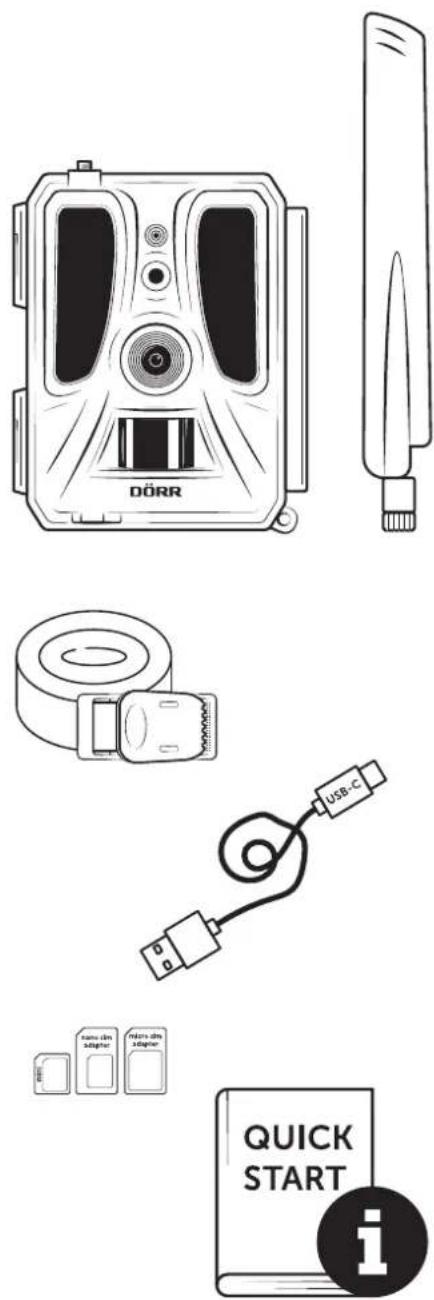
12 SCOPE OF DELIVERY
| Recording capability Photo / Video with audio / Photo+Video with audio | |
| Mobile picture and video transmission Yes | |
| Combined picture and video recording Yes | |
| Number of LEDs / LED Type 60 Invisible Infrared LEDs, 940nm | |
| Flash range max. approx. 20 m | |
| Detection range motion sensor approx. 20m / 60° | |
| Picture angle approx. 60° | |
| Trigger speed PIR sensor approx. 0,4 - 0,7 sec. | |
| Image sensor 5MP Colour CMOS Sensor | |
| Aspect Ratio 4:3 | |
| Picture resolution stored 24 MP*/16 MP*/12 MP*/8 MP*/5 MP (*interpolated) | |
| Picture resolution sent | Thumbnail (1920x1440)/24 MP*/16 MP*/12 MP*/8 MP*/5 MP (*interpolated) |
| Digital picture format JPEG | |
| Video resolution stored + sent | Full HD 1080P / HD 720P / WVGA |
| Video length | 5 - 59 sec. |
| Digital video format | MP4 |
| Lens | F=2.0/60° |
| Multiple shots (pictures per release) | 1 - 5 photos |
| Delay PIR Sensor | 5 sec. - 24 hours |
| Sensitivity PIR sensor | 1 - 9 steps |
| Time frames per day | 2 |
| Time lapse function | Yes |
| Time stamp on image | Longitude and latitude, resolution, battery status, temperature (°F/°C), moon phase, date, time |
| Minimum requirement Android/iOS version | Android 10 / iOS 16.4 |
| APP Languages | DE, GB, FR, ES, IT, DK, NL, SE |
| Memory card | SD/SDHC 8GB up to max. 32GB; SDXC 64GB up to max. 128GB see instruction manual (memory card not included) |
| SIM card format | Standard SIM (Nano-SIM+Micro-SIM+Mini-SIM with adapter, SIM card not included). Camera is without SIM lock and can be used with any SIM card. Deactivate SIM pin! |
| Mobile radio module | LTE Cat1; EU; 4G/3G/2G |
| Frequency band/Transmitting power | Frequency band: max. transmitting power: LTE B1, B3, B7, B8, B20, B28 23 dBm ± 2 dB [199,53 mW] WCDMA 1, WCDMA 8 24 dBm +1/-3 dB [251,19 mW] GSM/EDGE 3 26 dBm ± 3 dB [398,11 mW] GSM/EDGE 8 27 dBm ± 3 dB [501,19 mW] |
| GPS | Yes |
| Power supply | 12x alkaline manganese batteries 1.5V or NiMH or Li-ion rechargeable batteries size AA, alternatively 4x Li-ion rechargeable batteries type 18650 Hightop (not included) |
| Operating voltage | DC 12V / 2A |
| Power consumption approx. | while operation Ø 107mA-300mA by day, 115mA-777mA by night / standby 0.084mA |
| Runtime in standby mode approx. | up to 8 month with 12x AA batteries, up to 10 month with 4x 18650 batteries |
| Socket for external battery | Yes |
| USB port | USB-C |
| Thread mount 1/4* | Yes |
| Ingress protection code | IP66 |
| Operating temperature approx. | -20°C to +55°C |
| Storage temperature approx. | -25°C to +60°C |
| Relative humidity approx. | 5% - 90% |
| Colour | camouflage/green |
| Dimensions approx. | 11,5 x 14,5 x 8,2 cm, height with antenna: 37 cm |
| Weight without batteries approx. | 475 g |
| DORR GmbH reserves the right to make technical changes without notice. | |
14 DISPOSAL,CE MARKING
14.1 DISPOSAL OF BATTERY/ACCUMULATOR
Batteries and rechargeable batteries are marked with the symbol of a crossed-out waste bin. This symbol indicates that empty batteries or rechargeable batteries that can no longer be recharged must not be disposed of in household waste. Old batteries may contain harmful substances that can cause damage to health and the environment. As the end user, you are legally obliged to return used batteries (under German battery law, Section 11 Act Revising the Law of Waste-Related Product Responsibility for Batteries and Accumulators). You can return batteries free of charge after use at the point of sale or in your immediate vicinity (e.g. at municipal collection points or in shops). You can also return batteries to the seller by post.
14.2 WEEE INFORMATION
The WEEE (Waste Electrical and Electronic Equipment) Directive, which came into force as European law on 13 February 2003, led to comprehensive changes in the disposal of discarded electrical equipment. The primary purpose of this directive is to prevent e-waste while promoting reuse, recycling and other forms of reprocessing in order to reduce waste. The WEEE logo (dustbin) shown on the product and on the packaging indicates that the product must not be disposed of in normal household waste. You are responsible for delivering all discarded electrical and electronic equipment to appropriate collection points. Sorting waste for separate collection and sensible recycling of packaging waste helps to use natural resources more sparingly. Furthermore, e-waste recycling is a contribution to preserving our environment and thus also people's health. Further information on the disposal of electrical and electronic equipment, recycling and collection points can be obtained from local authorities, waste disposal companies, specialist retailers and the manufacturer of the device.
14.3 DISPOSAL OF THE PACKAGING
Dispose of the packaging by type. Give cardboard to the waste paper, foils to the collection of recyclables.
14.4 CONFORMITY WITH ROHS
This product complies with the European RoHS Directive on the restriction of the use of certain hazardous substances in electrical and electronic equipment and variations thereof.
C∈14.5 CEMARK
The imprinted CE mark complies with the applicable EU standards and indicates that the device meets the requirements of all EU directives applicable to this product.
15 | SIMPLIFIED EU DECLARATION OF CONFORMITY
Hereby, DORR GmbH declares that the radio equipment type [204448-RC] is in compliance with Directive 2014/53/EU. The full text of the EU declaration of conformity is available at the following internet address:
https://www.doerr.shop/204448-RC
Indice Page
ILLUSTRATION DES PIECES 2-3
01 | CONSIGNES DE SECURITE 45
02 | AVENTISSEMENTS POUR LES PILES/BATTERIES 46
03 | POLITIQUE DE CONFIDENTIALITE 46
04 | FRAIS DE TELÉPHONE MOBILE 46
05|NOMENCLATURE47
06|MISEEN SERVICE47
10 ACCESSORIES OPTIONNELS 60
14 | ÉLIMINATION, MARQUAGE CE 63
14.1 Elimination des piles/batteries 63
14.6 Mention DEEE 63
14.3 Elimination de I'emballage 63
14.4 Conformité RoHS 63
14.5 Marquage CE 63
15 | DÉCLARATION UE DE CONFORMITÉ SIMPLIFIÉE 63
FR
10 ACCESSORIES OPTIONNELS
14 | ÉLIMINATION, MARQUAGE CE
14.1 ÉLIMINATION DES PILES/DE LA BATTERIE
14.4 CONFORMITE ROHS
https://www.doerr.shop/204448-RC
Índice Págrina
14 ELIMINACION, MARCADO CE
14.1 ELIMINACION DE PILAS/BATERIAS
14.4 CONFORMIDAD CON ROHS
https://www.doerr.shop/204448-RC
06 | PRIMA ACCENSIONE
14.2 DISPOSITIONE RAAE
14.4 CONFORMITA ROHS
https://www.doerr.shop/204448-RC
Indeks Side
| BILLEDE AF KOMPONENTER 2 - 3 | |
| 01 | SIKKERHEDSANVISNINGER | 105 |
| 02 | BATTERI/GENOPLADELIGT BATTERI ADVISLER | 106 |
| 03 | FORTROLIGHEDSPOLITIK 106 | |
| 04 | MOBILTELEFON OMKOSTNINGER 106 | |
| 05 | KOMPONENTBESKRIVELSE 107 | |
| 06 | IDRIFTSÅETTEALSE 107 | |
| 06.1 Monter anteune 107 | |
| 06.2 Ilægning af batterier 107 | |
| 06.3 Indsæt SD/SDHC/SDXC-hukommelseskortet | 108 |
| 06.3.1 VICTIGTSDXC-hukommelseskort 64 GB & 128 GB | 108 |
| 06.3.2 Formater SD/SDHC/SDXC-kort med kameraet | 108 |
| 06.4 Sæt SIM-kortet i | 108 |
| 06.5 Download DORR-appen | 108 |
| 06.6 Register og scan QR-kode | 109 |
| 06.7 DORR SnapShot Cloud 4G/4G Pro hjemmeside | 110 |
| 06.8 Tænding / kontrol af kamerastatus | 110 |
| 06.8.1 LED-statusindikatorer | 111-112 |
| 07 | KAMERAINDSTILLINGER I APPEN/webINTERFACET | 113 |
| Kamerainstillinger | 113 |
| Kameratilstand | 113 |
| Overførselstilstand | 113 |
| Sikkerhedstilstand | 113 |
| Batterype | 113 |
| Fjernbetjening | 113 |
| GPS MODE | 113 |
| Overskriv SD | 113 |
| Kameraetsnavn | 113 |
| Tidszone | 113 |
| Billedindstillinger | 114 |
| Billedstorrelse | 114 |
| Tag kontinuerlige billeder | 114 |
| Kontinuerligt interval | 114 |
| Time Lapse | 114 |
| Forsinkelse | 114 |
| Begræns antallet af billeder pr.dag | 114 |
Indeks Side
06.5 Download DORR APP
For at installere DORR Cloud APP'en skal du bruge din smartphone til at scanne den tilsvarende QR-kode til Android eller iOS pa indersiden af emballagen eller downloade APP'en direkte fra Play Store til Android eller APP Store til iOS.
06.7 DORR SnapShot Cloud 4G/4G Pro website
https://www.doerr.shop/204448-RC
Index Pagea
| AFBEELING ONDERDELEN 2 - 3 | |
| 01 | VEILIGHEIDSINSTRUCTIES ▲ | 125 |
| 02 | BATTERIJ/ACCU WAARSCHUWINGEN ▲ | 126 |
| 03 | PRIVACYBEPALINGEN 126 | |
| 04 | MOBIELE TELEFOONKOSTEN 126 | |
| 05 | BESCHRIJVING VAN DE ONDERDELEN 127 |
02 BATTERIJ/ACCU WAARSCHUWINGEN
06.7 DORR SnapShot Cloud 4G/4G Pro website
10 | OPTIONELE ACCESSOIRES
10.1 Optionele montagtoebehoren
14.3 VERPAKKING AFVOEREN
https://www.doerr.shop/204448-RC
Oversikt Sida
| ILLUSTRATION AV DELARNA 2 - 3 | |
| 01 | SÄKERHETSINFORMATION | 145 |
| 02 | BATTERI/ACKUMULATOR VARNINGAR | 146 |
| 03| DATASKYDDSBESTÄMMELSER 146 |
| 04 | MOBILTELEFONKOSTNADER 146 |
| 05 | BESKRIVNING AV DELARNA 147 |
| 06 | IDRIFTTAGANDE | 147 |
https://www.doerr.shop/204448-RC
Obsah Stranka
14.4 KONFORMITA ROHS
https://www.doerr.shop/204448-RC
Sisaltö Sivu
OSIEN KUVAT 2-3
01 TURVALLISUUSOHJEET 185
02|PARISTO/AKKU - VAROIUKSET 186
03|TIETOSUOJASÄÄNNÖKSET 186
04 | MATKAPUHELINKUSTANNUKSET 186
05|OSIEN KUVAUS 187
06|KAYTTOONOTTO187
06.1 Antennin asentaminen 187
06.2 Aseta paristot tai ladattavat akut 187
06.3 Aseta SD/SDHC/SDXC-muistikortti paikalleen 188
06.3.1 TARKEAA 188
SDXC-muistikortit 64GB & 128GB
08 | MUUT TOIMINNOT 199
https://www.doerr.shop/204448-RC
DORR USB toltl litium-ion akkumulatorokhoz 18650
Alternative megoldaskent a kamera üzemeltethto kulso 12V-os akkumulatorial a DORR akkumulatorkabelunkho z csatlakoztatva. DORR webaruhazunkban minded optionalisan elerheto:
Olom akumulator 12V/12Ah
alkalmasakerre:
12 | A CSOMAG TARTALMA
14.4 ROHS MEGFELELOSEG
https://www.doerr.shop/204448-RC