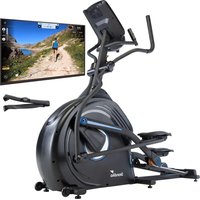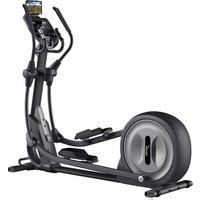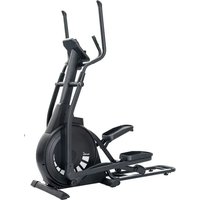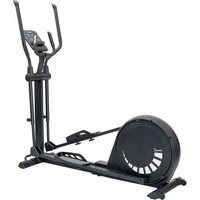
Carbon P24RG - Elliptical bike Skandika - Free user manual and instructions
Find the device manual for free Carbon P24RG Skandika in PDF.



| Product type | Elliptical trainer |
| Brand | Skandika |
| Model | Carbon P24RG |
| Dimensions (L × W × H) | 1488 × 566 × 1653 mm |
| Device weight | 59.6 kg |
| Maximum user weight | 150 kg |
| Device class | HC (domestic use) |
| Resistance | 32 manually adjustable levels |
| Power supply | Self-powered by movement, recharge via USB-C |
| Display | Speed, time, distance, calories, heart rate, resistance level, SCAN mode |
| Connectivity | Bluetooth 2.4 GHz for KINOMAP app |
| Mobile compatibility | KINOMAP app (iOS and Android) |
| Pedals | With foot straps |
| Transport wheels | Yes, on front foot |
| Cup holder | Yes |
| Safety | Automatic shutdown after 3 min of inactivity, emergency stop |
| Assembly | Tools included, recommended for two people |
| Cleaning | Slightly damp cloth, no direct water or solvents |
| Warranty | 24 months |
| Customer service | service@skandika.de |
| Manufacturer | MAX Trader GmbH, Wilhelm-Beckmann-Str. 19, 45307 Essen, Germany |
Frequently Asked Questions - Carbon P24RG Skandika
User questions about Carbon P24RG Skandika
0 question about this device. Answer the ones you know or ask your own.
Ask a new question about this device
Download the instructions for your Elliptical bike in PDF format for free! Find your manual Carbon P24RG - Skandika and take your electronic device back in hand. On this page are published all the documents necessary for the use of your device. Carbon P24RG by Skandika.
USER MANUAL Carbon P24RG Skandika
natural_image
Exterior view of a Skandika stationary exercise bike (no signage or text visible on body)Carbon P24-RG
Inhalt

skandika.com/service
natural_image
Line drawing of a person walking beside a mechanical exercise machine (no text or symbols)PFLEGEHINWEISE
natural_image
Line drawing of an exercise bike with red directional arrow indicating motion (no text or symbols)natural_image
Line drawing of an exercise bike with attached arm and side-mounted legs, shown with two circular insets highlighting internal components (no text or symbols present)natural_image
Solid black circular shape with a thin gray border (no text or symbols)Abb. 2
text_image
8 8.8Abb. 3
natural_image
Illustration of a hand pressing down on a metallic cylindrical object on a black base (no text or symbols)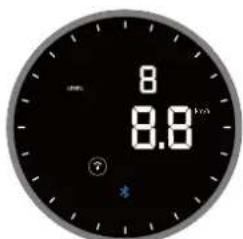
text_image
8 8.8 ?Abb. 8
text_image
8 00:38Abb. 9
text_image
8 8.8...Abb. 10
text_image
8 8.8Abb. 11
FUNKTIONEN
natural_image
Illustration of a hand pressing down on a metallic cylindrical object on a base (no text or symbols)
natural_image
Line drawing of a stationary exercise machine with arms and legs (no text or symbols)TECHNISCHE DATEN
23 Safety precautions
24 Checklist
26 Set-up instructions
34 Adjustments / Transportation / Care instructions
35 Power supply
36 Computer operation manual
38 Warm-up and cool-down
39 Connecting to KINOMAP app
40 Technical specifications
41 Guarantee conditions

skandika.com/service
Please visit the Skandika Service portal on our website for setup & help videos, FAQs and downloadable instructions. For more information about Skandika, simply visit our main page www.skandika.com

WARNING
To reduce risk of injury, read and understand this instruction manual before using the device! This machine is intended for home use only in accordance with the instructions provided in this manual. Read the instruction manual carefully before using this device and keep the instruction manual for future use.
SAFETY PRECAUTIONS
- To ensure the best safety of the device, regularly check it on damages and worn parts.
- If you pass on this device to another person or if you allow another person to use it, make sure that that person is familiar with the content and instructions in these instructions.
- Only one person should use the exerciser at a time. The maximum load of this device is 150 kg. Class: HC - not suitable for therapeutically use!
- Before the first use and regularly make sure that all screws, bolts and other joints are properly tightened and firmly seated.
- Before starting an exercise programme, consult your doctor to determine if you have any health or physical conditions that could compromise your health and safety or prevent you from using the machine properly. Your doctor's advice is essential if you are taking medication that affects your heart rate, blood pressure or cholesterol levels.
- Pay attention to your body's signals. Exercising incorrectly or excessively can damage your health. Stop exercising if you experience any of the following symptoms: pain, chest tightness, irregular heartbeat, shortness of breath, lightheadedness, dizziness or feeling nauseous. If you experience one or more of these symptoms, you should first consult your doctor before continuing with your exercise programme.
- Keep small children and pets away from the exercise equipment. Never leave children under 14 years of age unattended in a room with the machine.
- Parents and other guardians should be aware of their responsibility, as due to children's natural play instinct and eagerness to experiment, situations are to be expected for which training equipment is not built.
-
Set up the unit in a dry, level place and protect it from moisture and direct sunlight. If you want to protect the place of installation against pressure marks, dirt, etc., we recommend that you place a suitable, non-slip base under the unit. Do not use the unit near water or outdoors. If you have not used the appliance for a long time, check it for rust and material cracks.
-
Always use the unit as described in this manual. If you notice any defective parts when assembling or checking the unit, or if you hear unusual noises coming from the unit during exercise, stop using the unit immediately and do not use it again until the problem is solved. Contact the customer service.
- Always wear appropriate clothing and shoes which are suitable for your workout on the device. The clothes must be designed in a way so that they will not get caught in any part of the device during the work-out due to their form (for example, length). Be sure to wear appropriate shoes which are suitable for the work-out, firmly support the feet and which are provided with a non-slip sole. Use the foot straps during training.
- Make sure that you and other persons never place any parts of your body (e.g. fingers) in the area of moving parts. In addition, there should be no objects in the immediate vicinity that could interfere with the training process.
- To minimise the risk of injury, always mount the lower platform first. When dismounting, the movement should come to a complete stop.
- The device is not speed-dependent. You can adjust the resistance manually.
- This unit is intended for indoor and home use only, it is not intended for commercial use!
- Do not work out immediately after meals!
- Clean the appliance regularly. Do not rinse it directly with water, petrol or abrasive cleaners etc.. This can lead to damage. Use a slightly damp cloth for cleaning.
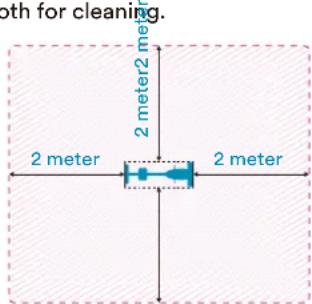
- Please only exercise with a minimum clearance area of 2 meters around the device.
Be sure to consult a physician before you start any device program. He may give you proper hints and advice with respect to the individual intensity of stress for you, your workout and sensible eating habits. This is especially important
for individuals over the age of 35 or persons with pre-existing health problems.
text_image
Both for cleaning. 2 meter 2 meter 2 meter 2 meter#1 Main frame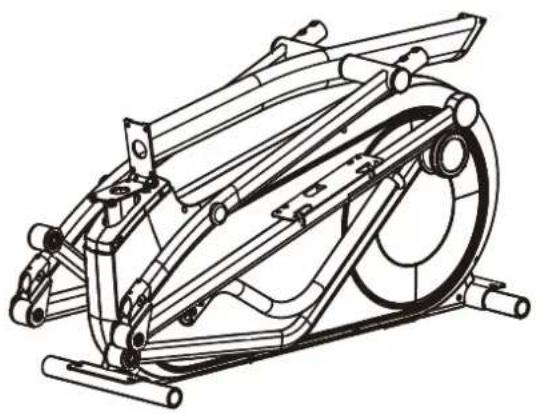 | #2 Front Foot Tube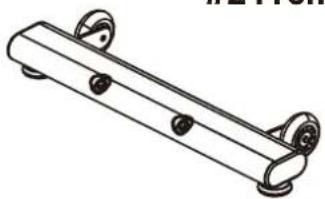 | |||
r Foot Tube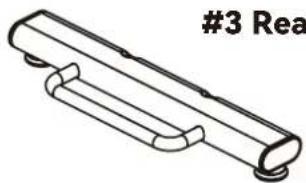 | ||||
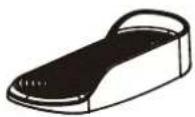 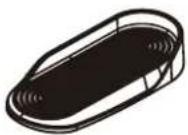 #45 Left pedal #46 Right pedal #45 Left pedal #46 Right pedal | ||||
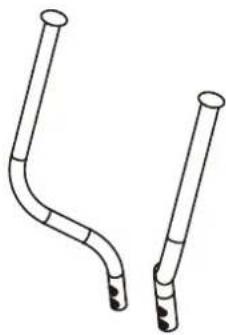 #15 Left Handlebar#16 Right Handlebar #15 Left Handlebar#16 Right Handlebar | 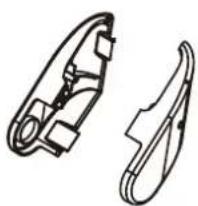 #38 Left Handlebar Cover x2#39 Right Handlebar Cover x2 #38 Left Handlebar Cover x2#39 Right Handlebar Cover x2 | 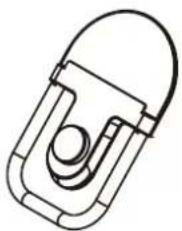 | 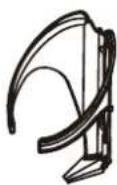 #63 Cup holder#41 #63 Cup holder#41 | |
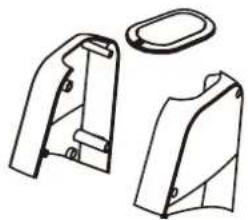 #40 Handlebar Post Gasket#36 Left Decorative Cover#37 Right Decorative Cover #40 Handlebar Post Gasket#36 Left Decorative Cover#37 Right Decorative Cover | 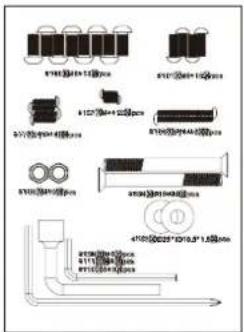 Small parts kit Small parts kit |  User manual User manual | ||
| Small parts kit: | ||
| Step 1 | 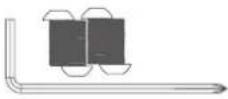 | #96 Screws M8×20 x 4#110 Allen key x 1 |
| Step 2 | 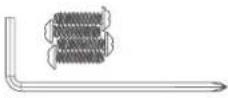 | #77 Self-tapping screws ST4×16 x 4#110 Allen key x 1 |
| Step 3 | 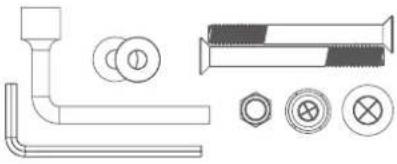 | #111 Socket spanner #14 x 1#105 Nut M10 x 2#134 Allen key x 1#103 Washer x 2#104 Hexagonal screw x 2#108 Screw cover x 2#109 Screw hole plug x 2 |
| Step 4 | 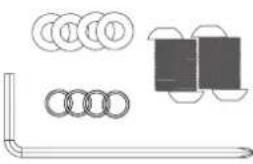 | #96 Flat Head Hexagon Socket Screws M8*20×4#121 Curved Washer x4#102 Elastic Washer x4#110 Allen key x 1 |
| Step 5 | 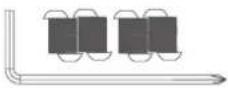 | #100 Screws M8×15 x 8#110 Allen key x 1 |
| Step 6 | 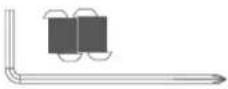 | #101 Screws M6×16 x 4#110 Allen key x 1 |
| Step 7 | 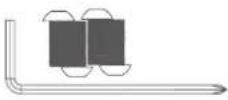 | #96 Screws M8×20 x 4#110 Allen key x 1 |
| Step 8 | 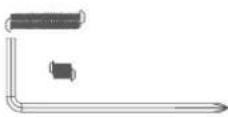 | #106 Self-tapping screws ST4×40 x 2#107 Screws M4×12 x 2#110 Allen key x 1 |
SET-UP INSTRUCTIONS
Before you start assembling, we recommend that you find a place with sufficient free space and a flat surface for assembly.
Please check the checklist to ensure that you have all the parts needed for assembly. Some parts may already be pre-assembled to make assembly easier for you.
We recommend that the assembly be carried out by two people and that the tools provided be used to assemble the device.
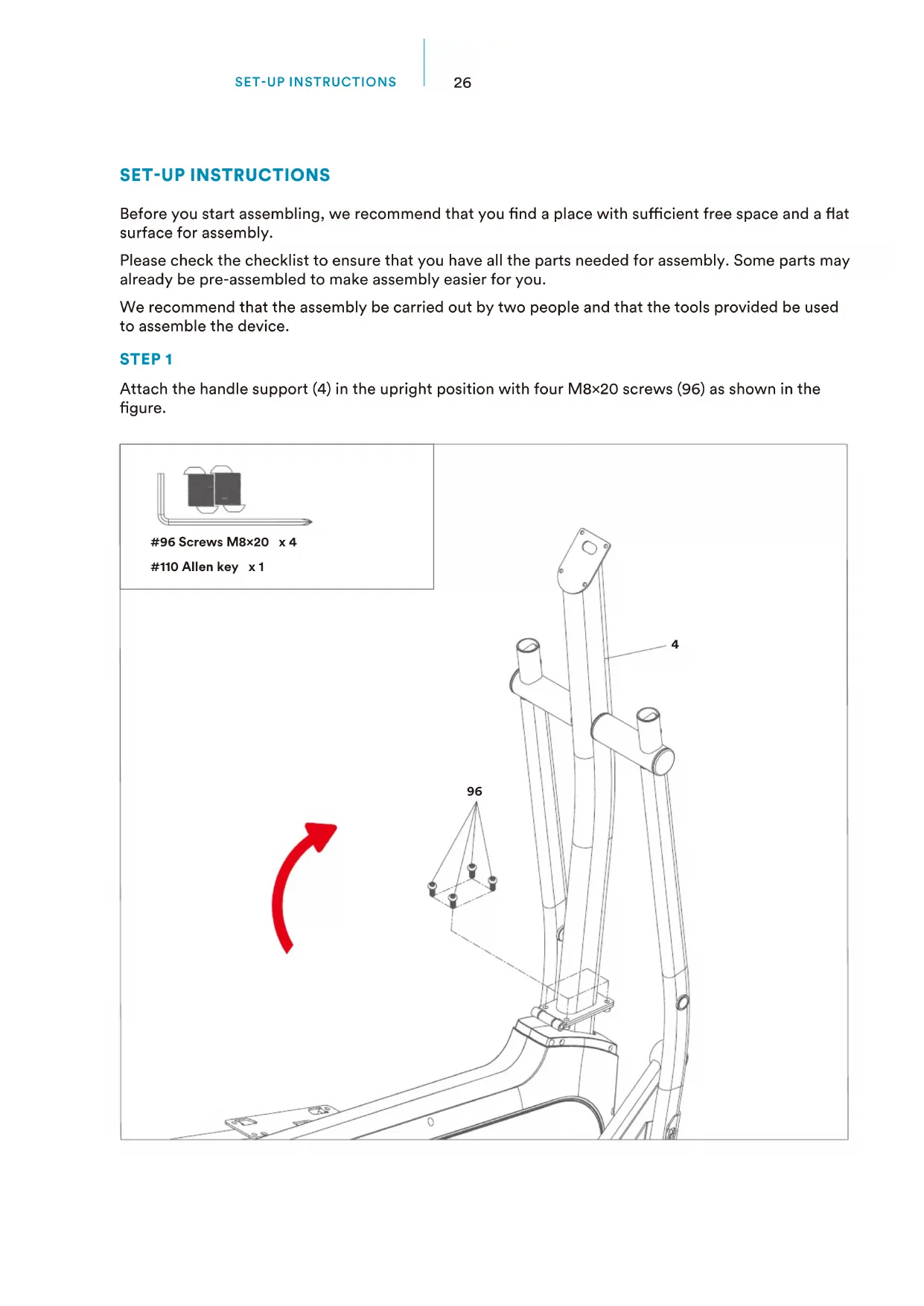
STEP 1
Attach the handle support (4) in the upright position with four M8×20 screws (96) as shown in the figure.
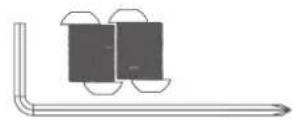
96 Screws M8×20 x 4
110 Allen key x 1
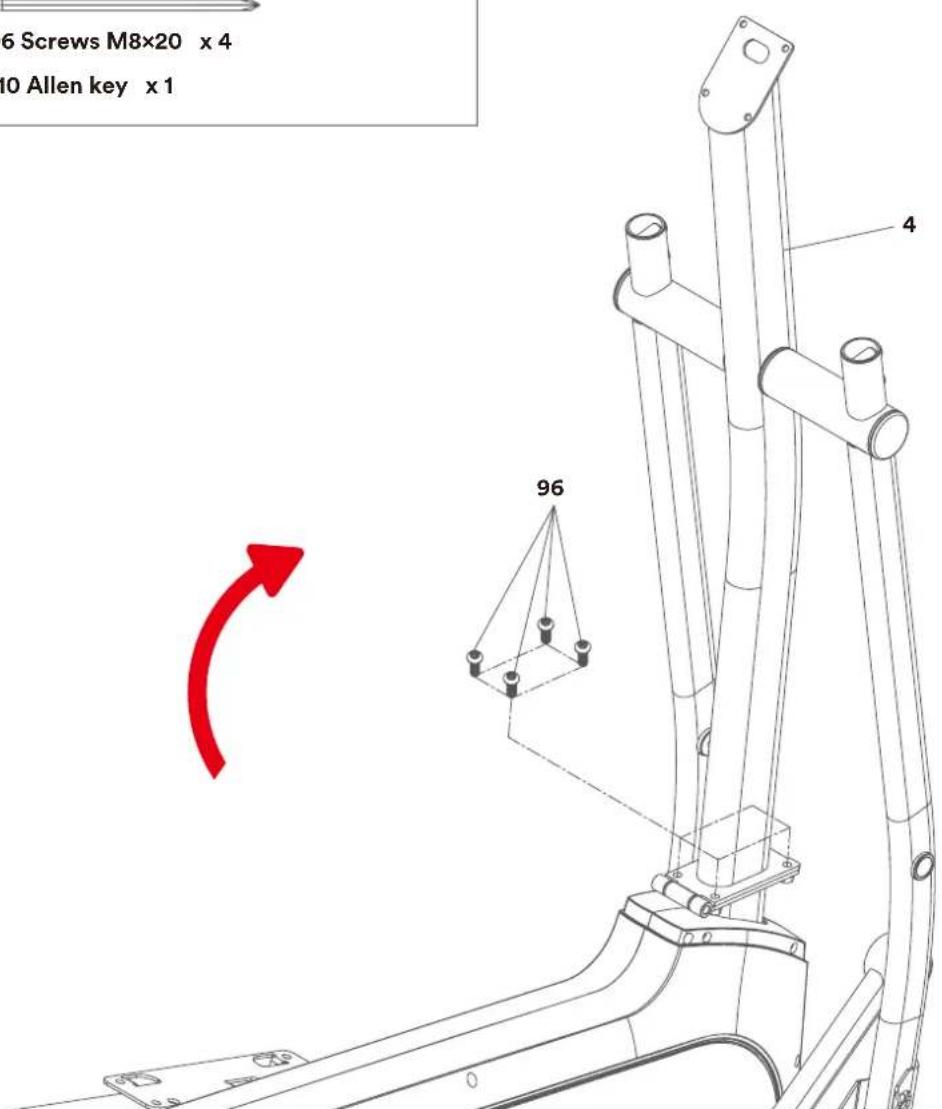
text_image
6 Screws M8×20 x 4 10 Allen key x 1 96 4STEP 2
- Fix the left and right covers (36 & 37) to the handlebar (4) with 4 screws (77) as shown.
- Position the handlebar post gasket (40) over the covers (36 & 37).
Note: There are two guides on the inside and underside of the left and right covers (36 & 37) that need to be aligned accordingly.
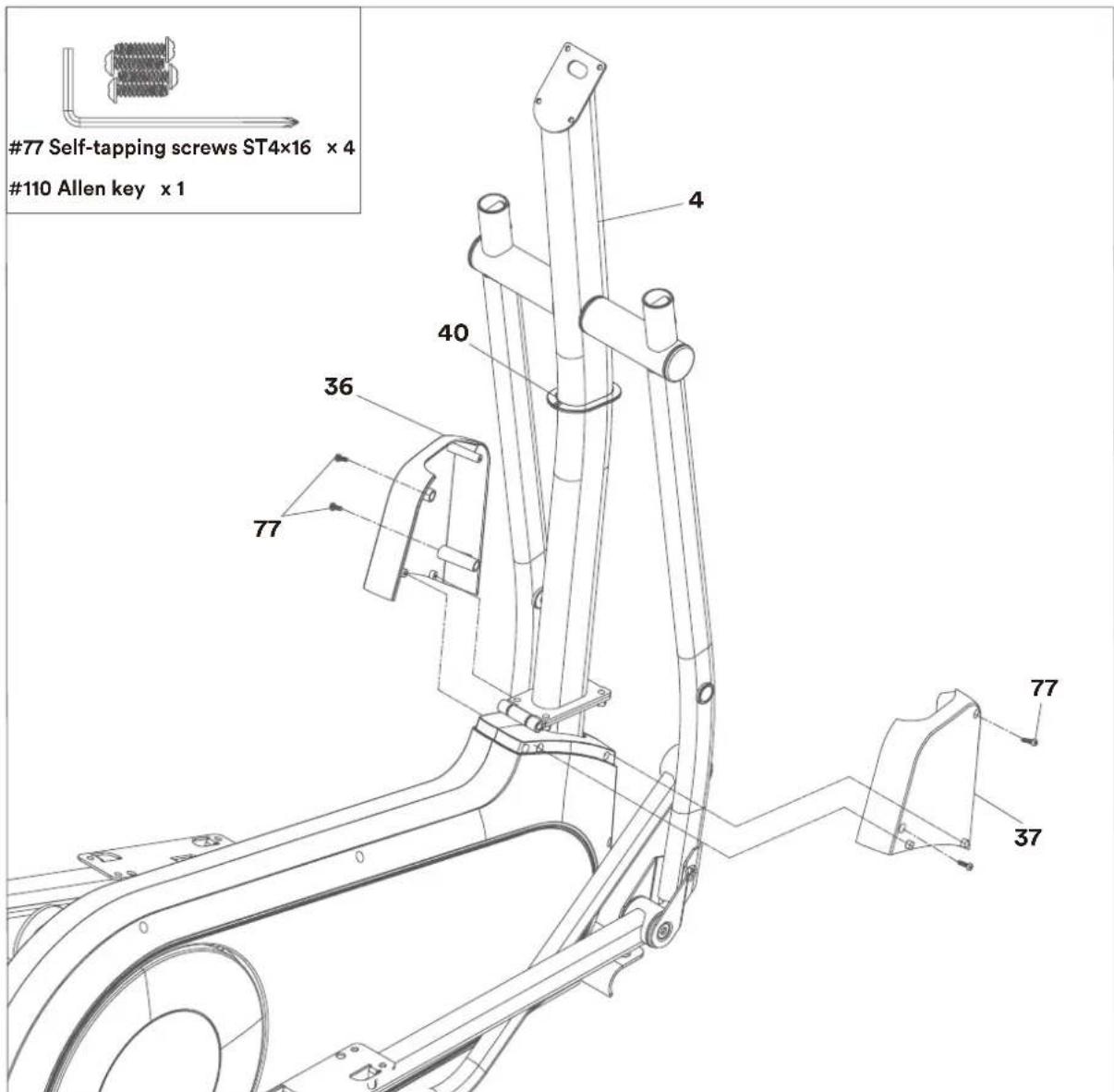
text_image
#77 Self-tapping screws ST4x16 x 4 #110 Allen key x 1 4 40 36 77 77 37STEP 3
- Lift the right connecting rod pipe (11) and align it with the holes on the right lower handle pipe (7). Fix it as shown with 1 hexagonal screw (104), 1 screw cover (108) and 1 washer (103).
- Then tighten the nut (105) and the plug (109).
- Repeat this process for the left connecting rod pipe (12).
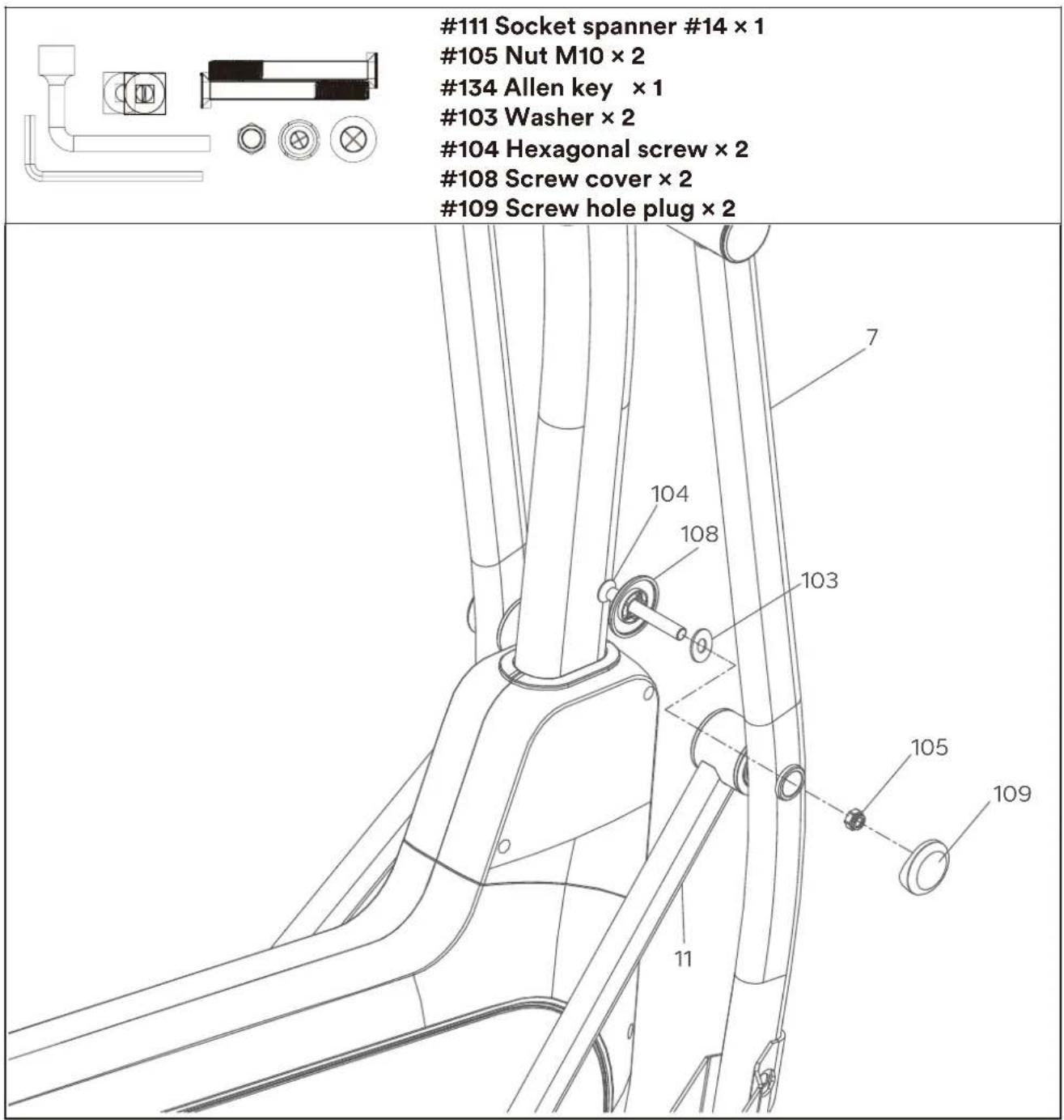
text_image
#111 Socket spanner #14 × 1 #105 Nut M10 × 2 #134 Allen key × 1 #103 Washer × 2 #104 Hexagonal screw × 2 #108 Screw cover × 2 #109 Screw hole plug × 2STEP 4
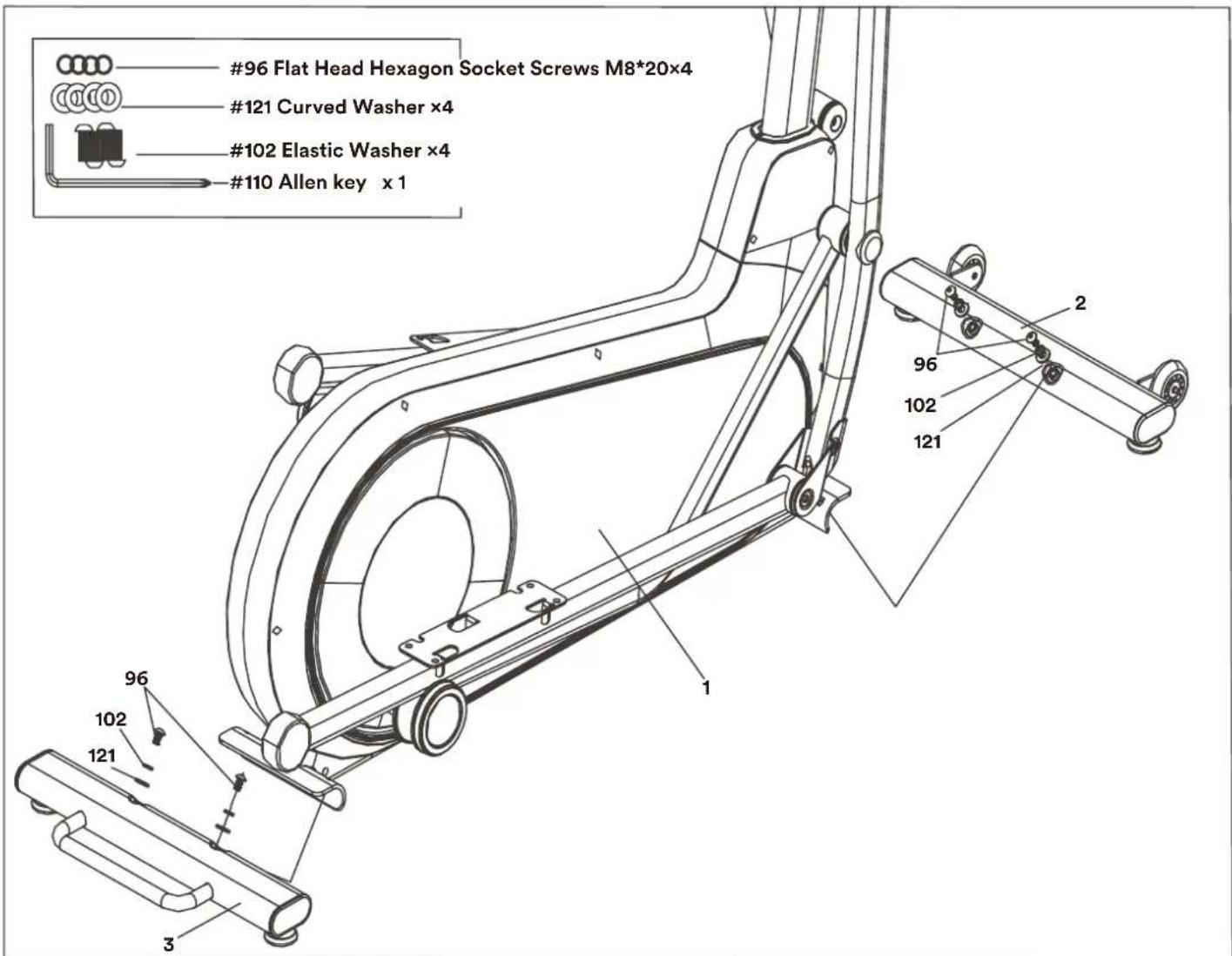
Fix the two foot tubes (2=front and 3=rear) to the main frame with two screws (96), two corrugated washers (121) and two spring washers (102) as shown.
Note: The front foot tube (2) has transport castors and the rear foot tube (3) has a handle for lifting the device.

text_image
#96 Flat Head Hexagon Socket Screws M8*20x4 #121 Curved Washer x4 #102 Elastic Washer x4 #110 Allen key x 1 96 102 121 1 2 3STEP 5
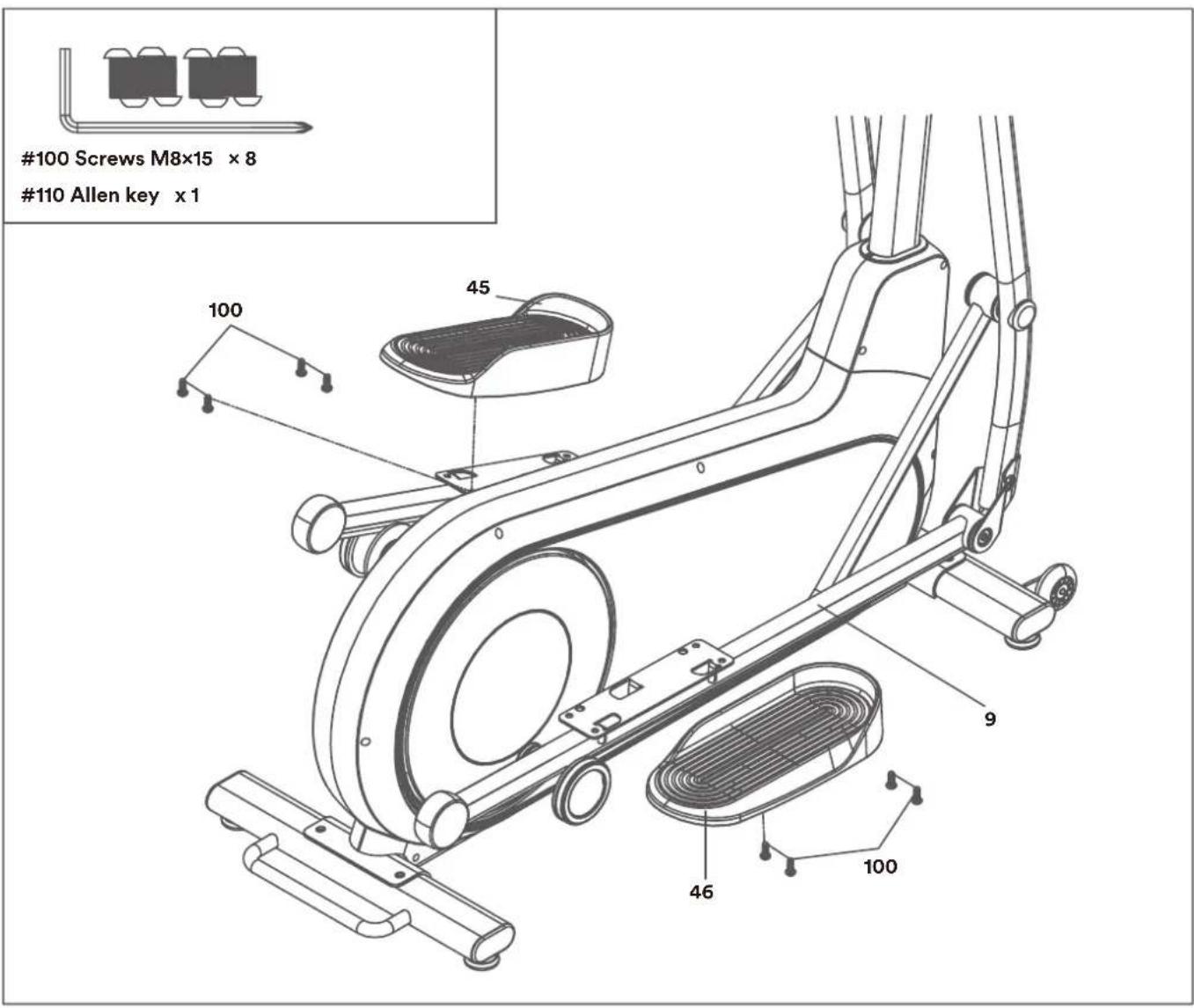
- Attach the right pedal (46) to the right pedal arm (9) using 4 screws (100).
- Repeat the step for the left pedal (45).
Note: The pedals are easier to assemble when the respective pedal arm is in the uppermost position.
text_image
#100 Screws M8×15 × 8 #110 Allen key × 1 100 45 9 46 100STEP 6
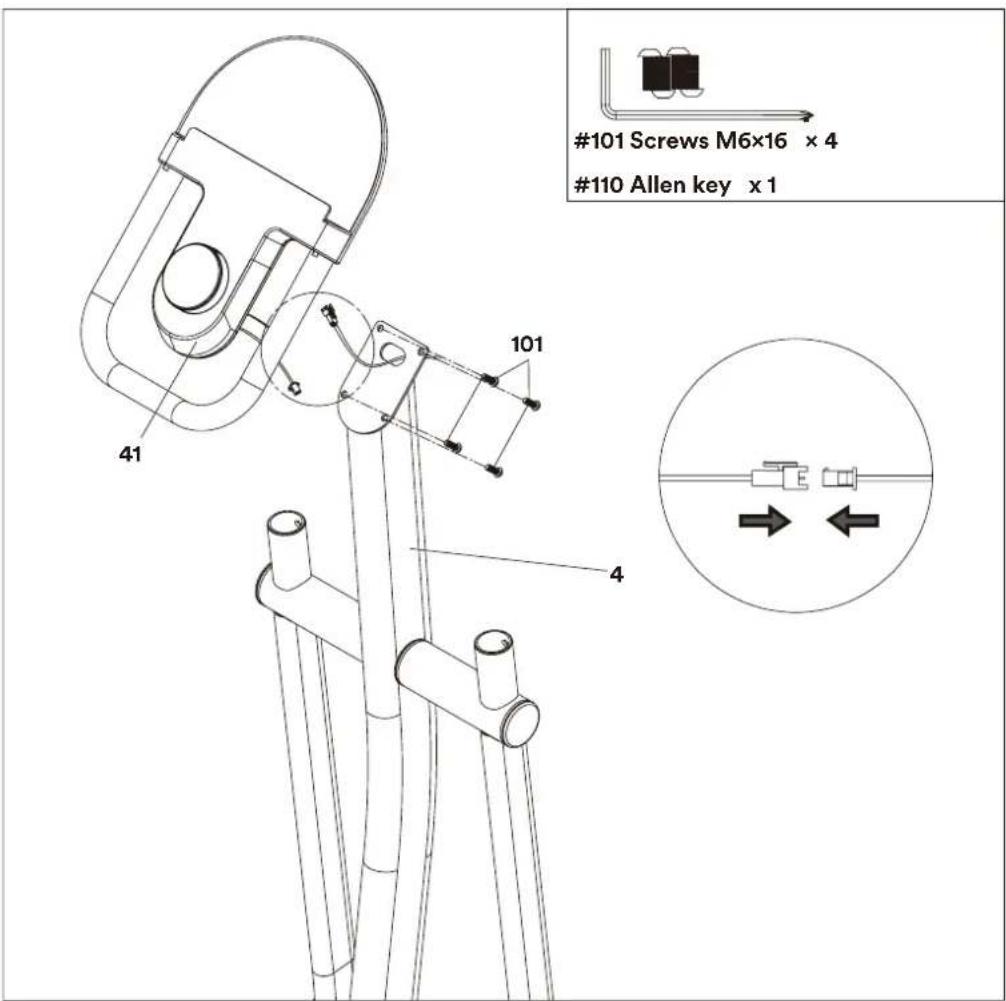
First connect the sensor cable as shown and then carefully (without pinching the cable) attach the computer (41) to the top of the handle (4) with 4 screws (101).
text_image
#101 Screws M6x16 x 4 #110 Allen key x 1 101 41 4STEP 7
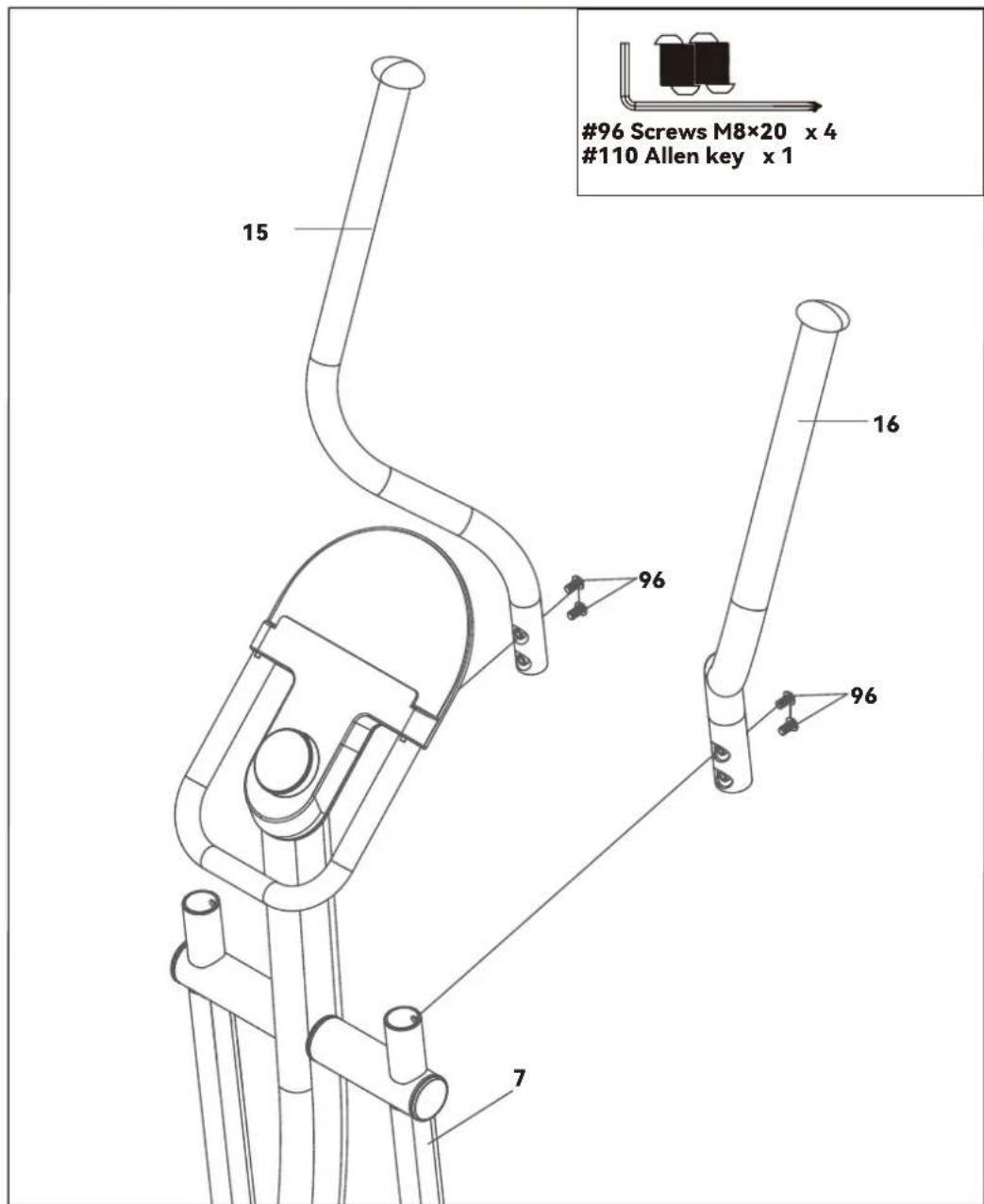
- Mount the right handlebar (16, marked ‘R’) on the right, lower handle pipe (7) with 2 screws (96).
- Repeat this step for the left handlebar (15, marked ‘L’).
text_image
#96 Screws M8×20 x 4 #110 Allen key x 1 15 16 96 96 7STEP 8
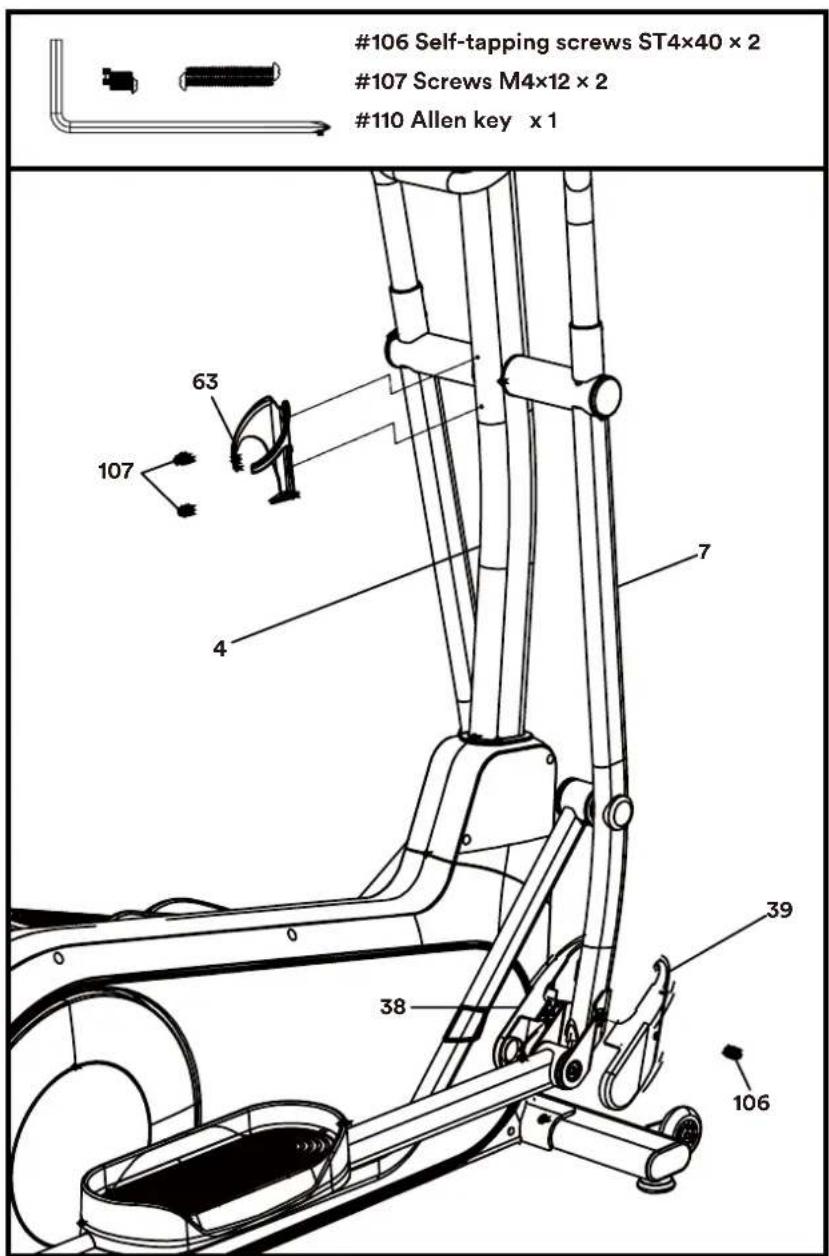
- Mount the cup holder (63) on the handlebar post (4) with two screws (107) as shown.
- Then attach the right covers (38 & 39) to the right, lower handle pipe (7) using the screw (106).
- Attach the left covers accordingly.
The device is now fully assembled. Check again that all the connections are secure.
text_image
#106 Self-tapping screws ST4×40 × 2 #107 Screws M4×12 × 2 #110 Allen key x 1 63 107 4 7 39 38 106ADJUSTMENTS - LEVEL STAND
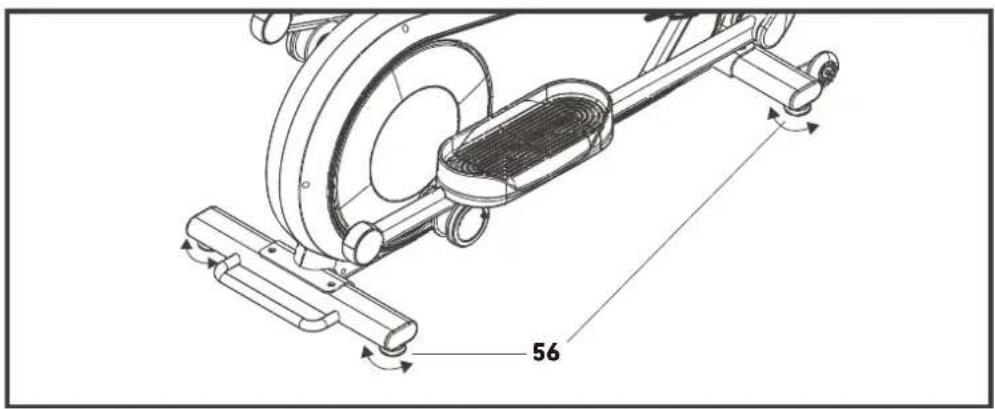
The device should be level so that it does not wobble and a safe workout is possible. There are two adjustable foot pads (56) on each of the two feet, which can be levelled by turning them so that the device is standing straight on the floor.
text_image
56TRANSPORTATION
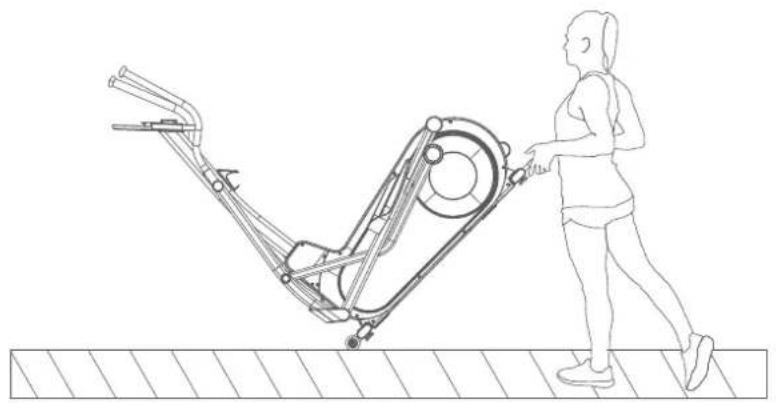
The device has transport casters on the front stand and a handle on the rear stand for transport. If you want to move it to a different location, lift it by the rear handle as shown until the transport casters on the front touch the floor. You can then simply roll the device to its new location.
natural_image
Line drawing of a person walking beside a mechanical exercise machine (no text or symbols)CARE INSTRUCTIONS
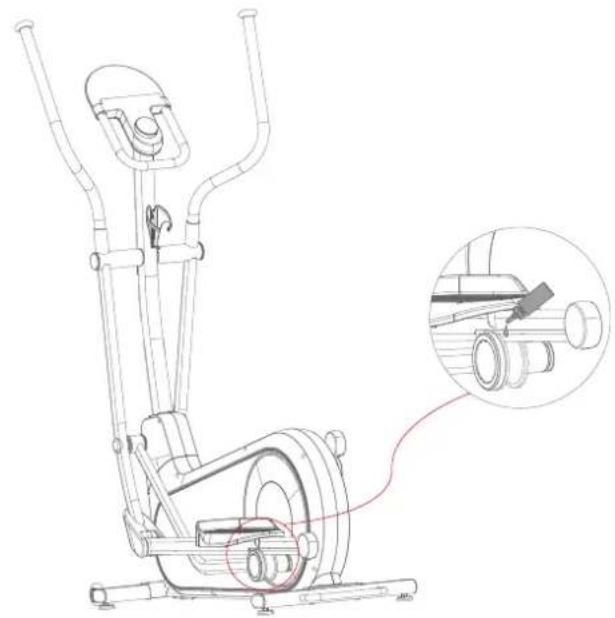
After a period of use, the PU rollers may cause slight friction noise. In this case, please lubricate the attached lubricant onto the PU rollers or the rail to extend the service life of the PU rollers.
natural_image
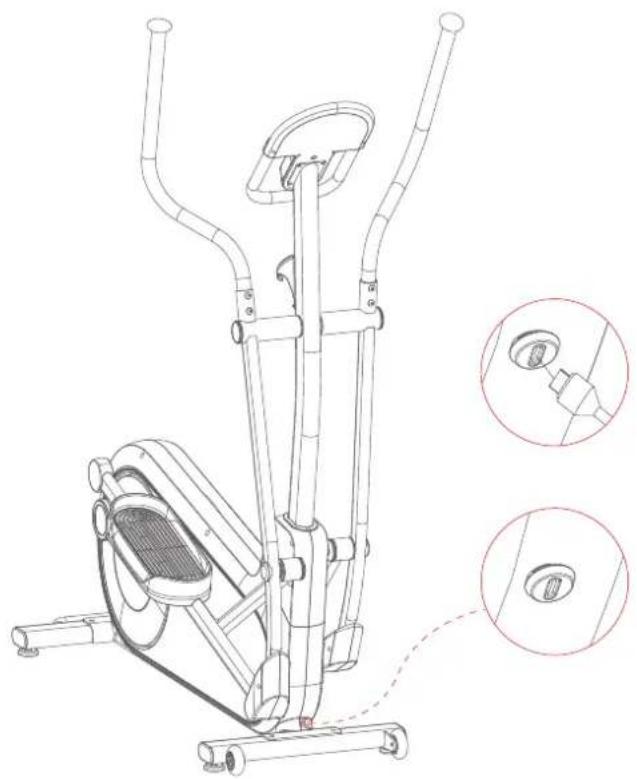
Technical line drawing of an stationary exercise machine with a close-up inset showing internal components (no text or labels)POWER SUPPLY
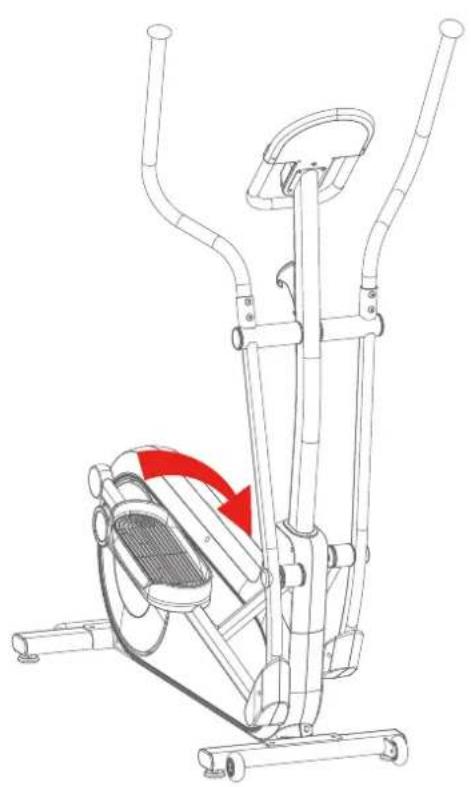
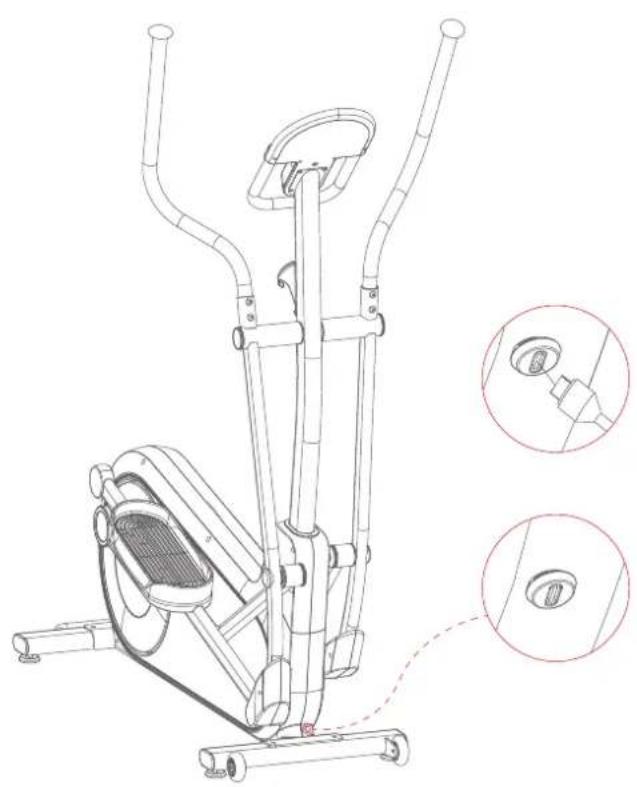
This device has a self-powered electrical system. Under normal use, charging is not required as the necessary energy is generated by the movement of the device itself.
If the device is not used for about 3 minutes, the computer automatically turns off to save power.
However, if the power is insufficient to use the computer properly (e.g. when the display is weak or missing), you can charge the device using a USB-C cable (not included). After a few minutes, the power should be sufficient again to use the device properly.
With regular use, the built-in battery recharges itself.
natural_image
Line drawing of an exercise bike with a red curved arrow indicating rotational motion (no text or symbols)Charging through pedalling
natural_image
Technical line drawing of an exercise bike with attached sensors and a close-up inset showing internal components (no text or symbols)Charging through USB-C cable
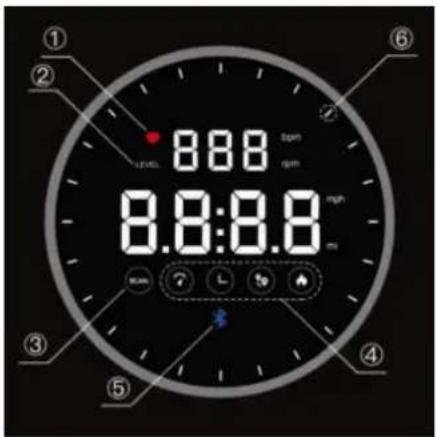
(1) Display of heart rate in beats per minute (bpm)
(2) Display of resistance level (from 1 to 32)
(3) SCAN mode active / inactive (automatic display change)
(4) Display of function values: speed, time, distance, calories
(5) Bluetooth connection active / inactive
(6) Outer ring with 24 effect lights
text_image
8:00 8:00:00 8.0:0.0 6 7 8 9 10 11 12 13 14 15 16 17 18 19 20 21 22 23 24 25 26 27 28 29 30 31 32 33 34 35 36 37 38 39 40 41 42 43 44 45 46 47 48 49 50- After switching on, all display elements appear briefly and a beep is emitted. The initial resistance is set to level 1 (light). The computer is then ready for operation (Fig. 1).
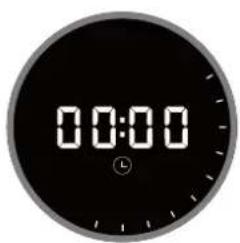
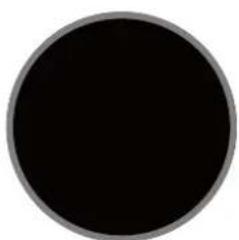
- If no training or operation takes place for approx. 3 minutes, the computer automatically switches to stand by mode (Fig. 2).
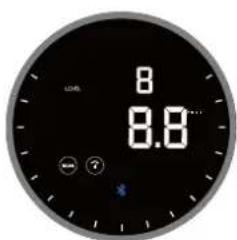
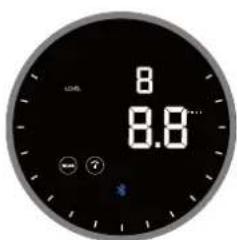
- Pressing a button or starting a workout sets the computer to the display mode for 'level' (resistance level, Fig. 3).
text_image
00:00Figure 1
natural_image
Solid black circular shape with a thin gray border (no text or symbols)Figure 2 Figure 3
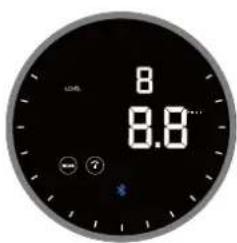
text_image
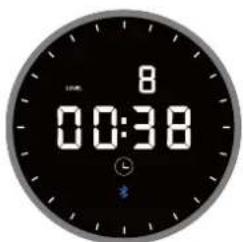
8 8.8- During training and when the 'SCAN' mode is activated, the various function values are displayed in consecutive order (change every 3 seconds): speed, time, distance and calories (Figs. 4 to 7).
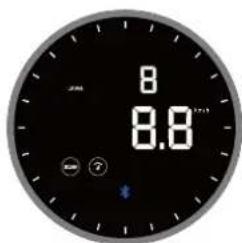
text_image
8 8.8Figure 4
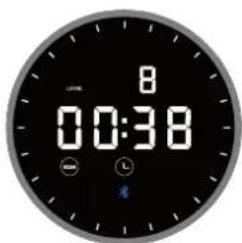
text_image
8 00:38Figure 5
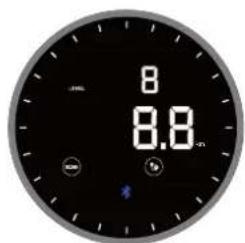
text_image
8 8.8Figure 6
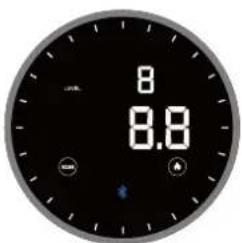
text_image
8 8.8Figure 7
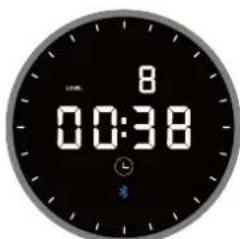
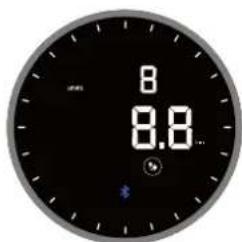
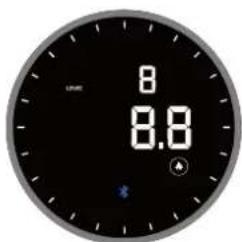
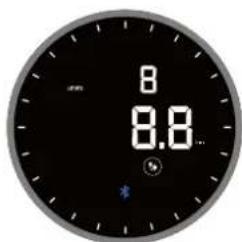
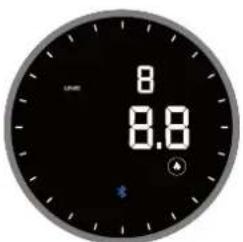
- To permanently display a function value, briefly press the computer (several times if necessary) until the desired value is displayed (Figs. 8 to 11).
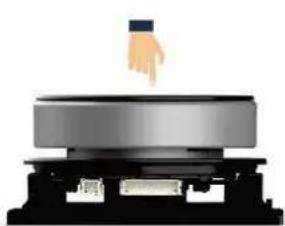
natural_image
Illustration of a hand pressing down on a metallic cylindrical object on a black base (no text or symbols)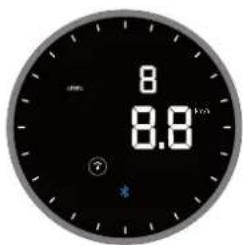
text_image
8 8.8 ?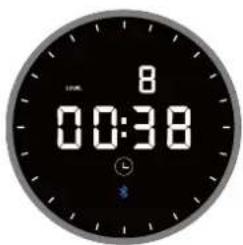
text_image
8 00:38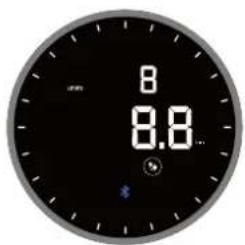
text_image
8 8.8...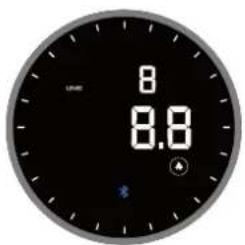
text_image
8 8.8Figure 8 Figure 9 Figure 10 Figure 11
FUNCTIONS
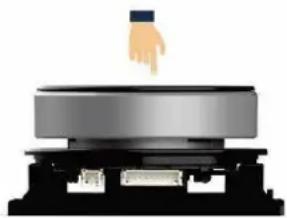
Press the computer (confirmed with a tone):
- Wake up the computer from standby-mode
- Press briefly to change the display or to activate the scan mode
- Press and hold for about 2 seconds to reset function values
natural_image
Illustration of a hand pressing down on a metallic cylindrical object on a base (no text or symbols)Turn the computer (confirmed with a tone):
- Turning clockwise increases the pedalling resistance
- Turning anticlockwise reduces the pedalling resistance
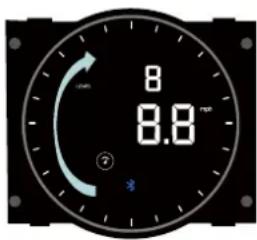
text_image
8 8.8 ?DISPLAY SPECIFICATIONS
| Function Display ExplanationNo. | |||
| 1 | Resistance level |  | 1 - 32 |
| 2 | SCAN |  | active (value cycle) or inactive |
| 3 | Speed |  | 0.0 - 999.9 km/h |
| 4 | Time |  | 00:00 - 99:59 Min. |
| 5 | Distance |  | 0.0- 999.9 km |
| 6 | Calories |  | 0.0 - 999.9 kcal |
| 7 | Blue-tooth |  | Active or inactive |
WARM-UP and COOL-DOWN
A successful exercise program consists of a warm-up, aerobic exercise and a cool-down. Exercise for at least two or preferably three times a week, resting for a day between workouts. After several months, you may increase the frequency to four or five times per week.
Warm-Up
This stage helps to improve the blood circulation and prepares the muscles for your workout. It additionally helps to reduce the risk of injury or cramps. It is recommended to do some stretching exercises as shown here below. Hold each stretching position for approximately 30 seconds. Never force or jerk yourself into a stretching position – if you feel pain, STOP immediately. Warm-up exercises may also include brisk walking, jogging, jumping jacks, jump rope exercises or running in place.
Stretching
Muscles can be stretched more easily when these are warm. This reduces the risk of injury. DO NOT BOUNCE.
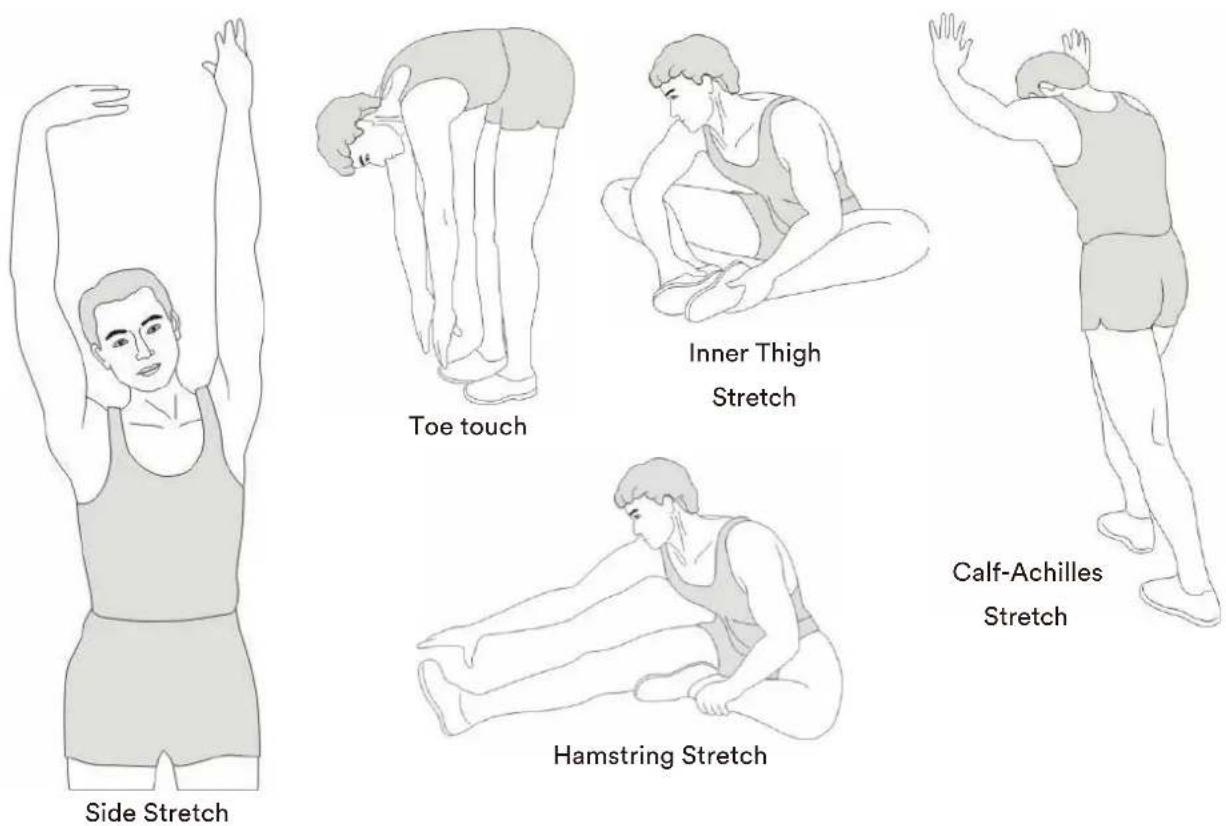
Remember always to check with your physician before starting any exercise program.
Cool-Down
This stage helps to soothe your muscles and your cardiovascular system after your workout.
At the end of your workout, reduce the speed and exercise for approximately 5 minutes at this lower speed level. Afterwards, repeat the warm-up exercises as described above.
KINOMAP
The device computer can be connected to the „KinoMap“ app via Bluetooth (frequency: 2.4 GHz). The free KinoMap app turns your device into a powerful and fun fitness product! Choose from the geotagged video on Kinomap and go! Your position is shown in the video and as icon on the map. Download the Kinomap Fitness app in the app or play store by searching for ‘Kinomap Fitness’ or follow one of the links below.
Install and open the app and register resp. log in. Activate Bluetooth. Now add the training device as follows:



text_image
Suchen Kinomap Kinomap SAS ACTUALISEREN 4,3 ★★★★☆ #53 4+ Mitarings Deutschland & France Help Neue Funktionen Thanks for training on Kinomap. Our daily concern is offering you the best experience there is Vorschau Verskonsverkauf Vor 1 W Version 8.4%
text_image
Kinomap FOLGT SIE Kinomap Gesponsert STAVANGER, LIMBURG & HONG KONG RACES JOIN THE CHALLENGE HAMMER on Kinomap IN ASSOCIATION WITH wahoo Mehr erfahren >-
- Tap on „+“ 3. Crosstrainer
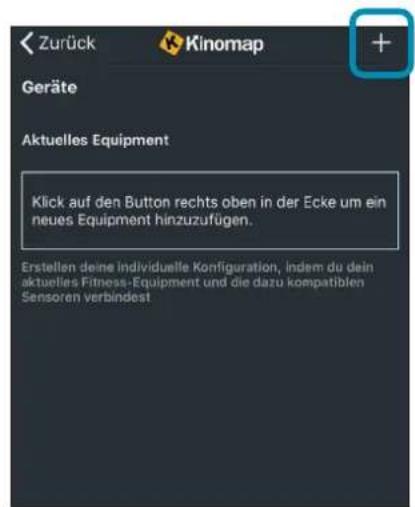
Now tap on OK and return to main menu. You can now choose a course for your exercise (depending on your type of KinoMap account maybe only some free courses). Press Start and begin to exercise!
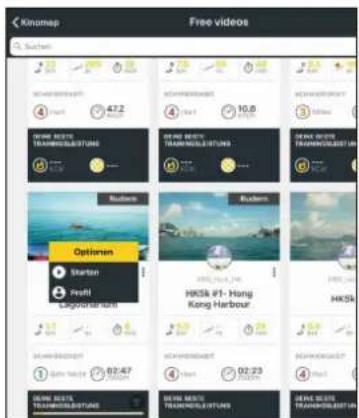
text_image
Kinomap Free videos Suzhou 47.2 10.8 Options HKS& #1- Hong Kong Harbour 02:47 02:23 02:47 02:23 02:47 02:23 02:47 02:23 02:47 02:23 02:47 02:23 02:47 02:23 02:47 02:23 02:47 02:23 02: 02: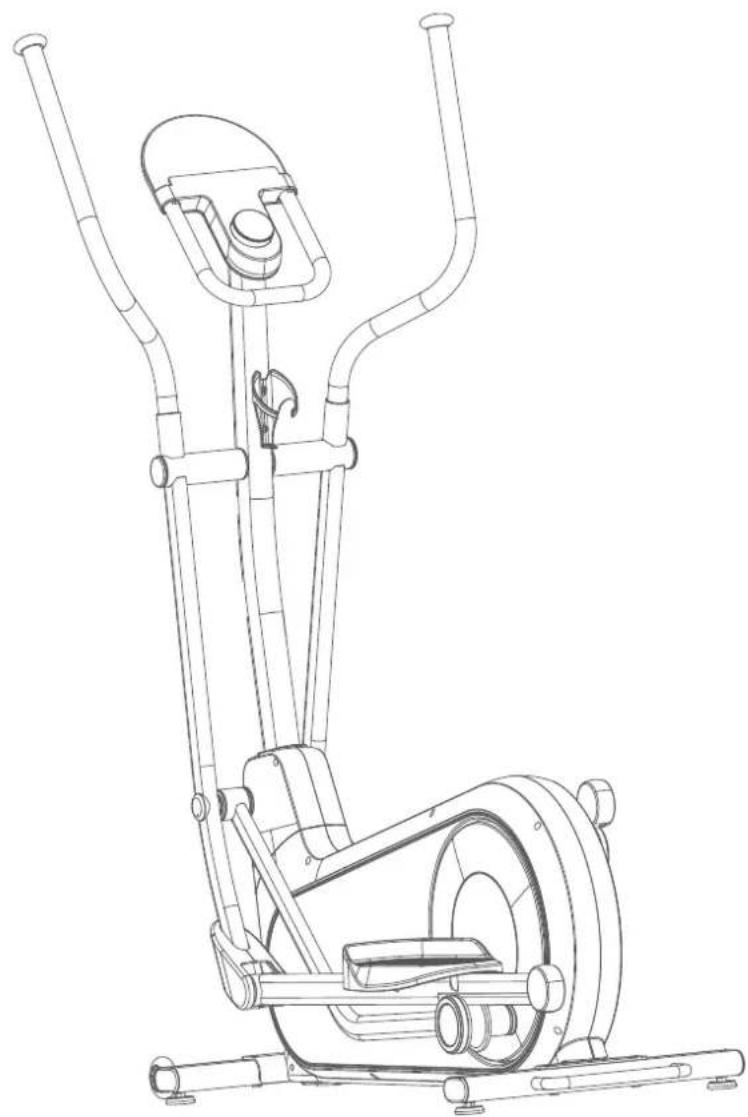
natural_image
Line drawing of a stationary exercise machine with levers and wheels (no text or symbols)TECHNICAL SPECIFICATIONS
Resistance setting: 32 levels
Dimensions & weight approx.: 1488 × 566 × 1653 mm / 59.6 kg
Max. weight load: 150 kg
Device class: HC
GUARANTEE CONDITIONS
For our devices we provide a warranty as defined below.
- In accordance with the following conditions (numbers 2-5) we repair defect or damage to the device free of charge, if the cause is a manufacturing defect. Therefore, these defects / damages need to be reported to us without delay after appearance and within the warranty period of 24 months after delivery to the end user. The warranty does not cover parts, which easily break (e.g. glass or plastic). The warranty does not cover slight deviations of the product, which are insignificant for usability and value of the device and damage caused by chemical or electrochemical effects and damages caused by penetration of water or generally force majeure damage.
- The warranty achievement is the replacement or repair of defective parts, depending on our decision. The cost of material and labor will be borne by us. Repairs at customer site cannot be demanded. The proof of purchase along with the date of purchase and / or delivery is required. Replaced parts become our property.
- The warranty is void if repairs or adjustments are made,
which are not authorized by us or if our devices are equipped with additional parts or accessories that are not adapted to our devices. Furthermore, the warranty is void if the device is damaged or destroyed by force majeure or due to environmental influences and in case of improper handling / maintenance (e.g. due to non-observance of the instruction manual) or mechanical damages. The customer service may authorize you to replace or repair defective parts after telephone consultation. In this case, the warranty is not void.
- Warranty services do not extend the warranty period nor do they initiate a new warranty period.
- Further demands, especially claims for damages which occurred outside the device, are excluded as long as a liability is not obligatory legal.
- Our warranty terms - which cover the requirements and scope of our warranty conditions - do not affect the contractual warranty obligations of the seller.
- Parts of wear and tear are not included in the warranty.
- The warranty is void if not used properly or if used in gyms, rehabilitation centers and hotels. Even if most of our units are suitable for a professional use, this requires a separate agreement.
ENVIRONMENTAL PROTECTION
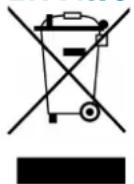
At the end of its life cycle, this product must not be disposed of with household waste but must be taken to a collection unit for the recycling of electric and electronic equipment. The symbol on the product, the instructions for use or the packaging express mention of this. The basic materials can be recycled as specified on the labelling.
When recycling the materials and finding other utilisation for used equipment, you are making a significant contribution towards protecting our environment. Ask at your council about the respective local disposal sites.
In accordance with our policy of continual product improvement, we reserve the right to make technical and visual changes without notice.
Contenu

skandika.com/service
natural_image
Line drawing of a person walking beside a mechanical device with no visible text or symbolsCONSEILS D'ENTRETIEN
natural_image
Line drawing of an exercise machine with a red curved arrow indicating rotational motion (no text or symbols)Recharge en pédalant
natural_image
Technical line drawing of an exercise bike with attached arms and control panel (no text or symbols)Recharge via le câble USB-C
UTILISATION DE L'ORDINATEUR
natural_image
Solid black circular shape with gray border (no text or symbols)Illustration 2
text_image
8 8.8Illustration 3
natural_image
Illustration of a hand pressing down on a metallic cylindrical object on a black base (no text or symbols)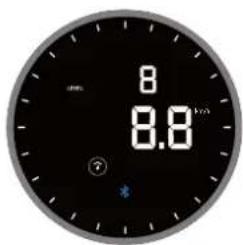
text_image
8 8.8 ?Illustration 8
text_image
8 00:38Illustration 9
text_image
8 8.8...Illustration 10
text_image
8 8.8Illustration 11