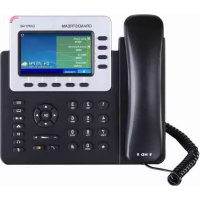
GXP2140 - Telephone GRANDSTREAM - Free user manual and instructions
Find the device manual for free GXP2140 GRANDSTREAM in PDF.



| Product Type | IP Phone for Business |
| Brand | Grandstream |
| Model | GXP2140 |
| Number of SIP Lines | 4 lines |
| Screen | 4.3-inch TFT color LCD |
| Programmable Keys | 5 XML context-sensitive keys |
| Network Ports | 2 Gigabit Ethernet ports (RJ-45) |
| PoE (Power over Ethernet) | Yes, integrated |
| Bluetooth | Integrated |
| Conference | Up to 5 participants |
| Electronic Hook Switch (EHS) | Yes, integrated |
| Audio Quality | HD (high definition) |
| Compatible Expansion Modules | GXP2200EXT (up to 4 modules, 160 additional keys) |
| Power Supply | 12V DC power adapter included or PoE |
| Package Contents | Phone, handset, adapter, Ethernet cable, telephone cable, quick installation guide |
| Wall Mount | Possible (bracket sold separately) |
| Dimensions (approx.) | 200 x 200 x 100 mm |
| Weight (approx.) | 0.9 kg |
| Care and Cleaning | Clean with a soft dry cloth; do not use abrasive products |
| Safety | Do not reboot during a firmware update; use only the supplied adapter |
Frequently Asked Questions - GXP2140 GRANDSTREAM
User questions about GXP2140 GRANDSTREAM
0 question about this device. Answer the ones you know or ask your own.
Ask a new question about this device
Download the instructions for your Telephone in PDF format for free! Find your manual GXP2140 - GRANDSTREAM and take your electronic device back in hand. On this page are published all the documents necessary for the use of your device. GXP2140 by GRANDSTREAM.
USER MANUAL GXP2140 GRANDSTREAM
Grandstream Networks, Inc.
126 Brookline Ave, 3rd Floor
Boston, MA 02215 USA
Voice: (617) 566-9300
Fax: (617) 249-1987
www.grandsstream.com


For Warranty and RMA information, please visit www.grandstream.com
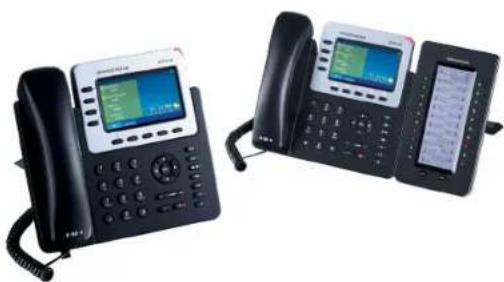
GXP2140 Enterprise IP Phone Quick Installation Guide
Content
English. 1
筒体中文. 10
Espanol. 19
Francais 27
Deutsch. 35
Italiano. 43
Pycckn 51
Portugues. 59
Polski 67
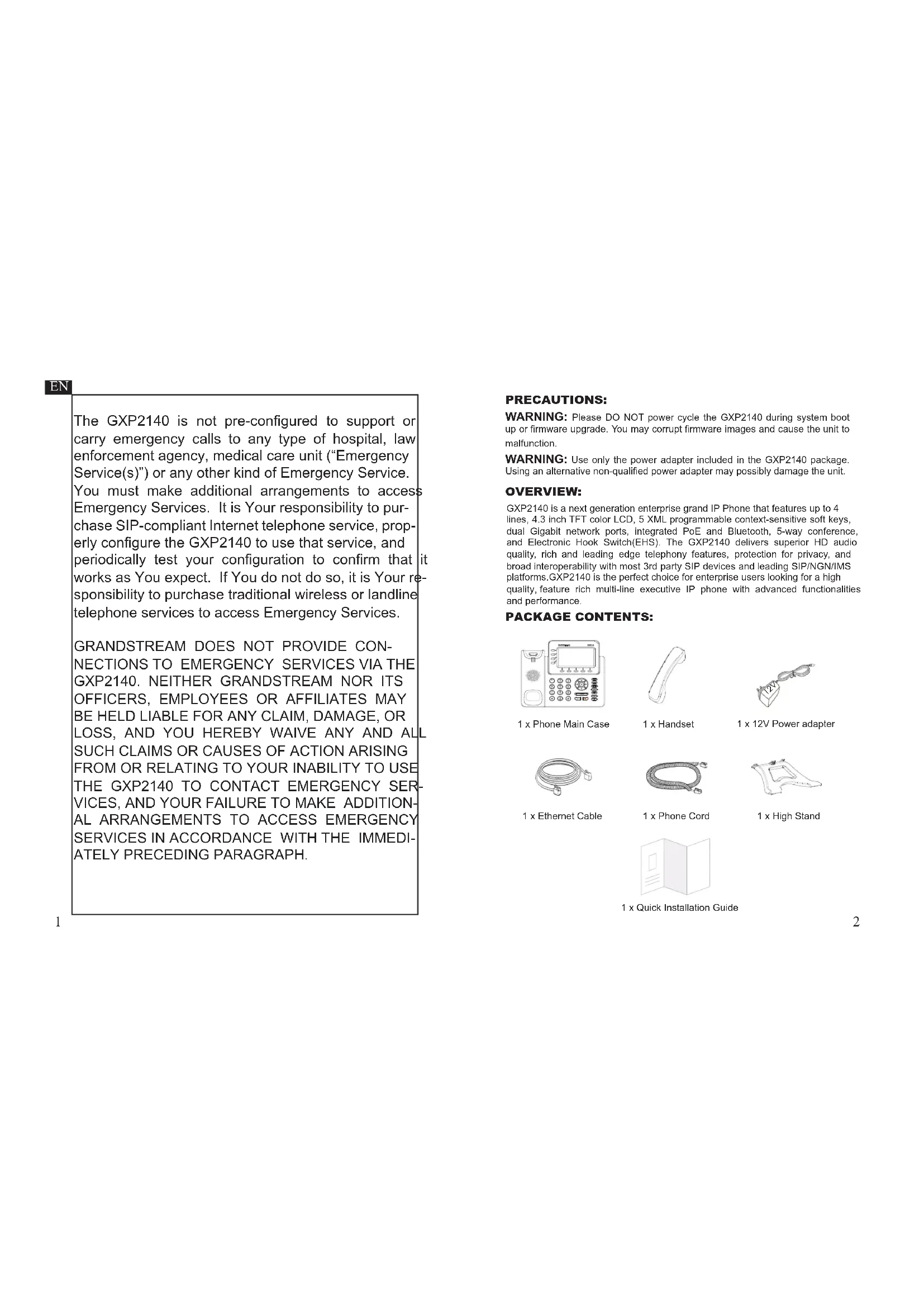
The GXP2140 is not pre-configured to support or carry emergency calls to any type of hospital, law enforcement agency, medical care unit ("Emergency Service(s)") or any other kind of Emergency Service. You must make additional arrangements to access Emergency Services. It is Your responsibility to purchase SIP-compliant Internet telephone service, properly configure the GXP2140 to use that service, and periodically test your configuration to confirm that it works as You expect. If You do not do so, it is Your responsibility to purchase traditional wireless or landline telephone services to access Emergency Services.
GRANDSTREAM DOES NOT PROVIDE CON-NECTIONS TO EMERGENCY SERVICES VIA THE GXP2140. NEITHER GRANDSTREAM NOR ITS OFFICERS, EMPLOYEES OR AFFILIATES MAY BE HELD LIABLE FOR ANY CLAIM, DAMAGE, OR LOSS, AND YOU HEREBY WAIVE ANY AND ALL SUCH CLAIMS OR CAUSES OF ACTION ARISING FROM OR RELATING TO YOUR INABILITY TO USE THE GXP2140 TO CONTACT EMERGENCY SERVICES, AND YOUR FAILURE TO MAKE ADDITIONAL ARRANGEMENTS TO ACCESS EMERGENCY SERVICES IN ACCORDANCE WITH THE IMMEDIATELY PRECEDING PARAGRAPH.
PRECAUTIONS:
WARNING: Please DO NOT power cycle the GXP2140 during system boot up or firmware upgrade. You may corrupt firmware images and cause the unit to malfunction.
WARNING: Use only the power adapter included in the GXP2140 package. Using an alternative non-qualified power adapter may possibly damage the unit.
OVERVIEW:
GXP2140 is a next generation enterprise grand IP Phone that features up to 4 lines, 4.3 inch TFT color LCD, 5 XML programmable context-sensitive soft keys, dual Gigabit network ports, integrated PoE and Bluetooth, 5-way conference, and Electronic Hook Switch(EHS). The GXP2140 delivers superior HD audio quality, rich and leading edge telephony features, protection for privacy, and broad interoperability with most 3rd party SIP devices and leading SIP/NGN/IMS platforms. GXP2140 is the perfect choice for enterprise users looking for a high quality, feature rich multi-line executive IP phone with advanced functionalities and performance.
PACKAGE CONTENTS:

1 x Phone Main Case

1 x Handset

1x12VPoweradapter

1 x Ethernet Cable

1 x Phone Cord

1 x High Stand

1 x Quick Installation Guide
PHONE SETUP:
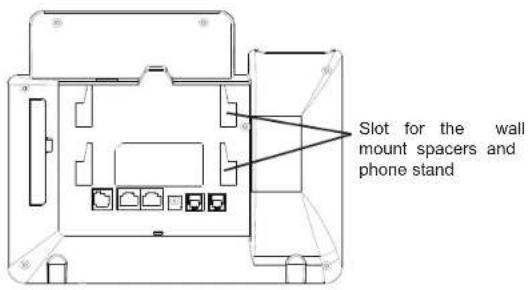
Installing the phone (Wall Mount* sold separately):
- Attach the wall mount spacers to the slot for wall mount spacers on the back of the phone.
- Attach the phone to the wall via the wall mount hole.
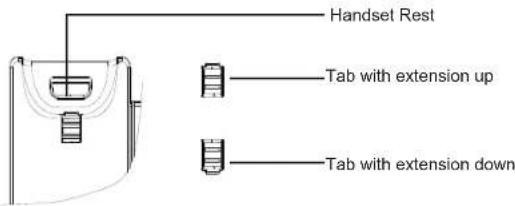
- Pull out the tab from the handset cradle (See figure below).
- Rotate the tab and plug it back into the slot with the extension up to hold the handset while the phone is mounted on the wall (See figure below).
Installing the phone (Phone Stand) :
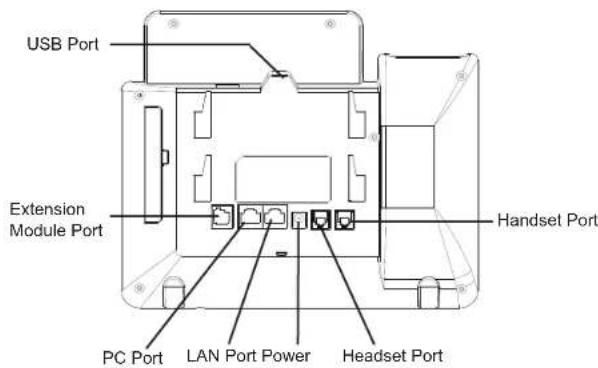
For installing the phone on the table with the phone stand, attach the phone stand to the bottom of the phone where there is a slot for the phone stand. (Upper half, bottom part).
CONNECTING THE PHONE:
To setup the GXP2140, follow the steps below:
- Connect the handset and main phone case with the phone cord.
- Connect the LAN port of the phone to the RJ-45 socket of a hub/switch or a router (LAN side of the router) using the Ethernet cable.
- Connect the 12V DC output plug to the power jack on the phone; plug the power adapter into an electrical outlet.
- The LCD will display provisioning or firmware upgrade information. Before continuing, please wait for the date/time display to show up.
- Using the phone embedded web server or keypad configuration menu, you can further configure the phone using either a static IP or DHCP.
Tips For Using the Keypad:
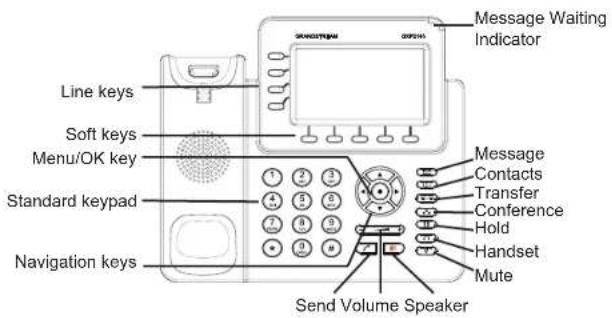
- To access the MENU, press the round MENU button.
- Navigate the menu by using the UP/DOWN and LEFT/RIGHT buttons.
- Press the round MENU button to confirm a menu selection.
- The phone automatically exits MENU mode when there is an incoming call, the phone goes off-hook or when the MENU mode is left idle for 60 seconds.
PHONE CONFIGURATION:
Configure the GXP2140 using a Web Browser:
- Ensure your phone is powered up and connected to the Internet.
- Press the UP button to see the IP address.
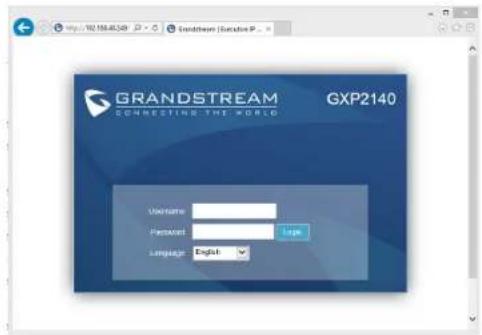
- Type the phone's IP address in your PC browser. (See Figure in next page)
- The default administrator username and password are "admin"; the default end-user username is "user" and the password is "123".
Configure the GXP2140 using the Keypad:
- Make sure the phone is idle.
- Press the MENU button to access the keypad MENU to configure the phone.
- Select MENU-> Phone-> SIP-> Account to configure settings for SIP Proxy, Outbound Proxy, SIP User ID, SIP Auth ID and SIP Password.
- Follow MENU options to configure the basic features of the phone. For example: the IP address if using a static IP. For details, please check GXP2140 User Manual.
- Please contact your ITSP for additional settings that may be necessary to configure the phone.
GXP2140 EXTENSION MODULE-- GXP2200EXT:
GXP2200EXT is an ideal solution for the busy enterprise environment looking to add the ability to receive and dispatch calls efficiently. Each extension module has 20 programmable buttons, Left and Right buttons, supporting 40 Multiple Purpose Keys to be configured. GXP2140 supports up to 4 extension modules, adding 160 fully programmable phone extensions to the phone.
Note: GXP2200EXT is an additional accessory for the GXP2140 and is not included in the GXP2140 box.
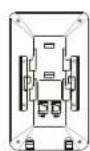
GXP2200EXT Package Content:

1 X GXP2200EXT Stand
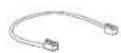
1XRJ11-RJ11Cable
1 X GXP2200EXT Board

1 X GXP2200EXT Connector Plate

4 X Screws
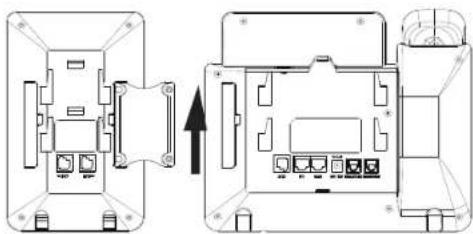
Installing GXP2200EXT:
- On the back of GXP2140 and GXP2200EXT there are slots for the connector plate. Attach the connector plate between the slots for GXP2140 and GXP2200EXT;
- Apply the screws provided and securely tighten them in (see Figure in this page);
- Connect GXP2200EXT Board to GXP2140 via the EXT port using the RJ11-RJ11 cable provided;
- Install the phone stand on GXP2140 and GXP2200EXT;
- Power up the GXP2140. The GXP2200EXT will show the booting up screen with version information and connecting status;
- After successfully booting up, GXP2200EXT will stay in idle. Press and hold the Left button for 3 seconds to check the version information and status.
Configuring GXP2200EXT:
- Log into the GXP2140's web GUI and configure Multiple Purpose Keys for the GXP2200EXT 1/2/3/4 following the GXP2140 web GUI tabs;
- On the GXP2200EXT press Left or Right button to browse all the MPKs' status in different pages;
- For more information, please refer to the GXP2140 user manual.
ZH
Note: For the detailed user manual, please download from:
http://www.grandstream.com/support
This product is covered by one or more of the U.S. patents (and any foreign patent counterparts thereto) identified at www.cmspatents.com.
注意事项:

1xSupport du telephone
MEPbI I PEPDOCTOPOXHOCTN:
BHUMAHNE: Noxanycta, HE INPE3APYKAAITE GXP2140 NYTEM BblkIOUeyHNI IITAHN BO BpMa HauabHOI 3arpy3n CnCTeMbI INH OOBHNBCTPOEHNOI nporpAMMBI. Bb MOBe NOpeBHTb Obpa3b BCTPOEHNO nporpAMMBI INB3BaTb HENpABINbHyIO paOty UcTpoCTBa. BHUMAHNE: McnoIb3ayte ToJbKO 5NoK NITANH, BXoAIIuB KOMPJIeKT NoCTaBNGXP2140. NcnoIb3oBAHne HenoDxoJaero 6noka NITAHN MoKET Bb3aTb NopejDeHne UcToPCTBa.
0530P:
GXP2140 npedctabnetaT c6oB npmbuHnHb IP-TepeOH HOBOROKOENHn, noDepjkBaoumdo 4-xnnHn, uOchauHbUcBtBM TFT LCD kpaHOM, nTbIO XML-nporpammyeBMM KOHTekTHo-3aBNCMbIM KJIABHMAAM, dByMBACTeBBIMnpOTAMn Gigabit, BCTPOEHMH PoE nBiLteetho, noDepjkKoB peKIMa KOHfepehnDo 5 yHaCTHNKB, nJNeKTPoHHbIM nepeKIOHYatelem bpYara (EHS).GXP2140 o6ceNHeMaet pneBOxCDOHe HO-KAeCTBO AyuMo, 60bnHbHaboppeNoBxpyHKunTenePHOM, zAHTyPiNbHTOCTn, mIINPQyHO CBMeCTHMObT C 60bnHbHCTBOM SIP-yCTPOiETb NBeDyUHs nnatpOpM SIP/NGN/IMS CTOPONHHx npOn3BDnTEen. GXP2140 -WdeAhbH bByOp D863HEC-nONb3OBaTeTKe, KOTOpBt Pte6yETc BvICOKKAChETBEHHbM, MHOROFOyHKUOHaHBN MHRONOTOKOBH IP-TepeOH C npOdbHybIM FyHKUMMn NOBbUeHHo pa6oTocno6HoCTbO.
KOMNJIeKT NOCTABKN:

1xTepeoH

1xTpy6ka

1xBIOKnITAHN 12B

1x ka6enb Ethernet

1xTeJefoHHbI uHyp

1xNodctabka noid Tenefoh

1xKpatkme pykoBOCTBaIO yCTAOHOBKE
YCTAHOBKA TENEFOHA:
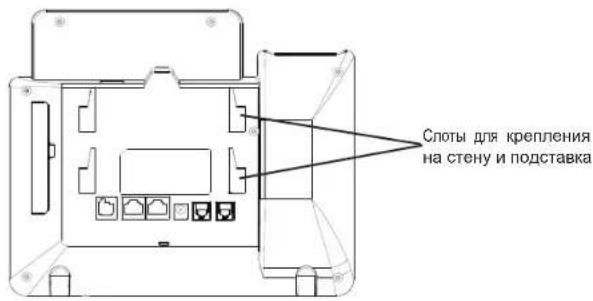
YcTaHOBka TeJeΦoHa (KpenIeHne Ha cTeHy* npOaetcra OTdJIbHo):
1.Пикpenite npoKnAki CTENHORO K pkenneH N Cnotam CTENHORO KpenneH N ha3dJIe HuaTtepeHoa
2.ПиКрЕпNTe TelenФОн K CTeH NocpeDCTBOM OTBepCTH CTeHHORO KpeNJIeHIM
3. BbTAUNTE KOHTAKT INI rHe3a Tpy6Kn (CM. pncyHOK HnKe).
4. NopepHNTe KOHTA KCTABTe ERO O6paTHO B THe3IpaUmpHmEBepK ORaTepeOH npKpENH K CTHe (CM.PcYHOHHXJE).

CCObTebl no nCnoJIb3OBAHnIO KJIaBnAToPbI:
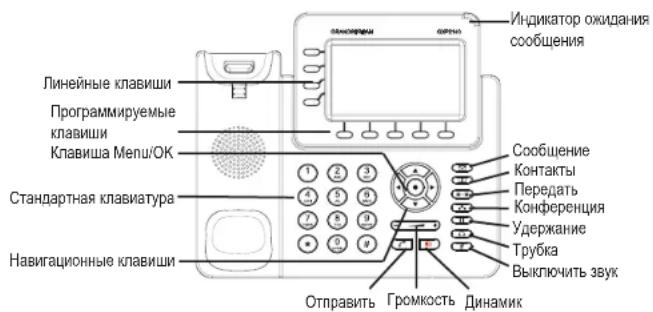
1.ДяdoctyaB MEHIO,HaxMITE kpyrIyIO knaBnUy“MENU"
2.Пелмштейно мимь Oсуш�овпгспocрдбом kHONOK UP/DOWN N LEFT/RIGHT.
3. Haxmte kpynnyio knabuuy MENU nnoTbepeKdeneBb6opa.
4.TeneoH ABTOMaTWeckn BbIXOJNT IN3 peKmMa MEHIO npn BXoJaIeM 3BOHKe, CHATIN Tpy6Kn UIN OTCyTCTBnA DeiCTBnB B pexmme MEHIO B TeueHne 60 cekyHd

1 x GXP2140 Base Principal

1xHandset



- CONTENT
- PRECAUTIONS
- OVERVIEW
- PACKAGE CONTENTS
- PHONE SETUP
- INSTALLING THE PHONE (WALL MOUNT* SOLD SEPARATELY)
- INSTALLING THE PHONE (PHONE STAND)
- TIPS FOR USING THE KEYPAD
- PHONE CONFIGURATION
- CONFIGURE THE GXP2140 USING A WEB BROWSER
- CONFIGURE THE GXP2140 USING THE KEYPAD
- GXP2140 EXTENSION MODULE-- GXP2200EXT
- INSTALLING GXP2200EXT
- CONFIGURING GXP2200EXT
- ZH
- 注意事项:
- MEPBI I PEPDOCTOPOXHOCTN
- 0530P
- KOMNJIEKT NOCTABKN
- YCTAHOBKA TENEFOHA
- YCTAHOBKA TEJEΦOHA (KPENIEHNE HA CTEHY* NPOAETCRA OTDJIBHO)
- CCOBTEBL NO NCNOJIB3OBAHNIO KJIABNATOPBI
Brand : GRANDSTREAM
Model : GXP2140
Category : Telephone