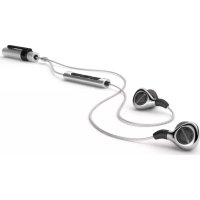
Xelento Wireless - Earplug BEYERDYNAMIC - Free user manual and instructions
Find the device manual for free Xelento Wireless BEYERDYNAMIC in PDF.


| Type | In-ear earplug |
| Brand | Beyerdynamic |
| Model | Xelento Wireless |
| Total weight (with Bluetooth cable) | Approx. 30 g |
| Battery life | Up to 8 hours playback |
| Power supply | Rechargeable Li-ion battery via micro-USB |
| Connectivity | Bluetooth 5.0 (A2DP, HFP, HSP, AVRCP) |
| Supported audio codecs | SBC, AAC, aptX, aptX HD |
| Multipoint function | Up to 8 registered devices, 2 active connections |
| Controls | Multifunction button, volume +/-, LED, built-in microphone |
| Included accessories | 7 pairs silicone ear tips, 3 pairs Comply Tx-500 foam ear tips, Bluetooth cable with remote, 3.5 mm jack cable with remote, USB-A/micro-USB charging cable, cable clips, carrying case, spare protective grilles |
| Maintenance | Clean the earphones with a soft dry cloth or slightly dampened with water. Clean silicone ear tips regularly with soapy water. |
| Safety instructions | Set volume to minimum before inserting earphones. Do not use at high volume for long periods. Do not use while moving in public areas. Keep small parts out of reach of children. |
| Spare parts | Ear tips, cables, protective grilles available at www.beyerdynamic.com |
| Warranty | See warranty terms on www.beyerdynamic.com |
| Product registration | Register your Xelento Wireless at www.beyerdynamic.com |
| Operating temperature | 0 to 35 °C |
| Radio frequency | 2.4000 - 2.4835 GHz |
| Transmission power | 10 mW |
| Companion app | Beyerdynamic MIY (MOSAYC customization, audio statistics) |
Frequently Asked Questions - Xelento Wireless BEYERDYNAMIC
User questions about Xelento Wireless BEYERDYNAMIC
0 question about this device. Answer the ones you know or ask your own.
Ask a new question about this device
Download the instructions for your Earplug in PDF format for free! Find your manual Xelento Wireless - BEYERDYNAMIC and take your electronic device back in hand. On this page are published all the documents necessary for the use of your device. Xelento Wireless by BEYERDYNAMIC.
USER MANUAL Xelento Wireless BEYERDYNAMIC
Thank you for purchasing the Xelento wireless in-ear headphones.
To ensure an optimum listening experience, we would like to give you comprehensive information on how to use Xelento wireless.
Safety instructions
- Read these operating instructions carefully and completely before using the product.
- Do not use the product when it is damaged.
- beyerdynamic GmbH & Co. KG will not be liable if any damage, injury or accident occurs due to negligent, incorrect or inappropriate operation of the product.
Avoid damage to your health and accidents
- When you connect the in-ear headphones, please make sure that the volume level is set to minimum. Adjust the volume level only after inserting the eartips. To avoid possible hearing damage, do not use your in-ear headphones for extended periods of time at high volume.
- We would like to point out that too high volumes and too long listening times can cause irreversible damage to your hearing. In-ear headphones can be up to 6-9 dB louder than classic headphones because they are directly in the ear canal, increasing the risk of hearing damage.
- If you suffer from tinnitus, be mindful of listening at high volume levels.
- Always ensure an adequate volume level. It is advisable to keep listening times as short as possible at high volume levels.
- When using in-ear headphones, it is important to clean the eartips, as they quickly become dirty and increase the risk of ear infection due to an increased number of germs in
the ear. Since the in-ear devices isolate the ear canal, a warm and humid "climate" is created in the ear increasing the multiplication of germs.
- Keep small parts such as product, packaging and accessories away from children and pets. Accidental ingestion may cause suffocation.
- With the beyerdynamic MIY App you can personalise your Bluetooth® headphones. The app's "Statistics" function tracks the sound pressure level that the user's ears are exposed to over time. This feature refers only to the sound pressure created by the headphone's built-in loudspeakers, not from external sound sources.
- In-ear headphones drastically reduce perception of external sounds. Using headphones in road traffic can be potentially dangerous. The user's hearing must not be impaired to the extent that it causes road safety risks, especially utilising within an area of potentially dangerous machinery and tools.
- Furthermore, avoid using headphones in situations where hearing must not be affected, especially when crossing a railway crossing or at a construction site.
Changed acoustic perception
- For many people, wearing in-ear headphones needs getting used to, because acoustic perception of their own voice and of the body as well as inner ear sounds which occur while walking differ from the "normal" situation without in-ear headphones. However, this initially strange sensation usually diminishes after wearing them for a while.
Liability / intended use
-
Do not use the product for any application which is not describe in this product information. beyerdynamic is not liable for improper use of the product and its accessories.
-
beyerdynamic is not liable for damage to USB devices that do not comply with USB specifications.
- beyerdynamic is not liable for damages resulting from transmission breakdowns due to empty or old batteries or exceeding the Bluetooth® transmission range.
- Please observe the respective country-specific regulations before using the product.
Xelento wireless (Order # 717.959)
Box contents
Xelento wireless In-Ear Headphones, left and right earphones
- Bluetooth 9 connection cable with remote control
- Jack connection cable with remote control, 4-pole Jack 3.5 mm
- Charging cable USB-A to micro-USB
- Seven pairs of silicone eartips
- Three pairs of foam eartips (type Comply™ Tx-500)
- Cable clip for fastening the cable to clothes
- Cable clip for fastening the rechargeable battery to clothes
Storage case
- One pair of spare protective grids
Quick Start Guide
Connecting Cable Xelento wireless (Order # 718.416)
Box contents
- Bluetooth 9 connection cable with remote control
- Cable clip for fastening the rechargeable battery to clothes
- Charging cable USB-A to micro-USB
beyerdynamic MIY app
The beyerdynamic MIY app is an evolving tool to add useful features to your Xelento wireless headphones such as MOSAYC sound personalization, audio tracking statistics and many more settings to adapt the headphones to your individual needs.
When using the MOSAYC sound personalization, you will notice your Xelento wireless will sound even better.


Connection and cable replacement
To detach or fasten the cable, hold Xelento wireless by the telephone housing and by the plug connector. Do not pull the cable directly; you might damage the cable or the earphones!
The right-hand side is marked by a raised dot on the telephone housing and on the cable end.
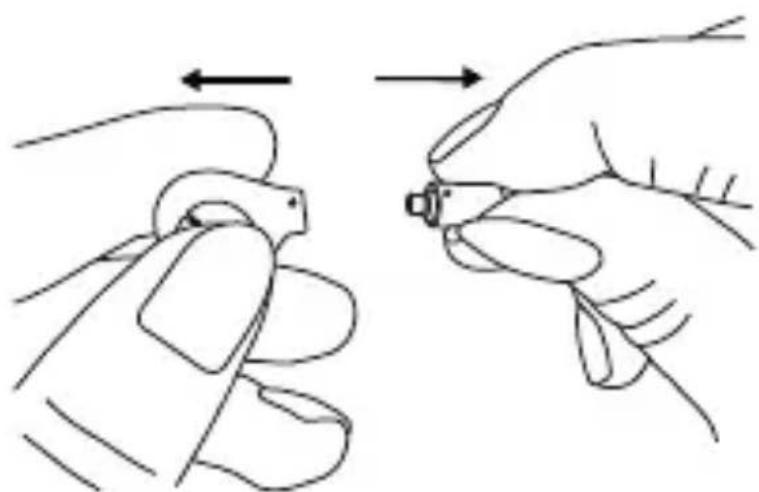
Disconnect cable
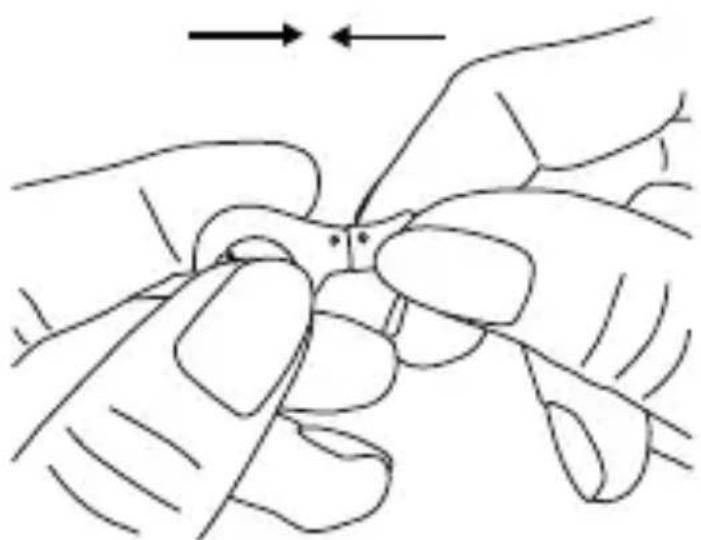
Connect cable
Selecting the right eartips
For an optimal comfort in wearing, detail is very important with the Xelento. To achieve this we measured and analysed a large number of ears and auditory canals. Based on this data, we have created ergonomically shaped eartips for the Xelento, which correspond to the oval shape of the ear canal and therefore are particularly comfortable to wear. Our silicone eartips are made of a special soft material exclusively for the Xelento series.
As each ear canal is unique Xelento wireless is supplied with a total of ten pairs of eartips in different sizes (seven of silicone, three of Comply™ foam type Tx-500) to ensure a perfect fit for each ear. This is not only essential for a good ambient noise attenuation, but also for the best possible development of sound.
Please take your time to try different sizes and to find out which size fits you best - it is worth it!
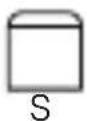
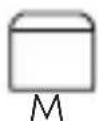
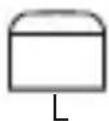
We recommend that you use size M first. Due to anatomical conditions it can be that you need different sizes for the left and the right ear. When in doubt, use a smaller size so that the Xelento sits as deep as possible in the ear canal.
You will recognise the perfect fit with the Xelento sitting securely in the ear canal even during movement and by providing a good ambient noise attenuation so that you can enjoy a powerful bass response.
Silicone eartips
2x each:
XS S

M

L




XL XXL 3XL
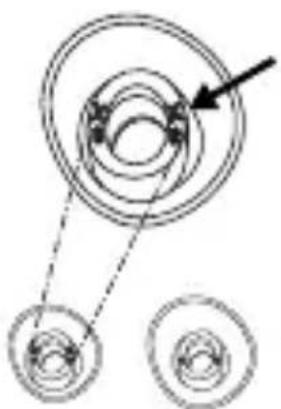
The sizes from XS to 3XL are marked on the back of the silicone eartips.
XSS
M


L
XL XXL 3XL
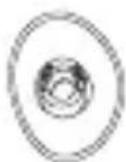
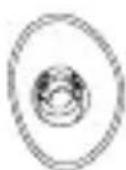
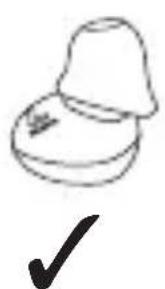
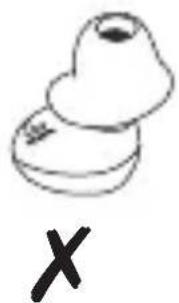
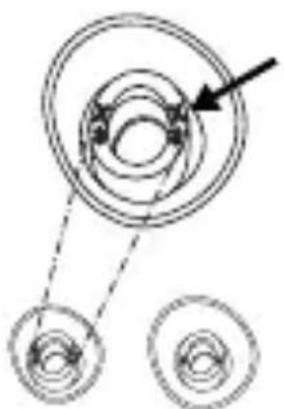
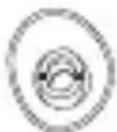
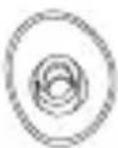
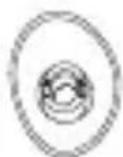
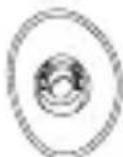
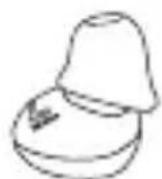
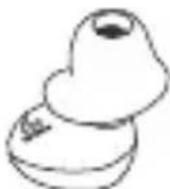
- Please make sure to attach the silicone eartips to the housing with the longer end of the eartip next to the housing. The oval opening of the eartips corresponds to the oval shape of the housing.
Comply™ foam eartips
2x each:
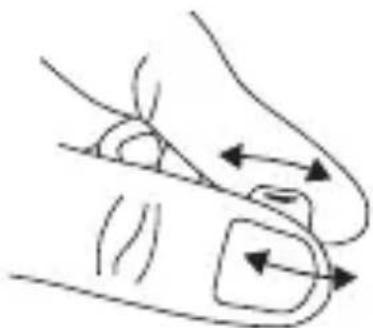
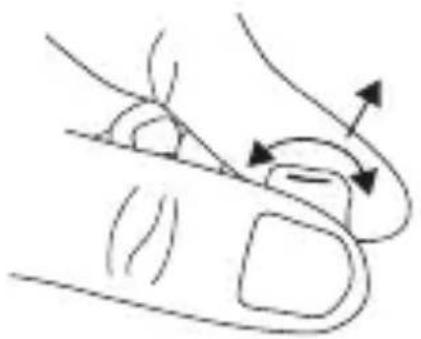
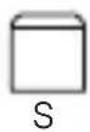
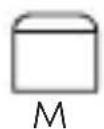
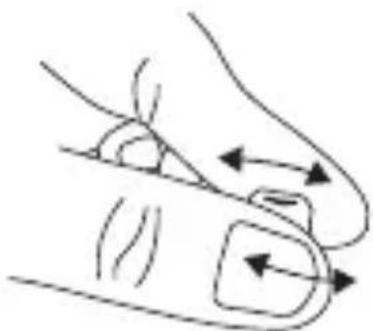
- Firmly roll the eartip attached to the earphone lengthwise between your fingers.
-
Pull the ear slightly upwards with one hand, carefully insert the earphone with the rolled eartip into the ear canal with your other hand.
-
Hold the earphone with your finger until the shape of the eartip adapts to your ear canal and sits comfortably.
If you want to remove the Comply™ foam eartips, firmly press them together and pull them from the housing with a slight rotating movement.
Inserting and wearing Xelento wireless
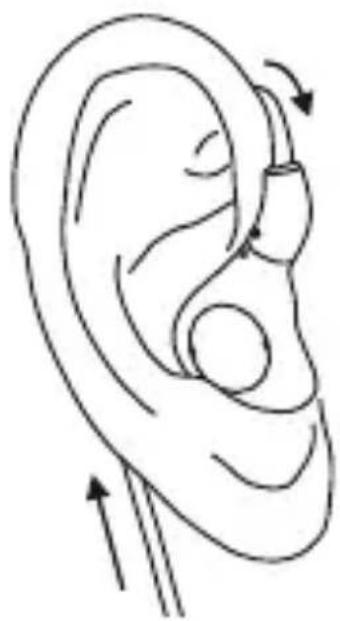
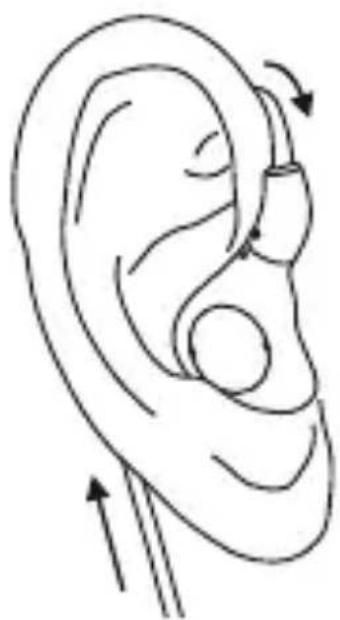
Due to the anatomical shape of the
earphone housing, the cable of the Xelento wireless is guided behind
the ear when inserting Xelento
wireless. See adjacent drawing. This method of wearing the earphones suppresses cable noise effectively and even when the cable is pulled the earphones sit firmly in the ear.
Please make sure that the cable is conducted upward.
Only in this way is it possible to wear the earphones correctly and comfortably.
The right-hand earphone housing and cable end each have a small raised dot to mark the right-hand side.
Operating elements
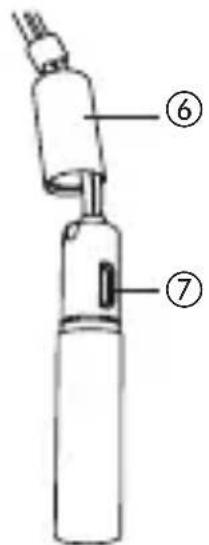
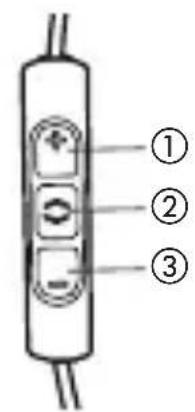
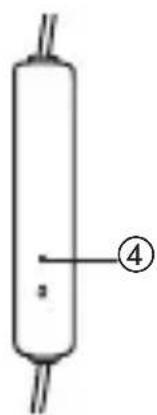
remote control rechargeable
battery pack
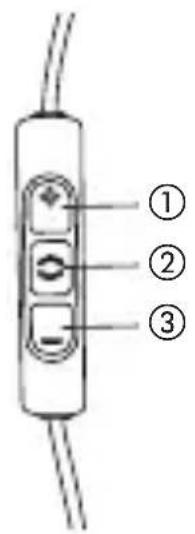
(1) Increase volume
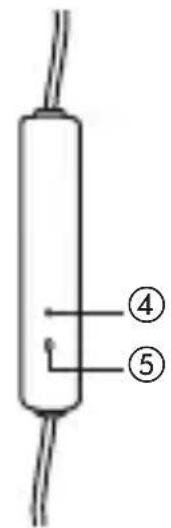
(5) Microphone
(2) Multifunction button
⑥ Aluminium cap
③ Reduce volume
⑦ USB connection
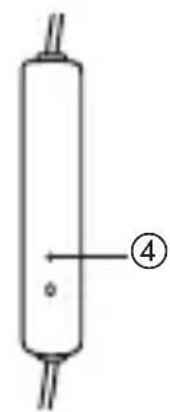
④ LED
Turning on / off
The functions listed below refer to the use with the Bluetooth connecting cable.
- Turning on
Press multifunction button ② for 2 seconds.
- Turning off
Press multifunction button ② for 6 seconds.
Firmware and Updates
Please note that the following descriptions refer to the standard settings as supplied with firmware version 1.0. It is possible that a newer firmware version is available.
You can update this yourself if necessary.
- Download the latest firmware version onto your computer from the Xelento wireless product page at www.beyerdynamic.com.
- Switch on the Bluetooth connection cable and connect it to your computer via the USB port ⑦ with the USB charging cable. (You can leave the earphones connected.)
- Start the update tool and follow the instructions on the screen.
Compatibility information
The Xelento wireless Bluetooth connection cable is compatible with Bluetooth devices which support the following profiles:
A2DP (for audio transmission)
HFP (for telephony)
HSP (voice output)
AVRCP (for the transmission of control signals)
Note:
The associated functions are only available if they are supported by the player.
Supported audio codecs
Within the A2DP profile, the Xelento wireless supports the SBC, AAC, aptX™ and aptX™ HD audio codecs. aptX™ HD provides the best audio quality.
Note:
Please note that only codecs which are also available on the player can be used for audio transmission.
The player and Xelento wireless automatically select the best codec available on both devices.
Note:
Please note that most players do not display which codec is in use.
Pairing with the player
Before you use the Xelento wireless for the first time, you have to pair it with your mobile phone or another device with Bluetooth The pairing process may be different with various players. Please refer to the appropriate manual of the player.
- When the Xelento wireless is turned off, press the multifunction button ② for 6 seconds to start the Bluetooth mode (the LED ④ of the remote control will slowly flash blue and red in turns).
-
Activate the Bluetooth * function on your player and, if necessary, search for new devices.
-
Select "beyerdynamic Xelento wireless" under the available devices in the Bluetooth menu of your player and pair both devices. When in range, both devices are paired automatically each time you turn them on.
Alternatively, you can pair the Xelento wireless with an NFC-enabled player via NFC. Please note that the Xelento wireless must be turned on.
- Activate the NFC function in your player so that all necessary information can be transferred to the player and pairing can be established.
- Hold the player closely over the rear of the remote control of the Xelento wireless.
- Now both devices will automatically be paired.
Pairing and clearing the list of players
If there are already several players in the list of your Xelento wireless and your Xelento wireless cannot be paired with another new player, the list is full and should be cleared so that the new player can be added.
This is how to clear the list:
- Hold down the button ② of the turned off Xelento wireless for more than 10 seconds, so that the Xelento wireless will switch into the pairing mode and clear the list of players simultaneously.
Multi-point operation
The Xelento wireless can be paired with up to 8 devices with Bluetooth. Active connections can be established with up to two devices at a time. However, playback of music and phone operation is only possible with one device at a time. Phone operation has priority over playback of music; i.e. playback of music is interrupted during phone calls.
The following priorities apply during the use of playback devices PD:
| Priority ProfilePlayback device | (PD) | |
| 1 HFP (phone operation) PD 1 (device used first) | ||
| 2 HFP (phone operation) PD 2 (device used second) | ||
| 3 | A2DP (playback of music) | PD 1 (device used first) |
| 4 | A2DP (playback of music) | PD 2 (device used second) |
Setting up multi-point
- Pair the Xelento wireless with the first device (refer to "pairing with the player").
- Deactivate the Bluetooth * connection on the first device.
- Switch the Xelento wireless off.
- Press the button ② for 6 seconds to start pairing mode (LED ④ flashes slowly alternating blue and red).
- Pair the Xelento wireless with the second device (refer to "pairing with the player").
- Re-activate the bluetooth connection to the first device that automatically connects to the Xelento wireless.
- Once both devices are paired with the Xelento wireless, the Xelento wireless automatically connects with both devices each time it is powered up.
Using multi-point
If you have paired the Xelento wireless with two devices
-
and have just activated media playback, briefly press the multifunction button ② once to answer an incoming call.
-
and have just hung up on a phone call, briefly press the multifunction button ② once to start playing the media which was played most recently.
Media playback
Please note that the functions described below, depend on the player and the player software and may not be available. The Xelento wireless only transmits control signals that comply with the Bluetooth standard.
- Start / stop media playback: Briefly press the multifunction button ② once.
- Play next track: Briefly press the multifunction button ② twice.
- Play previous track: Briefly press the multifunction button ② three times.
- Fast forward: Briefly press the multifunction button ② twice and hold it down after the second press.
- Rewind: Briefly press the multifunction button ② three times and hold it down after the third press.
- Increase volume: Press the (+) button ①. An acoustic signal indicates the achieved maximum.
- Reduce volume: Press the (-) button ③ . An acoustic signal indicates the achieved minimum.
Call personal assistant
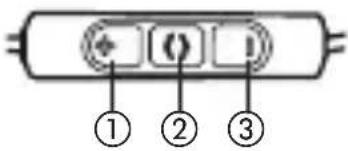
To call the personal assistant on your smartphone or tablet such as Siri, Google Assistant etc.: Press the multifunction button ② for 2 seconds.
Call control
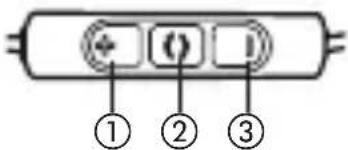
Accept/end a call: Briefly press the multifunction button ②.
- Reject a call: Press the multifunction button ② for 2 seconds.
- Increase call volume: Press the (+) button ①.
- Reduce call volume: Press the (-) button ③.
- Toggle between two callers. Press the multifunction button (2) twice.
Charging
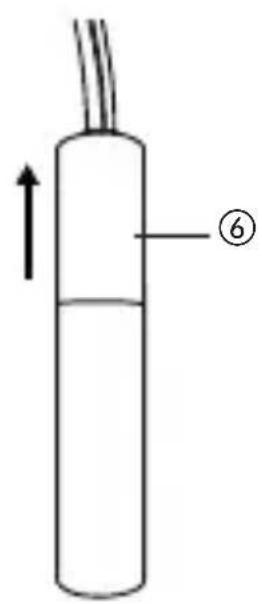
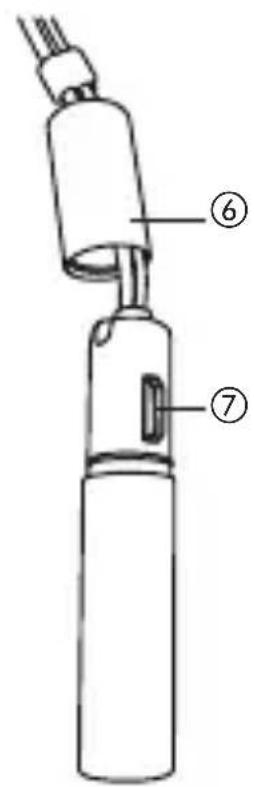
- By slightly turning, pull the aluminium cap ⑥ of the battery pack in the direction of the cable to access the USB connector ⑦ .
- Connect the Xelento wireless to any USB-compliant, voltage-carrying USB connector (such as a USB power supply) by using the supplied USB charging cable.
- During charging the LED ④ of the remote control slowly flashes red. As soon as the LED ④ is permanently red, the battery is fully charged.
After charging, remove the USB charging cable and cover the USB connector ⑦ with the aluminium cap.
Activating or deactivating aptX™ HD
- Switch on the Xelento wireless.
- Press the buttons ② and ③ simultaneously for two seconds.
Activating or deactivating voice messages
- Switch on the Xelento wireless.
- Press the buttons ① and ② simultaneously for two seconds.
Reset to factory settings
- Switch on the Xelento wireless.
- Press the buttons ① and ③ simultaneously for two seconds.
Bluetooth® connection cable button operation
| Increase volume level Press the (+) button | |
| Decrease volume level Press the (-) button | |
| Switch on Press the multifunction button for 2 sec | |
| Switch off Press the multifunction button for 6 sec | |
| Start/stop media playback | Briefly press the multifunction button once |
| Jump to the next track Briefly | press the multifunction button twice |
| Jump to the previous track Brieftly press the multifunction button three times | |
Bluetooth® connection cable button operation
| Fast-forward Briefly press the multifunction button twice and then hold |
| Rewind Briefly press the multifunction button three times and then hold |
| Answer/hang up on call Briefly press the multifunction button once |
| Reject incoming call Press the multifunction button for 2 sec |
| Toggle between 2 callers Press the multifunction button twice |
| Start personal assistant (Siri, Google Assistant, etc.) Press the multifunction button for 2 sec |
Making settings via the buttons on the Bluetooth connection cable
| Switch aptX™ HD on or off Press | press the multifunction button and (-) button simultaneously for 2 sec |
| Switch voice messages on or off | Press the multifunction button and (+) button simultaneously for 2 sec |
| Reset to factory settings | Press the (+) and (-) buttons simultaneously for approx. 2 sec |
Meaning of the LED indicator on the Bluetooth connection cable
| Charging LED flashes red slowly | |
| Fully charged LED lights up red continuously | |
| Switch off LED lights up red once for 1.5 sec | |
| Battery is nearly empty LED flashes red quickly | |
| Bluetooth®pairing mode active | LED flashes blue and red slowly |
| Connection via Bluetooth®active | LED flashes blue slowly with 3 sec pauses |
| Connection via Bluetooth®lost | LED flashes blue slowly with 1.5 sec pauses |
| Media playback active LED flashes blue slowly with 3 sec pauses | |
| Incoming call LED flashes blue quickly | |
| Call in progress LED flashes blue slowly with 3 sec pauses | |
| aptX™ HD has been switched on or off | LED lights up blue and red once for 1 sec |
Information on playing hi-res audio files
With aptX™ HD, the Xelento wireless supports what is currently one of the best audio CODECs on the market, which is also suitable for the transmission of high-resolution audio material. However, please note the following:
- To listen to music in high resolution, the audio files themselves must be high resolution ( >44.1kHz and >16 bit).
- The player and the software installed on it must support the high resolution of the audio files and must actually be able to output this via Bluetooth or the jack. The relevant manufacturers can provide information about this.
- All Bluetooth *audio CODECs which are currently available (including those used on the Xelento wireless) function using lossy data compression in principle.
- aptX™ HD transmits audio with a resolution of 24 bit and 48 kHz, while aptX™ and AAC transmit up to 16 bit and 48 kHz. Higher resolutions are downscaled to this value in the transmission path if necessary.
Player settings for the best wireless sound
To achieve the best possible sound via Bluetooth® with the Xelento wireless, observe the following practical information:
- Set the volume of the in-ear headphones to minimum, and the volume of the player to maximum. Then control the volume level just on the Xelento wireless and not on the player.
- Deactivate any audio effects that might be present in your player software.
- Provided that your player supports it, ensure that aptX™ HD is activated on the Xelento wireless.
Trouble shooting
| Problem Cause Solution | ||
| Xelento wireless will not switch on | Battery is empty or does not have much charge | Charge the battery |
| No audio is being played | There is no Bluetooth® connection | Pair the Xelento wireless with the player |
| The Xelento wireless does not appear in the available devices with Blue- tooth® on the player | • The Xelento wireless is switched off • The Xelento wireless is not in pairing mode • It is already paired with another player via Bluetooth® | • Switch the Xelento wireless on • Set the Xelento wireless to pairing mode • Disconnect the other device and pair the Xelento wireless with the preferred device |
| The playback is too quiet even though it is set to maximum on the Xelento wireless | The transmitted audio signal is too quiet | Set the playback volume to maximum on the player |
| The sound is harsh and the bass re- production is too poor | The seal of the eartips is not sufficient | Select suitable eartips on the left and right until the sound is ideal |
| The wireless range is too low or the connection has been lost | It is interfering with other devices | Move away from WiFi routers and microwave devices; ensure that your body is not between the player and Xelento wireless |
Controlling calls, media playback and volume level with the jack connection cable
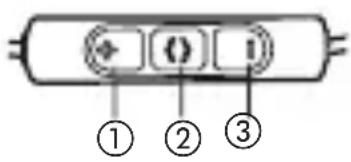
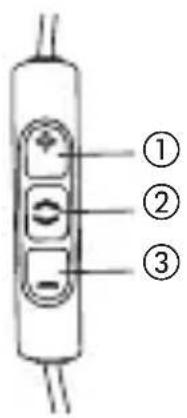
The accompanying connection cable with jack includes a remote control with three buttons. You can use this remote control to control calls, media playback and volume adjustment on compatible smartphones and tablets. Please note that not every smartphone or tablet supports all remote control functions.
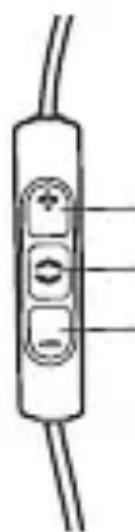
(1) Increase volume level
(2) Control calls and media playback
(3) Decrease volume level
Operating instructions
The enclosed cable includes a microphone and a remote control with three buttons. You can use this remote control to control calls, media playback and volume adjustment on compatible smartphones and tablets.
This requires that the playback device is provided with a built-in headphone jack, and the pin assignment meets the CTIA standard. Only in this case are the functions described below possible.
Connect the cable to the right ear cup of the headphone.
Media playback
- Start / pause media control:
Briefly press the centre button ②.
Note:
Depending on the playback device and version of the operating system and/or firmware, there may be further media playback functions which can be controlled by the centre button. For more details, please contact the smartphone or tablet manufacturer.
Control volume
- Increase volume:
Briefly press the + button ①, to increase the volume by one step.
- Reduce volume:
Briefly press the - button ③ , to decrease the volume by one step.
Note:
Please note that not every smartphone or tablet features this function. On smartphones and tablets with an Android system, it is necessary that the playback device supports the so-called Wired Audio Headset Specification
https://source.android.com/devices/accessories/headset/specification.html.
Please contact the smartphone or tablet manufacturer, if necessary.
Call personal assistant
- To call the personal assistant on your smartphone or tablet such as Siri, Google Assistant etc.:
Press the centre button ②for approx. 2 seconds.
Call control
Accept / end a call:
Briefly press the centre button ②.
Note:
Make sure that you do not cover the opening for the microphone which is located on the back of the remote control opposite the buttons.
Depending on the smartphone and version of the operating system and/or firmware, there may be further call control functions which can be controlled by the centre button ②. It may also be possible to call the personal assistant (e.g. Siri or Google Assistant) with the centre button ②. For more details, please contact the smartphone manufacturer.
Maintenance
- Only use a soft, dry cloth or a cloth that is slightly damp with water to clean the Xelento wireless.
- Never use cleaning agents containing solvents as these damage the surface.
Information about the battery service life for Li-ion batteries
- Disconnect the Bluetooth connection cable from the charger once the device is fully charged.
- High temperatures cause irreversible damage, particularly when the device has a high level of charge.
- If you are not going to use the battery for a long period of time or you are going to store it, we recommend bringing the charge down to 50% and storing at a temperature of max. 20°C .
Spare parts
- You can find spare parts for the Xelento wireless online at www.beyerdynamic.com under the heading "Service".
Disposal
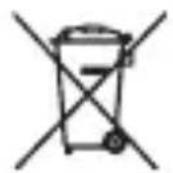
This symbol on the product, in the instructions or on the packaging means that your electrical and electronic equipment should be disposed at the end of its life separately from your household waste. There are separate collection systems for recycling in the EU. For more information, please contact the local authority or your retailer where you purchased the product.
Battery disposal
TThis symbol means that according to local laws and regulations your product and/or its battery shall be disposed of separately from household waste. When this product reaches its end of life, take it to a collection point designated by local
authorities. The separate collection and recycling of your product and/or its battery at the time of disposal will help conserve natural resources and ensure that it is recycled in a manner that protects human health and the environment.
- Old batteries may contain substances that are harmful to your health and the environment.
- Always dispose used batteries according to the applicable disposal regulations. Please do not throw used battery packs into a fire (danger of explosion) or your household rubbish, take them to your local collection points. The return is free and required by law. Please dispose of discharged batteries only.
- All batteries are recycled to reclaim valuable material such as iron, zinc or nickel.
Product registration
- You can register your Xelento wireless online at www.beyerdynamic.com by specifying the serial number.
Warranty conditions
- You can find the current warranty conditions online at www.beyerdynamic.com.
Technical specifications
RF frequency range 2.4000 - 2.4835 GHz
Transmission power .10 mW
Operating /
charging temperature. . . . . . 0 to 35° C
Detailed technical specifications can be found on the internet at: www.beyerdynamic.com/xelento-wireless
Simplified EU Declaration of Conformity
Hereby, beyerdynamic declares that the radio equipment is in compliance with Directive 2014/53/EU. The full text of the EU declaration of conformity is available at the following internet address: http://www.beyerdynamic.com/cod
Trademarks
Apple, iPhone, iPod, iPod touch, macOS and Mac are trademarks of Apple Inc., registered in the U.S. and other countries.
Android is a trademark of Google LLC
The Bluetooth® word mark and logos are registered trademarks of Bluetooth SIG, Inc. and all use of these trademarks by beyerdynamic is licensed. Other trademarks and tradenames are the property of the respective owners.
Qualcomm aptX™ is a product of Qualcomm Technologies, Inc. and/or its subsidiaries. Qualcomm® is a registered trademark of Qualcomm Incorporated in the USA and in other
countries. aptX™ is a registered trademark of Qualcomm Technologies International, Ltd.
The N-Mark is a trademark or registered trademark of NFC Forum, Inc. in the United States and in other countries.
USB Type-A and USB Type-B are trademarks of USB Implementers.
Comply™ is a registered trademark of Hearing Components. Made in USA.
FCC / IC Regulation
FCC ID: OSDXELEMENTO
Canada IC: 3628C-XELENTO
NOTICE:
This device complies with Part 15 of the FCC Rules [and with Industry Canada licence-exempt RSS standard(s)].
Operation is subject to the following two conditions:
(1) this device may not cause harmful interference, and
(2) his device must accept any interference received, including interference that may cause undesired operation.
Changes or modifications made to this equipment not expressly approved by beyerdynamic may void the FCC authorization to operate this equipment.
Radiofrequency radiation exposure information:
For body worn operation, this phone has been tested and meets the FCC RF exposure guidelines when used with the beyerdynamic accessories supplied or designated for this product. Use of other accessories may not ensure compliance with FCC RF exposure guidelines.
Note: This equipment has been tested and found to comply with the limits for a Class B digital device, pursuant to part 15 of the FCC Rules
These limits are designed to provide reasonable protection against harmful interference in a residential installation. This equipment generates, uses and can radiate radio frequency energy and, if not installed and used in accordance with the instructions, may cause harmful interference to radio communications. However, there is no guarantee that interference will not occur in a particular installation.
If this equipment does cause harmful interference to radio or television reception, which can be determined by turning the equipment off and on, the user is encouraged to try to correct the interference by one or more of the following measures:
- Reorient or relocate the receiving antenna.
- Increase the separation between the equipment and receiver.
- Connect the equipment into an outlet on a circuit different from that to which the receiver is connected.
- Consult the dealer or an experienced radio/TV technician for help.
CAUTION: Changes or modifications not expressly approved by the manufacturer responsible for compliance could void the user's authority to operate the equipment.
Made in Germany
This device is granted pursuant to the Japanese Radio Law (電波法) and the Japanese Telecommunications Business Law (電気通信事業法)
This device should not be modified (otherwise the granted designation number will become invalid.
Compliance Information
Frequency band. 2,400 - 2,483.5 MHz
Transmitter power. max. 10 mW
| Country Approval | |
| USA | FCC ID: OSDXELEMENTO |
| Canada IC: 3628A-XELEMENTO | |
| Europe | CE |
| China | CMIIT ID: 2018DJ5861 |
beyerdynamic MIY App
beyerdynamic MIY App
www.beyerdynamic.com/xelento-wireless
IpeodotbpaueHne pncKa IJRA 3dOpOByI HecuaCThblx clyuaeB
- Пи Использовани BHyTpнkaHaJIbHbIX HayшнкOB y6eintecb,чTO NaЧаЛьная ГомКоCTb yCTaHOВлeHa МИнмальньй уровен. Perулиpyte ГомКоCTb TOlbKO nocle HaDEBaHnЯ HayшнкOB.Bo n36exaHne IOBpeжденя сlyxa He IcNoIb3yIte BHNTPnKaHaJIb-HbIe HayshнIKI npOДЖITeJIbHoe BpeMc CBICOKIM ypoBhem ГOMKoCTn 3Byka.B KaueCTBe Мерbl HAcTPOiKn ГOMKoCTn Heo6xOДМо npOBepNTb, CblIshTe JIb Bbl BO BpeMЯ 3KcPnyaTaци N BHyTPnKaHaJIbHbIX HayshнIKOB eSe i CBOJ CO6CTBeHHbI rOLOc, ecII Bbl roBopITE HopMaJIbHo.
Mblxotn m o6paTntb BaSe BnImaHne Ha To, YTO cIINKOM npOIOJXITeJIbHOe BpeMa IOnb3OBaHna HayShnKaMn IN cIIuSKOM BbICOKN ypoBeHb rPOMKOCTN MOryT
IprnBeCTN K NOBpeJdeHNo OpraHOB clyxa. NOBpeJdeHnra Cnyxa YBJIaOTcR Bcerda Heo6paTnMbIMn. Bo BVHTpNKaHaJIbHbIX HayuHKax 3ByK MoXeT BOCpNIHMaTbcr Ha 6-9 d5 rpoMue, yem B Klaaccnuecknx HayuHKax, NoCKOJIbKy OHI HAXoJrTCr HeNocpeDCTBeHHO B yUHOM KaHaJe, UTO yBeJIuYBaET PnCK NOBpeJdeHnra Cnyxa.
- Ecni Bbl cTpaIaeTe TINHHTycom, Bam cIeIyET 6bITb Oco6eHNO OCTOpOxHbIM pRn IpocIyUWBaHn Ha BBICOKOM yPOBHe rPOMKoCTN.
Heo6xoJIMO Bcerda Cneintb 3a TeM, YTO6bl yPOBHeB rPOMKocTn 6bln OTpeRyIInpOBaH HaJIeXaUIM o6pa-3om. OChOBHOe npaBnIO - Yem BblSe yPOBHeB rPOMKOCTN, TEm KOpOye DoJxHo 6blb BpEma IpocnyuINBaHnA. -
Дя вутуканьх hayшнков baxho coapedkaHne B ynstote cnlnkoHObix yshbIX BKlaDbIwei, noCKOBky OHI 6bICTPO 3aqr3HJOTc. 3TO yBelenuBaET pNCK INΦeKcIc SNyXOBOrO npoxoDa BCJIeDCTBHe NOBblIShENHO ypOBHЯ coapedkaHn8 6akTepn B yxe. TaK kaBHyTPnkHaJIbHbIe HayShNIK 3aKpbIBaIOT clyxOBOI npOXoD, B HEM CO3daETcBnaJHn I TePnAcreda, CnOC6CTByUOa8 6bICTpOMy pa3MHOJKeHHo 6akTepn.
XpaHnte MeIknne DeTaIIu n3deJIy, yNaKOBKn I aKCEcCyapOB B HeIOCTynHom dJa DeTeN I DomaShnX XNBOTHbIX MecTe. CnyauHoe npOrIaNtBIBaHne MoKeT npINBeCTN K yDyShbHO.
C nomoubI npiloxeHna beyerdynamic MIY Bbl moJxte npiaTb INDINbUdyaJIbHOCTb CBOIM Bluetooth -HayshnKam. ImeOuacraB pniloxeHn 0yHKzna «Statistics» no3BOJareT OTCJeKnbATb yPOBeHb aKyCTnYeCKo Harpy3Kn, KOtOpoi NOBepraOTcR opraHbICnyxa NoIb3OBaTeIa BO BpeM npocnyuBaHn. OHaKO 3Ta 0yHKZnpeNCTpnpuyET TOLbKO yPOBeHb akyCTnueCKo Harpy3Kn, KOTOpUo Bbl noLyuaete HeNocepEiCTBeHHo I3 BCtPoEHbIX DInHaMMKOB HayshnKOB, IN He YHTbIBaET Harpy3KY OT BHeuHNX NCTOCHNKOB. -
Hoшенье BnytpinkahalbHbIX HayshNKOB pe3KO chnJxaeT cnoc6hOCTb BOCnpHHMaTb BHeuHne pa3dpaXHTeIN. IcnoIb3OBaHne BnytpinkahbHbIX HayshNKOB yuaCTNHkAMN DOPOXHORO DBNXeHnYpe3BbUaHNO onacHO. Ppr noIb3OBaHn HauShNKAMn CnoC6HOCTb CblIaTb H N B KOem clyuae He doJnxHa CHNXaTbcrdo ypoBHn, CO3daIOoero ONaCHOCtB dIy yuaCTNHKOB DOPOXHORO DBNXeHn. TaKxe o6patnte OC60e BHNMaHne Ha To, YTO6bl He NCNoJIb3OBaTb BNYtpinkahalbHbIe HayshHKn B O6laCTn DeiCTBnI NOTeHNaJIbHO ONaCHbIX MaSHN IN MEXAHN3MOB.
-
Избегаite ИспOLTьагиь ВHyТРИКаHAЛьНых Hayшн-KOBВСИТУАцИХ,Когдслух He Должен 6ыть hapу-шен,OCOБЕнно пи песяецни Лелe3HODOPOKHыхpyteи Или Ha CTponTeьнoi ПLOДKe.
I3MeHeHHoe BocnpnTne akCyCTnuecknx CnHaJIOB
- Дя многих людей Heo6xOДIMо пивьkaHne K HoшeHNIO BHyTpINKaHaJIbHbIX HayShNKOB,Тak Кak npi 3Tom aKycTnueckoe BocnpnTne CO6CTBcEHORO rOloca n TeJa, a TaKKe BO3HKnAIOUe B yxe BHyTpEHHne ShyMbI OTIIuYaOTcR OT《HopMaJbHO》CITyaUIN, KOrda Na-HyShNKI OTCyTCTByIOT. 3TO nepBOHaJaNbHO HePnIBbIyHoe OssuHne O6bIuHO yMeHbShaETcR nocJe HeKOTOPoro BpemeHn HOseHnia.
OTBETCTBEHHOCTb /HaIJIeKaUeE IcNoJIb3OBAHHe
He nCnoJIb3yIte n3dJIe nHaue, Yem OnIcaHO B HaCToJsem pyKOBoODCTBe IIO 3KcNJIyaTauu. beyerdynamic He Hecet OTBETCTBeHHOCTn 3a HeHaJIeJaUee NcNoJIb3OBaHne n3dJIe nIIN erO akceccyapOB.
- beyerdynamie He Hecet OTBETCTBEHHOCTN 3a NOBpeJdHHe USB-ycTpoiCTB, He COOTBETCTByOuix cpeunkaum USB.
beyerdynamic He Hecet OTBETCTBENHOCTN 3a yUeP6, Bbl3BaHHbI HapuWeHnMa CBy3n NO npuHHe He 3apJxKeHHbIX nII n CTapbIX aKKyMylTOpHbIX 6aTapei nII no npuHHe BbIXOda 3a npedeJIb 30HbI npedauN Blueth.
- Пераць Ввдом в Зкплуataцио сбл�дайт e Hормь i npaВипа COOTBETCTByUoцero rocydapcTba.
Xelento wireless (Homep 3aka3a 717.959)
KOMPJIeKT NOCTaBKn
BCTaBhIe HayuHnKxElento wireless, neBbI n npaBbI
- Пювов подклоченя Bluetooth®с дистанцоньIM упаВленим
- ПювOD подкюченя с дистанцоным упраьнем,штекерс4 контамn,3,5mm
3apnHbKab6enbcpa3bemammUSB-AuMKpo-USB
Cemb nap BknaIbIwei n3 cnNkoHa
- Tpn napbI BKnaIbIwei n3 BCnHeHHO MaTePnAJa (TIN ComplyTM Tx-500)
3axm dny KpenneHna Ka6eJn K odexJe
3axm dIy KpeIeHn8 6loka nITaHnK odexde
-Футлардяхраненя
- Onda napa 3aapanchbIX 3aunTHbIX cetOK
KpaTKoe pyKOBOdCTBO
CoeHnTeHbHbI Ka6eIb Xelento wireless (Homep 3aKa3a 718.416)
KOMPJIeKT NOCTaBKn

∴ m = 3/11 ;

XL

XXL 3XL

CnIHKoHOBbIe yHbIe BkJaDbIu pa3MepOB ot XS do 3XL nMeIoT mApKnPoBky Ha o6paTHoN cToPOHe.
XSS

M
L
XL XXL 3XL

BHMaHHe:HaIeBaIte CIIIKOHOBbIe BKJaDbIiHa KOpnyc TaK, YTO6bI 6OJIeE IINHHbI KOHeU BKJaDbIiHa paCNoIarIcRpaIOM c Kopnycom. PpN 3TOM OBaJIb-Hoe OTBepCTNe yIshbIX BKJaDbIiWe NOBTOPReT OBaJIb-HyOΦOpMy Kopnyca.
√
X
Yshhble BknaDbIuN ComplyTM n3 BCneHeHHoro MaTePnana
HaKaJdIe 2 wT.:
Kpenko coxMnte n IOBpaaTe MeJy NaIbcaMn 3aKpeIeH HbI Ha HayuHKe yHOn BkJaDbIi NOBcEiDInHe.
- ПOTЯнITE ухо оndий руков hemhoro BBepx, a dpyroй руков akkypaTHO BCTaBbTe HayshNK CO CxatbIM yshbIM BKnaDbIWeM ByuHOB KaHaJ.
Kak BCTaBJIaTb I HocHTb Hayshnki Xelento wireless
BcJIeIcTBnE aHaTOMnueckoFOpMbIKopnyCaHayuHnkaKa6eNbXelento wirelessdoJxKeHpacNoIaratbCra3a yHoPaKOBnHO,cm. npJaRaEmbI pncyHok.
Takoi cnoocb Hooehnna 3ofoekTBHO nOdaBnreT ymbi Ka6eJn, n DaJke npn HatajxeHn Ka6eJn HayshNK PLOTHO npIneraet K yxy.
Ipocm yuecb, cyoBoDdoJxeh 6bItb HnpaBneH BBepx. TOnbKO npi 3TOM ycIOBn HayuHnK 6yJeT 3aФNK-CnpOBaH npaBnIbHo n He DoCTaBNT Bam HeyDo6cTB.
Ha Kopnyc npaBoro Hayshnka Hahe- ceHa He6oJb7a8 BbICTypaO7a8 MeTKa B BVnde TOUKN, YTO N03BOJraT pa3JIu- qatb npaBbI IN JEBbI HayshNK.
IpocnM yueCTb, YTO IJnpepaun aydnoaHbIX MOryT NcNoJIb3OBaTbcra TOnbKO KoJeKN, TaKKe yCTaHOBJIeHHbIe Ha yCTpoiCTBe BOCIpOu3VeDeHnI.
YcTpoIcTBO BocnpOn3BeDeHn y Xelento wireless aBToMaTHUeCKn ONpeJeJIaOT JyUShn n3 IMeIOuXxCra OndHO-BpeMeHHo Ha dByx YcTpoIcTBax KoKeOB.
Yka3aHne:
IpocnM yueCTb, YTO 60JIbshINHCTBO yCTpoiCTB BOCnpoN3-BeDeHnA He IpeIcTaBIAOT B DOCTyINHom BIne INΦopMaZnHO 6 NcNoIb3yIOUeMcR B KOHKpeTHbIM MOMENT KODeKe.
CoeHHeHc yCTPOBOM BOCPON3BeHnna
IpeD nepBbIM nCNoJb3OBaHnem Xelento wireless He-
O6xOIMO NOkJIOnHTb HayShnKn K MObINbHOMy TeJe-
ΦoHy nII N dpyrOmy yCTPOBCTBy Bluetooth . Cnoc06
YCTaHOBKn CoeHNHeHn MaXET OTNuaTbcra npu NCNoJb-
3OBaHn pa3HbIX yCTPOBCTBO BOCPON3BeHnna. Heo6xo-
dIMO o6paTITbcra K COOTBETCTByIOUeien IHCTpyKcnn no
3KcNlPyatau nn yCTPOBCTBa BOCPON3BeHnna.
- Пи ВыкlioqueHHbIX Xelento wireless habKMITE n ydepxnBaIte B TeueHne 6 ceKyHd MHOFOyHKUHOHaJIbHyO KnaBnWy 2,пocIe Yero yCTpoiCTBO nepeiDeT B peKIMCoeINHeHnY Bluetooth® (CBetoIDoD 4ДИCTaHcIOHHOуnpaBJIeHnЯ MeIJIeHNO Mmraet, CBET CBeueHnЯ MeHЯETcC CInHero Ha KpaCHbI).
- AKTINBIPyIe Bluetooth Ha yCTPOINCTBe BOCPON3BeDeHnI n npn Heo6xOIMOCn aKTINBIPyIe NOnCKHOBbIX yCTPOINCTB.
B MeHIO Bluetooth® yCTPOIcTBA BOCnPOn3BeJeHnB CnNcKe DoCTyINbIX yCTPOIcTB Bbl6epnte beyerdynamic Xelento wireless n yCTaHOBInTe COeHNHeHne MeJy UCTPOIcTBa KaXdOM CJIeDyUOSeM BKJIouYeHn N yCTPOIcTBA CoEINHЯOTcA BtOMaTHueCKn, eCnO Hn HaxOJaTcB 3OHe DoCTyINHOCTn Dpyr Dpyra.
Kpome toro, Bbl moxe Te nodknouHTb hayuHnKn Xelento wireless uepe3 NFC K yctpoiCTBy BocnpOn3BeJeHnC noDepkkoN NFC. PoxaIyIcTa, o6paTnte BHMaHne Ha To, uTo Xelento wireless DoJXhbl 6bITb BO BKIOUeHHOM COCTOHN.
- Дя поедач BCex Heo6xOIMbIX DaHHbIX Ha BaWe yCTpoIcTBO BOCPON3BeDEHnY UyCTaHOBKn C Hm CBra3N aKTHBnpyTe Ha Hem φyHKciHo NFC.
-ДерхиTe yCtpoIcTBo BOCIpOu3BedeHnBnIoTHyIO K 3aHNe IaHEn NpIbTa DnCTaHcNHOHOrO ynpaBJIeHn Xelento wireless. - O6a yctpoiCTBa aBTOMaTnueckn yCTaHOBRT COeDInHeHne.
YcTaHOBka CoeINHeHnI yJaJIeHne YcTPOiCTB BOC- IpON3BeDeHnI n3 CnNcKa
Ecnn cnncok yctpoiCTB Bocnpo3BeHnBaXnX HayshNKOB Xelento wireless 3aOpJHeN, n3-3a Yero HeBO3MOxHO yCTaHOBTb CoednHeHne hayshNKOB Xelento wireless C HObIM yCTPOICTBOM BOCpOIN3BeDeHn, dJa Do6abLeHnB CnncOK HOBOrO yCTPOI-CTBa Heo6xoDIMO OChTITb CnncOK.
UTo6bI OuHCTnTb CnncOK, Heo6xOdmo BblNOJHnTb CJeDyUoUne DeiCTBn:
- NaXMnTe KHONky ② BbIKIIOyeHHbIX HayshNKOB Xelento wireless n ydepxnbaiTe ee 6oJee 10 cekyHd, B pe3yIbTaTe yero hayshNKXelento wireless nepeiDyT B pexIM coeINHeHna, a BCE yCTpOcTba BocnpOn3Be-DeHnA 6yDyT ydaJIeHbI n3 CnNcKa.
MhoroToueHbI peXnM
Hayshnki Xelento wireless MoryT 6bITb NOdkIIOyeHbIK 8 nII MeHee yCTpoiCTBam Bluetooth. AKTNIBHOe coeINHeHne MoKET IOdEepXINBaTbcr He 6OJIee Yem C DByMg yCTPOICTBAMN ODNOBpeMeHHo. BocpOn3BeDeHne My3bl- KaJIbHbIX KOMNo3nCn, Bbl3OBbl N pInem Bbl3OBOB MOryT BblONHЯTbcra TOLbKO ODNHM yCTPOICTBOM ODNOBpeMeHHo. Bbl3OBbl I pInem Bbl3OBOB IMeIoT pInOpNTet NepeD BOCpOn3BeDeHneM My3bIKaJIbHbIX KOMNo3nCn, T.e. pIn nOlyueHn Bbl3OBA BOCpOn3BeDeHne OCTaHaBnBaETcra. Ppr nCpOJIb3OBaHnn yCTpoIcTB BOCpOn3BeDeHn (YB) npOpNTeTHOCTb paCnpedeJena cJeDuOuIm o6pa30m:
Android - Toprobamapka Google LLC
CnoBechbln TOBapHbN 3NaK Bluetooth n Iorotnbl BJIaOTc 3apeHnCTpnpoBaHHbIMN TOBapHbIMN 3HaKaMn Bluetooth SIG, Inc., n JIO6oe nCNoJb3OBaHne TaKnx
(https://source.android.com/devices/accessories/headset/specification.html)
- D/D/0JJJJJJJJJJJJJJJJJJJJJJ
中
摺고:
RiTtIiIiIiIiIiIiIiIiIiIiIiIiIiIiIiIiIiIiIiIiIiIiIiIiIiIiIiIiIiIiIiIiIiIiIiIiIiIiIiIiIiIiIiIiIiIiIiIiIiIiI
<|im_start|>assistant <|im_start|>assistant <|im_start|>assistant <|im_start|>assistant <|im_start|>assistant <|im_start|>assistant <|im_start|>assistant <|im_start|>assistant <|im_start|>assistant <|im_start|>assistant <|im_start|>assistant <|im_start|>assistant <|im_start|>assistant <|im_start|>assistant <|im_start|>assistant <|im_start|>assistant <|im_start|>assistant <|im_start|>assistant <|im_start|>assistant <|im_start|>assistant <|im_start|>assistant <|im_start|>assistant <|im_start|>assistant <|im_start|>assistant <|im_start|>assistant <|im_start|>assistant <|im_start|>assistant <|im_start|>assistant <|im_start|>assistant <|im_start|>assistant <|im_start|>assistant <|im_start|>assistant <|im_start|>assistant <|im_start|>assistant
串起
ihi h i 1
和如的工,
-
豫基與原版認同的過程和過程之相應,都屬于同一種形式。
-
注
-
泗蔵賊賊賊賊賊賊賊賊賊賊賊賊賊賊賊賊賊賊賊賊賊賊賊賊賊賊賊賊賊賊賊賊賊賊賊賊賊賊賊賊賊賊賊賊賊賊賊賊賊賊賔
諸吾
- wileyth www.beyerdynamic.com에서일retenho를일eousHQXelento wirelessleithologohsUp
好
止希SIMIO. www.beyerdynamic.com/xelento-wireless
釜山海事大学
iIro beyerdynamicen iJ uN 1E U
2014/53/EU将就人权法在欧盟的实施。EU将从欧盟进入
前云是下音,中去,
http://www.beyerdynamic.com/cod
通章除
이어,在,aii,aii,oi,os,okta国如
AndtroIeIeNnguIeSaNt
Bluetooth®のウ�ルマ克とロハングBluetooth SIG, Incの
通默上,beyerdynamic是i的
也。
的自
Qualcomm aptXTM是Qualcomm Technologies, Inc. 者達時態の課題に限ります。Qualcomm®是馬國和另一個國家あて從Qualcomm Incorporated的通訳標準の。aptXTM是Qualcomm Technologies International, Ltd的通訳標準の。
beyerdynamic MIY App
(https://source.android.com/devices/accessories/headset/specification.html)。
www.beyerdynamic.com/xelento-wireless
简化的欧盟一致性声明
For further distributors worldwide, please go to
www.beyerdynamic.com
Non-contractual illustrations. Subject to change without notice.


- SAFETY INSTRUCTIONS
- AVOID DAMAGE TO YOUR HEALTH AND ACCIDENTS
- CHANGED ACOUSTIC PERCEPTION
- LIABILITY / INTENDED USE
- XELENTO WIRELESS (ORDER # 717.959)
- BOX CONTENTS
- CONNECTING CABLE XELENTO WIRELESS (ORDER # 718.416)
- BEYERDYNAMIC MIY APP
- CONNECTION AND CABLE REPLACEMENT
- SELECTING THE RIGHT EARTIPS
- PLEASE TAKE YOUR TIME TO TRY DIFFERENT SIZES AND TO FIND OUT WHICH SIZE FITS YOU BEST - IT IS WORTH IT
- SILICONE EARTIPS
- COMPLY™ FOAM EARTIPS
- INSERTING AND WEARING XELENTO WIRELESS
- OPERATING ELEMENTS
- TURNING ON / OFF
- FIRMWARE AND UPDATES
- COMPATIBILITY INFORMATION
- NOTE
- SUPPORTED AUDIO CODECS
- PAIRING WITH THE PLAYER
- PAIRING AND CLEARING THE LIST OF PLAYERS
- MULTI-POINT OPERATION
- SETTING UP MULTI-POINT
- USING MULTI-POINT
- MEDIA PLAYBACK
- CALL PERSONAL ASSISTANT
- CALL CONTROL
- CHARGING
- ACTIVATING OR DEACTIVATING APTX™ HD
- ACTIVATING OR DEACTIVATING VOICE MESSAGES
- RESET TO FACTORY SETTINGS
- BLUETOOTH® CONNECTION CABLE BUTTON OPERATION
- MAKING SETTINGS VIA THE BUTTONS ON THE BLUETOOTH CONNECTION CABLE
- MEANING OF THE LED INDICATOR ON THE BLUETOOTH CONNECTION CABLE
- INFORMATION ON PLAYING HI-RES AUDIO FILES
- PLAYER SETTINGS FOR THE BEST WIRELESS SOUND
- TROUBLE SHOOTING
- CONTROLLING CALLS, MEDIA PLAYBACK AND VOLUME LEVEL WITH THE JACK CONNECTION CABLE
- OPERATING INSTRUCTIONS
- CONTROL VOLUME
- MAINTENANCE
- INFORMATION ABOUT THE BATTERY SERVICE LIFE FOR LI-ION BATTERIES
- SPARE PARTS
- DISPOSAL
- BATTERY DISPOSAL
- PRODUCT REGISTRATION
- WARRANTY CONDITIONS
- TECHNICAL SPECIFICATIONS
- SIMPLIFIED EU DECLARATION OF CONFORMITY
- TRADEMARKS
- FCC / IC REGULATION
- FCC ID: OSDXELEMENTO
- CANADA IC: 3628C-XELENTO
- NOTICE
- RADIOFREQUENCY RADIATION EXPOSURE INFORMATION
- COMPLIANCE INFORMATION
- IPEODOTBPAUEHNE PNCKA IJRA 3DOPOBYI HECUACTHBLX CLYUAEB
- I3MEHEHHOE BOCNPNTNE AKCYCTNUECKNX CNHAJIOB
- OTBETCTBEHHOCTB /HAIJIEKAUEE ICNOJIB3OBAHHE
- XELENTO WIRELESS (HOMEP 3AKA3A 717.959)
- KOMPJIEKT NOCTABKN
- COEHNTEHBHBI KA6EIB XELENTO WIRELESS (HOMEP 3AKA3A 718.416)
- YSHHBLE BKNADBIUN COMPLYTM N3 BCNEHEHHORO MATEPNANA
- KAK BCTABJIATB I HOCHTB HAYSHNKI XELENTO WIRELESS
- YCTAHOBKA COEINHEHNI YJAJIEHNE YCTPOICTB BOC- IPON3BEDEHNI N3 CNNCKA
- MHOROTOUEHBI PEXNM
- 摺고:
- RITTIIIIIIIIIIIIIIIIIIIIIIIIIIIIIIIIIIIIIIIIIIIIIIIIIIIIIIIIIIIIIIIIIIIIIIIIIIIIIIIIIIIIIIIIIIIIIIIIIIIII
- 串起
- 諸吾
- 好
- 釜山海事大学
- 通章除
- 简化的欧盟一致性声明
Brand : BEYERDYNAMIC
Model : Xelento Wireless
Category : Earplug