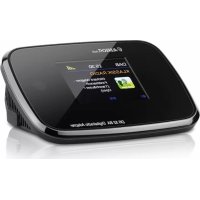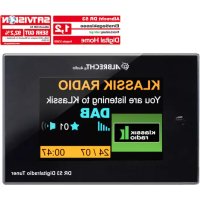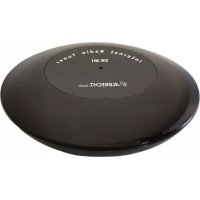
DR 461 Mini - Audio Receiver ALBRECHT - Free user manual and instructions
Find the device manual for free DR 461 Mini ALBRECHT in PDF.



| Product type | Internet radio adapter |
| Brand | Albrecht |
| Model | DR 461 Mini |
| Power supply | 5 V DC, 1 A via micro USB (mains adapter included) |
| Standby consumption | 1 W |
| Dimensions (diameter x height) | 90 mm x 25 mm |
| Weight | 55 g |
| Connectivity | Wi-Fi (2.4 GHz), 3.5 mm audio output, micro USB port |
| Main functions | Internet radio, local stations, Spotify Connect, UPnP/DLNA, playback from smartphone |
| Control | Via free app «AirMusic Control» (iOS/Android) |
| Reset | Reset button (pointed object, 2 s) |
| Status indicator | Red (waiting), green (connected), green flashing (standby) |
| Standby mode | Automatic after 15 minutes of inactivity |
| Warranty | 2 years (manufacturing defects) |
| Maintenance | Clean with a soft, dry cloth; do not use abrasive products |
| Safety | Use only the supplied adapter; avoid humidity and heat sources |
| Spare parts and repairability | Contact customer service (see manual); no consumer spare parts |
| Audio compatibility | External speaker, hi-fi system, Bluetooth speaker (via auxiliary input) |
| Required app | «AirMusic Control» available on Google Play and App Store |
| Package contents | DR 461 adapter, micro USB cable, 3.5 mm to RCA audio cable, user guide |
Frequently Asked Questions - DR 461 Mini ALBRECHT
User questions about DR 461 Mini ALBRECHT
0 question about this device. Answer the ones you know or ask your own.
Ask a new question about this device
Download the instructions for your Audio Receiver in PDF format for free! Find your manual DR 461 Mini - ALBRECHT and take your electronic device back in hand. On this page are published all the documents necessary for the use of your device. DR 461 Mini by ALBRECHT.
USER MANUAL DR 461 Mini ALBRECHT
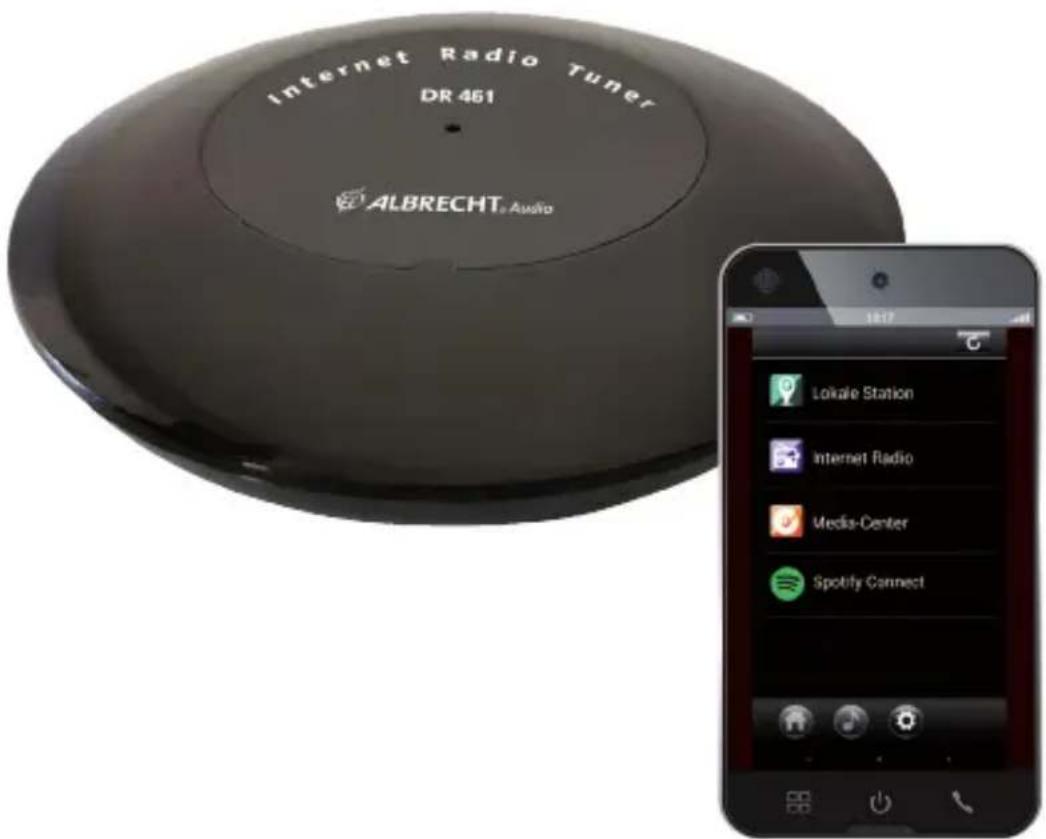
DR 461 Internet Radio Tuner
text_image
Internet Radio Tuner DR 461 ALBRECHT Audio Lokale Station Internet Radio Media-Center Spotify ConnectAnleitung / Manual
Deutsch / English / Français / Espanol
Inhaltsverzeichnis
natural_image
Black circular electronic device labeled 'Internet Radio Tuner DR 461' with external cables and a plug (no visible text beyond label)2. Übersicht
text_image
DC-5V IN AUX OUT 1 2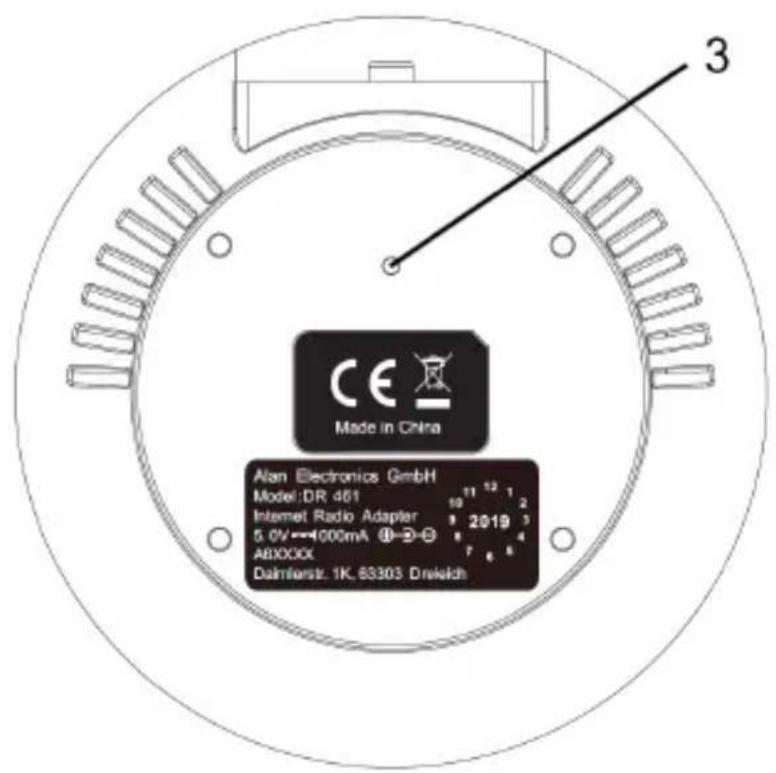
text_image
CE Made in China Alan Electronics GmbH Model:DR 401 11 12 1 Internet Radio Adapter 9 2019 3 5.0V-1000mA ⑧→⑨ ABXXXX Daimferst. 1K. 83303 Driseichtext_image
QR code image containing encoded data, no visible human-readable text
text_image
QR code image containing encoded data, no visible human-readable text- Delivery content 10
- Appearance and Key Descriptions 11
- Setup / First steps....12
- Operation of the Albrecht DR 461 adapter 14
- "AirMusic Control" App....14
- Spotify Connect 15
- Technical Details....15
- Warranty and Recycling Information 15
- Service Address and Technical Hotline 16
- Declaration of Conformity 16
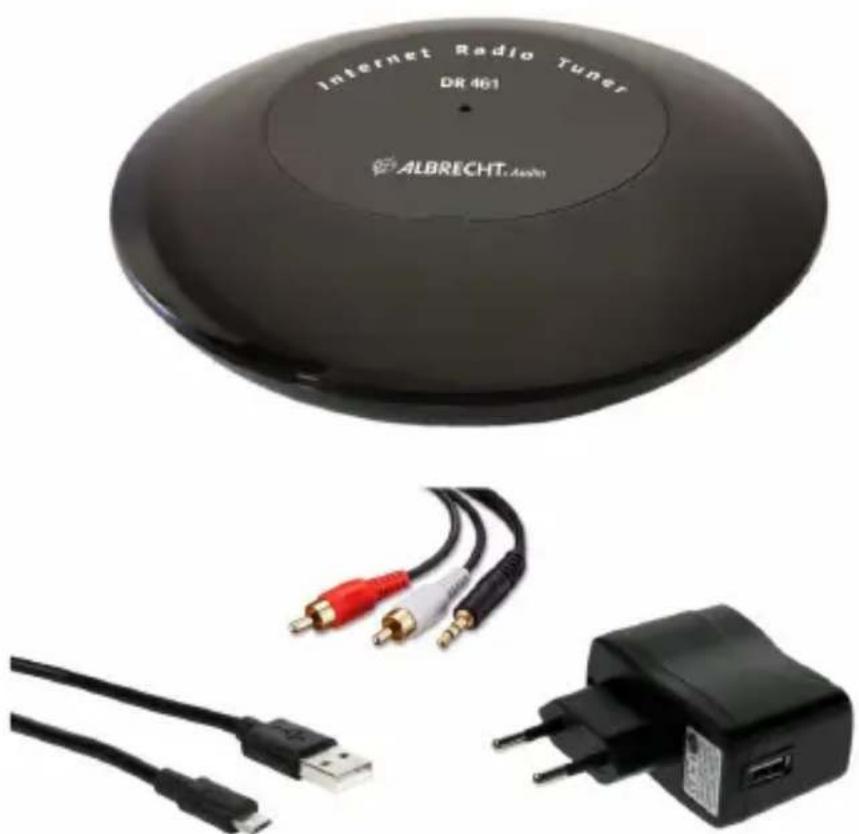
1. Delivery content
• Albrecht DR 461 adapter
- Power Supply
- Micro USB power cable
• 3.5mm to RCA audio cable
- User manual
natural_image
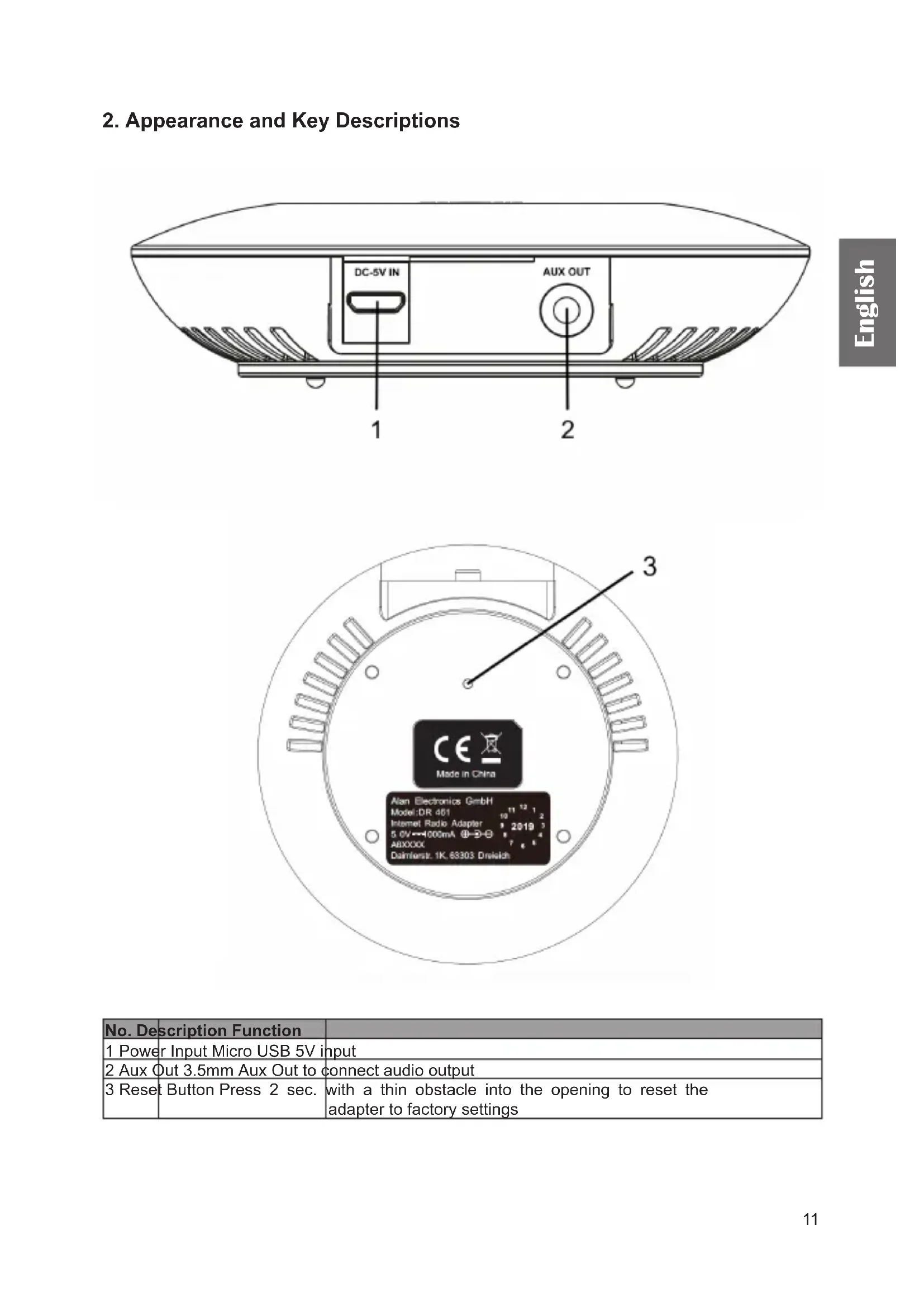
Black circular device labeled 'Internet Radio Tuner DR 401' with external cables and a plug, no visible text or symbols beyond branding.2. Appearance and Key Descriptions
text_image
DC-5V IN AUX OUT 1 2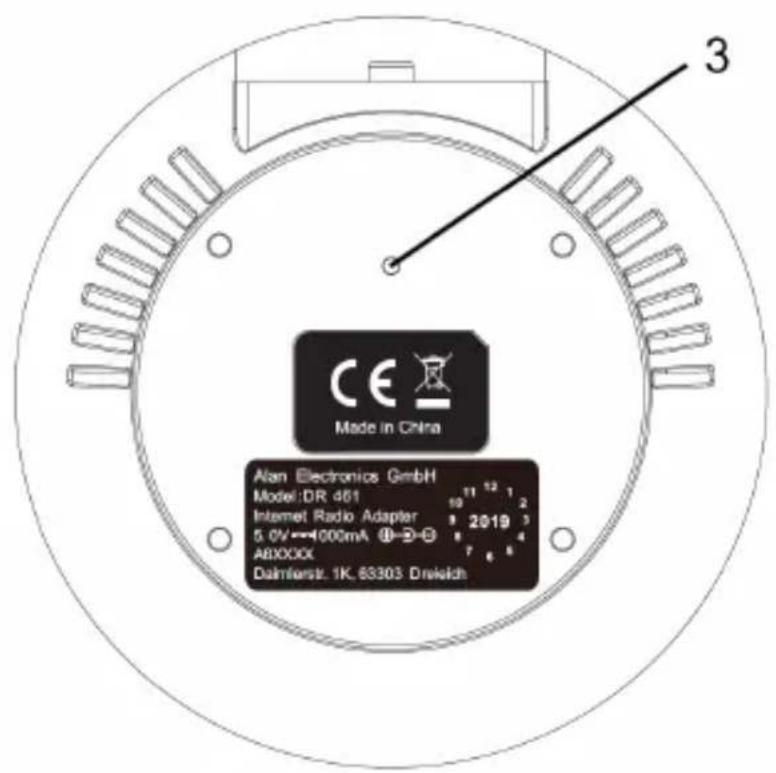
text_image
CE Made in China Alan Electronics GmbH Model:DR 461 11 12 1 Internet Radio Adapter 9 2019 3 5.0V-1000mA ⑧-⑨ ABXXXX Daimferst. 1K. 83303 Driseich| No. | Description Function | |
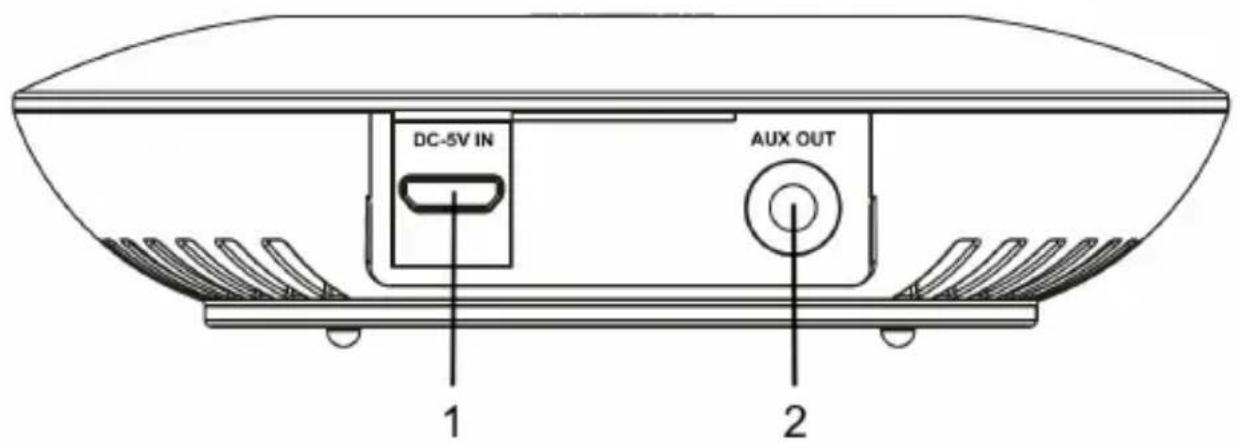
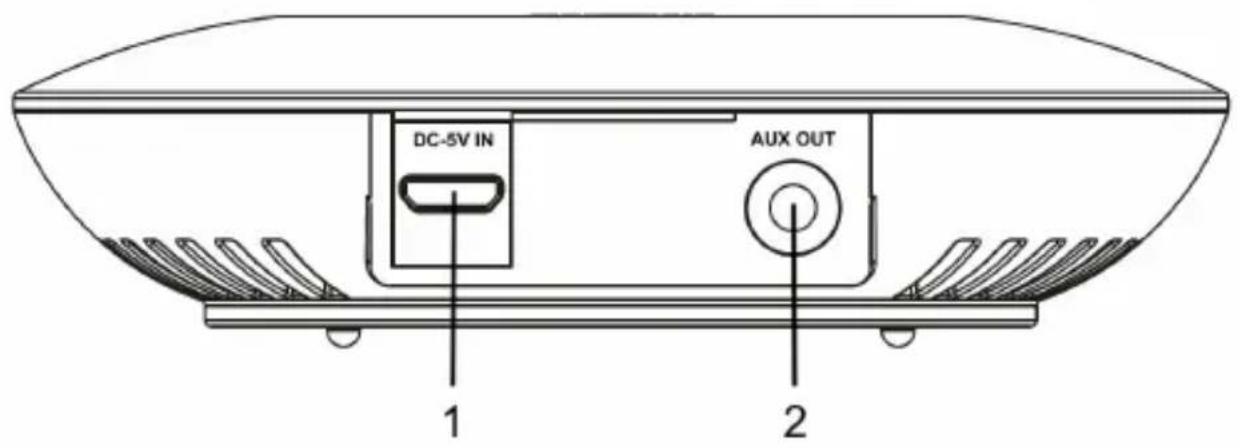
| 1 | Power Input Micro USB 5V input | |
| 2 | Aux Out 3.5mm Aux Out to connect audio output | |
| 3 | Reset Button Press 2 sec. | with a thin obstacle into the opening to reset the adapter to factory settings |
3. Setup / First steps
- The Albrecht DR 461 Internet Radio adapter does not have any buttons. All functions can by controlled by your mobile device (like smartphone, tablet, etc.) through the free App „AirMusic Control“.
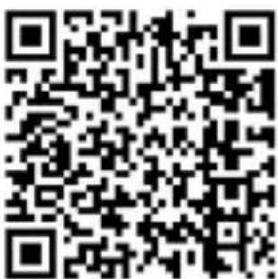
Download the „Air Music Control“ App here:
Android Apple iOS
text_image
QR code image containing encoded data, no visible human-readable text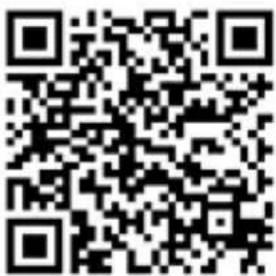
text_image
QR code image containing encoded data, no visible human-readable text- Connect the adapter to an audio output source like an external speaker, Bluetooth speaker, home stereo system or similar. Use the 3.5mm to RCA audio cable and connect it to the Aux-Out socket of the adapter.
- Connect the supplied power supply to the Micro USB input of the DR461 and plug the power supply into a wall socket afterwards.
- The status LED on top of the adapter lights up in red color. After about 30 seconds it starts blinking red. Now the adapter is ready for connection to your WiFi network.
- Open the WiFi settings of your mobile device (e.g. smartphone) and connect to the WiFi "AirMusic".
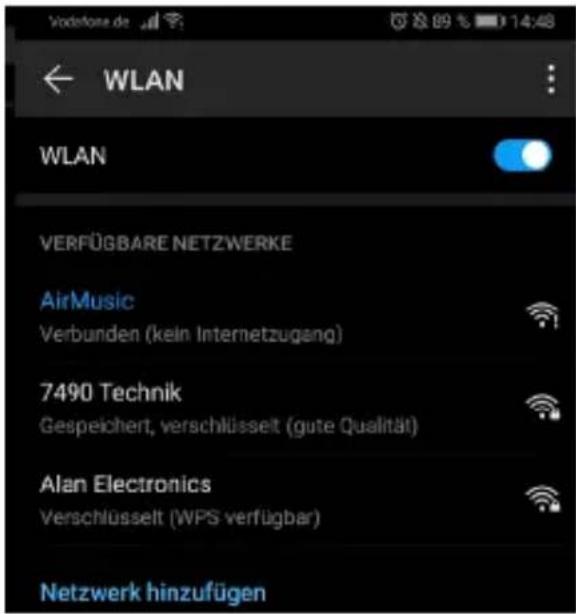
- Select your WiFi Network. You will be asked to enter a "Password" (this is the network key that you will find most likely on the backside of your router).
- After successfully entering your password, the Albrecht DR461 will connect to your WiFi network (here in the example network „Alan Electronics“). Establishing the connection can take up to 30 seconds. It is successfully connected once the LED turns to green color.
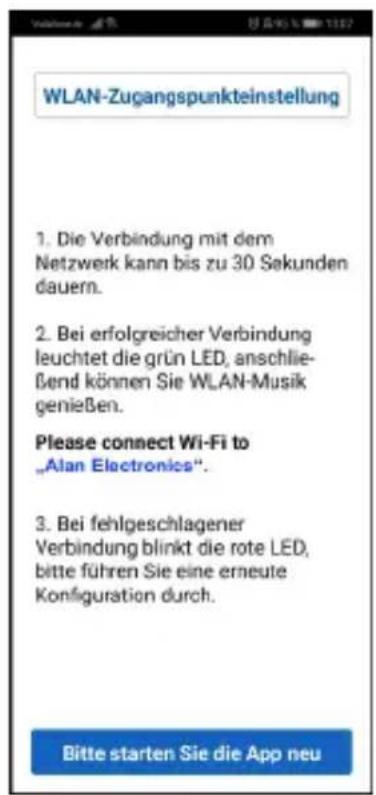
- Restart the „AirMusic Control“ App now and select „Albrecht DR461“ again.
- You are now ready to use the adapter.
Remark: If the connection is not successful after 1 minute, Please long press the reset button on the bottom of the adapter until the red light appears and try to connect it again following the steps above.
4. Operation of the Albrecht DR 461 adapter
As the adapter does not have any buttons, it will go automatically into Standby mode after 15 minutes of no operation or music playing. Standby mode is signalized by the green LED light blinking slowly. The WiFi is still active in the background and you can use the adapter any time.
To wake up the adapter again, just open the „AirMusic Control“ app and select „Albrecht DR 461“. The LED status light will turn to permanent green light.
If you disconnected the adapter from the power source, it will take about 45 seconds to reboot again. The status LED is red for about 30 seconds, starts blinking green for another 15 seconds and then turns green. The adapter is now ready for operation.
5. „AirMusic Control“ App
The AirMusic Control app lets you control the Albrecht DR 461 adapter with the help of your smartphone or tablet. You can also play music files stored on your phone directly through the adapter.
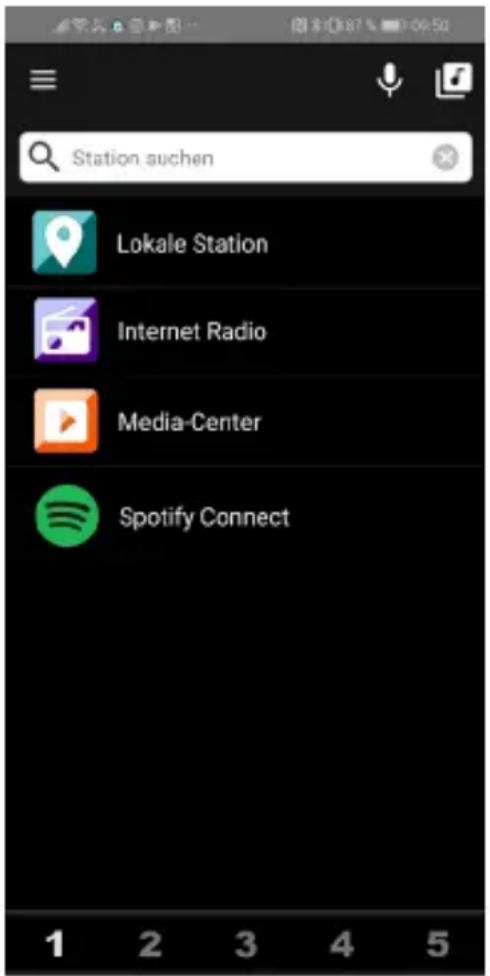
In the main menu you find all functions of the Albrecht DR 461.
| Function Description | |
| Local Stations Shows all radio stations of the country in which you are located | |
| Internet Radio Shows all internet radio stations worldwide | |
| Media-Center Here music can be streamed by UPnP or DLNA e.g. play from a PC | |
| Spotify Connect plays music from Spotify via the DR 461 | |
| Station search Here you can search for a specific radio station | |
 | Opens the main menu of the AirMusic Control App |
 | You can use the connected radio as an intercom |
 | Select music files from your smartphone and play them on the DR461 |
For more information about the AirMusic Control App, download the latest manual from the AirMusic Control website.
text_image
Station suchen Lokale Station Internet Radio Media-Center Spotify Connect6. Spotify Connect
Use your phone, tablet or computer as a remote control for Spotify. Go to spotify.com/connect to learn how.

text_image
SpotifyThe Spotify Software is subject to third party licenses found here: https://www.spotify.com/connect/third-partylicenses
7. Technical Details
| Model name DR 461 | |
| Description Internet Radio Adapter | |
| Power Supply Output 5V 1A | Input 100-240V AC, 50/60Hz, 0.2A |
| Power consumption in Standby 1 Watt | |
| Connections Micro USB DC IN (power supply) | Audio Out (3.5mm) |
| Dimensions (diameter/height) 90mm / 25mm | |
| Weight 55g |
8. Warranty and Recycling Information
We are legally obliged to include disposal and warranty information as well as EU declaration of conformity with the use instructions in different countries for every unit. Please find this information on the following pages.
2-Year Warranty from Date of Purchase
The manufacturer/retailer guarantees this product for two years from date of purchase. This warranty includes all malfunctions caused by defective components or incorrect functions within the warranty period excluding wear and tear, such as exhausted batteries, scratches on the display, defective casing, broken antenna and defects due to external effects such as corrosion, over voltage through improper external power supply or the use of unsuitable accessories. Defects due to unintended use are also excluded from the warranty.
Please contact your local dealer for warranty claims. The dealer will repair or exchange the product or forward it to an authorized service center. You can also contact our service partner directly. Please include your proof of purchase with the product and describe the malfunction as clearly as possible.
WEEE and Recycling

The European laws do not allow any more the disposal of old or defective electric or electronic devices with the household waste. Return your product to a municipal collection point for recycling to dispose of it. This system is financed by the industry and ensures environmentally responsible disposal and the recycling of valuable raw materials.
9. Service Address and Technical Hotline
(for units sold in Germany)
Contact our service hotline by phone +49 (0) 6103 9481 66 (regular costs for German fixed network) or e-mail at Service@alan-electronics.de
10. Declaration of Conformity
Hereby, Alan Electronics GmbH declares that the radio equipment type Albrecht DR461 is in compliance with Directive 2014/53/EU. The full text of the EU declaration of conformity is available at the following internet address: www.alan-electronics.de

Printing errors reserved.
Information in this user manual are subject to change without prior notice.
natural_image
Electronic device with a black circular CD/DVD cover and connected audio cables (no visible text or symbols on main components)text_image
QR code image containing encoded data, no visible human-readable text
text_image
QR code image containing encoded data, no visible human-readable textnatural_image
Electronic device with a black circular CD/DVD cover and connected audio cables (no visible text or symbols on main components)text_image
QR code image containing encoded data, no visible human-readable text