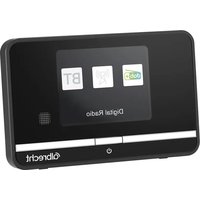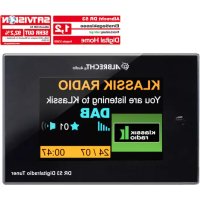
DR 52 BA - Audio Receiver ALBRECHT - Free user manual and instructions
Find the device manual for free DR 52 BA ALBRECHT in PDF.



| Product Type | DAB/DAB+ and FM adapter with Bluetooth interface |
| Brand | Albrecht |
| Model | DR 52 BA |
| Dimensions (L x H x P) | 125 mm x 56 mm x 85 mm |
| Weight | 220 g |
| Power Supply | Power adapter 6 V/600 mA (DC) |
| Display | 2.4-inch color TFT screen |
| Reception Bands | FM 87.5 – 108.0 MHz (RDS) / DAB/DAB+ Band III (174.928 – 239.200 MHz) |
| Connectivity | Bluetooth (range 8 m), RCA audio output (L/R), antenna input |
| Main Functions | Dual alarm, 8-mode equalizer, 10 DAB and FM presets, auto scan, DRC, sleep timer, automatic time update |
| Included Accessories | RCA audio cable, RCA to 3.5 mm adapter, remote control, cable antenna, power adapter, user guide |
| Warranty | 2 years |
| Standby Power Consumption | < 1 W |
| Operating Temperature | 0 °C – 35 °C |
| Maintenance and Cleaning | Clean with a soft dry cloth; do not use strong solvents |
| Safety | Do not expose to moisture, do not disassemble, use only supplied adapter, unplug if not used for a long time |
| Spare Parts and Repairability | Contact Alan Electronics after-sales service; warranty repair via dealer |
| General Information | Manual available in FR, DE, EN, IT; time update via DAB/FM |
Frequently Asked Questions - DR 52 BA ALBRECHT
User questions about DR 52 BA ALBRECHT
0 question about this device. Answer the ones you know or ask your own.
Ask a new question about this device
Download the instructions for your Audio Receiver in PDF format for free! Find your manual DR 52 BA - ALBRECHT and take your electronic device back in hand. On this page are published all the documents necessary for the use of your device. DR 52 BA by ALBRECHT.
USER MANUAL DR 52 BA ALBRECHT
text_image
03/18/2015 Wed 12 9 3 66 Deutsch
text_image
DAB 11:45 AM TARE Software FM Bidi Media Bluetoothtext_image
BT 11:45 AM 20/03/2015 Disconnectednatural_image
Symbol of a trash bin crossed with a diagonal line and a black rectangle below (no text or labels)- Do not drop the DR 52 BA and do not expose it to liquid, moisture or humidity. These might lead to damage to the device.
- If the DR 52 BA is moved from a cold environment into a warmer one, do let it adapt to the new temperature before operating the device. Otherwise it might lead to condensation and cause malfunctions in the device.
- Do not use the DR 52 BA in a dusty environment as dust can damage the interior electronic components and lead to malfunctions in the device.
- Do not attempt to disassemble the DR 52 BA.
- Only use the power adaptor delivered with the DR 52 BA.
- Never touch the power plug with wet hands and never pull on the power cable when pulling the plug out of the power socket.
- Make sure the electrical voltage specified on the DR 52 BA and its power plug is corresponding to the voltage of the power socket. Incorrect voltage will destroy the device.
- If the DR 52 BA is not used for a long period of time, disconnect it from the power supply by unplugging the power plug. This is to avoid the risk of fire.
• Always power off the DR 52 BA when cleaning it. - Never use any harsh or strong solvents to clean the
DR 52 BA since these may damage the surface of the device. Dry, soft cloth is appropriate; however, if the DR 52 BA is extremely dirty, it may be wiped off with a slightly moist cloth. Make sure the device is dried off after cleaning.
- When you have to ship the DR 52 BA, store it in its original package. Save the package for this purpose.
- If you have to dispose the device in the future, note that it should not be disposed with household waste. Bring it to a reception point for the recycling of electrical devices. Consult your local authority or retailer for recycling advice.
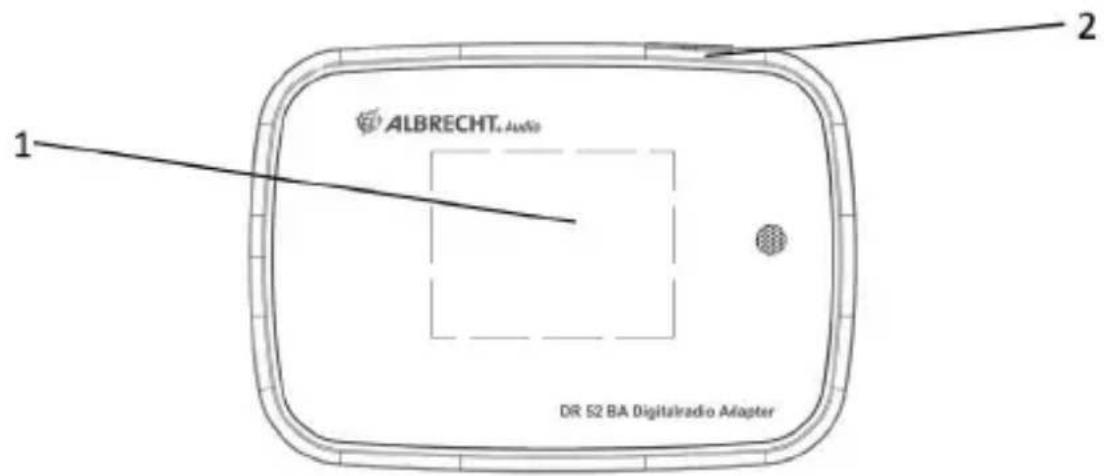
2. Appearance and Key Descriptions
text_image
ALBRECHT Audio DR S2 BA Digitalradio Adapter 1 2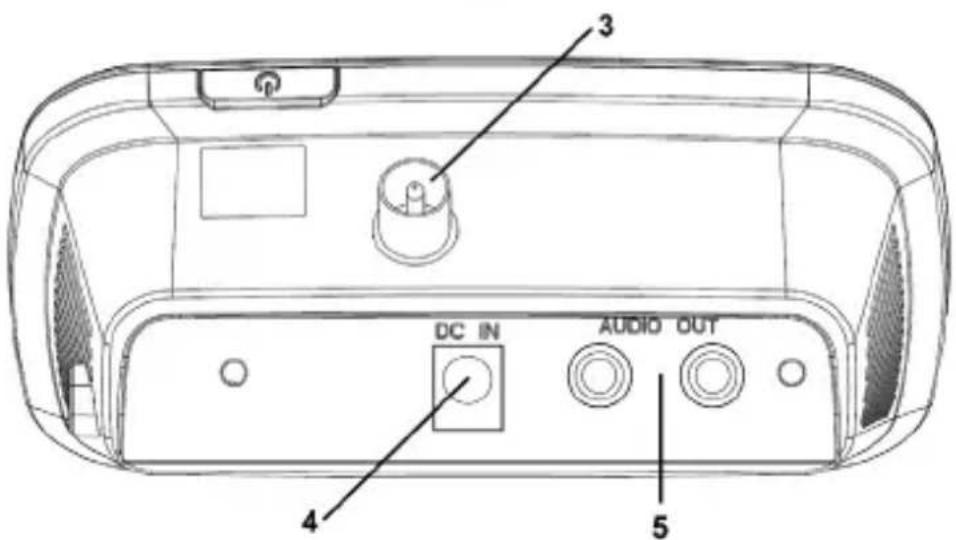
text_image
3 DC IN AUDIO OUT 4 5| No. Desription Functions | |
| 1 TFT screen Display | |
| 2 Standby button Standby on/off | |
| 3 Antenna connector For the supplied cable antenna or an external DAB / FM antenna | |
| 4 DC In Power supply | |
| 5 Audio Out RCA L/R jacks for audio out |
26 English
text_image
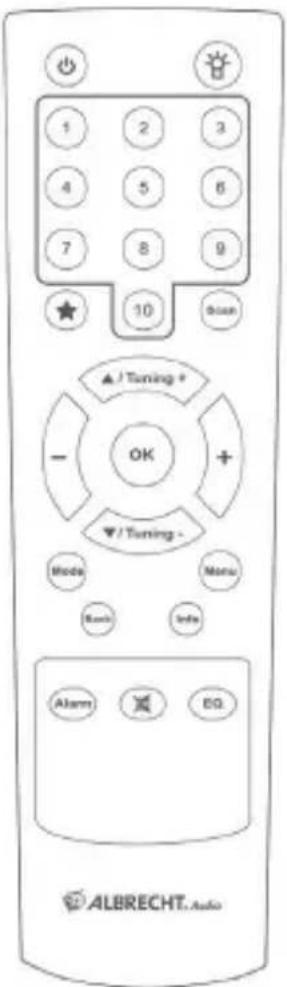
1 2 3 4 5 6 7 8 9 10 Status ▲/ Tuning + - OK ▼/ Tuning - Mode Menu Back Info Alarm EQ ALBRECHT. AudioInstall two AAA batteries into the battery compartment. Take care to insert it with proper polar sign as indicated inside the compartment.
3. Getting Started
The packaging box contains the following items:
DR 52 BA
RCA to RCA audio cable
RCA to 3.5mm audio adaptor
Remote control
Cable antenna
Power adaptor
User manual
- Connect the supplied cable antenna or an external DAB/FM antenna, as well as the power adaptor to the back of the DR 52 BA and plug it into a power socket.
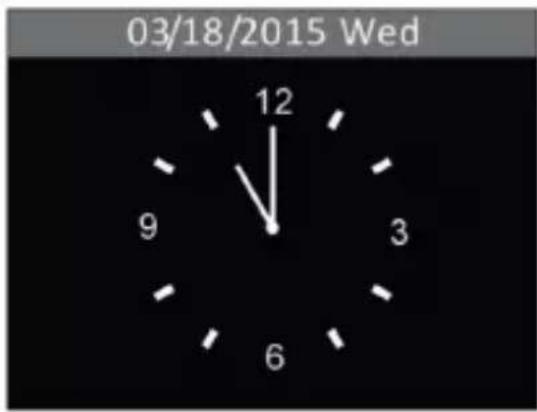
- The time, date and any active alarm icon are then displayed on the screen. The time and date are also updated automatically from radio (DAB or FM) by default. If time and date are set manually, auto update will then be disabled. Press ⏻ to turn the device to standby mode.
text_image
03/18/2015 Wed 12 9 3 6- During standby mode, press ⏻ to turn the device to operation mode.
text_image
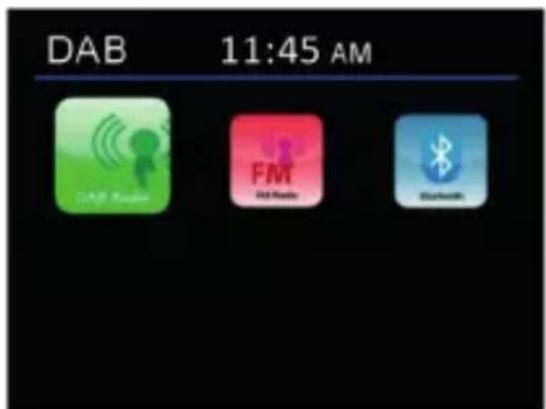
DAB 11:45 AM GAR Wireless FM DAR Wireless Bluetooth- If it is the first time you enter the DAB mode, the device will
28 English
automatically scan for DAB/DAB+ stations.
- Press „Mode“ to go to the main menu, press „Tuning ▲/▼“ to select different operation modes (DAB, FM or Bluetooth).
- At any operation mode, press „back“ to go to the previous screen.
- When music is playing, press „+ / -“ to adjust the volume. Press 🔔 to mute the sound, then press „+ / -“ or 🔔 to resume the volume.
4. DAB
Note: Before listening to the radio, ensure that the DAB/FM Antenna is adjusted in a proper direction.
The icon on the top right corner of the display shows the strength of the DAB/DAB+ signal detected by the device.
4.1. Scanning for DAB+ stations
Auto scanning: Press „Scan“ to run full scan of all stations. Alternatively, press „Menu“ to enter the menu where you can select „SCAN“ to run the same operation. All stations are shown in the Station List after scanning.
4.2. Station List
Press „Menu“ to enter the menu, then select „Station List“ to view the list of stations already scanned. Press „Tuning ▲/▼“ to select the station you want to listen and press „OK“ to confirm.
4.3. Manual Tune
If the device cannot receive the DAB+ station you are loOKing for, press „Tuning ▲/▼“ to select station frequency manually. Once selected, press „OK“ to confirm and the station frequency
will be put on the station list.
4.4. Prune Invaild
Enter to remove the stations that are listed but not available. Press „Menu“ to go to system menu. Press „Tuning ▲/▼“ to „Prune Invalid“ and then choose „Yes“. Press „OK“ to confirm.
4.5. DRC
If you are listening to music with a high dynamic range in a noisy environment, you may wish to compress the audio dynamic range. This makes quiet sounds louder and loud sounds quieter. Press „Tuning ▲/▼“ to select DRC (high/low/off) and press „OK“ to confirm.
4.6. Station Order
The stations are listed by Alphanumeric/ Ensemble/ Valid. Press „Tuning ▲/▼“ to select and press „OK“ to confirm.
4.7. Preset the DAB+ stations
While listening to a DAB+ station, long press ★ until the „Preset Store“ Menu opens, or press „Menu“ to go to the menu, then select „Preset Store“ to save the current station. Press „Tuning ▲/▼“ to choose the number and then press „OK“ to store the station.
Alternatively the current station can be stored to a preset by pressing and holding „1“ to „10“ respectively. Up to 10 presets can be stored in DAB mode.
4.8. Recall the preset DAB+ stations
Short press ★ to go to the „Preset Recall“ Menu, or press „Menu“ to go to system menu, then select „Preset Recall“ to recall the desired preset station. Press „Tuning ▲/▼“ to choose the number and then press „OK“ to recall the station.
A preset can also be recalled by pressing its corresponding „1“ to „10“ key.
30 English
4.9. DAB+ information Display
You can view the DAB+ service information. Press „Info“ to view the programme information, the programme type of the station, the frequency, signal strength, bit rate, codec, audio type, channels, the date.
If there is a picture shown for the station, you can press „OK“ to enlarge the picture to full screen. Press it again, the display will go back to the playing screen.
5. FM
Note: Before listening to the radio, ensure that the antenna is adjusted in a proper direction.
The icon on the top right corner of the display shows the strength of the FM signal detected by the device.
5.1. Scanning for FM stations
Press „Tuning ▲/▼“ to tune with 0.05MHz per step or press „Scan“ to search for the next FM station.
5.2. Scan setting
Set to receive strong signal stations only. If the radio scans and receives many poor signal stations, set to „Yes“ to get strong signal stations only.
5.3. Audio setting
Set to receive the FM signal in mono or stereo.
5.4. Preset the FM stations
While listening to a FM station, long press ★ until the „Preset Store“ Menu opens, or press „Menu“ to go to the menu, then select „Preset Store“ to save the current station. Press „Tuning ▲/▼“ to choose the number and then press „OK“ to store the station.
Alternatively the current station can be stored to a preset by pressing and holding „1“ to „10“ respectively. Up to 10 presets can be stored in FM mode.
5.5. Recall the preset FM stations
Short press ★ to go to the „Preset Recall“ Menu, or press „Menu“ to go to system menu, then select „Preset Recall“ to recall the desired preset station. Press „Tuning ▲/▼“ to choose the number and then press „OK“ to recall the station.
A preset can also be recalled by pressing its corresponding „1“ to „10“ key.
5.6. RDS (Radio Data System) Reception
You can view the information of FM stations which broadcast added data compatible with RDS. Press „Info“ to view the programme information, the programme type, frequency or the date if available.
6. Main Menu and Settings
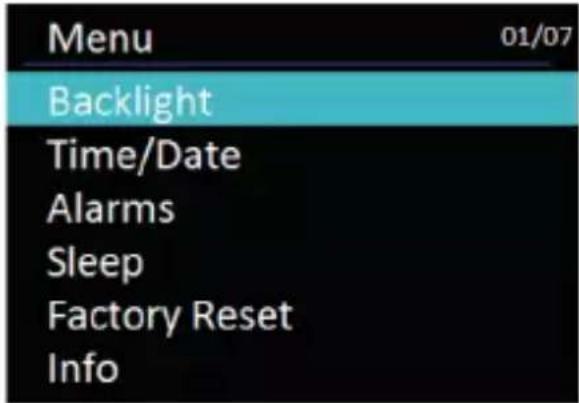
At any operation mode, press „Menu“ to enter the system menu in order to change the device configurations. Press „Tuning ▲/▼“ to select the submenu and then press „OK“ to confirm.
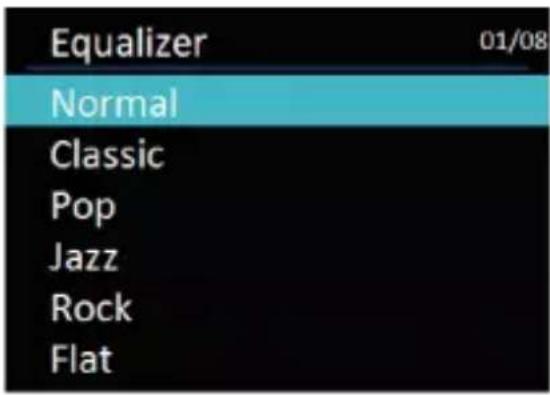
6.1. Equalizer
Press „Tuning ▲/▼“ to choose EQ: Normal, Classic, Pop, Jazz, Rock, Flat, Movie or News.
Press „OK“ to confi rm.
You can press „EQ“ to enter the equalizer menu.
text_image
Equalizer 01/08 Normal Classic Pop Jazz Rock Flat6.2. Backlight
text_image
Menu 01/07 Backlight Time/Date Alarms Sleep Factory Reset InfoSelect illuminated level of backlight (High/ Medium/ Low) and the duration of timeout (Always On/ 10/ 20/ 30/ 45/ 60/ 90/ 120/ 180 sec). With setting the timeout, the backlight will automatically change to dim if the device is not operated for the set amount of time.
Note: You can also press the „Light“ button anytime to adjust the backlight of the screen directly.
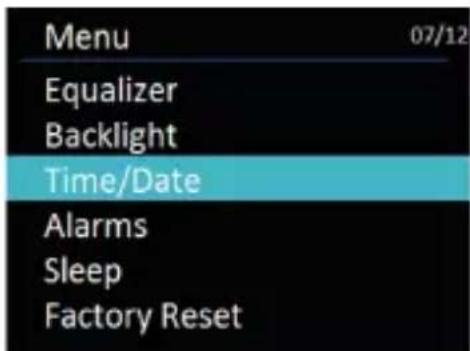
6.3. Setting Time/Date
text_image
Menu 07/12 Equalizer Backlight Time/Date Alarms Sleep Factory Reset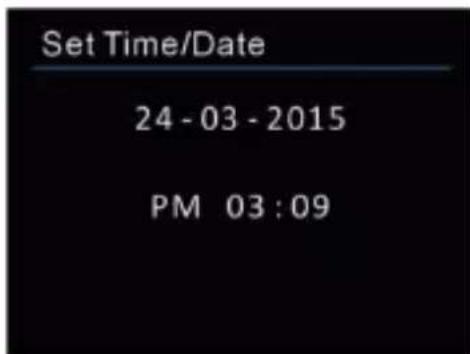
text_image
Set Time/Date 24 - 03 - 2015 PM 03 : 09Set Time/Date: The Day digits will flash and are ready for setting. Press „Tuning ▲/▼“ to adjust the day and press „OK“ to confirm.
Repeat this process to set the Month, Year, Hours and Minutes.
34 English
Set Format: Change the display of time to 12-hour mode or 24-hour mode. Press „Tuning ▲/▼“ to adjust and press „OK“ to confirm.
Auto update: Select to update time and date automatically from Radio (DAB or FM). Press „Tuning ▲/▼“ to adjust and press „OK“ to confi rm. The device will automatically be updated to the current time when receiving a signal from a DAB station or FM station with RDS.
„No Update“ is also available for selection.
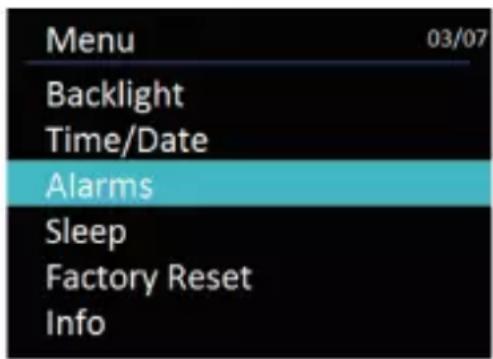
6.4. Alarms
text_image
Menu 03/07 Backlight Time/Date Alarms Sleep Factory Reset Info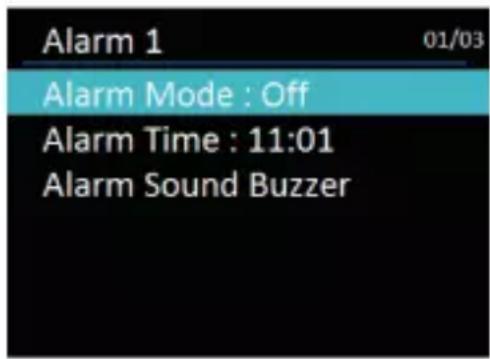
text_image
Alarm 1 01/03 Alarm Mode : Off Alarm Time : 11:01 Alarm Sound BuzzerThere are two alarms available.
Press „Tuning ▲/▼“ to choose setting up Alarm 1 or Alarm 2. Press „OK“ to enter the detailed settings.
Alarm Mode: Press „Tuning ▲/▼“ to schedule the alarm to Off/Daily/ Once/ Weekend/ Weekday, press „OK“ to confi rm.
Alarm Time: The alarm time can be set with the same procedure as setting the clock. Press „Tuning ▲/▼“ to set the alarm time and press „OK“ to confirm.
Alarm Sound: Set the alarm sound (Buzzer/DAB/FM). Press „Tuning ▲/▼“ to select the mode and press „OK“ to confirm.
Volume: Press „Tuning ▲/▼“ or „+ / -“ to adjust the volume and press „OK“ to confirm.
Press „back“ to complete the setting.
When the alarm is set and saved, a clock icon will appear at the bottom of the display. The clock icon is also displayed on the screen at standby mode.
When alarm is ON, press „On/Off“ to stop the alarm or press any other key to enter snooze mode.
The device will alarm again in 5 minutes after entering snooze mode. The 5-minute countdown will appear on the display.
In snooze mode, the snooze time can be changed to 5/10/15/30 by press „Tuning ▲/▼“.
To turn snooze off, simply press „On/Off“.
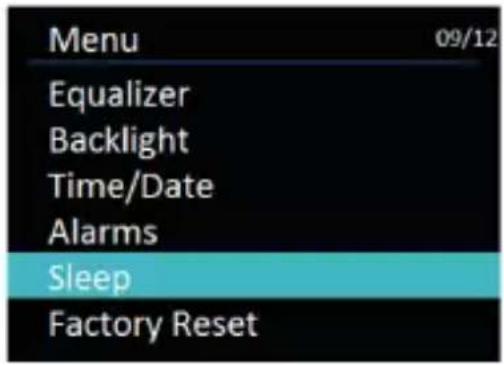
6.5. Sleep
text_image
Menu 09/12 Equalizer Backlight Time/Date Alarms Sleep Factory Reset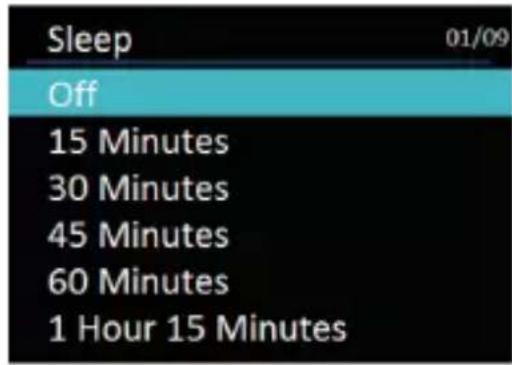
text_image
Sleep 01/09 Off 15 Minutes 30 Minutes 45 Minutes 60 Minutes 1 Hour 15 MinutesPress „Tuning ▲/▼“ to select the sleep time of 15/30/45/60/75/90/105/120 minutes or set the sleep time to „Off“. Press „OK“ to confi rm.
6.6. Factory Reset
Press „Tuning ▲/▼“ to select „Yes/No“ to reset the DR 52 BA to the factory default settings. Press „OK“ to confirm. The system will then restart after reset.
Note: all customised settings (except current time/date setting) and stored preset stations will be erased after factory reset.
6.7. Info
Enter to view the version of firmware of the system.
6.8. Language
Press „Tuning ▲/▼“ to control to select the desired language: English / Français / Deutsch / Italiano. Press „OK“ to confi rm.
7. Bluetooth
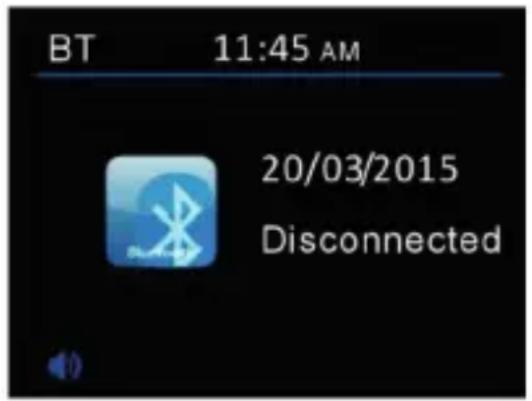
When you select the Bluetooth mode, the device is entering the pairing mode. Turn on your smartphone/tablet/other Bluetooth device to search for the adapter. The Bluetooth pairing name of the radio adapter is „ALBRECHT 52 BA“. If pairing is successful, the screen will show „Connected“ and the device will start playing music from your device.
text_image
BT 11:45 AM 20/03/2015 DisconnectedOnce the adapter has connected to a Bluetooth device, it will automatically search to reconnect this Bluetooth device next time when they are in operating range.
Note: The DR 52 BA supports to receive Bluetooth signals within 8 metres.
8. Troubleshooting
| Error Solution | |
| The device freezes | 1. Disconnect the power plug for 1 minute, then restart the device.2. If the error has not yet been resolved, reset the unit to the factory setting (see chapter 6.6.). |
| The device does not switch on. | 1. Check if the power adaptor is connected properly with the power supply.2. The normal function of the product may be disturbed by strong Electro-Magnetic Interference. Try to use the product in another location |
| No sound. 1. Turn | on the sound as it may be muted.2. Increase the volume.3. The audio cable to the speaker system may not be connected properly. |
| No signal in DAB or hiss in FM mode. | 1. Check/move the antenna.2. Move the radio to another location. |
| Alarm doesn’t work. | 1. Switch on the alarm.2. The volume may not be properly set, refer to the solutions of “No sound”.3. The source of alarm was set to a station without signal. Change the source of alarm or refer to “No signal in DAB or hiss in FM mode” |
| No action from remote control | 1. Low battery. Replace the battery. |
9. Specifications
| Model name DR 52 BA | |
| Description DAB/DAB+ and FM adaptor with Bluetooth interface | |
| Display 2.4" TFT Color Display | |
| FM 87.5 – 108.0 MHz, RDS supported | |
| DAB/DAB+ Band III (174.928) | -239.200 MHz) |
| Power adaptor 6V / 600mA | |
| Connections DC IN (power supply)Audio out (2 x RCA L/R) | |
| Standby mode power < 1W | |
| Operating temperture 0°C - 35°C | |
| Dimensions 125mm(L) x 56mm(H) x 85mm(D) | |
| Weight 220g | |
10. Warranty and Recycling Information
We are legally obliged to include disposal and warranty information as well as EU declaration of conformity with the use instructions in different countries for every unit. Please find this information on the following pages.
2-Year Warranty From Date Of Purchase
natural_image
Simple line drawing of a trash bin with crossed lines indicating no waste or restriction (no text or symbols)The manufacturer/retailer guarantees this product for two years from date of purchase. This warranty includes all malfunctions caused by defective components or incorrect functions within the warranty period excluding wear and tear, such as exhausted batteries, scratches on the display, defective casing, broken antenna cable and defects due to external effects such as corrosion, over voltage through improper external power supply or the use of unsuitable accessories. Defects due to unintended use are also excluded from the warranty.
Please contact your local dealer for warranty claims. The dealer will repair or exchange the product or forward it to an authorized service center.
You can also contact our service partner directly. Please include your proof of purchase with the product and describe the malfunction as clearly as possible.
11. CE Declaration of Conformity
Standards and Regulations

text_image
C€This device complies with European directives and standards for DAB and FM receiver devices and bears the CE symbol.
The newest version of the original declaration of conformity as well as all device documents can be enquired at info@alan-electronics.de.
WEEE and Recycling
The European laws do not allow any more the disposal of old or defective electric or electronic devices with the household waste. Return your product to a municipal collection point for recycling to dispose of it. This system is financed by the industry and ensures environmentally responsible disposal and the recycling of valuable raw materials.
12. Service Address
And Technical Hotline (for units sold in Germany)
Contact our service hotline by phone +49 (0) 6103 / 9481 - 66 (regular costs for German fixed network) or e-mail at service@alan-electronics.de
Before returning the product, check the chapter “Trouble-shooting” for some easy steps and tests or contact our hotline.
text_image
3 DC IN AUDIO OUT 4 5text_image
03/18/2015 Wed 12 9 3 648 Français
text_image
BT 11:45 AM 20/03/2015 Disconnectedtext_image
3 DC IN AUDIO OUT 4 5text_image
03/18/2015 Wed 12 9 3 6text_image
DAB 11:45 AM FM FM Radio Bluetooth70 Italiano