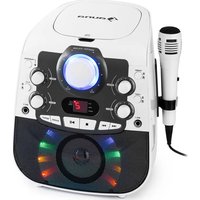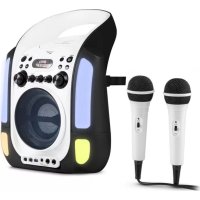
Kara Illumina Kids - Karaoke system Auna - Free user manual and instructions
Find the device manual for free Kara Illumina Kids Auna in PDF.


User questions about Kara Illumina Kids Auna
0 question about this device. Answer the ones you know or ask your own.
Ask a new question about this device
Download the instructions for your Karaoke system in PDF format for free! Find your manual Kara Illumina Kids - Auna and take your electronic device back in hand. On this page are published all the documents necessary for the use of your device. Kara Illumina Kids by Auna.
USER MANUAL Kara Illumina Kids Auna
text_image
QR code image containing encoded data, no visible human-readable textINHALTSVERZEICHNIS
Technische Daten 3
natural_image
Technical line drawing of a device rear panel connected to a power outlet via cable (no text or symbols)Play/Pause-Taste ▶II
text_image
CDG TRK 01/20 Poker Face © 2009 Easy KaraokeMember of Berlin Brands Group
Handwerkerstr. 11
15366 Dahlwitz-Hoppegarten
Deutschland
natural_image
Symbol of a trash bin crossed with a diagonal line, representing no waste or discharge (no text or labels)Berlin Brands Group UK Ltd
PO Box 1145
Oxford, OX1 9UW
United Kingdom
Congratulations on the purchase of your device. Please read the following instructions carefully and follow them to prevent potential damage. We accept no liability for damage caused by disregarding the instructions or improper use. Please scan the QR code to access the latest operating instructions and for further information about the product.
text_image
QR code image containing encoded data, no visible human-readable textCONTENTS
Safety Instructions 24
Device Overview 25
Setup and operation 27
Buttons and functions 29
Music playback via CD+G, USB, AUX-IN 34
Cleaning and Care 37
Troubleshooting 38
Disposal Considerations 40
Declaration of conformity 40
TECHNICAL DATA
| Article number 10030549, 10030550 | |
| Power supply (power adapter) 220-240 V ~ 50/60 Hz | |
| Playable CD formats CD/CD+G/CD-R/CD-RW/MP3 | |
| Playable USB formats MP3 | |
SAFETY INSTRUCTIONS
General Instructions
- Lightning - If you do not use the device for a longer period of time or in the event of electrical storms, unplug the device from the power outlet or disconnect the device from the antenna connection. This prevents damage to the product due to lightning and overvoltage.
• Overloading - Do not overload electrical outlets, extension cords or integrated sockets as this may result in a fire or electric shock. - Foreign objects and liquid entry - Never push objects of any kind into the unit through openings as they may touch dangerous voltage points or short out parts that could cause a fire or electric shock. Never spill liquids of any kind on the unit.
- Repair and maintenance - Do not attempt to service this product yourself as opening or removing covers may expose you to dangerous voltages or other hazards. Leave all maintenance work to qualified service personnel.
- Damage requiring servicing - Unplug the appliance from the wall outlet and refer servicing to qualified service personnel when any of the following situations occur:
a) If the mains cable or plug is damaged.
b) If liquid has been spilled or objects have fallen onto the product.
c) If the product has been exposed to rain or water.
d) If the product has been dropped or damaged.
e) If the product has a significantly reduced performance.
- Spare parts - If spare parts are needed, make sure that the specialist company replacing the parts only uses spare parts that are approved by the manufacturer or have the same characteristics as the original part. Unauthorised substitutions may result in fire, electric shock or other hazards.
- Heat - Do not place the unit near any heat sources such as radiators, heat registers, stoves, or other products (including amplifiers).
Note: Children over 8 years as well as mentally, sensory and physically impaired persons may only use the device if they have been informed in detail about the functions and safety precautions by a supervisor responsible for them beforehand and understand the associated risks.
DEVICE OVERVIEW
EN
text_image
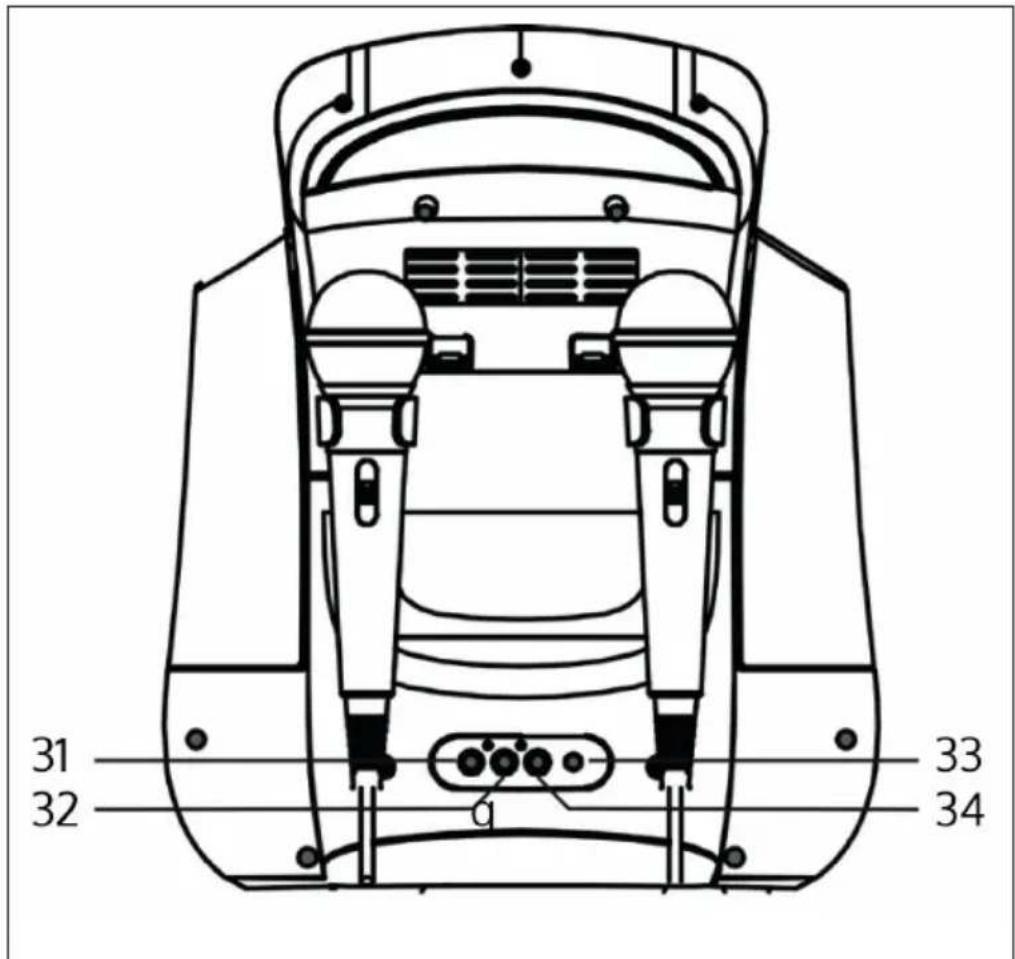
31 32 33 34| 1 Audio output (L) 4 DC input | ||
| 2 Audio output (R) 5 Video output |
text_image
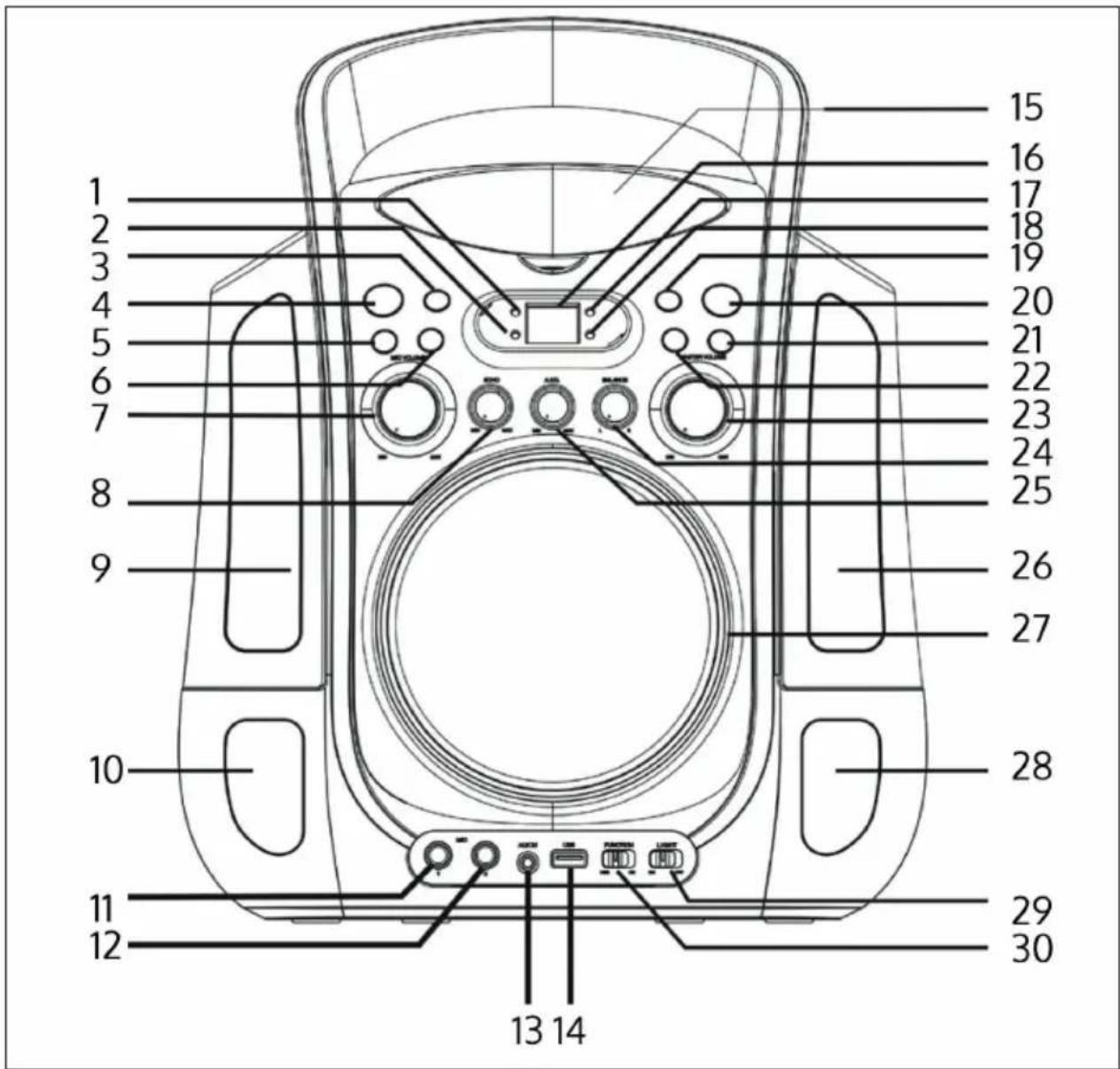
1 2 3 4 5 6 7 8 9 10 11 12 13 14 15 16 17 18 19 20 21 22 23 24 25 26 27 28 29 30| 1 CDG display 11 Microphone input | 1 21 Stop button | |
| 2 Play/pause display 12 Microphone | input 2 22 Play/pause button | |
| 3 Repeat button 13 AUX input 23 | Master volume | |
| 4 Power button 14 USB input 24 | Balance control | |
| 5 Back button ◀◀ | 15 CD door 25 AVC controller | |
| 6 Forward button▶▶ | 16 LED display 26 Light box right | |
| 7 Microphone volume 17 Programme | me display 27 Speaker | |
| 8 Echo control 18 Repeat display | 28 Light right | |
| 9 Light box left 19 Programme button | 29 Light show on/off | |
| 10 Lower light left | 20 Light show | 30 CD/USB selection |
SETUP AND OPERATION
Connecting the device
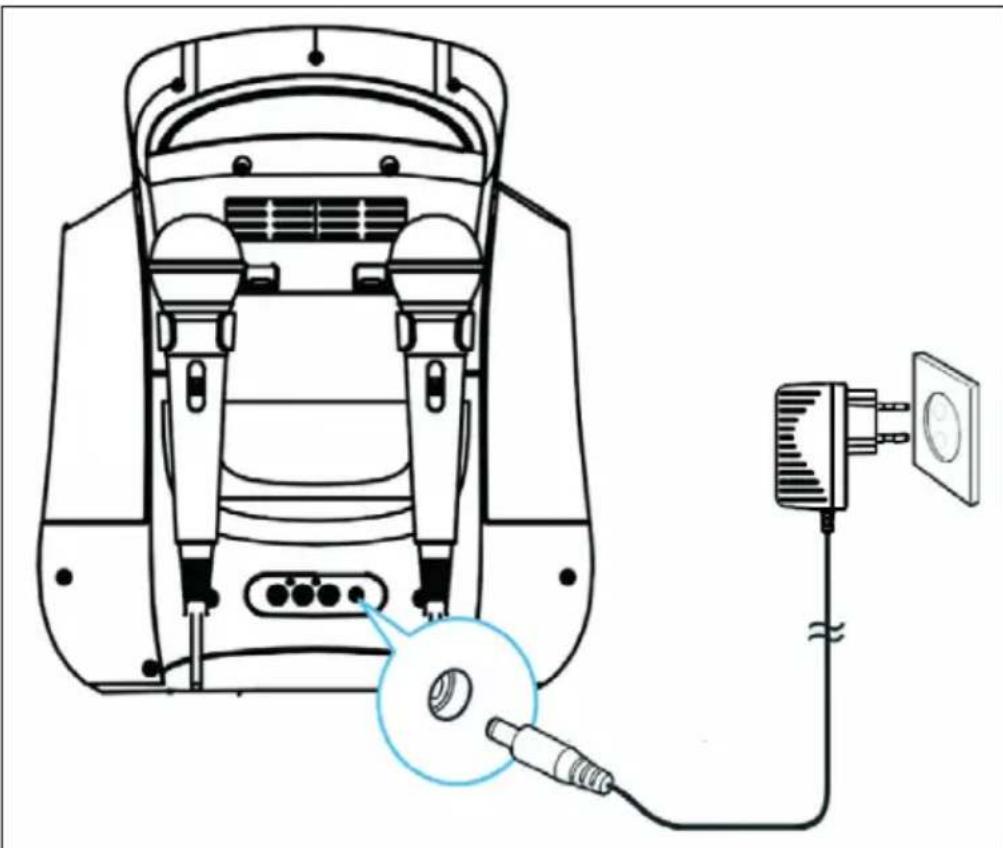
Connect the power supply to the DC input on the back of the unit. Then plug the power plug into a mains socket. NOTE: When you will not be using the device for a longer period of time, pull the plug out of the socket.
natural_image
Technical line drawing of a device with labeled components and wiring, no readable text or symbols presentConnecting the unit to the TV
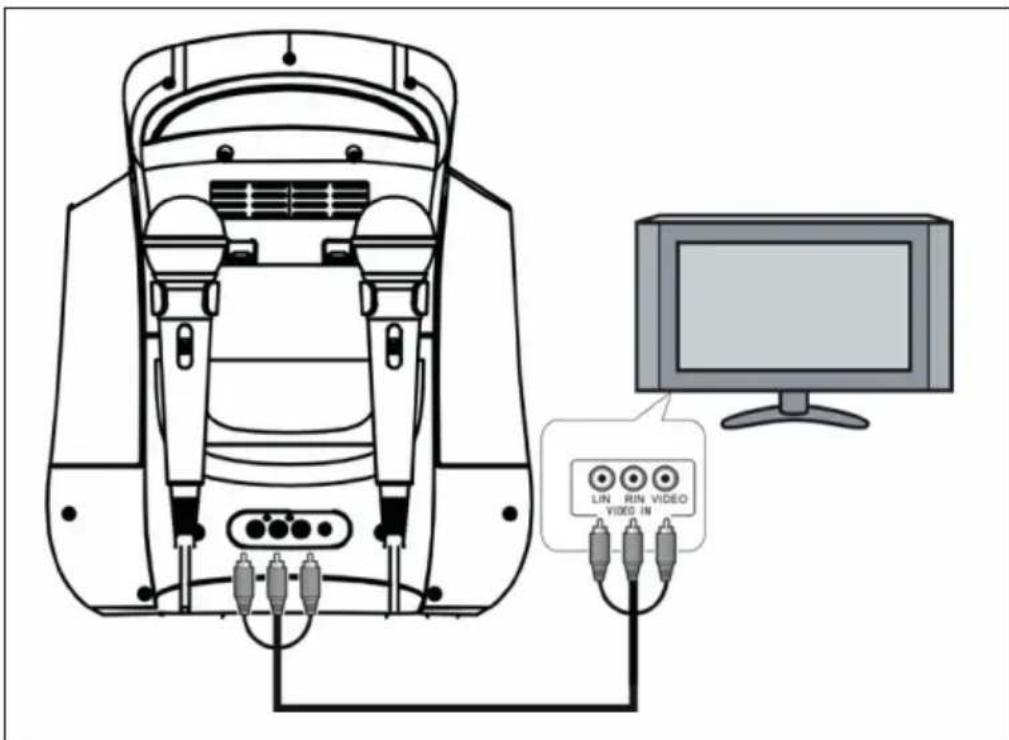
Connect the supplied RCA cable (white-red-yellow) to the corresponding coloured connectors on the back of the unit and connect to the respective video and audio inputs of the same colour on your TV set.
You can also send the audio signal to your stereo system - to do this, connect the yellow video cable to the TV set and the (red and white) audio cables to a free (AUX) input on your stereo system.
To display the song texts on the TV screen for a CD+G, you must select the corresponding input (Video-In) on the TV set. If your TV set does not have such a video input, you can solve this with an RF modulator available in specialised shops, which is connected between the antenna cable of the TV set and the video output of the karaoke system.
Please read the operating instructions of your TV set for further instructions on connecting external video devices.
text_image
LIN RUN VIDEO VIDEO INConnecting the microphone
1 Plug the supplied microphone into the Mic1 or Mic2 connector on the bottom left of the unit. The microphone is now mixed with the music from CD/CD+G/USB.
2 Switch on the microphone before singing and always switch it off after singing.
Note: Do not tap the microphone while it is in use and do not drop it. It could be permanently damaged. Do not grasp the microphone by the cable and do not swing it around by the cable.
BUTTONS AND FUNCTIONS
CD/USB selection slider
- Slide the slider to CD to play a CD, MP3 CD, CD+G, CD-R or CD-RW.
- Slide the control to USB to play MP3 tracks from a USB stick.
- As soon as an AUX cable is plugged in, the unit automatically switches to AUX mode. You can connect other music sources such as iPods, MP3 players or other devices via the AUX connection. Use the headphone output on your external device.
Light show on/off
- Slide the slider to ON to switch on the light show.
- Slide the slider to OFF to switch off the light show.
Switching the device on/off
- To turn the appliance on, press the power button.
- Press and hold the power button to turn off the device.
Play/pause button ▶II
- Press the button once to play a track from CD/CD+G/CD-R/CD-RW or an MP3 file from USB. The play/pause indicator will come on.
- During playback, press the button again to pause the track. The play/pause display will flash.
Stop button ■
During playback, press the button to stop the track.
Forward button ▶▶▶
During playback, press the button to skip ahead one track.
Back button
During playback, press the button to skip back one track.
Repeat button
- Press the button once while playing CD/CD+G/MP3 to repeat a track. The repeat indicator will flash in the display.
- Press the button again to repeat all tracks. The repeat indicator will light up continuously in the display.
- Press the button again to stop the repeat function. The repeat indicator will go out in the display.
Programme function
This function allows tracks to be played in a specific order. This function can only be programmed if no title is currently playing.
1 Press the programme button once. Programme number 01 is displayed and the programme indicator flashes.
2 Press the forward/back button to select a title for the programme.
3 Press the programme button again to save the title. The programme number 02 is displayed.
4 Repeat steps 2-3 to save up to 20 (CD)/99 (MP3) tracks. As soon as you have
5 saved the 20th track (CD)/99th track (MP3), the display will show [FU], indicating that the programme memory is full.
6 Press the Play button to accept the selection and play the programme. Press Stop during playback to pause the programme.
7 In programme mode, you can use the repeat function to repeat one or all tracks.
8 As soon as all titles of the programme have been played once, the player stops. To play the programme again, press the Play/Pause button.
9 To cancel the programme, press the Stop button 2x during playback, or
10 open the CD door.
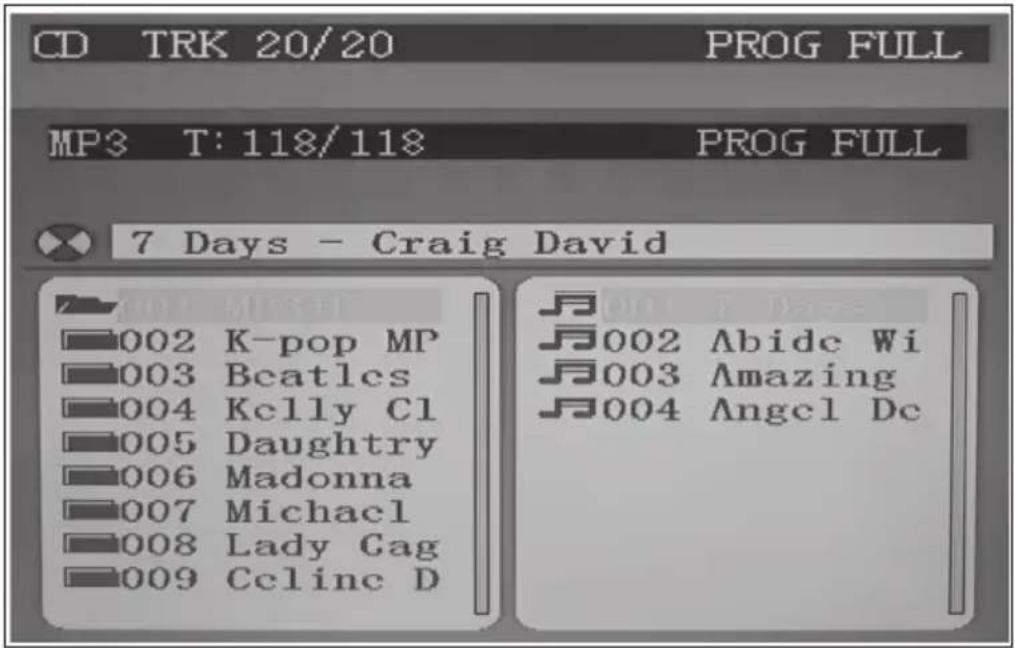
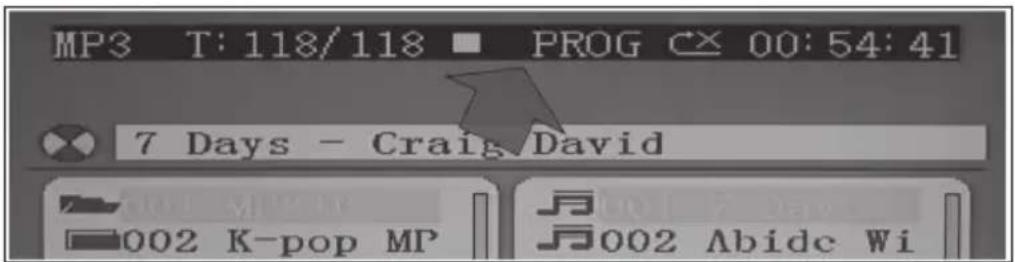
You can programme up to 20 (CD)/99 (MP3) tracks. If you try to programme more than 20 (CD)/99 (MP3) tracks, [FU] or [PROG FULL] will appear in the display.
text_image
CD TRK 20/20 PROG FULL MP3 T: 118/118 PROG FULL 7 Days - Craig David 002 K-pop MP 003 Beatles 004 Kelly Cl 005 Daughtry 006 Madonna 007 Michacl 008 Lady Cag 009 Celine D 002 Abide Wi 003 Amazing 004 Angel DcWhen you have finished programming the programme, press the play button to play it. The programme indicator and the display light up. During playback, you can use the forward/backward button to skip forward or backward one track.
text_image
MP3 T: 118/118 PROG C× 00:54:41 7 Days - Craig David 002 K-pop MP 002 Abide WiTo stop the programme, press the stop button once. The programme indicator and the display will stay on. Press the Play button to continue playing.
Note: If you press the Stop button twice, you stop the programme and permanently delete the programme list. The programme display, the display and the TV picture will go out.
You can view the programme list by pressing the forward or back button in stop mode.
Inputs and functions
- DC input: Connect the plug of the supplied power supply unit here.
- USB input: Connect a USB memory (FAT32 formatted) up to 32 GB here to play MP3 files.
- AUX input: Connect a stereo audio cable with 3.5 mm jack plug here to play MP3 files from external devices.
- Mic1/Mic2 connector: Connect the microphone to one of the connectors.
Inputs and functions
- Video output: Connect the yellow video cable to the TV set to connect the karaoke system to the TV.
- Audio outputs: Connect the red and white cable to the corresponding audio inputs on your TV.
- Speaker: The unit has a built-in speaker.
Karaoke functions
- Master volume: Turn this control to set the desired volume for the built-in speaker.
- Balance control: Turn this control to set the optimum balance between voice and music while playing a CD+G. Turn this knob to adjust the right/left balance while playing a stereo track from CD or MP3.
- AVC (Automatic Voice Control) control: Turn this control to set the desired sensitivity. Turning the knob clockwise increases sensitivity. Vocals on multiplex recordings (CD+G) become quieter as soon as the user sings into the microphone. When the user stops singing, the vocals automatically become louder again.
- Microphone volume: Use this control to adjust the microphone volume while singing. The volume is always set simultaneously for both microphones.
- Echo control: Turn the control clockwise to add a slight reverb effect to the voice.
MUSIC PLAYBACK VIA CD+G, USB, AUX-IN
Before starting
- Connect the unit to a compatible TV using the AV cable.
- Plug the microphone into the Mic1 or Mic2 connector.
Note: Make sure that the switch on the microphone is always in the OFF position before connecting to avoid feedback.
Singing to CD/CD+g/CD-R/CD-RW or USB tracks
1 Slide the function slider to [CD].
2 Insert the CD as follows: Grasp the CD door at the top edge and pull gently to open it. The display goes on and shows [OP]. Insert the CD vertically, with the printed side facing you. Close the door gently. The unit will start reading the CD. The display shows the total number of titles. If no CD is loaded or the CD is not recognised, the display shows [NO]. When the unit detects and plays a CD+G disc, the CDG indicator lights up in the display.
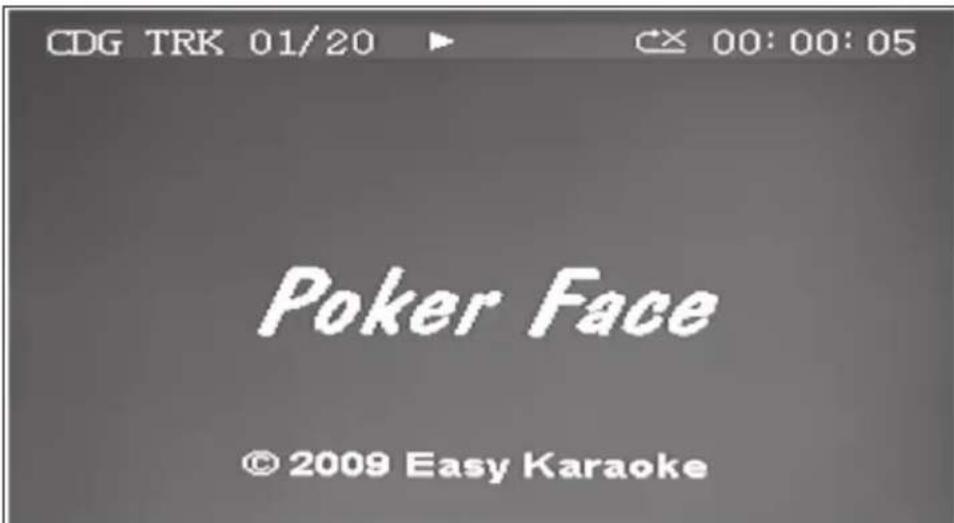
3 Press the Play/Pause button to play the CD. If the unit recognises a CD+G disc, a screen similar to this one will be displayed:
text_image
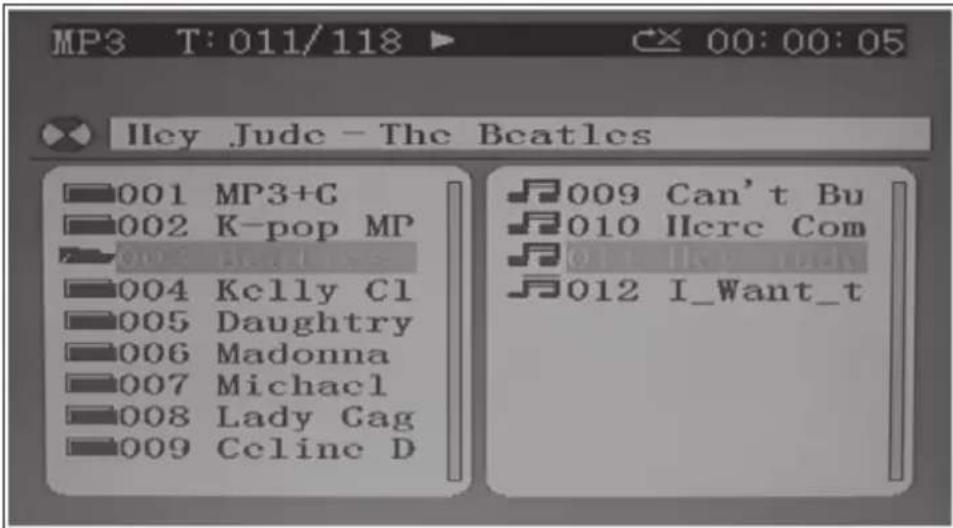
CDG TRK 01/20 Poker Face © 2009 Easy KaraokeIf you are playing CD-R/CD-RW or MP3 files via USB, this screen is displayed:
text_image
MP3 T:011/118 00:00:05 Hey Jude - The Beatles 001 MP3+C 002 K-pop MP 003 E-LL SS 004 Kelly Cl 005 Daughtry 006 Madonna 007 Michael 008 Lady Gag 009 Celine D 009 Can't Bu 010 Here Com 011 I-VI LADY 012 I_Want_tIn the top menu line you will see the display [T: 011/118], which means: Track 11 of a total of 118 tracks is being played.
If the number of tracks on CD/USB is more than 100, the first two numbers of the track number are replaced by the letters A to F (a=10, b=11, c=12, d=13, e=14, f=15). For example, if the CD contains 118 tracks, the display will show [b8] for track 118. If the number of tracks is more than 159, the display shows [99] from track 160. If you have connected the unit to your TV, the complete content is displayed. Use the Forward, Reverse, Play/Pause and Stop buttons just as you would in CD mode.
4 Use the forward/backward button to select the desired track.
5 Press the Play button to play the track.
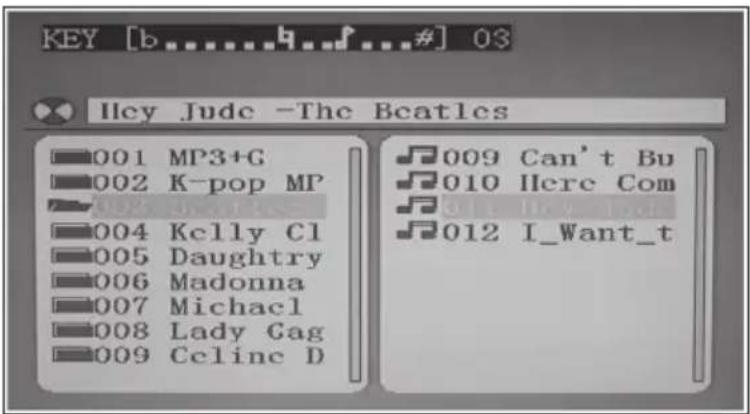
6 Turn on the microphone and start singing. If necessary, adjust the volume with the master control, the microphone volume control and the volume control on the remote control.
text_image
KEY [b....#] 03 Hey Jude -The Beatles 001 MP3+G 002 K-pop MP 003 ... It's 004 Kelly Cl 005 Daughtry 006 Madonna 007 Michael 008 Lady Gag 009 Celine D 009 Can't Bu 010 Here Com 011 I_Want_tImportant notes on playing CDs
- The CD drive can read all commercial CDs without any problems. The unit also reads self-burned CD-R/CD-RW, but it may take up to 10 seconds to start playback. If playback does not start, it is probably due to the quality of the CD-R/CD-RW and/or the compatibility of the CD compilation software. The manufacturer is not responsible for the playback quality of CD-R/CD-RW discs. Do not attach labels to both sides of the CD-R/ CD-RW, this will cause malfunction.
- Do not use excessive force when pressing the CD door while a CD is playing.
- Do not insert anything other than compact discs into the disc tray. Foreign objects can damage the unit.
- Only place one disc in the disc tray at a time.
Singing along with music from AUX devices
The unit allows singing to music from external AUX devices such as iPods, MP3 players or other digital output devices.
1 Connect the headphone output of your external device to the AUX input on the karaoke system. NOTE: The required cable is not included in the scope of delivery.
2 Switch on the karaoke system and it automatically switches to AUX mode as soon as an external device is connected via the AUX input.
3 Connect the headphone output of your external audio device (CD player, MP3 player, iPhone, iPod, etc.) to the unit via an audio cable. NOTE: The audio cable is not included in the scope of delivery.
4 Select the desired title on the external device. Set the desired volume on the external device if the device is connected to the karaoke system via the headphone output.
5 Turn on the microphone and start singing. Adjust the volume using the master control or the microphone volume control.
6 Use the balance and echo controls to adjust the sound to your liking.
7 Switch off all devices and the microphone after use.
Note: As soon as you connect an AUX device, the karaoke system automatically switches to AUX mode, regardless of which function the sliders are set to. Remove the AUX cable after use to switch back to CD/USB mode.
Using the device as a speaker
You can also use the unit as a pure speaker. To avoid feedback, do not hold the microphone too close to the speaker during use.
1 Stop playback from CD or USB and remove the 3.5 mm jack plug if one is connected to the AUX output.
2 Turn on the microphone and start. Adjust the volume using the master control or the microphone volume control.
LED light show
- The light show inside the speaker and in the lower corners of the unit automatically reacts to the music that is currently playing.
- To start the light show, slide the light show slider to ON.
- Slide the slider to OFF to switch off the light show.
CLEANING AND CARE
Please note: switch off the unit before cleaning. Disconnect the power supply unit and/or remove the batteries.
- Never immerse the device in water or other liquids to clean it.
- Clean the surface of the unit with a soft, slightly damp cloth. Ensure that no water gets into the unit.
- Never use abrasive cleaners or hard objects such as scouring pads cleaning.
- Dry the unit carefully after cleaning.
- Store the unit in a cool, dry place.
TROUBLESHOOTING
| Problem Potential cause Possible solution | ||
| The unit does not turn on when you press the power button. | The power supply unit is not connected or the plug is not connected to the socket. | Connect the power supply and insert the plug into the socket. |
| The unit does not switch on although the plug is inserted. | The socket has no power. | Check if the socket is working or use another socket. |
| No sound. The master volume is set to minimum. | Turn up the master volume. | |
| Turn up the volume on the TV or external device. | ||
| Turn up the volume on the TV or external device. | ||
| Turn up the volume on the TV or external device. | ||
| Turn up the volume on the TV or external device. | ||
| The CD player does not work or the display shows [No]. | The CD was inserted the wrong way round. | Insert the CD correctly. |
| The CD is dirty. Clean the CD with a soft cloth. | Insert the CD correctly. | |
| The CD is scratched. Use another CD. | Insert the CD correctly. | |
| The CD is warped. Use another CD. | Insert the CD correctly. | |
| No standard CD has been inserted. | Only use compatible CDs. | |
| The lens is dirty. Clean the lens with a CD lens cleaner. | Only use compatible CDs. | |
| Moisture has formed in the CD deck. | Only use compatible CDs. | |
| The karaoke system must be reset. | Only use compatible CDs. | |
| No sound while audio is being played via TV or stereo system. | The wrong audio source was selected on the TV or the stereo system. | Select the correct audio source on the TV or stereo system. |
| The unit has not been connected to the TV properly. | Select the AV input when connecting the karaoke system to the TV or stereo system. | |
| No lyrics appear on the TV screen. | The video cable is not properly attached to the TV. | Connect the video cable to the video output of the karaoke system and the video input on the TV. |
| The video or AV input was not selected as the source on the TV. | Set the input source on the TV to video or AV input. | |
| The TV does not have a video input. | Connect the video output on the unit to an RF modulator and connect it to the TV. | |
| A CD+G has been inserted but the CDG indicator does not light up. | Check if it is a CD+G or clean it. | |
| No picture appears on the TV screen. | The source was not set correctly on the TV. | Select the AV input on the TV as the source. |
| The singing from the microphone cannot be heard. | The volume is set incorrectly. | Adjust the microphone volume. |
| The microphone is off. Turn on the microphone. | ||
| The microphone is not plugged in properly. | Insert the plug of the microphone firmly into one of the microphone inputs on the unit. | |
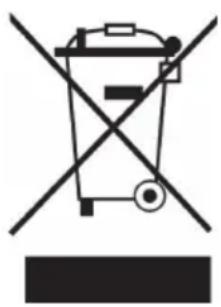
DISPOSAL CONSIDERATIONS
natural_image
Symbol of a trash bin crossed with a diagonal line, representing no waste or discharge (no text or labels)If there is a legal regulation for the disposal of electrical and electronic devices in your country, this symbol on the product or on the packaging indicates that this product must not be disposed of with household waste. Instead, it must be taken to a collection point for the recycling of electrical and electronic equipment. By disposing of it in accordance with the rules, you are protecting the environment and the health of your fellow human beings from negative consequences. For information about the recycling and disposal of this product, please contact your local authority or your household waste disposal service.
DECLARATION OF CONFORMITY
CE UK CA
Manufacturer:
Chal-Tec GmbH, Wallstrasse 16, 10179 Berlin, Germany.
Importer for Great Britain:
Berlin Brands Group UK Ltd PO Box 1145 Oxford, OX1 9UW United Kingdom
Hereby, Chal-Tec GmbH declares that the radio equipment type Kara Illumina is in compliance with Directive 2014/53/EU. The full text of the EU declaration of conformity is available at the following internet address: use.berlin/10030549
For Great Britain: Hereby, Chal-Tec GmbH declares that the radio equipment type Kara Illumina is in compliance with the relevant statutory requirements. The full text of the declaration of conformity is available at the following internet address: use.berlin/10030549
Estimado cliente:
text_image
QR code image containing encoded data, no visible human-readable textÍNDICE
natural_image
Technical line drawing of a device rear panel connected to a power outlet via cable (no text or symbols)text_image
CDG TRK 01/20 Poker Face © 2009 Easy Karaokenatural_image
Symbol of a trash bin crossed with a diagonal line, no text or numbers presentBerlin Brands Group UK Ltd
PO Box 1145
Oxford, OX1 9UW
Reino Unido
Cher client, chère cliente,
text_image
QR code image containing encoded data, no visible human-readable textSOMMAIRE
natural_image
Technical line drawing of a device with labeled components and wiring (no text or symbols)Touche PLAY/PAUSE ▶II
text_image
CDG TRK 01/20 Poker Face © 2009 Easy Karaokenatural_image
Symbol of a trash bin crossed out by a diagonal line, with no text or labels present.DÉCLARATION DE CONFORMITÉ

text_image
CE UK CAFabricant :
Chal-Tec GmbH, Wallstraße 16, 10179 Berlin, Allemagne.
Berlin Brands Group UK Ltd
PO Box 1145
Oxford, OX1 9UW
United Kingdom
text_image
QR code image containing encoded data, no visible human-readable textINDICE
natural_image
Technical line drawing of a device with labeled components and wiring (no text or symbols)Show luminoso on/off
text_image
CDG TRK 01/20 Poker Face © 2009 Easy Karaokenatural_image
Symbol of a trash bin crossed with a diagonal line, representing no waste or discharge (no text or labels)Berlin Brands Group UK Ltd
PO Box 1145
Oxford, OX1 9UW
United Kingdom