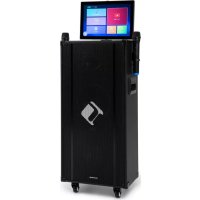
Pro Spin 10 - Karaoke system Auna - Free user manual and instructions
Find the device manual for free Pro Spin 10 Auna in PDF.


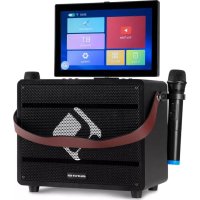
| Product type | Karaoke system with touch screen |
| Brand | Auna |
| Model | Pro Spin 10 |
| Screen | Touch screen 14.1 inches |
| Connectivity | WiFi, Bluetooth 2.1+EDR, USB, TF, HDMI |
| Audio inputs | AUX IN, 2 x MIC IN, 2 x USB, 1 x TF |
| Audio outputs | AUX OUT, HDMI |
| Included microphones | 2 wireless UHF microphones (863-865 MHz, range 10-15 m) |
| Power supply | Mains 100-220 V AC or 12 V DC battery |
| Speakers | Subwoofer, tweeter, wooden enclosure |
| Key functions | Micro priority, adjustable reverb, treble/bass control, vocal accompaniment |
| Media playback | USB/SD/TF up to 128 GB (NTFS), Bluetooth streaming |
| Remote control | Included with shortcut keys |
| Included accessories | 2 UHF microphones, remote control, power cable |
| Care and cleaning | Clean with a dry cloth, avoid liquids |
| Safety | Surge protection, lightning, do not open, maintenance by qualified personnel |
| Spare parts and repairability | Use only parts approved by the manufacturer |
| General information | Suitable for children 8+ under adult supervision, recycling via collection points |
Frequently Asked Questions - Pro Spin 10 Auna
User questions about Pro Spin 10 Auna
0 question about this device. Answer the ones you know or ask your own.
Ask a new question about this device
Download the instructions for your Karaoke system in PDF format for free! Find your manual Pro Spin 10 - Auna and take your electronic device back in hand. On this page are published all the documents necessary for the use of your device. Pro Spin 10 by Auna.
USER MANUAL Pro Spin 10 Auna
INHALTSVERZEICHNIS

natural_image
Symbol of a trash bin with crossed lines and a blank rectangular base (no text or labels)Congratulations on purchasing this device. Please read the following instructions carefully and follow them to prevent possible damages. We assume no liability for damage caused by disregard of the instructions and improper use. Scan the QR code to get access to the latest user manual and more product information.
CONTENT
Safety Instructions 18
Device Overview 19
Function Keys and Connections 20
Remote Control 21
Installation and Operation 22
Settings 22
Using the Wireless Microphone and Precautions 25
Troubleshooting 25
Disposal Considerations 27
Declaration of Conformity 27
TECHNICAL DATA
| Item number 10040307 | |
| Power supply (battery) 12 V | |
| Functions USB / SD / TF / BT | |
| Accessories 2 UHF microphones | |
| Max. microphone rangeUHF frequencyMicrophone transmitting power | 10-15 m863–865 MHz10 mv |
| BT frequencyRadio-frequency power | 2,402–2,48 GHz4 dBm |
| Screen size 14,1 inch |
SAFETY INSTRUCTIONS
General information
- Lightning - If you are not going to use the device for a long time or if there is a storm, disconnect the plug from the electrical outlet and disconnect the device from the antenna connector. This will avoid damage to the product that may be caused by lightning or overvoltage.
- Overload - Do not overload power outlets, extension cords, or built-in power outlets, as this may result in a fire or electric shock.
- Foreign objects and liquid - Never push objects of any kind through openings in the device as they may touch dangerous voltage points or short out parts, which could result in a fire or electric shock. Never spill liquids of any kind on the device.
- Repairs and maintenance - Do not attempt to service this product yourself, as opening or removing covers will expose you to dangerous voltages or other hazards. Leave all maintenance to qualified service personnel.
- Damage requiring service - Disconnect the power plug from the outlet and consult a qualified specialist if any of the following conditions occur:
a) If the power cord or plug is damaged.
b) If liquid has been spilled or objects have fallen onto the product.
c) If the product has been exposed to rain or water.
d) If the product has been dropped or damaged.
e) If the product has a markedly reduced performance.
- Replacement parts - When replacement parts are required, make sure that the service professional who replaces the parts only uses replacement parts that have been approved by the manufacturer or that have the same characteristics as the original part. Unauthorized replacement may result in fire, electric shock or other hazards.
- Heat - Do not place the unit near heat sources such as radiators, heaters, stoves or other products (including amplifiers).
Note: This device may be only used by children 8 years old or older and persons with limited physical, sensory and mental capabilities and / or lack of experience and knowledge, provided that they have been instructed in use of the device by a responsible person who understands the associated risks.
DEVICE OVERVIEW

| 1 | Touch screen | 5 | Subwoofer |
| 2 | 14.1 inch screen | 6 | Wooden cabinet |
| 3 | Controls | 7 | Metal mesh |
| 4 | Tweeter | 8 | Metal casters |
FUNCTION KEYS AND CONNECTIONS
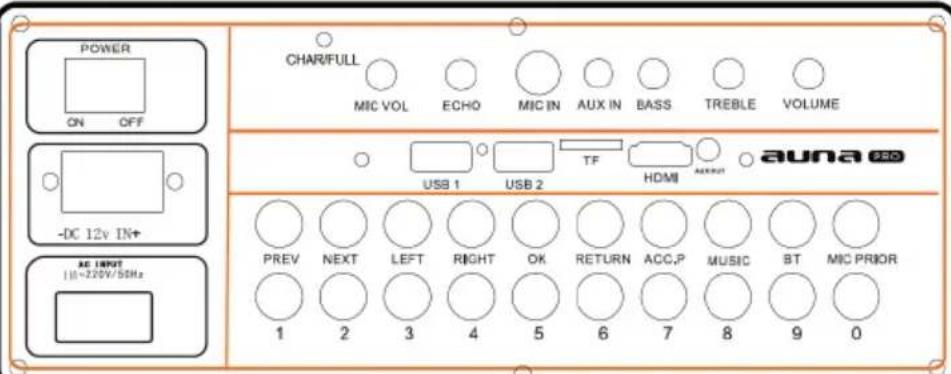 | |
| POWER ON/OFF - On/Off button | MIC PRIOR - Microphone fade-out function on/off |
| DC 12V IN - Extra battery | MIC VOL - Microphone volume control, microphone volume adjustment |
| PREV - Previous title | ECHO - Microphone reverb, adjusting the microphone hall setting |
| NEXT - Next title | MIC IN - Microphone connection, cable microphone connection |
| LEFT/ RIGHT - To the left/right | AUX IN - Audio input for connecting external devices; available on some models |
| OK - Confirm or open selected option | BASS - Turn clockwise: increase bass; Turn counterclockwise: reduce bass |
| RETURN - Return to previous page TREBLE | - Treble setting |
| ACC.P - Music Track function for Vocal accompaniment | VOLUME - Main volume control |
| MUSIC - Music playback | USB 1 & 2 - USB port; video or audio files can be played back; supports USB media up to 128 GB in NTFS format |
| BT - Activate the BT mode; a mobile BT device can be connected and the music of the device can be played back via BT | TF - Insert a TF card to play video or audio files; the unit supports TF cards up to 128 GB |
| AC INPUT 100-220 V - mains connection HDMI - HDMI connector | |
| 0-9 - Number buttons to select a title | AUX OUT - Audio output for connecting external devices |
| CHAR/FULL - Signal LED for charging status | |
REMOTE CONTROL

| 1 | ON/OFF - Turn LCD screen on/off (standby) | 7 SET - System settings | |
| 2 | APP - Open multiple application pages | 8 | VOD - Video on Demand (YouTube) |
| 3 | PREV (previous title) / NEXT (next title) | 9 MEDIA - Multimedia Player | |
| 4 MENU - Menu settings 10 UP - High and previous title | |||
| 5 HOME - Home page call 11 RETURN - Back | |||
| 6 | MICROPHONE PRIORITY - microphone priority | 12 DOWN - Down and next title | |
INSTALLATION AND OPERATION
WLAN setting
Press the SET button on the remote control. In the network settings, locate the wireless network you want to connect to and then enter the password.
Media Playback
1 For media playback, press the MULTIMEDIA speed dial button on the remote control.
2 Select the playback media: Local memory, USB device, memory card, etc.
Establishing a BT connection
1 Press the BT key to activate the BT mode.
2 Activate BT on the external BT device that you want to connect to your device. Search the device list of the external device for „Pro Spin 10" to connect the external BT device to your device. If the connection cannot be established, restart the device or try again.
3 After the BT connection has been successfully established, you can play music on the external device, which will then be played back via the device. To ensure that the connection of the music signal remains stable, make sure that the external device is within the BT range.
4 This device can be used with iPads, iPhone, Samsung, HTC, Huawei, Xiaomi, etc. (2.1*DER version). A2DP stereo playback is supported.
5 The BT range is approximately 10 meters.
SETTINGS
Press the SET button on the remote control. Select the setting screen.
General Settings
- Language selection: Press the OK button to select Chinese or English as the output language.
- Product Information: Displays the current external hard disk capacity.
- Factory Default: Select „Yes“ to reset the unit to factory defaults.
- Exit: Exits the previous menu.

Figure 1: Language selection

Figure 2: Device information

Figure 3: Resetting to factory settings
Energy Setting
- Backlight: Press the OK button to adjust the backlight of the screen (note: the brighter the screen, the higher the energy consumption).
- Back: Press the RETURN button to exit the current setting and return to the previous menu item.
USING THE WIRELESS MICROPHONE AND PRECAUTIONS
1 Open the battery compartment, insert the battery and observe the polarity.
2 Set the microphone switch to "ON". If the battery light does not blink or is permanently on, check that the battery is empty or that the batteries are inserted the wrong way round in the battery compartment.
3 Adjust the microphone volume. While singing, adjust the volume on the microphone volume control for best results.
TROUBLESHOOTING
| Problem Possible cause and solution | |
| The next track cannot be played back. | The repeat function is set to repeat only the current track. Set the function to repeat all tracks or activate random playback. |
| The name of a track is only partially displayed. | This is because unavailable characters are included in the title name. |
| The unit turns off automatically. The battery is empty and must be charged or replaced. | |
| The remote control does not work. Align the remote control so that the illuminated end of the remote control is facing the receiver on the unit and replace the remote control batteries if necessary. | |
| There's no sound coming from the speakers. | The volume is off or too low, turn it on or turn the volume up. |
| No sound is heard while pictures are displayed. | The screen sound has been turned off with the remote control. Check that the audio and video output is turned on. |
| The original voice reproduction cannot be deactivated during karaoke singing. | Press the TRACK button on the remote control to turn off the original voice. The original voice may not be deactivated because the selected video file does not support it. |
| No sound reproduction via the wireless microphone | Turn on the wireless microphone or replace the wireless microphone batteries. |
| The name of a title is displayed in characters. | The original title name is traditional Chinese or contains characters from other countries. Only simplified Chinese or English titles can be displayed. |
| The next track is not played automatically. | The "Play a title" mode has been activated. Deactivate it. |
| There is no sound during BT playback. | Turn on the unit and set the maximum volume of the external BT unit. |
| During karaoke singing, only the microphone has sound. | The MICROPHONE PRIORITY function has been activated. Deactivate it. |
| No connection to the WLAN can be established. | Check the distance between the device and the wireless router and reduce it if necessary or restart the router. |
DISPOSAL CONSIDERATIONS

natural_image
Symbol of a trash bin crossed with a diagonal line, no text or labels presentIf there is a legal regulation for the disposal of electrical and electronic devices in your country, this symbol on the product or on the packaging indicates that this product must not be disposed of with household waste. Instead, it must be taken to a collection point for the recycling of electrical and electronic equipment. By disposing of it in accordance with the rules, you are protecting the environment and the health of your fellow human beings from negative consequences. For information about the recycling and disposal of this product, please contact your local authority or your household waste disposal service.
This product contains batteries. If there is a legal regulation for the disposal of batteries in your country, the batteries must not be disposed of with household waste. Find out about local regulations for disposing of batteries. By disposing of them in accordance with the rules, you are protecting the environment and the health of your fellow human beings from negative consequences.
DECLARATION OF CONFORMITY

Manufacturer:
Chal-Tec GmbH, Wallstrasse 16, 10179 Berlin, Germany.
Importer for Great Britain:
Berlin Brands Group UK Ltd
PO Box 1145
Oxford, OX1 9UW
United Kingdom
Hereby, Chal-Tec GmbH declares that the radio equipment type [designation of type of radio equipment] is in compliance with Directive 2014/53/EU. The full text of the EU declaration of conformity is available at the following internet address: use.berlin/10040307
For Great Britain: Hereby, Chal-Tec GmbH declares that the radio equipment type Pro Spin 10 is in compliance with the relevant statutory requirements. The full text of the declaration of conformity is available at the following internet address: use.berlin/10040307
Estimado cliente:
ÍNDICE
natural_image
Symbol of a trash bin crossed with a diagonal line and a horizontal bar below (no text or labels)Berlin Brands Group UK Ltd
PO Box 1145
Oxford, OX1 9UW
United Kingdom
SOMMAIRE

natural_image
Symbol of a trash bin with crossed lines indicating no waste or discharge, and a solid black rectangle below (no text or labels)DÉCLARATION DE CONFORMITÉ

Fabricant : Chal-Tec GmbH, Wallstraße 16, 10179 Berlin, Allemagne.
Berlin Brands Group UK Ltd
PO Box 1145
Oxford, OX1 9UW
United Kingdom
INDICE

natural_image
Symbol of a trash bin with crossed lines indicating no waste or discharge, and a solid black rectangle below (no text or labels)Berlin Brands Group UK Ltd
PO Box 1145
Oxford, OX1 9UW
United Kingdom
natural_image
Abstract white logo design on dark background, resembling stylized letter 'S' or wave form (no text or symbols)
- INHALTSVERZEICHNIS
- CONTENT
- SAFETY INSTRUCTIONS
- General information
- DEVICE OVERVIEW
- FUNCTION KEYS AND CONNECTIONS
- REMOTE CONTROL
- INSTALLATION AND OPERATION
- WLAN setting
- Media Playback
- Establishing a BT connection
- SETTINGS
- General Settings
- Energy Setting
- USING THE WIRELESS MICROPHONE AND PRECAUTIONS
- TROUBLESHOOTING
- DISPOSAL CONSIDERATIONS
- DECLARATION OF CONFORMITY
- Manufacturer:
- Importer for Great Britain:
- Estimado cliente:
- ÍNDICE
- SOMMAIRE
- DÉCLARATION DE CONFORMITÉ
- INDICE
Brand : Auna
Model : Pro Spin 10
Category : Karaoke system