Fit Track 5900 - Sports Watch HAMA - Free user manual and instructions
Find the device manual for free Fit Track 5900 HAMA in PDF.



| Product type | Sports watch / Fitness tracker |
| Brand | Hama |
| Model | Fit Track 5900 |
| Dimensions (L x W x H) | 260 x 35 x 10 mm |
| Weight | 39 g |
| Display type | 1.3-inch LCD |
| Battery | Lithium polymer, 220 mAh / 3.8 V |
| Protection | IP68 (waterproof up to 1.5 meters for 30 minutes) |
| Connectivity | Bluetooth 4.0 |
| Sensors | Accelerometer, optical heart rate sensor |
| Main functions | Step counter, distance, calories burned, heart rate, sleep, 22 sports, notifications, alarm, hydration reminder, movement reminder, remote camera trigger |
| Compatible app | Hama FIT (iOS 8.1+ and Android 5.0+) |
| Package contents | Fit Track 5900 fitness tracker, USB charging cable, user manual |
| Charging | Via USB cable, charging time approx. 120 minutes |
| Usage | Domestic use, not medical |
| Care and cleaning | Slightly damp lint-free cloth, avoid harsh detergents and liquid penetration |
| Safety | Do not open, do not expose to heat or moisture, do not use near a pacemaker without medical advice |
| Warranty | Excluded in case of improper installation, assembly or use |
Frequently Asked Questions - Fit Track 5900 HAMA
User questions about Fit Track 5900 HAMA
0 question about this device. Answer the ones you know or ask your own.
Ask a new question about this device
Download the instructions for your Sports Watch in PDF format for free! Find your manual Fit Track 5900 - HAMA and take your electronic device back in hand. On this page are published all the documents necessary for the use of your device. Fit Track 5900 by HAMA.
USER MANUAL Fit Track 5900 HAMA
withHeartRateMonitorFit
Fitness-TrackermitPulsmesser
Operating Instructions
Bedienungsanleitung
Moded'emploi
Gebruiksaanwijzing
ThankyouforchoosingaHamaproduct.
Take your time and read the following instructions and information completely. Please keep these instructions in a safeplaceforfuture reference.
Your new fitness tracker is the ideal companion for a healthy lifestyle and will motivate you to be active throughout the day. As well as displaying the time and date, it also collects data about the number of steps you have taken,
yourheartrateandthecaloriesyouhaveburned.Wirelessconnectionvia Bluetooth® toyoursmartphoneenables you to document the data on the associated app and therefore constantly keep track of your success. Check here whenyouhaveneachedyourpersonalfitnessgoal!
1.Explanationof warningsymbolsandnotes
Warning

This symbol is used to indicate safety instructions or to draw your attention to specific hazards and risks.
Note

Thisssymbolisusedtoindicateadditionalinformationorimportantnotes.
2.Packagecontents
-FitTrack5900"fitnesstracker
-1 U SBchargingcable
-Operating Instructions
3.Safetyinstructions
- Thisproductisintendedforprivate, non-commercialuseonly.
- Use the product only for the intended purpose.
- Protect the product from dirt, moisture and overheating and use it in dry environments only.
- Do not use the product in the immediate vicinity of heaters, other heat sources or in direct sunlight.
- Do not operate the product outside the power limits specified in the technical data.
- Do not use the product in areas in which electronic products are not permitted.
- Thebatteryisintegratedandcannotberemoved.
- Donotopenthedevicerecontinuetooperatiteitifitbecomesdamaged.
- Do not attempt to service or repair the product yourself. Leave any and all service work to qualified experts.
- Donotdroptheproductanddonotexposeittoanymajorshocks.
- Do not modify the product in any way. Doing so voids the warranty.
- Dispos of packaging material immediately in accordance with the locally applicable regulations.
- Donotincineratethebatteryortheproduct.
- Donottamperwithordamage/heat/disassemblethebatteries/rechargeablebatteries.
- While driving a car or using sports equipment, do not allow yourself to be distracted by your product and keep an eye on the traffic situation and your surroundings.
- Consult your doctor before starting an exercise programme.
- Always be aware of your body's response when you exercise, and speak to your doctor in an emergency.
- Consult your doctor if you have a medical condition and wish to use the product.
- This is a consumer product, not a medical device. Hence, it is not intended for the diagnosis, therapy, cure or prevention of illnesses.
- Prolonged contact with the skin can lead to skin irritations and allergies. Consult a doctor if symptoms persist.
- This product is not a toy. It contains swallowable small parts that pose a suffocation hazard.
Warning- cardiacpacemakers

This product generates magnetic fields. Persons with a cardiac pacemaker should consult a doctor before using thisproduct,asthepacemaker'sproperfunctioncouldbeaffected.
Information- Flying

- This product is a constant transmitter of radio signals. Please be aware that carrying and using radio transmitters during certain phases of the flight (e.g. take-off / landing) is not permitted for safety reasons.
- Check with your airline before you fly whether your fitness tracker can be taken on board. If in doubt, leave the productathome.
Warning - rechargeable battery

- O nlyusesuitablechargingdevicesorUSBconnectionstochargetheproduct.
- Do not use defective chargers or USB ports and do not attempt to repair them.
- Do not overcharge the product or allow the battery to completely discharge.
- Avoid storing, charging and using in extreme temperatures and at extremely low atmospheric pressures (such as a highhaltitudes).
4. Firststepswiththe"FitTrack5900"fitnesstracker
4.1Charging
- Charge your fitness tracker fully before using it for the first time.
- Connect the charging cable to a free USB port on your computer or USB charger and the fitness tracker's chargingcontact[4].
- To do this, consult the operating instructions for the USB charger you are using.
Note

- The charging time for a full battery charge is around 120 minutes. As soon as the battery shown in the display is fully charged, the charging process is complete and you can disconnect the fitness tracker from the charging cable.
4.2Puttingandswitchingon
- Place the fitness tracker around your wrist and fasten it using the closure.
- Hold the sensor button [1] down for 3 seconds to start the fitness tracker.
Note

- The position on your wrist does not matter for the fitness tracker's function.
- The fitness tracker can be worn on either wrist. It is also possible to attach it both above and below the wrist.
4.3PowerOff
- To switch the fitness tracker off, switch to menu item [Function] and then in the sub-menu go to the item [Power Off]. Then press the sensor button [1] for 3 seconds.
4.40Operation-M enustructure
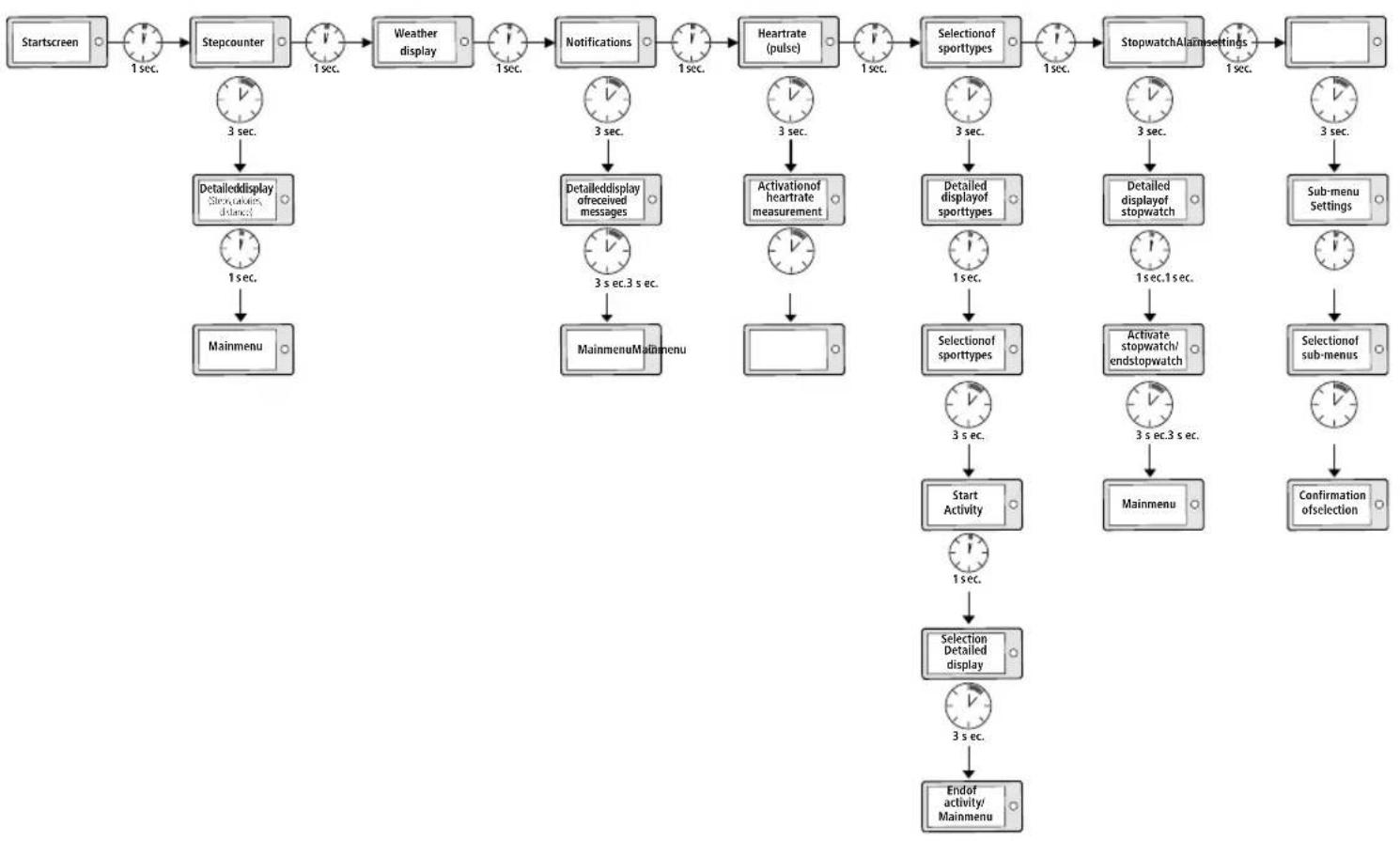
- Press the sensor button [1] to activate the start screen and to switch between the displays in the sequence shown.
- The sub-menus are accessed by pressing and holding the sensor button [1] for 3 seconds (see illustration below).
Note

- This graphic is a summary of all of the menu items that can be displayed on the fitness tracker and the sequenceofdisplayswhenshipped.
5.Settingupthefitnessstracker
5.1 DownloadingtheHamaFITapp
Note
Thefollowingoperatingsystemsare supported:
iOS8.1orhigher
Android5.0orhigher
- Open the iTunes AppStore or Google Play Store on your smartphone.
- You can find the app using the search Settings.
- Download the app as normal and install it on your smartphone. To do this, follow the instructions on your smartphone.
5.2 Pairing the fitness tracker with your smartphone
Note
In order for your fitness tracker to display calls, text messages and WhatsApp messages, activate push mode for messages in yoursmartphonesettings.
Android/ A pplemobiledevices
- Ensure that the Bluetooth® Settingssswitchedononyoursmartphoneandyourfitnessstracker.
- Start the app on your smartphone and search for the "Fit Track 5900" fitness tracker by pressing on the Bluetooth symbol.
- Now select your "Fit5900" fitness tracker to pair it with the app.
- Thenmakeyourpersonalsettings.
- The fitness tracker is now linked with the app and synchronisation begins.
Note
To start synchronisation of the fitness tracker with the app, either press the circular arrow in the [Home] menu itematthetoprightordragthescreendownwards.


6.Usingtheapp
6.1 Setting personaldata
- When setting the fitness tracker up for the first time, choose whether your values are to be displayed in metric (metres, kilograms) or imperial (feet, pounds) units.
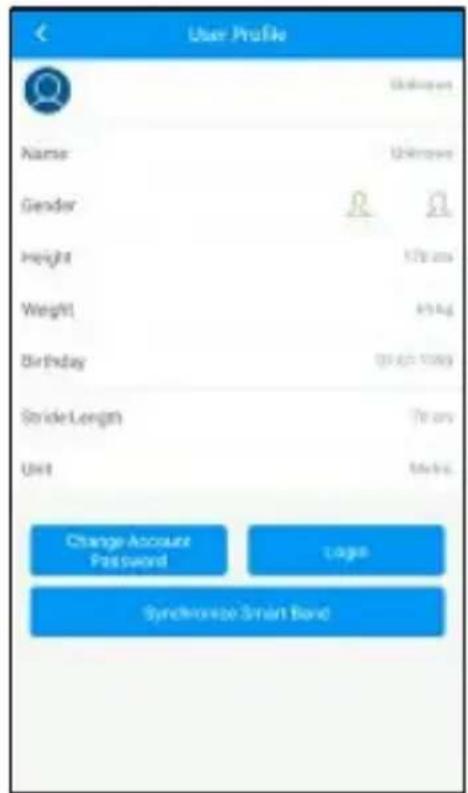
In the [Settings] menu item under [User Profile], enter your personal data such as your gender, height, weight, dateofbirthhandsteplength. - Add your name and a profile picture if you wish.
- Choose the menu item you wish to edit by tapping it. A sub-menu will then open in which you can enter the relevantsettings.
Note

- Please be aware that your terminal device must support some functions if they are to be used.
- For more information, please refer to the operating instructions of your terminal device.
While setting up the app, you will be asked whether the app has permission to access the functions of your terminaldevice.
iOS/Android:
6.2Displaysinthemainmenu
6.2.1Activitymode
Themainmenushowssyouthefollowinginformation:
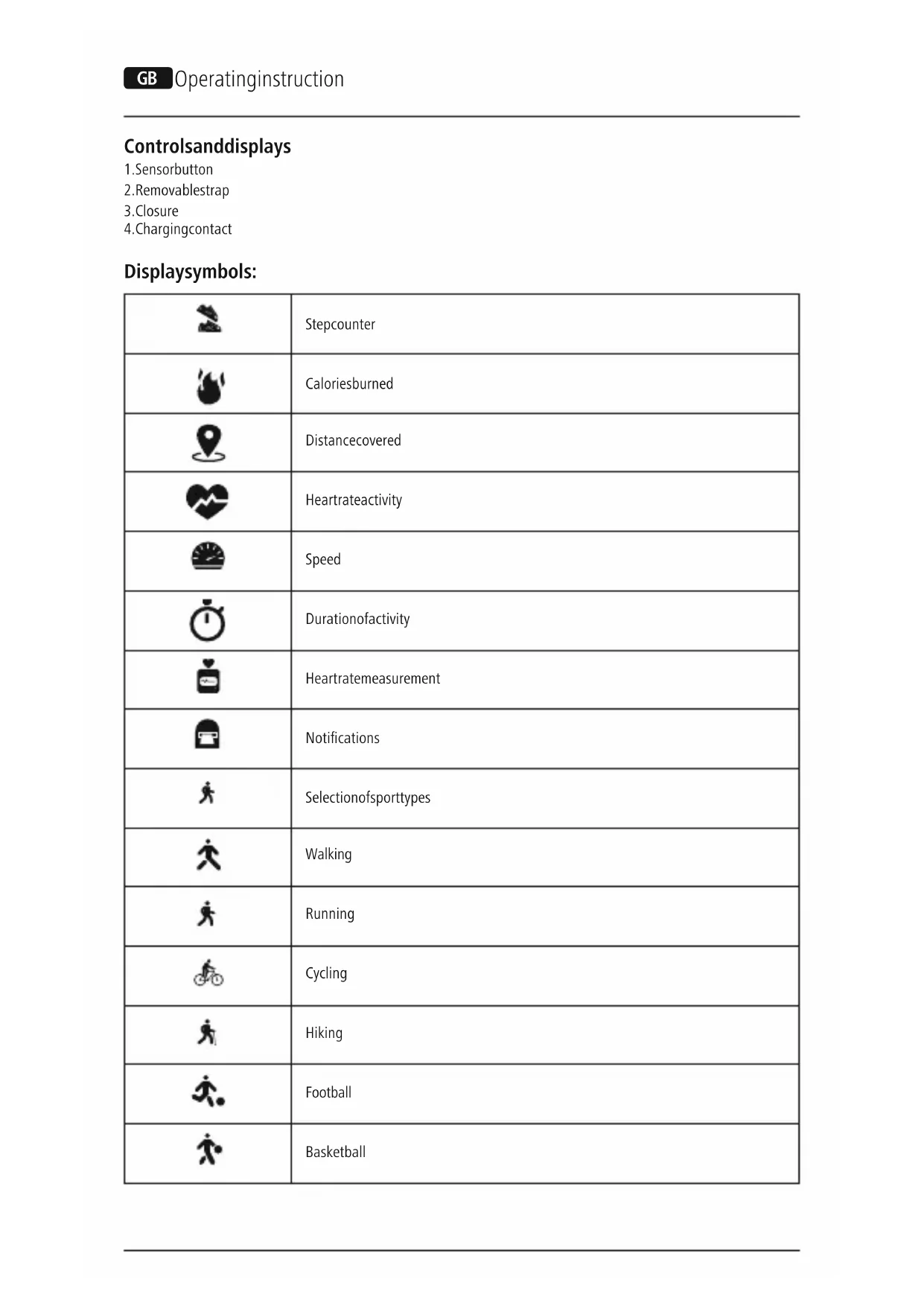
Under menu item [Home] in the Activity tab, you will see the steps taken [ ] the distance covered [ ], the last heart rate measured [ ] and the calories burned for the day in question. [ ].
iOS/Android:
StepstakenCaloriesburnedDistancecovered
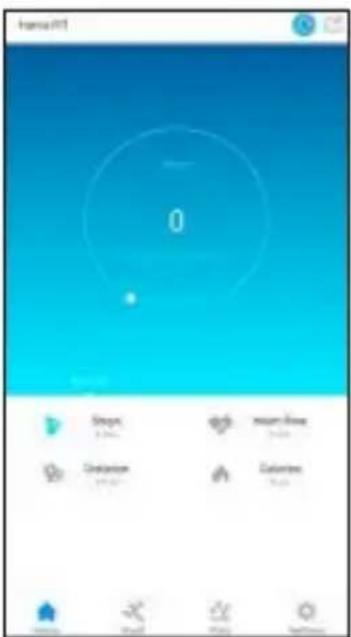
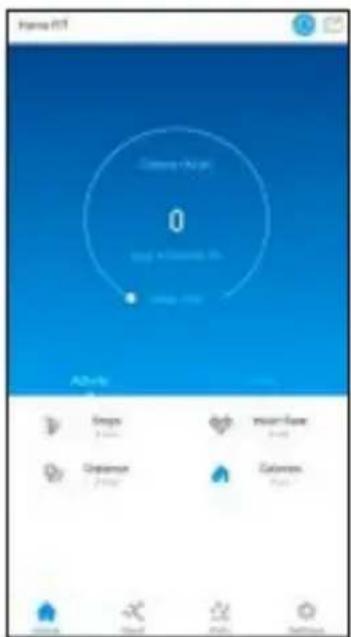
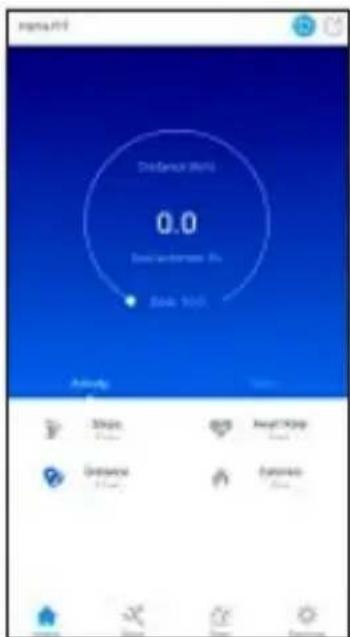
The achieved proportion of your daily goal will be displayed in the relevant menu item. You can define this in the Activity goal (Android) / Goals (iOS) settings. (See Section 6.3.2)
6.2.2 Recordinga heartratemeasurement

Note
Please be aware that heart rate recording in the history is only possible if an active Bluetooth connection is placebetweenthefitnessstr ackerandtheapp.
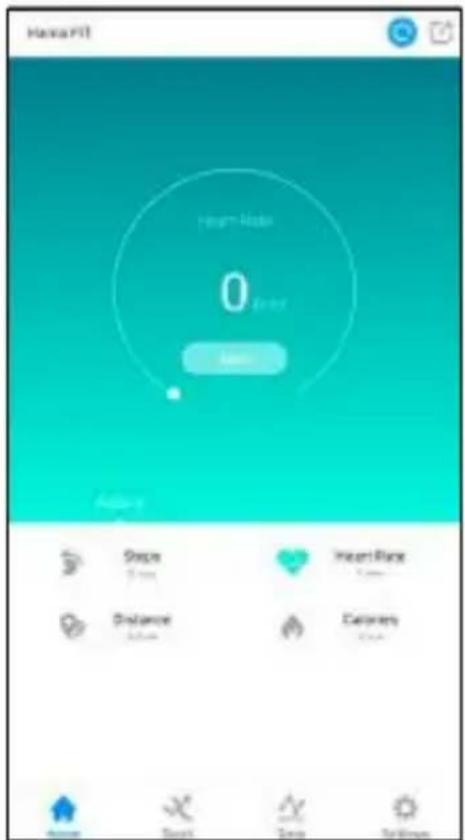
- Under the menu item [Home] and the Activity tab, select the Heart rate button [ ]
To start recording your heart rate, tap [Start].
The fitness tracker starts to record your heart rate.
iOS/Android:
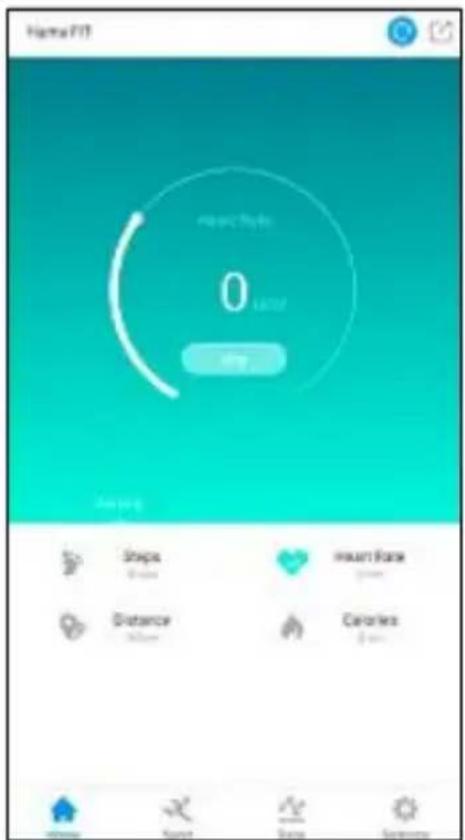
- Tostoptherecording, tap[Stop].
- Under the menu item [Settings] and the Device settings option, you can activate automatic heart rate measurement (See Section 6.3.4.2). When this Settings is activated, the fitness tracker measures your heart rate continuouslyat15-minuteintervals.
6.2.3Sleepmode
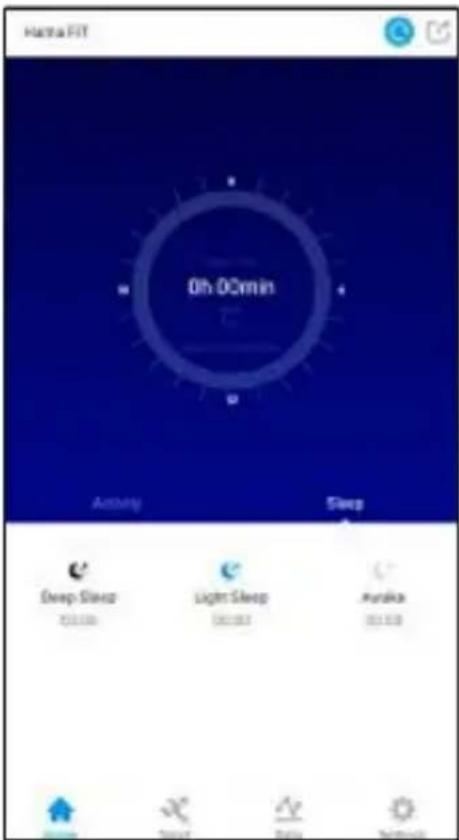
- Under the menu item Home in the Sleep tab, you will see your sleep rhythm for the day in question.
Here is where you will find a graphical analysis of your sleep quality.
iOS/Android:
6.2.4Sportmode
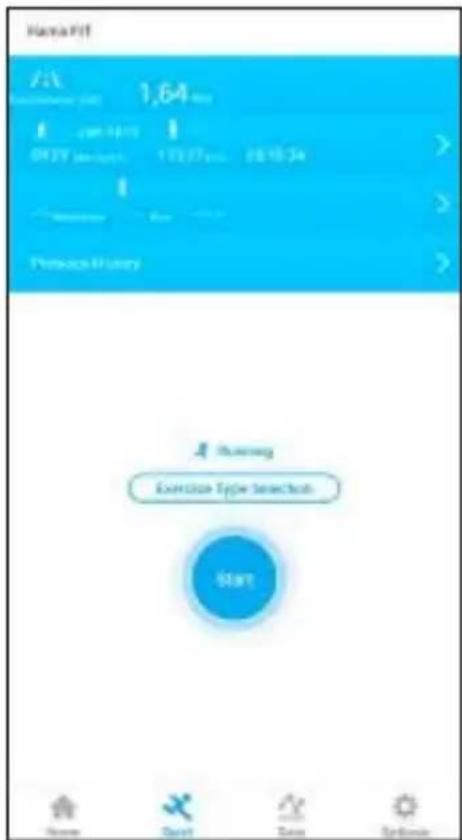
- Under the menu item [Sport], you will see a summary of your previous activities and you can also start a new activity.
- First select the type of sport for which you want to record an activity by pressing [Change sport type]. You will then beshownthesporttypeRunning, Walking, Hiking and Cycling.
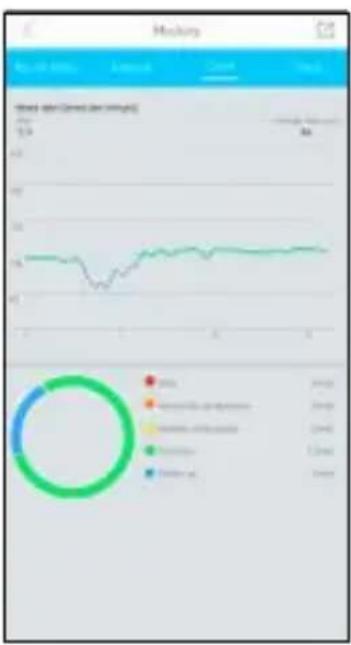
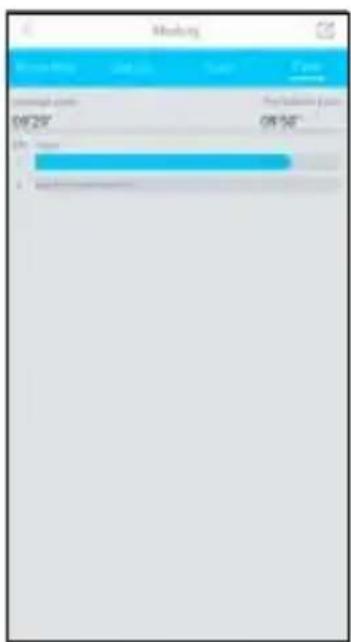
To start a new activity, press [Start]. - The display above shows the previous activities and the entire distance covered. Select previous activities to obtain a summary of other activities you have completed.
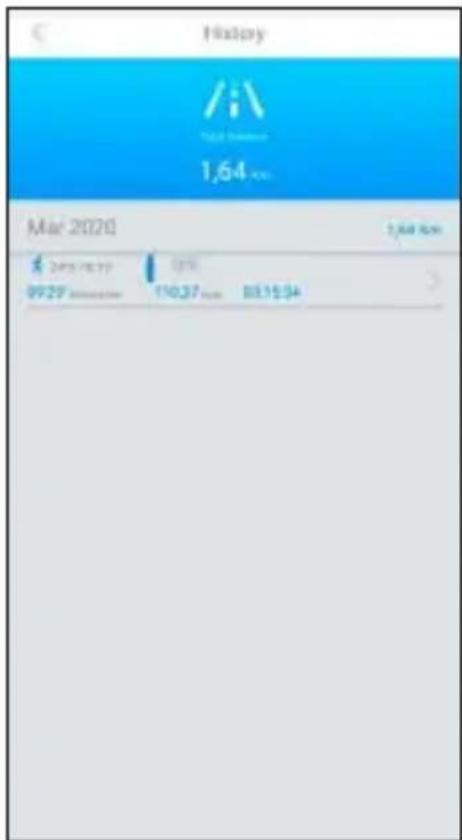
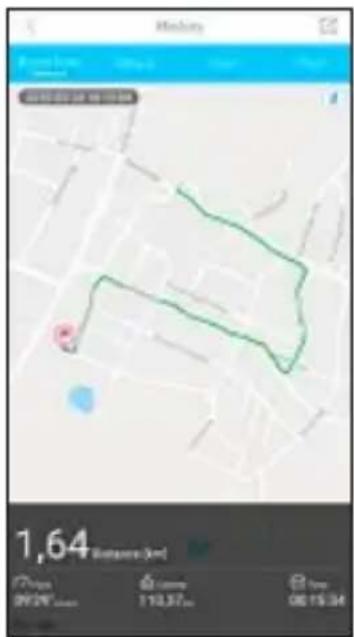
To obtain more detailed information about an activity, select the activity in question.
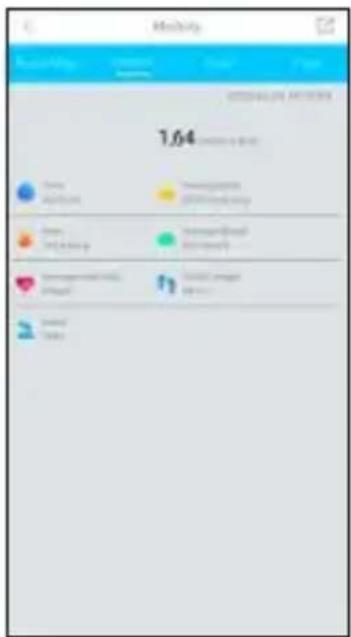
The detailed view shows you information on the distance covered, the time spent, your speed, your heart rate and thenumberofstepstakenandcaloriesburned.
Your heart rate is also evaluated, and its progress shown as a graph and divided into zones.
6.2.5 Summary of daily / weekly / monthly / annual successes
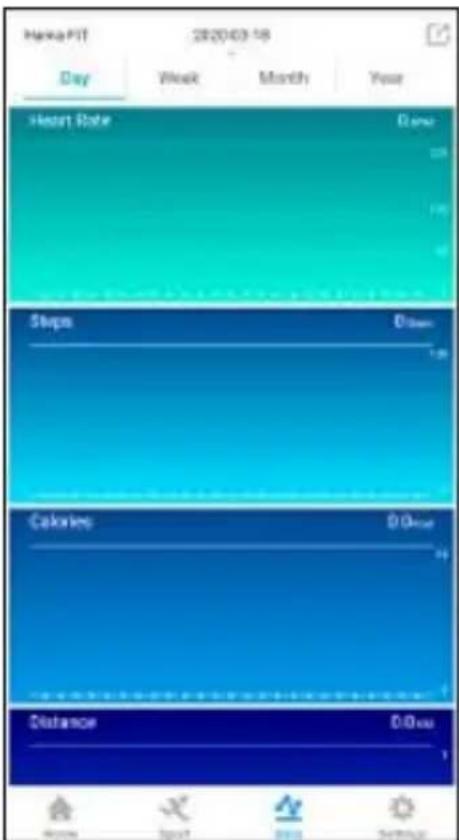
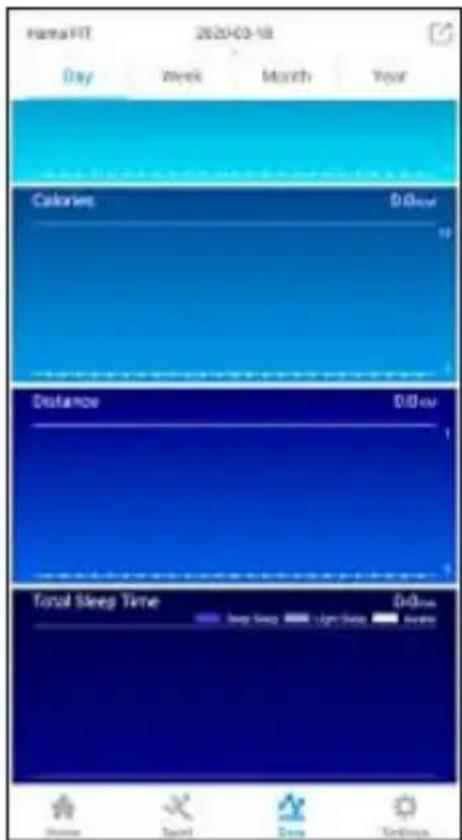
- Under the menu item Data, you will see your recorded training successes shown as a chart.
In the Day / Week / Month / Year tabs shown at the top, you can switch between the individual views.
If you tap on the date display at the top, a calendar opens and you can select a specific date to show the trainingsuccessesforthatday.
iOS/Android:
6.3Settings
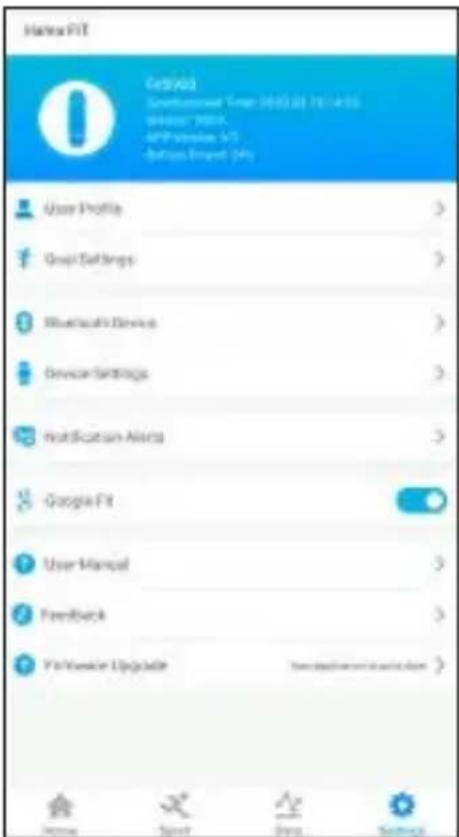
Under the menu item [Settings], you can adapt the fitness tracker to your individual needs.
iOS/Android:
6.3.1 Profile
Select the sub-item [User Profile] to adapt your personal data.
6.3.2Activitygoal/ G o a l s
Select the sub-item [Goal Settings] (Android) / [Target Settings] (iOS) to adapt your personal daily goals.
6.3.3Bluetoothdevices
Select the sub-item [Bluetooth Device] to establish a new pairing with the fitness tracker.
6.3.4Devicesettings
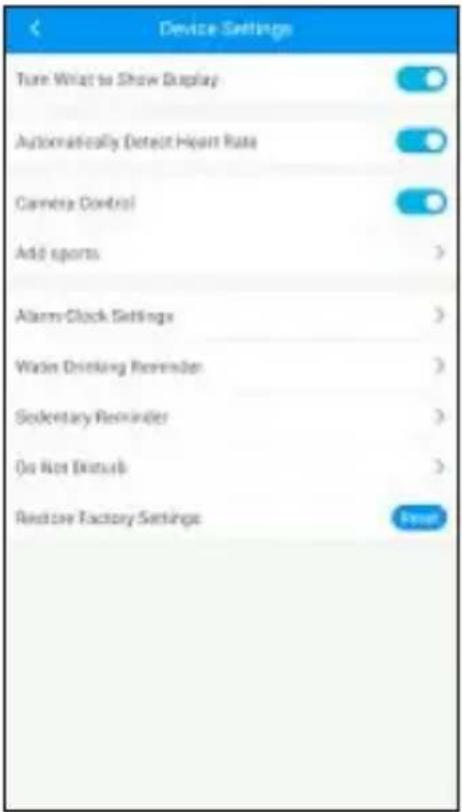
Select the sub-item [Device Settings] to activate various fitness tracker Settings and to adjust the selected sport types.
iOS/Android:
6.3.4.1Switchd显示屏
- Activate this function to enable the fitness tracker's display to be activated when you move your arm upwards.
6.3.4.2Automaticheartratemasurement
- Activate this function for the fitness tracker to measure your heart rate continuously at 15-minute intervals.
6.3.4.3Cameracontrol
- Activate this function to be able to control the camera on your smartphone using the fitness tracker.
6.3.4.4Sporttypes
-
Select the item [Add Sports] to define the various types of sport that are to be stored on your fitness tracker.
-
Out of the 22 sport types displayed, you can select four that are added in addition to the sport types Walking and Running on your fitnessstracker.
-
Confirm your selection by pressing [Save (Android) / Synchronise (iOS)].
6.3.4.5Alarm
- Select the item [Alarm] to set different alarm times.
- You can add an alarm by tapping ([+]
- To do this, select the required alarm time in the sub-menu and the day of the week.
- Confirm your selection by pressing [Save (Android) / Synchronise (iOS)].
6.3.4.6Drinkreminder
- Select the sub-item [Water Drinking Reminder] and activate this Settings in the sub-menu.
In the sub-menu, you can set the start time for the drink reminder, the interval, the number of repetitions and the dayofthewEEK. - Confirm your selection by pressing [Save (Android) / Synchronise (iOS)].
- Select the sub-item [Sedentary Reminder] and activate this Settings in the sub-menu.
- In the sub-menu, you can set the interval of the movement reminder, the start and end time, and the day of the week.
- Confirm your selection by pressing [Save (Android) / Synchronise (iOS)].
6.3.4.8Donotdisturb
- Select the sub-item [Do not disturb] and activate this Settings in the sub-menu.
-Inthesub-menu,youcansethestartandendtimeforDonotdisturbmode. - Confirm your selection by pressing [Save (Android) / Confirm (iOS)].
6.3.4.9Restorefactorysettings
- In this sub-item, select [Reset] to reset the Hama FIT App to the factory settings.
- Confirm the subsequent prompt with [OK] in order to reset the Hama FIT app to the factory settings, or press [Cancel] to close the selection.
6.3.5Pushnotifications
- Select the item [Notification Alerts] to activate the notification function for various apps and services.
6.3.6GoogleFit/ A ppleHealth
- Activate the connection to Google Fit by pressing the button on the right and connecting, when prompted, to yourGoogleaccount.
- SelecttheAppleHealthItemtoobtaininstructionsforpairingwithAppleHealth.
6.3.7 Instructions& Information
- Select the item [Instructions & information] to call up a link to a support page containing further information.
6.3.8Contact
- Select the item [Feedback] if you have any questions about this app or your fitness tracker, or wish to submit feedbackabouttheproduct.
6.3.9Firmware
- Select the item [Firmware] to search for a newer version of this app and to update it if necessary.
7.CareandMaintenance
- Only clean this product with a slightly damp, lint-free cloth and do not use aggressive cleaning agents.
- Ensure that no water is able to enter the product.
8.WarrantyDisclaimer
Hama GmbH & Co KG assumes no liability and provides no warranty for damage resulting from improper installation/mounting, improper use of the product or from failure to observe the operating instructions and/or safetynotes.
9. Technical data
| Bluetooth® version4.0 | |
| Display | 1.3"LCD |
| Dimensions260x 3 5 x 10mm | |
| Weight39g | |
| ProtectionclassIP68 | |
| BatterysteLithiumpolymer | |
| Batterycapacity220mAh/ 3 .8V |
10.RecyclingInformation
Noteonenvironmentalprotection:
Following the implementation of European Directive 2012/19/EU and 2006/66/EU into the national.
legalsystems,thefollowingapplies:electricalandelectronicdevicesaswellasbatteriesmustnotbe disposed of with household waste. Consumers are obliged by law to return electrical and electronic devicesaswellasbatteryestothedesignatedpubliccollectionpointsortotherpointofsaleattheend of their service lives. Detailed information on this topic is defined in the national laws of the respective
country. This presence of the above symbol on the product, operating instructions or package indicates that the productissubjecttotheseregulations.Byrecycling,reusinghematerialsorotherformsofutilisingolddevices/ batteries, you are making an important contribution to protecting our environment.
11.DeclarationofConformity
Hama GmbH & Co KG hereby declares that this device is in compliance with the essential requirements and other relevant provisions of Directive 2014/53/EU. The declaration of conformity in accordance with therelevant directive can be found at www.hama.com.
Frequencyband(s)2402-2480MHz
Maximumradio-frequencypowertransmitted1.14dBm
5.2Asociereafitnesstracker-uluicusmartphone-ul

Notă
6.3.2Targetactiviti/Targete
Selecta sub-meniul [Setari objectiv] (Android) / [Setari target] (iOS) pentru a va adapta objectivele personale zilnice.