Fit Track 1900 - Sports Watch HAMA - Free user manual and instructions
Find the device manual for free Fit Track 1900 HAMA in PDF.



| Product type | Sports watch (Fit Track 1900) |
| Brand | Hama |
| Dimensions | 240 x 15 x 11 mm |
| Weight | 19 g |
| Display | OLED 0.86 inch |
| Power supply | Lithium-polymer battery 55 mAh / 3.7 V (rechargeable via USB) |
| Battery life | Approximately 90 minutes charging |
| Connectivity | Bluetooth 4.0 |
| Protection rating | IP65 |
| Main functions | Pedometer, distance, calories, heart rate, blood pressure, sleep analysis, notifications, alarm, inactivity alert, remote photo trigger, tracker finder |
| App compatibility | iOS 9.0 or later, Android 5.0 or later (FitPro app) |
| Sensors | Accelerometer, heart rate sensor (optical) |
| Case material | Plastic |
| Strap | Removable, buckle closure |
| Care and cleaning | Clean with a slightly damp lint-free cloth, avoid harsh detergents |
| Safety | Do not expose to shocks, excessive heat, moisture. Do not use with a pacemaker without medical advice. |
| Spare parts and repairability | Built-in battery not replaceable. No spare parts supplied. Repairs exclusively by qualified technician. |
| General information | Consumer product, not medical. Household use. Warranty excluded in case of non-compliance with instructions. |
Frequently Asked Questions - Fit Track 1900 HAMA
User questions about Fit Track 1900 HAMA
0 question about this device. Answer the ones you know or ask your own.
Ask a new question about this device
Download the instructions for your Sports Watch in PDF format for free! Find your manual Fit Track 1900 - HAMA and take your electronic device back in hand. On this page are published all the documents necessary for the use of your device. Fit Track 1900 by HAMA.
USER MANUAL Fit Track 1900 HAMA
withHeartRateMonitorFitr
Fitness-TrackermitPulsmesser
OperatingInstructions
Bedienungsanleitung
Moded'emploi
InstructiuniUtilizare
Εγχειρίδιο οδηγιών
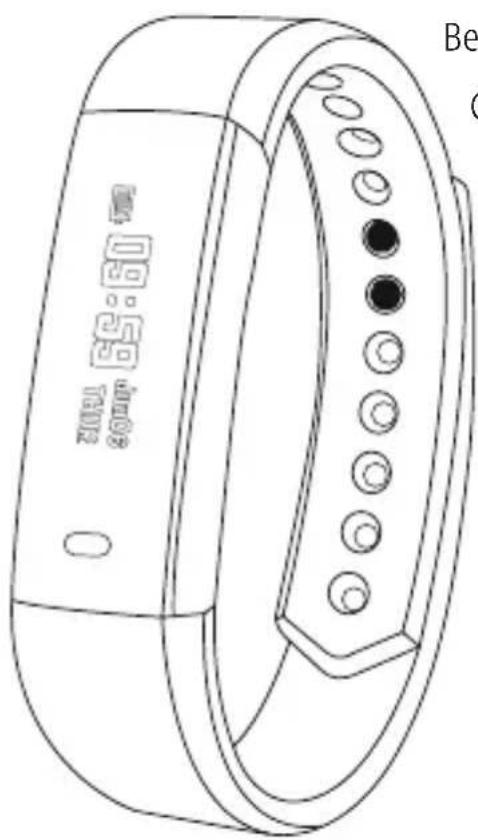
Controlsanddisplays
- Sensorbutton
2.Removablestrap
3.Closure - Chargingcontact
Displaysymbols:
 | Stepcounter |
| [TE4T] | Distancecovered |
 | Caloriesburned |
 | Heartratemeasurement |
 | Bloodpressure measurement |
 | Notifications |
 | Alarm |
 | Movementreminder |
| [CASH] | Batterystatus |
Thankyouforchoosinga H amaproduct.
Take your time and read the following instructions and information completely. Please keep these instructions in a safeplaceforfuture r eference.
Your new fitness tracker is the ideal companion for a healthy lifestyle and will motivate you to be active throughout the day. As well as displaying the time and date, it also collects data about the number of steps you have taken, yourheartrateandthecaloriesyouhaveburned.Wirelessconnectionvia Bluetooth®toyoursmartphoneenables you to document the data on the associated app and therefore constantly keep track of your success. Check here whenyouhavereachedyourpersonalfitnessgoal!
1. Explanationofwarningsymbolsandnotes
Warning

This symbol is used to indicate safety instructions or to draw your attention to specific hazards and risks.
Note

This symbol is used to indicate additional information or important notes.
2.Packagecontents
• "FitTrack1900"fitnesstracker
- OperatingInstructions
3. Safetyinstructions
- Thisproductisintendedforprivate,non-commercialuseonly.
- Usetheproductonlyfortheintendedpurpose.
- Protect the product from dirt, moisture and overheating and use it in dry environments only.
- Do not use the product in the immediate vicinity of heaters, other heat sources or in direct sunlight.
- Do not operate the product outside the power limits specified in the technical data.
- Do not use the product in areas in which electronic products are not permitted.
• The battery is integrated and cannot be removed. - Donotopenthedeviceorcontinuetooperateitifitbecomesdamaged.
- Do not attempt to service or repair the product yourself. Leave any and all service work to qualified experts.
- Donotdroptheproductanddonotexposeittoanymajorshocks.
- Do not modify the product in any way. Doing so voids the warranty.
- Dispose of packaging material immediately in accordance with the locally applicable regulations.
- Donotincineratethebatteryortheproduct.
- Donottamperwithordamage/heat/disassemblethebatteries/rechargeablebatteries.
- While driving a car or using sports equipment, do not allow yourself to be distracted by your product and keep an eye on the traffic situation and your surroundings.
- Consult your doctor before starting an exercise programme.
- Always be aware of your body's response when you exercise, and speak to your doctor in an emergency.
- Consult your doctor if you have a medical condition and wish to use the product.
- This is a consumer product, not a medical device. Hence, it is not intended for the diagnosis, therapy, cure or preventionofillnesses.
- Prolonged contact with the skin can lead to skin irritations and allergies. Consult a doctor if symptoms persist.
- This product is not a toy. It contains swallowable small parts that pose a suffocation hazard.
Warning- cardiacpacemakers

This product generates magnetic fields. Persons with a cardiac pacemaker should consult a doctor before using thisproduct,asthepacemaker'sproperfunctioncouldbeaffected.
Information- Flying

- This product is a constant transmitter of radio signals. Please be aware that carrying and using radio transmitters during certain phases of the flight (e.g. take-off / landing) is not permitted for safety reasons.
- Check with your airline before you fly whether your fitness tracker can be taken on board. If in doubt, leave the productathome.
Warning – rechargeable battery

- O nlyusesuitablechargingdevicesorUSBconnectionstochargetheproduct.
- Do not use defective chargers or USB ports and do not attempt to repair them.
- Do not overcharge the product or allow the battery to completely discharge.
- Avoid storing, charging and using in extreme temperatures and at extremely low atmospheric pressures (such as at high altitudes).
4. Firststepswiththe"FitTrack1900"fitnesstracker
4.1 Charging
- Charge your fitness tracker fully before using it for the first time.
- Connect the fitness tracker's charging contact [4] to a free USB port on your computer or a USB charger.
• To do this, consult the operating instructions for the USB charger you are using.
Note

- The charging time for a full battery charge is around 90 minutes. As soon as the battery shown in the display isfullycharged, the charging process is complete and you can disconnect the fitness tracker.
4.2 Puttingandswitchingon
- Place the fitness tracker around your wrist and fasten it using the closure [3].
- Hold the sensor button [1] down for 3 seconds to start the fitness tracker.
Note

- To use the functions of the fitness tracker most effectively, it should be positioned close to the skin on the top of the wrist but still be pleasant to wear.
- If you are right-handed, wear the fitness tracker on the left wrist, and if you are left-handed, wear it on the rightwrist.
- The distance between the fitness tracker and the bones of the wrist should be about one to two finger breadths.
4.3 Switchingoff
• To switch the fitness tracker off, switch to the menu item [MAC].
- Press and hold the Sensor button [1] for around 3 seconds. The fitness tracker is switched off.
4.40Operation- M enustructure
- Press the sensor button [1] to activate the start screen and to switch between the displays in the sequence shown.
Note

- This graphic is a summary of all of the menu items that can be displayed on the fitness tracker and the sequenceofdisplayswhenshipped.

flowchart
graph TD
    A["Startscreen"] --> B["Stepcounter"]
    B --> C["Distance"]
    C --> D["Calories"]
    D --> E["Heartrate measurement"]
    E --> F["Bloodpressure measurement"]
    F --> G["Batterystatus"]
5. Downloadthe"FitPro" app
Note

The following operating systems are supported:
- iOS9.0orhigher
-
Android5.0orhigher
-
OpentheiT unesAppS tore o r G ooglePlayStore o n yoursmartphone.
- You can find the appusing these a chfunction.
- Downloadtheappasnormalandinstallitonyoursmartphone.T o d o this, followtheinstructionsonyour smartphone.
6.Usingtheapp
Note

- Please be aware that your terminal device must support some functions if they are to be used.
- For more information, please refer to the operating instructions of your terminal device.
- While setting up the app, you will be asked whether the app has permission to access the functions of your terminal device.
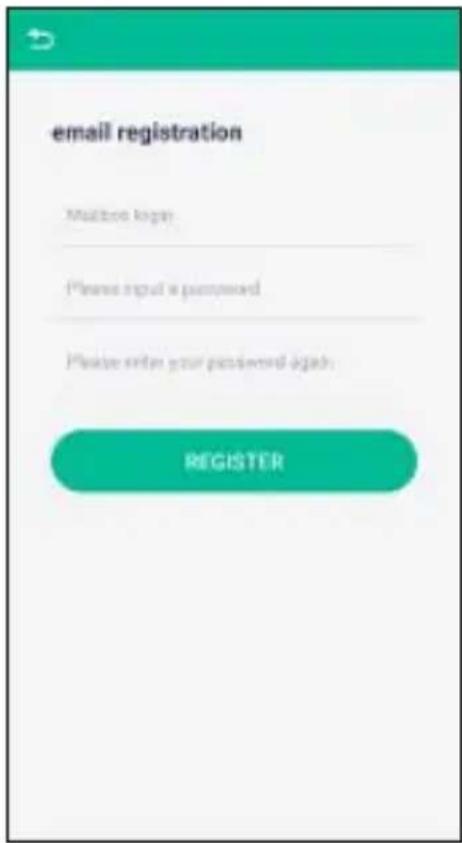
6.1 Registration/ u seraccount
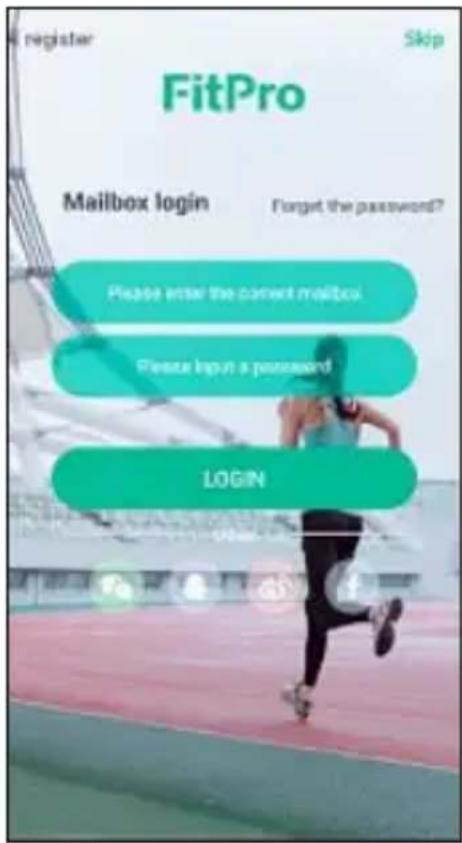
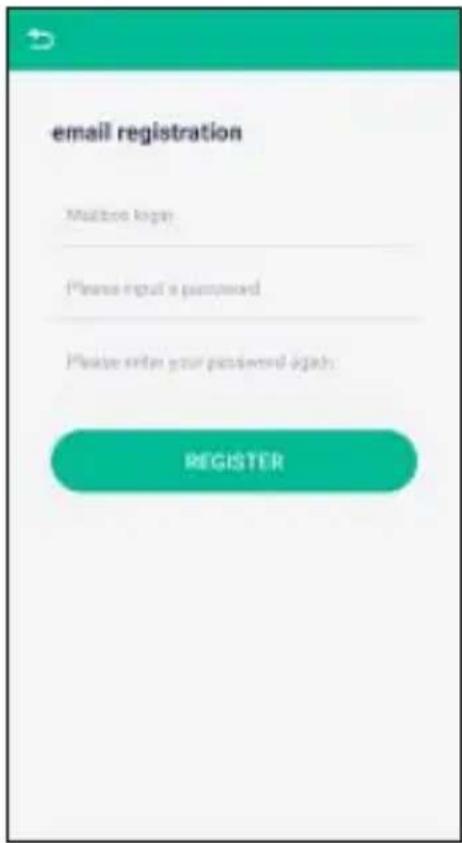
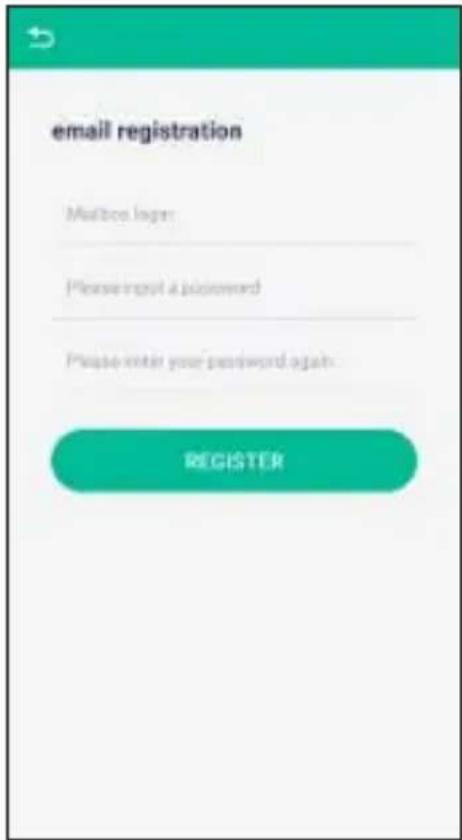
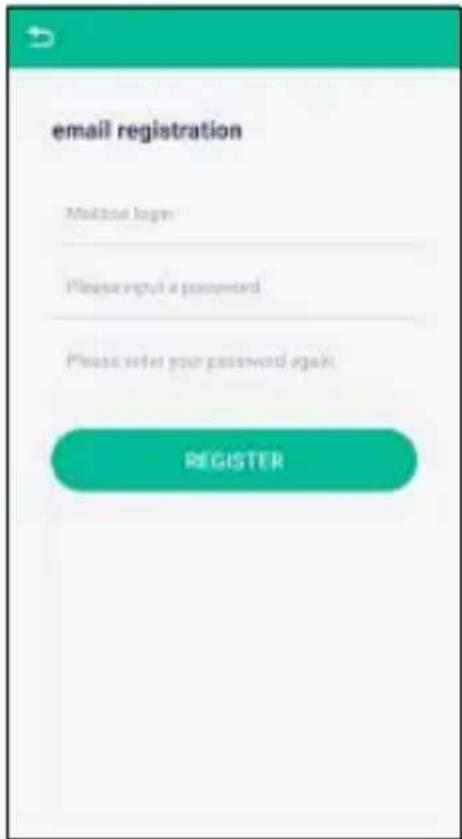
• To use the functions of the app to the full, register when you first launch the app and create a user account.
- To do this, press [Register] at the top left-hand edge of the screen when you start the app and enter your e-mailaddressandpassword.
- Following successful registration, you can log in using your e-mail address and assigned password.
- Byregisteringandloggingintotheapp,yourpersonaldataisstoredpermanentlyintheapp.
6.2 Pairing the fitness tracker with your smartphone
Note

In order for your fitness tracker to display notifications such as calls, text messages and WhatsApp messages, activate push modeform messages in your smart phones settings.
Android/ A pplemobiledevices
- Ensure that the Bluetooth® function is switched on your smartphone and your fitness tracker.
- Launch the app on your smartphone and press [Set] (Android) / [Setting] (iOS) in the menu selection at the bottom. Then, at the top edge of the screen, choose the [Bind devices] icon and search for your "Fit 1900" fitnesstracker.
- Now select your "Fit1900" fitness tracker to pair it with the app.
- The fitness tracker is now linked with the app and synchronisation begins.
Note

To start synchronisation of the fitness tracker with the app, press the circular arrow at the top right of the app's launchscreen.
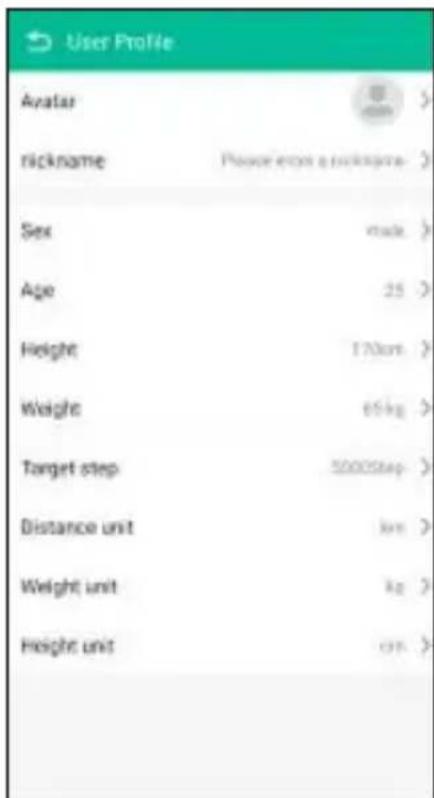
6.3 Settingpersonaldata
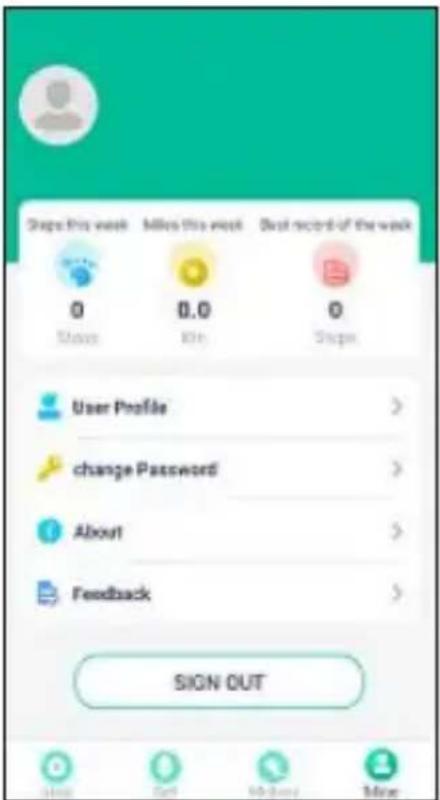
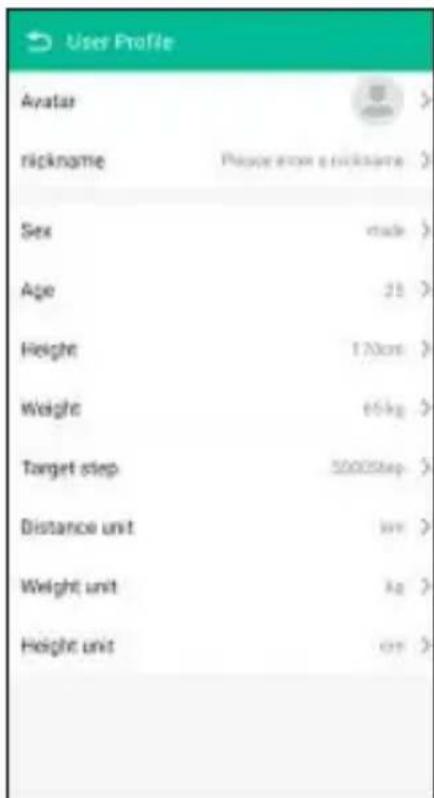
- In the menu selection at the bottom, press [Mine] to set your personal data.
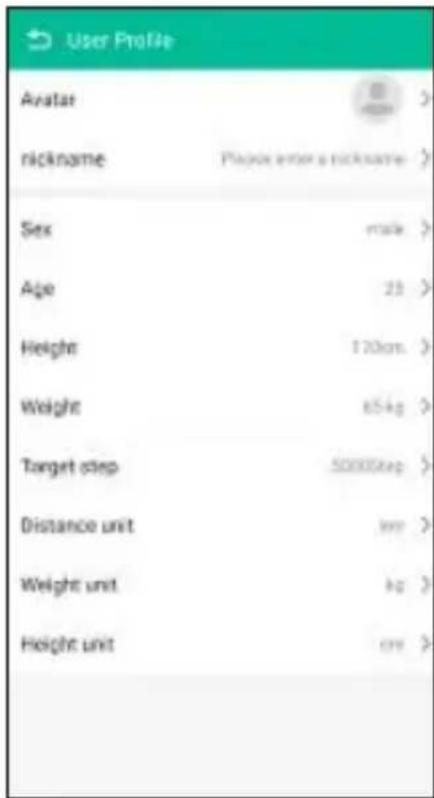
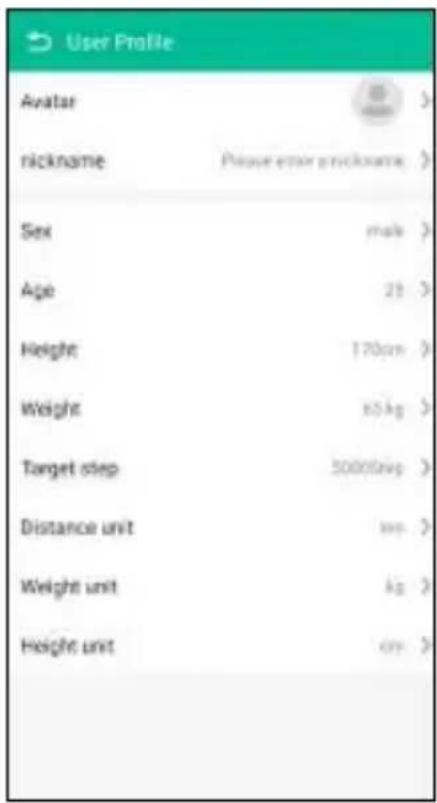
- Select [User Profile] (Android) / [Personal information] (iOS) to create your personal user profile.
- You can enter your individual details such as your name, gender, age, height, weight and your target in your personal user profile. You can also specify the units.
- Choose the menu item you wish to edit by tapping it. A sub-menu will then open in which you can enter the relevantsettings.
- Select [Change password] to change your personal password for your user account and confirm the change with [OK] (Android) / [done] (iOS).
- Select [Feedback] to provide feedback on the app.
iOS/Android:
6.4Displaysonthestartpage
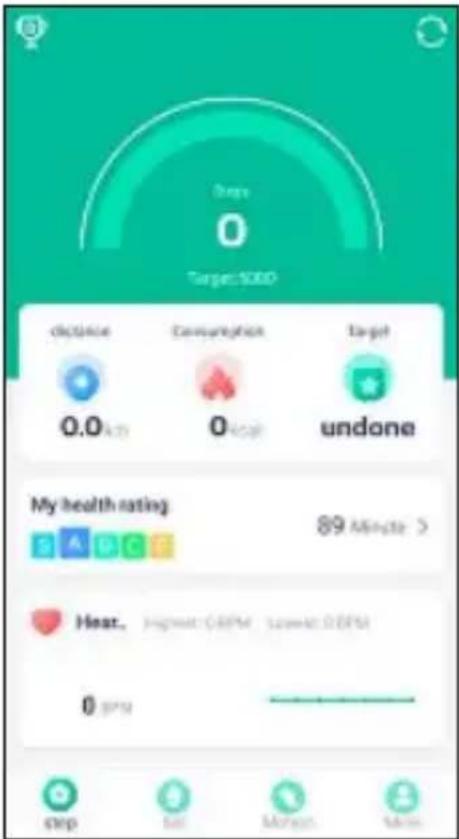
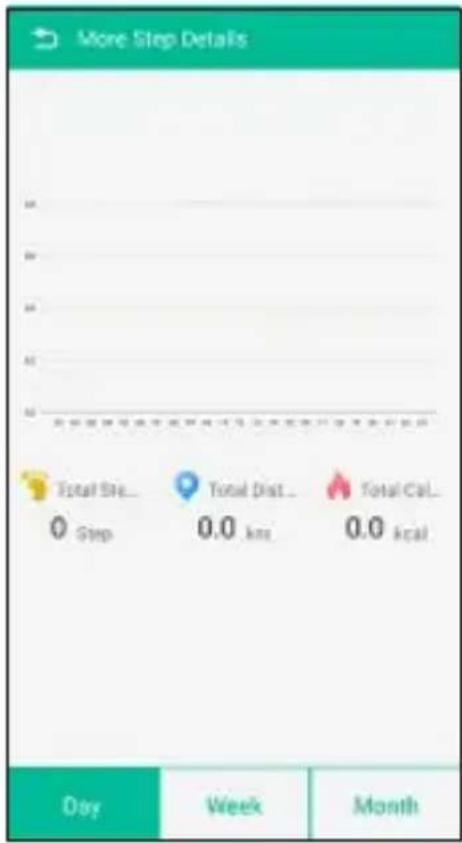
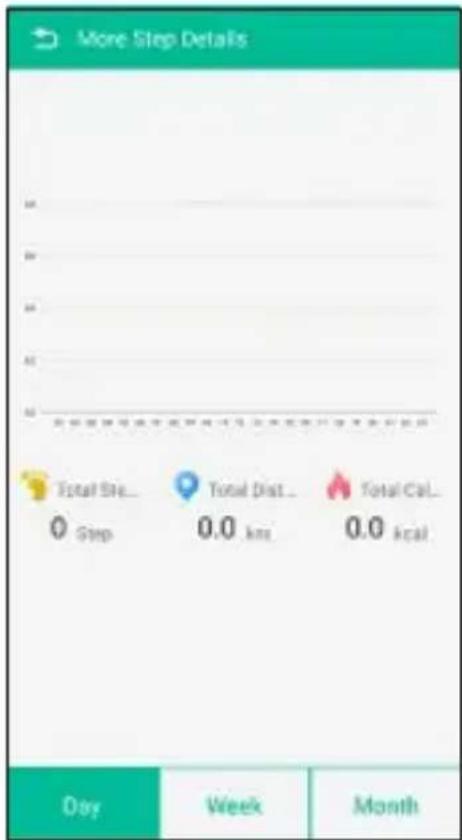
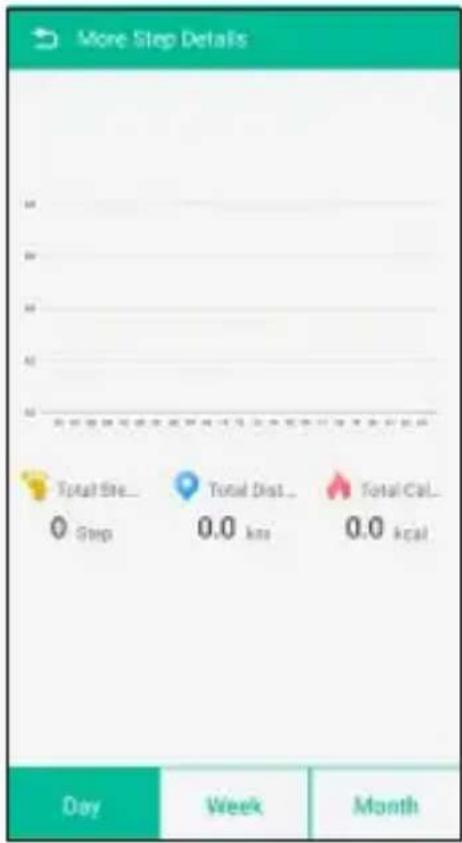
6.4.1 Stepcounter
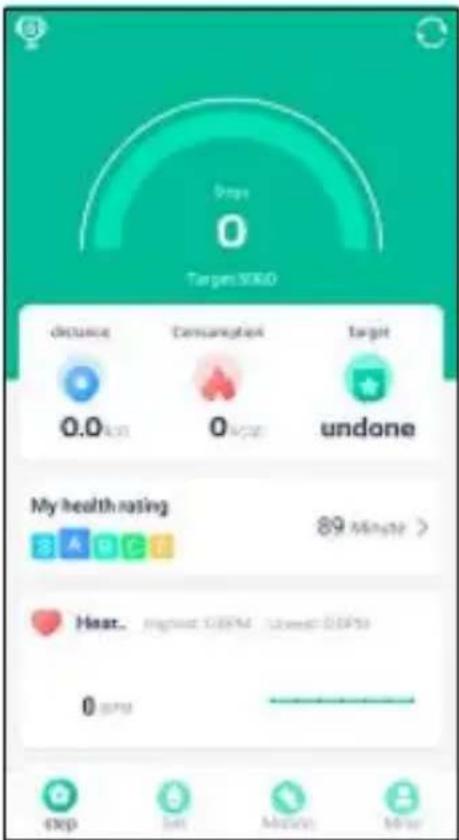
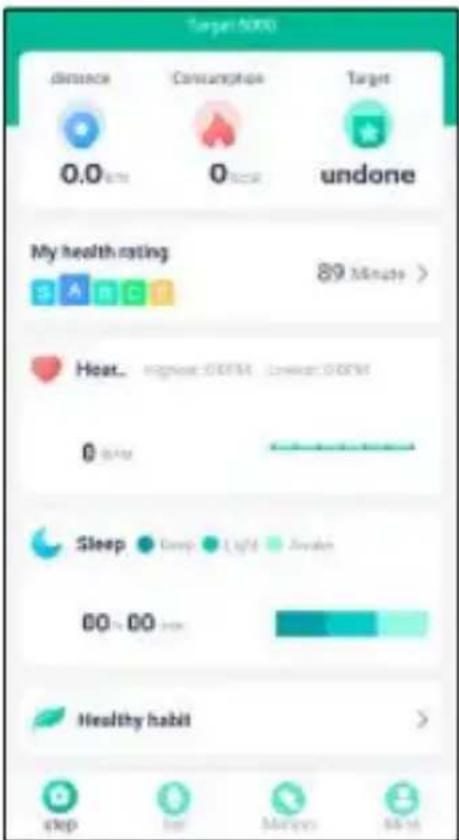
• Here you will see a summary of the steps you have taken on the day in question.
- You will also see information on the distance you have covered, calories burned and the percentage of your dailygoalinsteps.
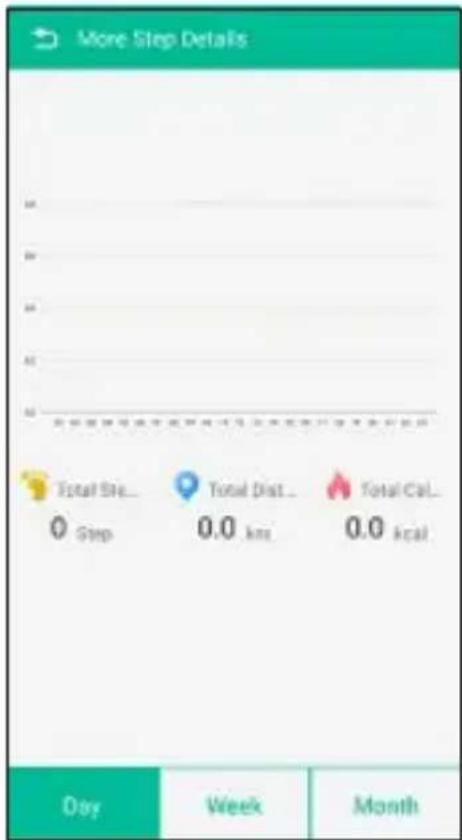
- To view further details and a graphic of your steps, distance and calories for a particular day, week or month, pressthesemicircleinthemiddleofthescreen.
iOS/Android:
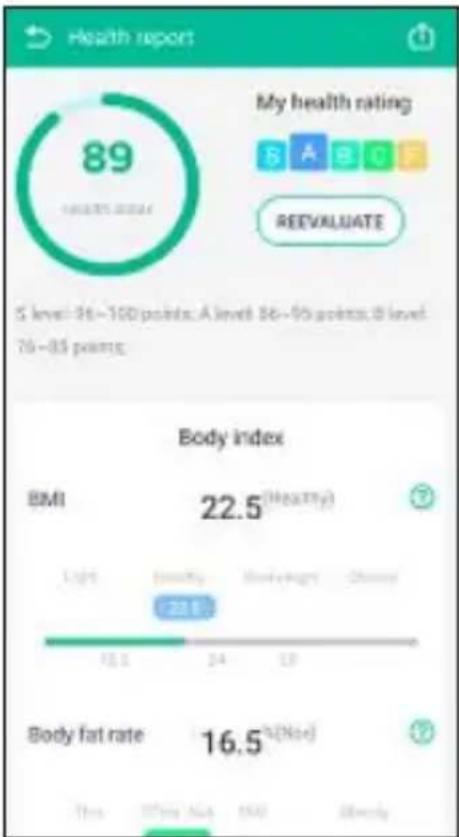
6.4.2Healthassessment
• To obtain a detailed summary of your health assessment, press [My health rating].
- Here, you will see a categorisation of your health levels as well as a summary of key parameters such as your bodymassindexandpercentagebodyfat.
- The values displayed are calculated solely based on your gender and age, height and weight.
iOS/Android:
bar
| Metric | Value | | :--- | :--- | | BMI | 22.5 (Healthy) | | Light | 13.1 | | (Healthy) | 20.6 | | (Neutral) | 24 | | (Obesity) | 19 | | Body fat rate (%) | 16.5 (Note) | | This | 0.7% Na | | No | 100 | | Reevaluate | 0.0% |6.4.3 Recording your heartrate and blood pressure
Note

Please be aware that heart rate and blood pressure recording in the history are only possible if an active Bluetooth® connectionisinplacebetweenthefitnessstr ackerandtheapp.
Note

- This is a consumer product, not a medical device. Hence, it is not intended for the diagnosis, therapy, cure or prevention of illnesses.
- The values displayed therefore represent only approximate, guideline values and are not generally valid. Please consult a doctor if you have any questions about your blood pressure.
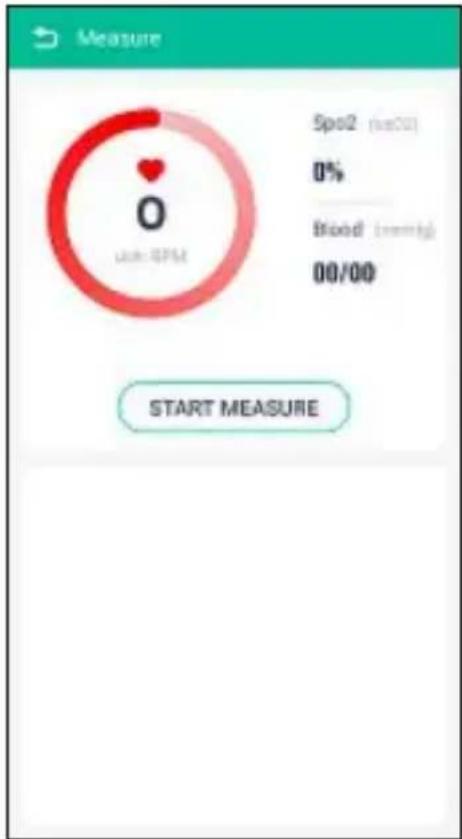
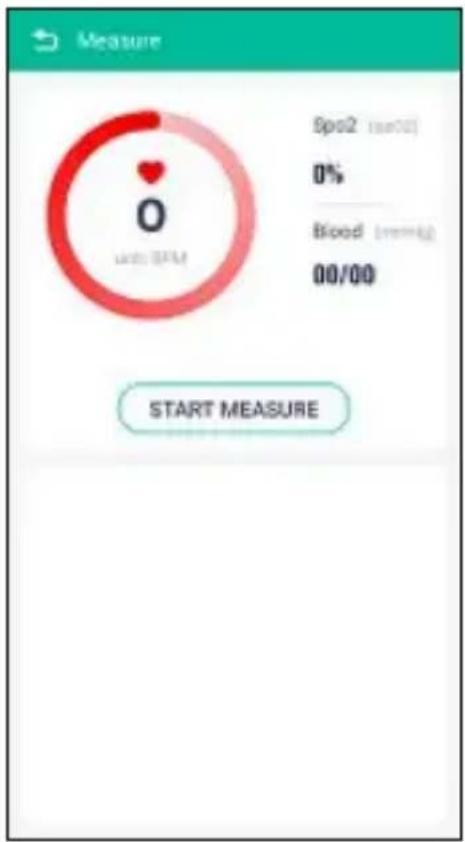
• To start a measurement of the above parameters via the app, press [Heart rate] on the start page.
- Then, in the sub-menu, press [Start measure] (Android) / [Start measuring] (iOS). You will see a summary of your current heartrate and blood pressure. The app also calculates your blood oxygen content.
- All measurements are stored and clearly set out in the history.
iOS/Android:
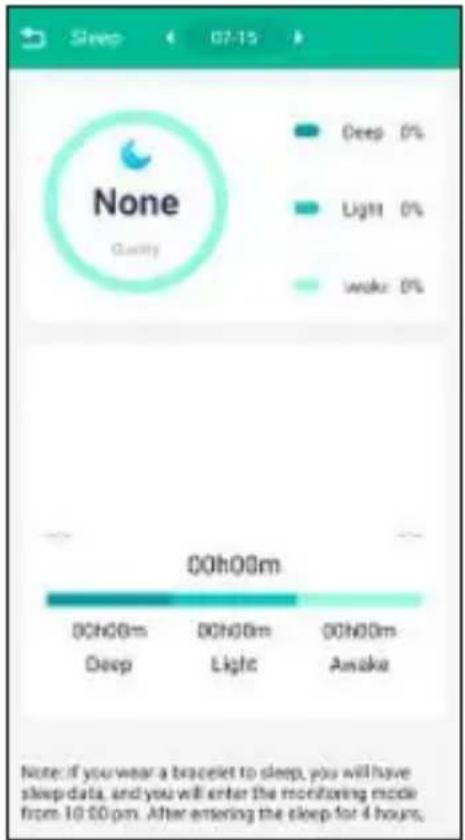
6.4.4 Sleepanalysis
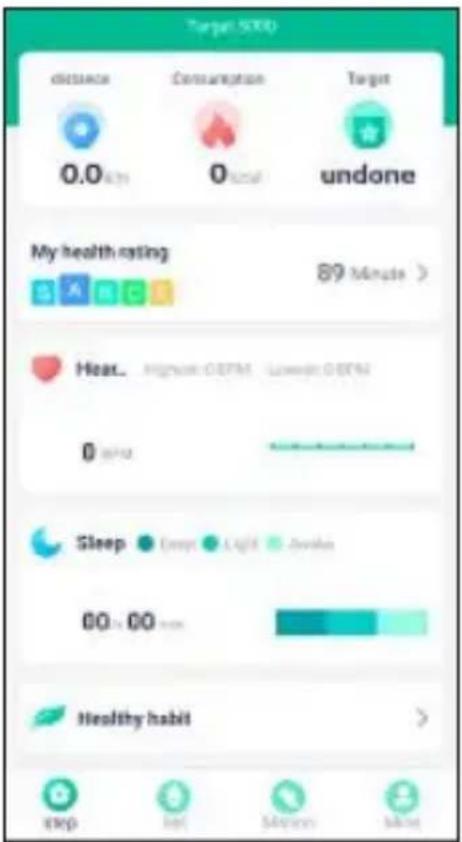
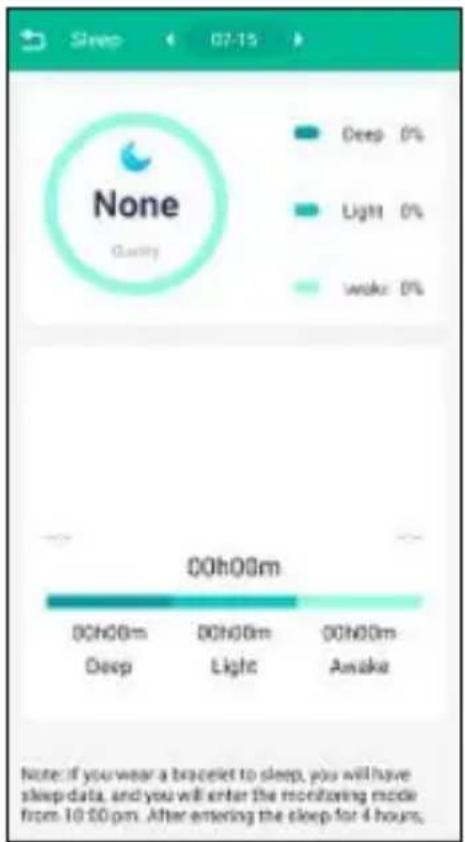
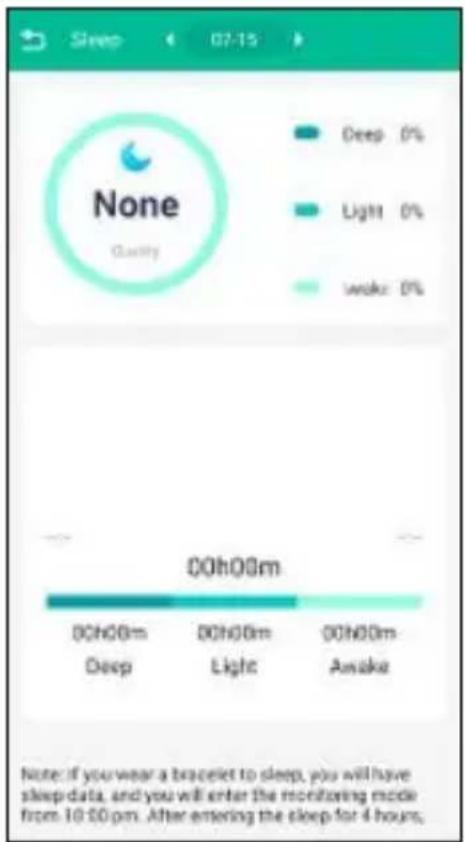
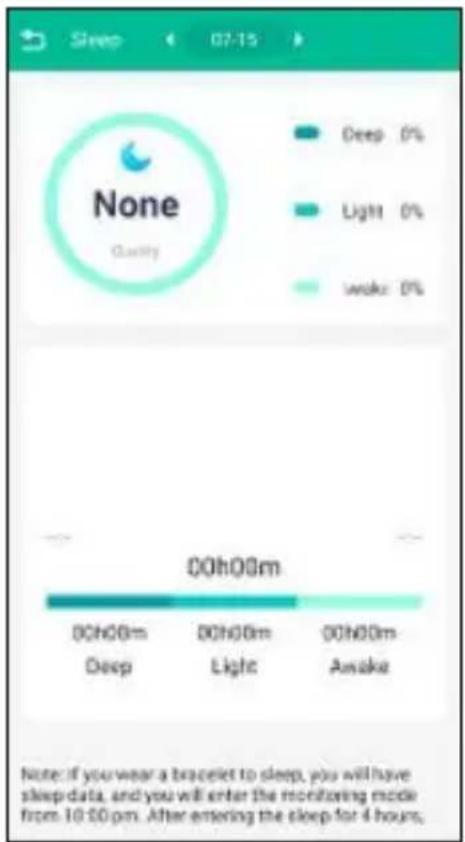
- To obtain a detailed summary of your sleep quality, press [Sleep] on the start page.
- Here you will see a summary of your sleep quality for the day in question. Your sleep quality is divided into three phases(deep, light, awake).
iOS/Android:
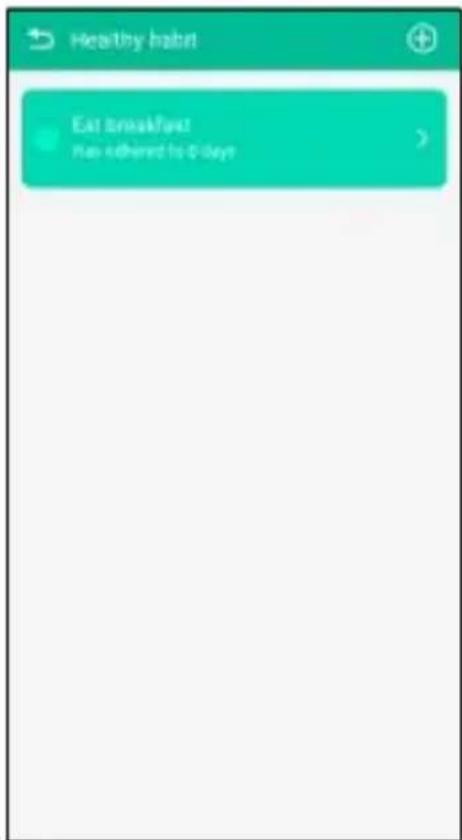
6.4.5 Healthyhabits
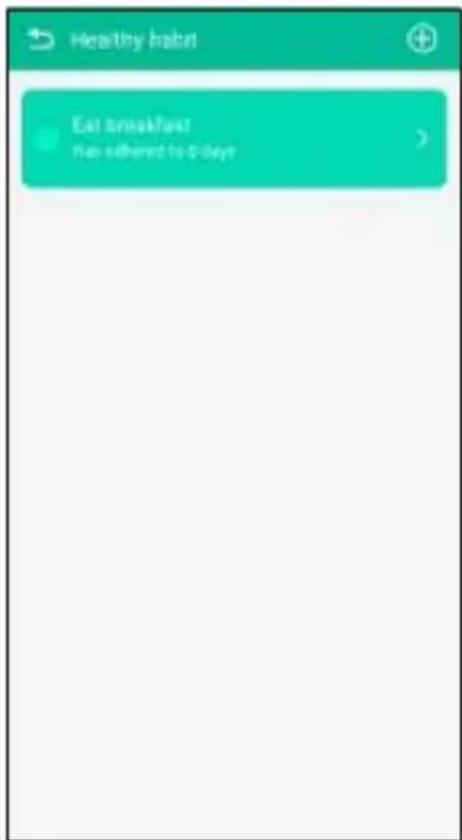
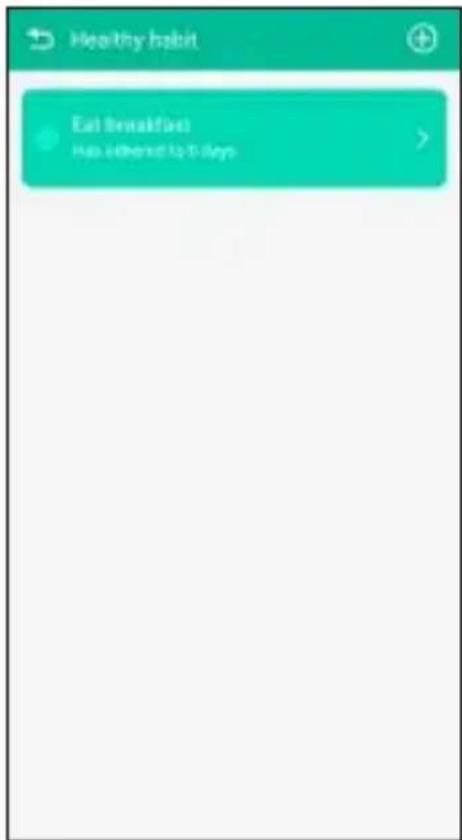
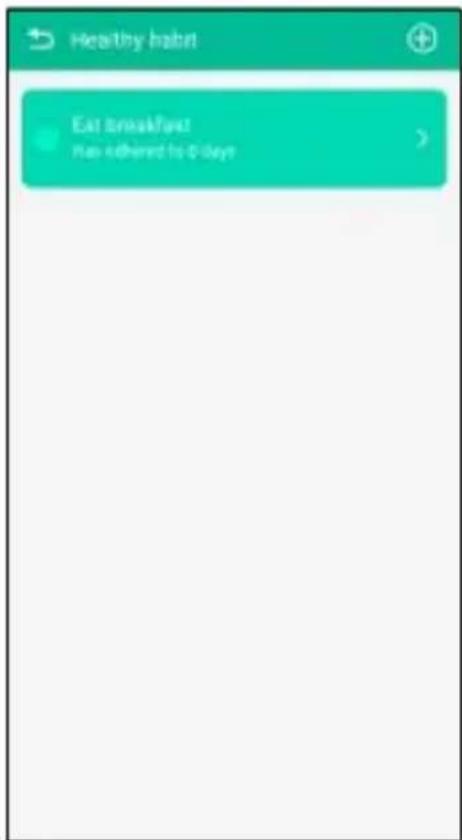
- On the start page, press [Healthy habit] to integrate certain habits into your day-to-day activities.
• To add a habit, press the [+] button at the top right-hand edge of the screen. - Here you will see a summary of certain habits from the categories of Diet, Exercise, Drinking, Sleep and Other. You can also create your own habit by pressing [Create] (Android) / [Add] (iOS).
- Once you have chosen certain habits, you will see these in a summary. Pressing and confirming the habit allows youtoconfirmthathabitforthedayingquestion.
iOS/Android:
6.5Activitymode
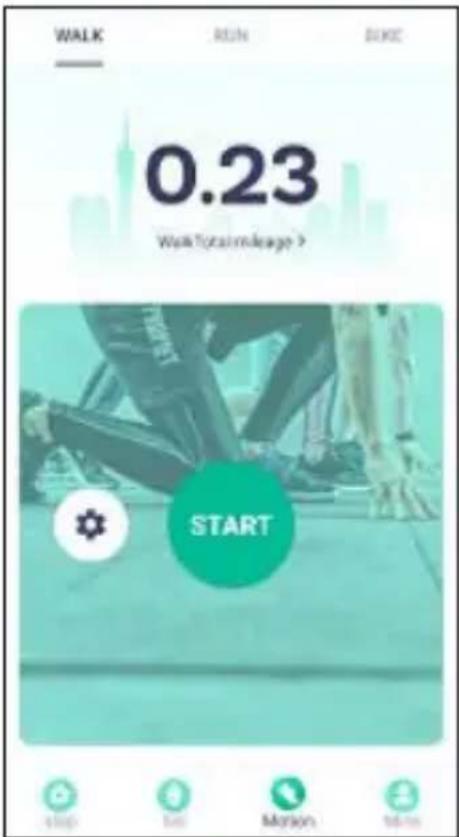
- In the menu selection at the bottom, press [Motion] to switch to Activity mode.
• In Activity mode, you can call up a summary of your previous activities and also start a new activity.
• In the selection bar at the top, you can select between the activities of Walking, Running and Cycling.
• To start an activity, press [Start].
iOS/Android:
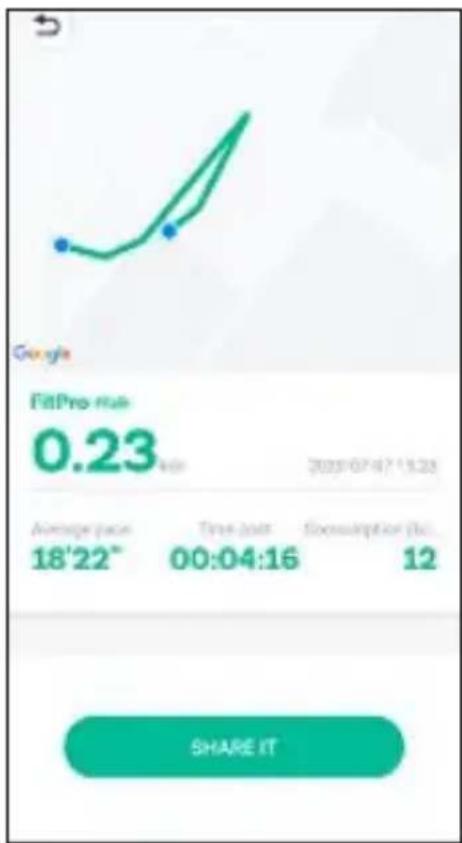
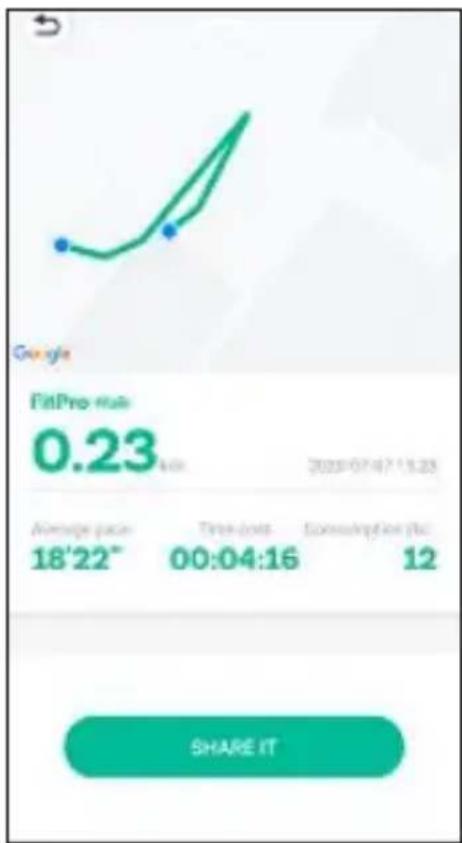
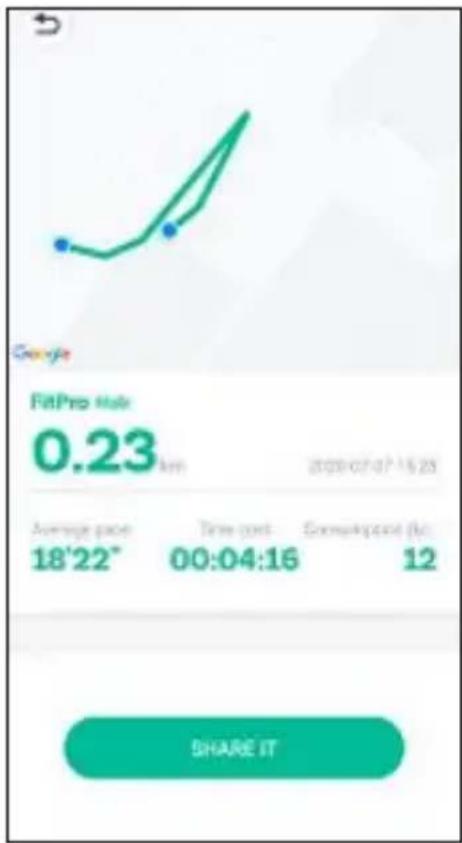
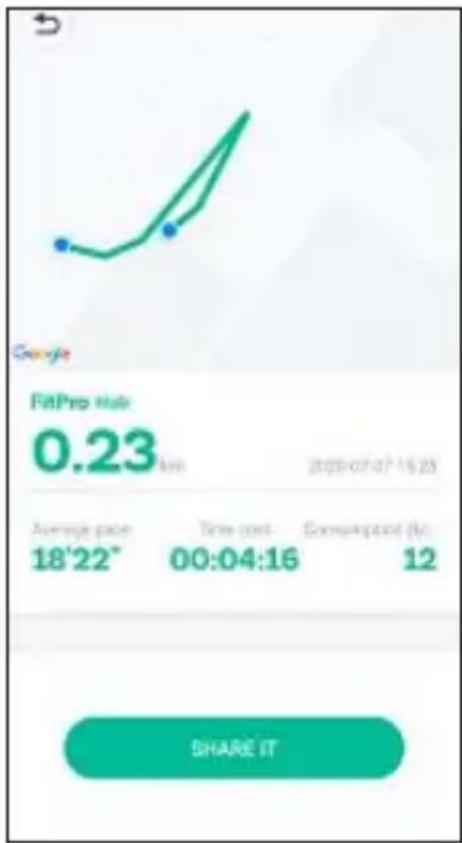
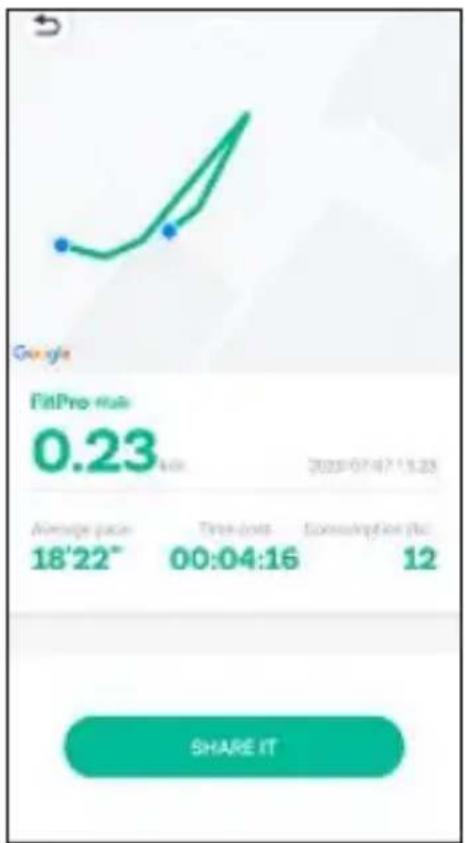
- After a countdown of 3 seconds, the activity begins and a map view opens showing the distance you have travelled. You can also see the total activity time, the distance covered, the average pace and the calories burned.
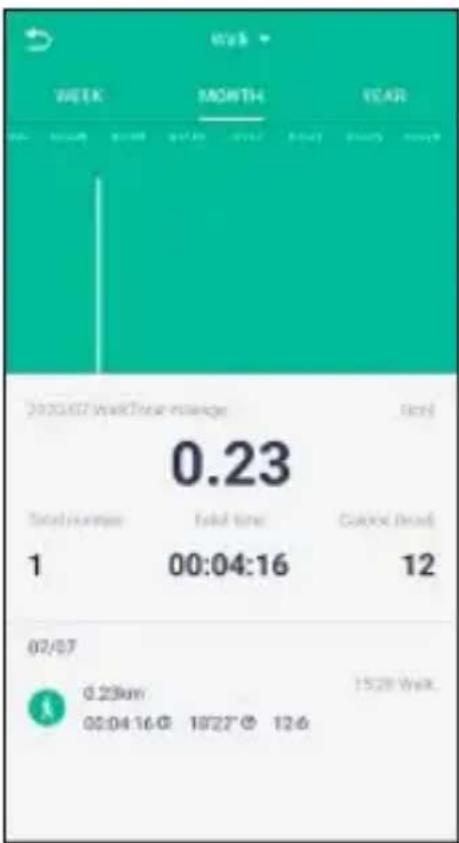
• To end the activity, swipe right at the bottom edge of the screen and press End. - To see a summary of your activities so far, press the display of total kilometres in the middle of the screen. Here you can view your previous activities for a week, month/year.
- To obtained detailed information and the recorded distance of an activity, press the activity you want to find out aboutinthelistatthebottom.
iOS/Android:
line
| Metric | Value | |--------|-------| | FitPro trial | 0.23 | | Average pace | 18'22" | | Time-to-date | 00:04:16 | | Stock option (A) | 12 | | Share IT | - |6.6Settings
You can adapt the fitness tracker to your personal requirements in the Settings which you can call up under the selection bar by pressing [Set] (Android) / [Setting] (iOS).
iOS/Android:

6.6.1 Switchondisplayonraise
- Select [Bright screen] (Android) / [Lift wrist to bright screen] (iOS) and activate the function in the submenu.
- Activating this function enables the fitness tracker's display to be activated when you move your arm upwards.
6.6.2 Donotdisturbmode
- Select [DND mode] and activate the function in the sub-menu.
- In the sub-menu, you can set the start and end times. During the set time period, you will not receive any notifications on your fitness tracker.
6.6.3 Alarmclock
- Select [Alarms] (Android) / [Alarm Setting] (iOS) to set various alarm times.
- You can add an alarm by pressing [+] .
• To do this, select the required alarm time in the sub-menu and the day of the week. - Confirm your selection by pressing [Confirm].
6.6.4 Movementreminder
- Select the item [Long sit remind] (Android) / [Long sit reminder] (iOS) and activate the function in the submenutoseta timeintervalformovementreminders.
- Following a period of inactivity, the fitness tracker starts to vibrate during the set period and after the set durationifthevibrationfunctionisenabled.
6.6.5 Findfitnessstracker
- Select [Find] to find your fitness tracker. The fitness tracker vibrates for around 1 second.
6.6.6 Remotecameratrigger
- Select [Remote Take Photos] to activate the remote camera trigger function and open the camera on your smartphone.
- Activating this function allows you to control the camera on your smartphone with the fitness tracker.
- A t urnofthewristtriggersyoursmartphone'scamera.
6.6.7 Notifications
- Select [Message Push] (Android) / [Message Push Setting] (iOS) to activate notification functions in the sub-menuforcalls,textmessagesandotherappsandservices.
- Activating the notification function allows you to see notifications directly on your fitness tracker.
6.6.8Restorefactorysettings
- Select [Reset Device] (Android) / [Device Reset] (iOS) to reset your fitness tracker to its factory settings.
- Confirm the prompt that follows by pressing [Confirm].
6.6.9 Removethe "fitnessstracker"
- Select [Remove] to break the connection to the fitness tracker.
- Confirm the prompt that follows by pressing [Confirm].
6.6.10 Settingvibration
- Select [Other] (Android) / [Other Settings] (iOS) and activate this function in the sub-menu in order to activate vibrationonyourfitnessstracker.
- Activating this function causes the fitness tracker to vibrate when you receive a notification, for example.
7. Care and Maintenance
- Only clean this product with a slightly damp, lint-free cloth and do not use aggressive cleaning agents.
- Ensure that no water is able to enter the product.
8.WarrantyDisclaimer
Hama GmbH & Co KG assumes no liability and provides no warranty for damage resulting from improper installation/mounting, improper use of the product or from failure to observe the operating instructions and/or safetynotes.
9.Technicaldata
| Bluetooth® version4.0 | |
| Display | 0.86" OLED |
| Dimensions240x 1 5 x 1 1 | |
| Weight19g | |
| ProtectionclassIP65 | |
| BatterytypeLithiumpolymer | |
| Batterycapacity55mAh/ 3 .7V |
10. Recycling Information
Noteonenvironmentalprotection:
Following the implementation of European Directive 2012/19/EU and 2006/66/EU into the national legalsystems, the following applies: electrical and electronic devices as well as batteries must not be disposed of with household waste. Consumers are obliged by law to return electrical and electronic devices as well as batteriesto the designated public collection points to the point of sale at the end of their service lives. Detailed information on this topic is defined in the national laws of the respective
country. This presence of the above symbol on the product, operating instructions or package indicates that the product is subject to the regulations. By recycling, reusing thematerials or other forms of utilising old devices/batteries, you are making an important contribution to protecting our environment.
11. Declaration of Conformity
Hama GmbH & Co KG hereby declares that this device is in compliance with the essential requirements and other relevant provisions of Directive 2014/53/EU. The declaration of conformity in accordance with therelevant directive can be found at www.hama.com.
| Frequencyband(s)2402– 2 480MHz | |
| Maximumradio-frequencypower transmitted | 3.28dBm |
bar
| Category | Value | |---|---| | BMI | 22.5 (Healthy) | | Body fat rate (%) | 16.5 (Not) |bar
| Metric | Value | | --- | --- | | BMI | 22.5 (Healthy) | | Light | 10 | | Medium-Large | 24 | | Heavy | 33 | | Body fat rate | 16.5% (Non-Body Fat Rate) |6.6.5 Recherchedufitnessstracker
6.2 Cuplareaaparatuluidvs.Fitness-Trackerslasmartphone-uldvs.
Indicatie

bar
Health report | Category | Value | |---|---| | Health report | 89 | | My health rating | S A B C F REEVALUATE | | 5 level: 26-100 points; A level: 26-95 points; B level: 76-85 points. | Body index | BMI 22.5 (Healthy) Light Heavy Heavy Heavy Heavy 23.5 18.5 24 33 Body fat rate 16.5 (%No) This Study No. 1943 30%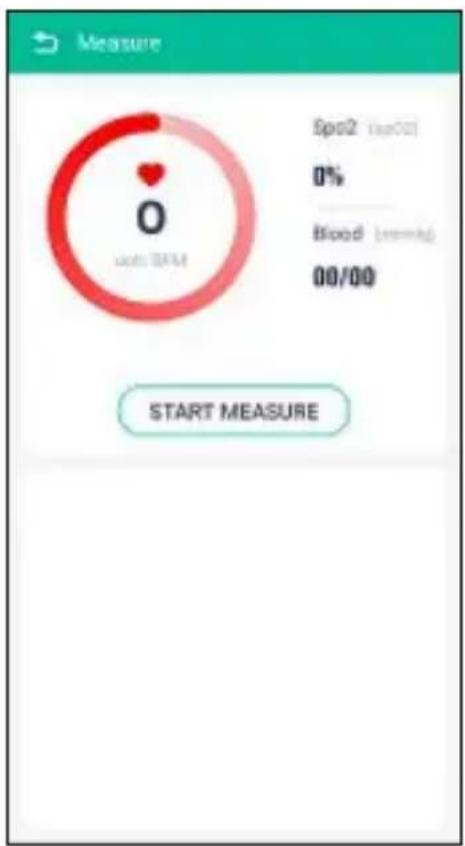
6.5Moduldeactivitate
line
| Metric | Value | | ---------------- | --------- | | Average pace | 18'22" | | Time post | 00:04:16 | | Exmanxpost (ft) | 12 |6.6Setările
bar
| Metric | Value | | :--- | :--- | | BMI | 22.5 (Healthy) | | Light | 13.1 | | (Healthy) | 20.6 | | (Neutral) | 24 | | (Non-Neutral) | 19 | | Body fat rate | 16.5% (Note) | | This | 0.7% (Yes) | | No change | 0.0% (No) | | REEVALUATE | S A B C F |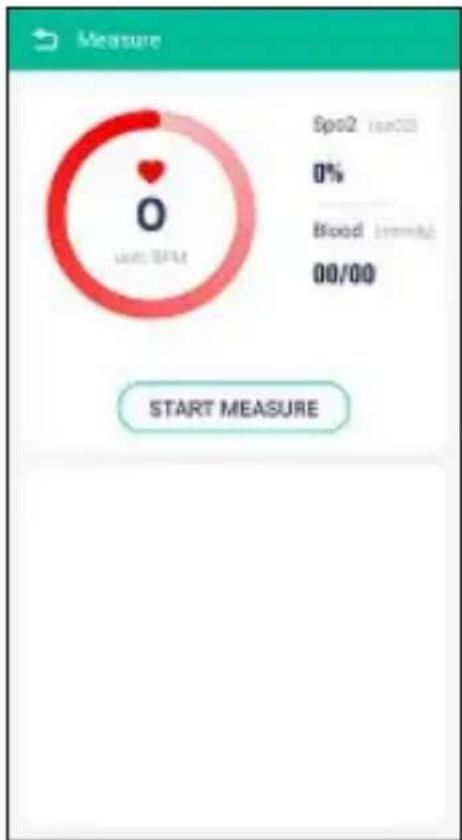
6.4.4Ανάλυσηύπνου
line
| Metric | Value | | --- | --- | | Average pace | 18'22" | | Time past | 00:04:16 | | Extra time point (ft) | 12 | | FitPro Male | 0.23 km | | Google | - |6.6Puθμίσεις
6.2 Sådanparresdinfitness-trackermeddinsmartphone
Bemærk

For at din fitness-tracker kan vise meddelelser såsom opkald, sms'er og WhatsApp-beskeder, skal du aktivere push-tilstandformeddelelseri d insmartphonesindstillinger.
Android-/Apple-mobilenheder
- Sørg for, a t Bluetooth® eraktiver etpåbådedinsmartphoneogdinfitness-tr acker.
6.4.2 Helbredsvurdering
other
| Metric | Value | |---|---| | BMI | 22.5 (Healthy) | | Light | 17.3 | | Healthy | 22.5 | | Mental Health Status | 22.5 | | Delivery | 16.5 (%/Not) |6.4.3 Registreringafpulsogblodtryk
Bemærk

6.4.4Søvnanalyse
6.4.5Sundevaner
line
| Metric | Value | | --- | --- | | Average pace | 18'22" | | Time-to-date | 00:04:16 | | Stock option (No.) | 12 | | Share it | - |6.6Indstillinger
6.6.5 Findfitness-tracker
- Vælg [Find] for at finde din fitness-tracker. Fitness-trackeren vibrerer i ca. 1 sekund.
bar
| Metric | Value | | :--- | :--- | | BMI | 22.5 (Healthy) | | Body fat rate (%) | 16.5 (%Not) | | Niveux | 30.5 | | Niveux (Yes) | 24 | | Niveux (No) | 22 | The chart includes 'Mijn gezondheidsbe oordeling' and 'HEREVALLEREN'. The '89' is shown as a green circle with 'Gezondheidsboerder' label. The 'Body index' indicates BMI values: 96–100 (putlen), 8–95 (putlen), 9–76 (putlen). The 'Niveux' category is represented by colored squares (A, B, C, F). The 'HEREVALLEREN' label is also displayed.