
Omada EAP610Outdoor - Access Point TP-LINK - Free user manual and instructions
Find the device manual for free Omada EAP610Outdoor TP-LINK in PDF.
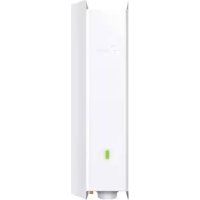



| Product Type | Outdoor Wi-Fi 6 (802.11ax) Access Point |
| Brand | TP-Link |
| Model | Omada EAP610 Outdoor |
| Dimensions | 200 x 200 x 35 mm (without antennas) |
| Weight | 1.5 kg (approximate) |
| Power Supply | PoE (Power over Ethernet) 802.3af/at, or power adapter 12V/1.5A (not included) |
| Main Functions | Dual-band simultaneous (2.4 GHz and 5 GHz), total speed up to 1775 Mbps, Wi-Fi mesh, centralized management via Omada controller, pole or wall mounting |
| Network Standards | IEEE 802.11a/b/g/n/ac/ax, IEEE 802.3u/ab/at/af |
| Security | WPA2/WPA3, MAC filtering, VLAN, guest access, intrusion detection |
| Maintenance and Cleaning | Wipe with a soft, dry cloth. Do not use harsh chemicals. Regularly check the seals. |
| Spare Parts and Repairability | No user-serviceable parts. In case of failure, contact TP-Link support. 2-year warranty. |
| General Information | Operating temperature: -30 °C to 70 °C; IP67 protection rating; CE, RoHS certification |
Frequently Asked Questions - Omada EAP610Outdoor TP-LINK
User questions about Omada EAP610Outdoor TP-LINK
0 question about this device. Answer the ones you know or ask your own.
Ask a new question about this device
Download the instructions for your Access Point in PDF format for free! Find your manual Omada EAP610Outdoor - TP-LINK and take your electronic device back in hand. On this page are published all the documents necessary for the use of your device. Omada EAP610Outdoor by TP-LINK.
USER MANUAL Omada EAP610Outdoor TP-LINK
Hardware Installation
Note: The image may differ from the actual product.
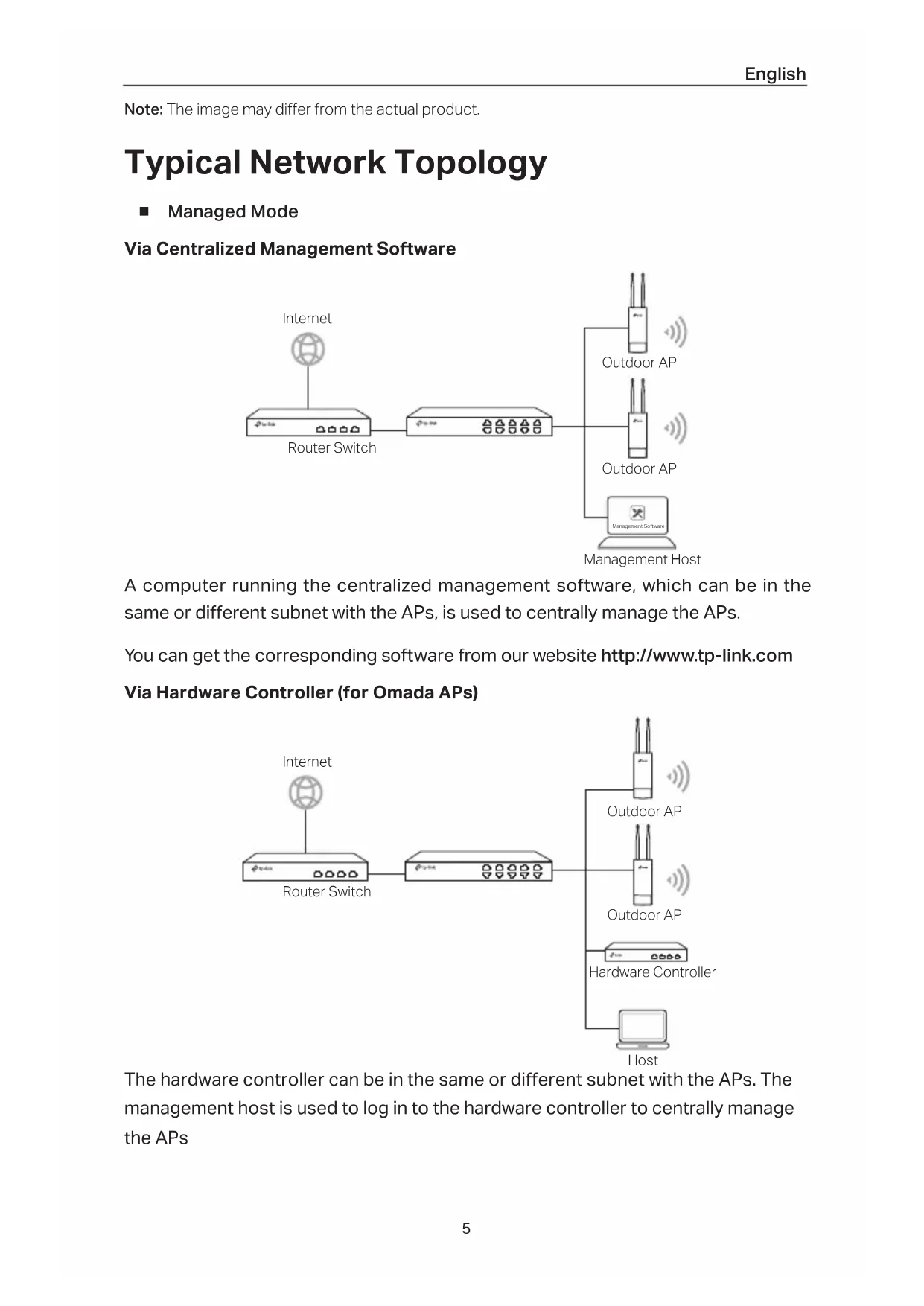
Typical Network Topology
Managed Mode
Via Centralized Management Software
![graph LR A["Internet"] --> B["Router Switch"] B --> C["Network Switch"] C --> D["Outdoor AP"] C --> E["Outdoor AP"] C --> F["Management Software"] D --> G["Management Host"] E --> G F --> G](/content/2026/03/538735/images/7c45ab1f6fb9e5060f1fd31df978d482a108ca40189cd2e41a84a66fd79b4948.jpg)
A computer running the centralized management software, which can be in the same or different subnet with the APs, is used to centrally manage the APs.
You can get the corresponding software from our website http://www.tp-link.com
Via Hardware Controller (for Omada APs)
![graph LR A["Internet"] --> B["Router Switch"] B --> C["Router Switch"] C --> D["Outdoor AP"] C --> E["Outdoor AP"] C --> F["Hardware Controller"] C --> G["Host"]](/content/2026/03/538735/images/e903f43657cc18a430e47c96ac1d20b83c6cafcdd02b9878f8a62bb84053e217.jpg)
The hardware controller can be in the same or different subnet with the APs. The management host is used to log in to the hardware controller to centrally manage the APs.
Standalone Mode
![graph LR A["Internet"] --> B["Router"] B --> C["Switch"] C --> D["Outdoor AP"] D --> E["Host"]](/content/2026/03/538735/images/77360a4ecb5191ef5d69d956b7a848cfde4e2695400ca0f3ff4c1bbb0e4182b9.jpg)
Hardware Connection
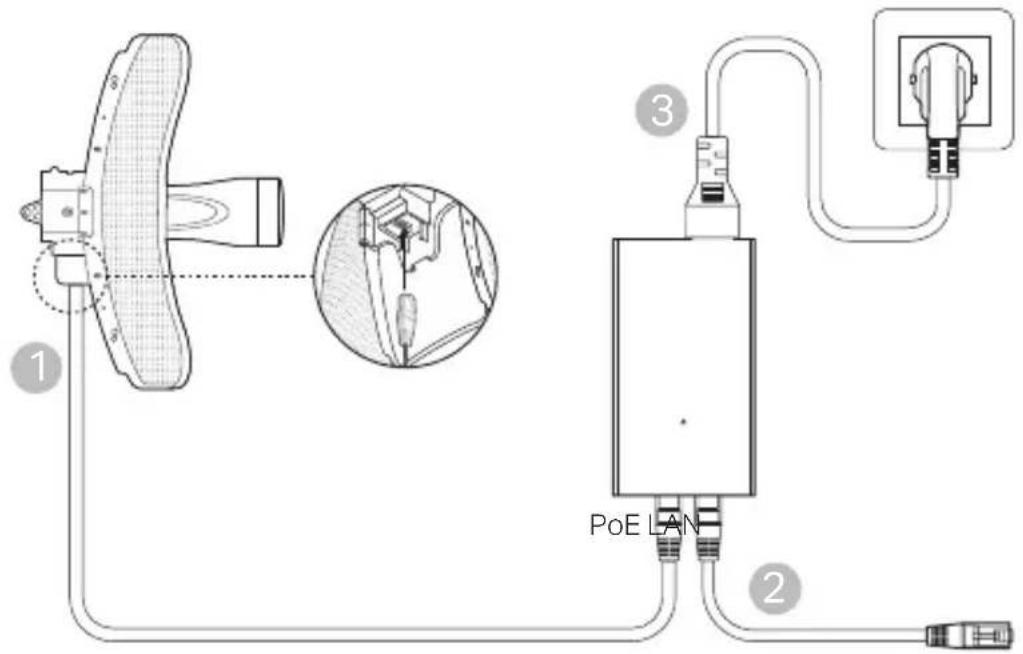
Choose a method to connect your device according to the accessories.
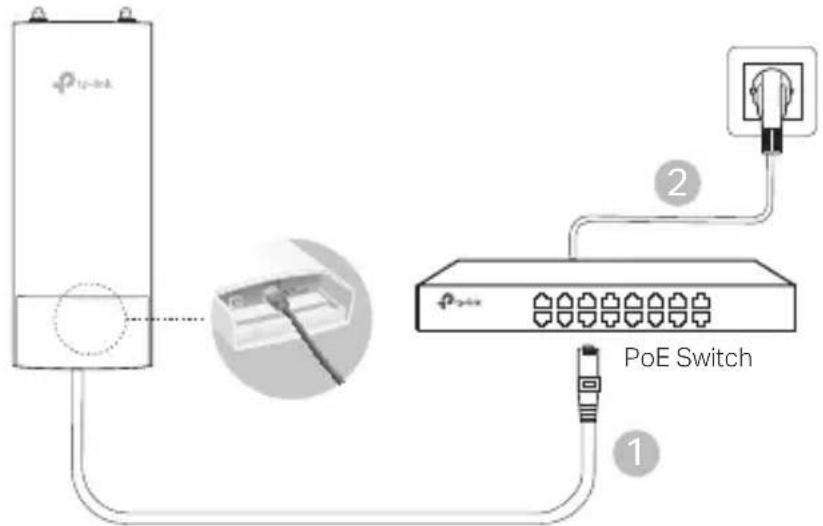
Via PoE Switch
Some APs can be powered via the PSE device (such as a PoE switch) which complies with Power Source Class 2 (PS2) or Limited Power Source (LPS) of IEC 62368-1. Note: Availability depends on the actual product. Please refer to the product specifications.
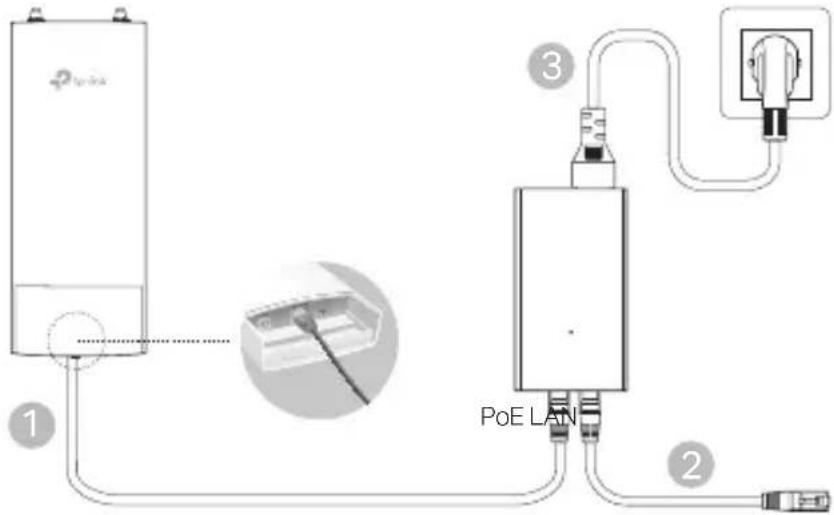
Via PoE Adapter
Some APs can be powered via the PoE adapter. Note: Availability depends on the actual product. Please refer to the product specifications.
Or
Hardware Installation
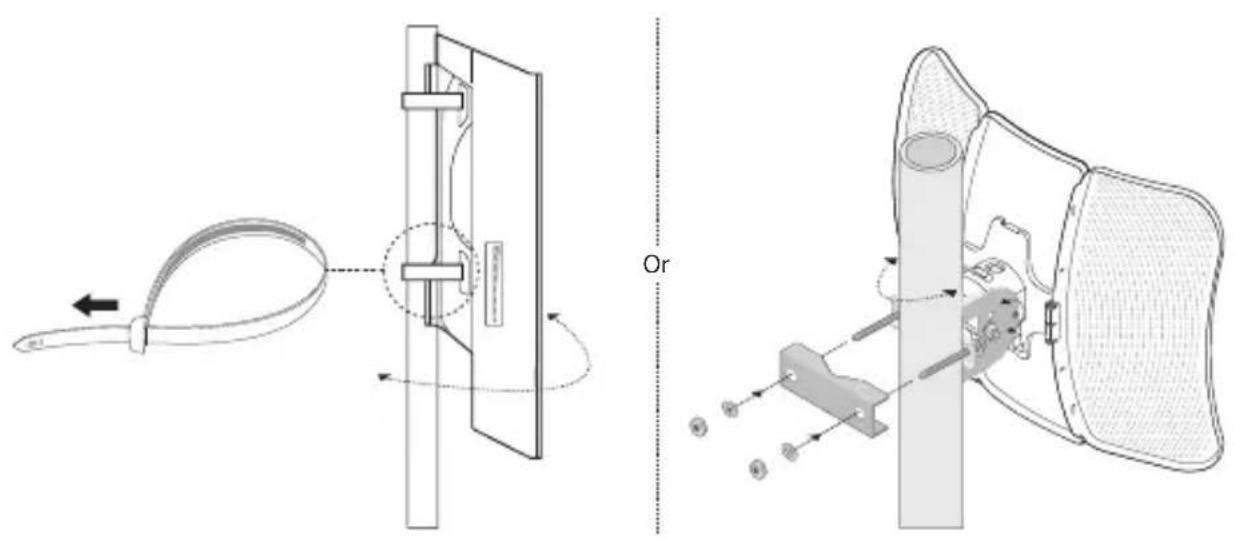
1. Choose a method to mount the device.
■ Mounting the Device on a Pole: At the selected site, attach the device to a suitable point on the pole and then approximately align the device to the direction you have oriented.
At the selected site, attach the device to a suitable point on the pole and then approximately align the device to the direction you have oriented.
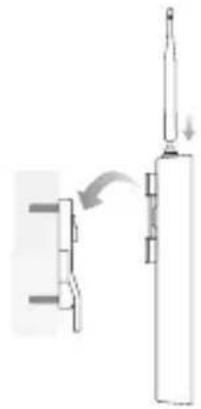
■ Mounting the Device on the Wall (for the product with mounting brackets)
Mount the mounting bracket to the preferred position on the wall. Push and slide the device to lock it into place. Then connect the antennas to the device.
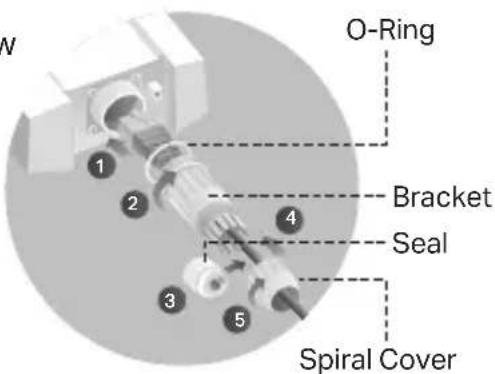
2 Install the waterproof seal (For certain devices)
Before installing, fit the Ethernet cable through the spiral cover, bracket, and O-ring. Then follow the steps as shown in the picture:
(1) Connect the Ethernet cable to the port. (2) Fit the O-ring to the head of the bracket, and screw the bracket to the body of the device. (3) Fit the Ethernet cable through the seal's slit with the thicker side towards the bracket. (4) Plug the seal into the bracket. (5) Screw the spiral cover onto the bracket.
Software Configurations
■ Managed Mode
To configure mass devices via a centralized management software or a wireless controller, please refer to the corresponding User Guide. You can download the User Guide from our website http://www.tp-link.com
■ Standalone Mode
To configure a device through a web-based management system, please follow the steps below.
- Launch a web browser and enter the IP address of your device in the address bar, then press Enter.
Note:
- For Omada APs, you can check the IP address on the product label.
- For other products, the default IP address is 192.168.0.254, and the IP address of your computer should be set to 192.168.0.x ("x" is any number from 1 to 253).
- Enter "admin" for both User Name and Password to log in.
- Change the default User Name and Password to protect your device, then start configuring the device.
- Keep the device away from fire or hot environments. Do not immerse it in water or any other liquid.
- Do not attempt to disassemble, repair, or modify the device. If you need service, please contact us.
- Do not use a damaged charger or USB cable to charge the device.
- Do not use any chargers other than those recommended.
- Do not use the device where wireless devices are not allowed.
- The adapter shall be installed near the equipment and shall be easily accessible.
- Adapter should be used indoors where the ambient temperature is lower than or equal to 40 °C
- The plug on the power supply cord is used as the disconnect device, the socket-outlet shall be easily accessible.
Please read and follow the above safety information when operating the device. We cannot guarantee that no accidents or damage will occur due to improper use of device. Please use this product with care and operate at your own risk.
TP-Link hereby declares that the device is in compliance with the essential requirements and other relevant provisions of directives 2014/53/EU, 2009/125/EC, 2011/65/EU, (EU) 2015/863
The original EU declaration of conformity may be found at https://www.tp-link.com/support/ce/
https://www.tp-link.com/support/ce/
https://www.tp-link.com/support/ce/
https://www.tp-link.com/support/ce/
https://www.tp-link.com/support/ce/
https://www.tp-link.com/support/ce/
Nederlands
https://www.tp-link.com/support/ce/
Svenska
https://www.tp-link.com/support/ce/
Norsk
https://www.tp-link.com/support/ce/
Dansk
For TP-Link Branded Products Only. For information about warranty period, policy and procedures, please visit https://www.tp-link.com/en/support
THIS WARRANTY GIVES YOU SPECIFIC LEGAL RIGHTS, AND YOU MAY HAVE OTHER RIGHTS THAT VARY FROM STATE TO STATE (OR BY COUNTRY OR PROVINCE).
TO THE EXTENT ALLOWED BY LOCAL LAW, THIS WARRANTY AND THE REMEDIES SET FORTH ARE EXCLUSIVE AND IN LIEU OF ALL OTHER WARRANTIES, REMEDIES AND CONDITIONS.
TP-Link warrants the TP-Link branded hardware product contained in the original packaging against defects in materials and workmanship when used normally in accordance with TP-Link's guidelines for a period which depends on the local service from the date of original retail purchase by the end-user purchaser.
Español
For technical support, the user guide and other information, please visit https://www.tp-link.com/support/, or simply scan the QR code.
- HARDWARE INSTALLATION
- TYPICAL NETWORK TOPOLOGY
- MANAGED MODE
- VIA CENTRALIZED MANAGEMENT SOFTWARE
- VIA HARDWARE CONTROLLER (FOR OMADA APS)
- STANDALONE MODE
- HARDWARE CONNECTION
- VIA POE SWITCH
- VIA POE ADAPTER
- CHOOSE A METHOD TO MOUNT THE DEVICE
- INSTALL THE WATERPROOF SEAL (FOR CERTAIN DEVICES)
- SOFTWARE CONFIGURATIONS
- NOTE
- NEDERLANDS
- SVENSKA
- NORSK
- DANSK
- ESPAÑOL
Brand : TP-LINK
Model : Omada EAP610Outdoor
Category : Access Point