PowerEdge SC1420 - Server DELL - Free user manual and instructions
Find the device manual for free PowerEdge SC1420 DELL in PDF.



| Product type | Tower server |
| Brand | Dell |
| Model | PowerEdge SC1420 |
| Dimensions (H x W x D) | 45.0 cm x 20.6 cm x 54.0 cm |
| Weight | Approximately 18 kg |
| Power supply | Internal 550 W power supply (optional 650 W) |
| Supported processors | Intel Xeon (one or two processors) |
| Maximum RAM | 8 GB (with memory fan for >4 GB) |
| Hard drives | Up to 4 SCSI or SATA drives, with RAID support (SATA RAID enabled by default) |
| Integrated network controller | 1 GbE (Broadcom or Intel) |
| Expansion ports | PCI Express x8, PCI-X, PCI |
| Supported operating systems | Microsoft Windows Server 2003, Red Hat Enterprise Linux ES version 3 |
| Cooling | Front fan, optional memory fan, processor fan |
| Security features | System password, administrator password, chassis intrusion detection, execution disable (XD) |
| Maintenance | Clean ventilation grilles regularly with a dry cloth; replace fans if necessary |
| Repairability | Available spare parts: fans, power supplies, hard drives, memory modules |
| General information | 132-page PDF manual available for download; multilingual manual |
Frequently Asked Questions - PowerEdge SC1420 DELL
User questions about PowerEdge SC1420 DELL
0 question about this device. Answer the ones you know or ask your own.
Ask a new question about this device
Download the instructions for your Server in PDF format for free! Find your manual PowerEdge SC1420 - DELL and take your electronic device back in hand. On this page are published all the documents necessary for the use of your device. PowerEdge SC1420 by DELL.
USER MANUAL PowerEdge SC1420 DELL
Notes, Notices, and Cautions

NOTE: A NOTE indicates important information that helps you make better use of your computer.

NOTICE: A NOTICE indicates either potential damage to hardware or loss of data and tells you how to avoid the problem.

CAUTION: A CAUTION indicates a potential for property damage, personal injury, or death.
Abbreviations and Acronyms
For a complete list of abbreviations and acronyms, see "Glossary" in your User's Guide.
Information in this document is subject to change without notice.
© 2004 Dell Inc. All rights reserved.
Reproduction in any manner whatsoever without the written permission of Dell Inc. is strictly forbidden.
Trademarks used in this text: Dell, the DELL logo, and PowerEdge are trademarks of Dell Inc.; Microsoft and Windows are registered trademarks of Microsoft Corporation; Red Hat is a registered trademark of Red Hat, Inc.
Other trademarks and trade names may be used in this document to refer to either the entities claiming the marks and names or their products. Dell Inc. disclaims any proprietary interest in trademarks and trade names other than its own.
Contents
Installing Microsoft Windows Small Business Server 2003 5
Installing Red Hat Enterprise Linux ES (version 3) 5
Memory Cooling Fan and Shroud 5
Installing the Memory Cooling Fan and Shroud 6
System Error Messages 7
System Setup Options 8
Main Screen 8
Assigning a System Password 14
Using Your System Password to Secure Your System ..... 15
Operating With an Admin Password Set 15
Systems With Four Hard Drives or a Tape Backup Unit 16
Installing SCSI Hard Drives 16
Missing Memory in Systems With PCI Express ("Memory Hole") 17
Figures
Figure 1-1. Installing the Memory Cooling Fan and Shroud . . . 6
Figure 1-2. Main System Setup Program Screen 8
Figure 1-3. Installing SCSI Hard Drives 16
Tables
Table 1-1. System Messages....7
Table 1-2. System Options 9
Table 1-3. Drive Options 9
Table 1-4. Onboard Devices Options 10
Table 1-5. Performance Options 11
Table 1-6. Security Options 11
Table 1-7. Power Management Options 12
Table 1-8. Maintenance Options 13
Table 1-9. POST Behavior Options 13
This document provides updated information for your system on the following topics:
- Installing Microsoft ^ Windows ^ Small Business Server 2003
- Installing Red Hat ^ Enterprise Linux ES (version 3)
• Memory cooling fan and shroud - System error messages
- System setup options
- Execute Disable feature (System Setup options/Security options)
- Assigning a system password
- Operating with an admin password set
- Systems with four hard drives or a tape backup unit
• Installing SCSI hard drives - Missing Memory in Systems With PCI Express ("Memory Hole")
Installing Microsoft Windows Small Business Server 2003
If you install Microsoft Windows Small Business Server 2003 on a Dell™ PowerEdge™ SC1420, the installation process may appear to cease with about thirteen minutes remaining during the time when Windows reports that it is registering components. During this portion of the installation, Windows installs additional security updates and patches, which may take significantly longer to install than the reported expected time remaining. While these updates are installing, you should take no action and allow the installation the necessary time to complete. Dell testing has shown the delay to range from 5 to over 45 minutes, depending upon your hardware configuration. Microsoft has documented this behavior in Knowledge Base article #839492.
Installing Red Hat Enterprise Linux ES (version 3)
Before installing Linux on your system, change the SATA Operation option under the Drives menu in the System Setup program to RAID Off.
Memory Cooling Fan and Shroud

NOTICE: If you install more than 4 GB of memory, you must install the memory cooling fan and shroud to prevent the memory from overheating. If you do not install the memory cooling fan and shroud, you will receive an error message stating that you must install a fan or remove some memory.
Installing the Memory Cooling Fan and Shroud

CAUTION: See your System Information Guide for complete information about safety precautions, working inside the computer, and protecting against electrostatic discharge.
1 Turn off the system and attached peripherals, and disconnect the system from the electrical outlet.
2 Open the system.
3 Align the memory cooling fan and shroud tabs with the holes on the back panel. See Figure 1-1.
Figure 1-1. Installing the Memory Cooling Fan and Shroud
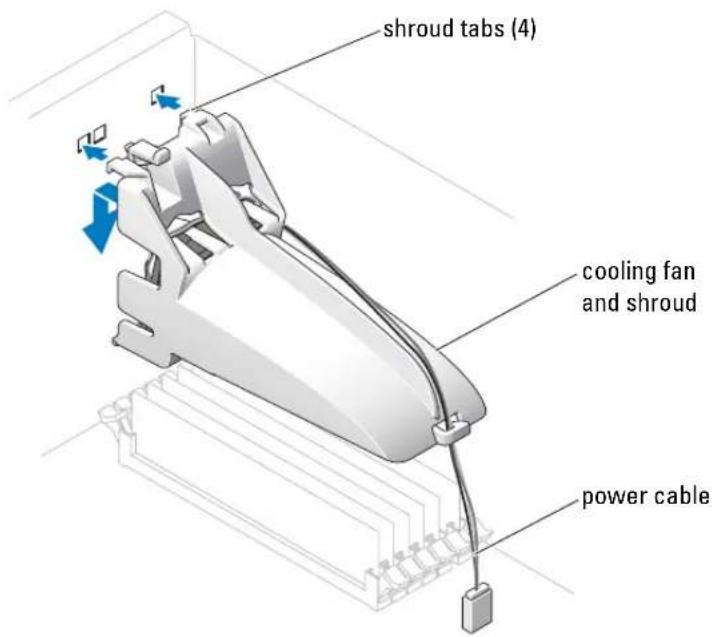
4 Insert the tabs and lower the memory cooling fan and shroud until it snaps into place.
5 Connect the memory cooling fan and shroud power cable to the system board. See Figure 1-1.
6 Close the system.
7 Reconnect the system to the electrical outlet, and turn on the system.
System Error Messages
Table 1-1 lists the system error messages that have been added to POST.
Table 1-1. System Messages
| Message Causes Corrective Actions | ||
| Alert! Memory fan has failed or is not present. A memory fan is required for the current memory configuration. Please see the documentation that came with your computer for more information. | Greater than 4 GB memory installed without installing required memory fan. | Install or replace the memory cooling fan and shroud. |
| Alert! Operating in debug mode. Please populate memory in pairs for normal operation. | Only one memory module with a capacity greater than 256 MB is installed in DIMM_1. | You will see this error message when troubleshooting memory modules. After you have completed the troubleshooting procedures, populate the memory in identical pairs. See "Troubleshooting System Memory" and "Memory Installation Guidelines" in your Installation and Troubleshooting Guide. |
| Alert! Unable to initialize fan controller. | Faulty system board. See "Getting Help" in your Installation and Troubleshooting Guide. | |
| Error! Memory configured incorrectly. Please enter Setup for Memory Info details. | The memory modules are installed incorrectly. | See "Memory Installation Guidelines" in your Installation and Troubleshooting Guide. |
System Setup Options
Main Screen
Figure 1-2 shows an example of the main screen.
Figure 1-2. Main System Setup Program Screen

| SystemSystem InfoCPU InfoMemory InfoDate/TimeBoot Sequence | Diskette DriveOff USB Internal Read Only | |
| DrivesDiskette DriveDrive 0: SATA-0Drive 1: SATA-1Drive 2: DATA-0Drive 3: DATA-1Drive 4: DATA-2Drive 5: DATA-3SATA OperationSMART Reporting | This field determines how the floppy drive operates.Off = All floppy drives are disabled.USB = The internal floppy drive is disabled.If the USB controller is enabled and a USB floppy exists it will be bootable.Internal = The internal floppy drive is enabled.Read Only = The internal floppy drive is enabled and only allows reads.The factory default setting is Internal. | |
| Onboard DevicesIntegrated NICLPT Port ModeLPT Port AddressSerial Port #1Serial Port #2USBPS/2 Mouse Port | ||
| PerformanceHyper-ThreadingHDD Acoustic Mode | ||
| SecurityAdmin passwordSystem password | Use ENTER to modify this selectionUse Up/Down arrows to select a different fieldUse ESC key to exit this programUse +/- keys to expand or collapse a group |
Table 1-2 through Table 1-9 list the options and descriptions for each group of information fields that appear on the main System Setup program screen.

NOTE: The System Setup program defaults are listed under their respective options, where applicable.
Table 1-2. System Options
| Option Description | |
| System Info | Displays the System name, BIOS Version number, BIOS Date, Service Tag, Express Service Code, and Asset Tag. |
| CPU Info | Displays the following information for the processor installed in the system: Processor Type Processor Clock Speed, Processor Bus Speed, Processor Cache Size, Processor ID number, whether the processor is Hyper-Threading Capable, and if the processor has 64-bit Technology |
| Memory Info | Displays the amount of Installed Memory, Memory Speed, Memory Channel Mode, and a description of the Memory Technology. This option also displays a table that describes the memory size, whether the memory module is ECC capable, single or dual rank, type, and organization. |
| Date/Time | Resets the system's internal calendar and clock. |
| Boot Sequence (Diskette drive default) | Determines the order in which the system searches for boot devices during system startup. Available options can include the diskette drive, CD drive, hard drives, and network. |
Table 1-3. Drive Options
| Option Description | |
| Diskette Drive(Internal default) | Enables and disables the diskette drives and sets read permission for the internal diskette drive. Off disables all diskette drives. USB disables the internal diskette drive and enables a USB drive if the USB controller is enabled and a USB drive is connected. Internal enables the internal diskette drive. Read Only enables the internal drive controller and allows the internal diskette drive read-only permission.NOTE: Diskette drives are optional and may not be part of your system. |
| Drive (0-5)(On default) | Enables or disables a PATA or SATA device (such as hard-drive, CD drive, or DVD drive). Off disables the interface so that the device cannot be used.On enables the interface so that the device can be used.Displays the Controller type (PATA or SATA), Port number the drive is using, Drive ID number, Capacity, and whether the drive is controlled by the BIOS.NOTE: Drive 0 and drive 1 are reserved for SATA drives and drives 2–5 are reserved for PATA or IDE drives. |
| SATA Operation (RAID On default) | Determines the integrated SATA controller’s operating mode.RAID On enables RAID support. RAID Off disables RAID support.NOTICE:When using a SCSI RAID add-in controller card, set the integrated SATA controller’s operating mode to RAID Off. |
| SMART Reporting (Off default) | Determines whether hard-drive errors for internal drives are reported during system startup. Off does not report errors. On reports errors. |
Table 1-4. Onboard Devices Options
| Option Description | |
| Integrated NIC(On default) | Enables or disables the integrated NIC controller. Off disables the controller.On enables the controller.NOTE: PXE or RPL is required only if you are booting to an operating system on another system; not if you are booting to an operating system on a hard drive in this system. |
| USB(On default) | Enables or disables the internal USB controller. Off disables the controller. On enables the controller. No Boot enables the controller but disables the ability to boot from a USB device. |
| LPT Port Mode(PS/2 default) | Determines the mode of operation of the internal parallel port. Off disables the port. AT configures the port for IBM AT compatibility. PS/2 configures the port for IBM PS/2 compatibility. EPP configures the port for the EPP bidirectional protocol. ECP configures the port for the ECP bidirectional protocol.If you set the LPT Port Mode to ECP, the LPT Port DMA option appears in the option menu. |
| LPT Port Address(378 default) | Determines the address that the built-in parallel port uses. |
| Serial Port (#1 or #2)(Auto default) | Serial Port 1 options are COM1, COM3, Auto, and Off.Serial Port 2 options are COM2, COM4, Auto, and Off.When serial port 1 or 2 is set to Auto, the integrated port automatically maps to the next available port. Serial port 1 attempts to use COM1 first and then COM3. Serial port 2 attempts to use COM2 first and then COM4. If both addresses are in use for a specific port, the port is disabled.If you set the serial port to Auto and add an expansion card with a port configured to the same designation, the system automatically remaps the integrated port to the next available port designation that shares the same IRQ setting. |
| PS/2 Mouse Port(On default) | Enables or disables the integrated PS/2-compatible mouse controller.Off disables the controller. On enables the controller. |
Table 1-5. Performance Options
| Option Description | |
| IHyper-Threading(On ddefault) | Determines whether the physical processor appears as one or two logical processors. The performance of some applications improve with additional logical processors installed. On enables hyper-threading. Off disables hyper-threading. |
| HDD Acoustic Mode(Performance default) | Allows you to optimize SATA or PATA drive performance and noise level based on personal preferences. Bypass is used for older drives. Quiet slows drive performance but reduces drive noise. Suggested adjusts performance to the manufacturers preferred mode. Performance increases drive performance but may increase drive noise. |
Table 1-6. Security Options
| Option Description | |
| Admin Password(Not Set default) | Displays the current status of your System Setup program's password security feature and allows you to verify and assign a new admin password.NOTE: See "Using the Admin Password" in yourUser's Guidefor instructions on assigning an admin password and using or changing an existing admin password. |
| System Password(Not Set default) | Displays the current status of your system's password security feature and allows you to verify and assign a new system password.NOTE: See "Using the System Password" in yourUser's Guidefor instructions on assigning a system password and using or changing an existing system password. |
| Password Changes(Unlocked default) | Determines the interaction between theSystempassword and theSetuppassword.Lockedprevents a user with a valid Setuppassword from being able to modify theSystempassword.Unlockedallows a user with a valid Setuppassword to modify the system password. |
| Chassis Intrusion(On-Silent default) | Enables or disables the chassis-intrusion detection feature. When set toOn-Silent, chassis intrusion is detected but no warning message is reported during start-up. When set toOn, this field displaysDETECTEDwhen the chassis cover has been opened. Pressing any edit key acknowledges the intrusion and arms the system to look for further security breaches. Off disables the chassis-intrusion detection feature. |
| Intrusion Alert | Pressing thekey acknowledges the intrusion and arms the system to look for further security breaches. |
| Execute Disable (On default) | Execute Disable (XD) is a new security feature that helps prevent code execution in certain memory areas when combined with a supported operating system or application. Execute Disable can help to prevent a class of viruses that use buffer overflow attacks. Execute Disable has two settings, On and Off. On indicates that Execute Disable Memory Protection Technology is on. Off indicates that Execute Disable Memory Protection Technology is off. |
Table 1-7. Power Management Options
| Option Description | |
| AC Recovery(Last default) | Determines how the system responds when AC power is reapplied after a power loss. Off commands the system to stay off when the power is reapplied. You must press the front-panel power button before the system turns on.On commands the system to turn on when the power is reapplied. Last commands the system to return to the last power state the system was in just before it was turned off. |
| Auto Power On(Off default) | Determines when to use the Auto Power Time setting to turn on the system. Off commands the system to not use the Auto Power Time feature. Everyday turns on the system every day at the time set in Auto Power Time. Weekdays turns on the system every day from Monday through Friday at the time set in Auto Power Time. |
| Auto Power Time Determines the time that you want the system to turn on. | |
| Low Power Mode(Off default) | On conserves more power by removing power from most hardware features. Off conserves less power and removes power from fewer hardware features. |
| Remote Wake Up(Off default) | Determines how the system is turned on remotely from the Suspend, Hibernate, or Off states. Off disables the NIC from waking up the system. On enables the NIC to wake up the system. On w/ Boot to NIC enables the NIC to wake up the system and boot from the network.If you want the system to perform a Remote Wake Up, you must first set Low Power Mode to Off. |
Table 1-8. Maintenance Options
| Option Description | |
| Load Defaults Allows you to restore all System Setup options to their factory defaults. | |
| Event Log | Allows you to view the Event Log. Entries are marked R for Read and U for Unread. Mark All Entries Read puts an R to the left of all the entries. Clear Log clears the Event Log. |
Table 1-9. POST Behavior Options
| Option Description | |
| Fast Boot(On default) | When enabled, this feature reduces system startup time by bypassing some compatibility steps. Off docs not skip any steps during system startup.On starts the system more quickly. |
| Numlock Key(On default) | Determines the functionality of the numeric keys on the right side of your keyboard. Off commands the right keypad keys to function as arrows.On commands the right keypad keys to function as numbers. |
| POST Hotkeys(Setup and Boot Menu default) | Determines whether the sign-on screen displays a message stating the keystroke sequence that is required to enter the Setup program or the Quickboot feature. Setup & Boot Menu displays both messages (F2=Setup and F12=Boot Menu). Setup displays the setup message only (F2=Setup). Boot Menu displays the Quickboot message only (F12=Boot Menu). None displays no message. |
| Keyboard Errors(Report default) | When set to Report (enabled) and an error is detected during POST, the BIOS will display the error message and prompt you to press <F1> to continue or press <F2> to enter System Setup.When set to Do Not Report (disabled) and an error is detected during POST, the BIOS will display the error message and continue booting the system. |
Assigning a System Password
Before you assign a system password, enter the System Setup program and check the System Password option.
When a system password is assigned, the setting shown for the System Password option is Set. If the setting shown for the Password Changes is Unlocked, you can change the system password. If the Password Changes option is Locked, you cannot change the system password. When the system password feature is disabled by a jumper setting, the system password is Disabled, and you cannot change or enter a new system password.
When a system password is not assigned and the password jumper on the system board is in the enabled (default) position, the setting shown for the System Password option is Not Set and the Password Changes field is Unlocked. To assign a system password:
1 Verify that the Password Changes option is set to Unlocked.
2 Highlight the System Password option and press
3 Type your new system password.
You can use up to 32 characters in your password.
As you press each character key (or the spacebar for a blank space), a placeholder appears in the field.
The password assignment is not case-sensitive. However, certain key combinations are not valid. If you enter one of these combinations, the system beeps. To erase a character when entering your password, press

NOTE: To escape from the field without assigning a system password, press
4 Press
5 To confirm your password, type it a second time and press
The setting shown for the System Password changes to Set.
6 Save and exit the System Setup program and begin using your system.
Using Your System Password to Secure Your System

NOTE: If you have assigned an admin password (see "Using the Admin Password" in your User's Guide), the system accepts your admin password as an alternate system password.
When the Password Changes option is set to Unlocked, you have the option to leave the password security enabled or to disable the password security.
To leave the password security enabled:
1 Turn on or reboot your system by pressing
2 Type your password and press
When the Password Changes option is set to Locked whenever you turn on your system or reboot your system by pressing , type your password and press
After you type the correct system password and press
If an incorrect system password is entered, the system displays a message and prompts you to re-enter your password. You have three attempts to enter the correct password. After the third unsuccessful attempt, the system displays an error message showing the number of unsuccessful attempts and that the system has halted and will shut down. This message can alert you to an unauthorized person attempting to use your system.
Even after you shut down and restart the system, the error message continues to be displayed until the correct password is entered.

NOTE: You can use the Password Changes option in conjunction with the System Password and Admin Password options to further protect your system from unauthorized changes.
Operating With an Admin Password Set
If Admin Password is Set, you must enter the correct admin password before you can modify most of the System Setup options. When you start the System Setup program, you must enter the password from the Unlock Setup option.
If you do not enter the correct password in three attempts, the system lets you view, but not modify, the System Setup screens—with the following exception: If System Password is not set to Set and is not locked through the Password Changes option, you can assign a system password (however, you cannot disable or change an existing system password).

NOTE: You can use the Password Changes option in conjunction with the Admin Password option to protect the system password from unauthorized changes.
Systems With Four Hard Drives or a Tape Backup Unit
NOTE: Call Dell for the processor fan and shroud specifications.
If your system contains a single processor and you upgrade to a configuration with four hard drives or a tape backup unit, you must install the second processor fan and cooling shroud. See your Installation and Troubleshooting Guide for instructions about installing the processor fan and cooling shroud.
Installing SCSI Hard Drives
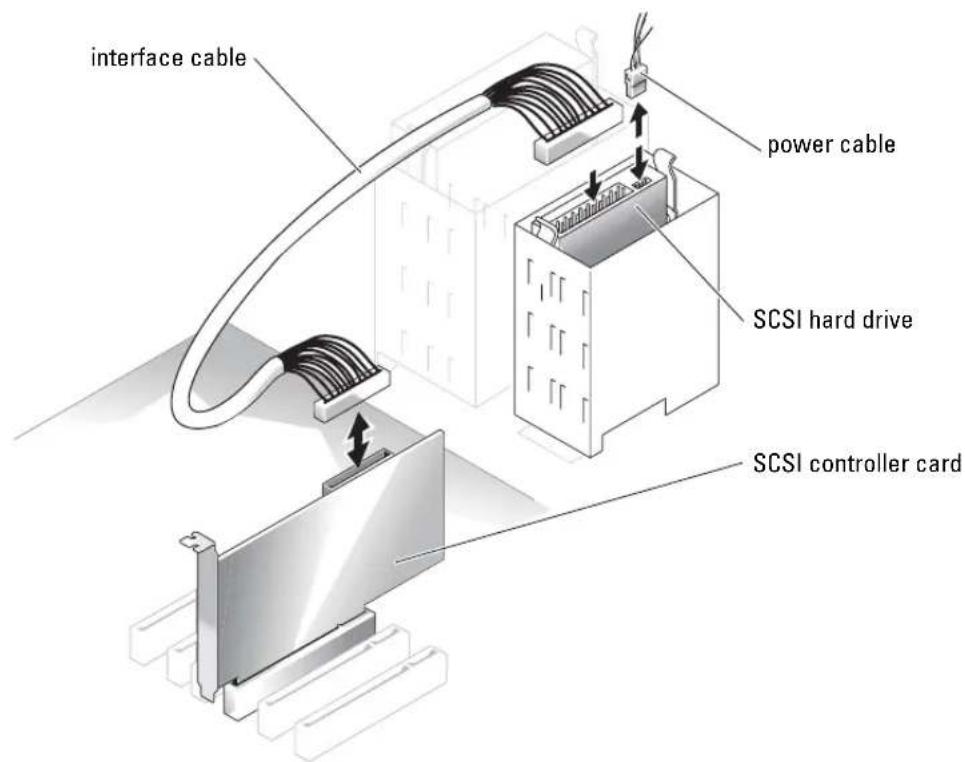
When installing SCSI hard drives, you must connect the drives to a SCSI controller card. See Figure 1-3. The installation illustration in your Installation and Troubleshooting Guide shows the drives being connected to the system board.
Figure 1-3. Installing SCSI Hard Drives
Missing Memory in Systems With PCI Express ("Memory Hole")
A condition has been noted on system configurations containing PCI Express slots and RAM of 3.5 GB or greater. The operating system will show an amount of available RAM that is less than the amount actually installed on the system. The difference of memory, commonly called a "memory hole," is due to the requirements of the PCI Express subsystem and how memory is allocated by the system. PCI Express requires RAM in amounts of 256 MB full blocks at a time. Therefore, a minimum of 256 MB of memory is allotted by the system for PCI Express use, and the allocation can go higher (in additional blocks of 256 MB) if the system contains additional adapters, either peripheral or integrated, or if your system supports hot-plug PCI Express.
The memory hole is visible only at the operating system level. The System Setup program reports the installed RAM correctly.
At this writing, one workaround is available, as reported in the Microsoft Knowledge Base article #283037 available on Microsoft's support website. The workaround applies only if your system has 4 GB or more of RAM and your operating system supports Physical Address Extensions (PAE).

NOTICE: You should exercise caution before enabling PAE in your operating system as a number of problems can occur in certain system configurations. You should search both the Dell and Microsoft Knowledge Bases for articles detailing these issues and take the appropriate measures to avoid them.
To enable PAE in Microsoft Windows 2000 and 2003, add a/PAE switch in the boot.ini file to the line that corresponds to the Windows operating system. For other operating systems, refer to your documentation or operating system support website for information on PAE support.
Dell™ PowerEdge™
SC1420 系统
信息更新
注、注意和警告
| System System Info CPU Info Memory Info Date/Time Boot Sequence | Diskette Drive | |||
| Off | USB | Internal Read Only | ||
| This field determines how the floppy drive operates. | ||||
| Off = All floppy drives are disabled. USB = The internal floppy drive is disabled. If the USB controller is enabled and a USB floppy exists it will be bootable. | ||||
| Internal = The internal floppy drive is enabled. Read Only = The internal floppy drive is enabled and only allows reads. | ||||
| The factory default setting is Internal. | ||||
| Drives Diskette Drive Drive 0: SATA-0 Drive 1: SATA-1 Drive 2: DATA-0 Drive 3: DATA-1 Drive 4: DATA-2 Drive 5: DATA-3 SATA Operation SMART Reporting | ||||
| Onboard Devices Integrated NIC LPT Port Mode LPT Port Address Serial Port #1 Serial Port #2 USB PS/2 Mouse Port | ||||
| Performance Hyper-Threading HDD Acoustic Mode | ||||
| Security Admin password System password | ||||
| System System Info CPU Info Memory Info Date/Time Boot Sequence | Diskette Drive | |||
| Off | USB | Internal Read Only | ||
| This field determines how the floppy drive operates. | ||||
| Off | = All floppy drives are disabled. | |||
| USB | = The internal floppy drive is disabled. | |||
| If the USB controller is enabled and a USB floppy exists it will be bootable. | ||||
| Internal | = The internal floppy drive is enabled. | |||
| Read Only | = The internal floppy drive is enabled and only allows reads. | |||
| The factory default setting is Internal. | ||||
| Drives Diskette Drive Drive 0: SATA-0 Drive 1: SATA-1 Drive 2: SATA-0 Drive 3: SATA-1 Drive 4: SATA-2 Drive 5: SATA-3 SATA Operation SMART Reporting | ||||
| Onboard Devices Integrated NIC LPT Port Mode LPT Port Address Serial Port #1 Serial Port #2 USB PS/2 Mouse Port | ||||
| Performance Hyper-Threading HDD Acoustic Mode | ||||
| Security Admin password System password | ||||
| SystemSystem InfoCPU InfoMemory InfoDate/TimeBoot Sequence | Diskette DriveOff USB Internal Read Only | |
| DrivesDiskette DriveDrive 0: SATA-0Drive 1: SATA-1Drive 2: SATA-0Drive 3: SATA-1Drive 4: SATA-2Drive 5: SATA-3SATA OperationSMART Reporting | This field determines how the floppy drive operates.Off = All floppy drives are disabled.USB = The internal floppy drive is disabled.If the USB controller is enabled and a USB floppy exists it will be bootable.Internal = The internal floppy drive is enabled.Read Only = The internal floppy drive is enabled and only allows reads.The factory default setting is Internal. | |
| Onboard DevicesIntegrated NICLPT Port ModeLPT Port AddressSerial Port #1Serial Port #2USBPS/2 Mouse Port | ||
| PerformanceHyper-ThreadingHDD Acoustic Mode | ||
| SecurityAdmin passwordSystem password | Use ENTER to modify this selectionUse Up/Down arrows to select a different fieldUse ESC key to exit this programUse +/- keys to expand or collapse a group |
| System System Info CPU Info Memory Info Date/Time Boot Sequence | Diskette Drive | |||
| Off | USB | Internal Read Only | ||
| This field determines how the floppy drive operates. | ||||
| Off | = All floppy drives are disabled. | |||
| USB | = The internal floppy drive is disabled. | |||
| If the USB controller is enabled and a USB floppy exists it will be bootable. | ||||
| Internal | = The internal floppy drive is enabled. | |||
| Read Only | = The internal floppy drive is enabled and only allows reads. | |||
| The factory default setting is Internal. | ||||
| Drives Diskette Drive Drive 0: SATA-0 Drive 1: SATA-1 Drive 2: SATA-0 Drive 3: SATA-1 Drive 4: SATA-2 Drive 5: SATA-3 SATA Operation SMART Reporting | ||||
| Onboard Devices Integrated NIC LPT Port Mode LPT Port Address Serial Port #1 Serial Port #2 USB PS/2 Mouse Port | ||||
| Performance Hyper-Threading HDD Acoustic Mode | ||||
| Security Admin password System password | ||||
| System System Info CPU Info Memory Info Date/Time Boot Sequence | Diskette Drive | |||
| Off | USB | Internal Read Only | ||
| This field determines how the floppy drive operates. | ||||
| Off | = All floppy drives are disabled. | |||
| USB | = The internal floppy drive is disabled. | |||
| If the USB controller is enabled and a USB floppy exists it will be bootable. | ||||
| Internal | = The internal floppy drive is enabled. | |||
| Read Only | = The internal floppy drive is enabled and only allows reads. | |||
| The factory default setting is Internal. | ||||
| Drives Diskette Drive Drive 0: SATA-0 Drive 1: SATA-1 Drive 2: SATA-0 Drive 3: SATA-1 Drive 4: SATA-2 Drive 5: SATA-3 SATA Operation SMART Reporting | ||||
| Onboard Devices Integrated NIC LPT Port Mode LPT Port Address Serial Port #1 Serial Port #2 USB PS/2 Mouse Port | ||||
| Performance Hyper-Threading HDD Acoustic Mode | ||||
| Security Admin password System password | ||||
| System System Info CPU Info Memory Info Date/Time Boot Sequence | Diskette Drive | |||
| Off | USB | Internal Read Only | ||
| This field determines how the floppy drive operates. | ||||
| Off = All floppy drives are disabled. USB = The internal floppy drive is disabled. If the USB controller is enabled and a USB floppy exists it will be bootable. | ||||
| Internal = The internal floppy drive is enabled. Read Only = The internal floppy drive is enabled and only allows reads. | ||||
| The factory default setting is Internal. | ||||
| Drives Diskette Drive Drive 0: SATA-0 Drive 1: SATA-1 Drive 2: DATA-0 Drive 3: DATA-1 Drive 4: DATA-2 Drive 5: DATA-3 SATA Operation SMART Reporting | ||||
| Onboard Devices Integrated NIC LPT Port Mode LPT Port Address Serial Port #1 Serial Port #2 USB PS/2 Mouse Port | ||||
| Performance Hyper-Threading HDD Acoustic Mode | ||||
| Security Admin password System password | ||||
- Notes, Notices, and Cautions
- Abbreviations and Acronyms
- Contents
- Figures
- Tables
- Installing Microsoft Windows Small Business Server 2003
- Installing Red Hat Enterprise Linux ES (version 3)
- Memory Cooling Fan and Shroud
- Installing the Memory Cooling Fan and Shroud
- CAUTION: See your System Information Guide for complete information about safety precautions, working inside the computer, and protecting against electrostatic discharge.
- System Error Messages
- System Setup Options
- Main Screen
- Assigning a System Password
- Operating With an Admin Password Set
- Systems With Four Hard Drives or a Tape Backup Unit
- Installing SCSI Hard Drives
- Missing Memory in Systems With PCI Express ("Memory Hole")
- 注、注意和警告
Brand : DELL
Model : PowerEdge SC1420
Category : Server