EasyManual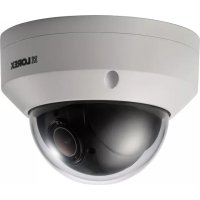
LNZ32P4 - Surveillance Camera Lorex - Free user manual and instructions
Find the device manual for free LNZ32P4 Lorex in PDF.



Download the instructions for your Surveillance Camera in PDF format for free! Find your manual LNZ32P4 - Lorex and take your electronic device back in hand. On this page are published all the documents necessary for the use of your device. LNZ32P4 by Lorex.
USER MANUAL LNZ32P4 Lorex
Instruction Manual LNZ32P4 SERIES 4x IP PTZ DOME CAMERA LNZ32P4_SERIES_MANUAL_TRILINGUAL_R4Thank you for purchasing this product. Lorex is committed to providing our customers with a high quality, reliable security solution. This manual refers to the following model: LNZ32P4 For the latest online manual, downloads and product updates, and to learn about our complete line of accessory products, please visit our website at: www.lorextechnology.com WARNING
COVER. NO USER SERVICEABLE PARTS INSIDE. REFER SERVICING TO QUALIFIED SERVICE PERSONNEL. The lightning flash with arrowhead symbol, within an equilateral triangle, is intended to alert the user to the presence of uninsulated "dangerous voltage" within the product’s enclosure that may be of sufficient magnitude to constitute a risk of electric shock. The exclamation point within an equilateral triangle is intended to alert the user to the presence of important operating and maintenance (servicing) instructions in the literature accompanying the appliance.
WARNING: TO PREVENT FIRE OR SHOCK HAZARD, DO NOT EXPOSE THIS UNIT
3.2 OPTION 2: Connecting Cameras to the Local Area Network
(LAN) .......................................................................................3
3.3 Adding the PTZ Camera to the LNR / NR Series NVRs........................5
3.4 Adding the PTZ camera to the LNK Series NVRs ...............................6
5 Controlling the PTZ Camera with an NVR.............................................. 14 6 Controlling the PTZ camera with LNR / NR Series NVRs ......................... 15
7 Controlling the PTZ camera with LNK Series NVRs ................................ 20
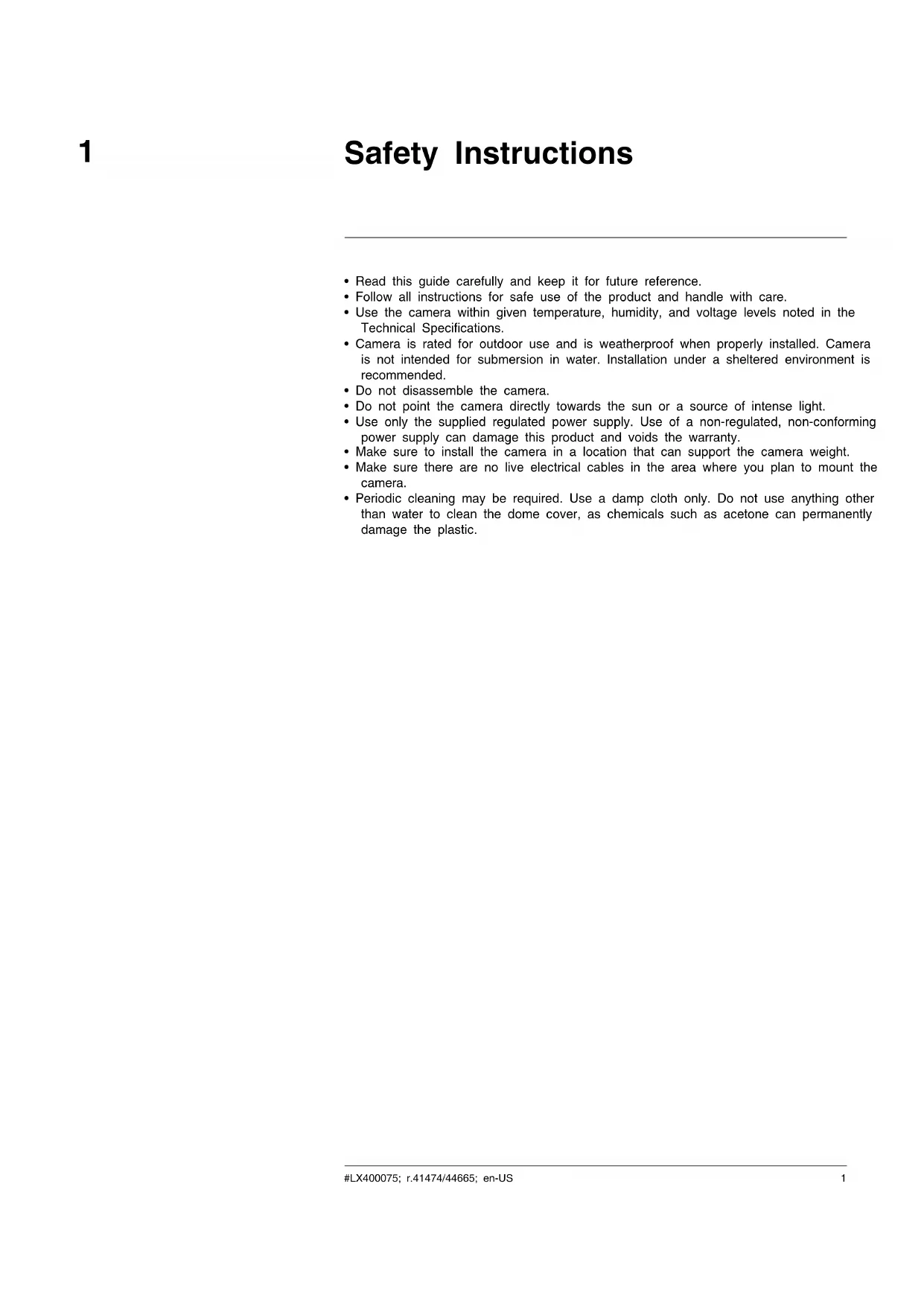
- Read this guide carefully and keep it for future reference.
- Follow all instructions for safe use of the product and handle with care.
- Use the camera within given temperature, humidity, and voltage levels noted in the Technical Specifications.
- Camera is rated for outdoor use and is weatherproof when properly installed. Camera is not intended for submersion in water. Installation under a sheltered environment is recommended.
- Do not disassemble the camera.
- Do not point the camera directly towards the sun or a source of intense light.
- Use only the supplied regulated power supply. Use of a non-regulated, non-conforming power supply can damage this product and voids the warranty.
- Make sure to install the camera in a location that can support the camera weight.
- Make sure there are no live electrical cables in the area where you plan to mount the camera.
- Periodic cleaning may be required. Use a damp cloth only. Do not use anything other than water to clean the dome cover, as chemicals such as acetone can permanently damage the plastic. #LX400075; r.41474/44665; en-US 1Getting Started
The system comes with the following components: IP PTZ Dome Camera 100ft (30.5m) CAT5e UL Compliant Ethernet Extension Cable Allen Key (x2) Mounting Template Mounting Screws (x3) & Anchors (x3) (For camera) Wall Mounting Bracket Mounting Screws ST4 (x4) & Anchors S6 (x4) (For wall mounting bracket) Hex Bolt M4x10 (x3) (For wall mounting bracket) Installation Diagram Guide and Instructional Manual #LX400075; r.41474/44665; en-US 2Connecting the Camera
It is recommended to connect the camera to your NVR and test the PTZ controls before permanent installation. For instructions on how to setup PTZ controls, see 5 Controlling the PTZ Camera with an NVR, page 14.
3.1 OPTION 1: Connecting Cameras to an NVR
1. Connect the PoE connector on the camera cable to the included Ethernet extension
2. Connect the Ethernet extension cable to one of the PoE ports on the back panel of
- You can use a single CAT5e Ethernet cable up to 300ft (91m) to connect the camera to your NVR.
- Compatible with the LNR / NR / LNK Series NVRs, excluding the LNR200 and LNR300 Series. For the most up-to-date list of compatible recorders, please visit www.lorextechnology.com/compatibility.
3.2 OPTION 2: Connecting Cameras to the Local Area Network (LAN)
For flexibility, you may also connect the camera to the same Local Area Network (LAN) as the NVR. This is accomplished by connecting the camera to the same router (not in- cluded) as the NVR. For these installations, an external PoE switch (sold separately) or power adapter (not included) must be used to provide power to the camera. You must also add the camera on the NVR before it will show a picture on the monitor or be recorded by the NVR. What is PoE? PoE is a technology that allows Ethernet cables to carry electrical power to connected de- vices. Compatible NVRs use integrated PoE ports to provide power and PTZ commands to the camera, as well as video connection to the NVR over a single CAT5E cable. In order to use PoE with this IP camera, you must connect it directly to a compatible NVR or a PoE switch on the same network as the NVR. NOTE
- For the most up-to-date list of compatible recorders, please visit www.lorextechnology.com/compatibility
- PoE switches are available for purchase on www.lorextechnology.com. Complete the following steps to connect the camera to the NVR over the LAN. #LX400075; r.41474/44665; en-US 3Connecting the Camera
Step 1 of 2 — OPTION A: Connecting the camera to your local network using an op- tional PoE switch:
1. Connect an Ethernet cable of up to 300ft (91m) rated CAT5e or higher (not included)
from the LAN port on an external PoE switch (sold separately on www.lorextechnology.com) to your router. Connect the power cable to the PoE switch and plug into a power outlet or surge protector. NOTE Terminology may vary depending on the model of PoE switch you have.
2. Connect the camera to the PoE switch using the included Ethernet cable (or a CAT5e
Ethernet cable of up to 300ft (91m)). The PoE switch will provide power and video transmission the same way as your NVR. Step 1 of 2 — OPTION B: Connecting the camera to your local network using a power adapter: #LX400075; r.41474/44665; en-US 4Connecting the Camera
1. Connect the camera to a power adapter (not included).
NOTE For power requirement specification, see 8 Technical Specifications.
2. Connect the camera to a router in the same network as your NVR using the included
Ethernet cable (or an Ethernet cable of up to 300ft (91m) rated CAT5e or higher). Step 2 of 2: Add the camera to your NVR:
- For instructions on adding the PTZ camera to the LNR / NR Series NVRs , see 3.3 Add- ing the PTZ Camera to the LNR / NR Series NVRs, page 5
- For instructions on adding the PTZ camera to the LNK Series NVRs, see 3.4 Adding the PTZ camera to the LNK Series NVRs, page 6 NOTE For instructions on how to locate the serial and model number of your recorder, visit www.lorextechnology. com and search for “Where is the Serial and Model Number located”.
3.3 Adding the PTZ Camera to the LNR / NR Series NVRs
To add the PTZ camera to the LNR / NR Series NVRs: The following instructions are based on the LNR400 Series NVR. See your NVR’s instruc- tion manual for instructions on controlling the PTZ camera with your system. NOTE
- Not compatible with LNR200 / LNR300 Series NVRs. For the latest list of compatible recorders, see www.lorextechnology.com/compatibility.
- You must have at least one empty channel before attempting to add the camera to the NVR.
1. Right-click during live view and select Device Search.
4. Check the camera(s) you would like to add.
5. Click Add. The Status indicator turns green to show the camera is successfully
6. Click OK to save changes.
NOTE You can also add a camera to a specific channel by hovering the mouse over an empty channel in split- screen view and clicking . Click Device Search and double-click the camera you would like to add. Right click to exit.
3.4 Adding the PTZ camera to the LNK Series NVRs
To add the PTZ camera to the LNK Series NVRs: The following instructions are based on the LNK7000 Series NVR. See your NVR’s in- struction manual for instructions on controlling the PTZ camera with your system.
1. From live view, hover over a blank channel. Click
in the center of the channel to add the PTZ camera from the LAN. A Quick Add menu opens. NOTE If prompted, enter the system user name (default: admin) and your password. #LX400075; r.41474/44665; en-US 6Connecting the Camera
3. Click the camera you would like to add. The selected camera’s attributes appear on
the right-side of the screen.
4.1 Installation Tips and Warnings
- Camera is rated for outdoor use. It is recommended to install the camera in a sheltered area, such as under the eaves on a roof.
- Use the included wall mounting bracket for wall installation. Otherwise, the camera im- age will be sideways. You can also refer to the included installation diagram guide for wall mounting instructions.
- Camera is capable of seeing in low light conditions (0.1 Lux), but it cannot see in total darkness. NOTE It is recommended to install the camera where there is some ambient light (for example, street lighting or starlight, moonlight, etc.) or leave some lighting on in the area where the camera is installed.
- Mount the camera in a location that can support the camera weight.
- Mount the camera where the lens is away from direct and intense sunlight.
- Plan your cable wiring so that it does not interfere with power lines or telephone lines.
- Ensure you adhere to local building codes.
- Ensure that the camera wiring is not exposed or easily cut.
- Mount the camera in an area that is visible but out of reach. NOTE This camera is suitable for ceiling mounting. Wall mounting requires included wall mount.
4.2 Installation (Indoor/Outdoor)
The camera includes all necessary components for ceiling mounting and wall mounting. For full instructions on each type of mounting, see 4.2.1 Wall Mounting or 4.2.2 Ceiling Mounting. Before installing the camera, decide whether to run the cables through the wall / ceiling (drilling required) or along the wall / ceiling. If you run the cables along the wall / ceiling, you must run the cable through the cable notch on the dome camera base. This will keep the dome camera base flush to the ceiling when mounted.
CAUTION Make sure to install in a location that can support the combined weight of the wall mounting bracket and the camera. #LX400075; r.41474/44665; en-US 8Installation4 To wall mount the camera:
1. Use the Allen key (S3.0) included with the wall mounting bracket kit to loosen the hex
lock on the bottom of the wall mounting bracket. Once loose, remove the back plate of the mounting bracket.
2. Use the Allen key included with the camera mounting kit to loosen the dome camera
cover screws (x3). Remove the dome camera cover.
3. Insert the camera cable through the hole in the wall mounting bracket.
#LX400075; r.41474/44665; en-US 9Installation4
4. Ensure that the cable notch on the dome camera base is aligned with the cable notch
on the wall mounting bracket. Align the 3 mounting holes on the dome camera base with the 3 corresponding mounting holes on the wall mounting bracket. 1: Cable Notch 2: Mounting Holes NOTE The wall mount you received may have more or less mounting holes than the one depicted in this guide. The mounting holes (3x) on the dome camera base will align with the corresponding mounting holes on the wall mount.
5. Use the Hex Bolt M4x10 (x3) screws included with the wall mounting bracket kit to se-
cure the position of the dome camera base.
6. Holding the flat side of the back plate against the mounting surface, mark holes for the
mounting screws ST4 (x4) and the camera cable. Remove the back plate and drill where marked. NOTE You do not need to mark holes for the camera cable if you plan to run it along the wall / ceiling. 1: Mounting screw ST4 (x4) holes, 2: Camera cable hole #LX400075; r.41474/44665; en-US 10Installation4
7. Attach the back plate to the mounting surface using the mounting screws ST4 (x4) in-
cluded with the wall mounting bracket kit. NOTE Use the drywall anchors included with the wall mounting bracket kit if installing on a drywall surface.
8. Connect the camera cable as shown in the 3 Connecting the Camera section, then
feed the cables through the cable hole in the back plate (attached to the mounting surface). CAUTION If you run the cables along the mounting surface, you must run the cable through the side notch on the wall mounting bracket. The camera cable will hang alongside the wall mounting bracket — see image below for reference:
9. Lower the wall mounting bracket onto the back plate. Ensure that the 2 metal flaps on
the back plate lock into the 2 grooves in the wall mounting plate.
10. Use the included Allen key (S3.0) to tighten the hex lock on the bottom of the wall
11. Replace the dome camera cover and tighten the dome camera cover screws using the
Allen key included with the camera mounting kit.
12. Remove the vinyl film from the dome cover once installation is complete.
To ceiling mount the camera:
1. Use the mounting template included with the camera mounting kit to mark holes for the
mounting screws (x3) and camera cable.
1. Mounting screw holes; 2. Camera cable hole (Optional)
2. Drill holes for the mounting screws, drywall anchors (optional) and camera cable
- Use the included drywall anchors if installing on a drywall surface.
- If you are planning on running the cables along the mounting surface, there is no need to drill a hole for the camera cable.
3. Use the Allen key included with the camera mounting kit to loosen the dome camera
cover screws (x3). Remove the dome camera cover.
4. Connect the camera cables as shown in 3 Connecting the Camera.
5. Mount the dome camera base to the mounting surface using the mounting screws (x3)
and drywall anchors (x3) (optional) included with the camera mounting kit.
6. Replace the dome camera cover and tighten the dome camera cover screws using the
7. Remove the vinyl film from the dome cover once installation is complete.
#LX400075; r.41474/44665; en-US 13Controlling the PTZ Camera with an NVR
The camera can accept PTZ commands directly through the Ethernet cable. There is no need to run special wiring to control the movement of the PTZ camera. LNZ32P4 camera is compatible with LNR / NR / LNK Series NVRs, excluding the LNR200 and LNR300 Series NVRs.
- For instructions on controlling the PTZ camera with the LNR / NR Series NVRs, see 6 Controlling the PTZ camera with LNR / NR Series NVRs, page 15
- For instructions on controlling the PTZ camera with the LNK Series NVRs, see 7 Con- trolling the PTZ camera with LNK Series NVRs, page 20 #LX400075; r.41474/44665; en-US 14Controlling the PTZ camera with LNR / NR Series NVRs
The following instructions are based on the LNR400 Series NVR. See your NVR’s instruc- tion manual for instructions on controlling the PTZ camera with your system. For the latest list of compatible NVRs, please visit www.lorextechnology.com/compatibility. To connect the PTZ camera to the system:
1. Connect the camera to your NVR as detailed in 3 Connecting the Camera, page 3.
2. Right-click on the live view of the PTZ camera and click Main Menu. Enter the system
4. Under Channel, select the channel your PTZ camera is connected to.
5. Under PTZ Type, select Remote.
6. Click OK. You can now control your PTZ camera using the system.
6.1 Controlling the PTZ Camera
1. In Live View, double-click the channel that has the PTZ camera connected to open in
2. Right-click and click PTZ. Enter the system user name and password if prompted. The
3. Use the on-screen controls to control the camera.
#LX400075; r.41474/44665; en-US 15Controlling the PTZ camera with LNR / NR Series NVRs
1. Direction keys: Click to pan and tilt the camera. Click SIT to stop the current action.
2. PTZ Trace: Click to activate mouse PTZ Trace mode. You can do the following:
- Click and drag to move the camera.
- Use the scroll wheel to zoom in and out.
- Right-click to exit and return to normal PTZ controls.
3. Zoom/Focus/Iris: Click +/- to adjust the zoom, focus, and iris. Adjusting the camera’s
iris settings allow you to control the amount of light that enters the camera’s lens. The higher the iris value, the greater the amount of light that enters the camera’s lens. CAUTION Adjust the camera’s iris settings to match the environment where the camera is installed. Too much light exposure might result in a very bright camera image.
4. Advanced controls: Click to open advanced PTZ controls.
5. Speed: Enter a PTZ speed between 1 (slowest) and 8 (fastest).
6.2 Advanced PTZ Controls
Advanced PTZ controls can be used to save camera positions and cycle through various positions, and automate camera actions. To open advanced PTZ controls:
- Click the arrow in the PTZ control window to open advanced controls. Advanced PTZ controls overview: #LX400075; r.41474/44665; en-US 16Controlling the PTZ camera with LNR / NR Series NVRs
1. No.: Click to select the number of the action you want to perform.
4. Preset: Click to call the selected preset.
6. Tour: Click to run the selected tour.
8. Pattern: Click to run the selected pattern.
: Click to open the PAN/TILT/ZOOM menu, where you can set up Presets, Tours, and Patterns.
3. Under the Preset text box, enter the number of the preset you want to create.
4. Move the camera to the desired position and click Set.
NOTE Click Del Preset to delete a preset.
5. Right-click to return to the advanced PTZ controls window.
- Under No., select the number of the preset you would like to go to and click
Tours will cycle through a set of presets. To create a tour:
3. Under Patrol No., select the tour you would like to configure.
4. Under Preset, select a preset you would like to add to the tour.
5. Click Add Preset.
6. Repeat steps 4 and 5 to add additional presets to the tour.
NOTE Click Del Tour to clear all presets from a tour.
7. Right-click to return to the advanced PTZ controls window.
- Under No., select the number of the tour you would like to go to and click
- There is a 5 second minimum pause between presets.
- Tour panning / tilting speed is slower than manual panning / tilting speed. The reduced speed maxi- mizes reliability.
- The camera's full panning range is 355°. However, we recommend you do not make the camera pan more than 270° between any two points in a tour.
Patterns automatically cycle the camera between two positions. To create a pattern:
3. Under Pattern, enter the pattern you would like to configure.
4. Move the camera into the desired start position and click Start.
#LX400075; r.41474/44665; en-US 18Controlling the PTZ camera with LNR / NR Series NVRs
5. Move the camera into the desired end position and click End.
6. Right-click to return to the advanced PTZ controls window.
- Under No., select the number of the pattern you would like to go to and click
- The camera's full panning range is 355°. However, we recommend you do not make the camera pan more than 270° between any two points in a pattern.
- For instructions on how to control the PTZ camera using the smartphone or tablet app, refer to your NVR's instructional manual. #LX400075; r.41474/44665; en-US 19Controlling the PTZ camera with LNK Series NVRs
The following instructions are based on the LNK7000 Series NVR. See your NVR’s in- struction manual for instructions on controlling the PTZ camera with your system. For the latest list of compatible NVRs, please visit www.lorextechnology.com/compatibility. To connect the PTZ camera to the system:
1. Connect the camera to your NVR as detailed in 3 Connecting the Camera.
2. Right-click anywhere on the live viewing mode to open the Quick Menu, then select
next to the connected PTZ camera you want to edit. The camera attributes appear.
5. Under Protocol, select ONVIF.
6. Click OK to save changes.
7.1 Controlling the PTZ camera
To access the PTZ controls:
- Right-click on the live viewing area for the PTZ camera to open the Quick Menu, then click PTZ.
- Hover the mouse near the top of the live viewing area for the PTZ camera to reveal the Mini Menu, then click
1. Channel: Select the channel of the PTZ camera you want to control.
2. Navigation Controls: Click the directional arrows to move the PTZ camera. Click
to begin autopan (PTZ camera pans around automatically).
3. Start Cruise: Cycles between preset viewing points automatically.
4. Close PTZ Controls
5. Speed: Set the speed of the PTZ camera’s movement.
6. Zoom: Click –/+ to zoom in or out.
7. Focus: Click –/+ to adjust the focus.
8. Iris: Click –/+ to set the iris. Adjusting the camera’s iris settings allow you to control the
amount of light that enters the camera’s lens. The higher the iris value, the greater the amount of light that enters the camera’s lens. CAUTION Adjust the camera’s iris settings to match the environment where the camera is installed. Too much light exposure might result in a very bright camera image.
9. Preset: Click to access preset settings. For details on setting presets, see 7.1.1 Set-
ting PTZ Presets, page 21
7.1.1 Setting PTZ Presets
Access the PTZ control menu to set preset viewing points for the PTZ. This is helpful for saving frequently-monitored areas for quick viewing. Once you have saved a few preset viewing points, you can start a PTZ cruise to switch between preset points automatically by clicking
To set PTZ presets: #LX400075; r.41474/44665; en-US 21Controlling the PTZ camera with LNK Series NVRs
1. Select the channel for the PTZ camera you want to set presets for.
2. Use the directional arrows to move the PTZ camera to the desired view for the preset.
3. Click the arrow next to PRESET to reveal preset controls.
4. In the field next to Time, enter an amount of time in seconds. This will determine how
long the PTZ camera looks at the preset area before switching to the next preset in a cruise.
5. Click Save to confirm the current preset point.
6. Click + to move to the next preset number in the No. field. Repeat for as many preset
points as you wish to add. NOTE
- Each preset viewing area you add to the system must have a unique ID number (No.). Using the same ID number as an existing preset will result in the old preset being overwritten.
- To cycle through preset viewing points automatically, click to start PTZ Cruise. Ensure you have enabled cruise on the selected PTZ camera (see 7.1 Controlling the PTZ camera, page 20 for details).
- Click to delete a preset. #LX400075; r.41474/44665; en-US 22Technical Specifications
1. Not intended for submersion in water. Installation in a sheltered location recommended.Technical Specifications
There is no picture at night.
- Camera is capable of seeing in extremely low light conditions (0.1 Lux), but it cannot see in total darkness. It is recommended to install the camera where there is some ambient light (e.g. street lighting, starlight, moonlight, etc.) or leave a light on in the area where the camera is installed. No image at startup.
- The camera may take up to 1 minute to power up after being connected to the NVR. Wait 2 minutes before following steps below.
- Check to ensure your camera is properly connected (see 3 Connecting the Camera).
- Ensure the camera is connected to a router on the same network as the NVR.
- If the camera is connected to the LAN, you must search your network for cameras using the NVR. See your NVR’s instruction manual for details.
- Make sure that the cable run is within the limitations specified in 3 Connecting the Cam- era. All Ethernet cables must be rated CAT5e or higher.
- If using the power adapter (not included), connect the power adapter to a different outlet.
- Ethernet cable may be damaged or not connected properly. Check your cable run or try a different cable.
- Reset the camera to factory default settings. See 10 Resetting the Camera for details. No image or camera image is unclear.
- Dome cover is dirty. Clean the dome cover with a soft, slightly damp cloth. Do not use anything other than water to clean the dome cover, as chemicals such as acetone can permanently damage the plastic. Image is distorted.
- Digital zoom is activated. Activating digital zoom may reduce the resolution of the cam- era image. Zoom out completely to return to the camera’s optimal resolution. See 6.1 Controlling the PTZ Camera for instructions on using the zoom controls.
- Image may become unclear when camera is tilted too close to the camera base (e.g. pointed parallel to the ceiling). Tilt the camera using NVR PTZ controls. Image is too bright.
- Ensure your camera isn’t pointed directly at a source of light (e.g. sun or spot light).
- Check your NVR’s brightness and contrast settings.
- Move your camera to a different location. Image is too dark.
- Check your NVR’s brightness and contrast settings.
- Move your camera to a different location. NVR motion detection is constantly triggering.
- Turn off motion detection on the channel the PTZ camera is connected to. NVRs use video motion detection, which means they detect motion by looking for changes be- tween frames (images) in the video. If the camera is moving, the NVR will detect this as motion. #LX400075; r.41474/44665; en-US 25Resetting the Camera
The camera features a hard reset button that is used to reset all camera settings back to the default values. This is useful in case you want to revert camera image settings back to the default values. To reset the camera:
1. Connect the camera as detailed in 3 Connecting the Camera. Make sure the camera is
2. Use the Allen key included with the camera mounting kit to loosen the dome camera
cover screws (x3). Remove the dome camera cover.
3. Press and hold the reset button below the camera module for at least 10 seconds to
reset the camera to default settings.
- It may take few minutes for the camera image to reappear on the screen.
- This camera does not support micro SD card recording. #LX400075; r.41474/44665; en-US 26Notices
This product has been certified and found to comply with the limits regulated by FCC, EMC, and LVD. Therefore, it is designated to provide reasonable protection against inter- ference and will not cause interference with other appliance usage. However, it is impera- tive that the user follows the guidelines in this manual to avoid improper usage, which may result in damage to the product, electrical shock and fire hazard injury.
This equipment has been tested and found to comply with the limits for a Class B digital device, pursuant to Part 15 of the FCC Rules. These limits are designed to provide reason- able protection against harmful interference in a residential installation. This equipment generates, uses, and can radiate radio frequency energy and, if not installed and used in accordance with the instruction, may cause harmful interference to radio communications. However, there is no guarantee that interference will not occur in a particular installation. If this equipment does cause harmful interference to radio or television reception (which can be determined by turning the equipment on and off), the user is encouraged to try to cor- rect the interference by one or more of the following measures:
1. Reorient or relocate the receiving antenna.
2. Increase the separation between the equipment and receiver.
3. Connect the equipment into an outlet on a circuit different from that to which the re-
ceiver is connected.
4. Consult the dealer or an experienced radio or television technician for assistance.
This product is fully compliant with the European Union Restriction of the Use of Certain Hazardous Substances in Electrical and Electronic Equipment ("RoHS") Directive (2002/ 95/EC). The RoHS directive prohibits the sale of electronic equipment containing certain hazardous substances such as lead, cadmium, mercury, and hexavalent chromium, PBB, and PBDE in the European Union. #LX400075; r.41474/44665; en-US 27last page Publ. No.: LX400075 Commit:
Head: 44665 Language: en-US Modified: 2017-03-21 Formatted: 2017-09-05 Website www.lorextechnology.com Copyright © 2017, Lorex Corporation All rights reserved worldwide. Names and marks appearing herein are either registered trademarks or trademarks of Lorex Corporation and/or its subsidiaries. All other trademarks, trade names or company names referenced herein are used for identification only and are the property of their respective owners. Legal disclaimer As our product is subject to continuous improvement, Lorex Corporation & subsidiaries reserve the right to modify product design, specifications & prices without notice and without incurring any obligation.E&OE.Manuel d'utilisation
#LX400075; r. 2.0/44768/44768; fr-CA 7Installation