
P2P5945G - Barbecue ASUS - Free user manual and instructions
Find the device manual for free P2P5945G ASUS in PDF.



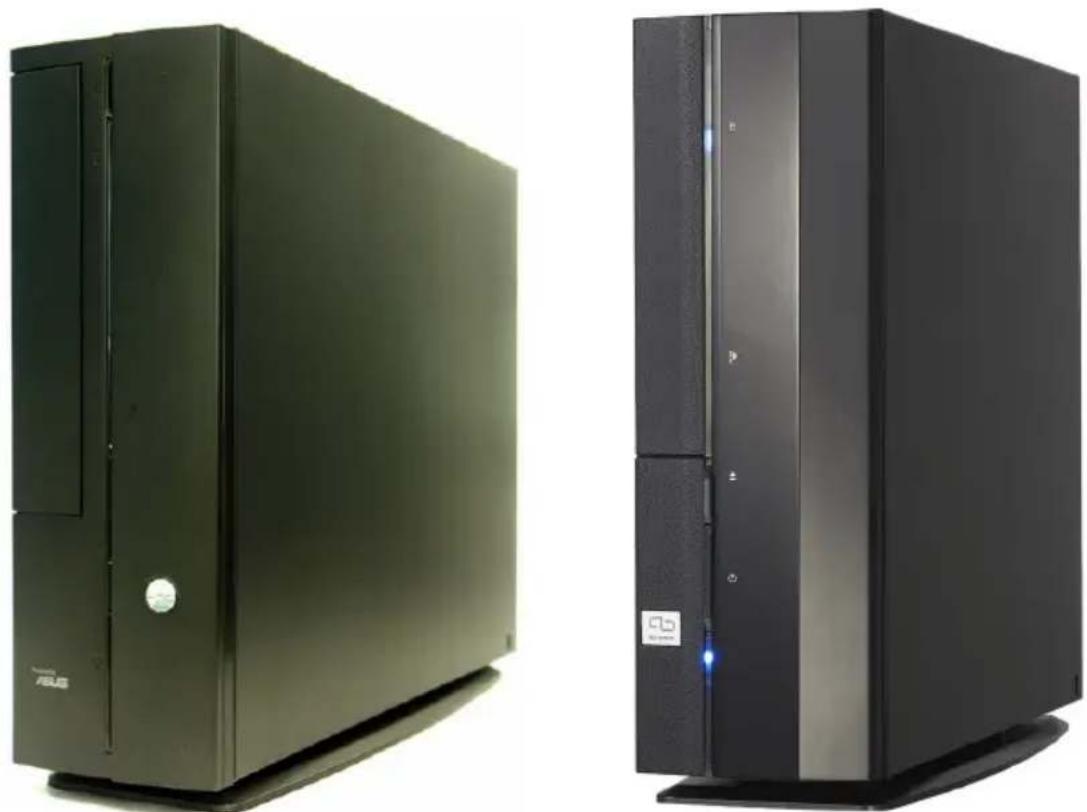
| Product Type | Barebone PC |
| Brand | Asus |
| Model | P2P5945G |
| Processor Socket | LGA775 |
| Memory Type | DIMM DDR |
| Number of Memory Slots | 4 |
| Storage Bays | 1x 5.25" (optical), 1x 3.5" (hard drive) |
| Storage Interface | IDE, SATA |
| Power Supply | Built-in with 115V/230V selector |
| Expansion Connectors | 1 PCI slot via riser card |
| CPU Cooling | Heatsink + fan (included) |
| Front Panel | Removable cover, locking hooks |
| Dimensions (approx.) | 330 x 260 x 110 mm |
| Weight (approx.) | 3.5 kg |
| Intended Use | Workstation, desktop PC |
| Maintenance | Regular dusting, check connections |
| Cleaning | Dry soft cloth, no liquids |
| Safety Instructions | Disconnect before servicing, respect voltages |
| Spare Parts | Available online on Asus website |
| Repairability | Removable, standardized parts |
Frequently Asked Questions - P2P5945G ASUS
User questions about P2P5945G ASUS
0 question about this device. Answer the ones you know or ask your own.
Ask a new question about this device
Download the instructions for your Barbecue in PDF format for free! Find your manual P2P5945G - ASUS and take your electronic device back in hand. On this page are published all the documents necessary for the use of your device. P2P5945G by ASUS.
USER MANUAL P2P5945G ASUS
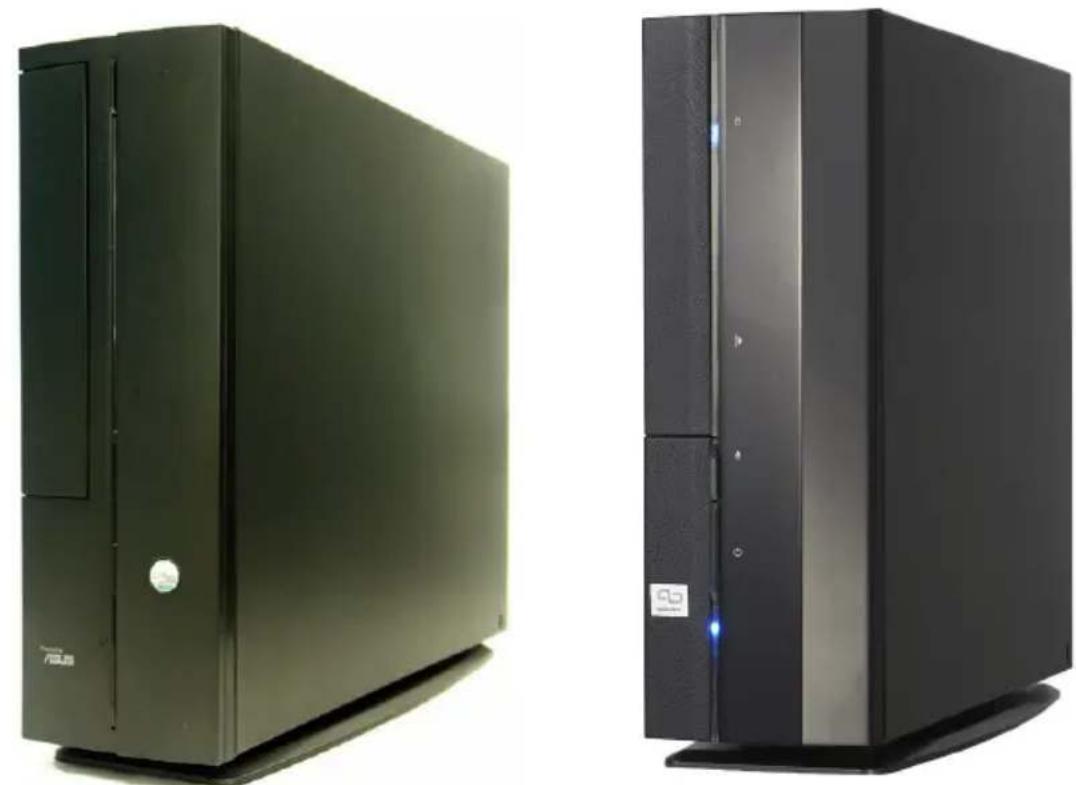
ASUS PC (Desktop Barebone)
Installation Manual
Download the latest manual from the ASUS website: www.asus.com
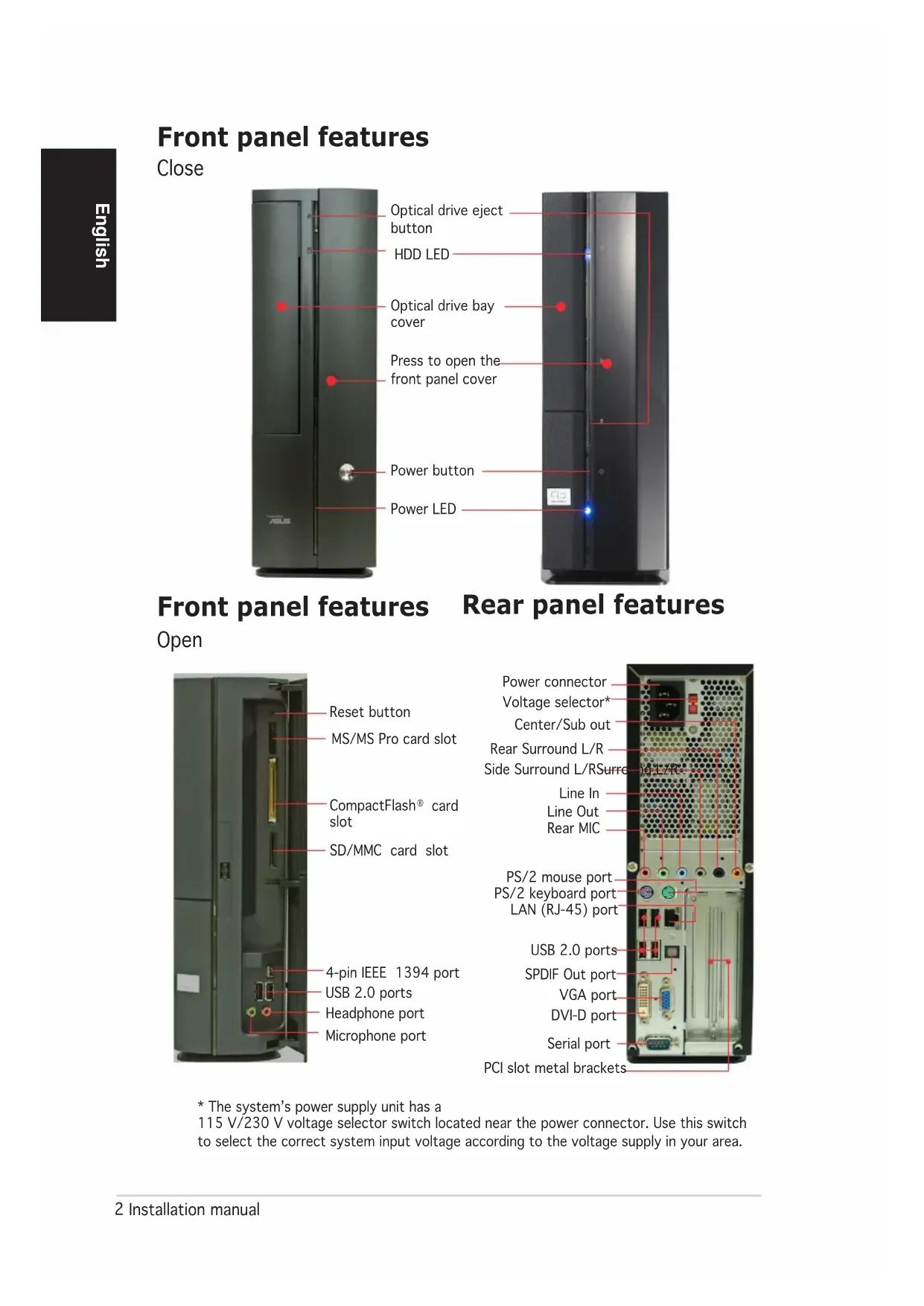
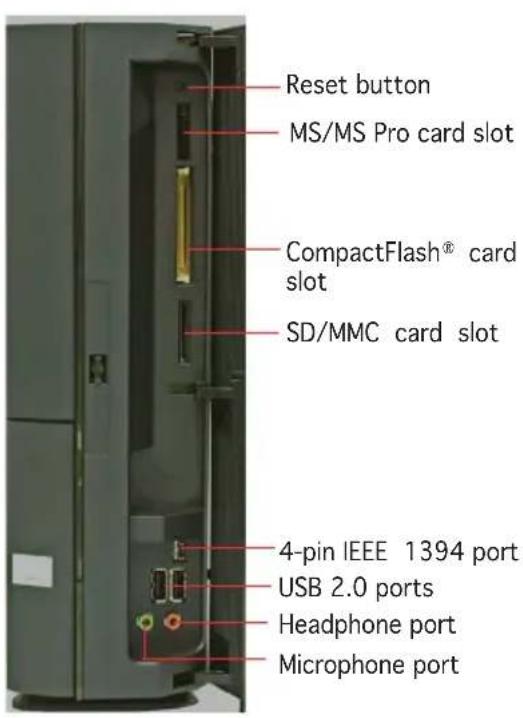
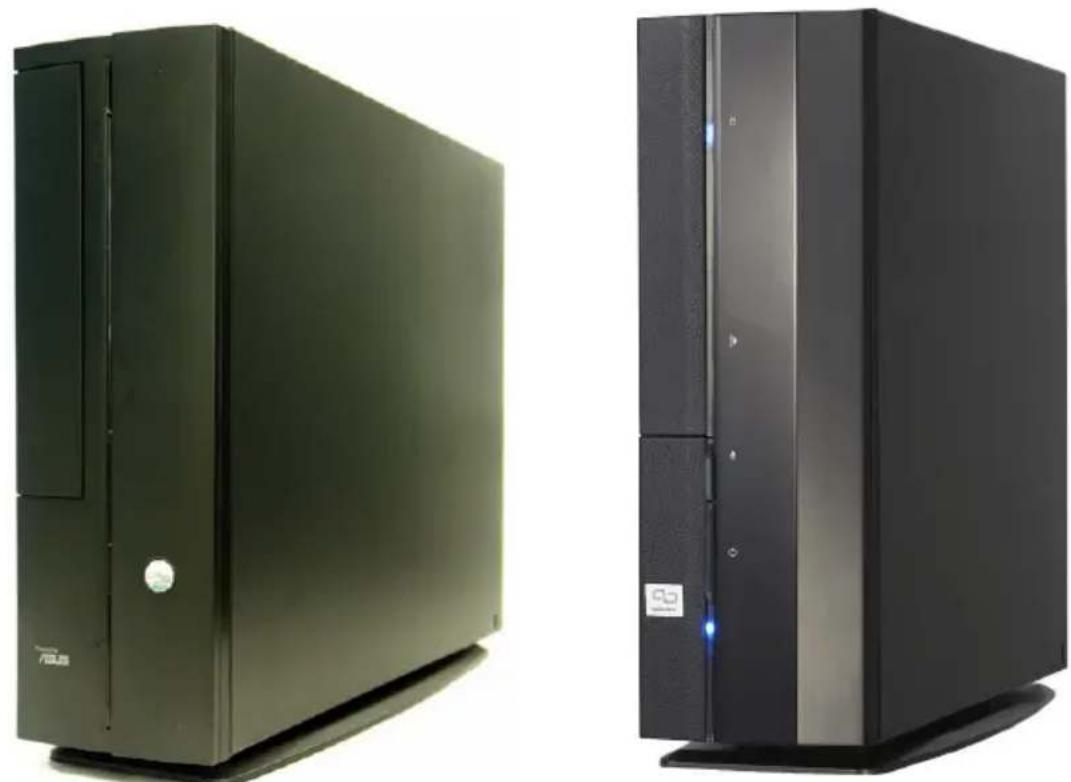
Front panel features
Close
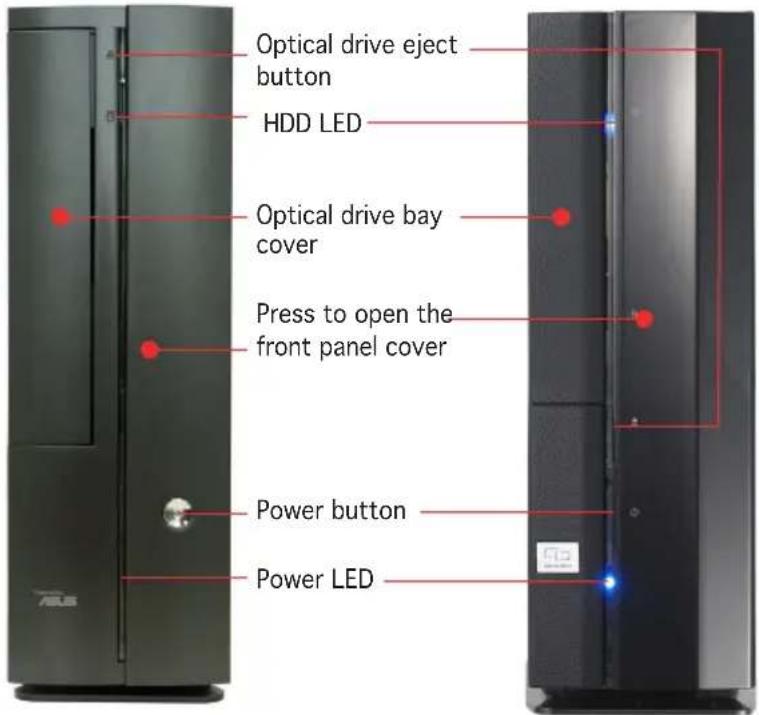
Front panel features Rear panel features
Open

* The system's power supply unit has a 115 V/230 V voltage selector switch located near the power connector. Use this switch to select the correct system input voltage according to the voltage supply in your area.
Internal components
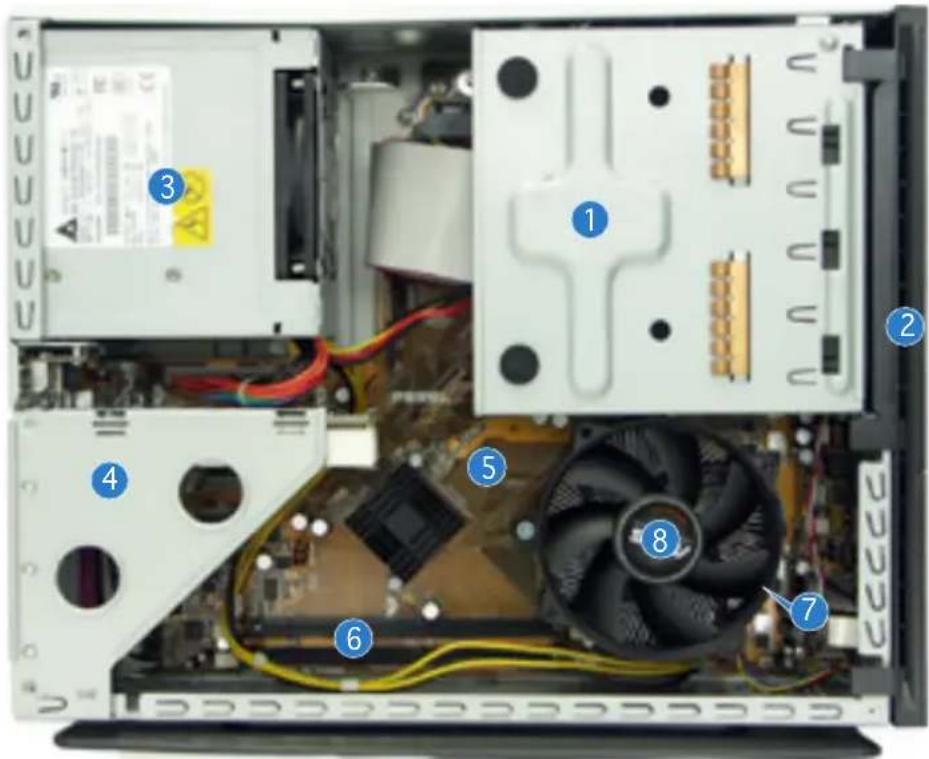
- 5.25-inch optical drive and 3.5 inch hard disk drive cage
- Front panel cover
- Power supply unit
- PCI card riser bracket (connected to the motherboard PCI slot)
- ASUS motherboard
- DIMM sockets
- LGA775 socket (under the CPU fan and heatsink assembly)
- CPU fan and heatsink assembly
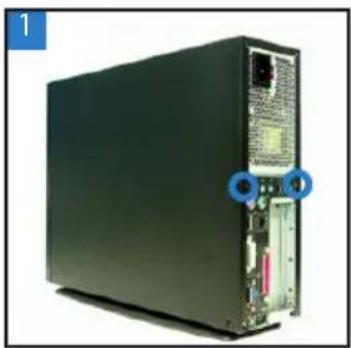
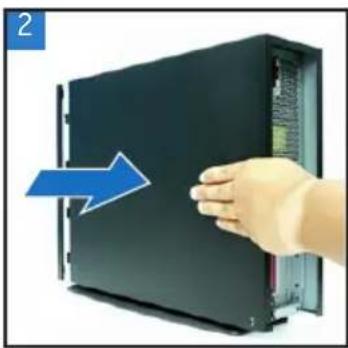
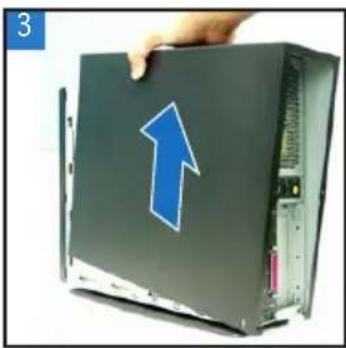
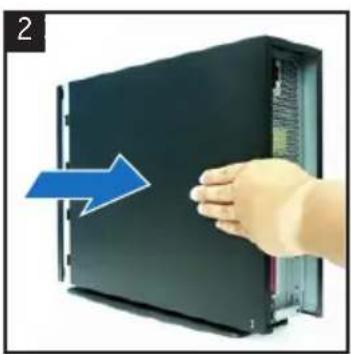
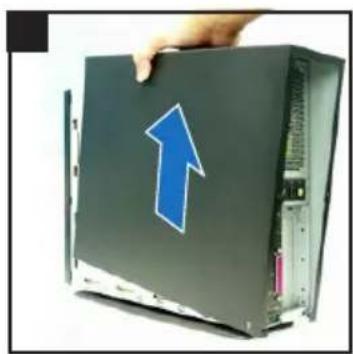
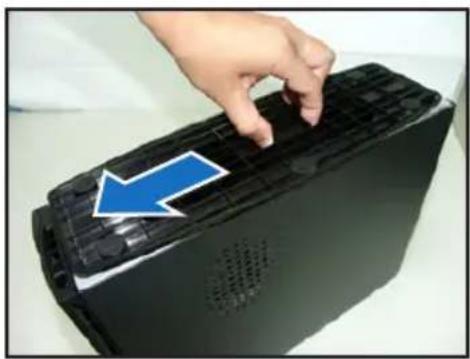
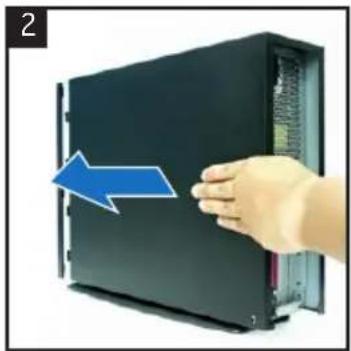
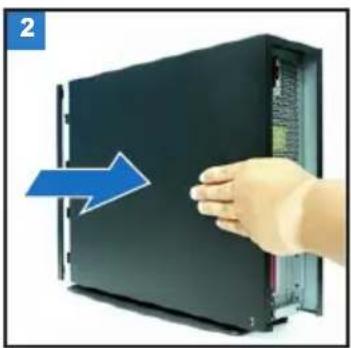
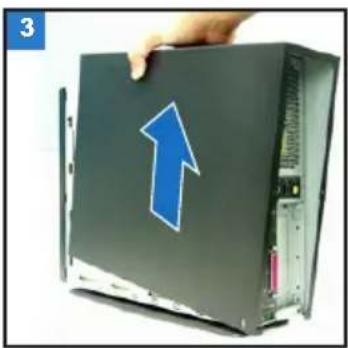
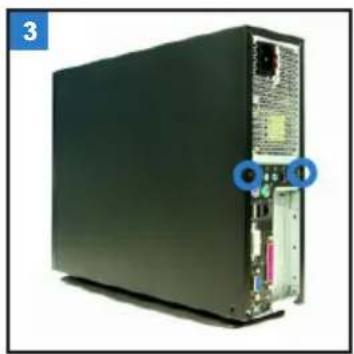
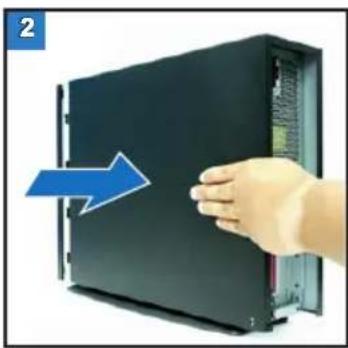
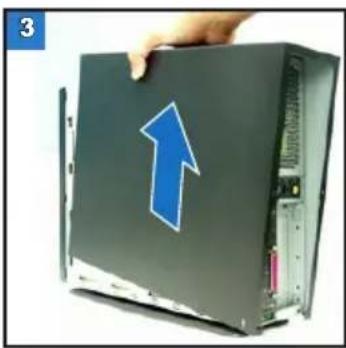
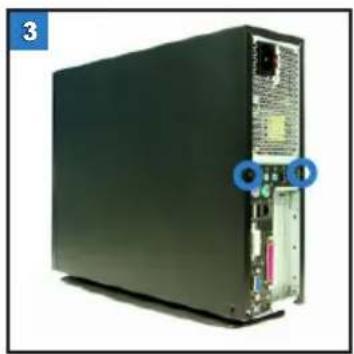
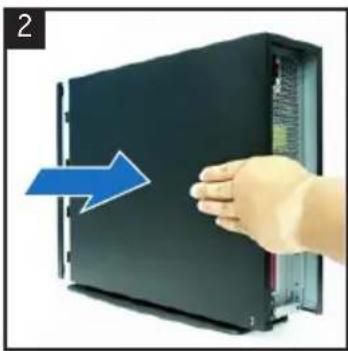
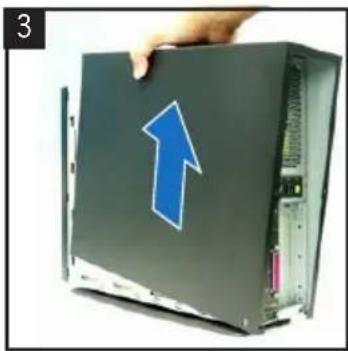
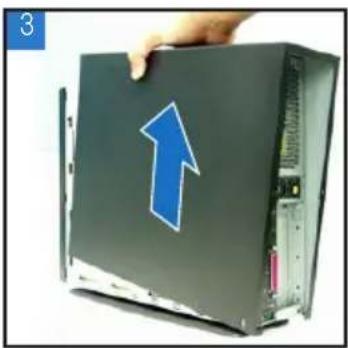
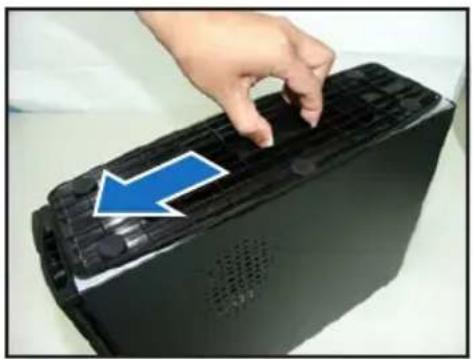
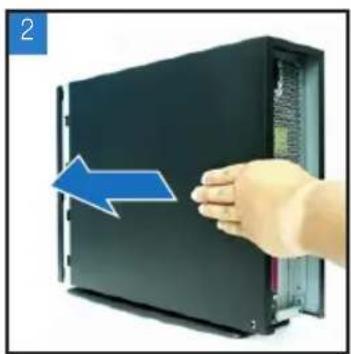
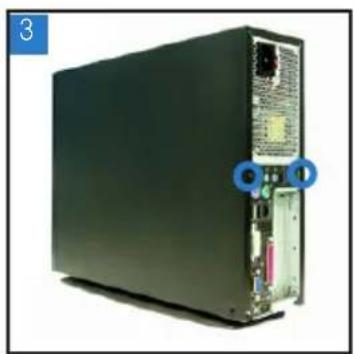
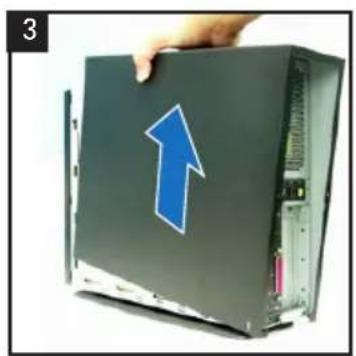
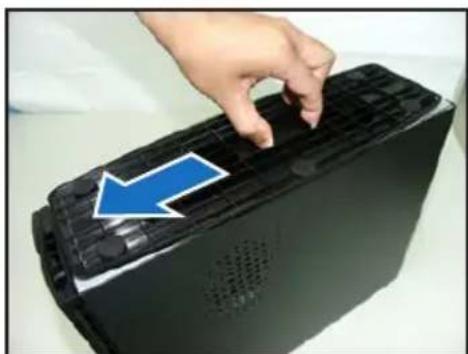
Removing the cover
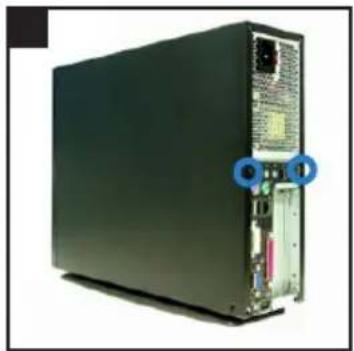
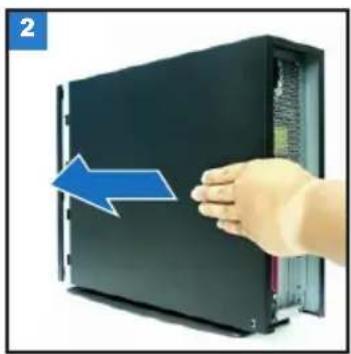
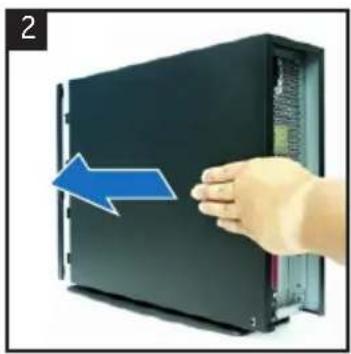
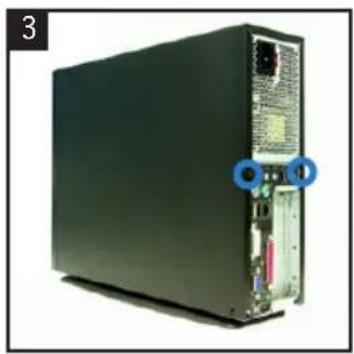
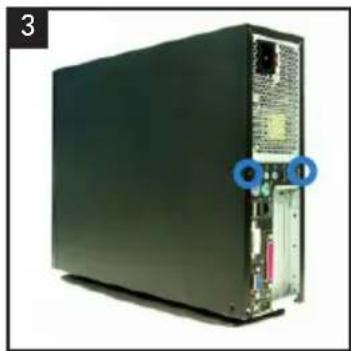
- Remove the cover screws. Keep the screws for later use.
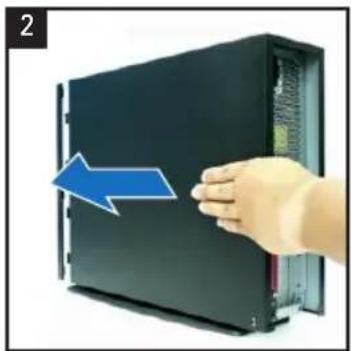
- Pull the cover slightly toward the rear panel.
- Lift the cover, then set aside.
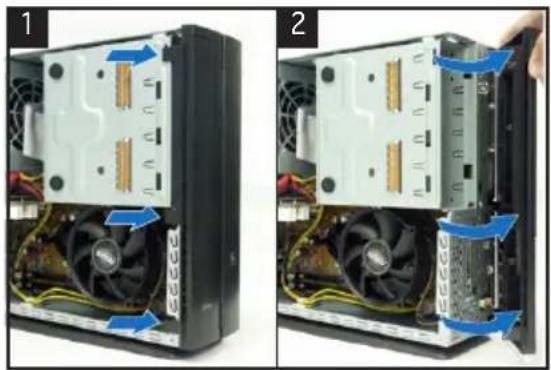
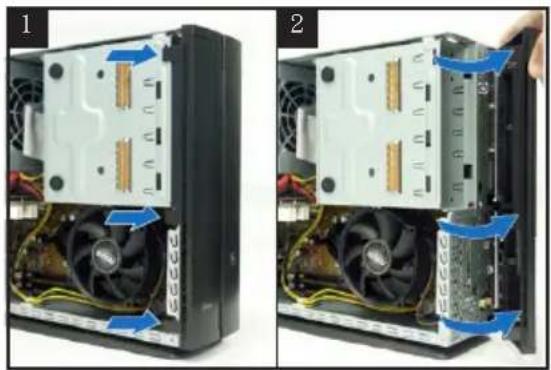
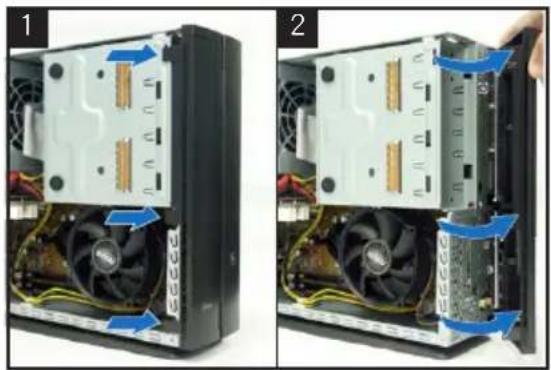
Removing the front panel cover
- Lift the front panel cover hooks outward.
- Carefully remove the front panel cover, then set it aside.
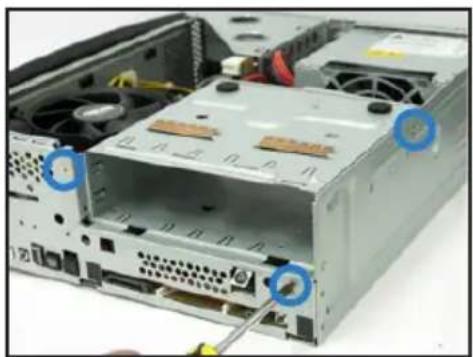
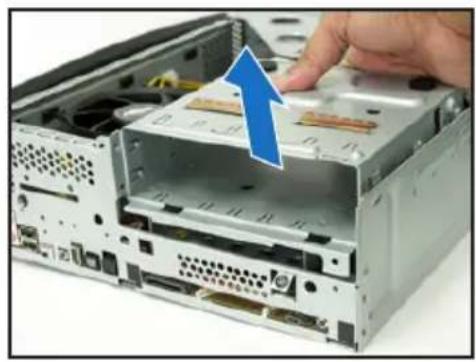
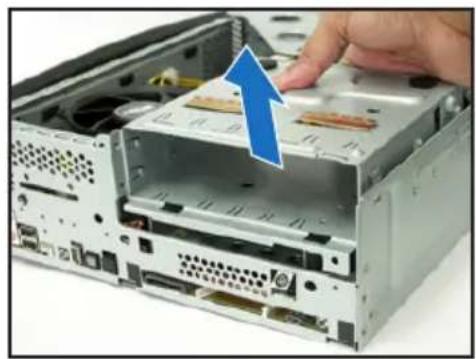
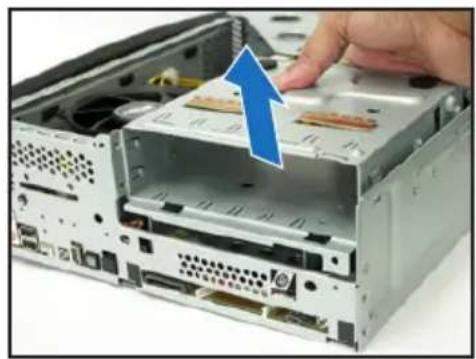
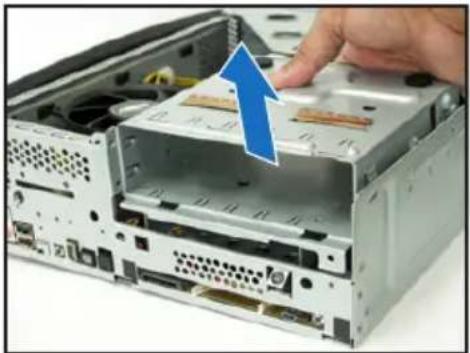
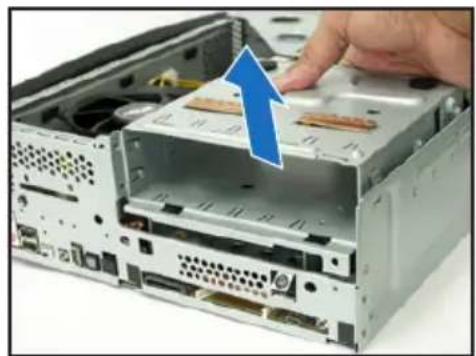
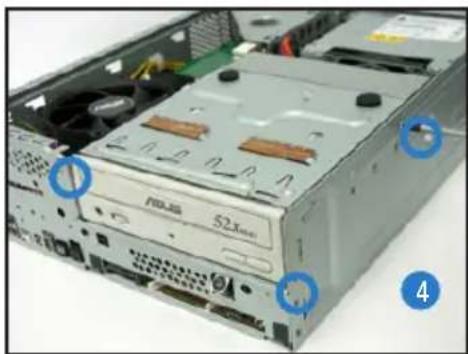
Removing the storage drive assembly
- Lay the system on its side, then locate and remove three storage drive assembly screws.
- Lift the storage drive assembly, then set aside.
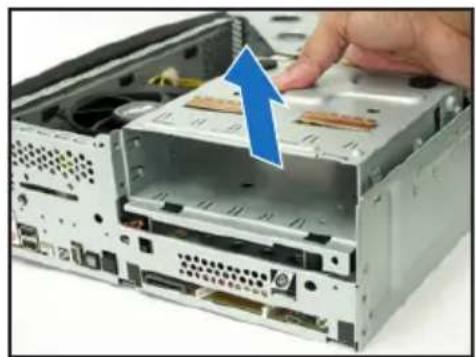
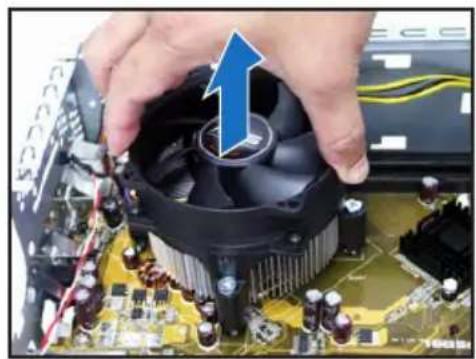
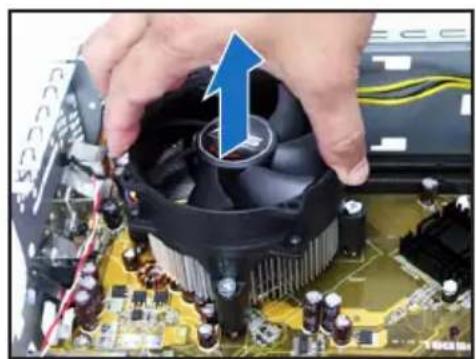
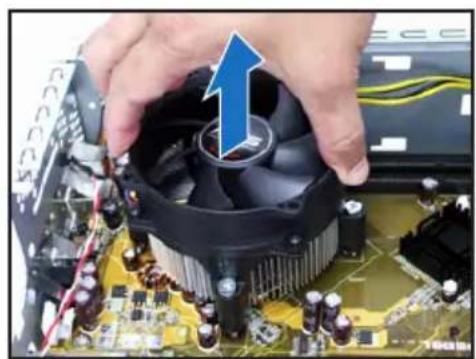
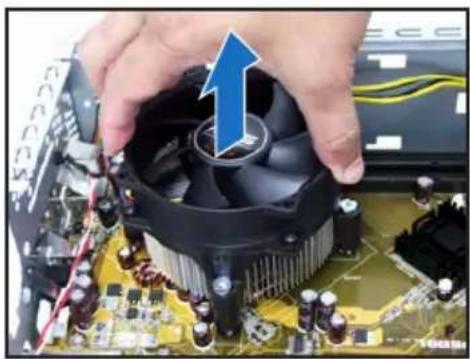
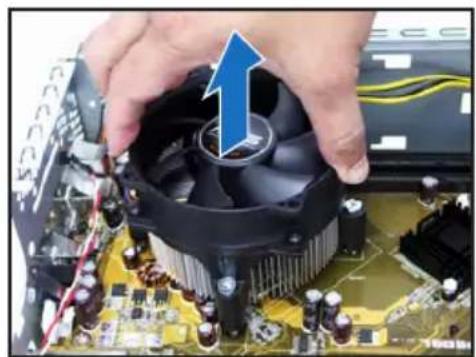
Removing the CPU fan and heatsink
- Disconnect the CPU fan cable.
- Loosen the CPU fan and heatsink assembly screws.
- Lift the CPU fan and heatsink assembly, then set aside.
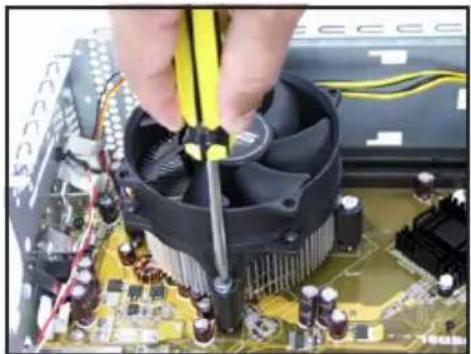
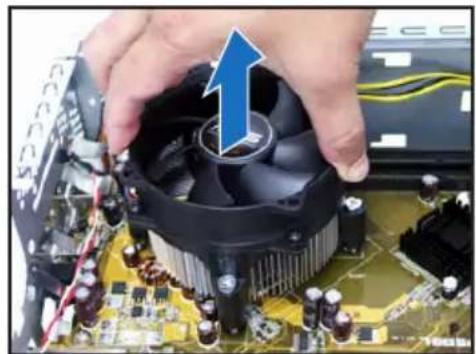
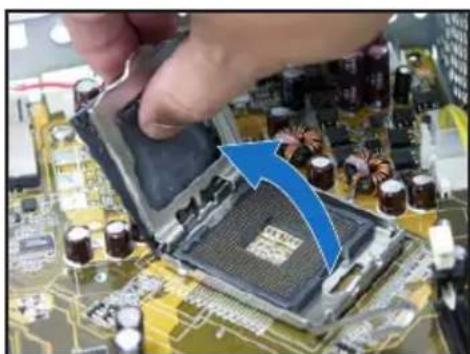
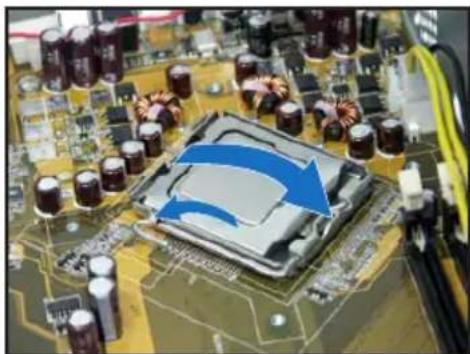
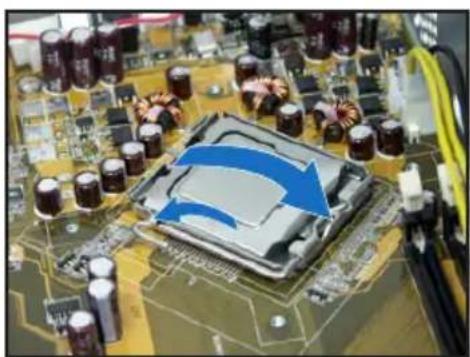
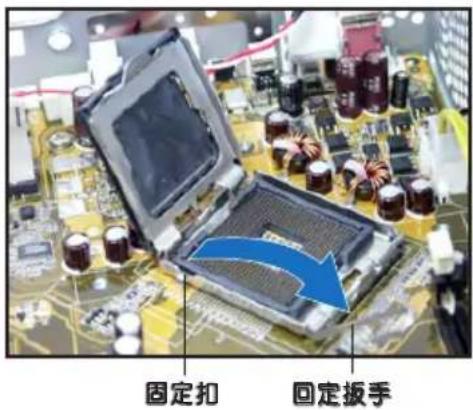
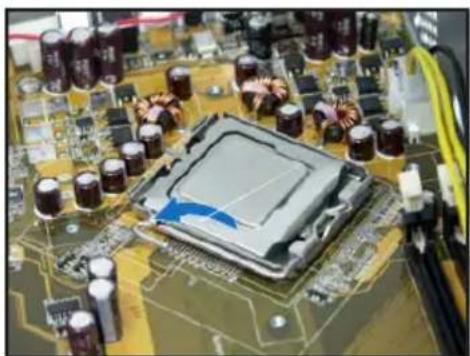
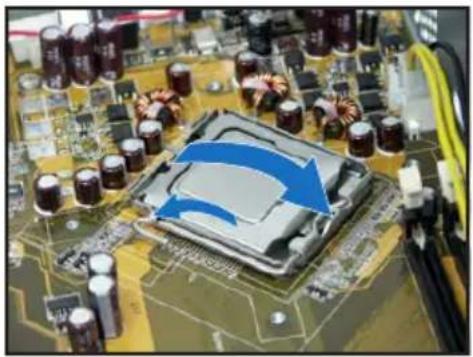
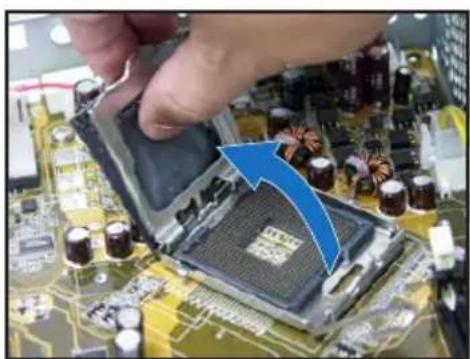
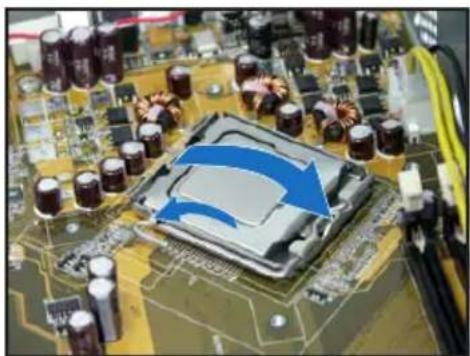
Installing the CPU
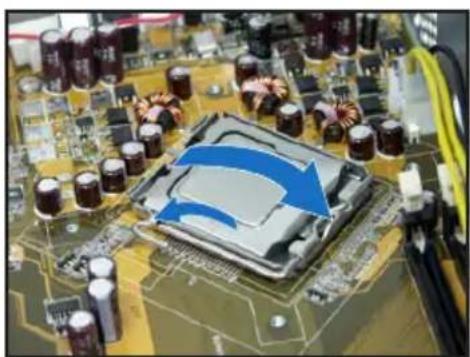
- Unlock the load lever, then lift to a 90°-100° angle.
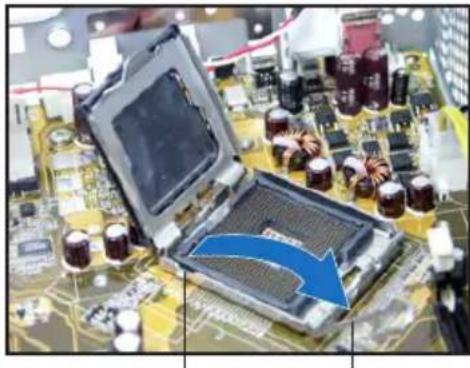
Load leverRetention tab
- Lift the load plate, then remove the PnP cap.

- Install the CPU. The CPU fits in only one orientation.
- Close the load plate, then lock the load lever.
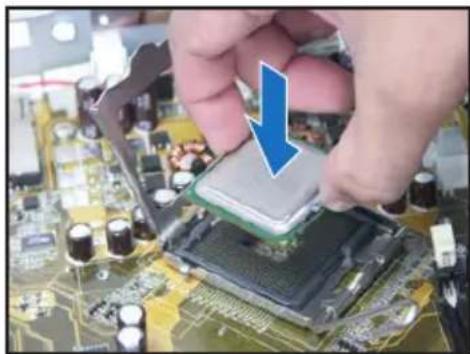
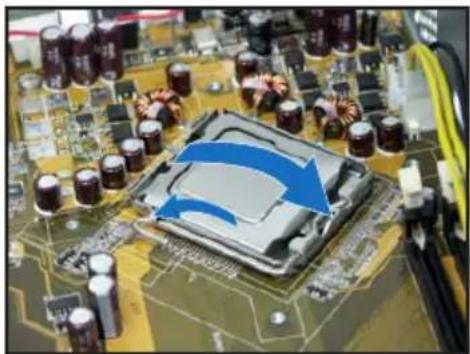
- Reinstall the CPU fan and heatsink assembly, then reconnect the CPU fan cable to the CPU fan connector on the motherboard. Refer to the instructions in the previous section for details.
Installing a DIMM
- Locate the DIMM sockets on the motherboard.
- Unlock a DIMM socket by pressing the retaining clips outward.
- Align a DIMM on the socket such that the notch on the DIMM matches the break on the socket.
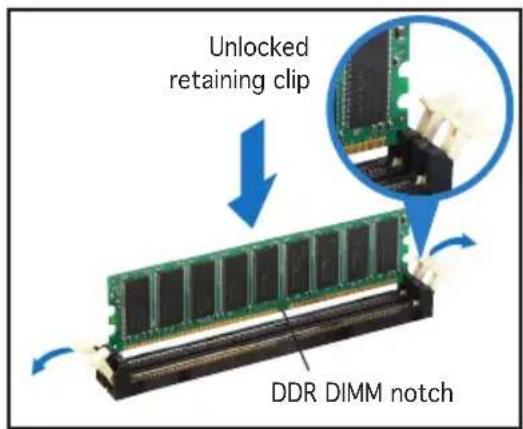
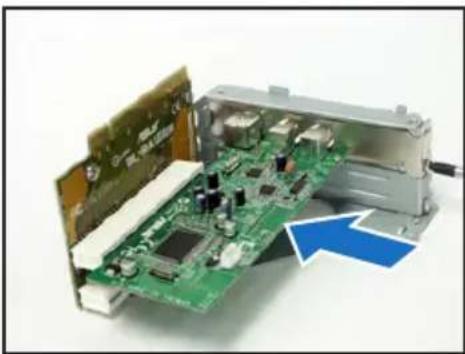
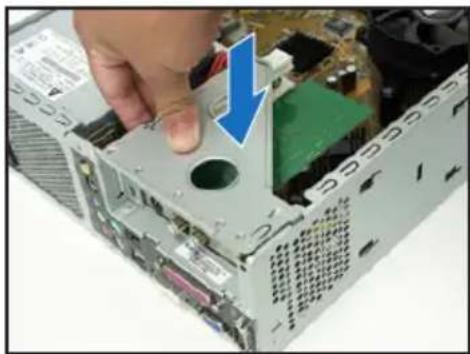
Installing an expansion card
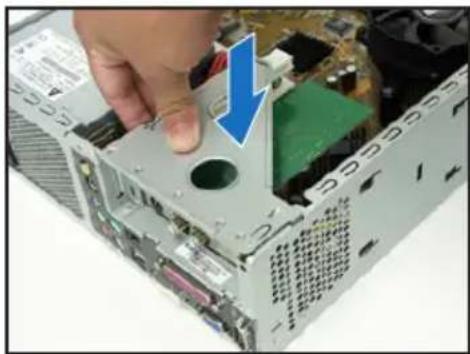
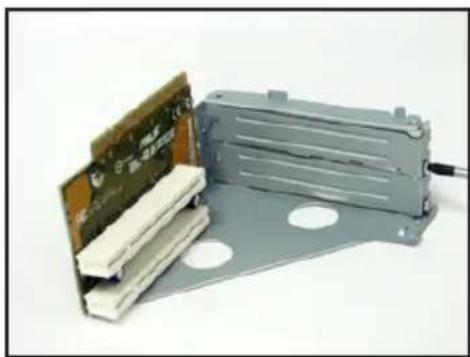
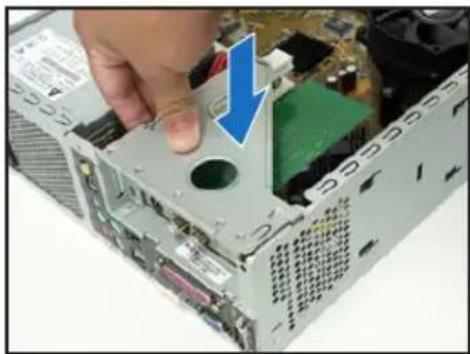
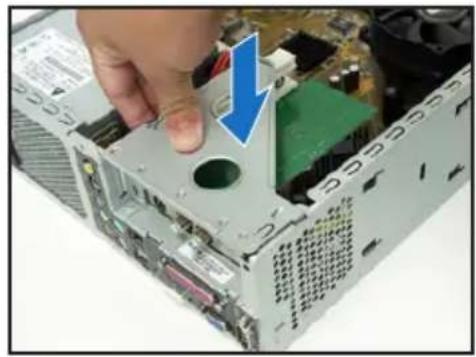
- Lift the PCI riser card assembly to remove it.
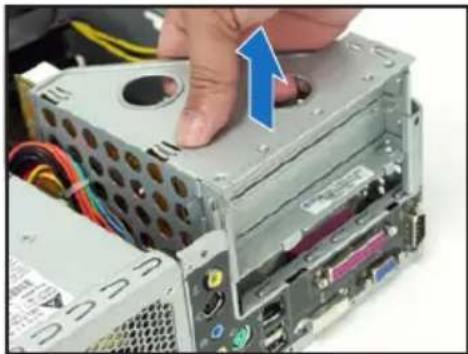
- Insert the card connector into the slot, then press the card firmly until it fits in place. Secure the card with a screw.
- Remove the metal cover opposite the slot that you intend to use.
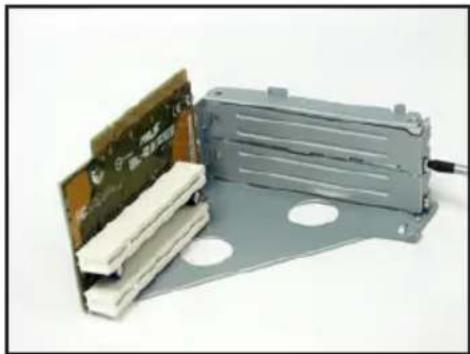
- Reinstall the PCI riser card assembly. Make sure that the riser card connector sits properly on the motherboard PCI slot.
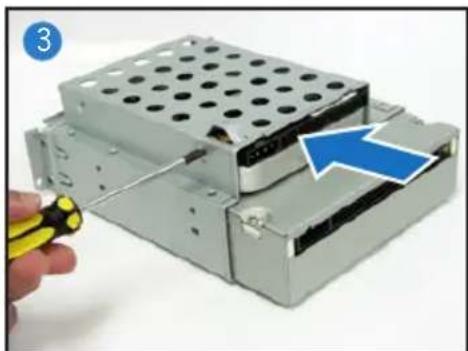
Installing optical and storage drives
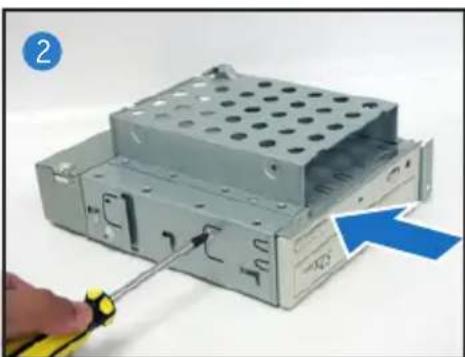
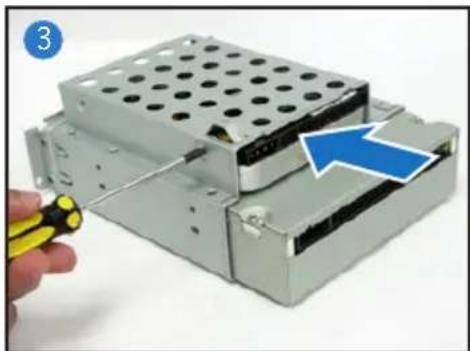
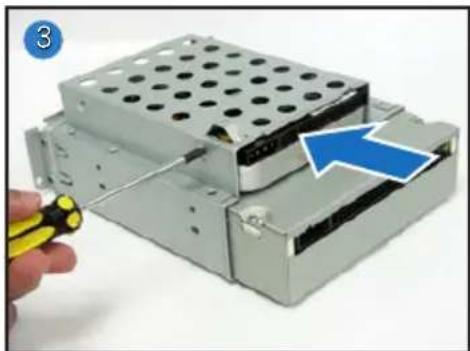
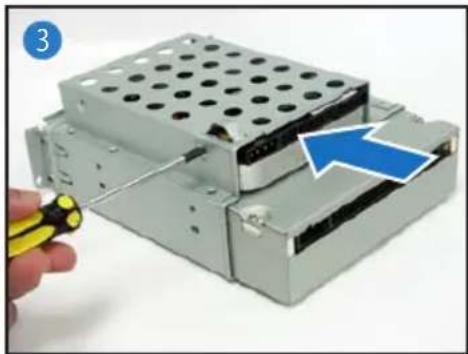
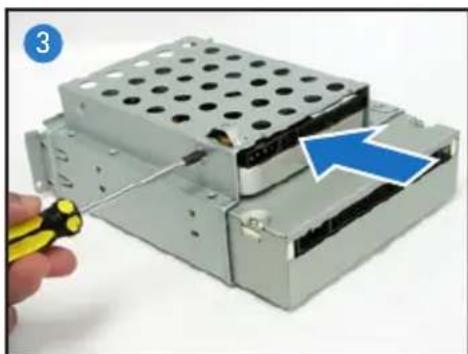
- Turn the storage drive assembly upside down with the 3.5-inch bay on top of the 5.25-inch bay.
- Insert the optical drive upside down into the 5.25-inch bay, then secure it with two screws on both sides.
- Turn the storage drive assembly, insert the hard disk drive upside down into the 3.5-inch bay, then secure it with two screws on both sides.
Reinstalling the storage drive assembly
Before reinstalling the storage drive assembly, connect the IDE/SATA and power plugs to the IDE/SATA and power connectors at the back of the drives.
- Connect the black plug of the IDE cable to the optical drive, then the gray plug to the hard disk drive. If you have a SATA HDD, connect the SATA cable to the SATA HDD.
- Connect the 4-pin power plugs to the power connectors at the back of the drives.
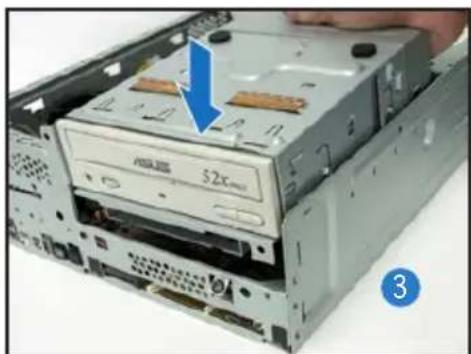
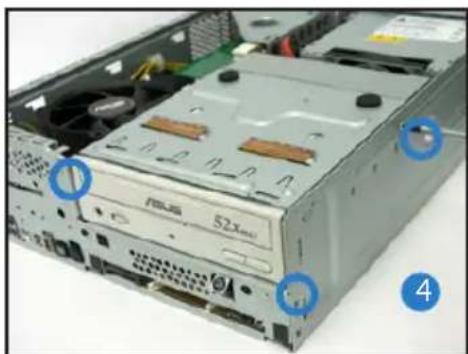
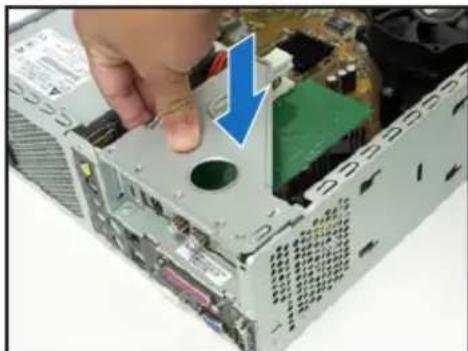
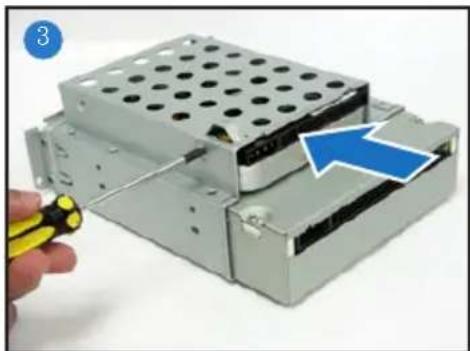
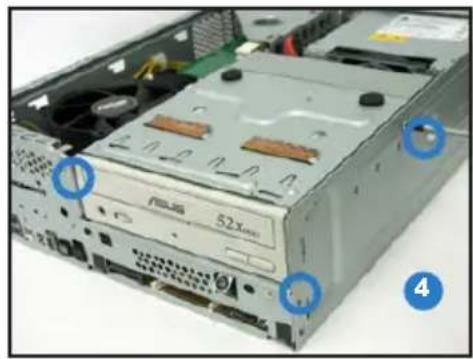
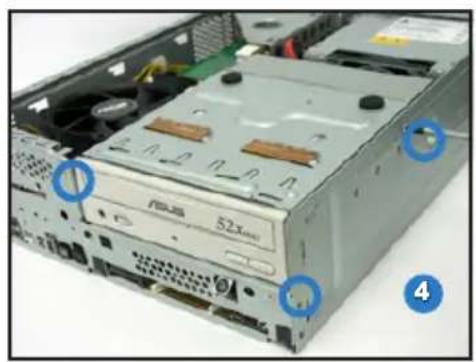
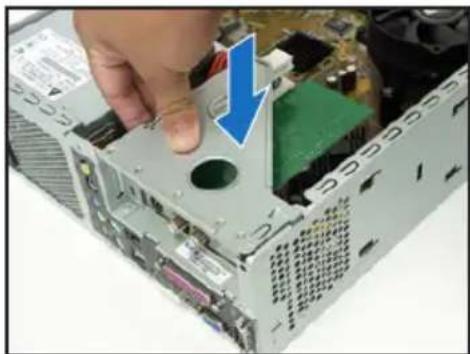
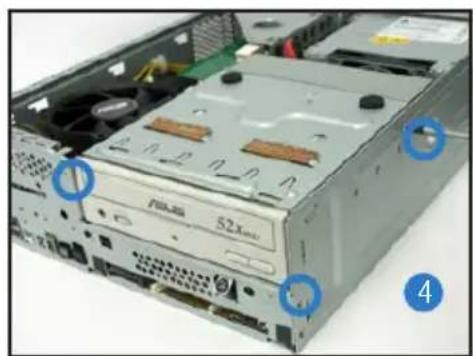
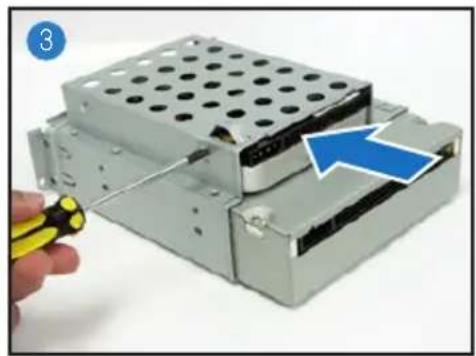
- Install the storage drive assembly into the chassis.
- Secure the storage drive assembly with three screws.
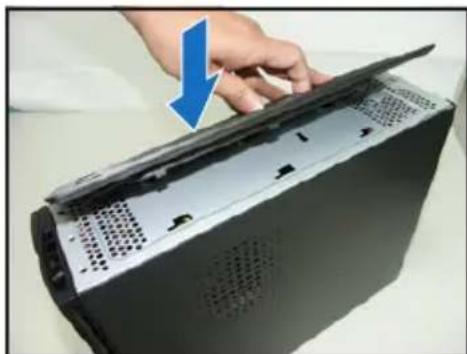
Installing the foot stand
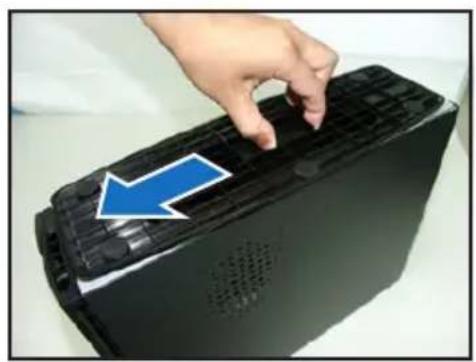
- Match the foot stand hooks to the holes on the chassis.
- Pull the foot stand in the direction of the arrow until the lock clicks into place.
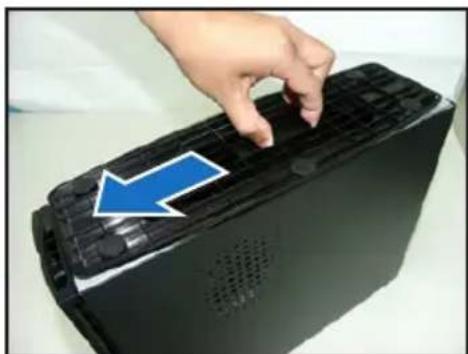
To remove the foot stand, lift the lock, then slightly push the foot stand toward the rear panel until it disengages from the chassis.
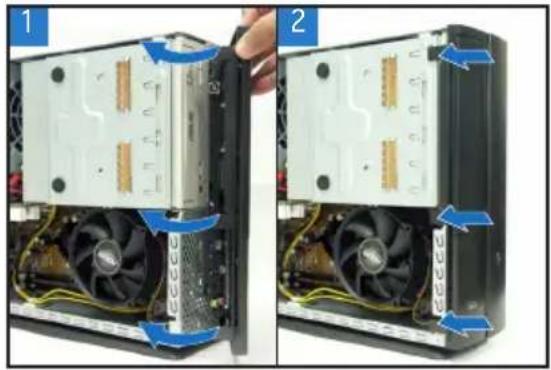
Reinstalling the front panel cover
- Insert the front panel cover tabs into the holes on the right side of the chassis, then close.
- Insert the front panel cover hooks into the chassis tabs until the front panel cover fits into place.
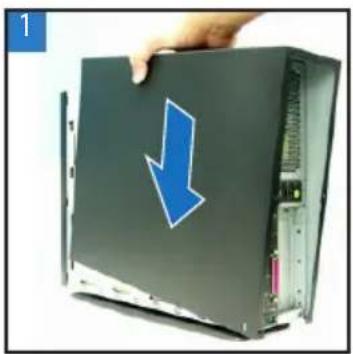
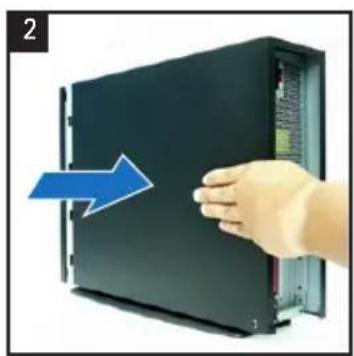
Reinstalling the cover
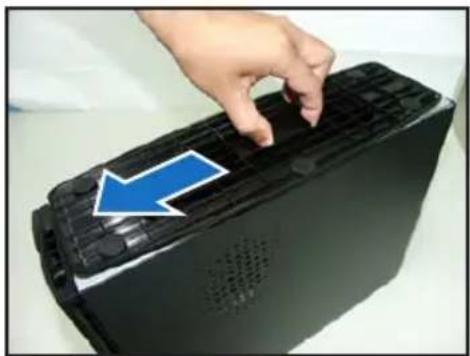
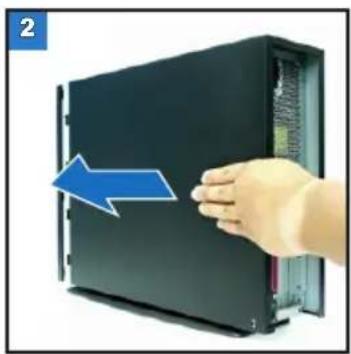
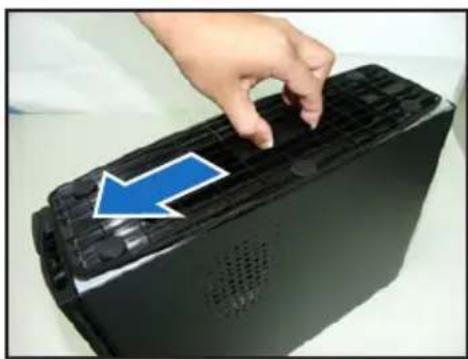
- Install the cover to the chassis. Make sure the cover tabs fit the chassis rails.
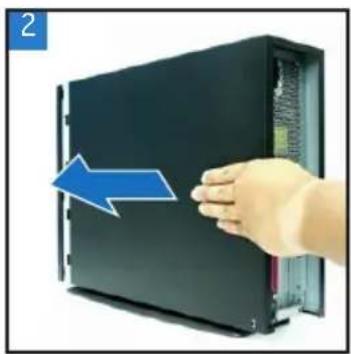
- Push the cover toward the front panel until it fits in place.
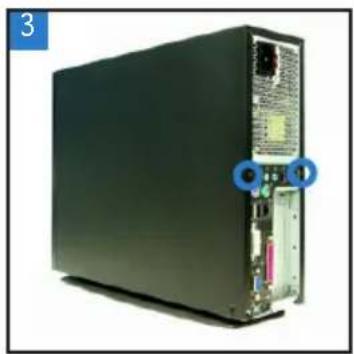
- Secure the cover with two screws.
P1-P5945G/P2-P5945G
Install a CPU
Install the support foot
ASUS
P1-P5945G/P2-P5945G
ASUS Personal Computer (Desktop Barebone)
Installation Manual
Remove the front panel
- Push the three locking tabs on the left side of the front panel outward.
Remove the storage device module
Remove the CPU fan
Install the CPU
Install the optical drive and hard disk drive
Replace the storage device module
Install the foot stand
ASUS
P1-P5945G/P2-P5945G
ASUS Personal Computer (Desktop Barebone System)
Installation Manual
Remove the front panel
- Push the three locking tabs on the left side of the front panel outward.
Remove the storage device module
Remove the CPU fan
Install the CPU
- Open the locking lever to 90-100 degrees.
- Replace the CPU fan and reconnect the fan power cable. Please refer to the instructions in the previous section. Replace the CPU fan and reconnect the fan
Install the memory module
Install the optical drive and hard drive
Replace the storage device module
Install the foot stand
ASUS
P1-P5945G/P2-P5945G
Front panel
Closed state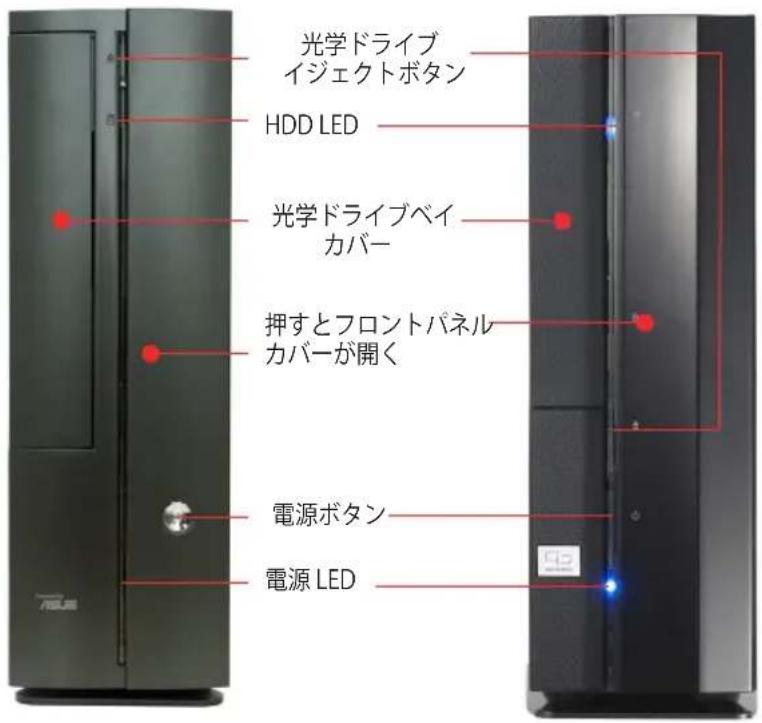
Remove the front panel cover
Remove the storage drive
Remove the CPU fan and heat sink
Install the CPU
Receiving tab
Install the optical drive and storage drive
Reinstall the storage drive
Install the foot stand
Replace the cover
ASUS
P1-P5945G/P2-P5945G
ASUS PC (Desktop Barebone)
Quick Installation Guide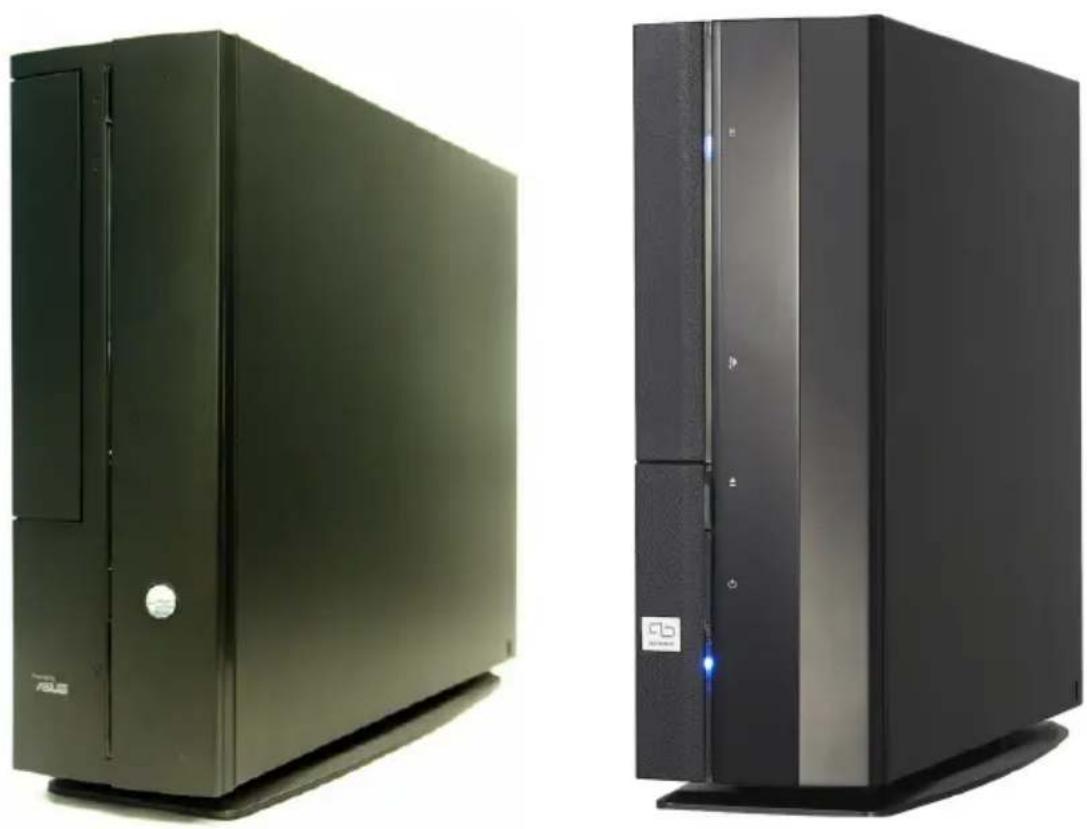
Front Panel Specifications
Closed Position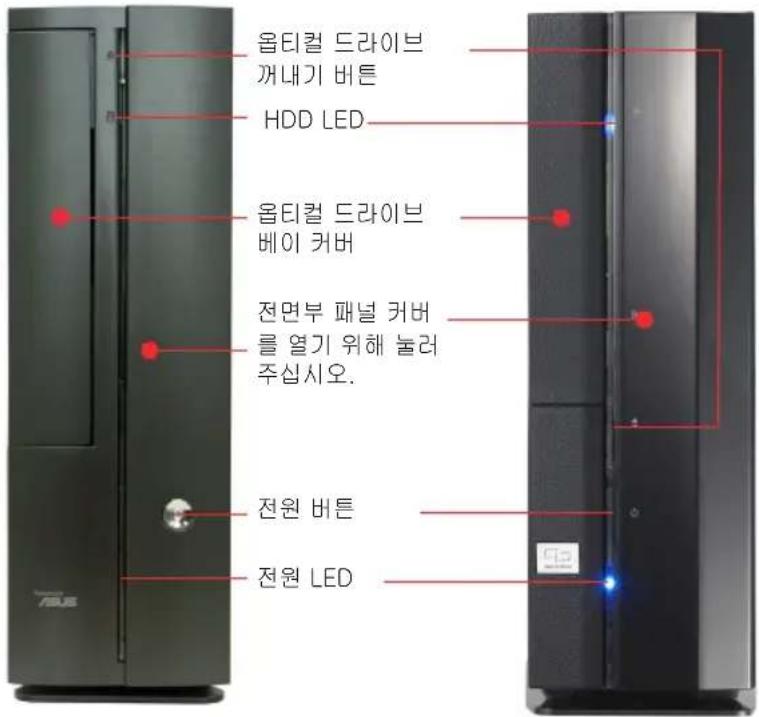
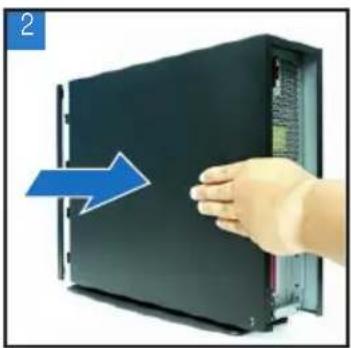
Removing the Front Panel
Removing the Storage Device Drive
Removing the CPU Fan and Heat Sink
Installing the CPU
Load Lever Retention Tab
Installing the Optical & Storage Device Drive
Reinstalling the Storage Device Drive
Installing the Foot Stand
Reinstall the cover
P1-P5945G/P2-P5945G
ASUS PC
Installing the CPU


- ASUS PC (DESKTOP BAREBONE)
- INSTALLATION MANUAL
- FRONT PANEL FEATURES
- FRONT PANEL FEATURES REAR PANEL FEATURES
- INTERNAL COMPONENTS
- REMOVING THE COVER
- REMOVING THE FRONT PANEL COVER
- REMOVING THE STORAGE DRIVE ASSEMBLY
- REMOVING THE CPU FAN AND HEATSINK
- INSTALLING THE CPU
- INSTALLING A DIMM
- INSTALLING AN EXPANSION CARD
- INSTALLING OPTICAL AND STORAGE DRIVES
- REINSTALLING THE STORAGE DRIVE ASSEMBLY
- INSTALLING THE FOOT STAND
- REINSTALLING THE FRONT PANEL COVER
- REINSTALLING THE COVER
- P1-P5945G/P2-P5945G
- INSTALL A CPU
- INSTALL THE SUPPORT FOOT
- ASUS
- REMOVE THE FRONT PANEL
- REMOVE THE STORAGE DEVICE MODULE
- REMOVE THE CPU FAN
- INSTALL THE CPU
- INSTALL THE OPTICAL DRIVE AND HARD DISK DRIVE
- REPLACE THE STORAGE DEVICE MODULE
- INSTALL THE FOOT STAND
- INSTALL THE MEMORY MODULE
- INSTALL THE OPTICAL DRIVE AND HARD DRIVE
- FRONT PANEL
- REMOVE THE FRONT PANEL COVER
- REMOVE THE STORAGE DRIVE
- REMOVE THE CPU FAN AND HEAT SINK
- INSTALL THE OPTICAL DRIVE AND STORAGE DRIVE
- REINSTALL THE STORAGE DRIVE
- REPLACE THE COVER
- FRONT PANEL SPECIFICATIONS
- REMOVING THE FRONT PANEL
- REMOVING THE STORAGE DEVICE DRIVE
- REMOVING THE CPU FAN AND HEAT SINK
- INSTALLING THE OPTICAL & STORAGE DEVICE DRIVE
- REINSTALLING THE STORAGE DEVICE DRIVE
- REINSTALL THE COVER
- ASUS PC
Brand : ASUS
Model : P2P5945G
Category : Barbecue