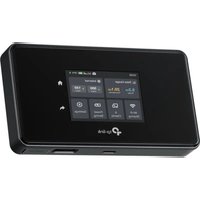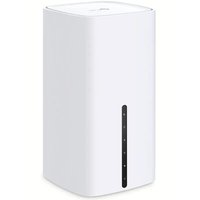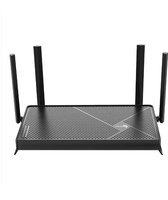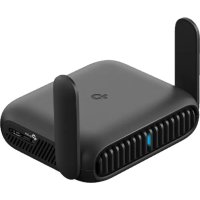
TLWR3602BE - Router TP-LINK - Free user manual and instructions
Find the device manual for free TLWR3602BE TP-LINK in PDF.



User questions about TLWR3602BE TP-LINK
0 question about this device. Answer the ones you know or ask your own.
Ask a new question about this device
Download the instructions for your Router in PDF format for free! Find your manual TLWR3602BE - TP-LINK and take your electronic device back in hand. On this page are published all the documents necessary for the use of your device. TLWR3602BE by TP-LINK.
USER MANUAL TLWR3602BE TP-LINK
Quick Installation Guide
Portable Router
For technical support, the user guide and more information, please visit https://www.tp-link.com/support, or simply scan the QR code.
2024TP-Link7106511884REV1.00

This guide is applied to TP-Link portable routers. Here we take TL-WR3002X as an example. Images may differ from actual products.
Your router may not support all the functions demonstrated.
CONTENTS
01 / English
11 / Espanol
21 / Português
31 / Français
Determine RouterMode
Refer to the following table to determine an appropriate mode as needed.
Note: The modes supported may vary by different models.
I Want to... Mode
Share the internet with more wireless devices when the wired network is limited to one device at a time.
Share a 3G/4G USB modem's data with other devices. 3G/4G USB Modem
Share a mobile device's cellular data with other devices. USB Tethering
Turn an existing public Wi-Fi into a private network (wired and wireless). Hotspot
Turn an existing wired-only network into a wireless network. Access Point
Expand an existing Wi-Fi network for better Wi-Fi coverage. Range Extender
Connect a wired-only device, such as a smart TV, media player, or game console, to a Wi-Fi network. Client
English
Hardware Connection
Note: Images may differ from actual products. Your router may not support all the modes demonstrated.
Router Mode

3G/4G USB Modem Mode / USB Tethering Mode
Note: Some models may not support this mode.


English
Hotspot Mode


Access Point Mode

English
Range Extender Mode


Client Mode


English
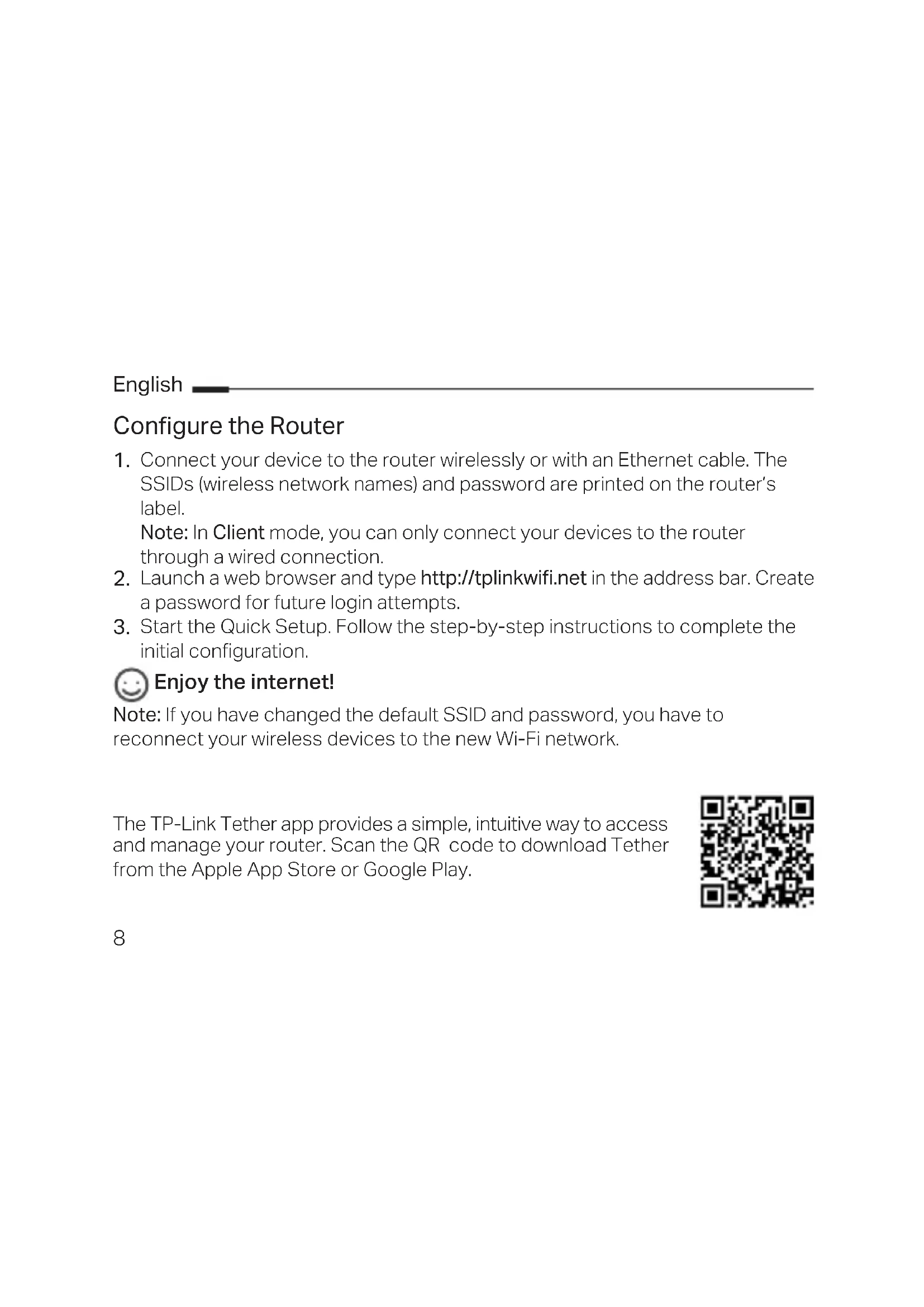
Configure the Router
- Connect your device to the router wirelessly or with an Ethernet cable. The SSIDs (wireless network names) and password are printed on the router's label.
Note: In Client mode, you can only connect your devices to the router through a wired connection. - Launch a web browser and type http://tplinkwifi.net in the address bar. Create a password for future login attempts.
- Start the Quick Setup. Follow the step-by-step instructions to complete the initial configuration.

Enjoy the internet!
Note: If you have changed the default SSID and password, you have to reconnect your wireless devices to the new Wi-Fi network.
The TP-Link Tether app provides a simple, intuitive way to access and manage your router. Scan the QR code to download Tether from the Apple App Store or Google Play.

FAQ (Frequently Asked Questions)
Q1. What should I do if I forget the router's web management password?
- If you are using a TP-Link ID to log in, click Forgot Password? on the login page and then follow the instructions to reset it.
- Alternatively, refer to FAQ > Q3 to reset the router. Then visit http://tplinkwifi.net to create a new login password.
Q2. What should I do if I forget my Wi-Fi password?
- If you have not changed the default wireless password, it can be found on the label of the router.
- Connect a computer directly to the LAN port of the router using an Ethernet cable. Log in to the router's web management page at http://tplinkwifi.net, and go to the Wireless page to retrieve or reset your wireless password.
Q3. How do I restore the router to its factory default settings?
- With the router powered on, press and hold the Reset button for about 6 seconds, and then release the button.
Q4. What can I do if there is no internet access?
- If using a cable modem, reboot the modem, then wait until its Online LED is solid (ON). Reconnect the cable to the router.
- Set the router to Router Mode according to the instructions. If internet access is still
English
not available after completing the steps above, contact TP-Link Technical Support.
Q5. What can I do if my wireless keeps dropping?
- By default, your wireless channel is set to Auto, which automatically selects the least-congested channel between 1 and 11 for best performance, but it may also cause frequent wireless drops. In this case, setting your wireless channel to a fixed one will prevent it from changing, and likely stabilize your network connection.
Q6. What can I do if I can't access the router's web management page?
- Set the computer to obtain an IP address automatically.
- Reboot your router and computer, and try again.
Q7. What should I do if my wireless signal is unstable or too weak?
It may be caused by too much interference.
- Set your wireless channel to a different one.
- Choose a location with fewer obstacles that may block the signal between the portable router and the main AP. An open corridor or a spacious location is ideal.
- Move the router to a new location away from Bluetooth devices and other household electronics, such as cordless phones, microwaves, and baby monitors, to minimize signal interference.
- In Range Extender mode, the ideal location to place the router is halfway between your main AP and the Wi-Fi dead zone. If that is not possible, place the router closer to your main AP to ensure stable performance.