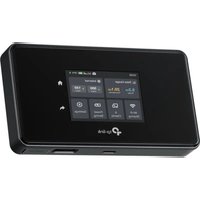
USER MANUAL Deco M8550 TP-LINK
Quick Installation Guide
5G Mobile Wi-Fi

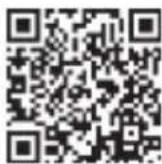
For technical support, the user guide and other information, please visit https://www.tp-link.com/support, or simply scan the QR code.

© 2025 TP-Link 7100000030 REV1.0.0
CONTENTS
01 / Deutsch 05 / English 09 / Español 13 / Ελληνικά 17 / Français 21 / Italiano 25 / Português 29 / Suomi 33 / Nederlands 37 / Svenska 41 / Norsk 45 / Dansk
Note:
Tether app
Note: Images may differ from actual products.
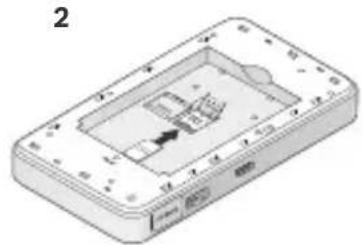
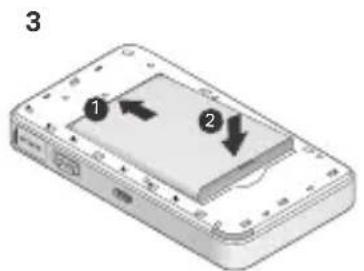
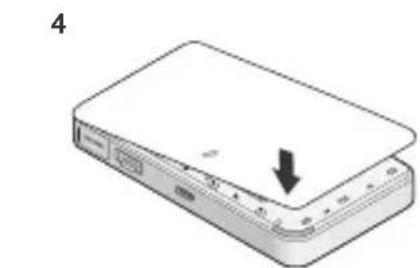
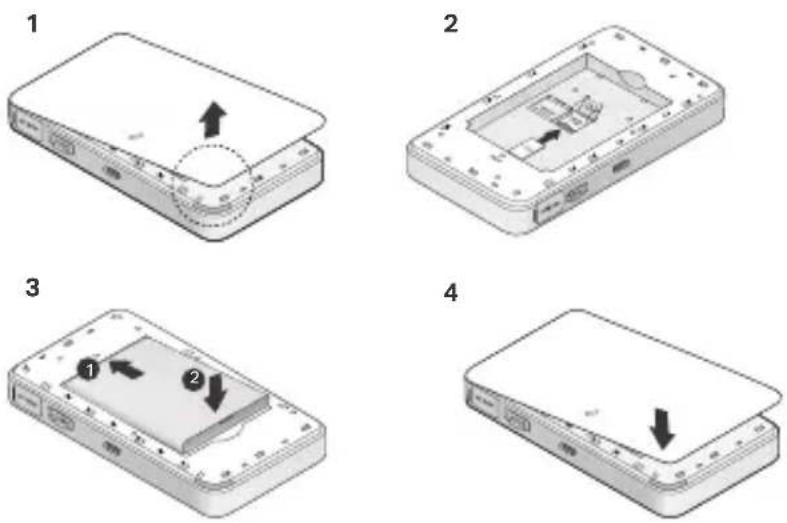
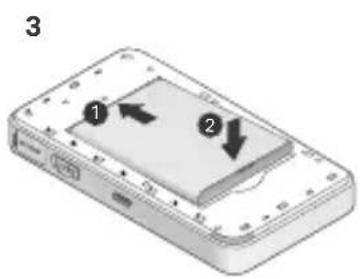
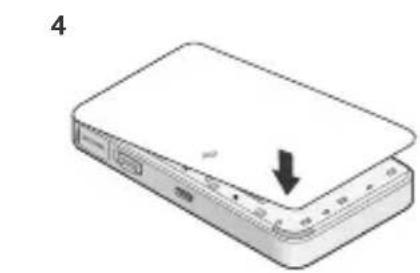
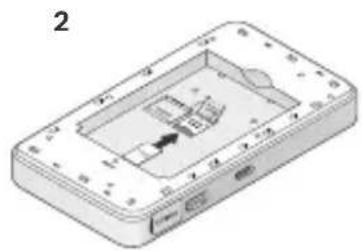
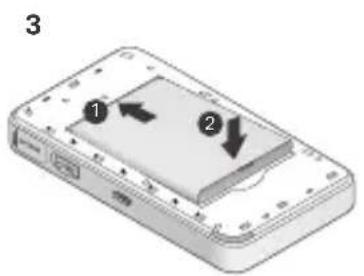
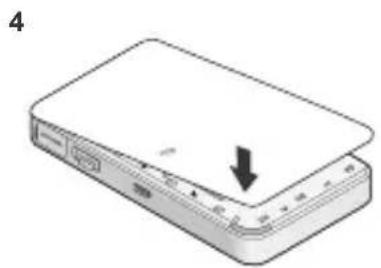
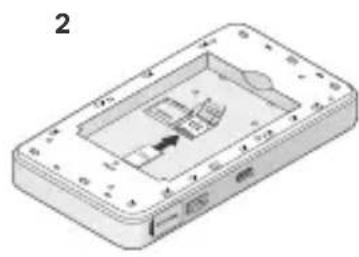
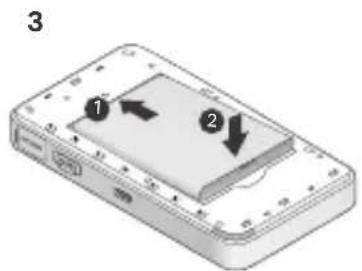
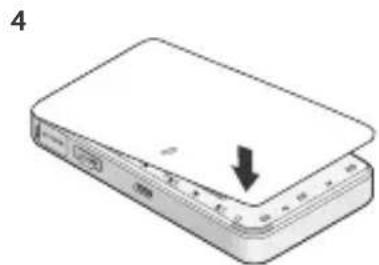
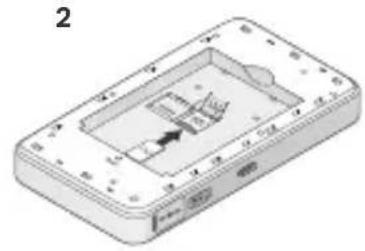
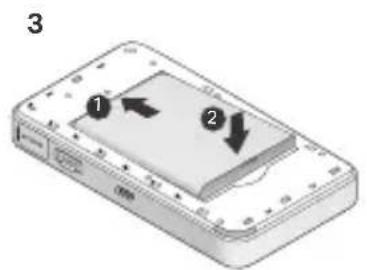
Install the SIM Card and Battery
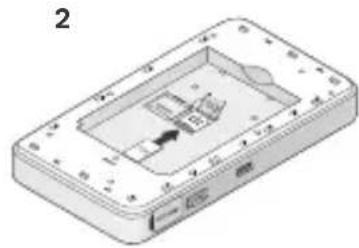
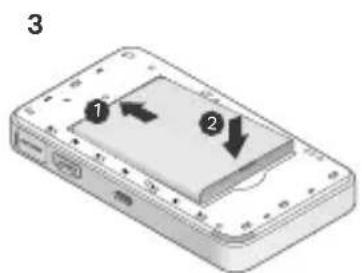
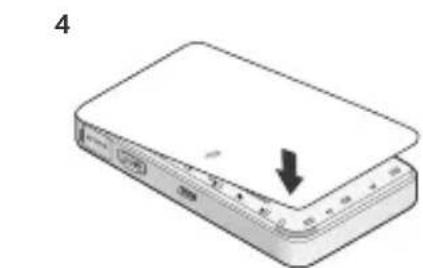
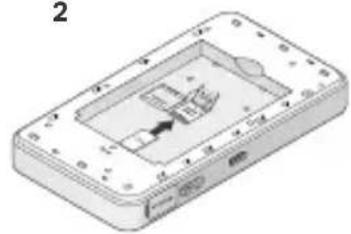
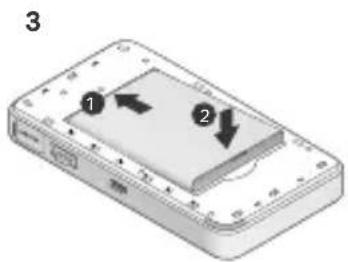
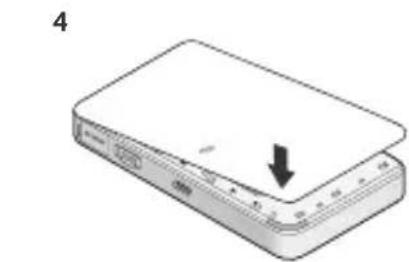
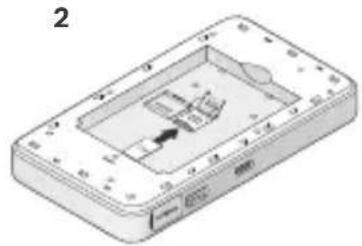
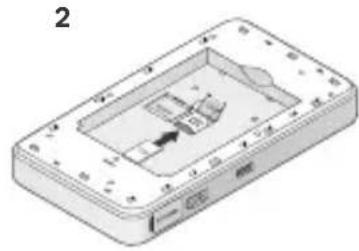
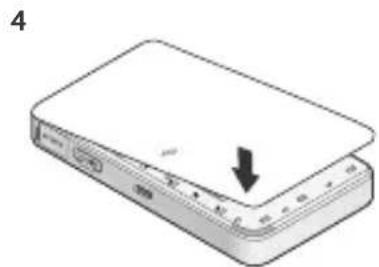
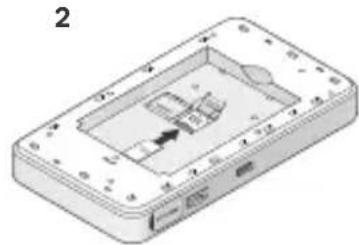
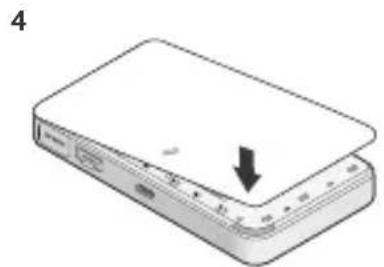
Remove the cover and install the SIM card and battery as shown.
Note:
- Position of the SSID label may vary by model.
- A nano SIM card is required to fit into the slot. • SIM card and SD card are not included.
Connect to the Internet
- Press and hold the POWER button for about 5 seconds to power on.
- View the wireless information on the Mobile Wi-Fi screen, use the default SSID and Password, or simply scan the QR code on the screen for a Wi-Fi connection. Note: We highly recommend that you change the default wireless name and password for network security.
Enjoy!
Note:
- If you can't access the internet, please refer to FAQ > Q3.
- By default, Power Saving is disabled and the Mobile Wi-Fi will turn off the Wi-Fi connection if no wireless devices are connected to the Mobile Wi-Fi for 10 minutes. Press the POWER button to resume the Wi-Fi connection.
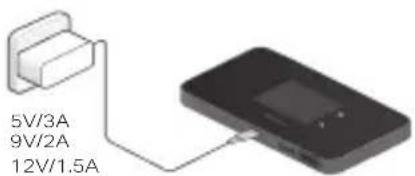
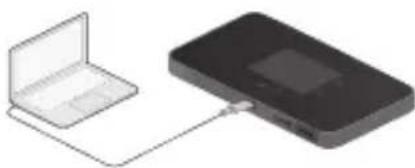
Charging Your Mobile Wi-Fi
Method 1: Via a Wall Outlet (Recommended)
Method 2: Via a Computer
Tether App
Download the Tether App (for iOS and Android) to conveniently manage your Mobile Wi-Fi.
- Search for the Tether App from the Apple Store or Google Play, or scan the QR code.
- Connect your wireless device to the Mobile Wi-Fi.
- Launch Tether App and create a password to log in.
FAQ (Frequently Asked Questions)
Q1. Is there any other alternative to manage the Mobile Wi-Fi besides the Tether app?
A. You can manage the Mobile Wi-Fi by using its web management page.
- Connect your Wi-Fi device to the Mobile Wi-Fi's wireless network.
- Open your web browser and type http://tplinkmifi.net or http://192.168.1.1 in the address bar. Create a password to log in.
Q2. What should I do if I cannot log in to the web management page?
- Verify that your device is connected to the Mobile Wi-Fi.
- Verify that you have entered http://tplinkmifi.net or http://192.168.1.1 correctly.
- Verify that your device is set to obtain an IP address automatically.
Q3. What should I do if I cannot access the internet?
A1. Check PIN status
- Refer to Q1 to log in to the web management page on your phone. If the current SIM card status is "PIN Locked", you will need to unlock it using the PIN code provided by your mobile carrier.
A2. Check SIM card
- Verify that your SIM card is a 5G/4G card and properly inserted.
- Verify that your SIM card is in your internet service provider's service area and has sufficient credit.
A3. Verify the mobile carrier parameters
- Go to Advanced > Network > Mobile WAN > Dial-up Settings, then verify that the parameters (i.e., APN, username, and password) provided by your mobile carrier are correct.
- If not, enter the correct information or create a new profile, then save the settings.
A4. Check the Data Roaming settings
- If your SIM card is operated in a roaming service area, refer to Q1 to log in to the web management page on your phone.
- Go to Advanced > Network > Mobile WAN and enable the Data Roaming option.
A5. Check Mobile Data
- Refer to Q1 to log in to the web management page on your phone. Go to Advanced > Network > Mobile WAN to verify that Mobile Data is On. If not, enable this option.
A6. Check Data Limit
• Refer to Q1 to log in to the web management page on your phone. Go to Advanced > Network > Data Settings to check whether your data usage has exceeded the Total/Monthly allowance.
Q4. How do I restore the Mobile Wi-Fi to its factory default settings?
- With the Mobile Wi-Fi powered on, remove the cover, then use a pin to press and hold the Reset button until the screen goes dark. • Alternatively, go to Menu > Settings > System Settings, and tap Reset.
Note: Restoring the Mobile Wi-Fi to its factory defaults will clear all previous settings and you have to reconfigure it.
For technical support, replacement services, user guides, and more, please visit https://www.tp-link.com/support, or simply scan the QR code.
Note:
Tether app
Tether app
Note:
Tether app
Note:
Tether app
Note:
Tether app
Note:
Connect to the internet
Tether app
2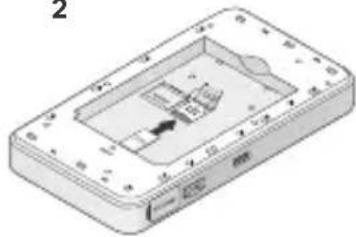
3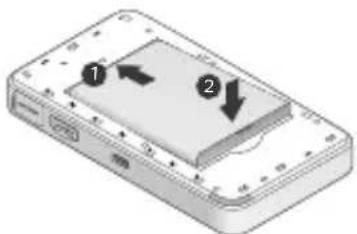
4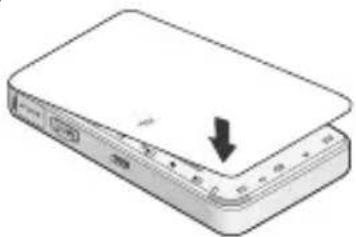
Note:
Tether app
Note:
Tether app
Brand:
- The location of the SSID label may vary depending on the model.
- A nano-SIM card is required to fit in the slot. • SIM card and SD card are not included.
Connect to the Internet
Tether app
Note:
Tether app
Download the Tether app (for iOS and Android) so you can easily manage your mobile Wi-Fi.
- Keep the device away from water, fire, humidity or hot environments.
- Do not attempt to disassemble, repair, or modify the device. If you need service, please contact us.
- Do not use the device where wireless devices are not allowed.
CAUTION!
Risk of explosion if the battery is replaced by an incorrect type.
CAUTION!
- Avoid replacing a battery with an incorrect type that can defeat a safeguard.
- Avoid disposing of a battery into fire or a hot oven, or mechanically crushing or cutting a battery, which can result in an explosion.
- Do not leave a battery in an extremely high temperature surrounding environment that can result in an explosion or the leakage of flammable liquid or gas; do not leave a battery subjected to extremely low air pressure that may result in an explosion or the leakage of flammable liquid or gas.
TP-Link hereby declares that 5G Mobile Wi-Fi is in compliance with the essential requirements and other relevant provisions of directives 2014/53/EU, 2009/125/EC, 2011/65/EU, (EU) 2015/863.
The original EU declaration of conformity may be found at https://www.tp-link.com/support/ce/.
TP-Link hereby declares that the device is in compliance with the essential requirements and other relevant provisions of the Radio Equipment Regulations 2017.
The original UK declaration of conformity may be found at https://www.tp-link.com/support/ukca/
https://www.tp-link.com/support/ce/
For TP-Link Branded Products Only. For information about warranty period, policy, and procedures, please visit https://www.tp-link.com/en/support
THIS WARRANTY GIVES YOU SPECIFIC LEGAL RIGHTS, AND YOU MAY HAVE OTHER RIGHTS THAT VARY FROM STATE TO STATE (OR BY COUNTRY OR PROVINCE).
TO THE EXTENT ALLOWED BY LOCAL LAW, THIS WARRANTY AND THE REMEDIES SET FORTH ARE EXCLUSIVE AND IN LIEU OF ALL OTHER WARRANTIES, REMEDIES AND CONDITIONS.
TP-Link warrants the TP-Link branded hardware product contained in the original packaging against defects in materials and workmanship when used normally in accordance with TP-Link's guidelines for a period that depends on the local service, from the date of original retail purchase by the end-user purchaser.
THIS WARRANTY GIVES YOU SPECIFIC LEGAL RIGHTS, AND YOU MAY ALSO HAVE OTHER RIGHTS THAT VARY FROM COUNTRY TO COUNTRY (OR FROM PROVINCE TO PROVINCE).
TO THE EXTENT PERMITTED BY LOCAL LAW, THIS WARRANTY AND THE REMEDY SET FORTH ABOVE ARE EXCLUSIVE AND IN LIEU OF ALL OTHER WARRANTIES, REMEDIES AND CONDITIONS.