FREESOUND300 - Speaker IBIZA SOUND - Free user manual and instructions
Find the device manual for free FREESOUND300 IBIZA SOUND in PDF.



User questions about FREESOUND300 IBIZA SOUND
0 question about this device. Answer the ones you know or ask your own.
Ask a new question about this device
Download the instructions for your Speaker in PDF format for free! Find your manual FREESOUND300 - IBIZA SOUND and take your electronic device back in hand. On this page are published all the documents necessary for the use of your device. FREESOUND300 by IBIZA SOUND.
USER MANUAL FREESOUND300 IBIZA SOUND
Read the manual prior to first using the product and keep it for further reference.
For best sound performances, keep the unit away from water, moisture, direct sunlight, extreme temperatures.
Place the unit in such a way that it can't fall down.
Never disassemble the unit. Otherwise, it may invalidate the warranty.
Warning:

- The apparatus shall not be exposed to dripping or splashing and no objects filled with liquids, such as vases, shall be placed on the apparatus to avoid any accident.
- To prevent fire or electric shock, please check the compliance of the voltage of power grid with the specified supply voltage of this unit.
Accessories
Unit
- User Manual
Remote Control
Line input cable with 3.5mm jack
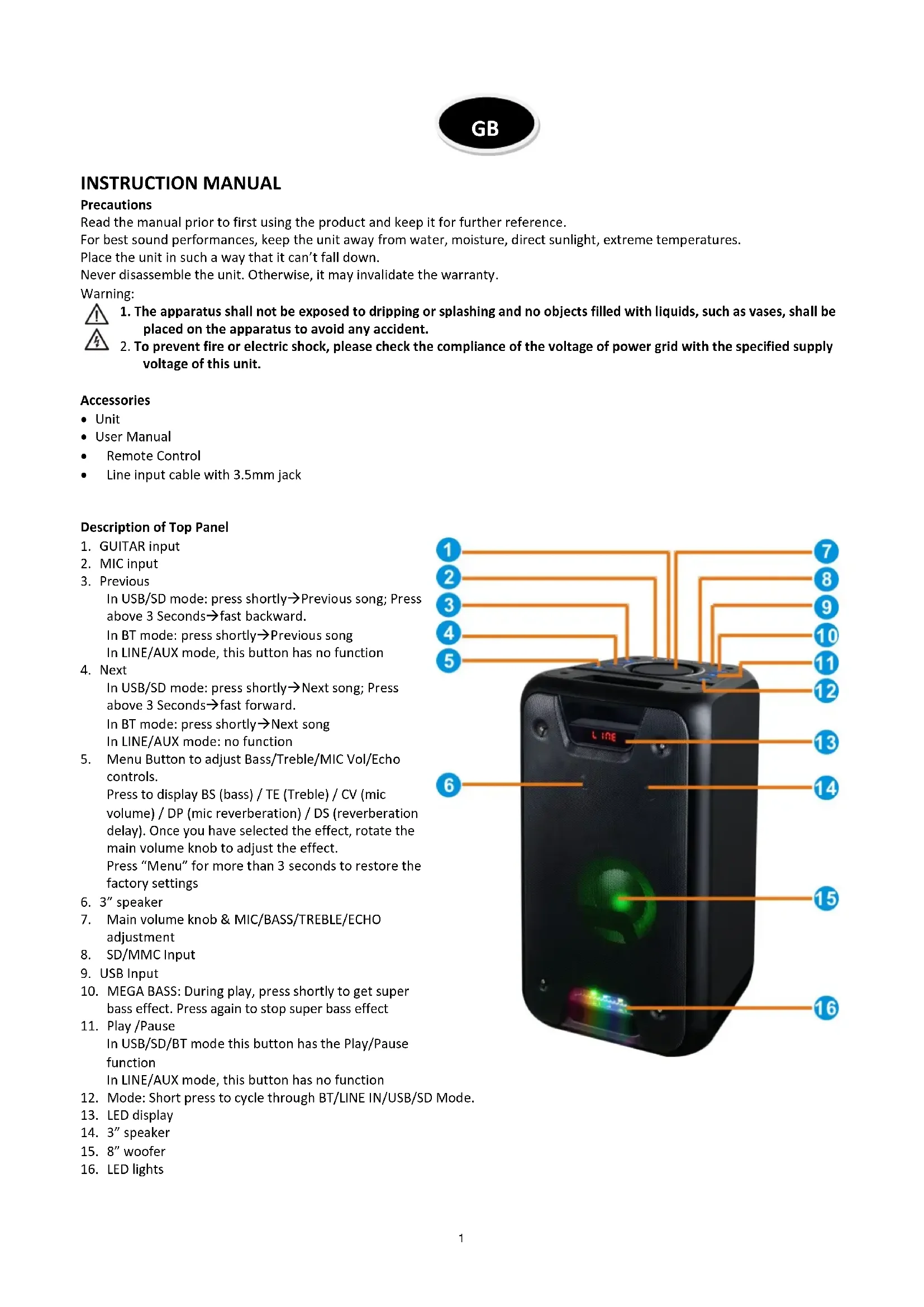
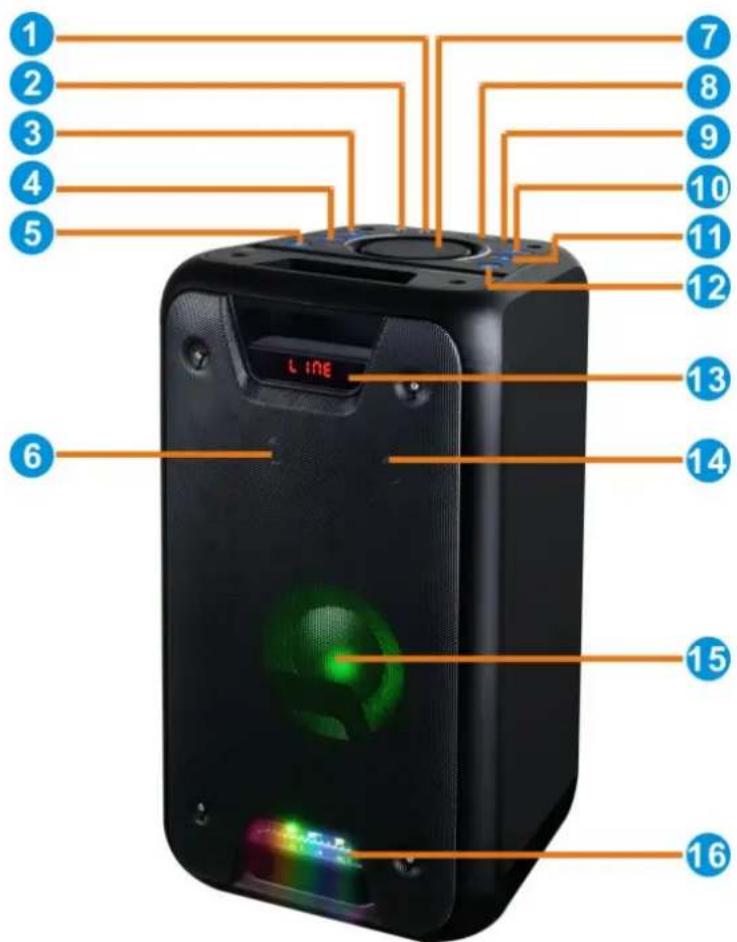
Description of Top Panel
- GUITAR input
- MIC input
- Previous
In USB/SD mode: press shortly Previous song; Press above 3 Seconds fast backward. In BT mode: press shortly Previous song In LINE/AUX mode, this button has no function
- Next
In USB/SD mode: press shortly Next song; Press above 3 Seconds fast forward. In BT mode: press shortly Next song In LINE/AUX mode: no function - Menu Button to adjust Bass/Treble/MIC Vol/Echo controls. Press to display BS (bass) / TE (Treble) / CV (mic volume) / DP (mic reverberation) / DS (reverberation delay). Once you have selected the effect, rotate the main volume knob to adjust the effect. Press "Menu" for more than 3 seconds to restore the factory settings
- 3" speaker
- Main volume knob & MIC/BASS/TREBLE/ECHO adjustment
- SD/MMC Input
- USB Input
- MEGA BASS: During play, press shortly to get super bass effect. Press again to stop super bass effect
- Play/Pause In USB/SD/BT mode this button has the Play/Pause function In LINE/AUX mode, this button has no function
- Mode: Short press to cycle through BT/LINE IN/USB/SD Mode.
- LED display
- 3" speaker
- 8" woofer
- LED lights
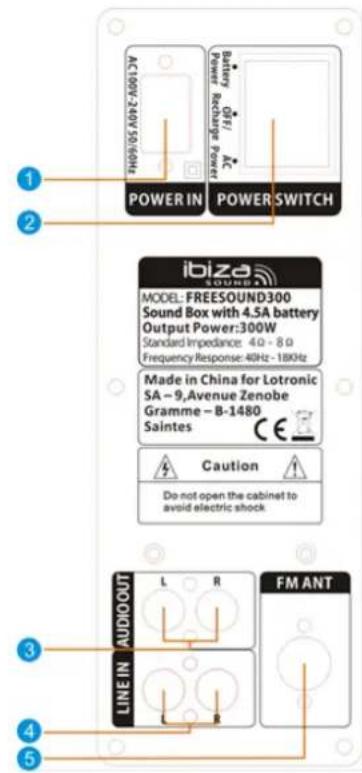
Description of Rear Panel
- Power input
- 3-position switch: AC power ON-OFF-DC power
- LINE/AUX input: External connection to a cellphone, DVD, MP3, MP4, MP5 player, PC and other audio devices
- AUDIO output for connection to other devices
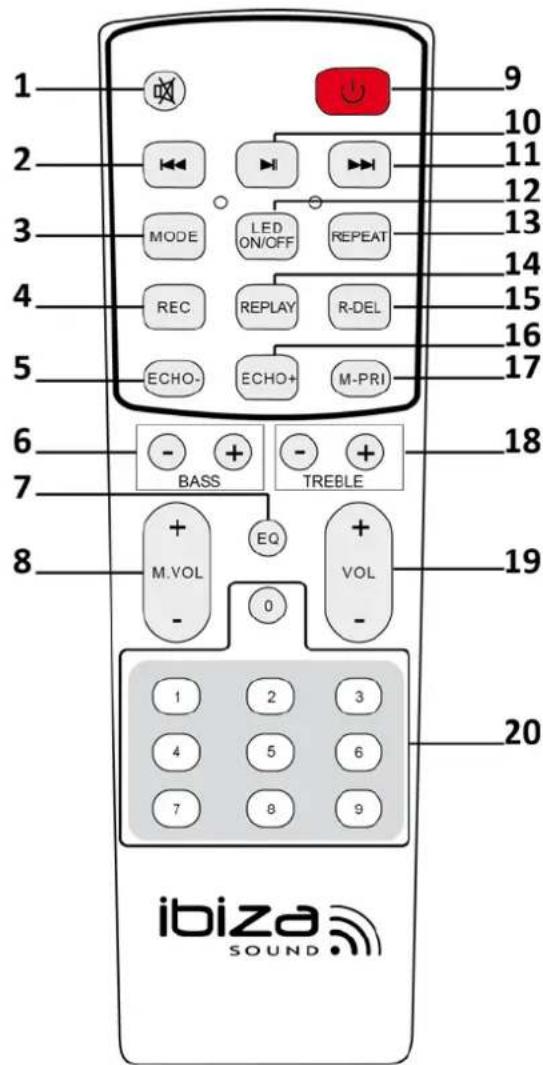
Description of Remote Control
- MUTE: Stops the sound. Press again to switch the sound on again.
- Previous
In USB/SD mode: press shortly Previous song; Press above 3 Seconds fast backward.
In LINE/AUX mode: no function
3. Mode: Short press to cycle through BT/LINE IN/USB/SD Mode
4. Record function: Under any mode, press and hold "REC" button to record songs (from MIC/LINE)
5. Reduce echo effect
6. Adjustment of low frequencies
7. EQ: Sound effects: Rock, Jazz, classic, etc.
8. Microphone volume adjustment
9. Standby button
10. Pause/Play
In USB/SD/BT mode this button has the Play/Pause function
In LINE/AUX mode, this button has no function
- Next
In USB/SD mode: press shortly Next song; Press above 3 seconds fast forward.
In LINE mode: no function
12. LED illumination of the woofer ON/OFF
13. Repeat: single-all-cancel repeat
14. Play recorded files on the USB/SD media
15. Delete recorded files on the SD/USB storage device
16. Increase echo effect
17. MIC priority: If you use the Karaoke function and the song is playing at the same time, press this button and the MIC sound will override the sound from USB/SD.
18. Adjustment of high frequencies
19. Volume adjustment
20. Number buttons
In USB/SD mode: press to access directly the track
In all other modes, these buttons have no function.
Operating Instructions
BT Pairing Mode:
Press MODE button on the unit or the remote control until BT is selected.
1). Put the cell phone within 3 meters;
2). Activate the BT features on your cell phone so that the cell phone starts to search for the BT device. Please refer to the users' manual for details
3). Select "SPLBOX" from the device found by the cell phone;
4). For some cell phones, the users have to key in the identification code "0000" and press ENTER key to pair the unit and cell phone.
5). Press RETURN key on the cell phone to exit from the cell phone menu and play music with the unit when there is no barrier between two cell phones within 10 meters. At this time, you can play music with the unit.
6). Shortly press PLAY/PAUSE button to play or pause music. Short press "▶" or "▶" key to select the previous or next track.
- LINE IN MODE:
Press MODE button on the unit or the remote control until LINE is selected. Play the music of the device connected to the LINE input (4) on the rear panel.
- USB Mode:
- After startup, press MODE to select "USB" and insert the USB device. The unit will automatically read and play the music in the USB device.
- Press "▶II" key shortly to pause or play the track.
- Shortly press " 喜 key to skip to the previous track.
- Shortly press "▶" key to skip to the next track.
- SD Mode:
- After startup, press MODE to select "SD" and insert the SD card. The unit will automatically read and play the music in the SD card.
- Press "▶I" key shortly to pause or play the music.
- Shortly press " 一 ^ 一 ^ key to skip to the previous track.
- Shortly press "▶" key to skip to the next track.
Specifications
| FREESOUND300 | |
| Max. power 300W | |
| RMS power 150W | |
| Woofer 8"/20cm | |
| Mid-range/tweeter | 3"/7,62cm |
| Freq. range 40Hz-18kHz | |
| S/N ratio ≥70dB | |
| Power supply | AC100-240V~ (±10%) 50/60Hz |
| Built-in battery | 4.5A |
| Charging time 5.5 hours | |
| Playing time 3-5 hours | |
| Dimensions 290 x 280 x 538mm | |
| Weight | 8.85kg |
The product design and specifications may be changed without prior notice!
Restrictions of Use
As the product contains a transmission/reception system of VHF signals, it is exclusively meant for professional use. The user of the product is fully responsible for the use he makes of the product. The distributor cannot be held responsible for an eventual misuse by the user of the product.
The symbol "!" that appears on the wireless transmitter, the packaging, the manual and on the product means that the product is allowed for use only in some countries of the European Community (FR - BE - PT - D - NL - LU - GR - SP - RO).
Troubleshooting
| Problem | Possible cause | Solution |
| No sound output when power on | 1: No input sound source | 1:Connect a Line signal |
| 2: Volume knob in the lowest position | 2: Adjust volume | |
| 3: USB/SD no plug | 3: Insert a USB/SD Card | |
| Distortion of sound 1: Volume too loud | 1:Turn volume lower | |
| 2:Check and change the audio file | ||
| 3:Adjust Bass/Treble by “MENU” and “Main volume” | ||
| No sound from the Microphone | 1:Microphone socket not fully plugged in | 1:Completely plug in the microphone socket |
| 2:Power on microphone | ||
| 3:Adjust microphone volume | ||
| No sound from the USB/SD card | 1:incompatible song format | 1:songs format should be MP3/WMA |
| 2:Power off, then power on | ||
| 3:Insert USB/SD card properly | ||
| Speaker has big noise | 1:Wired Microphone too close to the speaker | 1:Do not let the wired microphones head point at the speaker |
| 2:Turn off wired microphone if not in use | ||
| 3:Reduce the microphone volume | ||
| 4:Keep mobile away from the speaker during calls | ||
| 5:Keep the speaker away from other sources of interference | ||
| Blue-connect Failure | 1: Blue-connect Disconnected | 1: Find the right device Name or press "MENU" Button to restore factory settings. |
| 2: Confirm if you are connected to the right device Name | ||
| 3: Try to keep away from barriers, such as walls, glasses...etc |
Remarks: If the problem persists, please contact your dealer.

Electric products must not be put into household waste. Please bring them to a recycling centre. Ask your local authorities or your dealer about the way to proceed.
MANUEL D'UTILISATION
- Entrada de corrente
- Conmutador de 3 posiciones: AC power ON-OFF-DC power
- Entrada LINEA / AUX: External connection to a cellphone, DVD, MP3, MP4, MP5 player, PC and other audio devices
- AUDIO output for connection to other devices

Diagnostic of fallos
EC Declaraon of Conformity
Hereby we, LOTRONIC SA
Avenue Zénobe Gramme, 9
1480 SAINTES
Belgique
+32.2.390.91.91
Cerfy and declare under our sole responsibility that the following product:

Trade name:
Product name: SOUND BOX SYSTEM WITH USB AND BLUETOOTH
Type or model: FREESOUND300
Conforms to the essenal requirements of the:
LVD directive 2014/35/EU, RTTE directive 1999/5/EC, ROHS directive 2011/65/EU, ERP directive 2009/125/EC and EMC directive 2014/30/EU
Based on the following specicaons applied:
EN60065:2002+A1:2006+A11:2008+A2:2010+A12:2011
EN62479:2010
EN301489-1V1.9.2:2011
EN301489-17V2.2.1:2012
EN55013:2013
EN55020:2007+A11:2011
EN61000-3-2:2014, EN61000-3-3:2013
ETSI EN300 328 V1.9.1
IEC62321:2008,IEC62321:2013,IEC62321:2015
EN62087:2012
Place and date of issue: Saintes (Belgium), on 21/12/2016
AKBAR Guive
Technical Manager
LOTRONIC SA
Av. Zenobe Gramme 9
1480 Saintes - Belgium
Tel. +32.2.390.91.91
Fax +32.2.390.93.19
info@lotronic.net
www.lotronic.com
CE
Responsible technique