BT 220 NC - Earplug Phiaton - Free user manual and instructions
Find the device manual for free BT 220 NC Phiaton in PDF.



User questions about BT 220 NC Phiaton
0 question about this device. Answer the ones you know or ask your own.
Ask a new question about this device
Download the instructions for your Earplug in PDF format for free! Find your manual BT 220 NC - Phiaton and take your electronic device back in hand. On this page are published all the documents necessary for the use of your device. BT 220 NC by Phiaton.
USER MANUAL BT 220 NC Phiaton
natural_image
Exterior view of a white PHIATON phone device with visible brand logo and control buttons (no text-heavy elements)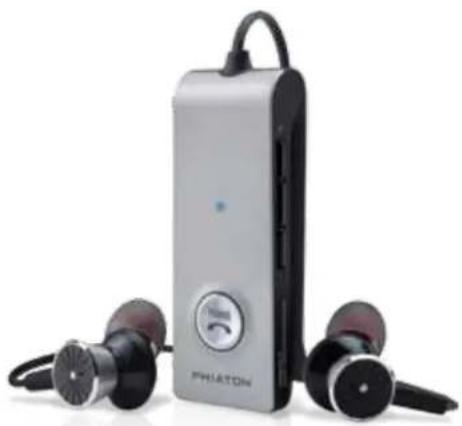
natural_image
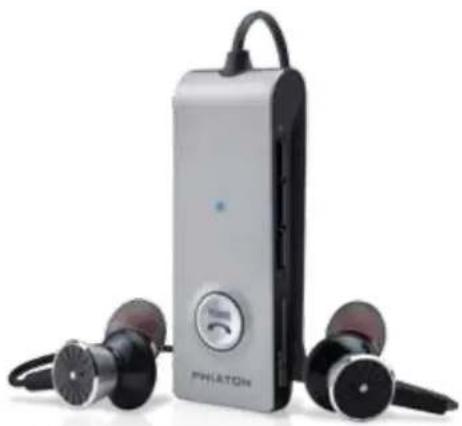
Exterior view of a Philipsmon audio kit with two earbuds (no text or symbols visible on the device body)WIRELESS EARPHONES with ACTIVE NOISE CANCELLING Thank you for purchasing PHIATON BT 220 NC
- Please follow the directions, and read the guidelines carefully before use (Please, keep the owner's guide for future reference).
- Some functions of the BT 220 NC may not be available when it is paired with certain devices.
Contents
- SAFETY AND GENERAL INFORMATION
- COMPONENTS & FEATURES
- WEARING EARPHONES
- CHARGING
- POWER ON/OFF AND HEADPHONE CONNECTION WAITING MODE
- PAIRING WITH A BLUETOOTH DEVICE
- PAIRING WITH NFC
- MULTIPOINT CONNECTION
- USING NOISE CANCELLING FEATURE
- MONITOR FEATURE
- LISTENING TO MUSIC (PLAY & CONTROL)
- ACCEPTING / MAKING A CALL WHILE PLAYING MUSIC
- USING THE CALL FUNCTION
- CHANGING SOUND MODE
- MISCELLANEOUS FEATURES
- CONNECTING AND USING THE AUDIO CABLE
- SPECIFICATIONS
- PRODUCT SYMPTOMS AND TROUBLESHOOTING
- FCC COMPLIANCE INFORMATION
- IC COMPLIANCE INFORMATIONS
- CE COMPLIANCE INFORMATION
1. SAFETY AND GENERAL INFORMATION
1) Use a standard USB charging cable (included), with or without a charging adaptor (5V, over 500mA). * Adapter Not Included
2) Lower the volume prior to listening to audio to prevent potential damage to eardrums caused by sudden loud sound.
3) Listening to loud music for extended periods of time may cause hearing damage.
4) Do not store the device in places with a temperature higher than 113^ F/ 45^ C.
5) Keep the device dry. If the device becomes wet, turn the power off, dry the device with a dry towel and contact Phiaton Customer Service for an inspection.
(For more information, refer to the contact us page within our website – phiaton.com).
6) Do not attempt to disassemble, modify or repair the device.
7) Do not cause shock to the device.
8) Keep out of the reach of children and pets.
9) Do not tug on cords or touch power plugs with wet hands.
10) Do not use the device nearby microwave ovens or wireless LAN adaptors.
11) When the product is not being used, set the device power switch to 'OFF'.
12) When storing BT 220 NC, place the device within the provided carrying case.
13) When cleaning the device, use a clean dry cloth to wipe the device clean (Do not use solvents).
14) Remove the ear tips from the earphones, wash them with warm water, dry completely and check for any debris before reattaching (Please use a clean cloth to clean the Comply™ Foam tips).
15) Replacement ear tips can be purchased from Phiaton Customer Service.
16) Use while driving or walking will prevent outside noise, such as signals or alarms, from being heard and may be dangerous to yourself and others. Heed caution during use.
17) The radio waves of this device may affect electronic medical devices. If you use any electronic medical device, consult your doctor or the medical device company before using the BT 220 NC.
※ Use the BT 220 NC only for its intended purposes.
※ This device cannot be used for purposes related to human safety as it may cause radio interference during operation.
2. COMPONENTS & FEATURES
COMPONENTS FEATURES
- BT 220 NC Earphones
- USB Charging Cable
- Audio Cable
- Carrying Case
- 4 sizes of Silicon Eartips
- 1 pair Comply Foam™ Tips
- Neck Strap
- Quick Guide / Warranty Card
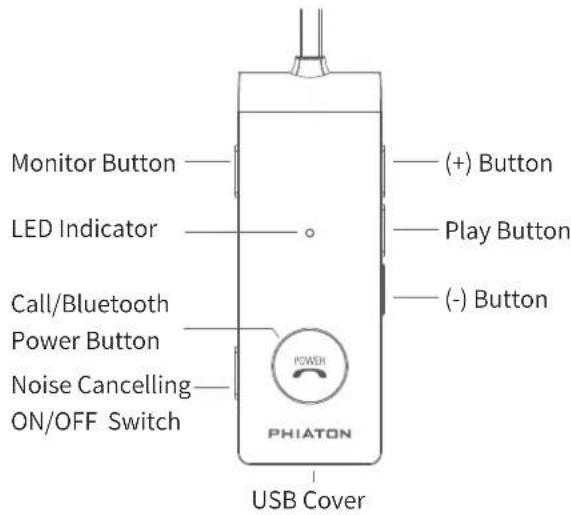
text_image
Monitor Button LED Indicator Call/Bluetooth Power Button Noise Cancelling ON/OFF Switch (+) Button Play Button (-) Button PHIATON USB Cover3. WEARING EARPHONES
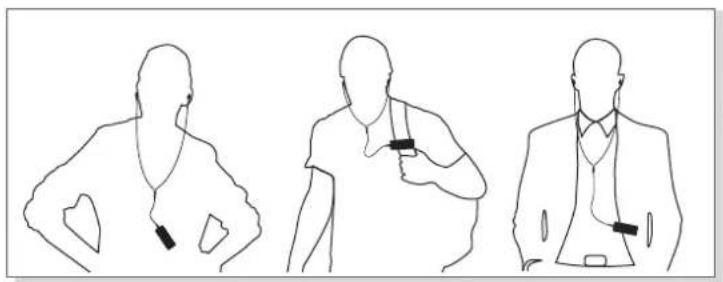
1) On the earphones, "L" indicates Left and "R" indicates Right.
(For best performance, it is recommended to wear ear tips that fit your ears).
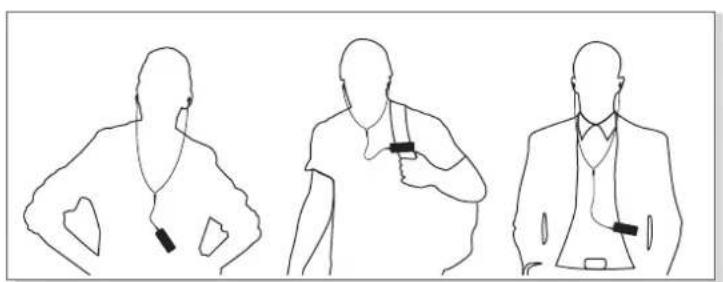
2) Use the clip or neck strap for your convenience.
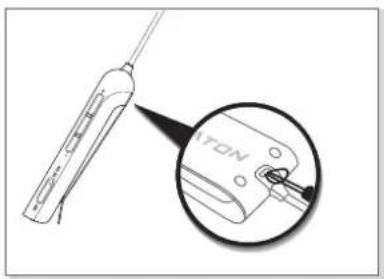
natural_image
Diagram showing a handheld device with a magnified inset highlighting a component labeled 'TON' (no text or symbols present)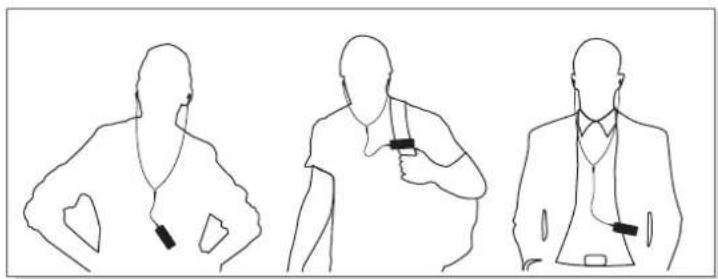
natural_image
Three line drawings of a person in different poses: standing, holding a medical device, and kneeling (no text or symbols)[How to Attach Neckstrap] [How to Wear BT 220 NC]
3) How to Use the Comply™ Foam tip
① First remove silicon tips.
② Place the bottom side of a foam tip to the end of a waveguide.
③ Press the foam tip until it reaches the middle of a wave guide.
④ Apply pressure on the foam tip to minimize its size.
⑤ Insert it carefully into the ear.
⑥ The foam tip will gradually expand for about 10 seconds, blocking external noise.
(You can purchase addition foam tips at www.complyfoam.com)
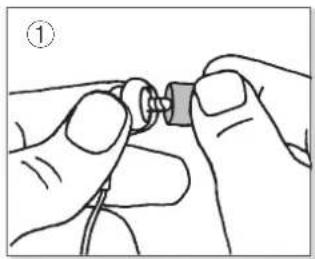
natural_image
Illustration of hands connecting a small component to a terminal block (no text or symbols)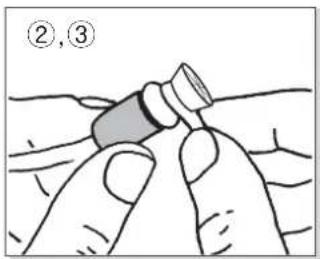
text_image
②,③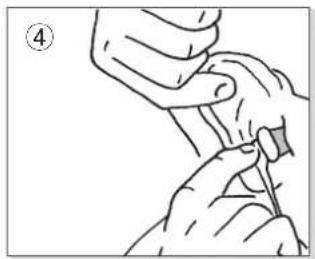
natural_image
Illustration of hands holding a tool or device with a numbered label (4), no text or symbols present.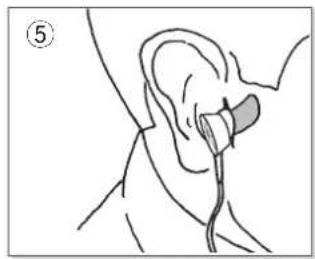
natural_image
Line drawing of a human ear with a medical device inserted, no text or symbols present4. CHARGING
The device may be not charged upon purchase and must first be charged before use.
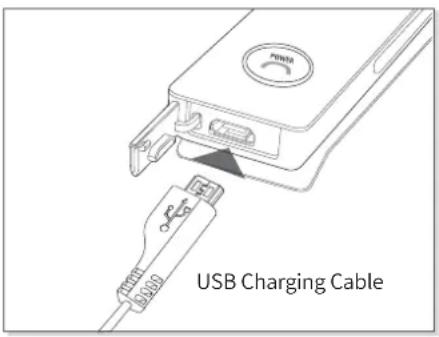
1) Open the USB cover on BT 220 NC and connect the provided USB charging cable.
2) Connect the provided USB charging cable with a computer (laptop) or you may also use a separately purchased USB adaptor (rating: 5V/over 500mA) to begin charging.
text_image
USB Charging Cable| Operation LED Indicator | |
| Charging Red Light | |
| Blue LightCharging complete | |
※This device is equipped with a battery and will automatically charge once a charging cable is connected.
5. POWER ON/OFF AND HEADPHONE CONNECTION WAITING MODE
1) Power ON/OFF
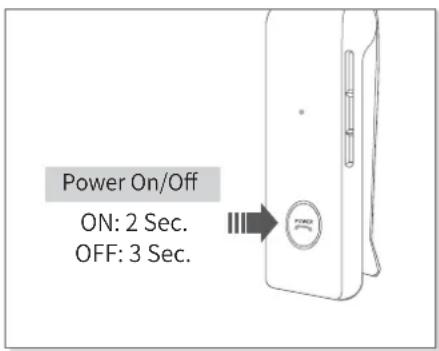
- Press and hold the [CALL/POWER] button for two seconds to turn the power on.
- When turning the power off, press and hold the [CALL/POWER] button for three seconds to turn off.
text_image
Power On/Off ON: 2 Sec. OFF: 3 Sec.| Status Operation | LED Indicator | |
| ON | Press and hold the CALL/POWER button for 2 seconds | Purple light turns on for 1 second |
| OFF | Press and hold the CALL/POWER button for 3 seconds | Red light blinks5 times |
※ 'Pairing mode will start once the power is turned on for the first time after purchase'.
2) Connection Waiting Mode
- When power is turned on, ‘Connection Waiting Mode’ will start if ‘Pairing Mode’ cannot be entered or the headphones cannot connect with ‘Bluetooth’ device.
- If the ‘Bluetooth’ device is not connected within 5 minutes in ‘Connection Waiting Mode’, the headphones will automatically turn off.
| Status | LED Indicator |
| Blue light blinks twice in 6 seconds intervalsConnection V |
6. PAIRING WITH A BLUETOOTH DEVICE
1) Pairing
- Turn on the Bluetooth feature with the ‘Bluetooth Device’ you want to connect with the BT 220 NC.
- Place the BT 220 NC within 3 feet of the ‘Bluetooth Device’ you want to connect.
- Press and hold the PLAY button for over 3 seconds with the BT 220 NC power on to enter Pairing Mode.
| Status LED Indicator Voice Guidance | ||
| Pairing Mode | Blue and red light alternately blinks | Pairing Mode Activated |
- Within the 'Bluetooth Device' you want to connect, search/select 'BT 220 NC'.
※ If the “Bluetooth device” requires a PIN CODE or password enter ‘0000’.
- Use the earphones to play music or connect a call.
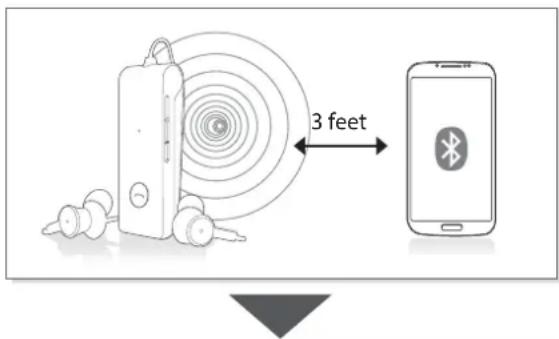
text_image
3 feet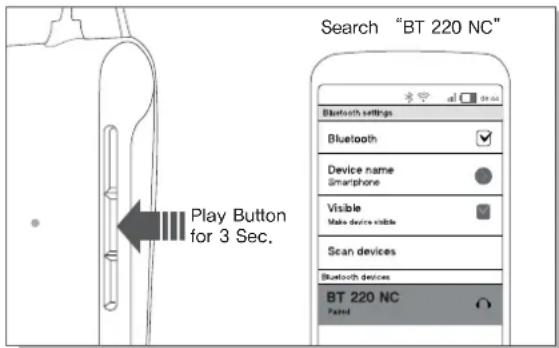
text_image
Search "BT 220 NC" Bluetooth settings Bluetooth Device name Smartphone Visible Make device visible Scan devices Bluetooth devices BT 220 NC Failed| Operation LED Indicator Voice Guidance | |
| Connection Successful Purple light blinks twice Device Connected |
2) Re-connecting a Disconnected Device
① Auto Connection
- Once the device has been paired with a Bluetooth device, it will automatically be connected to a previously connected device once the BT 220 NC power is turned on.
If Bluetooth becomes disconnected as the discover range between the Bluetooth device and the BT 220 NC is exceeded, then Bluetooth will not be automatically re-connected.
When you are back within the discover range (30 feet), you must then connect manually.
② Manual Connection – When having entered ‘Connection Waiting Mode’ during connection
- Press the CALL/POWER button or the PLAY Button on the headphone to connect.
The BT 220 NC will also be connected if you select ‘BT 220 NC’ from the device search list within your ‘Bluetooth Device’.
3) Checkpoints upon Pairing
- Check to see whether the Bluetooth feature is activated within the 'Bluetooth Device' you want to connect.
- When selecting the connection device, connect by selecting stereo headset device.
Music cannot be played when connected through mono headset.
※ In order to properly use the Bluetooth feature of this device, the profile (A2DP, HSP, HFP and AVRCP) of the 'Bluetooth Device' you are trying to connect must support the profile of this device.
※ A2DP - “Advanced Audio Distribution Profile”, HSP - “Headset Profile”, HFP - “Handsfree Profile”.
AVRCP - "Audio/Video Remote Control Profile"
※ The device will not operate properly if the profiles are not supported equally. Even when the profiles are supported equally, some features may not properly operate depending on the Bluetooth device specifications. To check the detail specifications of this headphone's profile, refer to '17 – Product Specifications'.
For more information, please visit phiaton.com or contact Phiaton customer service.
7. PAIRING WITH NFC
1) You can easily pair the BT 220 NC with a Bluetooth device that has NFC capability.
2) Pairing with NFC
- Activate NFC function on your Bluetooth device.
- Contact the front side of the BT 220 NC to the section of 'Bluetooth device' where the 'NFC Antenna' is located.
- When the ‘Bluetooth device’ asks “Yes” or “No” to connect, click “Yes”.
* For the 'Bluetooth devices' NFC antenna location, refer to the device manual or contact the device manufacturer.
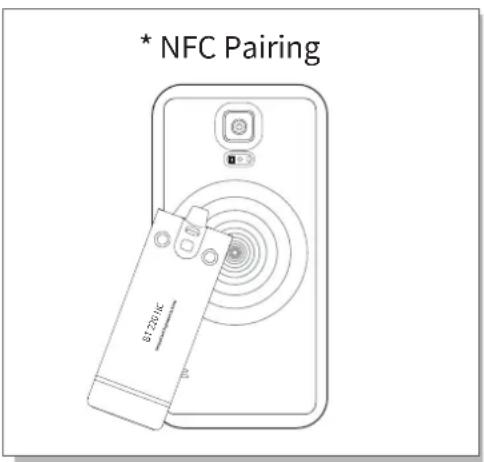
text_image
* NFC Pairing B1235/FC8. MULTIPOINT CONNECTION
1) 'What is Multipoint Connection'?
This is a feature where BT 220 NC's user can simultaneously connect two Bluetooth devices.
2) Multipoint Connecting
- Turn on the Bluetooth feature within the two 'Bluetooth Devices' you want to connect with BT 220 NC.
- Refer to '6-Pairing' to pair the first device with the BT 220 NC.
- Press and hold the PLAY button again to enter Pairing Mode (Here, the first device becomes disconnected).
- Once 'Pairing Mode' has been entered, pair the second device.
- Re-connect the first device. Now, both of the devices will remain connected.
※ Sleep Mode will be entered when devices are not connected within two minutes. When trying to connect a device while in Sleep Mode, pressing any button will re-enter Connection Waiting Mode where connection is possible.
※ When the BT 220 NC power is turned off and back on, only the second paired device will automatically be connected. When the first paired device is reconnected, then both of the devices will remain connected.
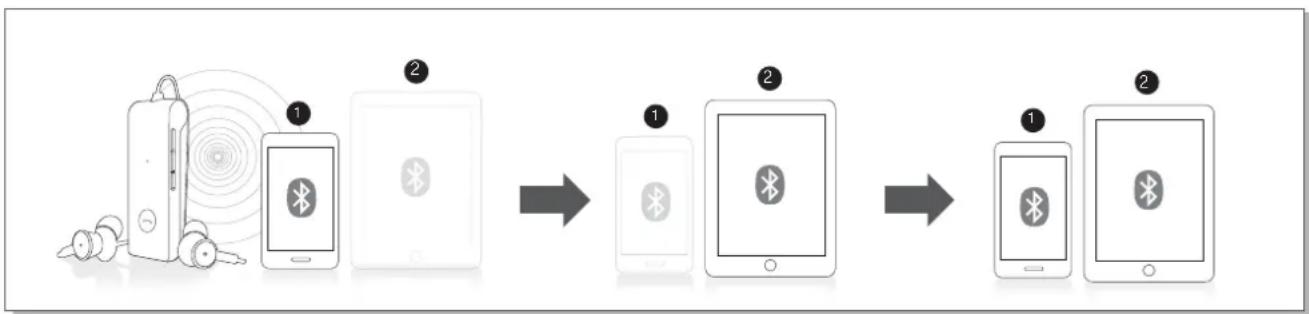
flowchart
graph LR
    A["Device with earless sensor and headphones"] --> B["Step 1: Bluetooth device on phone"]
    B --> C["Step 2: Bluetooth device on tablet"]
    C --> D["Step 1: Bluetooth device on tablet"]
    D --> E["Step 2: Bluetooth device on tablet"]
3) What is 'Auto Mode'?
This is a mode used to automatically reconnect both previously connected 'Bluetooth Devices' when the power is turned off and back on.
4) Using Auto Mode
- Within Pairing Mode, press the (+) Button for 3 seconds to turn on Auto Mode.
- If you press the (+) button for 3 seconds again, then Auto Mode will turn off and switch to Manual Mode.
※ Upon Multipoint connection, the features operated within BT 220 NC usually operate within the second paired device (when using the first paired device, it is possible to operate the device from BT 220 NC).
※ When using Multipoint connecting, the order of the paired devices may change. To change the order, re-connect the device you usually use.
9. USING NOISE CANCELLING FEATURE
1) What is Noise Cancelling?
Noise Cancelling refers to a technology that reduces noise from mid/low pitched sounds under 1kHz.
2) Turning Noise Cancelling Feature On/Off
- Pushing the NC Button towards ON direction will turn Noise Cancelling ON and pushing the button towards OFF will discontinue Noise Cancelling.
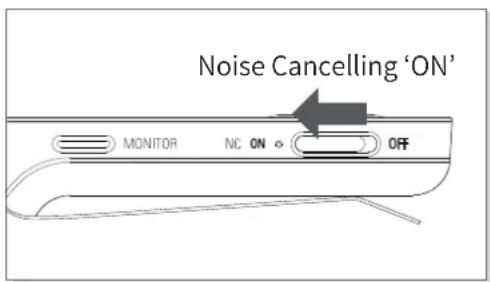
text_image
Noise Cancelling 'ON' MONITOR NC ON OFF| Operation NC Indicator (LED) | |
| Noise Cancelling ON Green light turns on |
3) Cautions upon using Noise Cancelling Feature
- Noise Cancelling cannot be used when the battery is completely drained.
- Use while driving or walking will prevent outside noise, such as signals or alarms, from being heard and may be dangerous to yourself and others. Heed caution during use.
- Noise Cancelling is optimized for mechanical noises from airplanes, buses, and subway trains and is not required for use within quiet interior environments.
10. MONITOR FEATURE
1) The monitor feature allows you to mute your music and noise cancelling so you can hear the surrounding sounds without removing the ear buds.
2) Press the Monitor Button when you want to hear the sounds around you.
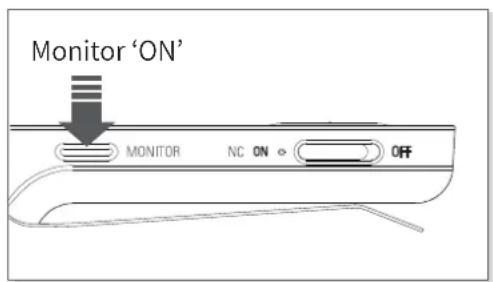
text_image
Monitor 'ON' MONITOR NC ON OFF11. LISTENING TO MUSIC (PLAY & CONTROL)
1) Playing Music
- Shortly press the PLAY Button once to play music from the 'Bluetooth Device'.
- While music is playing, shortly press the PLAY Button to pause the playing music. The music will be played from the paused point when playing music again.
- While music is playing, pressing and holding the PLAY Button for one second will stop the playing music. The music will be played from the start when playing music again.
※ The Stop function may not be supported depending on your 'Bluetooth Device'.
2) Controlling Volume and Using Seek
- Press the (+)/(-) Button to control the volume.
- Press and hold the (+)/(-) Button for about one second to go to the next / previous song.
After 1 second, the ● signal tone is provided.
- Press and hold the (+)/(-) Button continuously to fast-forward / rewind the current song.
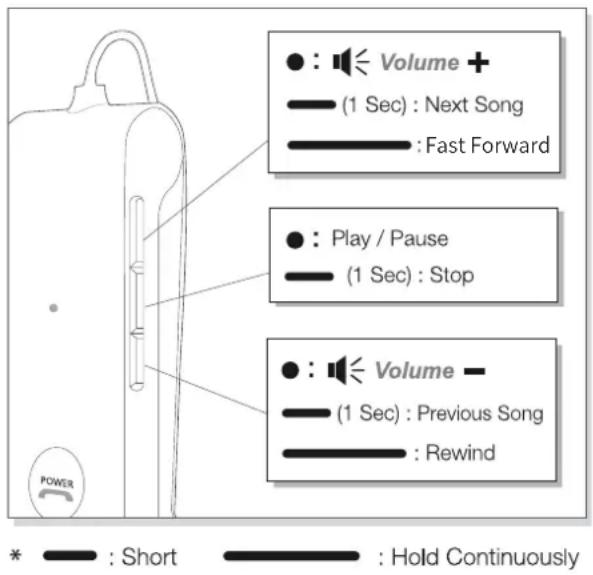
text_image
Volume + (1 Sec) : Next Song : Fast Forward Play / Pause (1 Sec) : Stop Volume - (1 Sec) : Previous Song : Rewind * : Short : Hold Continuously| Status LED Indicator | |
| While music is playing | Blue Light slowly blinks every 6 seconds |
※ Music can be listened to through BT 220 NC by directly operating your Bluetooth device.
※ When the battery is completely drained, you can connect the provided audio cable to continue listening.
12. ACCEPTING / MAKING A CALL WHILE PLAYING MUSIC
1) Accepting a Call while Playing Music
- When the incoming call tone is heard through the earphones, press the CALL/POWER button. The music will be paused and the call is connected.
- Once the call has ended, press the CALL/POWER button to terminate the call. Once the call is terminated, the paused music will play again.
2) Making a Call while Playing Music
- While playing music, press and hold the CALL/POWER button for about 1 second to pause the music and connect with the most recent number.
※This feature may slightly differ depending on your 'Bluetooth Device'.
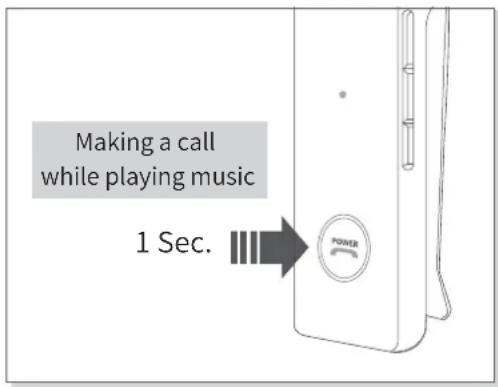
text_image
Making a call while playing music 1 Sec.13. USING THE CALL FUNCTION
1) Accepting a Call
- When the incoming call tone is heard through the earphones, press the CALL/POWER button.
(Adjusting Call Volume: to control the call volume, - Press the (+)/(-) Button).
2) Ending a Call
- While on a call, shortly pressing the CALL/POWER button to end the call.
3) Rejecting a Call
- When the incoming call tone is heard through the earphones, press and holds the CALL/POWER button for about 1 second. (The 'Call Ignored' voice guidance is provided and the incoming call is rejected).
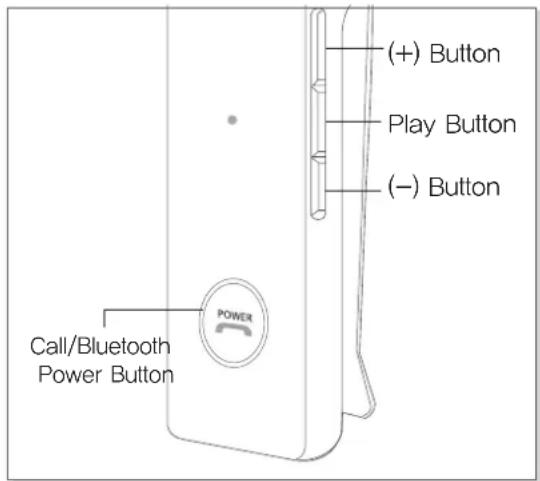
text_image
(+) Button Play Button (-) Button Call/Bluetooth Power Button POWER4) Turning Mute On/Off
- While on a call, Press the (-) Button for about 1 second to mute sound. To turn back on, Press the (-) Button again for about 1 second.
5) Making a Call
- Press and hold the CALL/POWER button for about 1 second. The 'Redialing' voice guidance is provided and a call is connected with the most recent number.
※This feature may slightly differ depending on your 'Bluetooth Device'.
6) Call Waiting
- When there is another incoming call while on a call (supported only when having applied for this service with your telecom provider).
- Press and hold the CALL/POWER button for about 1 second to place the current call on call waiting and connect the second call (Press the CALL/POWER button again for about 1 second to switch between the waiting call and connected call).
- Shortly press the CALL/POWER button to end the current call and connect the second call.
7) Calling by Voice (supported within mobile phones that support the voice command feature).
- While waiting, shortly press the CALL/POWER button.
8) Switching between the Device and Mobile Phone
- To switch the call from mobile phone to the headphone, press the CALL button for 1 second.
| Status | LED Indicator |
| Incoming Bell/Outgoing Bell | Purple light blinks in 1.5 second intervals |
| During Call | Blue light slowly blinks every 6 seconds |
| When there are two calls connected | Purple light slowly blinks every 6 seconds |
14. CHANGING SOUND MODE
1) When the BT 220 NC connects with the apt-X high quality sound compatible ‘Bluetooth Device’, it connects in apt-X mode automatically.
2) You can switch to SBC mode which is less draining on the battery.
- Press CALL/POWER button with Volume (+) button for 2 seconds when the device power on.
| Status | Operation | LED Indicator |
| apt-X mode | Press and hold the CALL/POWER button for 2 seconds | Purple light turns on for 1 second |
| SBC mode | Press and hold the CALL/POWER button and (+) button for 2 seconds | Blue light turns on for 1 second |
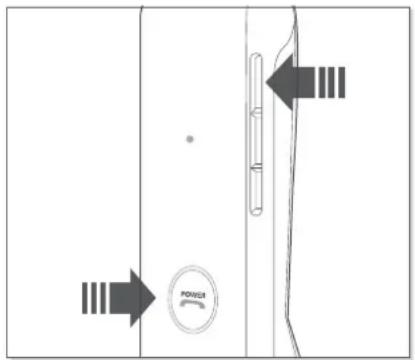
text_image
Diagram showing a door with power switch and directional arrows indicating movement or force directions.※ Battery use time
| Noise Cancelling OFF Noise Cancelling On | |||
| Continuous Talk Time | Max 16 hours | Max 10 hours | |
| Continuous Music Play Time | apt-X High Quality Sound Mode | Max 15 hours | Max 9 hours |
| SBC Mode | Max 17 hours | Max 10 hours | |
| Stand by Time | Max 300 hours | Max 26 hours | |
| Full Charge Time | About 1.5 hours | ||
※ The above times may differ depending on the environment in which it is used.
15. MISCELLANEOUS FEATURES
1) Checking Remaining Battery
- With the power on, shortly press the CALL/Power button twice to display the remaining battery indicator (LED).
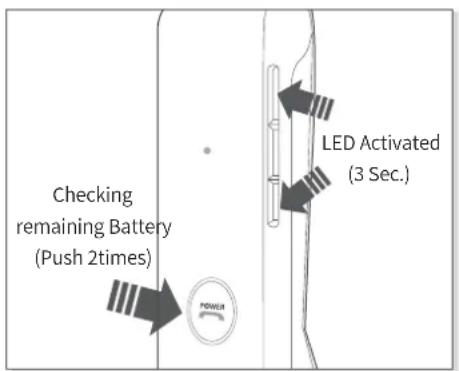
text_image
Checking remaining Battery (Push 2times) LED Activated (3 Sec.)| Remaining Battery LED Indicator | |
| Over 80% | Blue light lights up for 1 second |
| 80% ~ 30% Purple light lights up for 1 second | |
| Under 30% | Red light lights up for 1 second |
| Under 3% | Red light lights up for 1 second and the alarm will sound |
- For Apple iOS version 5 or above, the remaining battery is displayed at the top right side of the screen.
* The Battery Check feature will not operate while the battery is being charged.
* When the battery charge is under 3%, the alarm will sound.
If use is continued for several minutes the battery will be completely drained, the 'Power Off' voice guidance is provided and the power will automatically turn off.
2) Activating/Deactivating the LED Indicator
- BT 220 NC is equipped with an indicator that shows operating features to provide information on operating states.
- Press the (-) Button and (+) Button simultaneously for about 3 seconds to deactivate the indicator (LED) that shows operating states. To activate again, Press the (-) Button and (+) Button simultaneously for about 3 seconds.
| Operation | LED Indicator Status |
| Activate | LED Display- The ‘LED Activated’ voice guidance is provided.- Only the‘●●’↗ signal alarm is provided once through the earphones during a call, while playing music and after a call is ended/connected. |
| BlankDeactivate- The ‘LED Deactivated’ voice guidance is provided.Only the‘●●↘’ signal alarm is provided once through the earphones during a call, while playing music and after a call is ended/connected. |
3) Enabling/Disabling Voice Guidance
- Within 'Pairing Mode', pressing the PLAY Button for about 3 seconds will enable voice guidance and provide guidance when starting various features via voice (this feature may not be supported immediately after ending/connecting a call).
- Within 'Pairing Mode', again pressing the PLAY Button for about 3 seconds will disable voice guidance.
* Upon factory shipment, the voice guidance feature is enabled by default.
* Once the voice guidance feature is disabled, the following signal tones are provided in place of voice guidance.
4) Resetting the Device
- To reset to factory settings, press the Play button and (+) Button for 5 seconds simultaneously while in the Pairing Mode.
| Operation | LED Indicator Status | |
| Factory Settings | Purple light lights up twice | After ‘●●’ signal alarm, “POWER ON, Pairing Mode Activated” |
16. CONNECTING AND USING THE AUDIO CABLE
1) BT 220 NC can also be used with the audio cable connected as shown in the figure.
※ When connected to a device with the provided audio cable, the Bluetooth remote features are disabled and you must use the device you are connected to answer calls and play music.
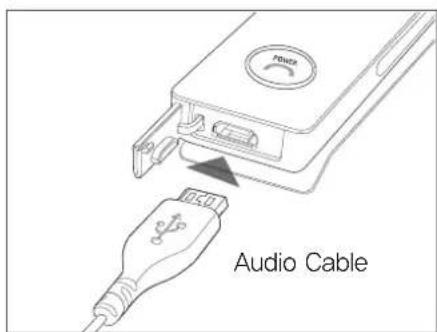
text_image
Power Audio Cable17. SPECIFICATIONS
1) Controller
- Communication Network: Bluetooth standard Ver.4.0
- Output Power: Power Class 2
- Max. Communication Range: Discoverable within 10 m / 33 ft.
- Full Charging Time: 1.5 Hours
- Call Time (NC on / off): 10 Hours / 16 Hours
- Music Play Time (NC on / off): 10 Hours / 17 Hours
- Standby Time (NC on / off): 26 Hours / 300 Hours
- Operating Frequency: 2.4 GHz (2.402GHz \~ 2.480GHz)
- Bluetooth Profile Support: HFP v1.6 / HSP v1.2 / A2DP v1.3 / AVRCP v1.5
- Audio Codec:: SBC, APT-X
- Battery: Lithium Polymer DC 3.7V / 300 mA
- Microphone Frequency Range: 10 \~ 4,000Hz
- Microphone Sensitivity: -40 dB
- Support Echo Cancellation and Talk Noise: CVC Solution
- Operating Temperature: 5 \~ 45 °C / 41 \~ 113 °F
- Size: 24.1(H) x 69.9(W) x 14.4(D) mm / 9.5(H) x 27.5(W) x 5.6(D) inch
- Weight: 24 g (0.053 lb)
2) Earphones
- Type: Φ14.3 mm Driver Units
- Sensitivity: 100 dB
- Frequency Response: 10 Hz \~ 27 kHz
- Impedance: 32 Ω
- Cord length: 0.55 m, Y-type
- Weight: 8.3 g (0.018 lb)
- Mic for Noise Cancelling
※ The Specifications are subject to change without prior notice for quality improvement.
18. PRODUCT SYMPTOMS AND TROUBLESHOOTING
1) The power does not turn on:
- Charge the device. If the power does not turn on even after charging, contact Phiaton Customer Service.
2) The device does not charge:
- Check whether the USB charging cable has been properly connected with the device.
- Check whether the PC power is on and that it has been properly connected.
- When using a separately purchased USB AC adaptor, check to see that it has been properly connected.
3) The devices does not pair:
- Check whether the power of the 'Bluetooth Device' you want to connect is on.
- Check whether the Bluetooth feature within the 'Bluetooth Device' you want to connect is enabled.
- Check whether the 'Bluetooth Device' you want to connect is within the supported range (Pairing is supported only when within 3 feet).
- Check whether the Bluetooth profile within the 'Bluetooth Device' is compatible.
4) Music cannot be played:
- Check whether the power of the device and 'Bluetooth Device' is on.
- Check whether music is being played within the connected 'Bluetooth Device'.
- Check whether the volume within the connected 'Bluetooth Device' is low.
- When using an extension cord, check to see that the plug is properly connected.
5) Noise is heard or the sound lags:
- Check whether there is an electronic device using the 2.4GHz frequency band nearby the device and connected 'Bluetooth Device'.
- Check whether the connected 'Bluetooth Device' is far away from this device (max. communication range: within 30 feet).
6) The music sound quality is low:
- If the 'Bluetooth Device' you are trying to connect with this device is accessed to HSP, change the access to A2DP.
7) The other party cannot be heard while on a call:
- Check whether the power of the 'Bluetooth Device' you want to connect is on.
- Access Bluetooth through HFP or HSP.
- Check whether the volume within the connected 'Bluetooth Device' is low.
8) Outside noise is too high or not reduced:
- Check whether Noise Cancelling is turned On.
- Check whether the right size ear tips are chosen.
(Noise will not be properly reduced if the ear tips are not properly inserted or the right size ear tips are not chosen).
9) The LED Indicator does not operate:
- Check whether the LED Indicator feature has been activated.
(The LED Indicator feature can be activated by simultaneously pressing the (+) button and (-) Button for 3 seconds).
10) Product does not operate or operation has stopped:
- Press the PLAY button and (-) Button simultaneously.
- Power will turn off once the buttons are pressed.
- Pairing information is not deleted even when the device is reset.
11) The device is paired with PC/Laptop but does not work:
- PC/Laptop is equipped with various Bluetooth drivers depending on the manufacturer and it is possible it does not support BT 220 NC.
- Please contact to PC/Laptop manufacturer to download the latest software driver or for further assistance in connecting to a Bluetooth device.
19. FCC COMPLIANCE INFORMATION
FCC ID : V2R-BT220NC
This device complies with part 15 of FCC Rules. Operation is subject to the following two conditions:
(1) This device may not cause harmful interference. And (2) this device must accept any interferenceReceived, including interference that may cause undesired operation.
Information to the user
NOTE: This equipment has been tested and found to comply with limits for a Class B digital device, Pursuant to part 15 of the FCC Rules. These limits are designed to provide reasonable protection against Harmful interference in a residential installation. This equipment generates, use and can radiate radio Frequency energy and, if not installed and used in accordance with the instructions, may cause harmful Interference to radio communications.
However, there is no guarantee that interference will not occur in a Particular installation.
If this equipment does cause harmful interference to radio or television reception, Which can be determined by turning the equipment off and on, the user is encouraged to try to the correct the Interference by one or more of the following measures:
- Reorient or relocate the receiving antenna.
- Increase the separation between the equipment and receiver.
- Connect the equipment into an outlet on a circuit different from that to which the receiver is connected.
- Consult the dealer or an experienced radio/TV technician for help.
CAUTION TO USER: Changes or modifications not expressly approved by the party responsible for compliance could void the user's authority to operate the equipment.
20. FCC COMPLIANCE INFORMATION
This device complies with Industry Canada licence-exempt RSS standard(s).
Operation is subject to the following two conditions:
(1) this device may not cause interference, and (2) this device must accept any interference, including interference that may cause undesired operation of the device.
This equipment complies with IC radiation exposure limits set forth for an uncontrolled environment and meets RSS-102 of the IC radio frequency (RF) Exposure rules.
This equipment has very low levels of RF energy that are deemed to comply without testing of specific absorption ratio (SAR).
21. CE COMPLIANCE INFORMATION
Hereby, PHIATON. declares that this BT 220 NC is in compliance with the essential requirements and other relevant provisions of directive 1999/5/EC.
natural_image
Exterior view of a Philips 300 smartphone with earphones and a charging case (no visible text or symbols)natural_image
Technical illustration of a handheld electric tool with an inset close-up showing the internal components (no text or symbols)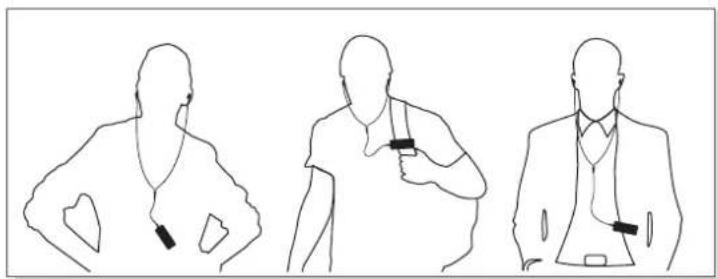
natural_image
Three line drawings of a person in different poses: standing, holding a device, and kneeling (no text or symbols)natural_image
Illustration of hands connecting a small component to a terminal block (no text or symbols)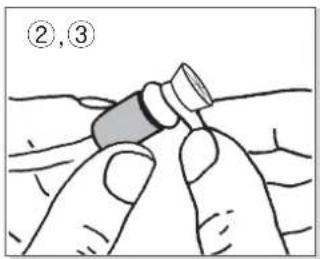
text_image
②,③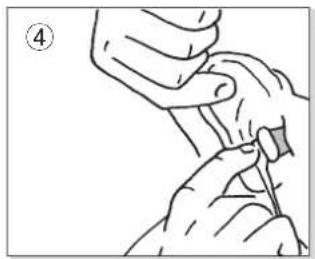
natural_image
Illustration of hands holding a tool or device, no text or symbols present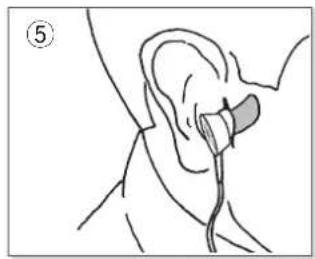
natural_image
Line drawing of a human ear with a medical device inserted, no text or symbols present4.충전하기
text_image
연결기기에서 ‘BT 220 NC’ 검색 재생버튼 (3초이상) Bluetooth settings Bluetooth Device name Smartphone Visible Make device visible Scan devices Bluetooth devices BT 220 NC Pairednatural_image
Line drawing of a smartphone with a partially open rear camera module and circular lens, no text or symbols present.8. 멀티포인트 커넥션
text_image
Diagram showing a door with directional arrows and a power button labeled 'POWER' indicating electrical or mechanical components.natural_image
Exterior view of a PHLETON handheld electronic device with earbuds (no text or symbols visible on the device body)text_image
Diagram showing a dental tool with an inset close-up of the component labeled 'YTON' (likely a device or tool).natural_image
Three line drawings of a person in different poses: standing, holding a medical device, and kneeling (no text or symbols)natural_image
Illustration of hands connecting a small component to a terminal block (no text or symbols)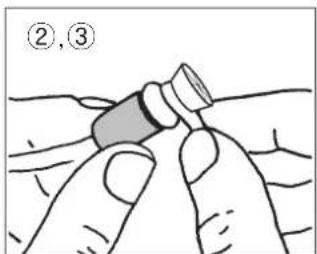
text_image
②,③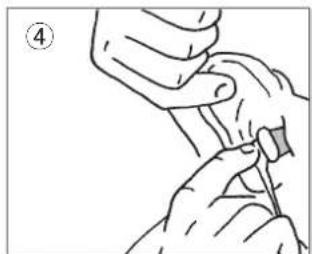
natural_image
Illustration of hands performing a manual task with a tool (no text or symbols visible)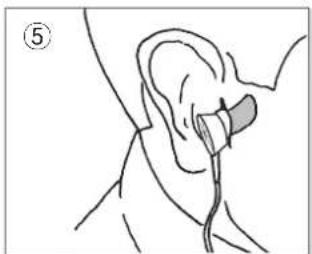
natural_image
Line drawing of a human ear with a medical device inserted, labeled with number 5 (no text or symbols on the diagram itself)4. LADEN
flowchart
graph LR
    A["Device with earphones and wireless components"] --> B["Device with Bluetooth icons"]
    B --> C["Device with Bluetooth icons"]
    C --> D["Device with Bluetooth icons"]
    D --> E["Device with Bluetooth icons"]
text_image
Diagram showing a door panel with power button and directional arrows, likely illustrating electrical or mechanical control.※ Akkulaufzeit
natural_image
Exterior view of a Philips 300 smartphone with earbuds and charging case (no visible text or symbols)natural_image
Diagram showing a tool interacting with a TON device, with an inset magnified view of the component (no text or symbols present)[Comment fixer tour de cou]
natural_image
Three line drawings of a person in different poses: standing, holding an object, and seated (no text or symbols)natural_image
Illustration of hands connecting a small component to a terminal block (no text or symbols)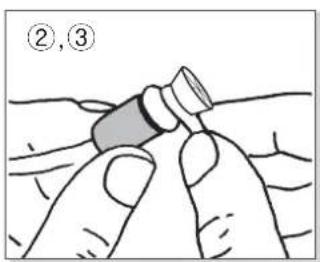
text_image
②,③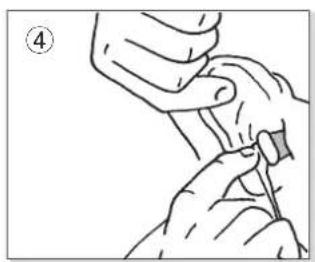
natural_image
Illustration of hands holding a tool or device, no text or symbols present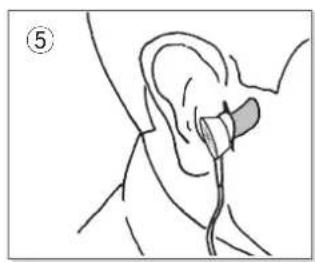
natural_image
Line drawing of a human ear with a medical device inserted, no text or symbols present4. CHARGE
text_image
Recherche "BT 220 NC" Bluetooth settings Bluetooth Device name Smartphone Visible Make device visible Scan devices Bluetooth devices BT 220 NC Pairedflowchart
graph LR
    A["Device with earphones and wireless components"] --> B["Device with Bluetooth icons"]
    B --> C["Device with Bluetooth icons"]
    C --> D["Device with Bluetooth icons"]
    D --> E["Device with Bluetooth icons"]
text_image
Diagram showing a door with power button and directional arrows indicating flow or movement, labeled 'POWER'.natural_image
Exterior view of a Philipsmon brand electronic device with earbuds and charging case (no visible text or symbols on body)WIRELESS EARPHONES with ACTIVE NOISE CANCELLING Gracias por comprar BT 220 NC
natural_image
Illustration of a dental tool with an inset close-up showing a magnified view of the component (no text or symbols present)natural_image
Three line drawings of a person in different poses, showing hand positions and gestures (no text or symbols)[Cómo usar BT 220 NC]
natural_image
Illustration of hands holding a small component, no text or symbols present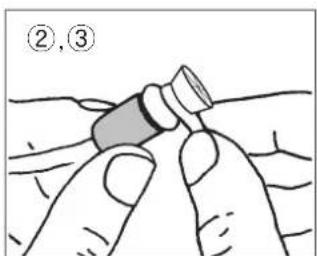
text_image
②,③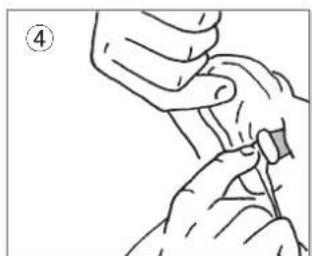
natural_image
Illustration of hands performing a manual task with a tool, no text or symbols present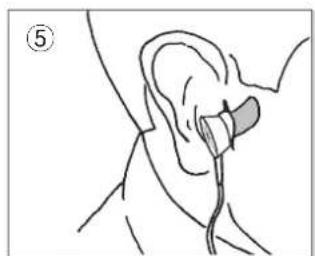
natural_image
Anatomical line drawing of a human ear with a medical device inserted, labeled with number 5 (no text or symbols on the diagram itself)4. CARGA
※ A2DP – “Advanced Audio Distribution Profile”, HSP – “Headset Profile”, HFP – “Handsfree Profile”, AVRCP – “Audio/Video Remote Control Profile”
El dispositivo no funcionará adecuadamente si los perfiles no son igualmente soportados. Even when the profiles are supported equally, some features may not properly operate depending on the Bluetooth device specifications. Para verificar las especificaciones en detalle del perfil de este auricular, consulte "17 - Especificaciones del producto".
flowchart
graph LR
    A["Device with earphones and wireless components"] --> B["Device with Bluetooth icons"]
    B --> C["Device with Bluetooth icons"]
    C --> D["Device with Bluetooth icons"]
    D --> E["Device with Bluetooth icons"]
text_image
Diagram showing a door panel with power button and directional arrows, likely illustrating electrical or mechanical control.text_image
Audio Cablenatural_image
Exterior view of a Philips 100 audio recording device with earbuds and a USB flash unit (no text or symbols visible on device body)natural_image
Diagram of a dental tool with an inset close-up showing the component labeled 'ATON' (no text or symbols on the tool itself)natural_image
Three line drawings of a person in different poses: standing, holding a device, and seated (no text or symbols)natural_image
Illustration of hands connecting a small component to a terminal block (no text or symbols)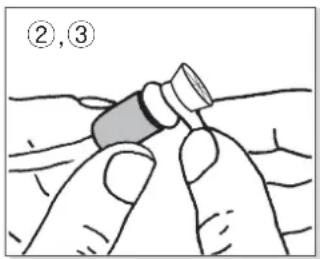
text_image
②,③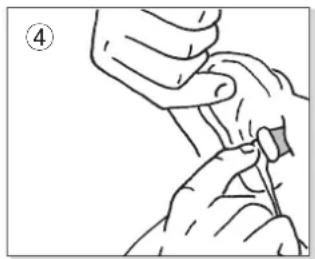
natural_image
Illustration of hands holding a tool or device, no text or symbols present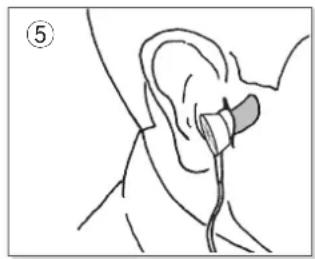
natural_image
Line drawing of a human ear with a medical device inserted, no text or symbols present4. ЗАРЯДКА
text_image
Diagram of a device door with labeled buttons and directional arrows indicating movement or force directions.natural_image
Exterior view of a Philips 300 smartphone with earbuds and charging case (no visible text or symbols)WIRELESS EARPHONES with ACTIVE NOISE CANCELLING 非常感谢购买 PHIATON BT 220 NC
text_image
Diagram showing a dental tool with an inset close-up of the component labeled 'ATON' (likely a device or tool).[如何安装 Neckstrap]
natural_image
Three line drawings of a person in different poses: standing, holding a medical device, and seated (no text or symbols)[怎么穿BT220NC]
natural_image
Illustration of hands connecting a small component to a wire (no text or symbols)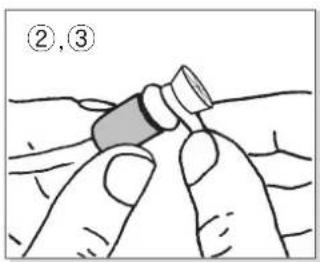
text_image
②,③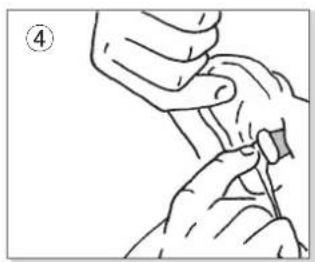
natural_image
Illustration of hands holding a tool or device with a numbered label (4), no text or symbols present.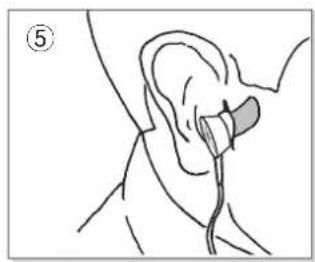
natural_image
Line drawing of a human ear with a medical device inserted, no text or symbols present4. 充电
首次使用耳机前,有可能需要充电
© 2014 PHIATON Corporation
18662 MacArthur Blvd., STE 405
Irvine, California 92612 USA
www.phiaton.com
www.phiaton.co.kr