
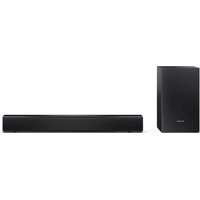
HTSBW420 - Soundbar SHARP - Free user manual and instructions
Find the device manual for free HTSBW420 SHARP in PDF.
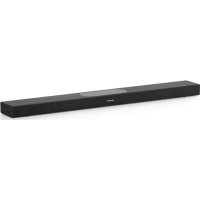



| Brand | SHARP |
| Model | HTSBW420 |
| Type | Soundbar |
| Power consumption | 33 W |
| Standby consumption | <0.5 W |
| Network standby consumption | <2.5 W |
| Output power | 2x 18 W + 36 W (RMS) |
| Frequency response | 70 Hz - 20 kHz (-10 dB) |
| Bluetooth | Version V 2.1 EDR, band 2402‑2480 MHz, power <10 dBm |
| Wi-Fi | 802.11 b/g/n, STA/AP, band 2412‑2472 MHz, power <20 dBm |
| Power supply | External AC adapter 100‑240 V~50/60 Hz, DC output 24 V, 1.5 A (supplied) |
| Remote control | 2 AAA batteries 1.5 V (supplied) |
| Audio inputs | HDMI (input/output), optical, coaxial, AUX (3.5 mm) |
| Audio output | HDMI ARC |
| Network functions | Wi‑Fi multiroom, Bluetooth, Spotify Connect, DLNA, Sharp Player app |
| Equalizer | Presets via remote control |
| Bass adjustment | BASS+ / BASS- |
| Auto standby | After 15 minutes without audio signal |
| Safety | Do not open, do not expose to moisture, use only the supplied adapter |
| Maintenance | Unplug before cleaning, soft dry cloth, no chemicals |
| Repairability | Repair by an authorized service center only |
Frequently Asked Questions - HTSBW420 SHARP
User questions about HTSBW420 SHARP
0 question about this device. Answer the ones you know or ask your own.
Ask a new question about this device
Download the instructions for your Soundbar in PDF format for free! Find your manual HTSBW420 - SHARP and take your electronic device back in hand. On this page are published all the documents necessary for the use of your device. HTSBW420 by SHARP.
USER MANUAL HTSBW420 SHARP
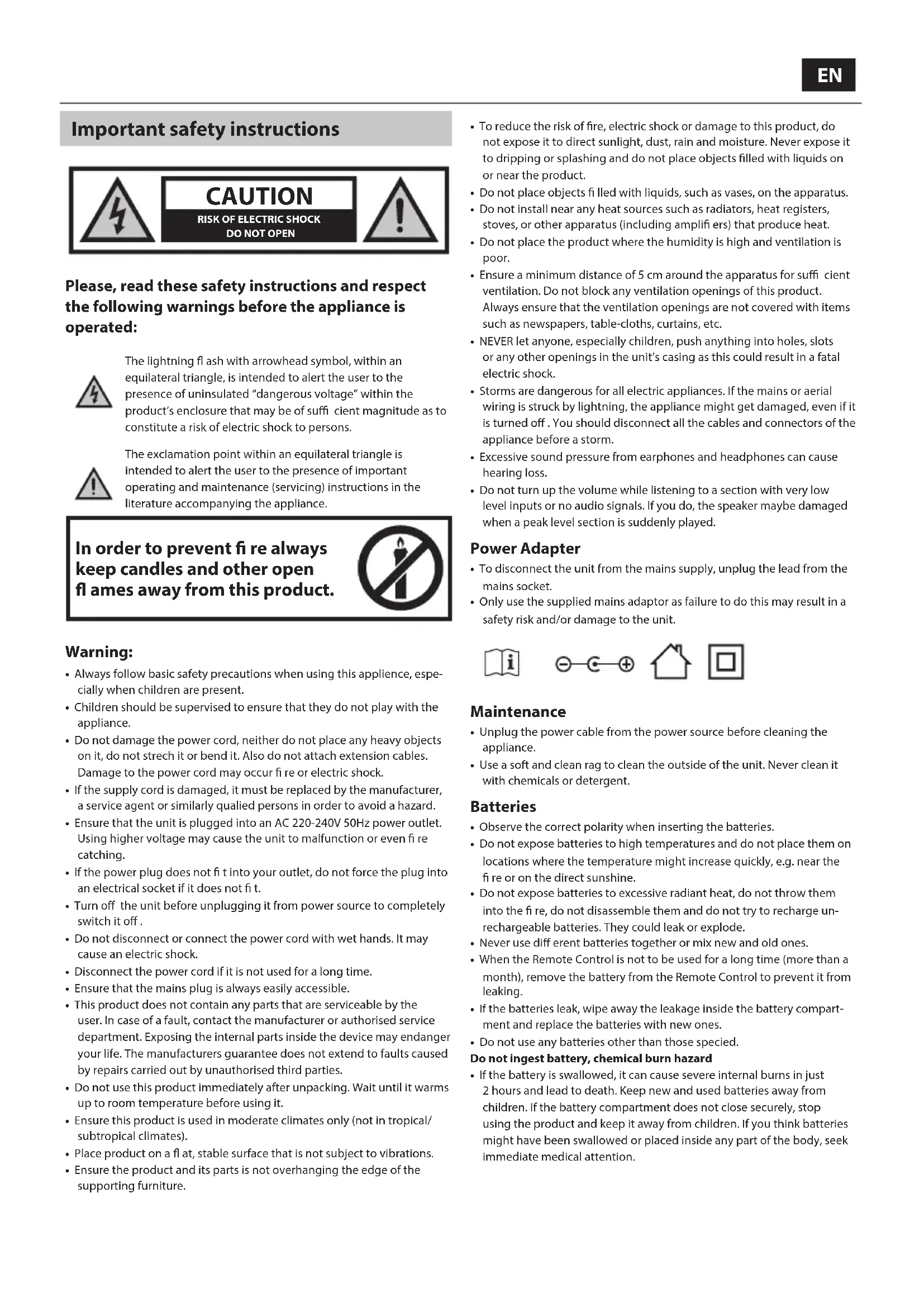
Important safety instructions

Please read these safety instructions and respect the following warnings before operating the appliance:

The lightning flash with arrowhead symbol, within an equilateral triangle, is intended to alert the user to the presence of uninsulated "dangerous voltage" within the product's enclosure that may be of sufficient magnitude as to constitute a risk of electric shock to persons.

The exclamation point within an equilateral triangle is intended to alert the user to the presence of important operating and maintenance (servicing) instructions in the literature accompanying the appliance.
To prevent fire, always keep candles and other open flames away from this product.

Warning:
- Always follow basic safety precautions when using this appliance, especially when children are present. Children should be supervised to ensure that they do not play with the appliance.
- Do not damage the power cord, do not place heavy objects on it, do not stretch or bend it. Also, do not attach extension cables. Damage to the power cord may cause fire or electric shock.
- If the supply cord is damaged, it must be replaced by the manufacturer, a service agent, or similarly qualified persons in order to avoid a hazard.
- Ensure that the unit is plugged into an AC 220-240V 50Hz power outlet. Using higher voltage may cause the unit to malfunction or even catch fire.
- If the power plug does not fit into your outlet, do not force the plug into an electrical socket if it does not fit.
- Turn off the unit before unplugging it from the power source to completely switch it off.
- Do not disconnect or connect the power cord with wet hands. It may cause an electric shock.
- Disconnect the power cord if it is not used for a long time.
- Ensure that the mains plug is always easily accessible.
- This product does not contain any parts that are serviceable by the user. In case of a fault, contact the manufacturer or authorized service department. Exposing the internal parts inside the device may endanger your life. The manufacturer's guarantee does not extend to faults caused by repairs carried out by unauthorized third parties.
- Do not use this product immediately after unpacking. Wait until it warms up to room temperature before using it.
- Ensure this product is used in moderate climates only (not in tropical/subtropical climates).
- Place the product on a flat, stable surface that is not subject to vibrations.
- Ensure the product and its parts do not overhang the edge of the supporting furniture.
- To reduce the risk of fire, electric shock, or damage to this product, do not expose it to direct sunlight, dust, rain, or moisture. Never expose it to dripping or splashing, and do not place objects filled with liquids on or near the product.
- Do not place objects filled with liquids, such as vases, on the apparatus.
- Do not install near any heat sources such as radiators, heat registers, stoves, or other apparatus (including amplifiers) that produce heat.
- Do not place the product where the humidity is high and ventilation is poor.
- Ensure a minimum distance of 5 cm around the apparatus for sufficient ventilation. Do not block any ventilation openings of this product. Always ensure that the ventilation openings are not covered with items such as newspapers, tablecloths, curtains, etc.
- NEVER let anyone, especially children, push anything into holes, slots, or any other openings in the unit's casing, as this could result in a fatal electric shock.
- Storms are dangerous for all electric appliances. If the mains or aerial wiring is struck by lightning, the appliance might get damaged, even if it is turned off. You should disconnect all the cables and connectors of the appliance before a storm.
- Excessive sound pressure from earphones and headphones can cause hearing loss.
- Do not turn up the volume while listening to a section with very low level inputs or no audio signals. If you do, the speaker may be damaged when a peak level section is suddenly played.
Power Adapter
- To disconnect the unit from the mains supply, unplug the lead from the mains socket.
- Only use the supplied mains adaptor; failure to do this may result in a safety risk and/or damage to the unit.




Maintenance
- Unplug the power cable from the power source before cleaning the appliance.
- Use a soft and clean rag to clean the outside of the unit. Never clean it with chemicals or detergent.
Batteries
- Observe the correct polarity when inserting the batteries.
- Do not expose batteries to high temperatures and do not place them on locations where the temperature might increase quickly, e.g., near the fire or in direct sunshine.
- Do not expose batteries to excessive radiant heat, do not throw them into the fire, do not disassemble them, and do not try to recharge non-rechargeable batteries. They could leak or explode.
- Never use different batteries together or mix new and old ones.
- When the Remote Control is not to be used for a long time (more than a month), remove the battery from the Remote Control to prevent it from leaking.
- If the batteries leak, wipe away the leakage inside the battery compartment and replace the batteries with new ones.
- Do not use any batteries other than those specified.
Do not ingest battery, chemical burn hazard
- If the battery is swallowed, it can cause severe internal burns in just 2 hours and lead to death. Keep new and used batteries away from children. If the battery compartment does not close securely, stop using the product and keep it away from children. If you think batteries might have been swallowed or placed inside any part of the body, seek immediate medical attention.
Disposal of this equipment and batteries
- Do not dispose of this product or its batteries as unsorted municipal waste. Return it to a designated collection point for the recycling of WEEE in accordance with local law. By doing so, you will help to conserve resources and protect the environment.
- Most of the EU countries regulate the disposal of batteries by law. Contact your retailer or local authorities for more information.
- The symbol shown above appears on electrical and electronic equipment and batteries (or the packaging) to remind users of this. If "Hg" or "Pb" appears below the symbol,
this means that the battery contains traces of mercury (Hg) or lead (Pb), respectively.
- Users are requested to use existing return facilities for used equipment and batteries.
CE Statement:
Hereby, Universal Media Corporation Poland Sp. z o.o. declares that this audio device is in compliance with the essential requirements and other relevant provisions of RED Directive 2014/53/EU. http://www.sharp.eu/av/documents-of-conformity
Trademarks:
Bluetooth
- The Bluetooth word mark and logos are registered trademarks owned by Bluetooth SIG, Inc.
HDMI
- The terms HDMI, HDMI High-Definition Multimedia Interface, and the HDMI Logo are trademarks or registered trademarks of HDMI Licensing, LLC in the United States and other countries.
WiFi
CERTIFIED
- The Wi-Fi CERTIFIED Logo is a certification mark of the Wi-Fi Alliance.

Spotify
- The Spotify software is subject to third party licenses found here: www.spotify.com/connect/third-party-licenses
What is included in the box
1x Main unit
1x Remote control
1x User guide
2x AAA batteries
1x Quick start guide
1x AC-DC power adapter (24V,1.5A)
Panels & Controls
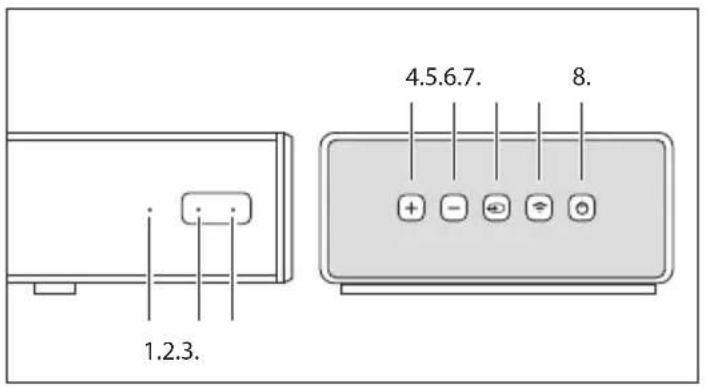
- SourceLED
- Power LED
- IR sensor
- VOL+
Increase the volume
- VOL-
Decrease the volume
- Source
Switches the sound source
- Pair
| State | Long press |
| Wi-Fi mode | Disconnect the wireless network |
| Bluetooth connected | Disconnect Bluetooth |
| Standby | Close Wi-Fi hotspot |
- Power On/Off
Press the O button to power ON/OFF the soundbar
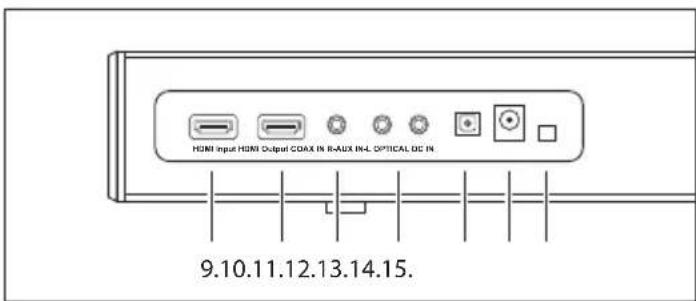
9. HDMI Input 10. HDMI Output 11. COAX IN 12. AUX IN 13. Optical IN 14. DC IN 15. Firmware update port
Indication Lights
| Source LED | ||
| Mode | LED Light Indication | |
| Wi-Fi | Disconnected Flash Green | |
| Connected | Solid Green | |
| Pairing | Quick Flash Green | |
| Bluetooth | Disconnected Flash Blue | |
| Connected | Solid Blue | |
| AUX IN | Solid Purple | |
| Optical IN | Solid Cyan | |
| Coaxial IN | Solid Yellow | |
| HDMI IN | Solid Red | |
| ARC | Solid White | |
| Power LED | ||
| Status | LED Light Indication | |
| Power ON | White | |
| Power OFF | Red | |
| Power ON & MUTE | Flash Red | |
Remote control
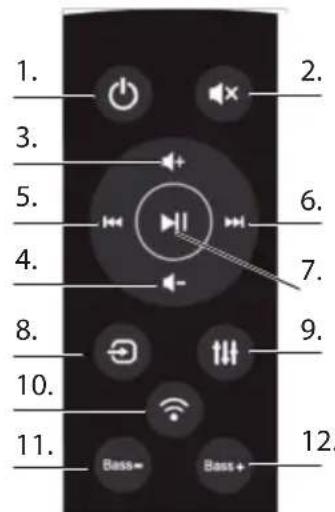
- POWER: ON/OFF the soundbar
- MUTE: Silences the soundbar
- VOL+: Increase the volume
- VOL-: Decrease the volume
- PREVIOUS: Switches to the previous song when the soundbar is connected to your device through Bluetooth or Wi-Fi connection
- NEXT: Switches to the next song when the soundbar is connected to your device through Bluetooth or Wi-Fi connection
- PLAY/PAUSE: Plays or pauses a song when the soundbar is connected to your device through Bluetooth or Wi-Fi connection
- SOURCE: Changes the input of the soundbar
- EQUALISER: Switch different preset equaliser settings for the speaker
- PAIR:
| State Long press | |
| Wi-Fi mode Disconnect the wireless | network |
| Bluetooth connected Disconnect | Bluetooth |
| Standby Close Wi-Fi hotspot |
- BASS-: Decrease the bass effect of the soundbar
- BASS+: Increase the bass effect of the soundbar
Music Playing
Wi-Fi mode:
- You can use the app to search for your HT-SBW420 and then add it to the management list. It is then possible to play back music from your connected device. If you would like the same music to play from two speakers at the same time (Multi room mode), follow the guidance in the app.
- You can automatically install the APP using Android Market or App Store. In the Android Market or App Store, search for SHARP Player, download, and complete the installation.
Bluetooth mode:
- Press the "SOURCE" button to enter Bluetooth mode, then search for Bluetooth devices. Select "HT-SBW420" on your mobile phone or tablet PC and pair.
- If you need to switch to another Bluetooth device, press the pairing key for a few seconds; the indicator light will flash. Enter Bluetooth pairing mode again and repeat step (1).
- If a Bluetooth device was successfully paired before it was turned off, the unit will automatically connect to the last successfully paired device after the next boot (no need to reconnect), and the indicator light will not flash.
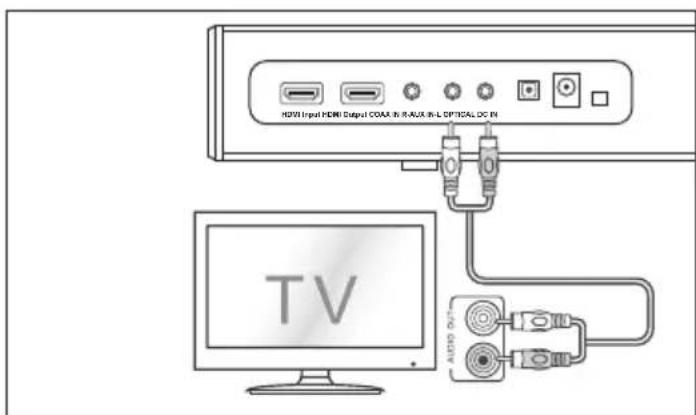
Aux In mode:
a. Use a PHONO to PHONO audio cable (not included) to connect the TV's audio output sockets to the AUX 1 socket on the unit. b. Use a 3.5mm to PHONO audio cable (not included) to connect the TV's or external audio device's headphone socket to the AUX socket on the unit.
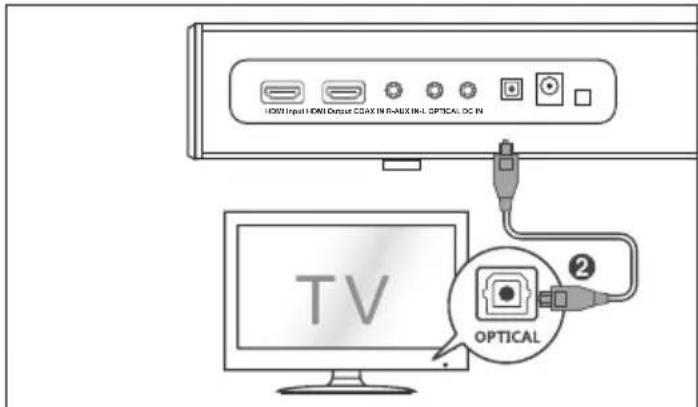
Optical In mode:
Use the optical cable to connect the optical input of this soundbar to the optical output of a VCD, CD, VCR, or DVD player.
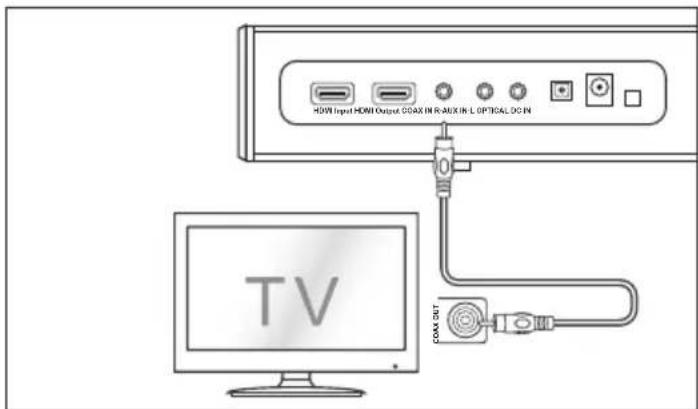
Coaxial (digital) In mode:
Connect a digital coaxial cable (not included) to the TV's coaxial output socket and the coaxial socket on the source unit.
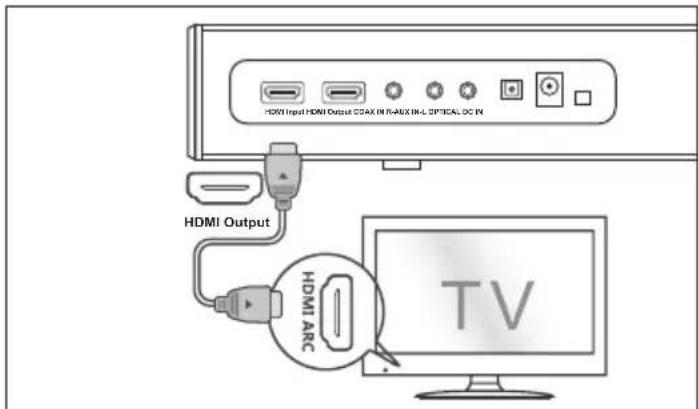
HDMI mode:
- Connect the TV's HDMI input and the soundbar's HDMI output using an HDMI cable (not included).
- Connect the DVD's HDMI output and the soundbar's HDMI input using an HDMI cable (not included).
If your TV/DVD supports CEC function, they can control each other based on the CEC protocol. It is important to ensure that the CEC functionality of the television is turned on.
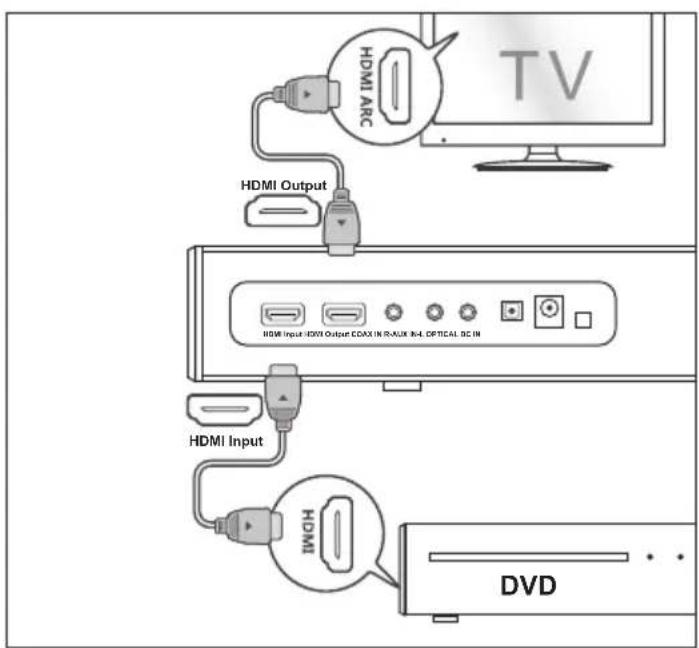
ARC mode:
The ARC (Audio Return Channel) function allows you to send audio from your ARC-compliant TV to your sound bar through a single HDMI connection. To enjoy the ARC function, please ensure your TV is both HDMI-CEC and ARC compliant and set up accordingly. When correctly set up, you can use your TV remote control to adjust the volume output (VOL +/- and MUTE) of the sound bar.
Connect the TV HDMI ARC input and the soundbar HDMI output with the HDMI cable (not included).
Note: In Optical In mode, Coaxial In mode, ARC mode, or HDMI mode, the source has to be set to PCM audio output.
Note: If there is no signal input, the product will enter standby after 15 minutes (all modes).
Connect to Power
Before connecting the power adapter, ensure you have completed all other connections.
Connect the power adapter to the DC socket of the unit and then into a mains socket.
Installing the app

Download and install the Sharp Player app to your iOS or Android device by searching "Sharp Player" in the "Apple App Store" or "Google Play Store". Alternatively, you can scan the QR code on the last page of this manual.
After the app is successfully installed on your device, you will need to set up the Wi-Fi connection of the soundbar. This can be carried out via the web interface or via the Sharp Player app directly.
Wi-Fi connection setup via web
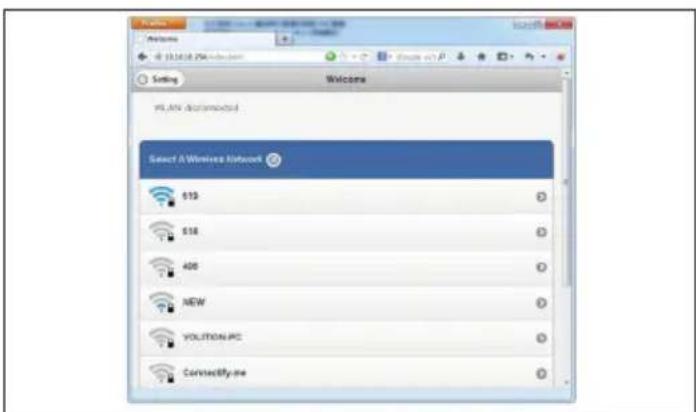
- When you turn on the soundbar, Wi-Fi will automatically start.
- After a PC or smartphone connects to this device through Wi-Fi (the default SSID is HT-SBW420_XXXX, where XXXX is a random number), you can access the site: http://10.10.10.254 and enter the settings page. There are two tabs: Wi-Fi and Settings.
- Wi-Fi tab: To set up the connection between the Wi-Fi speaker and the access point (AP). You can use a PC or smartphone to access the internet through the Wi-Fi speaker after connecting.
- Setting tab:
There are 3 sub tabs in setting tab: Status, System and Network.
- Status tab: You can view the firmware version, UUID of Wi-Fi speaker.
- System tab: You can reset the Wi-Fi speaker and local upgrade firmware in "Other" option and online upgrade firmware in "Firmware Online Upgrade".
- Network tab: You can set the SSID, password and encryption type of Wi-Fi speaker.
Wi-Fi connection setup via app
1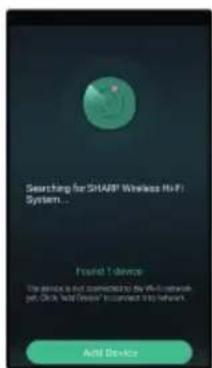
2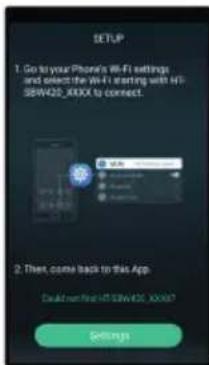
3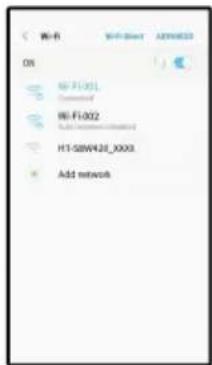
4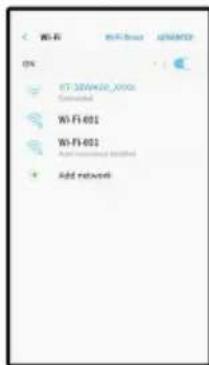
5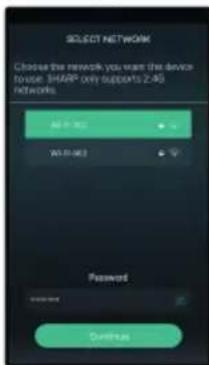
6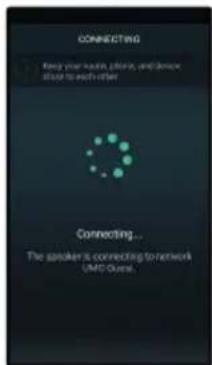
- Brief introduction
- Open the app on your connected device.
- Click the icon, 'Add Device'.
- Click the icon, 'Setting', go to your phone's Wi-Fi settings and select the Wi-Fi starting with HT-SBW420_XXXX to connect. Then, come back to this app.
- Select your Wi-Fi network and enter its password.
- Click the icon, 'Continue', wait to add equipment.
- Adding a device connected to the router
Open the app again, it will find all devices connected.
- How to add other non-connected devices
Connected other devices to a wireless network, please follow these steps:
- Click the icon, '+' on the Device list.
- Then add a device as the first time add same device.
- After the adding the device, it will be shown in the device list.
- Renaming Devices
After adding a device, the device name can be changed according to your needs.
- Click the "Settings" button in the interface of device lists.
- Renaming the device: Customizing or choosing the recommended name.
App interface icons and functions
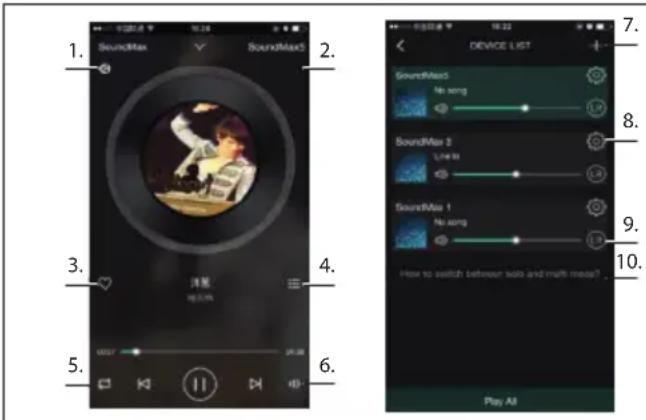
- Icons show the playback is through DLNA
- Device name
- Add to my favorites
- Show recent playlist
- Loop mode
- Volume control
- Click to add new device
- Click to see the details of the device, rename the device, reset, etc.
- Click to adjust left/right channel
- How to switch between "solo" and "multi-mode"?
APP functions
- Search function
With the search function you can search for music according to your needs, either by artist or by song.
- My favorite function
Collect your favorite songs function that allows you to choose your favorite songs.
- Click on the heart-shaped icon on the player interface, the song can be bookmarked in "my favorite" list;
- Click go to my favorite list in the control interface and there you can see your collection of songs.
Managing Favorite Songlist
- Click on the song name on the right.
- You can choose to delete the song or add to another playlist selected from "my favorites" list.
- My Music - Local Music
- Click on the phone to enter the local music playlists;
- Click the icon in the upper right corner to refresh and search for new songs to add to the local playlists;
- Click the icon to the right of the song name. You can operate on the songs, such as "Add to Favorites", "Add to list", and so on.
My Music Playlist
- You can create a new list: click on the "+" in My Music Playlist;
- After entering a name, click "OK" to create a new song list.
- Online Music
Many streaming services can be added to the Sharp Audio App, such as TIDAL, iHeartRadio, Spotify, Amazon, etc.
TIDAL
TIDAL provides enhanced music streaming functionality. TIDAL is currently providing services in more than 50 countries and regions around the world, supplying high-fidelity music, as well as exclusive content, commentary, experience, and musical products.
iHeartRadio
IHeartRadio, which is integrated in the app, is a digital broadcast and audio streaming media player that is free to use all over the world. It includes many online radio stations and you can also create personalized radio stations.
- Spotify
Listen out loud with Spotify Connect
- Connect your Sharp HT-SBW420 device to your wifi network
- Open up the Spotify app on your phone, tablet or laptop using the same wifi network
- Play a song and select Devices Available
- Select your Sharp HT-SBW420 and start listening
- Synchronization & separate play
This device can play music in two or more speakers at the same time. Slide to the left and enter the device list, you can control all the devices, such as increase/decrease the volume, select songs, sound way, etc.
In the device list, you click on the text "How to switch between solo and Multi mode" to know more about the function of the multi-room function.
How to update firmware Wi-Fi
Online update:
- Turn on the speaker, change it into Wi-Fi mode, after it prompts Wi-Fi network ready voice, use PC to connect the Wi-Fi signal of speaker.
- Enter "10.10.10.254" in the browser of PC.
- Connected network
- Then select "Setting"
- Click "System"
- Click "online Update"
- It will automatically download firmware upgrades, when it's upgraded successfully, the web will show a message. Upgrading is only possible if there is connection to the internet.
APP update:
If you see "New" icon next to setting button, a new firmware is available for your unit. In order to apply this firmware tap on "New" and you will see a pop up message. Plug in adapter, then select upgrade and wait until the
device upgrade process finishes without other operations .
Troubleshooting
No power
- Ensure that power adapter is properly connected.
- Ensure that there is power at the AC outlet.
- Press standby button on the remote control or soundbar to turn the soundbar on.
No sound
- Increase the volume. Press Volume Up on the remote control or on the right side of the soundbar.
- Press MUTE on the remote control to ensure the soundbar is not muted.
- Press source buttons to select a different input source.
- When using either of the Digital input, if there is no audio: Try setting the TV output to PCM or
Connect directly to your Blu-ray/other source, some TVs do not pass through digital audio.
- Your TV may be set to variable audio output. Confirm that the audio output setting is set to FIXED or STANDARD, not VARIABLE. Consult your TV's user manual for more detailed information.
- If using Bluetooth, ensure that the volume on your source device is turned up and that the device is not muted.
Remote control does not work
- Before you press any playback control button, first select the correct source.
- Reduce the distance between the remote control and the unit.
- Insert the battery with its polarities (+/-) aligned as indicated.
- Replace the battery.
- Aim the remote control directly at the sensor on the front of the unit.
I hear buzzing or humming
- Ensure all cables and wires are securely connected.
- Connect a different source device (TV, Blu-ray player, etc) to see if the buzzing persists. If it does not, the problem may be with the original device.
- Connect your device to a different input on the soundbar.
Wi-Fi mode without sound
- Check whether the PC or smart phone and soundbar are in the same network or not;
- Check whether the soundbar is in Wi-Fi mode or not; If using the app, please check whether the music is sent to the speaker or not;
Forget Wi-Fi password
- Clear Wi-Fi preset password,
- Boot status, press the remote control button in sequence: PLAY/PAUSE, NEXT, PREVIOUS, VOL-
Connection is lost periodically during Wi-Fi mode playback
- Ensure your Wi-Fi device is not in the Power Saving / Stamina mode.
- If the Power saving mode is required for your Wi-Fi device, please add the "Sharp Player" app to the devices exceptions. To add the app to your exceptions list, follow the instructions for your chosen device.
Technical specification
| Model HT-SBW420 | |
| Sound Bar | |
| Power Consumption 33 W | |
| Power Consumption (Standby) <0.5W | |
| Power Consumption (Networked standby) | <2.5W |
| Output Power 2x 18 W + 36W (RM$) | |
| Frequency Response 70Hz-20KHz(-10dB) | |
| Power Adapter | |
| Manufacturer Shenzhen Fujia Appiance Co., Ltd. | |
| Model FJ-SW2401500N | |
| Input AC 100-240V~50/60Hz | |
| Output | DC 24V,1.5A |
| Bluetooth | |
| Version | V 2.1 EDR |
| Maximum power transmitted | <10 dBm |
| Frequency bands | 2402 MHz ~ 2480 MHz |
| Wi-Fi | |
| Support | 802.11 b/g/n; STA/AP/AP Client |
| Maximum power transmitted | <20 dBm |
| Frequency bands | 2412 MHz ~ 2472 MHz |
| Remote Control | |
| Battery Type | 2 x AAA 1,5V |
- The terms HDMI and HDMI High-Definition Multimedia Interface, and the HDMI Logo are trademarks or registered trademarks of HDMI Licensing, LLC in the United States and other countries.
WiFi CERTIFIED
UMC Poland Sp. zo.o.
Ostaszewo 57B, 87-148 Lysomice,
Poland
Made in China
SAU/MAN/0053
www.sharpcounter.eu
SHARP


- IMPORTANT SAFETY INSTRUCTIONS
- PLEASE READ THESE SAFETY INSTRUCTIONS AND RESPECT THE FOLLOWING WARNINGS BEFORE OPERATING THE APPLIANCE
- TO PREVENT FIRE, ALWAYS KEEP CANDLES AND OTHER OPEN FLAMES AWAY FROM THIS PRODUCT
- WARNING
- POWER ADAPTER
- MAINTENANCE
- BATTERIES
- DO NOT INGEST BATTERY, CHEMICAL BURN HAZARD
- DISPOSAL OF THIS EQUIPMENT AND BATTERIES
- CE STATEMENT
- TRADEMARKS
- BLUETOOTH
- HDMI
- WIFI
- CERTIFIED
- SPOTIFY
- WHAT IS INCLUDED IN THE BOX
- PANELS & CONTROLS
- REMOTE CONTROL
- MUSIC PLAYING
- WI-FI MODE
- BLUETOOTH MODE
- AUX IN MODE
- OPTICAL IN MODE
- COAXIAL (DIGITAL) IN MODE
- HDMI MODE
- ARC MODE
- CONNECT TO POWER
- INSTALLING THE APP
- WI-FI CONNECTION SETUP VIA WEB
- WI-FI CONNECTION SETUP VIA APP
- APP INTERFACE ICONS AND FUNCTIONS
- APP FUNCTIONS
- HOW TO UPDATE FIRMWARE WI-FI
- APP UPDATE
- TROUBLESHOOTING
- NO POWER
- NO SOUND
- REMOTE CONTROL DOES NOT WORK
- I HEAR BUZZING OR HUMMING
- WI-FI MODE WITHOUT SOUND
- FORGET WI-FI PASSWORD
- CONNECTION IS LOST PERIODICALLY DURING WI-FI MODE PLAYBACK
- TECHNICAL SPECIFICATION
- WIFI CERTIFIED
Brand : SHARP
Model : HTSBW420
Category : Soundbar