ET2221AGTR - Desktop computer ASUS - Free user manual and instructions
Find the device manual for free ET2221AGTR ASUS in PDF.
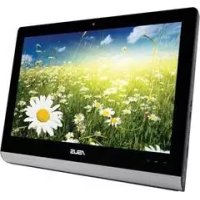
| Product type | All-in-One desktop computer |
| Brand | Asus |
| Model | ET2221AGTR |
| Dimensions (approx.) | 55.0 × 42.0 × 5.0 cm |
| Weight (approx.) | 8.5 kg |
| Power supply | External power adapter |
| Main functions | All-in-one computer with analog/digital TV tuner, TV program recording, electronic program guide, remote control, USB, HDMI, etc. |
| Maintenance and cleaning | Unplug the device before cleaning. Use a soft, dry cloth. Do not use abrasive products or solvents. |
| Safety | Do not expose to moisture. Ensure adequate ventilation. Use only the supplied power adapter. |
| Spare parts and repairability | Repairability index not specified. Contact Asus after-sales service for parts. |
| General information | Windows 8 operating system. Comes with ArcSoft TV 5.0 software. Infrared remote control included. |
Frequently Asked Questions - ET2221AGTR ASUS
User questions about ET2221AGTR ASUS
0 question about this device. Answer the ones you know or ask your own.
Ask a new question about this device
Download the instructions for your Desktop computer in PDF format for free! Find your manual ET2221AGTR - ASUS and take your electronic device back in hand. On this page are published all the documents necessary for the use of your device. ET2221AGTR by ASUS.
USER MANUAL ET2221AGTR ASUS
Before launching your TV Tuner application, check if your digital TV-in or analog TV-in cable is connected.
Launching your TV Tuner Application
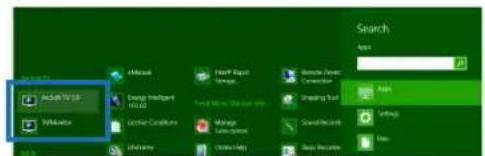
To launch ArcSoft TV 5.0 in Windows® 8, do one of the following:
- From the Windows® desktop, click the Arcsoft TV 5.0 icon.
NOTE: The Arcsoft TV desktop shortcut icon is not available for AIO ET2300

- Click + to launch the search screen for applications. Type "Arcsoft" in the search field and click the Arcsoft TV icon from the search results.

text_image
Start TV 10 Mastercard Email Search Apps Add Save Settings HelpSetting up your TV Tuner Application
To set up ArcSoft TV 5.0:
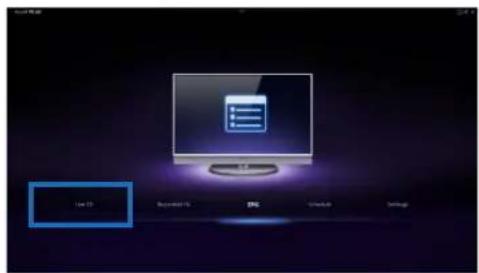
- On the main menu, click Live TV.
text_image
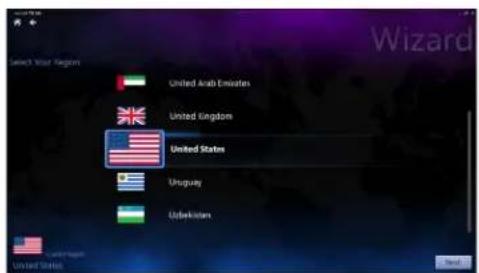
Save As Refresh As OK Save As Settings- The Setup Wizard will launch to guide you through setting up your TV Tuner application. Select your country or region and click Next to continue.
text_image
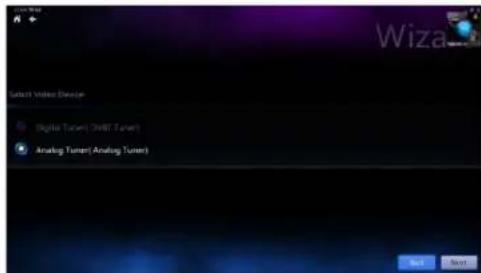
Select Your Region United Arab Emirates United Kingdom United States Uruguay Uzbekistan United States- The Setup Wizard will attempt to detect the installed TV Tuner device. Select the appropriate TV tuner card which came with your All-in-One PC.

text_image
Wiza Select Video Setup Digital Turnset (Shift Turnset) Analog Turnset(Analog Turnset) Next Next
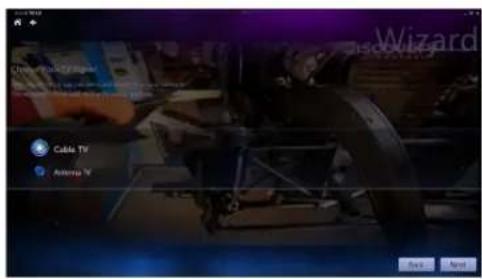
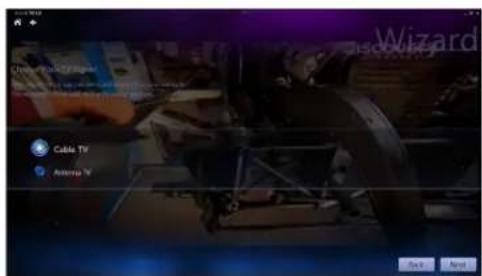
- Select the type of television service you use.
• Select Cable TV for cable television.
- Select Antenna TV for television received via an antenna.
text_image
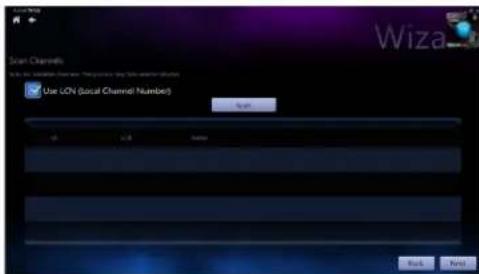
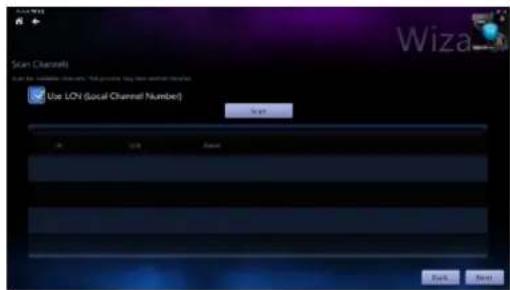
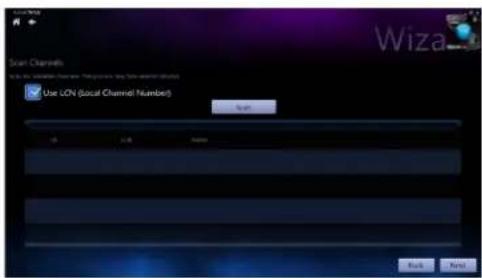
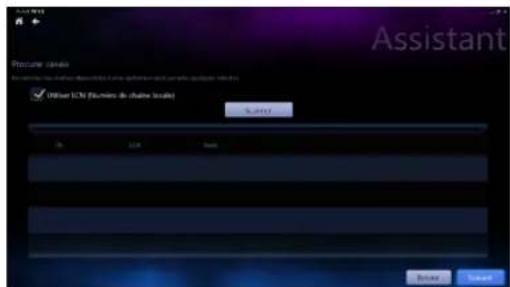
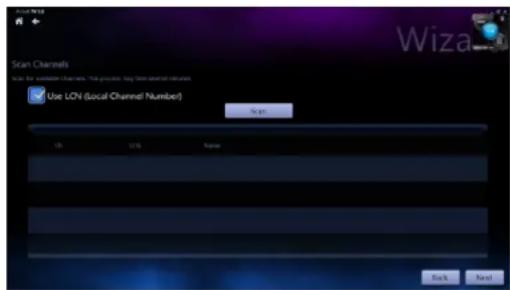
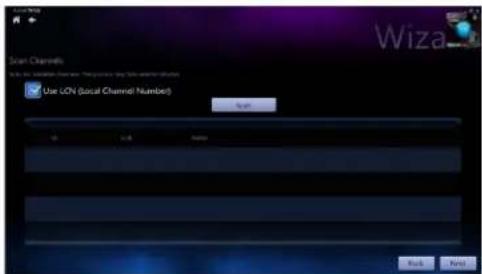
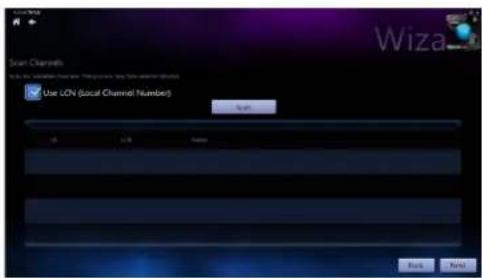
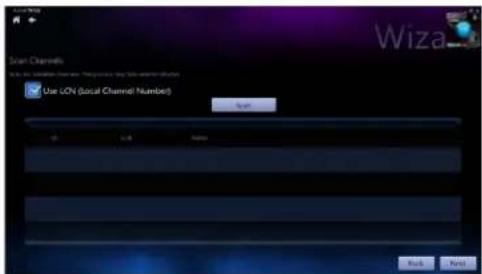
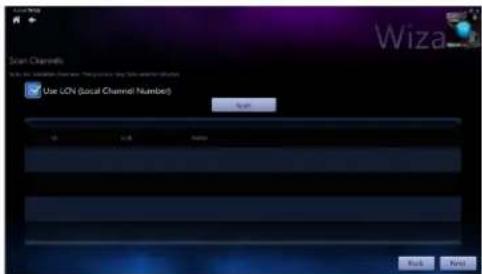
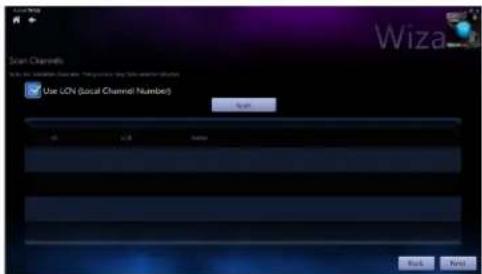
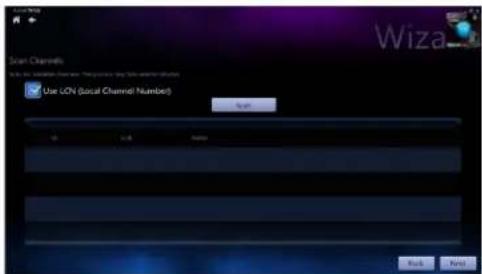
Cable TV Antenna TV- Click Scan to begin scanning for available channels.
text_image
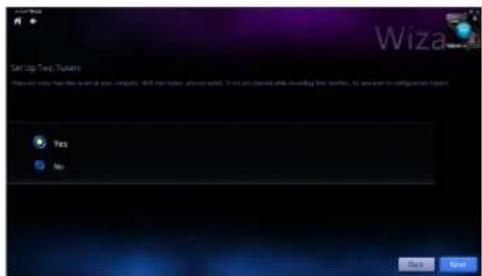
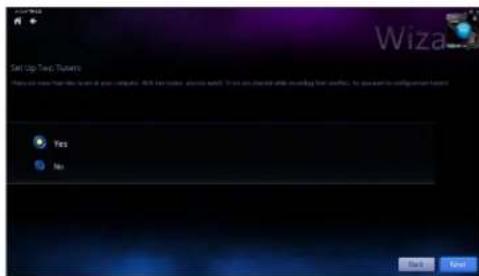
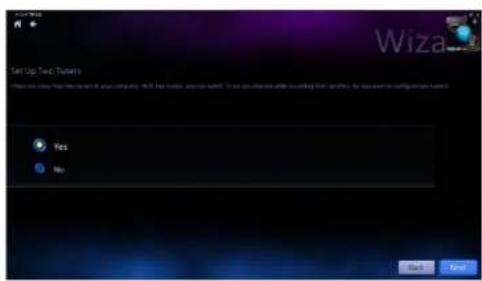
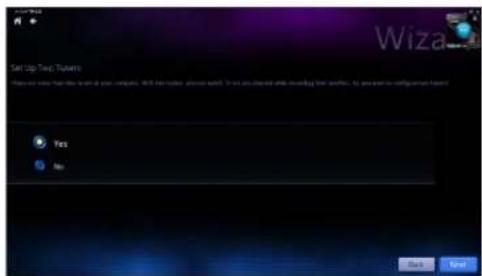
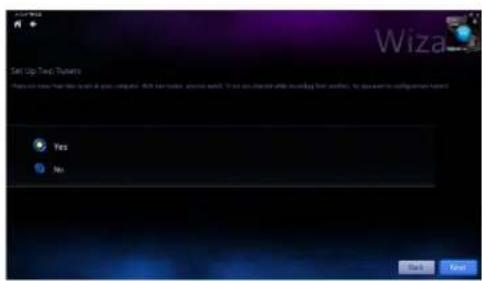
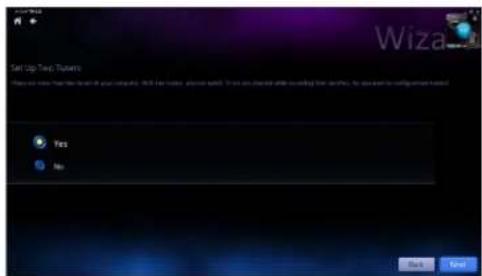
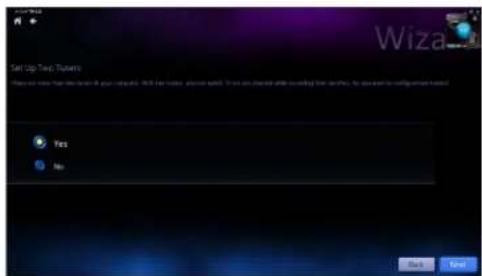
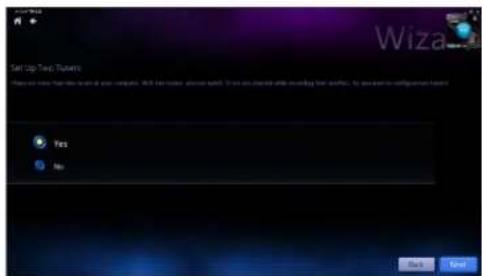
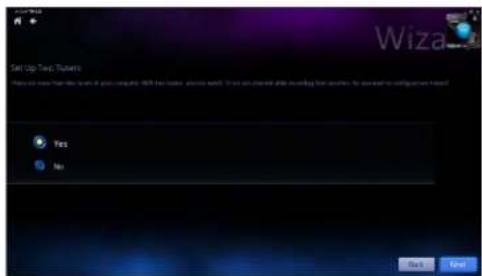
Scan Channels Use LCN (Local Channel Number) Sign OK Cancel Help Back Help- If your All-in-One PC came with both an analog and digital TV tuner, the Setup Wizard will prompt you to set up your second TV tuner.
• Select Yes to set up the second TV Tuner.
- Select No to complete the Setup Wizard.
text_image
Wiza Start Up Two Towers Yes or No: This is a version of your computer. With the following functions: Do you want to switch the following functions for any other configuration required? Yes No Back Next- Click Finish to complete the Setup Wizard.
Scheduling recordings of TV broadcasts
To schedule recordings of TV broadcasts:
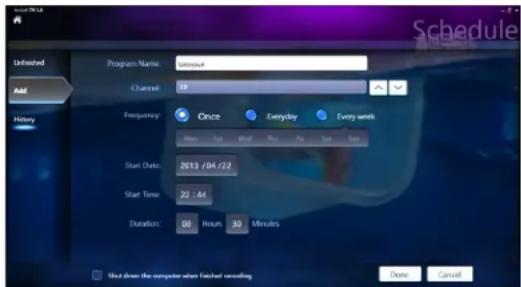
- On the main menu, click Schedule.
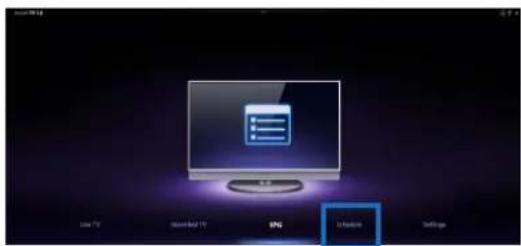
text_image
Line TV Downloaded TV SPG Information Settings- On the left panel, click Add.
-
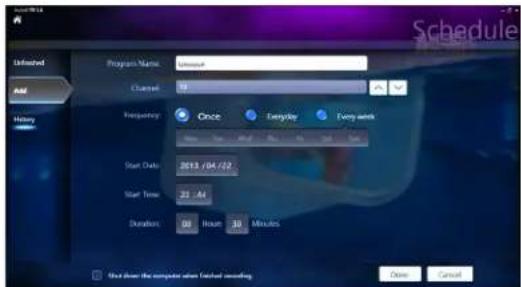
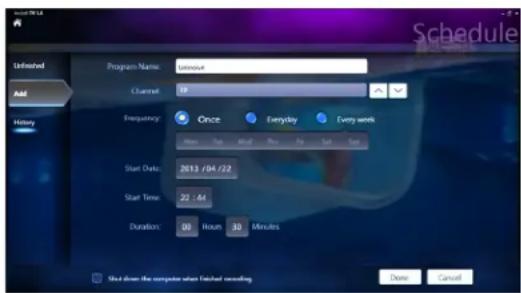
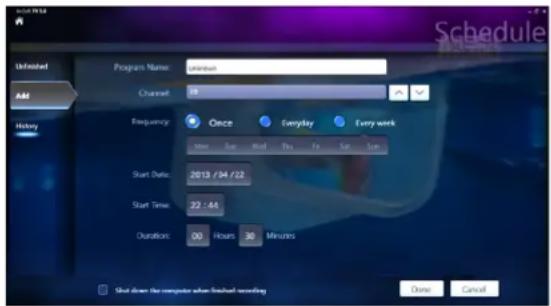
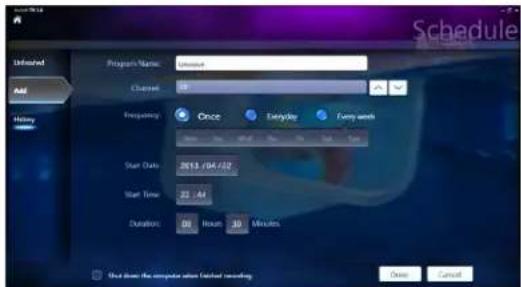
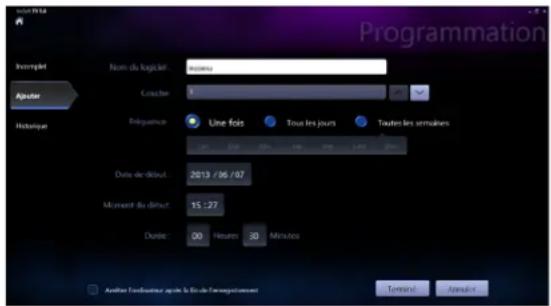
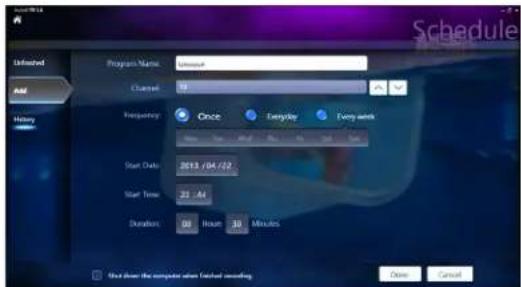
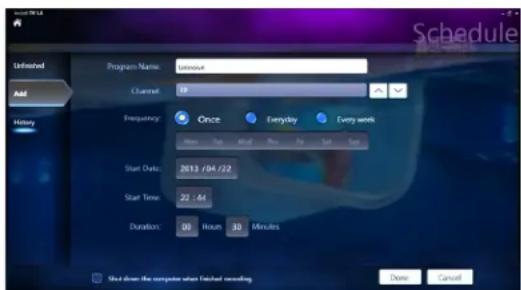
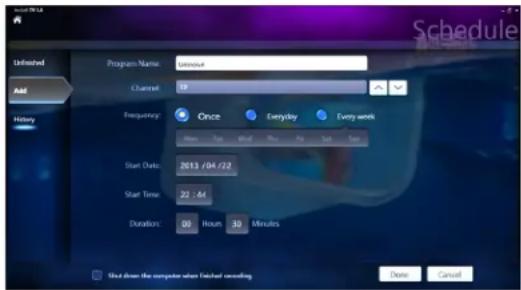
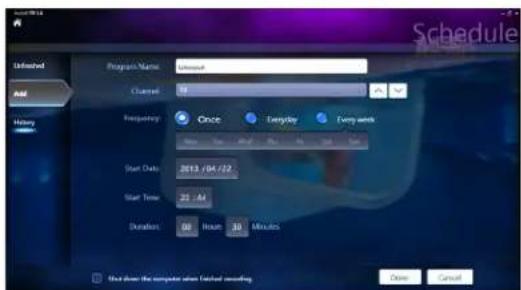
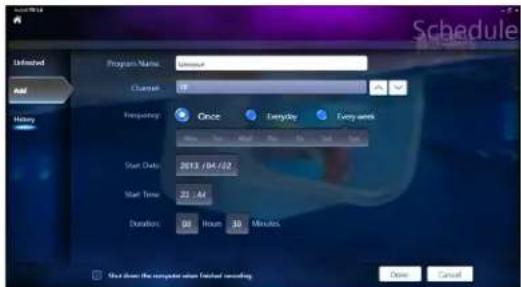
Configure the following options:
-
Program Name
- Channel
Frequency - Start Date/Time - Specify the date/time of recording.
• Duration - Specify length of recording. - Shut down the computer when finished recording
text_image
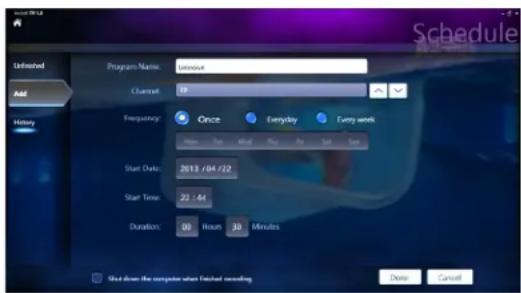
Schedule Infinevel Add Heavy Program Name: Unreal Channel: 18 Frequency: Once Everyday Every week Start Date: 2013/04/22 Start Time: 25:44 Duration: 00 Hour 30 Minutes Show the computer when installed recording Close Cancel- Click Done to save settings and schedule recording.
NOTE: The All-in-One PC needs to be powered on to automatically record TV broadcasts.
- To schedule additional recordings, repeat steps 1\~4.
NOTE: The number of recordings you can schedule is limited by the available storage on your All-in-One PC.
Using the Entertainment Program Guide (EPG)
The EPG displays the time and TV programs playing on a specified channel and date.
NOTE: EPG is only available for All-in-One PCs with a digital TV tuner.
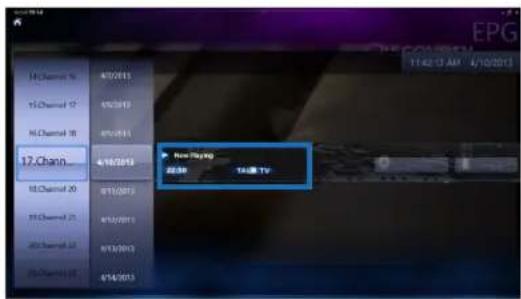
text_image
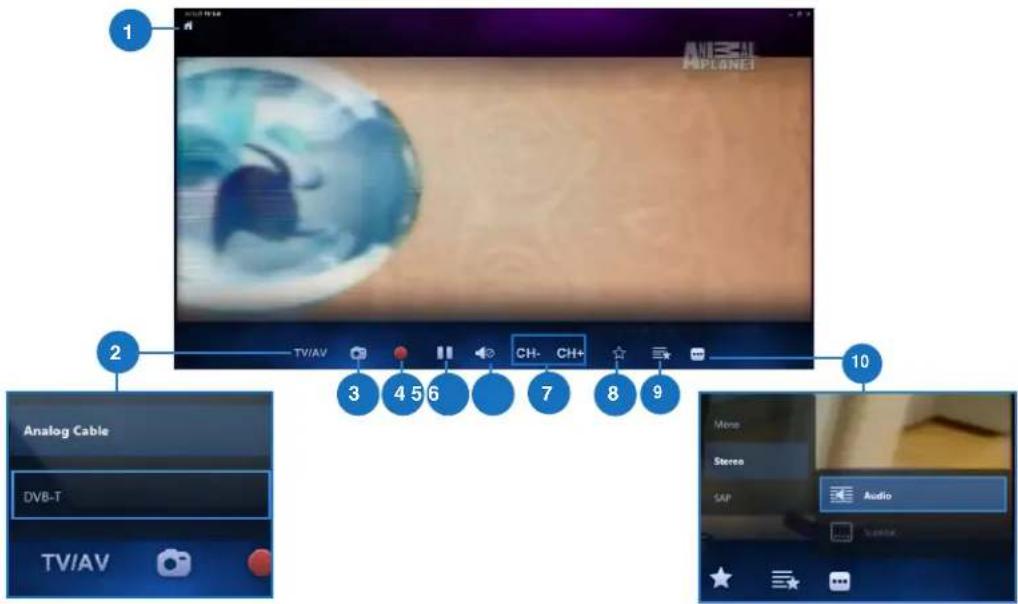
12 Channel 4/10/2013 New Playing 22:50 TAI TVUsing the Live TV Onscreen Controls

text_image
1 ANESCAL APLANET 2 TV/AV 3 4 5 6 7 CH- CH+ 8 9 10 Analog Cable DVB-T TV/AV Mono Stereo SAP Audio1 Home button
Click this icon to go to the Arcsoft TV 5.0 main menu.
2 TV/AV
Click this button to toggle between analog TV and digital TV.*
*This item is only available for All-in-One PCs with both an analog and digital TV tuner.
3 Take a screenshot
Click this button to take a screen capture of the video or media playing.
4 Record
Click this button to begin recording the television broadcast.
5 Pause
Click this button to pause recording or playback.
6 Volume Controls
Click this button to display onscreen volume controls to increase/decrease volume.
7 CH-/CH+
Click this button to increase or decrease the channel by one.
8 Add to Favorites
Click this button to add this channel to the Favorites list.
9 Favorites List
Click this button to display list of saved Favorites.
10 Subtitles and Audio Tracks
Click this button to display list of available subtitles and audio channels/tracks.
Using the Remote Control

text_image
8 Power on/off 9 Media Center buttons 10 Channel controls 11 Mute 12 Information 13 Enter 14 Shortcut buttons 15 Teletext buttons 1 Playback buttons Navigation Keys Start Volume controls Back Number keys Clear 7 CLEAR ENTER1 Playback Buttons

Play
Starts playing media. If playback is paused, pressing this button begins playback from the current position.

Pause
Pauses media playback at the current position.

Stop
Stops playing media at the current position.

Record
Record the TV show to disk. If pressed while Live TV is on, records the current show. If pressed from the EPG screen, records a TV show or TV series to disk.

Fast Forward
Speeds up the playback of the media file to the first forward value (3X).

Rewind
Reverses direction of playback and speeds up the time base to the first rewind value (3X).

Skip Forward
Skips forward one increment when this button is pressed.

Skip Back
Skips backward one increment when this button is pressed.
2 Navigation Keys

Press the up/down keys to move through the menu bar in a submenu. Press the up/down keys to decrease/increase a numerical value.
Press the left/right keys to move through the main menus in the Home screen.
Press the left/right keys to move through the items in a submenu.
Press OK to confirm the selection.

Start\*
Takes the user to the Windows Media Center Start menu.
*This button is only available for All-in-One PCs installed with Windows Media Center.
| 4 | Volume controlsPress the (+) button to increase the volume by one unit. Press the (-) button to decrease the volume by one unit. | |
| 5 | BackMoves back one position in the user interface, | |
| 6 | Number keys | |
| 7 | ClearClear any entered user input. | |
| 8 | Power on/offPress this button to put the All-in-One PC to sleep mode. Press a second time to wake up the system from sleep mode. | |
| 9 | Media Center Buttons*Record TVDisplays the Recorded TV page in Windows Media Center.GuideDisplays the media guide in Windows Media Center.Live TVShows live TV on the currently selected channel.DVD menuDisplays the DVD menu.*These buttons are only available for All-in-One PCs installed with Windows Media Center. | |
| 10 | Channel controlsIncreases/decreases the current channel by one. | |
| 11 | MuteMutes the computer audio. | |
| 12 | InformationPress to display information about the movie, video, or music. | |
| 13 | EnterPress this button to select an option or input text. | |
| 4 | Volume controlsPress the (+) button to increase the volume by one unit. Press the (-) button to decrease the volume by one unit. | |
| 5 | BackMoves back one position in the user interface, | |
| 6 | Number keys | |
| 7 | ClearClear any entered user input. | |
| 8 | Power on/offPress this button to put the All-in-One PC to sleep mode. Press a second time to wake up the system from sleep mode. | |
| 9 | Media Center Buttons*Record TVDisplays the Recorded TV page in Windows Media Center.GuideDisplays the media guide in Windows Media Center.Live TVShows live TV on the currently selected channel.DVD menuDisplays the DVD menu.*These buttons are only available for All-in-One PCs installed with Windows Media Center. | |
| 10 | Channel controlsIncreases/decreases the current channel by one. | |
| 11 | MuteMutes the computer audio. | |
| 12 | InformationPress to display information about the movie, video, or music. | |
| 13 | EnterPress this button to select an option or input text. | |

Media Center Shortcut buttons

Displays the main Radio page in Windows Media Center.

Displays the Music Library in Windows Media Center.

Displays the Picture Library in Windows Media Center.

Displays the Video Library in Windows Media Center.
*These buttons are only available for All-in-One PCs installed with Windows Media Center.


Teletext buttons\*
Press these buttons to access Teletext features when available.
*These buttons are only available for All-in-One PCs installed with Windows Media Center.
NOTE:
• To avail of Windows Media Center features, you can purchase a Windows 8 Media Center Pack separately.
- You can download a version of this manual in a different language at the ASUS support site at http://support.asus.com
All-in-One PC
English
All-in-One PC TV
Stručná příručka
text_image
Last 30 Recommended To SNC Download Settingstext_image
Search Your Region United Arab Emirates United Kingdom United States Uruguay Uzbekistan Cancel Help United Statestext_image
Cable TV Antenna V Back None
text_image
Scan Channels Wiza Use LCN (Local Channel) Numbers Sign OK Cancel Help Back Help
text_image
Wiza Start Up Two Towers Yes or No: This is a new system in your computer. It will be used to create a new system. To you can change while recording the website, we are not a configuration tool? Yes No Back Nexttext_image
Line TV Download TV PNG Addable Settings
text_image
Schedule Unfinished Add Heavy Program Name: Unfinished Channel: 10 Frequency: Once Everyday Every week Start Date: 2013/04/22 Start Time: 25 - A4 Duration: 00 Hour 30 Minutes Show the computer when fetched recording Close Canceltext_image
12 Channel 76 12 Channel 77 12 Channel 78 12 Channel... 12 Channel 20 12 Channel 21 12 Channel 22 12 Channel 23 12 Channel 24 12 Channel 25 4/10/2013 4/10/2013 New Playing 全部 Take TVtext_image
ACB TV 23 MACD Search Apps Energy Intelligence Control Systems Manage Data Security Snoring Tool Settings Mobile Online Help Body Rejectiontext_image
Select Your Region United Arab Emirates United Kingdom United States Uruguay Uzbekistan Cancel Export United Statestext_image
Cable TV Antenna V
text_image
Scan Channels Use LCN (Local Channel) Numbers Sign Back Help
text_image
Wiza Start Up Two Towers Yes or No: This is a new computer. It is not a version of this tool. To do you change while recording them software, we can want to configure your home? Yes No Back Next
text_image
Live TV Recorded TV IPG Schedule Settings
text_image
Unfinished Add History Program Name: Universe Channel: 10 Frequency: Once Everyday Every week Start Date: 2013/04/22 Start Time: 22:44 Duration: 00 Hour 30 Minutes Schedule Done Cancel- Klik på Done (Udført) for at gemme indstillingerne og den planlagte optagelse.
text_image
Select Your Region United Arab Emirates United Kingdom United States Uruguay UzbekistanAll-in-One PC
text_image
Cable TV Antenna TV
text_image
Scan Channels Scan to access channels, file names, log time, and settings. Use LON (Local Channel Number) OK OK Cancel Back Nexttext_image
Show TV Show TV Recorded TV EKG Schedule
text_image
Unfinished AM History Program Name: window Channel: 19 Frequency: Once Everyday Every week Start Date: 2013/04/22 Start Time: 22:44 Duration: 00 Hours 30 Minutes Schedule Date Canceltext_image
installed TV 10 virtual drive Manual Energy Intelligent Storage Control Virtual Drive Remote Devices Connected Trading Tool SoundFile card Sleep Recorder Search Apps Apps Settings Filestext_image
Live TV Connected TV PNG Settingstext_image
Select your Region United Arab Emirates United Kingdom United States Uruguay Uzbekistan Egyptian Region United Statestext_image
Wiza Select Video Design Digital Tument (DIF) Tument Analog Tument(Analog Tument) Next Next
text_image
Wizard Cable TV Antenna TV
text_image
Scan Channels Use the update channel new. https://www.wizia.com/ Use LCN (Local Channel) Numbers Scan Back Next
text_image
Wiza Start Up Two Turners Yes No
text_image
Line TV Download TV PNG Available Settings
text_image
Schedule Unshared All History Number Program Name: Unshared Channel: 18 Frequency: Once Everyday Every week Start Date: 2013/04/22 Start Time: 22:44 Duration: 08 Hour 30 Minutes Get down the computer after detached recording Close Canceltext_image
14Channel 76 15Channel 17 16Channel 18 17 Channel 18 Channel 20 19 Channel 21 20 Channel 22 21 Channel 23 Non Playing 22:30 TAB TVtext_image
View Back TV viewing LTV Programmation Comprisontext_image
Cholar write signal TV TV per cable TV per audio
text_image
切勿带窗 Assistant My home is my home Out Non Reset Savetext_image
TV on (Live) TV combinable GPT Programstar FusionIcon
text_image
Select Your Target United Arab Emirates United Kingdom United States Uruguay Uzbekistan United StatesAll-in-One PC
text_image
Check Your TV Signar Cable TV Antenna TV Back Next
text_image
Scan Channels Scan for localization channels, this process may have sent-channel returns. Use LON (Local Channel Number) Skip 15 20% Agree Back Nexttext_image
Start Up Two Tuners Yes and None than the Tuners in your computer. With these, you can switch. If an end started while including their password, then please call to configuration your system? Notext_image
Live TV Recorded TV IPG Shower Settingstext_image
Schedule Untitled AM History Program Name: Channel Frequency Once Everyday Every work Start Date: 2013/04/22 Start Time: 22:44 Duration: 00 Hours 30 Minutes Start share the computer when checked scrolling Date Consulttext_image
14Channel 16 4/7/2013 15Channel 17 5/8/2012 16Channel 18 4/10/2013 17.Chann... 4/18/2014 Blue Buying 22:30 14th TV 15Channel 20 4/11/2015 16Channel 21 4/12/2015 17Channel 22 4/13/2015 18Channel 23 4/14/2015All-in-One PC
text_image
Start Menu Add To Go Makeup Search Apps Add Remove Delete Help Help Help Help Help Help Help Help Help Help Help Help Help Help Help Help Help Help Help Help Help Help Help Help Help Help Help Help Help Help Help Help Help Help Help Help Help Help Help Help Help Help Help Help Help Help Help Help Help Help Happ Help Help Help Help Help Help Help Help Help Help Help Help Help Help Help Help Help Help Help Help Help Help Help Help Help Help Help Help Help Help Help Help Help Help Help Help Help Help Help Help Help Help Help Help Help Help Help Help Help Helptext_image
File Browse By INS Create Settingstext_image
Search Your Region United Arab Emirates United Kingdom United States Uruguay Uzbekistantext_image
Cable TV Antenna V Back None
text_image
Scan Channels Wiza Use LCN (Local Channel) Numbers Sign OK Cancel Help Back Help
text_image
Wiza Start Up Two Towers Yes or No: This is a new system in your computer. It will be used to create a new system. To you can change while recording the website, we are not a configuration tool? Yes No Back Nexttext_image
Line TV Download TV SPG Additions Settings
text_image
Schedule Unfinished Add Heavy Program Name: Unreal Channel: 10 Frequency: Once Everyday Every week Start Date: 2013/04/22 Start Time: 25:44 Duration: 00 Hour 10 Minutes Stop from the computer when finished recording Close Canceltext_image
12 Channel 76 12 Channel 77 12 Channel 78 12 Channel 79 12 Channel 80 12 Channel 81 12 Channel 82 12 Channel 83 12 Channel 84 12 Channel 85 12 Channel 86 12 Channel 87 12 Channel 88 12 Channel 89 12 Channel 90 12 Channel 91 12 Channel 92 12 Channel 93 12 Channel 94 12 Channel 95 12 Channel 96 12 Channel 97 12 Channel 98 12 Channel 99 12 Channel 100 New Playing 00:00 TAI TVtext_image
Select Your Region United Arab Emirates United Kingdom United States Uruguay Uzbekistan Cancel Help United Statestext_image
Wizard Cable TV Antenna TV
text_image
Scan Channels Use the update channel. https://www.wiza.com/ Use LCN (Local Channel) Number Scan Back Next
text_image
Wiza Set Up Tunnel Turners Yes No
text_image
Live TV Recorded TV IPG Schedule Settings
text_image
Unfinished Add History Program Name: Unsteady Channel: 10 Frequency: Once Everyday Every week Start Date: 2013/04/22 Start Time: 22:44 Duration: 09 Hour 30 Minutes Shut driven the computer when fetched recording Date Cancel ScheduleBruke programguiden (EPG = Electronic Program Guide)
Viser hovedsiden for radio i Windows Media Center.

Viser musikkbiblioteket i Windows Media Center.

Viser bildebiblioteket i Windows Media Center.

Viser videobiblioteket i Windows Media Center.
* Disse knappene er bare tilgjengelig på Alt-i-én-PC-er när Windows Media Center er installert.


Tekst-TV-knapper\*
text_image
Java TV Microsoft TV BNC Connect SendMailtext_image
Select Your Region United Arab Emirates United Kingdom United States Uruguay Liberikistan Cancel Again United Statestext_image
Cable TV Antenna V Wizard Add New
text_image
Start Channels Wiza Use LCN (Local Channel) Numbers Scan OK Cancel Finish Back Help
text_image
Wiza Start Up Two Towers Yes or No: This is now in your computer. It will be done, you want to start up the next session, but you want to config your user.
text_image
Live TV Recorded TV IPG Schedule Settings
text_image
Unfinished Add History Program Name: Unusual Channel: 10 Frequency: Once Everyday Every week Start Date: 2013/04/22 Start Time: 22:44 Duration: 00 Hour 30 Minutes Start from the computer when finished recording Done Canceltext_image
Add TV 23 VMware Search Apps Add Remove Delete Inserting Tool Settings Helptext_image
Log 10 Benedict TV SNC Cloud Settingstext_image
Select Your Region United Arab Emirates United Kingdom United States Uruguay Uzbekistan Wizardtext_image
Cable TV Antenna V Wizard 确定 Next
text_image
Scan Channels Wiza Use LCN (Local Channel) Numbers Sign OK Cancel Help Back Help
text_image
Wiza Start Up Two Turners Yes No
text_image
Live TV Recorded TV IPG Schedule Settings
text_image
Unfinished Add History Program Name: Unusual Channel: 18 Frequency: Once Everyday Every week Start Date: 2013/04/22 Start Time: 22:44 Duration: 09 Hour 30 Minutes Show the computer when fetched confirming Date Cancel Scheduletext_image
List To Download TV EPS Duration Settingstext_image
Select Your Region United Arab Emirates United Kingdom United States Uruguay Uzbekistan
2
All-in-One PC
text_image
Wizard Cable TV Antenna TVtext_image
Scan Channels Scan to be available channels. This presentation takes several minutes. Use LCN (Local Channel Number) Scan 1% 2% 3% Back Back Wizatext_image
User TV Accounted TV EPC Siknwire Settingstext_image
Schedule Unlested ANN History Program Name: Session Channel: 10 Frequency Once Everyday Every week Start Date: 2018/04/22 Start Time: 22:44 Duration: 00 Hours 30 Minutes Start down the computer when finished recording Date Canceltext_image
16 Channel 16 4/22/2013 15 Channel 17 4/8/2013 16 Channel 18 4/9/2013 17 Channel 4/10/2013 New Flaps 18 Channel 20 4/11/2013 19 Channel 21 4/12/2013 20 Channel 22 4/13/2013 4/14/2013All-in-One PC
text_image
Add TV 13 VMETER Search Apps Add Energy Intelligent Control Local Control Manage Home Edit Help Help Because Settings Filetext_image
File NT Benedict TV SNC Gndtch Settingstext_image
Search Your Region United Arab Emirates United Kingdom United States Uruguay Uzbekistan Wizard United Statestext_image
Wizal Select Video Design Digital Tument (DIF) Tument Analog Tument(Analog Tument) Next Next
text_image
Wizard Cable TV Antenna TVtext_image
Scan Channels Use LCN (Local Channel) Numbers Scan Back Nexttext_image
Wiza Set Up Turkey Turkey Yes Notext_image
Live TV Recorded TV SPG Schedule Settings
text_image
Schedule Unfinished Add History Program Name: Un finished Channel: 10 Frequency: Once Everyday Every week Start Date: 2013/04/22 Start Time: 22:44 Duration: 00 Hour 30 Minutes Shut from the computer when finished recording Done Canceltext_image
Add TV to Add Remove Delete Search Apps Add Remove Delete Add Remove Delete Add Remove Delete Add Remove Delete Add Remove Delete Add Remove Delete Add Remove Delete Add Remove Delete Add Remove Delete Add Remove Delete Add Remove Delete Add Remove Delete Add Remove Delete Add Remove Delete Add Remove Delete Add Remove Delete Add Remove Delete Add Add Remove Delete Add Remove Delete Add Remove Delete Add Remove Delete Add Remove Delete Add Remove Delete Add Remove Delete Add Remove Delete Add Remove Delete Add Remove Delete Add Remove Delete Add Remove Delete Add Remove Delete Add Remove Delete Add Remove Delete Add Remove Delete Add ImportInstallera ditt TV-mottagarprogram
Installera ArcSoft TV 5.0:
text_image
Live 32 Refreshed 1% 32 Refresh Settingstext_image
Select Your Region United Arab Emirates United Kingdom United States Uruguay Uzbekistantext_image
Cable TV Antenna V Back None
text_image
Scan Channels Wiza Use LCN (Local Channel) Numbers Sign OK Cancel Help Back Help
text_image
Wiza Start Up Two Towers Yes or No: This is a new system in your computer. It will be used to create a new system. To you can change while recording the website, we are not a configuration tool? Yes No Back Nexttext_image
Line TV Download TV SPG Additions Settings